


IronPDF vs GrapeCity PDF: Porównanie bibliotek PDF dla .NET

IronPDF specializes in HTML-to-PDF generation with Chrome V8 rendering engine for .NET applications, while GrapeCity PDF focuses on PDF viewing and annotation features, making IronPDF the superior choice for developers needing complete PDF creation capabilities with modern web content support.
PDF to skrót od Portable Document Format. Jest to typ pliku, który umożliwia standardowe przeglądanie dokumentów na wielu różnych urządzeniach. Pliki PDF są często wykorzystywane do udostępniania ważnych dokumentów, takich jak CV potencjalnym pracodawcom lub faktury klientom.
Pomimo swojej popularności pliki PDF mają pewne ograniczenia. Na przykład nie można udostępniać plików PDF za pośrednictwem poczty elektronicznej, jeśli odbiorcy nie dysponują czytnikiem plików PDF. Pliki PDF mogą nie wyświetlać się wyraźnie na urządzeniach mobilnych, tak jak dokumenty WORD. Ponadto, w przeciwieństwie do dokumentów WORD, pliki PDF wymagają oprogramowania do edycji w celu modyfikacji lub aktualizacji treści. Jednak pliki PDF zachowują spójny wygląd na wszystkich urządzeniach — zarówno na komputerach PC, jak i Mac. Ta niezawodność sprawia, że pliki PDF są standardowym formatem, którego nie ma w innych typach dokumentów, takich jak JPEG czy GIF.
W tym artykule omówimy dwie biblioteki .NET do obsługi plików PDF:
- IronPDF
GrapeCityPDF
What Is IronPDF and How Does It Compare to GrapeCity?
IronPDF to biblioteka .NET zapewniająca funkcje tworzenia, odczytu i manipulacji dokumentami PDF przy minimalnym nakładzie kodu. W tym artykule pokazano, jak tworzyć pliki PDF za pomocą IronPDF. Wymagana jest podstawowa znajomość Visual Studio lub języka C# oraz praktyczna znajomość HTML.
Do pisania, kompilowania i uruchamiania aplikacji potrzebne jest Visual Studio, do logiki i kodu — C#, a do formatowania plików PDF, w tym tytułów, nagłówków, obrazów i akapitów — HTML. IronPDF w pełni obsługuje .NET Core, .NET 5, Framework i Standard. W przypadku aplikacji ASP.NET IronPDF zapewnia płynną integrację w celu konwersji stron internetowych do formatu PDF.
Możesz tworzyć pliki PDF w języku C# przy użyciu minimalnej ilości kodu, posiadając podstawową wiedzę z zakresu C# i HTML. Więcej informacji można znaleźć na oficjalnej stronie poświęconej funkcjom IronPDF. W zakresie programowego tworzenia plików PDF IronPDF oferuje szerokie możliwości wykraczające poza podstawową konwersję HTML.
Jak zainstalować IronPDF w moim projekcie .NET?
Opracowanie rozwiązań wymaga zainstalowania pakietu IronPDF NuGet. Kliknij "Projekt" na pasku menu. Wybierz opcję "Zarządzaj pakietami NuGet" z menu rozwijanego. Szczegółowe instrukcje znajdują się w przeglądzie instalacji. W tym oknie wyświetli się:
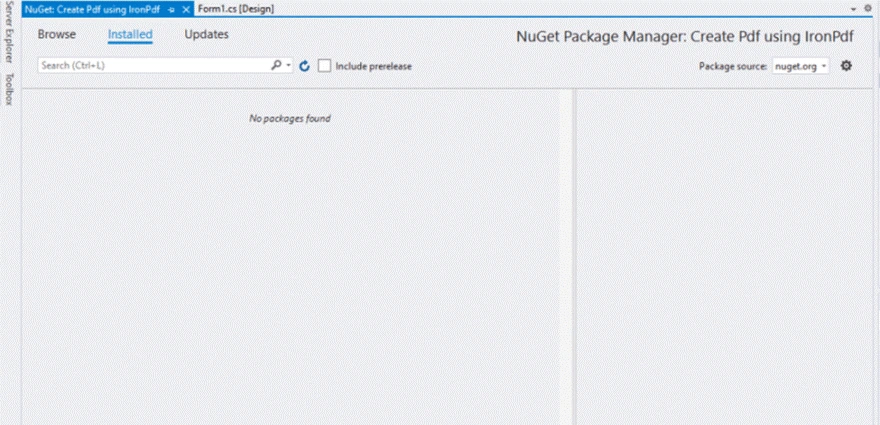
Interfejs menedżera pakietów NuGet wyświetla pusty wynik wyszukiwania podczas wyszukiwania IronPDF, co wskazuje, że pakiet może być niedostępny lub mogą występować problemy z łącznością
Wybierz "Przeglądaj", aby wyświetlić to okno:
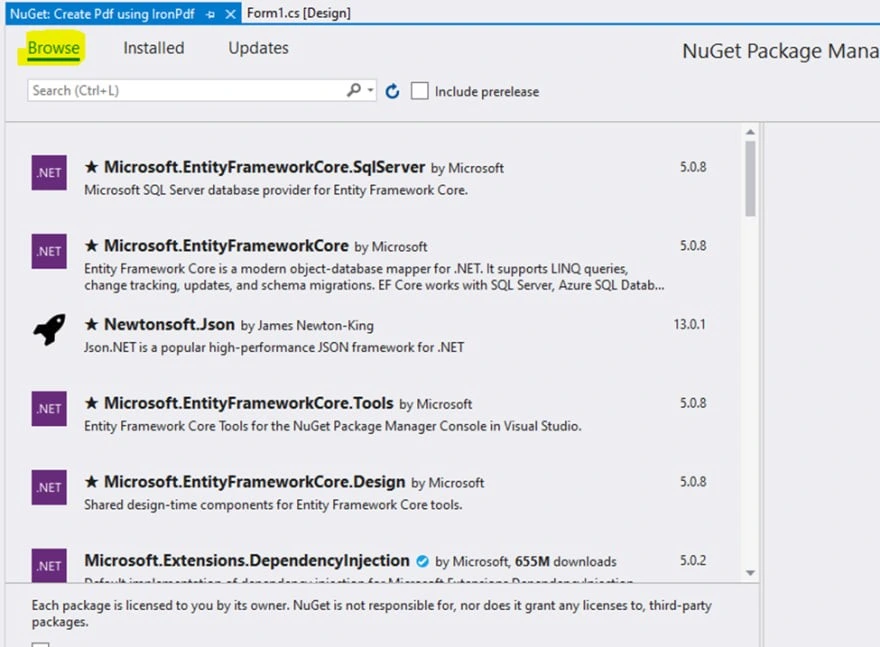
Menedżer pakietów NuGet zapewnia łatwy dostęp do niezbędnych bibliotek .NET, przy czym Entity Framework Core i Newtonsoft.Json należą do najpopularniejszych pakietów odpowiednio do operacji na bazach danych i obsługi JSON.
Wpisz "IronPDF" w polu wyszukiwania i naciśnij klawisz "Enter". Aby uzyskać dostęp do zaawansowanych opcji instalacji, w tym konfiguracji specyficznych dla danej platformy, zapoznaj się z dokumentacją. Powinieneś zobaczyć:
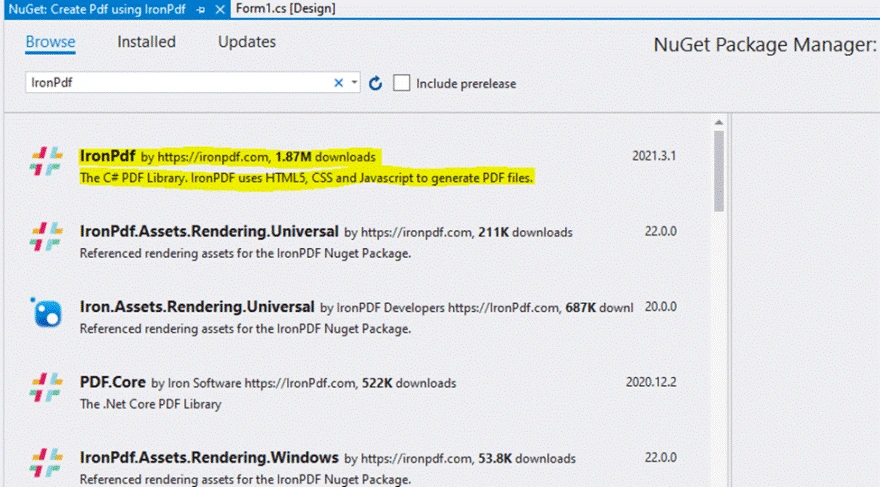
Interfejs menedżera pakietów NuGet wyświetla różne pakiety IronPDF dostępne do instalacji, wraz z liczbą pobrań i numerami wersji widocznymi dla każdego pakietu.
Wybierz IronPDF:
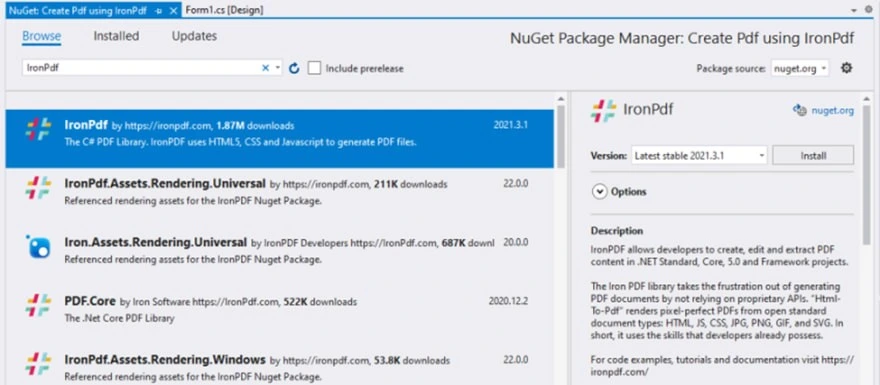
Interfejs menedżera pakietów NuGet wyświetla IronPDF (wersja 2021.3.1) jako wybrany pakiet do instalacji, a dla porównania podaje alternatywne biblioteki PDF, w tym PDFCore i różne zasoby renderowania IronPDF.
Kliknij "Zainstaluj". Po pomyślnej instalacji zobaczysz:
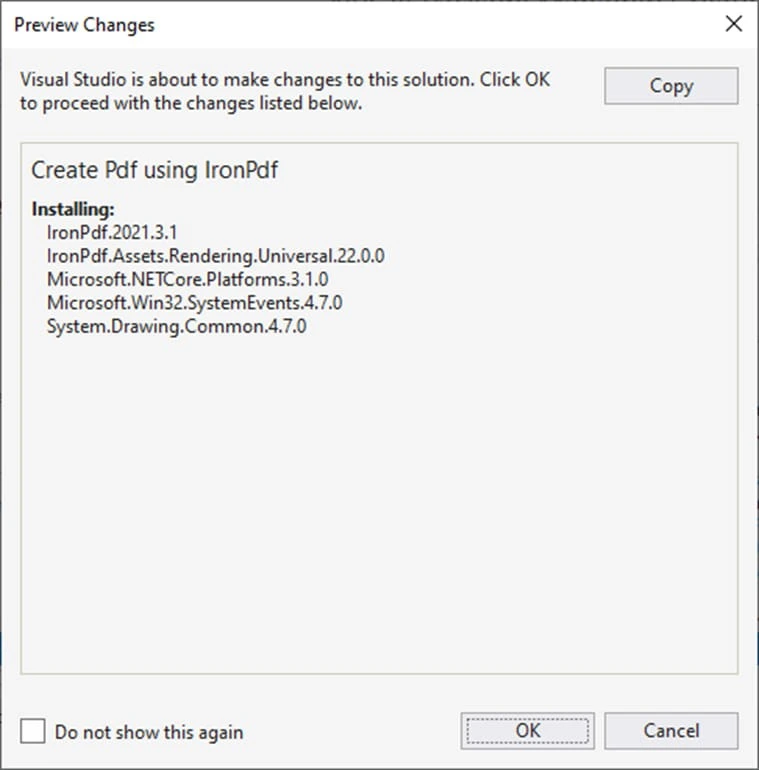
Proces instalacji IronPDF w Visual Studio, pokazujący menedżera pakietów NuGet instalującego IronPDF w wersji 2021.3.1 wraz z jego zależnościami
Naciśnij "OK", aby zakończyć instalację. IronPDF obsługuje platformy Windows, w tym systemy Windows 10, 11 oraz wersje serwerowe. Biblioteka obsługuje również systemy Linux i macOS, umożliwiając tworzenie oprogramowania na wiele platform.
Jak tworzyć pliki PDF za pomocą IronPDF?
Dodaj przestrzeń nazw IronPdf na początku pliku. Dla programistów VB.NET dostępna jest podobna funkcjonalność:
using IronPdf;using IronPdf;Imports IronPdfPotrzebna jest ścieżka do pliku, w którym zostanie zapisany utworzony plik PDF. Use SaveFileDialog to prompt users for file name and path. W zaawansowanych scenariuszach eksportuj pliki PDF do strumieni pamięci bez zapisywania na dysku:
private void Save_Click(object sender, EventArgs e)
{
    // Code to Select the folder and save the file.
    SaveFileDialog saveFileDialog1 = new SaveFileDialog();
    saveFileDialog1.InitialDirectory = @"D:\";
    saveFileDialog1.Title = "Save Pdf File";
    saveFileDialog1.DefaultExt = "pdf";
    saveFileDialog1.Filter = "Pdf files (*.pdf)|*.pdf|All files (*.*)|*.*";
    saveFileDialog1.FilterIndex = 2;
    saveFileDialog1.RestoreDirectory = true;
    if (saveFileDialog1.ShowDialog() == DialogResult.OK)
    {
        string filename = saveFileDialog1.FileName;
        // actual code that will create Pdf files
        var HtmlLine = new HtmlToPdf();
        HtmlLine.RenderHtmlAsPdf(PdfText.Text).SaveAs(filename);
        // MessageBox to display that file save
        MessageBox.Show("File Saved Successfully!");
    }
}
private void Save_Click(object sender, EventArgs e)
{
// Code to Select the folder and save the file.
SaveFileDialog saveFileDialog1 = new SaveFileDialog();
saveFileDialog1.InitialDirectory = @"D:\";
saveFileDialog1.Title = "Save Pdf File";
saveFileDialog1.DefaultExt = "pdf";
saveFileDialog1.Filter = "Pdf files (*.pdf)|*.pdf|All files (*.*)|*.*";
saveFileDialog1.FilterIndex = 2;
saveFileDialog1.RestoreDirectory = true;
if (saveFileDialog1.ShowDialog() == DialogResult.OK)
{
string filename = saveFileDialog1.FileName;
// actual code that will create Pdf files
var HtmlLine = new HtmlToPdf();
HtmlLine.RenderHtmlAsPdf(PdfText.Text).SaveAs(filename);
// MessageBox to display that file save
MessageBox.Show("File Saved Successfully!");
}
}Private Sub Save_Click(ByVal sender As Object, ByVal e As EventArgs)
' Code to Select the folder and save the file.
Dim saveFileDialog1 As New SaveFileDialog()
saveFileDialog1.InitialDirectory = "D:\"
saveFileDialog1.Title = "Save Pdf File"
saveFileDialog1.DefaultExt = "pdf"
saveFileDialog1.Filter = "Pdf files (*.pdf)|*.pdf|All files (*.*)|*.*"
saveFileDialog1.FilterIndex = 2
saveFileDialog1.RestoreDirectory = True
If saveFileDialog1.ShowDialog() = DialogResult.OK Then
Dim filename As String = saveFileDialog1.FileName
' actual code that will create Pdf files
Dim HtmlLine = New HtmlToPdf()
HtmlLine.RenderHtmlAsPdf(PdfText.Text).SaveAs(filename)
' MessageBox to display that file save
MessageBox.Show("File Saved Successfully!")
End If
End SubSaveFileDialog opens a dialog for selecting folder and filename. Domyślnym katalogiem początkowym jest dysk D, ale można go zmienić. DefaultExtension is set to PDF. Aby zapoznać się z pełnymi opcjami konwersji, przejrzyj samouczek dotyczący konwersji HTML do PDF.
Warunek "if" zawiera kod tworzący plik PDF. Wystarczą tylko dwie linijki kodu, aby wygenerować pliki PDF. PdfText is the Rich Text box name containing PDF content. Filename is the selected file path from SaveFileDialog. W przypadku aplikacji internetowych IronPDF obsługuje konwersję adresów URL do formatu PDF oraz konwersję plików ASPX do formatu PDF.
Jak czytać pliki PDF za pomocą IronPDF?
Odczytanie plików PDF wymaga tylko dwóch wierszy kodu dzięki IronPDF. Aby uzyskać informacje na temat zaawansowanego wyodrębniania, zapoznaj się z przewodnikiem dotyczącym wyodrębniania tekstu i obrazów.
Dodaj następujące importy:
using IronPdf;
using System;
using System.Windows.Forms;
using IronPdf;
using System;
using System.Windows.Forms;Imports IronPdf
Imports System
Imports System.Windows.FormsWpisz ten kod wewnątrz swojej funkcji. IronPDF zapewnia funkcje analizowania plików PDF oraz dostęp do DOM plików PDF:
private void Read_Click(object sender, EventArgs e)
{
    PdfDocument PDF = PdfDocument.FromFile(FilePath.Text);
    FileContent.Text = PDF.ExtractAllText();
}
private void Read_Click(object sender, EventArgs e)
{
PdfDocument PDF = PdfDocument.FromFile(FilePath.Text);
FileContent.Text = PDF.ExtractAllText();
}Private Sub Read_Click(ByVal sender As Object, ByVal e As EventArgs)
Dim PDF As PdfDocument = PdfDocument.FromFile(FilePath.Text)
FileContent.Text = PDF.ExtractAllText()
End SubPozwala to na wyodrębnienie wszystkich informacji z dokumentów do przeglądarek. Komponenty raportujące wykorzystują te dane jako źródła. IronPDF obsługuje odczytywanie plików PDF ze strumieni pamięci oraz konwersję plików PDF do formatu HTML w celu wyświetlania w sieci.
What Features Does GrapeCity PDF Offer?
GrapeCity Documents provides cross-platform document management for common formats. Biblioteka .NET Standard 2.0 odczytuje, generuje, modyfikuje i zapisuje pliki PDF bez programu Adobe Acrobat. Oferuje obsługę czcionek, obrazów, grafiki, BARCODE-ów, komentarzy, konturów, stempli i znaków wodnych.
Jakie funkcje edycji plików PDF są dostępne?
GrapeCityPDF creates PDFs for basic or complex business needs in .NET Standard apps. You can load, change, and save PDFs from any source. IronPDF oferuje pełną edycję plików PDF, w tym scalanie/dzielenie plików, dodawanie/usuwanie stron oraz obracanie stron.
Czy mogę konwertować pliki PDF na obrazy?
GrapeCityPDF saves PDFs as images without quality loss using minimal code. IronPDF oferuje funkcję rasteryzacji plików PDF do obrazów, obsługującą formaty PNG, JPEG i TIFF.
Does GrapeCity Include a PDF Viewer Component?
GrapeCity Documents PDF Viewer is a lightweight client-side viewer supporting standard PDF features. Dla programistów .NET MAUI IronPDF oferuje przeglądanie plików PDF w aplikacjach MAUI wraz z funkcjami nawigacji i wyszukiwania.
Jakie rodzaje funkcji są obsługiwane?
GrapeCityPDF creates complex PDFs with text, graphics, photos, annotations, and outlines. IronPDF rozszerza te możliwości o podpisy cyfrowe, tworzenie i wypełnianie formularzy, znakowanie wodne oraz zarządzanie metadanymi.
How Do I Install GrapeCity PDF?
Istnieją dwie metody instalacji. W przypadku wdrażania w kontenerach IronPDF oferuje obsługę Docker oraz zdalne sterowanie kontenerami, co zapewnia elastyczność generowania:
- Pobierz spakowane pliki źródłowe w formacie ZIP.
- Wyodrębnij pliki do katalogu.
- Przejdź do tego katalogu.
- Execute
run.cmdto build samples, startSupportApiservice, and open http://localhost:3003. - See
readme.MDfor details.
How Do I Install the WinForms Edition?
Follow these steps for WinForms Edition installation:
- Download C1ControlPanel from
GrapeCity'sComponentOne. - Open
ControlPanelwithComponentOneC1ControlPanel.exe (close Visual Studio). - Zaloguj się przy użyciu zarejestrowanego adresu e-mail i hasła.
- Dla nowych użytkowników:
- Zarejestruj się i załóż konto.
- Zweryfikuj adres e-mail.
- Aktywuj za pomocą linku weryfikacyjnego.
- Jeśli wolisz, możesz kontynuować jako anonimowy użytkownik.
- Select Install in
WinFormsEdition tile. Install all editions via All Editions checkbox.
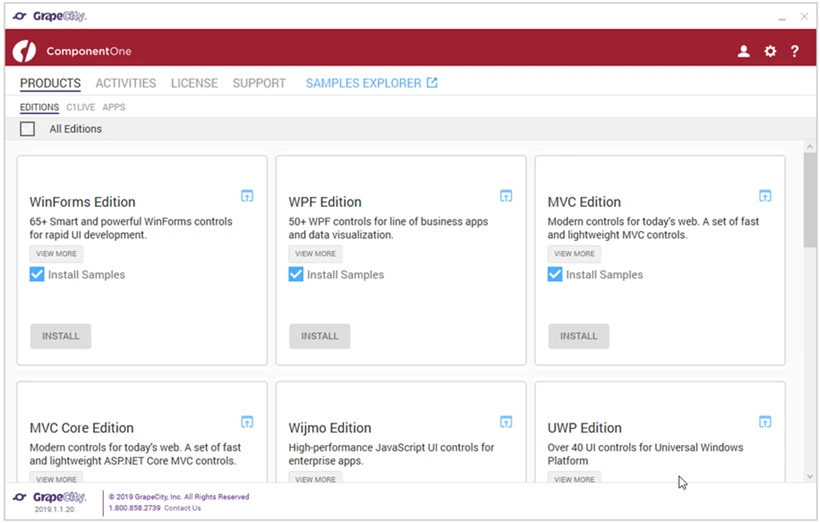
`GrapeCity`'s `ComponentOne` offers multiple edition options tailored to different development platforms and frameworks, each with the option to install sample projects
- Kliknij Instaluj, aby wyświetlić Umowę licencyjną. Accept after review.
- Accept License Agreement to see Settings page. Verify directory path and begin installation.
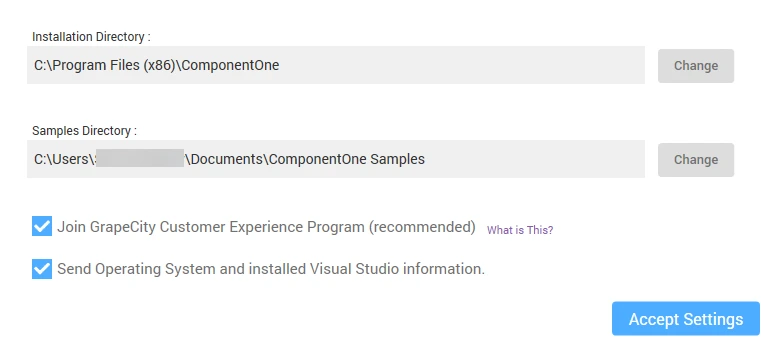
`ComponentOne` installation configuration screen with privacy and data collection options
- Installer displays progress during control installation. Cannot cancel during this process.
- "Installation Success" screen appears when complete. Shows currently installed version.
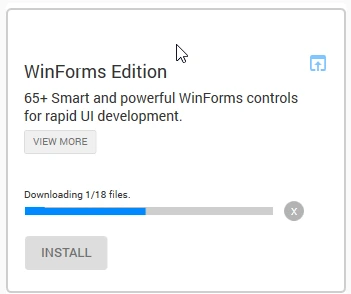
The `WinForms` Edition installer interface displays a simple download progress bar and installation option for a suite of 65+ smart and effective UI controls designed for rapid Windows Forms development.
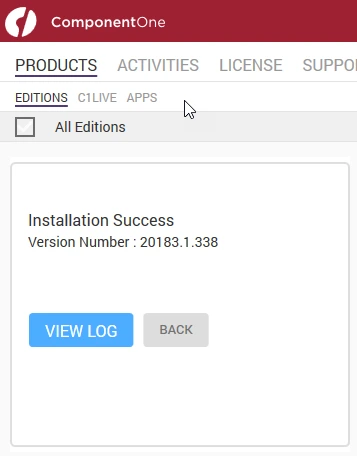
The `ComponentOne` installation interface displays a successful installation message for version 20183.1.338, featuring navigation tabs for Products, Activities, License, and Support
How Do I Create PDFs with GrapeCity?
The following code demonstrates basic GrapeCity PDF creation. For advanced features like HTML-to-PDF with JavaScript, responsive CSS, or custom headers/footers, IronPDF provides complete solutions:
using System;
using System.IO;
using System.Drawing;
using System.Text;
using GrapeCity.Documents.Text;
using GrapeCity.Documents.Common;
using GrapeCity.Documents.Drawing;
using GrapeCity.Documents.Pdf;
using GrapeCity.Documents.Pdf.Structure;
using GrapeCity.Documents.Pdf.MarkedContent;
using GrapeCity.Documents.Pdf.Graphics;
using GrapeCity.Documents.Pdf.Annotations;
using GCTEXT = GrapeCity.Documents.Text;
using GCDRAW = GrapeCity.Documents.Drawing;
namespace GcPdfWeb.Samples.Basics
{
    // This sample shows how to create a PDF/A-3u compliant document.
    public class PdfA
    {
        public void CreatePDF(Stream stream)
        {
            var doc = new GcPdfDocument();
            var date = new DateTime(1961, 4, 12, 6, 7, 0, DateTimeKind.Utc);

            // Mark the document as PDF/A-3u conformant:
            doc.ConformanceLevel = PdfAConformanceLevel.PdfA3u;

            var fnt = GCTEXT.Font.FromFile(Path.Combine("Resources", "Fonts", "arial.ttf"));
            var gap = 36;

            // PDF/A-3a requires all content to be tagged so create and populate StructElement when rendering:
            StructElement sePart = new StructElement("Part");
            doc.StructTreeRoot.Children.Add(sePart);

            TextLayout tl = null;
            // Add 3 pages with sample content tagged according to PDF/A rules:
            for (int pageNo = 1; pageNo <= 3; ++pageNo)
            {
                // add page
                var page = doc.Pages.Add();
                var g = page.Graphics;
                float y = 72;
                if (doc.Pages.Count == 1)
                {
                    // Create paragraph element:
                    var seParagraph = new StructElement("P") { DefaultPage = page };
                    // Add it to Part element:
                    sePart.Children.Add(seParagraph);

                    tl = g.CreateTextLayout();
                    tl.MarginAll = 72;
                    tl.MaxWidth = page.Size.Width;

                    tl.DefaultFormat.Font = fnt;
                    tl.DefaultFormat.FontBold = true;
                    tl.DefaultFormat.FontSize = 20;
                    tl.Append("PDF/A-3A Document");

                    // PerformLayout is done automatically in a new TextLayout or after a Clear():
                    //tl.PerformLayout(true);

                    // Draw TextLayout within tagged content:
                    g.BeginMarkedContent(new TagMcid("P", 0));
                    g.DrawTextLayout(tl, PointF.Empty);
                    g.EndMarkedContent();

                    y = tl.ContentRectangle.Bottom + gap;

                    seParagraph.ContentItems.Add(new McidContentItemLink(0));
                }

                // Add some sample paragraphs tagged according to PDF/A rules:
                for (int i = 1; i <= 3; ++i)
                {
                    // Create paragraph element:
                    var seParagraph = new StructElement("P") { DefaultPage = page };
                    // Add it to Part element:
                    sePart.Children.Add(seParagraph);

                    var sb = new StringBuilder();
                    sb.Append(string.Format("Paragraph {0} on page {1}: ", i, pageNo));
                    sb.Append(Common.Util.LoremIpsum(1, 2, 4, 5, 10));
                    var para = sb.ToString();

                    tl.Clear();
                    tl.DefaultFormat.FontSize = 14;
                    tl.DefaultFormat.FontBold = false;
                    tl.MarginTop = y;
                    tl.Append(para);

                    // Draw TextLayout within tagged content:
                    g.BeginMarkedContent(new TagMcid("P", i));
                    g.DrawTextLayout(tl, PointF.Empty);
                    g.EndMarkedContent();

                    y += tl.ContentHeight + gap;

                    // Add content item to paragraph StructElement:
                    seParagraph.ContentItems.Add(new McidContentItemLink(i));

                    // PDF/A-3 allows embedding files into document, but they should be associated with some document element
                    // add embedded file associated with seParagraph:
                    var ef1 = EmbeddedFileStream.FromBytes(doc, Encoding.UTF8.GetBytes(para));
                    // ModificationDate and MimeType should be specified in case of PDF/A:
                    ef1.ModificationDate = date;
                    ef1.MimeType = "text/plain";
                    var fn = string.Format("Page{0}_Paragraph{1}.txt", pageNo, i);
                    var fs1 = FileSpecification.FromEmbeddedStream(fn, ef1);
                    // UnicodeFile.FileName should be specified for PDF/A compliance:
                    fs1.UnicodeFile.FileName = fs1.File.FileName;
                    // Relationship should be specified in case of PDF/A:
                    fs1.Relationship = AFRelationship.Unspecified;
                    doc.EmbeddedFiles.Add(fn, fs1);
                    seParagraph.AssociatedFiles.Add(fs1);
                }
            }

            // PDF/A-3 allows transparency drawing in PDF file, add some:
            var gpage = doc.Pages [0].Graphics;
            gpage.FillRectangle(new RectangleF(20, 20, 200, 200), Color.FromArgb(40, Color.Red));

            // PDF/A-3 allows using FormXObjects, add one with transparency:
            var r = new RectangleF(0, 0, 144, 72);
            var fxo = new FormXObject(doc, r);
            var gfxo = fxo.Graphics;
            gfxo.FillRectangle(r, Color.FromArgb(40, Color.Violet));
            TextFormat tf = new TextFormat()
            {
                Font = fnt,
                FontSize = 16,
                ForeColor = Color.FromArgb(100, Color.Black),
            };
            gfxo.DrawString("FormXObject", tf, r, TextAlignment.Center, ParagraphAlignment.Center);
            gfxo.DrawRectangle(r, Color.Blue, 3);
            gpage.DrawForm(fxo, new RectangleF(300, 250, r.Width, r.Height), null, ImageAlign.ScaleImage);

            // PDF/A-3 allows using embedded files, but each embedded file must be associated with a document's element:
            EmbeddedFileStream ef = EmbeddedFileStream.FromFile(doc, Path.Combine("Resources", "WordDocs", "ProcurementLetter.docx"));
            // ModificationDate and MimeType should be specified for EmbeddedFile in PDF/A:
            ef.ModificationDate = date;
            ef.MimeType = "application/msword";
            var fs = FileSpecification.FromEmbeddedFile(ef);
            fs.UnicodeFile.FileName = fs.File.FileName;
            fs.Relationship = AFRelationship.Unspecified;
            doc.EmbeddedFiles.Add("ProcurementLetter.docx", fs);
            // Associate embedded file with the document:
            doc.AssociatedFiles.Add(fs);

            // Add an attachment associated with an annotation:
            var sa = new StampAnnotation()
            {
                UserName = "Minerva",
                Font = fnt,
                Rect = new RectangleF(300, 36, 220, 72),
            };
            sa.Flags |= AnnotationFlags.Print;
            // Use a FormXObject to represent the stamp annotation:
            var stampFxo = new FormXObject(doc, new RectangleF(PointF.Empty, sa.Rect.Size));
            var gstampFxo = stampFxo.Graphics;
            gstampFxo.FillRectangle(stampFxo.Bounds, Color.FromArgb(40, Color.Green));
            gstampFxo.DrawString("Stamp Annotation\nassociated with minerva.jpg", tf, stampFxo.Bounds, TextAlignment.Center, ParagraphAlignment.Center);
            gstampFxo.DrawRectangle(stampFxo.Bounds, Color.Green, 3);
            //
            sa.AppearanceStreams.Normal.Default = stampFxo;
            doc.Pages [0].Annotations.Add(sa);
            ef = EmbeddedFileStream.FromFile(doc, Path.Combine("Resources", "Images", "minerva.jpg"));
            ef.ModificationDate = date;
            ef.MimeType = "image/jpeg";
            fs = FileSpecification.FromEmbeddedFile(ef);
            fs.UnicodeFile.FileName = fs.File.FileName;
            fs.Relationship = AFRelationship.Unspecified;
            doc.EmbeddedFiles.Add("minerva.jpg", fs);
            sa.AssociatedFiles.Add(fs);

            // Mark the document as conforming to Tagged PDF conventions (required for PDF/A):
            doc.MarkInfo.Marked = true;

            // Metadata.CreatorTool and DocumentInfo.Creator should be the same for a PDF/A document:
            doc.Metadata.CreatorTool = doc.DocumentInfo.Creator;
            // A title should be specified for PDF/A document:
            doc.Metadata.Title = "GcPdf Document";
            doc.ViewerPreferences.DisplayDocTitle = true;

            // Done:
            doc.Save(stream);
        }
    }
}
using System;
using System.IO;
using System.Drawing;
using System.Text;
using GrapeCity.Documents.Text;
using GrapeCity.Documents.Common;
using GrapeCity.Documents.Drawing;
using GrapeCity.Documents.Pdf;
using GrapeCity.Documents.Pdf.Structure;
using GrapeCity.Documents.Pdf.MarkedContent;
using GrapeCity.Documents.Pdf.Graphics;
using GrapeCity.Documents.Pdf.Annotations;
using GCTEXT = GrapeCity.Documents.Text;
using GCDRAW = GrapeCity.Documents.Drawing;
namespace GcPdfWeb.Samples.Basics
{
// This sample shows how to create a PDF/A-3u compliant document.
public class PdfA
{
public void CreatePDF(Stream stream)
{
var doc = new GcPdfDocument();
var date = new DateTime(1961, 4, 12, 6, 7, 0, DateTimeKind.Utc);
// Mark the document as PDF/A-3u conformant:
doc.ConformanceLevel = PdfAConformanceLevel.PdfA3u;
var fnt = GCTEXT.Font.FromFile(Path.Combine("Resources", "Fonts", "arial.ttf"));
var gap = 36;
// PDF/A-3a requires all content to be tagged so create and populate StructElement when rendering:
StructElement sePart = new StructElement("Part");
doc.StructTreeRoot.Children.Add(sePart);
TextLayout tl = null;
// Add 3 pages with sample content tagged according to PDF/A rules:
for (int pageNo = 1; pageNo <= 3; ++pageNo)
{
// add page
var page = doc.Pages.Add();
var g = page.Graphics;
float y = 72;
if (doc.Pages.Count == 1)
{
// Create paragraph element:
var seParagraph = new StructElement("P") { DefaultPage = page };
// Add it to Part element:
sePart.Children.Add(seParagraph);
tl = g.CreateTextLayout();
tl.MarginAll = 72;
tl.MaxWidth = page.Size.Width;
tl.DefaultFormat.Font = fnt;
tl.DefaultFormat.FontBold = true;
tl.DefaultFormat.FontSize = 20;
tl.Append("PDF/A-3A Document");
// PerformLayout is done automatically in a new TextLayout or after a Clear():
//tl.PerformLayout(true);
// Draw TextLayout within tagged content:
g.BeginMarkedContent(new TagMcid("P", 0));
g.DrawTextLayout(tl, PointF.Empty);
g.EndMarkedContent();
y = tl.ContentRectangle.Bottom + gap;
seParagraph.ContentItems.Add(new McidContentItemLink(0));
}
// Add some sample paragraphs tagged according to PDF/A rules:
for (int i = 1; i <= 3; ++i)
{
// Create paragraph element:
var seParagraph = new StructElement("P") { DefaultPage = page };
// Add it to Part element:
sePart.Children.Add(seParagraph);
var sb = new StringBuilder();
sb.Append(string.Format("Paragraph {0} on page {1}: ", i, pageNo));
sb.Append(Common.Util.LoremIpsum(1, 2, 4, 5, 10));
var para = sb.ToString();
tl.Clear();
tl.DefaultFormat.FontSize = 14;
tl.DefaultFormat.FontBold = false;
tl.MarginTop = y;
tl.Append(para);
// Draw TextLayout within tagged content:
g.BeginMarkedContent(new TagMcid("P", i));
g.DrawTextLayout(tl, PointF.Empty);
g.EndMarkedContent();
y += tl.ContentHeight + gap;
// Add content item to paragraph StructElement:
seParagraph.ContentItems.Add(new McidContentItemLink(i));
// PDF/A-3 allows embedding files into document, but they should be associated with some document element
// add embedded file associated with seParagraph:
var ef1 = EmbeddedFileStream.FromBytes(doc, Encoding.UTF8.GetBytes(para));
// ModificationDate and MimeType should be specified in case of PDF/A:
ef1.ModificationDate = date;
ef1.MimeType = "text/plain";
var fn = string.Format("Page{0}_Paragraph{1}.txt", pageNo, i);
var fs1 = FileSpecification.FromEmbeddedStream(fn, ef1);
// UnicodeFile.FileName should be specified for PDF/A compliance:
fs1.UnicodeFile.FileName = fs1.File.FileName;
// Relationship should be specified in case of PDF/A:
fs1.Relationship = AFRelationship.Unspecified;
doc.EmbeddedFiles.Add(fn, fs1);
seParagraph.AssociatedFiles.Add(fs1);
}
}
// PDF/A-3 allows transparency drawing in PDF file, add some:
var gpage = doc.Pages [0].Graphics;
gpage.FillRectangle(new RectangleF(20, 20, 200, 200), Color.FromArgb(40, Color.Red));
// PDF/A-3 allows using FormXObjects, add one with transparency:
var r = new RectangleF(0, 0, 144, 72);
var fxo = new FormXObject(doc, r);
var gfxo = fxo.Graphics;
gfxo.FillRectangle(r, Color.FromArgb(40, Color.Violet));
TextFormat tf = new TextFormat()
{
Font = fnt,
FontSize = 16,
ForeColor = Color.FromArgb(100, Color.Black),
};
gfxo.DrawString("FormXObject", tf, r, TextAlignment.Center, ParagraphAlignment.Center);
gfxo.DrawRectangle(r, Color.Blue, 3);
gpage.DrawForm(fxo, new RectangleF(300, 250, r.Width, r.Height), null, ImageAlign.ScaleImage);
// PDF/A-3 allows using embedded files, but each embedded file must be associated with a document's element:
EmbeddedFileStream ef = EmbeddedFileStream.FromFile(doc, Path.Combine("Resources", "WordDocs", "ProcurementLetter.docx"));
// ModificationDate and MimeType should be specified for EmbeddedFile in PDF/A:
ef.ModificationDate = date;
ef.MimeType = "application/msword";
var fs = FileSpecification.FromEmbeddedFile(ef);
fs.UnicodeFile.FileName = fs.File.FileName;
fs.Relationship = AFRelationship.Unspecified;
doc.EmbeddedFiles.Add("ProcurementLetter.docx", fs);
// Associate embedded file with the document:
doc.AssociatedFiles.Add(fs);
// Add an attachment associated with an annotation:
var sa = new StampAnnotation()
{
UserName = "Minerva",
Font = fnt,
Rect = new RectangleF(300, 36, 220, 72),
};
sa.Flags |= AnnotationFlags.Print;
// Use a FormXObject to represent the stamp annotation:
var stampFxo = new FormXObject(doc, new RectangleF(PointF.Empty, sa.Rect.Size));
var gstampFxo = stampFxo.Graphics;
gstampFxo.FillRectangle(stampFxo.Bounds, Color.FromArgb(40, Color.Green));
gstampFxo.DrawString("Stamp Annotation\nassociated with minerva.jpg", tf, stampFxo.Bounds, TextAlignment.Center, ParagraphAlignment.Center);
gstampFxo.DrawRectangle(stampFxo.Bounds, Color.Green, 3);
//
sa.AppearanceStreams.Normal.Default = stampFxo;
doc.Pages [0].Annotations.Add(sa);
ef = EmbeddedFileStream.FromFile(doc, Path.Combine("Resources", "Images", "minerva.jpg"));
ef.ModificationDate = date;
ef.MimeType = "image/jpeg";
fs = FileSpecification.FromEmbeddedFile(ef);
fs.UnicodeFile.FileName = fs.File.FileName;
fs.Relationship = AFRelationship.Unspecified;
doc.EmbeddedFiles.Add("minerva.jpg", fs);
sa.AssociatedFiles.Add(fs);
// Mark the document as conforming to Tagged PDF conventions (required for PDF/A):
doc.MarkInfo.Marked = true;
// Metadata.CreatorTool and DocumentInfo.Creator should be the same for a PDF/A document:
doc.Metadata.CreatorTool = doc.DocumentInfo.Creator;
// A title should be specified for PDF/A document:
doc.Metadata.Title = "GcPdf Document";
doc.ViewerPreferences.DisplayDocTitle = true;
// Done:
doc.Save(stream);
}
}
}Imports Microsoft.VisualBasic
Imports System
Imports System.IO
Imports System.Drawing
Imports System.Text
Imports GrapeCity.Documents.Text
Imports GrapeCity.Documents.Common
Imports GrapeCity.Documents.Drawing
Imports GrapeCity.Documents.Pdf
Imports GrapeCity.Documents.Pdf.Structure
Imports GrapeCity.Documents.Pdf.MarkedContent
Imports GrapeCity.Documents.Pdf.Graphics
Imports GrapeCity.Documents.Pdf.Annotations
Imports GCTEXT = GrapeCity.Documents.Text
Imports GCDRAW = GrapeCity.Documents.Drawing
Namespace GcPdfWeb.Samples.Basics
' This sample shows how to create a PDF/A-3u compliant document.
Public Class PdfA
Public Sub CreatePDF(ByVal stream As Stream)
Dim doc = New GcPdfDocument()
Dim [date] = New DateTime(1961, 4, 12, 6, 7, 0, DateTimeKind.Utc)
' Mark the document as PDF/A-3u conformant:
doc.ConformanceLevel = PdfAConformanceLevel.PdfA3u
Dim fnt = GCTEXT.Font.FromFile(Path.Combine("Resources", "Fonts", "arial.ttf"))
Dim gap = 36
' PDF/A-3a requires all content to be tagged so create and populate StructElement when rendering:
Dim sePart As New StructElement("Part")
doc.StructTreeRoot.Children.Add(sePart)
Dim tl As TextLayout = Nothing
' Add 3 pages with sample content tagged according to PDF/A rules:
For pageNo As Integer = 1 To 3
' add page
Dim page = doc.Pages.Add()
Dim g = page.Graphics
Dim y As Single = 72
If doc.Pages.Count = 1 Then
' Create paragraph element:
Dim seParagraph = New StructElement("P") With {.DefaultPage = page}
' Add it to Part element:
sePart.Children.Add(seParagraph)
tl = g.CreateTextLayout()
tl.MarginAll = 72
tl.MaxWidth = page.Size.Width
tl.DefaultFormat.Font = fnt
tl.DefaultFormat.FontBold = True
tl.DefaultFormat.FontSize = 20
tl.Append("PDF/A-3A Document")
' PerformLayout is done automatically in a new TextLayout or after a Clear():
'tl.PerformLayout(true);
' Draw TextLayout within tagged content:
g.BeginMarkedContent(New TagMcid("P", 0))
g.DrawTextLayout(tl, PointF.Empty)
g.EndMarkedContent()
y = tl.ContentRectangle.Bottom + gap
seParagraph.ContentItems.Add(New McidContentItemLink(0))
End If
' Add some sample paragraphs tagged according to PDF/A rules:
For i As Integer = 1 To 3
' Create paragraph element:
Dim seParagraph = New StructElement("P") With {.DefaultPage = page}
' Add it to Part element:
sePart.Children.Add(seParagraph)
Dim sb = New StringBuilder()
sb.Append(String.Format("Paragraph {0} on page {1}: ", i, pageNo))
sb.Append(Common.Util.LoremIpsum(1, 2, 4, 5, 10))
Dim para = sb.ToString()
tl.Clear()
tl.DefaultFormat.FontSize = 14
tl.DefaultFormat.FontBold = False
tl.MarginTop = y
tl.Append(para)
' Draw TextLayout within tagged content:
g.BeginMarkedContent(New TagMcid("P", i))
g.DrawTextLayout(tl, PointF.Empty)
g.EndMarkedContent()
y += tl.ContentHeight + gap
' Add content item to paragraph StructElement:
seParagraph.ContentItems.Add(New McidContentItemLink(i))
' PDF/A-3 allows embedding files into document, but they should be associated with some document element
' add embedded file associated with seParagraph:
Dim ef1 = EmbeddedFileStream.FromBytes(doc, Encoding.UTF8.GetBytes(para))
' ModificationDate and MimeType should be specified in case of PDF/A:
ef1.ModificationDate = [date]
ef1.MimeType = "text/plain"
Dim fn = String.Format("Page{0}_Paragraph{1}.txt", pageNo, i)
Dim fs1 = FileSpecification.FromEmbeddedStream(fn, ef1)
' UnicodeFile.FileName should be specified for PDF/A compliance:
fs1.UnicodeFile.FileName = fs1.File.FileName
' Relationship should be specified in case of PDF/A:
fs1.Relationship = AFRelationship.Unspecified
doc.EmbeddedFiles.Add(fn, fs1)
seParagraph.AssociatedFiles.Add(fs1)
Next i
Next pageNo
' PDF/A-3 allows transparency drawing in PDF file, add some:
Dim gpage = doc.Pages (0).Graphics
gpage.FillRectangle(New RectangleF(20, 20, 200, 200), Color.FromArgb(40, Color.Red))
' PDF/A-3 allows using FormXObjects, add one with transparency:
Dim r = New RectangleF(0, 0, 144, 72)
Dim fxo = New FormXObject(doc, r)
Dim gfxo = fxo.Graphics
gfxo.FillRectangle(r, Color.FromArgb(40, Color.Violet))
Dim tf As New TextFormat() With {
.Font = fnt,
.FontSize = 16,
.ForeColor = Color.FromArgb(100, Color.Black)
}
gfxo.DrawString("FormXObject", tf, r, TextAlignment.Center, ParagraphAlignment.Center)
gfxo.DrawRectangle(r, Color.Blue, 3)
gpage.DrawForm(fxo, New RectangleF(300, 250, r.Width, r.Height), Nothing, ImageAlign.ScaleImage)
' PDF/A-3 allows using embedded files, but each embedded file must be associated with a document's element:
Dim ef As EmbeddedFileStream = EmbeddedFileStream.FromFile(doc, Path.Combine("Resources", "WordDocs", "ProcurementLetter.docx"))
' ModificationDate and MimeType should be specified for EmbeddedFile in PDF/A:
ef.ModificationDate = [date]
ef.MimeType = "application/msword"
Dim fs = FileSpecification.FromEmbeddedFile(ef)
fs.UnicodeFile.FileName = fs.File.FileName
fs.Relationship = AFRelationship.Unspecified
doc.EmbeddedFiles.Add("ProcurementLetter.docx", fs)
' Associate embedded file with the document:
doc.AssociatedFiles.Add(fs)
' Add an attachment associated with an annotation:
Dim sa = New StampAnnotation() With {
.UserName = "Minerva",
.Font = fnt,
.Rect = New RectangleF(300, 36, 220, 72)
}
sa.Flags = sa.Flags Or AnnotationFlags.Print
' Use a FormXObject to represent the stamp annotation:
Dim stampFxo = New FormXObject(doc, New RectangleF(PointF.Empty, sa.Rect.Size))
Dim gstampFxo = stampFxo.Graphics
gstampFxo.FillRectangle(stampFxo.Bounds, Color.FromArgb(40, Color.Green))
gstampFxo.DrawString("Stamp Annotation" & vbLf & "associated with minerva.jpg", tf, stampFxo.Bounds, TextAlignment.Center, ParagraphAlignment.Center)
gstampFxo.DrawRectangle(stampFxo.Bounds, Color.Green, 3)
'
sa.AppearanceStreams.Normal.Default = stampFxo
doc.Pages (0).Annotations.Add(sa)
ef = EmbeddedFileStream.FromFile(doc, Path.Combine("Resources", "Images", "minerva.jpg"))
ef.ModificationDate = [date]
ef.MimeType = "image/jpeg"
fs = FileSpecification.FromEmbeddedFile(ef)
fs.UnicodeFile.FileName = fs.File.FileName
fs.Relationship = AFRelationship.Unspecified
doc.EmbeddedFiles.Add("minerva.jpg", fs)
sa.AssociatedFiles.Add(fs)
' Mark the document as conforming to Tagged PDF conventions (required for PDF/A):
doc.MarkInfo.Marked = True
' Metadata.CreatorTool and DocumentInfo.Creator should be the same for a PDF/A document:
doc.Metadata.CreatorTool = doc.DocumentInfo.Creator
' A title should be specified for PDF/A document:
doc.Metadata.Title = "GcPdf Document"
doc.ViewerPreferences.DisplayDocTitle = True
' Done:
doc.Save(stream)
End Sub
End Class
End NamespaceGrapeCityPDF offers limited features compared to IronPDF. IronPDF supports PDF/A compliance, PDF/UA accessibility, custom paper sizes, and advanced rendering options.
What Are IronPDF's License Models and Pricing?
The 30-Day Money-Back Guarantee: Once the license is purchased, you will receive a 30-day money-back guarantee. If the license is not well suited to your needs, IronPDF will guarantee your money back within 30 days.
Easy Integration: The integration of IronPDF alongside a working project and your environment is a seamless process completed using a single line of code. This can be achieved when integrating using the NuGet Package method or downloaded directly online and integrated into your environment.
Perpetual Licensing: Every license is purchased only once with no renewal requirements.
Free Support and Product Updates: Each license will come with round of house support directly from the team behind the product and also a year of free product updates. It is feasible to buy extensions at any point. Extensions can be viewed prior to purchase.
Immediate Licenses: As soon as payment is received, registered license keys are sent out.
All licenses are perpetual for staging, development, and production.
How Does IronPDF Support Modern Web Frameworks Like Bootstrap?
Modern PDF generation benefits from visual process representations. This Bootstrap 5 example demonstrates IronPDF's capability to render workflow timelines with cards, badges, and step indicators. For complete framework support, see the Bootstrap & Flexbox troubleshooting guide:
using IronPdf;

var renderer = new ChromePdfRenderer();

string workflowTimeline = @"
<!DOCTYPE html>
<html>
<head>
    <meta charset='utf-8'>
    <link href='___PROTECTED_URL_66___ rel='stylesheet'>
    <style>
        .timeline-item { position: relative; padding-left: 40px; margin-bottom: 30px; }
        .timeline-item::before { content: ''; position: absolute; left: 0; top: 0; width: 20px; height: 20px;
            background: #0d6efd; border-radius: 50%; border: 3px solid white; box-shadow: 0 0 0 2px #0d6efd; }
        .timeline-item::after { content: ''; position: absolute; left: 9px; top: 20px; width: 2px; height: calc(100% + 10px);
            background: #dee2e6; }
        .timeline-item:last-child::after { display: none; }
        @media print { .timeline-item { page-break-inside: avoid; } }
    </style>
</head>
<body class='bg-light'>
    <div class='container py-4'>
        <div class='text-center mb-5'>
            <h1 class='display-6 fw-bold'>PDF Generation Workflow</h1>
            <p class='lead text-muted'>From HTML to Professional PDF Documents</p>
        </div>

        <div class='timeline-item'>
            <div class='card shadow-sm'>
                <div class='card-body'>
                    <div class='d-flex justify-content-between align-items-center mb-2'>
                        <h4 class='card-title mb-0'>Step 1: Initialize Renderer</h4>
                        <span class='badge bg-primary'>Setup</span>
                    </div>
                    <p class='card-text'>Create ChromePdfRenderer instance with Chrome V8 engine for accurate HTML rendering.</p>
                    <div class='bg-light p-2 rounded'>
                        <code>var renderer = new ChromePdfRenderer();</code>
                    </div>
                    <div class='mt-2'>
                        <small class='text-muted'>✓ Chrome V8 Engine • ✓ Full CSS3 Support • ✓ JavaScript Ready</small>
                    </div>
                </div>
            </div>
        </div>

        <div class='timeline-item'>
            <div class='card shadow-sm'>
                <div class='card-body'>
                    <div class='d-flex justify-content-between align-items-center mb-2'>
                        <h4 class='card-title mb-0'>Step 2: Prepare HTML Content</h4>
                        <span class='badge bg-info'>Content</span>
                    </div>
                    <p class='card-text'>Design your document using modern HTML5, CSS3 (Flexbox/Grid), and optional JavaScript.</p>
                    <div class='row g-2'>
                        <div class='col-4'><span class='badge bg-success w-100'>HTML5</span></div>
                        <div class='col-4'><span class='badge bg-success w-100'>CSS3</span></div>
                        <div class='col-4'><span class='badge bg-success w-100'>JavaScript</span></div>
                    </div>
                </div>
            </div>
        </div>

        <div class='timeline-item'>
            <div class='card shadow-sm'>
                <div class='card-body'>
                    <div class='d-flex justify-content-between align-items-center mb-2'>
                        <h4 class='card-title mb-0'>Step 3: Render to PDF</h4>
                        <span class='badge bg-warning text-dark'>Processing</span>
                    </div>
                    <p class='card-text'>Convert HTML to PDF with pixel-perfect accuracy and sub-second performance.</p>
                    <div class='bg-light p-2 rounded'>
                        <code>var pdf = renderer.RenderHtmlAsPdf(htmlContent);</code>
                    </div>
                    <div class='progress mt-2' style='height: 8px;'>
                        <div class='progress-bar bg-warning' style='width: 100%'></div>
                    </div>
                    <small class='text-muted d-block mt-1'>Average render time: 0.9 seconds</small>
                </div>
            </div>
        </div>

        <div class='timeline-item'>
            <div class='card shadow-sm'>
                <div class='card-body'>
                    <div class='d-flex justify-content-between align-items-center mb-2'>
                        <h4 class='card-title mb-0'>Step 4: Save or Stream</h4>
                        <span class='badge bg-success'>Output</span>
                    </div>
                    <p class='card-text'>Export to file, stream, or byte array for flexible deployment options.</p>
                    <div class='bg-light p-2 rounded'>
                        <code>pdf.SaveAs("document.pdf");</code>
                    </div>
                    <div class='mt-2'>
                        <span class='badge bg-outline-secondary me-1'>File</span>
                        <span class='badge bg-outline-secondary me-1'>Stream</span>
                        <span class='badge bg-outline-secondary'>Byte Array</span>
                    </div>
                </div>
            </div>
        </div>

        <div class='alert alert-info'>
            <strong>Comparison Note:</strong> GrapeCity PDF Viewer focuses on document viewing and annotation, not HTML-to-PDF generation. IronPDF specializes in creating PDFs from modern web content with full Bootstrap and framework support.
        </div>

        <div class='card shadow-sm border-primary'>
            <div class='card-header bg-primary text-white'>
                <h5 class='mb-0'>Key Advantages</h5>
            </div>
            <div class='card-body'>
                <div class='row'>
                    <div class='col-md-6'>
                        <h6 class='text-primary'>IronPDF Strengths</h6>
                        <ul class='small'>
                            <li>Complete HTML-to-PDF workflow</li>
                            <li>Bootstrap 5 framework support</li>
                            <li>Async/await for scalability</li>
                            <li>Cross-platform deployment</li>
                        </ul>
                    </div>
                    <div class='col-md-6'>
                        <h6 class='text-muted'>GrapeCity Focus</h6>
                        <ul class='small'>
                            <li>PDF viewing and annotation</li>
                            <li>UI component for display</li>
                            <li>Limited generation features</li>
                            <li>Viewer-centric approach</li>
                        </ul>
                    </div>
                </div>
            </div>
        </div>
    </div>
</body>
</html>";

var pdf = renderer.RenderHtmlAsPdf(workflowTimeline);
pdf.SaveAs("workflow-timeline.pdf");
using IronPdf;
var renderer = new ChromePdfRenderer();
string workflowTimeline = @"
<!DOCTYPE html>
<html>
<head>
<meta charset='utf-8'>
<link href='___PROTECTED_URL_66___ rel='stylesheet'>
<style>
.timeline-item { position: relative; padding-left: 40px; margin-bottom: 30px; }
.timeline-item::before { content: ''; position: absolute; left: 0; top: 0; width: 20px; height: 20px;
background: #0d6efd; border-radius: 50%; border: 3px solid white; box-shadow: 0 0 0 2px #0d6efd; }
.timeline-item::after { content: ''; position: absolute; left: 9px; top: 20px; width: 2px; height: calc(100% + 10px);
background: #dee2e6; }
.timeline-item:last-child::after { display: none; }
@media print { .timeline-item { page-break-inside: avoid; } }
</style>
</head>
<body class='bg-light'>
<div class='container py-4'>
<div class='text-center mb-5'>
<h1 class='display-6 fw-bold'>PDF Generation Workflow</h1>
<p class='lead text-muted'>From HTML to Professional PDF Documents</p>
</div>
<div class='timeline-item'>
<div class='card shadow-sm'>
<div class='card-body'>
<div class='d-flex justify-content-between align-items-center mb-2'>
<h4 class='card-title mb-0'>Step 1: Initialize Renderer</h4>
<span class='badge bg-primary'>Setup</span>
</div>
<p class='card-text'>Create ChromePdfRenderer instance with Chrome V8 engine for accurate HTML rendering.</p>
<div class='bg-light p-2 rounded'>
<code>var renderer = new ChromePdfRenderer();</code>
</div>
<div class='mt-2'>
<small class='text-muted'>✓ Chrome V8 Engine • ✓ Full CSS3 Support • ✓ JavaScript Ready</small>
</div>
</div>
</div>
</div>
<div class='timeline-item'>
<div class='card shadow-sm'>
<div class='card-body'>
<div class='d-flex justify-content-between align-items-center mb-2'>
<h4 class='card-title mb-0'>Step 2: Prepare HTML Content</h4>
<span class='badge bg-info'>Content</span>
</div>
<p class='card-text'>Design your document using modern HTML5, CSS3 (Flexbox/Grid), and optional JavaScript.</p>
<div class='row g-2'>
<div class='col-4'><span class='badge bg-success w-100'>HTML5</span></div>
<div class='col-4'><span class='badge bg-success w-100'>CSS3</span></div>
<div class='col-4'><span class='badge bg-success w-100'>JavaScript</span></div>
</div>
</div>
</div>
</div>
<div class='timeline-item'>
<div class='card shadow-sm'>
<div class='card-body'>
<div class='d-flex justify-content-between align-items-center mb-2'>
<h4 class='card-title mb-0'>Step 3: Render to PDF</h4>
<span class='badge bg-warning text-dark'>Processing</span>
</div>
<p class='card-text'>Convert HTML to PDF with pixel-perfect accuracy and sub-second performance.</p>
<div class='bg-light p-2 rounded'>
<code>var pdf = renderer.RenderHtmlAsPdf(htmlContent);</code>
</div>
<div class='progress mt-2' style='height: 8px;'>
<div class='progress-bar bg-warning' style='width: 100%'></div>
</div>
<small class='text-muted d-block mt-1'>Average render time: 0.9 seconds</small>
</div>
</div>
</div>
<div class='timeline-item'>
<div class='card shadow-sm'>
<div class='card-body'>
<div class='d-flex justify-content-between align-items-center mb-2'>
<h4 class='card-title mb-0'>Step 4: Save or Stream</h4>
<span class='badge bg-success'>Output</span>
</div>
<p class='card-text'>Export to file, stream, or byte array for flexible deployment options.</p>
<div class='bg-light p-2 rounded'>
<code>pdf.SaveAs("document.pdf");</code>
</div>
<div class='mt-2'>
<span class='badge bg-outline-secondary me-1'>File</span>
<span class='badge bg-outline-secondary me-1'>Stream</span>
<span class='badge bg-outline-secondary'>Byte Array</span>
</div>
</div>
</div>
</div>
<div class='alert alert-info'>
<strong>Comparison Note:</strong> GrapeCity PDF Viewer focuses on document viewing and annotation, not HTML-to-PDF generation. IronPDF specializes in creating PDFs from modern web content with full Bootstrap and framework support.
</div>
<div class='card shadow-sm border-primary'>
<div class='card-header bg-primary text-white'>
<h5 class='mb-0'>Key Advantages</h5>
</div>
<div class='card-body'>
<div class='row'>
<div class='col-md-6'>
<h6 class='text-primary'>IronPDF Strengths</h6>
<ul class='small'>
<li>Complete HTML-to-PDF workflow</li>
<li>Bootstrap 5 framework support</li>
<li>Async/await for scalability</li>
<li>Cross-platform deployment</li>
</ul>
</div>
<div class='col-md-6'>
<h6 class='text-muted'>GrapeCity Focus</h6>
<ul class='small'>
<li>PDF viewing and annotation</li>
<li>UI component for display</li>
<li>Limited generation features</li>
<li>Viewer-centric approach</li>
</ul>
</div>
</div>
</div>
</div>
</div>
</body>
</html>";
var pdf = renderer.RenderHtmlAsPdf(workflowTimeline);
pdf.SaveAs("workflow-timeline.pdf");Imports IronPdf
Dim renderer = New ChromePdfRenderer()
Dim workflowTimeline As String = "
<!DOCTYPE html>
<html>
<head>
<meta charset='utf-8'>
<link href='___PROTECTED_URL_66___ rel='stylesheet'>
<style>
.timeline-item { position: relative; padding-left: 40px; margin-bottom: 30px; }
.timeline-item::before { content: ''; position: absolute; left: 0; top: 0; width: 20px; height: 20px;
background: #0d6efd; border-radius: 50%; border: 3px solid white; box-shadow: 0 0 0 2px #0d6efd; }
.timeline-item::after { content: ''; position: absolute; left: 9px; top: 20px; width: 2px; height: calc(100% + 10px);
background: #dee2e6; }
.timeline-item:last-child::after { display: none; }
@media print { .timeline-item { page-break-inside: avoid; } }
</style>
</head>
<body class='bg-light'>
<div class='container py-4'>
<div class='text-center mb-5'>
<h1 class='display-6 fw-bold'>PDF Generation Workflow</h1>
<p class='lead text-muted'>From HTML to Professional PDF Documents</p>
</div>
<div class='timeline-item'>
<div class='card shadow-sm'>
<div class='card-body'>
<div class='d-flex justify-content-between align-items-center mb-2'>
<h4 class='card-title mb-0'>Step 1: Initialize Renderer</h4>
<span class='badge bg-primary'>Setup</span>
</div>
<p class='card-text'>Create ChromePdfRenderer instance with Chrome V8 engine for accurate HTML rendering.</p>
<div class='bg-light p-2 rounded'>
<code>var renderer = new ChromePdfRenderer();</code>
</div>
<div class='mt-2'>
<small class='text-muted'>✓ Chrome V8 Engine • ✓ Full CSS3 Support • ✓ JavaScript Ready</small>
</div>
</div>
</div>
</div>
<div class='timeline-item'>
<div class='card shadow-sm'>
<div class='card-body'>
<div class='d-flex justify-content-between align-items-center mb-2'>
<h4 class='card-title mb-0'>Step 2: Prepare HTML Content</h4>
<span class='badge bg-info'>Content</span>
</div>
<p class='card-text'>Design your document using modern HTML5, CSS3 (Flexbox/Grid), and optional JavaScript.</p>
<div class='row g-2'>
<div class='col-4'><span class='badge bg-success w-100'>HTML5</span></div>
<div class='col-4'><span class='badge bg-success w-100'>CSS3</span></div>
<div class='col-4'><span class='badge bg-success w-100'>JavaScript</span></div>
</div>
</div>
</div>
</div>
<div class='timeline-item'>
<div class='card shadow-sm'>
<div class='card-body'>
<div class='d-flex justify-content-between align-items-center mb-2'>
<h4 class='card-title mb-0'>Step 3: Render to PDF</h4>
<span class='badge bg-warning text-dark'>Processing</span>
</div>
<p class='card-text'>Convert HTML to PDF with pixel-perfect accuracy and sub-second performance.</p>
<div class='bg-light p-2 rounded'>
<code>var pdf = renderer.RenderHtmlAsPdf(htmlContent);</code>
</div>
<div class='progress mt-2' style='height: 8px;'>
<div class='progress-bar bg-warning' style='width: 100%'></div>
</div>
<small class='text-muted d-block mt-1'>Average render time: 0.9 seconds</small>
</div>
</div>
</div>
<div class='timeline-item'>
<div class='card shadow-sm'>
<div class='card-body'>
<div class='d-flex justify-content-between align-items-center mb-2'>
<h4 class='card-title mb-0'>Step 4: Save or Stream</h4>
<span class='badge bg-success'>Output</span>
</div>
<p class='card-text'>Export to file, stream, or byte array for flexible deployment options.</p>
<div class='bg-light p-2 rounded'>
<code>pdf.SaveAs(""document.pdf"");</code>
</div>
<div class='mt-2'>
<span class='badge bg-outline-secondary me-1'>File</span>
<span class='badge bg-outline-secondary me-1'>Stream</span>
<span class='badge bg-outline-secondary'>Byte Array</span>
</div>
</div>
</div>
</div>
<div class='alert alert-info'>
<strong>Comparison Note:</strong> GrapeCity PDF Viewer focuses on document viewing and annotation, not HTML-to-PDF generation. IronPDF specializes in creating PDFs from modern web content with full Bootstrap and framework support.
</div>
<div class='card shadow-sm border-primary'>
<div class='card-header bg-primary text-white'>
<h5 class='mb-0'>Key Advantages</h5>
</div>
<div class='card-body'>
<div class='row'>
<div class='col-md-6'>
<h6 class='text-primary'>IronPDF Strengths</h6>
<ul class='small'>
<li>Complete HTML-to-PDF workflow</li>
<li>Bootstrap 5 framework support</li>
<li>Async/await for scalability</li>
<li>Cross-platform deployment</li>
</ul>
</div>
<div class='col-md-6'>
<h6 class='text-muted'>GrapeCity Focus</h6>
<ul class='small'>
<li>PDF viewing and annotation</li>
<li>UI component for display</li>
<li>Limited generation features</li>
<li>Viewer-centric approach</li>
</ul>
</div>
</div>
</div>
</div>
</div>
</body>
</html>"
Dim pdf = renderer.RenderHtmlAsPdf(workflowTimeline)
pdf.SaveAs("workflow-timeline.pdf")Output: A professional workflow timeline PDF with Bootstrap 5 cards, badges, progress bars, and custom timeline styling. IronPDF accurately renders all positioning, flexbox layouts, and utility classes, demonstrating comprehensive CSS3 support for complex visual designs.
For detailed Bootstrap compatibility, see the Bootstrap & Flexbox CSS Guide. IronPDF supports web fonts and icons for rich typography.
What Is the Lite Package Pricing?
- 1 Developer
- 1 Location
- 1 Project
- Perpetual License
This package allows one developer to use Iron Software in one location for a single application. Licenses are non-transferable outside organizations or agency/client relationships. Excludes OEM redistribution and SaaS use without additional coverage.
Pricing: starts from $799 per year.
What Does the Professional License Include?
- 10 Developers
- 10 Locations
- 10 Projects
- Perpetual License
This license allows ten developers to use Iron Software in up to ten locations. You can use it in unlimited websites, intranet applications, or desktop software. Licenses are non-transferable outside organizations. Excludes OEM redistribution and SaaS use without additional coverage. Integrates with up to 10 projects.
Pricing: Starts from $1,199 per year.
What Are the Benefits of an Unlimited License?
- Unlimited Developers
- Unlimited Locations
- Unlimited Projects
- Perpetual License
Enables unlimited developers in one organization to use Iron Software in unlimited locations. Use in unlimited applications. Licenses are non-transferable outside organizations. Excludes OEM redistribution and SaaS use without additional coverage.
Pricing: Starts from $2999 per year.
Royalty-Free Redistribution: This allows you to distribute the Iron Software as part of several differently packaged commercial products (without having to pay royalties) based on the number of projects covered by the base license. This will allow the deployment of Iron Software within SaaS software services, which is based on the number of projects covered by the base license.
Pricing: Starts from $1599 per year.
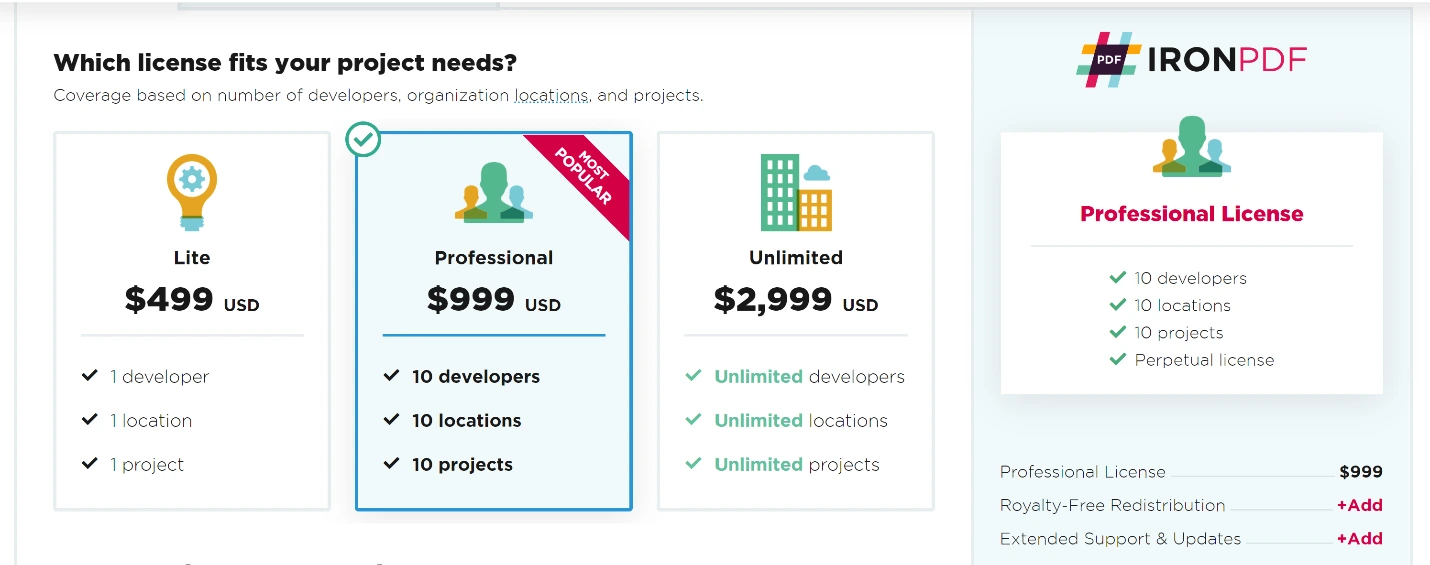
IronPDF offers three license tiers with the Professional license highlighted as 'Most Popular', featuring 10 developers, 10 locations, and 10 projects for $999
What Are GrapeCity PDF's License Models and Pricing?
What Does the Documents for PDF License Include?
- Includes 1 Developer License
- 1 Distribution Location
Includes one developer license and one distribution location without support and maintenance.
Pricing: Starts from $1,199 per year.
What Is Documents for PDF Unlimited?
- Includes 1 Developer License
- Unlimited Distribution Locations
Includes one developer license with unlimited distribution locations. No support and maintenance. GrapeCity doesn't support SaaS and OEM.
Pricing: Starts from $2799 per year.
What Does Documents for PDF Team Unlimited Offer?
- Includes 5 Developer Licenses
- Unlimited Distribution Locations
Includes five developer licenses with unlimited distribution locations. No support and maintenance. GrapeCity doesn't support SaaS and OEM.
Pricing: Starts from $5799 per year.
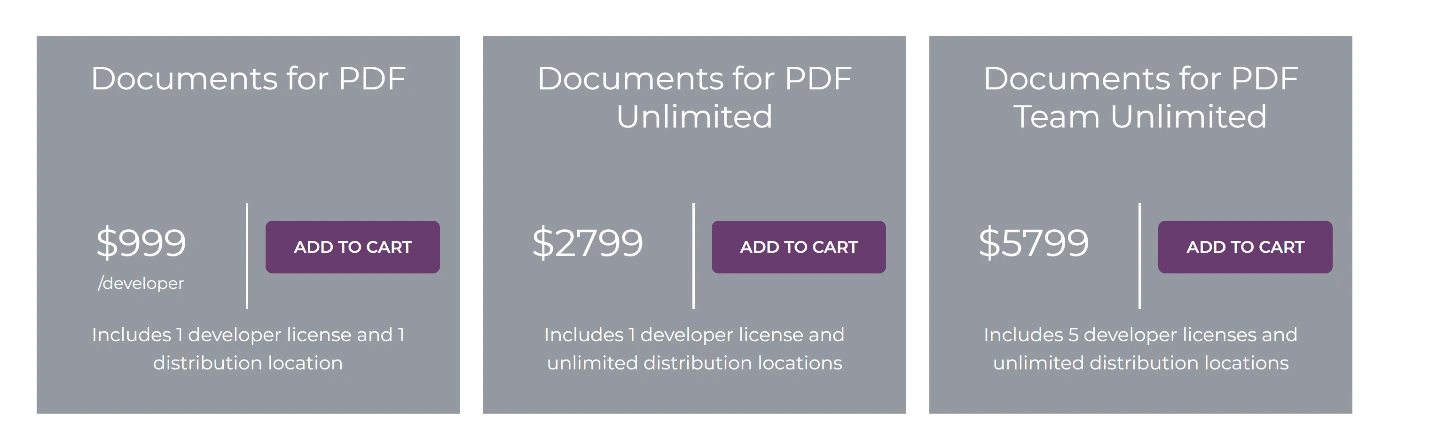
`GrapeCity`'s Documents for PDF pricing structure offers three tiers to accommodate different development team sizes and distribution needs.
IronPDF Lite One-Developer package includes 1-year support for $799. GrapeCity Documents for PDF One-Developer package costs $1,199 without support. IronPDF Professional Package includes 10 developers with one-year support for $1,199. GrapeCity offers only a 5-developer package for $5799. For more information about IronPDF licensing options, visit the official licensing page.
IronPDF Lite and Professional packages include SaaS service, OEM, and 5-year support options. The Lite one-developer package with five years support, SaaS, and OEM costs $2897. GrapeCity doesn't offer SaaS, OEM, or 5-year support. The Iron Professional 10-developer package with 5-year support, SaaS, and OEM costs $3397. GrapeCity lacks a 10-developer option. Learn about license extensions and upgrade options for long-term support.
Which PDF Library Should I Choose for My .NET Project?
GrapeCity Documents for PDF allows export/import, AcroForms creation, and PDF execution in desktop applications. However, for complete PDF manipulation including form creation, digital signatures, and annotation support, IronPDF offers advanced features.
IronPDF provides greater accuracy. Competitors can encounter issues like failed image conversion or unknown characters. IronPDF delivers accurate results. The Chrome rendering engine ensures pixel-perfect rendering, verified using the pixel-perfect HTML to PDF guide. For optimization, see the IronPDF performance assistance guide.
IronPDF offers competitive licensing and support without ongoing costs. IronPDF starts at $799 with complete feature packages. GrapeCity PDF starts at $1649 per year. IronPDF obsługuje wiele platform w ramach jednej ceny. W przypadku wdrożeń Enterprise IronPDF zapewnia funkcje asynchroniczne i wielowątkowe, umożliwiające generowanie dokumentów z wysoką wydajnością.
Możesz skorzystać z bezpłatnej wersji próbnej, aby zapoznać się ze wszystkimi funkcjami. Zakup kompletnego pakietu Iron Suite zapewnia pięć produktów w cenie dwóch. Aby uzyskać szczegółowe informacje na temat licencji IronPDF, odwiedź stronę produktu Iron Suite firmy Iron Software, gdzie znajdziesz kompletne informacje o pakiecie.
GrapeCity Documents for PDF is a registered trademark of its respective owner. This site is not affiliated with, endorsed by, or sponsored by GrapeCity Documents for PDF. Wszystkie nazwy produktów, logo i marki są własnością ich odpowiednich właścicieli. Porównania mają charakter wyłącznie informacyjny i odzwierciedlają informacje dostępne publicznie w momencie pisania.Często Zadawane Pytania
Jak mogę przekonwertować HTML na PDF w .NET?
Możesz użyć metody RenderHtmlAsPdf biblioteki IronPDF do konwersji ciągów HTML na pliki PDF. Dodatkowo możesz konwertować pliki HTML na pliki PDF za pomocą metody RenderHtmlFileAsPdf.
Jakie są kroki instalacji biblioteki PDF przy użyciu NuGet?
Aby zainstalować IronPDF za pomocą NuGet, otwórz Visual Studio, przejdź do „Zarządzaj pakietami NuGet”, wyszukaj „IronPdf” i kliknij „Zainstaluj”, aby dodać go do swojego projektu.
Jakie są alternatywy dla programu GrapeCity PDF Viewer dla platformy .NET?
IronPDF jest odpowiednią alternatywą dla przeglądarki PDF firmy GrapeCity, zapewniającą przyjazne dla użytkownika środowisko pracy oraz szerokie wsparcie dla platform .NET Core, .NET 5, Framework i Standard.
Jak tworzyć i odczytywać pliki PDF za pomocą biblioteki .NET?
Korzystając z IronPDF, można tworzyć pliki PDF poprzez dołączenie przestrzeni nazw IronPdf i użycie klasy HtmlToPdf do renderowania HTML jako PDF. Aby odczytywać pliki PDF, można użyć klasy PdfDocument w celu uzyskania dostępu do treści i manipulowania nią.
Jakie opcje licencyjne są dostępne dla biblioteki PDF?
IronPDF oferuje szereg opcji licencyjnych, w tym pakiet Lite dla pojedynczych programistów, Professional License dla maksymalnie 10 programistów oraz Unlimited License dla zespołów, wszystkie z opcjami licencji wieczystej i wsparcia technicznego.
Dlaczego warto wybrać IronPDF zamiast innych rozwiązań do obsługi plików PDF?
IronPDF jest polecany ze względu na swoją dokładność, wszechstronne funkcje, konkurencyjne licencje i szerokie możliwości wsparcia. Oferuje obsługę wielu platform w konkurencyjnej cenie.
Czy mogę wypróbować bibliotekę PDF przed zakupem?
Tak, IronPDF oferuje bezpłatną wersję próbną, która pozwala zapoznać się ze wszystkimi dostępnymi funkcjami przed podjęciem decyzji o zakupie. Ponadto pakiet Iron Suite zapewnia dostęp do wszystkich produktów Iron Software po obniżonej cenie.
Jakie są wady korzystania z plików PDF?
Pliki PDF mogą być trudne do udostępniania za pośrednictwem poczty elektronicznej ze względu na ich rozmiar, mogą nie wyświetlać się wyraźnie na urządzeniach mobilnych w porównaniu z dokumentami WORDa oraz wymagają specjalnego oprogramowania do edycji lub aktualizacji.








 Rozpocznij za DARMO
 Rozpocznij za DARMO
 Zarezerwuj darmowe Demo na żywo





 Nie wymaga karty kredytowej ani tworzenia konta










