using IronPdf;

// Disable local disk access or cross-origin requests
Installation.EnableWebSecurity = true;

// Instantiate Renderer
var renderer = new ChromePdfRenderer();

// Create a PDF from a HTML string using C#
var pdf = renderer.RenderHtmlAsPdf("<h1>Hello World</h1>");

// Export to a file or Stream
pdf.SaveAs("output.pdf");

// Advanced Example with HTML Assets
// Load external html assets: Images, CSS and JavaScript.
// An optional BasePath 'C:\site\assets\' is set as the file location to load assets from
var myAdvancedPdf = renderer.RenderHtmlAsPdf("<img src='icons/iron.png'>", @"C:\site\assets\");
myAdvancedPdf.SaveAs("html-with-assets.pdf");
using IronPdf;// Disable local disk access or cross-origin requestsInstallation.EnableWebSecurity = true;// Instantiate Renderervar renderer = new ChromePdfRenderer();// Create a PDF from a HTML string using C#var pdf = renderer.RenderHtmlAsPdf("<h1>Hello World</h1>");// Export to a file or Streampdf.SaveAs("output.pdf");// Advanced Example with HTML Assets// Load external html assets: Images, CSS and JavaScript.// An optional BasePath 'C:\site\assets\' is set as the file location to load assets fromvar myAdvancedPdf = renderer.RenderHtmlAsPdf("<img src='icons/iron.png'>", @"C:\site\assets\");myAdvancedPdf.SaveAs("html-with-assets.pdf");
IronPDF zapewnia proste, darmowe rozwiązanie do konwersji obrazów na PDF w C# poprzez swoją metodę `ImageToPdf`, umożliwiając programistom konwersję pojedynczych lub wielu obrazów za pomocą zaledwie kilku linijek kodu i dostosowywalnych ustawień strony.
Wiele bibliotek pozwala programistom C# konwertowac obrazy na PDF. Znalezienie darmowej, przyjaznej użytkownikowi biblioteki o wysokiej wydajnosci moze byc wyzwaniem, poniewaz niektore sa platne, skomplikowane lub ograniczone funkcjonalnie. Wsrod tych bibliotek, [IronPDF](https://ironpdf.com) wyroznia sie jako darmowa, wydajna i latwa w implementacji biblioteka C#. Posiada [rozbudowana dokumentacje](https://ironpdf.com/docs/) oraz dedykowane wsparcie.
IronPDF for .NET to biblioteka .NET służąca do generowania, odczytu, edycji i zapisywania plików PDF w projektach .NET. IronPDF oferuje [konwersje HTML-do-PDF](https://ironpdf.com/how-to/html-string-to-pdf/) dla .NET 5, Core, Standard & Framework z pełną obsługą HTML-do-PDF, w tym CSS3 i JS. Biblioteka wykorzystuje [silnik renderujący Chrome](https://ironpdf.com/how-to/ironpdf-2021-chrome-rendering-engine-eap/) aby zapewnić doskonałą jakość generowania plików PDF z różnych źródeł.
Spójrzmy, jak stworzyc projekt przyklad do nauki konwersji obrazow na PDF. Ten przewodnik przeprowadzi cie przez [proces instalacji](https://ironpdf.com/get-started/installation-overview/), podstawowa konwersje obrazu oraz zaawansowane funkcje do obslugi wielu obrazow i roznych formatow.
<div class="hsg-featured-snippet">
<h2>Jak przekonwertować obraz na PDF w języku C#</h2>
<ol>
<li><a class="js-modal-open" data-modal-id="trial-license-after-download" href="https://nuget.org/packages/IronPdf/">Zainstaluj obraz do biblioteki C# PDF</a></li>
<li>Utilize <code>`ImageToPdf`</code> method to convert image to PDF</li>
<li>Okresl opcjonalne zachowanie obrazu na stronie</li>
<li>Wprowadz opcjonalne ustawienia strony PDF</li>
<li>Zapisz PDF w wybranej lokalizacji</li>
</ol>
</div>
## Jak stworzyc projekt Visual Studio?
Aby utworzyc nowy projekt, otworz Microsoft Visual Studio. Rekomendowane jest uzywanie najnowszej wersji Visual Studio. Kroki tworzenia nowego projektu moga sie roznic w zaleznosci od wersji, ale reszta powinna byc taka sama dla kazdej wersji.
1. Kliknij na Utworz Nowy Projekt.
2. Wybierz Szablon Projektu, nastepnie wybierz szablon Aplikacja Konsolowa. Mozesz uzyc dowolnego szablonu zgodnego z twoimi wymaganiami, w tym [ASP.NET Core](https://ironpdf.com/how-to/aspx-to-pdf/) lub [aplikacje Blazor](https://ironpdf.com/how-to/blazor-tutorial/).
3. Kliknij Dalej. Nazwij projekt (na przykład, "`ImageTo`PDFConverter").
4. Kliknij Dalej i wybierz wersje .NET Framework.
5. Kliknij przycisk **Utwórz**.
Nowy projekt zostanie utworzony jak pokazano ponizej. Struktura projektu bedzie zawierac plik Program.cs, gdzie napiszemy nasz kod konwersji obrazow.
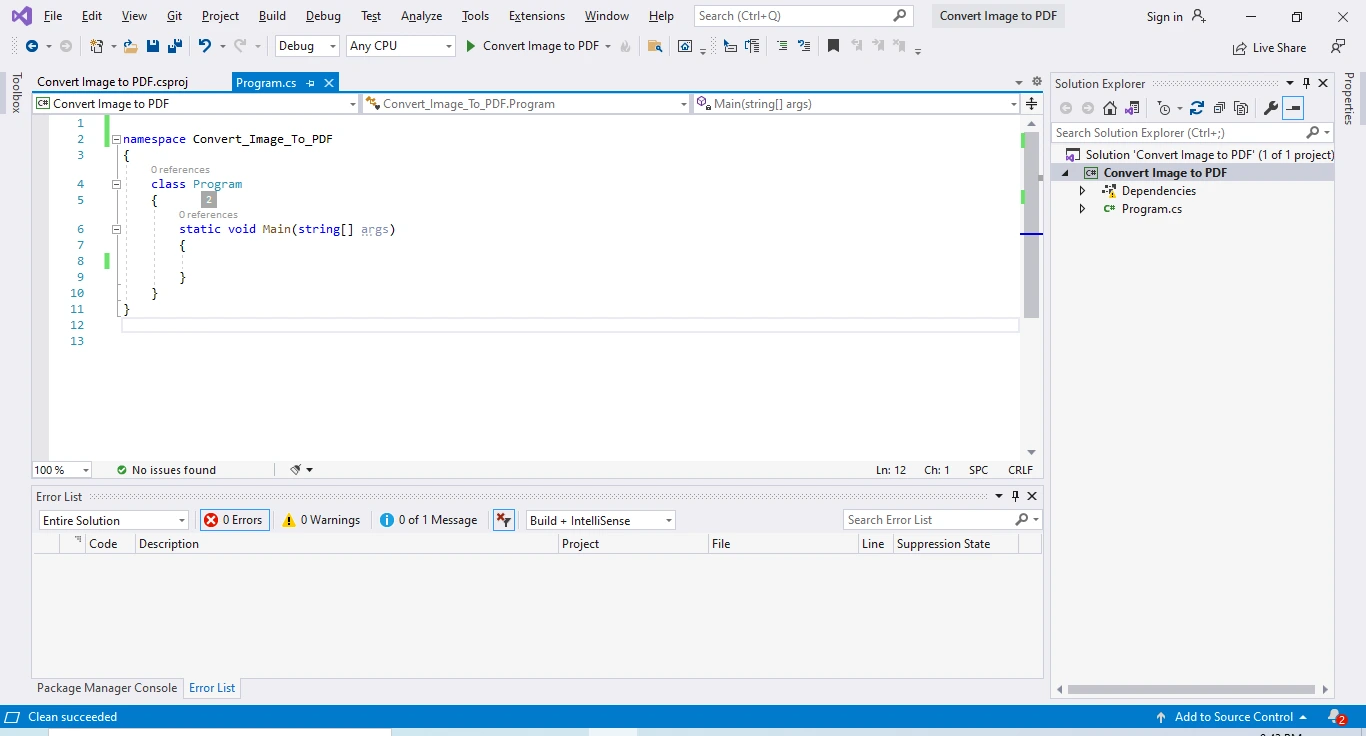
**Utwórz nową aplikację konsolową w Visual Studio**
### Którą wersję .NET Framework powinienem wybrać?
IronPDF wspiera szeroka game wersji .NET, w tym .NET Framework 4.6.2+, .NET Core 3.1+, oraz .NET 5/6/7/8+. Dla nowych projektow zaleca sie uzycie najnowszej wersji LTS (Long Term Support) .NET dla optymalnej wydajnosci i aktualizacji zabezpieczen. Biblioteka dziala rowniez bezproblemowo na platformach [Windows](https://ironpdf.com/how-to/windows/), [Linux](https://ironpdf.com/get-started/linux/) i [macOS](https://ironpdf.com/how-to/macos/).
Nastepnie, zainstaluj [pakiet NuGet IronPDF](https://www.nuget.org/packages/IronPdf/) w tym projekcie, aby moc korzystac z jego funkcji. Najlepsza rzecz w IronPDF jest to, ze usuwa frustracje zwiazana z generowaniem dokumentow PDF, nie polegajac na zastrzezonych API. [Renderowanie HTML do PDF](https://ironpdf.com/examples/file-to-pdf/) tworzy doskonale PDF-y z otwartych standardowych typow dokumentow: HTML, JS, CSS, JPG, PNG, GIF i SVG. Krotko mowiac, wykorzystuje umiejetnosci, ktore programisci juz posiadaja.
## Jak zainstalowac pakiet NuGet IronPDF?
Aby zainstalowac [pakiet NuGet](https://www.nuget.org/packages/IronPdf/), przejdz do **Narzedzia** > **Menadzer Pakietow NuGet** > **Konsola Menadzera Pakietow**. Pojawi się następujące okno:
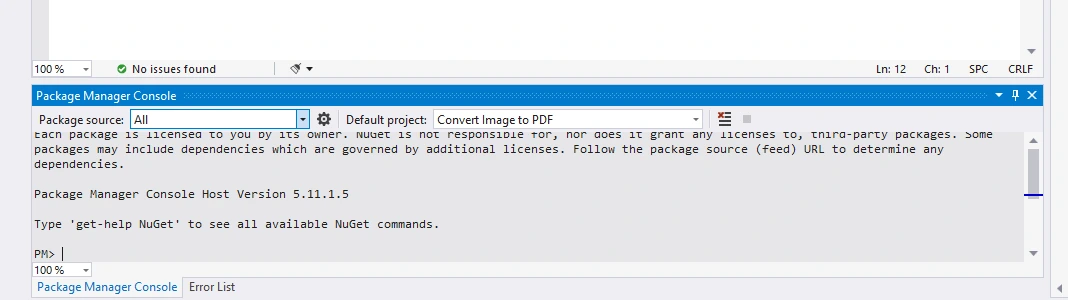
**Interfejs użytkownika konsoli menedżera pakietów**
Nastepnie napisz nastepujace polecenie w Konsoli Menadzera Paczek:
```shell
:ProductInstall
```
Naciśnij Enter. Proces instalacji pobierze IronPDF i jego zalenosci, w tym niezbedne [komponenty silnika renderujacego Chrome](https://ironpdf.com/how-to/pixel-perfect-html-to-pdf/).
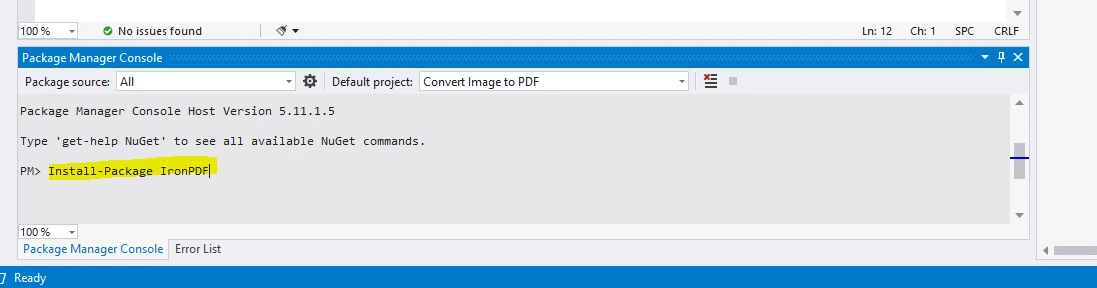
**Zainstaluj pakiet IronPDF w konsoli menedżera pakietów**
### Jakie są alternatywne metody instalacji?
Mozesz rowniez zainstalowac IronPDF poprzez:
- **UI Menedzera Paczek NuGet**: Kliknij prawym przyciskiem myszy na projekt, wybierz "Zarzadzaj paczkami NuGet", wyszukaj "IronPDF", i kliknij Zainstaluj
- **Reference do pakietu**: Dodaj `<PackageReference Include="IronPdf" Version="*" />` do swojego pliku .csproj
- **Bezposrednie Pobieranie**: Pobierz DLL ze [strony IronPDF](https://ironpdf.com/get-started/installation-overview/) i zareferuj go recznie
- **Linia komend**: Użyj `dotnet add package IronPdf` w terminalu
Dla [wdrozen Azure](https://ironpdf.com/how-to/azure/), moze byc potrzebna dodatkowa konfiguracja. Podobnie, [srodowiska Docker](https://ironpdf.com/get-started/ironpdf-docker/) wymagaja konkretnych krokow konfiguracji.
## Jak konwertowac plik graficzny do dokumentu PDF?
Nastepny krok pokazuje jak przekonwertowac nastepujacy obraz na PDF. Dzieki funkcjonalnosci [konwersji ImageToPdf](https://ironpdf.com/how-to/image-to-pdf/), IronPDF czyni ten proces prostym.
### Jakie formaty obrazów są obsługiwane?
IronPDF wspiera szeroki wachlarz formatow graficznych do konwersji na PDF:
- **JPEG/JPG**: Najbardziej powszechny format dla zdjec
- **PNG**: Idealny dla obrazow z przezroczystoscia
- **GIF**: W tym animowane GIFy (uzywana jest pierwsza klatka)
- **BMP**: Format bitmapy Windows
- **TIFF**: W tym [wielostronicowe pliki TIFF](https://ironpdf.com/examples/multi-frame-tiff-to-pdf/)
- **SVG**: Skalowalna grafika wektorowa
- **WebP**: Nowoczesny format obrazu w sieci
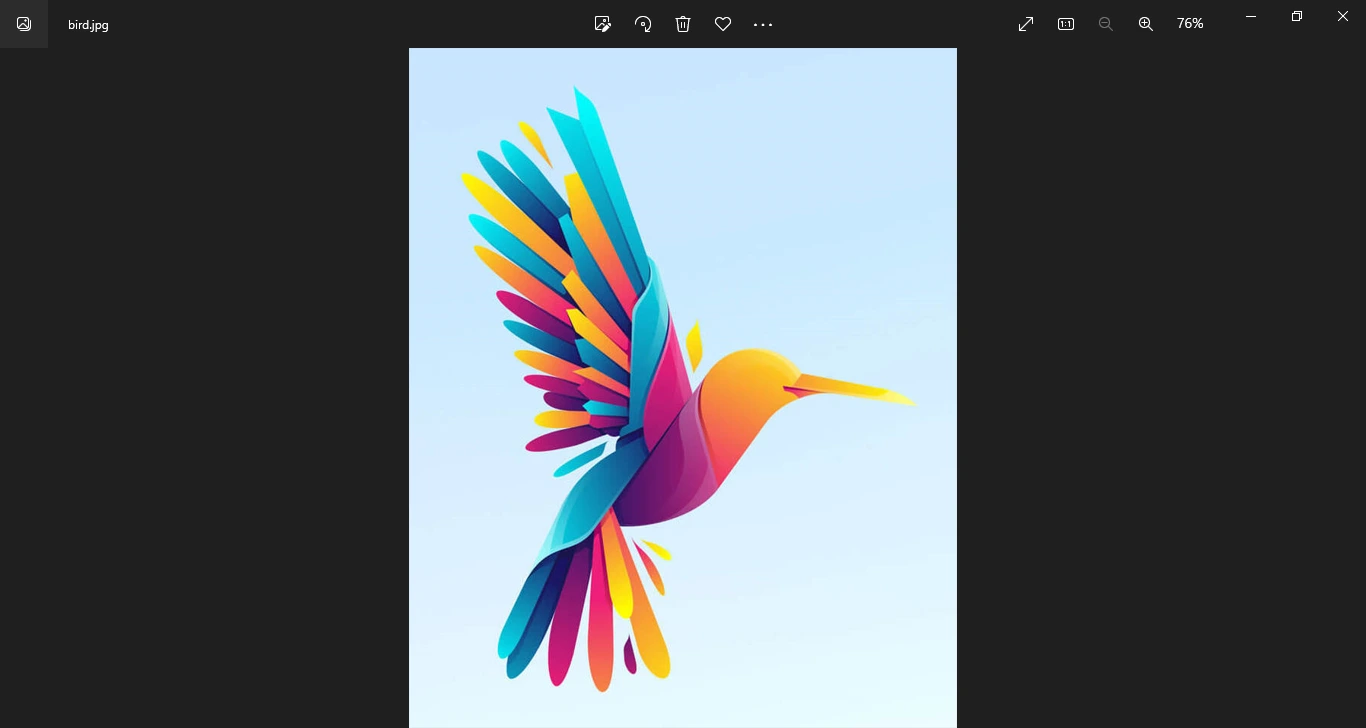
**Przykladowy obraz**
Aby użyć biblioteki, odwołaj się do biblioteki IronPDF w pliku `program.cs`. Napisz poniższy fragment kodu na początku pliku:
```csharp
using IronPdf;
using IronPdf.Imaging;
using System.Linq;
```
Następnie napisz poniższy kod wewnątrz funkcji main. To konwertuje plik JPG na plik PDF:
```csharp
public static void Main(string[] args)
{
    // Convert a single image to the PDF document
    PdfDocument doc = ImageToPdfConverter.ImageToPdf(@"D:\Iron Software\ImageToPDF\bird.jpg", IronPdf.Imaging.ImageBehavior.CropPage);

    // Optional: Set document properties
    doc.MetaData.Author = "IronPDF Tutorial";
    doc.MetaData.Title = "Image to PDF Conversion";
    doc.MetaData.Subject = "Converting JPG to PDF";

    // Save the resulting PDF to the specified path
    doc.SaveAs(@"D:\Iron Software\ImageToPDF\bird.pdf");

    Console.WriteLine("PDF created successfully!");
}
```
### Jak `ImageBehavior` wpływa na wynik?
W powyższym przykładzie kodu klasa `ImageToPdfConverter` dostarczana przez IronPDF jest używana do konwersji obrazu. Metoda `ImageToPdf` może być używana do tworzenia dokumentów PDF z obrazów. Akceptuje zarówno pliki obrazów, jak i obiekt `System.Drawing` jako wejście.
Statyczna metoda `ImageToPdf` konwertuje pojedynczy plik obrazu na identyczny dokument PDF o odpowiadających wymiarach. Przyjmuje dwa argumenty: ścieżkę do obrazu oraz zachowanie obrazu (sposób wyświetlania obrazu na papierze). Enum `ImageBehavior` zapewnia kilka opcji:
- **`CropPage`**: Ustawia rozmiar strony PDF tak, aby odpowiadał wymiarom obrazu
- **`CenteredOnPage`**: Centruje obraz na stronie bez zmiany rozmiaru
- **`FitToPage`**: Skaluje obraz, aby zmieścił się w marginesach strony
- **`FitToPageAndMaintainAspectRatio`**: Skaluje z zachowaniem proporcji
Metoda `Imaging.ImageBehavior.CropPage` ustawi rozmiar papieru równy rozmiarowi obrazu. Domyślny rozmiar strony to A4. Można go ustawić za pomocą poniższej linii kodu:
```csharp
ImageToPdfConverter.PaperSize = IronPdf.Rendering.PdfPaperSize.Letter;
```
Można również ustawić [niestandardowe rozmiary stron](https://ironpdf.com/how-to/custom-paper-size/) dla konkretnych wymagań:
```csharp
// Set custom page size in millimeters
ImageToPdfConverter.PaperSize = new IronPdf.Rendering.PdfPaperSize(210, 297);
```
### Jakie opcje rozmiarów papieru są dostępne?
Dostępnych jest wiele opcji rozmiaru strony, które można ustawić zgodnie z własnymi wymaganiami. IronPDF obsługuje wszystkie standardowe formaty papieru:
- **Seria A**: A0, A1, A2, A3, A4 (domyślnie), A5, A6, A7, A8, A9, A10
- **Seria B**: od B0 do B10
- **Rozmiary amerykańskie**: Letter, Legal, Ledger, Tabloid, Executive
- **Inne**: Foolscap, Crown, Demy, Royal i inne
Można również skonfigurować [orientację strony](https://ironpdf.com/how-to/page-orientation-rotation/) (pionową lub poziomą) oraz [niestandardowe marginesy](https://ironpdf.com/how-to/custom-margins/) dla plików PDF.
## Jak przekonwertować wiele obrazów do pliku PDF?
Poniższy przykład konwertuje obrazy JPG do nowego dokumentu. Jest to szczególnie przydatne do tworzenia albumów fotograficznych, katalogów lub łączenia zeskanowanych dokumentów:
```csharp
public static void Main(string[] args)
{
// Enumerate and filter JPG files from the specified directory
var imageFiles = System.IO.Directory.EnumerateFiles(@"D:\Iron Software\ImageToPDF\")
.Where(f => f.EndsWith(".jpg") || f.EndsWith(".jpeg"));
// Sort files alphabetically (optional)
var sortedImageFiles = imageFiles.OrderBy(f => f);
// Convert the images to a PDF document
PdfDocument doc = ImageToPdfConverter.ImageToPdf(sortedImageFiles);
// Add page numbers to each page
for (int i = 0; i < doc.PageCount; i++)
{
doc.AddTextFooter($"Page {i + 1} of {doc.PageCount}",
FontFamily.Arial,
fontSize: 10,
y: 25);
}
// Save the combined PDF
doc.SaveAs(@"D:\Iron Software\ImageToPDF\JpgToPDF.pdf");
Console.WriteLine($"Combined {doc.PageCount} images into a single PDF!");
}
```
### Jak mogę filtrować różne formaty obrazów?
W powyższym kodzie `System.IO.Directory.EnumerateFiles` pobiera wszystkie pliki dostępne w określonym folderze. Klauzula `Where` filtruje wszystkie obrazy JPG z tego folderu i przechowuje je w kolekcji `imageFiles`. Jeśli masz formaty PNG lub inne formaty obrazów, możesz je dodać do zapytania `Where`:
```csharp
// Filter multiple image formats
var imageFiles = System.IO.Directory.EnumerateFiles(@"D:\Iron Software\ImageToPDF\")
.Where(f => f.EndsWith(".jpg", StringComparison.OrdinalIgnoreCase) ||
f.EndsWith(".jpeg", StringComparison.OrdinalIgnoreCase) ||
f.EndsWith(".png", StringComparison.OrdinalIgnoreCase) ||
f.EndsWith(".bmp", StringComparison.OrdinalIgnoreCase) ||
f.EndsWith(".gif", StringComparison.OrdinalIgnoreCase) ||
f.EndsWith(".tiff", StringComparison.OrdinalIgnoreCase));
```
Można również zastosować bardziej zwięzłe podejście, wykorzystując szereg rozszerzeń:
```csharp
string[] imageExtensions = { ".jpg", ".jpeg", ".png", ".bmp", ".gif", ".tiff" };
var imageFiles = System.IO.Directory.EnumerateFiles(@"D:\Iron Software\ImageToPDF\")
.Where(f => imageExtensions.Any(ext => f.EndsWith(ext, StringComparison.OrdinalIgnoreCase)));
```
### W jakiej kolejności obrazy pojawią się w pliku PDF?
Domyślnie obrazy wyświetlane są w kolejności zwracanej przez system plików, która może nie być alfabetyczna. Aby kontrolować kolejność, można posortować pliki:
- **Alfabetycznie**: `imageFiles.OrderBy(f => f)`
- **Według daty utworzenia**: `imageFiles.OrderBy(f => new FileInfo(f).CreationTime)`
- **Według rozmiaru pliku**: `imageFiles.OrderBy(f => new FileInfo(f).Length)`
- **Zamówienie niestandardowe**: Użyj niestandardowej funkcji porównawczej
Następna linia pobierze wszystkie obrazy i połączy je w jeden dokument PDF. Każdy obrazek staje się osobną stroną w pliku PDF.
## Jak wydrukować plik PDF?
Poniższy fragment kodu wydrukuje dokument przy użyciu [funkcji drukowania](https://ironpdf.com/how-to/print-pdf/) IronPDF:
```csharp
// Print using default printer
doc.Print();
// Print silently (without print dialog)
doc.Print(showPreview: false);
// Print to a specific printer
var printerName = "Microsoft Print to PDF";
doc.Print(printerName);
```
### Czy mogę określić ustawienia drukarki?
Metoda `Print` dostarczana przez klasę `PdfDocument` wydrukuje dokument przy użyciu domyślnej drukarki. Oferuje również opcję zmiany nazwy drukarki i innych ustawień. W przypadku zaawansowanych opcji drukowania:
```csharp
// Advanced printing with settings
using System.Drawing.Printing;
var printDocument = doc.GetPrintDocument();
printDocument.PrinterSettings.PrinterName = "Your Printer Name";
printDocument.PrinterSettings.Copies = 2;
printDocument.PrinterSettings.Collate = true;
printDocument.PrinterSettings.PrintRange = PrintRange.SomePages;
printDocument.PrinterSettings.FromPage = 1;
printDocument.PrinterSettings.ToPage = 3;
printDocument.Print();
```
Aby uzyskać więcej informacji na temat drukowania dokumentów, zapoznaj się z tym [przykładem drukowania plików PDF](https://ironpdf.com/examples/paper-printing-pdfs/). Możesz również zapoznać się z [opcjami drukowania sieciowego](https://ironpdf.com/troubleshooting/print-from-network-printer/) dla środowisk Enterprise.
## Jakie są najważniejsze wnioski?
W tym samouczku pokazano bardzo prosty sposób konwersji obrazów do pliku PDF wraz z przykładami kodu, zarówno w przypadku konwersji pojedynczego obrazu do formatu PDF, jak i łączenia wielu obrazów w jeden plik PDF. Ponadto wyjaśniono również, jak drukować dokumenty za pomocą jednej linii kodu.
Kluczowe zagadnienia:
- Instalacja IronPDF za pomocą menedżera pakietów NuGet
- Konwersja pojedynczych obrazów do formatu PDF z niestandardowymi ustawieniami
- Konwersja wielu obrazów do jednego pliku PDF
- Kontrola rozmiaru strony, orientacji i marginesów
- Dodawanie metadanych i numerów stron do plików PDF
- Programowe drukowanie plików PDF z opcjami
Ponadto niektóre ważne funkcje IronPDF obejmują:
- [Generowanie plików PDF z adresów URL](https://ironpdf.com/how-to/url-to-pdf/) w celu przechwytywania stron internetowych
- [Szyfrowanie i deszyfrowanie plików PDF](https://ironpdf.com/examples/encryption-and-decryption/) w celu zapewnienia bezpieczeństwa
- [Łączenie istniejących plików PDF](https://ironpdf.com/how-to/merge-or-split-pdfs/) w celu zarządzania dokumentami
- Tworzenie i edycja [formularzy PDF](https://ironpdf.com/how-to/edit-forms/) dla dokumentów interaktywnych
- [Dodaj znaki wodne](https://ironpdf.com/how-to/custom-watermark/) w celu budowania marki lub zapewnienia bezpieczeństwa
- [Wyodrębnianie tekstu i obrazów](https://ironpdf.com/how-to/extract-text-and-images/) z istniejących plików PDF
- [Podpisy cyfrowe](https://ironpdf.com/how-to/signing/) do uwierzytelniania dokumentów
- [Kompresja plików PDF](https://ironpdf.com/how-to/pdf-compression/) w celu zmniejszenia rozmiarów plików
- [Konwersja plików PDF na obrazy](https://ironpdf.com/how-to/rasterize-pdf-to-images/) w celu utworzenia miniatur
### Gdzie mogę dowiedzieć się więcej o IronPDF?
IronPDF oferuje wiele przydatnych funkcji. Zapoznaj się z poniższymi zasobami:
- Odwiedź stronę [główną](https://ironpdf.com) [IronPDF,](https://ironpdf.com) aby zapoznać się z przeglądem produktów
- Przejrzyj [obszerną dokumentację,](https://ironpdf.com/docs/) aby uzyskać szczegółowe przewodniki
- Zapoznaj się z [przykładami kodu](https://ironpdf.com/examples/annotations/) przedstawiającymi praktyczne zastosowania
- Przeczytaj [samouczki,](https://ironpdf.com/tutorials/html-to-pdf/) aby nauczyć się krok po kroku
- Szczegółowe informacje techniczne można znaleźć w [Dokumentacji](https://ironpdf.com/object-reference/api/) [API](https://ironpdf.com/object-reference/api/)
- Dołącz do [społeczności IronPDF,](https://ironpdf.com/docs/) aby uzyskać wsparcie
Aby zapoznać się z konkretnymi przypadkami użycia, zajrzyj do:
- [Konwersja](https://ironpdf.com/tutorials/html-to-pdf/) treści internetowych z [HTML do PDF](https://ironpdf.com/tutorials/html-to-pdf/)
- [Funkcje zabezpieczeń plików PDF](https://ironpdf.com/tutorials/csharp-pdf-security-complete-tutorial/) zapewniające ochronę
- [Optymalizacja wydajności](https://ironpdf.com/how-to/async/) przy dużych operacjach
- [Przewodniki wdrażania w chmurze](https://ironpdf.com/get-started/azure/) dla platform Azure i AWS
### Ile kosztuje IronPDF?
IronPDF jest częścią [pakietu](https://ironsoftware.com) [Iron Software](https://ironsoftware.com). Iron Suite zawiera dodatkowe przydatne produkty takie jak [IronXL](https://ironsoftware.com/csharp/excel/) do operacji Excel, [IronBarcode](https://ironsoftware.com/csharp/barcode/) do generowania kodow kreskowych, [IronOCR](https://ironsoftware.com/csharp/ocr/) do rozpoznawania tekstu oraz [IronWebScraper](https://ironsoftware.com/csharp/webscraper/) do ekstrakcji danych z sieci. Kupując kompletny pakiet Iron Suite, możesz zaoszczędzić nawet 250%, ponieważ obecnie wszystkie pięć produktów jest dostępnych w cenie zaledwie dwóch. Więcej informacji można znaleźć na [stronie](https://ironpdf.com/licensing/) [ze szczegółami licencji](https://ironpdf.com/licensing/).
IronPDF oferuje:
- **Bezpłatna licencja deweloperska** do testów
- **Licencje Professional** zaczynają się od `$liteLicense`
- **Bezpłatne** opcje **redystrybucji bez opłat licencyjnych**
- Dostępne **licencje SaaS i Licencjonowanie OEM**
- **30-dniowa gwarancja zwrotu**
- **Bezpłatna pomoc techniczna i aktualizacje** przez rok
Wypróbuj IronPDF bezpłatnie przez 30 dni dzięki [Licencji](https://ironpdf.com/licensing/) [Trial](https://ironpdf.com/licensing/) lub zapoznaj się z [opcjami licencyjnymi](https://ironpdf.com/licensing/upgrades/) dla swojego zespołu.
IronPDF zapewnia proste, darmowe rozwiązanie do konwersji obrazów na PDF w C# poprzez swoją metodę ImageToPdf, umożliwiając programistom konwersję pojedynczych lub wielu obrazów za pomocą zaledwie kilku linijek kodu i dostosowywalnych ustawień strony.
Wiele bibliotek pozwala programistom C# konwertowac obrazy na PDF. Znalezienie darmowej, przyjaznej użytkownikowi biblioteki o wysokiej wydajnosci moze byc wyzwaniem, poniewaz niektore sa platne, skomplikowane lub ograniczone funkcjonalnie. Wsrod tych bibliotek, IronPDF wyroznia sie jako darmowa, wydajna i latwa w implementacji biblioteka C#. Posiada rozbudowana dokumentacje oraz dedykowane wsparcie.
IronPDF for .NET to biblioteka .NET służąca do generowania, odczytu, edycji i zapisywania plików PDF w projektach .NET. IronPDF oferuje konwersje HTML-do-PDF dla .NET 5, Core, Standard & Framework z pełną obsługą HTML-do-PDF, w tym CSS3 i JS. Biblioteka wykorzystuje silnik renderujący Chrome aby zapewnić doskonałą jakość generowania plików PDF z różnych źródeł.
Spójrzmy, jak stworzyc projekt przyklad do nauki konwersji obrazow na PDF. Ten przewodnik przeprowadzi cie przez proces instalacji, podstawowa konwersje obrazu oraz zaawansowane funkcje do obslugi wielu obrazow i roznych formatow.
Aby utworzyc nowy projekt, otworz Microsoft Visual Studio. Rekomendowane jest uzywanie najnowszej wersji Visual Studio. Kroki tworzenia nowego projektu moga sie roznic w zaleznosci od wersji, ale reszta powinna byc taka sama dla kazdej wersji.
Kliknij na Utworz Nowy Projekt.
Wybierz Szablon Projektu, nastepnie wybierz szablon Aplikacja Konsolowa. Mozesz uzyc dowolnego szablonu zgodnego z twoimi wymaganiami, w tym ASP.NET Core lub aplikacje Blazor.
Kliknij Dalej. Nazwij projekt (na przykład, "ImageToPDFConverter").
Kliknij Dalej i wybierz wersje .NET Framework.
Kliknij przycisk Utwórz.
Nowy projekt zostanie utworzony jak pokazano ponizej. Struktura projektu bedzie zawierac plik Program.cs, gdzie napiszemy nasz kod konwersji obrazow.
Utwórz nową aplikację konsolową w Visual Studio
Którą wersję .NET Framework powinienem wybrać?
IronPDF wspiera szeroka game wersji .NET, w tym .NET Framework 4.6.2+, .NET Core 3.1+, oraz .NET 5/6/7/8+. Dla nowych projektow zaleca sie uzycie najnowszej wersji LTS (Long Term Support) .NET dla optymalnej wydajnosci i aktualizacji zabezpieczen. Biblioteka dziala rowniez bezproblemowo na platformach Windows, Linux i macOS.
Nastepnie, zainstaluj pakiet NuGet IronPDF w tym projekcie, aby moc korzystac z jego funkcji. Najlepsza rzecz w IronPDF jest to, ze usuwa frustracje zwiazana z generowaniem dokumentow PDF, nie polegajac na zastrzezonych API. Renderowanie HTML do PDF tworzy doskonale PDF-y z otwartych standardowych typow dokumentow: HTML, JS, CSS, JPG, PNG, GIF i SVG. Krotko mowiac, wykorzystuje umiejetnosci, ktore programisci juz posiadaja.
Jak zainstalowac pakiet NuGet IronPDF?
Aby zainstalowac pakiet NuGet, przejdz do Narzedzia > Menadzer Pakietow NuGet > Konsola Menadzera Pakietow. Pojawi się następujące okno:
Interfejs użytkownika konsoli menedżera pakietów
Nastepnie napisz nastepujace polecenie w Konsoli Menadzera Paczek:
Następnie napisz poniższy kod wewnątrz funkcji main. To konwertuje plik JPG na plik PDF:
public static voidMain(string[] args){ // Convert a single image to the PDF document PdfDocument doc = ImageToPdfConverter.ImageToPdf(@"D:\Iron Software\ImageToPDF\bird.jpg", IronPdf.Imaging.ImageBehavior.CropPage); // Optional: Set document properties doc.MetaData.Author = "IronPDF Tutorial"; doc.MetaData.Title = "Image to PDF Conversion"; doc.MetaData.Subject = "Converting JPG to PDF"; // Save the resulting PDF to the specified path doc.SaveAs(@"D:\Iron Software\ImageToPDF\bird.pdf");Console.WriteLine("PDF created successfully!");}
public static void Main(string[] args)
{
    // Convert a single image to the PDF document
    PdfDocument doc = ImageToPdfConverter.ImageToPdf(@"D:\Iron Software\ImageToPDF\bird.jpg", IronPdf.Imaging.ImageBehavior.CropPage);

    // Optional: Set document properties
    doc.MetaData.Author = "IronPDF Tutorial";
    doc.MetaData.Title = "Image to PDF Conversion";
    doc.MetaData.Subject = "Converting JPG to PDF";

    // Save the resulting PDF to the specified path
    doc.SaveAs(@"D:\Iron Software\ImageToPDF\bird.pdf");

    Console.WriteLine("PDF created successfully!");
}
PublicShared Sub Main(ByVal args AsString()) ' Convert a single image to the PDF document Dim doc AsPdfDocument = ImageToPdfConverter.ImageToPdf("D:\Iron Software\ImageToPDF\bird.jpg", IronPdf.Imaging.ImageBehavior.CropPage) ' Optional: Set document properties doc.MetaData.Author = "IronPDF Tutorial" doc.MetaData.Title = "Image to PDF Conversion" doc.MetaData.Subject = "Converting JPG to PDF" ' Save the resulting PDF to the specified path doc.SaveAs("D:\Iron Software\ImageToPDF\bird.pdf")Console.WriteLine("PDF created successfully!")End Sub
Public Shared Sub Main(ByVal args As String())
    ' Convert a single image to the PDF document
    Dim doc As PdfDocument = ImageToPdfConverter.ImageToPdf("D:\Iron Software\ImageToPDF\bird.jpg", IronPdf.Imaging.ImageBehavior.CropPage)

    ' Optional: Set document properties
    doc.MetaData.Author = "IronPDF Tutorial"
    doc.MetaData.Title = "Image to PDF Conversion"
    doc.MetaData.Subject = "Converting JPG to PDF"

    ' Save the resulting PDF to the specified path
    doc.SaveAs("D:\Iron Software\ImageToPDF\bird.pdf")

    Console.WriteLine("PDF created successfully!")
End Sub
Jak ImageBehavior wpływa na wynik?
W powyższym przykładzie kodu klasa ImageToPdfConverter dostarczana przez IronPDF jest używana do konwersji obrazu. Metoda ImageToPdf może być używana do tworzenia dokumentów PDF z obrazów. Akceptuje zarówno pliki obrazów, jak i obiekt System.Drawing jako wejście.
Statyczna metoda ImageToPdf konwertuje pojedynczy plik obrazu na identyczny dokument PDF o odpowiadających wymiarach. Przyjmuje dwa argumenty: ścieżkę do obrazu oraz zachowanie obrazu (sposób wyświetlania obrazu na papierze). Enum ImageBehavior zapewnia kilka opcji:
CropPage: Ustawia rozmiar strony PDF tak, aby odpowiadał wymiarom obrazu
CenteredOnPage: Centruje obraz na stronie bez zmiany rozmiaru
FitToPage: Skaluje obraz, aby zmieścił się w marginesach strony
FitToPageAndMaintainAspectRatio: Skaluje z zachowaniem proporcji
Metoda Imaging.ImageBehavior.CropPage ustawi rozmiar papieru równy rozmiarowi obrazu. Domyślny rozmiar strony to A4. Można go ustawić za pomocą poniższej linii kodu:
// Set custom page size in millimetersImageToPdfConverter.PaperSize = new IronPdf.Rendering.PdfPaperSize(210, 297);
// Set custom page size in millimeters
ImageToPdfConverter.PaperSize = new IronPdf.Rendering.PdfPaperSize(210, 297);
' Set custom page size in millimetersImageToPdfConverter.PaperSize = New IronPdf.Rendering.PdfPaperSize(210, 297)
' Set custom page size in millimeters
ImageToPdfConverter.PaperSize = New IronPdf.Rendering.PdfPaperSize(210, 297)
Jakie opcje rozmiarów papieru są dostępne?
Dostępnych jest wiele opcji rozmiaru strony, które można ustawić zgodnie z własnymi wymaganiami. IronPDF obsługuje wszystkie standardowe formaty papieru:
Poniższy przykład konwertuje obrazy JPG do nowego dokumentu. Jest to szczególnie przydatne do tworzenia albumów fotograficznych, katalogów lub łączenia zeskanowanych dokumentów:
public static voidMain(string[] args){ // Enumerate and filter JPG files from the specified directory var imageFiles = System.IO.Directory.EnumerateFiles(@"D:\Iron Software\ImageToPDF\") .Where(f => f.EndsWith(".jpg") || f.EndsWith(".jpeg")); // Sort files alphabetically (optional) var sortedImageFiles = imageFiles.OrderBy(f => f); // Convert the images to a PDF document PdfDocument doc = ImageToPdfConverter.ImageToPdf(sortedImageFiles); // Add page numbers to each page for (int i = 0; i < doc.PageCount; i++) { doc.AddTextFooter($"Page {i + 1} of {doc.PageCount}", FontFamily.Arial, fontSize: 10, y: 25); } // Save the combined PDF doc.SaveAs(@"D:\Iron Software\ImageToPDF\JpgToPDF.pdf");Console.WriteLine($"Combined {doc.PageCount} images into a single PDF!");}
public static void Main(string[] args)
{
    // Enumerate and filter JPG files from the specified directory
    var imageFiles = System.IO.Directory.EnumerateFiles(@"D:\Iron Software\ImageToPDF\")
                                        .Where(f => f.EndsWith(".jpg") || f.EndsWith(".jpeg"));

    // Sort files alphabetically (optional)
    var sortedImageFiles = imageFiles.OrderBy(f => f);

    // Convert the images to a PDF document
    PdfDocument doc = ImageToPdfConverter.ImageToPdf(sortedImageFiles);

    // Add page numbers to each page
    for (int i = 0; i < doc.PageCount; i++)
    {
        doc.AddTextFooter($"Page {i + 1} of {doc.PageCount}",
                         FontFamily.Arial,
                         fontSize: 10,
                         y: 25);
    }

    // Save the combined PDF
    doc.SaveAs(@"D:\Iron Software\ImageToPDF\JpgToPDF.pdf");

    Console.WriteLine($"Combined {doc.PageCount} images into a single PDF!");
}
PublicShared Sub Main(args AsString()) ' Enumerate and filter JPG files from the specified directory Dim imageFiles = System.IO.Directory.EnumerateFiles("D:\Iron Software\ImageToPDF\") _ .Where(Function(f) f.EndsWith(".jpg") OrElse f.EndsWith(".jpeg")) ' Sort files alphabetically (optional) Dim sortedImageFiles = imageFiles.OrderBy(Function(f) f) ' Convert the images to a PDF document Dim doc AsPdfDocument = ImageToPdfConverter.ImageToPdf(sortedImageFiles) ' Add page numbers to each page For i AsInteger = 0 To doc.PageCount - 1 doc.AddTextFooter($"Page {i + 1} of {doc.PageCount}", FontFamily.Arial, fontSize:=10, y:=25) Next ' Save the combined PDF doc.SaveAs("D:\Iron Software\ImageToPDF\JpgToPDF.pdf")Console.WriteLine($"Combined {doc.PageCount} images into a single PDF!")End Sub
Public Shared Sub Main(args As String())
    ' Enumerate and filter JPG files from the specified directory
    Dim imageFiles = System.IO.Directory.EnumerateFiles("D:\Iron Software\ImageToPDF\") _
                                        .Where(Function(f) f.EndsWith(".jpg") OrElse f.EndsWith(".jpeg"))

    ' Sort files alphabetically (optional)
    Dim sortedImageFiles = imageFiles.OrderBy(Function(f) f)

    ' Convert the images to a PDF document
    Dim doc As PdfDocument = ImageToPdfConverter.ImageToPdf(sortedImageFiles)

    ' Add page numbers to each page
    For i As Integer = 0 To doc.PageCount - 1
        doc.AddTextFooter($"Page {i + 1} of {doc.PageCount}",
                          FontFamily.Arial,
                          fontSize:=10,
                          y:=25)
    Next

    ' Save the combined PDF
    doc.SaveAs("D:\Iron Software\ImageToPDF\JpgToPDF.pdf")

    Console.WriteLine($"Combined {doc.PageCount} images into a single PDF!")
End Sub
Jak mogę filtrować różne formaty obrazów?
W powyższym kodzie System.IO.Directory.EnumerateFiles pobiera wszystkie pliki dostępne w określonym folderze. Klauzula Where filtruje wszystkie obrazy JPG z tego folderu i przechowuje je w kolekcji imageFiles. Jeśli masz formaty PNG lub inne formaty obrazów, możesz je dodać do zapytania Where:
Dim imageExtensions As String() = {".jpg", ".jpeg", ".png", ".bmp", ".gif", ".tiff"}
Dim imageFiles = System.IO.Directory.EnumerateFiles("D:\Iron Software\ImageToPDF\") _
    .Where(Function(f) imageExtensions.Any(Function(ext) f.EndsWith(ext, StringComparison.OrdinalIgnoreCase)))
W jakiej kolejności obrazy pojawią się w pliku PDF?
Domyślnie obrazy wyświetlane są w kolejności zwracanej przez system plików, która może nie być alfabetyczna. Aby kontrolować kolejność, można posortować pliki:
Alfabetycznie: imageFiles.OrderBy(f => f)
Według daty utworzenia: imageFiles.OrderBy(f => new FileInfo(f).CreationTime)
Według rozmiaru pliku: imageFiles.OrderBy(f => new FileInfo(f).Length)
Zamówienie niestandardowe: Użyj niestandardowej funkcji porównawczej
Następna linia pobierze wszystkie obrazy i połączy je w jeden dokument PDF. Każdy obrazek staje się osobną stroną w pliku PDF.
Jak wydrukować plik PDF?
Poniższy fragment kodu wydrukuje dokument przy użyciu funkcji drukowania IronPDF:
// Print using default printerdoc.Print();// Print silently (without print dialog)doc.Print(showPreview: false);// Print to a specific printervar printerName = "Microsoft Print to PDF";doc.Print(printerName);
// Print using default printer
doc.Print();

// Print silently (without print dialog)
doc.Print(showPreview: false);

// Print to a specific printer
var printerName = "Microsoft Print to PDF";
doc.Print(printerName);
' Print using default printerdoc.Print()' Print silently (without print dialog)doc.Print(showPreview:=False)' Print to a specific printerDim printerName AsString = "Microsoft Print to PDF"doc.Print(printerName)
' Print using default printer
doc.Print()

' Print silently (without print dialog)
doc.Print(showPreview:=False)

' Print to a specific printer
Dim printerName As String = "Microsoft Print to PDF"
doc.Print(printerName)
Czy mogę określić ustawienia drukarki?
Metoda Print dostarczana przez klasę PdfDocument wydrukuje dokument przy użyciu domyślnej drukarki. Oferuje również opcję zmiany nazwy drukarki i innych ustawień. W przypadku zaawansowanych opcji drukowania:
W tym samouczku pokazano bardzo prosty sposób konwersji obrazów do pliku PDF wraz z przykładami kodu, zarówno w przypadku konwersji pojedynczego obrazu do formatu PDF, jak i łączenia wielu obrazów w jeden plik PDF. Ponadto wyjaśniono również, jak drukować dokumenty za pomocą jednej linii kodu.
Kluczowe zagadnienia:
Instalacja IronPDF za pomocą menedżera pakietów NuGet
Konwersja pojedynczych obrazów do formatu PDF z niestandardowymi ustawieniami
Konwersja wielu obrazów do jednego pliku PDF
Kontrola rozmiaru strony, orientacji i marginesów
Dodawanie metadanych i numerów stron do plików PDF
IronPDF jest częścią pakietuIron Software. Iron Suite zawiera dodatkowe przydatne produkty takie jak IronXL do operacji Excel, IronBarcode do generowania kodow kreskowych, IronOCR do rozpoznawania tekstu oraz IronWebScraper do ekstrakcji danych z sieci. Kupując kompletny pakiet Iron Suite, możesz zaoszczędzić nawet 250%, ponieważ obecnie wszystkie pięć produktów jest dostępnych w cenie zaledwie dwóch. Więcej informacji można znaleźć na stronieze szczegółami licencji.
IronPDF oferuje:
Bezpłatna licencja deweloperska do testów
Licencje Professional zaczynają się od $999
Bezpłatne opcje redystrybucji bez opłat licencyjnych
Dostępne licencje SaaS i Licencjonowanie OEM
30-dniowa gwarancja zwrotu
Bezpłatna pomoc techniczna i aktualizacje przez rok
Curtis Chau posiada tytuł licencjata z informatyki (Uniwersytet Carleton) i specjalizuje się w front-endowym rozwoju, z ekspertką w Node.js, TypeScript, JavaScript i React. Pasjonuje się tworzeniem intuicyjnych i estetycznie przyjemnych interfejsów użytkownika, Curtis cieszy się pracą z nowoczesnymi frameworkami i tworzeniem dobrze zorganizowanych, atrakcyjnych wizualnie podręczników.





 Utwórz nową aplikację konsolową w Visual Studio
 Interfejs użytkownika konsoli menedżera pakietów
 Zainstaluj pakiet IronPDF w konsoli menedżera pakietów
 Przykladowy obraz







