


PDFSharp HTML轉PDF範例及教程比較

IronPDF與PDFSharp
綜合 .NET PDF 程式庫的比較 — 根據證據的功能對功能比較
| 功能 | PDFSharp | IronPDF ✦ |
|---|---|---|
| PDF 建立與轉換 | ||
| HTML/CSS 至 PDF |
✕ No
核心功能文件中記載了可通過PDF物件模型進行建立/修改/合併/拆分;沒有描述HTML渲染引擎。
|
✓ Yes
基於Chromium的引擎,內建像素完美的CSS3、Flexbox和Grid渲染。
|
| JavaScript執行 |
✕ No
不是瀏覽器引擎;未描述JS執行模型。
|
✓ Yes
在渲染期間充分執行JS——動態圖表、單頁應用和互動內容。
|
| 程式生成 |
✓ Yes
"動態建立PDF文件",並使用PDF物件模型來編寫文件。
|
✓ Yes
從HTML模板、字串、ASPX視圖或圖像生成。Chromium 處理佈局。
|
| URL到PDF |
✕ No
沒有網頁導航或捕獲功能。
|
✓ Yes
RenderUrlAsPdf() 捕捉任何即時 URL,完整的 CSS/JS 渲染。 |
| DOCX到PDF |
✕ No
沒有Word文件轉換功能。
|
✓ Yes
DocxToPdfRenderer 轉換 Word 文件,保持結構和格式。 |
| 讀取與擷取 | ||
| 文字擷取 |
~ Complex
官方FAQ表示僅能在低階進行提取;沒有高階"單詞/段落/頁面"提取API。
|
✓ Yes
提取文字時考慮版面。結合 IronOCR 用於掃描文件。
|
| 將頁面渲染為圖像 |
✕ No
PDFSharp文件/社群明確指出"無法渲染"PDF(頁面→ 點陣圖不支持)。
|
✓ Built-in
原生光柵化為 PNG、JPEG、BMP 等,具有可配置的 DPI。
|
| 內建 OCR |
✕ No
PDFSharp功能文件中未描述OCR引擎。
|
✓ Via IronOCR
與 IronOCR 的原生整合,可對127種以上語言的掃描PDF文件進行OCR。
|
| 編輯與操作 | ||
| 合併與拆分 |
✓ Yes
官方功能明確包括"修改、合併和拆分現有PDF文件"。
|
✓ Yes
單行合併、拆分、附加、前置和頁面重新排序,具有直觀的API。
|
| 頁眉、頁腳與頁碼 |
~ Complex
僅低階;結構化的頁首/頁尾被定位為MigraDoc的用例。
|
✓ Yes
基於HTML的頁眉/頁腳,自動頁碼、日期和自定義內容。
|
| 水印 |
~ Complex
存在水印範例,但使用的是繪圖方法(而非真正的水印註釋)。
|
✓ Yes
ApplyWatermark() 接受HTML/CSS——完全控制不透明度、旋轉、
位置。 |
| 蓋章文字和圖像 |
~ Complex
可通過GDI+風格API在現有頁面上進行低階繪圖操作。
|
✓ Yes
TextStamper & ImageStamper 與 Google 字體、定位、
每頁控制。 |
| 內容遮蔽 |
✕ No
PDFSharp功能集中不支持遮罩。
|
✓ Yes
RedactTextOnAllPages() 單行永久移除敏感文字。 |
| 安全與合規 | ||
| 加密與密碼 |
✓ Yes
通過安全設置API支持加密和口令保護。
|
✓ Yes
AES 加密、擁有者/使用者密碼、詳細權限(列印、複製、註解)。
|
| 數位簽名 |
✓ Yes
PDFSharp文件描述了新增數位簽章;該功能在PDFSharp 6.2.0中引入。
|
✓ Yes
PdfSignature 支持 X509/PFX 證書。 |
| PDF/A 和 PDF/UA 合規 |
⚠ Partial
可以建立新的PDF/A文件,但無法將現有PDF轉換為PDF/A,無法驗證符合性,也無法選擇特定的PDF/A級別(在預覽中註明為"黑客")
|
✓ Yes
原生 PDF/A 檔案存檔和 PDF/UA 可及性合規,用於企業使用。
|
| 平台與部署 | ||
| 跨平台支持 |
✓ Yes
NuGet/包文件指出核心構建不依賴於Windows且可在Linux/macOS運行;文件列出了現代.NET目標。
|
✓ Yes
Windows、Linux、macOS、x64、x86、ARM。 .NET 6–10、Core、Standard 2.0+,Framework 4.6.2+。
|
| 伺服器 / Docker / 雲 |
✓ Yes
NuGet稱核心構建不依賴於Windows;典型的伺服器部署很簡單(無外部二進制文件)。
|
✓ Yes
Docker、Azure、AWS、IIS。官方Docker影像和部署指引。
|
| 輕鬆設置 |
⚠ Partial
安裝很簡單,但產生複雜布局通常需要低階組合(或MigraDoc抽象)。
|
✓ Simple
單個
Install-Package IronPdf NuGet 指令。數分鐘內即可準備好。 |
| 授權與支持 | ||
| 授權模式 |
✓ MIT
PDFSharp專案的MIT授權–可供商業和專有用途免費使用。
|
✓ Commercial
永久授權。30天全功能免費試用,無水印。
|
| 商業支持與 SLA |
✓ Yes
供應商網站提供"支援計畫"和針對PDFSharp專案的定制解決方案。
|
✓ 24/5 Support
專用工程支持,保證 SLA — 電子郵件、即時聊天、電話。
|
| 文件 |
✓ Yes
官方文件列舉功能和起始指南;存在範例/樣本庫。
|
✓ Extensive
完整的 API 參考,100 多個故障排除、教學、程式碼範例、故障排除、影片。
|
資料來源自官方的PDFSharp文件、NuGet包文件和社群參考。 PDFSharp是基本PDF建立的堅固MIT授權選項,但缺乏HTML渲染、OCR、文字提取和頁面光柵化。 IronPDF提供全方位覆蓋-免費試用30天
在.NET環境中處理PDF文件時,開發人員需要可靠且功能豐富的程式庫來處理常見的任務,如文件建立、編輯、加密和HTML-to-PDF轉換。 IronPDF和PDFSharp是兩個廣受歡迎的程式庫,但旨在滿足不同的需求。
IronPDF是一個全功能的、高性能的PDF程式庫,在HTML到PDF轉換、PDF安全性和高級PDF操作方面表現出色。 另一方面,PDFSharp是一個輕量級的開源程式庫,專注於PDF建立和基本編輯。 在它們之間選擇取決於專案的複雜性和需求。
在本指南中,我們將在關鍵功能、可用性、安全性、定價和支援方面比較IronPDF和PDFSharp,幫助您確定.NET應用的最佳工具。
功能概覽
IronPDF:綜合PDF解決方案
IronPDF是一個功能豐富的.NET程式庫,在許多方面表現出色,包括HTML-to-PDF轉換、PDF編輯和安全文件處理。 可通過NuGet Package Manager Console輕鬆新增到您的專案中,並無縫整合到C#專案。
其突出功能包括:
PDFSharp:輕量選擇
PDFSharp是一個免費的開源程式庫,主要旨在進行基本的PDF建立和操作。 雖然它沒有IronPDF那樣豐富的功能集,但對於不需要複雜功能的簡單專案來說,它是一個很好的選擇。 PDFSharp的一些核心功能包括:
- PDF 建立:通過C#或VB.NET以程式產品式生成PDF,建立帶有圖片和圖形的文字文件。
- PDF 修改:簡單的任務,如合併、拆分和編輯現有PDF文件。
- 基本加密:為PDF文件新增基本的密碼保護。
關鍵限制:PDFSharp不支持原生HTML-to-PDF轉換,需要第三方工具如Polybioz.HtmlRenderer.PdfSharp.Core,這增加了複雜性。
相容性與可用性
跨平台支援
IronPDF
IronPDF設計為跨平台,與.NET Core、.NET Framework和Azure完全相容,從而支援Windows、macOS和Linux。 這使得它成為需要在多個作業系統上運行的專案的理想選擇,確保該程式庫與大多數開發環境具有普遍相容性。 該程式庫無縫整合到現代Web開發環境中,非常適合用於Web應用程式、雲解決方案和企業系統中。
PDFSharp
PDFSharp主要設計用於.NET Framework,對.NET Core的支援有限。 雖然有.NET Core版本,但仍在進行中,某些功能尚未完全針對非Windows平台進行優化。 Linux和macOS使用者可能面臨相容性問題,這使得PDFSharp成為跨平台應用的較不理想之選。
易用性
IronPDF提供了一個開發者友好的API,將PDF文件處理的複雜性抽象化。 無論您是在生成PDF還是編輯現有文件,語法都簡潔直觀,允許開發者在幾行程式碼內實現複雜的功能。
PDFSharp,雖然在生成文字和PDF操作等基本任務上相對容易使用,但常常需要更多的手動處理,例如在複雜的文件生成和處理中。
易於使用的範例
IronPDF:將HTML轉換為PDF
輕鬆將HTML片段和內容轉換為PDF,僅需一個方法調用:
using IronPdf;

var renderer = new ChromePdfRenderer();
var content = "<h1>IronPDF Rocks!</h1>";
var pdf = renderer.RenderHtmlAsPdf(content);
pdf.SaveAs("output.pdf");
using IronPdf;
var renderer = new ChromePdfRenderer();
var content = "<h1>IronPDF Rocks!</h1>";
var pdf = renderer.RenderHtmlAsPdf(content);
pdf.SaveAs("output.pdf");Imports IronPdf
Private renderer = New ChromePdfRenderer()
Private content = "<h1>IronPDF Rocks!</h1>"
Private pdf = renderer.RenderHtmlAsPdf(content)
pdf.SaveAs("output.pdf")- 簡潔的乾淨程式碼\
- 現有HTML內容的輕鬆轉換
PDFSharp:建立帶有文字的PDF
PDFSharp需要手動實現,通過使用圖形物件繪製文字和內容:
using PdfSharp.Pdf;
using PdfSharp.Drawing;

var document = new PdfDocument();
var page = document.AddPage();
var gfx = XGraphics.FromPdfPage(page);
var font = new XFont("Arial", 20, XFontStyleEx.Bold);
gfx.DrawString("Hello, PDFsharp!", font, XBrushes.Black, new XPoint(50, 100));
document.Save("output.pdf");
using PdfSharp.Pdf;
using PdfSharp.Drawing;
var document = new PdfDocument();
var page = document.AddPage();
var gfx = XGraphics.FromPdfPage(page);
var font = new XFont("Arial", 20, XFontStyleEx.Bold);
gfx.DrawString("Hello, PDFsharp!", font, XBrushes.Black, new XPoint(50, 100));
document.Save("output.pdf");Imports PdfSharp.Pdf
Imports PdfSharp.Drawing
Private document = New PdfDocument()
Private page = document.AddPage()
Private gfx = XGraphics.FromPdfPage(page)
Private font = New XFont("Arial", 20, XFontStyleEx.Bold)
gfx.DrawString("Hello, PDFsharp!", font, XBrushes.Black, New XPoint(50, 100))
document.Save("output.pdf")限制:
手動實現–必須手動定位元素。\ 用於生成報告、發票或具風格內容更為複雜。
功能比較
HTML到PDF轉換
IronPDF:最適合Web應用程式與動態報告
IronPDF在將HTML報告、網頁和動態內容轉換為PDF時表現出色,並保持CSS、JavaScript和嵌入的圖片。 這使得它成為以下領域的理想選擇:
- 從HTML模板生成發票。
- 從Web應用程式自動生成報告。
- 將網頁抓取為PDF以供離線使用。
IronPDF程式碼範例–將HTML文件轉換為PDF格式:
using IronPdf;

ChromePdfRenderer renderer = new ChromePdfRenderer();
PdfDocument pdf = renderer.RenderHtmlFileAsPdf("example.html");
pdf.SaveAs("example.pdf");
using IronPdf;
ChromePdfRenderer renderer = new ChromePdfRenderer();
PdfDocument pdf = renderer.RenderHtmlFileAsPdf("example.html");
pdf.SaveAs("example.pdf");Imports IronPdf
Private renderer As New ChromePdfRenderer()
Private pdf As PdfDocument = renderer.RenderHtmlFileAsPdf("example.html")
pdf.SaveAs("example.pdf")輸出
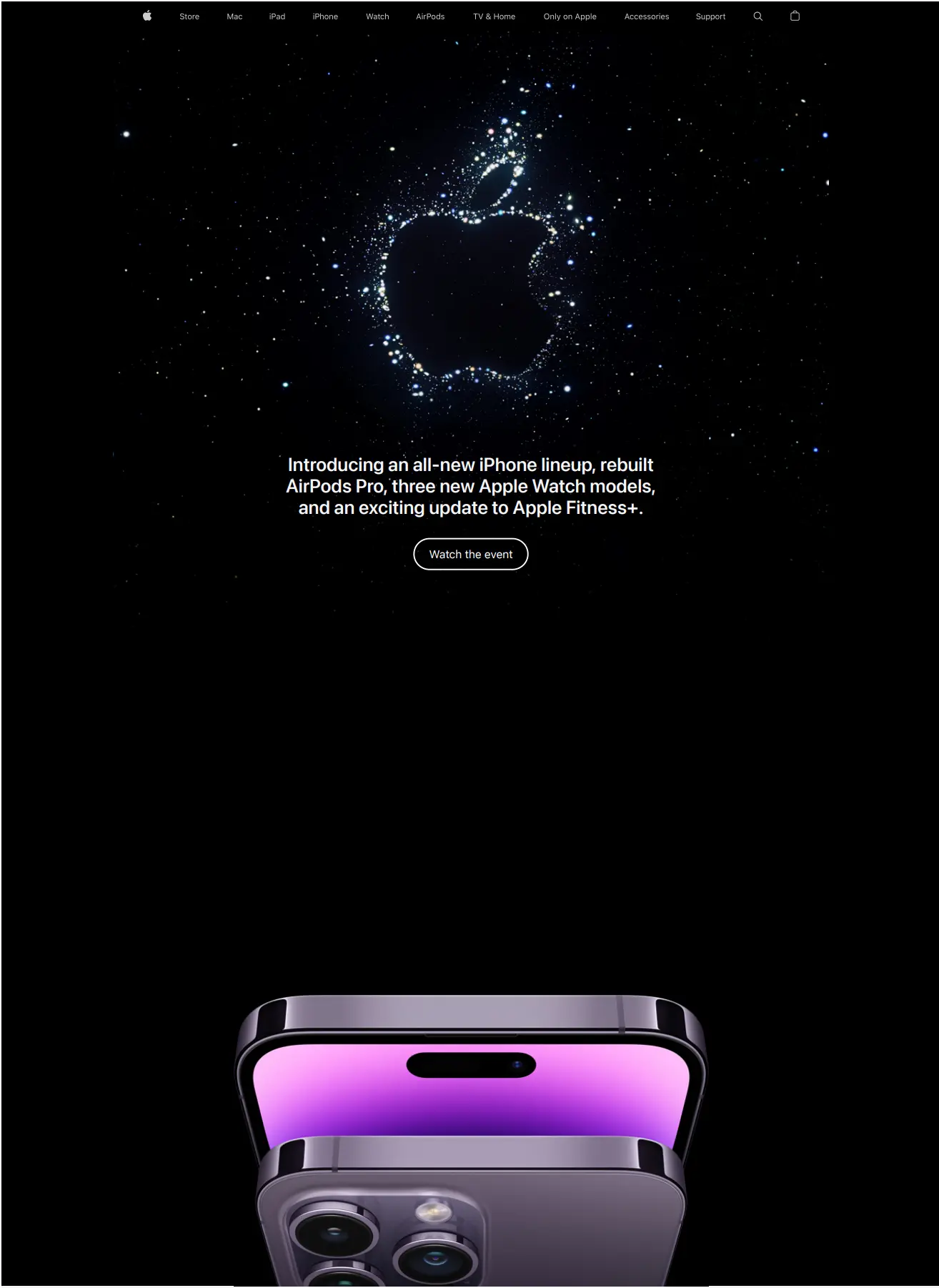
如您所見,使用IronPDF,我們能夠在僅僅三行程式碼中將樣式化的HTML文件轉換為PDF文件,且不失去任何原始品質或佈局! 如果您想看看IronPDF如何處理更多CSS密集的內容,為何不看一下這個URL內容轉換為PDF的範例呢?
using IronPdf;

ChromePdfRenderer renderer = new ChromePdfRenderer();
renderer.RenderingOptions.EnableJavaScript = true;
renderer.RenderingOptions.WaitFor.JavaScript(5000);
renderer.RenderingOptions.CssMediaType = IronPdf.Rendering.PdfCssMediaType.Print;
PdfDocument pdf = renderer.RenderUrlAsPdf("https://www.apple.com");
pdf.SaveAs("Apple.pdf");
using IronPdf;
ChromePdfRenderer renderer = new ChromePdfRenderer();
renderer.RenderingOptions.EnableJavaScript = true;
renderer.RenderingOptions.WaitFor.JavaScript(5000);
renderer.RenderingOptions.CssMediaType = IronPdf.Rendering.PdfCssMediaType.Print;
PdfDocument pdf = renderer.RenderUrlAsPdf("https://www.apple.com");
pdf.SaveAs("Apple.pdf");Imports IronPdf
Private renderer As New ChromePdfRenderer()
renderer.RenderingOptions.EnableJavaScript = True
renderer.RenderingOptions.WaitFor.JavaScript(5000)
renderer.RenderingOptions.CssMediaType = IronPdf.Rendering.PdfCssMediaType.Print
Dim pdf As PdfDocument = renderer.RenderUrlAsPdf("https://www.apple.com")
pdf.SaveAs("Apple.pdf")輸出
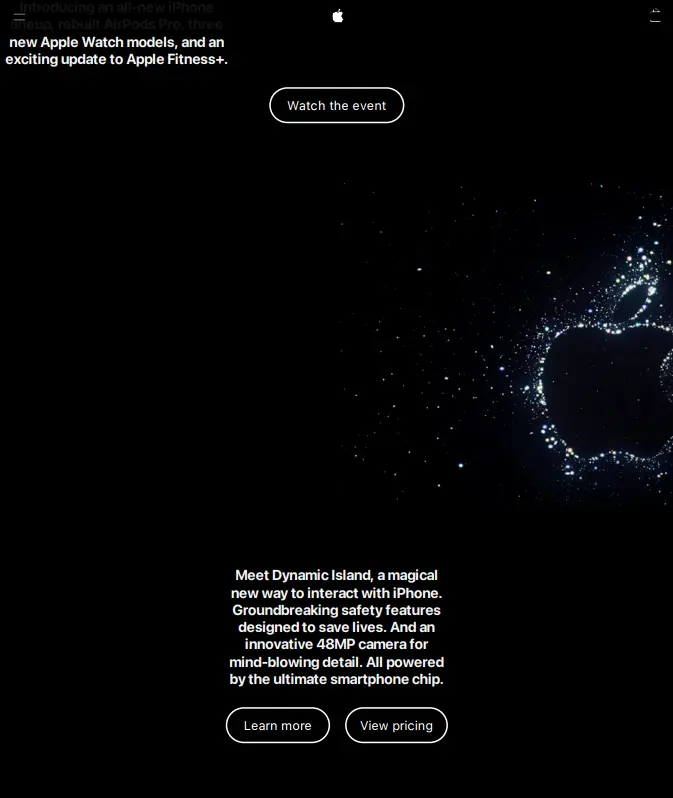
在這裡,我們利用IronPDF的強大渲染選項,將網頁內容轉換為高品質的PDF,從而保持了所有原始的CSS和JavaScript內容。
PDFSharp:最適合不含網頁內容的靜態PDF
PDFSharp不本地支持HTML-to-PDF轉換。 如果您需要此功能,您必須使用第三方程式庫如Html Renderer,它提供通過靜態渲染程式碼將HTML內容轉換為PDF文件的能力。 由於這些限制,PDFSharp通常最適合用於:
- 不依賴動態HTML渲染的靜態文件。
- 發票、合同和報告,內容由程式生成。
PDFSharp與HtmlRenderer範例:
using PdfSharp.Pdf;
using TheArtOfDev.HtmlRenderer.PdfSharp;

var document = new PdfSharpCore.Pdf.PdfDocument();
string htmlContent = File.ReadAllText("index.html");
PdfGenerator.AddPdfPages(document, htmlContent, PdfSharpCore.PageSize.A4);
document.Save("html-to-pdf-pdfsharp.pdf");
using PdfSharp.Pdf;
using TheArtOfDev.HtmlRenderer.PdfSharp;
var document = new PdfSharpCore.Pdf.PdfDocument();
string htmlContent = File.ReadAllText("index.html");
PdfGenerator.AddPdfPages(document, htmlContent, PdfSharpCore.PageSize.A4);
document.Save("html-to-pdf-pdfsharp.pdf");Imports PdfSharp.Pdf
Imports TheArtOfDev.HtmlRenderer.PdfSharp
Private document = New PdfSharpCore.Pdf.PdfDocument()
Private htmlContent As String = File.ReadAllText("index.html")
PdfGenerator.AddPdfPages(document, htmlContent, PdfSharpCore.PageSize.A4)
document.Save("html-to-pdf-pdfsharp.pdf")輸出
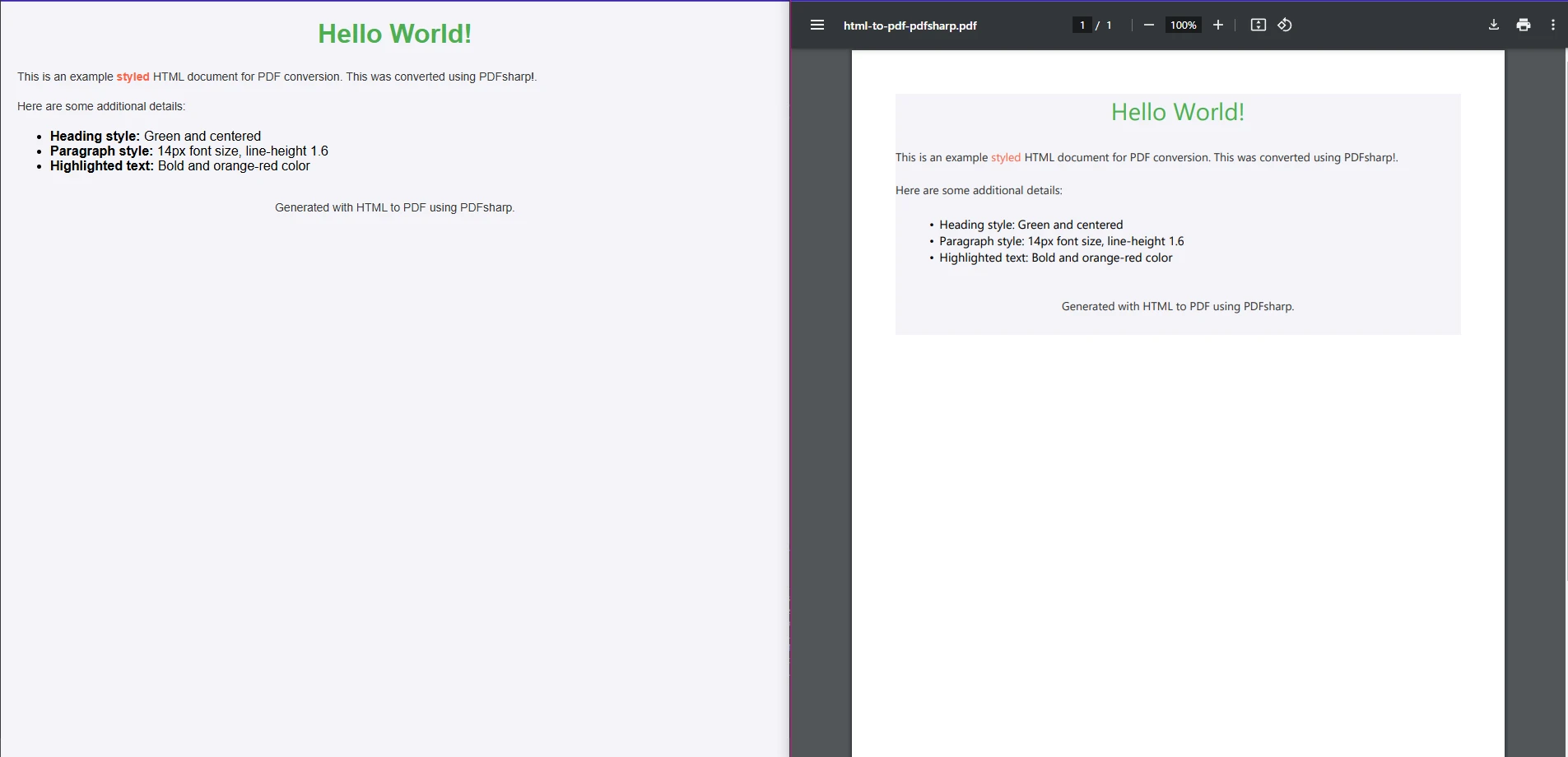
多虧了HtmlRenderer插件,我們能夠在保持大部分原始樣式的情況下將大多數HTML內容轉換為PDF,但相較於IronPDF,它在處理更多CSS密集的內容時如何? 讓我們來看看將網頁內容轉換為PDF文件的過程:
using PdfSharpCore.Pdf;
using TheArtOfDev.HtmlRenderer.PdfSharp;
using System.Net.Http;
using System.Threading.Tasks;
using System.IO;

public class Program
{
    public static async Task Main(string[] args)
    {
        // Define the URL to fetch HTML content
        string url = "https://www.example.com"; // Replace with the URL you want to convert

        // Fetch HTML content from the URL
        string htmlContent = await FetchHtmlFromUrl(url);

        // Generate the PDF from the fetched HTML content
        var document = new PdfSharpCore.Pdf.PdfDocument();
        PdfGenerator.AddPdfPages(document, htmlContent, PdfSharpCore.PageSize.A4);

        // Save the generated PDF to a file
        document.Save("url-to-pdf-example.pdf");

        System.Console.WriteLine("PDF created successfully!");
    }

    // Method to fetch HTML content from a URL
    private static async Task<string> FetchHtmlFromUrl(string url)
    {
        using (HttpClient client = new HttpClient())
        {
            // Send GET request to fetch the HTML content of the URL
            HttpResponseMessage response = await client.GetAsync(url);

            if (response.IsSuccessStatusCode)
            {
                // Read the content as a string
                string htmlContent = await response.Content.ReadAsStringAsync();
                return htmlContent;
            }
            else
            {
                throw new Exception($"Failed to fetch content from URL. Status Code: {response.StatusCode}");
            }
        }
    }
}
using PdfSharpCore.Pdf;
using TheArtOfDev.HtmlRenderer.PdfSharp;
using System.Net.Http;
using System.Threading.Tasks;
using System.IO;
public class Program
{
public static async Task Main(string[] args)
{
// Define the URL to fetch HTML content
string url = "https://www.example.com"; // Replace with the URL you want to convert
// Fetch HTML content from the URL
string htmlContent = await FetchHtmlFromUrl(url);
// Generate the PDF from the fetched HTML content
var document = new PdfSharpCore.Pdf.PdfDocument();
PdfGenerator.AddPdfPages(document, htmlContent, PdfSharpCore.PageSize.A4);
// Save the generated PDF to a file
document.Save("url-to-pdf-example.pdf");
System.Console.WriteLine("PDF created successfully!");
}
// Method to fetch HTML content from a URL
private static async Task<string> FetchHtmlFromUrl(string url)
{
using (HttpClient client = new HttpClient())
{
// Send GET request to fetch the HTML content of the URL
HttpResponseMessage response = await client.GetAsync(url);
if (response.IsSuccessStatusCode)
{
// Read the content as a string
string htmlContent = await response.Content.ReadAsStringAsync();
return htmlContent;
}
else
{
throw new Exception($"Failed to fetch content from URL. Status Code: {response.StatusCode}");
}
}
}
}Imports PdfSharpCore.Pdf
Imports TheArtOfDev.HtmlRenderer.PdfSharp
Imports System.Net.Http
Imports System.Threading.Tasks
Imports System.IO
Public Class Program
Public Shared Async Function Main(ByVal args() As String) As Task
' Define the URL to fetch HTML content
Dim url As String = "https://www.example.com" ' Replace with the URL you want to convert
' Fetch HTML content from the URL
Dim htmlContent As String = Await FetchHtmlFromUrl(url)
' Generate the PDF from the fetched HTML content
Dim document = New PdfSharpCore.Pdf.PdfDocument()
PdfGenerator.AddPdfPages(document, htmlContent, PdfSharpCore.PageSize.A4)
' Save the generated PDF to a file
document.Save("url-to-pdf-example.pdf")
System.Console.WriteLine("PDF created successfully!")
End Function
' Method to fetch HTML content from a URL
Private Shared Async Function FetchHtmlFromUrl(ByVal url As String) As Task(Of String)
Using client As New HttpClient()
' Send GET request to fetch the HTML content of the URL
Dim response As HttpResponseMessage = Await client.GetAsync(url)
If response.IsSuccessStatusCode Then
' Read the content as a string
Dim htmlContent As String = Await response.Content.ReadAsStringAsync()
Return htmlContent
Else
Throw New Exception($"Failed to fetch content from URL. Status Code: {response.StatusCode}")
End If
End Using
End Function
End Class輸出
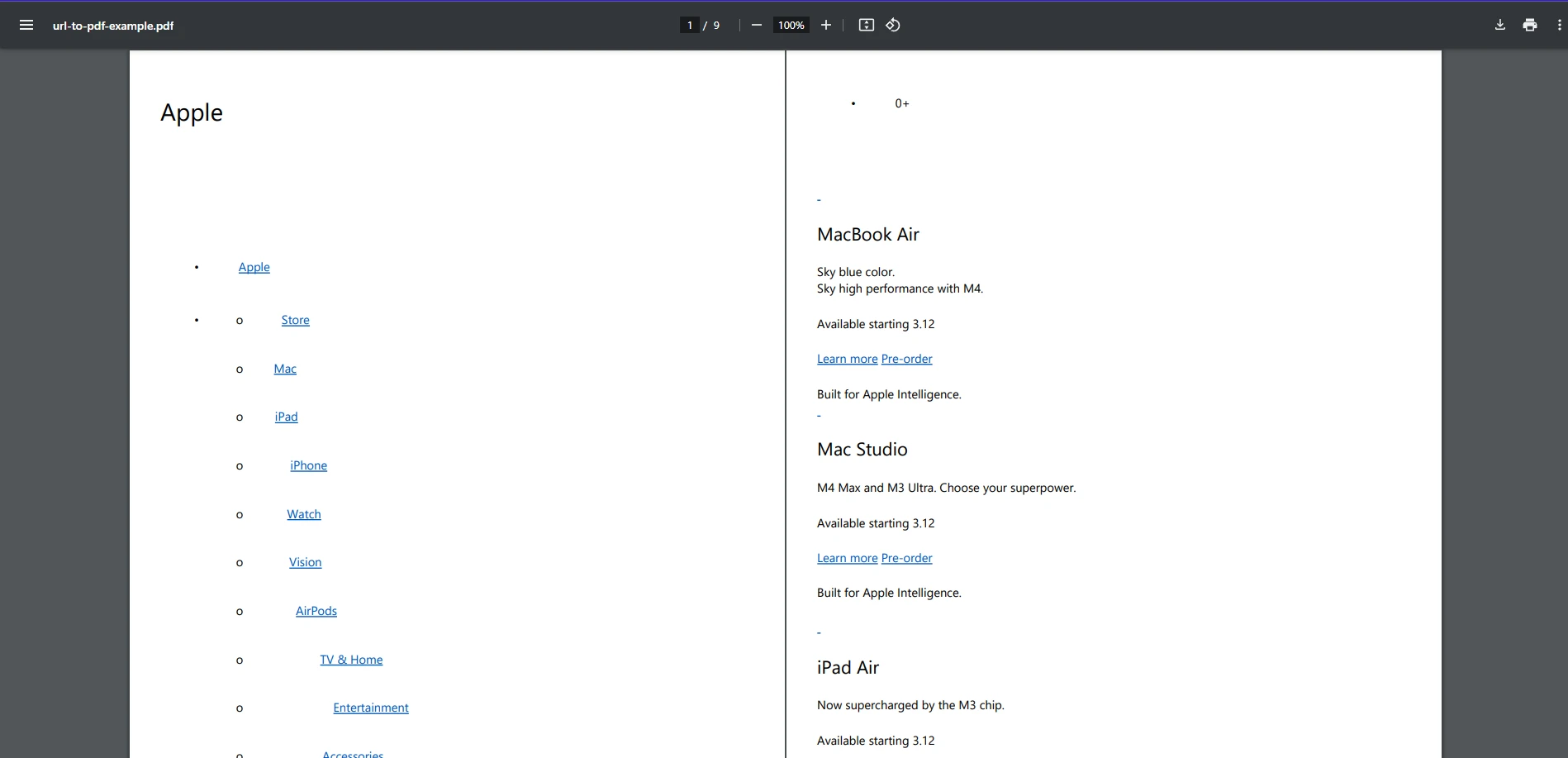
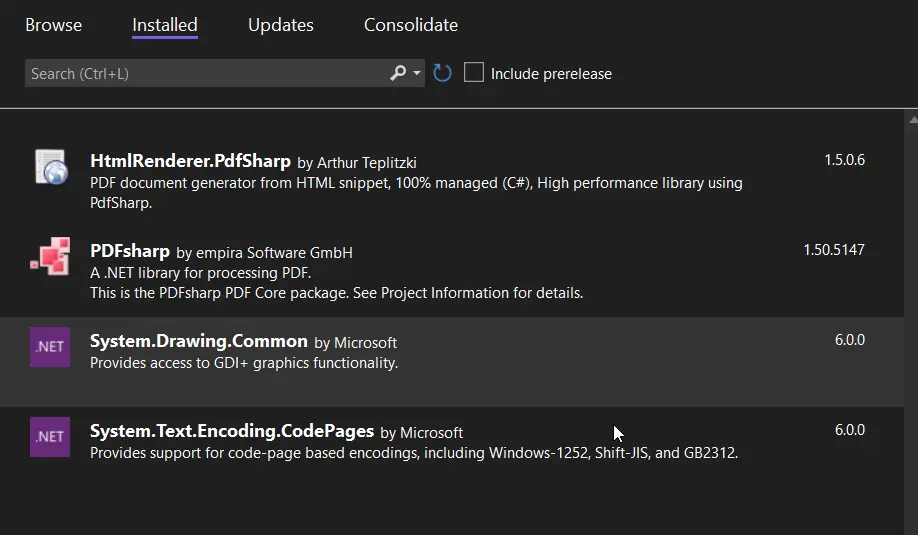
雖然PDFSharp無法處理與IronPDF同樣密集的CSS和JavaScript內容,但對於尋求輕量級PDF程式庫進行不倚賴CSS或JavaScript內容的PDF生成任務的人來說,它仍然是一個強有力的競爭者。 雖然其HTML轉換需要額外的程式庫,但PDFSharp能夠在.NET生態系統中從頭開始建立PDF文件。
加密與安全性
IronPDF:最適合安全、合規性驅動的應用程式
IronPDF是需要安全PDF處理的開發者的首選,尤其是在需要符合嚴格的資料保護規定的應用程式中。 它提供設計用來確保您的PDF文件安全且防篡改的先進安全功能,使其適合於金融、健康和法律等行業。
IronPDF的用案例:
- 法律和金融文件:IronPDF允許您使用先進的加密方法保護PDF中的敏感資料,確保僅授權使用者能夠存取。
- 需要數位簽章的文件:它提供數位簽章功能,以確保文件的真實性,這在合法協議和合同中至關重要。
- GDPR和HIPAA合規性:在處理個人或敏感資訊時,IronPDF支援符合GDPR和HIPAA等規定的加密標準,為處理安全客戶資料的開發者提供安心。
IronPDF的加密能力包括使用者級別和所有者級別密碼,這意味著您可以限制對PDF的存取或限制特定操作,如列印、複製或編輯。 此外,它允許您為PDF應用數位簽章,確保資料完整性和不可抵賴性,使其成為法律文件的理想之選。 這些功能在文件安全至關重要的工作流程中特別有用。
IronPDF程式碼範例-使用口令加密PDF:
using IronPdf;

var pdf = PdfDocument.FromFile("ConfidentialDocument.pdf");
pdf.SecuritySettings.UserPassword = "user";
pdf.SecuritySettings.OwnerPassword = "owner";
pdf.SecuritySettings.AllowUserEdits = IronPdf.Security.PdfEditSecurity.NoEdit;
pdf.SecuritySettings.AllowUserAnnotations = false;
pdf.SaveAs("ConfidentialDocumentSecured.pdf");
using IronPdf;
var pdf = PdfDocument.FromFile("ConfidentialDocument.pdf");
pdf.SecuritySettings.UserPassword = "user";
pdf.SecuritySettings.OwnerPassword = "owner";
pdf.SecuritySettings.AllowUserEdits = IronPdf.Security.PdfEditSecurity.NoEdit;
pdf.SecuritySettings.AllowUserAnnotations = false;
pdf.SaveAs("ConfidentialDocumentSecured.pdf");Imports IronPdf
Private pdf = PdfDocument.FromFile("ConfidentialDocument.pdf")
pdf.SecuritySettings.UserPassword = "user"
pdf.SecuritySettings.OwnerPassword = "owner"
pdf.SecuritySettings.AllowUserEdits = IronPdf.Security.PdfEditSecurity.NoEdit
pdf.SecuritySettings.AllowUserAnnotations = False
pdf.SaveAs("ConfidentialDocumentSecured.pdf")輸出
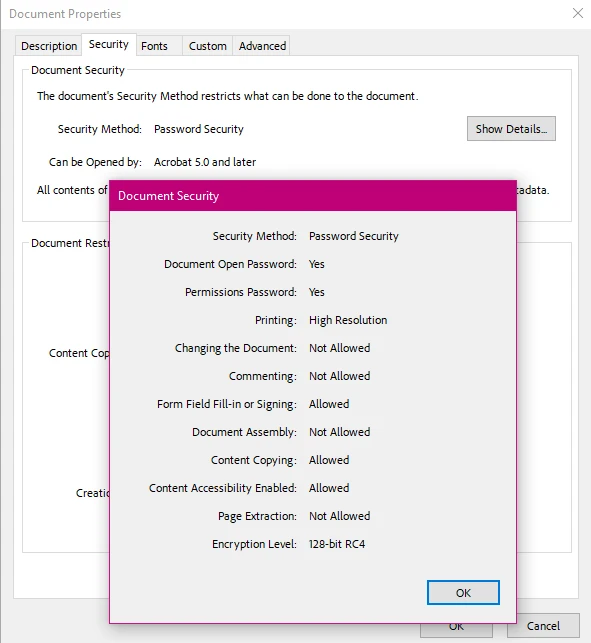
在這個範例中,IronPDF加密PDF並限制使用者操作,從而確保文件免受未經授權的存取或操作。
PDFSharp:最適合基本安全需求
PDFSharp雖然提供基本的口令保護,但缺乏數位簽章、水印或複雜加密等高級功能。 對於只需限制PDF存取或應用基本口令的簡單使用案例,PDFSharp是個不錯的選擇。 但如果您的應用需要更多高級安全功能,如安全文件簽名或滿足合規性的加密,您可能會覺得PDFSharp有所不足。
PDFSharp的使用案例:
- 保護內部文件:PDFSharp適合用基本口令保護以防止未經授權的存取至內部報告、發票和合同的PDF。
- 機密文件的基本加密:如果您的應用不需要合規驅動的安全性,但您仍希望確保未經授權的使用者無法打開敏感PDF,PDFSharp的口令保護是一個簡單的解決方案。
不過,PDFSharp的加密功能比起IronPDF來說有限,因此不適用於需要強安全性的場景,例如金融或醫療行業。 它可以使用使用者密碼保護PDF並限制某些操作,如列印和複製,但不提供金融或醫療行業所需的強大加密標準。
PDFSharp程式碼範例–基本PDF加密:
using PdfSharp.Pdf;
using PdfSharp.Pdf.Security;
using PdfSharp.Drawing;

// Create a new document
var document = new PdfSharp.Pdf.PdfDocument();

// Add a page and draw something on it
var page = document.AddPage();
var gfx = XGraphics.FromPdfPage(page);
var font = new XFont("Arial", 16, XFontStyleEx.Bold);
gfx.DrawString("Confidential Document", font, XBrushes.Black, new XPoint(50, 50));

// Set password protection
document.SecuritySettings.UserPassword = "password123";
document.SecuritySettings.OwnerPassword = "admin456";

// Save the encrypted PDF
document.Save("pdfsharp-encrypted.pdf");
using PdfSharp.Pdf;
using PdfSharp.Pdf.Security;
using PdfSharp.Drawing;
// Create a new document
var document = new PdfSharp.Pdf.PdfDocument();
// Add a page and draw something on it
var page = document.AddPage();
var gfx = XGraphics.FromPdfPage(page);
var font = new XFont("Arial", 16, XFontStyleEx.Bold);
gfx.DrawString("Confidential Document", font, XBrushes.Black, new XPoint(50, 50));
// Set password protection
document.SecuritySettings.UserPassword = "password123";
document.SecuritySettings.OwnerPassword = "admin456";
// Save the encrypted PDF
document.Save("pdfsharp-encrypted.pdf");Imports PdfSharp.Pdf
Imports PdfSharp.Pdf.Security
Imports PdfSharp.Drawing
' Create a new document
Private document = New PdfSharp.Pdf.PdfDocument()
' Add a page and draw something on it
Private page = document.AddPage()
Private gfx = XGraphics.FromPdfPage(page)
Private font = New XFont("Arial", 16, XFontStyleEx.Bold)
gfx.DrawString("Confidential Document", font, XBrushes.Black, New XPoint(50, 50))
' Set password protection
document.SecuritySettings.UserPassword = "password123"
document.SecuritySettings.OwnerPassword = "admin456"
' Save the encrypted PDF
document.Save("pdfsharp-encrypted.pdf")輸出
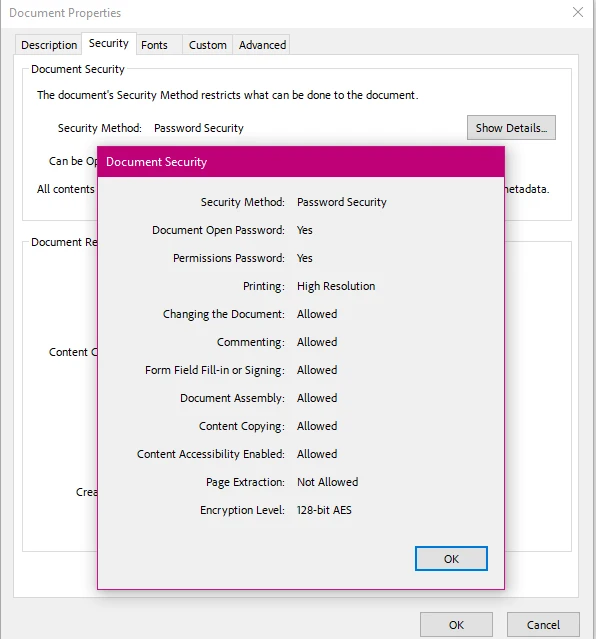
在此程式碼中,PDFSharp僅對PDF文件應用使用者口令以限制存取。
功能應用
IronPDF:最適合綜合PDF編輯、遮罩和轉換
IronPDF在需要綜合PDF編輯、遮罩及能力處理多種文件格式如DOCX到PDF轉換的情境中蓬勃發展。 它是為開發以下應用程式的開發者設計的,以便進行高階PDF操作且能夠輕鬆整合到業務工作流程中。
IronPDF的實際用案例:
- 遮罩敏感資訊:IronPDF對於法律、健康和政府等需要在PDF文件中移除或隱藏敏感資訊(如個人資料、財務細節或醫療記錄)的產業非常有效。 遮罩涉及不僅是覆蓋文字,還要確保無法恢復被遮蔽的資訊。
- 從DOCX文件自動生成PDF:IronPDF使從Microsoft Word文件(DOCX)轉換為PDF變得簡單。 這在如企業軟體或電子商務等環境中特別有用,因為發票、報告或合同經常從Word文件生成,需要轉換為安全的PDF進行存檔或分發。
- 可編輯的PDF表單:如果您正在構建允許使用者輸入資料(如應用、調查、回饋表單)的互動式PDF表單,IronPDF允許建立和修改可填寫的表單。 此功能通常在如人資、教育和客戶支持等行業中使用。
範例用例-將DOCX轉換為PDF並新增水印:在企業環境中,IronPDF可以用來將Word文件轉換為PDF,然後新增水印以進行品牌化或安全目的。 使用IronPDF,您可以將水印應用於指定的頁面或整個PDF的所有頁面。
在此,我們將採用一個範例DOCX文件,並應用水印以標記為草稿,並示範公司品牌。
using IronPdf;
using IronPdf.Editing;

DocxToPdfRenderer renderer = new DocxToPdfRenderer();
PdfDocument pdf = renderer.RenderDocxAsPdf("document.docx");
var watermark = "<h1 style='Color: red; font-size: 60px'>DRAFT</h1><img style='width: 200px' src='https://ironsoftware.com/img/products/ironpdf-logo-text-dotnet.svg'>";
pdf.ApplyWatermark(watermark, opacity: 75, VerticalAlignment.Top, HorizontalAlignment.Right);
pdf.SaveAs("output.pdf");
using IronPdf;
using IronPdf.Editing;
DocxToPdfRenderer renderer = new DocxToPdfRenderer();
PdfDocument pdf = renderer.RenderDocxAsPdf("document.docx");
var watermark = "<h1 style='Color: red; font-size: 60px'>DRAFT</h1><img style='width: 200px' src='https://ironsoftware.com/img/products/ironpdf-logo-text-dotnet.svg'>";
pdf.ApplyWatermark(watermark, opacity: 75, VerticalAlignment.Top, HorizontalAlignment.Right);
pdf.SaveAs("output.pdf");Imports IronPdf
Imports IronPdf.Editing
Private renderer As New DocxToPdfRenderer()
Private pdf As PdfDocument = renderer.RenderDocxAsPdf("document.docx")
Private watermark = "<h1 style='Color: red; font-size: 60px'>DRAFT</h1><img style='width: 200px' src='https://ironsoftware.com/img/products/ironpdf-logo-text-dotnet.svg'>"
pdf.ApplyWatermark(watermark, opacity:= 75, VerticalAlignment.Top, HorizontalAlignment.Right)
pdf.SaveAs("output.pdf")輸出
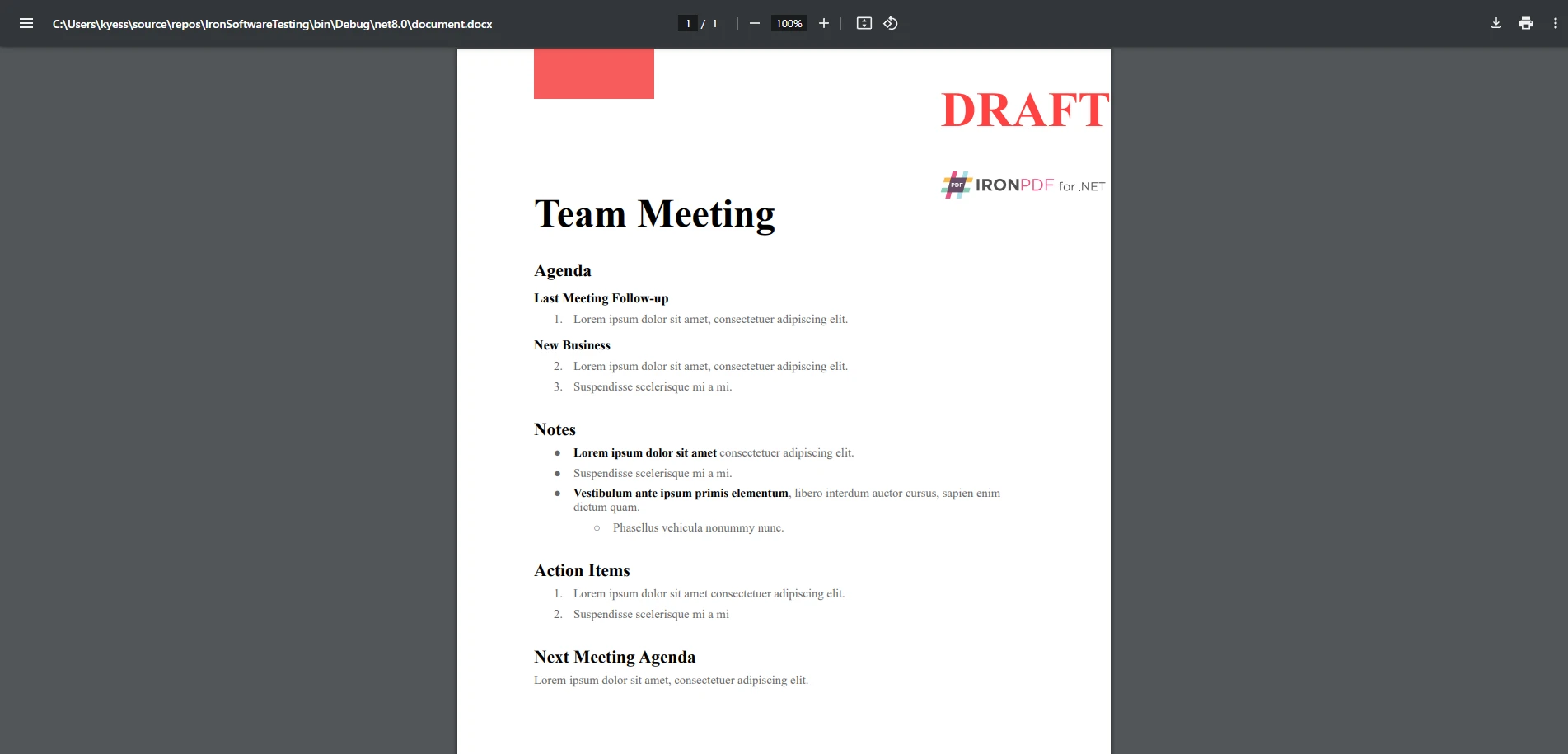
在此範例中,IronPDF首先將DOCX文件轉換為PDF,然後新增水印以確保文件被標記為"草稿"。 此功能對於需要分發敏感資訊的公司來說非常有用,同時確保文件的安全性被保持或跟踪哪些文件是草稿。
PDFSharp:非常適合輕量的PDF編輯和簡單文件生成
PDFSharp更適合基本的PDF操作,如需要輕量編輯和從頭建立文件的情境。 它在如從頭開始建立簡單的PDF,修改現有的PDF以及應用基本遮罩等任務上表現出色。 然而在進行更複雜的操作時,例如高階遮罩、文件轉換或處理表單資料時,PDFSharp的能力相對於IronPDF來說更加有限。
PDFSharp的實際用例:
- 生成簡單的報告和文件:PDFSharp非常適合建立簡單的靜態文件,如報告、發票或小冊子。 它常用於小型企業應用中,PDF生成不需要過於複雜但需要包括基本格式化如文字、圖像和表格。
- 基本的PDF編輯與合併:在需要將多個PDF合為一份文件或將大型PDF拆分為較小部分的場景中,PDFSharp提供了簡單的功能以處理這些任務。 它非常適合需要輕量操作的文件管理系統,而不需要高級PDF操作。
- 基本遮罩:雖然PDFSharp不提供像IronPDF那樣的高階遮罩功能,但可以用於基本遮罩,比如用形狀或實心色遮蓋文字或圖像。 這相對於對安全性要求不高的文件或不需要遵循嚴格資料隱私法律的應用已經足夠。
範例用例:在商業環境中,PDFSharp可以被用來從資料物中提取資料生成報告、合併多個文件為一個或遮蔽文件的一部分以供內部使用。
PDFSharp程式碼範例–合併兩份PDF:
using PdfSharp.Pdf;
using PdfSharp.Pdf.IO;

// Open the first PDF
PdfDocument document1 = PdfReader.Open("document1.pdf", PdfDocumentOpenMode.Import);

// Open the second PDF
PdfDocument document2 = PdfReader.Open("document2.pdf", PdfDocumentOpenMode.Import);

// Create a new PDF document for the merged file
PdfDocument outputDocument = new PdfDocument();

// Add pages from the first document
foreach (PdfPage page in document1.Pages)
{
    outputDocument.AddPage(page);
}

// Add pages from the second document
foreach (PdfPage page in document2.Pages)
{
    outputDocument.AddPage(page);
}

// Save the merged PDF
outputDocument.Save("merged-document.pdf");
using PdfSharp.Pdf;
using PdfSharp.Pdf.IO;
// Open the first PDF
PdfDocument document1 = PdfReader.Open("document1.pdf", PdfDocumentOpenMode.Import);
// Open the second PDF
PdfDocument document2 = PdfReader.Open("document2.pdf", PdfDocumentOpenMode.Import);
// Create a new PDF document for the merged file
PdfDocument outputDocument = new PdfDocument();
// Add pages from the first document
foreach (PdfPage page in document1.Pages)
{
outputDocument.AddPage(page);
}
// Add pages from the second document
foreach (PdfPage page in document2.Pages)
{
outputDocument.AddPage(page);
}
// Save the merged PDF
outputDocument.Save("merged-document.pdf");Imports PdfSharp.Pdf
Imports PdfSharp.Pdf.IO
' Open the first PDF
Private document1 As PdfDocument = PdfReader.Open("document1.pdf", PdfDocumentOpenMode.Import)
' Open the second PDF
Private document2 As PdfDocument = PdfReader.Open("document2.pdf", PdfDocumentOpenMode.Import)
' Create a new PDF document for the merged file
Private outputDocument As New PdfDocument()
' Add pages from the first document
For Each page As PdfPage In document1.Pages
outputDocument.AddPage(page)
Next page
' Add pages from the second document
For Each page As PdfPage In document2.Pages
outputDocument.AddPage(page)
Next page
' Save the merged PDF
outputDocument.Save("merged-document.pdf")輸出
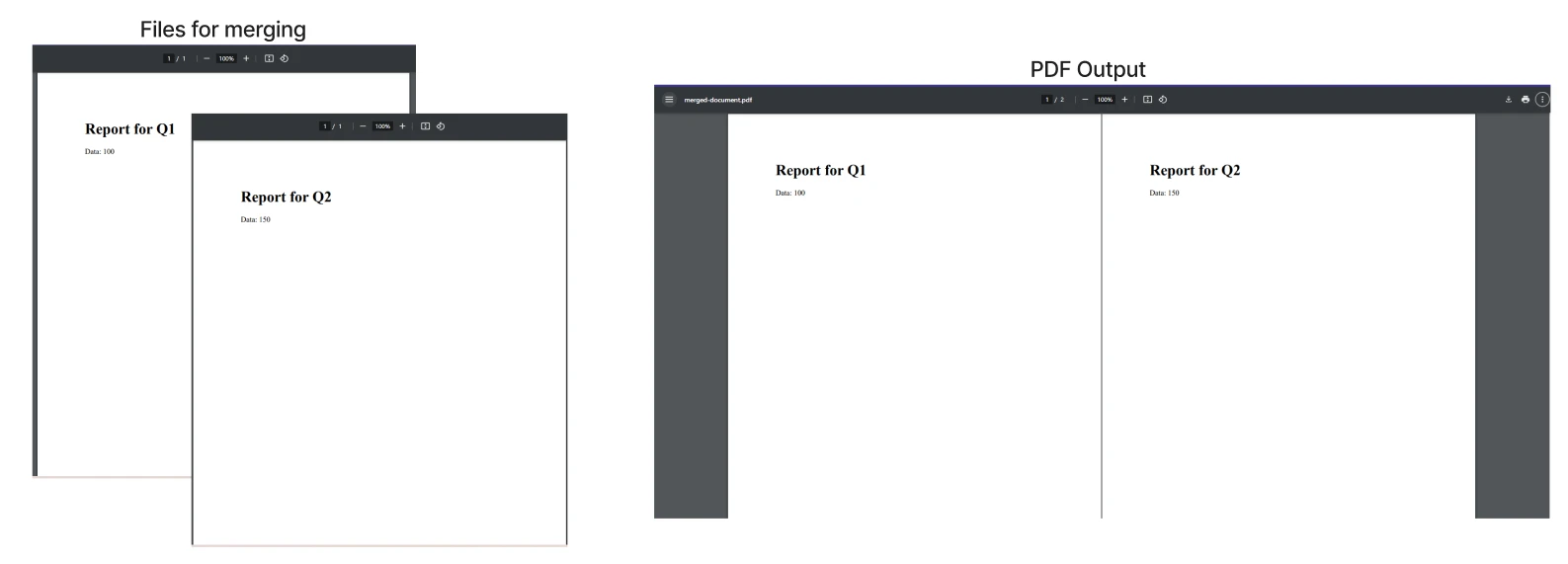
此程式碼顯示了如何使用PDFSharp將兩份PDF文件合併為一個。 這是一個常見用例,適合需要將多個報告、發票或其他文件合併為單一PDF的應用中。
定價與授權
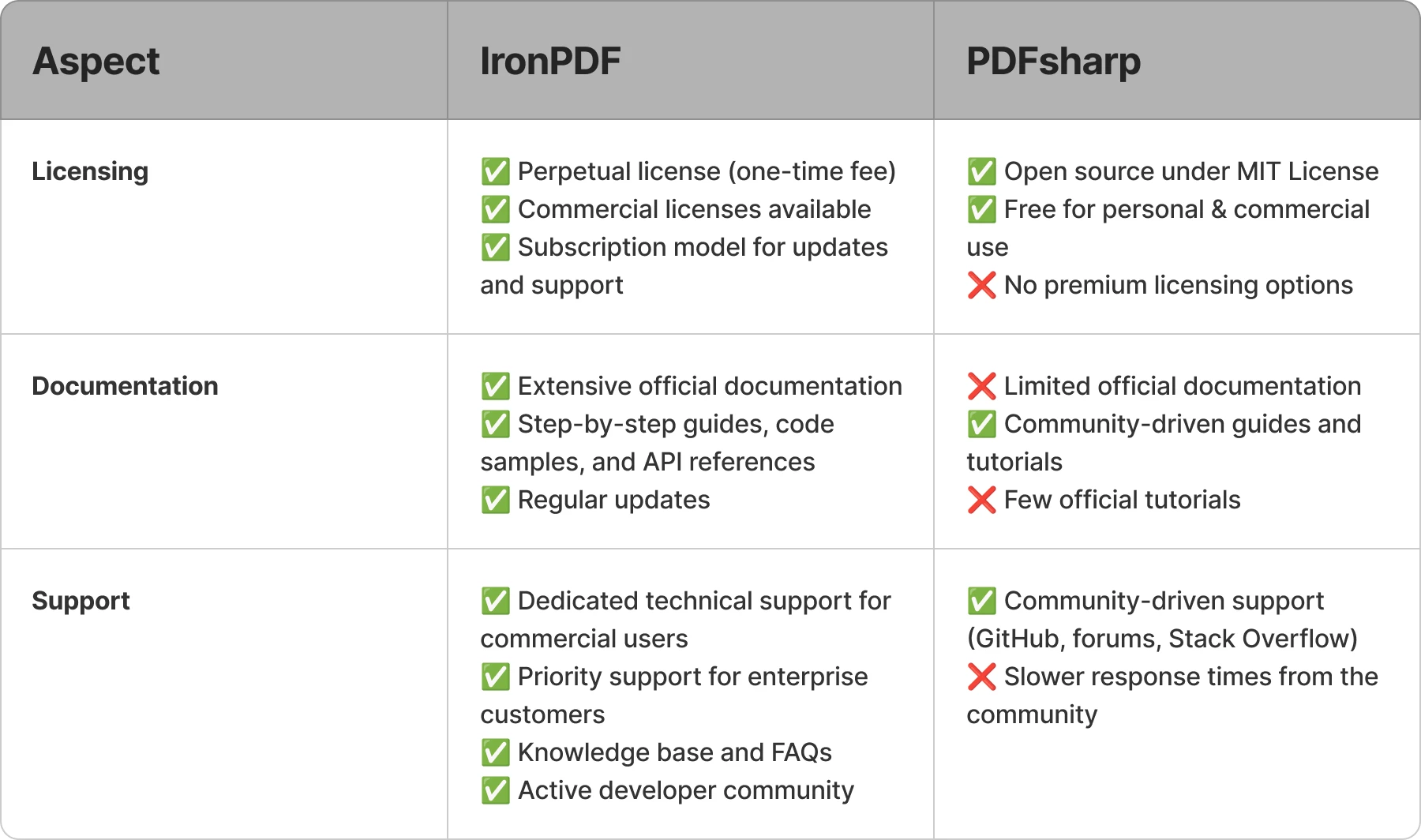
IronPDF和PDFSharp在定價和授權方面提供了不同的方式,以滿足各種需求。 IronPDF提供永久授權模型,而PDFSharp是開源的且免費使用。
IronPDF定價及授權:
IronPDF使用永久授權模型,意味著使用者可以享有終身使用權,並獲得年度更新。 它提供分層定價,包括個人、團隊或企業授權。 提供免費試用,允許使用者在購買前測試工具。 商業授權使用者還能獲得技術支援和功能更新。
- 永久授權:包括年度更新的終身使用權。
- 分層授權:針對個人、團隊或企業的授權。
- 免費試用:使用者可以在購買前試用。
- 商業支援:獲得支援和定期更新。
PDFSharp 授權:
PDFSharp是免費的,根據MIT授權,這意味著它是開源,並適用於個人和商業用途。 然而,它不提供高級支援,使用者需要依靠社群論壇尋求幫助。 這適合於較小的或開源專案,但可能需要外部幫助以滿足更複雜的需求。
- MIT授權: 商業使用免費。
- 無高級支援:需依賴社群論壇協助。
- 靈活性:適合較小專案。
終端使用者支援與文件
IronPDF在開發者支援上表現出色,提供了詳細的文件和多種協助管道。 與PDFSharp不同的是,IronPDF提供了結構化的資源,以幫助開發者在整合過程中順利推進。
IronPDF開發者支援:
IronPDF提供了全面的文件,包括逐步指南、API參考,和程式碼範例。 專屬的支援團隊可處理技術查詢。 此外,線上知識庫提供了故障排除方案和有用的提示。 對於企業客戶,優先支援確保更快速的問題解決。
- 全面的文件: 詳細的指南和程式碼範例。
- 支援團隊:直接存取技術支援。
- 知識庫: 常見問題解答和故障排除提示。
- 優先支援: 提供給企業使用者的快速問題解決。
參與社群特性:
IronPDF也培育一個活躍的開發者社群。 使用者可以參加社群論壇,在那裡可以提問、分享經驗,並尋找解決方案。 此外,教程和錄像指南幫助使用者快速入門。 IronPDF也出現在GitHub上,允許社群報告錯誤和建議功能。
- 社群論壇: 一個可供提問和分享解決方案的空間。
- 教程與指南: 逐步操作說明和錄像資源。
- GitHub協作: 使用者可以參與並建議新功能。
PDFSharp開發者支援:
PDFSharp的支援主要來自其GitHub倉庫和社群論壇如Stack Overflow。 開發者可以報告問題、瀏覽解決方案或提問。 然而,文件有限,詳細的指南或官方教程稀缺,要求開發者依賴於社群貢獻或通過試驗和錯誤。
- GitHub倉庫:報告問題並探索解決方案。
- 社群論壇: 在 Stack Overflow上尋求幫助。
- 文件稀少: 指南和資源有限。
社群驅動的貢獻:
缺乏正式支援意味著開發者可以通過GitHub貢獻給PDFSharp,改善文件或增加功能。 雖然有使用者貢獻的教程,但缺少專門的支援團隊意味著排除故障可能需要更長的時間。
- 開源貢獻:使用者可改善文件。
- 協作故障排除:依賴於社群尋求幫助。
授權、文件和支援摘要
結論
在選擇IronPDF與PDFSharp之間時,主要取決於專案的需求。 IronPDF是一個強大、功能豐富的解決方案,具有如HTML-to-PDF轉換、強大加密和強大的跨平台支援等先進能力。 對於需要高品質PDF操作、安全功能和專業支援的企業、企業和開發者來說,它是個理想選擇。
另一方面,PDFSharp是個穩固的開源選擇,適合不需要高級功能的較簡單專案,提供易用性和基本PDF建立與編輯的靈活性。
如果您正在尋找一個整合PDF解決方案,擁有豐富的功能,我們鼓勵您探索IronPDF。 憑藉其商業支援和持續更新,IronPDF設計用來滿足您的開發需求,並確保您的PDF被高效和安全地處理。 今天就試試IronPDF,發現它如何優化您的PDF工作流程!
常見問題
如何在C#中將HTML轉換為PDF?
您可以使用IronPDF的RenderHtmlAsPdf方法將HTML字串轉換成PDF。也可以使用RenderHtmlFileAsPdf將HTML文件轉換為PDF。
IronPDF與PDFsharp之間的主要區別是什麼?
IronPDF是一個功能全面的程式庫,具有如HTML轉PDF轉換、PDF編輯和安全功能等高級功能。PDFsharp則更基礎,專注於PDF建立和編輯,缺乏原生的HTML轉PDF轉換。
IronPDF適合跨平台應用嗎?
是的,IronPDF支持Windows、macOS和Linux,並且與.NET Core和.NET Framework相容,非常適合跨平台應用。
IronPDF提供哪些安全功能?
IronPDF提供了高級的安全功能,包括數位簽名和256位加密,適合需要強大文件保護的應用。
PDFsharp能夠處理複雜的網頁進行PDF轉換嗎?
否,PDFsharp本身不支持HTML轉PDF轉換,需要使用第三方工具如Polybioz.HtmlRenderer.PdfSharp.Core來渲染HTML內容。
IronPDF如何支持開發者?
IronPDF提供了全面的文件檔、一個專門的支援團隊,以及活躍的社區論壇,為開發者提供豐富的資源。
IronPDF有哪些授權選項?
IronPDF採用永久授權模式,價格分層,提供免費試用、年度更新和商業支援。
PDFsharp是免費使用的嗎?
是的,PDFsharp是免費並且開源的,使用的是MIT許可證,適用於個人和商業用途。
哪個程式庫在處理PDF加密方面提供更好的支持?
IronPDF提供了高級加密功能,包括256位加密和數位簽名,使其適合安全處理PDF。
什麼是.NET中複雜PDF操作的最佳程式庫?
IronPDF更適合複雜的PDF任務,提供高級功能如HTML轉PDF轉換、編輯和文件安全性。











 免費開始
免費開始 免費開始
免費開始 預訂免費直播演示
















