




已更新 2026年9月4日
產生每月帳戶報表(PDF 文件)
using IronPDF C# PDF 庫,開發人員可以在 .NET 專案中將 HTML 轉換為可靠的 PDF 文件,而無需依賴外部服務。
閱讀更多

使用IronPDF的基於Chrome的渲染引擎來建立ASP.NET Core MVC PDF查看器,以在瀏覽器中內嵌顯示PDF文件,從HTML內容生成動態PDF,並控制使用者是查看還是下載文件——這一切都不需要外部插件或依賴項。
現代瀏覽器內建了PDF查看器,當Web應用程式以正確的MIME型別提供PDF文件時,自動激活。 這消除了對第三方工具或插件的需求,允許使用者直接在瀏覽器中顯示PDF文件。 IronPDF是一個具有基於Chrome的渲染引擎的.NET PDF庫,它使在ASP.NET Core MVC應用程式內生成、渲染和顯示PDF文件變得簡單。

在ASP.NET Core MVC中構建PDF查看器之前,您需要將IronPDF新增到您的專案中。 最快的方法是通過Visual Studio中的NuGet包管理器,或使用命令行通過.NET CLI或包管理器控制台。
包安裝完成後,將IronPdf命名空間新增到您的控制器文件中,然後您就可以開始生成和提供PDF文件。 IronPDF針對.NET 8和.NET 10,因此它可以與最新的ASP.NET Core版本一起使用,無需額外配置。
對於需要離線安裝或特定版本固定的項目,您還可以直接下載NuGet包,並將其新增為本地feed。 IronPDF許可頁面涵蓋了試用和生產許可選項,如果您在上線前需要它們。
現代瀏覽器如Chrome、Firefox、Edge和Safari包含內建的PDF查看器功能。 當您的ASP.NET Core應用程式返回具有application/pdf內容型別的文件時,瀏覽器會內嵌渲染PDF文件,而不需要Adobe Acrobat或外部插件。 這一內建PDF查看器支持文字選擇、列印、縮放控制、書籤和頁面導航,創造出使用者已接受的文件查看體驗。
為了安全地提供現有文件,最好使用託管環境來定位它們,而不是依賴可能在開發和生產之間變化的目錄路徑。 使用文件流也比為大文件載入整個字節陣列更具記憶體效率。
using Microsoft.AspNetCore.Mvc;

public class DocumentController : Controller
{
    public IActionResult ViewPdf()
    {
        // Path to an existing PDF file in the wwwroot folder
        string path = Path.Combine(Directory.GetCurrentDirectory(), "wwwroot", "documents", "sample.pdf");
        byte[] fileBytes = System.IO.File.ReadAllBytes(path);
        // Return file for inline browser display
        return File(fileBytes, "application/pdf");
    }
}Imports Microsoft.AspNetCore.Mvc
Public Class DocumentController
Inherits Controller
Public Function ViewPdf() As IActionResult
' Path to an existing PDF file in the wwwroot folder
Dim path As String = Path.Combine(Directory.GetCurrentDirectory(), "wwwroot", "documents", "sample.pdf")
Dim fileBytes As Byte() = System.IO.File.ReadAllBytes(path)
' Return file for inline browser display
Return File(fileBytes, "application/pdf")
End Function
End Class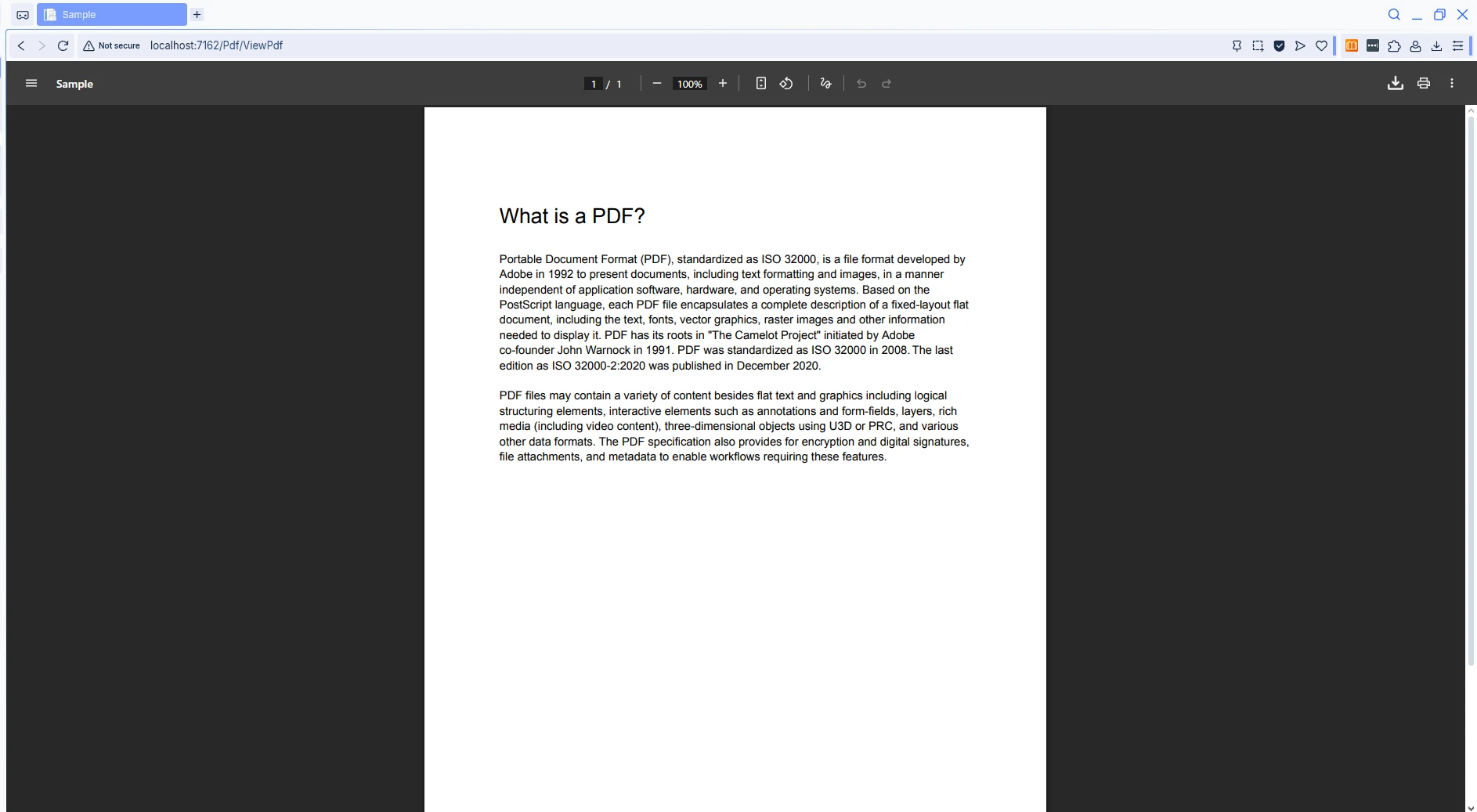
上面的程式碼從伺服器讀取現有的PDF文件並將其返回到瀏覽器。 File()方法接受一個字節陣列和一個內容型別,指示瀏覽器的文件查看器內嵌渲染內容。這種方法在所有現代瀏覽器上(包括桌面和移動裝置)都有效,為使用者提供一致的體驗。
對於更高級的場景,您可能希望從記憶體載入PDF或Azure Blob Storage,這可以提高擴展性並降低伺服器儲存要求。 Microsoft關於在ASP.NET Core中提供靜態文件的文件涵蓋了生產中的文件處理最佳實踐。
靜態PDF文件很有用,但許多Web應用程式需要針對當前使用者或請求而動態生成的文件。IronPDF的ChromePdfRenderer類使用實際的Chrome瀏覽器引擎將HTML內容轉換為專業渲染的PDF文件。
您可以將外部資產(例如您的特定主題的CSS或圖表的JavaScript)直接包含在HTML字串中。 渲染引擎支持現代Web標準,包括CSS3、JavaScript ES6 +和網頁字體,因此生成的PDF看起來與瀏覽器呈現相同HTML頁面時的一樣。
using IronPdf;
using Microsoft.AspNetCore.Mvc;

public class ReportController : Controller
{
    public IActionResult GenerateReport()
    {
        var renderer = new ChromePdfRenderer();
        // HTML content with CSS styling
        string html = @"
            <html>
            <head>
                <style>
                    body { font-family: Arial, sans-serif; padding: 40px; }
                    h1 { color: #2c3e50; }
                    .report-body { line-height: 1.6; }
                </style>
            </head>
            <body>
                <h1>Monthly Sales Report</h1>
                <div class='report-body'>
                    <p>Generated: " + DateTime.Now.ToString("MMMM dd, yyyy") + @"</p>
                    <p>This report contains the latest sales figures.</p>
                </div>
            </body>
            </html>";

        PdfDocument pdf = renderer.RenderHtmlAsPdf(html);
        return File(pdf.BinaryData, "application/pdf");
    }
}Imports IronPdf
Imports Microsoft.AspNetCore.Mvc
Public Class ReportController
Inherits Controller
Public Function GenerateReport() As IActionResult
Dim renderer As New ChromePdfRenderer()
' HTML content with CSS styling
Dim html As String = "
<html>
<head>
<style>
body { font-family: Arial, sans-serif; padding: 40px; }
h1 { color: #2c3e50; }
.report-body { line-height: 1.6; }
</style>
</head>
<body>
<h1>Monthly Sales Report</h1>
<div class='report-body'>
<p>Generated: " & DateTime.Now.ToString("MMMM dd, yyyy") & "</p>
<p>This report contains the latest sales figures.</p>
</div>
</body>
</html>"
Dim pdf As PdfDocument = renderer.RenderHtmlAsPdf(html)
Return File(pdf.BinaryData, "application/pdf")
End Function
End Class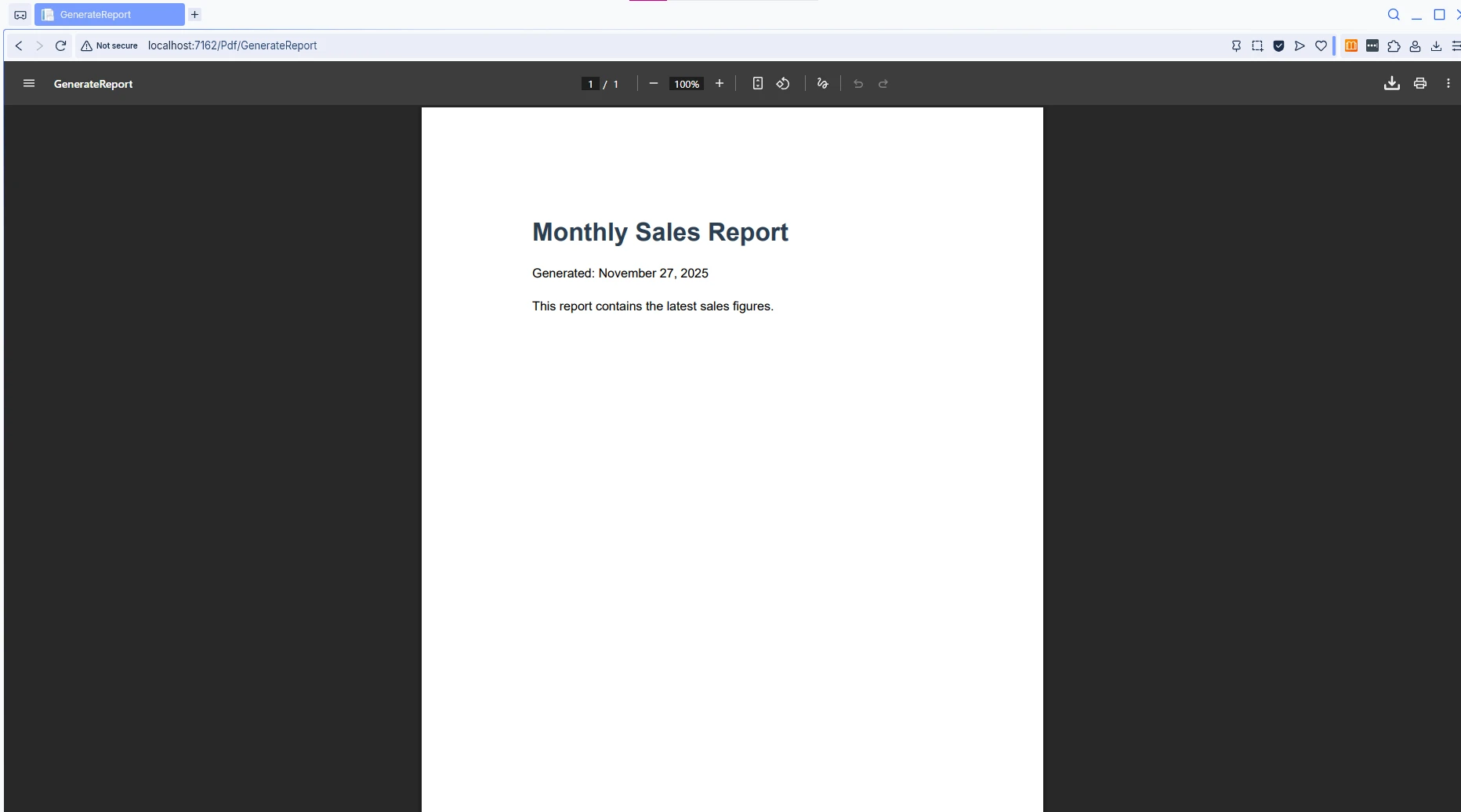
這個例子演示了IronPDF如何將HTML字串轉換為PDF文件。 ChromePdfRenderer使用基於Chrome的引擎,確保準確的CSS渲染和JavaScript支持。 生成的PDF保持HTML中定義的所有樣式,這使其非常適合建立報告、發票和其他需要一致格式的文件。
有關HTML到PDF轉換的更多程式碼範例,請參閱IronPDF的文件。 您還可以從CSHTML Razor視圖、URLs或甚至Markdown內容生成PDF。
有時使用者需要下載PDF文件而不是在瀏覽器中查看它們。 瀏覽器如何處理響應取決於Content-Disposition標頭。 了解這種區別對於在您的應用中提供正確的體驗非常重要。
當您在File()方法中省略檔名參數時,ASP.NET Core不會設置Content-Disposition標頭,因此瀏覽器使用其預設行為——通常是內嵌顯示。 當您將文件名作為第三個參數提供時,ASP.NET Core自動新增Content-Disposition: attachment,提示使用者保存文件。
using IronPdf;
using Microsoft.AspNetCore.Mvc;

public class PdfController : Controller
{
    public IActionResult DisplayInline()
    {
        var renderer = new ChromePdfRenderer();
        renderer.RenderingOptions.PaperOrientation = PdfPaperOrientation.Portrait;
        renderer.RenderingOptions.MarginTop = 25;
        renderer.RenderingOptions.MarginBottom = 25;

        PdfDocument pdf = renderer.RenderUrlAsPdf("https://en.wikipedia.org/wiki/Main_Page");
        // Display PDF inline in browser -- no filename = inline
        return File(pdf.BinaryData, "application/pdf");
    }

    public IActionResult DownloadPdf()
    {
        var renderer = new ChromePdfRenderer();
        renderer.RenderingOptions.PaperSize = PdfPaperSize.Letter;
        renderer.RenderingOptions.EnableJavaScript = true;

        PdfDocument pdf = renderer.RenderUrlAsPdf("https://en.wikipedia.org/wiki/Main_Page");
        // Prompt download with specified filename
        return File(pdf.BinaryData, "application/pdf", "webpage-report.pdf");
    }
}Imports IronPdf
Imports Microsoft.AspNetCore.Mvc
Public Class PdfController
Inherits Controller
Public Function DisplayInline() As IActionResult
Dim renderer As New ChromePdfRenderer()
renderer.RenderingOptions.PaperOrientation = PdfPaperOrientation.Portrait
renderer.RenderingOptions.MarginTop = 25
renderer.RenderingOptions.MarginBottom = 25
Dim pdf As PdfDocument = renderer.RenderUrlAsPdf("https://en.wikipedia.org/wiki/Main_Page")
' Display PDF inline in browser -- no filename = inline
Return File(pdf.BinaryData, "application/pdf")
End Function
Public Function DownloadPdf() As IActionResult
Dim renderer As New ChromePdfRenderer()
renderer.RenderingOptions.PaperSize = PdfPaperSize.Letter
renderer.RenderingOptions.EnableJavaScript = True
Dim pdf As PdfDocument = renderer.RenderUrlAsPdf("https://en.wikipedia.org/wiki/Main_Page")
' Prompt download with specified filename
Return File(pdf.BinaryData, "application/pdf", "webpage-report.pdf")
End Function
End Class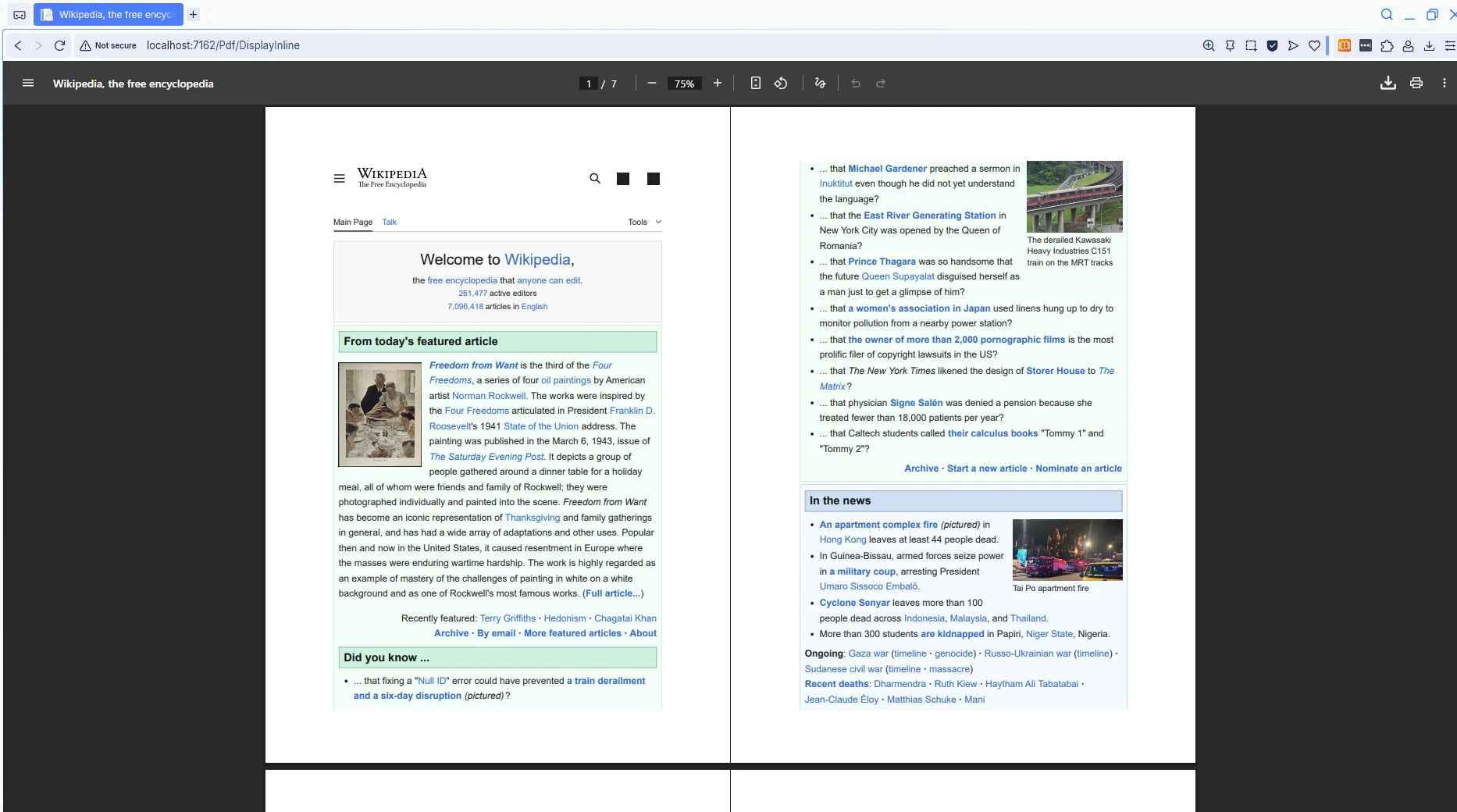
這兩個控制器操作之間的區別取決於File()中的第三個參數。 此靈活性使您的應用程式能夠根據使用者需求或業務要求支持兩種場景。 為了增強控制,您還可以設置自定義HTTP標頭或在渲染之前配置紙張尺寸和方向設置。
一些應用程式將兩種方法結合起來:一個預覽端點顯示PDF內嵌,另一個下載端點觸發文件保存。 這種模式使使用者在承諾下載之前能夠查看文件。
ASP.NET Core MVC中的Razor Pages提供了另一種實現.NET PDF查看器的方法。 頁面模型可以使用相同的IronPDF功能生成和返回PDF文件,這些功能在標準MVC控制器中可用。 此模式非常適合已經使用Razor Pages的應用程式,因為它使PDF生成邏輯與觸發它的頁面共同定位。
Razor Page中的OnGet處理程式就像控制器操作一樣——它接收請求,執行工作並返回結果。 從頁面模型返回FileResult是ASP.NET Core支持的,與從控制器返回File()的方式一樣。
using IronPdf;
using Microsoft.AspNetCore.Mvc;
using Microsoft.AspNetCore.Mvc.RazorPages;

public class InvoiceModel : PageModel
{
    public IActionResult OnGet(int id)
    {
        var renderer = new ChromePdfRenderer();
        renderer.RenderingOptions.MarginTop = 20;
        renderer.RenderingOptions.MarginBottom = 20;
        renderer.RenderingOptions.PaperSize = PdfPaperSize.A4;

        // Add header and footer
        renderer.RenderingOptions.TextHeader.CenterText = "Invoice Document";
        renderer.RenderingOptions.TextFooter.RightText = "Page {page} of {total-pages}";
        renderer.RenderingOptions.TextFooter.FontSize = 10;

        string html = $@"
            <html>
            <head>
                <style>
                    body {{font-family: 'Segoe UI', Arial, sans-serif; padding: 40px;}}
                    h1 {{color: #1a5490; border-bottom: 2px solid #1a5490; padding-bottom: 10px;}}
                    .invoice-details {{margin: 20px 0;}}
                    table {{width: 100%; border-collapse: collapse;}}
                    th, td {{padding: 10px; text-align: left; border-bottom: 1px solid #ddd;}}
                </style>
            </head>
            <body>
                <h1>Invoice #{id}</h1>
                <div class='invoice-details'>
                    <p><strong>Date:</strong> {DateTime.Now:yyyy-MM-dd}</p>
                    <p><strong>Due Date:</strong> {DateTime.Now.AddDays(30):yyyy-MM-dd}</p>
                </div>
                <table>
                    <tr><th>Description</th><th>Amount</th></tr>
                    <tr><td>Professional Services</td><td>$1,500.00</td></tr>
                </table>
                <p style='margin-top: 40px;'>Thank you for your business!</p>
            </body>
            </html>";

        PdfDocument pdf = renderer.RenderHtmlAsPdf(html);
        return File(pdf.BinaryData, "application/pdf");
    }
}Imports IronPdf
Imports Microsoft.AspNetCore.Mvc
Imports Microsoft.AspNetCore.Mvc.RazorPages
Public Class InvoiceModel
Inherits PageModel
Public Function OnGet(id As Integer) As IActionResult
Dim renderer = New ChromePdfRenderer()
renderer.RenderingOptions.MarginTop = 20
renderer.RenderingOptions.MarginBottom = 20
renderer.RenderingOptions.PaperSize = PdfPaperSize.A4
' Add header and footer
renderer.RenderingOptions.TextHeader.CenterText = "Invoice Document"
renderer.RenderingOptions.TextFooter.RightText = "Page {page} of {total-pages}"
renderer.RenderingOptions.TextFooter.FontSize = 10
Dim html As String = $"
<html>
<head>
<style>
body {{font-family: 'Segoe UI', Arial, sans-serif; padding: 40px;}}
h1 {{color: #1a5490; border-bottom: 2px solid #1a5490; padding-bottom: 10px;}}
.invoice-details {{margin: 20px 0;}}
table {{width: 100%; border-collapse: collapse;}}
th, td {{padding: 10px; text-align: left; border-bottom: 1px solid #ddd;}}
</style>
</head>
<body>
<h1>Invoice #{id}</h1>
<div class='invoice-details'>
<p><strong>Date:</strong> {DateTime.Now:yyyy-MM-dd}</p>
<p><strong>Due Date:</strong> {DateTime.Now.AddDays(30):yyyy-MM-dd}</p>
</div>
<table>
<tr><th>Description</th><th>Amount</th></tr>
<tr><td>Professional Services</td><td>$1,500.00</td></tr>
</table>
<p style='margin-top: 40px;'>Thank you for your business!</p>
</body>
</html>"
Dim pdf As PdfDocument = renderer.RenderHtmlAsPdf(html)
Return File(pdf.BinaryData, "application/pdf")
End Function
End Class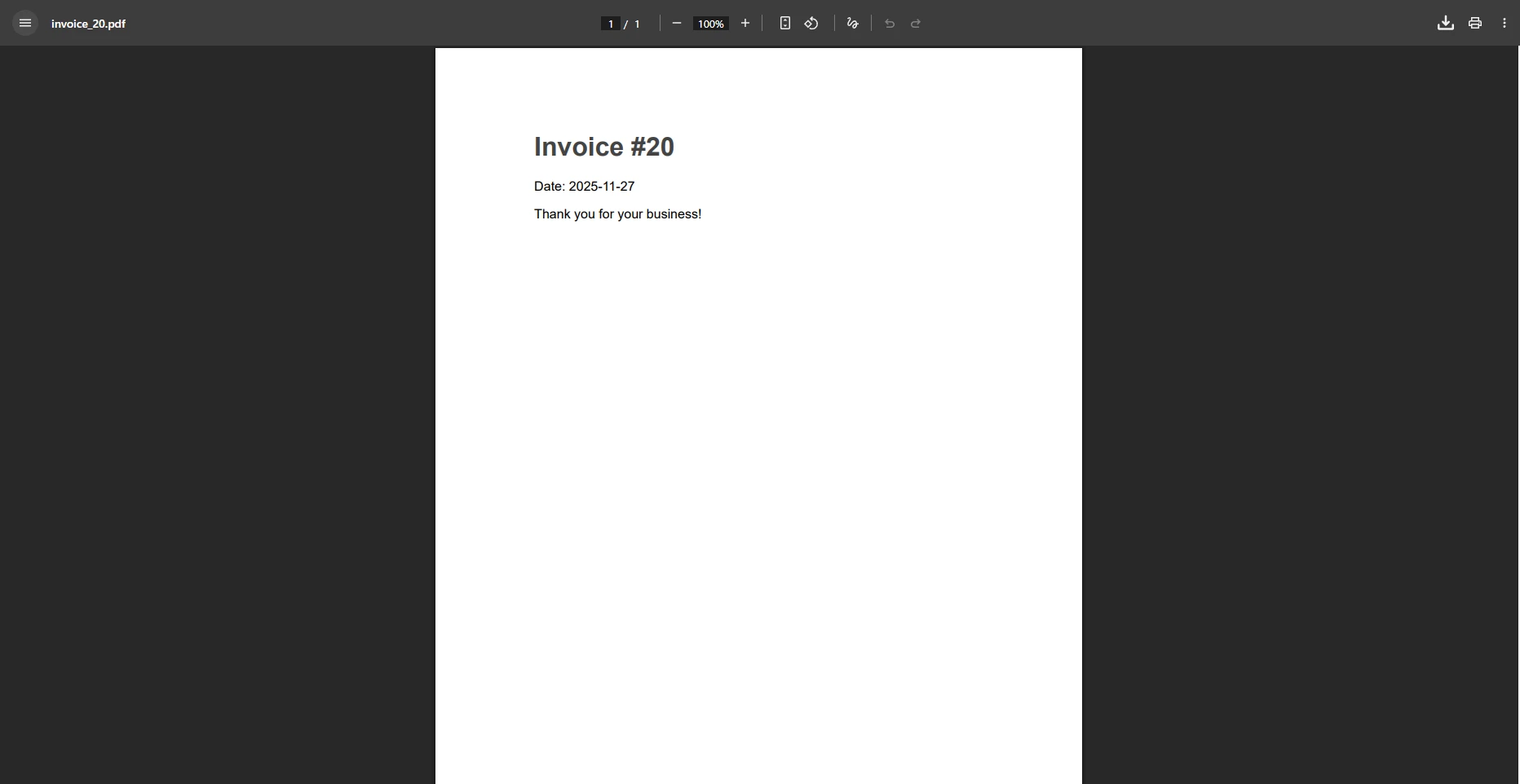
此Razor Pages範例演示了OnGet處理程式如何從URL參數生成PDF。 RenderingOptions屬性允許對邊距、頁面方向和其他佈局設置進行細粒度控制。 您還可以新增頁眉和頁腳,配置頁碼,或設置自定義紙張尺寸。
RenderingOptions可用的高級功能包括水印、PDF壓縮和數位簽名。 有關每個可用選項的完整細節,請參閱IronPDF渲染選項參考。
生產應用程式通常需要限制誰可以查看或修改PDF文件。 IronPDF提供內建支持PDF密碼和權限,讓您加密文件,要求密碼才能打開它們,或限制列印和複製。
您可以在將任何PdfDocument物件從控制器返回之前應用安全設置。 這種方法適用於PDF是從HTML生成的、從磁盤載入的,還是從資料庫檢索的。
| 安全功能 | IronPDF屬性 | 使用案例 |
|---|---|---|
| 所有者密碼 | OwnerPassword | 防止未授權的權限更改 |
| 使用者密碼 | UserPassword | 需要密碼才能打開文件 |
| 禁用列印 | AllowUserPrinting | 防止接收者列印文件 |
| 禁用複製 | AllowUserCopyPasteContent | 阻止從PDF中提取文字 |
| 數位簽名 | PdfSignature | 驗證文件真實性 |
對於合同、財務報告或醫療記錄等敏感文件,將使用者密碼與受限權限結合在一起,讓您能夠精確地控制接收者可以對文件做什麼。PDF/A合規模式是在需要長期歸檔情況下值得考慮的另一個選擇,因為文件的完整性需要長達數十年。
PDF生成涉及CPU和記憶體工作,因此在高流量應用程式中性能很重要。 IronPDF中的異步渲染API讓您能夠將PDF建立工作轉移到背景執行緒而不會阻塞請求鏈。這在單個要求中生成多個PDF或處理批處理作業時尤其有價值。
對於在Linux或Docker容器中的生產部署,IronPDF支持跨平台執行而不需要任何Windows特定的依賴項。 IronPDF Linux安裝指南和Docker配置參考介紹了設置步驟。 Mozilla PDF.js專案和內建的瀏覽器查看器都與IronPDF生成的任何PDF相容,因此您在展示方面也有靈活性。
一些能夠提高生產量的做法:
ChromePdfRenderer實例,而不是每個請求建立一個新實例,因為渲染器初始化會帶來一些開銷。RenderHtmlAsPdfAsync來在Chromium引擎渲染時釋放執行緒。異步API與同步版本相似,但返回Task<PdfDocument>。 您可以在async控制器動作中等待結果,讓執行緒池能夠處理其他進入的請求,同時渲染繼續。 在高負載場景中,從同步轉為異步渲染通常能減少執行緒競爭,並在並發負載下改善整體響應時間。
在ASP.NET Core MVC中構建PDF查看器結合了瀏覽器原生的顯示能力和IronPDF的生成功能。 當您的ASP.NET控制器返回具有正確MIME型別的文件時,現代瀏覽器內建的PDF查看器自動處理顯示、列印和導航。 IronPDF處理生成部分——將HTML、URL或現有文件轉換為格式良好的PDF文件,完全支持CSS、JavaScript、頁眉、頁腳和安全設置。
本指南涵蓋的關鍵功能:
application/pdf MIME型別的File()方法將現有PDF文件內嵌顯示ChromePdfRenderer從HTML字串生成動態PDFContent-Disposition標頭控制內嵌顯示與文件下載RenderingOptions新增頁眉、頁腳、邊距和安全設置從這裡,您可以探索更高級的工作流,例如合併多個PDF、建立可填寫表單或從CSHTML Razor視圖生成PDF。 IronPDF文件涵蓋了每個功能,並附有實際程式碼範例。

Curtis Chau擁有Carleton大學的電腦科學學士學位,專精於前端開發,擁有Node.js、TypeScript、JavaScript和React的專業知識。Curtis熱衷於建立直觀且美觀的使用者介面,喜愛使用現代框架並建立結構良好、視覺吸引力的手冊。

IronPDF 是 IRONSUITE 的一部分
10 款適用於辦公室文件的 .NET API 產品

當您需要您的PDF看起來像HTML一樣快速。




