


Build a PDF Viewer in ASP.NET Core MVC | Tutorial

Create an ASP.NET Core MVC PDF viewer using IronPDF's Chrome-based rendering engine to display PDF files inline in browsers, generate dynamic PDFs from HTML content, and control whether users view or download documents -- all without external plugins or dependencies.
Modern browsers include a built-in PDF viewer that automatically activates when a web application serves PDF files with the correct MIME type. This eliminates the need for third-party tools or plugins, allowing users to display PDF documents directly in their browser. IronPDF, a .NET PDF library with a Chrome-based rendering engine, makes it straightforward to generate, render, and display PDF files within ASP.NET Core MVC applications.

How Do You Install IronPDF in an ASP.NET Core MVC Project?
Before building a PDF viewer in ASP.NET Core MVC, you need to add IronPDF to your project. The fastest route is through the NuGet Package Manager in Visual Studio, or via the command line using the .NET CLI or the Package Manager Console.
Install-Package IronPdf
Once the package is installed, add the IronPdf namespace to your controller files and you are ready to start generating and serving PDF documents. IronPDF targets .NET 8 and .NET 10, so it works with the latest ASP.NET Core releases without any additional configuration.
For projects that require offline installation or specific version pinning, you can also download the NuGet package directly and add it as a local feed. The IronPDF licensing page covers trial and production license options if you need them before going live.
How Do Modern Browsers Display PDF Files?
Modern browsers such as Chrome, Firefox, Edge, and Safari include native PDF viewer functionality. When your ASP.NET Core application returns a file with the application/pdf content type, the browser renders the PDF document inline without requiring Adobe Acrobat or external plugins. This built-in PDF viewer supports text selection, printing, zoom controls, bookmarks, and page navigation, creating a document-viewing experience that users already understand.
To securely serve existing files, it is best practice to use the hosting environment to locate them rather than relying on directory paths that might change between development and production. Using a file stream is also more memory-efficient than loading entire byte arrays for large documents.
using Microsoft.AspNetCore.Mvc;

public class DocumentController : Controller
{
    public IActionResult ViewPdf()
    {
        // Path to an existing PDF file in the wwwroot folder
        string path = Path.Combine(Directory.GetCurrentDirectory(), "wwwroot", "documents", "sample.pdf");
        byte[] fileBytes = System.IO.File.ReadAllBytes(path);
        // Return file for inline browser display
        return File(fileBytes, "application/pdf");
    }
}
using Microsoft.AspNetCore.Mvc;
public class DocumentController : Controller
{
public IActionResult ViewPdf()
{
// Path to an existing PDF file in the wwwroot folder
string path = Path.Combine(Directory.GetCurrentDirectory(), "wwwroot", "documents", "sample.pdf");
byte[] fileBytes = System.IO.File.ReadAllBytes(path);
// Return file for inline browser display
return File(fileBytes, "application/pdf");
}
}Imports Microsoft.AspNetCore.Mvc
Public Class DocumentController
Inherits Controller
Public Function ViewPdf() As IActionResult
' Path to an existing PDF file in the wwwroot folder
Dim path As String = Path.Combine(Directory.GetCurrentDirectory(), "wwwroot", "documents", "sample.pdf")
Dim fileBytes As Byte() = System.IO.File.ReadAllBytes(path)
' Return file for inline browser display
Return File(fileBytes, "application/pdf")
End Function
End ClassWhat Does a PDF Look Like When Displayed in the Browser?
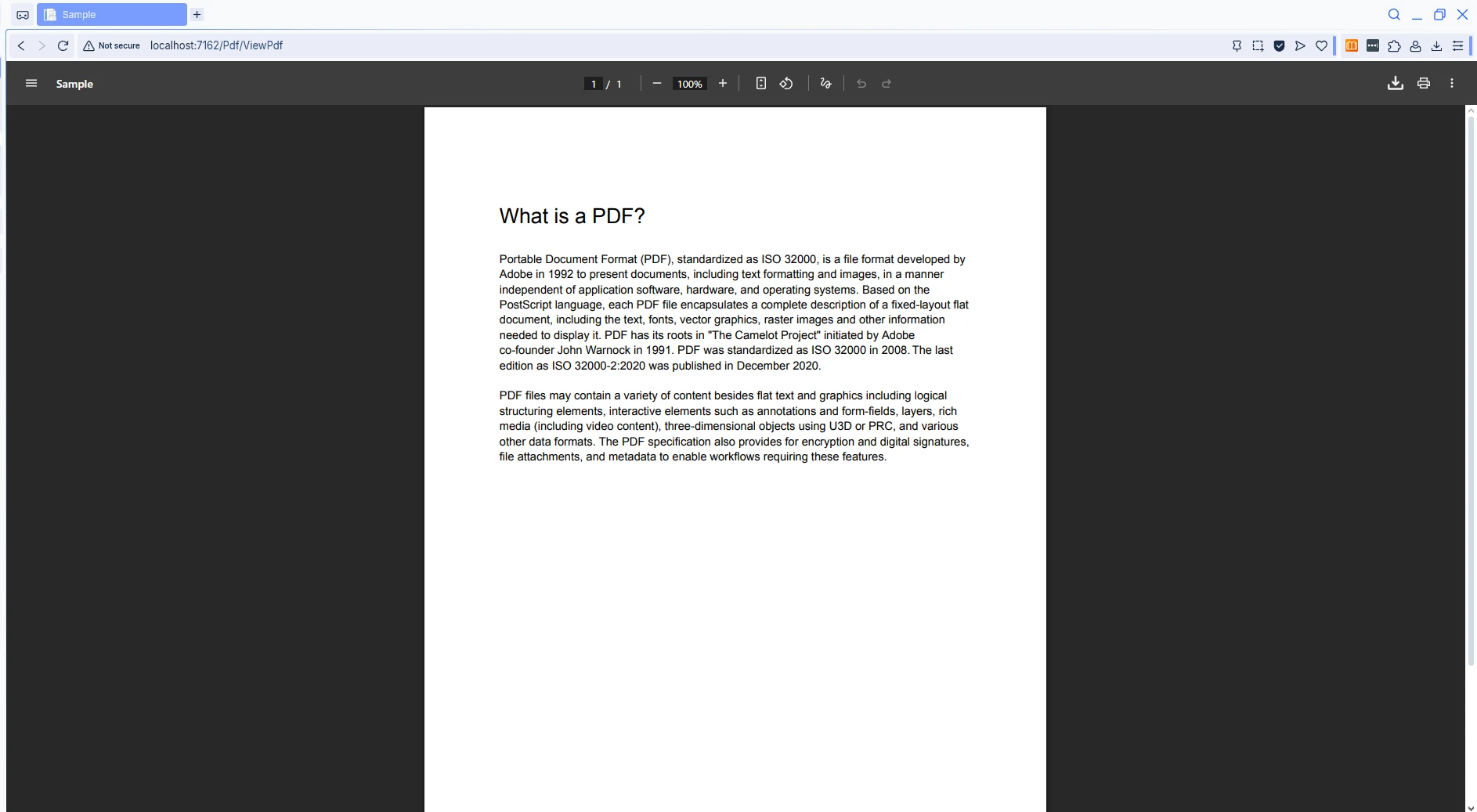
The code above reads an existing PDF file from the server and returns it to the browser. The File() method accepts a byte array and a content type, instructing the browser's document viewer to render the content inline. This approach works across all modern browsers on both desktop and mobile devices, providing a consistent experience for all users.
For more advanced scenarios, you might want to load PDFs from memory or Azure Blob Storage, which can improve scalability and reduce server storage requirements. The Microsoft documentation on serving static files in ASP.NET Core covers best practices for file handling in production.
How Do You Generate PDF Documents Dynamically in ASP.NET Core?
Static PDF files are useful, but many web applications require dynamically generated documents tailored to the current user or request. IronPDF's ChromePdfRenderer class converts HTML content into professionally rendered PDF files using a real Chromium browser engine under the hood.
You can include external assets, such as CSS for your specific theme or JavaScript for charts, directly in the HTML string. The rendering engine supports modern web standards including CSS3, JavaScript ES6+, and web fonts, so the generated PDF looks exactly as the browser would render the same HTML page.
using IronPdf;
using Microsoft.AspNetCore.Mvc;

public class ReportController : Controller
{
    public IActionResult GenerateReport()
    {
        var renderer = new ChromePdfRenderer();
        // HTML content with CSS styling
        string html = @"
            <html>
            <head>
                <style>
                    body { font-family: Arial, sans-serif; padding: 40px; }
                    h1 { color: #2c3e50; }
                    .report-body { line-height: 1.6; }
                </style>
            </head>
            <body>
                <h1>Monthly Sales Report</h1>
                <div class='report-body'>
                    <p>Generated: " + DateTime.Now.ToString("MMMM dd, yyyy") + @"</p>
                    <p>This report contains the latest sales figures.</p>
                </div>
            </body>
            </html>";

        PdfDocument pdf = renderer.RenderHtmlAsPdf(html);
        return File(pdf.BinaryData, "application/pdf");
    }
}
using IronPdf;
using Microsoft.AspNetCore.Mvc;
public class ReportController : Controller
{
public IActionResult GenerateReport()
{
var renderer = new ChromePdfRenderer();
// HTML content with CSS styling
string html = @"
<html>
<head>
<style>
body { font-family: Arial, sans-serif; padding: 40px; }
h1 { color: #2c3e50; }
.report-body { line-height: 1.6; }
</style>
</head>
<body>
<h1>Monthly Sales Report</h1>
<div class='report-body'>
<p>Generated: " + DateTime.Now.ToString("MMMM dd, yyyy") + @"</p>
<p>This report contains the latest sales figures.</p>
</div>
</body>
</html>";
PdfDocument pdf = renderer.RenderHtmlAsPdf(html);
return File(pdf.BinaryData, "application/pdf");
}
}Imports IronPdf
Imports Microsoft.AspNetCore.Mvc
Public Class ReportController
Inherits Controller
Public Function GenerateReport() As IActionResult
Dim renderer As New ChromePdfRenderer()
' HTML content with CSS styling
Dim html As String = "
<html>
<head>
<style>
body { font-family: Arial, sans-serif; padding: 40px; }
h1 { color: #2c3e50; }
.report-body { line-height: 1.6; }
</style>
</head>
<body>
<h1>Monthly Sales Report</h1>
<div class='report-body'>
<p>Generated: " & DateTime.Now.ToString("MMMM dd, yyyy") & "</p>
<p>This report contains the latest sales figures.</p>
</div>
</body>
</html>"
Dim pdf As PdfDocument = renderer.RenderHtmlAsPdf(html)
Return File(pdf.BinaryData, "application/pdf")
End Function
End ClassHow Does HTML Content Appear After PDF Generation?
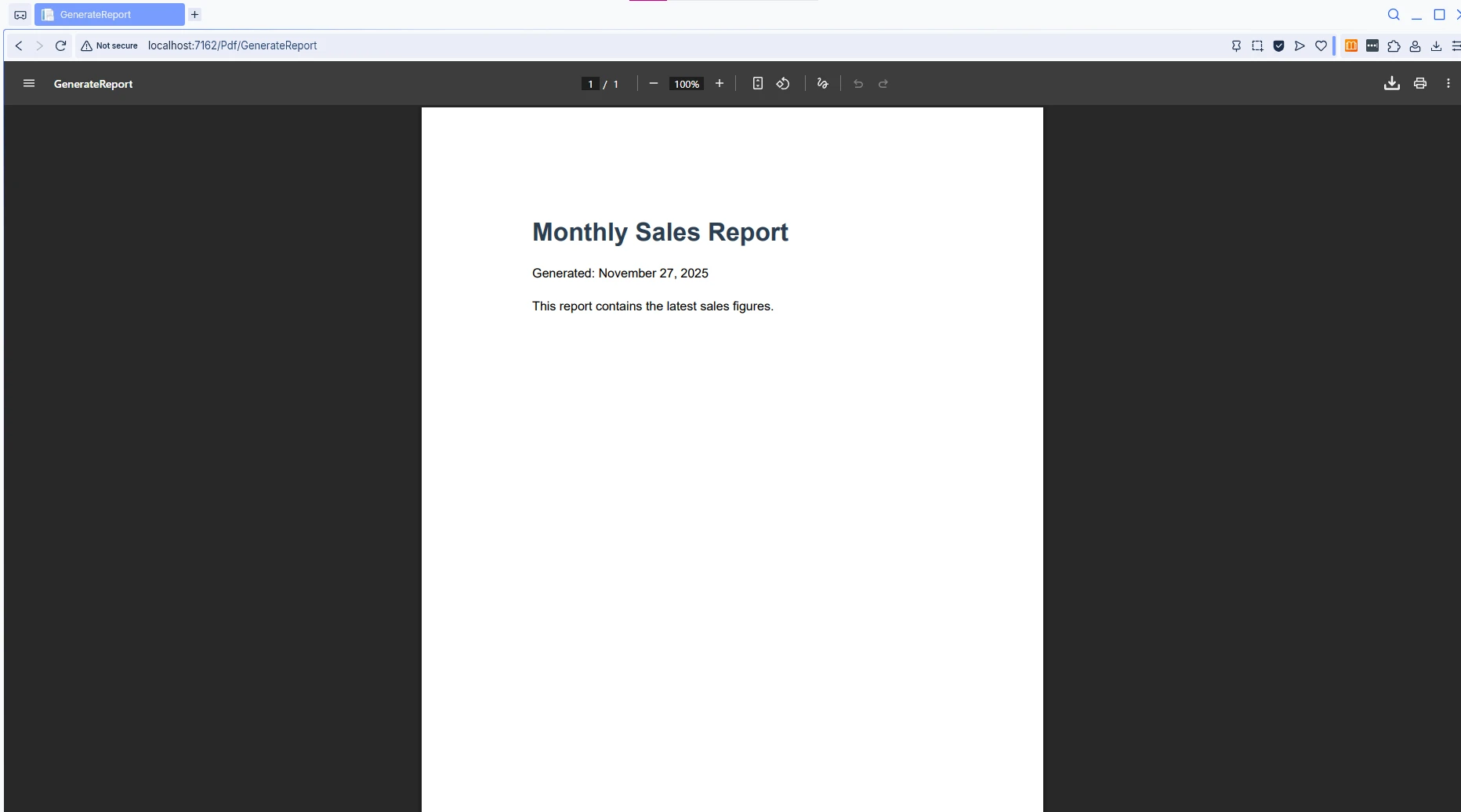
This example demonstrates how IronPDF transforms an HTML string into a PDF document. The ChromePdfRenderer uses a Chromium-based engine, ensuring accurate CSS rendering and JavaScript support. The generated PDF maintains all styling defined in the HTML, making it ideal for creating reports, invoices, and other documents that require consistent formatting.
For additional code examples on HTML to PDF conversion, explore IronPDF's documentation. You can also generate PDFs from CSHTML Razor views, URLs, or even Markdown content.
How Do You Control Inline Display Versus File Download?
Sometimes users need to download PDF files rather than view them in the browser. The way the browser handles the response depends on the Content-Disposition header. Understanding this distinction is important for delivering the right experience in your application.
When you omit the filename parameter in the File() method, ASP.NET Core does not set a Content-Disposition header, so the browser uses its default behavior -- which is typically inline display. When you provide a filename as the third parameter, ASP.NET Core automatically adds Content-Disposition: attachment, prompting users to save the file instead.
using IronPdf;
using Microsoft.AspNetCore.Mvc;

public class PdfController : Controller
{
    public IActionResult DisplayInline()
    {
        var renderer = new ChromePdfRenderer();
        renderer.RenderingOptions.PaperOrientation = PdfPaperOrientation.Portrait;
        renderer.RenderingOptions.MarginTop = 25;
        renderer.RenderingOptions.MarginBottom = 25;

        PdfDocument pdf = renderer.RenderUrlAsPdf("https://en.wikipedia.org/wiki/Main_Page");
        // Display PDF inline in browser -- no filename = inline
        return File(pdf.BinaryData, "application/pdf");
    }

    public IActionResult DownloadPdf()
    {
        var renderer = new ChromePdfRenderer();
        renderer.RenderingOptions.PaperSize = PdfPaperSize.Letter;
        renderer.RenderingOptions.EnableJavaScript = true;

        PdfDocument pdf = renderer.RenderUrlAsPdf("https://en.wikipedia.org/wiki/Main_Page");
        // Prompt download with specified filename
        return File(pdf.BinaryData, "application/pdf", "webpage-report.pdf");
    }
}
using IronPdf;
using Microsoft.AspNetCore.Mvc;
public class PdfController : Controller
{
public IActionResult DisplayInline()
{
var renderer = new ChromePdfRenderer();
renderer.RenderingOptions.PaperOrientation = PdfPaperOrientation.Portrait;
renderer.RenderingOptions.MarginTop = 25;
renderer.RenderingOptions.MarginBottom = 25;
PdfDocument pdf = renderer.RenderUrlAsPdf("https://en.wikipedia.org/wiki/Main_Page");
// Display PDF inline in browser -- no filename = inline
return File(pdf.BinaryData, "application/pdf");
}
public IActionResult DownloadPdf()
{
var renderer = new ChromePdfRenderer();
renderer.RenderingOptions.PaperSize = PdfPaperSize.Letter;
renderer.RenderingOptions.EnableJavaScript = true;
PdfDocument pdf = renderer.RenderUrlAsPdf("https://en.wikipedia.org/wiki/Main_Page");
// Prompt download with specified filename
return File(pdf.BinaryData, "application/pdf", "webpage-report.pdf");
}
}Imports IronPdf
Imports Microsoft.AspNetCore.Mvc
Public Class PdfController
Inherits Controller
Public Function DisplayInline() As IActionResult
Dim renderer As New ChromePdfRenderer()
renderer.RenderingOptions.PaperOrientation = PdfPaperOrientation.Portrait
renderer.RenderingOptions.MarginTop = 25
renderer.RenderingOptions.MarginBottom = 25
Dim pdf As PdfDocument = renderer.RenderUrlAsPdf("https://en.wikipedia.org/wiki/Main_Page")
' Display PDF inline in browser -- no filename = inline
Return File(pdf.BinaryData, "application/pdf")
End Function
Public Function DownloadPdf() As IActionResult
Dim renderer As New ChromePdfRenderer()
renderer.RenderingOptions.PaperSize = PdfPaperSize.Letter
renderer.RenderingOptions.EnableJavaScript = True
Dim pdf As PdfDocument = renderer.RenderUrlAsPdf("https://en.wikipedia.org/wiki/Main_Page")
' Prompt download with specified filename
Return File(pdf.BinaryData, "application/pdf", "webpage-report.pdf")
End Function
End ClassWhen Should You Use Inline Display Instead of Download?
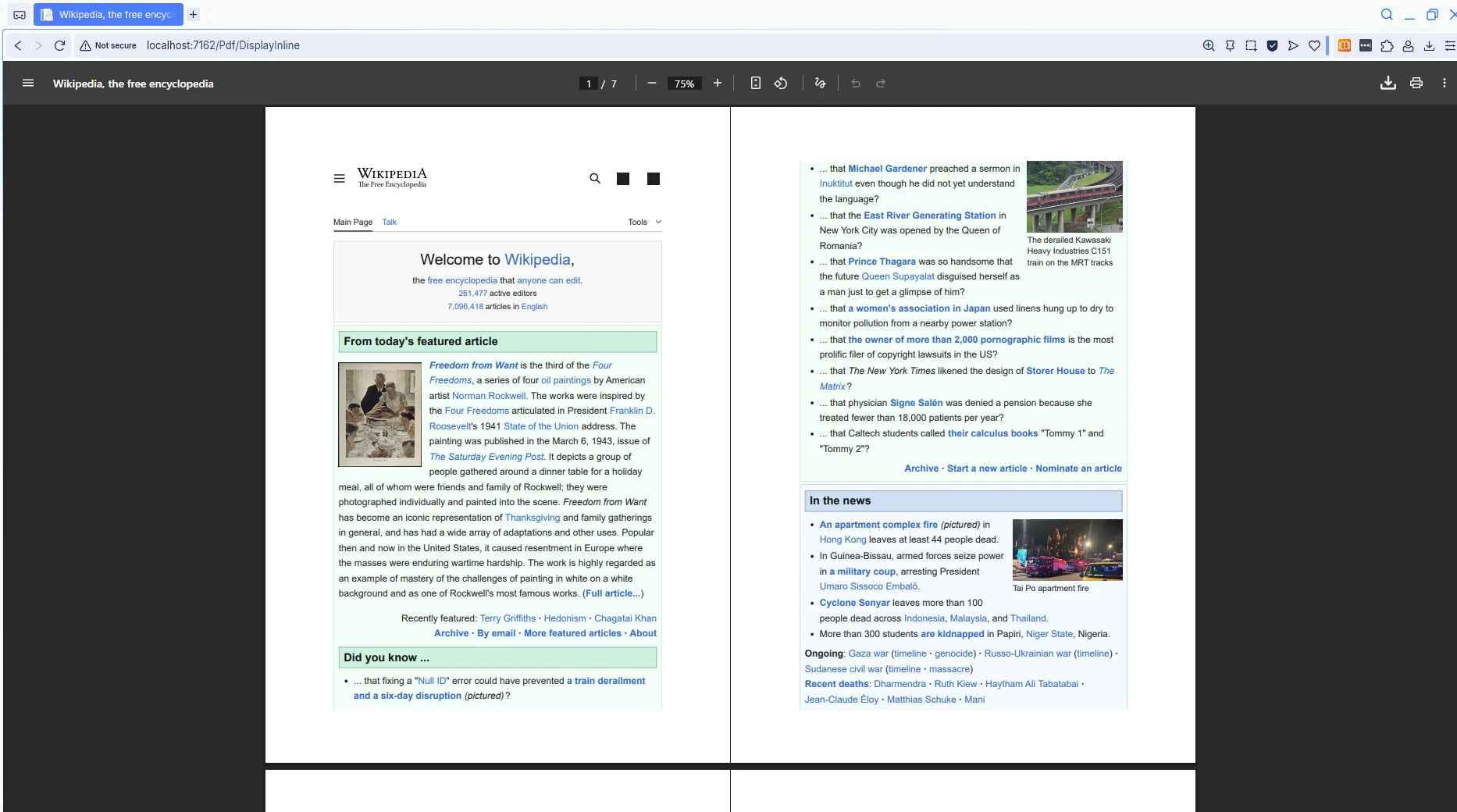
The difference between the two controller actions comes down to that third parameter in File(). This flexibility lets your application support both scenarios based on user needs or business requirements. For enhanced control, you can also set custom HTTP headers or configure paper size and orientation settings before rendering.
Some applications combine both approaches: a preview endpoint that displays the PDF inline, and a separate download endpoint that triggers a file save. This pattern gives users visibility into the document before they commit to downloading it.
How Do You Integrate Razor Pages with PDF Generation?
Razor Pages in ASP.NET Core MVC provide another approach for implementing a .NET PDF viewer. The page model can generate and return PDF files using the same IronPDF functionality available in standard MVC controllers. This pattern works well for applications already using Razor Pages, since it keeps the PDF generation logic co-located with the page that triggers it.
The OnGet handler in a Razor Page acts like a controller action -- it receives the request, performs work, and returns a result. Returning a FileResult from a page model is supported by ASP.NET Core and works the same way as returning File() from a controller.
using IronPdf;
using Microsoft.AspNetCore.Mvc;
using Microsoft.AspNetCore.Mvc.RazorPages;

public class InvoiceModel : PageModel
{
    public IActionResult OnGet(int id)
    {
        var renderer = new ChromePdfRenderer();
        renderer.RenderingOptions.MarginTop = 20;
        renderer.RenderingOptions.MarginBottom = 20;
        renderer.RenderingOptions.PaperSize = PdfPaperSize.A4;

        // Add header and footer
        renderer.RenderingOptions.TextHeader.CenterText = "Invoice Document";
        renderer.RenderingOptions.TextFooter.RightText = "Page {page} of {total-pages}";
        renderer.RenderingOptions.TextFooter.FontSize = 10;

        string html = $@"
            <html>
            <head>
                <style>
                    body {{ font-family: 'Segoe UI', Arial, sans-serif; padding: 40px; }}
                    h1 {{ color: #1a5490; border-bottom: 2px solid #1a5490; padding-bottom: 10px; }}
                    .invoice-details {{ margin: 20px 0; }}
                    table {{ width: 100%; border-collapse: collapse; }}
                    th, td {{ padding: 10px; text-align: left; border-bottom: 1px solid #ddd; }}
                </style>
            </head>
            <body>
                <h1>Invoice #{id}</h1>
                <div class='invoice-details'>
                    <p><strong>Date:</strong> {DateTime.Now:yyyy-MM-dd}</p>
                    <p><strong>Due Date:</strong> {DateTime.Now.AddDays(30):yyyy-MM-dd}</p>
                </div>
                <table>
                    <tr><th>Description</th><th>Amount</th></tr>
                    <tr><td>Professional Services</td><td>$1,500.00</td></tr>
                </table>
                <p style='margin-top: 40px;'>Thank you for your business!</p>
            </body>
            </html>";

        PdfDocument pdf = renderer.RenderHtmlAsPdf(html);
        return File(pdf.BinaryData, "application/pdf");
    }
}
using IronPdf;
using Microsoft.AspNetCore.Mvc;
using Microsoft.AspNetCore.Mvc.RazorPages;
public class InvoiceModel : PageModel
{
public IActionResult OnGet(int id)
{
var renderer = new ChromePdfRenderer();
renderer.RenderingOptions.MarginTop = 20;
renderer.RenderingOptions.MarginBottom = 20;
renderer.RenderingOptions.PaperSize = PdfPaperSize.A4;
// Add header and footer
renderer.RenderingOptions.TextHeader.CenterText = "Invoice Document";
renderer.RenderingOptions.TextFooter.RightText = "Page {page} of {total-pages}";
renderer.RenderingOptions.TextFooter.FontSize = 10;
string html = $@"
<html>
<head>
<style>
body {{ font-family: 'Segoe UI', Arial, sans-serif; padding: 40px; }}
h1 {{ color: #1a5490; border-bottom: 2px solid #1a5490; padding-bottom: 10px; }}
.invoice-details {{ margin: 20px 0; }}
table {{ width: 100%; border-collapse: collapse; }}
th, td {{ padding: 10px; text-align: left; border-bottom: 1px solid #ddd; }}
</style>
</head>
<body>
<h1>Invoice #{id}</h1>
<div class='invoice-details'>
<p><strong>Date:</strong> {DateTime.Now:yyyy-MM-dd}</p>
<p><strong>Due Date:</strong> {DateTime.Now.AddDays(30):yyyy-MM-dd}</p>
</div>
<table>
<tr><th>Description</th><th>Amount</th></tr>
<tr><td>Professional Services</td><td>$1,500.00</td></tr>
</table>
<p style='margin-top: 40px;'>Thank you for your business!</p>
</body>
</html>";
PdfDocument pdf = renderer.RenderHtmlAsPdf(html);
return File(pdf.BinaryData, "application/pdf");
}
}Imports IronPdf
Imports Microsoft.AspNetCore.Mvc
Imports Microsoft.AspNetCore.Mvc.RazorPages
Public Class InvoiceModel
Inherits PageModel
Public Function OnGet(id As Integer) As IActionResult
Dim renderer = New ChromePdfRenderer()
renderer.RenderingOptions.MarginTop = 20
renderer.RenderingOptions.MarginBottom = 20
renderer.RenderingOptions.PaperSize = PdfPaperSize.A4
' Add header and footer
renderer.RenderingOptions.TextHeader.CenterText = "Invoice Document"
renderer.RenderingOptions.TextFooter.RightText = "Page {page} of {total-pages}"
renderer.RenderingOptions.TextFooter.FontSize = 10
Dim html As String = $"
<html>
<head>
<style>
body {{ font-family: 'Segoe UI', Arial, sans-serif; padding: 40px; }}
h1 {{ color: #1a5490; border-bottom: 2px solid #1a5490; padding-bottom: 10px; }}
.invoice-details {{ margin: 20px 0; }}
table {{ width: 100%; border-collapse: collapse; }}
th, td {{ padding: 10px; text-align: left; border-bottom: 1px solid #ddd; }}
</style>
</head>
<body>
<h1>Invoice #{id}</h1>
<div class='invoice-details'>
<p><strong>Date:</strong> {DateTime.Now:yyyy-MM-dd}</p>
<p><strong>Due Date:</strong> {DateTime.Now.AddDays(30):yyyy-MM-dd}</p>
</div>
<table>
<tr><th>Description</th><th>Amount</th></tr>
<tr><td>Professional Services</td><td>$1,500.00</td></tr>
</table>
<p style='margin-top: 40px;'>Thank you for your business!</p>
</body>
</html>"
Dim pdf As PdfDocument = renderer.RenderHtmlAsPdf(html)
Return File(pdf.BinaryData, "application/pdf")
End Function
End ClassWhat Rendering Options Are Available for PDF Customization?
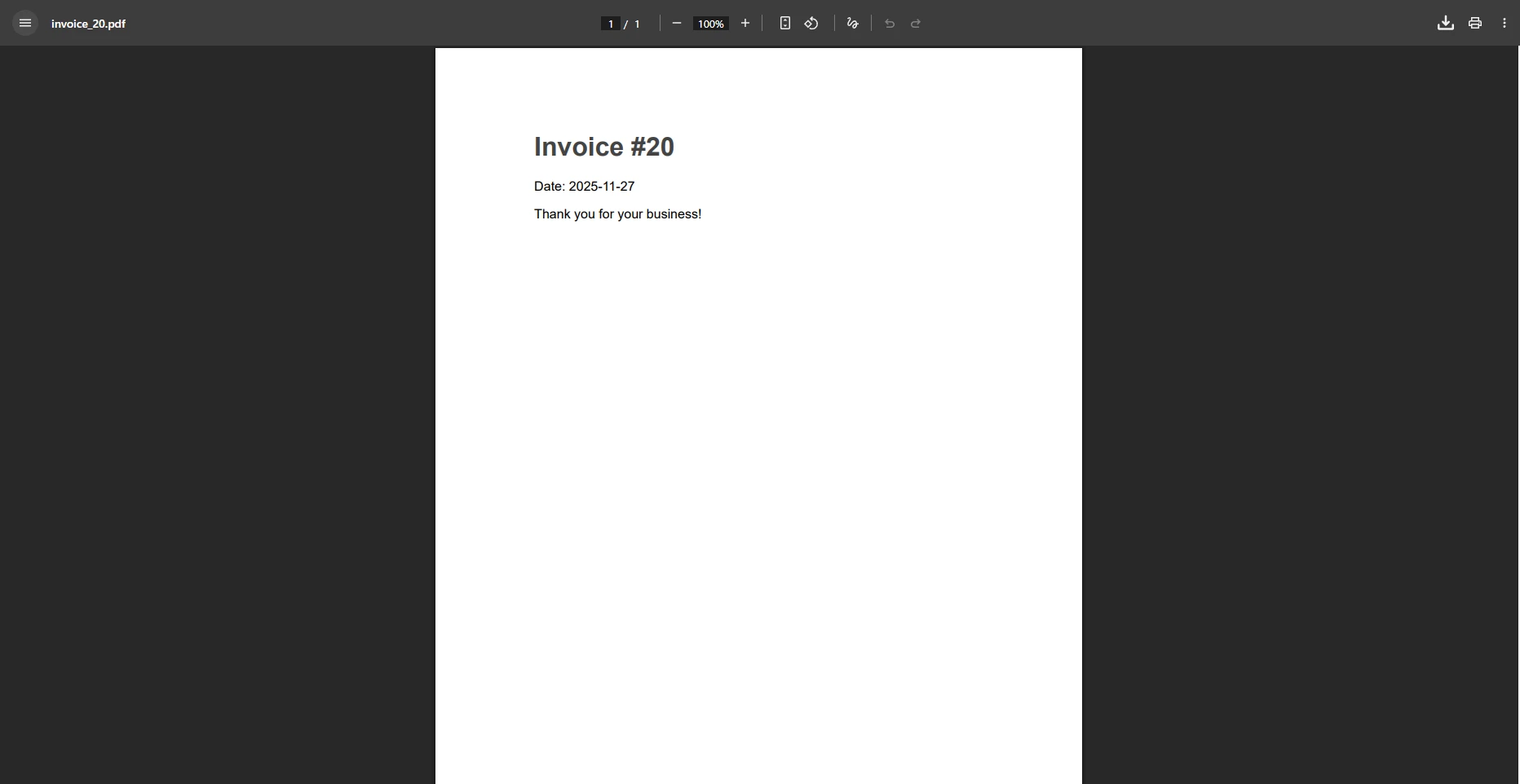
This Razor Pages example demonstrates how the OnGet handler generates a PDF from a URL parameter. The RenderingOptions property allows fine-grained control over margins, page orientation, and other layout settings. You can also add headers and footers, configure page numbers, or set up custom paper sizes.
Advanced features available through RenderingOptions include watermarking, PDF compression, and digital signatures. For full details on every available option, consult the IronPDF rendering options reference.
How Do You Handle PDF Security and Access Control?
Production applications often need to restrict who can view or modify a PDF document. IronPDF provides built-in support for PDF passwords and permissions, letting you encrypt documents, require a password to open them, or restrict printing and copying.
You can apply security settings to any PdfDocument object before returning it from your controller. This approach works whether the PDF was generated from HTML, loaded from disk, or retrieved from a database.
| Security Feature | IronPDF Property | Use Case |
|---|---|---|
| Owner password | OwnerPassword |
Prevent unauthorized permission changes |
| User password | UserPassword |
Require a password to open the document |
| Disable printing | AllowUserPrinting |
Prevent recipients from printing the file |
| Disable copying | AllowUserCopyPasteContent |
Block text extraction from the PDF |
| Digital signature | PdfSignature |
Verify document authenticity |
For sensitive documents such as contracts, financial statements, or medical records, combining a user password with restricted permissions gives you precise control over what recipients can do with the file. The PDF/A compliance mode is another option worth considering for long-term archival scenarios where document integrity must be preserved over decades.
How Do You Optimize PDF Generation Performance?
PDF generation involves CPU and memory work, so performance matters in high-traffic applications. The async rendering API in IronPDF lets you offload PDF creation to a background thread without blocking the request pipeline. This is especially valuable when generating multiple PDFs in a single request or processing batch jobs.
For production deployments on Linux or in Docker containers, IronPDF supports cross-platform execution without requiring any Windows-specific dependencies. The IronPDF Linux installation guide and the Docker configuration reference cover the setup steps. Both the Mozilla PDF.js project and native browser viewers are compatible with any PDF IronPDF produces, so you have flexibility on the display side as well.
A few practices that improve throughput in production:
- Reuse
ChromePdfRendererinstances where possible rather than creating a new one per request, since the renderer initialization carries some overhead. - Use async methods such as
RenderHtmlAsPdfAsyncto free the thread while the Chromium engine renders. - Cache generated PDFs using IMemoryCache or a distributed cache when the same document is requested repeatedly.
- For very large documents, consider streaming the output rather than buffering the entire byte array in memory.
How Does Async Rendering Work in Practice?
The async API mirrors the synchronous version but returns a Task<PdfDocument>. You await the result inside an async controller action, keeping the thread pool free to handle other incoming requests while rendering proceeds. Switching from synchronous to asynchronous rendering in a high-load scenario typically reduces thread contention and improves overall response times under concurrent load.
What Are Your Next Steps?
Building a PDF viewer in ASP.NET Core MVC combines browser-native display capabilities with IronPDF's generation features. The built-in PDF viewer in modern browsers handles display, print, and navigation automatically when your ASP.NET controller returns files with the correct MIME type. IronPDF handles the generation side -- converting HTML, URLs, or existing files into well-formatted PDF documents with full support for CSS, JavaScript, headers, footers, and security settings.
Key capabilities covered in this guide:
- Serving existing PDF files inline using the
File()method withapplication/pdfMIME type - Generating dynamic PDFs from HTML strings using
ChromePdfRenderer - Controlling inline display versus file download through the
Content-Dispositionheader - Adding headers, footers, margins, and security settings through
RenderingOptions - Using Razor Pages as an alternative to MVC controllers for PDF generation
- Applying password protection and permission restrictions to sensitive documents
- Improving performance with async rendering and response caching
From here, you can explore more advanced workflows such as merging multiple PDFs, creating fillable forms, or generating PDFs from CSHTML Razor views. The IronPDF documentation covers every feature with working code samples.
Start your free trial to explore IronPDF's full capabilities, or purchase a license for production use.
Frequently Asked Questions
How can I display PDF files in ASP.NET Core MVC applications?
You can display PDF files in ASP.NET Core MVC applications by using IronPDF. It allows you to generate, render, and display PDF files directly in the browser using modern built-in PDF viewers.
Do I need third-party plugins to view PDFs in a browser?
No, modern browsers have built-in PDF viewers that automatically activate when serving PDF files with the correct MIME type. IronPDF can help ensure your PDFs are served correctly.
What is the advantage of using IronPDF in ASP.NET Core MVC?
IronPDF is a .NET PDF library that simplifies the process of generating and rendering PDF documents within ASP.NET Core MVC applications, enhancing productivity and streamlining PDF management.
Can IronPDF work with the existing browser PDF viewers?
Yes, IronPDF works seamlessly with existing browser PDF viewers by ensuring the PDFs are served with the correct MIME type for automatic display in the browser.
Is IronPDF frequently updated?
Yes, IronPDF is a frequently updated .NET PDF library, offering the latest features and improvements for handling PDF documents in ASP.NET Core MVC applications.
How does IronPDF handle PDF generation in web applications?
IronPDF provides robust functionalities for generating PDFs from various content types, allowing developers to create dynamic and interactive PDF documents within web applications.
What MIME type should be used to serve PDF files?
To ensure proper display in browsers, PDF files should be served with the MIME type 'application/pdf'. IronPDF can assist in managing this aspect efficiently.
Can I customize PDF rendering in IronPDF?
Yes, IronPDF offers extensive customization options for rendering PDFs, allowing you to tailor the output to meet specific design and functionality requirements.
Does IronPDF support ASP.NET Core MVC applications only?
While IronPDF is excellent for ASP.NET Core MVC applications, it is also versatile and can be used with other .NET applications to handle PDF functionalities.










 Get started for FREE
 Get started for FREE
 Book Free Live Demo
















