




已更新 2026年5月8日
生成每月账户报表(PDF 文档)
using IronPDF C# PDF 库,开发人员可以在 .NET 项目中将 HTML 转换为可靠的 PDF 文件,而无需依赖外部服务。
阅读更多

在C#中,将Word文档转换为PDF只需三行代码:创建一个RenderDocxAsPdf,并保存结果。 无需安装 Microsoft Office,无需 COM 互操作,无需复杂的服务器配置——只需一个 NuGet 包和 .NET 代码,即可在任何环境(包括云、Docker 和 Windows 服务)中运行。
在 Visual Studio 中打开程序包管理器控制台,然后运行以下命令来安装 IronPDF:
安装包后,在您的C#文件中添加一个using IronPdf;指令。 IronPDF 的目标平台是.NET 8及更高版本,因此它与 ASP.NET Core、ASP.NET Framework 4.6.2+ 和现代工作服务项目兼容。 无需额外的运行时组件或微软Office许可证。
在生产环境中运行之前,请在应用程序启动时设置许可证密钥,例如在Program.cs的顶部。 您可以从IronPdf.License.LicenseKey = configuration["IronPdf:LicenseKey"]!;。
IronPDF 支持以下平台:
| 平台 | 最低版本 | 注意事项 |
|---|---|---|
| .NET | 8、9、10 | 全力支持,强烈推荐 |
| .NET Framework | 4.6.2 | 仅限 Windows |
| ASP.NET Core | 3.1+ | 中间件和MVC控制器 |
| Azure Functions | v4 | 孤立过程模型 |
| Docker / Linux | 任何 | 需要 libgdiplus |
DocxToPdfRenderer类是所有Word到PDF转换的入口点。 它接受文件路径、字节数组或PdfDocument对象。
以下是最简单的转换方法:
using IronPdf;

// Set license key before first use
IronPdf.License.LicenseKey = "YOUR-LICENSE-KEY-HERE";

var renderer = new DocxToPdfRenderer();
var pdf = renderer.RenderDocxAsPdf("report.docx");
pdf.SaveAs("report.pdf");Imports IronPdf
' Set license key before first use
IronPdf.License.LicenseKey = "YOUR-LICENSE-KEY-HERE"
Dim renderer As New DocxToPdfRenderer()
Dim pdf = renderer.RenderDocxAsPdf("report.docx")
pdf.SaveAs("report.pdf")DocxToPdfRenderer在转换过程中保留以下Word文档元素:
-文本格式设置——字体、字号、粗体、斜体、下划线、删除线 -段落样式——标题、正文、列表(有序和无序) 表格——边框、合并单元格、底纹和列宽 -图片——以原始分辨率显示的内嵌图片和浮动图片 -页眉和页脚——页码、日期和自定义内容 页面布局——页边距、方向(纵向/横向)、纸张尺寸
有关嵌入式 OLE 对象或跟踪更改等极端情况的详细行为说明,请参阅DocxToPdfRenderer 文档。
当您收到上传的 DOCX 文件或从数据库 blob 中读取 DOCX 文件时,您可以将流直接传递给渲染器:
using IronPdf;

IronPdf.License.LicenseKey = "YOUR-LICENSE-KEY-HERE";

using var docxStream = new FileStream("document.docx", FileMode.Open);
var renderer = new DocxToPdfRenderer();
var pdfDocument = renderer.RenderDocxAsPdf(docxStream);
pdfDocument.SaveAs("output.pdf");Imports IronPdf
IronPdf.License.LicenseKey = "YOUR-LICENSE-KEY-HERE"
Using docxStream As New FileStream("document.docx", FileMode.Open)
Dim renderer As New DocxToPdfRenderer()
Dim pdfDocument = renderer.RenderDocxAsPdf(docxStream)
pdfDocument.SaveAs("output.pdf")
End Using这种方法避免了将临时文件写入磁盘,这在 Azure 应用服务等只读文件系统环境中非常重要。
当您需要处理整个文件夹的文档时,迭代文件并重用一个DocxToPdfRenderer实例。 重用渲染器可以避免重复初始化带来的开销:
using IronPdf;

IronPdf.License.LicenseKey = "YOUR-LICENSE-KEY-HERE";

var renderer = new DocxToPdfRenderer();
string[] docxFiles = Directory.GetFiles(@"C:\WordDocuments", "*.docx");

foreach (string docxFile in docxFiles)
{
    var pdf = renderer.RenderDocxAsPdf(docxFile);
    string pdfPath = Path.ChangeExtension(docxFile, ".pdf");
    pdf.SaveAs(pdfPath);
    Console.WriteLine($"Converted: {Path.GetFileName(pdfPath)}");
}Imports IronPdf
IronPdf.License.LicenseKey = "YOUR-LICENSE-KEY-HERE"
Dim renderer As New DocxToPdfRenderer()
Dim docxFiles As String() = Directory.GetFiles("C:\WordDocuments", "*.docx")
For Each docxFile As String In docxFiles
Dim pdf = renderer.RenderDocxAsPdf(docxFile)
Dim pdfPath As String = Path.ChangeExtension(docxFile, ".pdf")
pdf.SaveAs(pdfPath)
Console.WriteLine($"Converted: {Path.GetFileName(pdfPath)}")
Next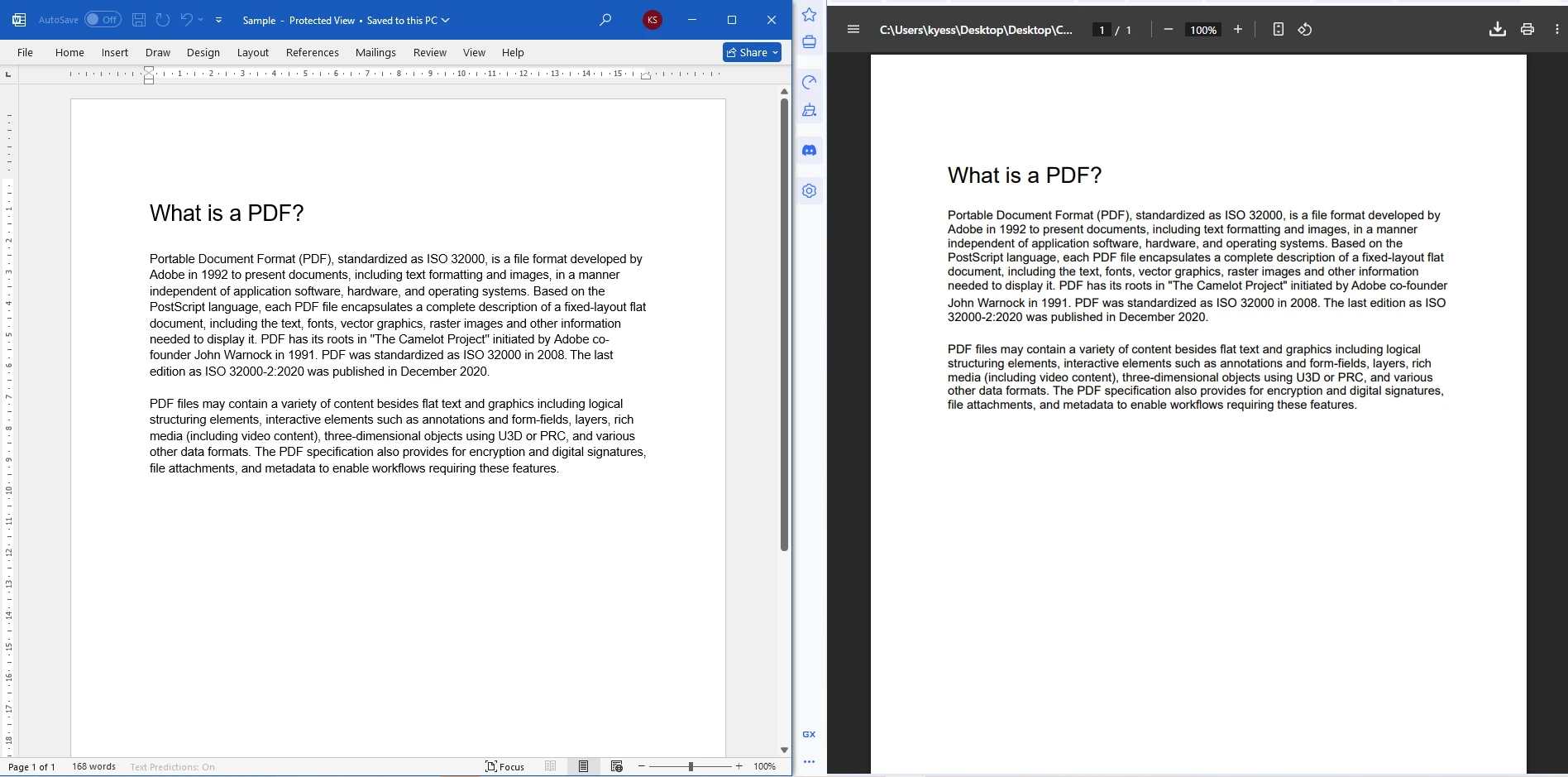
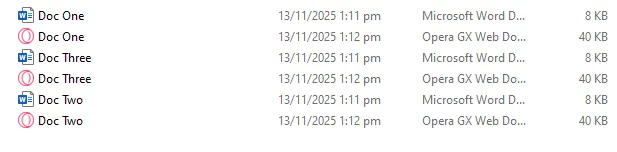
对于高吞吐量场景,可考虑使用Parallel.ForEach并行化循环。 如果您运行并发转换,请为每个线程创建一个DocxToPdfRenderer,因为跨线程共享时该类不是线程安全的。
邮件合并功能允许您定义一个带有占位符的 DOCX 模板,然后在运行时用数据填充这些占位符。这种模式非常适合发票、合同、证书以及任何结构固定但内容因收件人而异的文档。
IronPDF的MailMergeDataSource属性提供的自定义数据源:
using IronPdf;
using System.Data;

IronPdf.License.LicenseKey = "YOUR-LICENSE-KEY-HERE";

// Build the data source
var data = new DataTable();
data.Columns.Add("CustomerName");
data.Columns.Add("InvoiceNumber");
data.Columns.Add("TotalAmount");
data.Rows.Add("Acme Corp", "INV-2026-001", "$4,500.00");

var renderer = new DocxToPdfRenderer();
renderer.MailMergeDataSource = data;

var pdf = renderer.RenderDocxAsPdf("invoice_template.docx");
pdf.SaveAs("acme_invoice.pdf");Imports IronPdf
Imports System.Data
IronPdf.License.LicenseKey = "YOUR-LICENSE-KEY-HERE"
' Build the data source
Dim data As New DataTable()
data.Columns.Add("CustomerName")
data.Columns.Add("InvoiceNumber")
data.Columns.Add("TotalAmount")
data.Rows.Add("Acme Corp", "INV-2026-001", "$4,500.00")
Dim renderer As New DocxToPdfRenderer()
renderer.MailMergeDataSource = data
Dim pdf = renderer.RenderDocxAsPdf("invoice_template.docx")
pdf.SaveAs("acme_invoice.pdf")在DOCX模板中,用双尖括号(例如,<<CustomerName>>)围绕每个字段名称,以标记合并字段。 转换时,IronPDF 会将每个占位符替换为数据源中相应的列值。 您可以在Microsoft Word 邮件合并文档中了解更多关于文档自动化模式的信息。
转换后,您可以在保存之前直接在PdfDocument对象上应用密码保护和权限限制。 这在分发财务报告、法律协议或任何不应随意复制或打印的文件时非常有用:
using IronPdf;

IronPdf.License.LicenseKey = "YOUR-LICENSE-KEY-HERE";

var renderer = new DocxToPdfRenderer();
var pdf = renderer.RenderDocxAsPdf("confidential.docx");

// Require a password to open the file
pdf.SecuritySettings.UserPassword = "user123";

// Owner password allows overriding restrictions
pdf.SecuritySettings.OwnerPassword = "owner456";

// Restrict printing and content copying
pdf.SecuritySettings.AllowUserPrinting = IronPdf.Security.PdfPrintSecurity.NoPrint;
pdf.SecuritySettings.AllowUserCopyPasteContent = false;

pdf.SaveAs("secured_document.pdf");Imports IronPdf
IronPdf.License.LicenseKey = "YOUR-LICENSE-KEY-HERE"
Dim renderer As New DocxToPdfRenderer()
Dim pdf = renderer.RenderDocxAsPdf("confidential.docx")
' Require a password to open the file
pdf.SecuritySettings.UserPassword = "user123"
' Owner password allows overriding restrictions
pdf.SecuritySettings.OwnerPassword = "owner456"
' Restrict printing and content copying
pdf.SecuritySettings.AllowUserPrinting = IronPdf.Security.PdfPrintSecurity.NoPrint
pdf.SecuritySettings.AllowUserCopyPasteContent = False
pdf.SaveAs("secured_document.pdf")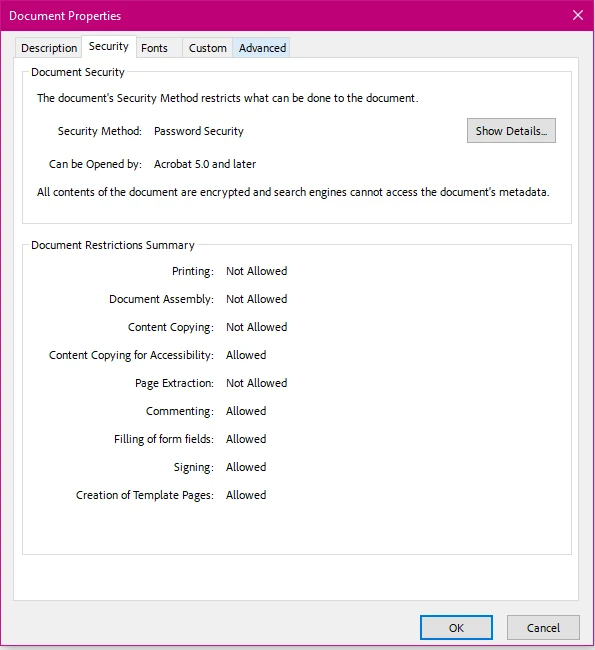
IronPDF 根据 PDF 版本使用 128 位或 256 位 AES 加密。 有关所有可用安全选项的更多详细信息,请参阅IronPDF 安全文档。
下表总结了最常用的安全属性:
| 属性 | 翻译类型 | 说明 |
|---|---|---|
| 用户密码 | string | 打开文档需要密码 |
| 所有者密码 | string | 可覆盖所有限制的密码 |
| 允许用户打印 | PdfPrintSecurity 枚举 | 控制打印权限 |
| 允许用户复制粘贴内容 | bool | 允许或阻止文本复制 |
| 允许用户注释 | bool | 允许或阻止注释工具 |
| AllowUserFormData | bool | 允许或阻止表单填写 |
要将 Word 到 PDF 的转换作为 HTTP 端点公开,请将转换逻辑注入到控制器操作中。 以下示例接受多部分表单上传,将文件加载到内存中进行转换,并将 PDF 文件作为可下载的文件响应返回:
using IronPdf;
using Microsoft.AspNetCore.Http;
using Microsoft.AspNetCore.Mvc;

[ApiController]
[Route("api/[controller]")]
public class DocumentController : ControllerBase
{
    [HttpPost("convert")]
    public IActionResult ConvertWordToPdf(IFormFile wordFile)
    {
        if (wordFile == null || wordFile.Length == 0)
            return BadRequest("Please upload a valid Word document.");

        using var stream = new MemoryStream();
        wordFile.CopyTo(stream);

        var renderer = new DocxToPdfRenderer();
        var pdfDocument = renderer.RenderDocxAsPdf(stream.ToArray());

        return File(pdfDocument.BinaryData, "application/pdf", "converted.pdf");
    }
}Imports IronPdf
Imports Microsoft.AspNetCore.Http
Imports Microsoft.AspNetCore.Mvc
<ApiController>
<Route("api/[controller]")>
Public Class DocumentController
Inherits ControllerBase
<HttpPost("convert")>
Public Function ConvertWordToPdf(wordFile As IFormFile) As IActionResult
If wordFile Is Nothing OrElse wordFile.Length = 0 Then
Return BadRequest("Please upload a valid Word document.")
End If
Using stream As New MemoryStream()
wordFile.CopyTo(stream)
Dim renderer As New DocxToPdfRenderer()
Dim pdfDocument = renderer.RenderDocxAsPdf(stream.ToArray())
Return File(pdfDocument.BinaryData, "application/pdf", "converted.pdf")
End Using
End Function
End Class对于较大的应用程序,通过内置的ASP.NET Core 依赖注入系统将DocxToPdfRenderer注册为单例。 在builder.Services.AddSingleton<DocxToPdfRenderer>();。 将渲染器注册为单例意味着该对象只需初始化一次,即可在所有请求中重复使用,从而减少每次请求的开销。 像注入其他依赖项一样,通过构造函数将其注入到控制器和服务中。
Word 文档可能包含不支持的功能或格式错误。 将转换调用包装在try/catch块中以处理IronPdfException并向调用者返回有意义的响应:
try
{
    var pdf = renderer.RenderDocxAsPdf(stream.ToArray());
    return File(pdf.BinaryData, "application/pdf", "output.pdf");
}
catch (IronPdfException ex)
{
    // Log the exception and return a 422 Unprocessable Entity
    return UnprocessableEntity($"Conversion failed: {ex.Message}");
}Try
Dim pdf = renderer.RenderDocxAsPdf(stream.ToArray())
Return File(pdf.BinaryData, "application/pdf", "output.pdf")
Catch ex As IronPdfException
' Log the exception and return a 422 Unprocessable Entity
Return UnprocessableEntity($"Conversion failed: {ex.Message}")
End Try良好的错误处理可以防止未处理的异常情况出现在最终用户面前,并使调试转换问题变得更加容易。
常见的工作流程是将 DOCX 格式的求职信转换为 PDF 格式,然后将其添加到现有的 PDF 报告前面。 IronPDF 的PDF 合并功能让这一切只需一行代码即可完成:
using IronPdf;

IronPdf.License.LicenseKey = "YOUR-LICENSE-KEY-HERE";

var renderer = new DocxToPdfRenderer();
var coverLetter = renderer.RenderDocxAsPdf("cover_letter.docx");
var existingReport = PdfDocument.FromFile("annual_report.pdf");

// Merge cover letter (first) with existing report (second)
var merged = PdfDocument.Merge(coverLetter, existingReport);
merged.SaveAs("final_document.pdf");Imports IronPdf
IronPdf.License.LicenseKey = "YOUR-LICENSE-KEY-HERE"
Dim renderer As New DocxToPdfRenderer()
Dim coverLetter As PdfDocument = renderer.RenderDocxAsPdf("cover_letter.docx")
Dim existingReport As PdfDocument = PdfDocument.FromFile("annual_report.pdf")
' Merge cover letter (first) with existing report (second)
Dim merged As PdfDocument = PdfDocument.Merge(coverLetter, existingReport)
merged.SaveAs("final_document.pdf")您可以通过将一个集合传递给PdfDocument对象。 对于更高级的文档组装场景,可以尝试向现有 PDF 添加页面或在转换后的输出上添加水印。
转换 DOCX 文件后,您可以向每一页添加自定义页眉、页脚和文本标记。 这对于在生成的文档中添加审批状态、保密声明或品牌标识非常有用:
using IronPdf;

IronPdf.License.LicenseKey = "YOUR-LICENSE-KEY-HERE";

var renderer = new DocxToPdfRenderer();
var pdf = renderer.RenderDocxAsPdf("proposal.docx");

// Add a text stamp on every page
pdf.ApplyStamp(new TextStamp("DRAFT", new TextStampStyle
{
    FontSize = 36,
    FontColor = IronSoftware.Drawing.Color.FromArgb(100, 200, 0, 0),
    VerticalAlignment = VerticalAlignment.Middle,
    HorizontalAlignment = HorizontalAlignment.Center,
    Rotation = -45
}));

pdf.SaveAs("proposal_draft.pdf");Imports IronPdf
IronPdf.License.LicenseKey = "YOUR-LICENSE-KEY-HERE"
Dim renderer As New DocxToPdfRenderer()
Dim pdf = renderer.RenderDocxAsPdf("proposal.docx")
' Add a text stamp on every page
pdf.ApplyStamp(New TextStamp("DRAFT", New TextStampStyle With {
.FontSize = 36,
.FontColor = IronSoftware.Drawing.Color.FromArgb(100, 200, 0, 0),
.VerticalAlignment = VerticalAlignment.Middle,
.HorizontalAlignment = HorizontalAlignment.Center,
.Rotation = -45
}))
pdf.SaveAs("proposal_draft.pdf")对于包含页码的基于 HTML 的页眉和页脚,请参阅IronPDF 页眉和页脚文档。
在 .NET 中,有多个库可以将 DOCX 文件转换为 PDF。 了解各种利弊有助于您为您的使用场景选择合适的工具。
Telerik 文档处理(RadWordsProcessing) 支持 DOCX 到 PDF 的转换,并包含在 Telerik 套件中。它完全以托管代码运行,无需任何原生依赖项,但对于复杂布局,其渲染精度可能与 Word 有所不同。 Aspose.Words是另一个成熟的选择,它具有高保真度和丰富的 API,但其每个开发人员的许可费用与 IronPDF 类似。
对于开源替代方案, Xceed 的 DocX提供 DOCX 操作功能,但不直接包含 PDF 转换功能。 对于需要在 Linux 上使用零依赖选项的开发者来说,他们也可以考虑从进程中调用无头 LibreOffice ,但这会引入大量的二进制依赖和进程生成开销。
| 库 | 渲染保真度 | 办公室要求 | Linux 支持 | 许可模式 |
|---|---|---|---|---|
| IronPDF | 高的 | 无 | 是 | 按开发者计费/SaaS |
| Aspose.Words | 非常高 | 无 | 是 | 每个开发商 |
| Telerik RadWords | 中高 | 无 | 是 | Telerik 套件 |
| Microsoft.Office.Interop | 完美的 | 是 | 无 | 办公许可证 |
| LibreOffice 无头模式 | 中等的 | 无 | 是 | 开源(MPL) |
IronPDF 在此次比较中的主要优势在于它兼具高保真度、不依赖 Office 原生软件、支持 Linux 以及基于 NuGet 的简单安装等优点。 对于已经使用 IronPDF 许可证进行 HTML 到 PDF 转换的团队,DOCX 渲染器包含在内,无需额外付费。
IronPDF 直接读取Office Open XML (OOXML) 格式——与 Microsoft Word 使用的规范相同。 它不会在后台调用 Word,也不会使用 COM 自动化桥接器。 这意味着转换过程在您的 .NET 应用程序进程内运行,这使得转换过程具有可预测性、确定性,并且对于多线程服务器工作负载来说是安全的。
内部管道解析 OOXML XML 包,解析嵌入资源(图像、字体、嵌入对象),应用段落和运行格式,根据文档的节属性布局页面几何形状,并将结果栅格化为 PDF 内容流。 PDF 规范(ISO 32000)规定了输出格式,确保与所有主流 PDF 查看器兼容。
现在,您已经具备在任何 .NET 或 ASP.NET 应用程序中将 Word 文档转换为 PDF 的坚实基础。 接下来可以探索以下内容:
-下载并试用 IronPDF -- 先从免费试用版开始,在您自己的项目中测试全部功能,然后再决定是否购买许可证。 -阅读 DOCX 转换指南-- DocxToPdfRenderer 操作指南文章深入介绍了极端情况、高级选项和性能调优。 -探索 HTML 到 PDF -- 如果您的工作流程涉及 HTML 模板或 Razor 视图,IronPDF 可以使用相同的流畅 API 接口将 HTML 转换为 PDF 。 -合并和拆分文档-- 了解如何将多个 PDF 合并为一个文件,或将大型 PDF 拆分为单独的页面。 -添加数字签名-- 对于法律或合规工作流程,IronPDF 支持使用 X.509 证书的PDF 数字签名。 -查看许可选项-- 探索按开发者、站点和OEM 许可,找到适合您部署模型的方案。 -浏览博客-- IronPDF 博客包含有关 PDF 生成、操作、OCR 集成等的教程。

Curtis Chau 拥有卡尔顿大学的计算机科学学士学位,专注于前端开发,精通 Node.js、TypeScript、JavaScript 和 React。他热衷于打造直观且美观的用户界面,喜欢使用现代框架并创建结构良好、视觉吸引力强的手册。

当您需要PDF看起来像HTML时,速度快。















