




已更新 2026年9月4日
產生每月帳戶報表(PDF 文件)
using IronPDF C# PDF 庫,開發人員可以在 .NET 專案中將 HTML 轉換為可靠的 PDF 文件,而無需依賴外部服務。
閱讀更多

在C#中,將Word文件轉換為PDF只需要三行程式碼與IronPDF:建立一個RenderDocxAsPdf,然後保存結果。 不需要安裝Microsoft Office,不需要COM互操作,不需要複雜的伺服器配置——只需一個NuGet包和.NET程式碼即可在任何環境中運行,包括雲端、Docker和Windows服務。
在Visual Studio中打開包管理器控制台,運行以下命令安裝IronPDF:
包安裝後,將using IronPdf;指令新增到您的C#文件中。 IronPDF目標.NET 8及更高版本,與ASP.NET核心、ASP.NET框架 4.6.2+和現代工作服務項目相容。 不需要額外的運行時組件或Microsoft Office授權。
在生產環境運行之前,請在應用啟動時設置您的授權金鑰,例如在Program.cs的頂部。 您可以從IronPdf.License.LicenseKey = configuration["IronPdf:LicenseKey"]!;。
IronPDF支持以下平台:
| 平台 | 最低版本 | 備註 |
|---|---|---|
| .NET | 8, 9, 10 | 完全支持,推薦 |
| .NET框架 | 4.6.2 | 僅限Windows |
| ASP.NET核心 | 3.1+ | 中間件和MVC控制器 |
| Azure Functions | v4 | 獨立進程模型 |
| Docker / Linux | 任何 | 需要libgdiplus |
DocxToPdfRenderer類是所有Word到PDF轉換的進入點。 它接受文件路徑、字節陣列或PdfDocument物件。
這是最簡單的轉換方式:
using IronPdf;

// Set license key before first use
IronPdf.License.LicenseKey = "YOUR-LICENSE-KEY-HERE";

var renderer = new DocxToPdfRenderer();
var pdf = renderer.RenderDocxAsPdf("report.docx");
pdf.SaveAs("report.pdf");Imports IronPdf
' Set license key before first use
IronPdf.License.LicenseKey = "YOUR-LICENSE-KEY-HERE"
Dim renderer As New DocxToPdfRenderer()
Dim pdf = renderer.RenderDocxAsPdf("report.docx")
pdf.SaveAs("report.pdf")DocxToPdfRenderer在轉換過程中保留以下Word文件元素:
有關內嵌OLE物件或追蹤更改等邊緣情況的詳細行為說明,請參閱DocxToPdfRenderer文件。
當您接收到DOCX文件作為上傳或從資料庫blob中讀取它時,您可以直接將流傳遞給渲染器:
using IronPdf;

IronPdf.License.LicenseKey = "YOUR-LICENSE-KEY-HERE";

using var docxStream = new FileStream("document.docx", FileMode.Open);
var renderer = new DocxToPdfRenderer();
var pdfDocument = renderer.RenderDocxAsPdf(docxStream);
pdfDocument.SaveAs("output.pdf");Imports IronPdf
IronPdf.License.LicenseKey = "YOUR-LICENSE-KEY-HERE"
Using docxStream As New FileStream("document.docx", FileMode.Open)
Dim renderer As New DocxToPdfRenderer()
Dim pdfDocument = renderer.RenderDocxAsPdf(docxStream)
pdfDocument.SaveAs("output.pdf")
End Using此方法避免將臨時文件寫入磁碟,這在如Azure App Service等只讀文件系統環境中非常重要。
當您需要處理整個文件資料夾時,迭代文件並重用單個DocxToPdfRenderer實例。 重用渲染器可以避免重複的初始化開銷:
using IronPdf;

IronPdf.License.LicenseKey = "YOUR-LICENSE-KEY-HERE";

var renderer = new DocxToPdfRenderer();
string[] docxFiles = Directory.GetFiles(@"C:\WordDocuments", "*.docx");

foreach (string docxFile in docxFiles)
{
    var pdf = renderer.RenderDocxAsPdf(docxFile);
    string pdfPath = Path.ChangeExtension(docxFile, ".pdf");
    pdf.SaveAs(pdfPath);
    Console.WriteLine($"Converted: {Path.GetFileName(pdfPath)}");
}Imports IronPdf
IronPdf.License.LicenseKey = "YOUR-LICENSE-KEY-HERE"
Dim renderer As New DocxToPdfRenderer()
Dim docxFiles As String() = Directory.GetFiles("C:\WordDocuments", "*.docx")
For Each docxFile As String In docxFiles
Dim pdf = renderer.RenderDocxAsPdf(docxFile)
Dim pdfPath As String = Path.ChangeExtension(docxFile, ".pdf")
pdf.SaveAs(pdfPath)
Console.WriteLine($"Converted: {Path.GetFileName(pdfPath)}")
Next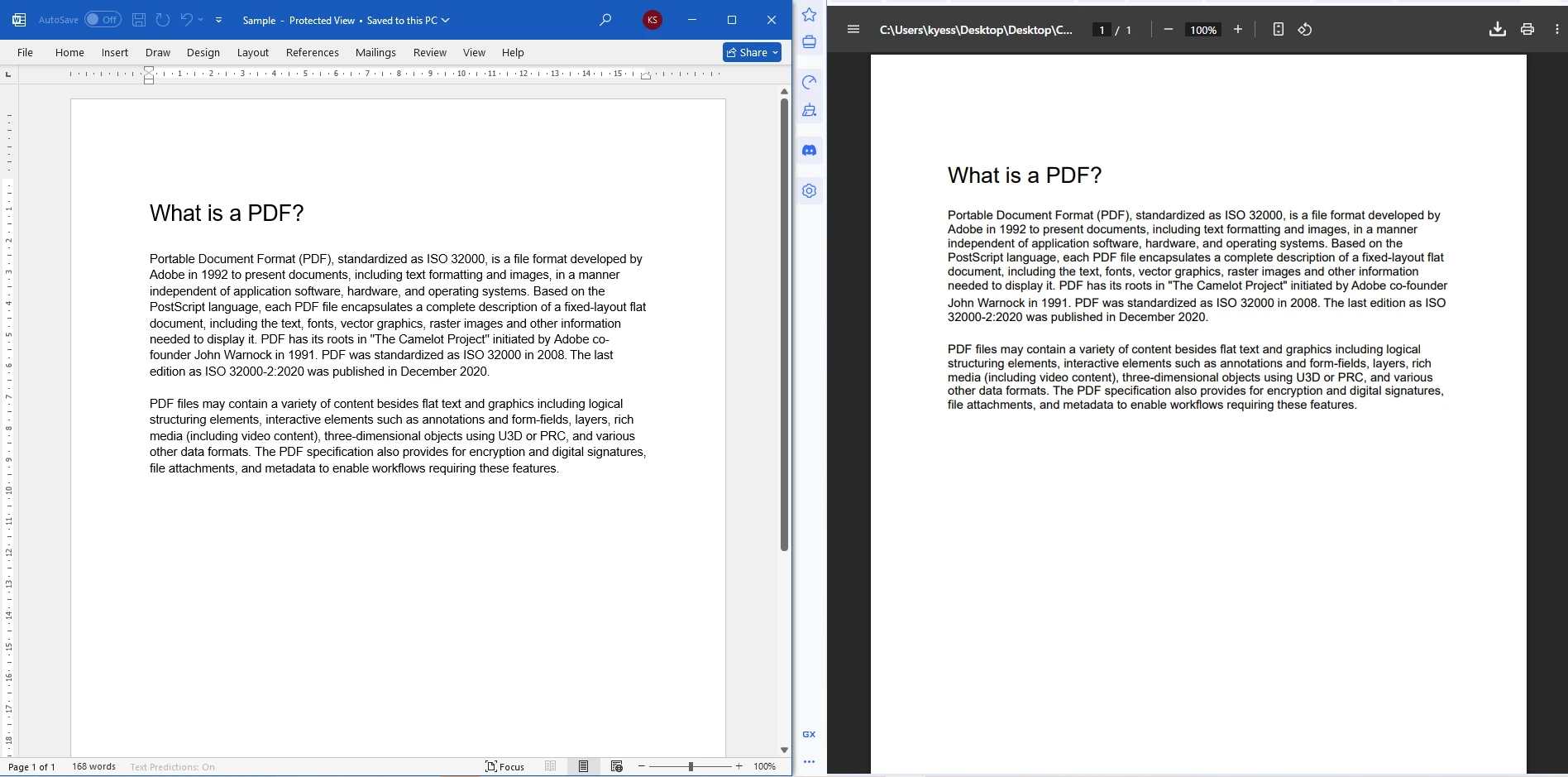
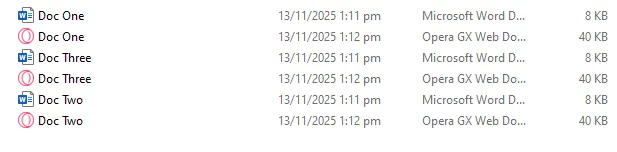
對於高吞吐量的場景,請考慮使用Parallel.ForEach並行化迴圈。 如果您進行並行轉換,則每個執行緒建立一個DocxToPdfRenderer,因為該類在跨執行緒共享時不是執行緒安全的。
郵件合併讓您可以定義帶有佔位符的DOCX模板,然後在運行時用資料填充這些佔位符。此模式非常適合用於發票、合同、證書和任何結構固定但內容隨收件人而不同的文件。
IronPDF的MailMergeDataSource屬性提供的自定義資料源:
using IronPdf;
using System.Data;

IronPdf.License.LicenseKey = "YOUR-LICENSE-KEY-HERE";

// Build the data source
var data = new DataTable();
data.Columns.Add("CustomerName");
data.Columns.Add("InvoiceNumber");
data.Columns.Add("TotalAmount");
data.Rows.Add("Acme Corp", "INV-2026-001", "$4,500.00");

var renderer = new DocxToPdfRenderer();
renderer.MailMergeDataSource = data;

var pdf = renderer.RenderDocxAsPdf("invoice_template.docx");
pdf.SaveAs("acme_invoice.pdf");Imports IronPdf
Imports System.Data
IronPdf.License.LicenseKey = "YOUR-LICENSE-KEY-HERE"
' Build the data source
Dim data As New DataTable()
data.Columns.Add("CustomerName")
data.Columns.Add("InvoiceNumber")
data.Columns.Add("TotalAmount")
data.Rows.Add("Acme Corp", "INV-2026-001", "$4,500.00")
Dim renderer As New DocxToPdfRenderer()
renderer.MailMergeDataSource = data
Dim pdf = renderer.RenderDocxAsPdf("invoice_template.docx")
pdf.SaveAs("acme_invoice.pdf")在DOCX模板中,使用雙重尖角號(例如,<<CustomerName>>)來標記合併字段。 在轉換時,IronPDF會將每個佔位符替換成來自資料源的相應列值。 您可以在Microsoft Word郵件合併文件中了解更多關於文件自動化模式的資訊。
轉換後,您可以在保存之前直接在PdfDocument物件上應用密碼保護和權限限制。 當分發財務報告、法律協議或任何不應被隨意複製或列印的文件時,這很有用:
using IronPdf;

IronPdf.License.LicenseKey = "YOUR-LICENSE-KEY-HERE";

var renderer = new DocxToPdfRenderer();
var pdf = renderer.RenderDocxAsPdf("confidential.docx");

// Require a password to open the file
pdf.SecuritySettings.UserPassword = "user123";

// Owner password allows overriding restrictions
pdf.SecuritySettings.OwnerPassword = "owner456";

// Restrict printing and content copying
pdf.SecuritySettings.AllowUserPrinting = IronPdf.Security.PdfPrintSecurity.NoPrint;
pdf.SecuritySettings.AllowUserCopyPasteContent = false;

pdf.SaveAs("secured_document.pdf");Imports IronPdf
IronPdf.License.LicenseKey = "YOUR-LICENSE-KEY-HERE"
Dim renderer As New DocxToPdfRenderer()
Dim pdf = renderer.RenderDocxAsPdf("confidential.docx")
' Require a password to open the file
pdf.SecuritySettings.UserPassword = "user123"
' Owner password allows overriding restrictions
pdf.SecuritySettings.OwnerPassword = "owner456"
' Restrict printing and content copying
pdf.SecuritySettings.AllowUserPrinting = IronPdf.Security.PdfPrintSecurity.NoPrint
pdf.SecuritySettings.AllowUserCopyPasteContent = False
pdf.SaveAs("secured_document.pdf")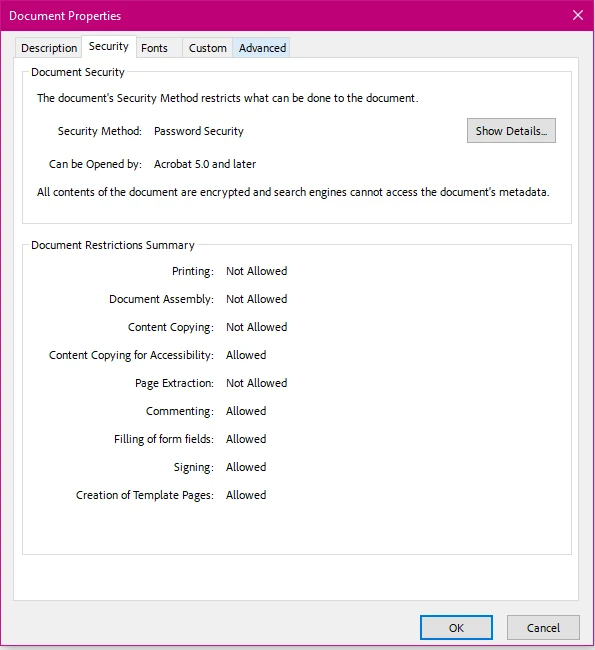
IronPDF根據PDF版本使用128位和256位AES加密。 關於所有可用安全選項的更多詳細資訊,請參閱IronPDF安全文件。
下表總結了最常用的安全屬性:
| 屬性 | 型別 | 描述 |
|---|---|---|
| UserPassword | string | 打開文件需要的密碼 |
| OwnerPassword | string | 覆蓋所有限制的密碼 |
| AllowUserPrinting | PdfPrintSecurity枚舉 | 控制列印權限 |
| AllowUserCopyPasteContent | bool | 允許或阻止文字複製 |
| AllowUserAnnotations | bool | 允許或阻止註釋工具 |
| AllowUserFormData | bool | 允許或阻止表單填寫 |
要將Word到PDF轉換作為HTTP端點公開,請將轉換邏輯注入到控制器操作中。 以下範例接受多部分表單上傳,在記憶體中轉換文件,並將PDF作為可下載文件響應返回:
using IronPdf;
using Microsoft.AspNetCore.Http;
using Microsoft.AspNetCore.Mvc;

[ApiController]
[Route("api/[controller]")]
public class DocumentController : ControllerBase
{
    [HttpPost("convert")]
    public IActionResult ConvertWordToPdf(IFormFile wordFile)
    {
        if (wordFile == null || wordFile.Length == 0)
            return BadRequest("Please upload a valid Word document.");

        using var stream = new MemoryStream();
        wordFile.CopyTo(stream);

        var renderer = new DocxToPdfRenderer();
        var pdfDocument = renderer.RenderDocxAsPdf(stream.ToArray());

        return File(pdfDocument.BinaryData, "application/pdf", "converted.pdf");
    }
}Imports IronPdf
Imports Microsoft.AspNetCore.Http
Imports Microsoft.AspNetCore.Mvc
<ApiController>
<Route("api/[controller]")>
Public Class DocumentController
Inherits ControllerBase
<HttpPost("convert")>
Public Function ConvertWordToPdf(wordFile As IFormFile) As IActionResult
If wordFile Is Nothing OrElse wordFile.Length = 0 Then
Return BadRequest("Please upload a valid Word document.")
End If
Using stream As New MemoryStream()
wordFile.CopyTo(stream)
Dim renderer As New DocxToPdfRenderer()
Dim pdfDocument = renderer.RenderDocxAsPdf(stream.ToArray())
Return File(pdfDocument.BinaryData, "application/pdf", "converted.pdf")
End Using
End Function
End Class對於較大的應用程式,通過內建的ASP.NET核心依賴注入系統將DocxToPdfRenderer註冊為單例。 在builder.Services.AddSingleton<DocxToPdfRenderer>();。 將渲染器註冊為單例意味著物件只初始化一次,並在所有請求中重用,從而減少每個請求的開銷。 通過建構函式將其注入控制器和服務中,就像您注入任何其他依賴一樣。
Word文件可能包含不支持的功能或格式不正確。 將轉換調用包裹在try/catch塊中,以處理IronPdfException並向調用者返回有意義的響應:
try
{
    var pdf = renderer.RenderDocxAsPdf(stream.ToArray());
    return File(pdf.BinaryData, "application/pdf", "output.pdf");
}
catch (IronPdfException ex)
{
    // Log the exception and return a 422 Unprocessable Entity
    return UnprocessableEntity($"Conversion failed: {ex.Message}");
}Try
Dim pdf = renderer.RenderDocxAsPdf(stream.ToArray())
Return File(pdf.BinaryData, "application/pdf", "output.pdf")
Catch ex As IronPdfException
' Log the exception and return a 422 Unprocessable Entity
Return UnprocessableEntity($"Conversion failed: {ex.Message}")
End Try良好的錯誤處理可以防止未處理的例外情況暴露給最終使用者,並大大簡化除錯轉換問題。
一個常見的工作流涉及轉換DOCX求職信,然後將其新增到現有的PDF報告之前。 IronPDF的PDF合併功能使這一過程變為一次調用:
using IronPdf;

IronPdf.License.LicenseKey = "YOUR-LICENSE-KEY-HERE";

var renderer = new DocxToPdfRenderer();
var coverLetter = renderer.RenderDocxAsPdf("cover_letter.docx");
var existingReport = PdfDocument.FromFile("annual_report.pdf");

// Merge cover letter (first) with existing report (second)
var merged = PdfDocument.Merge(coverLetter, existingReport);
merged.SaveAs("final_document.pdf");Imports IronPdf
IronPdf.License.LicenseKey = "YOUR-LICENSE-KEY-HERE"
Dim renderer As New DocxToPdfRenderer()
Dim coverLetter As PdfDocument = renderer.RenderDocxAsPdf("cover_letter.docx")
Dim existingReport As PdfDocument = PdfDocument.FromFile("annual_report.pdf")
' Merge cover letter (first) with existing report (second)
Dim merged As PdfDocument = PdfDocument.Merge(coverLetter, existingReport)
merged.SaveAs("final_document.pdf")您可以根據需要合併多個PdfDocument.Merge。 對於更高級的文件組裝場景,請探索向現有PDF新增頁面或在轉換後的輸出上新增水印。
轉換DOCX文件後,您可以向每個頁面新增自定義頁眉、頁腳和文字印章。 這對於在生成的文件中新增批准狀態、機密性通知或品牌標誌非常有用:
using IronPdf;

IronPdf.License.LicenseKey = "YOUR-LICENSE-KEY-HERE";

var renderer = new DocxToPdfRenderer();
var pdf = renderer.RenderDocxAsPdf("proposal.docx");

// Add a text stamp on every page
pdf.ApplyStamp(new TextStamp("DRAFT", new TextStampStyle
{
    FontSize = 36,
    FontColor = IronSoftware.Drawing.Color.FromArgb(100, 200, 0, 0),
    VerticalAlignment = VerticalAlignment.Middle,
    HorizontalAlignment = HorizontalAlignment.Center,
    Rotation = -45
}));

pdf.SaveAs("proposal_draft.pdf");Imports IronPdf
IronPdf.License.LicenseKey = "YOUR-LICENSE-KEY-HERE"
Dim renderer As New DocxToPdfRenderer()
Dim pdf = renderer.RenderDocxAsPdf("proposal.docx")
' Add a text stamp on every page
pdf.ApplyStamp(New TextStamp("DRAFT", New TextStampStyle With {
.FontSize = 36,
.FontColor = IronSoftware.Drawing.Color.FromArgb(100, 200, 0, 0),
.VerticalAlignment = VerticalAlignment.Middle,
.HorizontalAlignment = HorizontalAlignment.Center,
.Rotation = -45
}))
pdf.SaveAs("proposal_draft.pdf")有關包含頁碼的基於HTML的頁眉和頁腳,請參閱IronPDF頁眉和頁腳文件。
有多個庫可用於將DOCX文件轉換為.NET中的PDF。 了解權衡有助於您為您的用例選擇合適的工具。
Telerik文件處理(RadWordsProcessing)支持DOCX到PDF轉換,並包含在Telerik套件中。它完全在管理程式碼中運行,不需要本機依賴關係,但其對於複雜布局的渲染保真度可能與Word不同。 Aspose.Words是另一個具有高保真度和豐富API的已建立選擇,雖然它具有與IronPDF相似的按開發人員授權費用。
對於開源替代方案,DocX by Xceed提供DOCX操作,但不直接包含PDF轉換。 需要在Linux上使用無依賴選項的開發者也可以考慮從進程中調用無頭LibreOffice,但這會引入大的二進製依賴和進程產生開銷。
| 庫 | 渲染保真度 | 需要Office | 支持Linux | 授權模型 |
|---|---|---|---|---|
| IronPDF | 高 | 否 | 是 | 按開發人員/ SaaS |
| Aspose.Words | 非常高 | 否 | 是 | 按開發人員 |
| Telerik RadWords | 中高 | 否 | 是 | Telerik套件 |
| Microsoft.Office.Interop | 完美 | 是 | 否 | Office授權 |
| LibreOffice無頭 | 中 | 否 | 是 | 開源(MPL) |
在這次比較中,IronPDF的主要優勢是高保真度、無本機Office依賴、支持Linux及簡單的基於NuGet的安裝的結合。 對於已經使用IronPDF許可證進行HTML到PDF轉換的團隊,DOCX渲染器包含在內,不需額外費用。
IronPDF直接讀取Office Open XML(OOXML)格式——Microsoft Word使用的相同規範。 它不會在背景中調用Word,也不使用COM自動化橋接。 這意味著轉換在您的.NET應用程式中運行,這使其預測、可預測且對多執行緒伺服器工作負載安全。
內部管道解析OOXML XML包,解析嵌入資源(圖像、字體、嵌入物件),應用段落和運行格式,根據文件的區段屬性佈局頁面幾何,並將結果光柵化進PDF內容流中。 PDF規範(ISO 32000)管理輸出格式,確保與所有主流PDF查看器的相容性。
您現在擁有將Word文件轉換為PDF的堅固基礎,適用於任何.NET或ASP.NET應用程式。 接下來您可以探索以下內容:

Curtis Chau擁有Carleton大學的電腦科學學士學位,專精於前端開發,擁有Node.js、TypeScript、JavaScript和React的專業知識。Curtis熱衷於建立直觀且美觀的使用者介面,喜愛使用現代框架並建立結構良好、視覺吸引力的手冊。

IronPDF 是 IRONSUITE 的一部分
10 款適用於辦公室文件的 .NET API 產品

當您需要您的PDF看起來像HTML一樣快速。














