


IronPDF를 사용하여 .NET에서 PDF 문서 생성하기

C#에서 ChromePdfRenderer를 사용하여 워드 문서를 PDF로 변환하는 데는 세 줄의 코드가 필요합니다: DocxToPdfRenderer를 생성하고, RenderDocxAsPdf를 호출하고, 결과를 저장하면 됩니다. Microsoft Office 설치, COM 상호 운용, 복잡한 서버 구성 없음 -- 클라우드, Docker, Windows 서비스 등 모든 환경에서 작동하는 NuGet 패키지와 .NET 코드만 있으면 됩니다.
ASP.NET 프로젝트에 ChromePdfRenderer를 설치하는 방법은 무엇인가요?
Visual Studio의 패키지 관리자 콘솔을 열고 ChromePdfRenderer를 설치하려면 다음 명령어를 실행하세요:
Install-Package IronPdf
패키지가 설치되면, C# 파일에 using IronPdf; 지시문을 추가하세요. ChromePdfRenderer는 .NET 8 이상을 목표로 하여 ASP.NET Core, ASP.NET Framework 4.6.2 이상 및 최신 작업자 서비스 프로젝트와 호환됩니다. 추가적인 런타임 구성 요소나 Microsoft Office 라이선스는 필요하지 않습니다.
프로덕션에서 실행하기 전에, 라이선스 키를 애플리케이션 시작 시 한 번 설정하세요. 예를 들어 Program.cs 상단에서 설정하세요. 키를 소스 제어에서 제외하려면 appsettings.json에서 읽어들이세요: IronPdf.License.LicenseKey = configuration["IronPdf:LicenseKey"]!;.
ChromePdfRenderer는 어떤 .NET 버전을 지원하나요?
ChromePdfRenderer는 다음 플랫폼을 지원합니다:
| 플랫폼 | 최소 버전 | 노트 |
|---|---|---|
| .NET | 8, 9, 10 | 완전 지원, 권장 |
| .NET Framework | 4.6.2 | Windows 전용 |
| ASP.NET Core | 3.1+ | 미들웨어 및 MVC 컨트롤러 |
| Azure Functions | v4 | 격리된 프로세스 모델 |
| Docker / Linux | 어떤 | libgdiplus가 필요합니다 |
Word 문서를 C#에서 PDF로 변환하는 방법은 무엇인가요?
DocxToPdfRenderer 클래스는 모든 워드에서 PDF 변환의 진입점입니다. 파일 경로, 바이트 배열, 또는 Stream를 받아들여 PdfDocument 객체를 반환하며, 이를 저장하거나 암호화, 병합, 또는 HTTP를 통해 직접 제공할 수 있습니다.
다음은 가능한 가장 간단한 변환입니다:
using IronPdf;

// Set license key before first use
IronPdf.License.LicenseKey = "YOUR-LICENSE-KEY-HERE";

var renderer = new DocxToPdfRenderer();
var pdf = renderer.RenderDocxAsPdf("report.docx");
pdf.SaveAs("report.pdf");
using IronPdf;
// Set license key before first use
IronPdf.License.LicenseKey = "YOUR-LICENSE-KEY-HERE";
var renderer = new DocxToPdfRenderer();
var pdf = renderer.RenderDocxAsPdf("report.docx");
pdf.SaveAs("report.pdf");Imports IronPdf
' Set license key before first use
IronPdf.License.LicenseKey = "YOUR-LICENSE-KEY-HERE"
Dim renderer As New DocxToPdfRenderer()
Dim pdf = renderer.RenderDocxAsPdf("report.docx")
pdf.SaveAs("report.pdf")변환 중 서식은 어떻게 되나요?
DocxToPdfRenderer는 변환 중 다음의 워드 문서 요소를 유지합니다:
- 텍스트 서식 -- 폰트, 크기, 굵게, 기울임, 밑줄, 취소선
- 단락 스타일 -- 제목, 본문 텍스트, 목록 (순서 있는 목록과 순서 없는 목록)
- 표 -- 테두리, 병합된 셀, 음영, 열 너비
- 이미지 -- 원래 해상도의 인라인 및 떠있는 이미지
- 머리글과 바닥글 -- 페이지 번호, 날짜 및 사용자 정의 내용
- 페이지 레이아웃 -- 여백, 방향 (세로/가로), 용지 크기
OLE 객체 내장 또는 변경 내용 추적과 같은 모서리 사례에 대한 자세한 동작 메모는 DocxToPdfRenderer 문서를 참조하세요.
스트림에서 로드된 DOCX는 어떻게 변환하나요?
DOCX 파일을 업로드하여 받거나 데이터베이스 블롭에서 읽을 때, 직접 스트림을 렌더러에 전달할 수 있습니다:
using IronPdf;

IronPdf.License.LicenseKey = "YOUR-LICENSE-KEY-HERE";

using var docxStream = new FileStream("document.docx", FileMode.Open);
var renderer = new DocxToPdfRenderer();
var pdfDocument = renderer.RenderDocxAsPdf(docxStream);
pdfDocument.SaveAs("output.pdf");
using IronPdf;
IronPdf.License.LicenseKey = "YOUR-LICENSE-KEY-HERE";
using var docxStream = new FileStream("document.docx", FileMode.Open);
var renderer = new DocxToPdfRenderer();
var pdfDocument = renderer.RenderDocxAsPdf(docxStream);
pdfDocument.SaveAs("output.pdf");Imports IronPdf
IronPdf.License.LicenseKey = "YOUR-LICENSE-KEY-HERE"
Using docxStream As New FileStream("document.docx", FileMode.Open)
Dim renderer As New DocxToPdfRenderer()
Dim pdfDocument = renderer.RenderDocxAsPdf(docxStream)
pdfDocument.SaveAs("output.pdf")
End Using이 방법은 Azure App Service와 같은 읽기 전용 파일 시스템 환경에서 디스크에 임시 파일을 기록하는 것을 피할 수 있습니다.
여러 DOCX 파일을 일괄 처리로 변환하려면 어떻게 하나요?
문서 폴더 전체를 처리해야 할 때는 파일을 순회하고 단일 DocxToPdfRenderer 인스턴스를 재사용하세요. 렌더러를 재사용함으로써 반복되는 초기화 오버헤드를 피하십시오:
using IronPdf;

IronPdf.License.LicenseKey = "YOUR-LICENSE-KEY-HERE";

var renderer = new DocxToPdfRenderer();
string[] docxFiles = Directory.GetFiles(@"C:\WordDocuments", "*.docx");

foreach (string docxFile in docxFiles)
{
    var pdf = renderer.RenderDocxAsPdf(docxFile);
    string pdfPath = Path.ChangeExtension(docxFile, ".pdf");
    pdf.SaveAs(pdfPath);
    Console.WriteLine($"Converted: {Path.GetFileName(pdfPath)}");
}
using IronPdf;
IronPdf.License.LicenseKey = "YOUR-LICENSE-KEY-HERE";
var renderer = new DocxToPdfRenderer();
string[] docxFiles = Directory.GetFiles(@"C:\WordDocuments", "*.docx");
foreach (string docxFile in docxFiles)
{
var pdf = renderer.RenderDocxAsPdf(docxFile);
string pdfPath = Path.ChangeExtension(docxFile, ".pdf");
pdf.SaveAs(pdfPath);
Console.WriteLine($"Converted: {Path.GetFileName(pdfPath)}");
}Imports IronPdf
IronPdf.License.LicenseKey = "YOUR-LICENSE-KEY-HERE"
Dim renderer As New DocxToPdfRenderer()
Dim docxFiles As String() = Directory.GetFiles("C:\WordDocuments", "*.docx")
For Each docxFile As String In docxFiles
Dim pdf = renderer.RenderDocxAsPdf(docxFile)
Dim pdfPath As String = Path.ChangeExtension(docxFile, ".pdf")
pdf.SaveAs(pdfPath)
Console.WriteLine($"Converted: {Path.GetFileName(pdfPath)}")
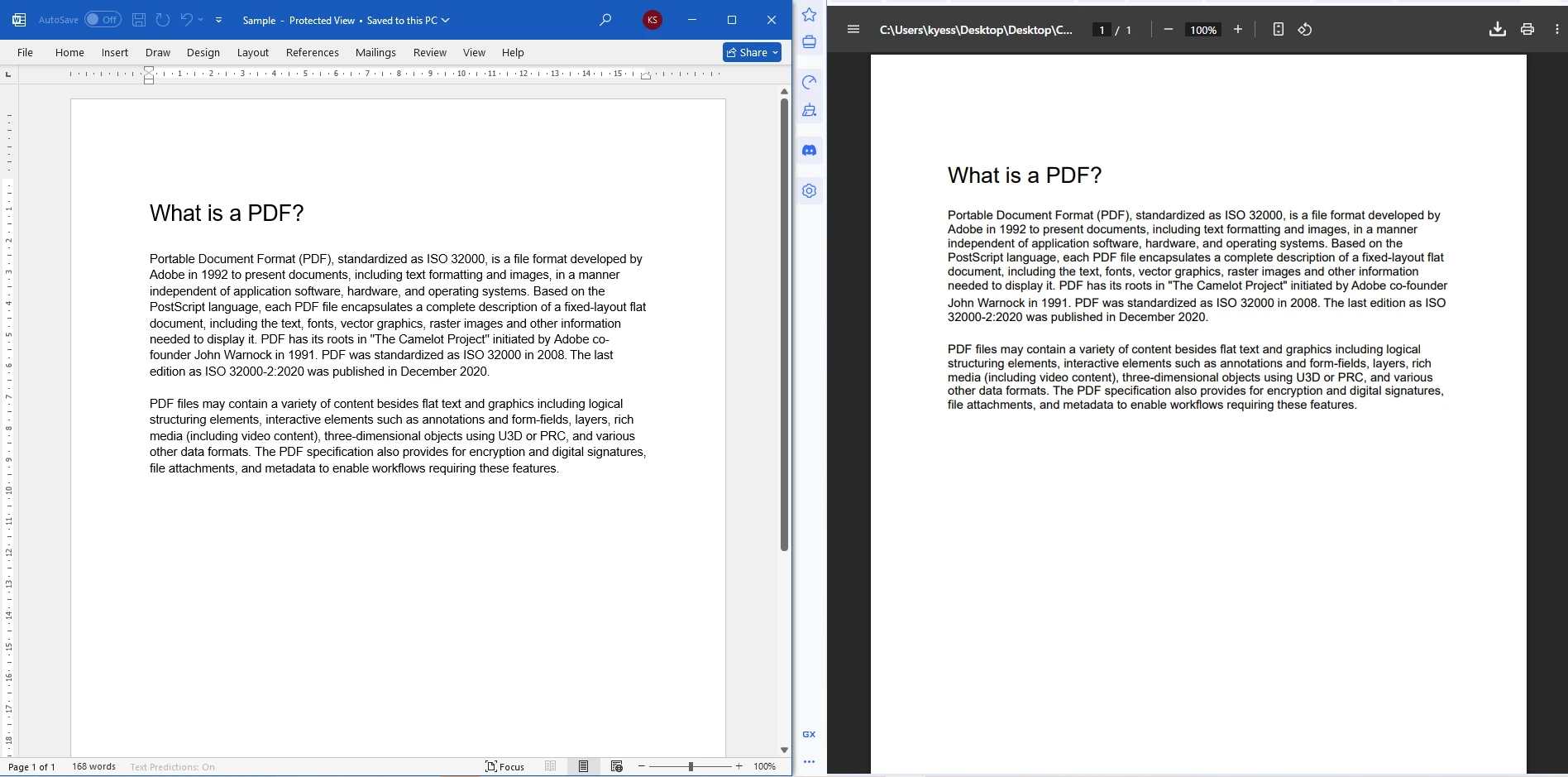
Next입력 Word 문서가 PDF 파일로 변환됨
출력 파일
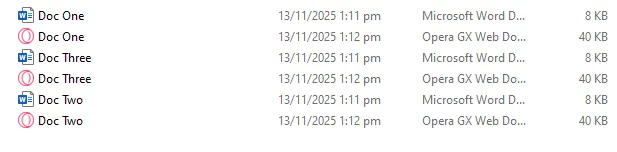
고처리량 시나리오에서는 Parallel.ForEach로 루프를 병렬 처리하는 것을 고려하세요. 동시 변환을 실행한다면 스레드당 하나의 DocxToPdfRenderer를 생성하세요. 클래스는 스레드 간 공유 시 스레드 안전성이 보장되지 않습니다.
메일 병합을 사용하여 개인화된 PDF를 생성하는 방법은?
메일 병합을 통해 자리 표시자를 가진 DOCX 템플릿을 정의한 다음 런타임에 데이터로 그 자리 표시자를 채울 수 있습니다. 이 패턴은 청구서, 계약서, 인증서 및 구조는 고정되지만 수령인에 따라 내용이 달라지는 문서에 이상적입니다.
ChromePdfRenderer의 DocxToPdfRenderer는 DataTable, Dictionary<string, string> 또는 MailMergeDataSource 속성을 통한 사용자 데이터 소스를 허용합니다:
using IronPdf;
using System.Data;

IronPdf.License.LicenseKey = "YOUR-LICENSE-KEY-HERE";

// Build the data source
var data = new DataTable();
data.Columns.Add("CustomerName");
data.Columns.Add("InvoiceNumber");
data.Columns.Add("TotalAmount");
data.Rows.Add("Acme Corp", "INV-2026-001", "$4,500.00");

var renderer = new DocxToPdfRenderer();
renderer.MailMergeDataSource = data;

var pdf = renderer.RenderDocxAsPdf("invoice_template.docx");
pdf.SaveAs("acme_invoice.pdf");
using IronPdf;
using System.Data;
IronPdf.License.LicenseKey = "YOUR-LICENSE-KEY-HERE";
// Build the data source
var data = new DataTable();
data.Columns.Add("CustomerName");
data.Columns.Add("InvoiceNumber");
data.Columns.Add("TotalAmount");
data.Rows.Add("Acme Corp", "INV-2026-001", "$4,500.00");
var renderer = new DocxToPdfRenderer();
renderer.MailMergeDataSource = data;
var pdf = renderer.RenderDocxAsPdf("invoice_template.docx");
pdf.SaveAs("acme_invoice.pdf");Imports IronPdf
Imports System.Data
IronPdf.License.LicenseKey = "YOUR-LICENSE-KEY-HERE"
' Build the data source
Dim data As New DataTable()
data.Columns.Add("CustomerName")
data.Columns.Add("InvoiceNumber")
data.Columns.Add("TotalAmount")
data.Rows.Add("Acme Corp", "INV-2026-001", "$4,500.00")
Dim renderer As New DocxToPdfRenderer()
renderer.MailMergeDataSource = data
Dim pdf = renderer.RenderDocxAsPdf("invoice_template.docx")
pdf.SaveAs("acme_invoice.pdf")DOCX 템플릿에서 각 필드 이름을 두 개의 꺾쇠 괄호(예: <<CustomerName>>)로 감싸 병합 필드를 표시하세요. 변환 시, ChromePdfRenderer는 데이터 소스의 해당 열 값으로 각 자리 표시자를 교체합니다. 문서 자동화 패턴에 대해 더 알고 싶다면 Microsoft Word 메일 병합 문서를 참조하십시오.
DOCX에서 변환한 후 PDF를 어떻게 보호할 수 있습니까?
변환 후, 저장하기 전에 PdfDocument 객체에 직접 비밀번호 보호 및 권한 제한을 적용할 수 있습니다. 이는 재정 보고서, 법률 계약서, 또는 자유롭게 복사하거나 인쇄되지 않아야 하는 문서를 배포할 때 유용합니다:
using IronPdf;

IronPdf.License.LicenseKey = "YOUR-LICENSE-KEY-HERE";

var renderer = new DocxToPdfRenderer();
var pdf = renderer.RenderDocxAsPdf("confidential.docx");

// Require a password to open the file
pdf.SecuritySettings.UserPassword = "user123";

// Owner password allows overriding restrictions
pdf.SecuritySettings.OwnerPassword = "owner456";

// Restrict printing and content copying
pdf.SecuritySettings.AllowUserPrinting = IronPdf.Security.PdfPrintSecurity.NoPrint;
pdf.SecuritySettings.AllowUserCopyPasteContent = false;

pdf.SaveAs("secured_document.pdf");
using IronPdf;
IronPdf.License.LicenseKey = "YOUR-LICENSE-KEY-HERE";
var renderer = new DocxToPdfRenderer();
var pdf = renderer.RenderDocxAsPdf("confidential.docx");
// Require a password to open the file
pdf.SecuritySettings.UserPassword = "user123";
// Owner password allows overriding restrictions
pdf.SecuritySettings.OwnerPassword = "owner456";
// Restrict printing and content copying
pdf.SecuritySettings.AllowUserPrinting = IronPdf.Security.PdfPrintSecurity.NoPrint;
pdf.SecuritySettings.AllowUserCopyPasteContent = false;
pdf.SaveAs("secured_document.pdf");Imports IronPdf
IronPdf.License.LicenseKey = "YOUR-LICENSE-KEY-HERE"
Dim renderer As New DocxToPdfRenderer()
Dim pdf = renderer.RenderDocxAsPdf("confidential.docx")
' Require a password to open the file
pdf.SecuritySettings.UserPassword = "user123"
' Owner password allows overriding restrictions
pdf.SecuritySettings.OwnerPassword = "owner456"
' Restrict printing and content copying
pdf.SecuritySettings.AllowUserPrinting = IronPdf.Security.PdfPrintSecurity.NoPrint
pdf.SecuritySettings.AllowUserCopyPasteContent = False
pdf.SaveAs("secured_document.pdf")PDF 보안 설정 적용됨
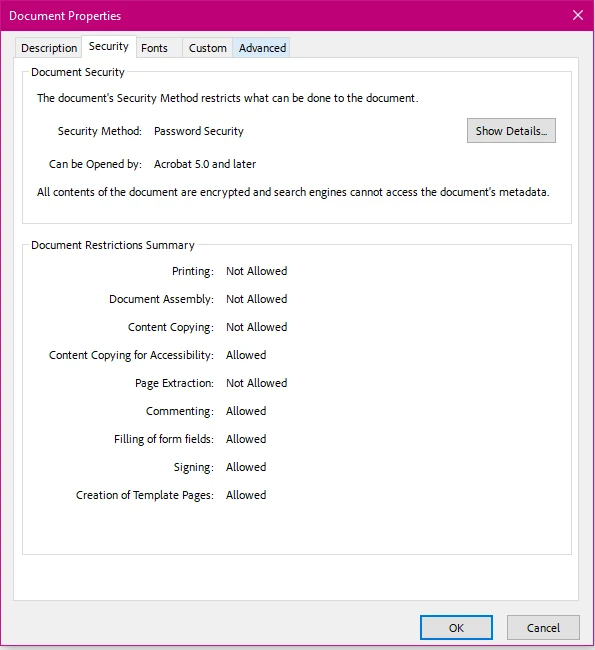
ChromePdfRenderer는 PDF 버전에 따라 128비트 및 256비트 AES 암호화를 사용합니다. 사용 가능한 모든 보안 옵션에 대한 자세한 내용은 ChromePdfRenderer 보안 문서를 참조하십시오.
다음 표는 가장 일반적으로 사용되는 보안 속성을 요약한 것입니다:
| 재산 | 유형 | 설명 |
|---|---|---|
| 사용자 비밀번호 | string | 문서를 열기 위한 비밀번호 |
| 소유자 비밀번호 | string | 모든 제한을 무효화하는 비밀번호 |
| 사용자 인쇄 허용 | PdfPrintSecurity 열거형 | 인쇄 권한 제어 |
| 사용자 복사/붙여넣기 내용 허용 | bool | 텍스트 복사 허용 또는 차단 |
| AllowUserAnnotations | bool | 주석 도구 허용 또는 차단 |
| AllowUserFormData | bool | 양식 작성 허용 또는 차단 |
ASP.NET Core 컨트롤러에서 DOCX를 PDF로 변환하는 방법은?
Word를 PDF로 변환하여 HTTP 엔드포인트로 노출하려면, 컨트롤러 액션에 변환 로직을 주입하세요. 다음 예는 멀티파트 폼 업로드를 받아 메모리 내에서 파일을 변환한 후 다운로드 가능한 파일 응답으로 PDF를 반환합니다:
using IronPdf;
using Microsoft.AspNetCore.Http;
using Microsoft.AspNetCore.Mvc;

[ApiController]
[Route("api/[controller]")]
public class DocumentController : ControllerBase
{
    [HttpPost("convert")]
    public IActionResult ConvertWordToPdf(IFormFile wordFile)
    {
        if (wordFile == null || wordFile.Length == 0)
            return BadRequest("Please upload a valid Word document.");

        using var stream = new MemoryStream();
        wordFile.CopyTo(stream);

        var renderer = new DocxToPdfRenderer();
        var pdfDocument = renderer.RenderDocxAsPdf(stream.ToArray());

        return File(pdfDocument.BinaryData, "application/pdf", "converted.pdf");
    }
}
using IronPdf;
using Microsoft.AspNetCore.Http;
using Microsoft.AspNetCore.Mvc;
[ApiController]
[Route("api/[controller]")]
public class DocumentController : ControllerBase
{
[HttpPost("convert")]
public IActionResult ConvertWordToPdf(IFormFile wordFile)
{
if (wordFile == null || wordFile.Length == 0)
return BadRequest("Please upload a valid Word document.");
using var stream = new MemoryStream();
wordFile.CopyTo(stream);
var renderer = new DocxToPdfRenderer();
var pdfDocument = renderer.RenderDocxAsPdf(stream.ToArray());
return File(pdfDocument.BinaryData, "application/pdf", "converted.pdf");
}
}Imports IronPdf
Imports Microsoft.AspNetCore.Http
Imports Microsoft.AspNetCore.Mvc
<ApiController>
<Route("api/[controller]")>
Public Class DocumentController
Inherits ControllerBase
<HttpPost("convert")>
Public Function ConvertWordToPdf(wordFile As IFormFile) As IActionResult
If wordFile Is Nothing OrElse wordFile.Length = 0 Then
Return BadRequest("Please upload a valid Word document.")
End If
Using stream As New MemoryStream()
wordFile.CopyTo(stream)
Dim renderer As New DocxToPdfRenderer()
Dim pdfDocument = renderer.RenderDocxAsPdf(stream.ToArray())
Return File(pdfDocument.BinaryData, "application/pdf", "converted.pdf")
End Using
End Function
End Class의존성 주입 컨테이너에 ChromePdfRenderer를 등록하는 방법은?
더 큰 애플리케이션의 경우, 내장된 ASP.NET Core 종속성 주입 시스템을 통해 DocxToPdfRenderer을 싱글톤으로 등록하세요. Program.cs에서, 라이선스 키 설정 후 builder.Services.AddSingleton<DocxToPdfRenderer>();을 추가하세요. 렌더러를 싱글톤으로 등록하면 객체가 한 번 초기화되고 모든 요청에 재사용되어 요청당 오버헤드가 감소합니다. 다른 의존성처럼 이를 컨트롤러 및 서비스의 생성자에 주입하세요.
어떤 에러 처리를 추가해야 하나요?
Word 문서는 지원되지 않는 기능을 포함하거나 잘못된 형식일 수 있습니다. try/catch 블록에 변환 호출을 감싸서 IronPdfException를 처리하고 호출자에게 의미 있는 응답을 반환하세요:
try
{
    var pdf = renderer.RenderDocxAsPdf(stream.ToArray());
    return File(pdf.BinaryData, "application/pdf", "output.pdf");
}
catch (IronPdfException ex)
{
    // Log the exception and return a 422 Unprocessable Entity
    return UnprocessableEntity($"Conversion failed: {ex.Message}");
}
try
{
var pdf = renderer.RenderDocxAsPdf(stream.ToArray());
return File(pdf.BinaryData, "application/pdf", "output.pdf");
}
catch (IronPdfException ex)
{
// Log the exception and return a 422 Unprocessable Entity
return UnprocessableEntity($"Conversion failed: {ex.Message}");
}Try
Dim pdf = renderer.RenderDocxAsPdf(stream.ToArray())
Return File(pdf.BinaryData, "application/pdf", "output.pdf")
Catch ex As IronPdfException
' Log the exception and return a 422 Unprocessable Entity
Return UnprocessableEntity($"Conversion failed: {ex.Message}")
End Try좋은 오류 처리는 처리되지 않은 예외가 최종 사용자에게 노출되는 것을 방지하고, 디버깅을 크게 쉽게 만듭니다.
변환된 PDF를 기존 문서와 병합하는 방법은?
일반적인 워크플로는 DOCX 커버 레터를 변환한 후 기존 PDF 보고서에 앞에 배치하는 것입니다. ChromePdfRenderer의 PDF 병합 기능은 이것을 간단한 작업으로 만듭니다:
using IronPdf;

IronPdf.License.LicenseKey = "YOUR-LICENSE-KEY-HERE";

var renderer = new DocxToPdfRenderer();
var coverLetter = renderer.RenderDocxAsPdf("cover_letter.docx");
var existingReport = PdfDocument.FromFile("annual_report.pdf");

// Merge cover letter (first) with existing report (second)
var merged = PdfDocument.Merge(coverLetter, existingReport);
merged.SaveAs("final_document.pdf");
using IronPdf;
IronPdf.License.LicenseKey = "YOUR-LICENSE-KEY-HERE";
var renderer = new DocxToPdfRenderer();
var coverLetter = renderer.RenderDocxAsPdf("cover_letter.docx");
var existingReport = PdfDocument.FromFile("annual_report.pdf");
// Merge cover letter (first) with existing report (second)
var merged = PdfDocument.Merge(coverLetter, existingReport);
merged.SaveAs("final_document.pdf");Imports IronPdf
IronPdf.License.LicenseKey = "YOUR-LICENSE-KEY-HERE"
Dim renderer As New DocxToPdfRenderer()
Dim coverLetter As PdfDocument = renderer.RenderDocxAsPdf("cover_letter.docx")
Dim existingReport As PdfDocument = PdfDocument.FromFile("annual_report.pdf")
' Merge cover letter (first) with existing report (second)
Dim merged As PdfDocument = PdfDocument.Merge(coverLetter, existingReport)
merged.SaveAs("final_document.pdf")필요에 따라 PdfDocument.Merge에 컬렉션을 전달하여 원하는 만큼의 PdfDocument 객체를 병합할 수 있습니다. 더 복잡한 문서 조립 시나리오의 경우, 기존 PDF에 페이지 추가하기나 변환된 출력에 워터마크를 추가하는 것을 탐색하세요.
변환된 PDF에 워터마크나 헤더를 추가하는 방법은?
DOCX 파일을 변환한 후, 모든 페이지에 사용자 지정 헤더, 푸터 및 텍스트 스탬프를 추가할 수 있습니다. 이는 생성된 문서에 승인 상태, 기밀 통지 또는 브랜드를 추가하는 데 유용합니다:
using IronPdf;

IronPdf.License.LicenseKey = "YOUR-LICENSE-KEY-HERE";

var renderer = new DocxToPdfRenderer();
var pdf = renderer.RenderDocxAsPdf("proposal.docx");

// Add a text stamp on every page
pdf.ApplyStamp(new TextStamp("DRAFT", new TextStampStyle
{
    FontSize = 36,
    FontColor = IronSoftware.Drawing.Color.FromArgb(100, 200, 0, 0),
    VerticalAlignment = VerticalAlignment.Middle,
    HorizontalAlignment = HorizontalAlignment.Center,
    Rotation = -45
}));

pdf.SaveAs("proposal_draft.pdf");
using IronPdf;
IronPdf.License.LicenseKey = "YOUR-LICENSE-KEY-HERE";
var renderer = new DocxToPdfRenderer();
var pdf = renderer.RenderDocxAsPdf("proposal.docx");
// Add a text stamp on every page
pdf.ApplyStamp(new TextStamp("DRAFT", new TextStampStyle
{
FontSize = 36,
FontColor = IronSoftware.Drawing.Color.FromArgb(100, 200, 0, 0),
VerticalAlignment = VerticalAlignment.Middle,
HorizontalAlignment = HorizontalAlignment.Center,
Rotation = -45
}));
pdf.SaveAs("proposal_draft.pdf");Imports IronPdf
IronPdf.License.LicenseKey = "YOUR-LICENSE-KEY-HERE"
Dim renderer As New DocxToPdfRenderer()
Dim pdf = renderer.RenderDocxAsPdf("proposal.docx")
' Add a text stamp on every page
pdf.ApplyStamp(New TextStamp("DRAFT", New TextStampStyle With {
.FontSize = 36,
.FontColor = IronSoftware.Drawing.Color.FromArgb(100, 200, 0, 0),
.VerticalAlignment = VerticalAlignment.Middle,
.HorizontalAlignment = HorizontalAlignment.Center,
.Rotation = -45
}))
pdf.SaveAs("proposal_draft.pdf")페이지 번호가 포함된 HTML 기반 헤더 및 푸터에 대해서는 ChromePdfRenderer 헤더 및 푸터 문서를 참조하세요.
ChromePdfRenderer와 대체 Word에서 PDF로 변환 라이브러리를 비교하는 방법은?
.NET에서 DOCX 파일을 PDF로 변환하기 위한 여러 라이브러리가 존재합니다. 트레이드 오프를 이해하면 사용 사례에 가장 적합한 도구를 선택할 수 있습니다.
Telerik Document Processing (RadWordsProcessing)은 DOCX를 PDF로 변환을 지원하고 Telerik Suite에 포함되어 있으며, 관리 코드로만 작동하고 네이티브 종속성이 필요하지 않지만 복잡한 레이아웃에 대한 렌더링 충실도는 Word와 다를 수 있습니다. Aspose.Words는 높은 충실도와 풍부한 API를 가진 또 다른 확립된 옵션으로, ChromePdfRenderer와 마찬가지로 개발자당 라이센스 비용이 포함됩니다.
오픈 소스 대안으로는 DocX by Xceed가 DOCX 조작을 제공하지만 PDF 변환은 직접 포함하지 않습니다. Linux에서 의존성 없는 옵션이 필요한 개발자는 프로세스로 호출되는 LibreOffice 비시각 모드를 고려할 수 있으나, 이는 큰 바이너리 의존성과 프로세스 생성 오버헤드를 도입합니다.
| 라이브러리 | 렌더링 충실도 | Office 필수 | 리눅스 지원 | 라이선스 모델 |
|---|---|---|---|---|
| ChromePdfRenderer | 높음 | 아니요 | 예 | 개발자당 / SaaS |
| Aspose.Words | 매우 높음 | 아니요 | 예 | 개발자당 |
| Telerik RadWords | 중간-높음 | 아니요 | 예 | Telerik Suite |
| Microsoft.Office.Interop | 완벽 | 예 | 아니요 | Office 라이선스 |
| LibreOffice 비시각 모드 | 중간 | 아니요 | 예 | 오픈 소스 (MPL) |
이 비교에서 ChromePdfRenderer의 주요 장점은 높은 충실도, 네이티브 Office 종속성 없음, Linux 지원 및 간단한 NuGet 기반 설치의 조합입니다. HTML에서 PDF로 변환을 위한 ChromePdfRenderer 라이센스를 이미 사용하는 팀의 경우, DOCX 렌더러가 추가 비용 없이 포함됩니다.
ChromePdfRenderer는 DOCX 파일 형식을 내부적으로 어떻게 처리하나요?
ChromePdfRenderer는 Office Open XML (OOXML) 형식을 직접 읽습니다 -- 이는 Microsoft Word에서 사용하는 것과 동일한 규격입니다. 이것은 백그라운드에서 Word를 호출하거나 COM 자동화 브리지를 사용하지 않습니다. 이는 변환이 .NET 애플리케이션 내에서 프로세스 내에서 실행되어 예측 가능하고, 결정적이며, 멀티 스레드 서버 작업에 안전하도록 만듭니다.
내부 파이프라인은 OOXML XML 패키지를 구문 분석하고, 포함된 리소스(이미지, 폰트, 포함된 객체)를 해결하며, 문서의 섹션 속성에 따라 페이지 지오메트리를 레이아웃하고 결과를 PDF 콘텐츠 스트림으로 래스터화합니다. PDF 사양 (ISO 32000)은 출력 형식을 다루어 모든 주요 PDF 뷰어와의 호환성을 보장합니다.
다음 단계는 무엇입니까?
이제 .NET 또는 ASP.NET 애플리케이션에서 Word 문서를 PDF로 변환하는 데에 탄탄한 기초를 갖추었습니다. 다음으로 탐색할 내용은 다음과 같습니다:
- ChromePdfRenderer 다운로드 및 사용 -- 라이선스를 결정하기 전에 무료 체험판을 사용하여 자체 프로젝트에서 전체 기능 세트를 테스트하세요.
- DOCX 변환 가이드 읽기 -- DocxToPdfRenderer 사용법 기사는 모서리 케이스, 고급 옵션 및 성능 조정을 심층적으로 다룹니다.
- HTML-to-PDF 탐색 -- 워크플로우에 HTML 템플릿 또는 Razor 보기가 포함되어 있는 경우 ChromePdfRenderer는 동일한 유창한 API 표면에서 HTML을 PDF로 변환할 수 있습니다.
- 문서 병합 및 분할 -- 여러 PDF를 하나의 파일로 결합하거나 큰 PDF를 개별 페이지로 분할하는 방법을 배우십시오.
- 전자 서명 추가 -- 법적 또는 규정 준수 워크플로우의 경우 ChromePdfRenderer는 X.509 인증서를 사용한 PDF 전자 서명을 지원합니다.
- 라이선스 옵션 검토 -- 배포 모델에 맞는 계획을 찾기 위한 개발자당, 사이트 및 OEM 라이선싱을 탐색하십시오.
- 블로그 탐색 -- ChromePdfRenderer 블로그에는 PDF 생성, 조작, OCR 통합 등에 관한 튜토리얼이 있습니다.
자주 묻는 질문
ASP.NET에서 Word 문서를 PDF로 변환하는 방법은 무엇입니까?
IronPDF의 DocxToPdfRenderer를 사용하여 ASP.NET에서 Word 문서를 PDF로 변환할 수 있습니다. 이는 문서 변환을 프로그래밍적으로 처리하기 위한 간단하고 효율적인 방법을 제공합니다.
Word to PDF 변환에 IronPDF를 사용하는 이점은 무엇입니까?
IronPDF는 Microsoft Office Interop 종속성 없이 독립 실행형 솔루션을 제공하여 모든 .NET 환경에 이상적입니다. 이는 변환 과정을 단순화하고 ASP.NET 애플리케이션에서 성능을 향상시킵니다.
IronPDF를 사용하려면 Microsoft Office가 설치되어 있어야 합니까?
아니요, IronPDF를 사용하려면 Microsoft Office가 설치되어 있을 필요가 없습니다. 이는 독립적으로 운영되며 추가 소프트웨어 종속성을 제거합니다.
IronPDF가 대규모 문서 변환을 처리할 수 있습니까?
네, IronPDF는 대규모 문서 변환을 효율적으로 처리할 수 있도록 설계되어 있으며, ASP.NET 애플리케이션에서 송장 생성이나 보고서 작성과 같은 시나리오에 적합합니다.
IronPDF는 모든 .NET 환경과 호환됩니까?
IronPDF는 모든 .NET 환경과 호환되며, 현대 ASP.NET 애플리케이션을 작업하는 개발자에게 유연성과 쉬운 통합을 제공합니다.
IronPDF의 DocxToPdfRenderer는 무엇입니까?
IronPDF의 DocxToPdfRenderer는 C# 애플리케이션 내에서 Word 문서를 프로그래밍적으로 PDF로 변환할 수 있는 기능으로, 문서 처리 워크플로우를 간소화합니다.
IronPDF가 복잡한 서버 구성을 요구합니까?
아니요, IronPDF는 복잡한 서버 구성을 요구하지 않습니다. 이는 기존 ASP.NET 애플리케이션에 원활하게 통합될 수 있는 간소화된 접근 방식을 제공합니다.
ASP.NET에서 IronPDF가 문서 처리를 어떻게 개선합니까?
IronPDF는 Word 문서를 PDF로 변환하기 위한 간단하고 신뢰할 수 있는 솔루션을 제공하여 ASP.NET 애플리케이션에서 효율성과 성능을 향상시킵니다.
IronPDF는 어떤 종류의 문서를 PDF로 변환할 수 있습니까?
IronPDF는 다양한 문서, 특히 Word 문서를 PDF 형식으로 변환할 수 있어 ASP.NET 애플리케이션의 다양한 문서 처리 요구 사항을 지원합니다.
왜 전통적인 변환 방법 대신 IronPDF를 선택해야 할까요?
IronPDF는 Microsoft Office Interop가 필요 없으며, 종속성 문제를 줄이고 .NET 환경 내에서 더 원활하고 효율적인 변환 과정을 제공하기 때문에 전통적인 방법보다 선호됩니다.







 무료로 시작하세요
 무료로 시작하세요
 무료 라이브 데모 예약하기





 신용카드나 계정 생성은 필요하지 않습니다.










