using IronPdf;

// Disable local disk access or cross-origin requests
Installation.EnableWebSecurity = true;

// Instantiate Renderer
var renderer = new ChromePdfRenderer();

// Create a PDF from a HTML string using C#
var pdf = renderer.RenderHtmlAsPdf("<h1>Hello World</h1>");

// Export to a file or Stream
pdf.SaveAs("output.pdf");

// Advanced Example with HTML Assets
// Load external html assets: Images, CSS and JavaScript.
// An optional BasePath 'C:\site\assets\' is set as the file location to load assets from
var myAdvancedPdf = renderer.RenderHtmlAsPdf("<img src='icons/iron.png'>", @"C:\site\assets\");
myAdvancedPdf.SaveAs("html-with-assets.pdf");
using IronPdf;// Disable local disk access or cross-origin requestsInstallation.EnableWebSecurity = true;// Instantiate Renderervar renderer = new ChromePdfRenderer();// Create a PDF from a HTML string using C#var pdf = renderer.RenderHtmlAsPdf("<h1>Hello World</h1>");// Export to a file or Streampdf.SaveAs("output.pdf");// Advanced Example with HTML Assets// Load external html assets: Images, CSS and JavaScript.// An optional BasePath 'C:\site\assets\' is set as the file location to load assets fromvar myAdvancedPdf = renderer.RenderHtmlAsPdf("<img src='icons/iron.png'>", @"C:\site\assets\");myAdvancedPdf.SaveAs("html-with-assets.pdf");
Converting a Word document to PDF in C# takes three lines of code with IronPDF: create a DocxToPdfRenderer, call RenderDocxAsPdf, and save the result. No Microsoft Office installation, no COM interop, no complex server configuration -- just a NuGet package and .NET code that works in any environment including cloud, Docker, and Windows services.
How Do You Install IronPDF in an ASP.NET Project?
Open the Package Manager Console in Visual Studio and run the following command to install IronPDF:
PM > Install-Package IronPdf
Install-Package IronPdf
Once the package is installed, add a using IronPdf; directive to your C# files. IronPDF targets .NET 8 and later, making it compatible with ASP.NET Core, ASP.NET Framework 4.6.2+, and modern worker service projects. No additional runtime components or Microsoft Office licenses are required.
Before running in production, set your license key once at application startup -- for example at the top of Program.cs. You can read the key from appsettings.json to keep credentials out of source control: IronPdf.License.LicenseKey = configuration["IronPdf:LicenseKey"]!;.
What .NET Versions Does IronPDF Support?
IronPDF supports the following platforms:
IronPDF .NET Platform Compatibility
Platform
Minimum Version
Notes
.NET
8, 9, 10
Full support, recommended
.NET Framework
4.6.2
Windows only
ASP.NET Core
3.1+
Middleware and MVC controllers
Azure Functions
v4
Isolated process model
Docker / Linux
Any
Requires libgdiplus
How Do You Convert a Word Document to PDF in C#?
The DocxToPdfRenderer class is the entry point for all Word-to-PDF conversions. It accepts a file path, a byte array, or a Stream, and returns a PdfDocument object that you can save, encrypt, merge, or serve directly over HTTP.
Here is the simplest possible conversion:
using IronPdf;// Set license key before first useIronPdf.License.LicenseKey = "YOUR-LICENSE-KEY-HERE";var renderer = new DocxToPdfRenderer();var pdf = renderer.RenderDocxAsPdf("report.docx");pdf.SaveAs("report.pdf");
using IronPdf;

// Set license key before first use
IronPdf.License.LicenseKey = "YOUR-LICENSE-KEY-HERE";

var renderer = new DocxToPdfRenderer();
var pdf = renderer.RenderDocxAsPdf("report.docx");
pdf.SaveAs("report.pdf");
Imports IronPdf' Set license key before first useIronPdf.License.LicenseKey = "YOUR-LICENSE-KEY-HERE"Dim renderer As New DocxToPdfRenderer()Dim pdf = renderer.RenderDocxAsPdf("report.docx")pdf.SaveAs("report.pdf")
ImportsIronPdf' Set license key before first useIronPdf.License.LicenseKey = "YOUR-LICENSE-KEY-HERE"Dim renderer As New DocxToPdfRenderer()Dim pdf = renderer.RenderDocxAsPdf("report.docx")pdf.SaveAs("report.pdf")
Imports IronPdf

' Set license key before first use
IronPdf.License.LicenseKey = "YOUR-LICENSE-KEY-HERE"

Dim renderer As New DocxToPdfRenderer()
Dim pdf = renderer.RenderDocxAsPdf("report.docx")
pdf.SaveAs("report.pdf")
What Happens to Formatting During Conversion?
DocxToPdfRenderer preserves the following Word document elements during conversion:
Text formatting -- fonts, sizes, bold, italic, underline, strikethrough
Paragraph styles -- headings, body text, lists (ordered and unordered)
Tables -- borders, merged cells, shading, and column widths
Images -- inline and floating images at their original resolution
Headers and footers -- page numbers, dates, and custom content
Page layout -- margins, orientation (portrait/landscape), paper size
For detailed behavior notes on edge cases such as embedded OLE objects or tracked changes, see the DocxToPdfRenderer documentation.
How Do You Convert a DOCX Loaded from a Stream?
When you receive a DOCX file as an upload or read it from a database blob, you can pass the stream directly to the renderer:
using IronPdf;IronPdf.License.LicenseKey = "YOUR-LICENSE-KEY-HERE";using var docxStream = new FileStream("document.docx", FileMode.Open);var renderer = new DocxToPdfRenderer();var pdfDocument = renderer.RenderDocxAsPdf(docxStream);pdfDocument.SaveAs("output.pdf");
using IronPdf;IronPdf.License.LicenseKey = "YOUR-LICENSE-KEY-HERE";using var docxStream = new FileStream("document.docx", FileMode.Open);var renderer = new DocxToPdfRenderer();var pdfDocument = renderer.RenderDocxAsPdf(docxStream);pdfDocument.SaveAs("output.pdf");
using IronPdf;

IronPdf.License.LicenseKey = "YOUR-LICENSE-KEY-HERE";

using var docxStream = new FileStream("document.docx", FileMode.Open);
var renderer = new DocxToPdfRenderer();
var pdfDocument = renderer.RenderDocxAsPdf(docxStream);
pdfDocument.SaveAs("output.pdf");
Imports IronPdfIronPdf.License.LicenseKey = "YOUR-LICENSE-KEY-HERE"Using docxStream As New FileStream("document.docx", FileMode.Open) Dim renderer As New DocxToPdfRenderer() Dim pdfDocument = renderer.RenderDocxAsPdf(docxStream) pdfDocument.SaveAs("output.pdf")End Using
ImportsIronPdfIronPdf.License.LicenseKey = "YOUR-LICENSE-KEY-HERE"Using docxStream As New FileStream("document.docx", FileMode.Open) Dim renderer As New DocxToPdfRenderer() Dim pdfDocument = renderer.RenderDocxAsPdf(docxStream) pdfDocument.SaveAs("output.pdf")EndUsing
Imports IronPdf

IronPdf.License.LicenseKey = "YOUR-LICENSE-KEY-HERE"

Using docxStream As New FileStream("document.docx", FileMode.Open)
    Dim renderer As New DocxToPdfRenderer()
    Dim pdfDocument = renderer.RenderDocxAsPdf(docxStream)
    pdfDocument.SaveAs("output.pdf")
End Using
This approach avoids writing temporary files to disk, which is important in read-only file system environments such as Azure App Service.
How Do You Convert Multiple DOCX Files in a Batch?
When you need to process an entire folder of documents, iterate over the files and reuse a single DocxToPdfRenderer instance. Reusing the renderer avoids repeated initialization overhead:
using IronPdf;IronPdf.License.LicenseKey = "YOUR-LICENSE-KEY-HERE";var renderer = new DocxToPdfRenderer();string[] docxFiles = Directory.GetFiles(@"C:\WordDocuments", "*.docx");foreach (string docxFile in docxFiles){ var pdf = renderer.RenderDocxAsPdf(docxFile); string pdfPath = Path.ChangeExtension(docxFile, ".pdf"); pdf.SaveAs(pdfPath); Console.WriteLine($"Converted: {Path.GetFileName(pdfPath)}");}
using IronPdf;IronPdf.License.LicenseKey = "YOUR-LICENSE-KEY-HERE";var renderer = new DocxToPdfRenderer();string[] docxFiles = Directory.GetFiles(@"C:\WordDocuments", "*.docx");foreach (string docxFile in docxFiles){ var pdf = renderer.RenderDocxAsPdf(docxFile); string pdfPath = Path.ChangeExtension(docxFile, ".pdf"); pdf.SaveAs(pdfPath);Console.WriteLine($"Converted: {Path.GetFileName(pdfPath)}");}
using IronPdf;

IronPdf.License.LicenseKey = "YOUR-LICENSE-KEY-HERE";

var renderer = new DocxToPdfRenderer();
string[] docxFiles = Directory.GetFiles(@"C:\WordDocuments", "*.docx");

foreach (string docxFile in docxFiles)
{
    var pdf = renderer.RenderDocxAsPdf(docxFile);
    string pdfPath = Path.ChangeExtension(docxFile, ".pdf");
    pdf.SaveAs(pdfPath);
    Console.WriteLine($"Converted: {Path.GetFileName(pdfPath)}");
}
Imports IronPdfIronPdf.License.LicenseKey = "YOUR-LICENSE-KEY-HERE"Dim renderer As New DocxToPdfRenderer()Dim docxFiles As String() = Directory.GetFiles("C:\WordDocuments", "*.docx")For Each docxFile As String In docxFiles Dim pdf = renderer.RenderDocxAsPdf(docxFile) Dim pdfPath As String = Path.ChangeExtension(docxFile, ".pdf") pdf.SaveAs(pdfPath) Console.WriteLine($"Converted: {Path.GetFileName(pdfPath)}")Next
ImportsIronPdfIronPdf.License.LicenseKey = "YOUR-LICENSE-KEY-HERE"Dim renderer As New DocxToPdfRenderer()Dim docxFiles AsString() = Directory.GetFiles("C:\WordDocuments", "*.docx")For Each docxFile AsStringIn docxFiles Dim pdf = renderer.RenderDocxAsPdf(docxFile) Dim pdfPath AsString = Path.ChangeExtension(docxFile, ".pdf") pdf.SaveAs(pdfPath)Console.WriteLine($"Converted: {Path.GetFileName(pdfPath)}")Next
Imports IronPdf

IronPdf.License.LicenseKey = "YOUR-LICENSE-KEY-HERE"

Dim renderer As New DocxToPdfRenderer()
Dim docxFiles As String() = Directory.GetFiles("C:\WordDocuments", "*.docx")

For Each docxFile As String In docxFiles
    Dim pdf = renderer.RenderDocxAsPdf(docxFile)
    Dim pdfPath As String = Path.ChangeExtension(docxFile, ".pdf")
    pdf.SaveAs(pdfPath)
    Console.WriteLine($"Converted: {Path.GetFileName(pdfPath)}")
Next
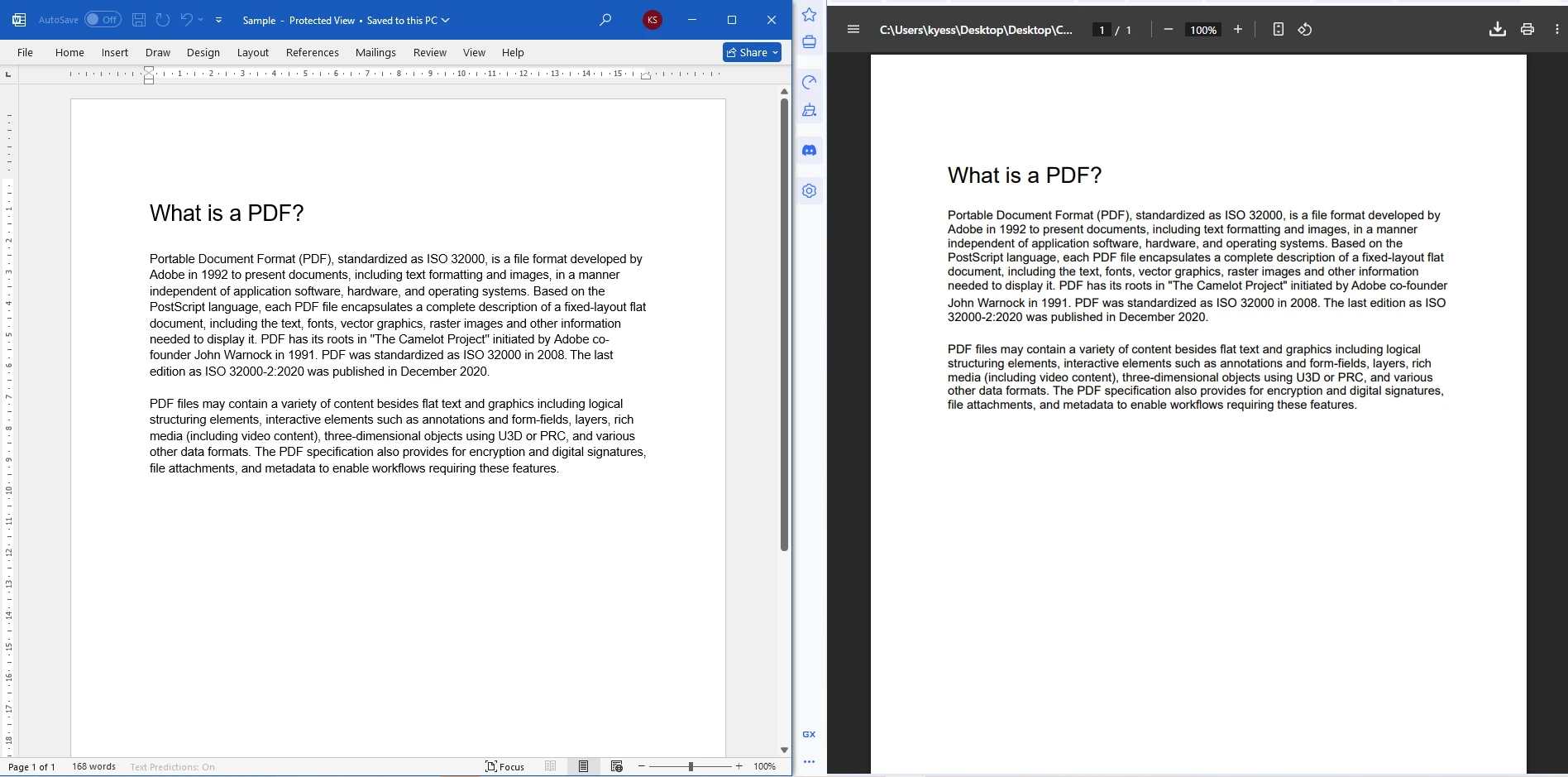
Input Word Document Converted to PDF File
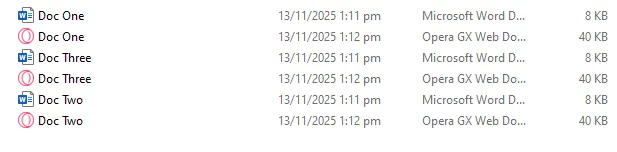
Output Files
For high-throughput scenarios, consider parallelizing the loop with Parallel.ForEach. Create one DocxToPdfRenderer per thread if you run concurrent conversions, since the class is not thread-safe when shared across threads.
How Do You Use Mail Merge to Generate Personalized PDFs?
Mail Merge lets you define a DOCX template with placeholders and then populate those placeholders with data at runtime. This pattern is ideal for invoices, contracts, certificates, and any document where the structure is fixed but the content varies per recipient.
IronPDF's DocxToPdfRenderer accepts a DataTable, a Dictionary<string, string>, or a custom data source through the MailMergeDataSource property:
using IronPdf;using System.Data;IronPdf.License.LicenseKey = "YOUR-LICENSE-KEY-HERE";// Build the data sourcevar data = new DataTable();data.Columns.Add("CustomerName");data.Columns.Add("InvoiceNumber");data.Columns.Add("TotalAmount");data.Rows.Add("Acme Corp", "INV-2026-001", "$4,500.00");var renderer = new DocxToPdfRenderer();renderer.MailMergeDataSource = data;var pdf = renderer.RenderDocxAsPdf("invoice_template.docx");pdf.SaveAs("acme_invoice.pdf");
using IronPdf;using System.Data;IronPdf.License.LicenseKey = "YOUR-LICENSE-KEY-HERE";// Build the data sourcevar data = new DataTable();data.Columns.Add("CustomerName");data.Columns.Add("InvoiceNumber");data.Columns.Add("TotalAmount");data.Rows.Add("Acme Corp", "INV-2026-001", "$4,500.00");var renderer = new DocxToPdfRenderer();renderer.MailMergeDataSource = data;var pdf = renderer.RenderDocxAsPdf("invoice_template.docx");pdf.SaveAs("acme_invoice.pdf");
using IronPdf;
using System.Data;

IronPdf.License.LicenseKey = "YOUR-LICENSE-KEY-HERE";

// Build the data source
var data = new DataTable();
data.Columns.Add("CustomerName");
data.Columns.Add("InvoiceNumber");
data.Columns.Add("TotalAmount");
data.Rows.Add("Acme Corp", "INV-2026-001", "$4,500.00");

var renderer = new DocxToPdfRenderer();
renderer.MailMergeDataSource = data;

var pdf = renderer.RenderDocxAsPdf("invoice_template.docx");
pdf.SaveAs("acme_invoice.pdf");
Imports IronPdfImports System.DataIronPdf.License.LicenseKey = "YOUR-LICENSE-KEY-HERE"' Build the data sourceDim data As New DataTable()data.Columns.Add("CustomerName")data.Columns.Add("InvoiceNumber")data.Columns.Add("TotalAmount")data.Rows.Add("Acme Corp", "INV-2026-001", "$4,500.00")Dim renderer As New DocxToPdfRenderer()renderer.MailMergeDataSource = dataDim pdf = renderer.RenderDocxAsPdf("invoice_template.docx")pdf.SaveAs("acme_invoice.pdf")
ImportsIronPdfImportsSystem.DataIronPdf.License.LicenseKey = "YOUR-LICENSE-KEY-HERE"' Build the data sourceDim data As New DataTable()data.Columns.Add("CustomerName")data.Columns.Add("InvoiceNumber")data.Columns.Add("TotalAmount")data.Rows.Add("Acme Corp", "INV-2026-001", "$4,500.00")Dim renderer As New DocxToPdfRenderer()renderer.MailMergeDataSource = dataDim pdf = renderer.RenderDocxAsPdf("invoice_template.docx")pdf.SaveAs("acme_invoice.pdf")
Imports IronPdf
Imports System.Data

IronPdf.License.LicenseKey = "YOUR-LICENSE-KEY-HERE"

' Build the data source
Dim data As New DataTable()
data.Columns.Add("CustomerName")
data.Columns.Add("InvoiceNumber")
data.Columns.Add("TotalAmount")
data.Rows.Add("Acme Corp", "INV-2026-001", "$4,500.00")

Dim renderer As New DocxToPdfRenderer()
renderer.MailMergeDataSource = data

Dim pdf = renderer.RenderDocxAsPdf("invoice_template.docx")
pdf.SaveAs("acme_invoice.pdf")
In the DOCX template, surround each field name with double chevrons (e.g., <<CustomerName>>) to mark the merge fields. At conversion time, IronPDF replaces each placeholder with the corresponding column value from the data source. You can learn more about document automation patterns in the Microsoft Word mail merge documentation.
How Do You Secure a PDF After Converting from DOCX?
After conversion, you can apply password protection and permission restrictions directly on the PdfDocument object before saving. This is useful when distributing financial reports, legal agreements, or any document that should not be freely copied or printed:
using IronPdf;IronPdf.License.LicenseKey = "YOUR-LICENSE-KEY-HERE";var renderer = new DocxToPdfRenderer();var pdf = renderer.RenderDocxAsPdf("confidential.docx");// Require a password to open the filepdf.SecuritySettings.UserPassword = "user123";// Owner password allows overriding restrictionspdf.SecuritySettings.OwnerPassword = "owner456";// Restrict printing and content copyingpdf.SecuritySettings.AllowUserPrinting = IronPdf.Security.PdfPrintSecurity.NoPrint;pdf.SecuritySettings.AllowUserCopyPasteContent = false;pdf.SaveAs("secured_document.pdf");
using IronPdf;IronPdf.License.LicenseKey = "YOUR-LICENSE-KEY-HERE";var renderer = new DocxToPdfRenderer();var pdf = renderer.RenderDocxAsPdf("confidential.docx");// Require a password to open the filepdf.SecuritySettings.UserPassword = "user123";// Owner password allows overriding restrictionspdf.SecuritySettings.OwnerPassword = "owner456";// Restrict printing and content copyingpdf.SecuritySettings.AllowUserPrinting = IronPdf.Security.PdfPrintSecurity.NoPrint;pdf.SecuritySettings.AllowUserCopyPasteContent = false;pdf.SaveAs("secured_document.pdf");
using IronPdf;

IronPdf.License.LicenseKey = "YOUR-LICENSE-KEY-HERE";

var renderer = new DocxToPdfRenderer();
var pdf = renderer.RenderDocxAsPdf("confidential.docx");

// Require a password to open the file
pdf.SecuritySettings.UserPassword = "user123";

// Owner password allows overriding restrictions
pdf.SecuritySettings.OwnerPassword = "owner456";

// Restrict printing and content copying
pdf.SecuritySettings.AllowUserPrinting = IronPdf.Security.PdfPrintSecurity.NoPrint;
pdf.SecuritySettings.AllowUserCopyPasteContent = false;

pdf.SaveAs("secured_document.pdf");
Imports IronPdfIronPdf.License.LicenseKey = "YOUR-LICENSE-KEY-HERE"Dim renderer As New DocxToPdfRenderer()Dim pdf = renderer.RenderDocxAsPdf("confidential.docx")' Require a password to open the filepdf.SecuritySettings.UserPassword = "user123"' Owner password allows overriding restrictionspdf.SecuritySettings.OwnerPassword = "owner456"' Restrict printing and content copyingpdf.SecuritySettings.AllowUserPrinting = IronPdf.Security.PdfPrintSecurity.NoPrintpdf.SecuritySettings.AllowUserCopyPasteContent = Falsepdf.SaveAs("secured_document.pdf")
ImportsIronPdfIronPdf.License.LicenseKey = "YOUR-LICENSE-KEY-HERE"Dim renderer As New DocxToPdfRenderer()Dim pdf = renderer.RenderDocxAsPdf("confidential.docx")' Require a password to open the filepdf.SecuritySettings.UserPassword = "user123"' Owner password allows overriding restrictionspdf.SecuritySettings.OwnerPassword = "owner456"' Restrict printing and content copyingpdf.SecuritySettings.AllowUserPrinting = IronPdf.Security.PdfPrintSecurity.NoPrintpdf.SecuritySettings.AllowUserCopyPasteContent = Falsepdf.SaveAs("secured_document.pdf")
Imports IronPdf

IronPdf.License.LicenseKey = "YOUR-LICENSE-KEY-HERE"

Dim renderer As New DocxToPdfRenderer()
Dim pdf = renderer.RenderDocxAsPdf("confidential.docx")

' Require a password to open the file
pdf.SecuritySettings.UserPassword = "user123"

' Owner password allows overriding restrictions
pdf.SecuritySettings.OwnerPassword = "owner456"

' Restrict printing and content copying
pdf.SecuritySettings.AllowUserPrinting = IronPdf.Security.PdfPrintSecurity.NoPrint
pdf.SecuritySettings.AllowUserCopyPasteContent = False

pdf.SaveAs("secured_document.pdf")
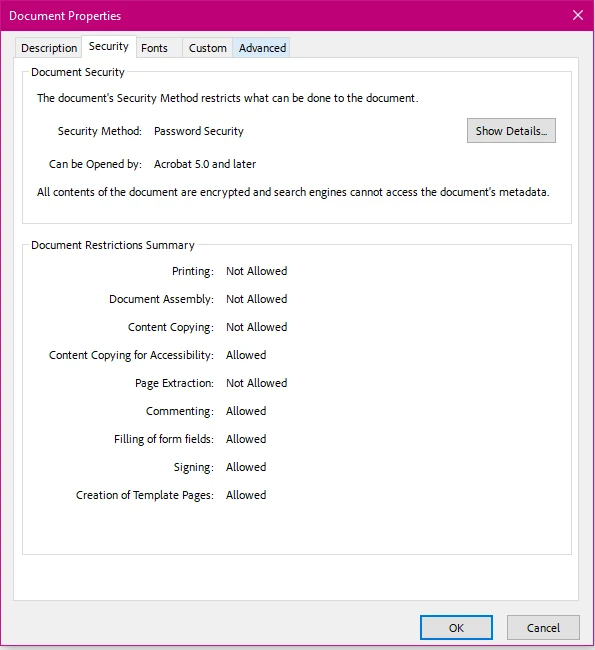
PDF Security Settings Applied
IronPDF encrypts with 128-bit RC4 by default, with 128-bit and 256-bit AES available as selectable options. For more details on all available security options, see the IronPDF security documentation.
The following table summarizes the most commonly used security properties:
IronPDF PdfDocument Security Settings
Property
Type
Description
UserPassword
string
Password required to open the document
OwnerPassword
string
Password that overrides all restrictions
AllowUserPrinting
PdfPrintSecurity enum
Controls print permissions
AllowUserCopyPasteContent
bool
Allows or blocks text copying
AllowUserAnnotations
bool
Allows or blocks annotation tools
AllowUserFormData
bool
Allows or blocks form filling
How Do You Integrate DOCX-to-PDF Conversion in an ASP.NET Core Controller?
To expose Word-to-PDF conversion as an HTTP endpoint, inject the conversion logic into a controller action. The following example accepts a multipart form upload, converts the file in memory, and returns the PDF as a downloadable file response:
using IronPdf;using Microsoft.AspNetCore.Http;using Microsoft.AspNetCore.Mvc;[ApiController][Route("api/[controller]")]public class DocumentController : ControllerBase{ [HttpPost("convert")] public IActionResult ConvertWordToPdf(IFormFile wordFile) { if (wordFile == null || wordFile.Length == 0) return BadRequest("Please upload a valid Word document."); using var stream = new MemoryStream(); wordFile.CopyTo(stream); var renderer = new DocxToPdfRenderer(); var pdfDocument = renderer.RenderDocxAsPdf(stream.ToArray()); return File(pdfDocument.BinaryData, "application/pdf", "converted.pdf"); }}
using IronPdf;using Microsoft.AspNetCore.Http;using Microsoft.AspNetCore.Mvc;[ApiController][Route("api/[controller]")]public class DocumentController : ControllerBase{ [HttpPost("convert")] public IActionResultConvertWordToPdf(IFormFile wordFile) { if (wordFile == null || wordFile.Length == 0) returnBadRequest("Please upload a valid Word document."); using var stream = new MemoryStream(); wordFile.CopyTo(stream); var renderer = new DocxToPdfRenderer(); var pdfDocument = renderer.RenderDocxAsPdf(stream.ToArray()); returnFile(pdfDocument.BinaryData, "application/pdf", "converted.pdf"); }}
using IronPdf;
using Microsoft.AspNetCore.Http;
using Microsoft.AspNetCore.Mvc;

[ApiController]
[Route("api/[controller]")]
public class DocumentController : ControllerBase
{
    [HttpPost("convert")]
    public IActionResult ConvertWordToPdf(IFormFile wordFile)
    {
        if (wordFile == null || wordFile.Length == 0)
            return BadRequest("Please upload a valid Word document.");

        using var stream = new MemoryStream();
        wordFile.CopyTo(stream);

        var renderer = new DocxToPdfRenderer();
        var pdfDocument = renderer.RenderDocxAsPdf(stream.ToArray());

        return File(pdfDocument.BinaryData, "application/pdf", "converted.pdf");
    }
}
Imports IronPdfImports Microsoft.AspNetCore.HttpImports Microsoft.AspNetCore.Mvc<ApiController><Route("api/[controller]")>Public Class DocumentController Inherits ControllerBase <HttpPost("convert")> Public Function ConvertWordToPdf(wordFile As IFormFile) As IActionResult If wordFile Is Nothing OrElse wordFile.Length = 0 Then Return BadRequest("Please upload a valid Word document.") End If Using stream As New MemoryStream() wordFile.CopyTo(stream) Dim renderer As New DocxToPdfRenderer() Dim pdfDocument = renderer.RenderDocxAsPdf(stream.ToArray()) Return File(pdfDocument.BinaryData, "application/pdf", "converted.pdf") End Using End FunctionEnd Class
ImportsIronPdfImportsMicrosoft.AspNetCore.HttpImportsMicrosoft.AspNetCore.Mvc<ApiController><Route("api/[controller]")>Public Class DocumentControllerInheritsControllerBase <HttpPost("convert")> Public Function ConvertWordToPdf(wordFile AsIFormFile) AsIActionResult If wordFile Is NothingOrElse wordFile.Length = 0 Then ReturnBadRequest("Please upload a valid Word document.") End IfUsing stream As New MemoryStream() wordFile.CopyTo(stream) Dim renderer As New DocxToPdfRenderer() Dim pdfDocument = renderer.RenderDocxAsPdf(stream.ToArray()) ReturnFile(pdfDocument.BinaryData, "application/pdf", "converted.pdf")EndUsing End FunctionEnd Class
Imports IronPdf
Imports Microsoft.AspNetCore.Http
Imports Microsoft.AspNetCore.Mvc

<ApiController>
<Route("api/[controller]")>
Public Class DocumentController
    Inherits ControllerBase

    <HttpPost("convert")>
    Public Function ConvertWordToPdf(wordFile As IFormFile) As IActionResult
        If wordFile Is Nothing OrElse wordFile.Length = 0 Then
            Return BadRequest("Please upload a valid Word document.")
        End If

        Using stream As New MemoryStream()
            wordFile.CopyTo(stream)

            Dim renderer As New DocxToPdfRenderer()
            Dim pdfDocument = renderer.RenderDocxAsPdf(stream.ToArray())

            Return File(pdfDocument.BinaryData, "application/pdf", "converted.pdf")
        End Using
    End Function
End Class
How Do You Register IronPDF in the Dependency Injection Container?
For larger applications, register DocxToPdfRenderer as a singleton via the built-in ASP.NET Core dependency injection system. In Program.cs, add builder.Services.AddSingleton<DocxToPdfRenderer>(); after setting the license key. Registering the renderer as a singleton means the object is initialized once and reused across all requests, which reduces per-request overhead. Inject it into controllers and services through the constructor as you would any other dependency.
What Error Handling Should You Add?
Word documents can contain unsupported features or be malformed. Wrap conversion calls in a try/catch block to handle IronPdfException and return a meaningful response to the caller:
try{ var pdf = renderer.RenderDocxAsPdf(stream.ToArray()); return File(pdf.BinaryData, "application/pdf", "output.pdf");}catch (IronPdfException ex){ // Log the exception and return a 422 Unprocessable Entity return UnprocessableEntity($"Conversion failed: {ex.Message}");}
try{ var pdf = renderer.RenderDocxAsPdf(stream.ToArray()); returnFile(pdf.BinaryData, "application/pdf", "output.pdf");}catch (IronPdfException ex){ // Log the exception and return a 422 Unprocessable Entity returnUnprocessableEntity($"Conversion failed: {ex.Message}");}
try
{
    var pdf = renderer.RenderDocxAsPdf(stream.ToArray());
    return File(pdf.BinaryData, "application/pdf", "output.pdf");
}
catch (IronPdfException ex)
{
    // Log the exception and return a 422 Unprocessable Entity
    return UnprocessableEntity($"Conversion failed: {ex.Message}");
}
Try Dim pdf = renderer.RenderDocxAsPdf(stream.ToArray()) Return File(pdf.BinaryData, "application/pdf", "output.pdf")Catch ex As IronPdfException ' Log the exception and return a 422 Unprocessable Entity Return UnprocessableEntity($"Conversion failed: {ex.Message}")End Try
Try Dim pdf = renderer.RenderDocxAsPdf(stream.ToArray()) ReturnFile(pdf.BinaryData, "application/pdf", "output.pdf")Catch ex AsIronPdfException ' Log the exception and return a 422 Unprocessable Entity ReturnUnprocessableEntity($"Conversion failed: {ex.Message}")EndTry
Try
    Dim pdf = renderer.RenderDocxAsPdf(stream.ToArray())
    Return File(pdf.BinaryData, "application/pdf", "output.pdf")
Catch ex As IronPdfException
    ' Log the exception and return a 422 Unprocessable Entity
    Return UnprocessableEntity($"Conversion failed: {ex.Message}")
End Try
Good error handling prevents unhandled exceptions from surfacing to end users and makes debugging conversion problems significantly easier.
How Do You Merge a Converted PDF with an Existing Document?
A common workflow involves converting a DOCX cover letter and then prepending it to an existing PDF report. IronPDF's PDF merging capability makes this a one-liner:
using IronPdf;IronPdf.License.LicenseKey = "YOUR-LICENSE-KEY-HERE";var renderer = new DocxToPdfRenderer();var coverLetter = renderer.RenderDocxAsPdf("cover_letter.docx");var existingReport = PdfDocument.FromFile("annual_report.pdf");// Merge cover letter (first) with existing report (second)var merged = PdfDocument.Merge(coverLetter, existingReport);merged.SaveAs("final_document.pdf");
using IronPdf;IronPdf.License.LicenseKey = "YOUR-LICENSE-KEY-HERE";var renderer = new DocxToPdfRenderer();var coverLetter = renderer.RenderDocxAsPdf("cover_letter.docx");var existingReport = PdfDocument.FromFile("annual_report.pdf");// Merge cover letter (first) with existing report (second)var merged = PdfDocument.Merge(coverLetter, existingReport);merged.SaveAs("final_document.pdf");
using IronPdf;

IronPdf.License.LicenseKey = "YOUR-LICENSE-KEY-HERE";

var renderer = new DocxToPdfRenderer();
var coverLetter = renderer.RenderDocxAsPdf("cover_letter.docx");
var existingReport = PdfDocument.FromFile("annual_report.pdf");

// Merge cover letter (first) with existing report (second)
var merged = PdfDocument.Merge(coverLetter, existingReport);
merged.SaveAs("final_document.pdf");
Imports IronPdfIronPdf.License.LicenseKey = "YOUR-LICENSE-KEY-HERE"Dim renderer As New DocxToPdfRenderer()Dim coverLetter As PdfDocument = renderer.RenderDocxAsPdf("cover_letter.docx")Dim existingReport As PdfDocument = PdfDocument.FromFile("annual_report.pdf")' Merge cover letter (first) with existing report (second)Dim merged As PdfDocument = PdfDocument.Merge(coverLetter, existingReport)merged.SaveAs("final_document.pdf")
ImportsIronPdfIronPdf.License.LicenseKey = "YOUR-LICENSE-KEY-HERE"Dim renderer As New DocxToPdfRenderer()Dim coverLetter AsPdfDocument = renderer.RenderDocxAsPdf("cover_letter.docx")Dim existingReport AsPdfDocument = PdfDocument.FromFile("annual_report.pdf")' Merge cover letter (first) with existing report (second)Dim merged AsPdfDocument = PdfDocument.Merge(coverLetter, existingReport)merged.SaveAs("final_document.pdf")
Imports IronPdf

IronPdf.License.LicenseKey = "YOUR-LICENSE-KEY-HERE"

Dim renderer As New DocxToPdfRenderer()
Dim coverLetter As PdfDocument = renderer.RenderDocxAsPdf("cover_letter.docx")
Dim existingReport As PdfDocument = PdfDocument.FromFile("annual_report.pdf")

' Merge cover letter (first) with existing report (second)
Dim merged As PdfDocument = PdfDocument.Merge(coverLetter, existingReport)
merged.SaveAs("final_document.pdf")
You can merge as many PdfDocument objects as needed by passing a collection to PdfDocument.Merge. For more advanced document assembly scenarios, explore adding pages to an existing PDF or stamping watermarks onto the converted output.
How Do You Add Watermarks or Headers to Converted PDFs?
After converting a DOCX file, you can add custom headers, footers, and text stamps to every page. This is useful for adding approval status, confidentiality notices, or branding to generated documents:
using IronPdf;IronPdf.License.LicenseKey = "YOUR-LICENSE-KEY-HERE";var renderer = new DocxToPdfRenderer();var pdf = renderer.RenderDocxAsPdf("proposal.docx");// Add a text stamp on every pagepdf.ApplyStamp(new TextStamp("DRAFT", new TextStampStyle{ FontSize = 36, FontColor = IronSoftware.Drawing.Color.FromArgb(100, 200, 0, 0), VerticalAlignment = VerticalAlignment.Middle, HorizontalAlignment = HorizontalAlignment.Center, Rotation = -45}));pdf.SaveAs("proposal_draft.pdf");
using IronPdf;IronPdf.License.LicenseKey = "YOUR-LICENSE-KEY-HERE";var renderer = new DocxToPdfRenderer();var pdf = renderer.RenderDocxAsPdf("proposal.docx");// Add a text stamp on every pagepdf.ApplyStamp(new TextStamp("DRAFT", new TextStampStyle{FontSize = 36,FontColor = IronSoftware.Drawing.Color.FromArgb(100, 200, 0, 0),VerticalAlignment = VerticalAlignment.Middle,HorizontalAlignment = HorizontalAlignment.Center,Rotation = -45}));pdf.SaveAs("proposal_draft.pdf");
using IronPdf;

IronPdf.License.LicenseKey = "YOUR-LICENSE-KEY-HERE";

var renderer = new DocxToPdfRenderer();
var pdf = renderer.RenderDocxAsPdf("proposal.docx");

// Add a text stamp on every page
pdf.ApplyStamp(new TextStamp("DRAFT", new TextStampStyle
{
    FontSize = 36,
    FontColor = IronSoftware.Drawing.Color.FromArgb(100, 200, 0, 0),
    VerticalAlignment = VerticalAlignment.Middle,
    HorizontalAlignment = HorizontalAlignment.Center,
    Rotation = -45
}));

pdf.SaveAs("proposal_draft.pdf");
Imports IronPdfIronPdf.License.LicenseKey = "YOUR-LICENSE-KEY-HERE"Dim renderer As New DocxToPdfRenderer()Dim pdf = renderer.RenderDocxAsPdf("proposal.docx")' Add a text stamp on every pagepdf.ApplyStamp(New TextStamp("DRAFT", New TextStampStyle With { .FontSize = 36, .FontColor = IronSoftware.Drawing.Color.FromArgb(100, 200, 0, 0), .VerticalAlignment = VerticalAlignment.Middle, .HorizontalAlignment = HorizontalAlignment.Center, .Rotation = -45}))pdf.SaveAs("proposal_draft.pdf")
ImportsIronPdfIronPdf.License.LicenseKey = "YOUR-LICENSE-KEY-HERE"Dim renderer As New DocxToPdfRenderer()Dim pdf = renderer.RenderDocxAsPdf("proposal.docx")' Add a text stamp on every pagepdf.ApplyStamp(New TextStamp("DRAFT", New TextStampStyleWith { .FontSize = 36, .FontColor = IronSoftware.Drawing.Color.FromArgb(100, 200, 0, 0), .VerticalAlignment = VerticalAlignment.Middle, .HorizontalAlignment = HorizontalAlignment.Center, .Rotation = -45}))pdf.SaveAs("proposal_draft.pdf")
Imports IronPdf

IronPdf.License.LicenseKey = "YOUR-LICENSE-KEY-HERE"

Dim renderer As New DocxToPdfRenderer()
Dim pdf = renderer.RenderDocxAsPdf("proposal.docx")

' Add a text stamp on every page
pdf.ApplyStamp(New TextStamp("DRAFT", New TextStampStyle With {
    .FontSize = 36,
    .FontColor = IronSoftware.Drawing.Color.FromArgb(100, 200, 0, 0),
    .VerticalAlignment = VerticalAlignment.Middle,
    .HorizontalAlignment = HorizontalAlignment.Center,
    .Rotation = -45
}))

pdf.SaveAs("proposal_draft.pdf")
How Do You Compare IronPDF with Alternative Word-to-PDF Libraries?
Several libraries exist for converting DOCX files to PDF in .NET. Understanding the trade-offs helps you choose the right tool for your use case.
Telerik Document Processing (RadWordsProcessing) supports DOCX to PDF conversion and is included with the Telerik suite. It works entirely in managed code and does not require native dependencies, but its rendering fidelity for complex layouts can differ from Word. Aspose.Words is another established option with high fidelity and a rich API, though it carries a per-developer license cost similar to IronPDF.
For open-source alternatives, DocX by Xceed provides DOCX manipulation but does not include PDF conversion directly. Developers who need a zero-dependency option on Linux may also consider LibreOffice headless called from a process, though that introduces a large binary dependency and process-spawning overhead.
Word-to-PDF Library Comparison for .NET
Library
Rendering Fidelity
Office Required
Linux Support
License Model
IronPDF
High
No
Yes
Per-developer / SaaS
Aspose.Words
Very High
No
Yes
Per-developer
Telerik RadWords
Medium-High
No
Yes
Telerik suite
Microsoft.Office.Interop
Perfect
Yes
No
Office license
LibreOffice headless
Medium
No
Yes
Open source (MPL)
The main advantage of IronPDF in this comparison is the combination of high fidelity, no native Office dependency, Linux support, and a straightforward NuGet-based installation. For teams already using an IronPDF license for HTML-to-PDF conversion, the DOCX renderer comes included at no additional cost.
How Does IronPDF Handle the DOCX File Format Internally?
IronPDF reads the Office Open XML (OOXML) format directly -- the same specification used by Microsoft Word. It does not invoke Word in the background or use a COM automation bridge. This means the conversion runs in-process within your .NET application, which makes it predictable, deterministic, and safe for multi-threaded server workloads.
The internal pipeline parses the OOXML XML package, resolves embedded resources (images, fonts, embedded objects), applies paragraph and run formatting, lays out the page geometry according to the document's section properties, and rasterizes the result into a PDF content stream. The PDF specification (ISO 32000) governs the output format, ensuring compatibility with all major PDF viewers.
What Are Your Next Steps?
You now have a solid foundation for converting Word documents to PDF in any .NET or ASP.NET application. Here is what to explore next:
Download and try IronPDF -- Start with the free trial to test the full feature set in your own project before committing to a license.
Read the DOCX conversion guide -- The DocxToPdfRenderer how-to article covers edge cases, advanced options, and performance tuning in depth.
Explore HTML-to-PDF -- If your workflow involves HTML templates or Razor views, IronPDF can convert HTML to PDF with the same fluent API surface.
Merge and split documents -- Learn how to combine multiple PDFs into a single file, or split a large PDF into individual pages.
Add digital signatures -- For legal or compliance workflows, IronPDF supports PDF digital signatures using X.509 certificates.
Review licensing options -- Explore per-developer, site, and OEM licensing to find the plan that fits your deployment model.
Browse the blog -- The IronPDF blog contains tutorials on PDF generation, manipulation, OCR integration, and more.
Curtis Chau holds a Bachelor’s degree in Computer Science (Carleton University) and specializes in front-end development with expertise in Node.js, TypeScript, JavaScript, and React. Passionate about crafting intuitive and aesthetically pleasing user interfaces, Curtis enjoys working with modern frameworks and creating well-structured, visually appealing manuals.