



Updated September 2, 2026
HTML to PDF in C#: Benchmarking 7 .NET Libraries (2026)
Compare 7 C# HTML to PDF libraries on .NET 10 for cold start, throughput, memory and rendering accuracy. Only 3 rendered the test invoice correctly.
Read More

In today's tutorial, we will be exploring how to extract text from PDF documents using two powerful PDF libraries, IronPDF and PDFSharp. We will be learning how text extraction works with these tools without needing to own Adobe library licensing, and how they compare against each other.
There are dozens of PDF-focused libraries out there to choose from, and by taking the time to compare them and learn how their features work, you will be able to pick out the right library for your project's needs. Text extraction is just one of the many examples of tasks you might need to carry out on your PDFs, with text extraction being helpful in situations where you might need to read or parse data from PDF files efficiently.
PDFSharp is an open-source .NET library designed for creating and modifying PDF documents programmatically. While its primary strength lies in PDF generation and manipulation, it also provides basic tools for reading existing PDF files and extracting content, when paired with the right external libraries.
PDFSharp can do more beyond creating new PDF documents on the go, it can be used to modify existing PDF files, merge and split documents, add annotations, and more.
IronPDF is a professional-grade .NET library designed to simplify the process of working with PDF documents in C#. It is a feature-rich tool designed for developers building applications that involve PDF generation, manipulation, PDF encryption, convert PDF files, merge PDF pages, HTML to PDF conversion, content extraction, and more.
With its robust capabilities, IronPDF stands out as a versatile solution for creating and managing PDFs in both small-scale projects and enterprise-level applications.
IronPDF is designed to be compatible with modern .NET frameworks, including .NET Core, .NET 5, .NET 6, and .NET 7, as well as legacy versions like .NET Framework. It works seamlessly across operating systems like Windows, macOS, and Linux, and is fully compatible with Docker, Azure, and AWS environments. This ensures developers can deploy their PDF workflows on any platform or cloud service.
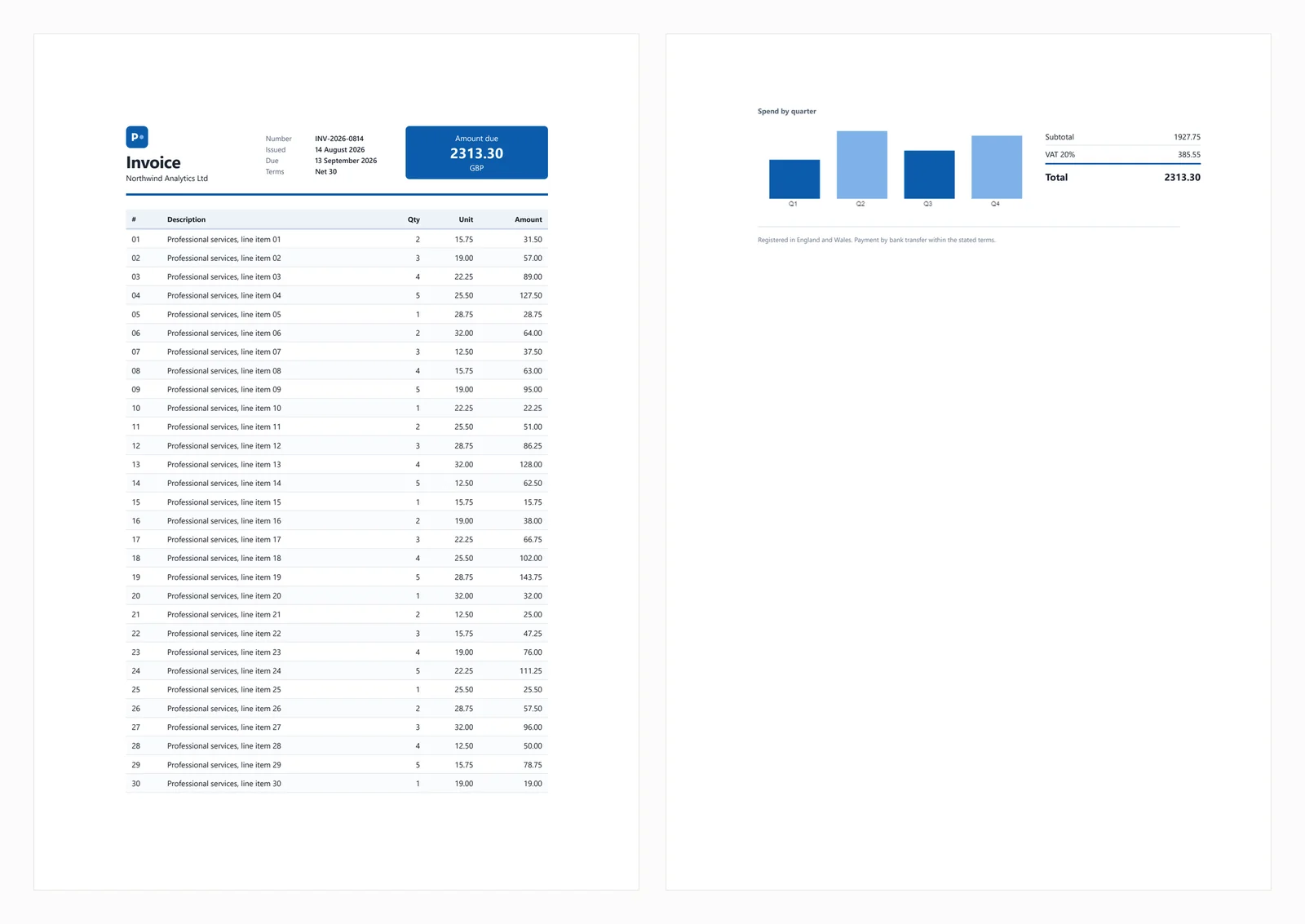
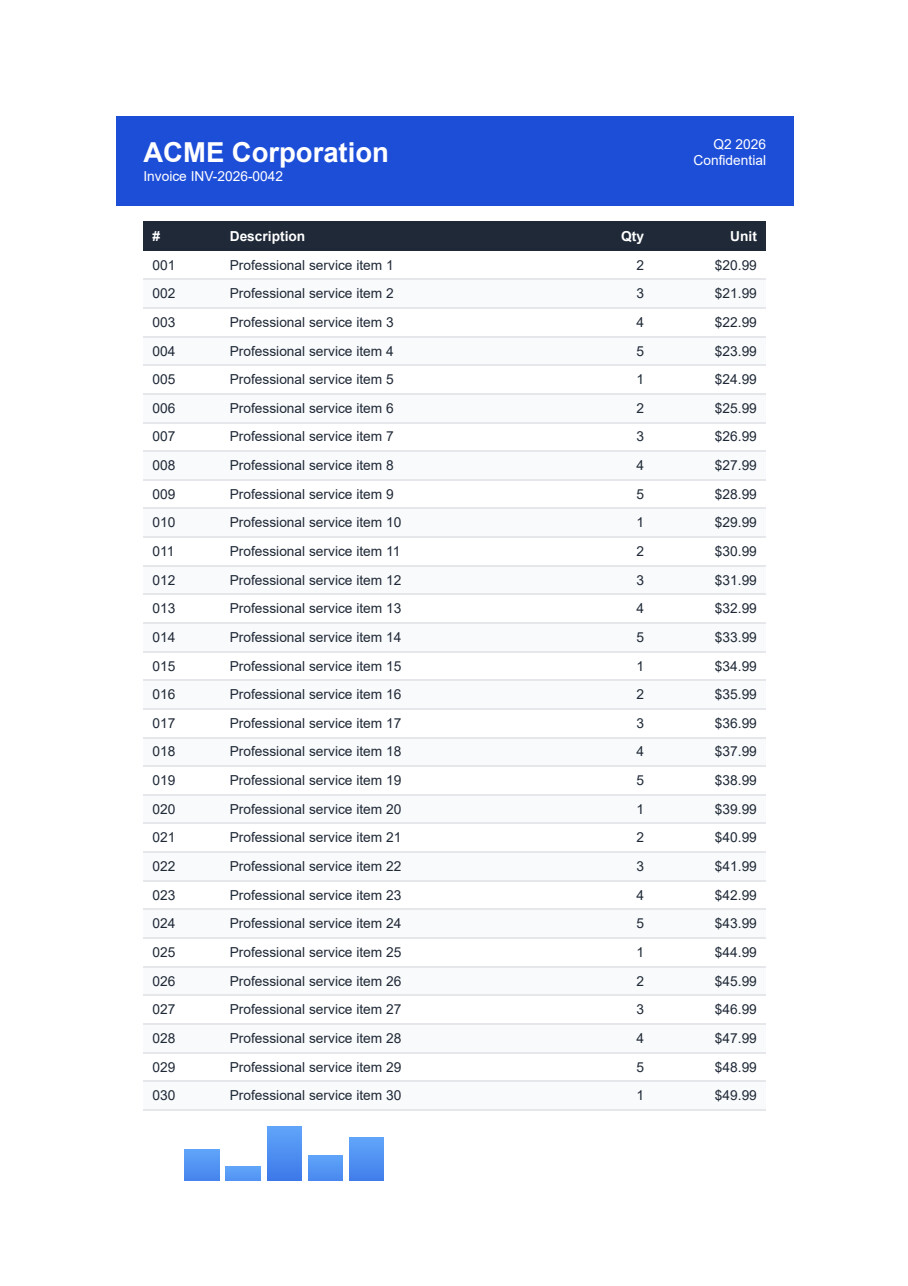
For today's example, we will be attempting to extract text from this PDF document within Visual Studio:
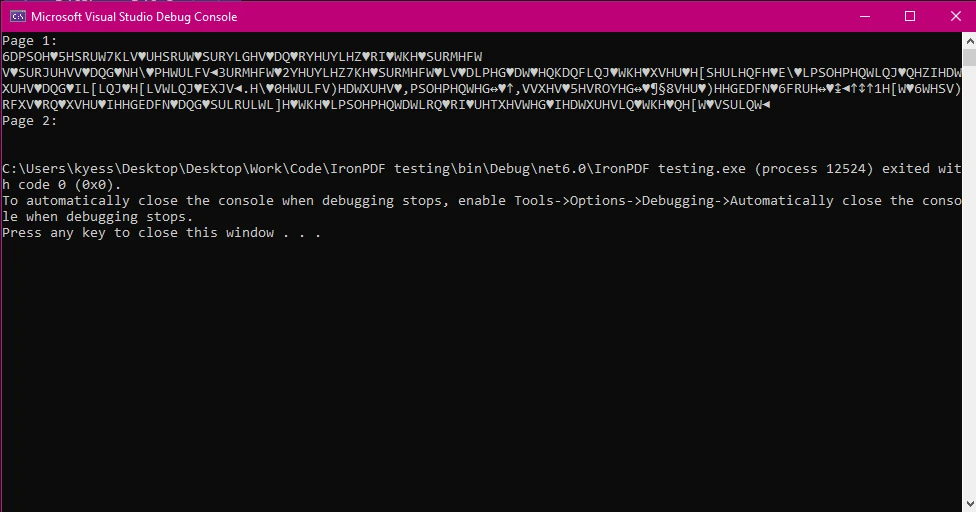
PDFSharp, in its current version, does not have native support for text extraction from PDF documents. It is primarily designed for creating and manipulating PDFs, such as drawing graphics, adding content, and merging documents, but it lacks a built-in mechanism for extracting text on its own, unable to handle special characters, advanced encoding, and so on. It may produce fragmented or incomplete text output, or blank strings instead of the actual PDF content. For example:
If you need advanced text extraction with better support for different fonts, encodings, and layouts, you will likely need to use a more specialized library, such as:
Now, let's see how text extraction is handled using IronPDF. IronPDF's text extraction feature provides developers with a concise, yet powerful method for extracting text from PDF documents efficiently, without needing extra code to format correctly the data string into readable text.
using IronPdf;

public class Program
{
    public static void Main(string[] args)
    {
        // Provide the file path to the PDF document
        string pdfPath = @"invoice.pdf";

        // Load the PDF document using IronPDF
        var pdf = PdfDocument.FromFile(pdfPath);

        // Extract all text from the PDF
        var extractedText = pdf.ExtractAllText();

        // Output the extracted text to the console
        Console.WriteLine(extractedText);
    }
}Imports IronPdf
Public Class Program
Public Shared Sub Main(args As String())
' Provide the file path to the PDF document
Dim pdfPath As String = "invoice.pdf"
' Load the PDF document using IronPDF
Dim pdf = PdfDocument.FromFile(pdfPath)
' Extract all text from the PDF
Dim extractedText = pdf.ExtractAllText()
' Output the extracted text to the console
Console.WriteLine(extractedText)
End Sub
End Class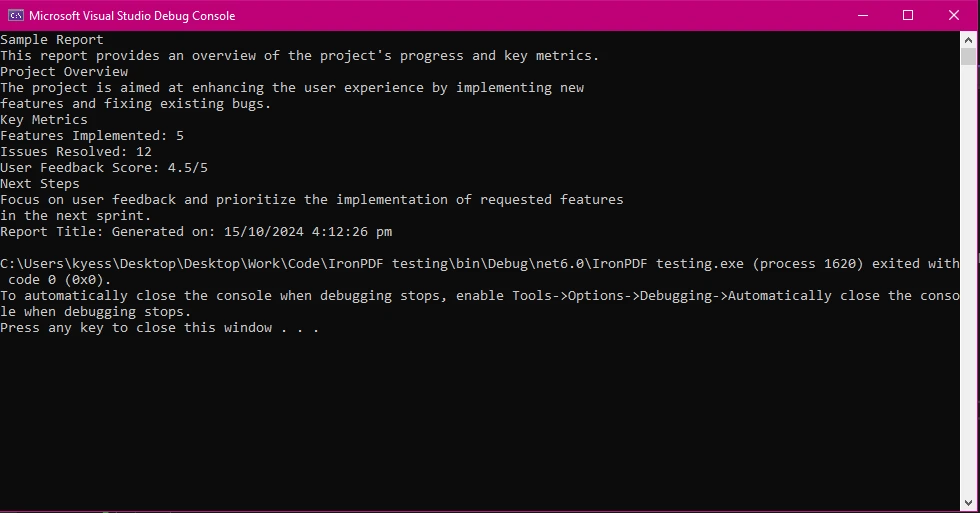
IronPDF provides a simple and efficient API for extracting text from the given PDF path. It ensures that the extracted text is well-structured and accurate, making it a reliable option for developers who need to process PDF content in their applications.
PDFSharp is a free, open-source library ideal for basic PDF creation and manipulation, but it has limited functionality and struggles with complex PDFs. While in theory, it may be used to extract text from PDF files, this would require advanced text parsing and may result in fragmented output.
IronPDF offers a more robust solution with advanced features like accurate text extraction, HTML-to-PDF conversion, and support for modern PDF standards. It's optimized for performance and ease of use with an intuitive API. While it is free for development, it also offers commercial licensing for its paid licensing tiers.
Both PDFSharp and IronPDF are valuable tools for working with extracting text from PDFs in C#, but they cater to different use cases:
For a deeper dive into how IronPDF outperforms other libraries, visit the official IronPDF Documentation.

Curtis Chau holds a Bachelor’s degree in Computer Science (Carleton University) and specializes in front-end development with expertise in Node.js, TypeScript, JavaScript, and React. Passionate about crafting intuitive and aesthetically pleasing user interfaces, Curtis enjoys working with modern frameworks and creating well-structured, visually appealing manuals.

IronPDF is a part of IRONSUITE
10 .NET API products for your office documents











When you need your PDF to look like HTML, fast.


