


C# String Contains (How it Works for Developers)

In today's development world, working with PDFs is a common requirement for applications that need to handle documents, forms, or reports. Whether you're building an e-commerce platform, document management system, or just need to process invoices, extracting and searching text from PDFs can be crucial. This article will guide you through how to use C# string.Contains() with IronPDF to search and extract text from PDF files in your .NET projects.
String Comparison and Specified Substring
When performing searches, you may need to perform string comparison based on specific string substring requirements. In such cases, C# offers options such as string.Contains(), which is one of the simplest forms of comparison.
If you need to specify whether you want to ignore case sensitivity or not, you can use the StringComparison enumeration. This allows you to choose the type of string comparison you want - such as ordinal comparison or case-insensitive comparison.
If you want to work with specific positions in the string, such as the first character position or last character position, you can always use Substring to isolate certain portions of the string for further processing.
If you're looking for empty string checks or other edge cases, make sure to handle these scenarios within your logic.
If you're dealing with large documents, it's useful to optimize the starting position of your text extraction, to only extract relevant portions rather than the entire document. This can be particularly useful if you are trying to avoid overloading memory and processing time.
If you're unsure of the best approach for comparison rules, consider the specific method performs and how you want your search to behave in different scenarios (e.g., matching multiple terms, handling spaces, etc.).
If your needs go beyond simple substring checks and require more advanced pattern matching, consider using regular expressions, which offer significant flexibility when working with PDFs.
If you haven't already, try IronPDF's free trial today to explore its capabilities and see how it can streamline your PDF handling tasks. Whether you're building a document management system, processing invoices, or just need to extract data from PDFs, IronPDF is the perfect tool for the job.
What is IronPDF and Why Should You Use It?
IronPDF is a powerful library designed to help developers working with PDFs in the .NET ecosystem. It enables you to create, read, edit, and manipulate PDF files easily without having to rely on external tools or complex configurations.
IronPDF Overview
IronPDF provides a wide range of features for working with PDFs in C# applications. Some key features include:
- Text Extraction: Extract plain text or structured data from PDFs.
- PDF Editing: Modify existing PDFs by adding, deleting, or editing text, images, and pages.
- PDF Conversion: Convert HTML or ASPX pages to PDF or vice versa.
- Form Handling: Extract or populate form fields in interactive PDF forms.
IronPDF is designed to be simple to use, but also flexible enough to handle complex scenarios involving PDFs. It works seamlessly with .NET Core and .NET Framework, making it a perfect fit for any .NET-based project.
Installing IronPDF
To use IronPDF, install it via NuGet Package Manager in Visual Studio:
Install-Package IronPdf
How to Search Text in PDF Files Using C#
Before diving into searching PDFs, let's first understand how to extract text from a PDF using IronPDF.
Basic PDF Text Extraction with IronPDF
IronPDF provides a simple API to extract text from PDF documents. This allows you to easily search for specific content within PDFs.
The following example demonstrates how to extract text from a PDF using IronPDF:
using IronPdf;
using System;

public class Program
{
    public static void Main(string[] args)
    {
        // Load the PDF from a file
        PdfDocument pdf = PdfDocument.FromFile("invoice.pdf");
        // Extract all text from the PDF
        string text = pdf.ExtractAllText();
        // Optionally, print the extracted text to the console
        Console.WriteLine(text);
    }
}
using IronPdf;
using System;
public class Program
{
public static void Main(string[] args)
{
// Load the PDF from a file
PdfDocument pdf = PdfDocument.FromFile("invoice.pdf");
// Extract all text from the PDF
string text = pdf.ExtractAllText();
// Optionally, print the extracted text to the console
Console.WriteLine(text);
}
}Imports IronPdf
Imports System
Public Class Program
Public Shared Sub Main(ByVal args() As String)
' Load the PDF from a file
Dim pdf As PdfDocument = PdfDocument.FromFile("invoice.pdf")
' Extract all text from the PDF
Dim text As String = pdf.ExtractAllText()
' Optionally, print the extracted text to the console
Console.WriteLine(text)
End Sub
End ClassIn this example, the ExtractAllText() method extracts all the text from the PDF document. This text can then be processed to search for specific keywords or phrases.
Using string.Contains() for Text Search
Once you've extracted the text from the PDF, you can use C#'s built-in string.Contains() method to search for specific words or phrases.
The string.Contains() method returns a Boolean value indicating whether a specified string exists within a string. This is particularly useful for basic text searching.
Here's how you can use string.Contains() to search for a keyword within the extracted text:
bool isFound = text.Contains("search term", StringComparison.OrdinalIgnoreCase);bool isFound = text.Contains("search term", StringComparison.OrdinalIgnoreCase);Dim isFound As Boolean = text.Contains("search term", StringComparison.OrdinalIgnoreCase)Practical Example: How to Check if a C# String Contains Keywords in a PDF Document
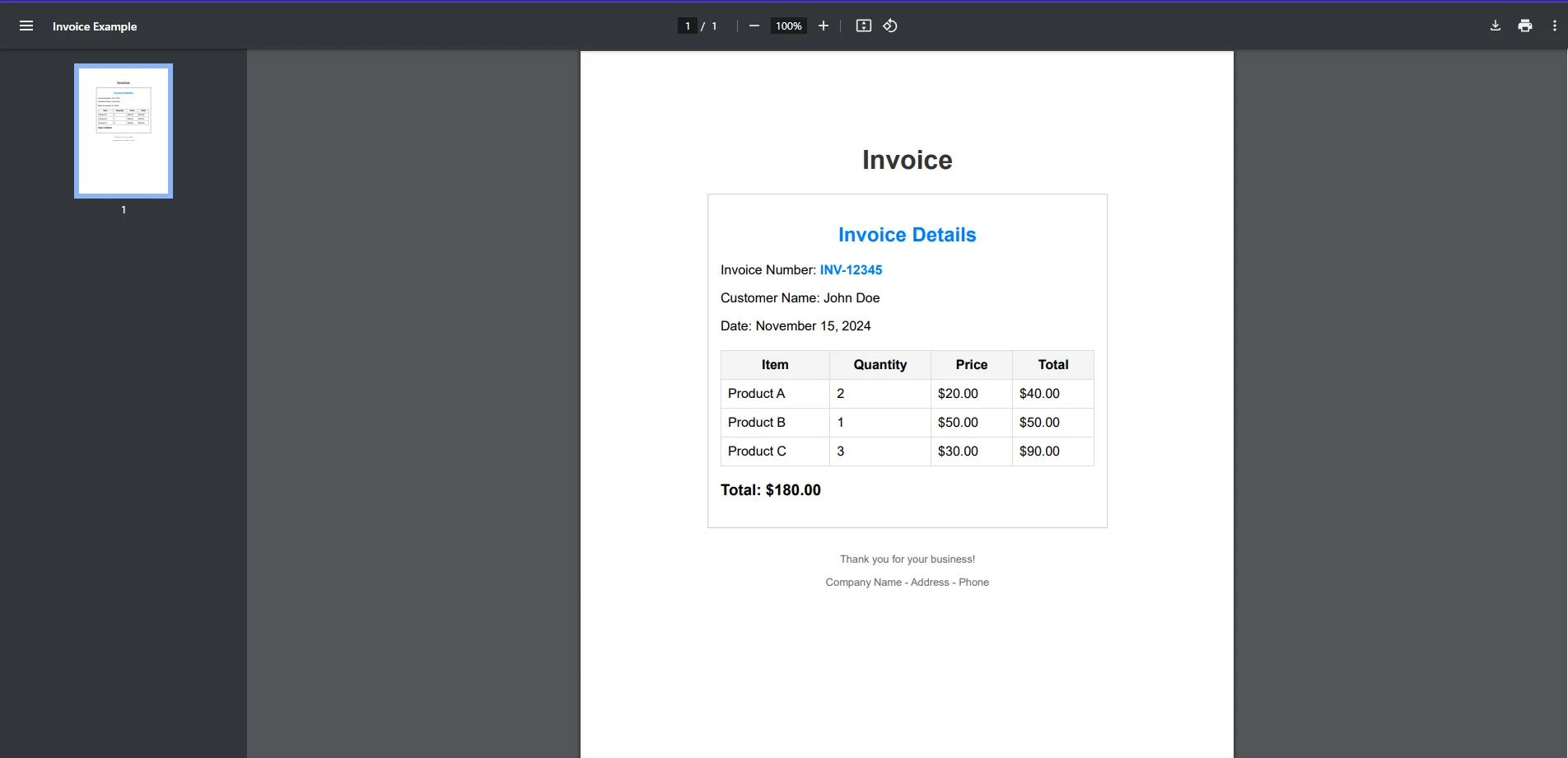
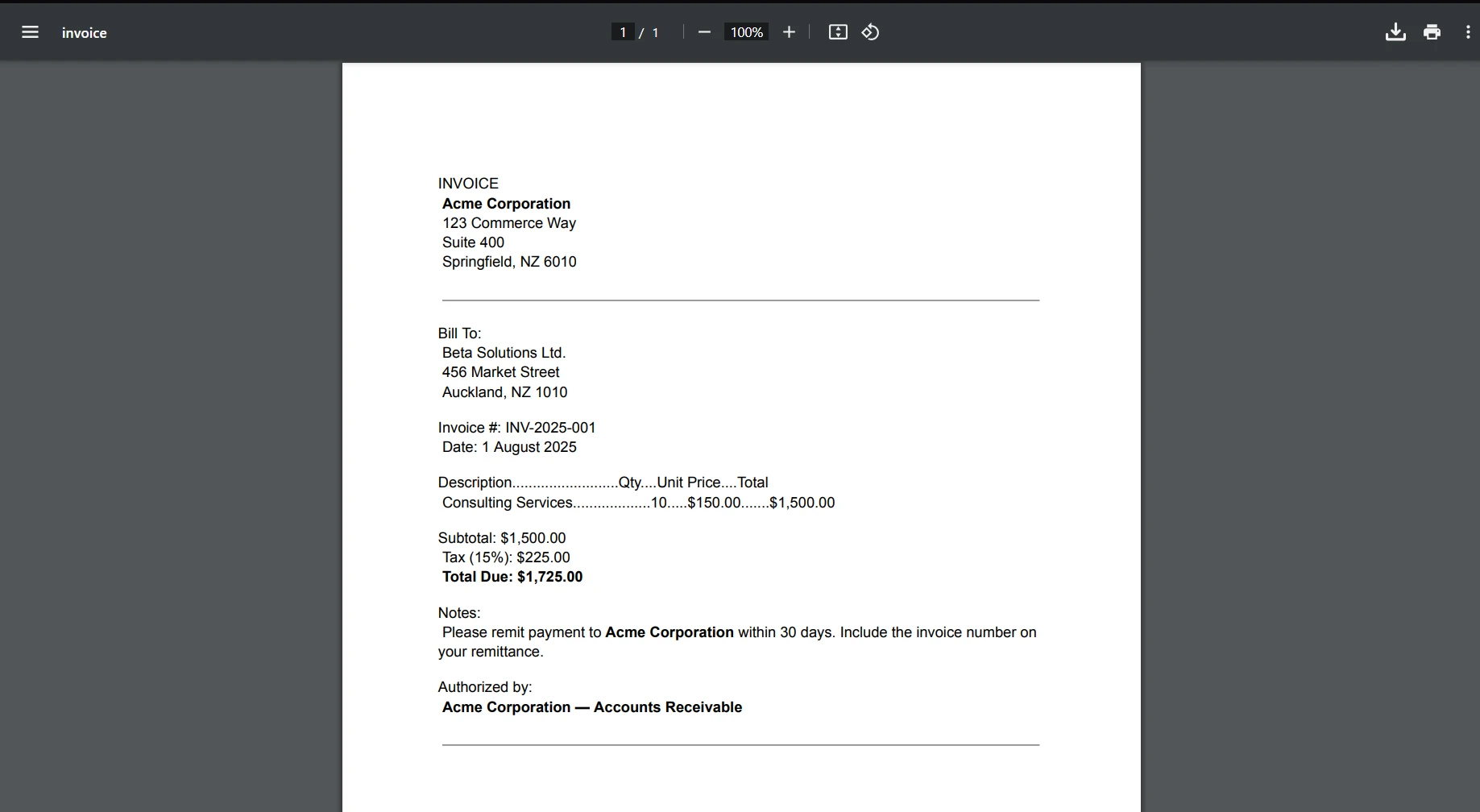
Let's break this down further with a practical example. Suppose you want to find whether a specific invoice number exists in a PDF invoice document.
Here's a full example of how you could implement this:
using IronPdf;
using System;

public class Program
{
    public static void Main(string[] args)
    {
        string searchTerm = "INV-12345";
        // Load the PDF from a file
        PdfDocument pdf = PdfDocument.FromFile("exampleInvoice.pdf");
        // Extract all text from the PDF
        string text = pdf.ExtractAllText();
        // Search for the specific invoice number
        bool isFound = text.Contains(searchTerm, StringComparison.OrdinalIgnoreCase);
        // Provide output based on whether the search term was found
        if (isFound)
        {
            Console.WriteLine($"Invoice number: {searchTerm} found in the document");
        }
        else
        {
            Console.WriteLine($"Invoice number {searchTerm} not found in the document");
        }
    }
}
using IronPdf;
using System;
public class Program
{
public static void Main(string[] args)
{
string searchTerm = "INV-12345";
// Load the PDF from a file
PdfDocument pdf = PdfDocument.FromFile("exampleInvoice.pdf");
// Extract all text from the PDF
string text = pdf.ExtractAllText();
// Search for the specific invoice number
bool isFound = text.Contains(searchTerm, StringComparison.OrdinalIgnoreCase);
// Provide output based on whether the search term was found
if (isFound)
{
Console.WriteLine($"Invoice number: {searchTerm} found in the document");
}
else
{
Console.WriteLine($"Invoice number {searchTerm} not found in the document");
}
}
}Imports IronPdf
Imports System
Public Class Program
Public Shared Sub Main(ByVal args() As String)
Dim searchTerm As String = "INV-12345"
' Load the PDF from a file
Dim pdf As PdfDocument = PdfDocument.FromFile("exampleInvoice.pdf")
' Extract all text from the PDF
Dim text As String = pdf.ExtractAllText()
' Search for the specific invoice number
Dim isFound As Boolean = text.Contains(searchTerm, StringComparison.OrdinalIgnoreCase)
' Provide output based on whether the search term was found
If isFound Then
Console.WriteLine($"Invoice number: {searchTerm} found in the document")
Else
Console.WriteLine($"Invoice number {searchTerm} not found in the document")
End If
End Sub
End ClassInput PDF
Console Output
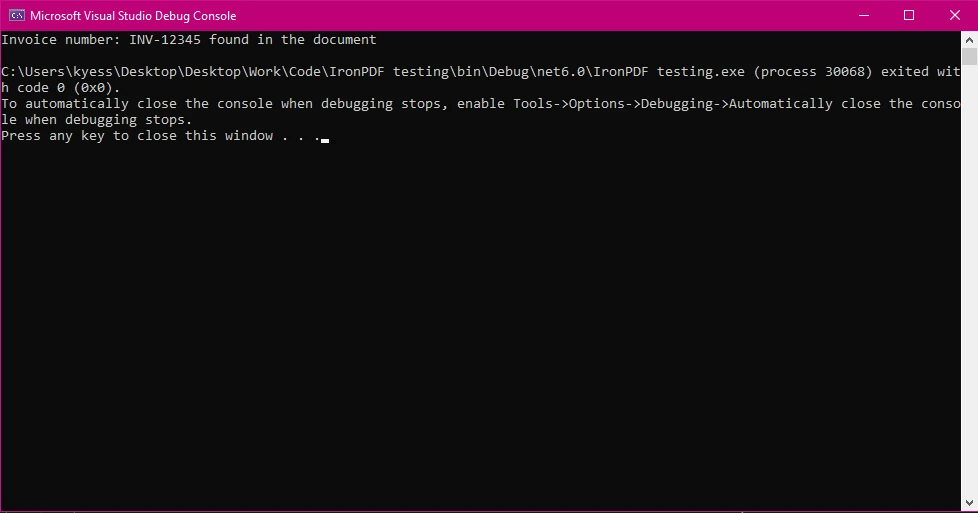
In this example:
- We load the PDF file and extract its text.
- Then, we use
string.Contains()to search for the invoice numberINV-12345in the extracted text. - The search is case-insensitive due to
StringComparison.OrdinalIgnoreCase.
Enhancing Search with Regular Expressions
While string.Contains() works for simple substring searches, you might want to perform more complex searches, such as finding a pattern or a series of keywords. For this, you can use regular expressions.
Here's an example using a regular expression to search for any valid invoice number format in the PDF text:
using IronPdf;
using System;
using System.Text.RegularExpressions;

public class Program
{
    public static void Main(string[] args)
    {
        // Define a regex pattern for a typical invoice number format (e.g., INV-12345)
        string pattern = @"INV-\d{5}";
        // Load the PDF from a file
        PdfDocument pdf = PdfDocument.FromFile("exampleInvoice.pdf");
        // Extract all text from the PDF
        string text = pdf.ExtractAllText();
        // Perform the regex search
        Match match = Regex.Match(text, pattern);
        // Check if a match was found
        if (match.Success)
        {
            Console.WriteLine($"Invoice number found: {match.Value}");
        }
        else
        {
            Console.WriteLine("No matching invoice number found.");
        }
    }
}
using IronPdf;
using System;
using System.Text.RegularExpressions;
public class Program
{
public static void Main(string[] args)
{
// Define a regex pattern for a typical invoice number format (e.g., INV-12345)
string pattern = @"INV-\d{5}";
// Load the PDF from a file
PdfDocument pdf = PdfDocument.FromFile("exampleInvoice.pdf");
// Extract all text from the PDF
string text = pdf.ExtractAllText();
// Perform the regex search
Match match = Regex.Match(text, pattern);
// Check if a match was found
if (match.Success)
{
Console.WriteLine($"Invoice number found: {match.Value}");
}
else
{
Console.WriteLine("No matching invoice number found.");
}
}
}Imports IronPdf
Imports System
Imports System.Text.RegularExpressions
Public Class Program
Public Shared Sub Main(ByVal args() As String)
' Define a regex pattern for a typical invoice number format (e.g., INV-12345)
Dim pattern As String = "INV-\d{5}"
' Load the PDF from a file
Dim pdf As PdfDocument = PdfDocument.FromFile("exampleInvoice.pdf")
' Extract all text from the PDF
Dim text As String = pdf.ExtractAllText()
' Perform the regex search
Dim match As Match = Regex.Match(text, pattern)
' Check if a match was found
If match.Success Then
Console.WriteLine($"Invoice number found: {match.Value}")
Else
Console.WriteLine("No matching invoice number found.")
End If
End Sub
End ClassThis code will search for any invoice numbers that follow the pattern INV-XXXXX, where XXXXX is a series of digits.
Best Practices for Working with PDFs in .NET
When working with PDFs, especially large or complex documents, there are a few best practices to keep in mind:
Optimizing Text Extraction
- Handle Large PDFs: If you're dealing with large PDFs, it's a good idea to extract text in smaller chunks (by page) to reduce memory usage and improve performance.
- Handle Special Encodings: Be mindful of encodings and special characters in the PDF. IronPDF generally handles this well, but complex layouts or fonts may require additional handling.
Integrating IronPDF into .NET Projects
IronPDF integrates easily with .NET projects. After downloading and installing the IronPDF library via NuGet, simply import it into your C# codebase, as shown in the examples above.
IronPDF's flexibility allows you to build sophisticated document processing workflows, such as:
- Searching for and extracting data from forms.
- Converting HTML to PDF and extracting content.
- Creating reports based on user input or data from databases.
Conclusion
IronPDF makes working with PDFs easy and efficient, especially when you need to extract and search text in PDFs. By combining C#'s string.Contains() method with IronPDF's text extraction capabilities, you can quickly search and process PDFs in your .NET applications.
If you haven't already, try IronPDF's free trial today to explore its capabilities and see how it can streamline your PDF handling tasks. Whether you're building a document management system, processing invoices, or just need to extract data from PDFs, IronPDF is the perfect tool for the job.
To get started with IronPDF, download the free trial and experience its powerful PDF manipulation features firsthand. Visit IronPDF's website to get started today.
Frequently Asked Questions
How can you use C# string.Contains() to search text in PDF files?
You can use C# string.Contains() in conjunction with IronPDF to search for specific text within PDF files. First, extract the text from the PDF using IronPDF's text extraction feature, and then apply string.Contains() to find the desired text.
What are the benefits of using IronPDF for PDF text extraction in .NET?
IronPDF provides an easy-to-use API for extracting text from PDFs, which is essential for applications that need to handle documents efficiently. It simplifies the process, allowing developers to focus on implementing business logic rather than dealing with complex PDF manipulation.
How can you ensure case-insensitive text searches in PDFs using C#?
To perform case-insensitive text searches in PDFs, use IronPDF to extract the text, and then apply the C# string.Contains() method with StringComparison.OrdinalIgnoreCase to ignore case sensitivity during the search.
What scenarios require the use of regular expressions over string.Contains()?
When you need to search for complex patterns or multiple keywords within text extracted from a PDF, regular expressions are more suitable than string.Contains(). They provide advanced pattern matching capabilities that are not available with simple substring searches.
How can you optimize performance when extracting text from large PDF documents?
To optimize performance when extracting text from large PDFs, consider processing the document in smaller sections, such as page by page. This approach reduces memory usage and enhances system performance by preventing resource overload.
Is IronPDF compatible with both .NET Core and .NET Framework?
Yes, IronPDF is compatible with both .NET Core and .NET Framework, making it versatile for various .NET applications. This compatibility ensures that it can be integrated into different project types without compatibility issues.
How do you get started with using a PDF library in a .NET project?
To start using IronPDF in a .NET project, install it via the NuGet Package Manager in Visual Studio. Once installed, you can import it into your C# codebase and utilize its features, such as text extraction and PDF manipulation, to meet your document handling needs.
What are the key features of IronPDF for PDF manipulation?
IronPDF offers a range of features for PDF manipulation, including text extraction, PDF editing, and conversion. These features help developers handle PDFs effectively, streamlining processes like form handling and document generation in .NET applications.
How can IronPDF simplify PDF handling in .NET applications?
IronPDF simplifies PDF handling by providing a comprehensive API that allows developers to create, edit, and extract data from PDF files with ease. This eliminates the need for complex configurations and enables efficient document processing workflows within .NET applications.
How can you install IronPDF in a .NET project?
IronPDF can be installed in a .NET project using the NuGet Package Manager in Visual Studio. Use the command: Install-Package IronPdf to add IronPDF to your project and start utilizing its PDF manipulation capabilities.







 Get started for FREE
 Get started for FREE
 Book Free Live Demo
















