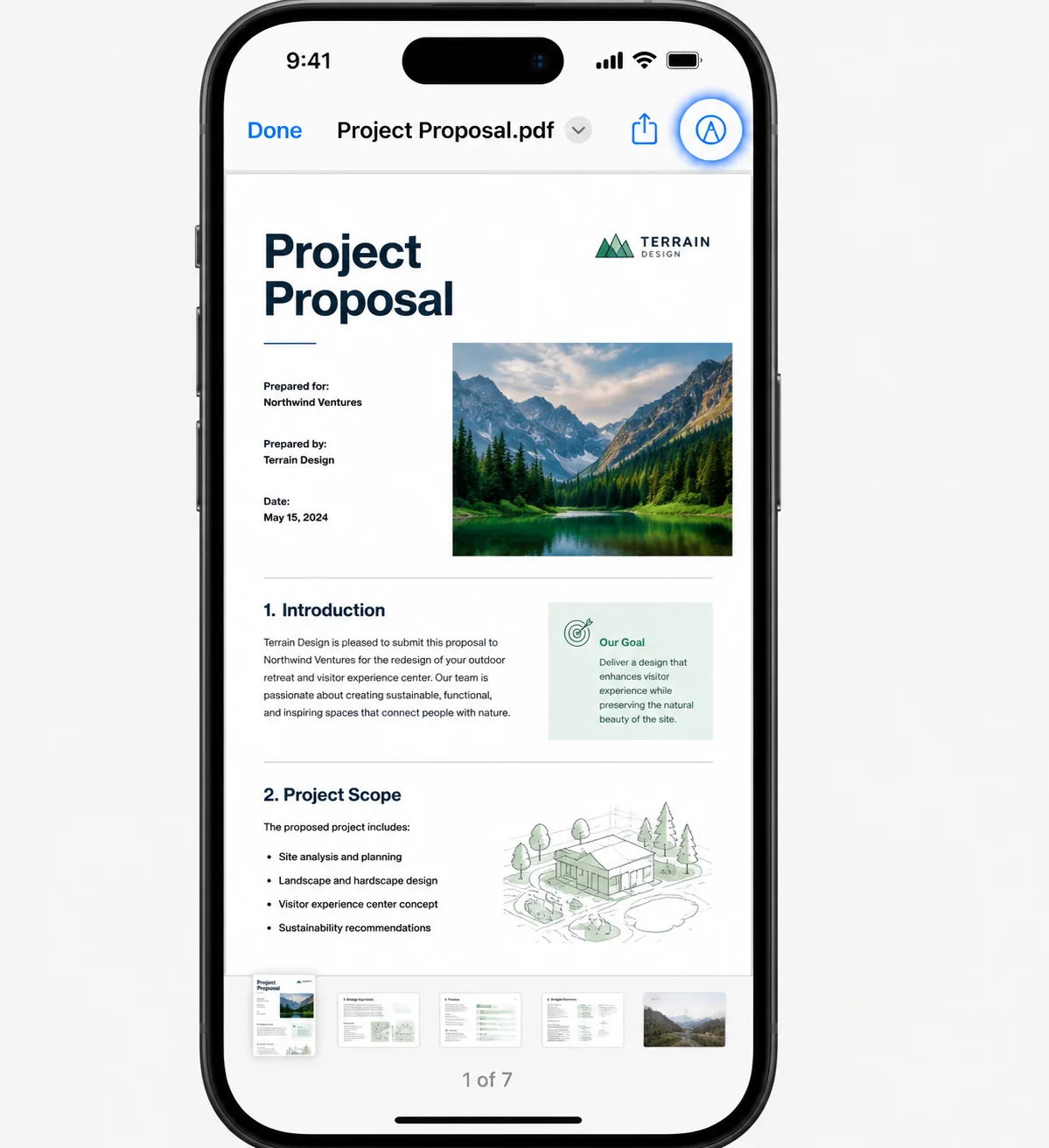
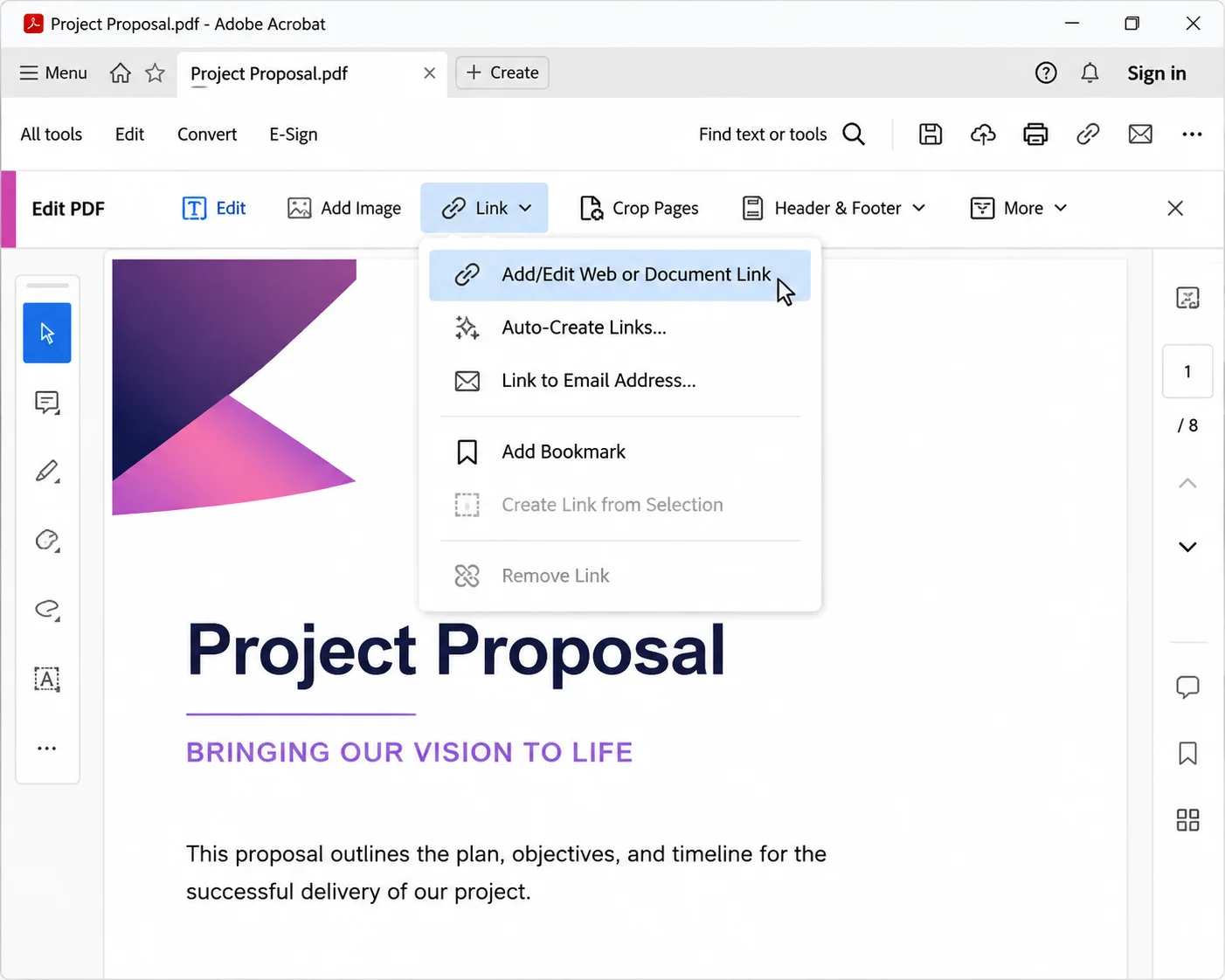
The fastest way to unite PDF files is to open Adobe Acrobat, click Tools, choose Combine Files, drag in the PDFs that need to be joined, and click Combine. The whole process takes under thirty seconds for a small batch, and the merged file saves wherever the user picks. The desktop version of Acrobat Pro and Acrobat Standard both include this feature out of the box, and the page order can be adjusted by dragging the file thumbnails before the final merge.
For situations where Acrobat is not installed, free browser-based merge PDF tools like ILovePDF, SmallPDF, PDF24 Tools, and Sejda handle the same task with nothing more than an internet connection and a browser. These online tools securely merge multiple PDF files in seconds, and most major providers state that uploaded files are automatically deleted from their servers within one hour of processing. Mac users have an even simpler option through the built-in Preview app, which combines PDFs through a thumbnail drag-and-drop workflow with no extra software required. On Windows, the Microsoft Edge browser covers basic combining tasks, and the open-source PDFsam Basic merge PDF tool provides a free desktop alternative for offline use on any device.
Each method has its own quirks around bookmarks, file size, password protection, watermarks, and form fields, so the right choice depends on the volume of files involved, whether the documents contain sensitive data, whether image files or other file types need to be folded into the same single PDF document alongside existing PDFs, and whether the workflow needs to be repeated regularly. The methods below cover every reliable path to a merged PDF, from the quickest one-off approach to the right setup for teams that need to organize and combine PDF files at scale. The troubleshooting section near the end addresses the most common reasons a merge fails, alongside fixes for damaged files, lost bookmarks, oversized output, and broken form fields.
This guide walks through eight methods in detail, with screenshot pointers for each, followed by a troubleshooting reference and a brief look at programmatic merging for developers handling thousands of files at once.
Method 1: Combine Files in Adobe Acrobat (Fastest for Most Users)
Adobe Acrobat Pro and Acrobat Standard both ship with a dedicated Combine Files tool that handles PDF merging in a single dialog. This is the most reliable way to unite PDFs while preserving bookmarks, tags, form fields, and digital signatures (where the signer's permission policy allows it).
Steps:
- Open Adobe Acrobat.
- From the top menu, click Tools.
- Scroll down to find Combine Files and click it to open the tool.
- In the Combine Files dialog, click Add Files, or drag the PDFs from File Explorer (Windows) or Finder (Mac) directly into the window.
- Drag the file thumbnails to reorder them. The top file becomes page one of the final document.
- Click the orange Combine button in the upper-right corner.
- Save the merged PDF using File > Save As to choose a name and location.
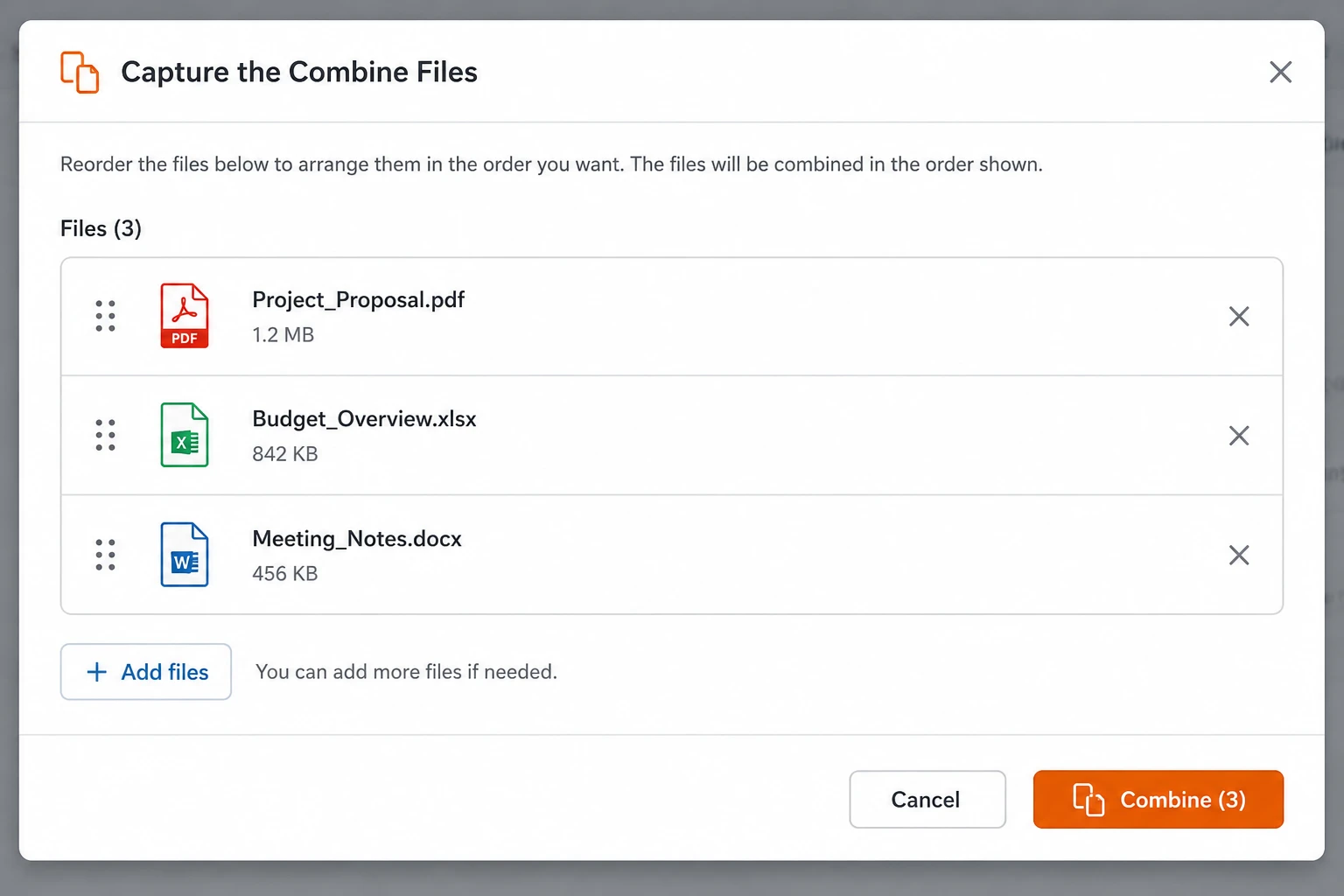
Why this method works well: Acrobat preserves the underlying structure of each PDF, so headings, internal hyperlinks, form fields, and accessibility tags survive the merge. The output is also a clean, single-stream PDF rather than a stitched-together file, which keeps the size manageable.
Quick tip: If a PDF is already open in Acrobat, the same option appears under File > Create > Combine Files into a Single PDF. The result is identical to the Tools menu route.
Limitations: Acrobat Pro requires a paid subscription. Acrobat Standard is sometimes bundled with corporate licenses but may need to be requested from IT. Acrobat Reader (the free version) does not include the Combine Files tool, so it cannot perform this method.
Combining Word, Excel, and Image Files Alongside PDFs
A useful detail about Acrobat's Combine Files tool: it accepts more than just PDF documents. Word documents, Excel spreadsheets, PowerPoint files, individual PNG and JPG image files, and other file types can be added to the same merge operation. Acrobat converts each non-PDF input into PDF pages on the fly, then combines everything into a single PDF document.
Steps:
- Open Combine Files as in Method 1.
- Drag in any mix of file types: PDFs, Word documents, Excel spreadsheets, PNG or JPG images, scans of paper documents, and existing PDFs.
- Acrobat shows a thumbnail preview of each file. Image files appear as one page each, while multi-page Word and Excel files expand into their full page count.
- Rearrange the thumbnails to set the desired order before merging.
- Click Combine. The output is a single PDF document containing all the source files in one document.
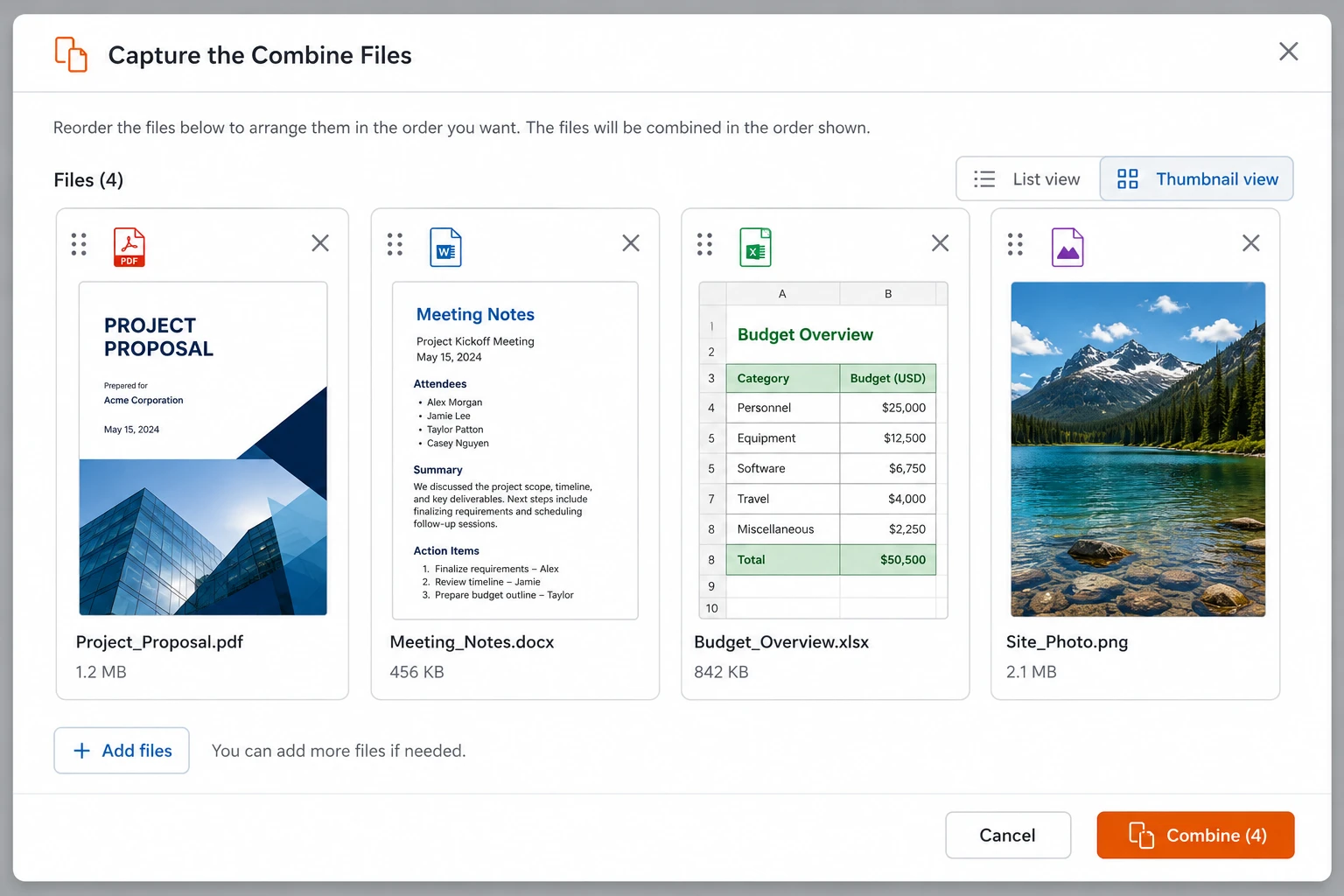
This is the fastest way to create PDFs from mixed source material, like building a contract bundle from a Word draft, supporting PNG screenshots, an Excel summary table, and existing signed PDFs. The end result is a single file in the desired order, ready to share or archive.
When the job is to merge PDFs from multiple folders into a single document, the same Combine Files tool can pull in multiple files from different locations in one operation. Drag in PDFs from one folder, drop in additional files from another, then arrange the multiple PDFs in the right sequence before clicking Combine. Acrobat handles assembling the files into one continuous document in a single pass.
Method 2: Drag and Drop in the Pages Panel
When one of the PDFs is already open in Acrobat and only a few extra pages need to be added, the drag-and-drop method inside the Pages panel is faster than launching a separate dialog. This works in both Acrobat Pro and the free Acrobat Reader DC, with some limits in the latter.
Steps:
- Open the destination PDF in Adobe Acrobat. This is the file other PDFs will be added to.
- Click the Page Thumbnails icon in the left navigation panel, or press Ctrl+Shift+P on Windows (Cmd+Option+P on Mac).
- Open File Explorer or Finder in a separate window and navigate to the second PDF.
- Drag the second PDF directly into the Page Thumbnails panel at the position where it should appear. A blue insertion line shows where the pages will land.
- Release the mouse to drop the file. Acrobat inserts every page from the dragged PDF.
- Repeat for each additional file.
- Save the merged file with Ctrl+S (Windows) or Cmd+S (Mac).
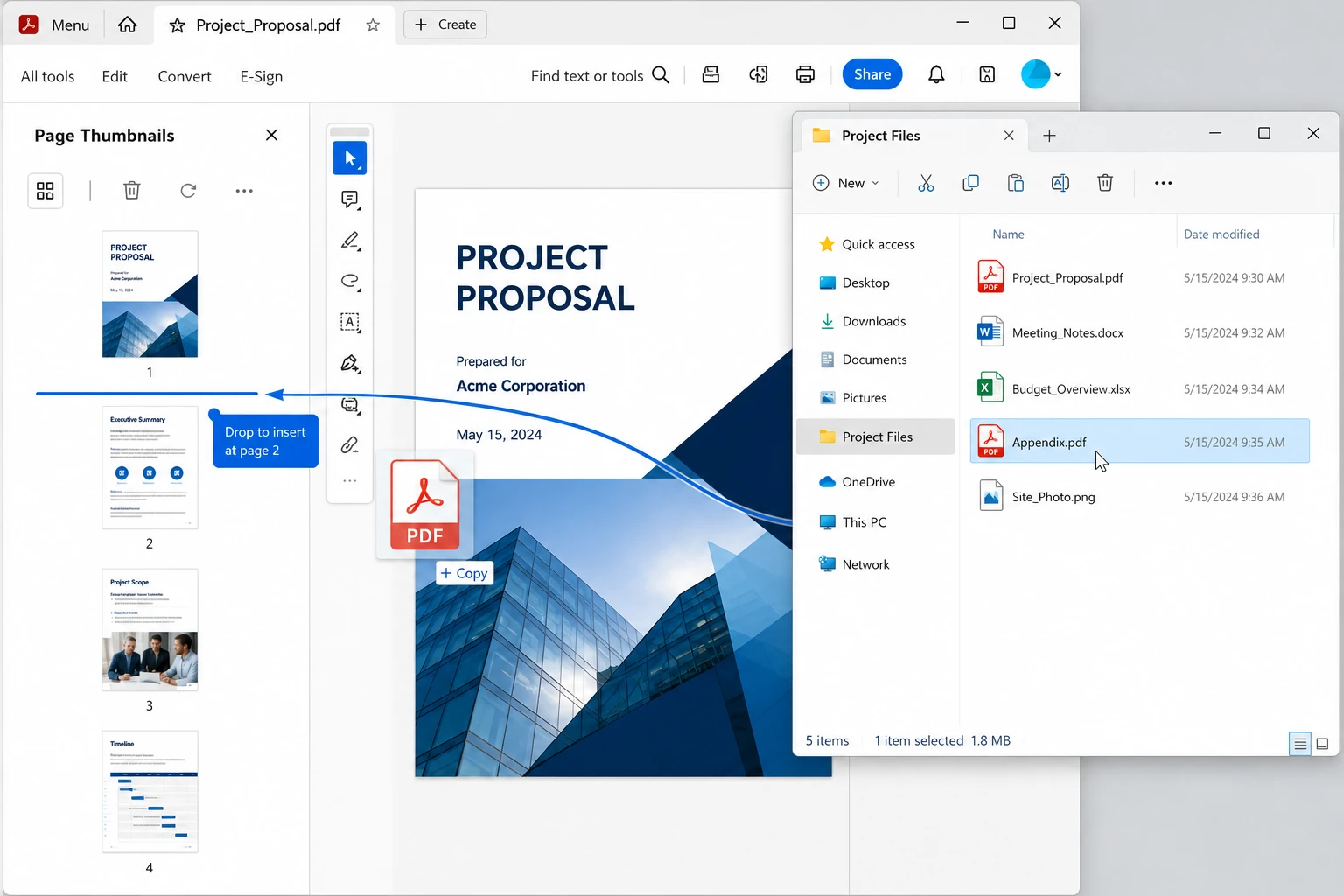
Best use case: Adding a cover letter to a contract, inserting a signature page at the end of an agreement, or appending appendix documents to a report. The method works for any number of files but feels most natural when adding one to three PDFs to an existing document.
Important: Make sure to insert files at the correct page position. Dropping a file at the top of the Thumbnails panel puts it at the start of the document. Dropping at the bottom appends it to the end. Dropping between pages inserts at that exact spot.
Method 3: Right-Click in File Explorer (Windows)
This method skips Acrobat's interface entirely. With Adobe Acrobat or Acrobat Reader DC installed on Windows, the right-click context menu in File Explorer offers a direct combine option.
Steps:
- Open File Explorer and navigate to the folder containing the PDFs.
- Hold Ctrl and click each PDF that should be included. The first file selected becomes the first page of the output.
- Right-click any of the selected files.
- Choose Combine files in Acrobat from the context menu.
- The Combine Files dialog opens with all selected PDFs already loaded.
- Reorder the thumbnails if needed, then click Combine.
- Save the merged file.
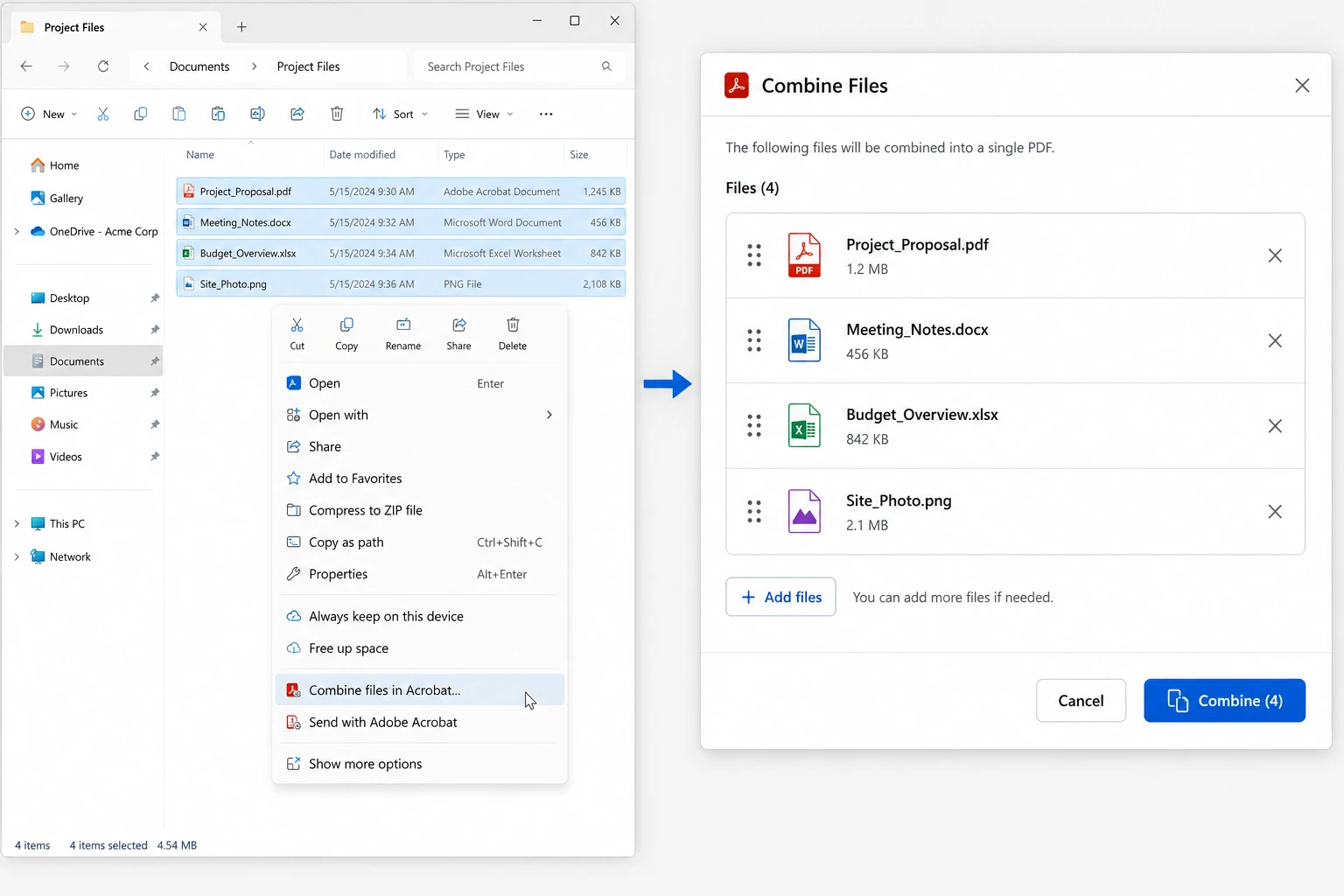
Note for Windows 11: The streamlined context menu in Windows 11 may show Show more options first. Click that to access the full legacy menu where the Acrobat option appears. Some users find it faster to map the legacy context menu as the default through a registry edit, but this is optional.
Why this is useful: Combining several PDFs scattered across a folder is faster from File Explorer than launching Acrobat first and adding files one by one through a dialog.
Mac users have one of the cleanest PDF merging experiences of any operating system, built directly into Preview. No downloads, no subscriptions, no licensing.
Steps:
- Open the first PDF in Preview by double-clicking it.
- From the menu bar, choose View > Thumbnails to display the sidebar.
- Open Finder and navigate to the second PDF.
- Drag the second PDF from Finder directly into the Thumbnails sidebar of the open PDF. Drop it at the position where the new pages should appear.
- Repeat for any additional PDFs.
- To save the combined file, choose File > Export as PDF and pick a name and location.
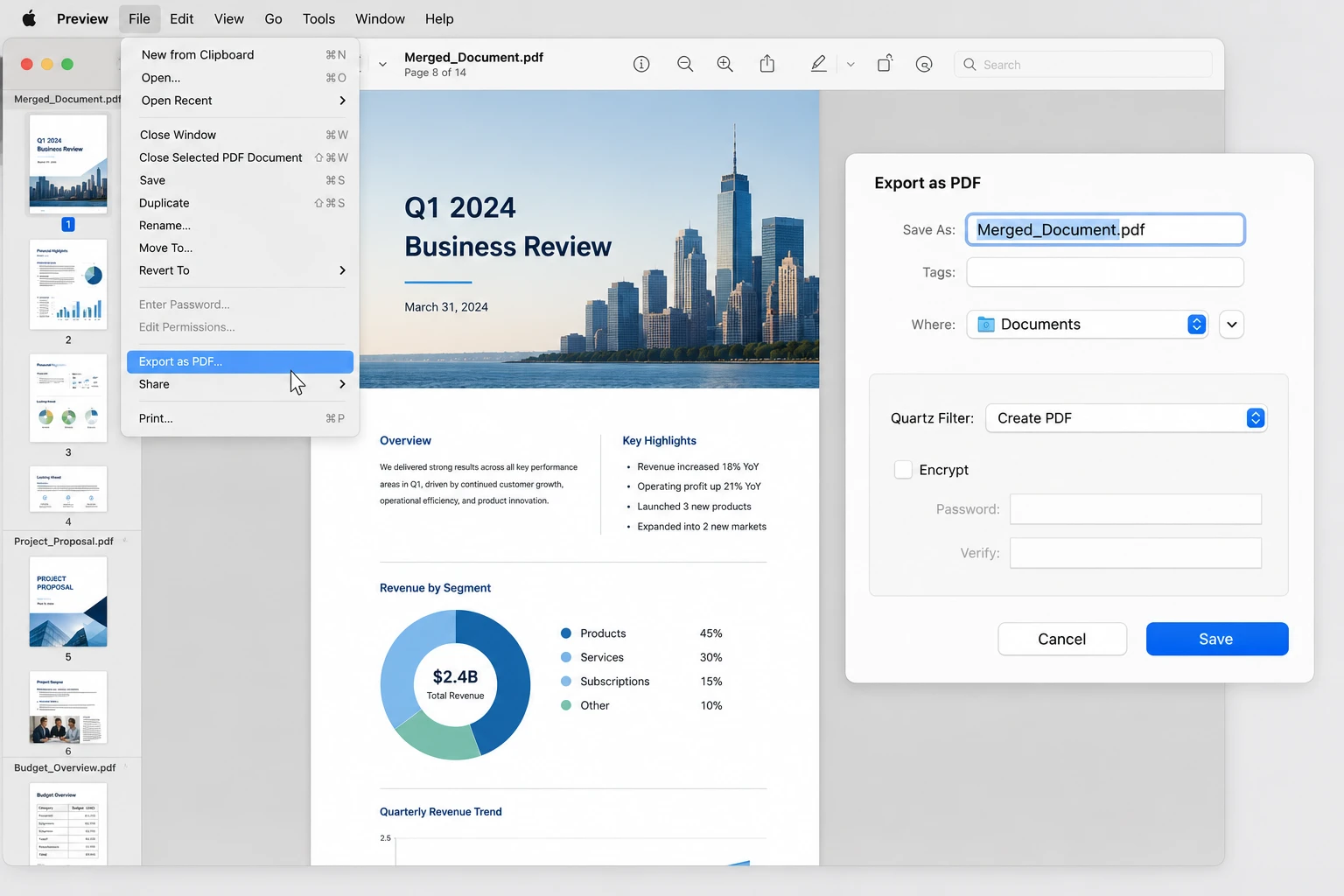
Critical note: Using File > Save instead of File > Export as PDF will overwrite the first PDF with the merged version. Always export to a new file unless overwriting the original is the goal. The macOS Versions feature (File > Revert To) can sometimes recover the original, but not always.
Tip for reordering and editing: Individual pages can be dragged within the Thumbnails sidebar to rearrange them anytime after the merge. To delete unwanted pages, select the thumbnail and press Delete. The cursor needs to grab the page itself, not just the page number underneath it. Preview also handles basic edits like rotating pages and adding signatures, which makes it convenient to review and adjust the document before exporting the final file.
When the goal is to merge PDF files online without installing anything, browser-based services handle the job in seconds. This is the typical situation on locked-down corporate laptops where new software cannot be installed, on shared computers in libraries or hotels, and on Chromebooks or other devices without desktop PDF apps. Reliable choices for combining all your files in one place include ILovePDF, SmallPDF, PDF24 Tools, and Sejda.
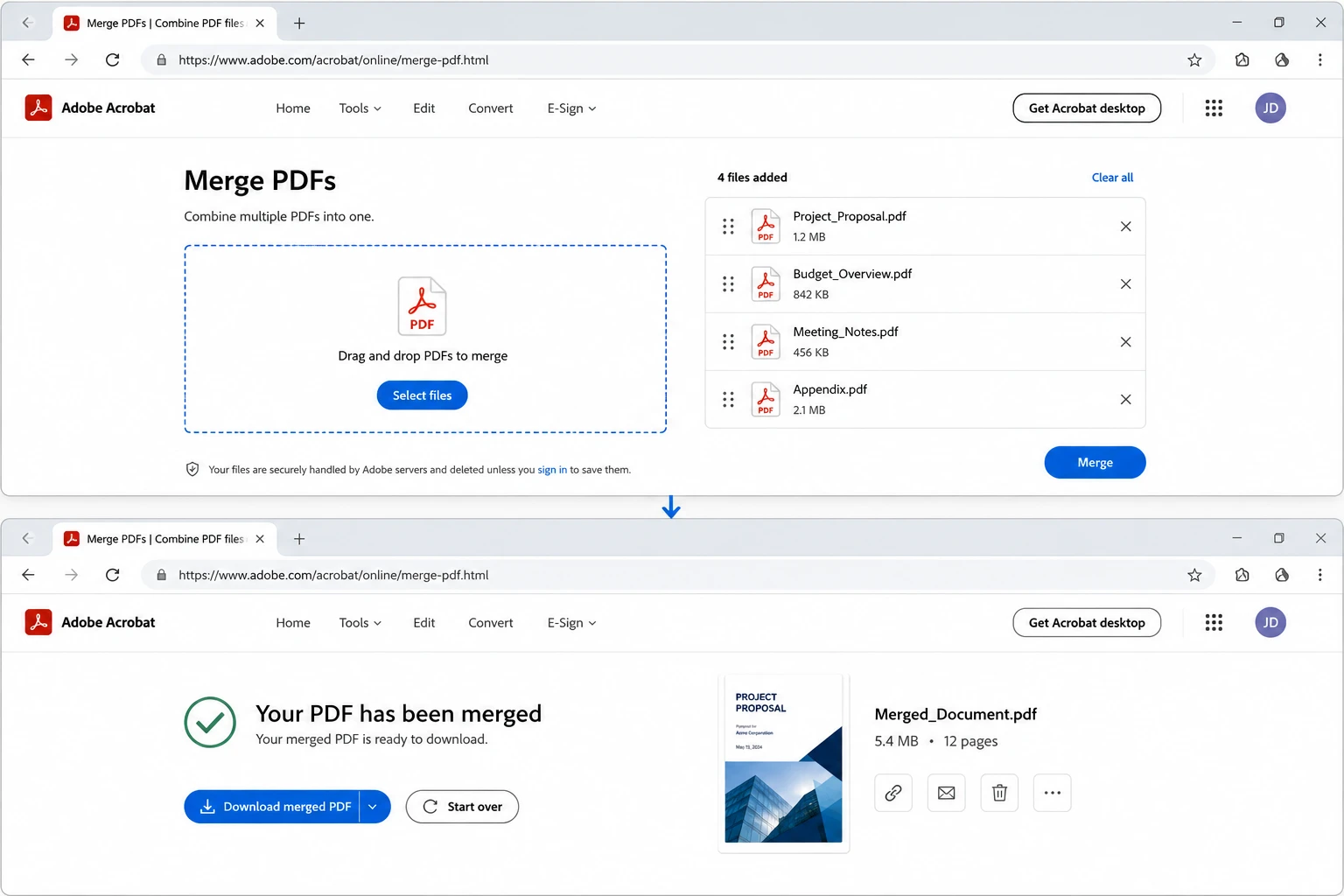
General workflow (varies slightly by tool):
- Open the merge tool's web page in any modern browser.
- Click Select PDF files (or the equivalent button) and pick the files from the local computer, or drag them onto the upload zone.
- Drag the file tiles to reorder them.
- Click Merge PDF or the equivalent button.
- Wait for processing. Files under 50 MB usually complete in five to fifteen seconds.
- Click Download to save the merged PDF.
Privacy considerations: Online merge PDF tools require an active internet connection and upload files to a third-party server before processing. For confidential contracts, financial reports, medical records, employee data, or any document containing personal or proprietary information, a local desktop tool is the safer way to securely merge sensitive material. Reputable services state that uploaded files are automatically deleted from their servers within one hour of completion, which addresses casual privacy concerns but does not pass strict compliance reviews in regulated industries. The upload itself crosses the public internet, so the file briefly leaves the secure environment of the user's computer regardless of how the provider chooses to store or delete it afterward. Companies in regulated industries (finance, healthcare, legal) typically prohibit online PDF tools by policy.
File size limits: Most free online tools cap merges at 100 MB total or twenty input files. Paid tiers raise these limits. For larger batches, desktop or programmatic options are usually faster anyway.
Method 6: Google Drive Add-On Integration
For teams already working inside Google Drive, third-party add-ons let PDF merging happen without leaving the browser. PDF Mergy, Smallpdf for Google Workspace, and ILovePDF for Google Drive all offer the same core feature.
Steps using PDF Mergy:
- Sign in to Google Drive.
- Click New > More > Connect more apps and search for PDF Mergy or another merger.
- Install the add-on and grant the necessary permissions.
- Right-click any PDF in Drive and choose Open with > PDF Mergy.
- In the Mergy interface, drag additional PDFs from Drive into the workspace.
- Reorder the files as needed and click Merge.
- The merged file saves back to Google Drive automatically, usually in the same folder as the original.
Best for: Distributed teams that share PDFs through Drive and need every team member to merge files the same way without installing desktop software. Also useful for users on Chromebooks or other devices where desktop PDF apps are not an option.
Watch out for permissions: Add-ons request access to Drive files. Review the permission scope before installing, especially on company-managed Google accounts. Some IT departments restrict third-party add-ons by policy.
Method 7: PDFsam Basic (Free Desktop Software)
PDFsam Basic is a free, open-source desktop merge PDF tool that handles PDF merging, splitting, rotating, and extracting individual pages on Windows, Mac, and Linux. The software installs on any device in under a minute and runs entirely offline, which makes it a strong choice for environments without a stable internet connection or with strict policies against online tools. For users who need to combine PDF files frequently but do not have Acrobat, PDFsam Basic is the standard recommendation.
Steps:
- Download PDFsam Basic from the official website and install it.
- Open PDFsam and click the Merge module.
- Click Add to load PDFs, or drag files into the file list.
- Use the up and down arrows to reorder the files. Files at the top appear first in the merged document.
- (Optional) Use the page range column to include only specific pages from each file.
- Choose the output location at the bottom of the window.
- Click Run to perform the merge.
Why this is worth knowing: PDFsam Basic is genuinely free with no upsell for the merge function, runs entirely offline, supports password-protected PDFs (with the password entered), and handles batches of hundreds of files without performance issues. The interface is dated, but it works.
Limitations: The free version does not preserve all advanced features like complex form fields or some types of digital signatures. For documents with heavy interactivity, Acrobat is the safer choice.
Method 8: Print to PDF Workaround (Last Resort)
When every other method fails (corrupted file, unusual encryption, locked-down corporate device with no PDF tools allowed), the print-to-PDF workaround can still produce a merged document.
Steps (Windows):
- Open the first PDF in any viewer, including Edge, Acrobat Reader, or a browser.
- Press Ctrl+P to open the Print dialog.
- Under Printer, select Microsoft Print to PDF.
- Click Print and save the file with a fresh name.
- Repeat for each PDF that needs to be combined.
- Use any of the above merge methods on the freshly-printed files.
Steps (Mac):
- Open the first PDF in Preview.
- Choose File > Print.
- Click the PDF dropdown in the bottom-left and select Save as PDF.
- Save with a fresh name and repeat for each file.
- Combine the new files using Preview's Thumbnails sidebar method described above.
How this helps: Printing to PDF rebuilds the file from scratch, which often resolves underlying issues with corrupted cross-reference tables, weird font embeddings, or unusual security settings that prevent normal merging.
Trade-off: Print-to-PDF flattens the document. Form fields stop being interactive, internal hyperlinks may break, and accessibility tags are lost. Use this method only when the alternatives have failed, and document the loss of interactivity if the file needs to remain accessible to screen readers or contain working form fields.
Common Issues and Troubleshooting
"The file appears to be damaged" or won't open during merging
Cause: One of the source PDFs has corruption in its cross-reference table, a common issue with files generated by older or non-compliant PDF software, or by certain mobile scanner apps.
Fix: Open the problem file in Adobe Acrobat. Go to File > Save As and save it under a new name. Acrobat rebuilds the PDF structure during the save. Try the merge again with the rebuilt copy. If Acrobat is not available, the print-to-PDF workaround in Method 8 achieves the same result.
Page order is wrong after merging
Cause: Files were added to the dialog in the wrong sequence, or the alphabetical sort order in File Explorer did not match the desired order. Files named "Document 1, Document 2... Document 10" sort as 1, 10, 2, 3 by default.
Fix: Rename files with leading zeros (Document 01, Document 02, Document 10) so they sort correctly. Most merge tools also support drag-to-reorder before the final merge step, so check the order in the preview pane before clicking Combine.
Password-protected PDFs cannot be combined
Cause: PDFs with permissions passwords (sometimes called owner passwords) often block extraction and merging operations, even when the file opens normally.
Fix: Open the protected PDF in Acrobat and enter the password. Go to File > Properties > Security and change the security setting to No Security. Save the unprotected version under a new name and use that copy in the merge. This requires knowing the password and having the legal right to modify the document.
Output file is enormous (over 100 MB)
Cause: PDFs with embedded high-resolution images, scanned pages, or duplicate fonts produce large merged files. Combining several scanned 50 MB documents quickly produces a 200 MB output.
Fix: Run the merged PDF through Acrobat's optimizer. Go to File > Save As Other > Reduced Size PDF, or use File > Save As Other > Optimized PDF for fine-grained control over image compression and font subsetting. Online tools like Smallpdf and ILovePDF offer compression as a separate step. PDFsam includes basic compression options.
Bookmarks disappear after merging
Cause: Some merge tools (especially older free ones, and the print-to-PDF workaround) strip bookmarks during the combine process.
Fix: Adobe Acrobat preserves bookmarks by default in the Combine Files workflow. If the merged file has lost them, open it in Acrobat and use the Bookmarks panel on the left to manually add bookmarks to important pages. For automated workflows that need bookmark preservation, programmatic libraries handle this without issue.
Cause: Combining flattens or duplicates form fields, especially when two source PDFs have fields with identical names. Two contracts both containing a "signature" field will collide during the merge.
Fix: Before merging, rename form fields in each source PDF so they are unique. Use Acrobat's Prepare Form tool to inspect and rename fields. As an alternative, flatten the form fields to plain text in any source PDFs that no longer need to remain interactive. Right-click a field, choose Flatten, and save.
Quality loss in scanned pages
Cause: Some merge methods, especially print-to-PDF, recompress images at lower quality to reduce file size.
Fix: Stick with Adobe Acrobat's Combine Files tool or Preview on Mac, which copy the original page content without recompression. Avoid print-to-PDF as a merging method for scanned documents where image quality matters.
Maximum file count or size limits
Cause: Free online tools impose limits (often twenty files or 100 MB) to encourage paid upgrades.
Fix: Use desktop software for larger merges. Acrobat handles hundreds of files per merge without issue. PDFsam Basic handles even more. For batches of thousands, programmatic tools described in the next section are the right fit.
Mac Preview overwrote the original file
Cause: Using File > Save in Preview overwrites the original PDF with the merged version instead of creating a new file.
Fix: Always use File > Export as PDF to save the merged document as a new file. If the original was overwritten, check Time Machine backups or the macOS Versions feature (File > Revert To) to restore the previous version. Both depend on the system being configured to keep version history.
Digital signatures break or show as invalid
Cause: PDFs containing digital signatures often invalidate the signature when the document is modified, including by merging.
Fix: Some signatures allow document assembly under their permission policy and survive the merge. Others do not. If signatures must be preserved, sign the document only after merging, not before. For documents that need signatures preserved through a merge, consult the original signer about the permission policy used.
Finishing Touches: Watermarks, Page Numbers, and Final Review
Once the merged file is saved, take a quick moment to review the result before sharing. Acrobat, Preview, and PDFsam all support adding watermarks (a date stamp, "Confidential" overlay, or company logo) to the combined document. Page numbers can be inserted across the full merged file in a single pass. These finishing touches are easier to apply after the merge than before, since the page count and layout are settled.
Standard checks before sending the final file to anyone:
- All expected pages appear in the desired order.
- Bookmarks and hyperlinks still work.
- File size is reasonable for email or upload limits.
- Sensitive content has not been accidentally included.
- Watermarks render correctly on every page.
- The output quality matches the source documents (especially for scanned pages).
- Page numbers are continuous across the full document.
Acrobat's watermark feature lives under Tools > Edit PDF > Watermark > Add. The same tool offers headers, footers, and Bates numbering for legal documents. Online tools and PDFsam offer watermark functions through their respective interfaces, with slightly less control over positioning and opacity than Acrobat. Files can be opened anytime to add or remove watermarks, so this step does not need to happen in the same session as the merge.
Automating PDF Merging at Scale (For Developers)
The eight methods above work well for occasional merging. Teams that need to combine PDFs on a recurring basis (invoices, contracts, monthly reports, compliance packets, customer statements) typically outgrow manual workflows quickly. A finance department merging 500 invoices into a single audit packet every month does not want to drag files into Acrobat 500 times.
For automation in .NET applications, IronPDF provides a programmatic merge function in a few lines of C#:
using IronPdf;
var pdf1 = PdfDocument.FromFile("invoice-january.pdf");
var pdf2 = PdfDocument.FromFile("invoice-february.pdf");
var pdf3 = PdfDocument.FromFile("invoice-march.pdf");
var merged = PdfDocument.Merge(pdf1, pdf2, pdf3);
merged.SaveAs("Q1-invoices.pdf");
using IronPdf;
var pdf1 = PdfDocument.FromFile("invoice-january.pdf");
var pdf2 = PdfDocument.FromFile("invoice-february.pdf");
var pdf3 = PdfDocument.FromFile("invoice-march.pdf");
var merged = PdfDocument.Merge(pdf1, pdf2, pdf3);
merged.SaveAs("Q1-invoices.pdf");
C#
The library handles bookmark preservation, form field deduplication, password-protected files, and optimization automatically. Larger workflows can scan a folder, sort by filename or date, and merge the entire set in a loop.
Final Thoughts
Uniting PDF files is one of those office tasks that should take thirty seconds, and with the right method, it does. Adobe Acrobat's Combine Files tool is the gold standard for desktop merging because it preserves the document structure that other methods often strip when they merge PDF files. Mac users get a similarly clean experience inside Preview, with no extra software needed to combine multiple files into one PDF. Browser-based tools cover the gap when no software is installed, with the privacy trade-off that files travel through a third-party server. For sensitive documents or recurring workflows, sticking to a local desktop tool keeps the process fast, private, and consistent.
When manual merging starts to eat real time, the move to programmatic merging through a library like IronPDF usually pays for itself within a few weeks. The same logic applies to other PDF operations across an organization: splitting, extracting text, converting HTML or Word documents to PDF, adding watermarks, and filling forms all benefit from the same automation gains once the volume crosses a certain threshold.
Whichever method fits the situation, the principle stays the same. Choose the tool that preserves the parts of the document that matter (bookmarks, form fields, signatures, page quality) and avoids unnecessary recompression along the way. Most workflows run smoothly with Acrobat, Preview, or PDFsam Basic, and the troubleshooting fixes above resolve almost every situation where a merge refuses to cooperate.