using IronPdf;

// Disable local disk access or cross-origin requests
Installation.EnableWebSecurity = true;

// Instantiate Renderer
var renderer = new ChromePdfRenderer();

// Create a PDF from a HTML string using C#
var pdf = renderer.RenderHtmlAsPdf("<h1>Hello World</h1>");

// Export to a file or Stream
pdf.SaveAs("output.pdf");

// Advanced Example with HTML Assets
// Load external html assets: Images, CSS and JavaScript.
// An optional BasePath 'C:\site\assets\' is set as the file location to load assets from
var myAdvancedPdf = renderer.RenderHtmlAsPdf("<img src='icons/iron.png'>", @"C:\site\assets\");
myAdvancedPdf.SaveAs("html-with-assets.pdf");
using IronPdf;// Disable local disk access or cross-origin requestsInstallation.EnableWebSecurity = true;// Instantiate Renderervar renderer = new ChromePdfRenderer();// Create a PDF from a HTML string using C#var pdf = renderer.RenderHtmlAsPdf("<h1>Hello World</h1>");// Export to a file or Streampdf.SaveAs("output.pdf");// Advanced Example with HTML Assets// Load external html assets: Images, CSS and JavaScript.// An optional BasePath 'C:\site\assets\' is set as the file location to load assets fromvar myAdvancedPdf = renderer.RenderHtmlAsPdf("<img src='icons/iron.png'>", @"C:\site\assets\");myAdvancedPdf.SaveAs("html-with-assets.pdf");
PDF files are widely used for reports, manuals, contracts, and academic documents. However, when these files become long, finding specific information manually can be time consuming. That's where PDF search functionality becomes essential.
Whether you are looking for a keyword, words or phrases, or specific data inside a document, there are several reliable ways to search a PDF efficiently.
This guide explains the most effective methods for searching text in a PDF document using built in tools, browser features, and advanced [programmatic solutions](/blog/using-ironpdf/csharp-find-text-in-pdf/).
## Method 1: Use Built In PDF Reader Search (Ctrl + F)
This is the fastest and most commonly used method.
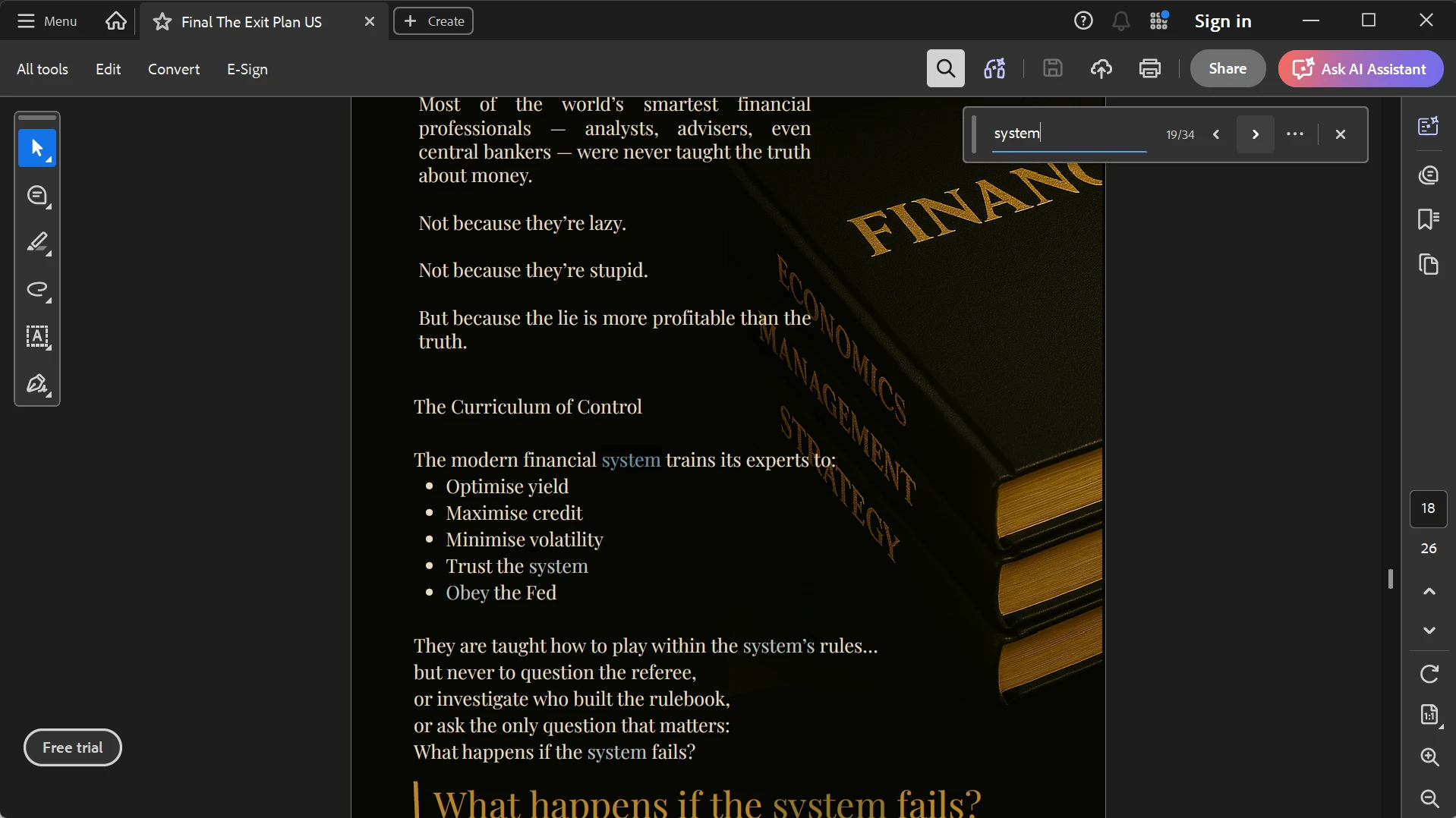
1. Open your PDF in a PDF reader such as Adobe Acrobat or any browser.
2. Press Ctrl + F (Windows) or Command + F (Mac).
3. Type the word or phrase you want to find.
4. Press Enter.
5. Use Next and Previous arrows to navigate search results.
### When This Works Best
This method is ideal for quick searches inside small to medium sized PDFs to match exact word.
### When to Use This
* Searching keywords in reports
* Finding terms in contracts
* Locating data in study materials
* Quick document navigation
### When Not to Use This
* Scanned PDFs without text
* Very large documents with complex indexing needs
* You need advanced search options or wildcard searches
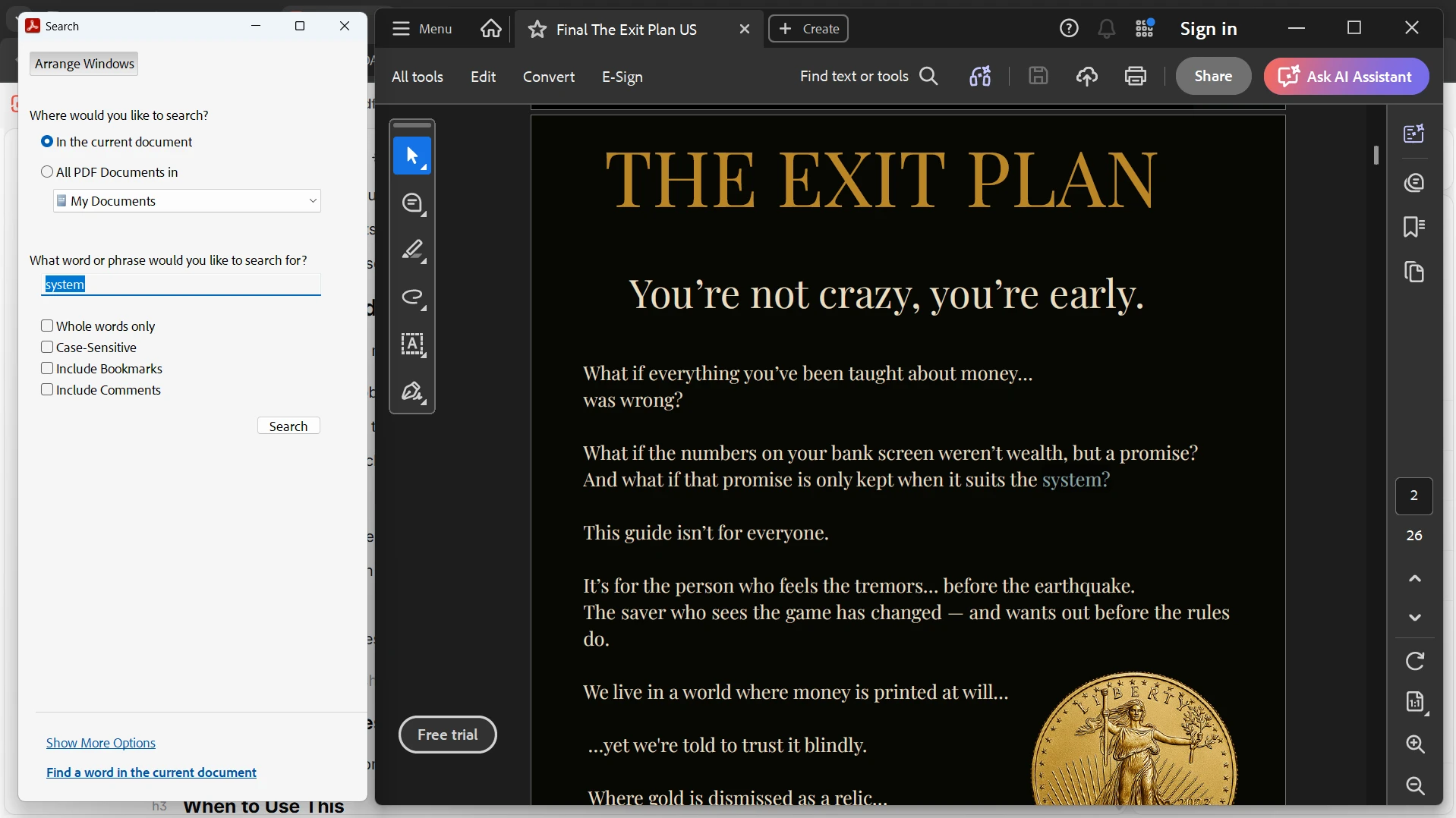
## Method 2: Use Advanced Search Feature in Adobe Acrobat Reader
Adobe Acrobat provides a more powerful search tool for large or complex PDFs.
1. Open the PDF in Adobe Acrobat.
2. Press Shift + Ctrl + F to open advanced search.
3. Enter your term search bar.
4. Choose to search:
* Current document
* Multiple PDFs in a folder
5. Click Search.
6. Review highlighted results.
### When This Works Best
This method works best for large documents or batch searching across multiple files.
### When to Use This
* Legal documents
* Research papers
* Multi file searches
* Corporate reports
### When Not to Use This
* Simple single page PDFs
* Quick one time searches
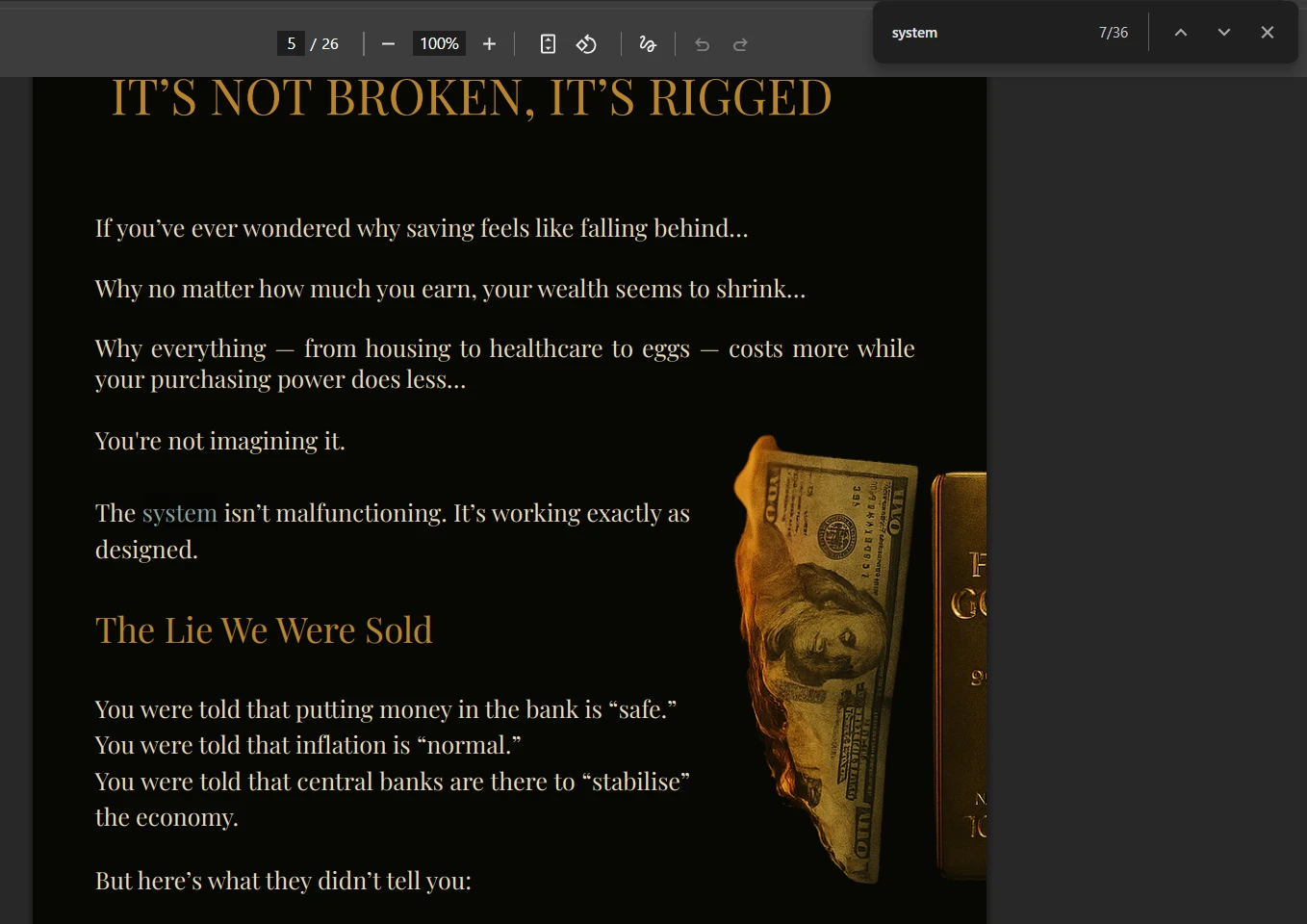
## Method 3: Search PDF in Web Browsers
Most modern browsers like Chrome and Edge can open and search PDFs directly.
### Steps
1. Open the PDF in your browser.
2. Press Ctrl + F.
3. Type your search term.
4. Navigate through highlighted matches.
### When This Works Best
This is useful when you do not have a dedicated PDF reader installed.
### When to Use This
* Quick viewing
* Online PDFs
* Lightweight document access
* Temporary file review
### When Not to Use This
* Large technical PDFs
* Scanned or image based PDFs
## Method 4: Search Scanned PDFs Using OCR
Scanned PDFs are images, so they require OCR (Optical Character Recognition) before searching.
1. Open the PDF in an OCR enabled tool (like Adobe Acrobat or online OCR tools).
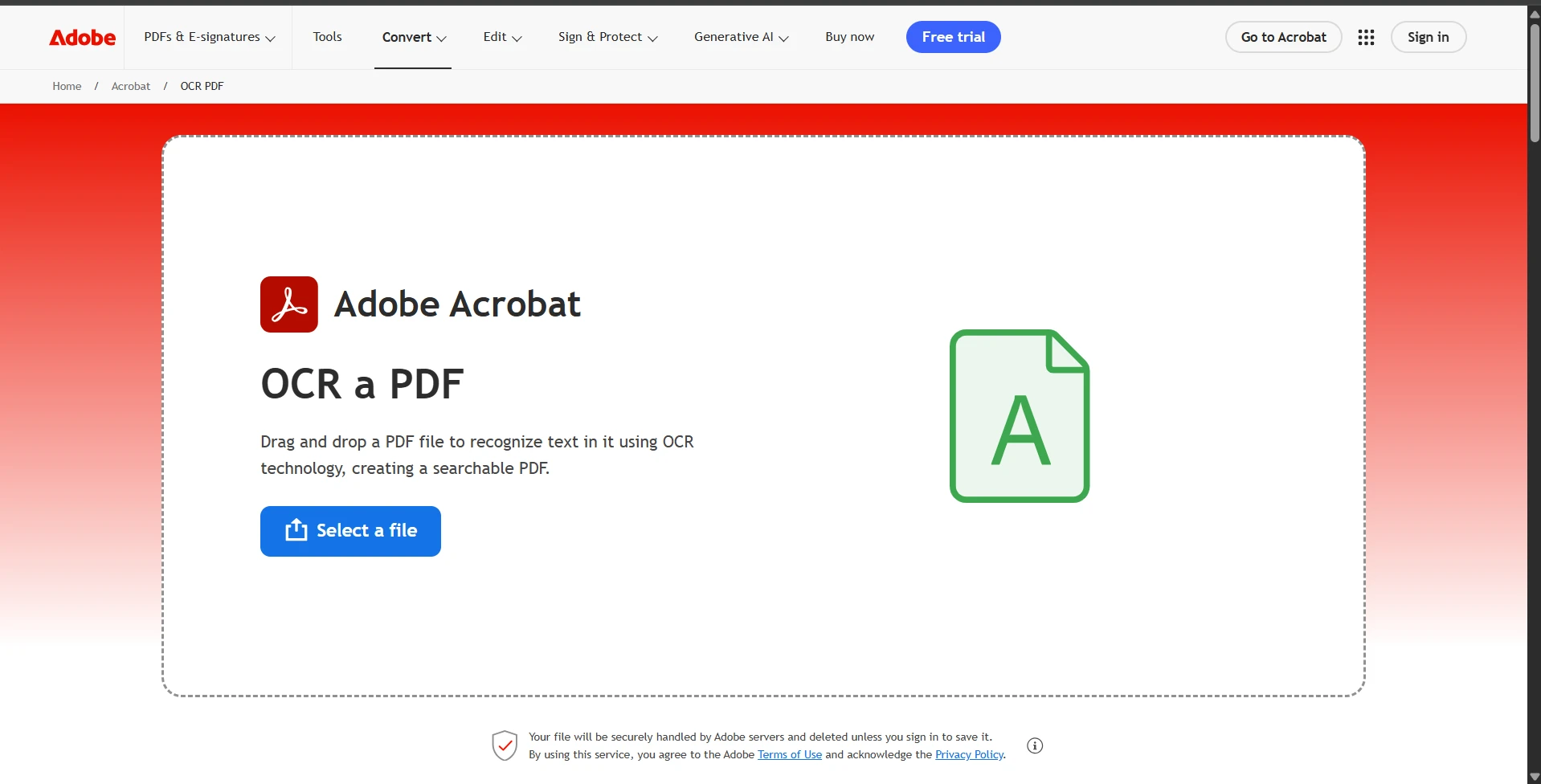
2. Run text recognition on the document.
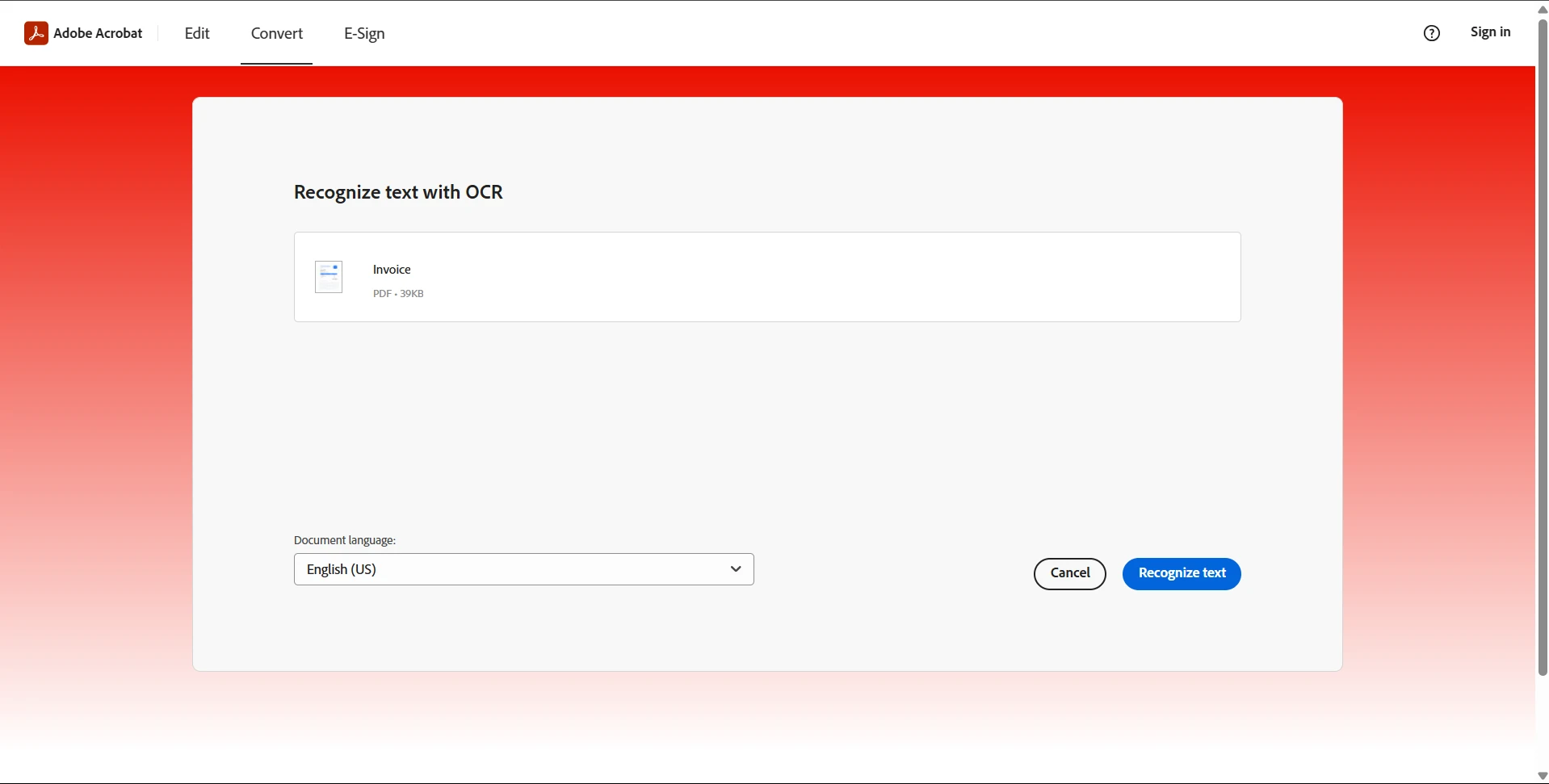
3. Save or download the processed file.
4. Use Ctrl + F to search normally.
### When This Works Best
This method is essential for image based or scanned documents.
### When to Use This
* Scanned books
* Printed document archives
* Image based PDFs
* Historical records
### When Not to Use This
* Already text searchable PDFs
* Small digital documents
* Searching pdf indexes
## Common Issues and Troubleshooting
### Why can't I find text in my PDF using Ctrl + F?
This usually happens when the PDF is image based.
Fix:
* Run OCR on the document
* Convert scanned PDF into searchable text
* Use Adobe Acrobat OCR tools
### Why are search results incomplete in my PDF?
This often occurs due to encoding or formatting issues or not matched with search criteria.
Fix:
* Try advanced search mode
* Copy text directly to verify
* Use a different PDF reader
### Why does search not work in some PDFs?
Some PDFs are protected or flattened.
Fix:
* Check if text is selectable
* Use OCR if needed
* Ensure file is not restricted
### Why is PDF search slow in large documents?
Large files take longer to index and scan.
Fix:
* Use advanced search tools
* Break document into sections
* Use optimized PDF readers
## Choosing the Right Method
Different situations require different search approaches.
| Scenario | Best Method |
| --- | --- |
| Quick keyword search | Ctrl + F |
| Large documents | Adobe advanced search |
| Browser viewing | Browser search |
| Scanned PDFs | OCR method |
| Automated processing | Programmatic search |
## For Developers: Search PDF Content Using IronPDF
In real world applications, PDFs are often processed at scale in document management systems, invoice processing tools, and enterprise search platforms. Manual searching is not practical in these cases.
This is where [IronPDF](https://ironpdf.com), a .NET PDF library from Iron Software, becomes useful. It allows developers to extract text and search within PDFs programmatically.
### Example: Searching Text in a PDF Using IronPDF
```cs
using IronPdf;
using System;
PdfDocument pdf = PdfDocument.FromFile("document.pdf");
string text = pdf.ExtractAllText();
if (text.Contains("Invoice"))
{
    Console.WriteLine("Keyword found in PDF");
}
```
This allows applications to quickly scan and locate keywords inside PDF files.
### What You Can Do with IronPDF
* [Extract](/examples/reading-pdf-text/) text from PDFs
* [Find text and replace](/examples/csharp-replace-text-in-pdf/) programmatically
* Process scanned documents with OCR support
* Build document search systems
* Adding and removing [attachments](/examples/csharp-add-attachment-to-pdf/)
## Installation
Install IronPDF via NuGet Package Manager:
```shell
:ProductInstall
```
## Benefits of Using IronPDF for PDF Search
* Enables automated document search
* Handles large scale PDF processing
* Supports OCR based extraction
* Works in server environments
* Integrates with .NET applications
## Conclusion
Searching a PDF is simple when using the right method. For everyday use, Ctrl + F or browser search is usually enough. For large or complex documents, advanced search tools and OCR provide better accuracy.
For developers and businesses, IronPDF offers a powerful way to search and analyze PDF content programmatically, enabling scalable document processing and automation.
With the right approach, you can quickly locate any information inside a PDF without wasting time scrolling through pages.
PDF files are widely used for reports, manuals, contracts, and academic documents. However, when these files become long, finding specific information manually can be time consuming. That's where PDF search functionality becomes essential.
Whether you are looking for a keyword, words or phrases, or specific data inside a document, there are several reliable ways to search a PDF efficiently.
This guide explains the most effective methods for searching text in a PDF document using built in tools, browser features, and advanced programmatic solutions.
Method 1: Use Built In PDF Reader Search (Ctrl + F)
This is the fastest and most commonly used method.
Open your PDF in a PDF reader such as Adobe Acrobat or any browser.
Press Ctrl + F (Windows) or Command + F (Mac).
Type the word or phrase you want to find.
Press Enter.
Use Next and Previous arrows to navigate search results.
When This Works Best
This method is ideal for quick searches inside small to medium sized PDFs to match exact word.
When to Use This
Searching keywords in reports
Finding terms in contracts
Locating data in study materials
Quick document navigation
When Not to Use This
Scanned PDFs without text
Very large documents with complex indexing needs
You need advanced search options or wildcard searches
Method 2: Use Advanced Search Feature in Adobe Acrobat Reader
Adobe Acrobat provides a more powerful search tool for large or complex PDFs.
Open the PDF in Adobe Acrobat.
Press Shift + Ctrl + F to open advanced search.
Enter your term search bar.
Choose to search:
Current document
Multiple PDFs in a folder
Click Search.
Review highlighted results.
When This Works Best
This method works best for large documents or batch searching across multiple files.
When to Use This
Legal documents
Research papers
Multi file searches
Corporate reports
When Not to Use This
Simple single page PDFs
Quick one time searches
Method 3: Search PDF in Web Browsers
Most modern browsers like Chrome and Edge can open and search PDFs directly.
Steps
Open the PDF in your browser.
Press Ctrl + F.
Type your search term.
Navigate through highlighted matches.
When This Works Best
This is useful when you do not have a dedicated PDF reader installed.
When to Use This
Quick viewing
Online PDFs
Lightweight document access
Temporary file review
When Not to Use This
Large technical PDFs
Scanned or image based PDFs
Method 4: Search Scanned PDFs Using OCR
Scanned PDFs are images, so they require OCR (Optical Character Recognition) before searching.
Open the PDF in an OCR enabled tool (like Adobe Acrobat or online OCR tools).
Run text recognition on the document.
Save or download the processed file.
Use Ctrl + F to search normally.
When This Works Best
This method is essential for image based or scanned documents.
When to Use This
Scanned books
Printed document archives
Image based PDFs
Historical records
When Not to Use This
Already text searchable PDFs
Small digital documents
Searching pdf indexes
Common Issues and Troubleshooting
Why can't I find text in my PDF using Ctrl + F?
This usually happens when the PDF is image based.
Fix:
Run OCR on the document
Convert scanned PDF into searchable text
Use Adobe Acrobat OCR tools
Why are search results incomplete in my PDF?
This often occurs due to encoding or formatting issues or not matched with search criteria.
Fix:
Try advanced search mode
Copy text directly to verify
Use a different PDF reader
Why does search not work in some PDFs?
Some PDFs are protected or flattened.
Fix:
Check if text is selectable
Use OCR if needed
Ensure file is not restricted
Why is PDF search slow in large documents?
Large files take longer to index and scan.
Fix:
Use advanced search tools
Break document into sections
Use optimized PDF readers
Choosing the Right Method
Different situations require different search approaches.
Scenario
Best Method
Quick keyword search
Ctrl + F
Large documents
Adobe advanced search
Browser viewing
Browser search
Scanned PDFs
OCR method
Automated processing
Programmatic search
For Developers: Search PDF Content Using IronPDF
In real world applications, PDFs are often processed at scale in document management systems, invoice processing tools, and enterprise search platforms. Manual searching is not practical in these cases.
This is where IronPDF, a .NET PDF library from Iron Software, becomes useful. It allows developers to extract text and search within PDFs programmatically.
Example: Searching Text in a PDF Using IronPDF
using IronPdf;using System;PdfDocument pdf = PdfDocument.FromFile("document.pdf");string text = pdf.ExtractAllText();if (text.Contains("Invoice")){Console.WriteLine("Keyword found in PDF");}
using IronPdf;
using System;
PdfDocument pdf = PdfDocument.FromFile("document.pdf");
string text = pdf.ExtractAllText();
if (text.Contains("Invoice"))
{
    Console.WriteLine("Keyword found in PDF");
}
C#
This allows applications to quickly scan and locate keywords inside PDF files.
Searching a PDF is simple when using the right method. For everyday use, Ctrl + F or browser search is usually enough. For large or complex documents, advanced search tools and OCR provide better accuracy.
For developers and businesses, IronPDF offers a powerful way to search and analyze PDF content programmatically, enabling scalable document processing and automation.
With the right approach, you can quickly locate any information inside a PDF without wasting time scrolling through pages.
Curtis Chau holds a Bachelor’s degree in Computer Science (Carleton University) and specializes in front-end development with expertise in Node.js, TypeScript, JavaScript, and React. Passionate about crafting intuitive and aesthetically pleasing user interfaces, Curtis enjoys working with modern frameworks and creating well-structured, visually appealing manuals.