How to Convert PNG to PDF: 7 Methods That Actually Work
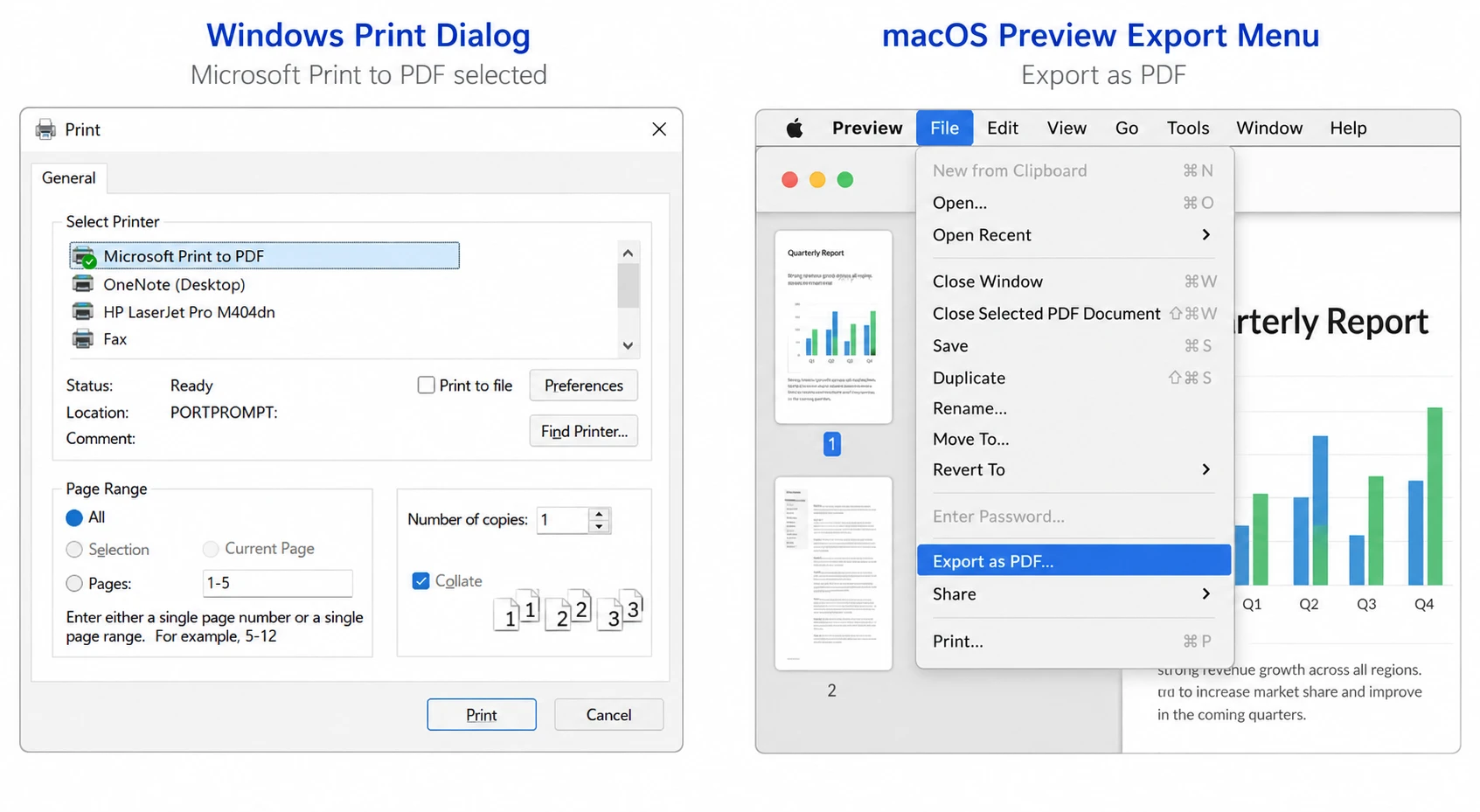
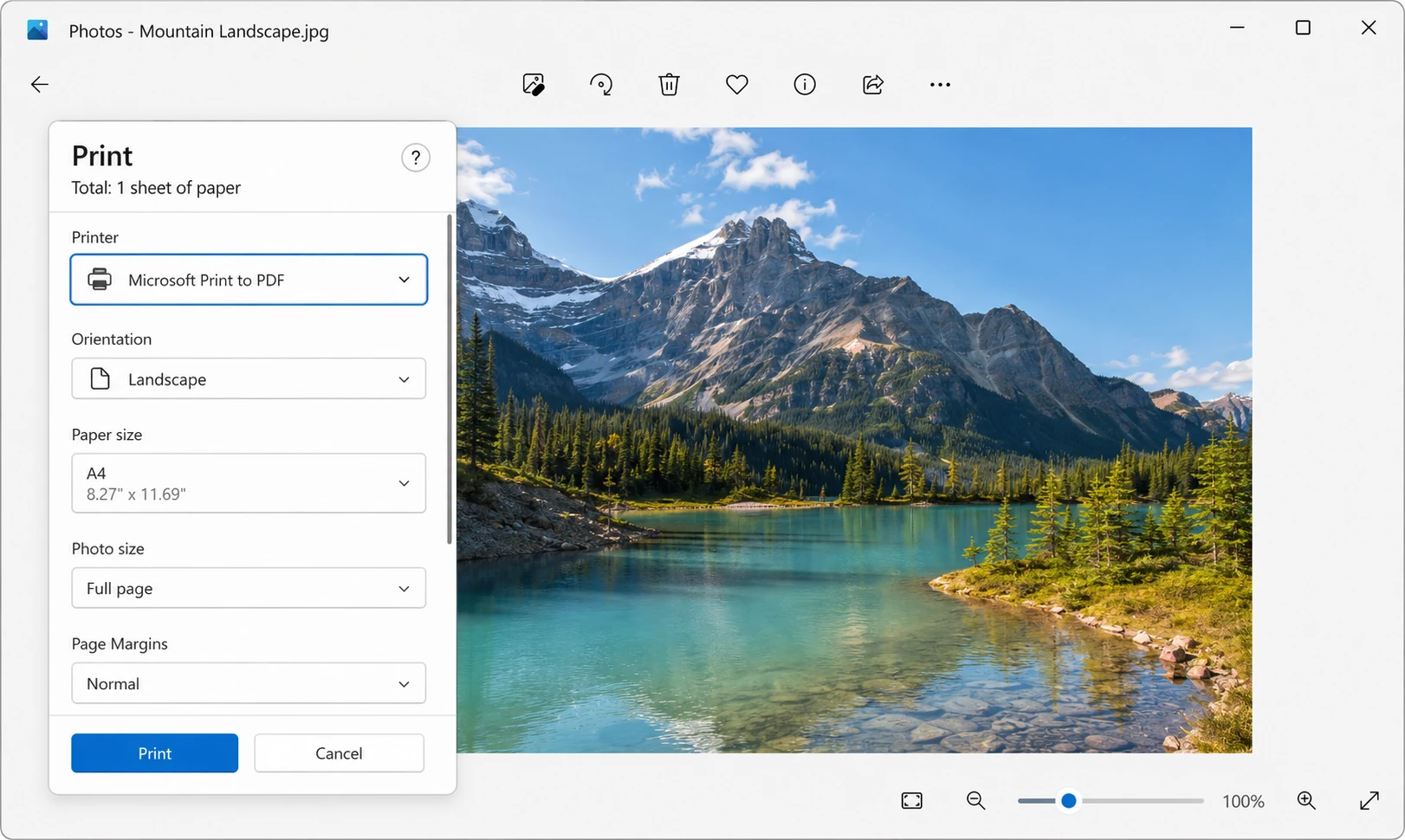
Need to know how to convert PNG to PDF right now? The fastest way on Windows is to open the PNG image in the Photos app, press Ctrl + P, select Microsoft Print to PDF as the printer, and click Print. A save dialog appears on screen, name the new PDF file, choose a folder, and the conversion is complete in just a few clicks, taking under five seconds.
On a Mac, the process to convert PNG to PDF is even quicker. Open the PNG file in Preview, go to File → Export as PDF, name the document, and save. No third-party software, no online upload required, no waiting.
These two methods handle roughly 80% of everyday PNG to PDF conversions, but they're not the only options, and they're not always the best fit. Converting a stack of screenshots into a single PDF file for a client report calls for a different approach than turning one image into a PDF for a vendor portal. The rest of this guide walks through every reliable method to convert PNG files to PDF on Windows, Mac, mobile device, and the browser, plus the edge cases that trip people up: transparent backgrounds, multiple images, image quality loss, and converting multiple PNGs in a batch. For related conversion tasks, see the guides on how to convert JPG to PDF, how to convert JPG to PDF, and how to compress PDF files for everyday document workflows.
Why Convert PNG Files to PDF in the First Place?
PNG is a fantastic image format for screenshots and graphics. It preserves transparency, handles sharp edges beautifully, and keeps text inside images crisp. But PNG files have limitations that PDF documents solve.
PDF files are designed for sharing and printing. They look identical on every device, every operating system, and every printer. PNG images can render slightly differently depending on the viewer software, and they can't combine multiple PNG files into a single PDF file without external tools. PDFs also support digital signatures, password protection, and form fields, which PNGs do not.
Common reasons people convert PNG images to PDF include preparing screenshots for documentation, combining multiple PNGs into a single PDF document, archiving images in a format with broader compatibility, sending professional-looking PDF documents by email, and meeting upload requirements for portals that only accept PDFs. For more on professional document workflows, see the tutorials on how to add a digital signature to a PDF, how to password protect a PDF, and how to create a fillable PDF form which all build on the foundational skill of getting your image files into PDF format first.
Method 1: The Windows Photos App (Fastest PNG to PDF Converter on Windows)
Windows 10 and Windows 11 both include a built-in Photos app that opens PNG files by default. Combined with Microsoft Print to PDF, this is the fastest way to convert PNG to PDF without installing anything.
Steps:
- Right-click the PNG file and select Open with → Photos (or just double-click if Photos is already the default).
- Press Ctrl + P to open the print dialog.
- In the Printer dropdown, select Microsoft Print to PDF.
- Adjust paper size and orientation if needed (Letter or A4 for documents, custom for non-standard sizes).
- Click Print.
- A save dialog appears. Name the new PDF, choose a folder, and click Save.
The whole process to convert PNG to PDF takes under ten seconds once you've done it a couple of times.
Method 2: Microsoft Word (Best for Adding Text or Combining Multiple Images)
When you need to add captions, headers, or combine several PNG files into one PDF, Microsoft Word handles it elegantly. This method is popular for creating documentation, presentations, and reports from image files.
Steps:
- Open a new Word document.
- Go to Insert → Pictures → This Device.
- Select your PNG file (or multiple PNG files using Ctrl+Click).
- Resize and arrange the images as needed.
- Add any text, headers, or captions.
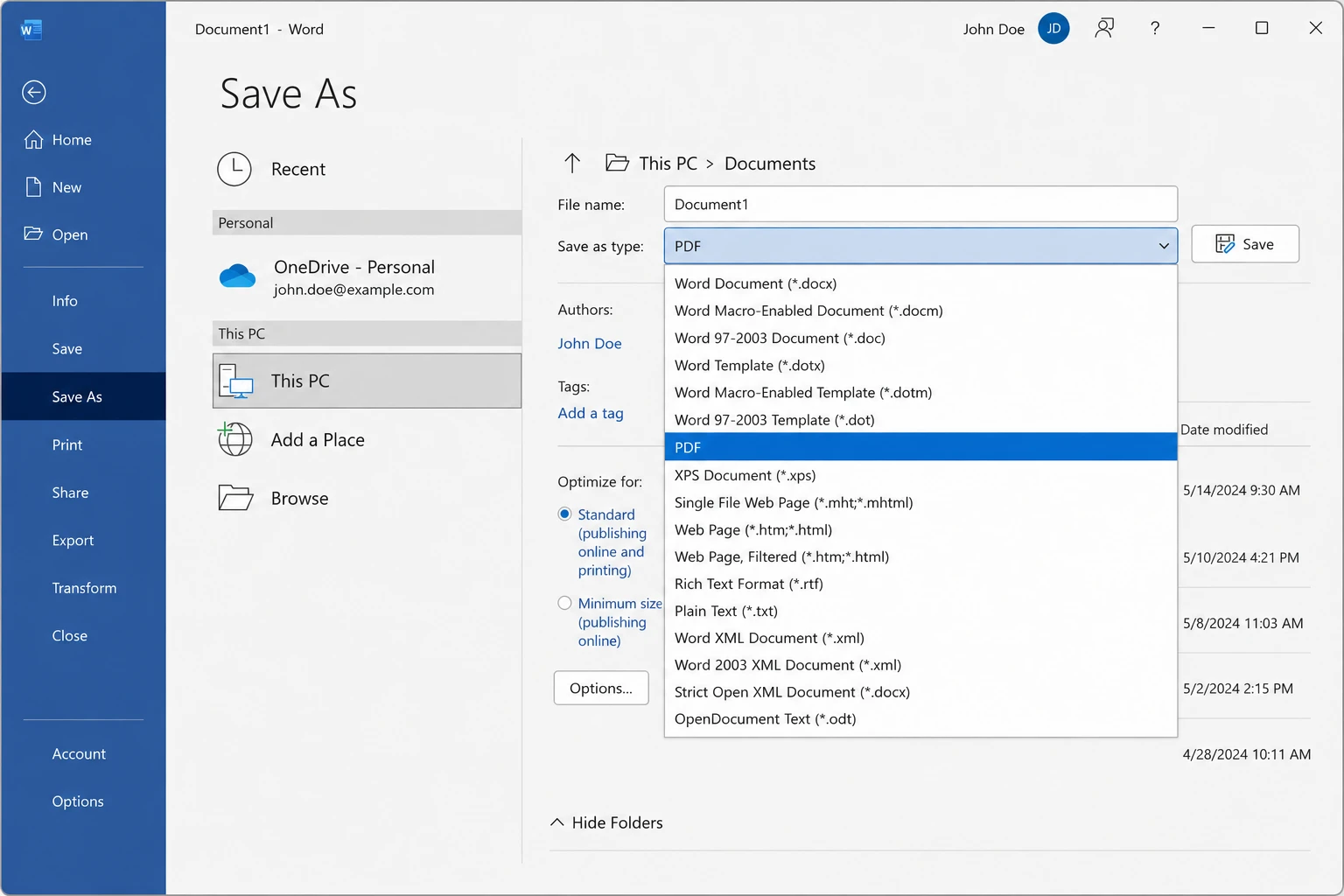
- Go to File → Save As.
- In the Save as type dropdown, select PDF (*.pdf).
- Click Save.
Word automatically handles page breaks, image positioning, and text wrapping. The converted PDF retains everything in editable form, which is useful if recipients need to add comments, edit the content, or fill in fields.
Method 3: macOS Preview (Fastest PNG to PDF Converter on Mac)
Preview is one of the most underrated apps on Mac. It opens PNG files by default and includes a direct PDF export option that produces a high quality PDF document.
Steps for a single PNG image:
- Double-click the PNG file to open it in Preview.
- Go to File → Export as PDF.
- Choose a name and folder location.
- Click Save.
Steps for combining multiple PNG images into one PDF:
- Open all the PNG files in Preview at once (Cmd+A in Finder, then double-click).
- In Preview's sidebar, drag the thumbnails into the order you want.
- Select all thumbnails in the sidebar (Cmd+A).
- Go to File → Print.
- In the print dialog, click the PDF dropdown in the bottom-left corner.
- Select Save as PDF.
- Name the file and save.
This is one of the cleanest ways to combine multiple PNGs into a single PDF file without any third-party software.
Method 4: Google Chrome (Free PNG to PDF Converter for Any Operating System)
Chrome has a built-in PDF converter that works on Windows, Mac, Linux, and ChromeOS. If you live in your browser, this is often the fastest tool for the job.
Steps:
- Open a new Chrome tab.
- Drag and drop the PNG file directly into the address bar (or press Ctrl + O / Cmd + O and select the file).
- Press Ctrl + P (Windows/Linux) or Cmd + P (Mac).
- In the Destination dropdown, select Save as PDF.
- Click Save.
Chrome treats the PNG image as a single-page document and produces a clean PDF. The same technique works in Edge, Firefox, and Safari, though the menu wording varies slightly. This is a completely free PNG to PDF converter that requires no download.
Method 5: Adobe Acrobat (Most Features for PDF Conversion)
If Adobe Acrobat is already installed, it offers the most control over PDF conversion, including compression settings, color profiles, and metadata. It also handles other files and image formats including JPG, GIF, BMP, and TIFF.
Steps:
- Open Adobe Acrobat.
- Go to File → Create → PDF from File.
- Select the PNG file (or multiple files for batch conversion).
- Acrobat converts and opens the new PDF.
- Go to File → Save As to save the result.
For batch conversion of multiple PNG files into separate PDFs:
- Go to Tools → Create PDF.
- Select Multiple Files → Create Multiple PDF Files.
- Add all the PNG files.
- Choose an output folder.
- Click Create.
Acrobat also offers a Combine Files option that merges multiple PNG images into a single multi-page PDF document, useful for creating photo albums or screenshot collections.
Method 6: Online PNG to PDF Converters (When You're on a Borrowed Computer)
Online converters are convenient when working on a machine without your usual software. Reputable options include Smallpdf, ILovePDF, PDF24, and Adobe's free online tools. Most are free PNG to PDF converter services with no download required, and many let you upload multiple PNGs at once - often up to 20 files - to create one PDF with multiple pages in the same order you uploaded them.
General steps:
- Visit the converter's website.
- Drag and drop the PNG file onto the upload area (or click the upload icon to browse).
- Wait for the upload and conversion to complete.
- Click the download link to get your converted PDF.
A note of caution: avoid uploading sensitive data or confidential documents to online converters. The image files leave your machine and sit on someone else's server, even if only briefly. Some reputable services automatically delete uploaded files after a set period as a privacy measure, but the safer choice for confidential content is always an offline tool.
Method 7: Mobile Device Conversion (iPhone, iPad, and Android)
On iPhone or iPad:
- Open the PNG in the Photos app.
- Tap the Share icon (the square with the upward arrow).
- Scroll down and tap Print.
- On the print preview screen, pinch outward with two fingers on the preview thumbnail.
- The PDF opens in a full-screen view.
- Tap the Share icon again and save the PDF to Files, send by email, or store in a cloud service.
On Android:
- Open the PNG in the Files app or Google Photos.
- Tap the three-dot menu and select Print.
- In the printer dropdown, select Save as PDF.
- Tap the download icon and choose a save folder.
Both mobile device methods take under fifteen seconds and require no extra apps.
Common Issues and Troubleshooting
The PDF has a huge white border around the image. This happens because the conversion method is fitting the PNG onto a standard page size (Letter or A4). In the print dialog, look for an option called Fit to page, Scale, or Borderless. On Mac Preview, adjust the page size during export to match the original resolution. In Chrome, change the Paper size to Custom and match it to the PNG's dimensions.
Transparent background turned white or black. PNG files often have transparent backgrounds, but PDF files handle transparency differently. Most conversion tools flatten transparent areas to white. If preserving transparency matters, Adobe Acrobat offers an option to keep alpha channels during conversion. For most professional documents, a white background is preferred anyway.
The image looks blurry or pixelated. This usually means the original PNG has a low resolution and the conversion is enlarging it beyond its original resolution. Check the PNG's dimensions: anything under 1000 pixels wide will look soft when stretched to fill an A4 or Letter page. The fix is either to use a higher-quality source image or to set a custom page size that matches the PNG's actual dimensions.
File size is enormous. A single PNG can produce a PDF many times larger than expected, especially if the PNG image has high resolution or large dimensions. Adobe Acrobat, Smallpdf, and built-in compression options in Preview can shrink the file size substantially. Look for a Reduce file size, Compress PDF, or Quartz Filter option.
The PDF is rotated the wrong way. Some conversion methods automatically rotate images to fit landscape or portrait orientation. In the print dialog, manually select Portrait or Landscape to override the automatic detection.
Multiple PNG files came out as separate PDFs instead of one PDF. Most conversion methods treat each PNG as an individual document. To combine multiple PNGs into one PDF, use Adobe Acrobat's Combine Files feature, macOS Preview's multi-image print method (Method 3 above), or Microsoft Word's insert-and-save approach (Method 2 above).
Text inside the PNG is not searchable. PNGs are image files, so any text inside them becomes part of the image, not selectable text. To make a PDF's text searchable, run it through an OCR (Optical Character Recognition) tool. Adobe Acrobat includes OCR, and so do dedicated tools like ABBYY FineReader and Tesseract. Iron Software's IronOCR library handles this programmatically for developers building automated PDF pipelines.
The PDF lost image quality after conversion. Some converters compress the PNG aggressively. To create a high quality PDF document, look for quality settings in the converter and choose maximum or 100%. In Adobe Acrobat, the default settings preserve original resolution well. In free online tools, look for a "high quality" or "no compression" toggle.
Batch Converting Multiple PNG Files
When working with dozens or hundreds of image files, manual methods become tedious quickly. Here are the most efficient ways to convert multiple PNGs at once:
Adobe Acrobat: Use Tools → Create PDF → Multiple Files as described in Method 5.
Mac Preview: Open all PNG files in one Preview window, select all thumbnails, and export to one PDF.
Online tools: ILovePDF and Smallpdf support batch uploads, though free tiers usually cap the number of files per session.
Automation: For repeated tasks, consider building a small automation. Power Automate on Windows, Automator on Mac, or a simple script using ImageMagick can convert entire folders of PNG files to PDF at once.
PNG to PDF FAQs
Can I convert PNG to PDF without losing quality? Yes. Methods that preserve original resolution include macOS Preview's Export as PDF, Adobe Acrobat's default settings, and Microsoft Print to PDF when the page size matches the image dimensions. Avoid aggressive online compression tools if quality is critical.
Can I convert PNG to PDF for free? All methods covered above except Adobe Acrobat are completely free. The Windows Photos app, Mac Preview, Chrome, and most online tools cost nothing.
What other image formats can I convert to PDF? Every method here also works with JPG, GIF, BMP, TIFF, WEBP, and HEIC files. The steps are identical, just select a different source file.
Can I edit the PDF after converting? Yes, but the image inside the PDF remains an image. To edit text inside the converted PDF, you'll need an OCR tool first to convert the image text into selectable text.
Can I combine PNG and JPG files into one PDF? Yes. Microsoft Word, Adobe Acrobat, and Mac Preview all accept mixed image formats in a single conversion.
For Developers: Converting PNG to PDF with IronPDF
For teams building software that needs to convert PNG to PDF at scale, IronPDF provides a straightforward C# library that handles the conversion in just a few lines of code. Iron Software's PDF library handles single images, multiple PNGs in batches, and complex layouts including HTML wrappers around image files.
A minimal example in C#:
using IronPdf;
using IronSoftware.Drawing;
// Convert a single PNG to PDF
var image = AnyBitmap.FromFile("photo.png");
var pdf = ImageToPdfConverter.ImageToPdf(image);
pdf.SaveAs("photo.pdf");
// Combine multiple PNG files into one PDF
var imageFiles = new[] { "page1.png", "page2.png", "page3.png" };
var combinedPdf = ImageToPdfConverter.ImageToPdf(imageFiles);
combinedPdf.SaveAs("combined.pdf");
using IronPdf;
using IronSoftware.Drawing;
// Convert a single PNG to PDF
var image = AnyBitmap.FromFile("photo.png");
var pdf = ImageToPdfConverter.ImageToPdf(image);
pdf.SaveAs("photo.pdf");
// Combine multiple PNG files into one PDF
var imageFiles = new[] { "page1.png", "page2.png", "page3.png" };
var combinedPdf = ImageToPdfConverter.ImageToPdf(imageFiles);
combinedPdf.SaveAs("combined.pdf");
C#
IronPDF handles page sizing, image scaling, and multi-image layouts automatically, making it a clean fit for document automation, invoicing systems, reporting tools, and any application that needs to create PDFs from image inputs.
Wrapping Up
For a single PNG image on Windows, the Photos app plus Ctrl+P plus Microsoft Print to PDF is the fastest path. On Mac, Preview's Export as PDF wins. For combining multiple images, Word and Preview both handle the job elegantly. For batch conversion or automation, Adobe Acrobat or a developer library like IronPDF saves hours of clicking.
The right method to convert PNG to PDF depends on what you have installed, how many image files you're converting, and whether the result needs special handling like transparency, OCR, or compression. For more on getting the most out of PDFs in professional workflows, explore the guides on how to edit a PDF, how to extract images from a PDF, and how to split a PDF into multiple files.