Your Mac already has more PDF editing power built in than most people realise. Apple Preview, the default document and image viewer on macOS, handles the bulk of everyday PDF tasks without requiring a single additional download. Annotate a contract, sign a form, merge two files, reorder pages, and add sticky notes. Preview manages all of it. MacOS has built-in tools that cover about 70% of common PDF tasks without additional software, which makes it a genuinely capable starting point for most mac users.
The remaining 30% is where purpose-built pdf editing tools come in. Editing a PDF on a Mac can involve either annotating or fully editing documents, and those two things are meaningfully different. Preview is suitable for annotating, merging, and signing PDFs but cannot delete or rewrite original text. Specialized tools are required to change, remove, or edit the original text in a PDF document. Whether you need basic annotation, intermediate pdf editing of existing text and images, or advanced pdf editing with optical character recognition, form creation, redaction, and digital signatures, this guide covers every reliable method for how to edit a pdf on mac in 2026.
This guide walks through five tiers: the built in preview app for everyday tasks, Adobe Acrobat for professional-grade work, PDF Expert and Nitro PDF Pro as capable paid alternatives, free and open-source options for budget-conscious users, and a programmatic solution for developers building .NET applications. Developers who need to automate PDF editing at scale can skip to the final section, which covers how IronPDF handles everything from text editing to digital signatures in C# without requiring Microsoft Office.
Understanding What "Edit a PDF" Actually Means on a Mac
Before choosing a tool, it helps to understand two distinct categories of pdf editing that determine which software you actually need.
Annotation and markup covers adding content on top of an existing PDF without touching the underlying pdf text or structure. This includes highlighting, adding sticky notes, inserting text boxes, drawing shapes, signing, and filling out pdf forms with existing form fields. Apple Preview handles all of this natively.
True text and image editing means directly modifying the original pdf content: changing a word in an existing paragraph, deleting a sentence, swapping an image, or reformatting a section. This level of editing requires adobe acrobat pro, PDF Expert, Nitro PDF Pro, or an equivalent capable pdf editor. The best pdf editors for Mac range from lightweight free tools to full professional suites, catering to different user needs such as students, office workers, and power users.
When selecting a pdf editor, users should consider features like content editing, annotation tools, security features, and mobile support to ensure the software meets their specific needs.
Method 1: Mac Preview, The Built-In PDF Editor (Free, Always Available)
Best for: Annotating, signing, merging, filling forms, and organizing pages. Free with every Mac.
Apple Preview is the default document and image viewer on macOS, offering a robust set of tools for handling most personal and business PDF needs. It opens automatically when you double-click a PDF file. No installation required, no account, no subscription.
The Markup feature in Apple Preview provides tools for selection, doodling, inserting shapes, sticky notes, signing, and typing text, all of which are customizable.
-
Open your PDF in Preview by double-clicking the file, or right-clicking and selecting Open With > Preview.
-
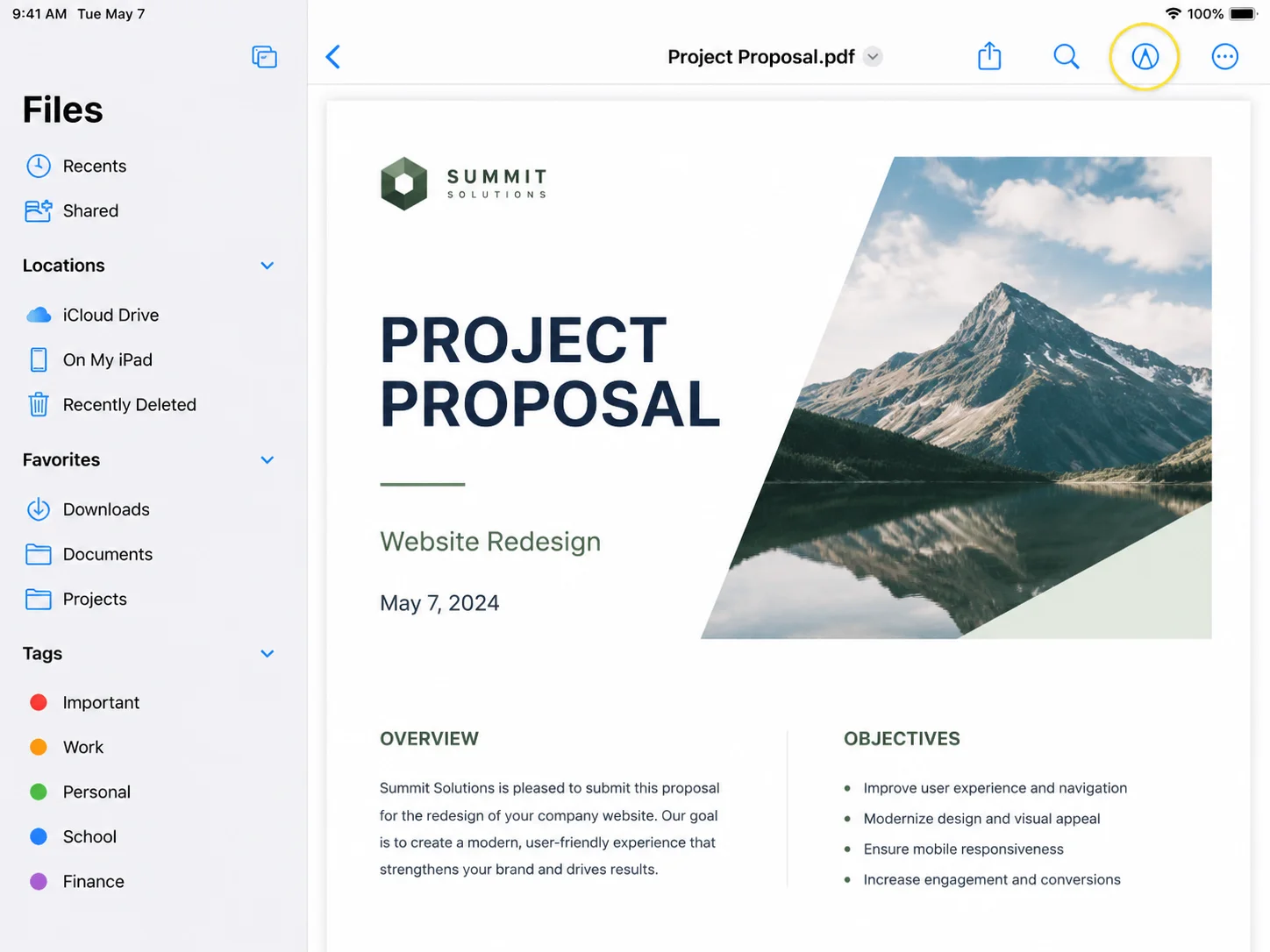
Click the Markup toolbar button (the pencil-tip icon near the top right of the window) to reveal the full annotation toolset.
-
From the toolbar you can:
- Select text for copying or highlighting using the text selection tool.
- Add text by clicking the T (text) button, then clicking anywhere on the page to place a text box. Adjust font size, text color, and alignment from the format bar.
- Insert shapes such as rectangles, ovals, lines, and arrows using the shapes menu.
- Doodle and add drawings freehand using the sketch tool for quick annotations.
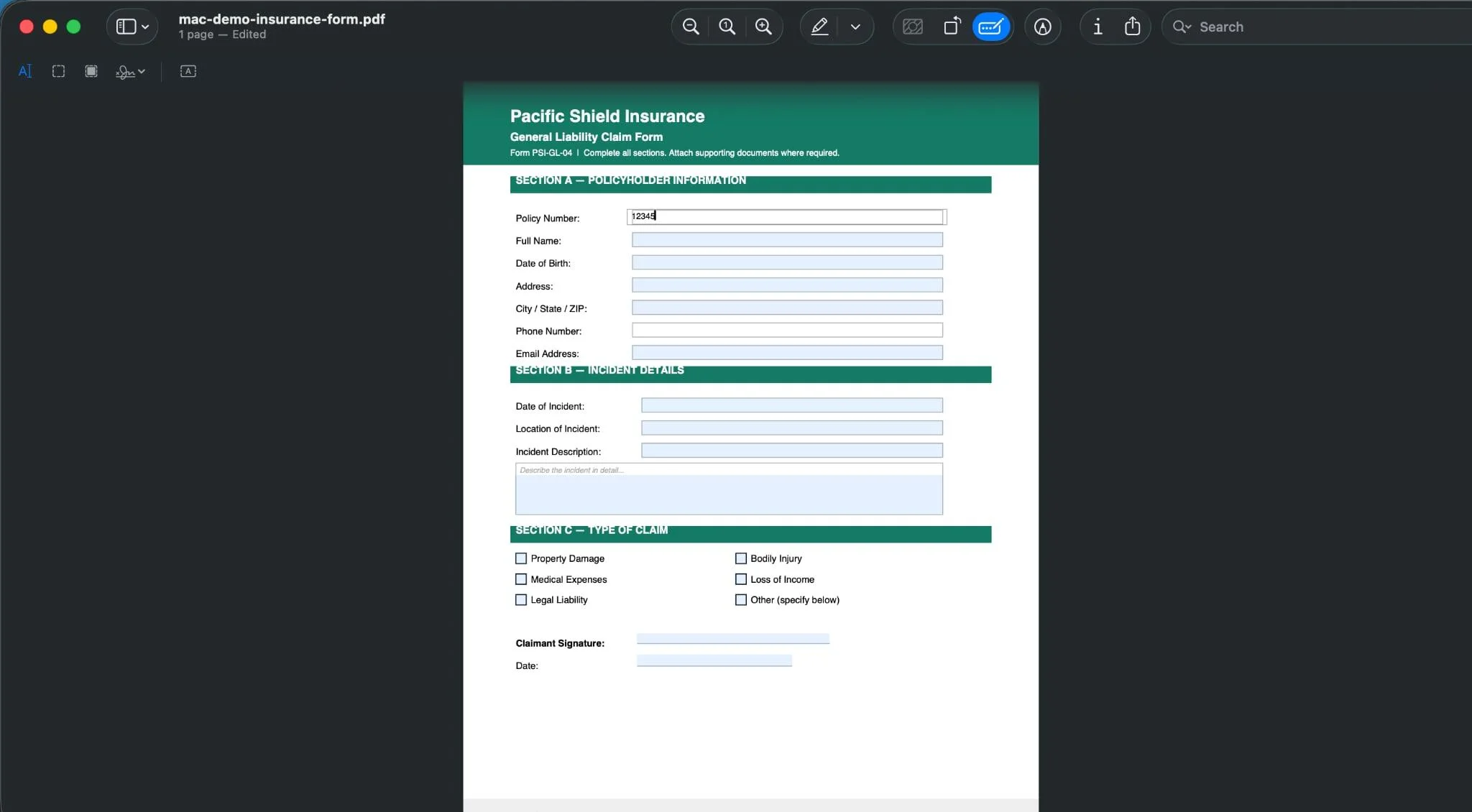
- Add sticky notes by clicking the sticky note button. A yellow note appears that collapses to an icon when not in use.
- Highlight, underline, or strikethrough selected text using the highlight menu.
Many PDF editors include features such as highlighting, underlining, and freehand drawing to facilitate document markup and review. Preview covers all of these at no cost, making it the right first stop for any annotation task on a Mac.
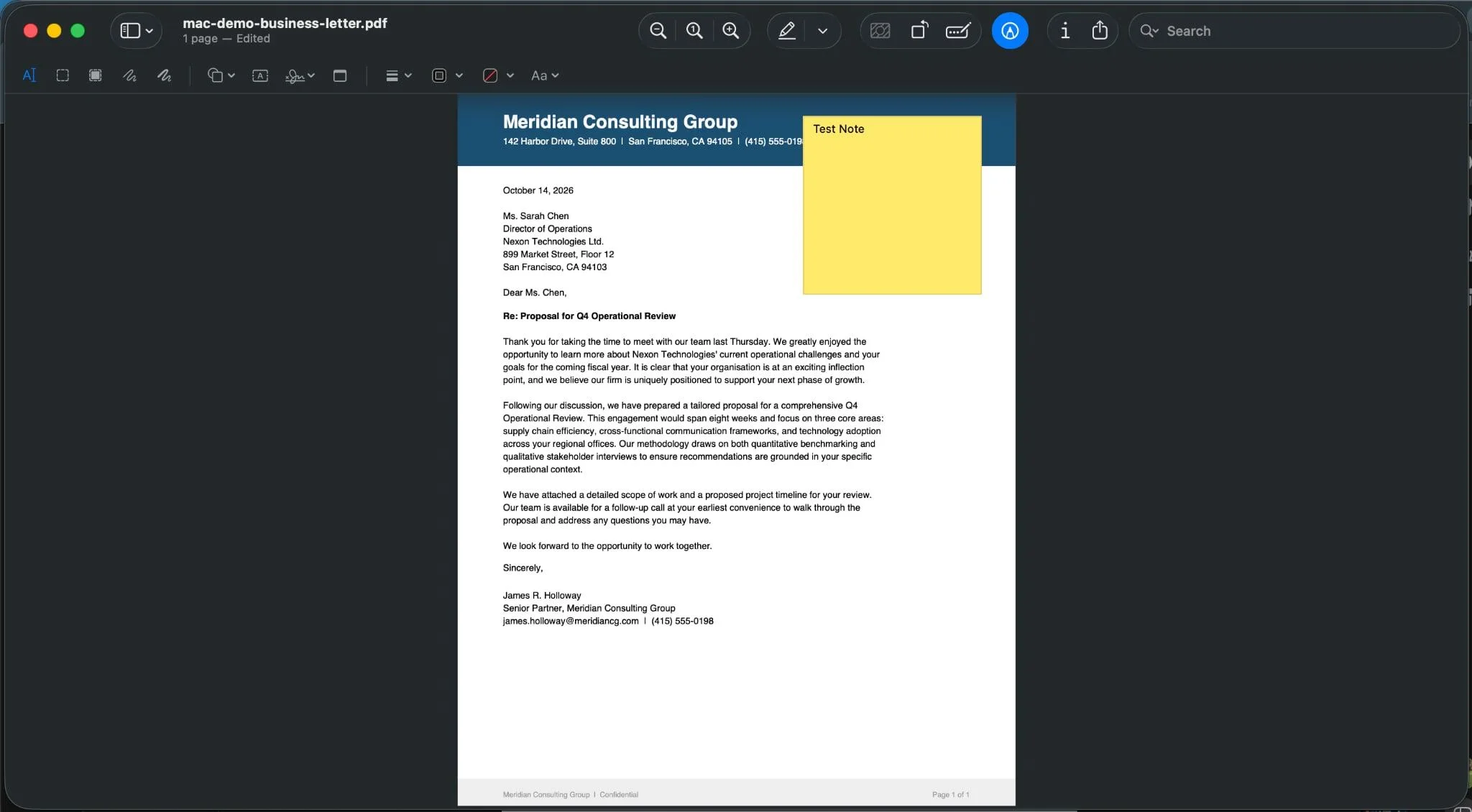
Filling out PDF forms on a Mac can be done easily using built-in tools that automatically detect form fields, allowing users to fill in text and check boxes. Preview automatically detects interactive form fields in a PDF document and highlights them in blue.
- Open the PDF form in Preview.
- Click any highlighted form field and start typing to insert text.
- Click checkboxes to select or deselect them.
- Tab between fields to move through the form quickly.
For forms without interactive fields, use the text box tool from the Markup toolbar to manually place text over each blank area.
Signing PDFs in Preview
Many PDF editors offer the ability to add digital signatures to documents, which can be done quickly and securely on a Mac.
- Open the Markup toolbar and click the Signature button (a cursive-style icon).
- Click Create Signature. You can draw your signature on the trackpad, sign on a piece of paper and photograph it with your Mac camera, or type your name.
- Preview saves the signature for future use. Click your saved signature to insert it on the page, then drag and resize it to position.
Organizing PDF Pages in Preview
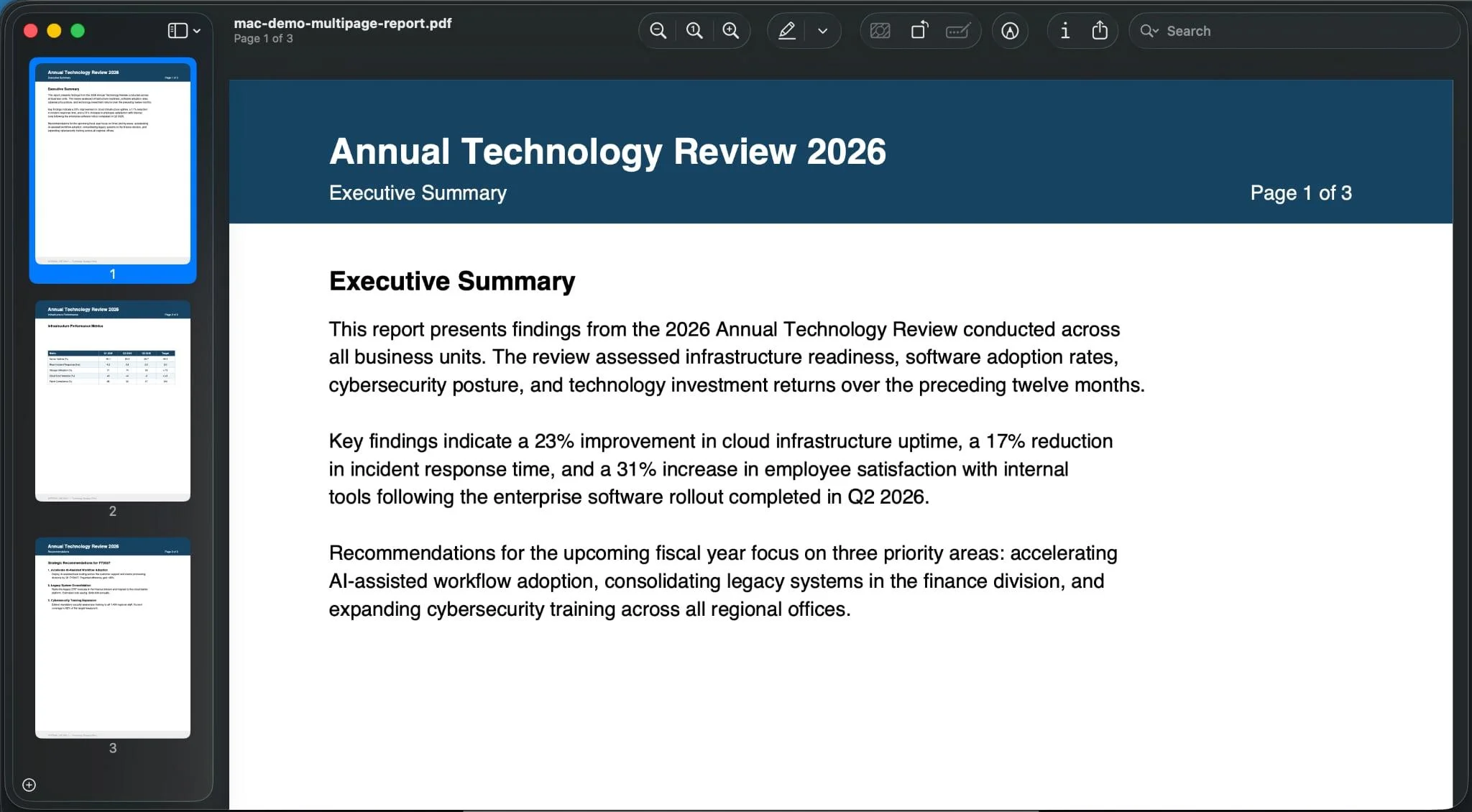
Apple Preview allows users to easily reorder or delete pages in a PDF using the sidebar, making it simple to limit the file to only the necessary content.
- Open a multi-page PDF in Preview.
- Go to View > Thumbnails to open the page sidebar.
- Drag page thumbnails to reorder them. Right-click a thumbnail to delete a page, rotate pages clockwise or counter-clockwise, or insert pages from another PDF file.
Preview is ideal for organizing pages, but it cannot delete or rewrite original text within those pages. If the goal is to change the wording in an existing paragraph rather than add new content, a dedicated pdf editor is required.
What Preview Cannot Do
Preview does not support:
- Editing or deleting existing text in a PDF
- Running optical character recognition on scanned documents
- Creating fillable form fields from scratch
- Advanced pdf editing such as redacting text or applying password protection programmatically
For any of those tasks, the tools in the sections below are required.
Method 2: Adobe Acrobat, The Best PDF Editor for Mac (Paid)
Best for: Full text and image editing, advanced pdf editing, OCR, form creation, digital signatures, and sensitive documents.
Adobe Acrobat is a paid tool that offers full editing capabilities for PDFs. It is the most comprehensive pdf editor available for mac users and the right choice when formatting accuracy, advanced features, and professional output all matter. Adobe Acrobat Pro gives you the ability to edit existing text in any PDF, run optical character recognition on scanned documents, create fillable form fields, redact text, apply password protection, and digitally sign documents.
Editing Existing PDF Text in Acrobat Pro
- Open your PDF file in Adobe Acrobat.
- Click Edit PDF in the right-side panel or from the Tools menu.
- Click any text on the pdf page. A blue bounding box appears around the selected paragraph.
- Edit existing text directly. You can change wording, fix numbers, adjust font size, and change text color from the format panel on the right.
- To insert text in a new location, click Add Text and click the page to create a new text box.
- When finished, go to File > Save or File > Save As to save a new copy.
Editing Images and Adding New Images
Acrobat's text and image editing mode also handles image editing: click any image in Edit PDF mode to select it. From there you can resize, move, rotate, or delete the image. Use Add Image from the toolbar to insert a new image anywhere on the pdf page.
OCR for Scanned Documents
Optical Character Recognition (OCR) is a common feature in PDF editing tools, enabling users to convert scanned documents into editable and searchable text.
- Open a scanned document in Acrobat Pro.
- Go to Tools > Scan & OCR > Recognise Text.
- Choose whether to process all pdf pages or a selection, then click Recognise Text.
- Acrobat creates a text layer over the scan, making the content searchable and editable.
Users can fill out complex forms, such as tax or insurance documents, using various PDF editing tools available on Mac, which streamline the process. In Acrobat Pro, go to Tools > Prepare Form. Acrobat scans the document for blank lines and boxes and converts them into interactive form fields automatically. You can then add, move, and configure text fields, checkboxes, dropdown menus, and signature fields.
Password Protection and Security
To apply password protection, go to File > Properties > Security > Password Security. Set an open password to restrict who can view the file, and a permissions password to restrict editing, printing, and copying. Acrobat also supports true redaction, which permanently removes sensitive content so it cannot be recovered, unlike simply drawing a black box over text.
Acrobat's Pricing and Free Version
Adobe Acrobat Pro requires a subscription. A free version of Acrobat Reader is available and handles basic tasks like viewing, annotating, and signing PDFs, but does not include text editing, OCR, or form creation. A web version is available at adobe.com for limited conversions without installing the desktop app.
Method 3: PDF Expert by Readdle, Best PDF Editor for Day-to-Day Mac Use
Best for: mac users who need intermediate pdf editing without the cost of Acrobat Pro.
Readdle PDF Expert is one of the most polished pdf apps available on the mac app store, and widely regarded as the best free pdf editor option for users who need capable editing tools beyond what Preview provides. Its intuitive interface makes it approachable for users who are not power users but still need to edit existing text, add images, and manage forms regularly.
PDF editors are evaluated based on their functionality and ease of use, focusing on core editing and annotation capabilities, including text editing, form signing, and creative tools like freehand drawing. PDF Expert scores well across all of these dimensions for the Mac platform.
Key Features of PDF Expert
Edit existing text: Click Edit in the top toolbar, then click any paragraph to enter text editing mode. The text reflows within its original bounding box as you type. You can change font size, text color, and basic formatting.
Image editing: Select an image in Edit mode to move, resize, rotate, or delete it. Use the insert toolbar to place a new image from your Mac or iCloud Drive.
Annotation tools: PDF Expert includes a full set of annotation tools: highlight, underline, strikethrough, sticky notes, text boxes, freehand drawing, and shapes. The user interface keeps all of these accessible from the top toolbar without cluttering the reading view.
Filling forms and e-signatures: Click any form field to fill it in. The signature tool lets you draw, type, or import an image of your signature for adding e signatures to documents quickly.
Organizing pages: The page thumbnail view lets you drag to reorder pages, rotate pages, delete pages, and insert pages from another pdf file. This matches what Preview offers but with a more streamlined user interface.
Collaboration features: PDF Expert supports sharing documents via direct links for file sharing with collaborators, with options to control comment and annotation permissions.
AI assistant: Newer versions of PDF Expert include a built-in ai assistant that can summarize documents, answer questions about pdf content, and generate audio notes from document text, features aimed at students, researchers, and anyone reviewing dense documents regularly.
PDF Expert's free version covers reading, basic annotation, and form filling. Text editing, advanced tools, and the ai assistant require a paid plan. The mac app store listing shows the current pricing and plan options.
Method 4: Nitro PDF Pro, Full-Featured Alternative for Advanced Users
Best for: Power users who need advanced pdf editing tools equivalent to Acrobat Pro at a different price point.
Nitro PDF Pro is one of the comprehensive PDF editors available for macOS, allowing direct text editing, full form creation, OCR, digital signatures, password protection, and file conversion in one application. Its user interface is designed to feel familiar to users of Microsoft Office, which lowers the learning curve for office workers transitioning from windows devices.
What Nitro PDF Pro Covers
Advanced pdf editing: Nitro PDF Pro allows you to edit pdf text directly, modify pdf content including images, add or delete pdf pages, and reorganise documents structurally.
File format conversion: Many PDF editors include features for converting PDFs to other file formats, such as Word, Excel, and PowerPoint, allowing for easier editing and sharing. Nitro handles convert pdf to word documents, Excel, and PowerPoint files, as well as creating pdfs from those formats.
OCR on scanned documents: Optical Character Recognition (OCR) is a common feature in PDF editors, enabling users to convert scanned documents into editable and searchable text. Nitro's OCR engine processes scanned documents and applies a searchable, editable text layer.
Digital signatures and form filling: Nitro supports both e signatures for quick sign-off and full digital signatures using certificates for legally binding document workflows.
Password protection and redact text: Apply open and permissions passwords, and use the redaction tools to permanently remove sensitive content from pdf documents.
Collaboration features: Nitro includes real-time commenting, annotation syncing, and document sharing via links.
Nitro PDF Pro does not have a dedicated mac app store listing and is typically purchased directly from Nitro's website. Always verify the current macOS compatibility before purchasing, as some versions have been optimised primarily for windows devices.
Method 5: Free and Open-Source Options for Mac
Best for: Users who need basic tasks or convert pdf to word without spending money.
Several free tools give mac users useful pdf editing capabilities without a paid subscription.
Apple Preview (built-in): As covered in Method 1, Preview is the best free pdf editor for annotation, signing, and page management on a Mac. It is completely free and already installed.
LibreOffice Draw: LibreOffice Draw is a free, open-source tool that can convert PDFs into editable formats. Open any pdf file in LibreOffice Draw via File > Open, and it converts the document into an editable drawing canvas. Text becomes editable text boxes, and images can be moved and resized. The result is not pixel-perfect, as complex layouts may shift, but for straightforward text edits it works well without any cost. Export back to pdf format using File > Export as PDF.
Smallpdf and PDF24 (online, free tier): Both platforms offer a free online pdf editor accessible directly in any browser on a Mac. Upload a pdf file, add text boxes, images, sticky notes, or highlights, then download the result. Online tools are best for occasional use on non-sensitive documents, since the file is uploaded to a remote server.
Adobe Acrobat Reader (free version): The free version of Adobe Acrobat Reader handles viewing, basic annotation, and signing pdf documents. It does not include text editing or OCR, but it is the most reliable pdf reader available and handles complex pdf format documents that Preview occasionally misrenders.
The best pdf editor for your needs depends on the task. For simple annotation and form filling, Preview or Acrobat Reader covers it for free. For editing existing text, consider PDF Expert's paid tier or the LibreOffice Draw workaround for occasional use.
Handling Scanned Documents on a Mac: OCR Explained
Scanned documents present a specific challenge. When a physical page is scanned to PDF, the result is an image of text, not actual text. You cannot click to select a word, search the document, or edit the content directly. Optical Character Recognition solves this by analysing the image and generating a real, selectable text layer.
Which Mac tools include OCR:
- Adobe Acrobat Pro is the most accurate for English and international languages, with OCR integrated directly into the Edit PDF workflow.
- PDF Expert includes OCR in its pro tier and processes scanned documents into editable text.
- Nitro PDF Pro includes OCR as part of its standard feature set.
- Online tools such as Smallpdf and ILovePDF both offer browser-based OCR for free on scanned documents under their file size limits.
OCR accuracy depends on scan quality. Scans at 300 DPI or higher on a clean white background produce the most accurate results. Handwritten content and coloured backgrounds significantly reduce accuracy regardless of which tool you use.
Converting PDFs to Word Documents on a Mac
Sometimes the most practical way to make major changes to a pdf document is to convert pdf to a word document, edit it fully in Pages or Microsoft Word, then export back to PDF.
Using Microsoft Word on Mac: Open Word, go to File > Open, select your PDF, and Word converts it automatically to an editable word document. This works well for text-heavy PDFs that were originally created in Word.
Using Pages (free on Mac): Pages does not open PDFs directly, but you can use the free version of Smallpdf or PDF24 to convert pdf to Word format first, then open the resulting file in Pages for editing.
Using Adobe Acrobat Pro: Go to File > Export a PDF > Microsoft Word > Word Document. Acrobat produces the most formatting-accurate Word conversion of any tool listed here.
Limitation to note: Formatting changes can occur when converting PDFs, especially through Word or Google Docs. Complex layouts with columns, custom fonts, or embedded graphics will need manual cleanup after conversion. Always compare the converted file against the original pdf before making changes.
For Developers on Mac: Edit PDF Files Programmatically with IronPDF
If you are building a .NET application that needs to create, edit, annotate, secure, or process PDF files at scale, manual tools do not apply. IronPDF is a .NET library that gives C# developers complete programmatic control over PDF editing, and it runs on macOS natively, supporting both Intel and Apple Silicon alongside Windows, Linux, Docker, Azure, and AWS.
IronPDF is designed for developers working on applications where PDF editing is part of an automated workflow rather than a one-off task. It covers the full range of PDF editing operations that desktop tools like Adobe Acrobat Pro handle manually:
- Edit existing pdf text and pdf content by stamping updated HTML content onto an existing document
- Text and image editing by drawing text, inserting images, and modifying pdf pages programmatically
- Fill pdf forms and form fields including text inputs, checkboxes, and dropdowns
- Digital signatures using X.509 certificates for legally binding document signing
- Password protection with user and owner passwords, read-only restrictions, and printing permissions
- Redact text permanently from PDF documents using RedactTextOnAllPages()
- Organizing pages by adding, deleting, rotating pages, and merging or splitting pdf files
- Convert pdf content to other formats and create pdfs from HTML, DOCX, and URLs
Here is how to load a PDF, edit its content by stamping new text, and apply password protection. This is a common workflow for generating secured, personalised documents at scale:
using IronPdf;

// Load an existing PDF document
PdfDocument pdf = PdfDocument.FromFile("annual-report.pdf");

// Stamp updated text content onto page 1
HtmlStamper stamper = new HtmlStamper()
{
    Html = "<p style='font-size:12px; color:#154360;'>Updated Q4 2026 - Final Version</p>",
    HorizontalAlignment = HorizontalAlignment.Right,
    VerticalAlignment = VerticalAlignment.Bottom
};
pdf.ApplyStamp(stamper);

// Apply password protection with editing restrictions
pdf.SecuritySettings.OwnerPassword = "owner-secret-2026";
pdf.SecuritySettings.UserPassword = "reader-access";
pdf.SecuritySettings.AllowUserEdits = IronPdf.Security.PdfEditSecurity.NoEdit;
pdf.SecuritySettings.AllowUserPrinting = IronPdf.Security.PdfPrintSecurity.FullPrintRights;

// Save the secured, edited document
pdf.SaveAs("annual-report-final.pdf");
using IronPdf;

// Load an existing PDF document
PdfDocument pdf = PdfDocument.FromFile("annual-report.pdf");

// Stamp updated text content onto page 1
HtmlStamper stamper = new HtmlStamper()
{
    Html = "<p style='font-size:12px; color:#154360;'>Updated Q4 2026 - Final Version</p>",
    HorizontalAlignment = HorizontalAlignment.Right,
    VerticalAlignment = VerticalAlignment.Bottom
};
pdf.ApplyStamp(stamper);

// Apply password protection with editing restrictions
pdf.SecuritySettings.OwnerPassword = "owner-secret-2026";
pdf.SecuritySettings.UserPassword = "reader-access";
pdf.SecuritySettings.AllowUserEdits = IronPdf.Security.PdfEditSecurity.NoEdit;
pdf.SecuritySettings.AllowUserPrinting = IronPdf.Security.PdfPrintSecurity.FullPrintRights;

// Save the secured, edited document
pdf.SaveAs("annual-report-final.pdf");
C#
To programmatically fill a PDF form, useful for automating insurance claims, onboarding documents, or any form-based workflow:
using IronPdf;

PdfDocument pdf = PdfDocument.FromFile("insurance-claim-form.pdf");

// Fill named form fields
pdf.Form.FindFormField("PolicyNumber").Value = "PSI-2026-00847";
pdf.Form.FindFormField("FullName").Value = "Sarah J. Chen";
pdf.Form.FindFormField("DateOfIncident").Value = "October 10, 2026";

// Save the filled form
pdf.SaveAs("insurance-claim-filled.pdf");
using IronPdf;

PdfDocument pdf = PdfDocument.FromFile("insurance-claim-form.pdf");

// Fill named form fields
pdf.Form.FindFormField("PolicyNumber").Value = "PSI-2026-00847";
pdf.Form.FindFormField("FullName").Value = "Sarah J. Chen";
pdf.Form.FindFormField("DateOfIncident").Value = "October 10, 2026";

// Save the filled form
pdf.SaveAs("insurance-claim-filled.pdf");
C#
To apply digital signatures to a PDF programmatically using a certificate:
using IronPdf;

var sig = new PdfSignature("company-cert.pfx", "cert-password");
sig.SignPdfFile("contract.pdf");
using IronPdf;

var sig = new PdfSignature("company-cert.pfx", "cert-password");
sig.SignPdfFile("contract.pdf");
C#
IronPDF runs on macOS with full Intel and Apple Silicon support, and integrates into ASP.NET Core, console apps, Blazor, and cloud environments. The Chrome-based rendering engine ensures that HTML-generated PDFs match browser output precisely, with full support for CSS, JavaScript, and modern web layouts.
Getting started: Install via NuGet with Install-Package IronPdf. A free trial is available with 30 days of full functionality and no credit card required.
Further reading:
Wrapping Up
Getting the right result when you edit a pdf on mac comes down to knowing which task you are actually trying to do. The built in preview app covers the majority of everyday needs: annotating documents, filling out pdf forms, signing, and reorganising pdf pages, completely free and without any extra downloads. For students, freelancers, and office workers handling routine pdf documents, Preview plus the occasional free online tool will handle most situations well.
When the task involves editing existing text, modifying pdf content directly, converting pdf files to other file formats, applying OCR to scanned documents, or adding digital signatures with legal validity, a purpose-built pdf editor becomes necessary. Adobe Acrobat Pro remains the gold standard for advanced pdf editing on a Mac, while Readdle PDF Expert offers a more accessible and affordable alternative for intermediate pdf editing tasks. Nitro PDF Pro is a strong pick for power users who need acrobat pro-level editing tools with a different pricing structure.
For free options, LibreOffice Draw handles occasional text edits for users who do not want a subscription, and the free tier of online tools like PDF24 covers simple annotation and file conversion needs. Developers building .NET applications on macOS should explore IronPDF, which brings full pdf editing, form filling, digital signature, and security capabilities into C# with a clean API that runs natively on Mac hardware. Start with a free trial to test the full feature set in your own environment.
If you found this guide useful, leave a comment below or visit the Iron Software blog for more articles on PDF tools, editing workflows, and document automation.