




업데이트됨 2026년 5월 8일
월별 계정 명세서를 PDF 문서로 생성하기
개발자는 IronPDF C# PDF 라이브러리를 사용하여 외부 서비스에 의존하지 않고도 .NET 프로젝트 내에서 HTML을 신뢰할 수 있는 PDF 파일로 변환할 수 있습니다.
더 읽어보기

IronPDF는 Chrome의 렌더링 엔진을 사용하여 ASP.NET Core에서 HTML을 PDF로 변환하는 것을 간단하게 만듭니다. 동적 웹 콘텐츠, 보고서 및 청구서를 정확한 PDF로 변환하여 CSS 스타일과 JavaScript 기능을 모두 유지합니다.
ASP.NET Core 앱에서 선명하고 픽셀 완벽한 리포트와 청구서를 만들어 내기 어렵습니까? 당신만 그런 게 아닙니다.
모든 개발자는 결국 보고서나 주문 확인서와 같은 동적 웹 콘텐츠를 신뢰할 수 있는 다운로드 가능한 PDF로 변환해야 필요가 있습니다. 이는 인보이스, 상세 보고서에서부터 안전하고 기록 가능한 문서 형식 생성에 이르기까지의 기본 요구 사항입니다. 문제는 복잡한 HTML, 모든 CSS와 JavaScript를 제대로 렌더링하여 PDF 출력으로 만드는 것입니다.
여기서 IronPDF가 다가옵니다. 브라우저에서 보는 것과 PDF 출력에서 보는 것이 정확히 같은 Chrome의 렌더링 엔진을 사용합니다. ASPX 페이지, 현대 Razor 뷰 또는 원시 HTML 문자열을 사용하든, 변환 과정은 일관되고 예측 가능합니다.
이 가이드는 가장 일반적인 ASP.NET Core HTML을 PDF로 변환하는 시나리오 - URL을 PDF로 변환, HTML 문자열 렌더링, HTML 파일 처리 - 를 다루며 C# 코드 예시와 함께 각각의 접근 방식에 대한 작업 코드 예시들을 제공합니다.
무료 체험판을 시작하고 오늘 HTML을 PDF 문서로 변환하세요.

NuGet 패키지 관리자 콘솔 또는 .NET CLI를 통해 IronPDF를 설치하는 것은 단 하나의 명령어로 가능합니다. IronPDF는 NuGet 패키지로 제공되며 .NET 6, 7, 8, 10을 대상으로 합니다.
설치가 완료되면 IronPDF는 현대 HTML 요소, CSS 스타일 및 JavaScript 실행을 지원하는 완전한 HTML 렌더링 기능을 제공합니다. 라이브러리는 복잡한 HTML 구조 및 CSS 속성을 신뢰할 수 있게 처리하여 Bootstrap 및 Flex 레이아웃을 지원합니다.
IronPDF는 다양한 환경에 걸쳐 배포를 지원합니다.
| 환경 | 지원 수준 | 노트 |
|---|---|---|
| Windows | 전체 | IIS 및 자체 호스팅, 모든 버전 |
| Linux | 전체 | 우분투, 데비안, CentOS, 알파인 |
| macOS | 전체 | Arm 및 x64 아키텍처 |
| Azure | 전체 | 앱 서비스, 함수, 컨테이너 |
| AWS Lambda | 전체 | 서버리스 PDF 생성 |
| Docker | 전체 | 원격 IronPDF Engine 옵션 포함 |
설치 후엔, ChromePdfRenderer 클래스가 주요 진입점입니다. 여기서 RenderingOptions 속성을 노출하여 용지 크기, 여백, 헤더, JavaScript 실행 등을 제어할 수 있습니다. 아래 섹션에서는 일반적인 ASP.NET Core 애플리케이션에서 사용할 세 가지 주요 변환 접근 방식에 대해 다룹니다.
HTML 문자열을 직접 PDF 파일로 변환하는 것은 가장 직접적인 접근 방식이며 파일 시스템 접근이 필요하지 않습니다. 이것은 데이터베이스로부터 채워진 주문 확인, 인보이스, 또는 보고서 템플릿과 같은 동적으로 조합된 HTML에서 PDF를 생성하기에 이상적입니다.
아래의 코드는 IronPDF를 사용하여 HTML 문자열을 PDF로 변환하는 완전한 ASP.NET Core 컨트롤러 액션을 보여줍니다.
using Microsoft.AspNetCore.Mvc;
using IronPdf;

namespace HtmlToPdf.Controllers
{
    public class PdfController : Controller
    {
        public IActionResult Index()
        {
            return View();
        }

        [HttpGet]
        public IActionResult ConvertHtmlStringToPdf()
        {
            string htmlContent = @"
<html>
  <head>
    <title>IronPDF Test</title>
    <style>
      body { font-family: Arial; margin: 40px; }
      h1 { color: #2b5797; }
      table { border-collapse: collapse; width: 100%; margin-top: 20px; }
      th, td { border: 1px solid #ccc; padding: 8px; }
      th { background: #f0f0f0; }
    </style>
  </head>
  <body>
    <h1>IronPDF HTML to PDF Test</h1>
    <p>This is a simple test of converting an HTML string to PDF using IronPDF.</p>
    <table>
      <tr><th>Item</th><th>Price</th></tr>
      <tr><td>Apples</td><td>$1.50</td></tr>
      <tr><td>Bananas</td><td>$0.90</td></tr>
    </table>
    <p><em>End of test document.</em></p>
  </body>
</html>";
            // Initialize the PDF converter
            var renderer = new ChromePdfRenderer();
            // Configure page size and margins
            renderer.RenderingOptions.PaperSize = IronPdf.Rendering.PdfPaperSize.A4;
            renderer.RenderingOptions.MarginTop = 20;
            renderer.RenderingOptions.MarginBottom = 20;
            // Convert the HTML string to a PDF document
            var pdfDocument = renderer.RenderHtmlAsPdf(htmlContent);
            // Return the PDF file as a download
            return File(pdfDocument.BinaryData, "application/pdf", "output.pdf");
        }
    }
}Imports Microsoft.AspNetCore.Mvc
Imports IronPdf
Namespace HtmlToPdf.Controllers
Public Class PdfController
Inherits Controller
Public Function Index() As IActionResult
Return View()
End Function
<HttpGet>
Public Function ConvertHtmlStringToPdf() As IActionResult
Dim htmlContent As String = "
<html>
<head>
<title>IronPDF Test</title>
<style>
body { font-family: Arial; margin: 40px; }
h1 { color: #2b5797; }
table { border-collapse: collapse; width: 100%; margin-top: 20px; }
th, td { border: 1px solid #ccc; padding: 8px; }
th { background: #f0f0f0; }
</style>
</head>
<body>
<h1>IronPDF HTML to PDF Test</h1>
<p>This is a simple test of converting an HTML string to PDF using IronPDF.</p>
<table>
<tr><th>Item</th><th>Price</th></tr>
<tr><td>Apples</td><td>$1.50</td></tr>
<tr><td>Bananas</td><td>$0.90</td></tr>
</table>
<p><em>End of test document.</em></p>
</body>
</html>"
' Initialize the PDF converter
Dim renderer = New ChromePdfRenderer()
' Configure page size and margins
renderer.RenderingOptions.PaperSize = IronPdf.Rendering.PdfPaperSize.A4
renderer.RenderingOptions.MarginTop = 20
renderer.RenderingOptions.MarginBottom = 20
' Convert the HTML string to a PDF document
Dim pdfDocument = renderer.RenderHtmlAsPdf(htmlContent)
' Return the PDF file as a download
Return File(pdfDocument.BinaryData, "application/pdf", "output.pdf")
End Function
End Class
End Namespace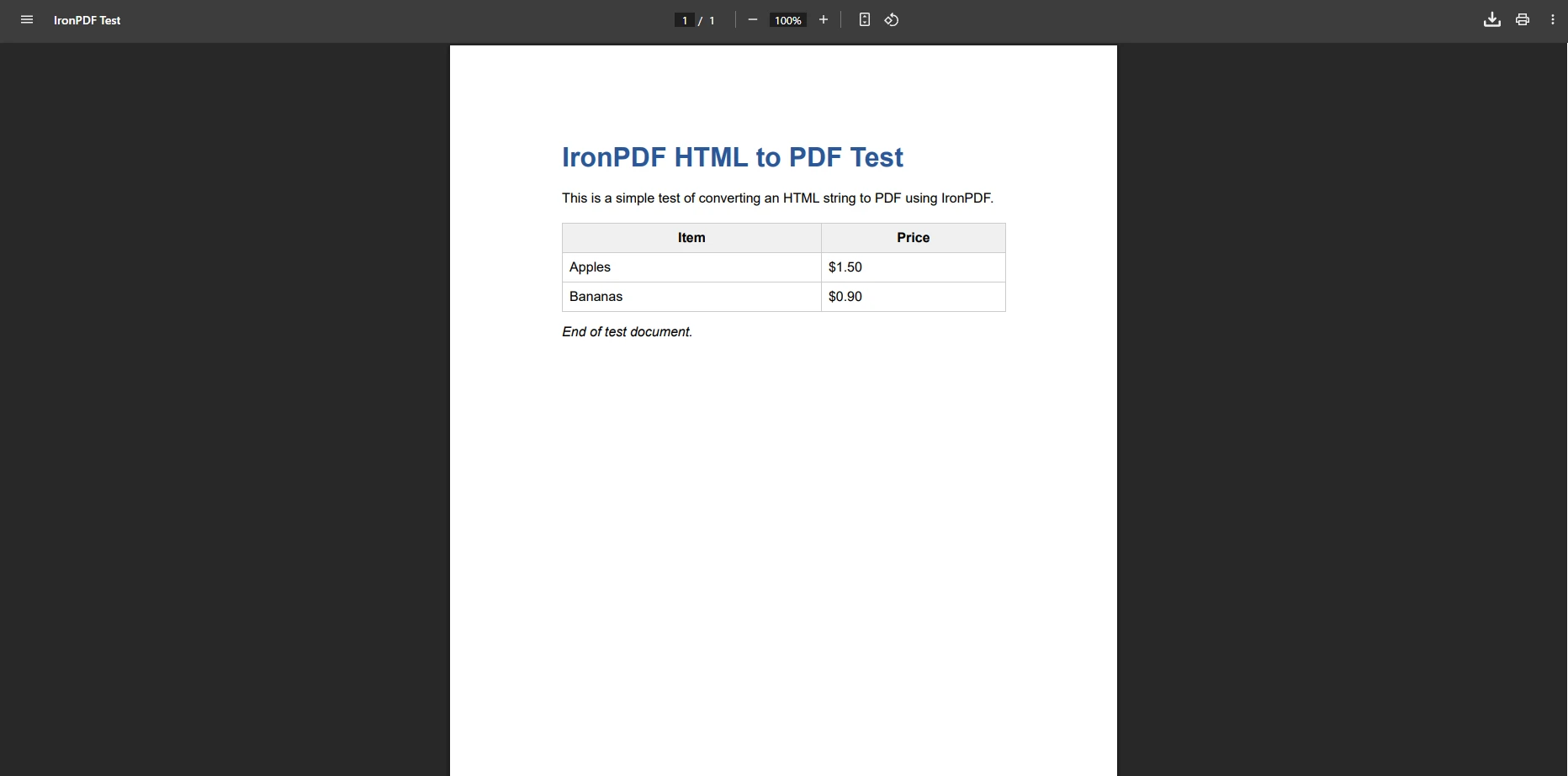
ChromePdfRenderer 클래스는 전체 변환 파이프라인을 처리하여 HTML 문자열을 적절하게 서식화된 다중 페이지 PDF로 변환합니다. 결과 문서는 소스 HTML에서 정의된 대로 인라인 CSS, 내장 스타일시트 및 폰트 규칙 등 모든 스타일을 정확하게 보존합니다. 이 패턴은 인보이스, 명세서 및 코드를 통해 끝에서 끝으로 레이아웃을 제어하는 모든 문서에 특히 효과적입니다.
머리글 및 바닥글이나 맞춤형 워터마크를 각 페이지에 추가하여 이 패턴을 확장할 수 있습니다. IronPDF는 또한 시각적 품질을 잃지 않고 파일 크기를 줄이기 위한 PDF 압축을 지원합니다.
서버에 저장된 기존 HTML 템플릿 파일을 사용할 때 IronPDF는 외부 스타일시트, 로컬 이미지 및 JavaScript 파일과 같은 모든 연결된 리소스를 보존하면서 읽고 변환할 수 있습니다. 이 방식은 디자이너가 애플리케이션 코드와 독립적으로 HTML 파일을 유지하는 템플릿 기반 문서 생성 파이프라인에 적합합니다:
using IronPdf;
using Microsoft.AspNetCore.Mvc;
using System.IO;

namespace YourApp.Controllers
{
    public class DocumentController : Controller
    {
        private readonly IWebHostEnvironment _environment;

        public DocumentController(IWebHostEnvironment environment)
        {
            _environment = environment;
        }

        [HttpGet]
        public IActionResult GeneratePdfFromTemplate(string templateName)
        {
            // Resolve the full path to the HTML template
            string htmlFilePath = Path.Combine(_environment.WebRootPath, "templates", $"{templateName}.html");
            var renderer = new ChromePdfRenderer();
            // Use print media type for print-optimized CSS rules
            renderer.RenderingOptions.EnableJavaScript = true;
            renderer.RenderingOptions.CssMediaType = IronPdf.Rendering.PdfCssMediaType.Print;
            // Add a header to every generated page
            renderer.RenderingOptions.HtmlHeader = new HtmlHeaderFooter
            {
                Height = 25,
                HtmlFragment = "<div style='text-align:center'>Company Report</div>"
            };
            // Convert the HTML file to a PDF document
            var pdf = renderer.RenderHtmlFileAsPdf(htmlFilePath);
            return File(pdf.BinaryData, "application/pdf", $"{templateName}_generated.pdf");
        }
    }
}Imports IronPdf
Imports Microsoft.AspNetCore.Mvc
Imports System.IO
Namespace YourApp.Controllers
Public Class DocumentController
Inherits Controller
Private ReadOnly _environment As IWebHostEnvironment
Public Sub New(environment As IWebHostEnvironment)
_environment = environment
End Sub
<HttpGet>
Public Function GeneratePdfFromTemplate(templateName As String) As IActionResult
' Resolve the full path to the HTML template
Dim htmlFilePath As String = Path.Combine(_environment.WebRootPath, "templates", $"{templateName}.html")
Dim renderer As New ChromePdfRenderer()
' Use print media type for print-optimized CSS rules
renderer.RenderingOptions.EnableJavaScript = True
renderer.RenderingOptions.CssMediaType = IronPdf.Rendering.PdfCssMediaType.Print
' Add a header to every generated page
renderer.RenderingOptions.HtmlHeader = New HtmlHeaderFooter With {
.Height = 25,
.HtmlFragment = "<div style='text-align:center'>Company Report</div>"
}
' Convert the HTML file to a PDF document
Dim pdf = renderer.RenderHtmlFileAsPdf(htmlFilePath)
Return File(pdf.BinaryData, "application/pdf", $"{templateName}_generated.pdf")
End Function
End Class
End Namespace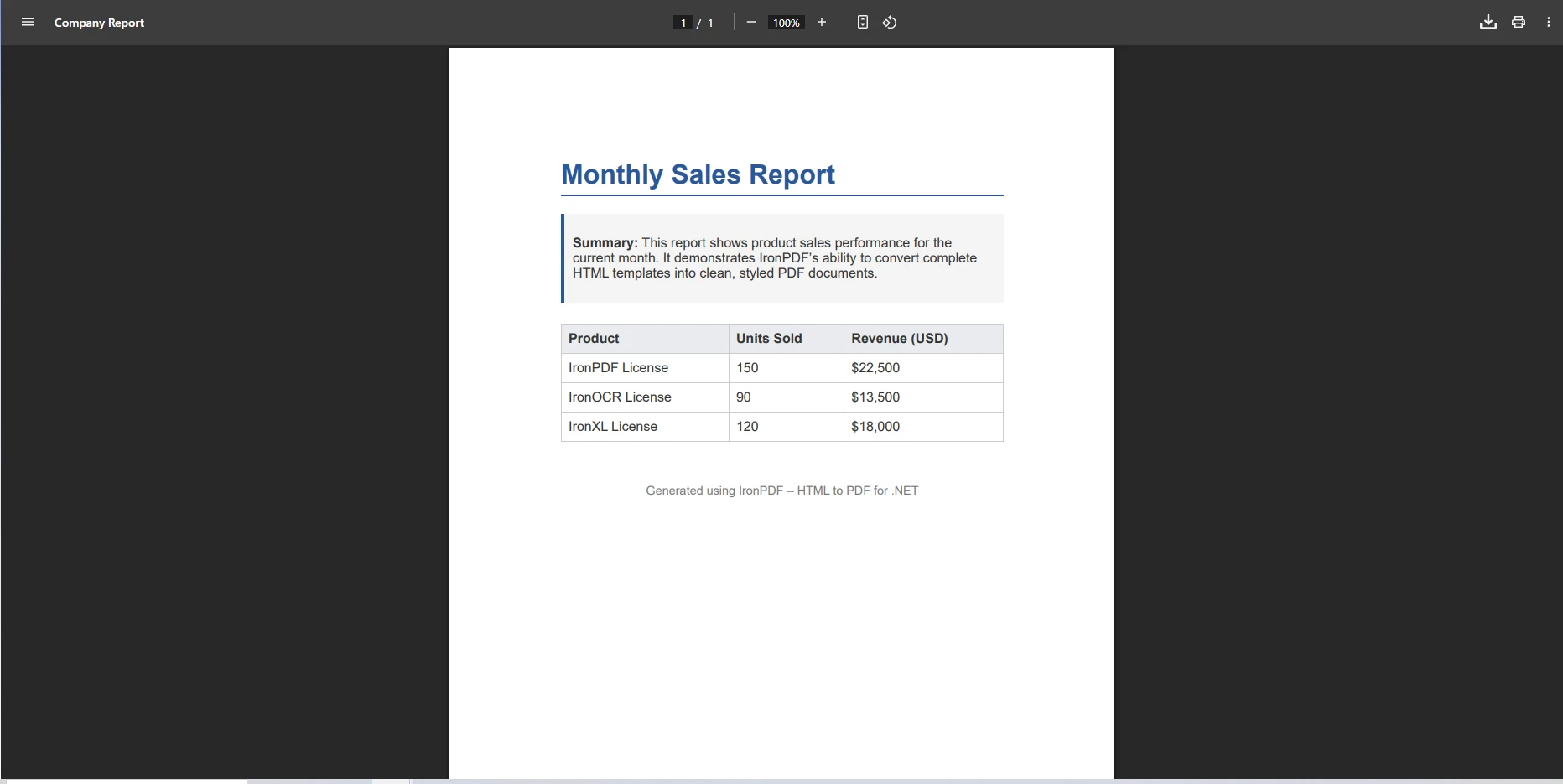
이 방법은 디스크에서 HTML 문서를 읽고 완전한 문서 구조를 유지하면서 변환합니다. 모든 CSS 속성, 이미지 참조 및 테이블 및 중첩 컨테이너와 같은 복잡한 HTML 요소가 출력에서 보존됩니다. IronPDF는 원본 파일의 위치를 기준으로 상대적인 리소스 경로를 해결하므로 연결된 스타일시트와 이미지가 추가 구성 없이 로드됩니다.
IronPDF는 또한 CSS 인쇄 미디어 쿼리를 올바르게 지원하므로 HTML 템플릿에서 인쇄 전용 규칙을 정의할 수 있으며, 이는 PDF 생성 시에만 적용되고 브라우저에서 페이지가 로드될 때는 적용되지 않습니다.
ASP.NET Core 애플리케이션은 종종 양식 인증 뒤에 콘텐츠를 보호합니다. 유효한 세션이 필요한 페이지를 변환할 때 IronPDF는 HTTP 요청과 함께 인증 쿠키를 전달하여 렌더링된 페이지가 인증된 사용자가 보는 것과 동일하게 반영되도록 합니다:
[Authorize]
public IActionResult ConvertAuthenticatedPage()
{
    var renderer = new ChromePdfRenderer();
    // Build the URL for the protected resource
    string currentUrl = $"{Request.Scheme}://{Request.Host}/SecureContent";
    // Forward the authentication cookie to IronPDF
    var authCookie = Request.Cookies[".AspNetCore.Cookies"];
    if (!string.IsNullOrEmpty(authCookie))
    {
        renderer.RenderingOptions.CustomCookies = new System.Collections.Generic.Dictionary<string, string>
        {
            { ".AspNetCore.Cookies", authCookie }
        };
    }
    // Convert the authenticated page to a PDF file
    var pdf = renderer.RenderUrlAsPdf(currentUrl);
    return File(pdf.BinaryData, "application/pdf", "secure_document.pdf");
}Imports System.Collections.Generic
Imports IronPdf
<Authorize>
Public Function ConvertAuthenticatedPage() As IActionResult
Dim renderer As New ChromePdfRenderer()
' Build the URL for the protected resource
Dim currentUrl As String = $"{Request.Scheme}://{Request.Host}/SecureContent"
' Forward the authentication cookie to IronPDF
Dim authCookie As String = Request.Cookies(".AspNetCore.Cookies")
If Not String.IsNullOrEmpty(authCookie) Then
renderer.RenderingOptions.CustomCookies = New Dictionary(Of String, String) From {
{".AspNetCore.Cookies", authCookie}
}
End If
' Convert the authenticated page to a PDF file
Dim pdf = renderer.RenderUrlAsPdf(currentUrl)
Return File(pdf.BinaryData, "application/pdf", "secure_document.pdf")
End Function이 기술은 로그인 벽 뒤에 놓인 페이지의 전체 렌더링 출력을 캡처합니다. 대상 URL이 동일한 애플리케이션에 속할 때, 모든 상대적 리소스 경로가 올바르게 해결되므로 렌더러가 동일한 기본 URL 컨텍스트를 상속합니다. API 키 인증 또는 기타 헤더 기반 보안 체계를 위해 맞춤 HTTP 요청 헤더를 구성할 수도 있습니다.
생성 후 문서 보안을 강화하기 위해 PDF 암호 및 권한을 적용하거나 권한 없는 수정을 방지하기 위해 PDF에 디지털 서명을 고려하십시오. IronPDF는 또한 장기 아카이빙을 위한 PDF/A 준수를 지원하며, 접근성 요구 사항을 위한 PDF/UA 형식을 지원하여 규제된 산업에 중요한 역할을 합니다.
레거시 ASPX 페이지 변환이든 런타임에 JavaScript에 의해 컨텐츠가 채워지는 문서든 상관없이 IronPDF는 렌더링 프로세스를 신뢰성 있게 처리합니다. JavaScript가 실행을 완료할 수 있도록 렌더링 지연을 구성할 수 있습니다:
public IActionResult ConvertDynamicContent()
{
    var renderer = new ChromePdfRenderer();
    // Enable JavaScript so dynamic content renders correctly
    renderer.RenderingOptions.EnableJavaScript = true;
    // Wait 1 second after page load for JavaScript to complete
    renderer.RenderingOptions.WaitFor.RenderDelay(1000);
    // Generate your dynamic HTML string
    string dynamicHtml = GenerateDynamicHtml();
    var pdf = renderer.RenderHtmlAsPdf(dynamicHtml);
    return File(pdf.BinaryData, "application/pdf", "dynamic.pdf");
}Imports IronPdf
Public Function ConvertDynamicContent() As IActionResult
Dim renderer As New ChromePdfRenderer()
' Enable JavaScript so dynamic content renders correctly
renderer.RenderingOptions.EnableJavaScript = True
' Wait 1 second after page load for JavaScript to complete
renderer.RenderingOptions.WaitFor.RenderDelay(1000)
' Generate your dynamic HTML string
Dim dynamicHtml As String = GenerateDynamicHtml()
Dim pdf = renderer.RenderHtmlAsPdf(dynamicHtml)
Return File(pdf.BinaryData, "application/pdf", "dynamic.pdf")
End Function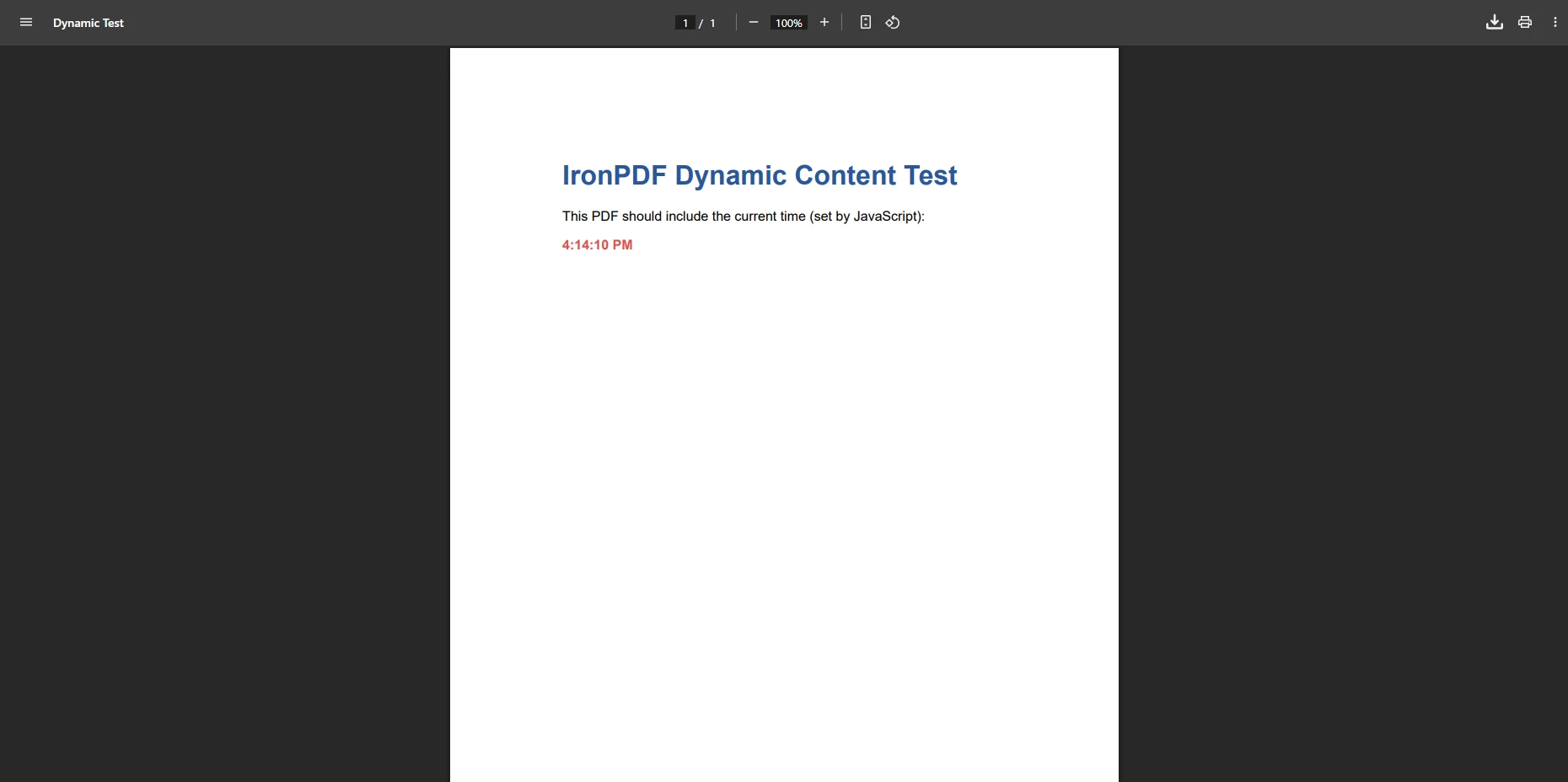
HTML을 PDF로 변환하는 일반적인 문제점은 페이지 헤딩과 해당 콘텐츠를 나누거나 표 행의 중간에서 행을 잘라내는 바람직하지 않은 페이지 나누기입니다. IronPDF는 표준 CSS page-break-before 및 page-break-inside 규칙과 IronPDF의 WaitFor API를 함께 사용하여 구성 가능한 페이지 나누기 제어를 통해 문제를 해결합니다. 이 라이브러리는 또한 트래픽이 높은 시나리오에서 처리량을 개선하기 위한 비동기 PDF 생성을 지원합니다.
D3.js가 렌더링하는 차트나 React 컴포넌트와 같은 고급 JavaScript 애플리케이션의 경우, 렌더링 스냅샷이 촬영되기 전에 사용자 정의 JavaScript를 주입하고 실행할 수 있어 PDF가 생성되기 전에 차트나 컴포넌트가 완전히 마운트되었음을 보장합니다.
IronPDF의 렌더링 엔진은 완전한 렌더링 옵션 API를 통해 고급 CSS 및 HTML5 기능을 지원합니다. HTML을 PDF로 변환할 때 라이브러리는 Flexbox, CSS Grid 및 반응형 미디어 쿼리로 구축된 복잡한 레이아웃을 포함하여 CSS 속성을 올바르게 해석합니다. PDF 출력은 외부 스타일시트, 인라인 스타일, 페이지가 캡처되기 전에 DOM을 변형하는 JavaScript 렌더링 콘텐츠를 포함하여 소스 페이지의 시각적 충실도를 유지합니다.
변환 프로세스는 다중 페이지 문서, 빈 페이지 억제 및 수동 구성 없이 자동 페이지 크기 조정을 처리합니다. 특정 페이지에 다른 머리글이나 바닥글을 적용하는 등 특수한 시나리오도 처리하거나 수십 페이지에 걸쳐 있는 보고서의 콘텐츠를 우아하게 처리합니다.
알아 둘 가치가 있는 추가 렌더링 기능:
이러한 기능은 기본 변환기의 출력 품질이 생산 요건을 충족하지 못하는 문서가 많은 애플리케이션에 IronPDF를 실용적인 선택으로 만듭니다. .NET에서 PDF 생성에 익숙하지 않은 팀의 경우 Microsoft의 ASP.NET Core 문서는 웹 애플리케이션에 어느 PDF 라이브러리를 통합할 때 유용한 컨텍스트인 컨트롤러 액션 및 미들웨어에 대한 좋은 배경 지식을 제공합니다.
IronPDF는 Aspose, iText, Syncfusion과 같은 대안에 비해 신뢰할 수 있는 성능을 제공하는 HTML to PDF 변환의 생산 준비 .NET 라이브러리입니다. 기본 PDF 변환기와 달리 이 라이브러리는 최신 웹 표준에 대한 전반적인 지원을 제공하며, JavaScript에 의해 렌더링된 콘텐츠 및 양식 인증이 포함된 복잡한 웹 애플리케이션부터 간단한 HTML 문자열까지 모든 것을 처리합니다.
이 라이브러리는 Blazor 애플리케이션과 MAUI 프로젝트에서 동등하게 잘 작동하며 C# 외에도 F#과 함께 사용할 수 있습니다. 기업 환경의 경우, IronPDF는 IIS 호스팅, Azure Functions 및 Docker 컨테이너를 지원합니다.
IronPDF는 개발 중 무료로 사용할 수 있습니다. 오늘 IronPDF를 다운로드하고 HTML 콘텐츠를 전문적인 PDF 문서로 변환하기 시작하세요. 전체 문서, 코드 예제 및 API 참조를 탐색하여 ASP.NET Core 애플리케이션에서 HTML to PDF 변환을 최대한 활용하십시오.

커티스 차우는 칼턴 대학교에서 컴퓨터 과학 학사 학위를 취득했으며, Node.js, TypeScript, JavaScript, React를 전문으로 하는 프론트엔드 개발자입니다. 직관적이고 미적으로 뛰어난 사용자 인터페이스를 만드는 데 열정을 가진 그는 최신 프레임워크를 활용하고, 잘 구성되고 시각적으로 매력적인 매뉴얼을 제작하는 것을 즐깁니다.



IronPDF는 IRON SUITE 의 일부입니다.
10개의 .NET API 제품, 당신의 사무 문서를 위해











PDF 파일을 HTML처럼 빠르게 변환해야 할 때.


