푸터 콘텐츠로 바로가기
IRONPDF 사용

ASP .NET Print PDF Files Programmatically with IronPDF

IronPDF enables reliable PDF printing in ASP.NET applications with server-side and client-side capabilities, handling enterprise requirements including network printers, error handling, and compliance-ready document generation with full audit trails for SOC2 and HIPAA environments.

ASP.NET print PDF file tasks often involve unique challenges that you frequently encounter in enterprise architectures. Whether you're generating PDF documents for invoices, reports, or shipping labels, implementing reliable print functionality requires go to server-client architecture complexities while maintaining security compliance and data sovereignty. The IronPDF library provides professional features including digital signatures, watermarking, and PDF/A compliance for long-term archival.

In this article, we'll show you how to handle PDF printing tasks using IronPDF's effective .NET PDF library, which provides professional security features and complete compliance documentation. The library supports various deployment scenarios including Azure, AWS, and Docker containers.

What Are the Key Challenges of PDF Printing in ASP.NET?

Traditional desktop applications can directly access the default printer, but ASP.NET Core applications face several hurdles when printing PDF documents. The Chrome rendering engine in IronPDF helps overcome many of these limitations:

// This fails in ASP.NET - wrong approach
Process.Start(@"C:\Files\document.pdf"); // Works locally, crashes on server
// This fails in ASP.NET - wrong approach
Process.Start(@"C:\Files\document.pdf"); // Works locally, crashes on server
$vbLabelText   $csharpLabel

The code above illustrates a common mistake in enterprise environments. The server environment lacks direct printer access due to IIS security restrictions, and the system throws errors due to permission limitations. These constraints are particularly critical in regulated industries where audit trails and access controls must be maintained. Remember that web applications must handle both server-side and client-side printing scenarios effectively while maintaining data residency requirements. The IronPDF engine provides solutions for remote deployment and distributed architectures.

How Do I Get Started with IronPDF?

IronPDF provides a complete .NET Core solution for generating PDF documents and printing them without external dependencies like Adobe Reader. The library maintains SOC2 Type II certification and offers detailed security documentation for enterprise deployments. The NuGet package installation is straightforward for both .NET Framework and .NET Core applications. Let's install the IronPDF package using NuGet:

Install-Package IronPdf
SHELL

This .NET library works seamlessly across operating systems, including Windows Server, Linux distributions, and Docker containers, eliminating compatibility issues that plague other libraries. It provides enterprise support with complete SLAs and works well in Microsoft Windows and other OS environments with on-premise deployment options. For macOS development, IronPDF offers native support for both Intel and Apple Silicon processors.

How Do I Create and Print PDF Documents Server-Side?

Here's how to generate and print a PDF document from HTML markup in your ASP.NET controller with audit logging capabilities. The ChromePdfRenderer ensures pixel-perfect rendering with full CSS support:

using IronPdf;
using Microsoft.AspNetCore.Mvc;
using System.Drawing;
public class PdfController : Controller
{
    public IActionResult Index()
    {
        // Initialize the renderer with security settings
        var renderer = new ChromePdfRenderer();

        // Configure print-improve settings for enterprise compliance
        renderer.RenderingOptions.PrintHtmlBackgrounds = true;
        renderer.RenderingOptions.MarginBottom = 10;
        renderer.RenderingOptions.CssMediaType = PdfCssMediaType.Print;
        // Generate PDF from HTML
        var pdf = renderer.RenderHtmlAsPdf("<h1>Invoice</h1><p>Total: $799</p>");
        // Print to default printer
        pdf.Print();

        // Log for compliance audit trails
        LogPrintActivity(pdf.MetaData);

        return Ok("Document sent to printer");
    }

    private void LogPrintActivity(PdfMetaData metadata)
    {
        // Implement your enterprise audit logging here
        // This ensures compliance with SOC2 and HIPAA requirements
    }
}
using IronPdf;
using Microsoft.AspNetCore.Mvc;
using System.Drawing;
public class PdfController : Controller
{
    public IActionResult Index()
    {
        // Initialize the renderer with security settings
        var renderer = new ChromePdfRenderer();

        // Configure print-improve settings for enterprise compliance
        renderer.RenderingOptions.PrintHtmlBackgrounds = true;
        renderer.RenderingOptions.MarginBottom = 10;
        renderer.RenderingOptions.CssMediaType = PdfCssMediaType.Print;
        // Generate PDF from HTML
        var pdf = renderer.RenderHtmlAsPdf("<h1>Invoice</h1><p>Total: $799</p>");
        // Print to default printer
        pdf.Print();

        // Log for compliance audit trails
        LogPrintActivity(pdf.MetaData);

        return Ok("Document sent to printer");
    }

    private void LogPrintActivity(PdfMetaData metadata)
    {
        // Implement your enterprise audit logging here
        // This ensures compliance with SOC2 and HIPAA requirements
    }
}
$vbLabelText   $csharpLabel

The ChromePdfRenderer handles the conversion while preserving CSS styling and font size formatting. This example shows basic printing to the default printer without user interaction while maintaining security compliance through metadata tracking and access controls. The renderer also supports JavaScript execution and custom render delays for dynamic content.

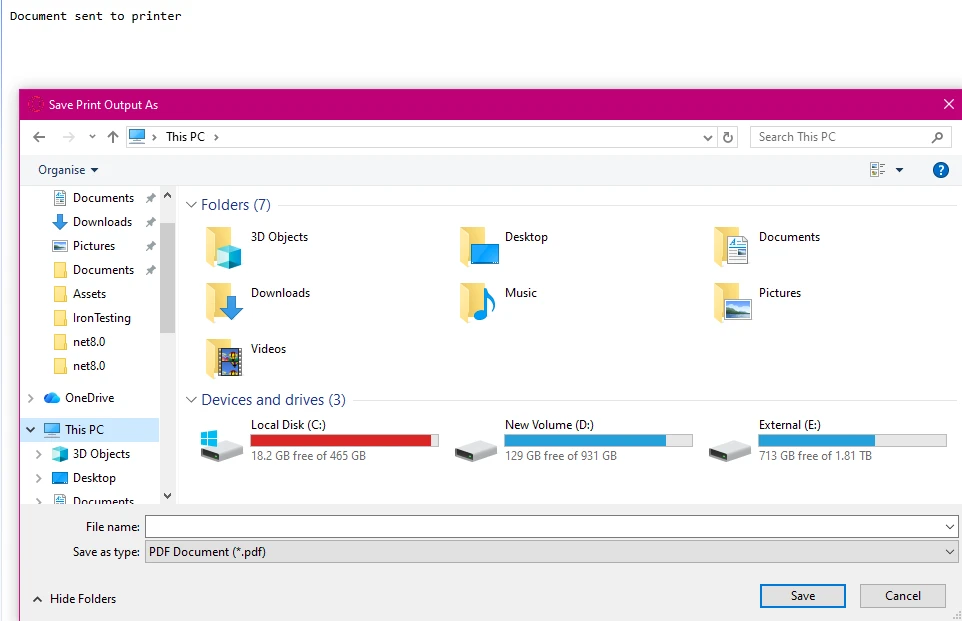
What Does the Server-Side Print Output Look Like?

Windows 'Save Print Output As' dialog box displaying file system folders and drives, with PDF format selected as the save type

How Do I Configure Network Printers?

For enterprise environments requiring specific printer routing with compliance tracking, IronPDF offers complete print document management. The library supports various paper sizes and page orientations:

public IActionResult PrintToNetworkPrinter(string filePath)
{
    try 
    {
        // Load existing PDF file with security verification
        var pdfDocument = PdfDocument.FromFile(filePath);

        // Verify document integrity for compliance
        if (!VerifyDocumentIntegrity(pdfDocument))
        {
            return Unauthorized("Document integrity check failed");
        }

        // Get print document for advanced settings
        var printDocument = pdfDocument.GetPrintDocument();

        // Specify network printer with failover support
        printDocument.PrinterSettings.PrinterName = @"\\server\printer";
        printDocument.PrinterSettings.Copies = 2;

        // Configure page settings for enterprise standards
        printDocument.DefaultPageSettings.Environment = false;
        printDocument.DefaultPageSettings.PaperSize = new PaperSize("A4", 827, 1169);
        var renderer = printDocument.PrinterSettings.PrinterResolution;

        // Add print tracking for audit trails
        var printJobId = Guid.NewGuid().ToString();
        LogPrintRequest(printJobId, filePath, printDocument.PrinterSettings.PrinterName);

        // Execute print with error handling
        printDocument.Print();

        // Confirm successful print for audit
        LogPrintSuccess(printJobId);

        return Json(new { 
            success = true, 
            jobId = printJobId,
            message = "Document sent to " + printDocument.PrinterSettings.PrinterName
        });
    }
    catch (Exception ex)
    {
        // Log failure for compliance
        LogPrintFailure(ex.Message);
        return StatusCode(500, new { error = "Print operation failed", details = ex.Message });
    }
}

private bool VerifyDocumentIntegrity(PdfDocument document)
{
    // Implement document verification logic
    // Check for digital signatures, tampering, etc.
    return true; // Simplified for example
}
public IActionResult PrintToNetworkPrinter(string filePath)
{
    try 
    {
        // Load existing PDF file with security verification
        var pdfDocument = PdfDocument.FromFile(filePath);

        // Verify document integrity for compliance
        if (!VerifyDocumentIntegrity(pdfDocument))
        {
            return Unauthorized("Document integrity check failed");
        }

        // Get print document for advanced settings
        var printDocument = pdfDocument.GetPrintDocument();

        // Specify network printer with failover support
        printDocument.PrinterSettings.PrinterName = @"\\server\printer";
        printDocument.PrinterSettings.Copies = 2;

        // Configure page settings for enterprise standards
        printDocument.DefaultPageSettings.Environment = false;
        printDocument.DefaultPageSettings.PaperSize = new PaperSize("A4", 827, 1169);
        var renderer = printDocument.PrinterSettings.PrinterResolution;

        // Add print tracking for audit trails
        var printJobId = Guid.NewGuid().ToString();
        LogPrintRequest(printJobId, filePath, printDocument.PrinterSettings.PrinterName);

        // Execute print with error handling
        printDocument.Print();

        // Confirm successful print for audit
        LogPrintSuccess(printJobId);

        return Json(new { 
            success = true, 
            jobId = printJobId,
            message = "Document sent to " + printDocument.PrinterSettings.PrinterName
        });
    }
    catch (Exception ex)
    {
        // Log failure for compliance
        LogPrintFailure(ex.Message);
        return StatusCode(500, new { error = "Print operation failed", details = ex.Message });
    }
}

private bool VerifyDocumentIntegrity(PdfDocument document)
{
    // Implement document verification logic
    // Check for digital signatures, tampering, etc.
    return true; // Simplified for example
}
$vbLabelText   $csharpLabel

This approach provides complete control over printer settings, including paper format and resolution, which is vital for correct drawing and layout in enterprise printing scenarios. The implementation includes complete error handling and audit logging required for compliance frameworks. For high-volume printing, consider implementing parallel processing and memory optimization.

What Are the Security Considerations for Network Printing?

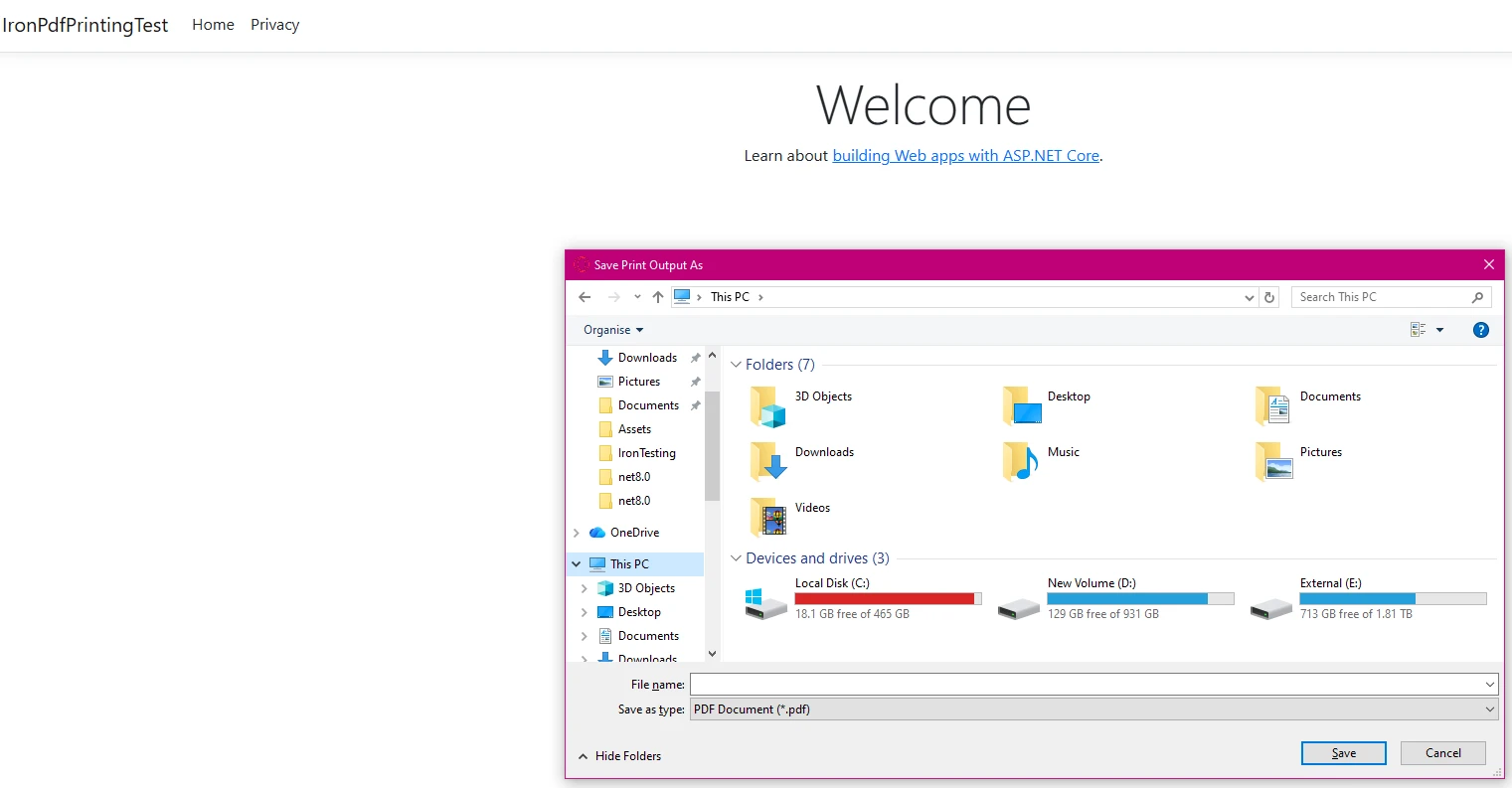
Windows Save As dialog box for saving print output as PDF, showing file system navigation with folders and drive storage information

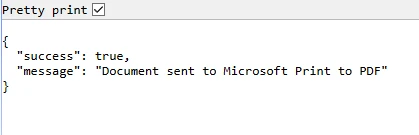
How Can I Verify Successful Print Jobs?

Browser console output showing a successful print operation with JSON response containing 'success: true' and confirmation message that document was sent to Microsoft Print to PDF

What Is the Best Client-Side Printing Strategy?

Since browsers restrict direct printer access for security reasons, implement client-side printing by serving the PDF file with appropriate security headers. IronPDF supports various export formats and compression options to improve file delivery:

public IActionResult GetRawPrintablePdf()
{
    var renderer = new ChromePdfRenderer();

    // Apply enterprise security settings
    renderer.RenderingOptions.EnableJavaScript = false;
    renderer.RenderingOptions.CreatePdfFormsFromHtml = false;

    var pdf = renderer.RenderHtmlAsPdf(GetInvoiceHtml());

    // Apply document security for client-side viewing
    pdf.SecuritySettings.AllowUserPrinting = true;
    pdf.SecuritySettings.AllowUserEditing = false;
    pdf.SecuritySettings.AllowUserCopyPasteContent = false;
    pdf.SecuritySettings.AllowUserAnnotations = false;
    pdf.SecuritySettings.AllowUserFormData = false;

    // Add watermark for security
    pdf.ApplyWatermark("<h2 style='color:red;opacity:0.3'>CONFIDENTIAL</h2>", 30, VerticalAlignment.Middle, HorizontalAlignment.Center);

    // This header tells the browser to display the file inline.
    // We use IHeaderDictionary indexer to prevent ArgumentException.
    HttpContext.Response.Headers["Content-Disposition"] = "inline; filename=invoice.pdf";
    HttpContext.Response.Headers["X-Content-Type-Options"] = "nosniff";
    HttpContext.Response.Headers["Content-Security-Policy"] = "default-src 'self'";

    return File(pdf.BinaryData, "application/pdf");
}

public IActionResult PrintUsingClientWrapper()
{
    var printUrl = Url.Action(nameof(GetRawPrintablePdf));
    // Use a simple HTML/JavaScript wrapper to force the print dialog
    var html = new StringBuilder();
    html.AppendLine("<!DOCTYPE html>");
    html.AppendLine("<html lang=\"en\">");
    html.AppendLine("<head>");
    html.AppendLine("    <title>Print Document</title>");
    html.AppendLine("    <meta http-equiv=\"Content-Security-Policy\" content=\"default-src 'self' 'unsafe-inline'\">");
    html.AppendLine("</head>");
    html.AppendLine("<body>");
    // Load the PDF from the 'GetRawPrintablePdf' action into an invisible iframe.
    html.AppendLine($"    <iframe src='{printUrl}' style='position:absolute; top:0; left:0; width:100%; height:100%; border:none;'></iframe>");
    html.AppendLine("    <script>");
    // Wait for the iframe (and thus the PDF) to load, then trigger the print dialog.
    html.AppendLine("        window.onload = function() {");
    html.AppendLine("            // Wait briefly to ensure the iframe content is rendered before printing.");
    html.AppendLine("            setTimeout(function() {");
    html.AppendLine("                window.print();");
    html.AppendLine("                // Log print attempt for audit");
    html.AppendLine("                console.log('Print dialog triggered at: ' + new Date().toISOString());");
    html.AppendLine("            }, 100);");
    html.AppendLine("        };");
    html.AppendLine("    </script>");
    html.AppendLine("</body>");
    html.AppendLine("</html>");
    return Content(html.ToString(), "text/html");
}

private string GetInvoiceHtml()
{
    // Build HTML with proper structure and security considerations
    return @"
    <html>
    <head>
        <style>
            body { font-family: Arial, sans-serif; }
            .header { font-weight: bold; color: #1e40af; border-bottom: 2px solid #3b82f6; padding-bottom: 5px; }
            .content { padding-top: 10px; }
            .footer { margin-top: 20px; font-size: 10px; color: #666; }
            @media print {
                .no-print { display: none; }
            }
        </style>
    </head>
    <body>
        <div class='header'>Invoice Summary (Client View)</div>
        <div class='content'>
            <p>Document content: This file is improve for printing.</p>
            <p>Total Amount: <b>$799.00</b></p>
        </div>
    </body>
    </html>";
}
public IActionResult GetRawPrintablePdf()
{
    var renderer = new ChromePdfRenderer();

    // Apply enterprise security settings
    renderer.RenderingOptions.EnableJavaScript = false;
    renderer.RenderingOptions.CreatePdfFormsFromHtml = false;

    var pdf = renderer.RenderHtmlAsPdf(GetInvoiceHtml());

    // Apply document security for client-side viewing
    pdf.SecuritySettings.AllowUserPrinting = true;
    pdf.SecuritySettings.AllowUserEditing = false;
    pdf.SecuritySettings.AllowUserCopyPasteContent = false;
    pdf.SecuritySettings.AllowUserAnnotations = false;
    pdf.SecuritySettings.AllowUserFormData = false;

    // Add watermark for security
    pdf.ApplyWatermark("<h2 style='color:red;opacity:0.3'>CONFIDENTIAL</h2>", 30, VerticalAlignment.Middle, HorizontalAlignment.Center);

    // This header tells the browser to display the file inline.
    // We use IHeaderDictionary indexer to prevent ArgumentException.
    HttpContext.Response.Headers["Content-Disposition"] = "inline; filename=invoice.pdf";
    HttpContext.Response.Headers["X-Content-Type-Options"] = "nosniff";
    HttpContext.Response.Headers["Content-Security-Policy"] = "default-src 'self'";

    return File(pdf.BinaryData, "application/pdf");
}

public IActionResult PrintUsingClientWrapper()
{
    var printUrl = Url.Action(nameof(GetRawPrintablePdf));
    // Use a simple HTML/JavaScript wrapper to force the print dialog
    var html = new StringBuilder();
    html.AppendLine("<!DOCTYPE html>");
    html.AppendLine("<html lang=\"en\">");
    html.AppendLine("<head>");
    html.AppendLine("    <title>Print Document</title>");
    html.AppendLine("    <meta http-equiv=\"Content-Security-Policy\" content=\"default-src 'self' 'unsafe-inline'\">");
    html.AppendLine("</head>");
    html.AppendLine("<body>");
    // Load the PDF from the 'GetRawPrintablePdf' action into an invisible iframe.
    html.AppendLine($"    <iframe src='{printUrl}' style='position:absolute; top:0; left:0; width:100%; height:100%; border:none;'></iframe>");
    html.AppendLine("    <script>");
    // Wait for the iframe (and thus the PDF) to load, then trigger the print dialog.
    html.AppendLine("        window.onload = function() {");
    html.AppendLine("            // Wait briefly to ensure the iframe content is rendered before printing.");
    html.AppendLine("            setTimeout(function() {");
    html.AppendLine("                window.print();");
    html.AppendLine("                // Log print attempt for audit");
    html.AppendLine("                console.log('Print dialog triggered at: ' + new Date().toISOString());");
    html.AppendLine("            }, 100);");
    html.AppendLine("        };");
    html.AppendLine("    </script>");
    html.AppendLine("</body>");
    html.AppendLine("</html>");
    return Content(html.ToString(), "text/html");
}

private string GetInvoiceHtml()
{
    // Build HTML with proper structure and security considerations
    return @"
    <html>
    <head>
        <style>
            body { font-family: Arial, sans-serif; }
            .header { font-weight: bold; color: #1e40af; border-bottom: 2px solid #3b82f6; padding-bottom: 5px; }
            .content { padding-top: 10px; }
            .footer { margin-top: 20px; font-size: 10px; color: #666; }
            @media print {
                .no-print { display: none; }
            }
        </style>
    </head>
    <body>
        <div class='header'>Invoice Summary (Client View)</div>
        <div class='content'>
            <p>Document content: This file is improve for printing.</p>
            <p>Total Amount: <b>$799.00</b></p>
        </div>
    </body>
    </html>";
}
$vbLabelText   $csharpLabel

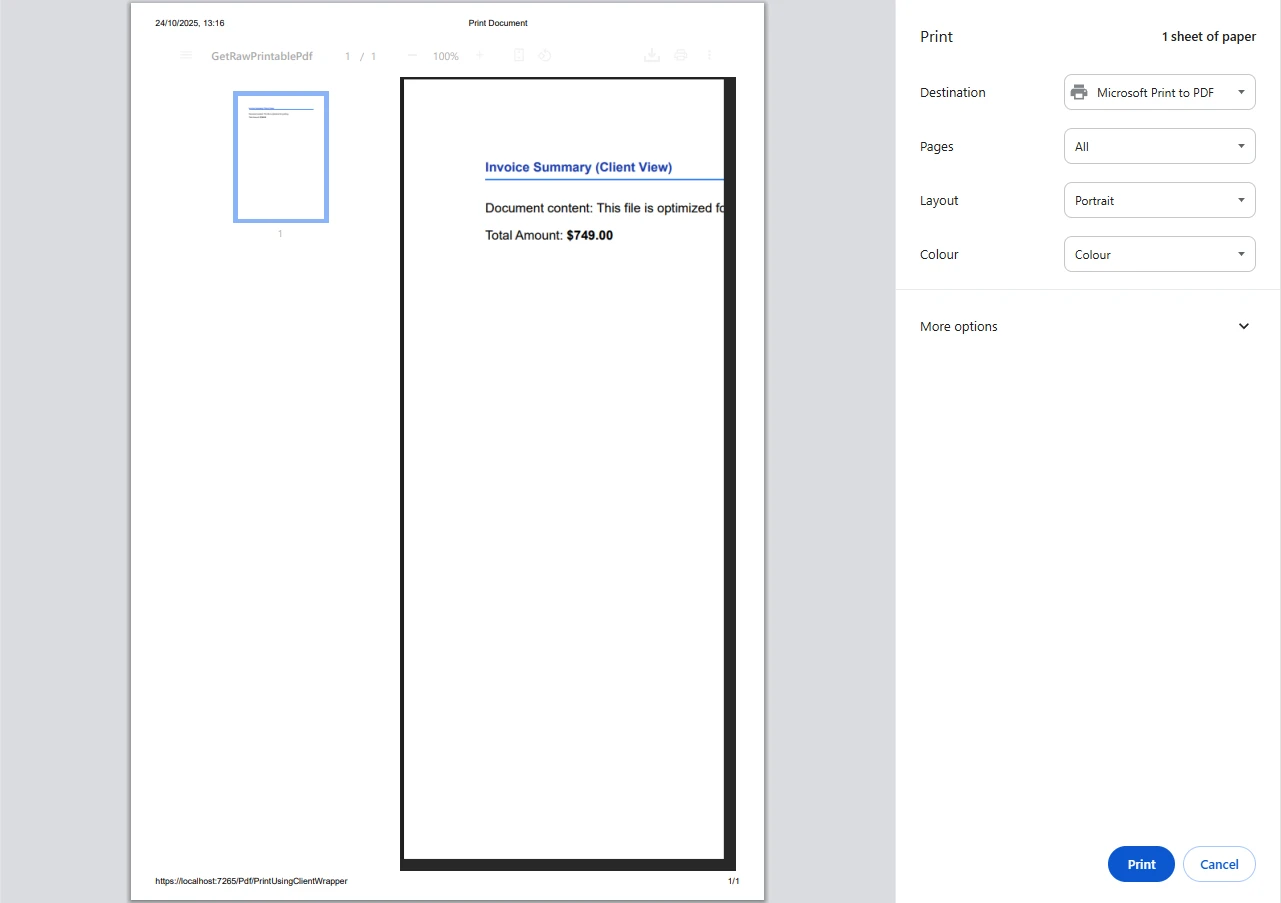
The PDF document opens in the browser where users can trigger printing through their default printer using standard browser print dialogs. This approach is superior to making a direct server-side request for printing and maintains security compliance through proper content security policies and watermarking. For improve functionality, consider implementing PDF viewing components or PDF to image conversion for preview purposes.

How Does Client-Side Printing Ensure Data Security?

Microsoft Edge print dialog showing a PDF invoice preview with $749.00 total and various print settings on the right side

How Do I Work with Various Source Code Inputs?

IronPDF flexibly handles various source code inputs while maintaining data sovereignty, important for developers creating dynamic printing code in enterprise environments. The library supports HTML files, URLs, HTML strings, and even Markdown content:

public async Task<IActionResult> PrintFromMultipleSources()
{
    var renderer = new ChromePdfRenderer();

    // Configure for security compliance
    renderer.RenderingOptions.EnableJavaScript = false;
    renderer.RenderingOptions.Timeout = 30; // 30 second timeout

    // From URL with authentication
    renderer.LoginCredentials = new ChromeHttpLoginCredentials()
    {
        NetworkUsername = "serviceaccount",
        NetworkPassword = "securepassword"
    };
    var pdfFromUrl = await renderer.RenderUrlAsPdfAsync("___PROTECTED_URL_126___");

    // From HTML file path with template validation
    var templatePath = @"Templates\report.html";
    if (!IsValidTemplate(templatePath))
    {
        return BadRequest("Invalid template");
    }
    var pdfFromFile = renderer.RenderHtmlFileAsPdf(templatePath);

    // From memory stream with sanitization
    var sanitizedHtml = SanitizeHtml("<h2>PDF from Memory Stream</h2><p>This content was sanitized for security.</p>");
    var pdfToStream = renderer.RenderHtmlAsPdf(sanitizedHtml);

    // Now, write the valid PDF bytes to the stream with encryption
    using (var stream = new MemoryStream(pdfToStream.BinaryData))
    {
        var pdfFromStream = new PdfDocument(stream);

        // Apply encryption for data at rest
        pdfFromStream.SecuritySettings.OwnerPassword = GenerateSecurePassword();
        pdfFromStream.SecuritySettings.UserPassword = "userpass";

        // Example: Print the PDF loaded from the stream
        // pdfFromStream.Print();
    }

    // Print with audit trail
    var printJobId = Guid.NewGuid().ToString();
    LogMultiSourcePrint(printJobId, new[] { "URL", "Template", "Stream" });

    pdfFromUrl.Print();

    // Logging the various files handled
    var fileList = new List<string> { "URL", "File Path", "Memory Stream" };

    return Ok(new
    {
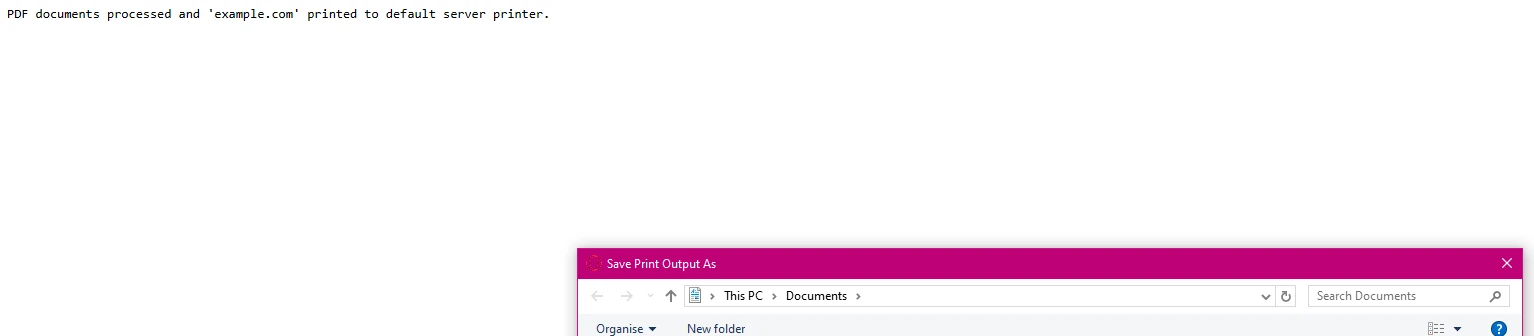
        message = "PDF documents processed and 'example.com' printed to default server printer.",
        jobId = printJobId,
        sources = fileList,
        timestamp = DateTime.UtcNow
    });
}

private bool IsValidTemplate(string path)
{
    // Implement template validation logic
    // Check for path traversal, allowed directories, etc.
    return true;
}

private string SanitizeHtml(string html)
{
    // Implement HTML sanitization for security
    // Remove scripts, dangerous tags, etc.
    return html;
}

private string GenerateSecurePassword()
{
    // Generate cryptographically secure password
    return Guid.NewGuid().ToString();
}
public async Task<IActionResult> PrintFromMultipleSources()
{
    var renderer = new ChromePdfRenderer();

    // Configure for security compliance
    renderer.RenderingOptions.EnableJavaScript = false;
    renderer.RenderingOptions.Timeout = 30; // 30 second timeout

    // From URL with authentication
    renderer.LoginCredentials = new ChromeHttpLoginCredentials()
    {
        NetworkUsername = "serviceaccount",
        NetworkPassword = "securepassword"
    };
    var pdfFromUrl = await renderer.RenderUrlAsPdfAsync("___PROTECTED_URL_126___");

    // From HTML file path with template validation
    var templatePath = @"Templates\report.html";
    if (!IsValidTemplate(templatePath))
    {
        return BadRequest("Invalid template");
    }
    var pdfFromFile = renderer.RenderHtmlFileAsPdf(templatePath);

    // From memory stream with sanitization
    var sanitizedHtml = SanitizeHtml("<h2>PDF from Memory Stream</h2><p>This content was sanitized for security.</p>");
    var pdfToStream = renderer.RenderHtmlAsPdf(sanitizedHtml);

    // Now, write the valid PDF bytes to the stream with encryption
    using (var stream = new MemoryStream(pdfToStream.BinaryData))
    {
        var pdfFromStream = new PdfDocument(stream);

        // Apply encryption for data at rest
        pdfFromStream.SecuritySettings.OwnerPassword = GenerateSecurePassword();
        pdfFromStream.SecuritySettings.UserPassword = "userpass";

        // Example: Print the PDF loaded from the stream
        // pdfFromStream.Print();
    }

    // Print with audit trail
    var printJobId = Guid.NewGuid().ToString();
    LogMultiSourcePrint(printJobId, new[] { "URL", "Template", "Stream" });

    pdfFromUrl.Print();

    // Logging the various files handled
    var fileList = new List<string> { "URL", "File Path", "Memory Stream" };

    return Ok(new
    {
        message = "PDF documents processed and 'example.com' printed to default server printer.",
        jobId = printJobId,
        sources = fileList,
        timestamp = DateTime.UtcNow
    });
}

private bool IsValidTemplate(string path)
{
    // Implement template validation logic
    // Check for path traversal, allowed directories, etc.
    return true;
}

private string SanitizeHtml(string html)
{
    // Implement HTML sanitization for security
    // Remove scripts, dangerous tags, etc.
    return html;
}

private string GenerateSecurePassword()
{
    // Generate cryptographically secure password
    return Guid.NewGuid().ToString();
}
$vbLabelText   $csharpLabel

The lines above demonstrate how to create a new list of file sources handled with security best practices. Each method preserves the document structure and graphics while maintaining print quality and compliance requirements. The implementation includes authentication, input validation, and encryption for data protection. For additional input sources, IronPDF supports DOCX files, RTF documents, XML data, and image formats.

After processing PDF documents, Windows displays this save dialog allowing users to save the print output while confirming the documents were sent to the default printer

How Do I Implement Error Handling and Logging?

Implement reliable error handling for production environments with compliance logging. IronPDF provides complete troubleshooting guides and native exception handling:

using System.Drawing.Printing; // For PrinterSettings
// ... other usings ...
public IActionResult SafePrint(string documentId)
{
    var correlationId = Guid.NewGuid().ToString();

    try
    {
        // Log print attempt for audit trail
        LogPrintAttempt(correlationId, documentId, User.Identity.Name);

        var pdf = LoadPdfDocument(documentId);

        // Verify user permissions
        if (!HasPrintPermission(User.Identity.Name, documentId))
        {
            LogUnauthorizedAccess(correlationId, documentId, User.Identity.Name);
            return Forbid("User lacks print permissions for this document");
        }

        // Verify printer availability with failover
        var availablePrinters = PrinterSettings.InstalledPrinters.Cast<string>().ToList();
        var targetPrinter = GetTargetPrinter(availablePrinters);

        if (string.IsNullOrEmpty(targetPrinter))
        {
            // Log error and handle gracefully
            LogPrinterUnavailable(correlationId, availablePrinters);
            return BadRequest(new
            {
                error = "Printer not available",
                availablePrinters = availablePrinters,
                correlationId = correlationId
            });
        }

        // Apply print settings
        var printDoc = pdf.GetPrintDocument();
        printDoc.PrinterSettings.PrinterName = targetPrinter;

        // Execute print with monitoring
        printDoc.Print();

        // Log successful output for compliance
        LogPrintSuccess(correlationId, documentId, targetPrinter);

        return Ok(new
        {
            message = $"Document {documentId} printed successfully",
            printer = targetPrinter,
            correlationId = correlationId,
            timestamp = DateTime.UtcNow
        });
    }
    catch (UnauthorizedAccessException uae)
    {
        LogSecurityException(correlationId, uae);
        return StatusCode(403, new { error = "Access denied", correlationId = correlationId });
    }
    catch (Exception ex)
    {
        // Log error details with stack trace for debugging
        LogPrintError(correlationId, ex);
        return StatusCode(500, new
        {
            error = "Printing failed",
            correlationId = correlationId,
            message = "Please contact support with the correlation ID"
        });
    }
}

private string GetTargetPrinter(List<string> availablePrinters)
{
    // Implement printer selection logic with failover
    var primaryPrinter = "Primary Network Printer";
    var fallbackPrinter = "Secondary Printer";

    if (availablePrinters.Contains(primaryPrinter))
        return primaryPrinter;
    else if (availablePrinters.Contains(fallbackPrinter))
        return fallbackPrinter;
    else
        return availablePrinters.FirstOrDefault();
}

private bool HasPrintPermission(string userName, string documentId)
{
    // Implement your permission checking logic
    // This could integrate with your enterprise authorization system
    return true; // Simplified for example
}

private PdfDocument LoadPdfDocument(string documentId)
{
    // Load document with security checks
    var filePath = GetSecureFilePath(documentId);
    return PdfDocument.FromFile(filePath);
}

private string GetSecureFilePath(string documentId)
{
    // Implement secure file path resolution
    // Prevent path traversal attacks
    return Path.Combine(GetSecureDocumentRoot(), documentId + ".pdf");
}
using System.Drawing.Printing; // For PrinterSettings
// ... other usings ...
public IActionResult SafePrint(string documentId)
{
    var correlationId = Guid.NewGuid().ToString();

    try
    {
        // Log print attempt for audit trail
        LogPrintAttempt(correlationId, documentId, User.Identity.Name);

        var pdf = LoadPdfDocument(documentId);

        // Verify user permissions
        if (!HasPrintPermission(User.Identity.Name, documentId))
        {
            LogUnauthorizedAccess(correlationId, documentId, User.Identity.Name);
            return Forbid("User lacks print permissions for this document");
        }

        // Verify printer availability with failover
        var availablePrinters = PrinterSettings.InstalledPrinters.Cast<string>().ToList();
        var targetPrinter = GetTargetPrinter(availablePrinters);

        if (string.IsNullOrEmpty(targetPrinter))
        {
            // Log error and handle gracefully
            LogPrinterUnavailable(correlationId, availablePrinters);
            return BadRequest(new
            {
                error = "Printer not available",
                availablePrinters = availablePrinters,
                correlationId = correlationId
            });
        }

        // Apply print settings
        var printDoc = pdf.GetPrintDocument();
        printDoc.PrinterSettings.PrinterName = targetPrinter;

        // Execute print with monitoring
        printDoc.Print();

        // Log successful output for compliance
        LogPrintSuccess(correlationId, documentId, targetPrinter);

        return Ok(new
        {
            message = $"Document {documentId} printed successfully",
            printer = targetPrinter,
            correlationId = correlationId,
            timestamp = DateTime.UtcNow
        });
    }
    catch (UnauthorizedAccessException uae)
    {
        LogSecurityException(correlationId, uae);
        return StatusCode(403, new { error = "Access denied", correlationId = correlationId });
    }
    catch (Exception ex)
    {
        // Log error details with stack trace for debugging
        LogPrintError(correlationId, ex);
        return StatusCode(500, new
        {
            error = "Printing failed",
            correlationId = correlationId,
            message = "Please contact support with the correlation ID"
        });
    }
}

private string GetTargetPrinter(List<string> availablePrinters)
{
    // Implement printer selection logic with failover
    var primaryPrinter = "Primary Network Printer";
    var fallbackPrinter = "Secondary Printer";

    if (availablePrinters.Contains(primaryPrinter))
        return primaryPrinter;
    else if (availablePrinters.Contains(fallbackPrinter))
        return fallbackPrinter;
    else
        return availablePrinters.FirstOrDefault();
}

private bool HasPrintPermission(string userName, string documentId)
{
    // Implement your permission checking logic
    // This could integrate with your enterprise authorization system
    return true; // Simplified for example
}

private PdfDocument LoadPdfDocument(string documentId)
{
    // Load document with security checks
    var filePath = GetSecureFilePath(documentId);
    return PdfDocument.FromFile(filePath);
}

private string GetSecureFilePath(string documentId)
{
    // Implement secure file path resolution
    // Prevent path traversal attacks
    return Path.Combine(GetSecureDocumentRoot(), documentId + ".pdf");
}
$vbLabelText   $csharpLabel

This ensures reliable printing even when system resources are unavailable and is a key part of your enterprise print service. The implementation includes correlation IDs for tracking requests across distributed systems and complete security checks. For troubleshooting specific issues, IronPDF provides detailed log files and engineering support.

What Happens When Printers Are Unavailable?

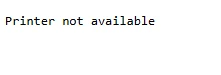
If the printer specified in the code isn't available, the code will provide this error message:

A common printer error message that users may encounter when attempting to print documents

How Can I Monitor Successful Print Jobs?

If your PDF is printed successfully, you should see a confirmation message such as:

Windows command prompt displaying successful PDF print confirmation for a file located in a nested Desktop folder structure

What Advanced Configuration Options Are Available?

IronPDF's folder structure supports complex scenarios required by enterprise architectures. The version of the IronPDF library you use may affect these settings. The library offers rendering options for performance optimization and memory management:

public IActionResult ConfigureAdvancedPrinting(object sender, EventArgs e)
{
    var renderer = new ChromePdfRenderer();

    // Configure rendering options for compliance
    renderer.RenderingOptions.PaperSize = PdfPaperSize.A4;
    renderer.RenderingOptions.EnableJavaScript = false; // Security best practice
    renderer.RenderingOptions.RenderDelay = 500; // Wait for dynamic content
    renderer.RenderingOptions.Timeout = 60; // 60 second timeout for large documents
    renderer.RenderingOptions.CssMediaType = PdfCssMediaType.Print;

    // Configure for high-quality output
    renderer.RenderingOptions.PrintHtmlBackgrounds = true;
    renderer.RenderingOptions.CreatePdfFormsFromHtml = false; // Disable for security

    // Set DPI for print quality
    renderer.RenderingOptions.DpiResolution = 300;

    // Generate complex PDF documents
    var pdf = renderer.RenderHtmlAsPdf(GetDynamicContent());

    // Apply security settings for enterprise compliance
    pdf.SecuritySettings.AllowUserPrinting = true;
    pdf.SecuritySettings.AllowUserEditing = false;
    pdf.SecuritySettings.AllowUserCopyPasteContent = false;
    pdf.SecuritySettings.AllowUserAnnotations = false;
    pdf.SecuritySettings.AllowUserFormData = false;

    // Set strong encryption
    pdf.SecuritySettings.OwnerPassword = GenerateStrongPassword();
    pdf.SecuritySettings.UserPassword = "userpassword";

    // Add complete metadata for compliance
    pdf.MetaData.Author = "Enterprise Document System";
    pdf.MetaData.Creator = "IronPDF Enterprise Edition";
    pdf.MetaData.Subject = "Compliance Document";
    pdf.MetaData.Keywords = "enterprise,secure,compliant";
    pdf.MetaData.Producer = $"IronPDF {IronPdf.License.LicensedTo}";
    pdf.MetaData.CreationDate = DateTime.UtcNow;
    pdf.MetaData.ModifiedDate = DateTime.UtcNow;

    // Add custom metadata for tracking
    pdf.MetaData.CustomProperties.Add("DocumentClassification", "Confidential");
    pdf.MetaData.CustomProperties.Add("RetentionPolicy", "7years");
    pdf.MetaData.CustomProperties.Add("ComplianceFramework", "SOC2-HIPAA");

    // Apply digital signature for integrity
    if (RequiresDigitalSignature())
    {
        pdf.SignWithFile("/path/to/certificate.pfx", "certificatePassword");
    }

    return File(pdf.BinaryData, "application/pdf");
}

private string GenerateStrongPassword()
{
    // Implement strong password generation
    using (var rng = System.Security.Cryptography.RandomNumberGenerator.Create())
    {
        var bytes = new byte[32];
        rng.GetBytes(bytes);
        return Convert.ToBase64String(bytes);
    }
}

private bool RequiresDigitalSignature()
{
    // Business logic to determine if signature is required
    return true;
}

private string GetDynamicContent()
{
    // Generate content with security headers
    return @"
    <!DOCTYPE html>
    <html>
    <head>
        <meta charset='utf-8'>
        <meta http-equiv='X-UA-Compatible' content='IE=edge'>
        <style>
            @page { size: A4; margin: 1cm; }
            body { font-family: Arial, sans-serif; }
            .confidential { color: red; font-weight: bold; }
        </style>
    </head>
    <body>
        <h1>Enterprise Document</h1>
        <p class='confidential'>CONFIDENTIAL - INTERNAL USE ONLY</p>
        <p>Generated: " + DateTime.UtcNow.ToString("yyyy-MM-dd HH:mm:ss UTC") + @"</p>
    </body>
    </html>";
}
public IActionResult ConfigureAdvancedPrinting(object sender, EventArgs e)
{
    var renderer = new ChromePdfRenderer();

    // Configure rendering options for compliance
    renderer.RenderingOptions.PaperSize = PdfPaperSize.A4;
    renderer.RenderingOptions.EnableJavaScript = false; // Security best practice
    renderer.RenderingOptions.RenderDelay = 500; // Wait for dynamic content
    renderer.RenderingOptions.Timeout = 60; // 60 second timeout for large documents
    renderer.RenderingOptions.CssMediaType = PdfCssMediaType.Print;

    // Configure for high-quality output
    renderer.RenderingOptions.PrintHtmlBackgrounds = true;
    renderer.RenderingOptions.CreatePdfFormsFromHtml = false; // Disable for security

    // Set DPI for print quality
    renderer.RenderingOptions.DpiResolution = 300;

    // Generate complex PDF documents
    var pdf = renderer.RenderHtmlAsPdf(GetDynamicContent());

    // Apply security settings for enterprise compliance
    pdf.SecuritySettings.AllowUserPrinting = true;
    pdf.SecuritySettings.AllowUserEditing = false;
    pdf.SecuritySettings.AllowUserCopyPasteContent = false;
    pdf.SecuritySettings.AllowUserAnnotations = false;
    pdf.SecuritySettings.AllowUserFormData = false;

    // Set strong encryption
    pdf.SecuritySettings.OwnerPassword = GenerateStrongPassword();
    pdf.SecuritySettings.UserPassword = "userpassword";

    // Add complete metadata for compliance
    pdf.MetaData.Author = "Enterprise Document System";
    pdf.MetaData.Creator = "IronPDF Enterprise Edition";
    pdf.MetaData.Subject = "Compliance Document";
    pdf.MetaData.Keywords = "enterprise,secure,compliant";
    pdf.MetaData.Producer = $"IronPDF {IronPdf.License.LicensedTo}";
    pdf.MetaData.CreationDate = DateTime.UtcNow;
    pdf.MetaData.ModifiedDate = DateTime.UtcNow;

    // Add custom metadata for tracking
    pdf.MetaData.CustomProperties.Add("DocumentClassification", "Confidential");
    pdf.MetaData.CustomProperties.Add("RetentionPolicy", "7years");
    pdf.MetaData.CustomProperties.Add("ComplianceFramework", "SOC2-HIPAA");

    // Apply digital signature for integrity
    if (RequiresDigitalSignature())
    {
        pdf.SignWithFile("/path/to/certificate.pfx", "certificatePassword");
    }

    return File(pdf.BinaryData, "application/pdf");
}

private string GenerateStrongPassword()
{
    // Implement strong password generation
    using (var rng = System.Security.Cryptography.RandomNumberGenerator.Create())
    {
        var bytes = new byte[32];
        rng.GetBytes(bytes);
        return Convert.ToBase64String(bytes);
    }
}

private bool RequiresDigitalSignature()
{
    // Business logic to determine if signature is required
    return true;
}

private string GetDynamicContent()
{
    // Generate content with security headers
    return @"
    <!DOCTYPE html>
    <html>
    <head>
        <meta charset='utf-8'>
        <meta http-equiv='X-UA-Compatible' content='IE=edge'>
        <style>
            @page { size: A4; margin: 1cm; }
            body { font-family: Arial, sans-serif; }
            .confidential { color: red; font-weight: bold; }
        </style>
    </head>
    <body>
        <h1>Enterprise Document</h1>
        <p class='confidential'>CONFIDENTIAL - INTERNAL USE ONLY</p>
        <p>Generated: " + DateTime.UtcNow.ToString("yyyy-MM-dd HH:mm:ss UTC") + @"</p>
    </body>
    </html>";
}
$vbLabelText   $csharpLabel

The command to print is simply pdf.Print() once the document is generated with all security configurations applied. This complete approach ensures compliance with enterprise security standards while maintaining document integrity through digital signatures and encryption. For advanced scenarios, consider PDF/A compliance for long-term archival, PDF/UA for accessibility compliance, and table of contents generation for complex documents.

// Additional example: Implementing batch printing with progress tracking
public async Task<IActionResult> BatchPrintDocuments(List<string> documentIds)
{
    var results = new List<PrintResult>();
    var renderer = new ChromePdfRenderer();

    // Configure for batch processing
    renderer.RenderingOptions.Timeout = 120; // Extended timeout for batch
    renderer.RenderingOptions.CssMediaType = PdfCssMediaType.Print;

    foreach (var docId in documentIds)
    {
        try
        {
            var htmlContent = await GetDocumentHtmlAsync(docId);
            var pdf = renderer.RenderHtmlAsPdf(htmlContent);

            // Apply batch processing optimizations
            pdf.CompressImages(90); // Compress for faster processing

            // Print with tracking
            var printJob = new PrintJob { DocumentId = docId, StartTime = DateTime.UtcNow };
            pdf.Print();
            printJob.EndTime = DateTime.UtcNow;
            printJob.Status = PrintStatus.Success;

            results.Add(printJob);
        }
        catch (Exception ex)
        {
            results.Add(new PrintJob 
            { 
                DocumentId = docId, 
                Status = PrintStatus.Failed, 
                Error = ex.Message 
            });
        }
    }

    return Json(new
    {
        totalDocuments = documentIds.Count,
        successful = results.Count(r => r.Status == PrintStatus.Success),
        failed = results.Count(r => r.Status == PrintStatus.Failed),
        results = results
    });
}
// Additional example: Implementing batch printing with progress tracking
public async Task<IActionResult> BatchPrintDocuments(List<string> documentIds)
{
    var results = new List<PrintResult>();
    var renderer = new ChromePdfRenderer();

    // Configure for batch processing
    renderer.RenderingOptions.Timeout = 120; // Extended timeout for batch
    renderer.RenderingOptions.CssMediaType = PdfCssMediaType.Print;

    foreach (var docId in documentIds)
    {
        try
        {
            var htmlContent = await GetDocumentHtmlAsync(docId);
            var pdf = renderer.RenderHtmlAsPdf(htmlContent);

            // Apply batch processing optimizations
            pdf.CompressImages(90); // Compress for faster processing

            // Print with tracking
            var printJob = new PrintJob { DocumentId = docId, StartTime = DateTime.UtcNow };
            pdf.Print();
            printJob.EndTime = DateTime.UtcNow;
            printJob.Status = PrintStatus.Success;

            results.Add(printJob);
        }
        catch (Exception ex)
        {
            results.Add(new PrintJob 
            { 
                DocumentId = docId, 
                Status = PrintStatus.Failed, 
                Error = ex.Message 
            });
        }
    }

    return Json(new
    {
        totalDocuments = documentIds.Count,
        successful = results.Count(r => r.Status == PrintStatus.Success),
        failed = results.Count(r => r.Status == PrintStatus.Failed),
        results = results
    });
}
$vbLabelText   $csharpLabel

When Should I Consider IronPrint as an Alternative?

For specialized printing requirements beyond PDF generation, Iron Software also offers IronPrint, a dedicated .NET printing library with improve cross-platform support and advanced printing features. The primary parameter is simply the file path, making it straightforward to integrate into existing enterprise workflows. The product includes complete security documentation and compliance certifications suitable for regulated industries. You can find detailed information about their enterprise support and licensing options on their website. IronPrint specializes in direct printing without PDF generation when that's your primary requirement.

Why Should I Choose IronPDF for PDF Printing?

IronPDF transforms ASP.NET PDF printing from a complex challenge into straightforward implementation while maintaining enterprise security standards. Without requiring Adobe Reader or external dependencies, you can generate and print PDF files with minimal code while ensuring compliance with SOC2, HIPAA, and industry-specific regulations. The PDF library handles everything from HTML conversion to printer configuration, making it ideal for both server-side automation and client-side printing scenarios with full audit trail capabilities. The complete API supports various input formats, editing capabilities, security features, and organization tools for complete PDF management.

Ready to simplify your PDF printing workflow with professional security? Get started for free today with the free trial and experience how IronPDF simplifies document processing in your ASP.NET applications. With complete documentation, direct engineering support, and proven compliance certifications, you'll have production-ready PDF printing running in minutes while meeting all security requirements and regulatory standards. The library's extensive tutorials, code examples, and troubleshooting resources ensure smooth integration into your existing infrastructure.

자주 묻는 질문

ASP.NET 애플리케이션에서 직접 PDF를 인쇄하려면 어떻게 해야 하나요?

HTML 파일을 PDF로 변환한 다음 프린터로 전송하여 IronPDF를 사용하여 ASP.NET 애플리케이션에서 직접 PDF를 인쇄할 수 있습니다. IronPDF는 내장된 메서드를 통해 이 과정을 간소화합니다.

ASP.NET에서 PDF를 인쇄할 때 IronPDF를 사용하면 어떤 이점이 있나요?

IronPDF는 손쉬운 통합, 고품질 렌더링, HTML 콘텐츠를 PDF로 정밀하게 변환하는 기능 등 ASP.NET에서 PDF를 인쇄할 때 여러 가지 이점을 제공합니다.

IronPDF를 사용하여 인쇄하기 전에 PDF를 사용자 지정할 수 있나요?

예, IronPDF를 사용하면 머리글, 바닥글, 워터마크를 추가하고 페이지 크기와 여백을 설정하여 인쇄하기 전에 PDF를 사용자 지정할 수 있습니다.

IronPDF는 인쇄용 대용량 PDF 파일을 처리할 수 있나요?

IronPDF는 대용량 PDF 파일을 효율적으로 처리할 수 있어 복잡한 문서도 ASP.NET 애플리케이션에서 정확하고 빠르게 인쇄할 수 있습니다.

IronPDF는 PDF 인쇄를 위한 다양한 프린터 설정을 지원하나요?

IronPDF는 다양한 프린터 설정을 지원하므로 용지 크기, 방향 및 인쇄 품질을 필요에 맞게 지정할 수 있습니다.

ASP.NET에서 인쇄하기 전에 PDF를 미리 볼 수 있는 방법이 있나요?

IronPDF를 사용하면 ASP.NET 애플리케이션 내에서 PDF 미리 보기를 생성하고 표시하여 사용자가 인쇄 명령을 시작하기 전에 문서를 검토할 수 있습니다.

IronPDF는 어떤 형식을 인쇄용 PDF로 변환할 수 있나요?

IronPDF는 HTML, ASPX, 이미지 파일 등 다양한 형식을 인쇄용 PDF로 변환할 수 있어 다양한 애플리케이션 요구에 맞게 다용도로 사용할 수 있습니다.

IronPDF는 인쇄된 PDF 문서의 품질을 어떻게 보장하나요?

IronPDF는 고급 렌더링 기술을 사용하여 인쇄된 PDF 문서가 선명한 텍스트와 선명한 이미지로 원본 콘텐츠에 대한 높은 충실도를 유지하도록 보장합니다.

IronPDF를 사용하여 암호화되거나 암호로 보호된 PDF를 인쇄할 수 있나요?

예, IronPDF는 암호화되거나 암호로 보호된 PDF를 처리할 수 있으므로 ASP.NET 애플리케이션 내에서 필요한 자격 증명을 제공하여 안전하게 인쇄할 수 있습니다.

IronPDF를 기존 ASP.NET 애플리케이션에 통합하는 것이 얼마나 쉬운가요?

다양한 개발 환경에 대한 포괄적인 문서와 지원 덕분에 기존 ASP.NET 애플리케이션에 IronPDF를 통합하는 것은 간단합니다.

커티스 차우
기술 문서 작성자

커티스 차우는 칼턴 대학교에서 컴퓨터 과학 학사 학위를 취득했으며, Node.js, TypeScript, JavaScript, React를 전문으로 하는 프론트엔드 개발자입니다. 직관적이고 미적으로 뛰어난 사용자 인터페이스를 만드는 데 열정을 가진 그는 최신 프레임워크를 활용하고, 잘 구성되고 시각적으로 매력적인 매뉴얼을 제작하는 것을 즐깁니다.


커티스는 개발 분야 외에도 사물 인터넷(IoT)에 깊은 관심을 가지고 있으며, 하드웨어와 소프트웨어를 통합하는 혁신적인 방법을 연구합니다. 여가 시간에는 게임을 즐기거나 디스코드 봇을 만들면서 기술에 대한 애정과 창의성을 결합합니다.