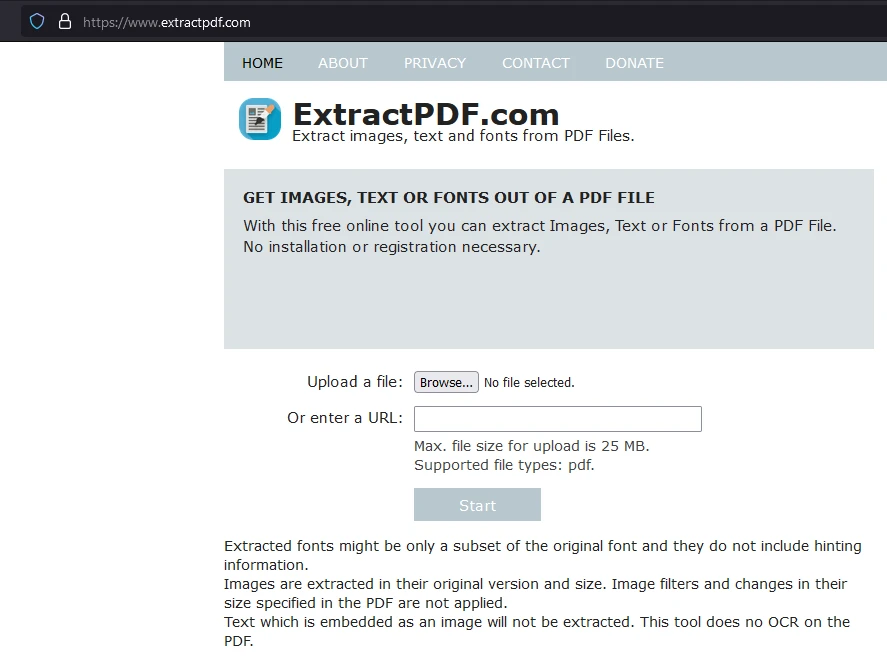
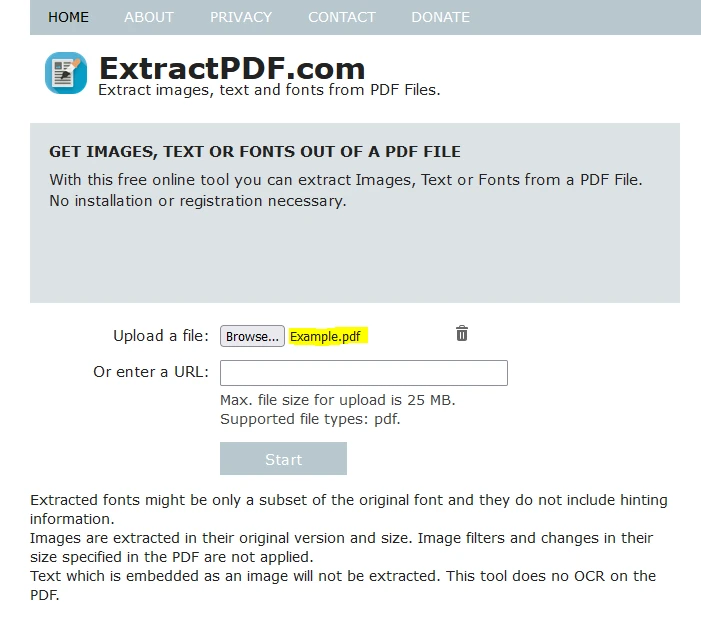
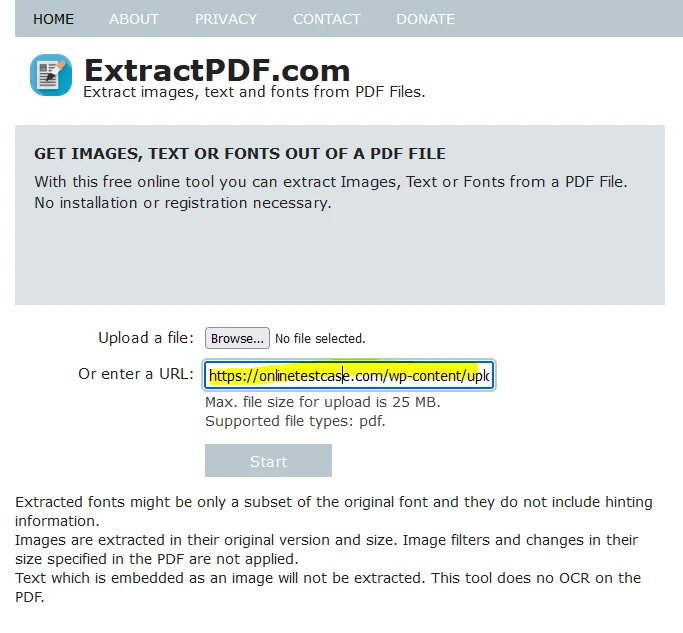
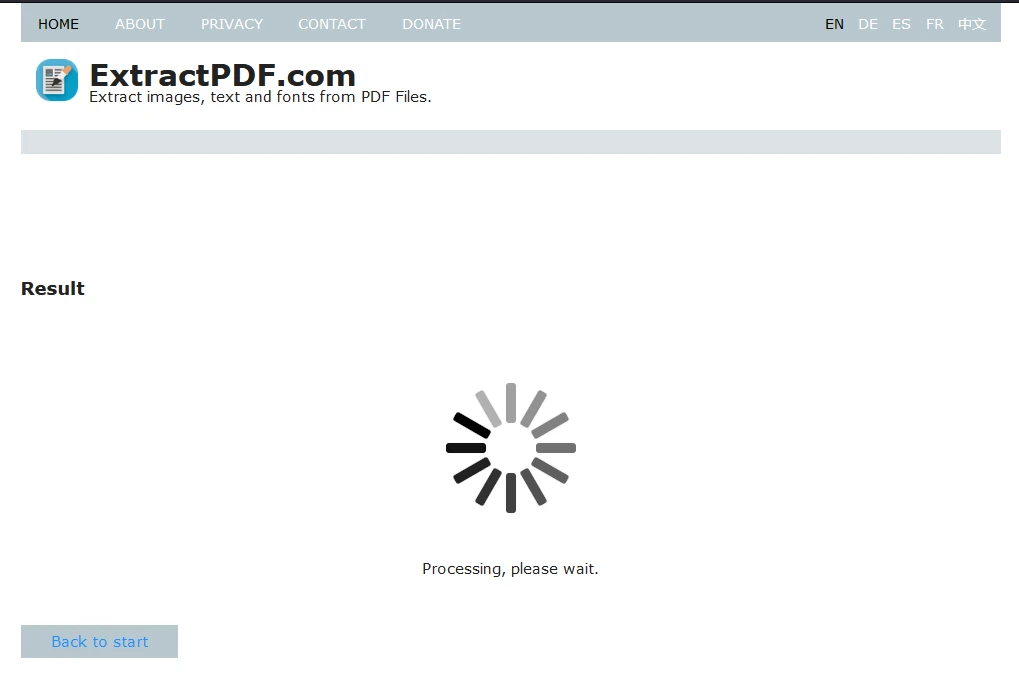
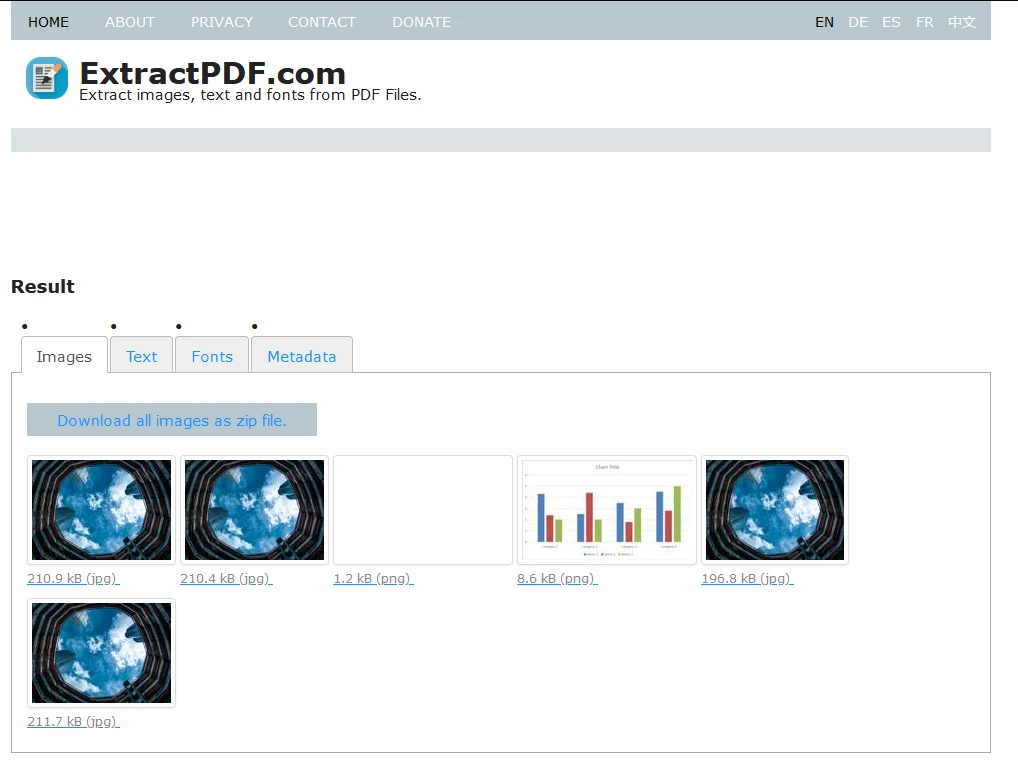
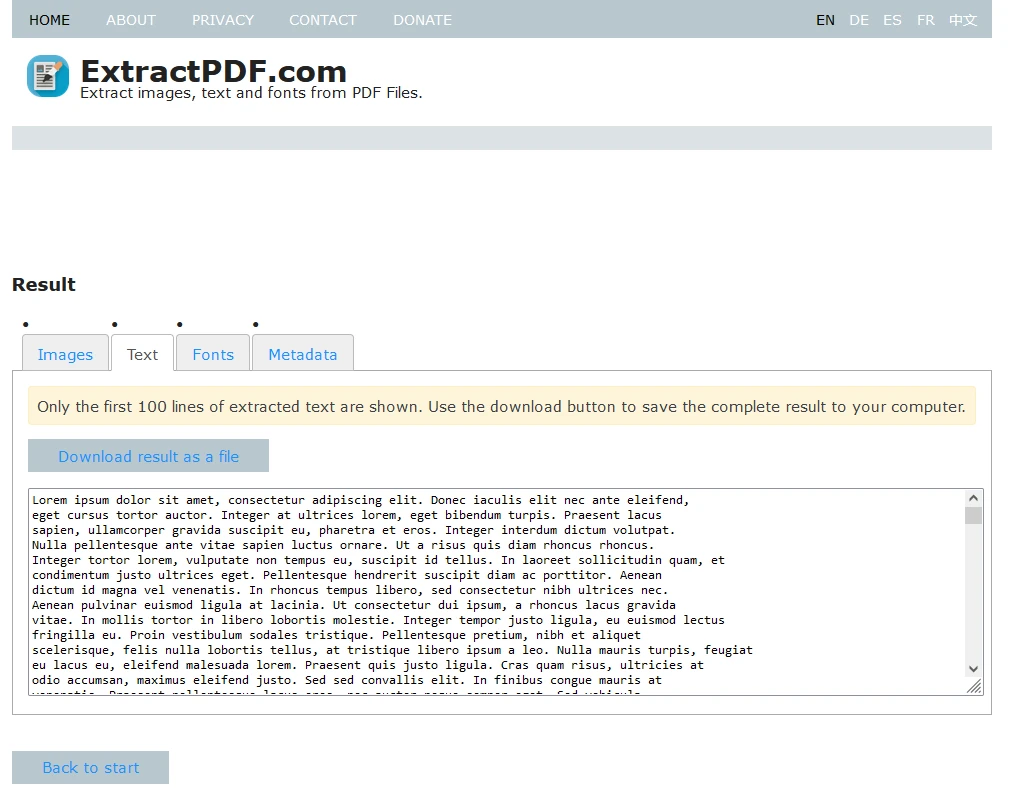
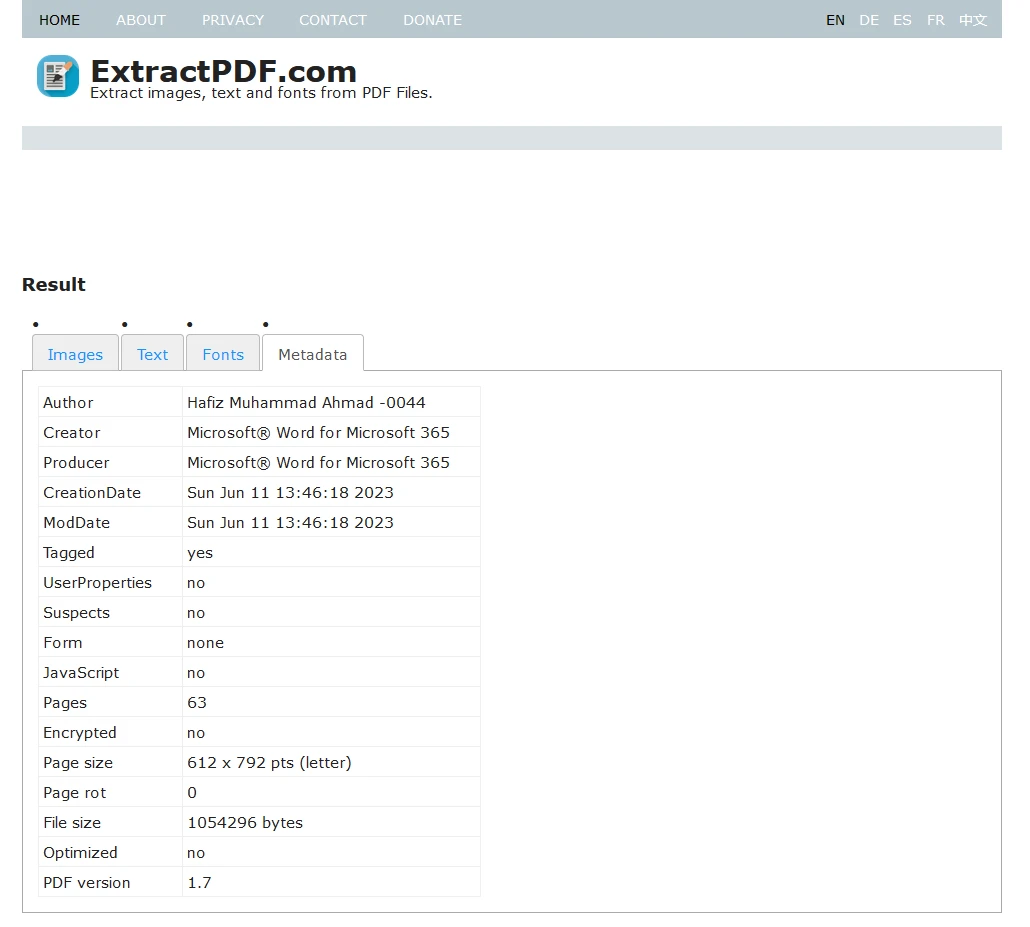
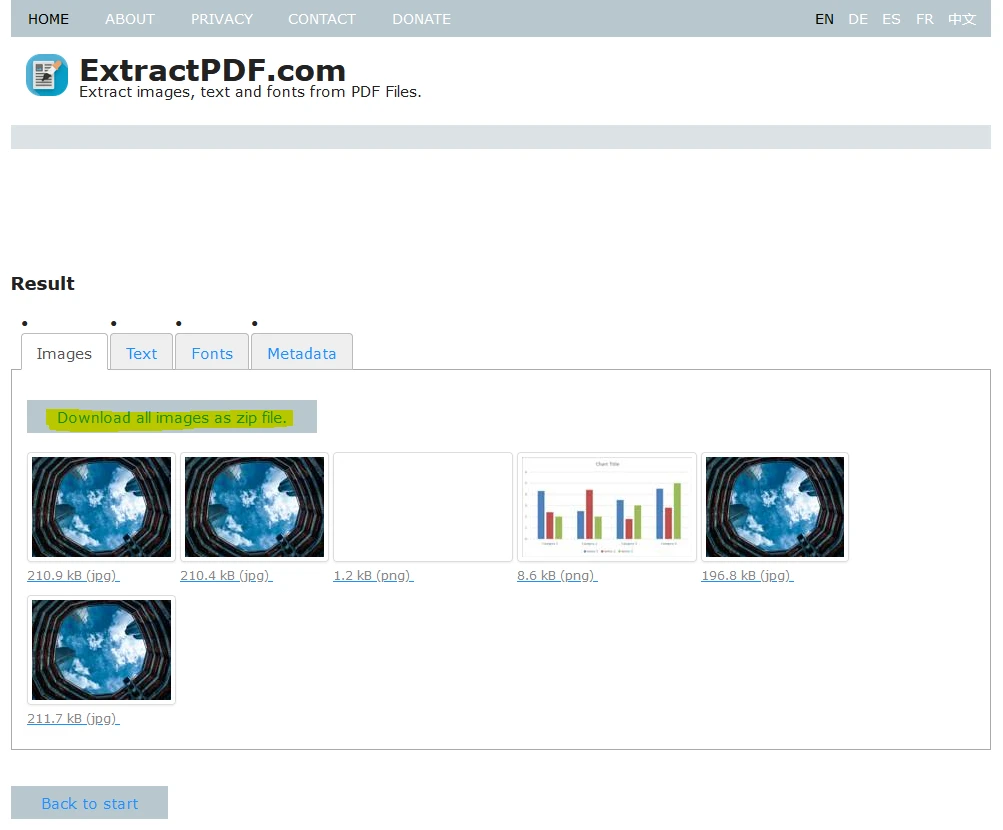
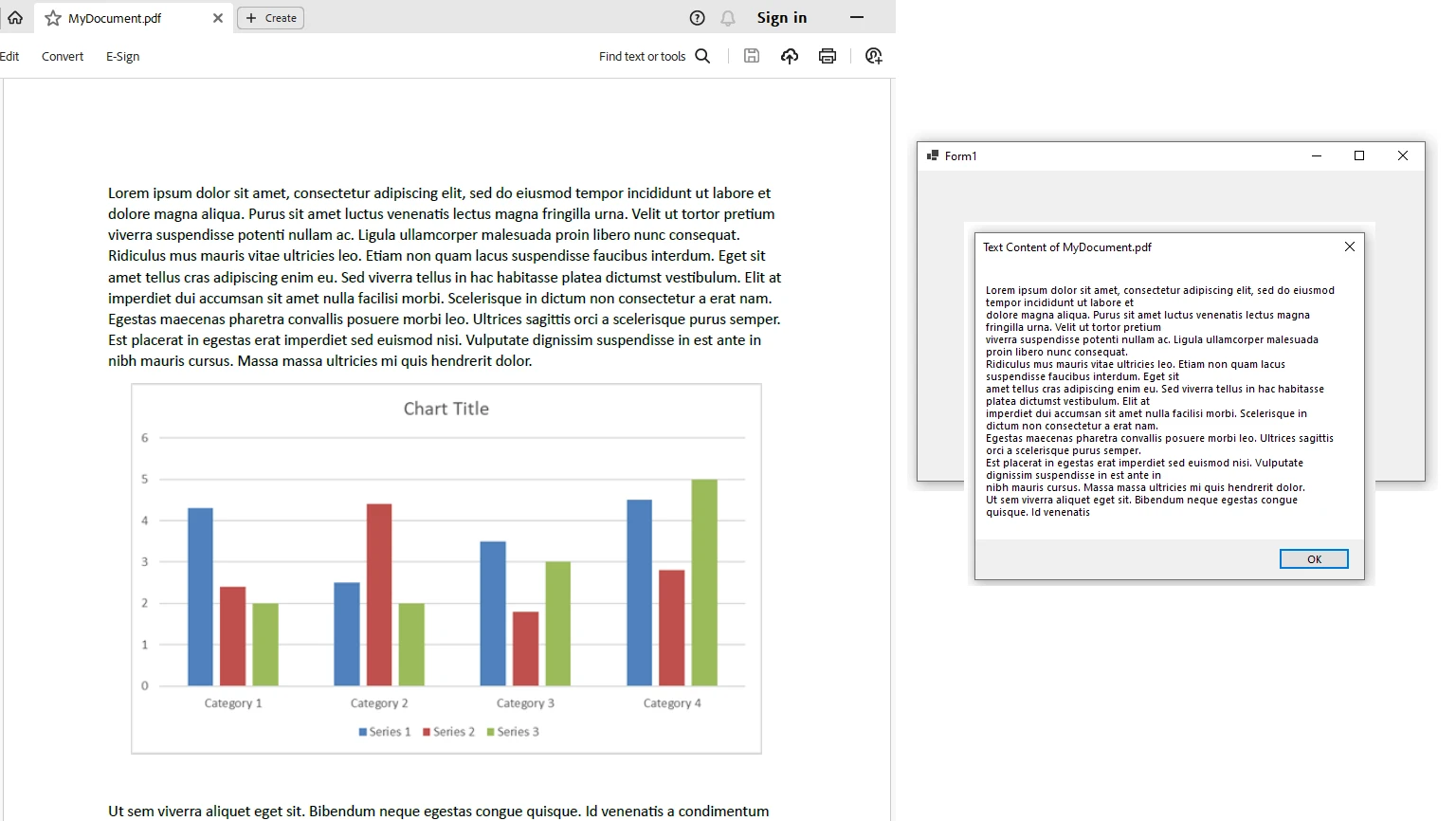
IRONPDF 사용 How to Parse Data from PDF Documents 커티스 차우 업데이트됨:7월 28, 2025 다운로드 IronPDF NuGet 다운로드 DLL 다운로드 윈도우 설치 프로그램 무료 체험 시작하기 LLM용 사본 LLM용 사본 LLM용 마크다운 형식으로 페이지를 복사하세요 ChatGPT에서 열기 ChatGPT에 이 페이지에 대해 문의하세요 제미니에서 열기 제미니에게 이 페이지에 대해 문의하세요 Grok에서 열기 Grok에게 이 페이지에 대해 문의하세요 혼란 속에서 열기 Perplexity에게 이 페이지에 대해 문의하세요 공유하다 페이스북에 공유하기 트위터에 공유하기 LinkedIn에 공유하기 URL 복사 이메일로 기사 보내기 The ability to efficiently extract and utilize data from PDFs programmatically presents unique challenges to the would-be developer, due to the complexities of PDFs' internal format. IronPDF is one of many .NET programming libraries available that is uniquely positioned to help developers overcome the challenges of extracting content (text and images) from PDFs reliably, among many other PDF-related tasks. IronPDF frees you from having to understand the ins and outs of PDFs' internal structure and allows you to focus your time and effort on delivering your project quickly and on time. This article delves into the intricacies of PDF document parsing, the tools and techniques involved, and the transformative impact that the IronPDF .NET library can have on helping you get a handle on your PDF's content. Key Concepts PDF Parsing: Extracting structured data from PDF documents is the core of PDF parsing. It involves recognizing document patterns and defining rules to retrieve specific data points. The extracted information is often stored in databases or used in other applications. PDF Parser Tools: These tools, like IronPDF, Tabula, PyPDF2, and PDFMiner, automate the extraction process. They utilize algorithms to interpret the PDF structure and extract information accurately. Data Extraction Process: Extracting data from PDFs typically involves importing files into a parsing tool, analyzing the document’s structure, and converting the parsed data into formats like HTML, CSV, XML, or directly into applications like Excel or Word. Structured vs. Unstructured Data: PDFs often contain both structured (e.g., tables) and unstructured data. Parsing tools must handle both types to ensure meaningful data extraction. How to Parse Data from PDF Documents: Step-by-Step Guide Step 1: Open Free Online PDF Extractor to Parse PDF Files One easy-to-use tool is the Free Online PDF Extractor. Navigate to the website, where you can see an overview of the tool, including how it imports PDFs and what data it can extract. Step 2: Upload the PDF File Click "Browse" to select the PDF file from which you wish to extract data. Alternatively, you can upload the file by pasting a link to the PDF. Step 3: Start Extraction After uploading the file, click "Start" to begin the data extraction process. The tool will display a loading screen during processing. Step 4: Download the Extracted Data Once the extraction is complete, you can download the data. The tool provides the text, images, fonts, and metadata extracted from the PDF in a tabular format. Text that can be copied into databases is found under the 'Text' tab. Metadata, including document title, author, creation date, and more, is available under the 'Metadata' tab. Finally, you can download all extracted data as a ZIP file. Benefits of PDF Parsing Business Process Automation: PDF parsing automates the data extraction process, reducing manual work and enhancing business operations. This automation enables faster decision-making and greater scalability. Error Reduction: Manual data entry is prone to mistakes. PDF parsing tools reduce human errors, ensuring more accurate data handling and reducing costly mistakes. Time and Cost Savings: Automating PDF data extraction saves significant time and resources, which organizations can redirect to more strategic tasks. Versatility in Data Usage: Extracted data can be converted into various formats, making it easier to integrate with tools like Excel, Word, or Google Sheets. Parsing PDF Data Using IronPDF IronPDF is a powerful library from Iron Software that developers can use to extract data from PDFs programmatically. It supports extracting text, tables, images, and PDF metadata extraction with high efficiency. Installing IronPDF You can install IronPDF via the IronPDF on NuGet package manager in Visual Studio. Install Using NuGet Package Manager In Visual Studio, search for "IronPDF" in the NuGet Package Manager and click install. Install Using Package Manager Console Alternatively, use this command in the Package Manager Console: Install-Package IronPdf Code Example: Parsing a PDF Using IronPDF using IronPdf; namespace ParsePdf { public partial class Form1 : Form { public Form1() { InitializeComponent(); // Select the Desired PDF File using PdfDocument pdf = PdfDocument.FromFile("MyDocument.pdf"); // Extract text from the PDF string allText = pdf.ExtractAllText(); // Display the extracted text in a MessageBox // Only the first 1000 characters are shown for brevity MessageBox.Show(allText.Substring(0, 1000), "Text Content", MessageBoxButtons.OK); } } } using IronPdf; namespace ParsePdf { public partial class Form1 : Form { public Form1() { InitializeComponent(); // Select the Desired PDF File using PdfDocument pdf = PdfDocument.FromFile("MyDocument.pdf"); // Extract text from the PDF string allText = pdf.ExtractAllText(); // Display the extracted text in a MessageBox // Only the first 1000 characters are shown for brevity MessageBox.Show(allText.Substring(0, 1000), "Text Content", MessageBoxButtons.OK); } } } $vbLabelText $csharpLabel In this example, we create a Windows Forms application that uses IronPDF to extract text from a selected PDF file. The extracted text is then displayed in a message box. Licensing IronPDF IronPDF requires a license key from IronPDF which you can obtain as part of a free trial license. Add the license key to your appsettings.json file: { "IronPdf.LicenseKey": "your license key here" } Request a free trial license from IronPDF's product licensing page. Conclusion Efficient PDF parsing unlocks the full potential of digital documents, enabling businesses to automate processes, reduce errors, and save time and money. By mastering PDF parsing techniques and tools, organizations can enhance productivity and achieve more with their digital assets. IronPDF offers an ideal solution for developers looking to work with PDF documents programmatically. 자주 묻는 질문 C#을 사용하여 PDF 문서에서 텍스트를 추출하려면 어떻게 해야 하나요? IronPDF의 PdfDocument 클래스를 사용하여 PDF 파일을 로드하고 ExtractAllText() 메서드를 사용하여 텍스트를 추출할 수 있습니다. 이를 통해 PDF에서 텍스트 데이터를 쉽게 검색할 수 있습니다. PDF에서 이미지를 추출하기 위해 IronPDF에서 어떤 방법을 사용할 수 있나요? IronPDF는 PDF 파일에서 임베디드 이미지를 추출하여 JPEG 또는 PNG와 같은 형식으로 변환하는 데 사용할 수 있는 ExtractImages()와 같은 메서드를 제공합니다. .NET 라이브러리를 사용하여 PDF 데이터를 CSV 형식으로 변환하려면 어떻게 해야 하나요? IronPDF를 사용하면 PDF에서 데이터를 구문 분석하고 추출한 다음 표준 .NET 데이터 조작 기술을 사용하여 프로그래밍 방식으로 CSV 형식으로 변환할 수 있습니다. PDF 문서 구문 분석의 일반적인 어려움은 무엇인가요? PDF는 텍스트, 이미지, 메타데이터 등 다양한 요소가 포함된 복잡한 구조로 인해 구문 분석이 어려울 수 있습니다. IronPDF와 같은 도구는 PDF 콘텐츠를 추출하고 조작하는 간단한 방법을 제공함으로써 이러한 문제를 극복하는 데 도움이 됩니다. 추출 전 PDF 구조를 분석하는 데 IronPDF를 사용할 수 있나요? 예, IronPDF는 PDF 구조를 분석하는 도구를 제공하여 개발자가 패턴을 식별하고 필요한 데이터를 추출하는 가장 효율적인 방법을 결정할 수 있도록 지원합니다. IronPDF를 사용하기 위한 라이선스 요건은 무엇인가요? IronPDF를 프로덕션 환경에 배포하려면 유효한 라이선스가 필요합니다. 그러나 평가 목적으로 무료 평가판을 사용할 수 있으므로 사용자가 구매하기 전에 기능을 테스트할 수 있습니다. PDF 데이터 추출 자동화가 비즈니스에 어떤 이점을 제공하나요? IronPDF와 같은 도구를 사용하여 PDF 데이터 추출을 자동화하면 수동 데이터 입력을 크게 줄이고 오류를 최소화하며 시간을 절약하고 운영 비용을 절감하여 전반적인 비즈니스 효율성을 개선할 수 있습니다. IronPDF는 PDF 데이터 추출을 위해 어떤 프로그래밍 언어를 지원하나요? IronPDF는 .NET 언어, 주로 C#과 함께 사용하도록 설계되어 다른 .NET 애플리케이션 및 서비스와의 원활한 통합을 통해 효율적인 PDF 데이터 추출이 가능합니다. IronPDF는 PDF 데이터를 구문 분석할 때 .NET 10과 완벽하게 호환되나요? 예 - IronPDF는 .NET 10을 완벽하게 지원하므로 .NET 10 프로젝트에서 텍스트 및 이미지 추출, 메타데이터 읽기, 표 구문 분석, HTML-PDF 변환과 같은 구문 분석 기능을 해결 방법이나 호환성 문제 없이 사용할 수 있습니다. 커티스 차우 지금 바로 엔지니어링 팀과 채팅하세요 기술 문서 작성자 커티스 차우는 칼턴 대학교에서 컴퓨터 과학 학사 학위를 취득했으며, Node.js, TypeScript, JavaScript, React를 전문으로 하는 프론트엔드 개발자입니다. 직관적이고 미적으로 뛰어난 사용자 인터페이스를 만드는 데 열정을 가진 그는 최신 프레임워크를 활용하고, 잘 구성되고 시각적으로 매력적인 매뉴얼을 제작하는 것을 즐깁니다. 커티스는 개발 분야 외에도 사물 인터넷(IoT)에 깊은 관심을 가지고 있으며, 하드웨어와 소프트웨어를 통합하는 혁신적인 방법을 연구합니다. 여가 시간에는 게임을 즐기거나 디스코드 봇을 만들면서 기술에 대한 애정과 창의성을 결합합니다. 관련 기사 업데이트됨 1월 22, 2026 How to Create PDF Documents in .NET with IronPDF: Complete Guide Discover effective methods to create PDF files in C# for developers. Enhance your coding skills and streamline your projects. Read the article now! 더 읽어보기 업데이트됨 1월 21, 2026 How to Merge PDF Files in VB.NET: Complete Tutorial Merge PDF VB NET with IronPDF. Learn to combine multiple PDF files into one document using simple VB.NET code. Step-by-step examples included. 더 읽어보기 업데이트됨 1월 21, 2026 C# PDFWriter Tutorial: Create PDF Documents in .NET Learn to create PDFs efficiently using C# PDFWriter with this step-by-step guide for developers. Read the article to enhance your skills today! 더 읽어보기 How to Create Report in ASP .NETHow to Convert Color PDFs to Grayscale

업데이트됨 1월 22, 2026 How to Create PDF Documents in .NET with IronPDF: Complete Guide Discover effective methods to create PDF files in C# for developers. Enhance your coding skills and streamline your projects. Read the article now! 더 읽어보기
업데이트됨 1월 21, 2026 How to Merge PDF Files in VB.NET: Complete Tutorial Merge PDF VB NET with IronPDF. Learn to combine multiple PDF files into one document using simple VB.NET code. Step-by-step examples included. 더 읽어보기
업데이트됨 1월 21, 2026 C# PDFWriter Tutorial: Create PDF Documents in .NET Learn to create PDFs efficiently using C# PDFWriter with this step-by-step guide for developers. Read the article to enhance your skills today! 더 읽어보기