


Porównanie IronPDF & Apryse C#

Full Comparison
Looking for a detailed feature-by-feature breakdown? See how IronPDF stacks up against Apryse PDF on pricing, HTML support, and licensing.
Dlaczego warto porównać biblioteki PDF IronPDF i Apryse C#?
IronPDF i Apryse C# to znane biblioteki PDF dla platformy .NET, z których każda ma swoje unikalne zalety. IronPDF wyróżnia się w konwersji HTML do PDF dzięki pełnej obsłudze Bootstrap i rozbudowanym funkcjom edycji. Tymczasem firma Apryse specjalizuje się w adnotacjach i redagowaniu dokumentów, zaspokajając potrzeby Enterprise w zakresie zgodności z przepisami.
Jako programiści C# często stajecie przed zadaniami związanymi z plikami PDF podczas tworzenia aplikacji, które generują, edytują lub wyświetlają dokumenty. Niezawodna biblioteka PDF ma kluczowe znaczenie dla wydajności. Biblioteki te oferują wbudowane funkcje do wykonywania złożonych operacji, takich jak konwersja dokumentów, edycja tekstu i obsługa obrazów w plikach PDF. Bez nich trzeba by było pisać całą funkcjonalność od podstaw, co jest zarówno czasochłonne, jak i podatne na błędy.
W niniejszym porównaniu przeanalizowano dwie popularne biblioteki PDF: IronPDF i Apryse C#. IronPDF zapewnia niezawodne funkcje, które upraszczają operacje związane z plikami PDF w środowiskach .NET, od konwersji HTML do PDF po zaawansowaną edycję dokumentów. Apryse C# oferuje proste podejście do manipulacji plikami PDF, kładąc nacisk na wydajność i łatwość użytkowania. W niniejszej analizie omówiono konkretne możliwości każdej biblioteki, aby pomóc Ci wybrać tę, która najlepiej pasuje do Twojego projektu.
Czym jest biblioteka Apryse C# PDF?

Apryse C# to kompletna biblioteka PDF dla aplikacji .NET, zaprojektowana w celu uproszczenia operacji na plikach PDF w środowiskach C#. Wcześniej znany jako PDFTron SDK, oferuje szeroki zakres funkcji i narzędzi dla programistów poszukujących precyzyjnych możliwości obsługi plików PDF.
Jakie kluczowe funkcje oferuje Apryse C#?
- Łatwa integracja z projektami .NET: Płynna integracja z platformą .NET, w tym z aplikacjami ASP.NET Core i tradycyjnymi aplikacjami .NET Framework.
- Tworzenie i edycja dokumentów: Twórz pliki PDF od podstaw lub edytuj istniejące, w tym tekst, obrazy, formularze oraz manipuluj stronami — zmieniaj kolejność, scalaj lub dziel.
- Konwersja HTML do PDF: Bezpośrednia konwersja treści HTML do formatu PDF w przypadku faktur, raportów i dokumentacji stron internetowych.
- Obsługa wielu pól formularzy: Niezawodne tworzenie, edycja i programowe wypełnianie pól formularzy PDF w celu zautomatyzowania przepływu pracy.
- Wyodrębnianie tekstu i treści: Wyodrębnianie tekstu i treści z plików PDF do celów analizy, narzędzi wyszukiwania i zarządzania treścią.
- Bezpieczeństwo i szyfrowanie: Kompleksowe zabezpieczenia, w tym szyfrowanie dokumentów, zarządzanie uprawnieniami i podpisy cyfrowe.
- Zaawansowane funkcje PDF: Obsługa adnotacji, zakładek i hiperłączy w interaktywnych plikach PDF.
Czym jest biblioteka IronPDF C#?
IronPDF to wszechstronna biblioteka PDF dostosowana do potrzeb programistów .NET. Upraszcza to złożoną obsługę plików PDF, umożliwiając tworzenie, edycję i konwersję dokumentów PDF bezpośrednio w aplikacjach C#. Dostępny dla wielu języków programowania, w tym Java, Python i C#, IronPDF zaspokaja różnorodne potrzeby związane z przetwarzaniem plików PDF, zapewniając wydajność i niezawodność.
Jakie kluczowe funkcje oferuje IronPDF?
- Płynna integracja z platformą .NET: Łatwa integracja obsługująca zarówno .NET Framework, jak i .NET Core, w tym projekty ASP.NET.
- Konwersja HTML do PDF: Konwertuj HTML do PDF w wysokiej jakości, idealne rozwiązanie dla raportów, paragonów i dokumentacji z szablonów HTML.
- Zaawansowana edycja plików PDF: Rozbudowane możliwości edycji, w tym dodawanie tekstu, obrazów i grafiki wektorowej.
- Obsługa formularzy PDF: Twórz, edytuj i wypełniaj formularze PDF programowo w celu zautomatyzowania przepływu dokumentów.
- Pobieranie treści: Pobieranie tekstu, obrazów i metadanych do analizy treści i migracji danych.
- Bezpieczeństwo dokumentów: ochrona hasłem, szyfrowanie i zarządzanie uprawnieniami.
- Wydajność i skalowalność: Poprawa szybkości i przetwarzania dużych ilości danych w aplikacjach o wysokich wymaganiach.
- Kompletna dokumentacja: Obszerna dokumentacja i responsywny zespół wsparcia technicznego zapewniający pomoc przy wdrażaniu.
- Zgodność ze standardami PDF: Obsługa formatów PDF/A, PDF/UA i innych specyfikacji branżowych.
Jak stworzyć aplikację konsolową w języku C#?
Utworzenie aplikacji konsolowej w Visual Studio stanowi podstawę dla projektów programistycznych w środowisku .NET, w tym tych wykorzystujących biblioteki PDF, takie jak IronPDF lub Apryse C#. Aby rozpocząć, wykonaj następujące kroki:
Jak uruchomić program Visual Studio?
Otwórz program Visual Studio na swoim komputerze. Jeśli nie masz jeszcze zainstalowanego programu Visual Studio, pobierz go i zainstaluj z oficjalnej strony Microsoftu, wybierając wersję odpowiednią do swoich potrzeb.
Jak utworzyć nowy projekt?
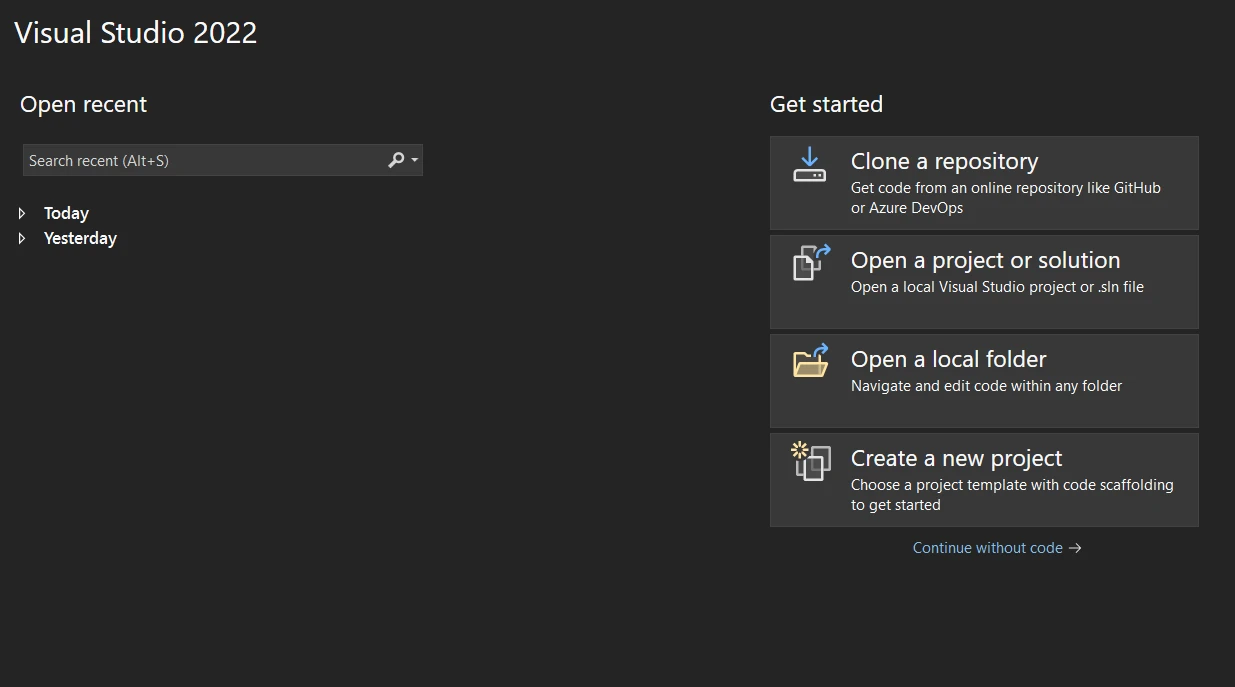
Po uruchomieniu programu Visual Studio wybierz opcję "Utwórz nowy projekt" na początkowym pulpicie nawigacyjnym.
Jaki typ projektu powinienem wybrać?
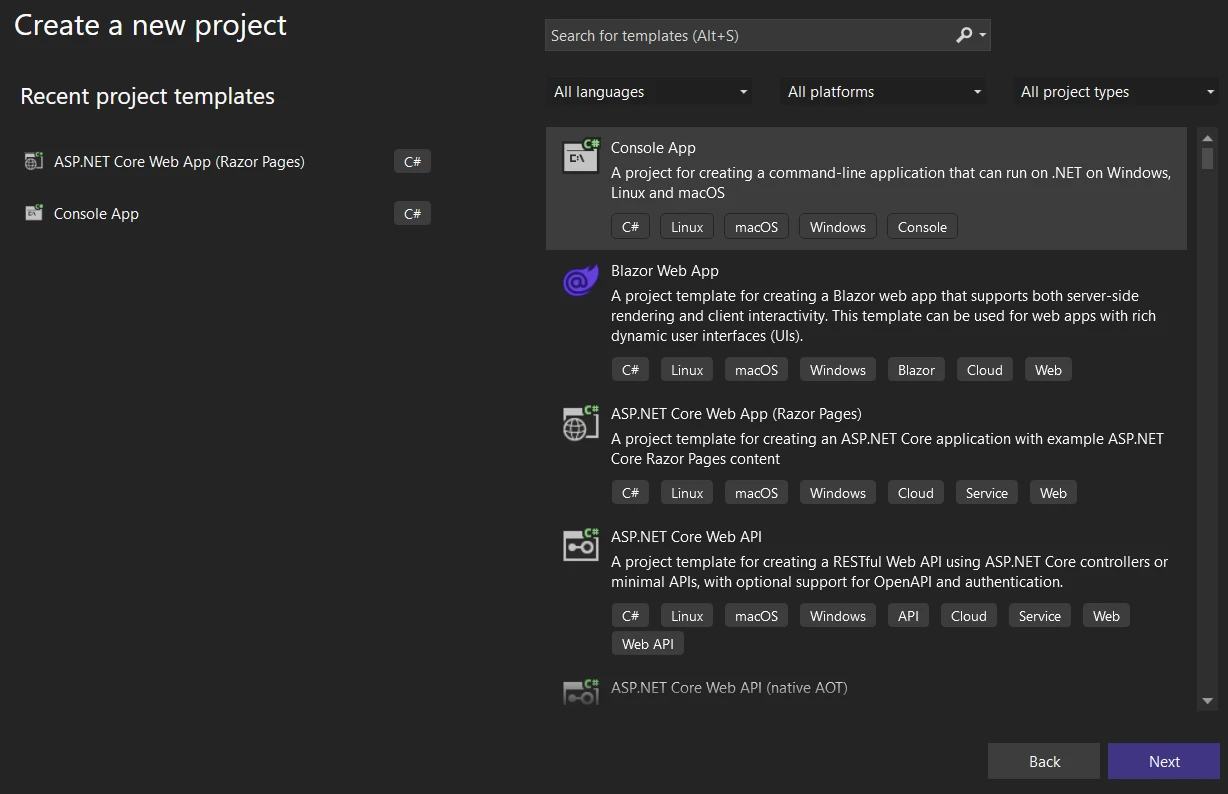
W oknie "Utwórz nowy projekt" zobaczysz różne szablony projektów. Wpisz "Console" w polu wyszukiwania lub znajdź "Console Application" na liście. Wybierz szablon przeznaczony dla języka C#.
Jak skonfigurować mój projekt?
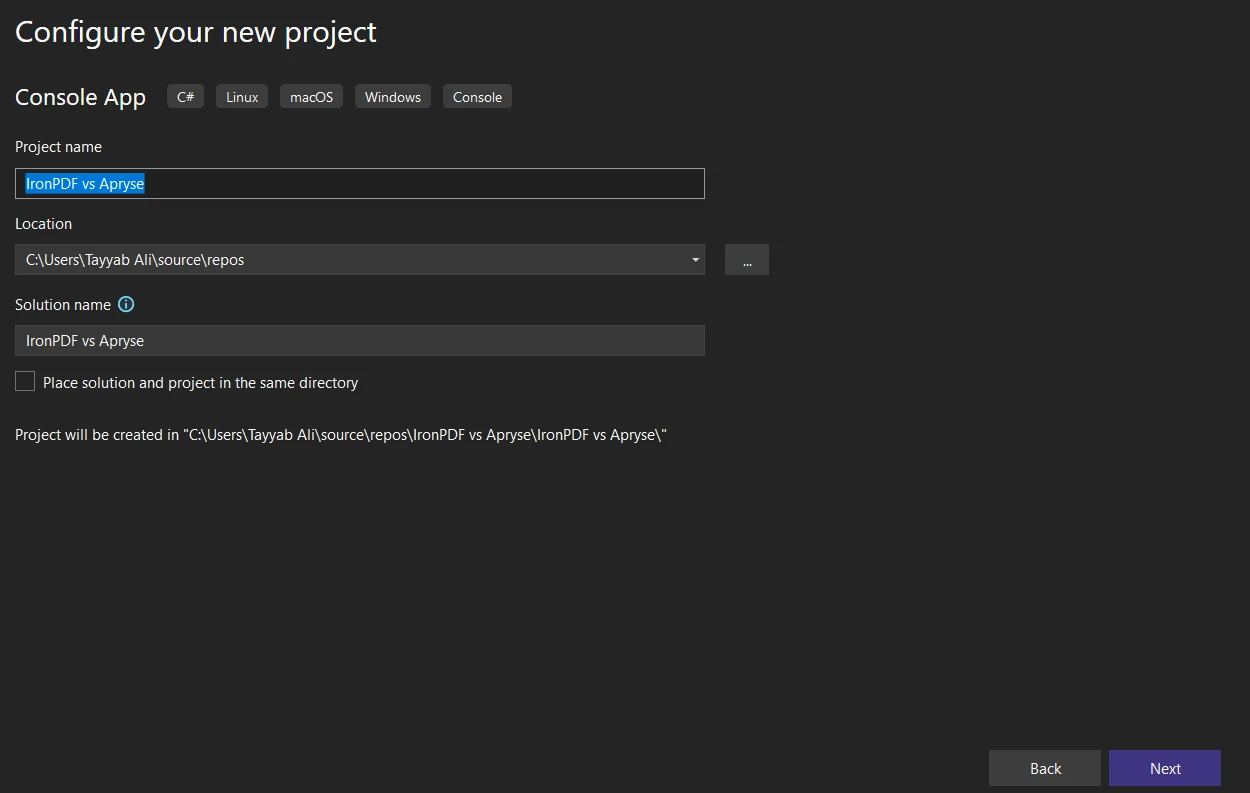
Po wybraniu opcji "Aplikacja konsolowa" kliknij "Dalej". Skonfiguruj nowy projekt:
- Nazwa projektu: Wprowadź opisową nazwę swojego projektu.
- Lokalizacja: Wybierz preferowaną lokalizację zapisu.
- Nazwa rozwiązania: Domyślnie jest to nazwa projektu, ale można ją dostosować.
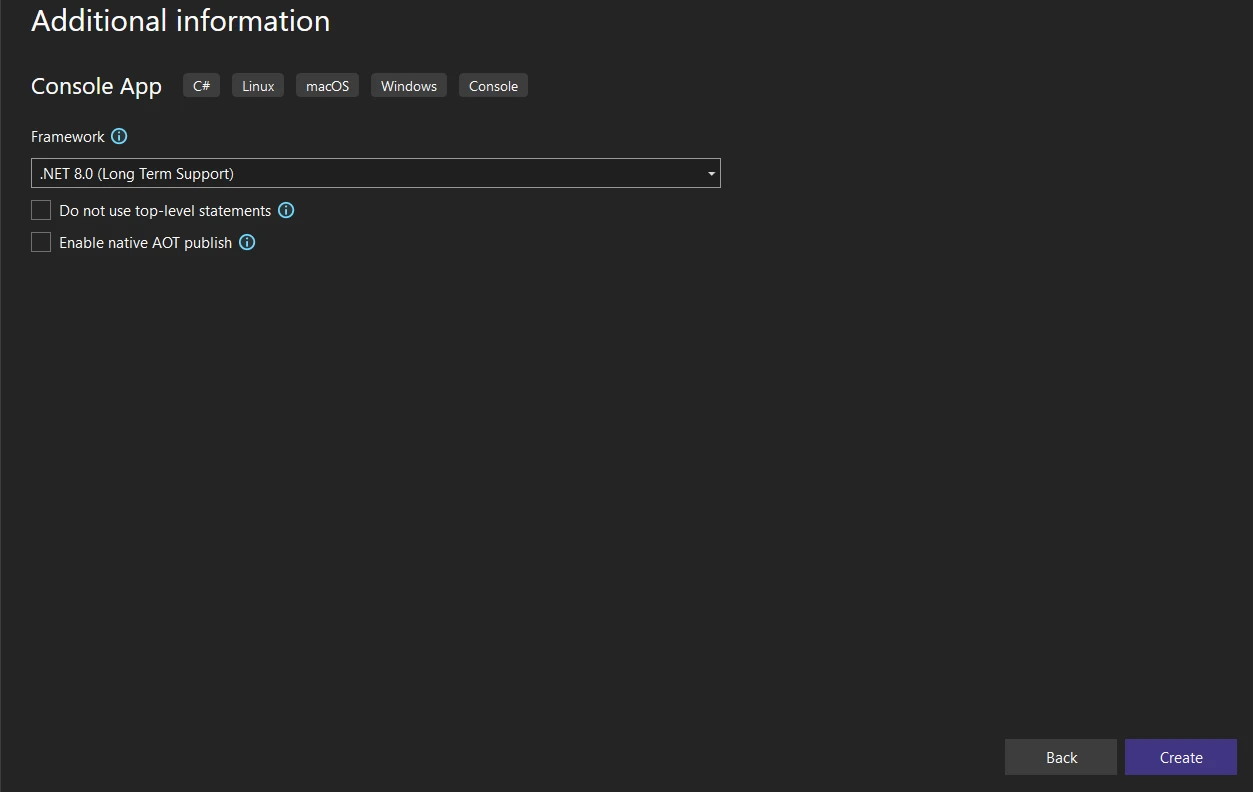
- Framework: Wybierz wersję .NET. Zazwyczaj zaleca się korzystanie z najnowszej wersji, chyba że konkretne wymagania stanowią inaczej.
Jak zakończyć tworzenie projektu?
Po skonfigurowaniu ustawień projektu kliknij "Utwórz". Visual Studio utworzy nowy projekt aplikacji konsolowej z domyślnym plikiem Program.cs.
Jaka jest struktura projektu?
Zapoznaj się z wygenerowaną strukturą projektu w okienku Solution Explorer. Będziesz pracować głównie z plikiem Program.cs dla aplikacji konsolowych, w którym będziesz pisać kod w języku C#.
Jak zainstalować bibliotekę IronPDF?
Włączenie IronPDF do projektu .NET umożliwia korzystanie z pełnego zakresu funkcji manipulacji plikami PDF. Kilka metod instalacji zapewnia elastyczność w zależności od preferencji dotyczących przepływu pracy.
Jak zainstalować za pomocą menedżera pakietów NuGet?
Menedżer pakietów NuGet w Visual Studio zapewnia graficzny interfejs do zarządzania bibliotekami.
- Otwórz swój projekt w Visual Studio.
- Kliknij prawym przyciskiem myszy swój projekt w Eksploratorze rozwiązań i wybierz opcję "Zarządzaj pakietami NuGet".
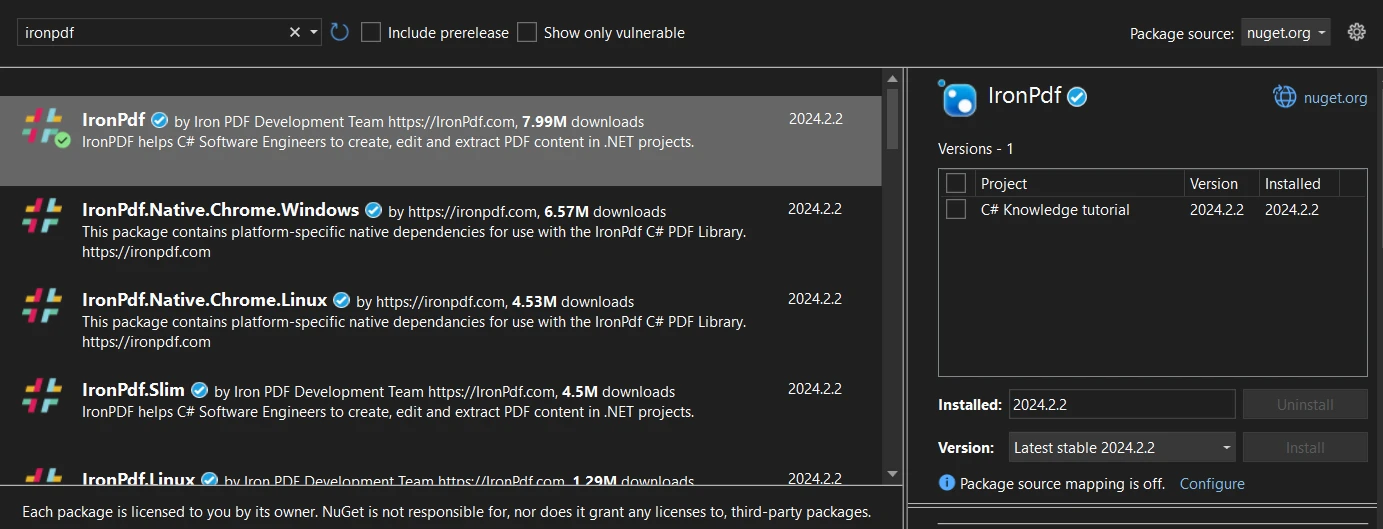
- Kliknij zakładkę "Przeglądaj" i wyszukaj "IronPdf".
- Wybierz IronPDF z wyników i kliknij "Zainstaluj".
Jak zainstalować za pomocą wiersza poleceń?
Konsola menedżera pakietów umożliwia bezpośrednią instalację z wiersza poleceń.
- Otwórz projekt w programie Visual Studio.
- Przejdź do Narzędzia > Menedżer pakietów NuGet > Konsola menedżera pakietów.
- Wpisz następujące polecenie:
Install-Package IronPdf
To polecenie instaluje najnowszą wersję IronPDF w Twoim projekcie.
Jak pobrać bezpośrednio z NuGet?
Pakiet można ręcznie pobrać przed integracją.
- Wejdź na stronę NuGet i wyszukaj "IronPdf".
- Na stronie pakietu IronPdf kliknij "Pobierz pakiet", aby pobrać plik .nupkg.
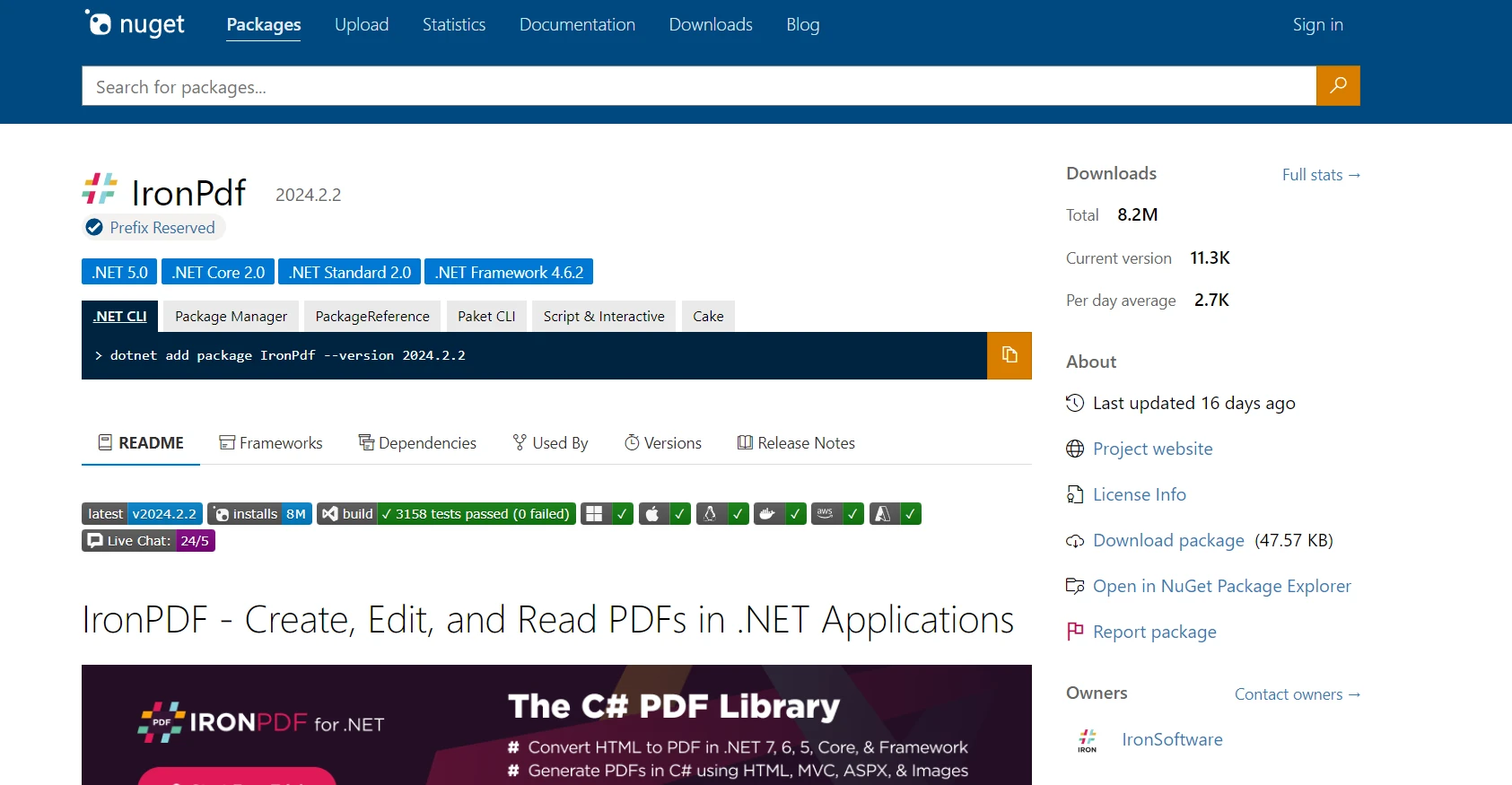
- Add the downloaded package manually through Solution Explorer > right-click project > "Add > Reference."
Each method successfully integrates IronPDF, allowing you to use its effective PDF processing features.
How Do I Install Apryse C#?
Integrating Apryse C# into your project varies based on your .NET Framework or .NET Core environment. The following steps outline the general installation process:
How Do I Install Apryse for .NET Framework?
- Download the Apryse SDK for Windows: You'll need to visit the Apryse SDK for Windows page to download the SDK suitable for .NET Framework applications.
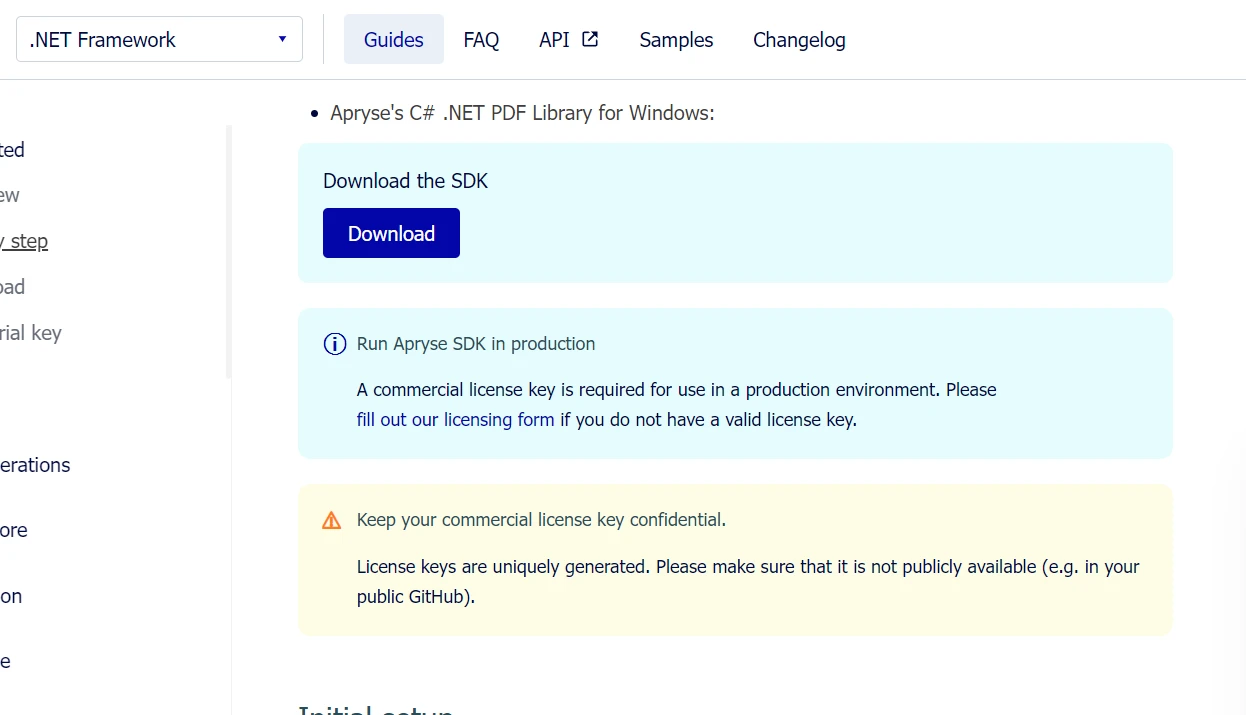
- Extract the SDK: After downloading, extract the SDK to a known location on your system.
- Obtain an Apryse Trial Key: Register on the Apryse platform to get a trial key, which you'll use to activate the SDK's trial features.
- Set Up Your Project: In Visual Studio, create a new .NET Framework console application. Then, add the Lib folder from the extracted SDK to your project directory.
- Add References: Right-click on References in your project, choose "Add Reference," and navigate to the Lib folder where you've copied PDFNetLoader.dll and the appropriate PDFNet.dll for your architecture (x86 or x64). Make sure to set PDFNet.dll's "Copy Local" property to false.
- Configure App.config: Ensure that your App.config file has the loadFromRemoteSources setting enabled to true.
The SDK includes sample folders that you can open and run directly as solutions.## Advanced Features of IronPDF
Konwersja HTML do PDF
IronPDF is highly effective at converting HTML to PDF documents, a crucial feature for web applications that generate reports, invoices, or web page snapshots. The library accurately renders HTML, CSS, and JavaScript, preserving the layout and styles of web content in the generated PDFs.
Converting HTML String to PDF
Converting HTML strings directly to PDF allows for dynamic document creation from application-generated content or stored variables. This method is beneficial for creating customized reports, receipts, or documents based on user input.
using IronPdf;

// Secure the server environment to disable local disk access or cross-origin requests
Installation.EnableWebSecurity = true;

// Set your IronPDF license key
IronPdf.License.LicenseKey = "License-Key goes here";

// Instantiate a PDF renderer
var renderer = new ChromePdfRenderer();

// Define a simple HTML string to convert to PDF
string htmlContent = @"
<!DOCTYPE html>
<html lang='en'>
<head>
    <meta charset='UTF-8'>
    <meta name='viewport' content='width=device-width, initial-scale=1.0'>
    <title>My PDF</title>
    <style>
        body {
            font-family: Arial, sans-serif;
        }
        h1 {
            color: #333;
            text-align: center;
        }
        p {
            color: #666;
            text-align: justify;
        }
    </style>
</head>
<body>
    <h1>Welcome to My PDF</h1>
    <p>This is a sample paragraph demonstrating how to create a PDF from HTML using IronPdf in C#.</p>
    <p>You can add more content here as needed.</p>
</body>
</html>";

// Render the HTML string as a PDF
var pdf = renderer.RenderHtmlAsPdf(htmlContent);

// Save the resulting PDF to a file
pdf.SaveAs("output.pdf");
using IronPdf;
// Secure the server environment to disable local disk access or cross-origin requests
Installation.EnableWebSecurity = true;
// Set your IronPDF license key
IronPdf.License.LicenseKey = "License-Key goes here";
// Instantiate a PDF renderer
var renderer = new ChromePdfRenderer();
// Define a simple HTML string to convert to PDF
string htmlContent = @"
<!DOCTYPE html>
<html lang='en'>
<head>
<meta charset='UTF-8'>
<meta name='viewport' content='width=device-width, initial-scale=1.0'>
<title>My PDF</title>
<style>
body {
font-family: Arial, sans-serif;
}
h1 {
color: #333;
text-align: center;
}
p {
color: #666;
text-align: justify;
}
</style>
</head>
<body>
<h1>Welcome to My PDF</h1>
<p>This is a sample paragraph demonstrating how to create a PDF from HTML using IronPdf in C#.</p>
<p>You can add more content here as needed.</p>
</body>
</html>";
// Render the HTML string as a PDF
var pdf = renderer.RenderHtmlAsPdf(htmlContent);
// Save the resulting PDF to a file
pdf.SaveAs("output.pdf");Imports IronPdf
' Secure the server environment to disable local disk access or cross-origin requests
Installation.EnableWebSecurity = True
' Set your IronPDF license key
IronPdf.License.LicenseKey = "License-Key goes here"
' Instantiate a PDF renderer
Dim renderer = New ChromePdfRenderer()
' Define a simple HTML string to convert to PDF
Dim htmlContent As String = "
<!DOCTYPE html>
<html lang='en'>
<head>
<meta charset='UTF-8'>
<meta name='viewport' content='width=device-width, initial-scale=1.0'>
<title>My PDF</title>
<style>
body {
font-family: Arial, sans-serif;
}
h1 {
color: #333;
text-align: center;
}
p {
color: #666;
text-align: justify;
}
</style>
</head>
<body>
<h1>Welcome to My PDF</h1>
<p>This is a sample paragraph demonstrating how to create a PDF from HTML using IronPdf in C#.</p>
<p>You can add more content here as needed.</p>
</body>
</html>"
' Render the HTML string as a PDF
Dim pdf = renderer.RenderHtmlAsPdf(htmlContent)
' Save the resulting PDF to a file
pdf.SaveAs("output.pdf")Converting HTML File to PDF
If you have HTML files stored on disk, IronPDF can convert these files into PDF documents. This method is ideal for existing HTML documents, templates, or reports saved in your project or server.
using IronPdf;

// Set your IronPDF license key
IronPdf.License.LicenseKey = "License-Key goes here";

// Secure the server environment to disable local disk access or cross-origin requests
Installation.EnableWebSecurity = true;

// Instantiate a PDF renderer
var renderer = new ChromePdfRenderer();

// Render the HTML file as a PDF
var pdf = renderer.RenderHtmlFileAsPdf("invoice.html");

// Save the resulting PDF to a file
pdf.SaveAs("file.pdf");
using IronPdf;
// Set your IronPDF license key
IronPdf.License.LicenseKey = "License-Key goes here";
// Secure the server environment to disable local disk access or cross-origin requests
Installation.EnableWebSecurity = true;
// Instantiate a PDF renderer
var renderer = new ChromePdfRenderer();
// Render the HTML file as a PDF
var pdf = renderer.RenderHtmlFileAsPdf("invoice.html");
// Save the resulting PDF to a file
pdf.SaveAs("file.pdf");Imports IronPdf
' Set your IronPDF license key
IronPdf.License.LicenseKey = "License-Key goes here"
' Secure the server environment to disable local disk access or cross-origin requests
Installation.EnableWebSecurity = True
' Instantiate a PDF renderer
Dim renderer = New ChromePdfRenderer()
' Render the HTML file as a PDF
Dim pdf = renderer.RenderHtmlFileAsPdf("invoice.html")
' Save the resulting PDF to a file
pdf.SaveAs("file.pdf")Converting URL to PDF
IronPDF can convert live webpages into PDF documents by providing the URL. This feature captures the current webpage state, including complex layouts, CSS, and JavaScript-generated content.
using IronPdf;

// Set your IronPDF license key
IronPdf.License.LicenseKey = "License-Key goes here";

// Secure the server environment to disable local disk access or cross-origin requests
Installation.EnableWebSecurity = true;

// Instantiate a PDF renderer
var renderer = new ChromePdfRenderer();

// Render the URL as a PDF
var pdf = renderer.RenderUrlAsPdf("___PROTECTED_URL_100___");

// Save the resulting PDF to a file
pdf.SaveAs("url.pdf");
using IronPdf;
// Set your IronPDF license key
IronPdf.License.LicenseKey = "License-Key goes here";
// Secure the server environment to disable local disk access or cross-origin requests
Installation.EnableWebSecurity = true;
// Instantiate a PDF renderer
var renderer = new ChromePdfRenderer();
// Render the URL as a PDF
var pdf = renderer.RenderUrlAsPdf("___PROTECTED_URL_100___");
// Save the resulting PDF to a file
pdf.SaveAs("url.pdf");Imports IronPdf
' Set your IronPDF license key
IronPdf.License.LicenseKey = "License-Key goes here"
' Secure the server environment to disable local disk access or cross-origin requests
Installation.EnableWebSecurity = True
' Instantiate a PDF renderer
Dim renderer As New ChromePdfRenderer()
' Render the URL as a PDF
Dim pdf = renderer.RenderUrlAsPdf("___PROTECTED_URL_100___")
' Save the resulting PDF to a file
pdf.SaveAs("url.pdf")Support for Bootstrap and Modern CSS Frameworks
Full support for Bootstrap and CSS frameworks is essential when generating PDFs from modern web applications. Organizations rely on Bootstrap for web interfaces, making accurate conversion to PDF critical for reports, invoices, and documentation.
Bootstrap Features Supported by IronPDF
IronPDF: Complete Bootstrap Support
- Bootstrap 5: Full support for flexbox layouts, CSS Grid, utility classes, and responsive components
- Bootstrap 4: Complete card systems, navigation components, and flex utilities
- Tailwind CSS: All utility classes render accurately
- Foundation: Complete grid system and component support
- Modern CSS3: Full flexbox, CSS Grid, custom properties, animations, and transitions
IronPDF renders the Bootstrap homepage and all official examples with pixel-perfect accuracy.
Code Example: Business Metrics Dashboard
using IronPdf;

// Set your IronPDF license key
IronPdf.License.LicenseKey = "License-Key goes here";

var renderer = new ChromePdfRenderer();
string bootstrapDashboard = @"
<!DOCTYPE html>
<html>
<head>
    <link href='___PROTECTED_URL_101___ rel='stylesheet'>
    <style>
        .metric-card { transition: transform 0.2s; }
        .metric-card:hover { transform: translateY(-5px); }
        .trend-up { color: #28a745; }
        .trend-down { color: #dc3545; }
    </style>
</head>
<body>
    <div class='container-fluid py-4'>
        <div class='d-flex justify-content-between align-items-center mb-4'>
            <h1 class='display-5'>Business Performance Dashboard</h1>
            <div class='text-muted'>Last updated: March 2025</div>
        </div>

        <div class='row g-4 mb-4'>
            <div class='col-md-3'>
                <div class='card metric-card shadow-sm border-start border-primary border-4'>
                    <div class='card-body'>
                        <div class='d-flex justify-content-between align-items-center mb-2'>
                            <h6 class='text-muted text-uppercase mb-0'>Total Revenue</h6>
                            <span class='badge bg-primary'>Q1 2025</span>
                        </div>
                        <h2 class='mb-1'>$2.4M</h2>
                        <div class='trend-up'>
                            <i>↑</i> <strong>+18.5%</strong> from last quarter
                        </div>
                    </div>
                </div>
            </div>

            <div class='col-md-3'>
                <div class='card metric-card shadow-sm border-start border-success border-4'>
                    <div class='card-body'>
                        <div class='d-flex justify-content-between align-items-center mb-2'>
                            <h6 class='text-muted text-uppercase mb-0'>New Customers</h6>
                            <span class='badge bg-success'>Active</span>
                        </div>
                        <h2 class='mb-1'>1,284</h2>
                        <div class='trend-up'>
                            <i>↑</i> <strong>+24.3%</strong> growth rate
                        </div>
                    </div>
                </div>
            </div>

            <div class='col-md-3'>
                <div class='card metric-card shadow-sm border-start border-warning border-4'>
                    <div class='card-body'>
                        <div class='d-flex justify-content-between align-items-center mb-2'>
                            <h6 class='text-muted text-uppercase mb-0'>Avg Order Value</h6>
                            <span class='badge bg-warning text-dark'>Updated</span>
                        </div>
                        <h2 class='mb-1'>$1,847</h2>
                        <div class='trend-up'>
                            <i>↑</i> <strong>+5.2%</strong> increase
                        </div>
                    </div>
                </div>
            </div>

            <div class='col-md-3'>
                <div class='card metric-card shadow-sm border-start border-info border-4'>
                    <div class='card-body'>
                        <div class='d-flex justify-content-between align-items-center mb-2'>
                            <h6 class='text-muted text-uppercase mb-0'>Satisfaction Rate</h6>
                            <span class='badge bg-info'>Excellent</span>
                        </div>
                        <h2 class='mb-1'>94.7%</h2>
                        <div class='trend-up'>
                            <i>↑</i> <strong>+2.1pts</strong> improvement
                        </div>
                    </div>
                </div>
            </div>
        </div>

        <div class='row g-4'>
            <div class='col-md-8'>
                <div class='card shadow-sm'>
                    <div class='card-header bg-white d-flex justify-content-between align-items-center'>
                        <h5 class='mb-0'>Revenue Breakdown by Category</h5>
                        <div class='btn-group btn-group-sm' role='group'>
                            <button type='button' class='btn btn-outline-primary active'>Monthly</button>
                            <button type='button' class='btn btn-outline-primary'>Quarterly</button>
                            <button type='button' class='btn btn-outline-primary'>Annual</button>
                        </div>
                    </div>
                    <div class='card-body'>
                        <div class='table-responsive'>
                            <table class='table table-hover mb-0'>
                                <thead class='table-light'>
                                    <tr>
                                        <th>Category</th>
                                        <th>Revenue</th>
                                        <th>Orders</th>
                                        <th>Avg Value</th>
                                        <th class='text-end'>Trend</th>
                                    </tr>
                                </thead>
                                <tbody>
                                    <tr>
                                        <td><span class='badge bg-primary me-2'>A</span>Enterprise Solutions</td>
                                        <td><strong>$1,245,000</strong></td>
                                        <td>142</td>
                                        <td>$8,768</td>
                                        <td class='text-end'><span class='badge bg-success'>+12%</span></td>
                                    </tr>
                                    <tr>
                                        <td><span class='badge bg-success me-2'>B</span>Professional Services</td>
                                        <td><strong>$687,500</strong></td>
                                        <td>458</td>
                                        <td>$1,501</td>
                                        <td class='text-end'><span class='badge bg-success'>+18%</span></td>
                                    </tr>
                                    <tr>
                                        <td><span class='badge bg-info me-2'>C</span>Standard Packages</td>
                                        <td><strong>$412,300</strong></td>
                                        <td>891</td>
                                        <td>$463</td>
                                        <td class='text-end'><span class='badge bg-success'>+8%</span></td>
                                    </tr>
                                    <tr>
                                        <td><span class='badge bg-warning me-2'>D</span>Custom Development</td>
                                        <td><strong>$55,200</strong></td>
                                        <td>12</td>
                                        <td>$4,600</td>
                                        <td class='text-end'><span class='badge bg-danger'>-3%</span></td>
                                    </tr>
                                </tbody>
                            </table>
                        </div>
                    </div>
                </div>
            </div>

            <div class='col-md-4'>
                <div class='card shadow-sm'>
                    <div class='card-header bg-white'>
                        <h5 class='mb-0'>Quick Actions</h5>
                    </div>
                    <div class='card-body'>
                        <div class='d-grid gap-2'>
                            <button class='btn btn-primary'>Generate Full Report</button>
                            <button class='btn btn-outline-primary'>Export to Excel</button>
                            <button class='btn btn-outline-secondary'>Schedule Email</button>
                            <button class='btn btn-outline-info'>Share Dashboard</button>
                        </div>
                    </div>
                </div>

                <div class='card shadow-sm mt-3'>
                    <div class='card-header bg-white'>
                        <h5 class='mb-0'>Key Insights</h5>
                    </div>
                    <div class='card-body'>
                        <div class='alert alert-success mb-2'>
                            <small><strong>Top Performer:</strong> Enterprise Solutions leading revenue growth</small>
                        </div>
                        <div class='alert alert-info mb-2'>
                            <small><strong>Growth Driver:</strong> Professional Services showing strongest customer acquisition</small>
                        </div>
                        <div class='alert alert-warning mb-0'>
                            <small><strong>Attention Needed:</strong> Custom Development segment requires review</small>
                        </div>
                    </div>
                </div>
            </div>
        </div>
    </div>
</body>
</html>";

var pdf = renderer.RenderHtmlAsPdf(bootstrapDashboard);
pdf.SaveAs("business-dashboard.pdf");
using IronPdf;
// Set your IronPDF license key
IronPdf.License.LicenseKey = "License-Key goes here";
var renderer = new ChromePdfRenderer();
string bootstrapDashboard = @"
<!DOCTYPE html>
<html>
<head>
<link href='___PROTECTED_URL_101___ rel='stylesheet'>
<style>
.metric-card { transition: transform 0.2s; }
.metric-card:hover { transform: translateY(-5px); }
.trend-up { color: #28a745; }
.trend-down { color: #dc3545; }
</style>
</head>
<body>
<div class='container-fluid py-4'>
<div class='d-flex justify-content-between align-items-center mb-4'>
<h1 class='display-5'>Business Performance Dashboard</h1>
<div class='text-muted'>Last updated: March 2025</div>
</div>
<div class='row g-4 mb-4'>
<div class='col-md-3'>
<div class='card metric-card shadow-sm border-start border-primary border-4'>
<div class='card-body'>
<div class='d-flex justify-content-between align-items-center mb-2'>
<h6 class='text-muted text-uppercase mb-0'>Total Revenue</h6>
<span class='badge bg-primary'>Q1 2025</span>
</div>
<h2 class='mb-1'>$2.4M</h2>
<div class='trend-up'>
<i>↑</i> <strong>+18.5%</strong> from last quarter
</div>
</div>
</div>
</div>
<div class='col-md-3'>
<div class='card metric-card shadow-sm border-start border-success border-4'>
<div class='card-body'>
<div class='d-flex justify-content-between align-items-center mb-2'>
<h6 class='text-muted text-uppercase mb-0'>New Customers</h6>
<span class='badge bg-success'>Active</span>
</div>
<h2 class='mb-1'>1,284</h2>
<div class='trend-up'>
<i>↑</i> <strong>+24.3%</strong> growth rate
</div>
</div>
</div>
</div>
<div class='col-md-3'>
<div class='card metric-card shadow-sm border-start border-warning border-4'>
<div class='card-body'>
<div class='d-flex justify-content-between align-items-center mb-2'>
<h6 class='text-muted text-uppercase mb-0'>Avg Order Value</h6>
<span class='badge bg-warning text-dark'>Updated</span>
</div>
<h2 class='mb-1'>$1,847</h2>
<div class='trend-up'>
<i>↑</i> <strong>+5.2%</strong> increase
</div>
</div>
</div>
</div>
<div class='col-md-3'>
<div class='card metric-card shadow-sm border-start border-info border-4'>
<div class='card-body'>
<div class='d-flex justify-content-between align-items-center mb-2'>
<h6 class='text-muted text-uppercase mb-0'>Satisfaction Rate</h6>
<span class='badge bg-info'>Excellent</span>
</div>
<h2 class='mb-1'>94.7%</h2>
<div class='trend-up'>
<i>↑</i> <strong>+2.1pts</strong> improvement
</div>
</div>
</div>
</div>
</div>
<div class='row g-4'>
<div class='col-md-8'>
<div class='card shadow-sm'>
<div class='card-header bg-white d-flex justify-content-between align-items-center'>
<h5 class='mb-0'>Revenue Breakdown by Category</h5>
<div class='btn-group btn-group-sm' role='group'>
<button type='button' class='btn btn-outline-primary active'>Monthly</button>
<button type='button' class='btn btn-outline-primary'>Quarterly</button>
<button type='button' class='btn btn-outline-primary'>Annual</button>
</div>
</div>
<div class='card-body'>
<div class='table-responsive'>
<table class='table table-hover mb-0'>
<thead class='table-light'>
<tr>
<th>Category</th>
<th>Revenue</th>
<th>Orders</th>
<th>Avg Value</th>
<th class='text-end'>Trend</th>
</tr>
</thead>
<tbody>
<tr>
<td><span class='badge bg-primary me-2'>A</span>Enterprise Solutions</td>
<td><strong>$1,245,000</strong></td>
<td>142</td>
<td>$8,768</td>
<td class='text-end'><span class='badge bg-success'>+12%</span></td>
</tr>
<tr>
<td><span class='badge bg-success me-2'>B</span>Professional Services</td>
<td><strong>$687,500</strong></td>
<td>458</td>
<td>$1,501</td>
<td class='text-end'><span class='badge bg-success'>+18%</span></td>
</tr>
<tr>
<td><span class='badge bg-info me-2'>C</span>Standard Packages</td>
<td><strong>$412,300</strong></td>
<td>891</td>
<td>$463</td>
<td class='text-end'><span class='badge bg-success'>+8%</span></td>
</tr>
<tr>
<td><span class='badge bg-warning me-2'>D</span>Custom Development</td>
<td><strong>$55,200</strong></td>
<td>12</td>
<td>$4,600</td>
<td class='text-end'><span class='badge bg-danger'>-3%</span></td>
</tr>
</tbody>
</table>
</div>
</div>
</div>
</div>
<div class='col-md-4'>
<div class='card shadow-sm'>
<div class='card-header bg-white'>
<h5 class='mb-0'>Quick Actions</h5>
</div>
<div class='card-body'>
<div class='d-grid gap-2'>
<button class='btn btn-primary'>Generate Full Report</button>
<button class='btn btn-outline-primary'>Export to Excel</button>
<button class='btn btn-outline-secondary'>Schedule Email</button>
<button class='btn btn-outline-info'>Share Dashboard</button>
</div>
</div>
</div>
<div class='card shadow-sm mt-3'>
<div class='card-header bg-white'>
<h5 class='mb-0'>Key Insights</h5>
</div>
<div class='card-body'>
<div class='alert alert-success mb-2'>
<small><strong>Top Performer:</strong> Enterprise Solutions leading revenue growth</small>
</div>
<div class='alert alert-info mb-2'>
<small><strong>Growth Driver:</strong> Professional Services showing strongest customer acquisition</small>
</div>
<div class='alert alert-warning mb-0'>
<small><strong>Attention Needed:</strong> Custom Development segment requires review</small>
</div>
</div>
</div>
</div>
</div>
</div>
</body>
</html>";
var pdf = renderer.RenderHtmlAsPdf(bootstrapDashboard);
pdf.SaveAs("business-dashboard.pdf");Imports IronPdf
' Set your IronPDF license key
IronPdf.License.LicenseKey = "License-Key goes here"
Dim renderer As New ChromePdfRenderer()
Dim bootstrapDashboard As String = "
<!DOCTYPE html>
<html>
<head>
<link href='___PROTECTED_URL_101___ rel='stylesheet'>
<style>
.metric-card { transition: transform 0.2s; }
.metric-card:hover { transform: translateY(-5px); }
.trend-up { color: #28a745; }
.trend-down { color: #dc3545; }
</style>
</head>
<body>
<div class='container-fluid py-4'>
<div class='d-flex justify-content-between align-items-center mb-4'>
<h1 class='display-5'>Business Performance Dashboard</h1>
<div class='text-muted'>Last updated: March 2025</div>
</div>
<div class='row g-4 mb-4'>
<div class='col-md-3'>
<div class='card metric-card shadow-sm border-start border-primary border-4'>
<div class='card-body'>
<div class='d-flex justify-content-between align-items-center mb-2'>
<h6 class='text-muted text-uppercase mb-0'>Total Revenue</h6>
<span class='badge bg-primary'>Q1 2025</span>
</div>
<h2 class='mb-1'>$2.4M</h2>
<div class='trend-up'>
<i>↑</i> <strong>+18.5%</strong> from last quarter
</div>
</div>
</div>
</div>
<div class='col-md-3'>
<div class='card metric-card shadow-sm border-start border-success border-4'>
<div class='card-body'>
<div class='d-flex justify-content-between align-items-center mb-2'>
<h6 class='text-muted text-uppercase mb-0'>New Customers</h6>
<span class='badge bg-success'>Active</span>
</div>
<h2 class='mb-1'>1,284</h2>
<div class='trend-up'>
<i>↑</i> <strong>+24.3%</strong> growth rate
</div>
</div>
</div>
</div>
<div class='col-md-3'>
<div class='card metric-card shadow-sm border-start border-warning border-4'>
<div class='card-body'>
<div class='d-flex justify-content-between align-items-center mb-2'>
<h6 class='text-muted text-uppercase mb-0'>Avg Order Value</h6>
<span class='badge bg-warning text-dark'>Updated</span>
</div>
<h2 class='mb-1'>$1,847</h2>
<div class='trend-up'>
<i>↑</i> <strong>+5.2%</strong> increase
</div>
</div>
</div>
</div>
<div class='col-md-3'>
<div class='card metric-card shadow-sm border-start border-info border-4'>
<div class='card-body'>
<div class='d-flex justify-content-between align-items-center mb-2'>
<h6 class='text-muted text-uppercase mb-0'>Satisfaction Rate</h6>
<span class='badge bg-info'>Excellent</span>
</div>
<h2 class='mb-1'>94.7%</h2>
<div class='trend-up'>
<i>↑</i> <strong>+2.1pts</strong> improvement
</div>
</div>
</div>
</div>
</div>
<div class='row g-4'>
<div class='col-md-8'>
<div class='card shadow-sm'>
<div class='card-header bg-white d-flex justify-content-between align-items-center'>
<h5 class='mb-0'>Revenue Breakdown by Category</h5>
<div class='btn-group btn-group-sm' role='group'>
<button type='button' class='btn btn-outline-primary active'>Monthly</button>
<button type='button' class='btn btn-outline-primary'>Quarterly</button>
<button type='button' class='btn btn-outline-primary'>Annual</button>
</div>
</div>
<div class='card-body'>
<div class='table-responsive'>
<table class='table table-hover mb-0'>
<thead class='table-light'>
<tr>
<th>Category</th>
<th>Revenue</th>
<th>Orders</th>
<th>Avg Value</th>
<th class='text-end'>Trend</th>
</tr>
</thead>
<tbody>
<tr>
<td><span class='badge bg-primary me-2'>A</span>Enterprise Solutions</td>
<td><strong>$1,245,000</strong></td>
<td>142</td>
<td>$8,768</td>
<td class='text-end'><span class='badge bg-success'>+12%</span></td>
</tr>
<tr>
<td><span class='badge bg-success me-2'>B</span>Professional Services</td>
<td><strong>$687,500</strong></td>
<td>458</td>
<td>$1,501</td>
<td class='text-end'><span class='badge bg-success'>+18%</span></td>
</tr>
<tr>
<td><span class='badge bg-info me-2'>C</span>Standard Packages</td>
<td><strong>$412,300</strong></td>
<td>891</td>
<td>$463</td>
<td class='text-end'><span class='badge bg-success'>+8%</span></td>
</tr>
<tr>
<td><span class='badge bg-warning me-2'>D</span>Custom Development</td>
<td><strong>$55,200</strong></td>
<td>12</td>
<td>$4,600</td>
<td class='text-end'><span class='badge bg-danger'>-3%</span></td>
</tr>
</tbody>
</table>
</div>
</div>
</div>
</div>
<div class='col-md-4'>
<div class='card shadow-sm'>
<div class='card-header bg-white'>
<h5 class='mb-0'>Quick Actions</h5>
</div>
<div class='card-body'>
<div class='d-grid gap-2'>
<button class='btn btn-primary'>Generate Full Report</button>
<button class='btn btn-outline-primary'>Export to Excel</button>
<button class='btn btn-outline-secondary'>Schedule Email</button>
<button class='btn btn-outline-info'>Share Dashboard</button>
</div>
</div>
</div>
<div class='card shadow-sm mt-3'>
<div class='card-header bg-white'>
<h5 class='mb-0'>Key Insights</h5>
</div>
<div class='card-body'>
<div class='alert alert-success mb-2'>
<small><strong>Top Performer:</strong> Enterprise Solutions leading revenue growth</small>
</div>
<div class='alert alert-info mb-2'>
<small><strong>Growth Driver:</strong> Professional Services showing strongest customer acquisition</small>
</div>
<div class='alert alert-warning mb-0'>
<small><strong>Attention Needed:</strong> Custom Development segment requires review</small>
</div>
</div>
</div>
</div>
</div>
</div>
</body>
</html>"
Dim pdf = renderer.RenderHtmlAsPdf(bootstrapDashboard)
pdf.SaveAs("business-dashboard.pdf")Output: Professional business dashboard PDF with Bootstrap 5's flexbox-based grid system, card components with border utilities, badge elements, responsive tables, and color-coded metrics—all rendering with perfect layout preservation and typography.
Apryse's CSS Framework Limitations
Apryse's HTML2PDF module uses a custom rendering engine (not Chromium) with documented limitations:
- Partial flexbox support: Bootstrap 4/5 layouts may not render correctly
- Limited CSS Grid: Modern grid-based designs often fail
- JavaScript constraints: Minimal execution compared to browser environments
- Framework compatibility: Requires extensive testing for Bootstrap components
The HTML2PDF documentation explicitly warns that complex CSS may not render as expected. Developers report issues with navigation bars, flex-based card layouts, and responsive utilities.
Development impact: Teams using Apryse must create parallel "PDF-safe" CSS or significantly simplify Bootstrap layouts, adding development overhead and limiting design consistency between web and PDF outputs.
For complete Bootstrap framework support with full CSS3 rendering, see the Bootstrap & Flexbox CSS Guide.
Merging and Splitting PDFs
IronPDF makes combining multiple PDF documents or dividing PDFs into smaller files straightforward. This functionality is essential for document management systems requiring organized PDF content structure.
using IronPdf;

// Set your IronPDF license key
IronPdf.License.LicenseKey = "License-Key goes here";

// Secure the server environment to disable local disk access or cross-origin requests
Installation.EnableWebSecurity = true;

// Define HTML content for two PDFs to merge
var htmlA = @"
    <h1>PDF A</h1>
    <p>This is the content of PDF A.</p>
    <p>This is the first page of PDF A.</p>
    <div style='page-break-after: always;'></div>
    <p>This is the second page of PDF A.</p>";

var htmlB = @"
    <h1>PDF B</h1>
    <p>This is the content of PDF B.</p>
    <p>This is the first page of PDF B.</p>
    <div style='page-break-after: always;'></div>
    <p>This is the second page of PDF B.</p>";

// Instantiate a PDF renderer
var renderer = new ChromePdfRenderer();

// Render the HTML content as separate PDF documents
var pdfDocA = renderer.RenderHtmlAsPdf(htmlA);
var pdfDocB = renderer.RenderHtmlAsPdf(htmlB);

// Merge the two PDFs into one
var mergedPdf = PdfDocument.Merge(pdfDocA, pdfDocB);

// Save the merged PDF to a file
mergedPdf.SaveAs("Merged.pdf");
using IronPdf;
// Set your IronPDF license key
IronPdf.License.LicenseKey = "License-Key goes here";
// Secure the server environment to disable local disk access or cross-origin requests
Installation.EnableWebSecurity = true;
// Define HTML content for two PDFs to merge
var htmlA = @"
<h1>PDF A</h1>
<p>This is the content of PDF A.</p>
<p>This is the first page of PDF A.</p>
<div style='page-break-after: always;'></div>
<p>This is the second page of PDF A.</p>";
var htmlB = @"
<h1>PDF B</h1>
<p>This is the content of PDF B.</p>
<p>This is the first page of PDF B.</p>
<div style='page-break-after: always;'></div>
<p>This is the second page of PDF B.</p>";
// Instantiate a PDF renderer
var renderer = new ChromePdfRenderer();
// Render the HTML content as separate PDF documents
var pdfDocA = renderer.RenderHtmlAsPdf(htmlA);
var pdfDocB = renderer.RenderHtmlAsPdf(htmlB);
// Merge the two PDFs into one
var mergedPdf = PdfDocument.Merge(pdfDocA, pdfDocB);
// Save the merged PDF to a file
mergedPdf.SaveAs("Merged.pdf");Imports IronPdf
' Set your IronPDF license key
IronPdf.License.LicenseKey = "License-Key goes here"
' Secure the server environment to disable local disk access or cross-origin requests
Installation.EnableWebSecurity = True
' Define HTML content for two PDFs to merge
Dim htmlA = "
<h1>PDF A</h1>
<p>This is the content of PDF A.</p>
<p>This is the first page of PDF A.</p>
<div style='page-break-after: always;'></div>
<p>This is the second page of PDF A.</p>"
Dim htmlB = "
<h1>PDF B</h1>
<p>This is the content of PDF B.</p>
<p>This is the first page of PDF B.</p>
<div style='page-break-after: always;'></div>
<p>This is the second page of PDF B.</p>"
' Instantiate a PDF renderer
Dim renderer = New ChromePdfRenderer()
' Render the HTML content as separate PDF documents
Dim pdfDocA = renderer.RenderHtmlAsPdf(htmlA)
Dim pdfDocB = renderer.RenderHtmlAsPdf(htmlB)
' Merge the two PDFs into one
Dim mergedPdf = PdfDocument.Merge(pdfDocA, pdfDocB)
' Save the merged PDF to a file
mergedPdf.SaveAs("Merged.pdf")Adding Watermarks to PDFs
IronPDF enables you to add watermarks to PDF pages for branding or marking documents as confidential. The library manages the complexity of both text and image watermarks, providing flexibility in application and display.
using IronPdf;

// Set your IronPDF license key
IronPdf.License.LicenseKey = "License-Key goes here";

// Secure the server environment to disable local disk access or cross-origin requests
Installation.EnableWebSecurity = true;

// Instantiate a PDF renderer
var renderer = new ChromePdfRenderer();

// Render a URL as a PDF
var pdf = renderer.RenderUrlAsPdf("___PROTECTED_URL_102___");

// Apply a watermark to the PDF
pdf.ApplyWatermark("<h2 style='color:red'>SAMPLE</h2>", 30, IronPdf.Editing.VerticalAlignment.Middle, IronPdf.Editing.HorizontalAlignment.Center);

// Save the watermarked PDF to a file
pdf.SaveAs("Watermarked.pdf");
```### How Do I Work with PDF Forms?

IronPDF supports complete [interactive PDF form handling](https://ironpdf.com/how-to/create-forms/). You can create, fill, and submit PDF forms programmatically, which is particularly useful for automating form processing or integrating form data collection into your workflows.

```csharp
using IronPdf;

// Set your IronPDF license key
IronPdf.License.LicenseKey = "License-Key goes here";

// Secure the server environment to disable local disk access or cross-origin requests
Installation.EnableWebSecurity = true;

// Define HTML content with form elements
const string formHtml = @"
    <html>
        <body>
            <h2>Employee Information Form</h2>
            <form>
                First name: <br>
                Last name: <br>
                <br>
                <p>Please select your department:</p>
                <select name='department'>
                    <option value='HR'>HR</option>
                    <option value='Finance'>Finance</option>
                    <option value='IT'>IT</option>
                    <option value='Marketing'>Marketing</option>
                </select>
                <br>
                <br>
                <p>Please select your employment status:</p>
                <label for='fulltime'>Full-time</label> <br>
                <label for='parttime'>Part-time</label> <br>
                <br>
                <p>Please select your skills:</p>
                <label for='skill1'> Programming</label><br>
                <label for='skill2'> Design</label><br>
                <label for='skill3'> Marketing</label><br>
            </form>
        </body>
    </html>";

// Instantiate a PDF renderer
var renderer = new ChromePdfRenderer();
renderer.RenderingOptions.CreatePdfFormsFromHtml = true;

// Render the HTML form content as a PDF
renderer.RenderHtmlAsPdf(formHtml).SaveAs("EmployeeInfoForm.pdf");
using IronPdf;
// Set your IronPDF license key
IronPdf.License.LicenseKey = "License-Key goes here";
// Secure the server environment to disable local disk access or cross-origin requests
Installation.EnableWebSecurity = true;
// Instantiate a PDF renderer
var renderer = new ChromePdfRenderer();
// Render a URL as a PDF
var pdf = renderer.RenderUrlAsPdf("___PROTECTED_URL_102___");
// Apply a watermark to the PDF
pdf.ApplyWatermark("<h2 style='color:red'>SAMPLE</h2>", 30, IronPdf.Editing.VerticalAlignment.Middle, IronPdf.Editing.HorizontalAlignment.Center);
// Save the watermarked PDF to a file
pdf.SaveAs("Watermarked.pdf");
```### How Do I Work with PDF Forms?
IronPDF supports complete [interactive PDF form handling](https://ironpdf.com/how-to/create-forms/). You can create, fill, and submit PDF forms programmatically, which is particularly useful for automating form processing or integrating form data collection into your workflows.
```csharp
using IronPdf;
// Set your IronPDF license key
IronPdf.License.LicenseKey = "License-Key goes here";
// Secure the server environment to disable local disk access or cross-origin requests
Installation.EnableWebSecurity = true;
// Define HTML content with form elements
const string formHtml = @"
<html>
<body>
<h2>Employee Information Form</h2>
<form>
First name: <br>
Last name: <br>
<br>
<p>Please select your department:</p>
<select name='department'>
<option value='HR'>HR</option>
<option value='Finance'>Finance</option>
<option value='IT'>IT</option>
<option value='Marketing'>Marketing</option>
</select>
<br>
<br>
<p>Please select your employment status:</p>
<label for='fulltime'>Full-time</label> <br>
<label for='parttime'>Part-time</label> <br>
<br>
<p>Please select your skills:</p>
<label for='skill1'> Programming</label><br>
<label for='skill2'> Design</label><br>
<label for='skill3'> Marketing</label><br>
</form>
</body>
</html>";
// Instantiate a PDF renderer
var renderer = new ChromePdfRenderer();
renderer.RenderingOptions.CreatePdfFormsFromHtml = true;
// Render the HTML form content as a PDF
renderer.RenderHtmlAsPdf(formHtml).SaveAs("EmployeeInfoForm.pdf");Imports IronPdf
' Set your IronPDF license key
IronPdf.License.LicenseKey = "License-Key goes here"
' Secure the server environment to disable local disk access or cross-origin requests
Installation.EnableWebSecurity = True
' Instantiate a PDF renderer
Dim renderer As New ChromePdfRenderer()
' Render a URL as a PDF
Dim pdf = renderer.RenderUrlAsPdf("___PROTECTED_URL_102___")
' Apply a watermark to the PDF
pdf.ApplyWatermark("<h2 style='color:red'>SAMPLE</h2>", 30, IronPdf.Editing.VerticalAlignment.Middle, IronPdf.Editing.HorizontalAlignment.Center)
' Save the watermarked PDF to a file
pdf.SaveAs("Watermarked.pdf")
Imports IronPdf
' Set your IronPDF license key
IronPdf.License.LicenseKey = "License-Key goes here"
' Secure the server environment to disable local disk access or cross-origin requests
Installation.EnableWebSecurity = True
' Define HTML content with form elements
Const formHtml As String = "
<html>
<body>
<h2>Employee Information Form</h2>
<form>
First name: <br>
Last name: <br>
<br>
<p>Please select your department:</p>
<select name='department'>
<option value='HR'>HR</option>
<option value='Finance'>Finance</option>
<option value='IT'>IT</option>
<option value='Marketing'>Marketing</option>
</select>
<br>
<br>
<p>Please select your employment status:</p>
<label for='fulltime'>Full-time</label> <br>
<label for='parttime'>Part-time</label> <br>
<br>
<p>Please select your skills:</p>
<label for='skill1'> Programming</label><br>
<label for='skill2'> Design</label><br>
<label for='skill3'> Marketing</label><br>
</form>
</body>
</html>"
' Instantiate a PDF renderer
Dim renderer As New ChromePdfRenderer()
renderer.RenderingOptions.CreatePdfFormsFromHtml = True
' Render the HTML form content as a PDF
renderer.RenderHtmlAsPdf(formHtml).SaveAs("EmployeeInfoForm.pdf")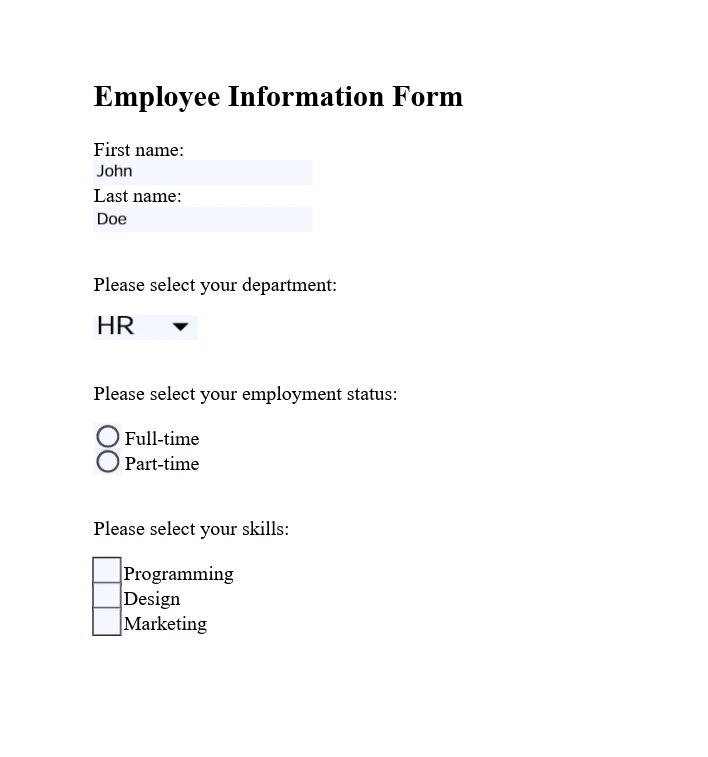
How Do I Secure and Encrypt PDFs?
IronPDF provides reliable features to secure PDF documents, including encryption, permission settings, and digital signatures. These ensure sensitive information protection and document integrity maintenance.
using IronPdf;

// Set your IronPDF license key
IronPdf.License.LicenseKey = "License-Key goes here";

// Secure the server environment to disable local disk access or cross-origin requests
Installation.EnableWebSecurity = true;

// Load an existing PDF file
var pdf = PdfDocument.FromFile("invoice.pdf");

// Set document security settings
pdf.SecuritySettings.OwnerPassword = "top-secret"; // Password to edit the PDF
pdf.SecuritySettings.UserPassword = "sharable";   // Password to open the PDF

// Save the secured PDF to a file
pdf.SaveAs("secured.pdf");
using IronPdf;
// Set your IronPDF license key
IronPdf.License.LicenseKey = "License-Key goes here";
// Secure the server environment to disable local disk access or cross-origin requests
Installation.EnableWebSecurity = true;
// Load an existing PDF file
var pdf = PdfDocument.FromFile("invoice.pdf");
// Set document security settings
pdf.SecuritySettings.OwnerPassword = "top-secret"; // Password to edit the PDF
pdf.SecuritySettings.UserPassword = "sharable"; // Password to open the PDF
// Save the secured PDF to a file
pdf.SaveAs("secured.pdf");Imports IronPdf
' Set your IronPDF license key
IronPdf.License.LicenseKey = "License-Key goes here"
' Secure the server environment to disable local disk access or cross-origin requests
Installation.EnableWebSecurity = True
' Load an existing PDF file
Dim pdf = PdfDocument.FromFile("invoice.pdf")
' Set document security settings
pdf.SecuritySettings.OwnerPassword = "top-secret" ' Password to edit the PDF
pdf.SecuritySettings.UserPassword = "sharable" ' Password to open the PDF
' Save the secured PDF to a file
pdf.SaveAs("secured.pdf")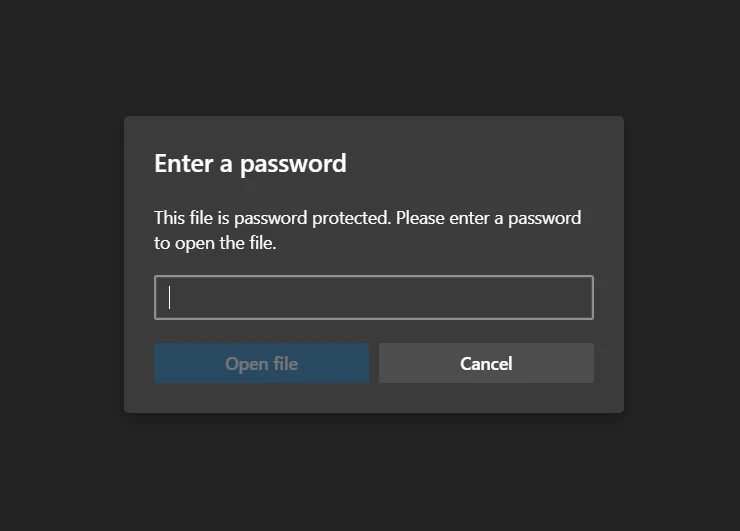
What Advanced Editing Options Are Available?
IronPDF offers advanced editing capabilities beyond basic modifications. These include adding headers and footers, customizing page layout, and embedding images and fonts. These features enable dynamic PDF generation and customization for specific application requirements.
using IronPdf;

// Set your IronPDF license key
IronPdf.License.LicenseKey = "License-Key goes here";

// Secure the server environment to disable local disk access or cross-origin requests
Installation.EnableWebSecurity = true;

// Instantiate a PDF renderer
var renderer = new IronPdf.ChromePdfRenderer();

// Define multi-page HTML content with page breaks
var multiPageHtml = @"
    <p> This is 1st Page</p>
    <div style = 'page-break-after: always;' ></div>
    <p> This is 2nd Page</p>
    <div style = 'page-break-after: always;' ></div>
    <p> This is 3rd Page</p>
    <div style = 'page-break-after: always;' ></div>
    <p> This is 4th Page</p>
    <div style = 'page-break-after: always;' ></div>
    <p> This is 5th Page</p>
    <div style = 'page-break-after: always;' ></div>
    <p> This is 6th Page</p>
    <div style = 'page-break-after: always;' ></div>
    <p> This is 7th Page</p>";

// Render the HTML content as a PDF
var pdfDoc = renderer.RenderHtmlAsPdf(multiPageHtml);

// Create a header for the first page only
var firstPageHeader = new HtmlHeaderFooter();
firstPageHeader.HtmlFragment = "This is the First Page Header";
pdfDoc.AddHtmlHeaders(firstPageHeader, 1);

// Save the resulting PDF with headers to a file
pdfDoc.SaveAs("PagesWithHeaders.pdf");
using IronPdf;
// Set your IronPDF license key
IronPdf.License.LicenseKey = "License-Key goes here";
// Secure the server environment to disable local disk access or cross-origin requests
Installation.EnableWebSecurity = true;
// Instantiate a PDF renderer
var renderer = new IronPdf.ChromePdfRenderer();
// Define multi-page HTML content with page breaks
var multiPageHtml = @"
<p> This is 1st Page</p>
<div style = 'page-break-after: always;' ></div>
<p> This is 2nd Page</p>
<div style = 'page-break-after: always;' ></div>
<p> This is 3rd Page</p>
<div style = 'page-break-after: always;' ></div>
<p> This is 4th Page</p>
<div style = 'page-break-after: always;' ></div>
<p> This is 5th Page</p>
<div style = 'page-break-after: always;' ></div>
<p> This is 6th Page</p>
<div style = 'page-break-after: always;' ></div>
<p> This is 7th Page</p>";
// Render the HTML content as a PDF
var pdfDoc = renderer.RenderHtmlAsPdf(multiPageHtml);
// Create a header for the first page only
var firstPageHeader = new HtmlHeaderFooter();
firstPageHeader.HtmlFragment = "This is the First Page Header";
pdfDoc.AddHtmlHeaders(firstPageHeader, 1);
// Save the resulting PDF with headers to a file
pdfDoc.SaveAs("PagesWithHeaders.pdf");Imports IronPdf
' Set your IronPDF license key
IronPdf.License.LicenseKey = "License-Key goes here"
' Secure the server environment to disable local disk access or cross-origin requests
Installation.EnableWebSecurity = True
' Instantiate a PDF renderer
Dim renderer = New IronPdf.ChromePdfRenderer()
' Define multi-page HTML content with page breaks
Dim multiPageHtml = "
<p> This is 1st Page</p>
<div style = 'page-break-after: always;' ></div>
<p> This is 2nd Page</p>
<div style = 'page-break-after: always;' ></div>
<p> This is 3rd Page</p>
<div style = 'page-break-after: always;' ></div>
<p> This is 4th Page</p>
<div style = 'page-break-after: always;' ></div>
<p> This is 5th Page</p>
<div style = 'page-break-after: always;' ></div>
<p> This is 6th Page</p>
<div style = 'page-break-after: always;' ></div>
<p> This is 7th Page</p>"
' Render the HTML content as a PDF
Dim pdfDoc = renderer.RenderHtmlAsPdf(multiPageHtml)
' Create a header for the first page only
Dim firstPageHeader = New HtmlHeaderFooter()
firstPageHeader.HtmlFragment = "This is the First Page Header"
pdfDoc.AddHtmlHeaders(firstPageHeader, 1)
' Save the resulting PDF with headers to a file
pdfDoc.SaveAs("PagesWithHeaders.pdf")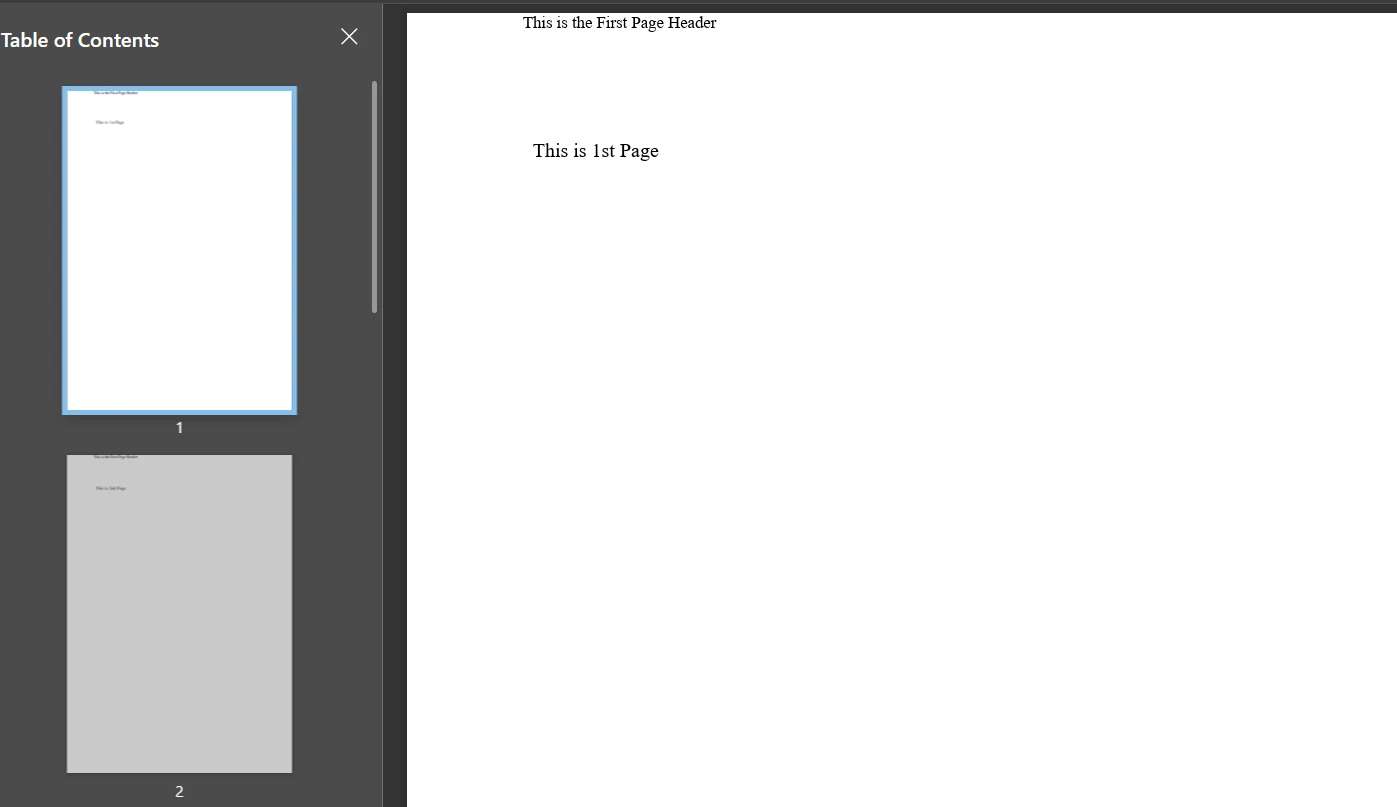
What Advanced Features Does Apryse C# Offer?
How Do I Add Annotations and Markup?
Apryse C# enables you to add annotations and markup to PDF documents programmatically. This includes text annotations, highlights, underlines, and shapes—essential for document review processes or adding supplementary information.
using pdftron;
using pdftron.PDF;
using pdftron.SDF;

class Program
{
    static void Main()
    {
        // Initialize the PDFNet library with your license key
        PDFNet.Initialize("License");

        // Open an existing PDF document
        using (PDFDoc doc = new PDFDoc("input.pdf"))
        {
            // Access the first page of the document
            Page page = doc.GetPage(1);

            // Create a text annotation on the document
            Text txt = Text.Create(doc, new Rect(10, 20, 30, 40));
            txt.SetIcon("UserIcon");
            txt.SetContents("It's an annotation!");
            page.AnnotPushBack(txt);

            // Save the modified document
            doc.Save("output.pdf", SDFDoc.SaveOptions.e_linearized);
        }
    }
}
using pdftron;
using pdftron.PDF;
using pdftron.SDF;
class Program
{
static void Main()
{
// Initialize the PDFNet library with your license key
PDFNet.Initialize("License");
// Open an existing PDF document
using (PDFDoc doc = new PDFDoc("input.pdf"))
{
// Access the first page of the document
Page page = doc.GetPage(1);
// Create a text annotation on the document
Text txt = Text.Create(doc, new Rect(10, 20, 30, 40));
txt.SetIcon("UserIcon");
txt.SetContents("It's an annotation!");
page.AnnotPushBack(txt);
// Save the modified document
doc.Save("output.pdf", SDFDoc.SaveOptions.e_linearized);
}
}
}Imports pdftron
Imports pdftron.PDF
Imports pdftron.SDF
Friend Class Program
Shared Sub Main()
' Initialize the PDFNet library with your license key
PDFNet.Initialize("License")
' Open an existing PDF document
Using doc As New PDFDoc("input.pdf")
' Access the first page of the document
Dim page As Page = doc.GetPage(1)
' Create a text annotation on the document
Dim txt As Text = Text.Create(doc, New Rect(10, 20, 30, 40))
txt.SetIcon("UserIcon")
txt.SetContents("It's an annotation!")
page.AnnotPushBack(txt)
' Save the modified document
doc.Save("output.pdf", SDFDoc.SaveOptions.e_linearized)
End Using
End Sub
End Class
How Do I Convert Documents to PDF?
Apryse C# enables conversion of various document formats to PDF, including Office documents, images, and HTML. This feature ensures uniform document formats for archiving, sharing, or displaying.
using pdftron;
using pdftron.PDF;

class Program
{
    static void Main()
    {
        // Initialize the PDFNet library
        PDFNet.Initialize();

        // Create a new PDF document
        PDFDoc pdfdoc = new PDFDoc();

        // Convert a Word document to PDF and add it to the PDF document
        Convert.ToPdf(pdfdoc, "input.docx");

        // Save the newly created PDF document
        pdfdoc.Save("output.pdf", SDFDoc.SaveOptions.e_linearized);
    }
}
using pdftron;
using pdftron.PDF;
class Program
{
static void Main()
{
// Initialize the PDFNet library
PDFNet.Initialize();
// Create a new PDF document
PDFDoc pdfdoc = new PDFDoc();
// Convert a Word document to PDF and add it to the PDF document
Convert.ToPdf(pdfdoc, "input.docx");
// Save the newly created PDF document
pdfdoc.Save("output.pdf", SDFDoc.SaveOptions.e_linearized);
}
}Imports pdftron
Imports pdftron.PDF
Friend Class Program
Shared Sub Main()
' Initialize the PDFNet library
PDFNet.Initialize()
' Create a new PDF document
Dim pdfdoc As New PDFDoc()
' Convert a Word document to PDF and add it to the PDF document
Convert.ToPdf(pdfdoc, "input.docx")
' Save the newly created PDF document
pdfdoc.Save("output.pdf", SDFDoc.SaveOptions.e_linearized)
End Sub
End ClassHow Do I Extract Content from PDFs?
Apryse C# excels at extracting text, images, and other content from PDF documents. This capability supports content analysis, data extraction, and information retrieval applications, enabling efficient PDF content processing.
using pdftron;
using pdftron.PDF;
using pdftron.SDF;

class Program
{
    static void Main()
    {
        // Initialize the PDFNet library
        PDFNet.Initialize();

        // Open an existing PDF document
        using (PDFDoc doc = new PDFDoc("input.pdf"))
        {
            // Iterate through each page of the document
            PageIterator itr = doc.GetPageIterator();
            for (; itr.HasNext(); itr.Next())
            {
                Page page = itr.Current();

                // Extract text from the page
                TextExtractor txt = new TextExtractor();
                txt.Begin(page);

                // Print the extracted text to the console
                Console.WriteLine(txt.GetAsText());
            }
        }
    }
}
using pdftron;
using pdftron.PDF;
using pdftron.SDF;
class Program
{
static void Main()
{
// Initialize the PDFNet library
PDFNet.Initialize();
// Open an existing PDF document
using (PDFDoc doc = new PDFDoc("input.pdf"))
{
// Iterate through each page of the document
PageIterator itr = doc.GetPageIterator();
for (; itr.HasNext(); itr.Next())
{
Page page = itr.Current();
// Extract text from the page
TextExtractor txt = new TextExtractor();
txt.Begin(page);
// Print the extracted text to the console
Console.WriteLine(txt.GetAsText());
}
}
}
}Imports pdftron
Imports pdftron.PDF
Imports pdftron.SDF
Friend Class Program
Shared Sub Main()
' Initialize the PDFNet library
PDFNet.Initialize()
' Open an existing PDF document
Using doc As New PDFDoc("input.pdf")
' Iterate through each page of the document
Dim itr As PageIterator = doc.GetPageIterator()
Do While itr.HasNext()
Dim page As Page = itr.Current()
' Extract text from the page
Dim txt As New TextExtractor()
txt.Begin(page)
' Print the extracted text to the console
Console.WriteLine(txt.GetAsText())
itr.Next()
Loop
End Using
End Sub
End Class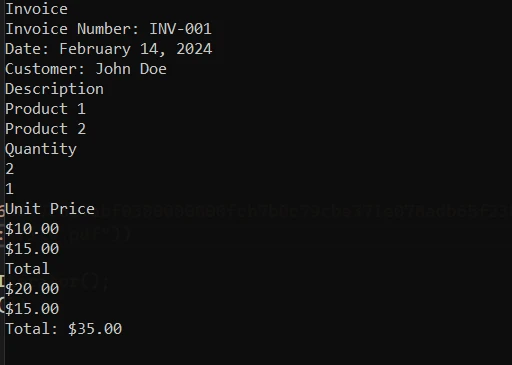
How Do I Secure PDFs with Apryse?
Apryse C# provides complete tools for securing PDF documents. You can apply password protection, encrypt documents, and manage user permissions to safeguard sensitive information.
using pdftron;
using pdftron.SDF;
using pdftron.PDF;

class Program
{
    static void Main()
    {
        // Initialize the PDFNet library
        PDFNet.Initialize();

        // Open an existing PDF document
        using (PDFDoc doc = new PDFDoc("input.pdf"))
        {
            // Initialize the security handler
            doc.InitSecurityHandler();

            // Create a new security handler
            SecurityHandler newHandler = new SecurityHandler();

            // Set the user password for the document
            newHandler.ChangeUserPassword("new_password");

            // Grant permission to print the document
            newHandler.SetPermission(SecurityHandler.Permission.e_print, true);

            // Apply the security handler to the document
            doc.SetSecurityHandler(newHandler);

            // Save the secured document
            doc.Save("output.pdf", SDFDoc.SaveOptions.e_linearized);
        }
    }
}
using pdftron;
using pdftron.SDF;
using pdftron.PDF;
class Program
{
static void Main()
{
// Initialize the PDFNet library
PDFNet.Initialize();
// Open an existing PDF document
using (PDFDoc doc = new PDFDoc("input.pdf"))
{
// Initialize the security handler
doc.InitSecurityHandler();
// Create a new security handler
SecurityHandler newHandler = new SecurityHandler();
// Set the user password for the document
newHandler.ChangeUserPassword("new_password");
// Grant permission to print the document
newHandler.SetPermission(SecurityHandler.Permission.e_print, true);
// Apply the security handler to the document
doc.SetSecurityHandler(newHandler);
// Save the secured document
doc.Save("output.pdf", SDFDoc.SaveOptions.e_linearized);
}
}
}Imports pdftron
Imports pdftron.SDF
Imports pdftron.PDF
Friend Class Program
Shared Sub Main()
' Initialize the PDFNet library
PDFNet.Initialize()
' Open an existing PDF document
Using doc As New PDFDoc("input.pdf")
' Initialize the security handler
doc.InitSecurityHandler()
' Create a new security handler
Dim newHandler As New SecurityHandler()
' Set the user password for the document
newHandler.ChangeUserPassword("new_password")
' Grant permission to print the document
newHandler.SetPermission(SecurityHandler.Permission.e_print, True)
' Apply the security handler to the document
doc.SetSecurityHandler(newHandler)
' Save the secured document
doc.Save("output.pdf", SDFDoc.SaveOptions.e_linearized)
End Using
End Sub
End ClassHow Do I Redact Sensitive Information?
Apryse C# supports redacting sensitive information from PDF documents—essential for compliance and privacy concerns. This feature allows permanent removal or obscuring of text and images within PDFs.
using pdftron;
using pdftron.PDF;
using pdftron.SDF;

class Program
{
    static void Main()
    {
        // Initialize the PDFNet library
        PDFNet.Initialize();

        // Open an existing PDF document
        using (PDFDoc doc = new PDFDoc("input.pdf"))
        {
            // Define redaction areas on specific pages
            Redactor.Redaction[] redactions = {
                new Redactor.Redaction(1, new Rect(100, 100, 200, 200), false, "redacted"),
            };

            // Apply redactions to the document
            Redactor.Redact(doc, redactions);

            // Save the redacted document
            doc.Save("output.pdf", SDFDoc.SaveOptions.e_linearized);
        }
    }
}
using pdftron;
using pdftron.PDF;
using pdftron.SDF;
class Program
{
static void Main()
{
// Initialize the PDFNet library
PDFNet.Initialize();
// Open an existing PDF document
using (PDFDoc doc = new PDFDoc("input.pdf"))
{
// Define redaction areas on specific pages
Redactor.Redaction[] redactions = {
new Redactor.Redaction(1, new Rect(100, 100, 200, 200), false, "redacted"),
};
// Apply redactions to the document
Redactor.Redact(doc, redactions);
// Save the redacted document
doc.Save("output.pdf", SDFDoc.SaveOptions.e_linearized);
}
}
}Imports pdftron
Imports pdftron.PDF
Imports pdftron.SDF
Friend Class Program
Shared Sub Main()
' Initialize the PDFNet library
PDFNet.Initialize()
' Open an existing PDF document
Using doc As New PDFDoc("input.pdf")
' Define redaction areas on specific pages
Dim redactions() As Redactor.Redaction = { New Redactor.Redaction(1, New Rect(100, 100, 200, 200), False, "redacted")}
' Apply redactions to the document
Redactor.Redact(doc, redactions)
' Save the redacted document
doc.Save("output.pdf", SDFDoc.SaveOptions.e_linearized)
End Using
End Sub
End ClassWhat Documentation and Support Are Available?
Jakie wsparcie zapewnia IronPDF?
Documentation: IronPDF offers complete documentation covering topics from getting started guides to advanced features like HTML to PDF conversion, PDF editing, merging, splitting, and security. The documentation provides easy-to-follow content with extensive code examples and explanations guiding you through implementing various PDF functionalities.
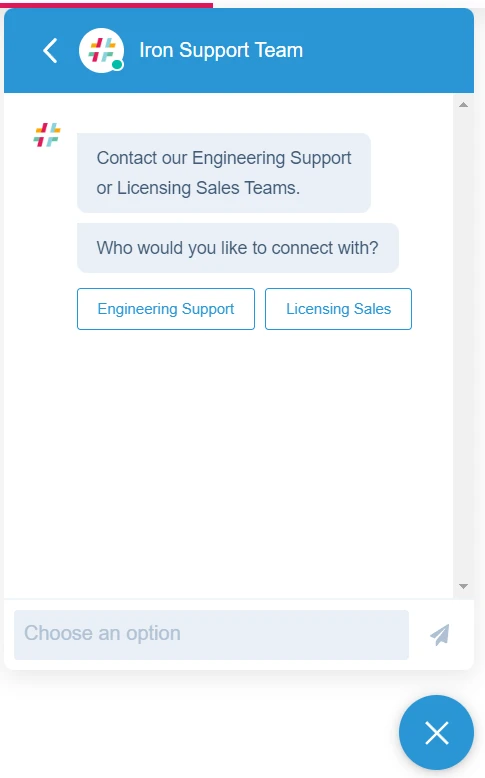
Support: IronPDF provides assistance through multiple channels, including email support, ticket support, and live engineering support chat where you can connect with their technical team for specific issues. Your application can immediately benefit from their feedback system.
What Support Does Apryse C# Provide?
Documentation: Apryse C# (formerly PDFTron for .NET) provides detailed documentation including a complete API reference, developer guides, and sample code for diverse PDF manipulation tasks.
Support: Apryse offers developer support through direct email communication with their technical team for troubleshooting and implementation questions. You can also ask questions on Stack Overflow.
What Are the License Options and Pricing?
What Are IronPDF's License Options?
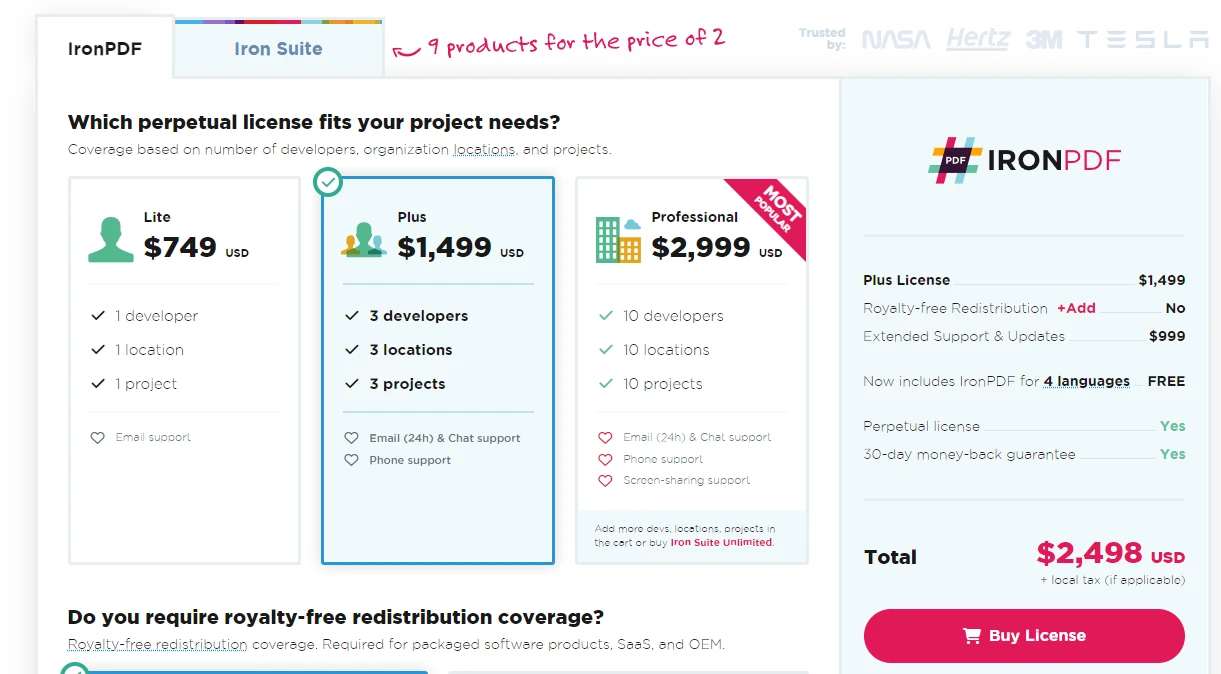
IronPDF offers several licensing options tailored to different project needs. Pricing starts at $799 for a Lite license. These licenses vary based on developer count, locations, and projects covered. IronPDF also provides royalty-free redistribution options and extended support with specific pricing for add-ons.
Opcje licencji wieczystej IronPDF obejmują:
- Wersja Lite: Kosztuje $799, odpowiednia dla 1 programisty, 1 lokalizacji i 1 projektu, z wsparciem e-mail w cenie.
- Wersja Plus: W cenie $1,199 obejmuje do 3 programistów, 3 lokalizacje i 3 projekty, z całodobową pomocą techniczną przez e-mail i czat oraz wsparciem telefonicznym.
- Wersja Professional: W cenie $2,399 ta wersja jest przeznaczona dla maksymalnie 10 programistów, 10 lokalizacji i 10 projektów, zapewniając kompleksowe wsparcie, w tym wsparcie e-mail, czat, telefon i wsparcie udostępniania ekranu.
Oferują również miesięczną subskrypcję w cenie 500 USD, obejmującą 10 000 wywołań API, a każde dodatkowe wywołanie kosztuje 0,02 USD. W celu zapewnienia nieograniczonego użytkowania IronPDF oferuje rozwiązanie dla przedsiębiorstw z cennikiem opartym na wycenie. To rozwiązanie obejmuje między innymi nieograniczoną Licencję wieczystą oraz wywołania API.
Jakie są opcje licencji Apryse C#?
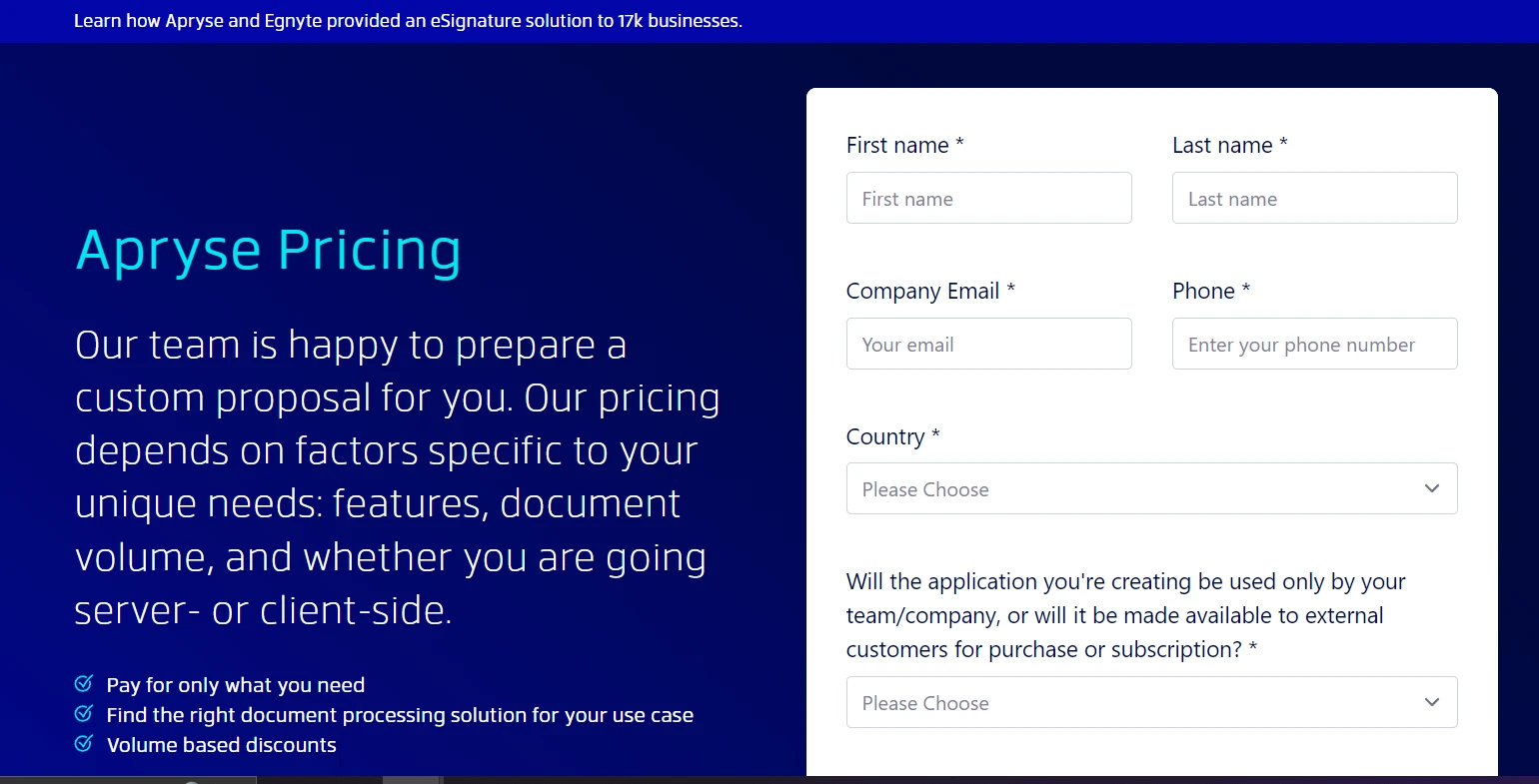
Apryse C# oferuje elastyczne ceny dostosowane do konkretnych wymagań projektu, w tym funkcji, objętości dokumentów i scenariuszy wdrożenia. Aby uzyskać informacje na temat cen Apryse, należy skontaktować się z zespołem sprzedaży.
Którą bibliotekę PDF wybrać?
Zarówno IronPDF, jak i Apryse C# zapewniają skuteczne możliwości dla programistów .NET pracujących z plikami PDF. IronPDF zapewnia przewagę dzięki rozbudowanym funkcjom edycji plików PDF. Wyróżnia się pełnym zestawem funkcji, w tym rozbudowaną edycją i scalaniem plików PDF przy użyciu IronPDF. Pakiet Iron Suite zapewnia dostęp do wielu narzędzi w przystępnej cenie, wyposażając Twoje środowisko programistyczne w niezawodne narzędzia dostosowane do różnych potrzeb.
IronPDF wyróżnia się ogólną wszechstronnością i wartością dodaną w większości scenariuszy przetwarzania plików PDF. Ostateczna decyzja powinna być zgodna z wymaganiami projektu i konkretnymi funkcjami potrzebnymi do jego realizacji.
Często Zadawane Pytania
Jakie są główne różnice między IronPDF a Apryse C# w zakresie obsługi plików PDF?
IronPDF jest znany z płynnej integracji z platformą .NET oraz zaawansowanych możliwości w zakresie konwersji HTML do PDF, obsługi formularzy i funkcji bezpieczeństwa. Apryse C#, wcześniej znany jako PDFTron SDK, koncentruje się na wyodrębnianiu treści i konwersji dokumentów, oferując zaawansowane funkcje, takie jak adnotacje i redagowanie.
Jak mogę przekonwertować HTML na PDF w aplikacji .NET?
Można użyć metody RenderHtmlAsPdf biblioteki IronPDF do bezpośredniej konwersji ciągów HTML na dokumenty PDF. Jest to przydatne do generowania plików PDF z treści internetowych lub szablonów HTML.
Jakie są kroki instalacji IronPDF w projekcie .NET?
IronPDF można łatwo zainstalować za pomocą menedżera pakietów NuGet w Visual Studio. Można również użyć konsoli menedżera pakietów, aby wykonać polecenie Install-Package IronPdf lub pobrać go bezpośrednio ze strony internetowej NuGet.
W jaki sposób IronPDF radzi sobie z zabezpieczeniami i szyfrowaniem plików PDF?
IronPDF zapewnia kompleksowe opcje bezpieczeństwa, w tym możliwość szyfrowania dokumentów, ustawiania uprawnień użytkowników oraz zarządzania podpisami cyfrowymi. Gwarantuje to ochronę plików PDF oraz zgodność z normami bezpieczeństwa.
Jakie zaawansowane funkcje edycji plików PDF oferuje IronPDF?
IronPDF obsługuje szereg zaawansowanych funkcji edycji, w tym możliwość łączenia i dzielenia dokumentów, dodawania znaków wodnych oraz dostosowywania nagłówków i stopek. Oferuje również opcje dostosowywania układu, umożliwiające tworzenie dokumentów bardziej dopasowanych do potrzeb użytkownika.
Jakie wsparcie i zasoby są dostępne dla użytkowników IronPDF?
IronPDF oferuje obszerną dokumentację, wsparcie e-mail, wsparcie oparte na zgłoszeniach oraz czat na żywo z inżynierami, aby pomóc programistom we wdrażaniu i rozwiązywaniu problemów. Dzięki temu użytkownicy mają dostęp do zasobów niezbędnych do efektywnej obróbki plików PDF.
Jakie opcje licencyjne są dostępne dla IronPDF?
IronPDF oferuje kilka opcji licencyjnych, w tym licencje Lite, Plus i Professional, dostosowane do różnych poziomów wsparcia i potrzeb programistów. Dostępny jest również model subskrypcji miesięcznej oraz rozwiązania dla przedsiębiorstw, przeznaczone do szerszego zastosowania.
Jak wyodrębnić tekst z pliku PDF za pomocą Apryse C#?
Apryse C# zapewnia solidne możliwości ekstrakcji tekstu, umożliwiając programistom programowe wyodrębnianie treści z plików PDF. Ta funkcja jest niezbędna w aplikacjach wymagających analizy danych lub manipulacji treścią.
Jakie formaty dokumentów Apryse C# może konwertować do formatu PDF?
Apryse C# obsługuje konwersję różnych formatów dokumentów, w tym dokumentów Office, obrazów i plików HTML, do formatu PDF. Ta funkcja ma kluczowe znaczenie dla zachowania spójności prezentacji dokumentów na różnych platformach.
Jakie są kluczowe funkcje IronPDF for .NET dla programistów .NET?
IronPDF jest znany ze swoich zaawansowanych funkcji, takich jak konwersja HTML do PDF, kompleksowa obsługa formularzy i zabezpieczenia dokumentów. Jest chwalony za wydajność, skalowalność i płynną integrację z platformą .NET, co czyni go idealnym rozwiązaniem dla szerokiego zakresu scenariuszy przetwarzania plików PDF.








 Rozpocznij za DARMO
 Rozpocznij za DARMO
 Zarezerwuj darmowe Demo na żywo





 Nie wymaga karty kredytowej ani tworzenia konta










