using IronPdf;

// Disable local disk access or cross-origin requests
Installation.EnableWebSecurity = true;

// Instantiate Renderer
var renderer = new ChromePdfRenderer();

// Create a PDF from a HTML string using C#
var pdf = renderer.RenderHtmlAsPdf("<h1>Hello World</h1>");

// Export to a file or Stream
pdf.SaveAs("output.pdf");

// Advanced Example with HTML Assets
// Load external html assets: Images, CSS and JavaScript.
// An optional BasePath 'C:\site\assets\' is set as the file location to load assets from
var myAdvancedPdf = renderer.RenderHtmlAsPdf("<img src='icons/iron.png'>", @"C:\site\assets\");
myAdvancedPdf.SaveAs("html-with-assets.pdf");
using IronPdf;// Disable local disk access or cross-origin requestsInstallation.EnableWebSecurity = true;// Instantiate Renderervar renderer = new ChromePdfRenderer();// Create a PDF from a HTML string using C#var pdf = renderer.RenderHtmlAsPdf("<h1>Hello World</h1>");// Export to a file or Streampdf.SaveAs("output.pdf");// Advanced Example with HTML Assets// Load external html assets: Images, CSS and JavaScript.// An optional BasePath 'C:\site\assets\' is set as the file location to load assets fromvar myAdvancedPdf = renderer.RenderHtmlAsPdf("<img src='icons/iron.png'>", @"C:\site\assets\");myAdvancedPdf.SaveAs("html-with-assets.pdf");
PM >Install-Package IronPdf
Install-Package IronPdf
KORZYSTANIE Z IRONPDF
Blazor Otwórz PDF w nowej karcie z IronPDF: Tutorial dla deweloperów
IronPDF oferuje niezawodną bibliotekę .NET do konwersji dokumentów PDF na pliki graficzne (PNG, JPG, TIFF, BMP) z precyzyjną kontrolą nad ustawieniami jakości, rozdzielczością DPI i wyborem stron - idealną do wdrożeń kontenerowych wymagających minimalnych zależności.
Konwersja dokumentów PDF na pliki graficzne jest powszechną potrzebą we współczesnych aplikacjach .NET. Niezależnie od tego, czy potrzebujesz generować miniatury dokumentów, wyodrębniać obrazy do wyświetlania w sieci, czy konwertować pliki PDF na potrzeby procesów przetwarzania obrazów, posiadanie niezawodnej biblioteki PDF jest niezbędne. [IronPDF](/) zapewnia kompletne rozwiązanie w postaci biblioteki .NET do konwersji plików PDF na obrazy z efektywnymi [funkcjami rasteryzacji](https://ironpdf.com/how-to/rasterize-pdf-to-images/), obsługujące wiele formatów obrazów i oferujące precyzyjną kontrolę nad jakością wyjściową oraz ustawieniami DPI obrazu. Silnik renderujący biblioteki oparty na przeglądarce Chrome zapewnia konwersję z zachowaniem każdego piksela, a [obsługa](https://ironpdf.com/get-started/windows/) [wielu platform](https://ironpdf.com/get-started/windows/) umożliwia płynne wdrażanie w środowiskach Windows, [Linux](https://ironpdf.com/get-started/linux/) i [macOS](https://ironpdf.com/get-started/macos/).
## Jak dodać bibliotekę PDF do swojego projektu?
Rozpoczęcie pracy jest proste dzięki [menedżerowi pakietów NuGet](https://ironpdf.com/get-started/advanced-installation-nuget/). Otwórz projekt Visual Studio i przejdź do konsoli menedżera pakietów, a następnie uruchom jedno z poniższych poleceń instalacyjnych:
```bash
:ProductInstall
```
```bash
:InstallCmd dotnet add package IronPdf
```
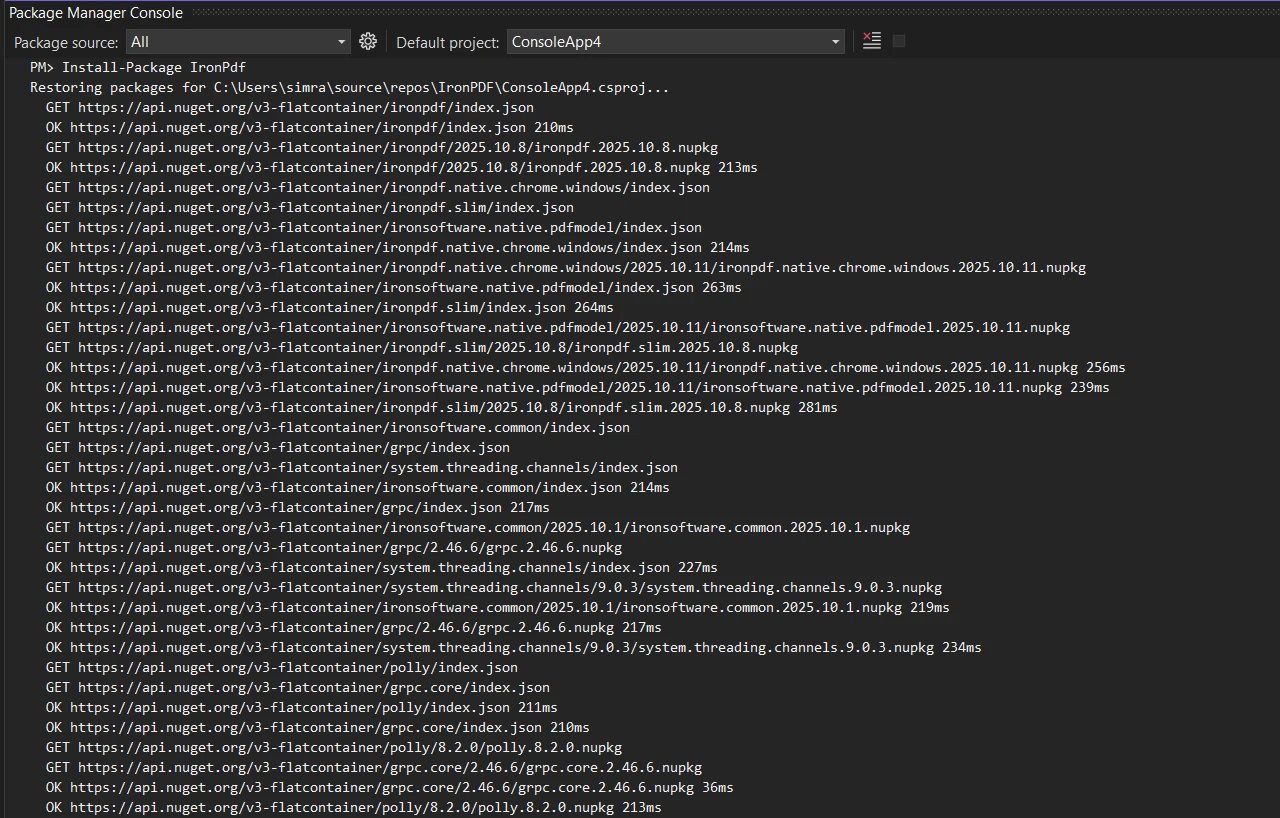
Alternatywnie można pobrać i zainstalować pakiet za pomocą interfejsu użytkownika menedżera pakietów NuGet, wyszukując "IronPDF" i klikając przycisk instalacji. Ta biblioteka działa ze wszystkimi wersjami .NET, w tym z aplikacjami [obsługującymi bibliotekę F# PDF](https://ironpdf.com/get-started/fsharp-pdf-library-html-to-pdf/). W przypadku wdrożeń kontenerowych [obrazy](https://ironpdf.com/get-started/ironpdf-docker/) [IronPDF Docker](https://ironpdf.com/get-started/ironpdf-docker/) zapewniają alternatywną ścieżkę konfiguracji.
## Dlaczego programiści muszą konwertować pliki PDF na obrazy w środowisku .NET?
Konwersja plików PDF na obrazy pełni kluczową rolę w procesach przetwarzania dokumentów. Programiści często muszą konwertować strony PDF, aby tworzyć miniatury podglądu dla systemów zarządzania dokumentami, wyodrębniać obrazy, generować podglądy oparte na obrazach dla stron internetowych, na których renderowanie plików PDF bez dedykowanej przeglądarki jest niepraktyczne, lub przetwarzać pojedyncze strony PDF w celu rozpoznania tekstu (OCR). Konwersja pliku PDF na pliki graficzne ułatwia również udostępnianie na platformach, które nie obsługują formatu PDF, oraz zapewnia lepszą kompatybilność z procesami przetwarzania obrazów. Ponadto wiele systemów zgodności i archiwizacji wymaga dokumentów w określonych formatach obrazów, takich jak TIFF, do długoterminowego przechowywania, szczególnie w celu [zapewnienia zgodności z PDF/A](https://ironpdf.com/how-to/pdfa/). W większości przypadków programiści potrzebują niezawodnej nakładki .NET, która działa spójnie w różnych środowiskach, zwłaszcza w [wdrożeniach kontenerowych,](https://ironpdf.com/get-started/ironpdf-docker/) gdzie zarządzanie zależnościami ma kluczowe znaczenie.
### Jakie są najczęstsze zastosowania konwersji plików PDF na obrazy?
Konwersja plików PDF na obrazy pełni kluczową rolę w procesach przetwarzania dokumentów. Typowe przypadki użycia obejmuja:
- Tworzenie miniatur podglądu dla systemów zarządzania dokumentami
- [Pobieranie obrazów](https://ironpdf.com/how-to/extract-text-and-images/) z dokumentów PDF
- Generowanie podglądów opartych na obrazach do wyświetlania w sieci
- Przetwarzanie pojedynczych stron PDF w ramach procesów OCR
- Umożliwienie udostępniania dokumentów na platformach bez obsługi formatu PDF
- Konwersja stron ASPX na obrazy w celu wygenerowania podglądu
- Przetwarzanie plików HTML do formatu PDF przed wyodrębnieniem obrazów
### Dlaczego wdrożenie kontenerowe jest ważne dla konwersji plików PDF?
Wiele systemów zapewniających zgodność z przepisami i systemów archiwizacji wymaga dokumentów w określonych formatach obrazów, takich jak TIFF, do długoterminowego przechowywania. W przypadku wymagań dotyczących fakturowania w formacie PDF/A-3 konwersja obrazów zapewnia dodatkową elastyczność. Niezawodna nakładka .NET musi działać spójnie w różnych środowiskach, zwłaszcza w [wdrożeniach kontenerowych,](https://ironpdf.com/get-started/ironpdf-docker/) gdzie zarządzanie zależnościami ma kluczowe znaczenie. Możliwość [uruchamiania IronPDF jako kontenera zdalnego](https://ironpdf.com/get-started/ironpdfengine-docker/) poprawia skalowalność w scenariuszach przetwarzania wsadowego o dużej objętości.
### Jaki jest najprostszy sposób na konwersję pliku PDF na obrazy?
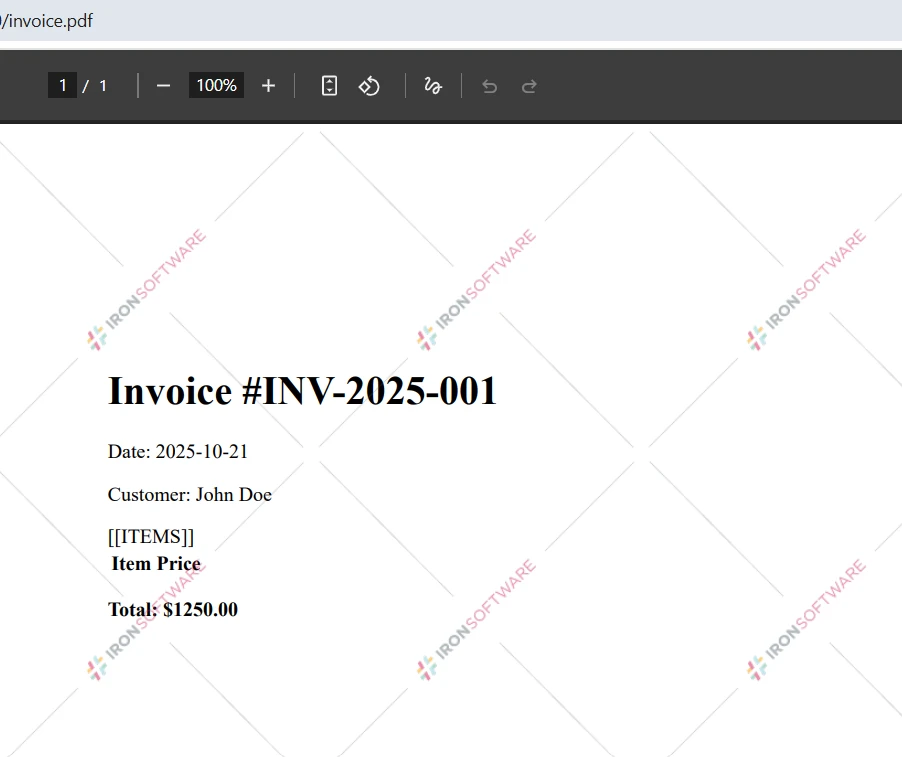
W najprostszym scenariuszu konwersji pliku PDF na obraz można przekonwertować cały dokument PDF na wysokiej jakości obrazy PNG lub JPG za pomocą zaledwie dwóch wierszy kodu:
```csharp
var pdf = PdfDocument.FromFile("invoice.pdf");
pdf.RasterizeToImageFiles(@"C:\images\folder\page_*.png");
```
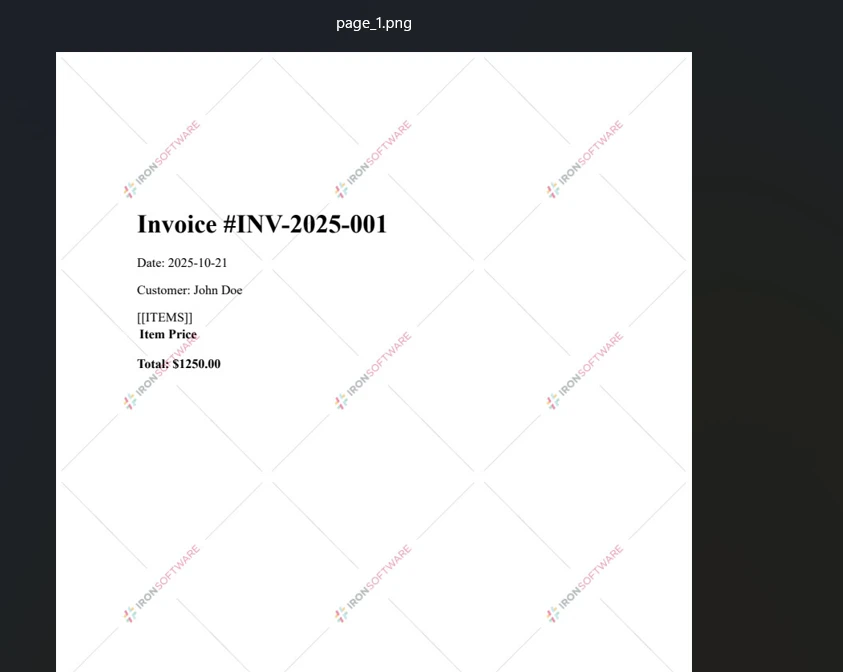
Ten kod ładuje pojedynczy plik PDF za pomocą metody `PdfDocument.FromFile` i konwertuje wszystkie strony PDF na pliki obrazów PNG. Metoda `RasterizeToImageFiles` automatycznie obsługuje [wiele stron w dokumentach PDF](https://ironpdf.com/how-to/split-multipage-pdf/), tworząc oddzielne pliki obrazów dla każdej strony z numeracją sekwencyjną w folderze wyjściowym. Gwiazdka w ścieżce pliku pełni rolę symbolu zastępczego dla automatycznej numeracji stron.
### Dane wejściowe
### Wynik
### Jak wdrożyć asynchroniczną konwersję dla lepszej wydajności?
Dla wdrożeń produkcyjnych warto korzystać z metod asynchronicznych dla lepszej wydajności, zwłaszcza w scenariuszach dużej przepustowości:
```csharp
using IronPdf;
var pdf = await PdfDocument.FromFileAsync("input.pdf");
await pdf.RasterizeToImageFilesAsync(@"C:\output\page_*.png");
```
To podejście jest szczególnie korzystne przy [wdrażaniu w Azure](https://ironpdf.com/get-started/azure/) lub [wdrażaniu w AWS](https://ironpdf.com/get-started/aws/) w środowiskach chmurowych, gdzie efektywność zasobów jest kluczowa.
## Jak przekonwertować konkretne strony PDF do różnych formatów graficznych?
IronPDF zapewnia szczegółową kontrolę nad procesem konwersji PDF na obrazy. Można konwertować wybrane strony PDF, kontrolować ustawienia jakości i wybierać spośród wielu formatów obrazów wyjściowych, aby spełnić dokładne wymagania. W przeciwieństwie do podstawowych narzędzi Poppler czy programów GPL, ta biblioteka .NET oferuje pełną kontrolę dzięki swoim [opcjom renderowania](https://ironpdf.com/how-to/rendering-options/).
### Jak przekonwertować wybrane strony z PDF do JPG?
Aby przekonwertować konkretne strony PDF zamiast całego dokumentu PDF, użyj parametru zakresu stron:
```csharp
using IronPdf;
using System.Linq;
var pdf = PdfDocument.FromFile("report.pdf");
var pageRange = Enumerable.Range(0, 5); // First 5 pages
pdf.RasterizeToImageFiles(
@"C:\output\page_*.jpg",
pageRange,
1920, // Width in pixels
1080, // Height in pixels
IronPdf.Imaging.ImageType.Jpeg,
150 // Image DPI setting
);
```
Ten przykład konwertuje pierwsze pięć stron na format JPEG z określonymi wymiarami. Parametry metody dają pełną kontrolę:
- Określ wzorzec ścieżki wyjściowej dla konwencji nazewnictwa
- Wybierz pojedyncze lub wielokrotne strony
- Ustaw maksymalną szerokość i wysokość, zachowując proporcje
- Wybierz format obrazu (JPEG, PNG, TIFF, BMP)
- Określ rozdzielczość DPI dla wydruku wysokiej jakości
Proces rastrowania zachowuje klarowność tekstu i jakość grafiki we wszystkich obsługiwanych formatach.
### Kiedy warto przekonwertować adresy URL stron internetowych na obrazy zamiast bezpośrednich PDF-ów?
IronPDF może renderować strony internetowe na PDF, a następnie konwertować na pliki graficzne za pomocą [url do funkcji PDF](https://ironpdf.com/how-to/url-to-pdf/):
```csharp
using IronPdf;
var renderer = new ChromePdfRenderer();
var pdf = renderer.RenderUrlAsPdf("https://ironpdf.com");
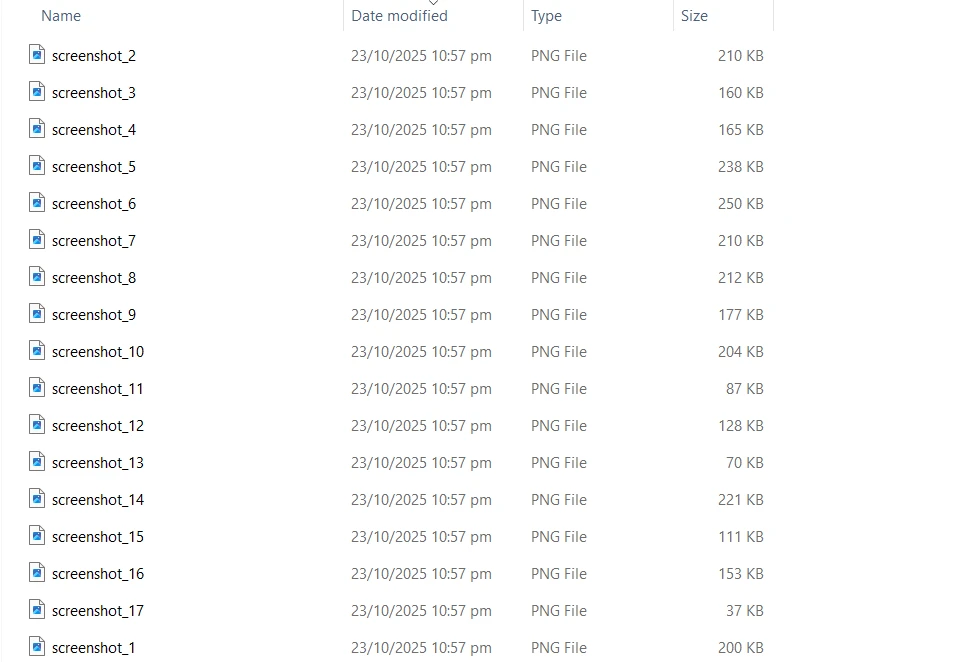
pdf.RasterizeToImageFiles(@"C:\web\screenshot_*.png");
```
To podejście dokładnie uchwyca zawartość strony internetowej tak, jak wygląda w przeglądarce Chrome, a następnie konwertuje każdą stronę na obrazy PNG. Metoda `ChromePdfRenderer` zapewnia dokładne renderowanie nowoczesnych technologii webowych, w tym JavaScript, CSS3 i układy responsywne, co czyni ją odpowiednią do tworzenia zrzutów ekranu stron internetowych lub archiwizacji treści webowych.
### Jakie opcje renderowania warto skonfigurować w produkcji?
Dla wdrożeń produkcyjnych skonfiguruj opóźnienia i limity czasu renderowania:
```csharp
using IronPdf;
var renderer = new ChromePdfRenderer
{
RenderingOptions = new ChromePdfRenderOptions
{
RenderDelay = 2000, // Wait 2 seconds for dynamic content
Timeout = 30000, // 30-second timeout for slow networks
EnableJavaScript = true,
ViewPortWidth = 1920,
ViewPortHeight = 1080
}
};
```
Dla poprawy bezpieczeństwa zaimplementuj uwierzytelnianie [HTTP request header](https://ironpdf.com/how-to/http-request-header/) i zarządzaj [PDF permissions passwords](https://ironpdf.com/how-to/pdf-permissions-passwords/) według potrzeb.
### Dane wejściowe
### Wynik
## Jakie formaty graficzne i ustawienia jakości są dostępne?
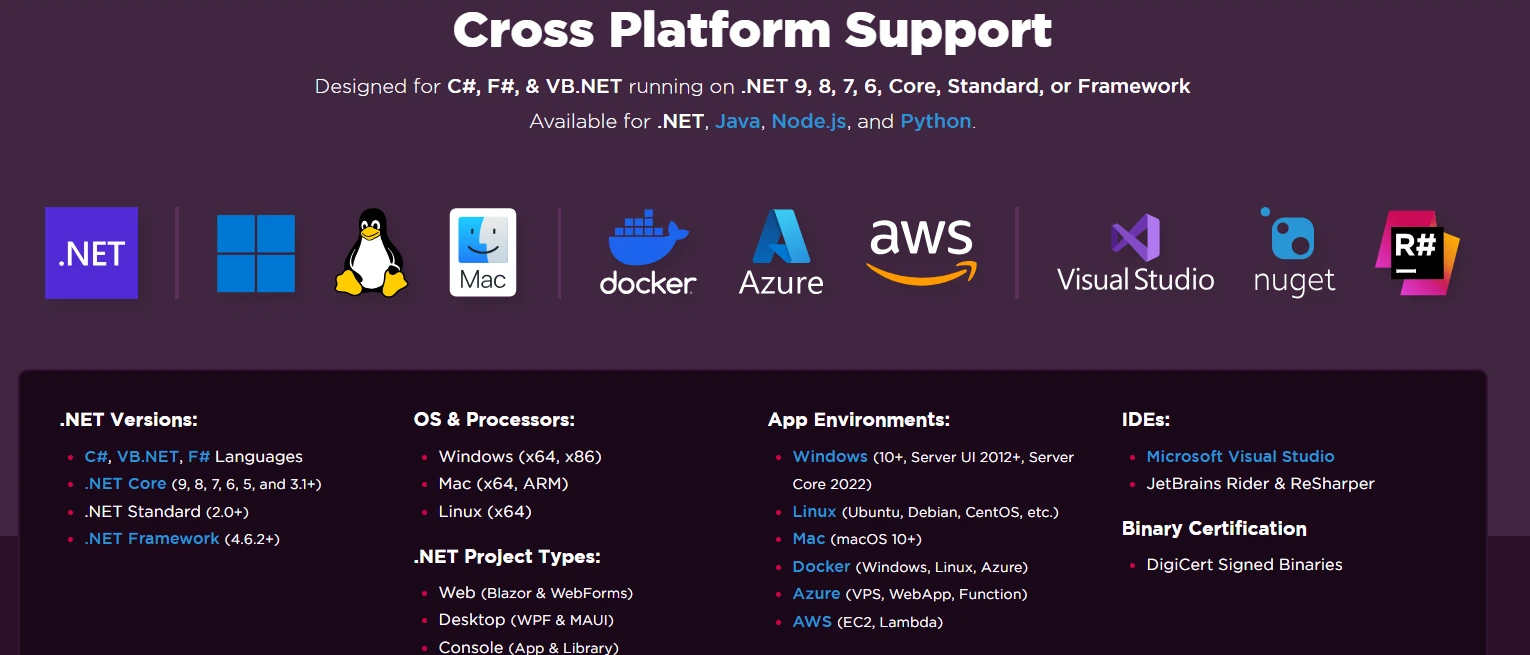
IronPDF obsługuje wszystkie główne formaty graficzne z możliwością dostosowania ustawień jakości do różnych zastosowań w aplikacjach .NET. Ta biblioteka oferuje większą elastyczność niż podstawowe narzędzia Poppler, z pełnymi funkcjami zarządzania obrazami. Dla aplikacji natywnych dla chmury obsługuje osadzanie obrazów z Azure Blob Storage i pracę z grafiką SVG.
### Jaki format obrazu wybrać dla Twojego zastosowania?
**Format PNG** -- Idealny dla dokumentów wymagających przeźroczystości lub bezstratnej kompresji. Idealny do rysunków technicznych, zrzutów ekranu i dokumentów, w których jasność tekstu ma kluczowe znaczenie. PNG zapewnia brak utraty jakości podczas rastrowania PDF i dobrze sprawdza się w wyświetlaczach internetowych. Format ten jest odpowiedni dla dokumentów z watermarkiem i utrzymuje jakość przy implementacji niestandardowych nakładek.
**Format JPEG/JPG** -- Najlepszy dla fotografii i złożonych obrazów, gdzie potrzebne są mniejsze rozmiary plików. Konwerter PDF do JPG wspiera dostosowanie jakości dla zbalansowania rozmiaru pliku i klarowności obrazu. Format dobrze współpracuje z konwencjami nazewnictwa opartymi na numerze strony i konwersjami wielostronicowymi.
**Format TIFF** -- Doskonały do celów archiwizacyjnych, wspierający zarówno dokumenty jedno-, jak i wielostronicowe TIFF. Zdolność IronPDF do tworzenia plików TIFF wielostronicowych z stron PDF jest szczególnie wartościowa:
```csharp
using IronPdf;
var pdf = PdfDocument.FromFile("multipage.pdf");
pdf.ToMultiPageTiffImage(@"C:\archive\document.tiff", null, null, 300);
Console.WriteLine("PDF converted to multi-page TIFF");
```
To tworzy pojedynczy plik TIFF zawierający wszystkie strony PDF, zachowując integralność dokumentu przy spełnianiu standardów archiwizacji. Ustawienie 300 DPI zapewnia wyjście wysokiej rozdzielczości odpowiednie do długoterminowego przechowywania i zgodności. Wielostronicowy TIFF jest szczególnie przydatny dla systemów faksowych, archiwizacji obrazów medycznych i przechowywania dokumentów prawnych, gdzie strony muszą pozostać razem.
**Format BMP** -- Zapewnia niekompresowane wyjście bitmapy, gdy wymagana jest maksymalna jakość bez artefaktów kompresji dla przepływów pracy System.Drawing. Format BMP dobrze działa w scenariuszach drukowania lub gdy wymagana jest precyzyjna pozycjonowanie na poziomie piksela.
### Jakie ustawienia DPI działają najlepiej dla różnych scenariuszy?
Kontrola rozdzielczości przez ustawienia DPI pozwala na optymalizację dla różnych scenariuszy:
- 72-96 DPI dla wyświetlania w internecie i generowania miniatur
- 150-200 DPI dla ogólnego przeglądania dokumentów
- 300+ DPI dla wydruku wysokiej jakości i przetwarzania OCR
Rozdzielczość obrazu (DPI) ma bezpośredni wpływ na rozmiar pliku i jego jakość. Dla wdrożeń w kontenerach zaimplementuj konwersję świadomą zasobów:
```csharp
using IronPdf;
using System.IO;
using System.Drawing.Imaging;
public async Task<byte[]> ConvertToImageBytesAsync(string pdfPath, int pageIndex = 0)
{
using var pdf = await PdfDocument.FromFileAsync(pdfPath);
var images = await pdf.RasterizeToBitmapsAsync(new[] { pageIndex }, 150);
using var ms = new MemoryStream();
images[0].Save(ms, ImageFormat.Png);
return ms.ToArray();
}
```
Ten wzorzec jest kluczowy dla scenariuszy [ładowania PDF z pamięci](https://ironpdf.com/how-to/pdf-memory-stream/) i gdy potrzebujesz [eksportować PDF do pamięci](https://ironpdf.com/how-to/pdf-to-memory-stream/) dla efektywnego wykorzystania zasobów.
### Jak porównują się opcje formatów graficznych?
<table class="content__data-table" data-content-table>
<caption>Porównanie formatów obrazu PDF -- IronPDF</caption>
<thead>
<tr>
<th>Format</th>
<th>Najlepsze przypadki użycia</th>
<th>Kompresja</th>
<th>Wielostronicowy</th>
<th>Typowe DPI</th>
</tr>
</thead>
<tbody>
<tr>
<td>PNG</td>
<td>Wyświetlacz internetowy, zrzuty ekranu, rysunki techniczne</td>
<td>Bezstratny</td>
<td>Nie (na stronę)</td>
<td>72-150</td>
</tr>
<tr>
<td>JPEG</td>
<td>Zdjęcia, złożone obrazy, miniatury internetowe</td>
<td>Stratny (regulowany)</td>
<td>Nie (na stronę)</td>
<td>72-150</td>
</tr>
<tr>
<td>TIFF</td>
<td>Archiwalne, obrazowanie medyczne, dokumenty prawne</td>
<td>Bezstratny</td>
<td>Tak</td>
<td>300+</td>
</tr>
<tr>
<td>BMP</td>
<td>Przepływy pracy System.Drawing, rurociągi druku</td>
<td>Żaden (niekompresowany)</td>
<td>Nie (na stronę)</td>
<td>96-300</td>
</tr>
</tbody>
</table>
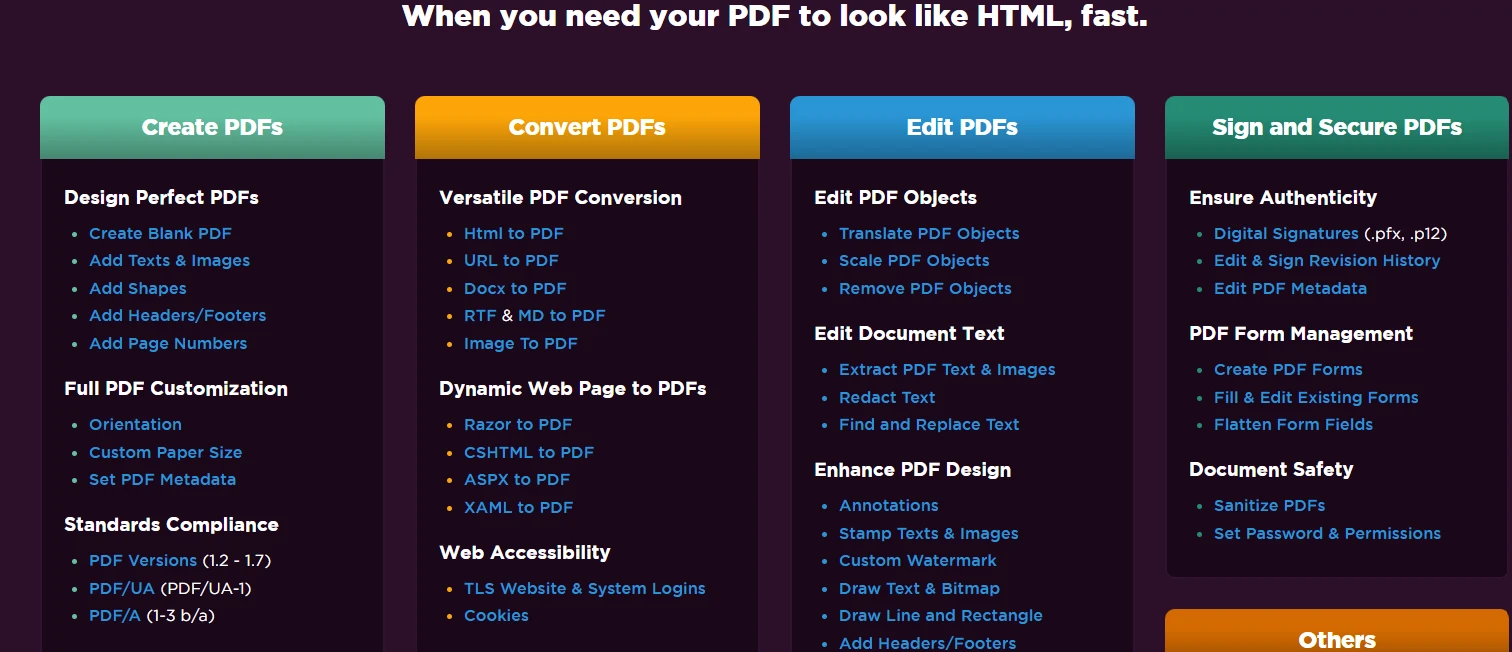
## Jakie zaawansowane możliwości oferuje biblioteka do konwersji PDF na obraz?
Funkcje konwersji obrazów IronPDF wykraczają poza podstawową rasteryzację plików PDF. Biblioteka zapewnia pełne wsparcie dla cross-platformy, działając na środowiskach Windows, Linux i macOS bez potrzeby użycia Adobe Reader. Wdrożenie w kontenerach jest w pełni wspierane z [Docker](https://ironpdf.com/get-started/ironpdf-docker/) i Kubernetes, co czyni ją odpowiednią dla aplikacji .NET natywnych dla chmury. Biblioteka obsługuje złożoną zawartość PDF, w tym [pola formularzy](https://ironpdf.com/how-to/create-forms/), [adnotacje](https://ironpdf.com/how-to/annotations/) i zaszyfrowane dokumenty. W przeciwieństwie do darmowych narzędzi Poppler, IronPDF zapewnia niezawodność klasy komercyjnej z profesjonalnym wsparciem.
### Jak wdrożyć gotowe do produkcji przetwarzanie wsadowe?
Dla wdrożeń produkcyjnych zastosuj monitorowanie i przetwarzanie wsadowe z kontrolą przepustowości:
```csharp
using IronPdf;
using System;
using System.Collections.Generic;
using System.IO;
using System.Linq;
using System.Threading;
using System.Threading.Tasks;
public class BatchImageConversionService
{
private readonly SemaphoreSlim _semaphore;
public BatchImageConversionService()
{
_semaphore = new SemaphoreSlim(Environment.ProcessorCount);
}
public async Task<int> ConvertBatchAsync(
IEnumerable<string> pdfPaths,
string outputDirectory,
int dpi = 150)
{
var tasks = pdfPaths.Select(path => ConvertWithThrottlingAsync(path, outputDirectory, dpi));
var results = await Task.WhenAll(tasks);
return results.Count(r => r);
}
private async Task<bool> ConvertWithThrottlingAsync(
string pdfPath,
string outputDirectory,
int dpi)
{
await _semaphore.WaitAsync();
try
{
using var pdf = await PdfDocument.FromFileAsync(pdfPath);
var pattern = Path.Combine(
outputDirectory,
$"{Path.GetFileNameWithoutExtension(pdfPath)}_*.png");
await pdf.RasterizeToImageFilesAsync(pattern, dpi: dpi);
return true;
}
catch
{
return false;
}
finally
{
_semaphore.Release();
}
}
}
```
Ten wzorzec serwisowy wspiera [równoległe generowanie PDF](https://ironpdf.com/how-to/async/) i można go rozszerzyć o śledzenie metadanych dla audytów konwersji.
### Jakie są dostępne optymalizacje wydajności?
Funkcje wydajności biblioteki obejmują automatyczne zarządzanie pamięcią dla dużych dokumentów, wsparcie dla przetwarzania równoległego operacji wsadowych oraz efektywne buforowanie zasobów renderowania. Dla wdrożeń w kontenerach warto rozważyć użycie [IronPDF Engine](https://ironpdf.com/get-started/ironpdfengine/) jako osobnej mikroserwisu, aby wyizolować wykorzystanie zasobów i poprawić skalowalność.
Dodatkowe techniki optymalizacji obejmują:
- Użycie korekty rotacji strony przed konwersją, aby uniknąć przetwarzania po konwersji
- Wdrażanie wsparcia UTF-8 i międzynarodowych języków dla globalnych wdrożeń
- Wybór odpowiednich ustawień DPI dla zrównoważenia jakości w stosunku do wymagań dotyczących przechowywania
## Jakie są kluczowe wnioski z wdrażania konwersji PDF na obrazy?
IronPDF przekształca konwersję PDF na obrazy z trudnego zadania do prostego, niezawodnego procesu dla programistów .NET. Z wsparciem dla wielu formatów obrazów, w tym wielostronicowego TIFF, precyzyjna kontrola DPI obrazu i zgodność cross-platformowa, zapewnia wszystko potrzebne do konwersji dokumentów PDF na pliki obrazów w środowiskach produkcyjnych. Prosty interfejs API oznacza, że można zaimplementować zaawansowaną logikę rasteryzacji plików PDF przy użyciu minimalnej ilości kodu, zachowując jednocześnie doskonałą jakość wyjściową w formatach PNG, JPEG, TIFF i BMP. Niezależnie czy konwertujesz pojedynczą stronę PDF czy przetwarzasz całe partie dokumentów, biblioteka działa niezawodnie na różnych celach wdrożeniowych.
[Kontener-friendly architecture](https://ironpdf.com/get-started/ironpdf-docker/) biblioteki oraz minimalne zależności systemowe czynią ją szczególnie odpowiednią dla workflowów DevOps, wspierając wdrożenie w [AWS](https://ironpdf.com/get-started/aws/), [Azure](https://ironpdf.com/get-started/azure/) oraz infrastruktury on-premises bez skomplikowanej konfiguracji. Dla potrzeb zgodności, wdroż [eksport w formacie PDF/A](https://ironpdf.com/how-to/pdfa/) lub konwersję [PDF na HTML](https://ironpdf.com/how-to/pdf-to-html/) w razie potrzeby. Zaawansowane funkcje obejmują [dodaj & usuń załączniki](https://ironpdf.com/how-to/add-remove-attachments/) oraz [dostęp do obiektów PDF DOM](https://ironpdf.com/how-to/access-pdf-dom-object/) dla szczegółowej kontroli.
Wypróbuj zdolności konwersji PDF na obraz IronPDF z [bezpłatnym okresem próbnym](trial-license). Dla wdrożeń produkcyjnych zapoznaj się z [elastycznymi opcjami licencjonowania](licensing) zaprojektowanymi do projektów o dowolnej skali. Odwiedź pełną [dokumentację](https://ironpdf.com/docs/), aby odkryć więcej [funkcji manipulacji PDF](https://ironpdf.com/features/), przejrzyj [dema](https://ironpdf.com/demos/) i zapoznaj się z szczegółową [dokumentacją API](https://ironpdf.com/object-reference/api/). Sprawdź [tutoriale](https://ironpdf.com/tutorials/html-to-pdf/) dla krok po kroku przewodników i przeglądnij [przykłady kodu](https://ironpdf.com/examples/using-html-to-create-a-pdf/) dla powszechnych scenariuszy. Bądź na bieżąco z dziennikiem [zmian](https://ironpdf.com/product-updates/changelog/) i przeglądaj [kamienie milowe](https://ironpdf.com/product-updates/milestones/) produktu. W razie problemów zapoznaj się z [przewodnikami dotyczącymi rozwiązywania problemów](https://ironpdf.com/troubleshooting/quick-ironpdf-troubleshooting/) lub zasobami [pomocy technicznej](https://ironpdf.com/troubleshooting/engineering-support-for-ironpdf/).
IronPDF oferuje niezawodną bibliotekę .NET do konwersji dokumentów PDF na pliki graficzne (PNG, JPG, TIFF, BMP) z precyzyjną kontrolą nad ustawieniami jakości, rozdzielczością DPI i wyborem stron - idealną do wdrożeń kontenerowych wymagających minimalnych zależności.
Konwersja dokumentów PDF na pliki graficzne jest powszechną potrzebą we współczesnych aplikacjach .NET. Niezależnie od tego, czy potrzebujesz generować miniatury dokumentów, wyodrębniać obrazy do wyświetlania w sieci, czy konwertować pliki PDF na potrzeby procesów przetwarzania obrazów, posiadanie niezawodnej biblioteki PDF jest niezbędne. IronPDF zapewnia kompletne rozwiązanie w postaci biblioteki .NET do konwersji plików PDF na obrazy z efektywnymi funkcjami rasteryzacji, obsługujące wiele formatów obrazów i oferujące precyzyjną kontrolę nad jakością wyjściową oraz ustawieniami DPI obrazu. Silnik renderujący biblioteki oparty na przeglądarce Chrome zapewnia konwersję z zachowaniem każdego piksela, a obsługawielu platform umożliwia płynne wdrażanie w środowiskach Windows, Linux i macOS.
Jak dodać bibliotekę PDF do swojego projektu?
Rozpoczęcie pracy jest proste dzięki menedżerowi pakietów NuGet. Otwórz projekt Visual Studio i przejdź do konsoli menedżera pakietów, a następnie uruchom jedno z poniższych poleceń instalacyjnych:
PM > Install-Package IronPdf
Install-Package IronPdf
> dotnet add package IronPdf
dotnet add package IronPdf
Alternatywnie można pobrać i zainstalować pakiet za pomocą interfejsu użytkownika menedżera pakietów NuGet, wyszukując "IronPDF" i klikając przycisk instalacji. Ta biblioteka działa ze wszystkimi wersjami .NET, w tym z aplikacjami obsługującymi bibliotekę F# PDF. W przypadku wdrożeń kontenerowych obrazyIronPDF Docker zapewniają alternatywną ścieżkę konfiguracji.
Dlaczego programiści muszą konwertować pliki PDF na obrazy w środowisku .NET?
Konwersja plików PDF na obrazy pełni kluczową rolę w procesach przetwarzania dokumentów. Programiści często muszą konwertować strony PDF, aby tworzyć miniatury podglądu dla systemów zarządzania dokumentami, wyodrębniać obrazy, generować podglądy oparte na obrazach dla stron internetowych, na których renderowanie plików PDF bez dedykowanej przeglądarki jest niepraktyczne, lub przetwarzać pojedyncze strony PDF w celu rozpoznania tekstu (OCR). Konwersja pliku PDF na pliki graficzne ułatwia również udostępnianie na platformach, które nie obsługują formatu PDF, oraz zapewnia lepszą kompatybilność z procesami przetwarzania obrazów. Ponadto wiele systemów zgodności i archiwizacji wymaga dokumentów w określonych formatach obrazów, takich jak TIFF, do długoterminowego przechowywania, szczególnie w celu zapewnienia zgodności z PDF/A. W większości przypadków programiści potrzebują niezawodnej nakładki .NET, która działa spójnie w różnych środowiskach, zwłaszcza w wdrożeniach kontenerowych, gdzie zarządzanie zależnościami ma kluczowe znaczenie.
Jakie są najczęstsze zastosowania konwersji plików PDF na obrazy?
Konwersja plików PDF na obrazy pełni kluczową rolę w procesach przetwarzania dokumentów. Typowe przypadki użycia obejmuja:
Tworzenie miniatur podglądu dla systemów zarządzania dokumentami
Generowanie podglądów opartych na obrazach do wyświetlania w sieci
Przetwarzanie pojedynczych stron PDF w ramach procesów OCR
Umożliwienie udostępniania dokumentów na platformach bez obsługi formatu PDF
Konwersja stron ASPX na obrazy w celu wygenerowania podglądu
Przetwarzanie plików HTML do formatu PDF przed wyodrębnieniem obrazów
Dlaczego wdrożenie kontenerowe jest ważne dla konwersji plików PDF?
Wiele systemów zapewniających zgodność z przepisami i systemów archiwizacji wymaga dokumentów w określonych formatach obrazów, takich jak TIFF, do długoterminowego przechowywania. W przypadku wymagań dotyczących fakturowania w formacie PDF/A-3 konwersja obrazów zapewnia dodatkową elastyczność. Niezawodna nakładka .NET musi działać spójnie w różnych środowiskach, zwłaszcza w wdrożeniach kontenerowych, gdzie zarządzanie zależnościami ma kluczowe znaczenie. Możliwość uruchamiania IronPDF jako kontenera zdalnego poprawia skalowalność w scenariuszach przetwarzania wsadowego o dużej objętości.
Jaki jest najprostszy sposób na konwersję pliku PDF na obrazy?
W najprostszym scenariuszu konwersji pliku PDF na obraz można przekonwertować cały dokument PDF na wysokiej jakości obrazy PNG lub JPG za pomocą zaledwie dwóch wierszy kodu:
var pdf = PdfDocument.FromFile("invoice.pdf");pdf.RasterizeToImageFiles(@"C:\images\folder\page_*.png");
var pdf = PdfDocument.FromFile("invoice.pdf");
pdf.RasterizeToImageFiles(@"C:\images\folder\page_*.png");
Dim pdf = PdfDocument.FromFile("invoice.pdf")pdf.RasterizeToImageFiles("C:\images\folder\page_*.png")
Dim pdf = PdfDocument.FromFile("invoice.pdf")
pdf.RasterizeToImageFiles("C:\images\folder\page_*.png")
Ten kod ładuje pojedynczy plik PDF za pomocą metody PdfDocument.FromFile i konwertuje wszystkie strony PDF na pliki obrazów PNG. Metoda RasterizeToImageFiles automatycznie obsługuje wiele stron w dokumentach PDF, tworząc oddzielne pliki obrazów dla każdej strony z numeracją sekwencyjną w folderze wyjściowym. Gwiazdka w ścieżce pliku pełni rolę symbolu zastępczego dla automatycznej numeracji stron.
Dane wejściowe
Wynik
Jak wdrożyć asynchroniczną konwersję dla lepszej wydajności?
Dla wdrożeń produkcyjnych warto korzystać z metod asynchronicznych dla lepszej wydajności, zwłaszcza w scenariuszach dużej przepustowości:
using IronPdf;var pdf = awaitPdfDocument.FromFileAsync("input.pdf");await pdf.RasterizeToImageFilesAsync(@"C:\output\page_*.png");
using IronPdf;

var pdf = await PdfDocument.FromFileAsync("input.pdf");
await pdf.RasterizeToImageFilesAsync(@"C:\output\page_*.png");
IRONVBCONVERTERERROR developers@ironsoftware.com
IRON VB CONVERTER ERROR developers@ironsoftware.com
To podejście jest szczególnie korzystne przy wdrażaniu w Azure lub wdrażaniu w AWS w środowiskach chmurowych, gdzie efektywność zasobów jest kluczowa.
Jak przekonwertować konkretne strony PDF do różnych formatów graficznych?
IronPDF zapewnia szczegółową kontrolę nad procesem konwersji PDF na obrazy. Można konwertować wybrane strony PDF, kontrolować ustawienia jakości i wybierać spośród wielu formatów obrazów wyjściowych, aby spełnić dokładne wymagania. W przeciwieństwie do podstawowych narzędzi Poppler czy programów GPL, ta biblioteka .NET oferuje pełną kontrolę dzięki swoim opcjom renderowania.
Jak przekonwertować wybrane strony z PDF do JPG?
Aby przekonwertować konkretne strony PDF zamiast całego dokumentu PDF, użyj parametru zakresu stron:
using IronPdf;using System.Linq;var pdf = PdfDocument.FromFile("report.pdf");var pageRange = Enumerable.Range(0, 5); // First 5 pagespdf.RasterizeToImageFiles( @"C:\output\page_*.jpg", pageRange, 1920, // Width in pixels 1080, // Height in pixelsIronPdf.Imaging.ImageType.Jpeg, 150 // Image DPI setting);
using IronPdf;
using System.Linq;

var pdf = PdfDocument.FromFile("report.pdf");
var pageRange = Enumerable.Range(0, 5); // First 5 pages
pdf.RasterizeToImageFiles(
    @"C:\output\page_*.jpg",
    pageRange,
    1920,   // Width in pixels
    1080,   // Height in pixels
    IronPdf.Imaging.ImageType.Jpeg,
    150     // Image DPI setting
);
ImportsIronPdfImportsSystem.LinqDim pdf = PdfDocument.FromFile("report.pdf")Dim pageRange = Enumerable.Range(0, 5) ' First 5 pagespdf.RasterizeToImageFiles( "C:\output\page_*.jpg", pageRange, 1920, ' Width in pixels 1080, ' Height in pixelsIronPdf.Imaging.ImageType.Jpeg, 150 ' Image DPI setting)
Imports IronPdf
Imports System.Linq

Dim pdf = PdfDocument.FromFile("report.pdf")
Dim pageRange = Enumerable.Range(0, 5) ' First 5 pages
pdf.RasterizeToImageFiles(
    "C:\output\page_*.jpg",
    pageRange,
    1920,   ' Width in pixels
    1080,   ' Height in pixels
    IronPdf.Imaging.ImageType.Jpeg,
    150     ' Image DPI setting
)
Ten przykład konwertuje pierwsze pięć stron na format JPEG z określonymi wymiarami. Parametry metody dają pełną kontrolę:
Określ wzorzec ścieżki wyjściowej dla konwencji nazewnictwa
Wybierz pojedyncze lub wielokrotne strony
Ustaw maksymalną szerokość i wysokość, zachowując proporcje
Wybierz format obrazu (JPEG, PNG, TIFF, BMP)
Określ rozdzielczość DPI dla wydruku wysokiej jakości
Proces rastrowania zachowuje klarowność tekstu i jakość grafiki we wszystkich obsługiwanych formatach.
Kiedy warto przekonwertować adresy URL stron internetowych na obrazy zamiast bezpośrednich PDF-ów?
IronPDF może renderować strony internetowe na PDF, a następnie konwertować na pliki graficzne za pomocą url do funkcji PDF:
using IronPdf;var renderer = new ChromePdfRenderer();var pdf = renderer.RenderUrlAsPdf("https://ironpdf.com");pdf.RasterizeToImageFiles(@"C:\web\screenshot_*.png");
using IronPdf;

var renderer = new ChromePdfRenderer();
var pdf = renderer.RenderUrlAsPdf("https://ironpdf.com");
pdf.RasterizeToImageFiles(@"C:\web\screenshot_*.png");
ImportsIronPdfDim renderer As New ChromePdfRenderer()Dim pdf = renderer.RenderUrlAsPdf("https://ironpdf.com")pdf.RasterizeToImageFiles("C:\web\screenshot_*.png")
Imports IronPdf

Dim renderer As New ChromePdfRenderer()
Dim pdf = renderer.RenderUrlAsPdf("https://ironpdf.com")
pdf.RasterizeToImageFiles("C:\web\screenshot_*.png")
To podejście dokładnie uchwyca zawartość strony internetowej tak, jak wygląda w przeglądarce Chrome, a następnie konwertuje każdą stronę na obrazy PNG. Metoda ChromePdfRenderer zapewnia dokładne renderowanie nowoczesnych technologii webowych, w tym JavaScript, CSS3 i układy responsywne, co czyni ją odpowiednią do tworzenia zrzutów ekranu stron internetowych lub archiwizacji treści webowych.
Jakie opcje renderowania warto skonfigurować w produkcji?
Dla wdrożeń produkcyjnych skonfiguruj opóźnienia i limity czasu renderowania:
using IronPdf;var renderer = new ChromePdfRenderer{RenderingOptions = new ChromePdfRenderOptions {RenderDelay = 2000, // Wait 2 seconds for dynamic contentTimeout = 30000, // 30-second timeout for slow networksEnableJavaScript = true,ViewPortWidth = 1920,ViewPortHeight = 1080 }};
using IronPdf;

var renderer = new ChromePdfRenderer
{
    RenderingOptions = new ChromePdfRenderOptions
    {
        RenderDelay = 2000, // Wait 2 seconds for dynamic content
        Timeout = 30000,    // 30-second timeout for slow networks
        EnableJavaScript = true,
        ViewPortWidth = 1920,
        ViewPortHeight = 1080
    }
};
ImportsIronPdfDim renderer = New ChromePdfRendererWith { .RenderingOptions = New ChromePdfRenderOptionsWith { .RenderDelay = 2000, ' Wait 2 seconds for dynamic content .Timeout = 30000, ' 30-second timeout for slow networks .EnableJavaScript = True, .ViewPortWidth = 1920, .ViewPortHeight = 1080 }}
Imports IronPdf

Dim renderer = New ChromePdfRenderer With {
    .RenderingOptions = New ChromePdfRenderOptions With {
        .RenderDelay = 2000, ' Wait 2 seconds for dynamic content
        .Timeout = 30000,    ' 30-second timeout for slow networks
        .EnableJavaScript = True,
        .ViewPortWidth = 1920,
        .ViewPortHeight = 1080
    }
}
Jakie formaty graficzne i ustawienia jakości są dostępne?
IronPDF obsługuje wszystkie główne formaty graficzne z możliwością dostosowania ustawień jakości do różnych zastosowań w aplikacjach .NET. Ta biblioteka oferuje większą elastyczność niż podstawowe narzędzia Poppler, z pełnymi funkcjami zarządzania obrazami. Dla aplikacji natywnych dla chmury obsługuje osadzanie obrazów z Azure Blob Storage i pracę z grafiką SVG.
Jaki format obrazu wybrać dla Twojego zastosowania?
Format PNG -- Idealny dla dokumentów wymagających przeźroczystości lub bezstratnej kompresji. Idealny do rysunków technicznych, zrzutów ekranu i dokumentów, w których jasność tekstu ma kluczowe znaczenie. PNG zapewnia brak utraty jakości podczas rastrowania PDF i dobrze sprawdza się w wyświetlaczach internetowych. Format ten jest odpowiedni dla dokumentów z watermarkiem i utrzymuje jakość przy implementacji niestandardowych nakładek.
Format JPEG/JPG -- Najlepszy dla fotografii i złożonych obrazów, gdzie potrzebne są mniejsze rozmiary plików. Konwerter PDF do JPG wspiera dostosowanie jakości dla zbalansowania rozmiaru pliku i klarowności obrazu. Format dobrze współpracuje z konwencjami nazewnictwa opartymi na numerze strony i konwersjami wielostronicowymi.
Format TIFF -- Doskonały do celów archiwizacyjnych, wspierający zarówno dokumenty jedno-, jak i wielostronicowe TIFF. Zdolność IronPDF do tworzenia plików TIFF wielostronicowych z stron PDF jest szczególnie wartościowa:
using IronPdf;var pdf = PdfDocument.FromFile("multipage.pdf");pdf.ToMultiPageTiffImage(@"C:\archive\document.tiff", null, null, 300);Console.WriteLine("PDF converted to multi-page TIFF");
using IronPdf;

var pdf = PdfDocument.FromFile("multipage.pdf");
pdf.ToMultiPageTiffImage(@"C:\archive\document.tiff", null, null, 300);
Console.WriteLine("PDF converted to multi-page TIFF");
ImportsIronPdfDim pdf = PdfDocument.FromFile("multipage.pdf")pdf.ToMultiPageTiffImage("C:\archive\document.tiff", Nothing, Nothing, 300)Console.WriteLine("PDF converted to multi-page TIFF")
Imports IronPdf

Dim pdf = PdfDocument.FromFile("multipage.pdf")
pdf.ToMultiPageTiffImage("C:\archive\document.tiff", Nothing, Nothing, 300)
Console.WriteLine("PDF converted to multi-page TIFF")
To tworzy pojedynczy plik TIFF zawierający wszystkie strony PDF, zachowując integralność dokumentu przy spełnianiu standardów archiwizacji. Ustawienie 300 DPI zapewnia wyjście wysokiej rozdzielczości odpowiednie do długoterminowego przechowywania i zgodności. Wielostronicowy TIFF jest szczególnie przydatny dla systemów faksowych, archiwizacji obrazów medycznych i przechowywania dokumentów prawnych, gdzie strony muszą pozostać razem.
Format BMP -- Zapewnia niekompresowane wyjście bitmapy, gdy wymagana jest maksymalna jakość bez artefaktów kompresji dla przepływów pracy System.Drawing. Format BMP dobrze działa w scenariuszach drukowania lub gdy wymagana jest precyzyjna pozycjonowanie na poziomie piksela.
Jakie ustawienia DPI działają najlepiej dla różnych scenariuszy?
Kontrola rozdzielczości przez ustawienia DPI pozwala na optymalizację dla różnych scenariuszy:
72-96 DPI dla wyświetlania w internecie i generowania miniatur
150-200 DPI dla ogólnego przeglądania dokumentów
300+ DPI dla wydruku wysokiej jakości i przetwarzania OCR
Rozdzielczość obrazu (DPI) ma bezpośredni wpływ na rozmiar pliku i jego jakość. Dla wdrożeń w kontenerach zaimplementuj konwersję świadomą zasobów:
using IronPdf;using System.IO;using System.Drawing.Imaging;public async Task<byte[]> ConvertToImageBytesAsync(string pdfPath, int pageIndex = 0){ using var pdf = awaitPdfDocument.FromFileAsync(pdfPath); var images = await pdf.RasterizeToBitmapsAsync(new[] { pageIndex }, 150); using var ms = new MemoryStream(); images[0].Save(ms, ImageFormat.Png); return ms.ToArray();}
using IronPdf;
using System.IO;
using System.Drawing.Imaging;

public async Task<byte[]> ConvertToImageBytesAsync(string pdfPath, int pageIndex = 0)
{
    using var pdf = await PdfDocument.FromFileAsync(pdfPath);
    var images = await pdf.RasterizeToBitmapsAsync(new[] { pageIndex }, 150);

    using var ms = new MemoryStream();
    images[0].Save(ms, ImageFormat.Png);
    return ms.ToArray();
}
ImportsIronPdfImportsSystem.IOImportsSystem.Drawing.ImagingPublicAsync Function ConvertToImageBytesAsync(pdfPath AsString, Optional pageIndex AsInteger = 0) AsTask(OfByte())Using pdf = AwaitPdfDocument.FromFileAsync(pdfPath) Dim images = Await pdf.RasterizeToBitmapsAsync({pageIndex}, 150)Using ms As New MemoryStream() images(0).Save(ms, ImageFormat.Png) Return ms.ToArray()EndUsingEndUsingEnd Function
Imports IronPdf
Imports System.IO
Imports System.Drawing.Imaging

Public Async Function ConvertToImageBytesAsync(pdfPath As String, Optional pageIndex As Integer = 0) As Task(Of Byte())
    Using pdf = Await PdfDocument.FromFileAsync(pdfPath)
        Dim images = Await pdf.RasterizeToBitmapsAsync({pageIndex}, 150)

        Using ms As New MemoryStream()
            images(0).Save(ms, ImageFormat.Png)
            Return ms.ToArray()
        End Using
    End Using
End Function
Jakie zaawansowane możliwości oferuje biblioteka do konwersji PDF na obraz?
Funkcje konwersji obrazów IronPDF wykraczają poza podstawową rasteryzację plików PDF. Biblioteka zapewnia pełne wsparcie dla cross-platformy, działając na środowiskach Windows, Linux i macOS bez potrzeby użycia Adobe Reader. Wdrożenie w kontenerach jest w pełni wspierane z Docker i Kubernetes, co czyni ją odpowiednią dla aplikacji .NET natywnych dla chmury. Biblioteka obsługuje złożoną zawartość PDF, w tym pola formularzy, adnotacje i zaszyfrowane dokumenty. W przeciwieństwie do darmowych narzędzi Poppler, IronPDF zapewnia niezawodność klasy komercyjnej z profesjonalnym wsparciem.
Jak wdrożyć gotowe do produkcji przetwarzanie wsadowe?
Dla wdrożeń produkcyjnych zastosuj monitorowanie i przetwarzanie wsadowe z kontrolą przepustowości:
using IronPdf;using System;using System.Collections.Generic;using System.IO;using System.Linq;using System.Threading;using System.Threading.Tasks;public class BatchImageConversionService{ private readonly SemaphoreSlim _semaphore; publicBatchImageConversionService() { _semaphore = new SemaphoreSlim(Environment.ProcessorCount); } public async Task<int> ConvertBatchAsync( IEnumerable<string> pdfPaths, string outputDirectory, int dpi = 150) { var tasks = pdfPaths.Select(path => ConvertWithThrottlingAsync(path, outputDirectory, dpi)); var results = awaitTask.WhenAll(tasks); return results.Count(r => r); } private async Task<bool> ConvertWithThrottlingAsync( string pdfPath, string outputDirectory, int dpi) { await _semaphore.WaitAsync(); try { using var pdf = awaitPdfDocument.FromFileAsync(pdfPath); var pattern = Path.Combine( outputDirectory, $"{Path.GetFileNameWithoutExtension(pdfPath)}_*.png"); await pdf.RasterizeToImageFilesAsync(pattern, dpi: dpi); return true; } catch { return false; } finally { _semaphore.Release(); } }}
using IronPdf;
using System;
using System.Collections.Generic;
using System.IO;
using System.Linq;
using System.Threading;
using System.Threading.Tasks;

public class BatchImageConversionService
{
    private readonly SemaphoreSlim _semaphore;

    public BatchImageConversionService()
    {
        _semaphore = new SemaphoreSlim(Environment.ProcessorCount);
    }

    public async Task<int> ConvertBatchAsync(
        IEnumerable<string> pdfPaths,
        string outputDirectory,
        int dpi = 150)
    {
        var tasks = pdfPaths.Select(path => ConvertWithThrottlingAsync(path, outputDirectory, dpi));
        var results = await Task.WhenAll(tasks);
        return results.Count(r => r);
    }

    private async Task<bool> ConvertWithThrottlingAsync(
        string pdfPath,
        string outputDirectory,
        int dpi)
    {
        await _semaphore.WaitAsync();
        try
        {
            using var pdf = await PdfDocument.FromFileAsync(pdfPath);
            var pattern = Path.Combine(
                outputDirectory,
                $"{Path.GetFileNameWithoutExtension(pdfPath)}_*.png");
            await pdf.RasterizeToImageFilesAsync(pattern, dpi: dpi);
            return true;
        }
        catch
        {
            return false;
        }
        finally
        {
            _semaphore.Release();
        }
    }
}
ImportsIronPdfImportsSystemImportsSystem.Collections.GenericImportsSystem.IOImportsSystem.LinqImportsSystem.ThreadingImportsSystem.Threading.TasksPublic Class BatchImageConversionService PrivateReadOnly _semaphore AsSemaphoreSlim Public Sub New() _semaphore = New SemaphoreSlim(Environment.ProcessorCount) End Sub PublicAsync Function ConvertBatchAsync( pdfPaths AsIEnumerable(OfString), outputDirectory AsString,Optional dpi AsInteger = 150) AsTask(OfInteger) Dim tasks = pdfPaths.Select(Function(path) ConvertWithThrottlingAsync(path, outputDirectory, dpi)) Dim results = AwaitTask.WhenAll(tasks) Return results.Count(Function(r) r) End Function PrivateAsync Function ConvertWithThrottlingAsync( pdfPath AsString, outputDirectory AsString, dpi AsInteger) AsTask(OfBoolean)Await _semaphore.WaitAsync()TryUsing pdf = AwaitPdfDocument.FromFileAsync(pdfPath) Dim pattern = Path.Combine( outputDirectory, $"{Path.GetFileNameWithoutExtension(pdfPath)}_*.png")Await pdf.RasterizeToImageFilesAsync(pattern, dpi:=dpi) Return TrueEndUsingCatch Return FalseFinally _semaphore.Release()EndTry End FunctionEnd Class
Imports IronPdf
Imports System
Imports System.Collections.Generic
Imports System.IO
Imports System.Linq
Imports System.Threading
Imports System.Threading.Tasks

Public Class BatchImageConversionService
    Private ReadOnly _semaphore As SemaphoreSlim

    Public Sub New()
        _semaphore = New SemaphoreSlim(Environment.ProcessorCount)
    End Sub

    Public Async Function ConvertBatchAsync(
        pdfPaths As IEnumerable(Of String),
        outputDirectory As String,
        Optional dpi As Integer = 150) As Task(Of Integer)

        Dim tasks = pdfPaths.Select(Function(path) ConvertWithThrottlingAsync(path, outputDirectory, dpi))
        Dim results = Await Task.WhenAll(tasks)
        Return results.Count(Function(r) r)
    End Function

    Private Async Function ConvertWithThrottlingAsync(
        pdfPath As String,
        outputDirectory As String,
        dpi As Integer) As Task(Of Boolean)

        Await _semaphore.WaitAsync()
        Try
            Using pdf = Await PdfDocument.FromFileAsync(pdfPath)
                Dim pattern = Path.Combine(
                    outputDirectory,
                    $"{Path.GetFileNameWithoutExtension(pdfPath)}_*.png")
                Await pdf.RasterizeToImageFilesAsync(pattern, dpi:=dpi)
                Return True
            End Using
        Catch
            Return False
        Finally
            _semaphore.Release()
        End Try
    End Function
End Class
Ten wzorzec serwisowy wspiera równoległe generowanie PDF i można go rozszerzyć o śledzenie metadanych dla audytów konwersji.
Jakie są dostępne optymalizacje wydajności?
Funkcje wydajności biblioteki obejmują automatyczne zarządzanie pamięcią dla dużych dokumentów, wsparcie dla przetwarzania równoległego operacji wsadowych oraz efektywne buforowanie zasobów renderowania. Dla wdrożeń w kontenerach warto rozważyć użycie IronPDF Engine jako osobnej mikroserwisu, aby wyizolować wykorzystanie zasobów i poprawić skalowalność.
Dodatkowe techniki optymalizacji obejmują:
Użycie korekty rotacji strony przed konwersją, aby uniknąć przetwarzania po konwersji
Wdrażanie wsparcia UTF-8 i międzynarodowych języków dla globalnych wdrożeń
Wybór odpowiednich ustawień DPI dla zrównoważenia jakości w stosunku do wymagań dotyczących przechowywania
Jakie są kluczowe wnioski z wdrażania konwersji PDF na obrazy?
IronPDF przekształca konwersję PDF na obrazy z trudnego zadania do prostego, niezawodnego procesu dla programistów .NET. Z wsparciem dla wielu formatów obrazów, w tym wielostronicowego TIFF, precyzyjna kontrola DPI obrazu i zgodność cross-platformowa, zapewnia wszystko potrzebne do konwersji dokumentów PDF na pliki obrazów w środowiskach produkcyjnych. Prosty interfejs API oznacza, że można zaimplementować zaawansowaną logikę rasteryzacji plików PDF przy użyciu minimalnej ilości kodu, zachowując jednocześnie doskonałą jakość wyjściową w formatach PNG, JPEG, TIFF i BMP. Niezależnie czy konwertujesz pojedynczą stronę PDF czy przetwarzasz całe partie dokumentów, biblioteka działa niezawodnie na różnych celach wdrożeniowych.
Curtis Chau posiada tytuł licencjata z informatyki (Uniwersytet Carleton) i specjalizuje się w front-endowym rozwoju, z ekspertką w Node.js, TypeScript, JavaScript i React. Pasjonuje się tworzeniem intuicyjnych i estetycznie przyjemnych interfejsów użytkownika, Curtis cieszy się pracą z nowoczesnymi frameworkami i tworzeniem dobrze zorganizowanych, atrakcyjnych wizualnie podręczników.






















