using IronPdf;

// Disable local disk access or cross-origin requests
Installation.EnableWebSecurity = true;

// Instantiate Renderer
var renderer = new ChromePdfRenderer();

// Create a PDF from a HTML string using C#
var pdf = renderer.RenderHtmlAsPdf("<h1>Hello World</h1>");

// Export to a file or Stream
pdf.SaveAs("output.pdf");

// Advanced Example with HTML Assets
// Load external html assets: Images, CSS and JavaScript.
// An optional BasePath 'C:\site\assets\' is set as the file location to load assets from
var myAdvancedPdf = renderer.RenderHtmlAsPdf("<img src='icons/iron.png'>", @"C:\site\assets\");
myAdvancedPdf.SaveAs("html-with-assets.pdf");
using IronPdf;// Disable local disk access or cross-origin requestsInstallation.EnableWebSecurity = true;// Instantiate Renderervar renderer = new ChromePdfRenderer();// Create a PDF from a HTML string using C#var pdf = renderer.RenderHtmlAsPdf("<h1>Hello World</h1>");// Export to a file or Streampdf.SaveAs("output.pdf");// Advanced Example with HTML Assets// Load external html assets: Images, CSS and JavaScript.// An optional BasePath 'C:\site\assets\' is set as the file location to load assets fromvar myAdvancedPdf = renderer.RenderHtmlAsPdf("<img src='icons/iron.png'>", @"C:\site\assets\");myAdvancedPdf.SaveAs("html-with-assets.pdf");
IronPDF offers a dependable .NET library for converting PDF documents to image files (PNG, JPG, TIFF, BMP) with precise control over quality settings, DPI, and page selection -- ideal for containerized deployments requiring minimal dependencies.
Converting PDF documents to image files is a common need in modern .NET applications. Whether you need to generate document thumbnails, extract images for web display, or convert PDF files for image processing workflows, having a reliable PDF library is essential. [IronPDF](/) provides a complete .NET library solution to convert PDF to image with effective [rasterization capabilities](https://ironpdf.com/how-to/rasterize-pdf-to-images/), supporting multiple image formats and offering precise control over output quality and image DPI settings. The library's Chrome rendering engine ensures pixel-perfect conversions, while its [cross-platform support](https://ironpdf.com/get-started/windows/) enables smooth deployment across Windows, [Linux](https://ironpdf.com/get-started/linux/), and [macOS](https://ironpdf.com/get-started/macos/) environments.
## How Do You Add the PDF Library to Your Project?
Getting started is straightforward through the [NuGet Package Manager](https://ironpdf.com/get-started/advanced-installation-nuget/). Open your Visual Studio project and access the Package Manager Console, then run one of these install commands:
```bash
:ProductInstall
```
```bash
:InstallCmd dotnet add package IronPdf
```
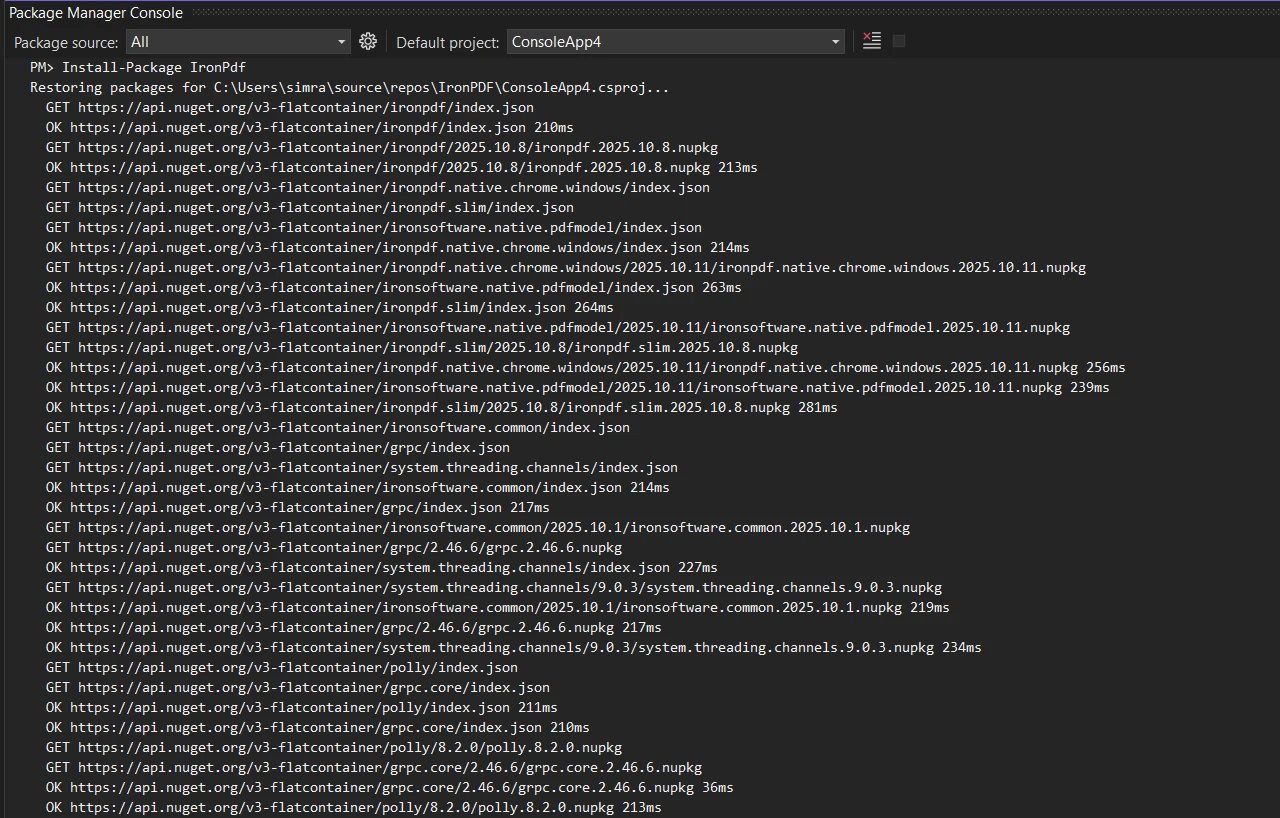
Alternatively, download and install using the NuGet Package Manager UI by searching for "IronPDF" and clicking install. This library works with all .NET versions, including [F# PDF library support](https://ironpdf.com/get-started/fsharp-pdf-library-html-to-pdf/) applications. For containerized deployments, the [IronPDF Docker images](https://ironpdf.com/get-started/ironpdf-docker/) provide an alternative setup path.
## Why Do Developers Need to Convert PDF to Image in .NET?
PDF to image conversion serves critical purposes in document processing workflows. Developers frequently need to convert PDF pages to create thumbnail previews for document management systems, extract images, generate image-based previews for websites where PDF rendering without a dedicated viewer is impractical, or process single PDF pages for OCR. Converting a PDF file to image files also enables easier sharing on platforms that do not support the PDF format and provides better compatibility with image processing pipelines. Additionally, many compliance and archival systems require documents in specific image formats like TIFF for long-term storage, particularly for [PDF/A compliance](https://ironpdf.com/how-to/pdfa/). In most cases, developers need a reliable .NET wrapper that works consistently across different environments, especially in [containerized deployments](https://ironpdf.com/get-started/ironpdf-docker/) where managing dependencies is crucial.
### What are the most common PDF to image use cases?
PDF to image conversion serves critical purposes in document processing workflows. Common use cases include:
- Creating thumbnail previews for document management systems
- [Extracting images](https://ironpdf.com/how-to/extract-text-and-images/) from PDF documents
- Generating image-based previews for web display
- Processing single PDF pages for OCR workflows
- Enabling document sharing on platforms without PDF support
- Converting ASPX pages to images for preview generation
- Processing HTML files to PDF before image extraction
### Why is containerized deployment important for PDF conversion?
Many compliance and archival systems require documents in specific image formats like TIFF for long-term storage. For PDF/A-3 invoicing requirements, image conversion provides additional flexibility. A reliable .NET wrapper must work consistently across different environments, especially in [containerized deployments](https://ironpdf.com/get-started/ironpdf-docker/) where managing dependencies is crucial. The ability to [run IronPDF as a remote container](https://ironpdf.com/get-started/ironpdfengine-docker/) improves scalability for high-volume batch processing scenarios.
### What is the simplest way to convert PDF to images?
For the simplest PDF to image conversion scenario, you can convert an entire PDF document to high-quality PNG or JPG images with just two lines of code:
```csharp
var pdf = PdfDocument.FromFile("invoice.pdf");
pdf.RasterizeToImageFiles(@"C:\images\folder\page_*.png");
```
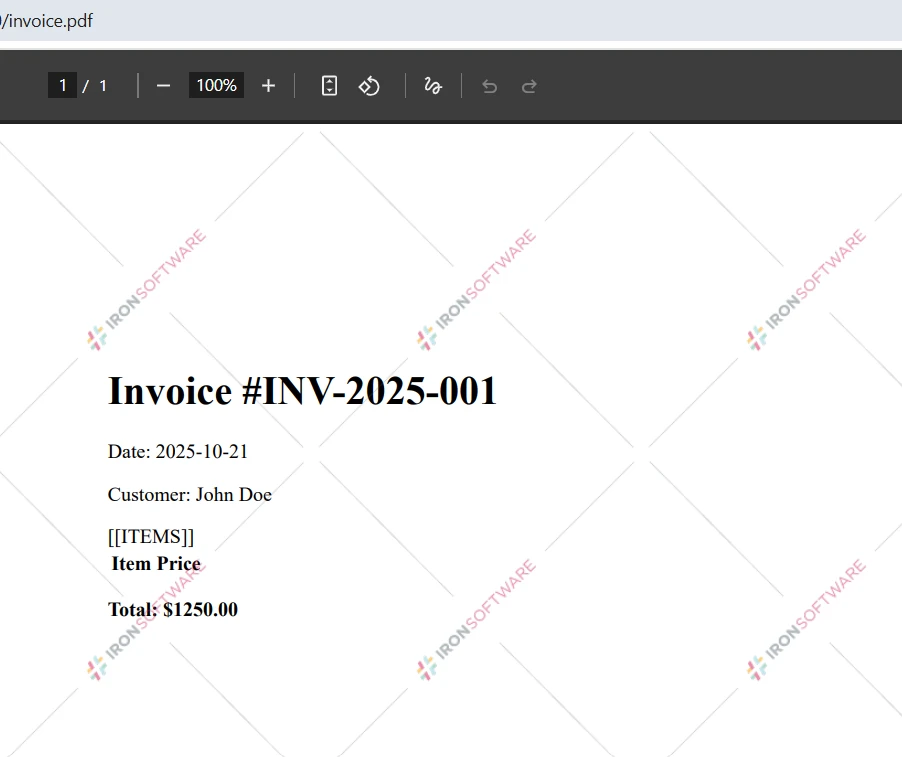
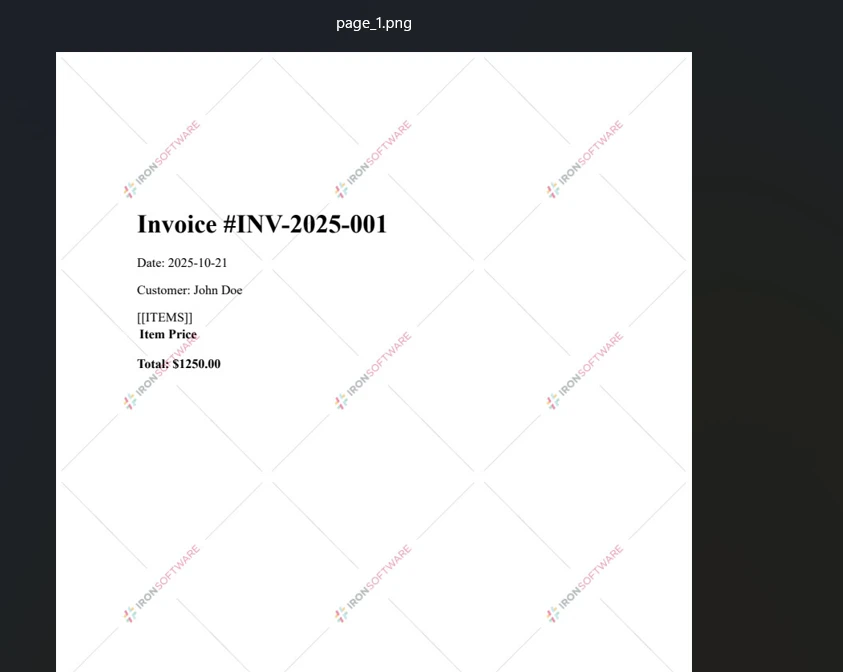
This code loads a single PDF file using the `PdfDocument.FromFile` method and converts all PDF pages to PNG image files. The `RasterizeToImageFiles` method automatically handles [multiple pages in PDF documents](https://ironpdf.com/how-to/split-multipage-pdf/), creating separate image files for each page with sequential numbering in the output folder. The asterisk in the file path acts as a placeholder for automatic page numbering.
### Input
### Output
### How do you implement async conversion for better performance?
For production deployments, consider using async methods for better performance, especially in high-throughput scenarios:
```csharp
using IronPdf;
var pdf = await PdfDocument.FromFileAsync("input.pdf");
await pdf.RasterizeToImageFilesAsync(@"C:\output\page_*.png");
```
This approach is particularly beneficial when [deploying to Azure](https://ironpdf.com/get-started/azure/) or [deploying to AWS](https://ironpdf.com/get-started/aws/) cloud environments where resource efficiency is critical.
## How Do You Convert Specific PDF Pages to Different Image Formats?
IronPDF provides granular control over the PDF-to-image conversion process. You can convert PDF pages selectively, control quality settings, and choose from multiple output image formats to meet exact requirements. Unlike basic Poppler tools or GPL programs, this .NET library offers complete control through its [rendering options](https://ironpdf.com/how-to/rendering-options/).
### How do you convert selected pages from PDF to JPG?
To convert specific PDF pages rather than the entire PDF document, use the page range parameter:
```csharp
using IronPdf;
using System.Linq;
var pdf = PdfDocument.FromFile("report.pdf");
var pageRange = Enumerable.Range(0, 5); // First 5 pages
pdf.RasterizeToImageFiles(
@"C:\output\page_*.jpg",
pageRange,
1920, // Width in pixels
1080, // Height in pixels
IronPdf.Imaging.ImageType.Jpeg,
150 // Image DPI setting
);
```
This sample converts the first five pages to JPEG format with specified dimensions. The method parameters give you complete control:
- Define output path pattern for naming conventions
- Select single or multiple pages
- Set maximum width and height while maintaining aspect ratio
- Choose image format (JPEG, PNG, TIFF, BMP)
- Specify DPI resolution for print-quality output
The rasterization process preserves text clarity and graphics quality across all supported formats.
### When should you convert website URLs to images instead of direct PDFs?
IronPDF can render web pages to PDF and then convert to image files using the [URL to PDF functionality](https://ironpdf.com/how-to/url-to-pdf/):
```csharp
using IronPdf;
var renderer = new ChromePdfRenderer();
var pdf = renderer.RenderUrlAsPdf("https://ironpdf.com");
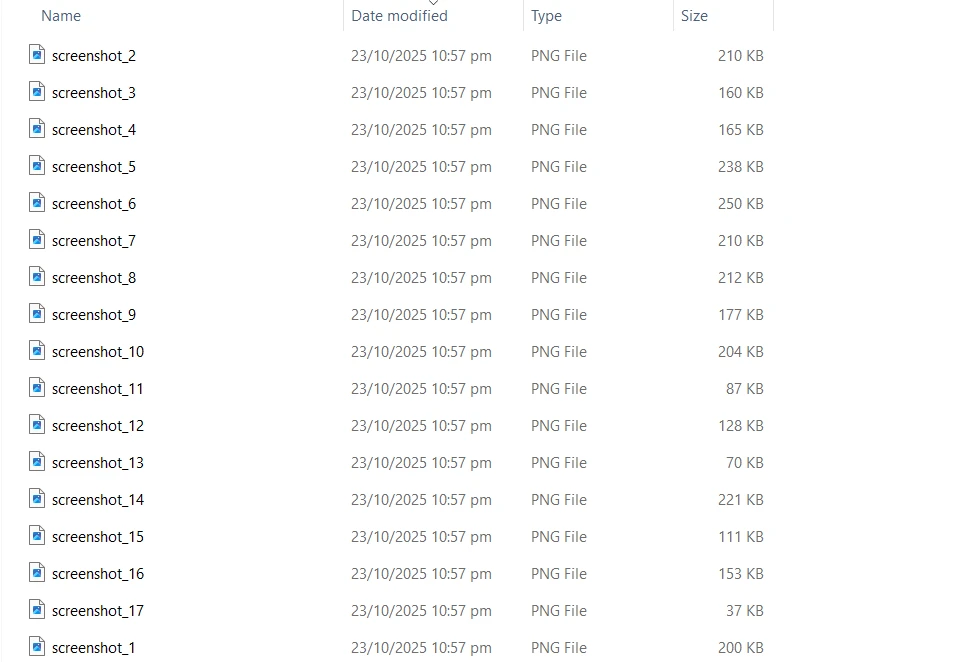
pdf.RasterizeToImageFiles(@"C:\web\screenshot_*.png");
```
This approach captures website content exactly as it appears in Chrome browser, then converts each page to PNG images. The `ChromePdfRenderer` ensures accurate rendering of modern web technologies including JavaScript, CSS3, and responsive layouts, making it suitable for creating website screenshots or archiving web content.
### What rendering options should you configure for production?
For production deployments, configure rendering delays and timeouts:
```csharp
using IronPdf;
var renderer = new ChromePdfRenderer
{
RenderingOptions = new ChromePdfRenderOptions
{
RenderDelay = 2000, // Wait 2 seconds for dynamic content
Timeout = 30000, // 30-second timeout for slow networks
EnableJavaScript = true,
ViewPortWidth = 1920,
ViewPortHeight = 1080
}
};
```
For improved security, implement [HTTP request header](https://ironpdf.com/how-to/http-request-header/) authentication and manage [PDF permissions passwords](https://ironpdf.com/how-to/pdf-permissions-passwords/) as required.
### Input
### Output
## What Image Formats and Quality Settings Are Available?
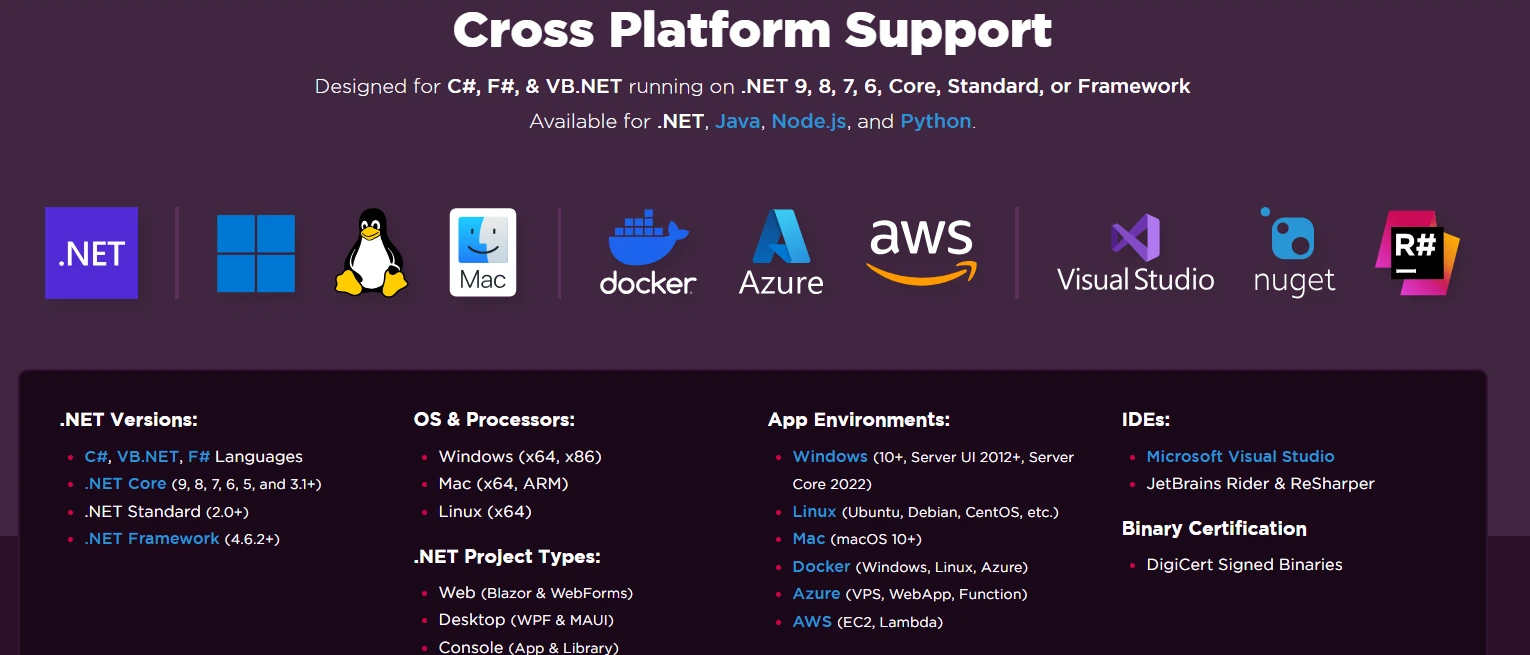
IronPDF supports all major image formats with customizable quality settings for different use cases in .NET applications. This library offers more flexibility than basic Poppler utilities, with complete image management features. For cloud-native applications, it supports embedding images from Azure Blob Storage and working with SVG graphics.
### Which image format should you choose for your use case?
**PNG Format** -- Ideal for documents requiring transparency or lossless compression. Perfect for technical drawings, screenshots, and documents where text clarity is crucial. PNG ensures no quality loss during PDF rasterization and performs well for web display. The format suits watermarked documents and maintains quality when implementing custom overlays.
**JPEG/JPG Format** -- Best for photographs and complex images where smaller file sizes are needed. The PDF to JPG converter supports quality adjustment for balancing file size versus image clarity. The format works well with page-number-based naming and multi-page conversions.
**TIFF Format** -- Excellent for archival purposes, supporting both single and multi-page TIFF documents. IronPDF's ability to create multi-page TIFF files from PDF pages is particularly valuable:
```csharp
using IronPdf;
var pdf = PdfDocument.FromFile("multipage.pdf");
pdf.ToMultiPageTiffImage(@"C:\archive\document.tiff", null, null, 300);
Console.WriteLine("PDF converted to multi-page TIFF");
```
This creates a single TIFF file containing all PDF pages, maintaining document integrity while meeting archival standards. The 300 DPI setting ensures high-resolution output suitable for long-term storage and compliance. Multi-page TIFF is especially useful for fax systems, medical imaging archival, and legal document storage where pages must remain together.
**BMP Format** -- Provides uncompressed bitmap output when maximum quality without compression artifacts is required for System.Drawing workflows. BMP format works well for print scenarios or when precise pixel-level positioning is required.
### What DPI settings work best for different scenarios?
Resolution control through DPI settings allows optimization for different scenarios:
- 72-96 DPI for web display and thumbnail generation
- 150-200 DPI for general document viewing
- 300+ DPI for print-quality output and OCR processing
The image DPI directly affects file size and quality. For containerized deployments, implement resource-aware conversion:
```csharp
using IronPdf;
using System.IO;
using System.Drawing.Imaging;
public async Task<byte[]> ConvertToImageBytesAsync(string pdfPath, int pageIndex = 0)
{
using var pdf = await PdfDocument.FromFileAsync(pdfPath);
var images = await pdf.RasterizeToBitmapsAsync(new[] { pageIndex }, 150);
using var ms = new MemoryStream();
images[0].Save(ms, ImageFormat.Png);
return ms.ToArray();
}
```
This pattern is essential for [load PDFs from memory](https://ironpdf.com/how-to/pdf-memory-stream/) scenarios and when you need to [export PDFs to memory](https://ironpdf.com/how-to/pdf-to-memory-stream/) for efficient resource usage.
### How do the image format options compare?
<table class="content__data-table" data-content-table>
<caption>PDF to Image Format Comparison -- IronPDF</caption>
<thead>
<tr>
<th>Format</th>
<th>Best Use Case</th>
<th>Compression</th>
<th>Multi-Page</th>
<th>Typical DPI</th>
</tr>
</thead>
<tbody>
<tr>
<td>PNG</td>
<td>Web display, screenshots, technical drawings</td>
<td>Lossless</td>
<td>No (per page)</td>
<td>72-150</td>
</tr>
<tr>
<td>JPEG</td>
<td>Photos, complex images, web thumbnails</td>
<td>Lossy (adjustable)</td>
<td>No (per page)</td>
<td>72-150</td>
</tr>
<tr>
<td>TIFF</td>
<td>Archival, medical imaging, legal documents</td>
<td>Lossless</td>
<td>Yes</td>
<td>300+</td>
</tr>
<tr>
<td>BMP</td>
<td>System.Drawing workflows, print pipelines</td>
<td>None (uncompressed)</td>
<td>No (per page)</td>
<td>96-300</td>
</tr>
</tbody>
</table>
## What Advanced Capabilities Does the Library Offer for PDF to Image Conversion?
IronPDF's image conversion features extend beyond basic PDF rasterization. The library provides full cross-platform support, running on Windows, Linux, and macOS environments without requiring Adobe Reader. Container deployment is fully supported with [Docker](https://ironpdf.com/get-started/ironpdf-docker/) and Kubernetes, making it suitable for cloud-native .NET applications. The library handles complex PDF content, including [form fields](https://ironpdf.com/how-to/create-forms/), [annotations](https://ironpdf.com/how-to/annotations/), and encrypted documents. Unlike free Poppler tools, IronPDF provides commercial-grade reliability with professional support.
### How can you implement production-ready batch processing?
For production deployments, implement monitoring and batch processing with throttle control:
```csharp
using IronPdf;
using System;
using System.Collections.Generic;
using System.IO;
using System.Linq;
using System.Threading;
using System.Threading.Tasks;
public class BatchImageConversionService
{
private readonly SemaphoreSlim _semaphore;
public BatchImageConversionService()
{
_semaphore = new SemaphoreSlim(Environment.ProcessorCount);
}
public async Task<int> ConvertBatchAsync(
IEnumerable<string> pdfPaths,
string outputDirectory,
int dpi = 150)
{
var tasks = pdfPaths.Select(path => ConvertWithThrottlingAsync(path, outputDirectory, dpi));
var results = await Task.WhenAll(tasks);
return results.Count(r => r);
}
private async Task<bool> ConvertWithThrottlingAsync(
string pdfPath,
string outputDirectory,
int dpi)
{
await _semaphore.WaitAsync();
try
{
using var pdf = await PdfDocument.FromFileAsync(pdfPath);
var pattern = Path.Combine(
outputDirectory,
$"{Path.GetFileNameWithoutExtension(pdfPath)}_*.png");
await pdf.RasterizeToImageFilesAsync(pattern, dpi: dpi);
return true;
}
catch
{
return false;
}
finally
{
_semaphore.Release();
}
}
}
```
This service pattern supports [parallel PDF generation](https://ironpdf.com/how-to/async/) and can be extended with metadata tracking for conversion audits.
### What performance optimizations are available?
The library's performance features include automatic memory management for large documents, parallel processing support for batch operations, and efficient caching of rendering resources. For containerized deployments, consider using the [IronPDF Engine](https://ironpdf.com/get-started/ironpdfengine/) as a separate microservice to isolate resource usage and improve scalability.
Additional optimization techniques include:
- Using page rotation correction before conversion to avoid post-processing
- Implementing UTF-8 and international language support for global deployments
- Selecting appropriate DPI settings to balance quality versus storage requirements
## What Are the Key Takeaways for Implementing PDF to Image Conversion?
IronPDF transforms PDF to image conversion from a complex task into a straightforward, reliable process for .NET developers. With support for multiple image formats including multi-page TIFF, precise image DPI control, and cross-platform compatibility, it provides everything needed to convert PDF documents to image files in production workflows. The straightforward API means you can implement sophisticated PDF rasterization logic with minimal code while maintaining excellent output quality across PNG, JPEG, TIFF, and BMP formats. Whether converting a single PDF page or processing entire document batches, the library performs reliably across deployment targets.
The library's [container-friendly architecture](https://ironpdf.com/get-started/ironpdf-docker/) and minimal system dependencies make it particularly suitable for DevOps workflows, supporting deployment to [AWS](https://ironpdf.com/get-started/aws/), [Azure](https://ironpdf.com/get-started/azure/), and on-premises infrastructure without complex configuration. For compliance needs, implement [PDF/A format export](https://ironpdf.com/how-to/pdfa/) or [PDF to HTML](https://ironpdf.com/how-to/pdf-to-html/) conversion as required. Advanced features include [add & remove attachments](https://ironpdf.com/how-to/add-remove-attachments/) and [access PDF DOM objects](https://ironpdf.com/how-to/access-pdf-dom-object/) for fine-grained control.
Experience IronPDF's PDF to image converter capabilities with a [free trial](trial-license). For production deployments, explore the [flexible licensing options](licensing) designed to fit projects of any scale. Visit the complete [documentation](https://ironpdf.com/docs/) to discover more [PDF manipulation features](https://ironpdf.com/features/), explore [demos](https://ironpdf.com/demos/), and review detailed [API documentation](https://ironpdf.com/object-reference/api/). Check the [tutorials](https://ironpdf.com/tutorials/html-to-pdf/) for step-by-step guides and browse [code examples](https://ironpdf.com/examples/using-html-to-create-a-pdf/) for common scenarios. Stay updated with the [changelog](https://ironpdf.com/product-updates/changelog/) and review product [milestones](https://ironpdf.com/product-updates/milestones/). If you encounter issues, consult the [troubleshooting guides](https://ironpdf.com/troubleshooting/quick-ironpdf-troubleshooting/) or [engineering support](https://ironpdf.com/troubleshooting/engineering-support-for-ironpdf/) resources.
IronPDF offers a dependable .NET library for converting PDF documents to image files (PNG, JPG, TIFF, BMP) with precise control over quality settings, DPI, and page selection -- ideal for containerized deployments requiring minimal dependencies.
Converting PDF documents to image files is a common need in modern .NET applications. Whether you need to generate document thumbnails, extract images for web display, or convert PDF files for image processing workflows, having a reliable PDF library is essential. IronPDF provides a complete .NET library solution to convert PDF to image with effective rasterization capabilities, supporting multiple image formats and offering precise control over output quality and image DPI settings. The library's Chrome rendering engine ensures pixel-perfect conversions, while its cross-platform support enables smooth deployment across Windows, Linux, and macOS environments.
How Do You Add the PDF Library to Your Project?
Getting started is straightforward through the NuGet Package Manager. Open your Visual Studio project and access the Package Manager Console, then run one of these install commands:
PM > Install-Package IronPdf
Install-Package IronPdf
> dotnet add package IronPdf
dotnet add package IronPdf
Alternatively, download and install using the NuGet Package Manager UI by searching for "IronPDF" and clicking install. This library works with all .NET versions, including F# PDF library support applications. For containerized deployments, the IronPDF Docker images provide an alternative setup path.
Why Do Developers Need to Convert PDF to Image in .NET?
PDF to image conversion serves critical purposes in document processing workflows. Developers frequently need to convert PDF pages to create thumbnail previews for document management systems, extract images, generate image-based previews for websites where PDF rendering without a dedicated viewer is impractical, or process single PDF pages for OCR. Converting a PDF file to image files also enables easier sharing on platforms that do not support the PDF format and provides better compatibility with image processing pipelines. Additionally, many compliance and archival systems require documents in specific image formats like TIFF for long-term storage, particularly for PDF/A compliance. In most cases, developers need a reliable .NET wrapper that works consistently across different environments, especially in containerized deployments where managing dependencies is crucial.
What are the most common PDF to image use cases?
PDF to image conversion serves critical purposes in document processing workflows. Common use cases include:
Creating thumbnail previews for document management systems
Enabling document sharing on platforms without PDF support
Converting ASPX pages to images for preview generation
Processing HTML files to PDF before image extraction
Why is containerized deployment important for PDF conversion?
Many compliance and archival systems require documents in specific image formats like TIFF for long-term storage. For PDF/A-3 invoicing requirements, image conversion provides additional flexibility. A reliable .NET wrapper must work consistently across different environments, especially in containerized deployments where managing dependencies is crucial. The ability to run IronPDF as a remote container improves scalability for high-volume batch processing scenarios.
What is the simplest way to convert PDF to images?
For the simplest PDF to image conversion scenario, you can convert an entire PDF document to high-quality PNG or JPG images with just two lines of code:
var pdf = PdfDocument.FromFile("invoice.pdf");pdf.RasterizeToImageFiles(@"C:\images\folder\page_*.png");
var pdf = PdfDocument.FromFile("invoice.pdf");
pdf.RasterizeToImageFiles(@"C:\images\folder\page_*.png");
Dim pdf = PdfDocument.FromFile("invoice.pdf")pdf.RasterizeToImageFiles("C:\images\folder\page_*.png")
Dim pdf = PdfDocument.FromFile("invoice.pdf")
pdf.RasterizeToImageFiles("C:\images\folder\page_*.png")
This code loads a single PDF file using the PdfDocument.FromFile method and converts all PDF pages to PNG image files. The RasterizeToImageFiles method automatically handles multiple pages in PDF documents, creating separate image files for each page with sequential numbering in the output folder. The asterisk in the file path acts as a placeholder for automatic page numbering.
Input
Output
How do you implement async conversion for better performance?
For production deployments, consider using async methods for better performance, especially in high-throughput scenarios:
using IronPdf;var pdf = awaitPdfDocument.FromFileAsync("input.pdf");await pdf.RasterizeToImageFilesAsync(@"C:\output\page_*.png");
using IronPdf;

var pdf = await PdfDocument.FromFileAsync("input.pdf");
await pdf.RasterizeToImageFilesAsync(@"C:\output\page_*.png");
IRONVBCONVERTERERROR developers@ironsoftware.com
IRON VB CONVERTER ERROR developers@ironsoftware.com
This approach is particularly beneficial when deploying to Azure or deploying to AWS cloud environments where resource efficiency is critical.
How Do You Convert Specific PDF Pages to Different Image Formats?
IronPDF provides granular control over the PDF-to-image conversion process. You can convert PDF pages selectively, control quality settings, and choose from multiple output image formats to meet exact requirements. Unlike basic Poppler tools or GPL programs, this .NET library offers complete control through its rendering options.
How do you convert selected pages from PDF to JPG?
To convert specific PDF pages rather than the entire PDF document, use the page range parameter:
using IronPdf;using System.Linq;var pdf = PdfDocument.FromFile("report.pdf");var pageRange = Enumerable.Range(0, 5); // First 5 pagespdf.RasterizeToImageFiles( @"C:\output\page_*.jpg", pageRange, 1920, // Width in pixels 1080, // Height in pixelsIronPdf.Imaging.ImageType.Jpeg, 150 // Image DPI setting);
using IronPdf;
using System.Linq;

var pdf = PdfDocument.FromFile("report.pdf");
var pageRange = Enumerable.Range(0, 5); // First 5 pages
pdf.RasterizeToImageFiles(
    @"C:\output\page_*.jpg",
    pageRange,
    1920,   // Width in pixels
    1080,   // Height in pixels
    IronPdf.Imaging.ImageType.Jpeg,
    150     // Image DPI setting
);
ImportsIronPdfImportsSystem.LinqDim pdf = PdfDocument.FromFile("report.pdf")Dim pageRange = Enumerable.Range(0, 5) ' First 5 pagespdf.RasterizeToImageFiles( "C:\output\page_*.jpg", pageRange, 1920, ' Width in pixels 1080, ' Height in pixelsIronPdf.Imaging.ImageType.Jpeg, 150 ' Image DPI setting)
Imports IronPdf
Imports System.Linq

Dim pdf = PdfDocument.FromFile("report.pdf")
Dim pageRange = Enumerable.Range(0, 5) ' First 5 pages
pdf.RasterizeToImageFiles(
    "C:\output\page_*.jpg",
    pageRange,
    1920,   ' Width in pixels
    1080,   ' Height in pixels
    IronPdf.Imaging.ImageType.Jpeg,
    150     ' Image DPI setting
)
This sample converts the first five pages to JPEG format with specified dimensions. The method parameters give you complete control:
Define output path pattern for naming conventions
Select single or multiple pages
Set maximum width and height while maintaining aspect ratio
Choose image format (JPEG, PNG, TIFF, BMP)
Specify DPI resolution for print-quality output
The rasterization process preserves text clarity and graphics quality across all supported formats.
When should you convert website URLs to images instead of direct PDFs?
IronPDF can render web pages to PDF and then convert to image files using the URL to PDF functionality:
using IronPdf;var renderer = new ChromePdfRenderer();var pdf = renderer.RenderUrlAsPdf("https://ironpdf.com");pdf.RasterizeToImageFiles(@"C:\web\screenshot_*.png");
using IronPdf;

var renderer = new ChromePdfRenderer();
var pdf = renderer.RenderUrlAsPdf("https://ironpdf.com");
pdf.RasterizeToImageFiles(@"C:\web\screenshot_*.png");
ImportsIronPdfDim renderer As New ChromePdfRenderer()Dim pdf = renderer.RenderUrlAsPdf("https://ironpdf.com")pdf.RasterizeToImageFiles("C:\web\screenshot_*.png")
Imports IronPdf

Dim renderer As New ChromePdfRenderer()
Dim pdf = renderer.RenderUrlAsPdf("https://ironpdf.com")
pdf.RasterizeToImageFiles("C:\web\screenshot_*.png")
This approach captures website content exactly as it appears in Chrome browser, then converts each page to PNG images. The ChromePdfRenderer ensures accurate rendering of modern web technologies including JavaScript, CSS3, and responsive layouts, making it suitable for creating website screenshots or archiving web content.
What rendering options should you configure for production?
For production deployments, configure rendering delays and timeouts:
using IronPdf;var renderer = new ChromePdfRenderer{RenderingOptions = new ChromePdfRenderOptions {RenderDelay = 2000, // Wait 2 seconds for dynamic contentTimeout = 30000, // 30-second timeout for slow networksEnableJavaScript = true,ViewPortWidth = 1920,ViewPortHeight = 1080 }};
using IronPdf;

var renderer = new ChromePdfRenderer
{
    RenderingOptions = new ChromePdfRenderOptions
    {
        RenderDelay = 2000, // Wait 2 seconds for dynamic content
        Timeout = 30000,    // 30-second timeout for slow networks
        EnableJavaScript = true,
        ViewPortWidth = 1920,
        ViewPortHeight = 1080
    }
};
ImportsIronPdfDim renderer = New ChromePdfRendererWith { .RenderingOptions = New ChromePdfRenderOptionsWith { .RenderDelay = 2000, ' Wait 2 seconds for dynamic content .Timeout = 30000, ' 30-second timeout for slow networks .EnableJavaScript = True, .ViewPortWidth = 1920, .ViewPortHeight = 1080 }}
Imports IronPdf

Dim renderer = New ChromePdfRenderer With {
    .RenderingOptions = New ChromePdfRenderOptions With {
        .RenderDelay = 2000, ' Wait 2 seconds for dynamic content
        .Timeout = 30000,    ' 30-second timeout for slow networks
        .EnableJavaScript = True,
        .ViewPortWidth = 1920,
        .ViewPortHeight = 1080
    }
}
What Image Formats and Quality Settings Are Available?
IronPDF supports all major image formats with customizable quality settings for different use cases in .NET applications. This library offers more flexibility than basic Poppler utilities, with complete image management features. For cloud-native applications, it supports embedding images from Azure Blob Storage and working with SVG graphics.
Which image format should you choose for your use case?
PNG Format -- Ideal for documents requiring transparency or lossless compression. Perfect for technical drawings, screenshots, and documents where text clarity is crucial. PNG ensures no quality loss during PDF rasterization and performs well for web display. The format suits watermarked documents and maintains quality when implementing custom overlays.
JPEG/JPG Format -- Best for photographs and complex images where smaller file sizes are needed. The PDF to JPG converter supports quality adjustment for balancing file size versus image clarity. The format works well with page-number-based naming and multi-page conversions.
TIFF Format -- Excellent for archival purposes, supporting both single and multi-page TIFF documents. IronPDF's ability to create multi-page TIFF files from PDF pages is particularly valuable:
using IronPdf;var pdf = PdfDocument.FromFile("multipage.pdf");pdf.ToMultiPageTiffImage(@"C:\archive\document.tiff", null, null, 300);Console.WriteLine("PDF converted to multi-page TIFF");
using IronPdf;

var pdf = PdfDocument.FromFile("multipage.pdf");
pdf.ToMultiPageTiffImage(@"C:\archive\document.tiff", null, null, 300);
Console.WriteLine("PDF converted to multi-page TIFF");
ImportsIronPdfDim pdf = PdfDocument.FromFile("multipage.pdf")pdf.ToMultiPageTiffImage("C:\archive\document.tiff", Nothing, Nothing, 300)Console.WriteLine("PDF converted to multi-page TIFF")
Imports IronPdf

Dim pdf = PdfDocument.FromFile("multipage.pdf")
pdf.ToMultiPageTiffImage("C:\archive\document.tiff", Nothing, Nothing, 300)
Console.WriteLine("PDF converted to multi-page TIFF")
This creates a single TIFF file containing all PDF pages, maintaining document integrity while meeting archival standards. The 300 DPI setting ensures high-resolution output suitable for long-term storage and compliance. Multi-page TIFF is especially useful for fax systems, medical imaging archival, and legal document storage where pages must remain together.
BMP Format -- Provides uncompressed bitmap output when maximum quality without compression artifacts is required for System.Drawing workflows. BMP format works well for print scenarios or when precise pixel-level positioning is required.
What DPI settings work best for different scenarios?
Resolution control through DPI settings allows optimization for different scenarios:
72-96 DPI for web display and thumbnail generation
150-200 DPI for general document viewing
300+ DPI for print-quality output and OCR processing
The image DPI directly affects file size and quality. For containerized deployments, implement resource-aware conversion:
using IronPdf;using System.IO;using System.Drawing.Imaging;public async Task<byte[]> ConvertToImageBytesAsync(string pdfPath, int pageIndex = 0){ using var pdf = awaitPdfDocument.FromFileAsync(pdfPath); var images = await pdf.RasterizeToBitmapsAsync(new[] { pageIndex }, 150); using var ms = new MemoryStream(); images[0].Save(ms, ImageFormat.Png); return ms.ToArray();}
using IronPdf;
using System.IO;
using System.Drawing.Imaging;

public async Task<byte[]> ConvertToImageBytesAsync(string pdfPath, int pageIndex = 0)
{
    using var pdf = await PdfDocument.FromFileAsync(pdfPath);
    var images = await pdf.RasterizeToBitmapsAsync(new[] { pageIndex }, 150);

    using var ms = new MemoryStream();
    images[0].Save(ms, ImageFormat.Png);
    return ms.ToArray();
}
ImportsIronPdfImportsSystem.IOImportsSystem.Drawing.ImagingPublicAsync Function ConvertToImageBytesAsync(pdfPath AsString, Optional pageIndex AsInteger = 0) AsTask(OfByte())Using pdf = AwaitPdfDocument.FromFileAsync(pdfPath) Dim images = Await pdf.RasterizeToBitmapsAsync({pageIndex}, 150)Using ms As New MemoryStream() images(0).Save(ms, ImageFormat.Png) Return ms.ToArray()EndUsingEndUsingEnd Function
Imports IronPdf
Imports System.IO
Imports System.Drawing.Imaging

Public Async Function ConvertToImageBytesAsync(pdfPath As String, Optional pageIndex As Integer = 0) As Task(Of Byte())
    Using pdf = Await PdfDocument.FromFileAsync(pdfPath)
        Dim images = Await pdf.RasterizeToBitmapsAsync({pageIndex}, 150)

        Using ms As New MemoryStream()
            images(0).Save(ms, ImageFormat.Png)
            Return ms.ToArray()
        End Using
    End Using
End Function
What Advanced Capabilities Does the Library Offer for PDF to Image Conversion?
IronPDF's image conversion features extend beyond basic PDF rasterization. The library provides full cross-platform support, running on Windows, Linux, and macOS environments without requiring Adobe Reader. Container deployment is fully supported with Docker and Kubernetes, making it suitable for cloud-native .NET applications. The library handles complex PDF content, including form fields, annotations, and encrypted documents. Unlike free Poppler tools, IronPDF provides commercial-grade reliability with professional support.
How can you implement production-ready batch processing?
For production deployments, implement monitoring and batch processing with throttle control:
using IronPdf;using System;using System.Collections.Generic;using System.IO;using System.Linq;using System.Threading;using System.Threading.Tasks;public class BatchImageConversionService{ private readonly SemaphoreSlim _semaphore; publicBatchImageConversionService() { _semaphore = new SemaphoreSlim(Environment.ProcessorCount); } public async Task<int> ConvertBatchAsync( IEnumerable<string> pdfPaths, string outputDirectory, int dpi = 150) { var tasks = pdfPaths.Select(path => ConvertWithThrottlingAsync(path, outputDirectory, dpi)); var results = awaitTask.WhenAll(tasks); return results.Count(r => r); } private async Task<bool> ConvertWithThrottlingAsync( string pdfPath, string outputDirectory, int dpi) { await _semaphore.WaitAsync(); try { using var pdf = awaitPdfDocument.FromFileAsync(pdfPath); var pattern = Path.Combine( outputDirectory, $"{Path.GetFileNameWithoutExtension(pdfPath)}_*.png"); await pdf.RasterizeToImageFilesAsync(pattern, dpi: dpi); return true; } catch { return false; } finally { _semaphore.Release(); } }}
using IronPdf;
using System;
using System.Collections.Generic;
using System.IO;
using System.Linq;
using System.Threading;
using System.Threading.Tasks;

public class BatchImageConversionService
{
    private readonly SemaphoreSlim _semaphore;

    public BatchImageConversionService()
    {
        _semaphore = new SemaphoreSlim(Environment.ProcessorCount);
    }

    public async Task<int> ConvertBatchAsync(
        IEnumerable<string> pdfPaths,
        string outputDirectory,
        int dpi = 150)
    {
        var tasks = pdfPaths.Select(path => ConvertWithThrottlingAsync(path, outputDirectory, dpi));
        var results = await Task.WhenAll(tasks);
        return results.Count(r => r);
    }

    private async Task<bool> ConvertWithThrottlingAsync(
        string pdfPath,
        string outputDirectory,
        int dpi)
    {
        await _semaphore.WaitAsync();
        try
        {
            using var pdf = await PdfDocument.FromFileAsync(pdfPath);
            var pattern = Path.Combine(
                outputDirectory,
                $"{Path.GetFileNameWithoutExtension(pdfPath)}_*.png");
            await pdf.RasterizeToImageFilesAsync(pattern, dpi: dpi);
            return true;
        }
        catch
        {
            return false;
        }
        finally
        {
            _semaphore.Release();
        }
    }
}
ImportsIronPdfImportsSystemImportsSystem.Collections.GenericImportsSystem.IOImportsSystem.LinqImportsSystem.ThreadingImportsSystem.Threading.TasksPublic Class BatchImageConversionService PrivateReadOnly _semaphore AsSemaphoreSlim Public Sub New() _semaphore = New SemaphoreSlim(Environment.ProcessorCount) End Sub PublicAsync Function ConvertBatchAsync( pdfPaths AsIEnumerable(OfString), outputDirectory AsString,Optional dpi AsInteger = 150) AsTask(OfInteger) Dim tasks = pdfPaths.Select(Function(path) ConvertWithThrottlingAsync(path, outputDirectory, dpi)) Dim results = AwaitTask.WhenAll(tasks) Return results.Count(Function(r) r) End Function PrivateAsync Function ConvertWithThrottlingAsync( pdfPath AsString, outputDirectory AsString, dpi AsInteger) AsTask(OfBoolean)Await _semaphore.WaitAsync()TryUsing pdf = AwaitPdfDocument.FromFileAsync(pdfPath) Dim pattern = Path.Combine( outputDirectory, $"{Path.GetFileNameWithoutExtension(pdfPath)}_*.png")Await pdf.RasterizeToImageFilesAsync(pattern, dpi:=dpi) Return TrueEndUsingCatch Return FalseFinally _semaphore.Release()EndTry End FunctionEnd Class
Imports IronPdf
Imports System
Imports System.Collections.Generic
Imports System.IO
Imports System.Linq
Imports System.Threading
Imports System.Threading.Tasks

Public Class BatchImageConversionService
    Private ReadOnly _semaphore As SemaphoreSlim

    Public Sub New()
        _semaphore = New SemaphoreSlim(Environment.ProcessorCount)
    End Sub

    Public Async Function ConvertBatchAsync(
        pdfPaths As IEnumerable(Of String),
        outputDirectory As String,
        Optional dpi As Integer = 150) As Task(Of Integer)

        Dim tasks = pdfPaths.Select(Function(path) ConvertWithThrottlingAsync(path, outputDirectory, dpi))
        Dim results = Await Task.WhenAll(tasks)
        Return results.Count(Function(r) r)
    End Function

    Private Async Function ConvertWithThrottlingAsync(
        pdfPath As String,
        outputDirectory As String,
        dpi As Integer) As Task(Of Boolean)

        Await _semaphore.WaitAsync()
        Try
            Using pdf = Await PdfDocument.FromFileAsync(pdfPath)
                Dim pattern = Path.Combine(
                    outputDirectory,
                    $"{Path.GetFileNameWithoutExtension(pdfPath)}_*.png")
                Await pdf.RasterizeToImageFilesAsync(pattern, dpi:=dpi)
                Return True
            End Using
        Catch
            Return False
        Finally
            _semaphore.Release()
        End Try
    End Function
End Class
This service pattern supports parallel PDF generation and can be extended with metadata tracking for conversion audits.
What performance optimizations are available?
The library's performance features include automatic memory management for large documents, parallel processing support for batch operations, and efficient caching of rendering resources. For containerized deployments, consider using the IronPDF Engine as a separate microservice to isolate resource usage and improve scalability.
Additional optimization techniques include:
Using page rotation correction before conversion to avoid post-processing
Implementing UTF-8 and international language support for global deployments
Selecting appropriate DPI settings to balance quality versus storage requirements
What Are the Key Takeaways for Implementing PDF to Image Conversion?
IronPDF transforms PDF to image conversion from a complex task into a straightforward, reliable process for .NET developers. With support for multiple image formats including multi-page TIFF, precise image DPI control, and cross-platform compatibility, it provides everything needed to convert PDF documents to image files in production workflows. The straightforward API means you can implement sophisticated PDF rasterization logic with minimal code while maintaining excellent output quality across PNG, JPEG, TIFF, and BMP formats. Whether converting a single PDF page or processing entire document batches, the library performs reliably across deployment targets.
Curtis Chau holds a Bachelor’s degree in Computer Science (Carleton University) and specializes in front-end development with expertise in Node.js, TypeScript, JavaScript, and React. Passionate about crafting intuitive and aesthetically pleasing user interfaces, Curtis enjoys working with modern frameworks and creating well-structured, visually appealing manuals.






















