using IronPdf;

// Disable local disk access or cross-origin requests
Installation.EnableWebSecurity = true;

// Instantiate Renderer
var renderer = new ChromePdfRenderer();

// Create a PDF from a HTML string using C#
var pdf = renderer.RenderHtmlAsPdf("<h1>Hello World</h1>");

// Export to a file or Stream
pdf.SaveAs("output.pdf");

// Advanced Example with HTML Assets
// Load external html assets: Images, CSS and JavaScript.
// An optional BasePath 'C:\site\assets\' is set as the file location to load assets from
var myAdvancedPdf = renderer.RenderHtmlAsPdf("<img src='icons/iron.png'>", @"C:\site\assets\");
myAdvancedPdf.SaveAs("html-with-assets.pdf");
using IronPdf;// Disable local disk access or cross-origin requestsInstallation.EnableWebSecurity = true;// Instantiate Renderervar renderer = new ChromePdfRenderer();// Create a PDF from a HTML string using C#var pdf = renderer.RenderHtmlAsPdf("<h1>Hello World</h1>");// Export to a file or Streampdf.SaveAs("output.pdf");// Advanced Example with HTML Assets// Load external html assets: Images, CSS and JavaScript.// An optional BasePath 'C:\site\assets\' is set as the file location to load assets fromvar myAdvancedPdf = renderer.RenderHtmlAsPdf("<img src='icons/iron.png'>", @"C:\site\assets\");myAdvancedPdf.SaveAs("html-with-assets.pdf");
Converting PDFs to TIFF images in C# is straightforward with IronPDF's dedicated methods: `RasterizeToImageFiles`, `ToTiffImages`, and `ToMultiPageTiffImage`. This guide walks you through each approach, showing you when and how to use them.
TIFF (Tagged Image File Format) remains a preferred format for archival systems, print workflows, and document management pipelines. Its lossless compression and support for multipage files make it ideal when image fidelity matters most. Unlike JPEG, which applies lossy compression that can degrade text and fine lines, TIFF preserves every pixel exactly as rendered -- an important property for legal documents, engineering drawings, and medical records. [IronPDF](https://ironpdf.com/) provides a reliable way to convert PDF documents to TIFF with fine-grained control over resolution, page selection, and output structure.
## How Do You Install IronPDF for PDF to TIFF Conversion?
Before writing any conversion code, install the IronPDF NuGet package. You can do this through the Visual Studio Package Manager Console or the .NET CLI:
```shell
:ProductInstall
```
Once installed, add `using IronPdf;` at the top of your file. IronPDF runs on Windows, Linux, macOS, and Docker, so the same code works across all common deployment targets without modification.
For a step-by-step walkthrough of the installation process, see the [NuGet package installation guide](https://ironpdf.com/docs/). The [IronPDF documentation](https://ironpdf.com/docs/) also covers environment-specific setup for cloud platforms and containers.
If you want to test the library before committing to a license, you can request a [free trial license](trial-license) that unlocks full functionality during evaluation.
## How Do You Convert a PDF to Individual TIFF Images in C#?
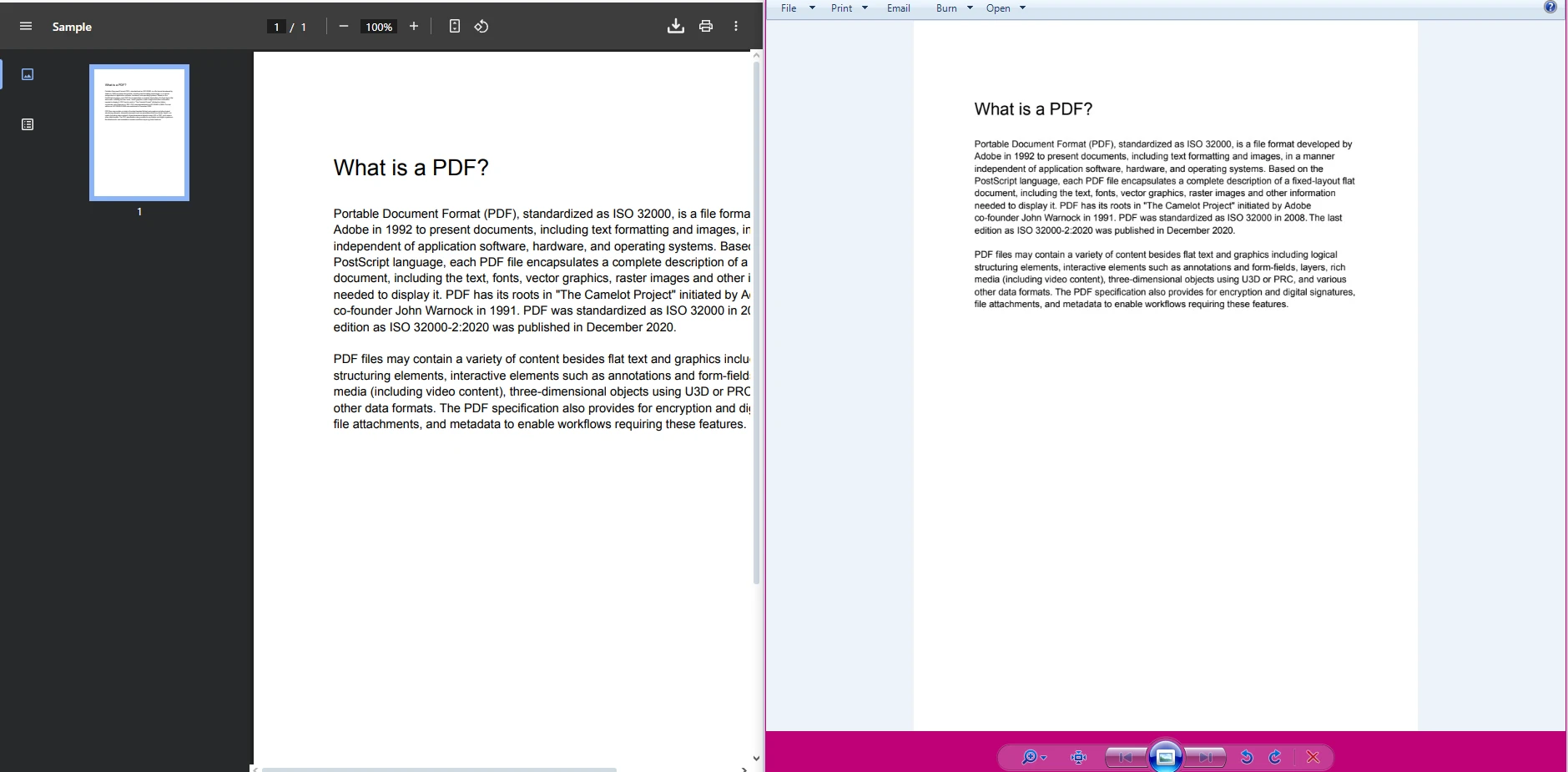
The `RasterizeToImageFiles` method is the most general-purpose approach. It converts each PDF page into a separate image file, and the output format is determined by the file extension or the `ImageType` parameter you pass in.
```csharp
using IronPdf;

PdfDocument pdf = PdfDocument.FromFile("document.pdf");

// Convert each page to its own TIFF file
pdf.RasterizeToImageFiles("output_*.tiff", IronPdf.Imaging.ImageType.Tiff);
```
The asterisk (`*`) in the output path is a placeholder that gets replaced with page numbers automatically, so a five-page PDF produces `output_1.tiff` through `output_5.tiff`. You do not need to write any loop or page-iteration logic yourself.
This method is the right choice when downstream systems expect one image per page -- for example, document review platforms, OCR pipelines, or imaging systems that do not support multipage TIFFs.
### What Does the Converted TIFF Output Look Like?
### How Does the `ToTiffImages` Method Differ?
`ToTiffImages` is a more focused method that exposes DPI control directly in the call signature, without requiring you to construct an `ImageOptions` object:
```csharp
using IronPdf;
PdfDocument pdf = PdfDocument.FromFile("report.pdf");
// Convert to TIFF at 150 DPI
pdf.ToTiffImages("page_*.tif", 150);
```
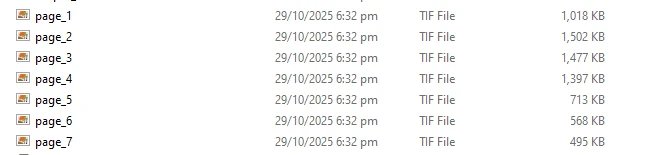
A 150 DPI setting works well for screen previews and most workflow systems. For print-quality output or archival purposes, a value of 300 or 600 DPI is more appropriate, though higher values produce proportionally larger files.
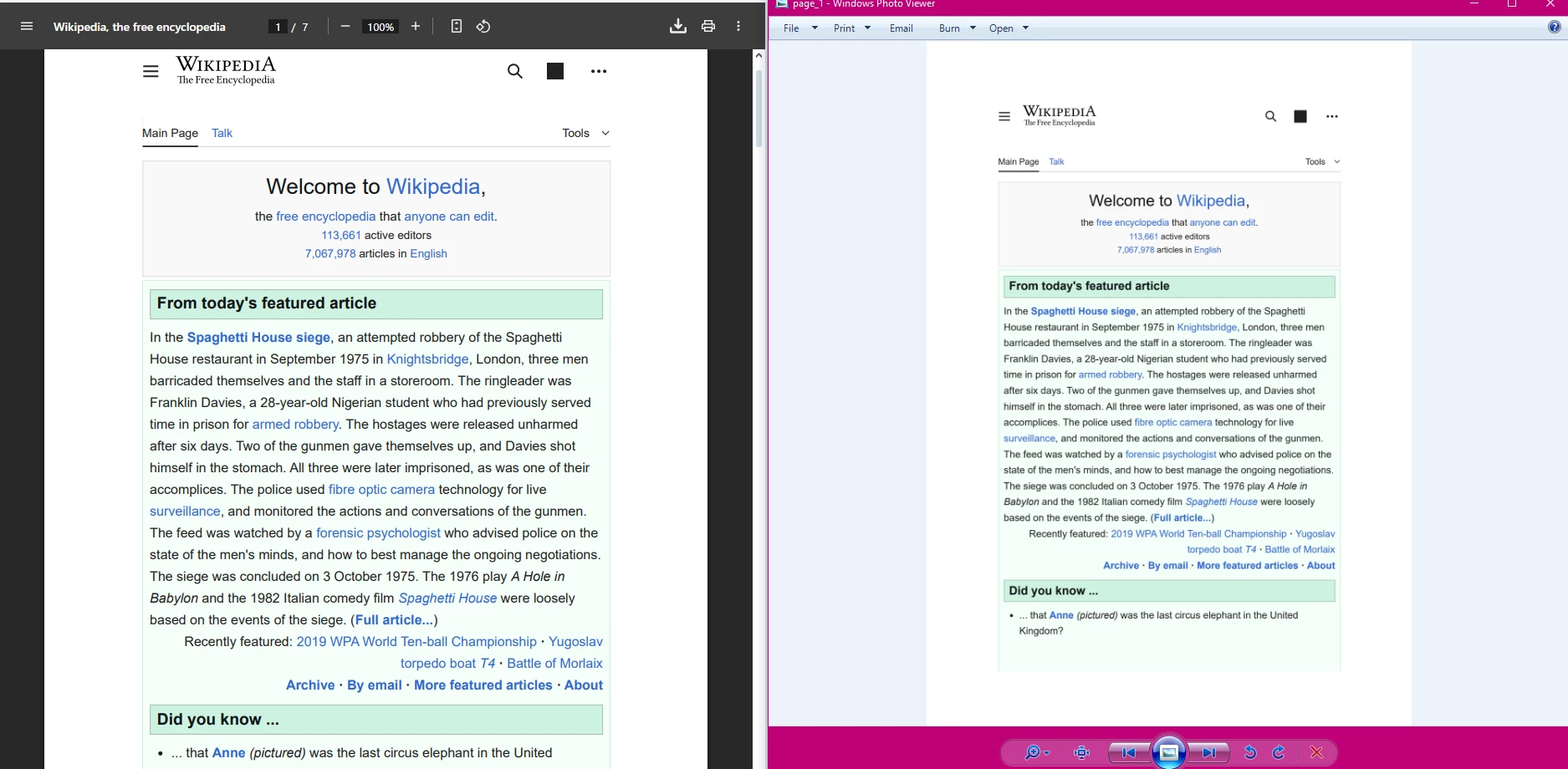
Choosing the right DPI matters most when the TIFFs will be used for optical character recognition or fine-print rendering. If the source PDF contains small text or detailed graphics, rendering at low resolution can make that content illegible in the output image.
### What Does the Per-Page Output Look Like in File Explorer?
### How Do Quality Levels Compare Between PDF and TIFF?
## How Do You Create a Multipage TIFF from a PDF?
When you want all PDF pages in a single TIFF file -- rather than one file per page -- use `ToMultiPageTiffImage`. Multipage TIFFs are common in medical imaging, legal document management, and enterprise archival systems where a single logical document should exist as a single physical file.
```csharp
using IronPdf;
PdfDocument pdf = PdfDocument.FromFile("multipage-document.pdf");
// All pages in one TIFF at default DPI
pdf.ToMultiPageTiffImage("combined.tiff");
// All pages in one TIFF at 300 DPI for higher fidelity
pdf.ToMultiPageTiffImage("combined-hq.tiff", 300);
// Async variant for large documents
await pdf.ToMultiPageTiffImageAsync("large-combined.tiff");
```
The async variant (`ToMultiPageTiffImageAsync`) is worth using when processing large PDFs in a web application or background service, since it avoids blocking the calling thread during what can be a CPU-intensive operation.
### What Does a Multipage TIFF Look Like When Opened?
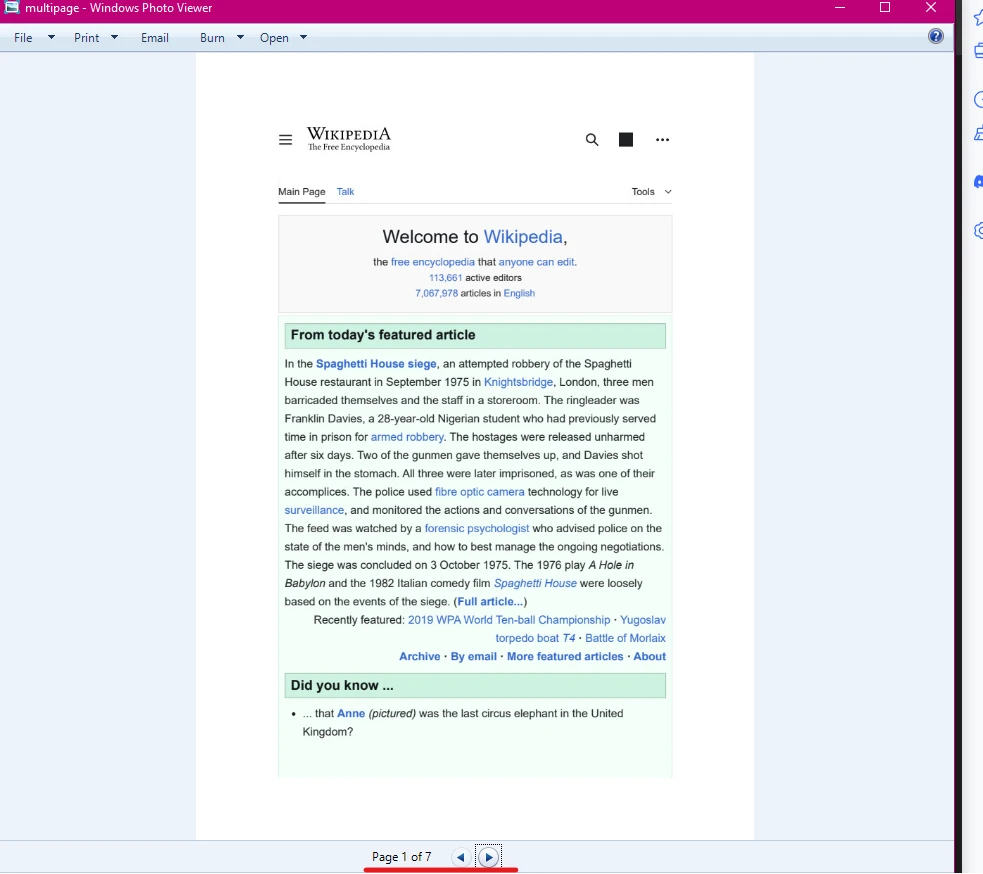
Compatible image viewers -- including Windows Photos, IrfanView, and most enterprise document platforms -- display multipage TIFFs with navigation controls that let you step through each page. File sizes for multipage TIFFs scale linearly with page count and resolution, so it is worth testing representative documents early to confirm that output sizes fit within any storage or transmission constraints in your system.
## How Do You Convert Only Specific PDF Pages to TIFF?
Large PDFs often contain sections you do not need to convert. IronPDF lets you extract specific pages before rasterizing, which keeps both processing time and output file counts manageable.
```csharp
using IronPdf;
using System.Linq;
PdfDocument pdf = PdfDocument.FromFile("manual.pdf");
// Extract and convert just the first page
PdfDocument firstPage = pdf.CopyPage(0);
firstPage.RasterizeToImageFiles("cover.tiff", IronPdf.Imaging.ImageType.Tiff);
// Extract and convert pages 5 through 10 (zero-based: indices 4 to 9)
PdfDocument section = pdf.CopyPages(4, 9);
section.RasterizeToImageFiles("section_*.tiff", IronPdf.Imaging.ImageType.Tiff);
// Convert only odd-numbered pages
var oddIndices = Enumerable.Range(0, pdf.PageCount)
.Where(i => i % 2 == 0) // zero-based, so index 0 = page 1, index 2 = page 3, etc.
.ToList();
foreach (int index in oddIndices)
{
PdfDocument singlePage = pdf.CopyPage(index);
singlePage.RasterizeToImageFiles($"odd_page_{index + 1}.tiff", IronPdf.Imaging.ImageType.Tiff);
}
```
The `CopyPage` and `CopyPages` methods return new `PdfDocument` instances that contain only the requested pages. You can then rasterize those isolated documents using any of the TIFF methods described above.
This pattern also works well when you want to apply transformations -- such as rotation or watermarking -- to specific pages before converting them. Visit the [IronPDF how-to guide for PDF to image conversion](https://ironpdf.com/how-to/rasterize-pdf-to-images/) for additional examples of page-level image extraction.
## How Do You Convert PDFs to Other Image Formats?
The same rasterization engine that produces TIFFs also handles PNG, JPEG, and BMP output. Switching formats is as simple as changing the `ImageType` value or the file extension:
```csharp
using IronPdf;
PdfDocument pdf = PdfDocument.FromFile("document.pdf");
// PNG -- lossless, good for web and UI previews
pdf.RasterizeToImageFiles("output_*.png", IronPdf.Imaging.ImageType.Png);
// JPEG -- smaller files, acceptable for non-critical previews
pdf.RasterizeToImageFiles("output_*.jpg", IronPdf.Imaging.ImageType.Jpeg);
// Custom options: 300 DPI PNG at exact A4 dimensions
var imageOptions = new IronPdf.Imaging.ImageOptions
{
Dpi = 300,
ImageType = IronPdf.Imaging.ImageType.Png,
Width = 2480, // A4 at 300 DPI
Height = 3508
};
pdf.RasterizeToImageFiles("highres_*.png", imageOptions);
```
The `ImageOptions` class gives you precise control over output dimensions and resolution when the defaults do not match your target specification. This is particularly useful when generating thumbnails at a fixed pixel size or when hitting size requirements defined by a third-party system. If you need to generate web-friendly previews at the same time as archival TIFFs, you can call `RasterizeToImageFiles` twice with different options objects -- once for the high-resolution TIFF and once for a compressed JPEG thumbnail -- without reloading the source PDF.
For other document manipulation tasks -- including [merging and splitting PDFs](https://ironpdf.com/how-to/merge-or-split-pdfs/), [extracting text](https://ironpdf.com/how-to/extract-text-and-images/), and [adding watermarks](https://ironpdf.com/how-to/custom-watermark/) -- IronPDF provides dedicated methods that follow the same straightforward pattern.
## How Do You Use IronPDF's Advanced PDF Features Alongside Image Conversion?
PDF to TIFF conversion is one part of a broader document processing toolkit. IronPDF also handles tasks that often appear in the same workflows:
- **[HTML to PDF conversion](https://ironpdf.com/how-to/html-string-to-pdf/):** Generate a PDF from HTML markup, then immediately convert it to TIFF for archival.
- **[PDF forms](https://ironpdf.com/tutorials/pdf-forms-csharp-article/):** Fill or extract form field data before rasterizing a completed document.
- **[Headers and footers](https://ironpdf.com/how-to/headers-and-footers/):** Add stamped headers or footers to a PDF before producing TIFF output.
- **[Digital signing](https://ironpdf.com/how-to/signing/):** Sign a PDF document, then render it to TIFF to capture the visible signature in the output image.
- **[Custom watermarks](https://ironpdf.com/how-to/custom-watermark/):** Apply a watermark overlay before exporting to TIFF for distribution control.
Combining these steps into a single pipeline -- build, annotate, sign, then rasterize -- keeps your processing logic centralized in one library without requiring multiple dependencies.
The full list of features is available on the [IronPDF features page](https://ironpdf.com/features/).
## What Are the Key Considerations for Production PDF to TIFF Workflows?
When moving from a proof of concept to a production deployment, a few practical factors affect both output quality and system stability.
**Resolution and file size:** TIFF files at 300 DPI are significantly larger than those at 96 DPI. For an archival system, 300 DPI is usually the minimum acceptable quality; for real-time previews, 96 -- 150 DPI is more practical. Always profile the sizes you are generating against your storage budget.
**Multipage vs. per-page output:** The right choice depends on your downstream consumers. If the files go into a document management system that accepts multipage TIFFs, `ToMultiPageTiffImage` reduces file count and simplifies naming conventions. If pages will be processed individually by an OCR engine or imaging tool, per-page output from `RasterizeToImageFiles` is cleaner.
**Async processing for throughput:** For batch jobs processing hundreds of PDFs, the async variants of IronPDF's conversion methods let you saturate available CPU cores without blocking threads. This is especially relevant in ASP.NET Core services and background worker processes.
**Licensing for commercial use:** IronPDF requires a valid license for production use. The [licensing page](https://ironpdf.com/licensing/) outlines available tiers by deployment type and usage volume. A [free trial license](trial-license) is available for development and evaluation without time pressure.
For additional reference on how TIFF is used in document management systems and archival standards, the [Library of Congress TIFF format documentation](https://www.loc.gov/preservation/digital/formats/fdd/fdd000022.shtml) provides a thorough technical specification. The [Adobe TIFF specification](https://www.adobe.com/devnet-apps/photoshop/fileformatashtml/) is the authoritative source for format details. For .NET imaging patterns, [Microsoft's documentation on System.Drawing](https://learn.microsoft.com/en-us/dotnet/api/system.drawing) is also relevant when building imaging pipelines.
## How Do You Get Started with IronPDF?
Install the package, load a PDF, and call the appropriate conversion method. The three TIFF methods -- `RasterizeToImageFiles`, `ToTiffImages`, and `ToMultiPageTiffImage` -- cover the full range from single-page extraction to high-DPI multipage archives.
To explore the full API surface, the [IronPDF documentation](https://ironpdf.com/docs/) is organized by task and includes code samples for every method. The [IronPDF features overview](https://ironpdf.com/features/) shows what else is available beyond image conversion.
!!!--LIBRARY_NUGET_INSTALL_BLOCK--!!!
Converting PDFs to TIFF images in C# is straightforward with IronPDF's dedicated methods: RasterizeToImageFiles, ToTiffImages, and ToMultiPageTiffImage. This guide walks you through each approach, showing you when and how to use them.
TIFF (Tagged Image File Format) remains a preferred format for archival systems, print workflows, and document management pipelines. Its lossless compression and support for multipage files make it ideal when image fidelity matters most. Unlike JPEG, which applies lossy compression that can degrade text and fine lines, TIFF preserves every pixel exactly as rendered -- an important property for legal documents, engineering drawings, and medical records. IronPDF provides a reliable way to convert PDF documents to TIFF with fine-grained control over resolution, page selection, and output structure.
How Do You Install IronPDF for PDF to TIFF Conversion?
Before writing any conversion code, install the IronPDF NuGet package. You can do this through the Visual Studio Package Manager Console or the .NET CLI:
PM > Install-Package IronPdf
Install-Package IronPdf
Once installed, add using IronPdf; at the top of your file. IronPDF runs on Windows, Linux, macOS, and Docker, so the same code works across all common deployment targets without modification.
If you want to test the library before committing to a license, you can request a free trial license that unlocks full functionality during evaluation.
How Do You Convert a PDF to Individual TIFF Images in C#?
The RasterizeToImageFiles method is the most general-purpose approach. It converts each PDF page into a separate image file, and the output format is determined by the file extension or the ImageType parameter you pass in.
using IronPdf;PdfDocument pdf = PdfDocument.FromFile("document.pdf");// Convert each page to its own TIFF filepdf.RasterizeToImageFiles("output_*.tiff", IronPdf.Imaging.ImageType.Tiff);
using IronPdf;

PdfDocument pdf = PdfDocument.FromFile("document.pdf");

// Convert each page to its own TIFF file
pdf.RasterizeToImageFiles("output_*.tiff", IronPdf.Imaging.ImageType.Tiff);
ImportsIronPdfDim pdf AsPdfDocument = PdfDocument.FromFile("document.pdf")' Convert each page to its own TIFF filepdf.RasterizeToImageFiles("output_*.tiff", IronPdf.Imaging.ImageType.Tiff)
Imports IronPdf

Dim pdf As PdfDocument = PdfDocument.FromFile("document.pdf")

' Convert each page to its own TIFF file
pdf.RasterizeToImageFiles("output_*.tiff", IronPdf.Imaging.ImageType.Tiff)
The asterisk (*) in the output path is a placeholder that gets replaced with page numbers automatically, so a five-page PDF produces output_1.tiff through output_5.tiff. You do not need to write any loop or page-iteration logic yourself.
This method is the right choice when downstream systems expect one image per page -- for example, document review platforms, OCR pipelines, or imaging systems that do not support multipage TIFFs.
What Does the Converted TIFF Output Look Like?
How Does the ToTiffImages Method Differ?
ToTiffImages is a more focused method that exposes DPI control directly in the call signature, without requiring you to construct an ImageOptions object:
using IronPdf;PdfDocument pdf = PdfDocument.FromFile("report.pdf");// Convert to TIFF at 150 DPIpdf.ToTiffImages("page_*.tif", 150);
using IronPdf;

PdfDocument pdf = PdfDocument.FromFile("report.pdf");

// Convert to TIFF at 150 DPI
pdf.ToTiffImages("page_*.tif", 150);
ImportsIronPdfDim pdf AsPdfDocument = PdfDocument.FromFile("report.pdf")' Convert to TIFF at 150 DPIpdf.ToTiffImages("page_*.tif", 150)
Imports IronPdf

Dim pdf As PdfDocument = PdfDocument.FromFile("report.pdf")

' Convert to TIFF at 150 DPI
pdf.ToTiffImages("page_*.tif", 150)
A 150 DPI setting works well for screen previews and most workflow systems. For print-quality output or archival purposes, a value of 300 or 600 DPI is more appropriate, though higher values produce proportionally larger files.
Choosing the right DPI matters most when the TIFFs will be used for optical character recognition or fine-print rendering. If the source PDF contains small text or detailed graphics, rendering at low resolution can make that content illegible in the output image.
What Does the Per-Page Output Look Like in File Explorer?
How Do Quality Levels Compare Between PDF and TIFF?
How Do You Create a Multipage TIFF from a PDF?
When you want all PDF pages in a single TIFF file -- rather than one file per page -- use ToMultiPageTiffImage. Multipage TIFFs are common in medical imaging, legal document management, and enterprise archival systems where a single logical document should exist as a single physical file.
using IronPdf;PdfDocument pdf = PdfDocument.FromFile("multipage-document.pdf");// All pages in one TIFF at default DPIpdf.ToMultiPageTiffImage("combined.tiff");// All pages in one TIFF at 300 DPI for higher fidelitypdf.ToMultiPageTiffImage("combined-hq.tiff", 300);// Async variant for large documentsawait pdf.ToMultiPageTiffImageAsync("large-combined.tiff");
using IronPdf;

PdfDocument pdf = PdfDocument.FromFile("multipage-document.pdf");

// All pages in one TIFF at default DPI
pdf.ToMultiPageTiffImage("combined.tiff");

// All pages in one TIFF at 300 DPI for higher fidelity
pdf.ToMultiPageTiffImage("combined-hq.tiff", 300);

// Async variant for large documents
await pdf.ToMultiPageTiffImageAsync("large-combined.tiff");
ImportsIronPdfDim pdf AsPdfDocument = PdfDocument.FromFile("multipage-document.pdf")' All pages in one TIFF at default DPIpdf.ToMultiPageTiffImage("combined.tiff")' All pages in one TIFF at 300 DPI for higher fidelitypdf.ToMultiPageTiffImage("combined-hq.tiff", 300)' Async variant for large documentsAwait pdf.ToMultiPageTiffImageAsync("large-combined.tiff")
Imports IronPdf

Dim pdf As PdfDocument = PdfDocument.FromFile("multipage-document.pdf")

' All pages in one TIFF at default DPI
pdf.ToMultiPageTiffImage("combined.tiff")

' All pages in one TIFF at 300 DPI for higher fidelity
pdf.ToMultiPageTiffImage("combined-hq.tiff", 300)

' Async variant for large documents
Await pdf.ToMultiPageTiffImageAsync("large-combined.tiff")
The async variant (ToMultiPageTiffImageAsync) is worth using when processing large PDFs in a web application or background service, since it avoids blocking the calling thread during what can be a CPU-intensive operation.
What Does a Multipage TIFF Look Like When Opened?
Compatible image viewers -- including Windows Photos, IrfanView, and most enterprise document platforms -- display multipage TIFFs with navigation controls that let you step through each page. File sizes for multipage TIFFs scale linearly with page count and resolution, so it is worth testing representative documents early to confirm that output sizes fit within any storage or transmission constraints in your system.
How Do You Convert Only Specific PDF Pages to TIFF?
Large PDFs often contain sections you do not need to convert. IronPDF lets you extract specific pages before rasterizing, which keeps both processing time and output file counts manageable.
using IronPdf;using System.Linq;PdfDocument pdf = PdfDocument.FromFile("manual.pdf");// Extract and convert just the first pagePdfDocument firstPage = pdf.CopyPage(0);firstPage.RasterizeToImageFiles("cover.tiff", IronPdf.Imaging.ImageType.Tiff);// Extract and convert pages 5 through 10 (zero-based: indices 4 to 9)PdfDocument section = pdf.CopyPages(4, 9);section.RasterizeToImageFiles("section_*.tiff", IronPdf.Imaging.ImageType.Tiff);// Convert only odd-numbered pagesvar oddIndices = Enumerable.Range(0, pdf.PageCount) .Where(i => i % 2 == 0) // zero-based, so index 0 = page 1, index 2 = page 3, etc. .ToList();foreach (int index in oddIndices){ PdfDocument singlePage = pdf.CopyPage(index); singlePage.RasterizeToImageFiles($"odd_page_{index + 1}.tiff", IronPdf.Imaging.ImageType.Tiff);}
using IronPdf;
using System.Linq;

PdfDocument pdf = PdfDocument.FromFile("manual.pdf");

// Extract and convert just the first page
PdfDocument firstPage = pdf.CopyPage(0);
firstPage.RasterizeToImageFiles("cover.tiff", IronPdf.Imaging.ImageType.Tiff);

// Extract and convert pages 5 through 10 (zero-based: indices 4 to 9)
PdfDocument section = pdf.CopyPages(4, 9);
section.RasterizeToImageFiles("section_*.tiff", IronPdf.Imaging.ImageType.Tiff);

// Convert only odd-numbered pages
var oddIndices = Enumerable.Range(0, pdf.PageCount)
    .Where(i => i % 2 == 0) // zero-based, so index 0 = page 1, index 2 = page 3, etc.
    .ToList();

foreach (int index in oddIndices)
{
    PdfDocument singlePage = pdf.CopyPage(index);
    singlePage.RasterizeToImageFiles($"odd_page_{index + 1}.tiff", IronPdf.Imaging.ImageType.Tiff);
}
ImportsIronPdfImportsSystem.LinqDim pdf AsPdfDocument = PdfDocument.FromFile("manual.pdf")' Extract and convert just the first pageDim firstPage AsPdfDocument = pdf.CopyPage(0)firstPage.RasterizeToImageFiles("cover.tiff", IronPdf.Imaging.ImageType.Tiff)' Extract and convert pages 5 through 10 (zero-based: indices 4 to 9)Dim section AsPdfDocument = pdf.CopyPages(4, 9)section.RasterizeToImageFiles("section_*.tiff", IronPdf.Imaging.ImageType.Tiff)' Convert only odd-numbered pagesDim oddIndices = Enumerable.Range(0, pdf.PageCount) _ .Where(Function(i) i Mod2 = 0) _ .ToList()For Each index AsIntegerIn oddIndices Dim singlePage AsPdfDocument = pdf.CopyPage(index) singlePage.RasterizeToImageFiles($"odd_page_{index + 1}.tiff", IronPdf.Imaging.ImageType.Tiff)Next
Imports IronPdf
Imports System.Linq

Dim pdf As PdfDocument = PdfDocument.FromFile("manual.pdf")

' Extract and convert just the first page
Dim firstPage As PdfDocument = pdf.CopyPage(0)
firstPage.RasterizeToImageFiles("cover.tiff", IronPdf.Imaging.ImageType.Tiff)

' Extract and convert pages 5 through 10 (zero-based: indices 4 to 9)
Dim section As PdfDocument = pdf.CopyPages(4, 9)
section.RasterizeToImageFiles("section_*.tiff", IronPdf.Imaging.ImageType.Tiff)

' Convert only odd-numbered pages
Dim oddIndices = Enumerable.Range(0, pdf.PageCount) _
    .Where(Function(i) i Mod 2 = 0) _
    .ToList()

For Each index As Integer In oddIndices
    Dim singlePage As PdfDocument = pdf.CopyPage(index)
    singlePage.RasterizeToImageFiles($"odd_page_{index + 1}.tiff", IronPdf.Imaging.ImageType.Tiff)
Next
The CopyPage and CopyPages methods return new PdfDocument instances that contain only the requested pages. You can then rasterize those isolated documents using any of the TIFF methods described above.
This pattern also works well when you want to apply transformations -- such as rotation or watermarking -- to specific pages before converting them. Visit the IronPDF how-to guide for PDF to image conversion for additional examples of page-level image extraction.
How Do You Convert PDFs to Other Image Formats?
The same rasterization engine that produces TIFFs also handles PNG, JPEG, and BMP output. Switching formats is as simple as changing the ImageType value or the file extension:
using IronPdf;PdfDocument pdf = PdfDocument.FromFile("document.pdf");// PNG -- lossless, good for web and UI previewspdf.RasterizeToImageFiles("output_*.png", IronPdf.Imaging.ImageType.Png);// JPEG -- smaller files, acceptable for non-critical previewspdf.RasterizeToImageFiles("output_*.jpg", IronPdf.Imaging.ImageType.Jpeg);// Custom options: 300 DPI PNG at exact A4 dimensionsvar imageOptions = new IronPdf.Imaging.ImageOptions{Dpi = 300,ImageType = IronPdf.Imaging.ImageType.Png,Width = 2480, // A4 at 300 DPIHeight = 3508};pdf.RasterizeToImageFiles("highres_*.png", imageOptions);
using IronPdf;

PdfDocument pdf = PdfDocument.FromFile("document.pdf");

// PNG -- lossless, good for web and UI previews
pdf.RasterizeToImageFiles("output_*.png", IronPdf.Imaging.ImageType.Png);

// JPEG -- smaller files, acceptable for non-critical previews
pdf.RasterizeToImageFiles("output_*.jpg", IronPdf.Imaging.ImageType.Jpeg);

// Custom options: 300 DPI PNG at exact A4 dimensions
var imageOptions = new IronPdf.Imaging.ImageOptions
{
    Dpi = 300,
    ImageType = IronPdf.Imaging.ImageType.Png,
    Width = 2480,   // A4 at 300 DPI
    Height = 3508
};
pdf.RasterizeToImageFiles("highres_*.png", imageOptions);
ImportsIronPdfDim pdf AsPdfDocument = PdfDocument.FromFile("document.pdf")' PNG -- lossless, good for web and UI previewspdf.RasterizeToImageFiles("output_*.png", IronPdf.Imaging.ImageType.Png)' JPEG -- smaller files, acceptable for non-critical previewspdf.RasterizeToImageFiles("output_*.jpg", IronPdf.Imaging.ImageType.Jpeg)' Custom options: 300 DPI PNG at exact A4 dimensionsDim imageOptions As New IronPdf.Imaging.ImageOptionsWith { .Dpi = 300, .ImageType = IronPdf.Imaging.ImageType.Png, .Width = 2480, ' A4 at 300 DPI .Height = 3508}pdf.RasterizeToImageFiles("highres_*.png", imageOptions)
Imports IronPdf

Dim pdf As PdfDocument = PdfDocument.FromFile("document.pdf")

' PNG -- lossless, good for web and UI previews
pdf.RasterizeToImageFiles("output_*.png", IronPdf.Imaging.ImageType.Png)

' JPEG -- smaller files, acceptable for non-critical previews
pdf.RasterizeToImageFiles("output_*.jpg", IronPdf.Imaging.ImageType.Jpeg)

' Custom options: 300 DPI PNG at exact A4 dimensions
Dim imageOptions As New IronPdf.Imaging.ImageOptions With {
    .Dpi = 300,
    .ImageType = IronPdf.Imaging.ImageType.Png,
    .Width = 2480,   ' A4 at 300 DPI
    .Height = 3508
}
pdf.RasterizeToImageFiles("highres_*.png", imageOptions)
The ImageOptions class gives you precise control over output dimensions and resolution when the defaults do not match your target specification. This is particularly useful when generating thumbnails at a fixed pixel size or when hitting size requirements defined by a third-party system. If you need to generate web-friendly previews at the same time as archival TIFFs, you can call RasterizeToImageFiles twice with different options objects -- once for the high-resolution TIFF and once for a compressed JPEG thumbnail -- without reloading the source PDF.
How Do You Use IronPDF's Advanced PDF Features Alongside Image Conversion?
PDF to TIFF conversion is one part of a broader document processing toolkit. IronPDF also handles tasks that often appear in the same workflows:
HTML to PDF conversion: Generate a PDF from HTML markup, then immediately convert it to TIFF for archival.
PDF forms: Fill or extract form field data before rasterizing a completed document.
Headers and footers: Add stamped headers or footers to a PDF before producing TIFF output.
Digital signing: Sign a PDF document, then render it to TIFF to capture the visible signature in the output image.
Custom watermarks: Apply a watermark overlay before exporting to TIFF for distribution control.
Combining these steps into a single pipeline -- build, annotate, sign, then rasterize -- keeps your processing logic centralized in one library without requiring multiple dependencies.
What Are the Key Considerations for Production PDF to TIFF Workflows?
When moving from a proof of concept to a production deployment, a few practical factors affect both output quality and system stability.
Resolution and file size: TIFF files at 300 DPI are significantly larger than those at 96 DPI. For an archival system, 300 DPI is usually the minimum acceptable quality; for real-time previews, 96 -- 150 DPI is more practical. Always profile the sizes you are generating against your storage budget.
Multipage vs. per-page output: The right choice depends on your downstream consumers. If the files go into a document management system that accepts multipage TIFFs, ToMultiPageTiffImage reduces file count and simplifies naming conventions. If pages will be processed individually by an OCR engine or imaging tool, per-page output from RasterizeToImageFiles is cleaner.
Async processing for throughput: For batch jobs processing hundreds of PDFs, the async variants of IronPDF's conversion methods let you saturate available CPU cores without blocking threads. This is especially relevant in ASP.NET Core services and background worker processes.
Licensing for commercial use: IronPDF requires a valid license for production use. The licensing page outlines available tiers by deployment type and usage volume. A free trial license is available for development and evaluation without time pressure.
Install the package, load a PDF, and call the appropriate conversion method. The three TIFF methods -- RasterizeToImageFiles, ToTiffImages, and ToMultiPageTiffImage -- cover the full range from single-page extraction to high-DPI multipage archives.
To explore the full API surface, the IronPDF documentation is organized by task and includes code samples for every method. The IronPDF features overview shows what else is available beyond image conversion.
Install with NuGet
PM > Install-Package IronPdf
Install-Package IronPdf
Install IronPDF by running the command above in the NuGet Package Manager Console, or search for the package in the NuGet Package Manager.
Curtis Chau holds a Bachelor’s degree in Computer Science (Carleton University) and specializes in front-end development with expertise in Node.js, TypeScript, JavaScript, and React. Passionate about crafting intuitive and aesthetically pleasing user interfaces, Curtis enjoys working with modern frameworks and creating well-structured, visually appealing manuals.









 Install with NuGet







