using IronPdf;

// Disable local disk access or cross-origin requests
Installation.EnableWebSecurity = true;

// Instantiate Renderer
var renderer = new ChromePdfRenderer();

// Create a PDF from a HTML string using C#
var pdf = renderer.RenderHtmlAsPdf("<h1>Hello World</h1>");

// Export to a file or Stream
pdf.SaveAs("output.pdf");

// Advanced Example with HTML Assets
// Load external html assets: Images, CSS and JavaScript.
// An optional BasePath 'C:\site\assets\' is set as the file location to load assets from
var myAdvancedPdf = renderer.RenderHtmlAsPdf("<img src='icons/iron.png'>", @"C:\site\assets\");
myAdvancedPdf.SaveAs("html-with-assets.pdf");
using IronPdf;// Disable local disk access or cross-origin requestsInstallation.EnableWebSecurity = true;// Instantiate Renderervar renderer = new ChromePdfRenderer();// Create a PDF from a HTML string using C#var pdf = renderer.RenderHtmlAsPdf("<h1>Hello World</h1>");// Export to a file or Streampdf.SaveAs("output.pdf");// Advanced Example with HTML Assets// Load external html assets: Images, CSS and JavaScript.// An optional BasePath 'C:\site\assets\' is set as the file location to load assets fromvar myAdvancedPdf = renderer.RenderHtmlAsPdf("<img src='icons/iron.png'>", @"C:\site\assets\");myAdvancedPdf.SaveAs("html-with-assets.pdf");
To generate PDF files in .NET Core, use IronPDF's `ChromePdfRenderer` to convert HTML strings, web pages, or Razor views into PDF documents with just a few lines of code, preserving all CSS styling and JavaScript functionality.
Creating PDF documents in .NET Core applications is a common requirement when building web applications that need to generate invoices, reports, and other business documents. [IronPDF](https://ironpdf.com/) provides a full-featured [PDF library](https://ironpdf.com/docs/) that simplifies PDF generation in ASP.NET Core through its Chrome rendering engine, delivering pixel-perfect PDFs every time. In this guide, you will explore how to handle various PDF generation tasks in the .NET 10 environment, from simple HTML conversions to complex report generation using C# top-level statements.
## How Does .NET Core Generate PDF Files?
IronPDF uses a Chrome-based rendering engine to convert HTML content into PDF files. This approach means you can use your existing HTML and CSS knowledge to create PDFs without learning complex, low-level PDF APIs or dealing with a steep learning curve. The library handles converting web pages automatically, supporting JavaScript execution and responsive CSS layouts.
The library's API allows you to generate PDF documents from HTML strings, URLs, or local HTML files. When converting HTML to PDF, IronPDF preserves complex layouts, CSS styling, JavaScript execution, and dynamic web content. This makes it a practical choice for .NET developers who need reliable [PDF conversion capabilities](https://ironpdf.com/features/) in their applications.
The rendering process uses the same technology that powers Google Chrome, ensuring that HTML-to-PDF conversions match what users see in modern browsers. This includes support for CSS3 features, web fonts, SVG graphics, and modern layout systems like Flexbox and CSS Grid. Because the rendering engine is Chrome-based, the output is predictable and consistent across development, staging, and production environments.
## How Do You Install IronPDF in a .NET 10 Project?
Getting started requires a single installation through the NuGet Package Manager. You have two options depending on your workflow.
**Option 1: Package Manager Console in Visual Studio**
```bash
:ProductInstall
```
**Option 2: .NET CLI**
```bash
:InstallCmd dotnet add package IronPdf
```
For a step-by-step installation walkthrough, see the [NuGet installation guide](https://ironpdf.com/docs/).
For Docker deployments or Linux environments, additional system dependencies may be required. IronPDF supports macOS, Windows, Linux, Azure, and AWS Lambda, making it adaptable across various hosting scenarios. After installation, add a [trial license key](trial-license) to unlock the full feature set during development. The trial is free and does not require a credit card, so you can evaluate the library fully before purchasing a commercial license.
## How Do You Generate a PDF from an HTML String?
The most direct way to create a PDF is by converting HTML content. Here is a minimal example using C# top-level statements:
```csharp
using IronPdf;

// Instantiate the renderer
var renderer = new ChromePdfRenderer();

// Convert an HTML string to PDF
var pdf = renderer.RenderHtmlAsPdf("<h1>Hello World</h1><p>This is a PDF generated from HTML.</p>");

// Save to disk
pdf.SaveAs("hello.pdf");
```
The `ChromePdfRenderer` class handles the conversion process. The returned `PdfDocument` object gives you access to binary data, page count, and output options such as saving to a file or a memory stream. You can also attach metadata such as title, author, and subject keywords to the output file.
The renderer supports a wide range of rendering options. You can configure custom margins, set paper sizes, control page orientation, and adjust viewport dimensions. These options ensure that the PDF output meets specific formatting requirements for professional documents.
### How Do You Create a PDF Invoice with CSS Styling?
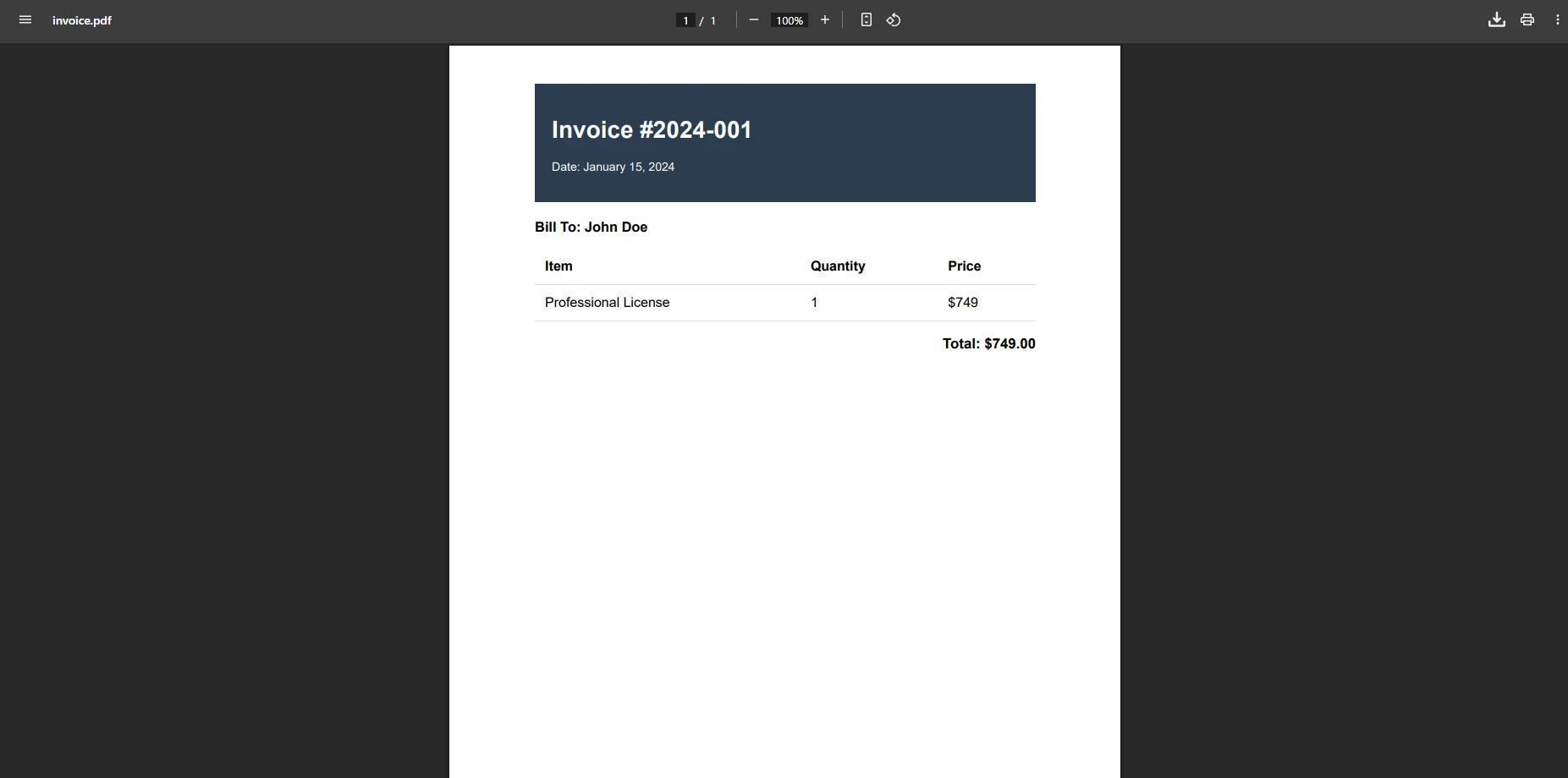
For a more realistic example, here is how to generate a styled invoice document with HTML markup and CSS:
```csharp
using IronPdf;
var html = @"
<html>
<head>
<style>
body { font-family: Arial, sans-serif; font-size: 14px; }
.invoice-header {
background-color: #2c3e50;
color: white;
padding: 20px;
}
.invoice-details { margin: 20px 0; }
table { width: 100%; border-collapse: collapse; }
th, td {
padding: 12px;
text-align: left;
border-bottom: 1px solid #ddd;
}
.total {
font-size: 1.2em;
font-weight: bold;
text-align: right;
}
</style>
</head>
<body>
<div class='invoice-header'>
<h1>Invoice #2026-001</h1>
<p>Date: February 28, 2026</p>
</div>
<div class='invoice-details'>
<h3>Bill To: Jane Smith</h3>
<table>
<tr>
<th>Item</th>
<th>Quantity</th>
<th>Price</th>
</tr>
<tr>
<td>Professional License</td>
<td>1</td>
<td>$999</td>
</tr>
</table>
<p class='total'>Total: $999</p>
</div>
</body>
</html>";
var renderer = new ChromePdfRenderer();
// Apply custom margins
renderer.RenderingOptions.MarginTop = 10;
renderer.RenderingOptions.MarginBottom = 10;
var pdf = renderer.RenderHtmlAsPdf(html);
pdf.SaveAs("invoice.pdf");
```
This example shows IronPDF's ability to handle complex layouts with CSS styling, including font family settings, background colors, and table formatting. The library processes the HTML markup and produces a PDF that matches the visual appearance of the source document.
For improved typography, IronPDF supports Google Fonts and web icon fonts, allowing you to create visually polished PDFs. The library also handles layered document designs. You can add [custom watermarks](https://ironpdf.com/how-to/custom-watermark/) or stamp content onto existing PDFs.
### What Does the Generated PDF Invoice Look Like?
## How Do You Convert a Web Page URL to PDF?
IronPDF can generate PDFs from live web pages by passing a URL to the renderer. This is useful when you need to capture web content dynamically or archive a public page:
```csharp
using IronPdf;
var renderer = new ChromePdfRenderer();
// Configure viewport and JavaScript settings
renderer.RenderingOptions.ViewPortWidth = 1920;
renderer.RenderingOptions.EnableJavaScript = true;
renderer.RenderingOptions.CssMediaType = IronPdf.Rendering.PdfCssMediaType.Screen;
renderer.RenderingOptions.WaitFor.RenderDelay(1500); // Allow dynamic content to load
// Render the URL to PDF
var pdf = renderer.RenderUrlAsPdf("https://example.com");
// Save to disk
pdf.SaveAs("webpage.pdf");
```
The `RenderDelay` setting ensures that JavaScript-driven content (charts, lazy-loaded images, dynamic tables) finishes rendering before the PDF is captured. You can also configure the `WaitFor` conditions to wait for specific DOM elements or network requests to complete. For pages behind authentication, the library supports HTTP request headers and custom cookies.
For complex single-page applications built with Angular or React, additional wait conditions help guarantee that all client-side rendering completes before the PDF snapshot is taken.

## How Do You Integrate PDF Generation into an ASP.NET Core Controller?
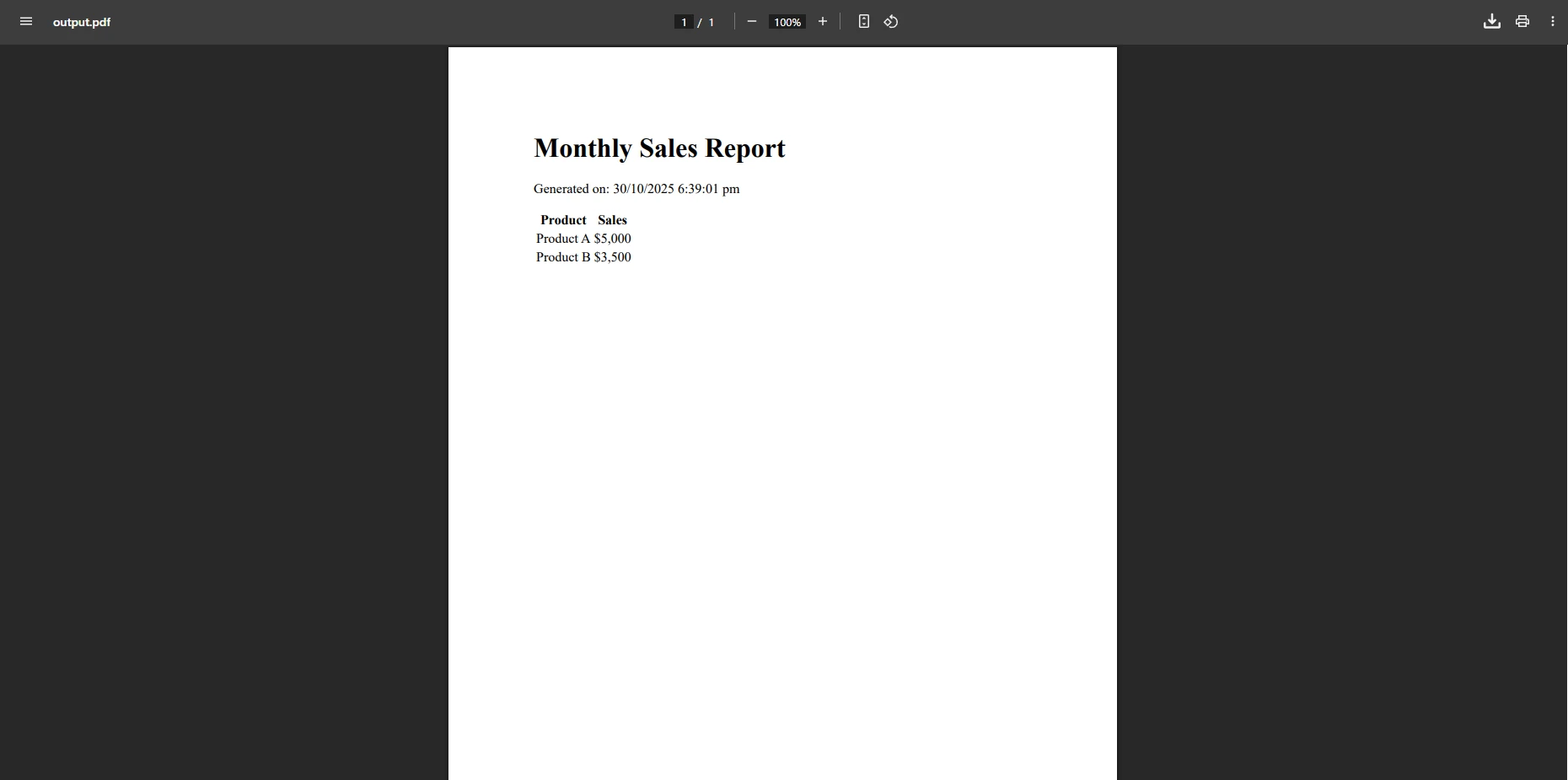
Generating PDFs inside an ASP.NET Core Web API is straightforward. The following example shows a controller action that builds an HTML report and returns it as a file download:
```csharp
using Microsoft.AspNetCore.Mvc;
using IronPdf;
[ApiController]
[Route("api/[controller]")]
public class PdfController : ControllerBase
{
[HttpGet("generate-report")]
public IActionResult GenerateReport()
{
var html = @"
<h1>Monthly Sales Report</h1>
<p>Generated on: " + DateTime.Now.ToString("MMMM dd, yyyy") + @"</p>
<table>
<tr><th>Product</th><th>Sales</th></tr>
<tr><td>Product A</td><td>$5,000</td></tr>
<tr><td>Product B</td><td>$3,500</td></tr>
</table>";
var renderer = new ChromePdfRenderer();
var pdf = renderer.RenderHtmlAsPdf(html);
// Return the PDF bytes as a downloadable file
return File(pdf.BinaryData, "application/pdf", "monthly-report.pdf");
}
}
```
The `File()` return type tells ASP.NET Core to stream the raw PDF bytes to the client browser with the correct MIME type. The client receives a downloadable PDF without any intermediate file on disk. You can add [headers and footers](https://ironpdf.com/how-to/headers-and-footers/) to each page, or apply [watermarks](https://ironpdf.com/how-to/custom-watermark/) for draft or confidential documents.
For production applications, consider using async PDF generation to keep the request pipeline non-blocking, particularly when generating large or complex documents.
### How Do You Render a Razor View to PDF in MVC?
For MVC applications, you can render a Razor view to an HTML string and then convert it to PDF. This pattern keeps your document templates inside standard `.cshtml` files:
```csharp
[HttpGet]
public async Task<IActionResult> DownloadInvoice(int id)
{
// Fetch invoice data from the database
var model = await GetInvoiceData(id);
// Render the Razor view to an HTML string
var html = await RenderViewToString("Invoice", model);
// Convert the rendered HTML to PDF
var renderer = new ChromePdfRenderer();
var pdf = renderer.RenderHtmlAsPdf(html);
// Return the file to the browser
return File(pdf.BinaryData, "application/pdf", $"invoice-{id}.pdf");
}
```
This approach lets you maintain your invoice or report templates as ordinary Razor views, using model binding and partial views. The `RenderViewToString` helper method (a common utility in MVC projects) converts the view to a plain HTML string that IronPDF then processes. For Razor Pages or Blazor Server projects, similar patterns apply.
### What Advanced PDF Features Does IronPDF Support?
Beyond basic HTML-to-PDF conversion, IronPDF offers a broad set of document manipulation features:
- **Merge and split:** Combine multiple PDFs or extract specific pages using the [merge and split API](https://ironpdf.com/how-to/merge-or-split-pdfs/)
- **Digital signatures:** Apply certificate-based [digital signatures](https://ironpdf.com/how-to/signing/) for document authentication
- **Text extraction:** [Extract text from PDF](https://ironpdf.com/how-to/extract-text-and-images/) documents for search indexing or data processing
- **PDF forms:** [Create and fill PDF forms](https://ironpdf.com/tutorials/pdf-forms-csharp-article/) programmatically for automated document workflows
- **Convert PDF pages to images:** [Export PDF pages to images](https://ironpdf.com/how-to/rasterize-pdf-to-images/) for thumbnails or previews
- **HTML string rendering:** Fine-grained control over [HTML string to PDF](https://ironpdf.com/how-to/html-string-to-pdf/) conversion options
- **Security:** Password protection, encryption, and permission controls keep sensitive documents secure
For performance-critical workloads, IronPDF provides async methods and multithreading support. The library also handles image-to-PDF conversion, PDF compression, and linearization for faster web viewing.
<table class="content__data-table" data-content-table>
<caption>IronPDF Core Feature Overview</caption>
<thead>
<tr>
<th>Feature</th>
<th>Description</th>
<th>Typical Use Case</th>
</tr>
</thead>
<tbody>
<tr>
<td>HTML to PDF</td>
<td>Converts HTML strings, files, or URLs to PDF</td>
<td>Invoices, reports, web page archiving</td>
</tr>
<tr>
<td>Razor to PDF</td>
<td>Renders Razor views (.cshtml) to PDF</td>
<td>MVC and Razor Pages applications</td>
</tr>
<tr>
<td>Merge / Split</td>
<td>Combines or divides PDF documents</td>
<td>Document bundling, page extraction</td>
</tr>
<tr>
<td>Digital Signatures</td>
<td>Applies X.509 certificate signatures</td>
<td>Legal documents, contract workflows</td>
</tr>
<tr>
<td>Text Extraction</td>
<td>Reads text content from existing PDFs</td>
<td>Search indexing, data migration</td>
</tr>
<tr>
<td>PDF Forms</td>
<td>Creates and fills interactive form fields</td>
<td>Automated data collection</td>
</tr>
<tr>
<td>Headers and Footers</td>
<td>Adds page numbers, dates, and custom text</td>
<td>Professional document formatting</td>
</tr>
</tbody>
</table>
## How Do You Get Started with IronPDF in .NET 10?
IronPDF makes PDF generation in .NET Core straightforward. Its Chrome rendering engine ensures accurate fidelity when creating PDFs from HTML content, while the API design removes the typical complexity associated with PDF manipulation. The library provides [complete documentation](https://ironpdf.com/docs/) for all features and supports deployment on Windows, Linux, macOS, Azure Functions, AWS Lambda, and Docker containers.
Whether you are building invoices, reports, or document management tools, IronPDF provides the tools needed for professional PDF creation. Review the [full feature list](https://ironpdf.com/features/) to understand the full scope of the library's capabilities, or check [licensing options](https://ironpdf.com/licensing/) suited for individual developers and enterprise teams.
[Start a free trial today](trial-license) to test IronPDF in your own .NET 10 project. The trial license covers the complete feature set so you can evaluate PDF generation, merging, signing, form filling, and text extraction before committing to a license.
For additional context, explore the [IronPDF documentation home](https://ironpdf.com/docs/) for API references, platform guides, and [code examples](https://ironpdf.com/) covering common .NET PDF scenarios.
---
**External references:**
- [Microsoft .NET documentation](https://learn.microsoft.com/en-us/dotnet/)
- [NuGet package registry for IronPDF](https://www.nuget.org/packages/IronPdf)
- [Chrome for Developers: Headless Chrome](https://developer.chrome.com/docs/chromium/new-headless)
To generate PDF files in .NET Core, use IronPDF's ChromePdfRenderer to convert HTML strings, web pages, or Razor views into PDF documents with just a few lines of code, preserving all CSS styling and JavaScript functionality.
Creating PDF documents in .NET Core applications is a common requirement when building web applications that need to generate invoices, reports, and other business documents. IronPDF provides a full-featured PDF library that simplifies PDF generation in ASP.NET Core through its Chrome rendering engine, delivering pixel-perfect PDFs every time. In this guide, you will explore how to handle various PDF generation tasks in the .NET 10 environment, from simple HTML conversions to complex report generation using C# top-level statements.
How Does .NET Core Generate PDF Files?
IronPDF uses a Chrome-based rendering engine to convert HTML content into PDF files. This approach means you can use your existing HTML and CSS knowledge to create PDFs without learning complex, low-level PDF APIs or dealing with a steep learning curve. The library handles converting web pages automatically, supporting JavaScript execution and responsive CSS layouts.
The library's API allows you to generate PDF documents from HTML strings, URLs, or local HTML files. When converting HTML to PDF, IronPDF preserves complex layouts, CSS styling, JavaScript execution, and dynamic web content. This makes it a practical choice for .NET developers who need reliable PDF conversion capabilities in their applications.
The rendering process uses the same technology that powers Google Chrome, ensuring that HTML-to-PDF conversions match what users see in modern browsers. This includes support for CSS3 features, web fonts, SVG graphics, and modern layout systems like Flexbox and CSS Grid. Because the rendering engine is Chrome-based, the output is predictable and consistent across development, staging, and production environments.
How Do You Install IronPDF in a .NET 10 Project?
Getting started requires a single installation through the NuGet Package Manager. You have two options depending on your workflow.
Option 1: Package Manager Console in Visual Studio
For Docker deployments or Linux environments, additional system dependencies may be required. IronPDF supports macOS, Windows, Linux, Azure, and AWS Lambda, making it adaptable across various hosting scenarios. After installation, add a trial license key to unlock the full feature set during development. The trial is free and does not require a credit card, so you can evaluate the library fully before purchasing a commercial license.
How Do You Generate a PDF from an HTML String?
The most direct way to create a PDF is by converting HTML content. Here is a minimal example using C# top-level statements:
using IronPdf;// Instantiate the renderervar renderer = new ChromePdfRenderer();// Convert an HTML string to PDFvar pdf = renderer.RenderHtmlAsPdf("<h1>Hello World</h1><p>This is a PDF generated from HTML.</p>");// Save to diskpdf.SaveAs("hello.pdf");
using IronPdf;

// Instantiate the renderer
var renderer = new ChromePdfRenderer();

// Convert an HTML string to PDF
var pdf = renderer.RenderHtmlAsPdf("<h1>Hello World</h1><p>This is a PDF generated from HTML.</p>");

// Save to disk
pdf.SaveAs("hello.pdf");
ImportsIronPdf' Instantiate the rendererDim renderer As New ChromePdfRenderer()' Convert an HTML string to PDFDim pdf = renderer.RenderHtmlAsPdf("<h1>Hello World</h1><p>This is a PDF generated from HTML.</p>")' Save to diskpdf.SaveAs("hello.pdf")
Imports IronPdf

' Instantiate the renderer
Dim renderer As New ChromePdfRenderer()

' Convert an HTML string to PDF
Dim pdf = renderer.RenderHtmlAsPdf("<h1>Hello World</h1><p>This is a PDF generated from HTML.</p>")

' Save to disk
pdf.SaveAs("hello.pdf")
The ChromePdfRenderer class handles the conversion process. The returned PdfDocument object gives you access to binary data, page count, and output options such as saving to a file or a memory stream. You can also attach metadata such as title, author, and subject keywords to the output file.
The renderer supports a wide range of rendering options. You can configure custom margins, set paper sizes, control page orientation, and adjust viewport dimensions. These options ensure that the PDF output meets specific formatting requirements for professional documents.
How Do You Create a PDF Invoice with CSS Styling?
For a more realistic example, here is how to generate a styled invoice document with HTML markup and CSS:
This example shows IronPDF's ability to handle complex layouts with CSS styling, including font family settings, background colors, and table formatting. The library processes the HTML markup and produces a PDF that matches the visual appearance of the source document.
For improved typography, IronPDF supports Google Fonts and web icon fonts, allowing you to create visually polished PDFs. The library also handles layered document designs. You can add custom watermarks or stamp content onto existing PDFs.
What Does the Generated PDF Invoice Look Like?
How Do You Convert a Web Page URL to PDF?
IronPDF can generate PDFs from live web pages by passing a URL to the renderer. This is useful when you need to capture web content dynamically or archive a public page:
using IronPdf;var renderer = new ChromePdfRenderer();// Configure viewport and JavaScript settingsrenderer.RenderingOptions.ViewPortWidth = 1920;renderer.RenderingOptions.EnableJavaScript = true;renderer.RenderingOptions.CssMediaType = IronPdf.Rendering.PdfCssMediaType.Screen;renderer.RenderingOptions.WaitFor.RenderDelay(1500); // Allow dynamic content to load// Render the URL to PDFvar pdf = renderer.RenderUrlAsPdf("https://example.com");// Save to diskpdf.SaveAs("webpage.pdf");
using IronPdf;

var renderer = new ChromePdfRenderer();

// Configure viewport and JavaScript settings
renderer.RenderingOptions.ViewPortWidth = 1920;
renderer.RenderingOptions.EnableJavaScript = true;
renderer.RenderingOptions.CssMediaType = IronPdf.Rendering.PdfCssMediaType.Screen;
renderer.RenderingOptions.WaitFor.RenderDelay(1500); // Allow dynamic content to load

// Render the URL to PDF
var pdf = renderer.RenderUrlAsPdf("https://example.com");

// Save to disk
pdf.SaveAs("webpage.pdf");
ImportsIronPdfDim renderer As New ChromePdfRenderer()' Configure viewport and JavaScript settingsrenderer.RenderingOptions.ViewPortWidth = 1920renderer.RenderingOptions.EnableJavaScript = Truerenderer.RenderingOptions.CssMediaType = IronPdf.Rendering.PdfCssMediaType.Screenrenderer.RenderingOptions.WaitFor.RenderDelay(1500) ' Allow dynamic content to load' Render the URL to PDFDim pdf = renderer.RenderUrlAsPdf("https://example.com")' Save to diskpdf.SaveAs("webpage.pdf")
Imports IronPdf

Dim renderer As New ChromePdfRenderer()

' Configure viewport and JavaScript settings
renderer.RenderingOptions.ViewPortWidth = 1920
renderer.RenderingOptions.EnableJavaScript = True
renderer.RenderingOptions.CssMediaType = IronPdf.Rendering.PdfCssMediaType.Screen
renderer.RenderingOptions.WaitFor.RenderDelay(1500) ' Allow dynamic content to load

' Render the URL to PDF
Dim pdf = renderer.RenderUrlAsPdf("https://example.com")

' Save to disk
pdf.SaveAs("webpage.pdf")
The RenderDelay setting ensures that JavaScript-driven content (charts, lazy-loaded images, dynamic tables) finishes rendering before the PDF is captured. You can also configure the WaitFor conditions to wait for specific DOM elements or network requests to complete. For pages behind authentication, the library supports HTTP request headers and custom cookies.
For complex single-page applications built with Angular or React, additional wait conditions help guarantee that all client-side rendering completes before the PDF snapshot is taken.
How Do You Integrate PDF Generation into an ASP.NET Core Controller?
Generating PDFs inside an ASP.NET Core Web API is straightforward. The following example shows a controller action that builds an HTML report and returns it as a file download:
using Microsoft.AspNetCore.Mvc;using IronPdf;[ApiController][Route("api/[controller]")]public class PdfController : ControllerBase{ [HttpGet("generate-report")] public IActionResultGenerateReport() { var html = @" <h1>Monthly Sales Report</h1> <p>Generated on: " + DateTime.Now.ToString("MMMM dd, yyyy") + @"</p> <table> <tr><th>Product</th><th>Sales</th></tr> <tr><td>Product A</td><td>$5,000</td></tr> <tr><td>Product B</td><td>$3,500</td></tr> </table>"; var renderer = new ChromePdfRenderer(); var pdf = renderer.RenderHtmlAsPdf(html); // Return the PDF bytes as a downloadable file returnFile(pdf.BinaryData, "application/pdf", "monthly-report.pdf"); }}
using Microsoft.AspNetCore.Mvc;
using IronPdf;

[ApiController]
[Route("api/[controller]")]
public class PdfController : ControllerBase
{
    [HttpGet("generate-report")]
    public IActionResult GenerateReport()
    {
        var html = @"
            <h1>Monthly Sales Report</h1>
            <p>Generated on: " + DateTime.Now.ToString("MMMM dd, yyyy") + @"</p>
            <table>
                <tr><th>Product</th><th>Sales</th></tr>
                <tr><td>Product A</td><td>$5,000</td></tr>
                <tr><td>Product B</td><td>$3,500</td></tr>
            </table>";

        var renderer = new ChromePdfRenderer();
        var pdf = renderer.RenderHtmlAsPdf(html);

        // Return the PDF bytes as a downloadable file
        return File(pdf.BinaryData, "application/pdf", "monthly-report.pdf");
    }
}
ImportsMicrosoft.AspNetCore.MvcImportsIronPdf<ApiController><Route("api/[controller]")>Public Class PdfControllerInheritsControllerBase <HttpGet("generate-report")> Public Function GenerateReport() AsIActionResult Dim html AsString = " <h1>Monthly Sales Report</h1> <p>Generated on: " & DateTime.Now.ToString("MMMM dd, yyyy") & "</p> <table> <tr><th>Product</th><th>Sales</th></tr> <tr><td>Product A</td><td>$5,000</td></tr> <tr><td>Product B</td><td>$3,500</td></tr> </table>" Dim renderer As New ChromePdfRenderer() Dim pdf = renderer.RenderHtmlAsPdf(html) ' Return the PDF bytes as a downloadable file ReturnFile(pdf.BinaryData, "application/pdf", "monthly-report.pdf") End FunctionEnd Class
Imports Microsoft.AspNetCore.Mvc
Imports IronPdf

<ApiController>
<Route("api/[controller]")>
Public Class PdfController
    Inherits ControllerBase

    <HttpGet("generate-report")>
    Public Function GenerateReport() As IActionResult
        Dim html As String = "
            <h1>Monthly Sales Report</h1>
            <p>Generated on: " & DateTime.Now.ToString("MMMM dd, yyyy") & "</p>
            <table>
                <tr><th>Product</th><th>Sales</th></tr>
                <tr><td>Product A</td><td>$5,000</td></tr>
                <tr><td>Product B</td><td>$3,500</td></tr>
            </table>"

        Dim renderer As New ChromePdfRenderer()
        Dim pdf = renderer.RenderHtmlAsPdf(html)

        ' Return the PDF bytes as a downloadable file
        Return File(pdf.BinaryData, "application/pdf", "monthly-report.pdf")
    End Function
End Class
The File() return type tells ASP.NET Core to stream the raw PDF bytes to the client browser with the correct MIME type. The client receives a downloadable PDF without any intermediate file on disk. You can add headers and footers to each page, or apply watermarks for draft or confidential documents.
For production applications, consider using async PDF generation to keep the request pipeline non-blocking, particularly when generating large or complex documents.
How Do You Render a Razor View to PDF in MVC?
For MVC applications, you can render a Razor view to an HTML string and then convert it to PDF. This pattern keeps your document templates inside standard .cshtml files:
[HttpGet]public async Task<IActionResult> DownloadInvoice(int id){ // Fetch invoice data from the database var model = awaitGetInvoiceData(id); // Render the Razor view to an HTML string var html = awaitRenderViewToString("Invoice", model); // Convert the rendered HTML to PDF var renderer = new ChromePdfRenderer(); var pdf = renderer.RenderHtmlAsPdf(html); // Return the file to the browser returnFile(pdf.BinaryData, "application/pdf", $"invoice-{id}.pdf");}
[HttpGet]
public async Task<IActionResult> DownloadInvoice(int id)
{
    // Fetch invoice data from the database
    var model = await GetInvoiceData(id);

    // Render the Razor view to an HTML string
    var html = await RenderViewToString("Invoice", model);

    // Convert the rendered HTML to PDF
    var renderer = new ChromePdfRenderer();
    var pdf = renderer.RenderHtmlAsPdf(html);

    // Return the file to the browser
    return File(pdf.BinaryData, "application/pdf", $"invoice-{id}.pdf");
}
ImportsSystem.Threading.Tasks<HttpGet>PublicAsync Function DownloadInvoice(id AsInteger) AsTask(OfIActionResult) ' Fetch invoice data from the database Dim model = AwaitGetInvoiceData(id) ' Render the Razor view to an HTML string Dim html = AwaitRenderViewToString("Invoice", model) ' Convert the rendered HTML to PDF Dim renderer = New ChromePdfRenderer() Dim pdf = renderer.RenderHtmlAsPdf(html) ' Return the file to the browser ReturnFile(pdf.BinaryData, "application/pdf", $"invoice-{id}.pdf")End Function
Imports System.Threading.Tasks

<HttpGet>
Public Async Function DownloadInvoice(id As Integer) As Task(Of IActionResult)
    ' Fetch invoice data from the database
    Dim model = Await GetInvoiceData(id)

    ' Render the Razor view to an HTML string
    Dim html = Await RenderViewToString("Invoice", model)

    ' Convert the rendered HTML to PDF
    Dim renderer = New ChromePdfRenderer()
    Dim pdf = renderer.RenderHtmlAsPdf(html)

    ' Return the file to the browser
    Return File(pdf.BinaryData, "application/pdf", $"invoice-{id}.pdf")
End Function
This approach lets you maintain your invoice or report templates as ordinary Razor views, using model binding and partial views. The RenderViewToString helper method (a common utility in MVC projects) converts the view to a plain HTML string that IronPDF then processes. For Razor Pages or Blazor Server projects, similar patterns apply.
What Advanced PDF Features Does IronPDF Support?
Beyond basic HTML-to-PDF conversion, IronPDF offers a broad set of document manipulation features:
Merge and split: Combine multiple PDFs or extract specific pages using the merge and split API
Digital signatures: Apply certificate-based digital signatures for document authentication
Text extraction:Extract text from PDF documents for search indexing or data processing
For performance-critical workloads, IronPDF provides async methods and multithreading support. The library also handles image-to-PDF conversion, PDF compression, and linearization for faster web viewing.
IronPDF Core Feature Overview
Feature
Description
Typical Use Case
HTML to PDF
Converts HTML strings, files, or URLs to PDF
Invoices, reports, web page archiving
Razor to PDF
Renders Razor views (.cshtml) to PDF
MVC and Razor Pages applications
Merge / Split
Combines or divides PDF documents
Document bundling, page extraction
Digital Signatures
Applies X.509 certificate signatures
Legal documents, contract workflows
Text Extraction
Reads text content from existing PDFs
Search indexing, data migration
PDF Forms
Creates and fills interactive form fields
Automated data collection
Headers and Footers
Adds page numbers, dates, and custom text
Professional document formatting
How Do You Get Started with IronPDF in .NET 10?
IronPDF makes PDF generation in .NET Core straightforward. Its Chrome rendering engine ensures accurate fidelity when creating PDFs from HTML content, while the API design removes the typical complexity associated with PDF manipulation. The library provides complete documentation for all features and supports deployment on Windows, Linux, macOS, Azure Functions, AWS Lambda, and Docker containers.
Whether you are building invoices, reports, or document management tools, IronPDF provides the tools needed for professional PDF creation. Review the full feature list to understand the full scope of the library's capabilities, or check licensing options suited for individual developers and enterprise teams.
Start a free trial today to test IronPDF in your own .NET 10 project. The trial license covers the complete feature set so you can evaluate PDF generation, merging, signing, form filling, and text extraction before committing to a license.
Curtis Chau holds a Bachelor’s degree in Computer Science (Carleton University) and specializes in front-end development with expertise in Node.js, TypeScript, JavaScript, and React. Passionate about crafting intuitive and aesthetically pleasing user interfaces, Curtis enjoys working with modern frameworks and creating well-structured, visually appealing manuals.