using IronPdf;

// Disable local disk access or cross-origin requests
Installation.EnableWebSecurity = true;

// Instantiate Renderer
var renderer = new ChromePdfRenderer();

// Create a PDF from a HTML string using C#
var pdf = renderer.RenderHtmlAsPdf("<h1>Hello World</h1>");

// Export to a file or Stream
pdf.SaveAs("output.pdf");

// Advanced Example with HTML Assets
// Load external html assets: Images, CSS and JavaScript.
// An optional BasePath 'C:\site\assets\' is set as the file location to load assets from
var myAdvancedPdf = renderer.RenderHtmlAsPdf("<img src='icons/iron.png'>", @"C:\site\assets\");
myAdvancedPdf.SaveAs("html-with-assets.pdf");
using IronPdf;// Disable local disk access or cross-origin requestsInstallation.EnableWebSecurity = true;// Instantiate Renderervar renderer = new ChromePdfRenderer();// Create a PDF from a HTML string using C#var pdf = renderer.RenderHtmlAsPdf("<h1>Hello World</h1>");// Export to a file or Streampdf.SaveAs("output.pdf");// Advanced Example with HTML Assets// Load external html assets: Images, CSS and JavaScript.// An optional BasePath 'C:\site\assets\' is set as the file location to load assets fromvar myAdvancedPdf = renderer.RenderHtmlAsPdf("<img src='icons/iron.png'>", @"C:\site\assets\");myAdvancedPdf.SaveAs("html-with-assets.pdf");
PM >Install-Package IronPdf
Install-Package IronPdf
USING IRONPDF
Displaying PDF from Database in ASP.NET (Developer Guide)
To display PDFs from a database in ASP.NET, retrieve the stored binary data and render it using IronPDF's PdfDocument class, which efficiently handles byte arrays and provides browser-compatible output with customization options.
What Is PDF Database Display in ASP.NET?
Managing PDF documents in ASP.NET applications often involves storing PDF files directly in a database rather than the file system. This method offers better security, centralized backup, and simplified deployment. However, retrieving and displaying PDF documents from a database can be challenging without the right tools.
Storing PDF files as binary data in a database table allows for better control over document access and versioning. When you need to display PDF documents to users, you must efficiently retrieve the byte array from the database and render it in the browser. IronPDF simplifies this entire process with an effective API for handling PDF documents in ASP.NET applications.
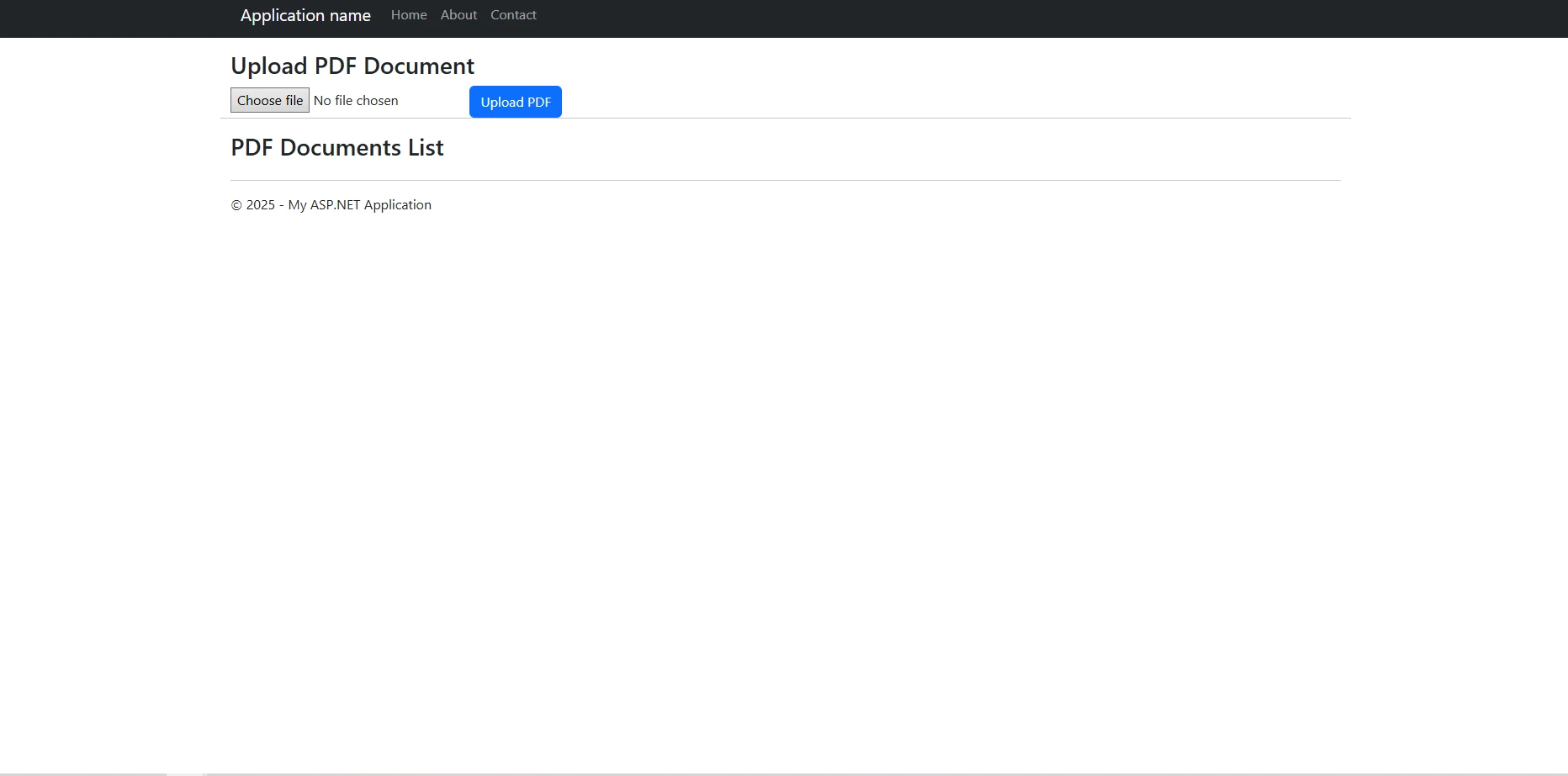
This tutorial demonstrates ASP.NET display PDF from database functionality using IronPDF's proven features. You will learn to create a complete solution for uploading, storing, and displaying PDF files with optimal performance and security. The library supports various rendering options and advanced PDF manipulation capabilities that make it straightforward to build production-grade document management systems.
How Do You Install the PDF Library in Your ASP.NET Project?
Before implementing PDF display functionality, ensure your ASP.NET project has IronPDF installed. Open the Package Manager Console in Visual Studio and run one of the following commands depending on your tooling preference:
PM > Install-Package IronPdf
Install-Package IronPdf
You can also install IronPDF through the NuGet Package Manager UI by searching for IronPdf in the Browse tab of your project. After installation, set your license key at application startup:
A free trial license gives you full access to all features during evaluation. For production deployments, review the available licensing tiers to find an option that fits your project scale.
What Database Structure Is Required?
Your database table structure needs a varbinary(max) column to store PDF files as binary data. The table should include metadata fields like file name, upload date, and file size for better document management. The following SQL creates a suitable table for this scenario:
using IronPdf;using System.Data.SqlClient;using System.IO;using System.Configuration;
using IronPdf;
using System.Data.SqlClient;
using System.IO;
using System.Configuration;
Configure your connection string in the web.config file to establish database connectivity. The PDF viewer implementation will use this connection to retrieve uploaded files from the database and display PDF content smoothly.
What Namespaces Does the Solution Require?
The solution uses standard ADO.NET namespaces alongside the IronPDF namespace. You do not need any third-party ORM -- the direct ADO.NET approach keeps dependencies minimal and gives you full control over query execution. Make sure the connection string points to a SQL Server instance where your PDF storage table lives.
How Do You Create a Database Table for PDFs?
Start by creating a database table specifically designed for storing PDF documents. The table structure should accommodate both the binary data and essential metadata for managing PDF documents:
CREATE TABLEPdfDocuments (IdINT PRIMARY KEYIDENTITY(1,1), FileName NVARCHAR(255) NOT NULL,FileDataVARBINARY(MAX) NOT NULL,ContentTypeNVARCHAR(100) DEFAULT 'application/pdf',FileSizeINT,UploadDateDATETIME DEFAULTGETDATE(),CreatedByNVARCHAR(100),LastModifiedDATETIME,DocumentVersionINT DEFAULT 1);
CREATE TABLE PdfDocuments (
    Id INT PRIMARY KEY IDENTITY(1,1),
    FileName NVARCHAR(255) NOT NULL,
    FileData VARBINARY(MAX) NOT NULL,
    ContentType NVARCHAR(100) DEFAULT 'application/pdf',
    FileSize INT,
    UploadDate DATETIME DEFAULT GETDATE(),
    CreatedBy NVARCHAR(100),
    LastModified DATETIME,
    DocumentVersion INT DEFAULT 1
);
SQL
This table stores each PDF file as a byte array in the FileData column. The varbinary(max) data type can hold files up to 2 GB, sufficient for most PDF documents. The FileName field preserves the original file name for display and download purposes.
How Can You Improve Database Performance for PDF Retrieval?
Consider adding indexes on frequently queried columns for better performance when retrieving PDF documents. The following SQL creates indexes on the columns most likely to appear in WHERE and ORDER BY clauses:
CREATE INDEX IX_PdfDocuments_UploadDate
ON PdfDocuments(UploadDate DESC);

CREATE INDEX IX_PdfDocuments_FileName
ON PdfDocuments(FileName);
SQL
This structure ensures efficient storage and retrieval of uploaded files while maintaining the flexibility to add additional metadata fields as needed. For very large PDF files, consider whether database storage is the right fit for your architecture, or whether a hybrid approach -- storing files on disk or object storage and keeping only metadata in the database -- would perform better at scale.
Comparison of PDF Storage Strategies
Strategy
Best For
Advantages
Considerations
Database (VARBINARY)
Small to medium files, high security
Transactional consistency, centralized backup
Can increase database size rapidly
File System
Large files, high throughput
Fast file IO, low database overhead
Requires separate backup strategy
Object Storage (Azure Blob/S3)
Cloud deployments, unlimited scale
Cost-effective, highly available
Additional SDK dependency
How Do You Upload PDF Files to a Database?
Implement the upload functionality using ASP.NET's FileUpload control. Add this HTML markup to your .aspx page within a form element with proper validation:
The upload button triggers the server-side event handler. Here is the complete implementation for the upload function that converts uploaded files to a byte array and stores them with proper error handling:
protected void btnUpload_Click(object sender, EventArgs e){ if (FileUpload1.HasFile && FileUpload1.PostedFile.ContentType == "application/pdf") { try { string fileName = FileUpload1.FileName; byte[] fileBytes = FileUpload1.FileBytes; int maxFileSize = 10 * 1024 * 1024; // 10MB limit if (fileBytes.Length > maxFileSize) { lblMessage.Text = "File size exceeds 10MB limit."; return; } // Validate PDF using IronPDF using (var stream = new MemoryStream(fileBytes)) { var testPdf = new IronPdf.PdfDocument(stream); if (testPdf.PageCount == 0) { lblMessage.Text = "Invalid PDF file."; return; } } string constr = ConfigurationManager.ConnectionStrings["DefaultConnection"].ConnectionString; using (SqlConnection conn = new SqlConnection(constr)) { string query = "INSERT INTO PdfDocuments (FileName, FileData, FileSize, CreatedBy) " + "VALUES (@FileName, @FileData, @FileSize, @CreatedBy)"; using (SqlCommand cmd = new SqlCommand(query, conn)) { cmd.Parameters.AddWithValue("@FileName", fileName); cmd.Parameters.AddWithValue("@FileData", fileBytes); cmd.Parameters.AddWithValue("@FileSize", fileBytes.Length); cmd.Parameters.AddWithValue("@CreatedBy", User.Identity.Name ?? "Anonymous"); conn.Open(); cmd.ExecuteNonQuery(); } } lblMessage.Text = "PDF document uploaded successfully!"; lblFileInfo.Text = $"File: {fileName} ({fileBytes.Length / 1024}KB)";LoadPdfList(); } catch (Exception ex) { lblMessage.Text = "Error uploading file: " + ex.Message; } } else { lblMessage.Text = "Please select a valid PDF file."; }}
protected void btnUpload_Click(object sender, EventArgs e)
{
    if (FileUpload1.HasFile && FileUpload1.PostedFile.ContentType == "application/pdf")
    {
        try
        {
            string fileName = FileUpload1.FileName;
            byte[] fileBytes = FileUpload1.FileBytes;
            int maxFileSize = 10 * 1024 * 1024; // 10MB limit

            if (fileBytes.Length > maxFileSize)
            {
                lblMessage.Text = "File size exceeds 10MB limit.";
                return;
            }

            // Validate PDF using IronPDF
            using (var stream = new MemoryStream(fileBytes))
            {
                var testPdf = new IronPdf.PdfDocument(stream);
                if (testPdf.PageCount == 0)
                {
                    lblMessage.Text = "Invalid PDF file.";
                    return;
                }
            }

            string constr = ConfigurationManager.ConnectionStrings["DefaultConnection"].ConnectionString;
            using (SqlConnection conn = new SqlConnection(constr))
            {
                string query = "INSERT INTO PdfDocuments (FileName, FileData, FileSize, CreatedBy) " +
                               "VALUES (@FileName, @FileData, @FileSize, @CreatedBy)";
                using (SqlCommand cmd = new SqlCommand(query, conn))
                {
                    cmd.Parameters.AddWithValue("@FileName", fileName);
                    cmd.Parameters.AddWithValue("@FileData", fileBytes);
                    cmd.Parameters.AddWithValue("@FileSize", fileBytes.Length);
                    cmd.Parameters.AddWithValue("@CreatedBy", User.Identity.Name ?? "Anonymous");

                    conn.Open();
                    cmd.ExecuteNonQuery();
                }
            }
            lblMessage.Text = "PDF document uploaded successfully!";
            lblFileInfo.Text = $"File: {fileName} ({fileBytes.Length / 1024}KB)";
            LoadPdfList();
        }
        catch (Exception ex)
        {
            lblMessage.Text = "Error uploading file: " + ex.Message;
        }
    }
    else
    {
        lblMessage.Text = "Please select a valid PDF file.";
    }
}
ImportsSystemImportsSystem.IOImportsSystem.Data.SqlClientImportsSystem.ConfigurationImportsIronPdfProtected Sub btnUpload_Click(sender AsObject, e AsEventArgs) IfFileUpload1.HasFileAndAlsoFileUpload1.PostedFile.ContentType = "application/pdf" ThenTry Dim fileName AsString = FileUpload1.FileName Dim fileBytes AsByte() = FileUpload1.FileBytes Dim maxFileSize AsInteger = 10 * 1024 * 1024 ' 10MB limit If fileBytes.Length > maxFileSize Then lblMessage.Text = "File size exceeds 10MB limit." Return End If ' Validate PDF using IronPDFUsing stream As New MemoryStream(fileBytes) Dim testPdf As New IronPdf.PdfDocument(stream) If testPdf.PageCount = 0 Then lblMessage.Text = "Invalid PDF file." Return End IfEndUsing Dim constr AsString = ConfigurationManager.ConnectionStrings("DefaultConnection").ConnectionStringUsing conn As New SqlConnection(constr) Dim query AsString = "INSERT INTO PdfDocuments (FileName, FileData, FileSize, CreatedBy) " & "VALUES (@FileName, @FileData, @FileSize, @CreatedBy)"Using cmd As New SqlCommand(query, conn) cmd.Parameters.AddWithValue("@FileName", fileName) cmd.Parameters.AddWithValue("@FileData", fileBytes) cmd.Parameters.AddWithValue("@FileSize", fileBytes.Length) cmd.Parameters.AddWithValue("@CreatedBy", If(User.Identity.Name, "Anonymous")) conn.Open() cmd.ExecuteNonQuery()EndUsingEndUsing lblMessage.Text = "PDF document uploaded successfully!" lblFileInfo.Text = $"File: {fileName} ({fileBytes.Length \ 1024}KB)"LoadPdfList()Catch ex AsException lblMessage.Text = "Error uploading file: " & ex.MessageEndTry Else lblMessage.Text = "Please select a valid PDF file." End IfEnd Sub
Imports System
Imports System.IO
Imports System.Data.SqlClient
Imports System.Configuration
Imports IronPdf

Protected Sub btnUpload_Click(sender As Object, e As EventArgs)
    If FileUpload1.HasFile AndAlso FileUpload1.PostedFile.ContentType = "application/pdf" Then
        Try
            Dim fileName As String = FileUpload1.FileName
            Dim fileBytes As Byte() = FileUpload1.FileBytes
            Dim maxFileSize As Integer = 10 * 1024 * 1024 ' 10MB limit

            If fileBytes.Length > maxFileSize Then
                lblMessage.Text = "File size exceeds 10MB limit."
                Return
            End If

            ' Validate PDF using IronPDF
            Using stream As New MemoryStream(fileBytes)
                Dim testPdf As New IronPdf.PdfDocument(stream)
                If testPdf.PageCount = 0 Then
                    lblMessage.Text = "Invalid PDF file."
                    Return
                End If
            End Using

            Dim constr As String = ConfigurationManager.ConnectionStrings("DefaultConnection").ConnectionString
            Using conn As New SqlConnection(constr)
                Dim query As String = "INSERT INTO PdfDocuments (FileName, FileData, FileSize, CreatedBy) " &
                                      "VALUES (@FileName, @FileData, @FileSize, @CreatedBy)"
                Using cmd As New SqlCommand(query, conn)
                    cmd.Parameters.AddWithValue("@FileName", fileName)
                    cmd.Parameters.AddWithValue("@FileData", fileBytes)
                    cmd.Parameters.AddWithValue("@FileSize", fileBytes.Length)
                    cmd.Parameters.AddWithValue("@CreatedBy", If(User.Identity.Name, "Anonymous"))

                    conn.Open()
                    cmd.ExecuteNonQuery()
                End Using
            End Using
            lblMessage.Text = "PDF document uploaded successfully!"
            lblFileInfo.Text = $"File: {fileName} ({fileBytes.Length \ 1024}KB)"
            LoadPdfList()
        Catch ex As Exception
            lblMessage.Text = "Error uploading file: " & ex.Message
        End Try
    Else
        lblMessage.Text = "Please select a valid PDF file."
    End If
End Sub
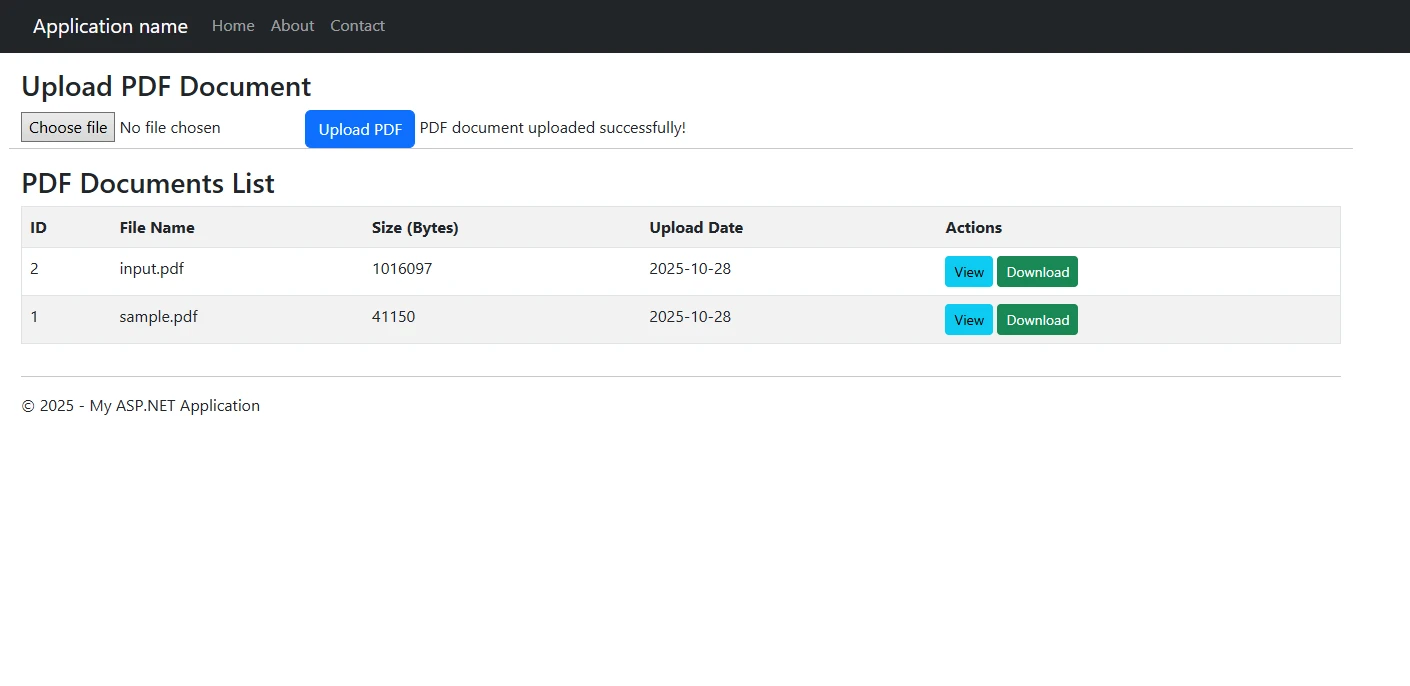
This code validates the file type before uploading, ensuring only valid PDF files are stored in the database. The byte array conversion happens automatically through the FileBytes property. Additional validation includes checking PDF integrity and file size limits. Using IronPDF to open the byte array before saving confirms the file is a genuine, parseable PDF document -- not just a file with a renamed extension.
UI with Uploaded Files
How Do You Retrieve and Display PDFs from the Database?
IronPDF excels at rendering PDF documents retrieved from a database. The library provides multiple options to display PDF content in browsers with advanced rendering capabilities. First, retrieve the binary data from your database table, then pass it to IronPDF for processing before streaming back to the client:
private voidLoadPdfList(){ string constr = ConfigurationManager.ConnectionStrings["DefaultConnection"].ConnectionString; using (SqlConnection conn = new SqlConnection(constr)) { string query = @"SELECT Id, FileName, FileSize, UploadDate, CreatedBy FROM PdfDocuments ORDER BY UploadDate DESC"; using (SqlCommand cmd = new SqlCommand(query, conn)) { conn.Open(); SqlDataAdapter adapter = new SqlDataAdapter(cmd); DataTable dt = new DataTable(); adapter.Fill(dt); foreach (DataRow row in dt.Rows) { int fileSize = Convert.ToInt32(row["FileSize"]); row["FileSize"] = FormatFileSize(fileSize); }GridView1.DataSource = dt;GridView1.DataBind(); } }}private stringFormatFileSize(int bytes){ if (bytes < 1024) return bytes + " B"; if (bytes < 1048576) return (bytes / 1024) + " KB"; return (bytes / 1048576) + " MB";}private PdfDataGetPdfFromDatabase(int id){ byte[] pdfBytes = null; string filename = ""; string constr = ConfigurationManager.ConnectionStrings["DefaultConnection"].ConnectionString; using (SqlConnection conn = new SqlConnection(constr)) { string query = "SELECT FileData, FileName FROM PdfDocuments WHERE Id = @Id"; using (SqlCommand cmd = new SqlCommand(query, conn)) { cmd.Parameters.AddWithValue("@Id", id); conn.Open(); using (SqlDataReader reader = cmd.ExecuteReader()) { if (reader.Read()) { pdfBytes = (byte[])reader["FileData"]; filename = reader["FileName"].ToString(); } } } } if (pdfBytes != null) { return new PdfData { Bytes = pdfBytes, FileName = filename }; } return null;}protected voidGridView1_RowCommand(object sender, GridViewCommandEventArgs e){ if (e.CommandName == "ViewPdf") { int documentId = Convert.ToInt32(e.CommandArgument);ViewPdfDocument(documentId); } else if (e.CommandName == "DownloadPdf") { int documentId = Convert.ToInt32(e.CommandArgument);DownloadPdfDocument(documentId); }}private voidViewPdfDocument(int id){ var pdfData = GetPdfFromDatabase(id); if (pdfData != null) { IronPdf.PdfDocument pdf; using (var stream = new System.IO.MemoryStream(pdfData.Bytes)) { pdf = new IronPdf.PdfDocument(stream); } // Apply security settings pdf.SecuritySettings.AllowUserPrinting = true; pdf.SecuritySettings.AllowUserCopyPasteContent = false;Response.Clear();Response.ContentType = "application/pdf";Response.AddHeader("content-disposition", $"inline; filename={pdfData.FileName}");Response.AddHeader("content-length", pdf.BinaryData.Length.ToString());Response.BinaryWrite(pdf.BinaryData);Response.End(); }}
private void LoadPdfList()
{
    string constr = ConfigurationManager.ConnectionStrings["DefaultConnection"].ConnectionString;
    using (SqlConnection conn = new SqlConnection(constr))
    {
        string query = @"SELECT Id, FileName, FileSize, UploadDate, CreatedBy
                        FROM PdfDocuments
                        ORDER BY UploadDate DESC";
        using (SqlCommand cmd = new SqlCommand(query, conn))
        {
            conn.Open();
            SqlDataAdapter adapter = new SqlDataAdapter(cmd);
            DataTable dt = new DataTable();
            adapter.Fill(dt);

            foreach (DataRow row in dt.Rows)
            {
                int fileSize = Convert.ToInt32(row["FileSize"]);
                row["FileSize"] = FormatFileSize(fileSize);
            }

            GridView1.DataSource = dt;
            GridView1.DataBind();
        }
    }
}

private string FormatFileSize(int bytes)
{
    if (bytes < 1024) return bytes + " B";
    if (bytes < 1048576) return (bytes / 1024) + " KB";
    return (bytes / 1048576) + " MB";
}

private PdfData GetPdfFromDatabase(int id)
{
    byte[] pdfBytes = null;
    string filename = "";
    string constr = ConfigurationManager.ConnectionStrings["DefaultConnection"].ConnectionString;
    using (SqlConnection conn = new SqlConnection(constr))
    {
        string query = "SELECT FileData, FileName FROM PdfDocuments WHERE Id = @Id";
        using (SqlCommand cmd = new SqlCommand(query, conn))
        {
            cmd.Parameters.AddWithValue("@Id", id);
            conn.Open();
            using (SqlDataReader reader = cmd.ExecuteReader())
            {
                if (reader.Read())
                {
                    pdfBytes = (byte[])reader["FileData"];
                    filename = reader["FileName"].ToString();
                }
            }
        }
    }
    if (pdfBytes != null)
    {
        return new PdfData { Bytes = pdfBytes, FileName = filename };
    }
    return null;
}

protected void GridView1_RowCommand(object sender, GridViewCommandEventArgs e)
{
    if (e.CommandName == "ViewPdf")
    {
        int documentId = Convert.ToInt32(e.CommandArgument);
        ViewPdfDocument(documentId);
    }
    else if (e.CommandName == "DownloadPdf")
    {
        int documentId = Convert.ToInt32(e.CommandArgument);
        DownloadPdfDocument(documentId);
    }
}

private void ViewPdfDocument(int id)
{
    var pdfData = GetPdfFromDatabase(id);
    if (pdfData != null)
    {
        IronPdf.PdfDocument pdf;
        using (var stream = new System.IO.MemoryStream(pdfData.Bytes))
        {
            pdf = new IronPdf.PdfDocument(stream);
        }

        // Apply security settings
        pdf.SecuritySettings.AllowUserPrinting = true;
        pdf.SecuritySettings.AllowUserCopyPasteContent = false;

        Response.Clear();
        Response.ContentType = "application/pdf";
        Response.AddHeader("content-disposition", $"inline; filename={pdfData.FileName}");
        Response.AddHeader("content-length", pdf.BinaryData.Length.ToString());
        Response.BinaryWrite(pdf.BinaryData);
        Response.End();
    }
}
ImportsSystem.ConfigurationImportsSystem.DataImportsSystem.Data.SqlClientImportsSystem.IOImportsIronPdfPrivate Sub LoadPdfList() Dim constr AsString = ConfigurationManager.ConnectionStrings("DefaultConnection").ConnectionStringUsing conn As New SqlConnection(constr) Dim query AsString = "SELECT Id, FileName, FileSize, UploadDate, CreatedBy FROM PdfDocuments ORDER BY UploadDate DESC"Using cmd As New SqlCommand(query, conn) conn.Open() Dim adapter As New SqlDataAdapter(cmd) Dim dt As New DataTable() adapter.Fill(dt) For Each row AsDataRowIn dt.Rows Dim fileSize AsInteger = Convert.ToInt32(row("FileSize")) row("FileSize") = FormatFileSize(fileSize) NextGridView1.DataSource = dtGridView1.DataBind()EndUsingEndUsingEnd SubPrivate Function FormatFileSize(bytes AsInteger) AsString If bytes < 1024 Then Return bytes & " B" If bytes < 1048576 Then Return (bytes \ 1024) & " KB" Return (bytes \ 1048576) & " MB"End FunctionPrivate Function GetPdfFromDatabase(id AsInteger) AsPdfData Dim pdfBytes AsByte() = Nothing Dim filename AsString = "" Dim constr AsString = ConfigurationManager.ConnectionStrings("DefaultConnection").ConnectionStringUsing conn As New SqlConnection(constr) Dim query AsString = "SELECT FileData, FileName FROM PdfDocuments WHERE Id = @Id"Using cmd As New SqlCommand(query, conn) cmd.Parameters.AddWithValue("@Id", id) conn.Open()Using reader AsSqlDataReader = cmd.ExecuteReader() If reader.Read() Then pdfBytes = CType(reader("FileData"), Byte()) filename = reader("FileName").ToString() End IfEndUsingEndUsingEndUsing If pdfBytes IsNot Nothing Then Return New PdfDataWith {.Bytes = pdfBytes, .FileName = filename} End If Return NothingEnd FunctionProtected Sub GridView1_RowCommand(sender AsObject, e AsGridViewCommandEventArgs) If e.CommandName = "ViewPdf" Then Dim documentId AsInteger = Convert.ToInt32(e.CommandArgument)ViewPdfDocument(documentId) ElseIf e.CommandName = "DownloadPdf" Then Dim documentId AsInteger = Convert.ToInt32(e.CommandArgument)DownloadPdfDocument(documentId) End IfEnd SubPrivate Sub ViewPdfDocument(id AsInteger) Dim pdfData = GetPdfFromDatabase(id) If pdfData IsNot Nothing Then Dim pdf AsPdfDocumentUsing stream As New MemoryStream(pdfData.Bytes) pdf = New PdfDocument(stream)EndUsing ' Apply security settings pdf.SecuritySettings.AllowUserPrinting = True pdf.SecuritySettings.AllowUserCopyPasteContent = False Response.Clear() Response.ContentType = "application/pdf" Response.AddHeader("content-disposition", $"inline; filename={pdfData.FileName}") Response.AddHeader("content-length", pdf.BinaryData.Length.ToString()) Response.BinaryWrite(pdf.BinaryData) Response.End() End IfEnd Sub
Imports System.Configuration
Imports System.Data
Imports System.Data.SqlClient
Imports System.IO
Imports IronPdf

Private Sub LoadPdfList()
    Dim constr As String = ConfigurationManager.ConnectionStrings("DefaultConnection").ConnectionString
    Using conn As New SqlConnection(constr)
        Dim query As String = "SELECT Id, FileName, FileSize, UploadDate, CreatedBy FROM PdfDocuments ORDER BY UploadDate DESC"
        Using cmd As New SqlCommand(query, conn)
            conn.Open()
            Dim adapter As New SqlDataAdapter(cmd)
            Dim dt As New DataTable()
            adapter.Fill(dt)

            For Each row As DataRow In dt.Rows
                Dim fileSize As Integer = Convert.ToInt32(row("FileSize"))
                row("FileSize") = FormatFileSize(fileSize)
            Next

            GridView1.DataSource = dt
            GridView1.DataBind()
        End Using
    End Using
End Sub

Private Function FormatFileSize(bytes As Integer) As String
    If bytes < 1024 Then Return bytes & " B"
    If bytes < 1048576 Then Return (bytes \ 1024) & " KB"
    Return (bytes \ 1048576) & " MB"
End Function

Private Function GetPdfFromDatabase(id As Integer) As PdfData
    Dim pdfBytes As Byte() = Nothing
    Dim filename As String = ""
    Dim constr As String = ConfigurationManager.ConnectionStrings("DefaultConnection").ConnectionString
    Using conn As New SqlConnection(constr)
        Dim query As String = "SELECT FileData, FileName FROM PdfDocuments WHERE Id = @Id"
        Using cmd As New SqlCommand(query, conn)
            cmd.Parameters.AddWithValue("@Id", id)
            conn.Open()
            Using reader As SqlDataReader = cmd.ExecuteReader()
                If reader.Read() Then
                    pdfBytes = CType(reader("FileData"), Byte())
                    filename = reader("FileName").ToString()
                End If
            End Using
        End Using
    End Using
    If pdfBytes IsNot Nothing Then
        Return New PdfData With {.Bytes = pdfBytes, .FileName = filename}
    End If
    Return Nothing
End Function

Protected Sub GridView1_RowCommand(sender As Object, e As GridViewCommandEventArgs)
    If e.CommandName = "ViewPdf" Then
        Dim documentId As Integer = Convert.ToInt32(e.CommandArgument)
        ViewPdfDocument(documentId)
    ElseIf e.CommandName = "DownloadPdf" Then
        Dim documentId As Integer = Convert.ToInt32(e.CommandArgument)
        DownloadPdfDocument(documentId)
    End If
End Sub

Private Sub ViewPdfDocument(id As Integer)
    Dim pdfData = GetPdfFromDatabase(id)
    If pdfData IsNot Nothing Then
        Dim pdf As PdfDocument
        Using stream As New MemoryStream(pdfData.Bytes)
            pdf = New PdfDocument(stream)
        End Using

        ' Apply security settings
        pdf.SecuritySettings.AllowUserPrinting = True
        pdf.SecuritySettings.AllowUserCopyPasteContent = False

        Response.Clear()
        Response.ContentType = "application/pdf"
        Response.AddHeader("content-disposition", $"inline; filename={pdfData.FileName}")
        Response.AddHeader("content-length", pdf.BinaryData.Length.ToString())
        Response.BinaryWrite(pdf.BinaryData)
        Response.End()
    End If
End Sub
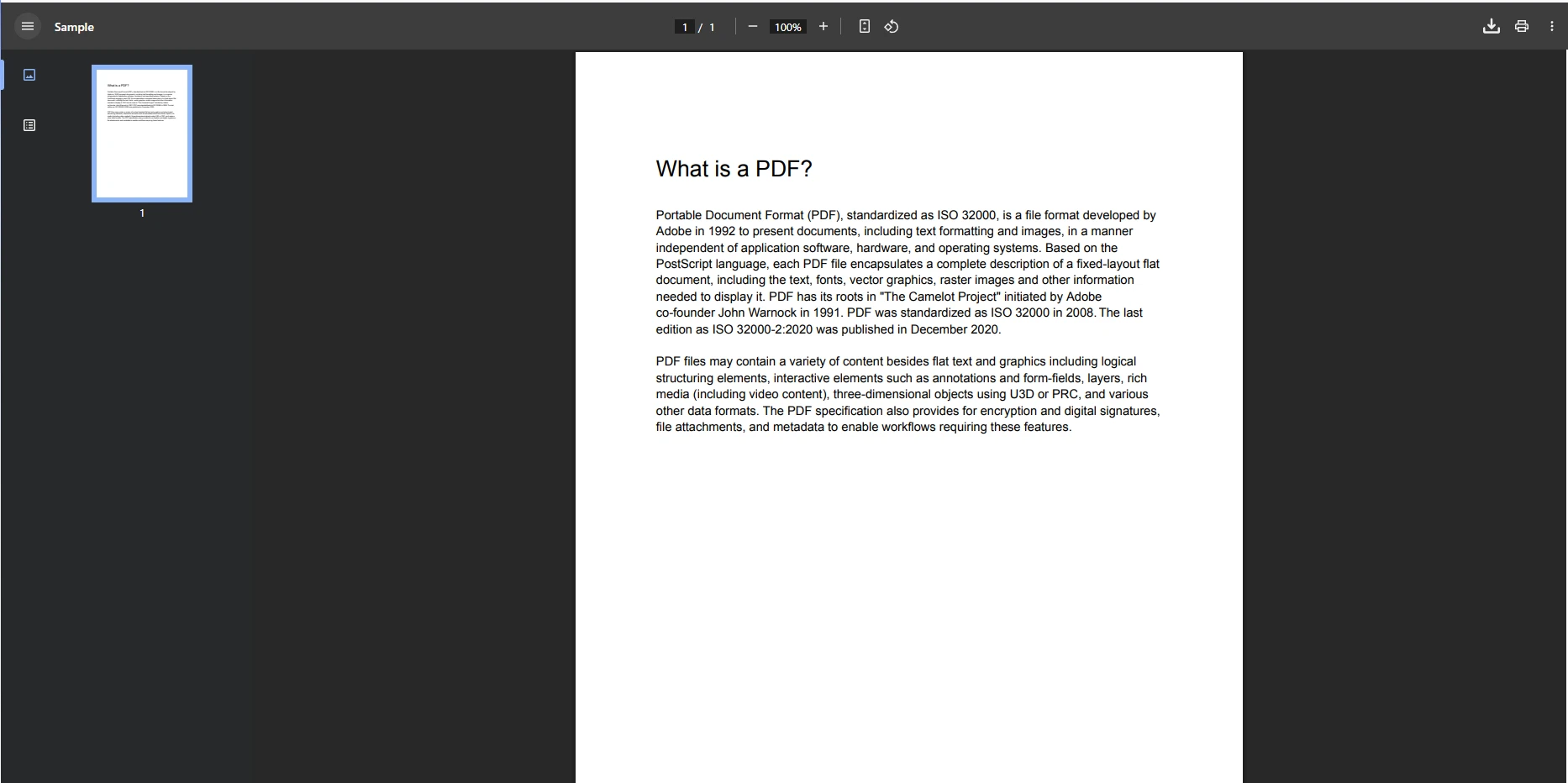
The ViewPdfDocument method streams the document back to the client with appropriate security settings applied. The inline content disposition tells the browser to display the PDF rather than prompt a download. You can adjust security settings such as printing permissions and copy-paste restrictions to match your document policy requirements.
How Do You Handle PDF Rendering Parameters?
The parameters for the SQL command are crucial for safely retrieving a specific PDF by its primary key. Parameterized queries prevent SQL injection attacks and ensure correct data binding. After retrieving the binary data, IronPDF loads it from a MemoryStream, giving you full access to the document object for further manipulation before sending it to the browser.
Viewing an Uploaded PDF File
What Advanced Features Can You Add to PDFs Before Display?
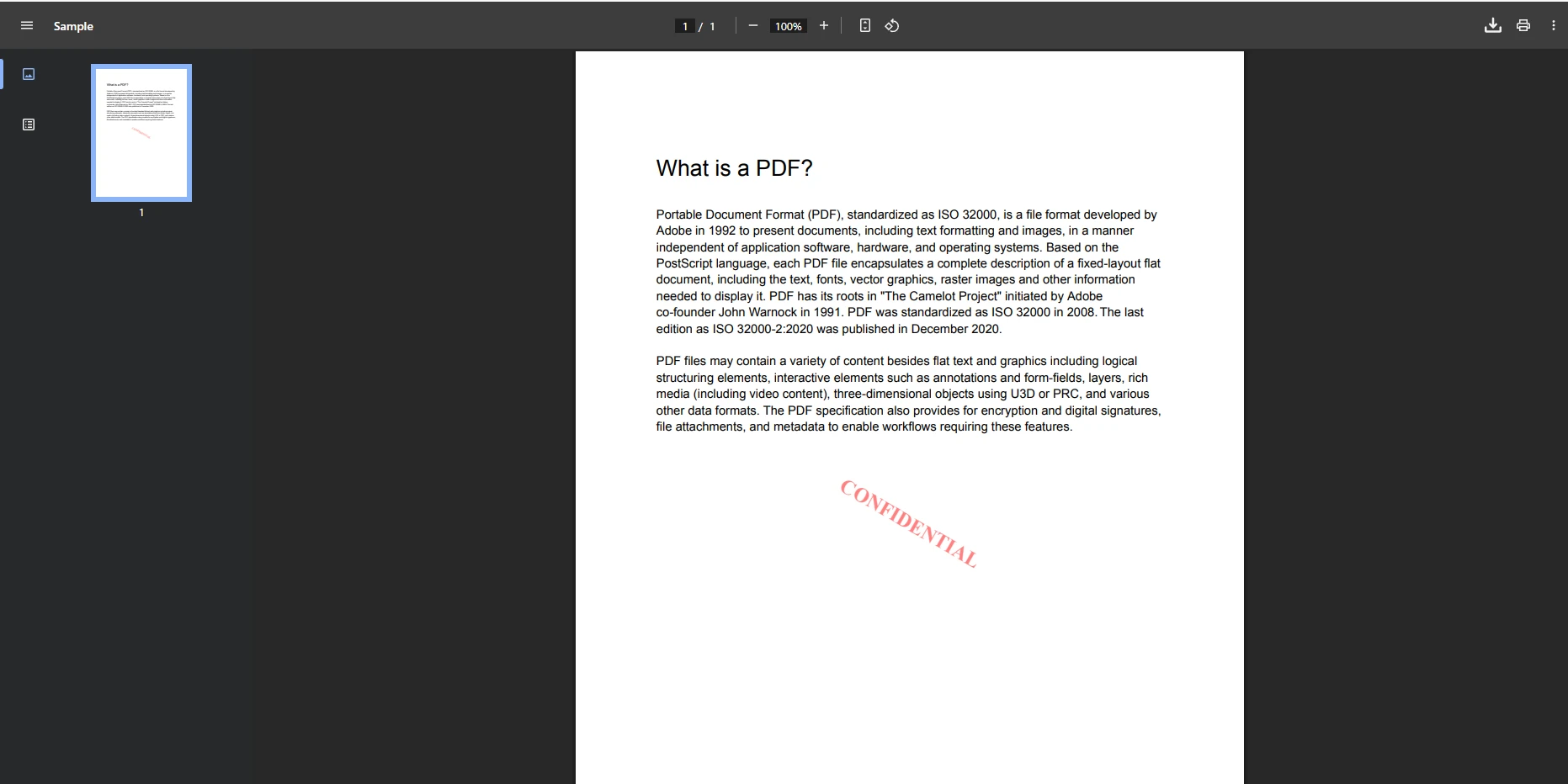
// Add a confidentiality watermark before displayingpdf.ApplyWatermark("<h2 style='color:red; font-family:Arial'>CONFIDENTIAL</h2>", rotation: 30, opacity: 50);// Add page numbers in the footerpdf.AddTextHeaders("{page} of {total-pages}",IronPdf.Editing.TextHeaderFooter.DisplayLocation.BottomCenter);// Add document metadatapdf.MetaData.Author = "Your Application";pdf.MetaData.ModifiedDate = DateTime.Now;
// Add a confidentiality watermark before displaying
pdf.ApplyWatermark("<h2 style='color:red; font-family:Arial'>CONFIDENTIAL</h2>",
                   rotation: 30,
                   opacity: 50);

// Add page numbers in the footer
pdf.AddTextHeaders("{page} of {total-pages}",
                  IronPdf.Editing.TextHeaderFooter.DisplayLocation.BottomCenter);

// Add document metadata
pdf.MetaData.Author = "Your Application";
pdf.MetaData.ModifiedDate = DateTime.Now;
' Add a confidentiality watermark before displayingpdf.ApplyWatermark("<h2 style='color:red; font-family:Arial'>CONFIDENTIAL</h2>", rotation:=30, opacity:=50)' Add page numbers in the footerpdf.AddTextHeaders("{page} of {total-pages}", IronPdf.Editing.TextHeaderFooter.DisplayLocation.BottomCenter)' Add document metadatapdf.MetaData.Author = "Your Application"pdf.MetaData.ModifiedDate = DateTime.Now
' Add a confidentiality watermark before displaying
pdf.ApplyWatermark("<h2 style='color:red; font-family:Arial'>CONFIDENTIAL</h2>",
                   rotation:=30,
                   opacity:=50)

' Add page numbers in the footer
pdf.AddTextHeaders("{page} of {total-pages}",
                   IronPdf.Editing.TextHeaderFooter.DisplayLocation.BottomCenter)

' Add document metadata
pdf.MetaData.Author = "Your Application"
pdf.MetaData.ModifiedDate = DateTime.Now
Viewing PDF with Watermark
Watermarking is particularly useful when displaying documents that users should view but not reproduce verbatim. You can also extract text from the PDF before display to build search indexes, or convert specific pages to images for thumbnail generation.
Why Does This Approach Work Well for Production Applications?
Combining ADO.NET with IronPDF provides a straightforward pattern that scales from small internal tools to enterprise document management systems. The approach is entirely server-side -- no client-side PDF rendering library is required, and the browser's built-in PDF viewer handles display once the correct MIME type is returned.
The key strengths of this pattern are:
Validation at upload time: IronPDF opens the file before it reaches the database, rejecting corrupt or non-PDF files immediately.
Security control at view time: Permissions such as printing and copy-paste are enforced by IronPDF before the bytes reach the browser.
How Do You Handle Browser Integration and Download Options?
For better web integration, use JavaScript to open documents in a new tab rather than replacing the current page. This gives users a better experience when browsing a document list:
function openPdfInNewTab(documentId) { window.open('/PdfHandler.ashx?id=' + documentId, '_blank');}function openPdfInModal(documentId) { var modal = document.getElementById('pdfModal'); var iframe = document.getElementById('pdfFrame'); iframe.src = '/PdfHandler.ashx?id=' + documentId; modal.style.display = 'block';}
function openPdfInNewTab(documentId) {
    window.open('/PdfHandler.ashx?id=' + documentId, '_blank');
}

function openPdfInModal(documentId) {
    var modal = document.getElementById('pdfModal');
    var iframe = document.getElementById('pdfFrame');
    iframe.src = '/PdfHandler.ashx?id=' + documentId;
    modal.style.display = 'block';
}
JavaScript
The download path follows the same database retrieval logic but uses attachment instead of inline as the content disposition. This forces the browser to save the file rather than display it. Both paths share the same GetPdfFromDatabase helper, keeping the data access code DRY.
For form-based document workflows, explore IronPDF's PDF form filling capabilities -- you can pre-populate form fields before displaying or downloading a document, which is useful for invoice generation and contract management scenarios.
What Are the Security Considerations for PDF Serving?
Always validate that the requesting user has permission to access the requested document ID before serving the bytes. A simple integer ID in a query string is easy to enumerate -- without authorization checks, any authenticated user could view any document by guessing IDs.
Best practices include:
Store a CreatedBy or OwnerId column and verify it against the current user identity before querying FileData.
Use GUIDs instead of sequential integers as document identifiers to make enumeration impractical.
Apply PDF password protection at upload time for highly sensitive documents, so the file itself is protected even if accessed outside your application.
Log all view and download events for audit trails.
Curtis Chau holds a Bachelor’s degree in Computer Science (Carleton University) and specializes in front-end development with expertise in Node.js, TypeScript, JavaScript, and React. Passionate about crafting intuitive and aesthetically pleasing user interfaces, Curtis enjoys working with modern frameworks and creating well-structured, visually appealing manuals.