




已更新 2026年4月23日
在 .NET 中用 Microsoft.Extensions.AI 簡化 LLM 整合
AI 正在改變軟體開發,但將大型語言模型 (LLM) 整合到 .NET 中一直很複雜。利用 IronPdf.AI 將 AI 整合推向更遠,為 .NET 應用程式帶來由 OpenAI 驅動的 PDF 解析、資料擷取和內容總結。
閱讀更多

作為開發者,非同步編程可以非常有利,可以提高您的應用程式的性能、效率和響應性,特別是那些處理需要不確定時間才能完成的操作的應用程式。 通過使用ConfigureAwait(false),您可以避免某些情況下的死鎖。 當在非同步編程中,有同步上下文(例如桌面應用程式中的UI執行緒)期望某項操作完成後才能繼續時,就會發生死鎖。 然而,等待的任務正在等待同步上下文可用,這創造了一個迴圈等待。
今天,我們將探討如何將ConfigureAwait與IronPDF一起使用,以通過非同步編程有效地執行PDF處理任務。 IronPDF是一個.NET PDF程式庫,讓處理PDF相關任務變得輕而易舉。 憑藉全面的功能集、強大的跨平台相容性和豐富的文件,它是開發者工具箱中一個強大的PDF工具。
非同步編程指的是一種編寫程式碼的方法,允許某些操作獨立於主應用程式執行緒運行。 這對於需要等待的長時間運行的任務非常有用,例如I/O操作。 允許這些任務在不阻塞主執行緒的情況下運行,應用程式可以在這些任務需要時間完成時繼續運行,最終提高應用程式的性能和響應性。
ConfigureAwait是非同步編程中的一種方法,用於控制續行如何執行。 續行是指等待表達式後運行的程式碼,預設情況下ConfigureAwait(false)。
使用ConfigureAwait(false)有助於避免死鎖,這是因為當您使用它時,您是在告訴任務不捕獲當前同步上下文,不嘗試在原始上下文上恢復。 然後,這允許續行在執行緒池執行緒上運行,而不是在原始上下文上,從而防止主執行緒被阻塞。
ConfigureAwait(false)在程式庫程式碼中或在不需要恢復原始上下文的情況下特別有用,從而確保程式碼保持靈活並且不會發生死鎖。
要開始在您的.NET專案中使用IronPDF,首先安裝IronPDF NuGet套件。 您可以通過導航到工具 > NuGet包管理器 > NuGet包管理器解決方案並搜尋IronPDF來完成此操作:
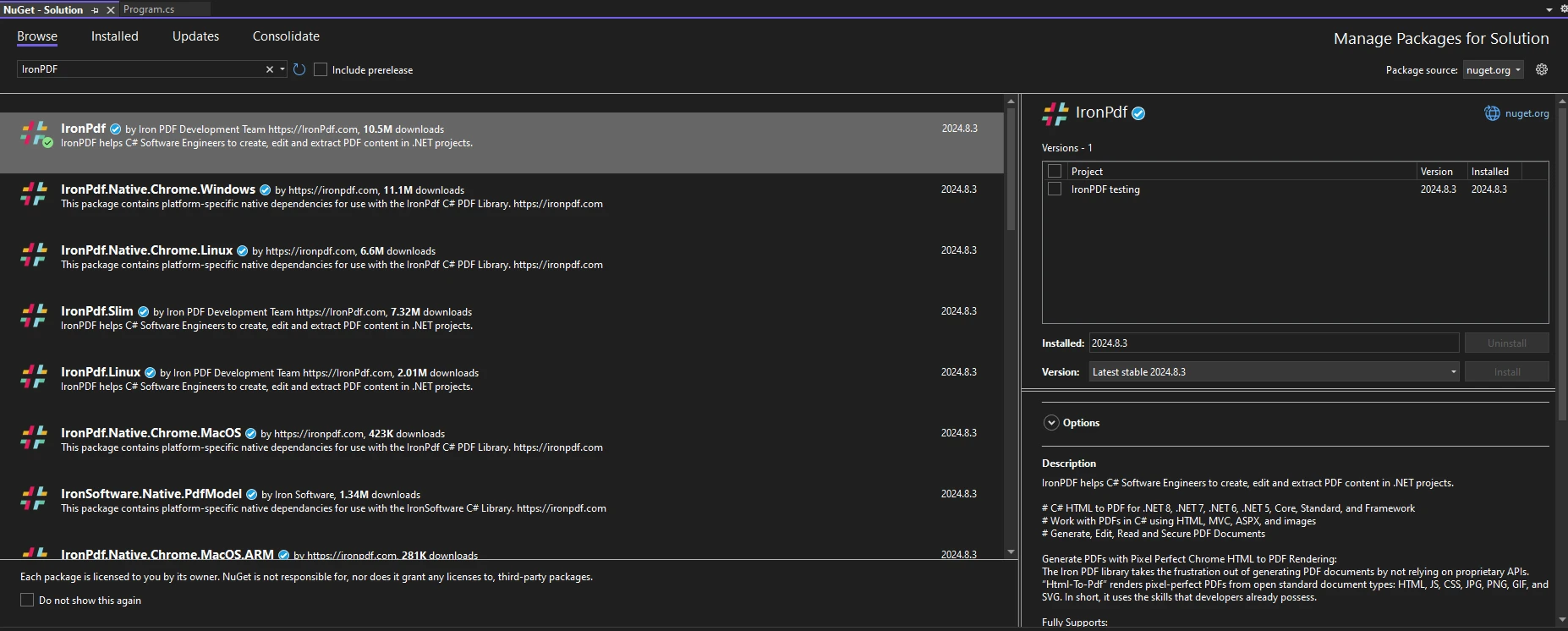
或者,另外在包管理器控制台中運行以下命令:
要在您的程式碼中開始使用IronPDF,請確保您已經在程式碼文件頂部放置了using IronPdf;語句。如需更深入的IronPDF設置指南,請查閱其入門頁面。
異步生成PDF文件在您需要生成大量PDF文件或想同時執行多個操作的情況下尤其有利。 使用IronPDF,您可以異步執行PDF相關任務,看起來如下這段異步程式碼:
using IronPdf;
using System.Threading.Tasks;

class Program
{
    static async Task Main(string[] args)
    {
        await GeneratePdfAsync();
    }

    static async Task GeneratePdfAsync()
    {
        // Create a new instance of ChromePdfRenderer.
        ChromePdfRenderer renderer = new ChromePdfRenderer();

        // Example HTML content to be converted into a PDF.
        string htmlContent = "<h1>Hello World!</h1>";

        // Asynchronously render the HTML content as a PDF document.
        PdfDocument pdf = await renderer.RenderHtmlAsPdfAsync(htmlContent);

        // Asynchronously save the PDF document to a file.
        await Task.Run(() => pdf.SaveAs("outputAsync.pdf"));

        Console.WriteLine("Working!");
    }
}Imports IronPdf
Imports System.Threading.Tasks
Friend Class Program
Shared Async Function Main(ByVal args() As String) As Task
Await GeneratePdfAsync()
End Function
Private Shared Async Function GeneratePdfAsync() As Task
' Create a new instance of ChromePdfRenderer.
Dim renderer As New ChromePdfRenderer()
' Example HTML content to be converted into a PDF.
Dim htmlContent As String = "<h1>Hello World!</h1>"
' Asynchronously render the HTML content as a PDF document.
Dim pdf As PdfDocument = Await renderer.RenderHtmlAsPdfAsync(htmlContent)
' Asynchronously save the PDF document to a file.
Await Task.Run(Function() pdf.SaveAs("outputAsync.pdf"))
Console.WriteLine("Working!")
End Function
End Class在這段程式碼中,我們在GeneratePdfAsync()方法中異步建立了一個PDF文件。 ChromePdfRenderer用於建立渲染器,這對於從HTML內容建立PDF文件至關重要。 PdfDocument類用於建立提供的HTML字串的PDF,但是您也可以用它從HTML文件、URL、影像等建立PDF。 如需更多有關使用IronPDF生成PDF的不同方法,請查閱how-to部分。
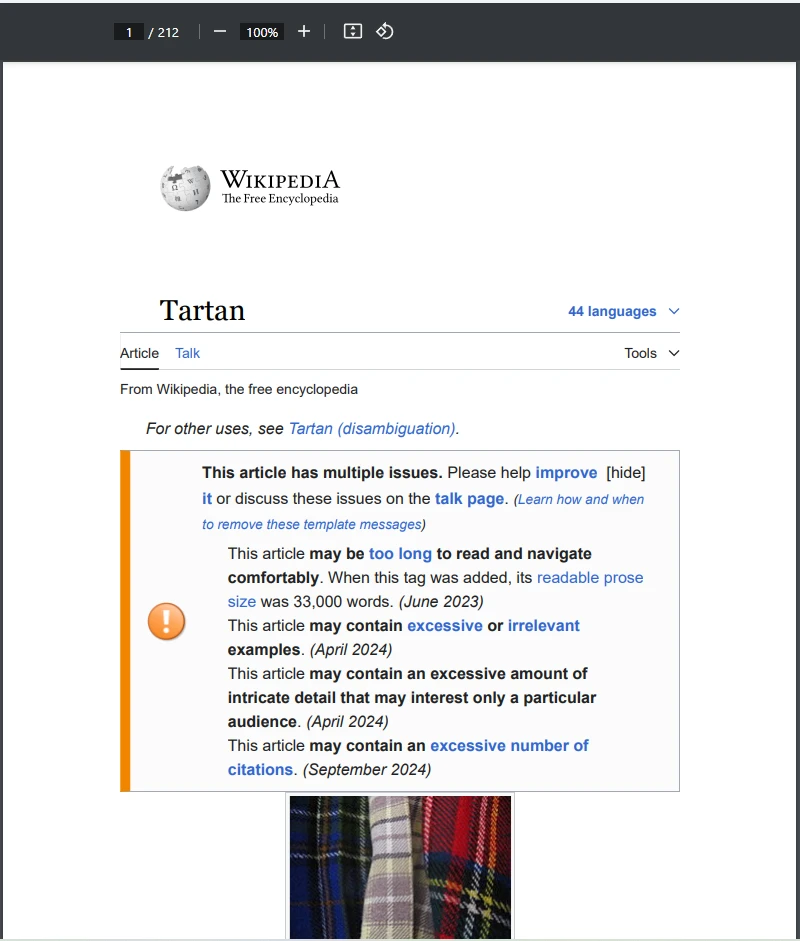
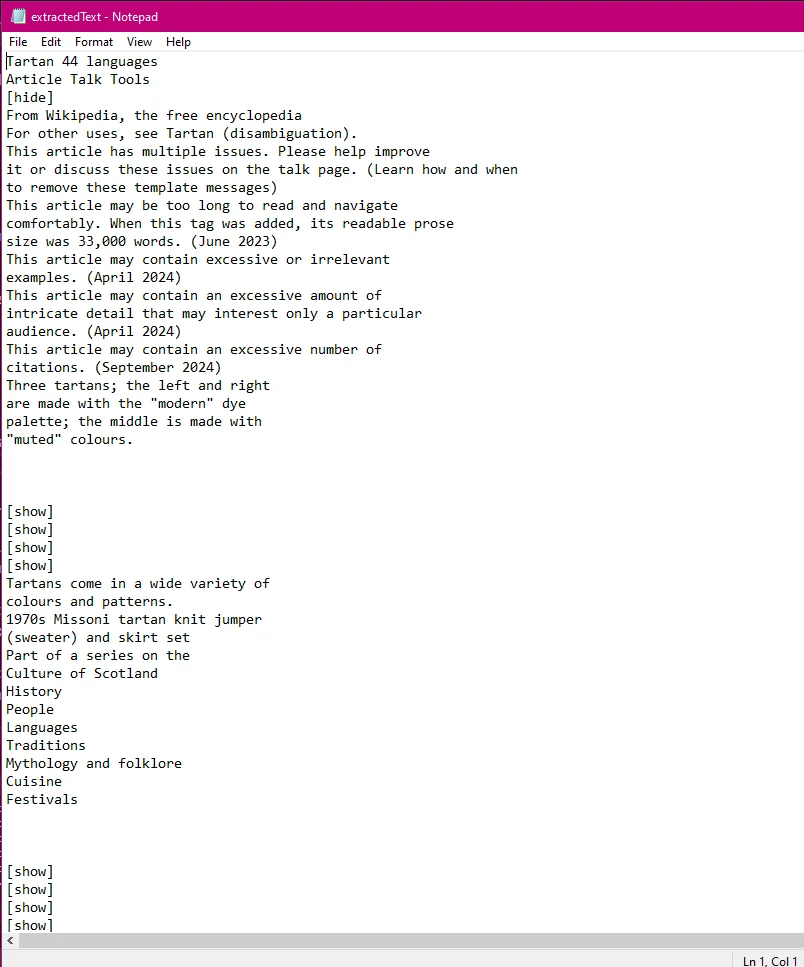
當處理大型PDF文件時,使用非同步方法和ConfigureAwait(false)可以顯著提高性能,因為在長時間操作期間釋放了主執行緒。 在這個例子中,我拿了一個大型PDF文件並進行了文字提取任務,以演示異步PDF處理的好處。
using IronPdf;
using System.Threading.Tasks;
using System.IO;
using System;

class Program
{
    static async Task Main(string[] args)
    {
        await LongPdfTask();
    }

    static async Task LongPdfTask()
    {
        try
        {
            // Initialize IronPDF's PdfDocument asynchronously.
            PdfDocument pdf = await Task.Run(() => PdfDocument.FromFile("Sample.pdf")).ConfigureAwait(false);

            // Extract text from PDF asynchronously with ConfigureAwait to prevent context capture.
            string text = await Task.Run(() => pdf.ExtractAllText()).ConfigureAwait(false);

            // Write the extracted text to a file asynchronously.
            await Task.Run(() => File.WriteAllText("extractedText.txt", text)).ConfigureAwait(false);

            Console.WriteLine("Extraction complete!");
        }
        catch (Exception ex)
        {
            Console.WriteLine($"Error in LongPdfTask: {ex.Message}");
        }
    }
}Imports IronPdf
Imports System.Threading.Tasks
Imports System.IO
Imports System
Module Program
Async Function Main(args As String()) As Task
Await LongPdfTask()
End Function
Private Async Function LongPdfTask() As Task
Try
' Initialize IronPDF's PdfDocument asynchronously.
Dim pdf As PdfDocument = Await Task.Run(Function() PdfDocument.FromFile("Sample.pdf")).ConfigureAwait(False)
' Extract text from PDF asynchronously with ConfigureAwait to prevent context capture.
Dim text As String = Await Task.Run(Function() pdf.ExtractAllText()).ConfigureAwait(False)
' Write the extracted text to a file asynchronously.
Await Task.Run(Sub() File.WriteAllText("extractedText.txt", text)).ConfigureAwait(False)
Console.WriteLine("Extraction complete!")
Catch ex As Exception
Console.WriteLine($"Error in LongPdfTask: {ex.Message}")
End Try
End Function
End Module在上面的程式碼中,ConfigureAwait(false)用於從我們的案例中超過200頁的大型PDF文件中提取所有文字的龐大但耗時的任務。
**導入和設置:**我們程式碼頂部的第一部分專門用於導入必要的庫和命名空間。 您需要確保您有using IronPdf;才能使用IronPDF程式庫。
類和主方法:class Program定義了包含本專案主要應用程式程式碼的類。 static async Task Main(string[] args)是應用程式的入口點。 在這裡,我們將其標記為async,以便我們的非同步作業可以在其內部運行。 然後,我們使用**await LongPdfTask()**以非同步方式調用LongPdfTask方法。
嘗試塊:我將程式碼包裹在LongPdfTask方法中以try-catch塊中,以優雅地處理任何意外異常。
PdfDocument PDF = await Task.Run(() => PdfDocument.FromFile("Sample.pdf")).ConfigureAwait(false): 此行可以分解為三個不同的部分:
PdfDocument.FromFile("Sample.pdf"): 此部分同步載入指定的PDF文件到IronPdf.PdfDocument物件。
**await Task.Run(() => ...):**在執行緒上運行PDF載入操作以避免阻塞主執行緒。 這使它成為一個非同步操作。
.ConfigureAwait(false): 避免捕獲當前上下文,應改善性能並減少死鎖。
string text = await Task.Run(() => pdf.ExtractAllText()).ConfigureAwait(false): This runs the IronPDF text extraction method, ExtractAllText(). 再次使用**await Task.Run(() => ...)**以非同步方式在執行緒上運行此操作。
await Task.Run(() => File.WriteAllText("extractedText.txt", text)).ConfigureAwait(false):通過這樣,我們使用await Task方法異步將提取的文字寫入.txt文件。
ConfigureAwait(false)最適用於程式庫程式碼或背景處理中,這裡不需要保留同步上下文。 通常,這適用於伺服器端程式碼,性能至關重要。 使用ConfigureAwait(false)意味著當await操作完成時,續行不必一定在啟動異步操作的同一個執行緒上運行。
當涉及到PDF處理時,實施**ConfigureAwait(false)**可以幫助在運行多個PDF處理任務時最大化性能,以避免上下文切換相關的瓶頸。 這也可以在處理大量PDF文件時幫助應用程式流暢運行,並且在使用控制台應用程式或背景服務並非必須進行上下文切換的情況下幫助保持效率。
**ConfigureAwait(true)**最適用於UI,任何程式碼單元測試或ASP.NET應用程式,在這裡續行必須在同一上下文中運行,儘管使用不當會導致死鎖。 例如,如果您是在更新UI或存取httpcontext。 ConfigureAwait(true)是預設行為,也可簡寫為ConfigureAwait。
當與PDF處理任務一起使用時,特別是在您的PDF處理程式碼與UI(例如WPF,WinForms等UI應用程式)緊密整合的情況下有利,例如顯示進度,您需要捕獲同步上下文以確保這些更新在UI執行緒上發生。 還有益於進行執行緒敏感的操作,這些操作由於執行緒關聯要求必須在特定執行緒上執行。
在非同步編程中處理異常是一個需要謹記的重要方面,需要仔細考慮,未處理的異常可能會終止應用。 在異步程式碼周圍使用try-catch塊是優雅地處理任何意外異常的好方法。
例如:
public async Task SafeGeneratePdfAsync()
{
    try
    {
        ChromePdfRenderer renderer = new ChromePdfRenderer();

        // Asynchronously render HTML as PDF and do not capture the context
        PdfDocument pdf = await renderer.RenderHtmlAsPdfAsync("<h1>Error Handling</h1>").ConfigureAwait(false);

        // Asynchronously save PDF to file
        await Task.Run(() => pdf.SaveAs("output.pdf")).ConfigureAwait(false);
    }
    catch (Exception ex)
    {
        Console.WriteLine($"An error occurred: {ex.Message}");
    }
}Public Async Function SafeGeneratePdfAsync() As Task
Try
Dim renderer As New ChromePdfRenderer()
' Asynchronously render HTML as PDF and do not capture the context
Dim pdf As PdfDocument = Await renderer.RenderHtmlAsPdfAsync("<h1>Error Handling</h1>").ConfigureAwait(False)
' Asynchronously save PDF to file
Await Task.Run(Sub() pdf.SaveAs("output.pdf")).ConfigureAwait(False)
Catch ex As Exception
Console.WriteLine($"An error occurred: {ex.Message}")
End Try
End Function當使用具有ConfigureAwait(false)的續行任務時,可以在續行內使用try-catch來處理異常,或者如果使用Task.ContinueWith則使用Task.Exception屬性來處理。
您可以這樣寫程式碼來做到這一點的範例可能像:
class Program
{
    public static async Task Main(string[] args)
    {
        await ProcessPdfWithContinuationAsync();
    }

    static Task ProcessPdfWithContinuationAsync()
    {
        return Task.Run(() => PdfDocument.FromFile("Sample.pdf"))
            .ContinueWith(pdfTask =>
            {
                if (pdfTask.IsFaulted)
                {
                    // Handle exceptions from loading the PDF
                    Console.WriteLine($"Error loading PDF: {pdfTask.Exception?.GetBaseException().Message}");
                    return;
                }
                var pdf = pdfTask.Result;
                // Extract text asynchronously with exception handling
                Task.Run(() => pdf.ExtractAllText())
                    .ContinueWith(extractTask =>
                    {
                        if (extractTask.IsFaulted)
                        {
                            // Handle exceptions from extracting text
                            Console.WriteLine($"Error extracting text: {extractTask.Exception?.GetBaseException().Message}");
                            return;
                        }
                        // Proceed if text extraction is successful
                        Console.WriteLine("Extracted text:");
                        Console.WriteLine(extractTask.Result);
                    }, TaskContinuationOptions.OnlyOnRanToCompletion);
            }, TaskContinuationOptions.OnlyOnRanToCompletion);
    }
}Friend Class Program
Public Shared Async Function Main(ByVal args() As String) As Task
Await ProcessPdfWithContinuationAsync()
End Function
Private Shared Function ProcessPdfWithContinuationAsync() As Task
Return Task.Run(Function() PdfDocument.FromFile("Sample.pdf")).ContinueWith(Sub(pdfTask)
If pdfTask.IsFaulted Then
' Handle exceptions from loading the PDF
Console.WriteLine($"Error loading PDF: {pdfTask.Exception?.GetBaseException().Message}")
Return
End If
Dim pdf = pdfTask.Result
' Extract text asynchronously with exception handling
Task.Run(Function() pdf.ExtractAllText()).ContinueWith(Sub(extractTask)
If extractTask.IsFaulted Then
' Handle exceptions from extracting text
Console.WriteLine($"Error extracting text: {extractTask.Exception?.GetBaseException().Message}")
Return
End If
' Proceed if text extraction is successful
Console.WriteLine("Extracted text:")
Console.WriteLine(extractTask.Result)
End Sub, TaskContinuationOptions.OnlyOnRanToCompletion)
End Sub, TaskContinuationOptions.OnlyOnRanToCompletion)
End Function
End Class
IronPDF是一個強大的C# PDF庫,提供了一套豐富的功能來滿足您的所有PDF相關任務。 支持完整的.NET 8, 7, 6, .NET Core, Standard和Framework,並能在一系列應用環境中運行,如Windows,Linux,Mac,Docker,Azure和AWS,無論您偏好的環境是什麼,您都能充分發揮IronPDF的作用。
通過IronPDF,您可以從各種文件和資料型別生成PDF; 包括HTML文件,HTML字串,URLs,影像,DOCX,和RTF,通常只需幾行程式碼即可完成! 它可以處理您的PDF文件的格式,應用自訂水印,合併和拆分PDF,處理PDF加密和安全性,等等。
IronPDF為其許多操作提供非同步方法,讓開發者能夠無縫利用async/await模式。 這種支持確保了IronPDF可無縫整合到性能至關重要的應用程式中而不影響響應性,這使得它成為開發者在非同步環境中處理PDF相關任務的寶貴PDF工具。
如果您想親自試用IronPDF並探索其廣泛功能,您可以輕鬆做到這一點,因為它提供了免費試用期。 憑藉快速簡便的安裝,您將能夠在短時間內在您的PDF專案中啟用和運行IronPDF。想要繼續使用它並利用其強大的功能提升您的PDF作業? 許可證以$999為起價,並提供慷慨的30天退款保證,整整一年的產品支持和更新,並作為永久許可證提供(所以不會有煩人的迴圈費用!)
要異步生成PDF,我們將使用IronPDF執行渲染HTML文件的程式碼,並保存結果,同時使用**ConfigureAwait(false)**以確保續行不會不必要地切換回原始同步上下文。
using IronPdf;
using System.Threading.Tasks;
using System;

class Program
{
    public static async Task Main(string[] args)
    {
        await CreateInvoicePdfAsync();
    }

    static async Task<string> CreateInvoicePdfAsync()
    {
        // Instance of ChromePdfRenderer to convert HTML to PDF
        ChromePdfRenderer renderer = new ChromePdfRenderer();
        try
        {
            // Render HTML file as a PDF asynchronously without capturing the context.
            var pdf = await renderer.RenderHtmlFileAsPdfAsync("example.html").ConfigureAwait(false);

            // Save the generated PDF asynchronously.
            await Task.Run(() => pdf.SaveAs("invoice.pdf")).ConfigureAwait(false);

            return "invoice.pdf";
        }
        catch (Exception ex)
        {
            Console.WriteLine($"Error generating PDF: {ex.Message}");
            return null;
        }
    }
}Imports IronPdf
Imports System.Threading.Tasks
Imports System
Module Program
Public Async Function Main(args As String()) As Task
Await CreateInvoicePdfAsync()
End Function
Private Async Function CreateInvoicePdfAsync() As Task(Of String)
' Instance of ChromePdfRenderer to convert HTML to PDF
Dim renderer As New ChromePdfRenderer()
Try
' Render HTML file as a PDF asynchronously without capturing the context.
Dim pdf = Await renderer.RenderHtmlFileAsPdfAsync("example.html").ConfigureAwait(False)
' Save the generated PDF asynchronously.
Await Task.Run(Sub() pdf.SaveAs("invoice.pdf")).ConfigureAwait(False)
Return "invoice.pdf"
Catch ex As Exception
Console.WriteLine($"Error generating PDF: {ex.Message}")
Return Nothing
End Try
End Function
End Module在該範例中,我們使用我們建立的異步方法static async Task<string> CreateInvoicePdfAsync(),從RenderHtmlFileAsPdfAsync方法提供的HTML文件生成PDF發票。 我們用**ConfigureAwait(false)**來防止此任務的續行在原始同步上下文中進行,提高我們的非UI應用程式的性能。
我們還再次實施了await Task.Run(() => ...)方法以非同步方式運行操作。 最後,我們使用pdf.SaveAs方法將新生成的PDF文件保存為"invoice.pdf"。 整個程式碼在**CreateInvoicePdfAsync()**方法中都被包裹在try-catch塊中以處理任何意想不到的異常。
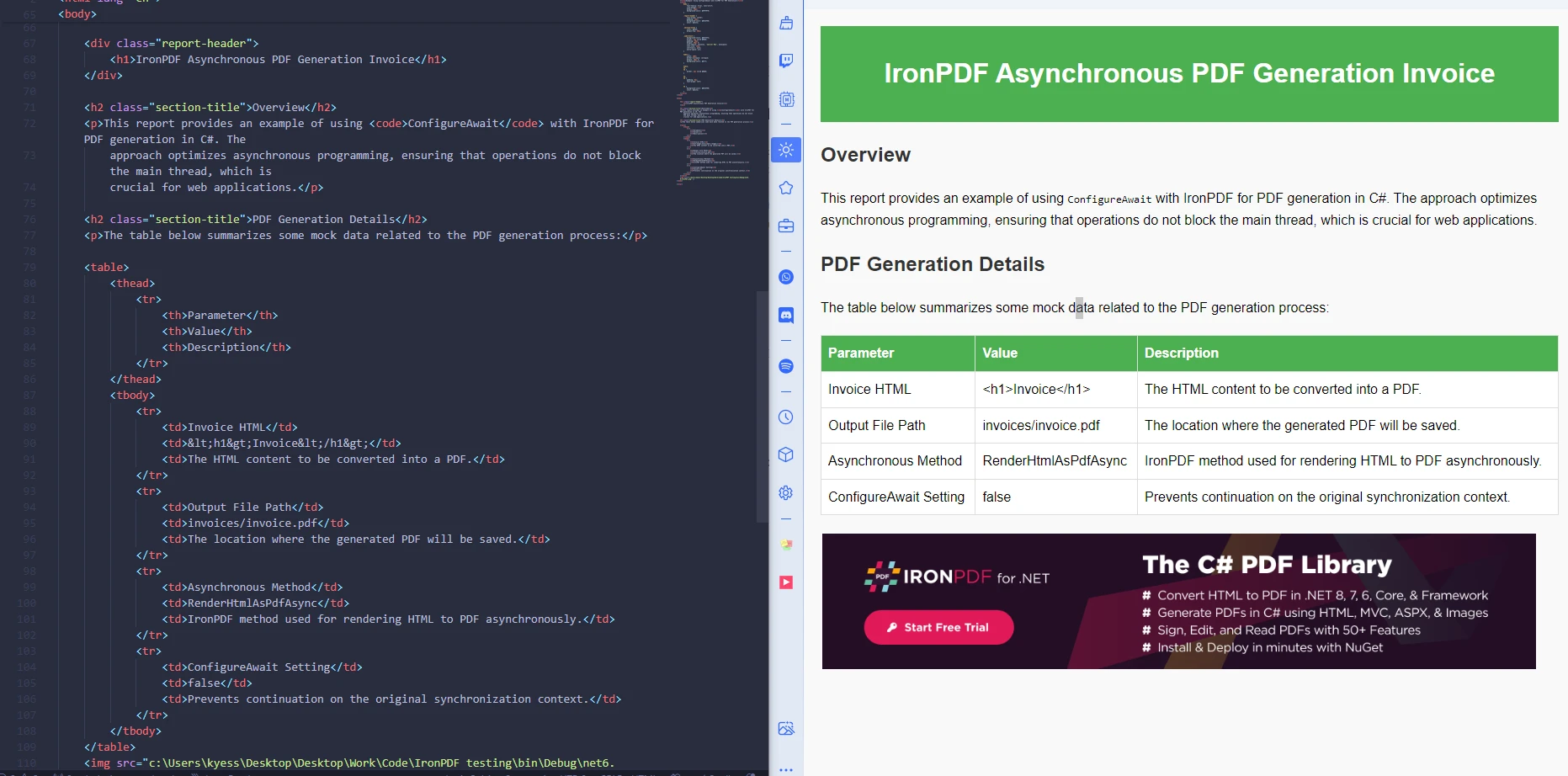
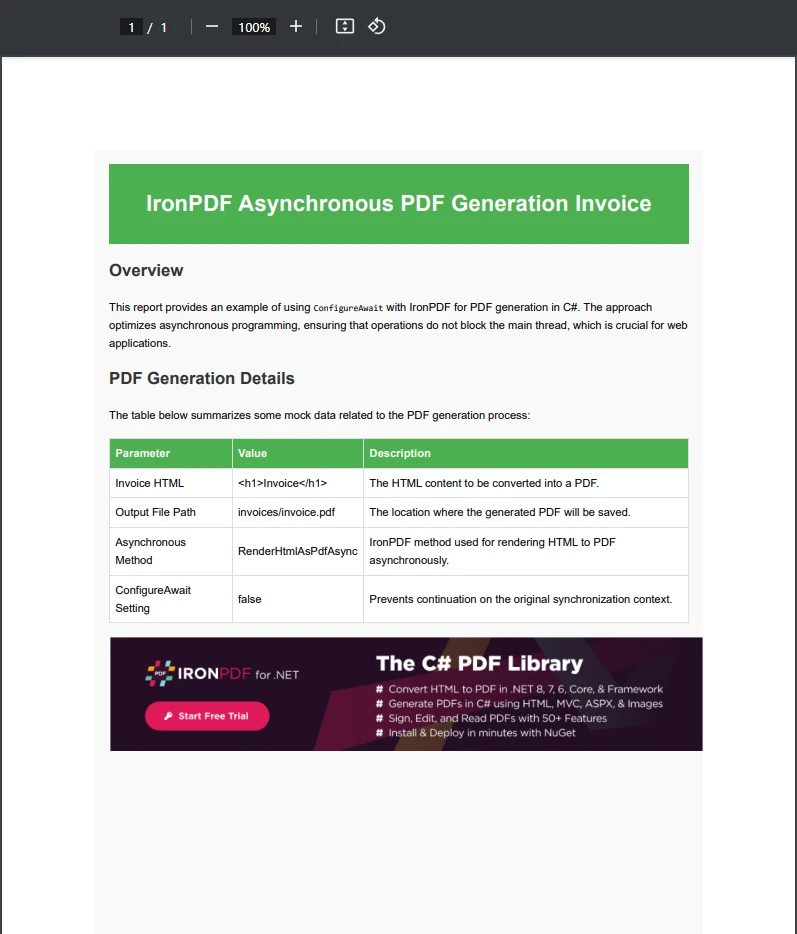
正如您所見,我們成功地將HTML文件異步生成為PDF,而且為我們建立了一個清晰、高質量的PDF文件。
非同步編程對於構建響應和高效的.NET應用程式至關重要,而正確使用ConfigureAwait可以幫助您實現最佳性能,特別是在編寫應用程式級程式碼時。 當與IronPDF一起工作時,利用非同步方法和**ConfigureAwait(false)以確保您的PDF處理任務不會阻塞主執行緒,從而提高您應用程式的整體響應性。 通過了解何時何地使用ConfigureAwait**,您可以使您的IronPDF PDF處理任務更加健壯且性能友好。
現在您可以身為在非同步編程中結合使用ConfigureAwait和IronPDF的專業人士,那麼您還在等什麼? 今天就試試IronPDF,看看它如何提升您的PDF相關專案! 如果您想了解更多IronPDF作為強大的通用程式程式碼所提供的廣泛功能,請務必查看其便捷的how-to指導。 或者,如果您想了解更多有關將IronPDF與非同步編程方法一起使用的資訊,或者只是想了解更多有關IronPDF的資訊,請查看我們的部落格文章。 如果您在尋找更多非同步PDF生成範例,請查看我們的C# Wait For Seconds帖子,或我們的另一篇C# Task.Run。

Jacob Mellor是Iron Software的首席技術官,一位在C# PDF技術上開創先河的遠見工程師。作為Iron Software核心程式碼庫的原開發者,他從創立以來就一直在塑造公司的產品架構,與首席執行官Cameron Rimington一起將公司轉變為服務於NASA、特斯拉和全球政府公司的50多名人員的公司。



IronPDF 是 IRONSUITE 的一部分
10 款適用於辦公室文件的 .NET API 產品

當您需要您的PDF看起來像HTML一樣快速。












