




已更新 2026年9月4日
產生每月帳戶報表(PDF 文件)
using IronPDF C# PDF 庫,開發人員可以在 .NET 專案中將 HTML 轉換為可靠的 PDF 文件,而無需依賴外部服務。
閱讀更多

在.NET應用程式開發中,在預設檢視器中開啟PDF是一項常見的工作。 在使用IronPDF以程式方式生成PDF檔案後,您經常需要立即將它們顯示給使用者,以便使用他們選擇的預設應用程式,如Adobe Acrobat或Microsoft Edge。 本指南將引導您完成使用IronPDF生成PDF檔案並使用System.Diagnostics.Process.Start在Windows中自動打開它們的步驟。
藉由將IronPDF強大的HTML到PDF轉換功能與簡單的Process啟動方法相結合,建立了一個實用的工作流程,用於在使用者的機器上配置的預設應用程式中構建和顯示專業的PDF檔案。
在生成或開啟任何PDF之前,您需要在專案中安裝IronPDF。 使用NuGet套件管理控制台或.NET CLI:
安裝後,新增您的授權金鑰或開始使用免費試用以啟用完整功能。 IronPDF文件詳細介紹了所有配置選項,包括通過NuGet安裝。
安裝後,您可以存取完整的IronPDF功能,包括HTML到PDF轉換、URL渲染、PDF合併、水印新增、數位簽章等。
最簡單的方法包含三個步驟:
Process.Start在預設應用程式中開啟PDF。這裡有一個完整的工作範例,您可以在Visual Studio中使用新的控制台應用程式專案嘗試:
using IronPdf;
using System.Diagnostics;

// Create a new PDF renderer
var renderer = new ChromePdfRenderer();

// Generate PDF from HTML content
var pdf = renderer.RenderHtmlAsPdf(@"
    <html>
        <body>
            <h1>Invoice #12345</h1>
            <p>Generated on: " + DateTime.Now.ToString("yyyy-MM-dd") + @"</p>
            <table>
                <tr><td>Product</td><td>Price</td></tr>
                <tr><td>IronPDF License</td><td>$299</td></tr>
            </table>
        </body>
    </html>");

// Save the PDF to a file
string outputPath = "invoice.pdf";
pdf.SaveAs(outputPath);

// Open the PDF in the default viewer
Process.Start(new ProcessStartInfo
{
    FileName = outputPath,
    UseShellExecute = true
});Imports IronPdf
Imports System.Diagnostics
' Create a new PDF renderer
Dim renderer As New ChromePdfRenderer()
' Generate PDF from HTML content
Dim pdf = renderer.RenderHtmlAsPdf("
<html>
<body>
<h1>Invoice #12345</h1>
<p>Generated on: " & DateTime.Now.ToString("yyyy-MM-dd") & "</p>
<table>
<tr><td>Product</td><td>Price</td></tr>
<tr><td>IronPDF License</td><td>$299</td></tr>
</table>
</body>
</html>")
' Save the PDF to a file
Dim outputPath As String = "invoice.pdf"
pdf.SaveAs(outputPath)
' Open the PDF in the default viewer
Process.Start(New ProcessStartInfo With {
.FileName = outputPath,
.UseShellExecute = True
})這段程式碼首先建立一個ChromePdfRenderer實例,這是IronPDF用於將HTML轉換為PDF的主要類別。 RenderHtmlAsPdf方法將HTML字串轉換為PDF文件物件。 有關此方法的更多資訊,請參閱IronPDF的HTML到PDF指南。
在使用ProcessStartInfo在預設PDF檢視器中開啟文件。 這裡的關鍵設定是UseShellExecute = true,它告訴Windows以其預設應用程式來開啟PDF文件。
如下面的圖像所示,IronPDF成功生成了PDF文件並使用系統上配置的預設檢視器顯示它——在這個例子中是Opera GX。
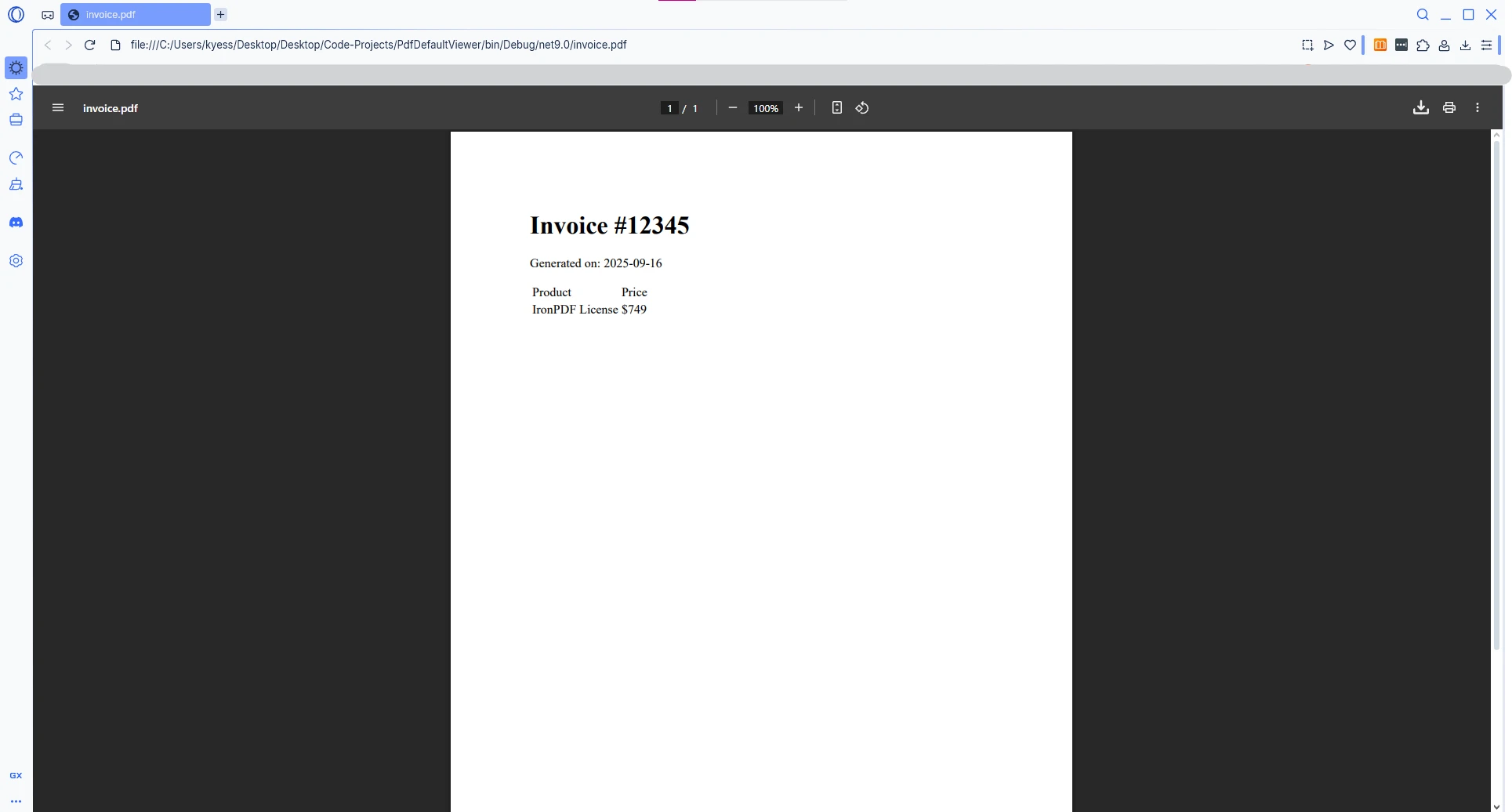
使用.NET 10和現代C#版本,頂層語句消除了對Program類包裝的需求。 程式碼直接從文件頂部運行,這使得樣本更短且更容易遵循。 本指南中的所有範例都使用這種模式。
在.NET Core和現代.NET版本(.NET 5到.NET 10)中,false。 如果不明確設置為true,您的應用程式在嘗試啟動PDF文件時會引發錯誤。
using IronPdf;
using System.Diagnostics;
using System.IO;

// Generate a report with IronPDF
var renderer = new ChromePdfRenderer();
renderer.RenderingOptions.MarginTop = 50;
renderer.RenderingOptions.MarginBottom = 50;

var pdf = renderer.RenderUrlAsPdf("https://en.wikipedia.org/wiki/Main_Page");

// Save to temp directory for immediate viewing
string tempPath = Path.Combine(Path.GetTempPath(), $"URL_{Guid.NewGuid()}.pdf");
pdf.SaveAs(tempPath);

// IMPORTANT: Set UseShellExecute = true for .NET Core/5+
var startInfo = new ProcessStartInfo
{
    FileName = tempPath,
    UseShellExecute = true  // Required in .NET Core/5+ to open PDF in default viewer
};
Process.Start(startInfo);Imports IronPdf
Imports System.Diagnostics
Imports System.IO
' Generate a report with IronPDF
Dim renderer As New ChromePdfRenderer()
renderer.RenderingOptions.MarginTop = 50
renderer.RenderingOptions.MarginBottom = 50
Dim pdf = renderer.RenderUrlAsPdf("https://en.wikipedia.org/wiki/Main_Page")
' Save to temp directory for immediate viewing
Dim tempPath As String = Path.Combine(Path.GetTempPath(), $"URL_{Guid.NewGuid()}.pdf")
pdf.SaveAs(tempPath)
' IMPORTANT: Set UseShellExecute = true for .NET Core/5+
Dim startInfo As New ProcessStartInfo With {
.FileName = tempPath,
.UseShellExecute = True ' Required in .NET Core/5+ to open PDF in default viewer
}
Process.Start(startInfo)UseShellExecute屬性確定是否使用操作系統Shell來啟動進程。 當設置為true時,Windows使用文件關聯註冊表來確定應該使用哪個預設PDF閱讀器來開啟文件。在現代.NET版本中,沒有此設置時,您會遇到運行時錯誤,指出文件無法開啟。
使用臨時目錄和唯一文件名(透過Guid.NewGuid())可以防止在快速連續生成多個PDF時發生文件衝突。 預設的臨時文件夾由操作系統按照計劃進行自動清理。
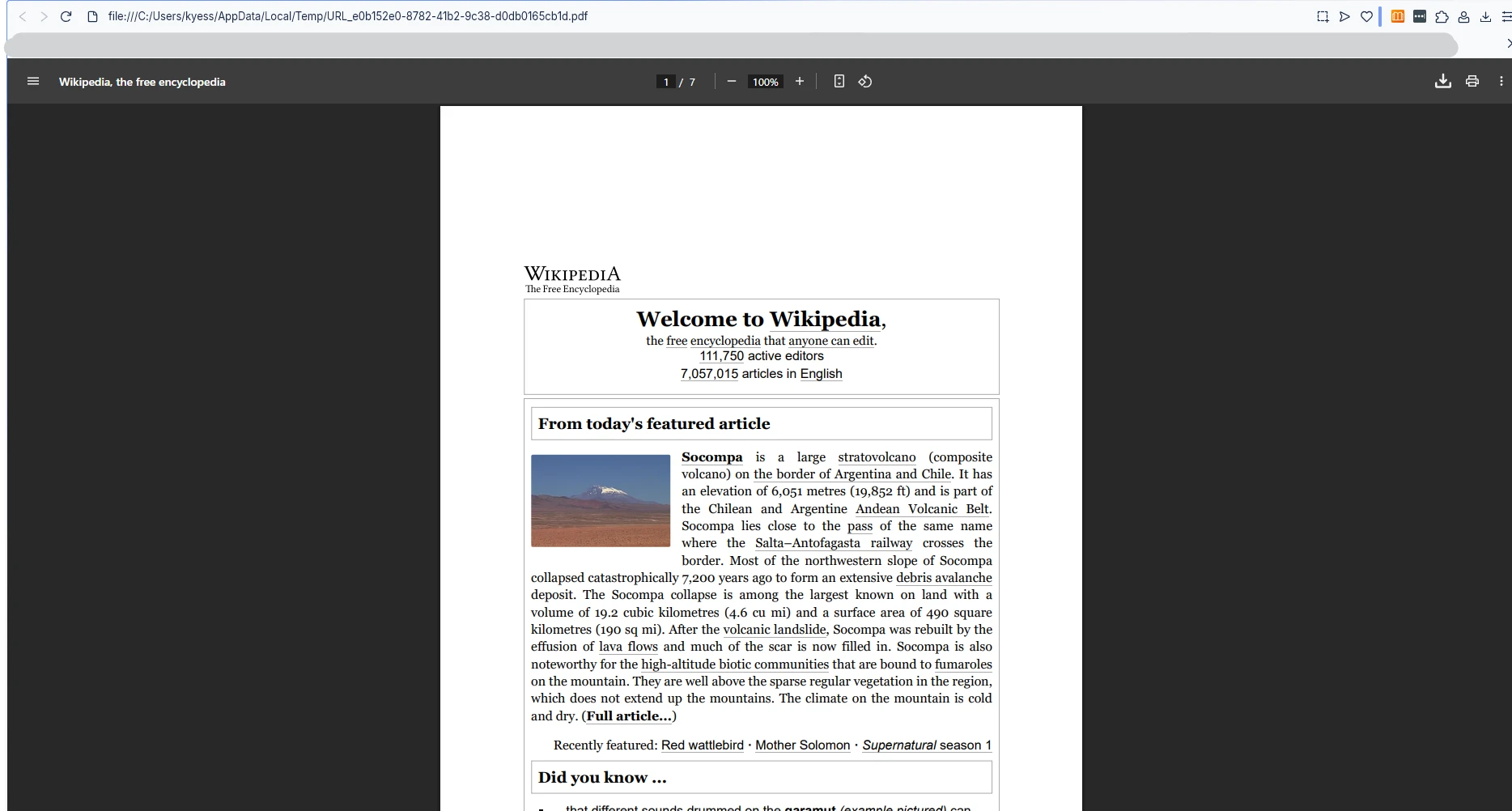
包含空格和特殊字元的文件路徑需要小心處理。 缺少的目錄或格式錯誤的路徑會在Process.Start被調用之前錯誤地失敗或引發例外。 這是一種包含目錄建立和文件存在檢查的方法:
using IronPdf;
using System.Diagnostics;
using System.IO;

// Generate PDF from HTML file
var renderer = new ChromePdfRenderer();
var htmlContent = File.ReadAllText("template.html");
var pdf = renderer.RenderHtmlAsPdf(htmlContent);

// Create output directory if it doesn't exist
string outputDir = @"C:\PDF Reports\Monthly";
Directory.CreateDirectory(outputDir);

// Build file path with timestamp
string fileName = $"Report_{DateTime.Now:yyyyMMdd_HHmmss}.pdf";
string fullPath = Path.Combine(outputDir, fileName);

// Save the PDF
pdf.SaveAs(fullPath);

// Verify file exists before opening in default PDF viewer
if (File.Exists(fullPath))
{
    Process.Start(new ProcessStartInfo
    {
        FileName = fullPath,
        UseShellExecute = true
    });
}
else
{
    Console.WriteLine($"Error: PDF file not found at {fullPath}");
}Imports IronPdf
Imports System.Diagnostics
Imports System.IO
' Generate PDF from HTML file
Dim renderer As New ChromePdfRenderer()
Dim htmlContent As String = File.ReadAllText("template.html")
Dim pdf = renderer.RenderHtmlAsPdf(htmlContent)
' Create output directory if it doesn't exist
Dim outputDir As String = "C:\PDF Reports\Monthly"
Directory.CreateDirectory(outputDir)
' Build file path with timestamp
Dim fileName As String = $"Report_{DateTime.Now:yyyyMMdd_HHmmss}.pdf"
Dim fullPath As String = Path.Combine(outputDir, fileName)
' Save the PDF
pdf.SaveAs(fullPath)
' Verify file exists before opening in default PDF viewer
If File.Exists(fullPath) Then
Process.Start(New ProcessStartInfo With {
.FileName = fullPath,
.UseShellExecute = True
})
Else
Console.WriteLine($"Error: PDF file not found at {fullPath}")
End If這段程式碼展示了幾個最佳實踐:使用Directory.CreateDirectory建立目錄;在嘗試在預設檢視器中開啟PDF之前驗證文件的存在。
文件名中的時間戳確保了唯一性,並為每個生成的PDF提供了一個清晰的記錄。 對於高級PDF操作選項,例如合併或拆分PDF、新增水印、數位簽章和頁眉和頁腳,請探索IronPDF的操作指南。
Path.Combine正確處理空格,因為它將路徑構建為字串,而不是依賴於Shell擴展。 UseShellExecute = true的時候也會正確處理引用的路徑。 如果您直接將路徑傳遞給Shell命令,請務必用雙引號包圍它。 使用FileName屬性不需要手動引用。
對於生產應用程式,考慮一個更完整的工作流程,處理PDF生命週期,包括錯誤處理、可配置的渲染選項和可預測的輸出目錄:
using IronPdf;
using IronPdf.Rendering;
using System.Diagnostics;
using System.IO;

static void GenerateAndDisplayPdf(string htmlContent, string documentName)
{
    try
    {
        // Configure IronPDF renderer with production settings
        var renderer = new ChromePdfRenderer
        {
            RenderingOptions = new ChromePdfRenderOptions
            {
                PaperSize = PdfPaperSize.A4,
                PrintHtmlBackgrounds = true,
                CreatePdfFormsFromHtml = true
            }
        };

        // Generate the PDF
        var pdf = renderer.RenderHtmlAsPdf(htmlContent);

        // Use the user's Documents folder for better accessibility
        string documentsPath = Environment.GetFolderPath(
            Environment.SpecialFolder.MyDocuments);
        string pdfFolder = Path.Combine(documentsPath, "Generated PDFs");
        Directory.CreateDirectory(pdfFolder);
        string outputPath = Path.Combine(pdfFolder, $"{documentName}.pdf");

        pdf.SaveAs(outputPath);

        // Open PDF in default viewer without waiting for it to close
        Process.Start(new ProcessStartInfo
        {
            FileName = outputPath,
            UseShellExecute = true  // Essential for opening PDF in default application
        });

        Console.WriteLine($"PDF opened: {outputPath}");
    }
    catch (Exception ex)
    {
        Console.WriteLine($"Error generating or opening PDF: {ex.Message}");
    }
}Imports IronPdf
Imports IronPdf.Rendering
Imports System.Diagnostics
Imports System.IO
Module PdfGenerator
Sub GenerateAndDisplayPdf(htmlContent As String, documentName As String)
Try
' Configure IronPDF renderer with production settings
Dim renderer As New ChromePdfRenderer With {
.RenderingOptions = New ChromePdfRenderOptions With {
.PaperSize = PdfPaperSize.A4,
.PrintHtmlBackgrounds = True,
.CreatePdfFormsFromHtml = True
}
}
' Generate the PDF
Dim pdf = renderer.RenderHtmlAsPdf(htmlContent)
' Use the user's Documents folder for better accessibility
Dim documentsPath As String = Environment.GetFolderPath(Environment.SpecialFolder.MyDocuments)
Dim pdfFolder As String = Path.Combine(documentsPath, "Generated PDFs")
Directory.CreateDirectory(pdfFolder)
Dim outputPath As String = Path.Combine(pdfFolder, $"{documentName}.pdf")
pdf.SaveAs(outputPath)
' Open PDF in default viewer without waiting for it to close
Process.Start(New ProcessStartInfo With {
.FileName = outputPath,
.UseShellExecute = True ' Essential for opening PDF in default application
})
Console.WriteLine($"PDF opened: {outputPath}")
Catch ex As Exception
Console.WriteLine($"Error generating or opening PDF: {ex.Message}")
End Try
End Sub
End Module此範例包含結構化錯誤處理,並將PDF保存在使用者的文件夾中,即使應用程式以何種方式啟動也是可以存取的。 它還對IronPDF進行配置,使之適用於商務文件:A4紙品尺寸、啟用HTML背景列印以及從HTML表單元素自動建立表單字段。
您可以在IronPDF操作指南中了解更多互動式PDF表單和自定義水印的資訊。
該方法不會等待PDF檢視器關閉,允許您的應用程式在使用者查看文件時繼續運行。 根據Microsoft的Process.Start文件,此方法確保了資源的適當管理,並防止應用程式在長時間運行的檢視器進程中阻塞。 ProcessStartInfo類參考在Microsoft Learn上提供了一個完整的屬性列表,您可以配置這些屬性,包括窗口樣式、動詞(開啟、列印)和工作目錄。
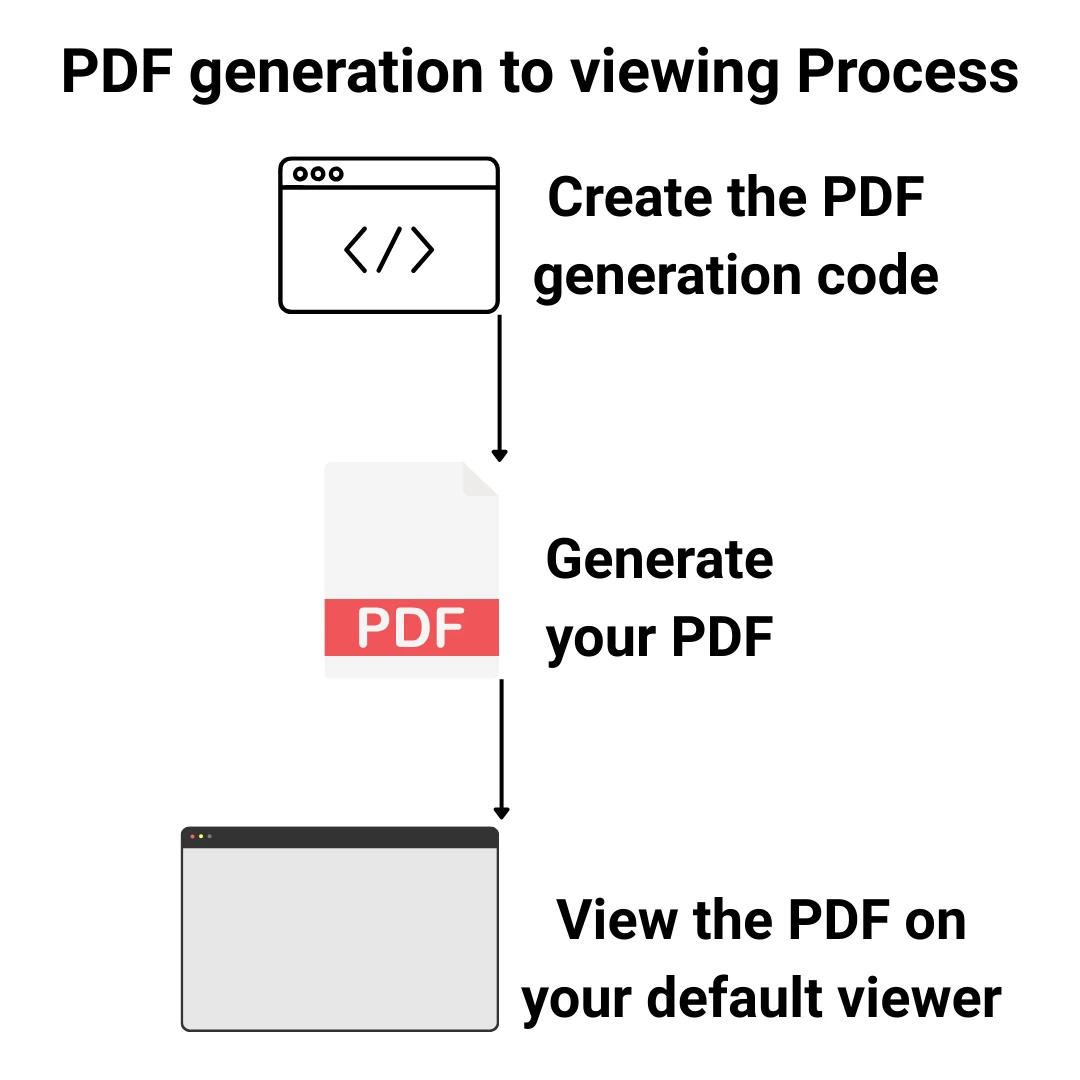
ChromePdfRenderOptions類可讓您對輸出的PDF進行細粒度控制。 常見設置包括:
Letter或任何標準尺寸。<select>元素轉換為交互式PDF表單字段。這些設置無論是渲染HTML字串、本地HTML文件或遠端URL,都同樣適用。
一旦您生成並開啟一個PDF,您可能還需要讀取其內容。 IronPDF支持從PDF文件中提取文字,這對於日誌記錄、驗證或後續處理很有用。
對於圖像密集型文件,您還可以使用PDF轉圖像轉換將各個頁面渲染為PNG或JPEG文件。 這在預覽生成和縮略圖工作流程中很常見。
這兩個功能都是通過相同的IronPDF庫提供的,不需要額外的依賴項。 完整的IronPDF API文件提供所有提取和轉換操作的方法級參考。
如果目標機器上未安裝PDF檢視器,Windows將顯示一個對話框,要求使用者選擇一個應用程式或存取Microsoft Store尋找一個。 這是標準的Windows行為,並且不受Process.Start控制。
為在生產程式碼中優雅地處理這種情況,您可以捕獲當未找到Win32Exception。
using System.ComponentModel;
using System.Diagnostics;

try
{
    Process.Start(new ProcessStartInfo
    {
        FileName = outputPath,
        UseShellExecute = true
    });
}
catch (Win32Exception ex) when (ex.NativeErrorCode == 1155)
{
    // Error 1155: No application associated with the file extension
    Console.WriteLine("No PDF viewer is installed. Please install a PDF reader such as Adobe Acrobat Reader.");
}Imports System.ComponentModel
Imports System.Diagnostics
Try
Process.Start(New ProcessStartInfo With {
.FileName = outputPath,
.UseShellExecute = True
})
Catch ex As Win32Exception When ex.NativeErrorCode = 1155
' Error 1155: No application associated with the file extension
Console.WriteLine("No PDF viewer is installed. Please install a PDF reader such as Adobe Acrobat Reader.")
End Try錯誤程式碼ERROR_NO_ASSOCIATION,Windows在找不到文件型別的應用程式時返回該錯誤。 捕獲此特定錯誤允許您顯示一個有用的消息,而不是崩潰。 Windows系統錯誤程式碼的完整列表記錄在Microsoft Learn的Win32錯誤程式碼參考中。
您選擇開啟PDF的方法取決於您正在構建的應用程式型別:
| 應用程式型別 | 建議方法 | 關鍵考量 |
|---|---|---|
| 控制台或桌面應用 | 使用Process.Start,並將UseShellExecute設為true | 簡單,無需額外依賴 |
| Windows服務 | 保存到磁碟;透過IPC或消息隊列通知使用者 | 服務無需桌面會話即可運行 |
| Web應用(ASP.NET) | 將PDF作為檔案下載或嵌入在瀏覽器中 | 在Web伺服器上下文中,Process.Start無效 |
| MAUI或WinForms | 使用Process.Start或嵌入式PDF控制 | 嵌入式檢視提供更好的應用內體驗 |
對於ASP.NET Core構建的Web應用,請勿使用Process.Start。 伺服器過程運行在無頭環境中,無法開啟桌面應用程式。 而是使用application/pdf MIME型別將PDF作為文件結果返回,由瀏覽器處理顯示。
對於控制台和桌面應用,UseShellExecute = true仍然是最簡單且最可靠的選擇。
準備好在您的.NET應用中開始進行PDF生成和檢視了嗎? 開始使用免費試用來存取完整的功能集,或者查看IronPDF授權頁面以找到適合您專案的計畫。

Curtis Chau擁有Carleton大學的電腦科學學士學位,專精於前端開發,擁有Node.js、TypeScript、JavaScript和React的專業知識。Curtis熱衷於建立直觀且美觀的使用者介面,喜愛使用現代框架並建立結構良好、視覺吸引力的手冊。

IronPDF 是 IRONSUITE 的一部分
10 款適用於辦公室文件的 .NET API 產品

當您需要您的PDF看起來像HTML一樣快速。














