using IronPdf;

// Disable local disk access or cross-origin requests
Installation.EnableWebSecurity = true;

// Instantiate Renderer
var renderer = new ChromePdfRenderer();

// Create a PDF from a HTML string using C#
var pdf = renderer.RenderHtmlAsPdf("<h1>Hello World</h1>");

// Export to a file or Stream
pdf.SaveAs("output.pdf");

// Advanced Example with HTML Assets
// Load external html assets: Images, CSS and JavaScript.
// An optional BasePath 'C:\site\assets\' is set as the file location to load assets from
var myAdvancedPdf = renderer.RenderHtmlAsPdf("<img src='icons/iron.png'>", @"C:\site\assets\");
myAdvancedPdf.SaveAs("html-with-assets.pdf");
using IronPdf;// Disable local disk access or cross-origin requestsInstallation.EnableWebSecurity = true;// Instantiate Renderervar renderer = new ChromePdfRenderer();// Create a PDF from a HTML string using C#var pdf = renderer.RenderHtmlAsPdf("<h1>Hello World</h1>");// Export to a file or Streampdf.SaveAs("output.pdf");// Advanced Example with HTML Assets// Load external html assets: Images, CSS and JavaScript.// An optional BasePath 'C:\site\assets\' is set as the file location to load assets fromvar myAdvancedPdf = renderer.RenderHtmlAsPdf("<img src='icons/iron.png'>", @"C:\site\assets\");myAdvancedPdf.SaveAs("html-with-assets.pdf");
PM >Install-Package IronPdf
Install-Package IronPdf
USING IRONPDF
C# Open PDF in Default Viewer with IronPDF (.NET 10)
Opening a PDF in the default viewer is a common task in .NET application development. After generating PDF files programmatically with IronPDF, you often need to display them to users immediately in their chosen default application -- such as Adobe Acrobat or Microsoft Edge. This guide walks you through the steps to generate PDF files using IronPDF and open them automatically in Windows using System.Diagnostics.Process.Start.
The combination of IronPDF's powerful HTML-to-PDF conversion capabilities with the simple Process launch method creates a practical workflow for building and displaying professional PDF files in the default application configured on a user's machine.
How Do You Install IronPDF in a .NET Project?
Before generating or opening any PDF, you need IronPDF installed in your project. Use either the NuGet Package Manager Console or the .NET CLI:
Once installed, you have access to the full set of IronPDF features, including HTML-to-PDF conversion, URL rendering, PDF merging, watermarking, digital signing, and more.
How Do You Generate and Open a PDF File?
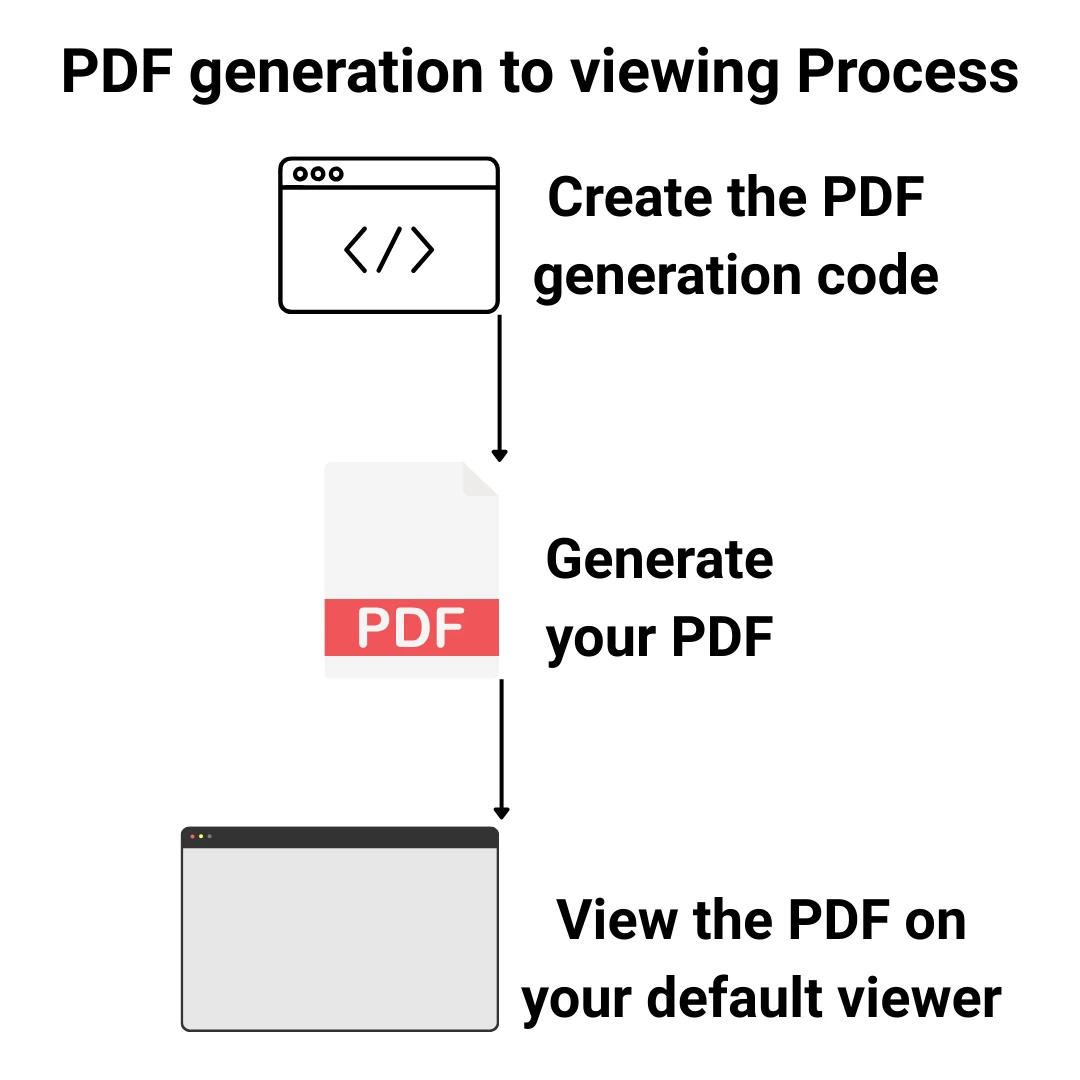
The most straightforward approach involves three steps:
Create a PDF document with IronPDF.
Save the file to a directory.
Open the PDF in the default application using Process.Start.
Here's a complete working example you can try in Visual Studio with a new Console App project:
using IronPdf;using System.Diagnostics;// Create a new PDF renderervar renderer = new ChromePdfRenderer();// Generate PDF from HTML contentvar pdf = renderer.RenderHtmlAsPdf(@" <html> <body> <h1>Invoice #12345</h1> <p>Generated on: " + DateTime.Now.ToString("yyyy-MM-dd") + @"</p> <table> <tr><td>Product</td><td>Price</td></tr> <tr><td>IronPDF License</td><td>$299</td></tr> </table> </body> </html>");// Save the PDF to a filestring outputPath = "invoice.pdf";pdf.SaveAs(outputPath);// Open the PDF in the default viewerProcess.Start(new ProcessStartInfo{FileName = outputPath,UseShellExecute = true});
using IronPdf;
using System.Diagnostics;

// Create a new PDF renderer
var renderer = new ChromePdfRenderer();

// Generate PDF from HTML content
var pdf = renderer.RenderHtmlAsPdf(@"
    <html>
        <body>
            <h1>Invoice #12345</h1>
            <p>Generated on: " + DateTime.Now.ToString("yyyy-MM-dd") + @"</p>
            <table>
                <tr><td>Product</td><td>Price</td></tr>
                <tr><td>IronPDF License</td><td>$299</td></tr>
            </table>
        </body>
    </html>");

// Save the PDF to a file
string outputPath = "invoice.pdf";
pdf.SaveAs(outputPath);

// Open the PDF in the default viewer
Process.Start(new ProcessStartInfo
{
    FileName = outputPath,
    UseShellExecute = true
});
ImportsIronPdfImportsSystem.Diagnostics' Create a new PDF rendererDim renderer As New ChromePdfRenderer()' Generate PDF from HTML contentDim pdf = renderer.RenderHtmlAsPdf(" <html> <body> <h1>Invoice #12345</h1> <p>Generated on: " & DateTime.Now.ToString("yyyy-MM-dd") & "</p> <table> <tr><td>Product</td><td>Price</td></tr> <tr><td>IronPDF License</td><td>$299</td></tr> </table> </body> </html>")' Save the PDF to a fileDim outputPath AsString = "invoice.pdf"pdf.SaveAs(outputPath)' Open the PDF in the default viewerProcess.Start(New ProcessStartInfoWith { .FileName = outputPath, .UseShellExecute = True})
Imports IronPdf
Imports System.Diagnostics

' Create a new PDF renderer
Dim renderer As New ChromePdfRenderer()

' Generate PDF from HTML content
Dim pdf = renderer.RenderHtmlAsPdf("
    <html>
        <body>
            <h1>Invoice #12345</h1>
            <p>Generated on: " & DateTime.Now.ToString("yyyy-MM-dd") & "</p>
            <table>
                <tr><td>Product</td><td>Price</td></tr>
                <tr><td>IronPDF License</td><td>$299</td></tr>
            </table>
        </body>
    </html>")

' Save the PDF to a file
Dim outputPath As String = "invoice.pdf"
pdf.SaveAs(outputPath)

' Open the PDF in the default viewer
Process.Start(New ProcessStartInfo With {
    .FileName = outputPath,
    .UseShellExecute = True
})
This code first creates a ChromePdfRenderer instance, which is IronPDF's primary class for converting HTML to PDF. The RenderHtmlAsPdf method converts the HTML string into a PDF document object. For more on this approach, see IronPDF's HTML-to-PDF guide.
After saving the PDF using SaveAs, the code uses Process.Start with ProcessStartInfo to open the file in the default PDF viewer. The key setting here is UseShellExecute = true, which tells Windows to open the PDF file with its default application.
Output
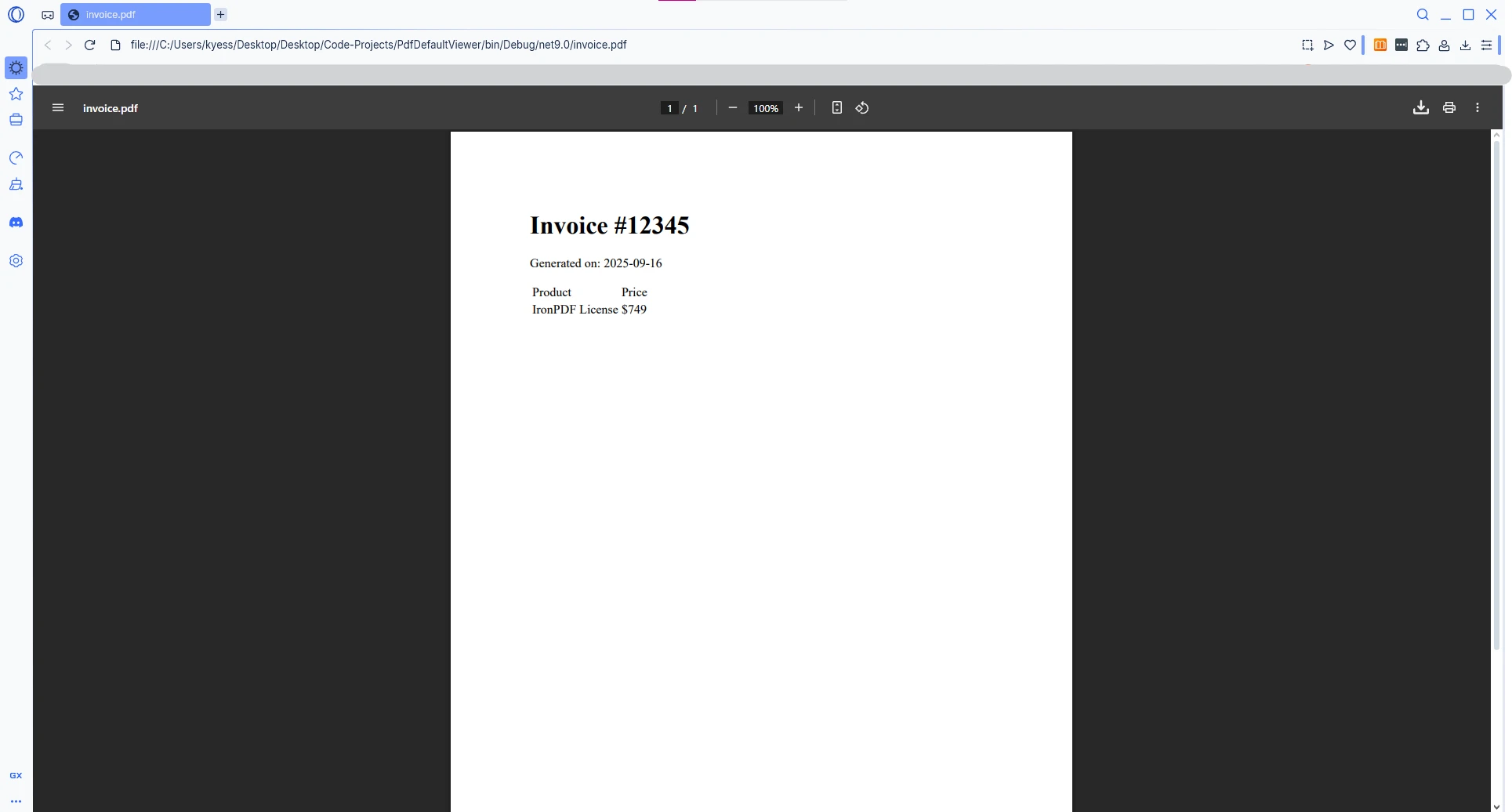
As shown in the image below, IronPDF successfully generates the PDF file and displays it using the default viewer configured on the system -- in this case, Opera GX.
Why Top-Level Statements?
With .NET 10 and modern C# versions, top-level statements eliminate the need for a Program class wrapper. The code runs directly from the top of the file, making samples shorter and easier to follow. All examples in this guide use this pattern.
Why Does UseShellExecute Matter When Opening PDF Documents?
In .NET Core and modern .NET versions (.NET 5 through .NET 10), the UseShellExecute parameter defaults to false. Without explicitly setting it to true, your application will throw an error when trying to launch a PDF file.
using IronPdf;using System.Diagnostics;using System.IO;// Generate a report with IronPDFvar renderer = new ChromePdfRenderer();renderer.RenderingOptions.MarginTop = 50;renderer.RenderingOptions.MarginBottom = 50;var pdf = renderer.RenderUrlAsPdf("https://en.wikipedia.org/wiki/Main_Page");// Save to temp directory for immediate viewingstring tempPath = Path.Combine(Path.GetTempPath(), $"URL_{Guid.NewGuid()}.pdf");pdf.SaveAs(tempPath);// IMPORTANT: Set UseShellExecute = true for .NET Core/5+var startInfo = new ProcessStartInfo{FileName = tempPath,UseShellExecute = true // Required in .NET Core/5+ to open PDF in default viewer};Process.Start(startInfo);
using IronPdf;
using System.Diagnostics;
using System.IO;

// Generate a report with IronPDF
var renderer = new ChromePdfRenderer();
renderer.RenderingOptions.MarginTop = 50;
renderer.RenderingOptions.MarginBottom = 50;

var pdf = renderer.RenderUrlAsPdf("https://en.wikipedia.org/wiki/Main_Page");

// Save to temp directory for immediate viewing
string tempPath = Path.Combine(Path.GetTempPath(), $"URL_{Guid.NewGuid()}.pdf");
pdf.SaveAs(tempPath);

// IMPORTANT: Set UseShellExecute = true for .NET Core/5+
var startInfo = new ProcessStartInfo
{
    FileName = tempPath,
    UseShellExecute = true  // Required in .NET Core/5+ to open PDF in default viewer
};
Process.Start(startInfo);
ImportsIronPdfImportsSystem.DiagnosticsImportsSystem.IO' Generate a report with IronPDFDim renderer As New ChromePdfRenderer()renderer.RenderingOptions.MarginTop = 50renderer.RenderingOptions.MarginBottom = 50Dim pdf = renderer.RenderUrlAsPdf("https://en.wikipedia.org/wiki/Main_Page")' Save to temp directory for immediate viewingDim tempPath AsString = Path.Combine(Path.GetTempPath(), $"URL_{Guid.NewGuid()}.pdf")pdf.SaveAs(tempPath)' IMPORTANT: Set UseShellExecute = true for .NET Core/5+Dim startInfo As New ProcessStartInfoWith { .FileName = tempPath, .UseShellExecute = True ' Required in .NET Core/5+ to open PDF in default viewer}Process.Start(startInfo)
Imports IronPdf
Imports System.Diagnostics
Imports System.IO

' Generate a report with IronPDF
Dim renderer As New ChromePdfRenderer()
renderer.RenderingOptions.MarginTop = 50
renderer.RenderingOptions.MarginBottom = 50

Dim pdf = renderer.RenderUrlAsPdf("https://en.wikipedia.org/wiki/Main_Page")

' Save to temp directory for immediate viewing
Dim tempPath As String = Path.Combine(Path.GetTempPath(), $"URL_{Guid.NewGuid()}.pdf")
pdf.SaveAs(tempPath)

' IMPORTANT: Set UseShellExecute = true for .NET Core/5+
Dim startInfo As New ProcessStartInfo With {
    .FileName = tempPath,
    .UseShellExecute = True  ' Required in .NET Core/5+ to open PDF in default viewer
}
Process.Start(startInfo)
The UseShellExecute property determines whether to use the operating system shell to start the process. When set to true, Windows uses the file association registry to determine which default PDF reader should open the file. Without this setting in modern .NET versions, you'll encounter a runtime error stating the file cannot be opened.
Using a temporary directory with a unique filename (via Guid.NewGuid()) prevents file conflicts when generating multiple PDFs in rapid succession. The default temporary folder is cleaned automatically by the OS on a regular schedule.
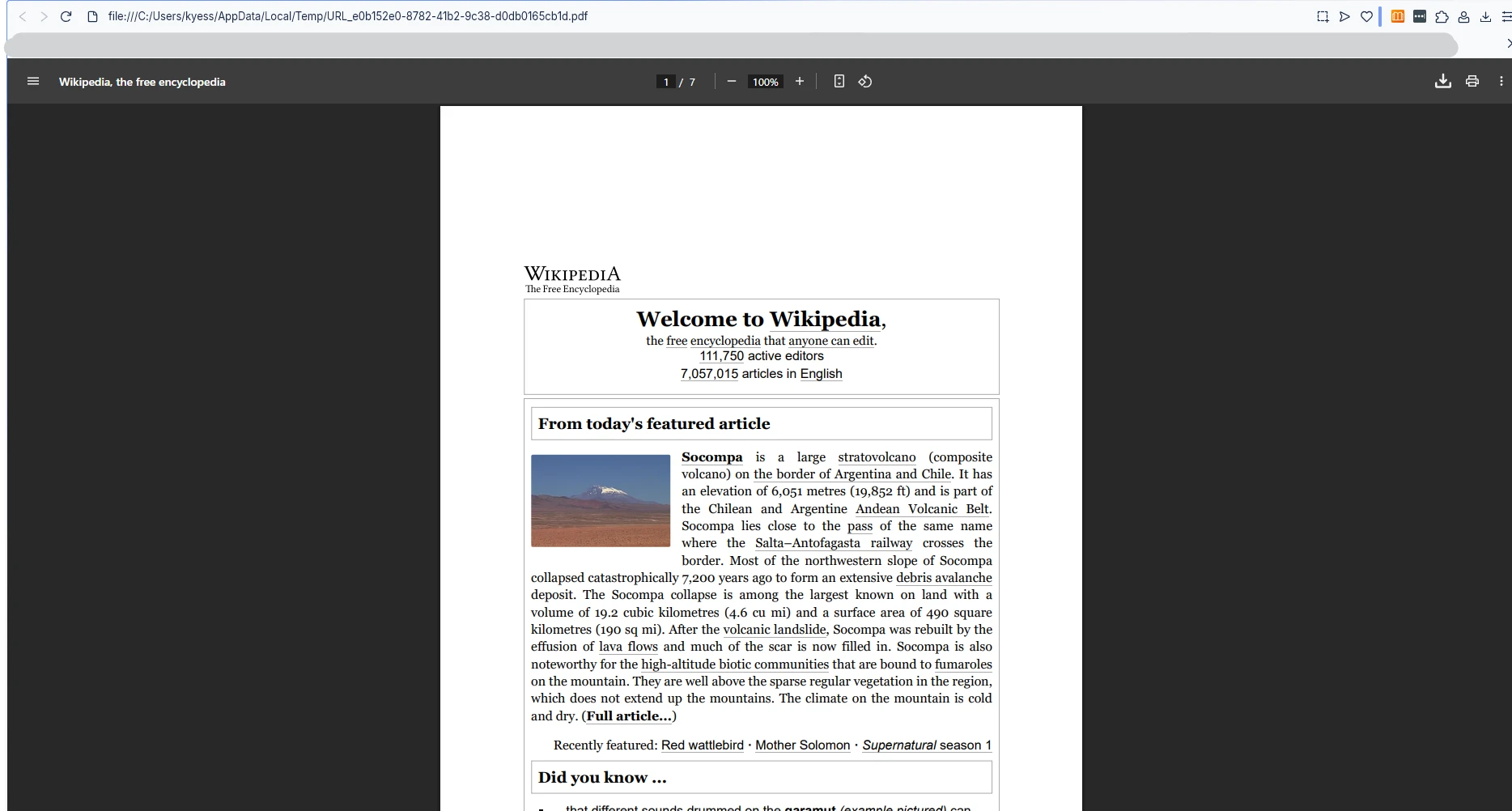
Output
How Do You Handle File Paths Correctly?
File paths that contain spaces and special characters require careful handling. A missing directory or a malformed path will silently fail or throw an exception before Process.Start is ever reached. Here's an approach that includes directory creation and file existence checks:
using IronPdf;using System.Diagnostics;using System.IO;// Generate PDF from HTML filevar renderer = new ChromePdfRenderer();var htmlContent = File.ReadAllText("template.html");var pdf = renderer.RenderHtmlAsPdf(htmlContent);// Create output directory if it doesn't existstring outputDir = @"C:\PDF Reports\Monthly";Directory.CreateDirectory(outputDir);// Build file path with timestampstring fileName = $"Report_{DateTime.Now:yyyyMMdd_HHmmss}.pdf";string fullPath = Path.Combine(outputDir, fileName);// Save the PDFpdf.SaveAs(fullPath);// Verify file exists before opening in default PDF viewerif (File.Exists(fullPath)){Process.Start(new ProcessStartInfo {FileName = fullPath,UseShellExecute = true });}else{Console.WriteLine($"Error: PDF file not found at {fullPath}");}
using IronPdf;
using System.Diagnostics;
using System.IO;

// Generate PDF from HTML file
var renderer = new ChromePdfRenderer();
var htmlContent = File.ReadAllText("template.html");
var pdf = renderer.RenderHtmlAsPdf(htmlContent);

// Create output directory if it doesn't exist
string outputDir = @"C:\PDF Reports\Monthly";
Directory.CreateDirectory(outputDir);

// Build file path with timestamp
string fileName = $"Report_{DateTime.Now:yyyyMMdd_HHmmss}.pdf";
string fullPath = Path.Combine(outputDir, fileName);

// Save the PDF
pdf.SaveAs(fullPath);

// Verify file exists before opening in default PDF viewer
if (File.Exists(fullPath))
{
    Process.Start(new ProcessStartInfo
    {
        FileName = fullPath,
        UseShellExecute = true
    });
}
else
{
    Console.WriteLine($"Error: PDF file not found at {fullPath}");
}
ImportsIronPdfImportsSystem.DiagnosticsImportsSystem.IO' Generate PDF from HTML fileDim renderer As New ChromePdfRenderer()Dim htmlContent AsString = File.ReadAllText("template.html")Dim pdf = renderer.RenderHtmlAsPdf(htmlContent)' Create output directory if it doesn't existDim outputDir AsString = "C:\PDF Reports\Monthly"Directory.CreateDirectory(outputDir)' Build file path with timestampDim fileName AsString = $"Report_{DateTime.Now:yyyyMMdd_HHmmss}.pdf"Dim fullPath AsString = Path.Combine(outputDir, fileName)' Save the PDFpdf.SaveAs(fullPath)' Verify file exists before opening in default PDF viewerIfFile.Exists(fullPath) ThenProcess.Start(New ProcessStartInfoWith { .FileName = fullPath, .UseShellExecute = True })ElseConsole.WriteLine($"Error: PDF file not found at {fullPath}")End If
Imports IronPdf
Imports System.Diagnostics
Imports System.IO

' Generate PDF from HTML file
Dim renderer As New ChromePdfRenderer()
Dim htmlContent As String = File.ReadAllText("template.html")
Dim pdf = renderer.RenderHtmlAsPdf(htmlContent)

' Create output directory if it doesn't exist
Dim outputDir As String = "C:\PDF Reports\Monthly"
Directory.CreateDirectory(outputDir)

' Build file path with timestamp
Dim fileName As String = $"Report_{DateTime.Now:yyyyMMdd_HHmmss}.pdf"
Dim fullPath As String = Path.Combine(outputDir, fileName)

' Save the PDF
pdf.SaveAs(fullPath)

' Verify file exists before opening in default PDF viewer
If File.Exists(fullPath) Then
    Process.Start(New ProcessStartInfo With {
        .FileName = fullPath,
        .UseShellExecute = True
    })
Else
    Console.WriteLine($"Error: PDF file not found at {fullPath}")
End If
This code demonstrates several best practices: using Path.Combine to build file paths correctly regardless of the operating system, creating directories as needed with Directory.CreateDirectory, and verifying file existence before attempting to open the PDF in the default viewer.
Path.Combine handles spaces correctly because it builds paths as strings rather than relying on shell expansion. The ProcessStartInfo class also handles quoted paths correctly when UseShellExecute = true. If you ever pass a path to a shell command directly, always surround it with double quotes. With Process.Start, the FileName property does not require manual quoting.
How Do You Apply Production-Ready Best Practices?
For production applications, consider a more complete workflow that handles the PDF lifecycle with error handling, configurable rendering options, and predictable output directories:
using IronPdf;using IronPdf.Rendering;using System.Diagnostics;using System.IO;static voidGenerateAndDisplayPdf(string htmlContent, string documentName){ try { // Configure IronPDF renderer with production settings var renderer = new ChromePdfRenderer {RenderingOptions = new ChromePdfRenderOptions {PaperSize = PdfPaperSize.A4,PrintHtmlBackgrounds = true,CreatePdfFormsFromHtml = true } }; // Generate the PDF var pdf = renderer.RenderHtmlAsPdf(htmlContent); // Use the user's Documents folder for better accessibility string documentsPath = Environment.GetFolderPath(Environment.SpecialFolder.MyDocuments); string pdfFolder = Path.Combine(documentsPath, "Generated PDFs");Directory.CreateDirectory(pdfFolder); string outputPath = Path.Combine(pdfFolder, $"{documentName}.pdf"); pdf.SaveAs(outputPath); // Open PDF in default viewer without waiting for it to closeProcess.Start(new ProcessStartInfo {FileName = outputPath,UseShellExecute = true // Essential for opening PDF in default application });Console.WriteLine($"PDF opened: {outputPath}"); } catch (Exception ex) {Console.WriteLine($"Error generating or opening PDF: {ex.Message}"); }}
using IronPdf;
using IronPdf.Rendering;
using System.Diagnostics;
using System.IO;

static void GenerateAndDisplayPdf(string htmlContent, string documentName)
{
    try
    {
        // Configure IronPDF renderer with production settings
        var renderer = new ChromePdfRenderer
        {
            RenderingOptions = new ChromePdfRenderOptions
            {
                PaperSize = PdfPaperSize.A4,
                PrintHtmlBackgrounds = true,
                CreatePdfFormsFromHtml = true
            }
        };

        // Generate the PDF
        var pdf = renderer.RenderHtmlAsPdf(htmlContent);

        // Use the user's Documents folder for better accessibility
        string documentsPath = Environment.GetFolderPath(
            Environment.SpecialFolder.MyDocuments);
        string pdfFolder = Path.Combine(documentsPath, "Generated PDFs");
        Directory.CreateDirectory(pdfFolder);
        string outputPath = Path.Combine(pdfFolder, $"{documentName}.pdf");

        pdf.SaveAs(outputPath);

        // Open PDF in default viewer without waiting for it to close
        Process.Start(new ProcessStartInfo
        {
            FileName = outputPath,
            UseShellExecute = true  // Essential for opening PDF in default application
        });

        Console.WriteLine($"PDF opened: {outputPath}");
    }
    catch (Exception ex)
    {
        Console.WriteLine($"Error generating or opening PDF: {ex.Message}");
    }
}
ImportsIronPdfImportsIronPdf.RenderingImportsSystem.DiagnosticsImportsSystem.IOModulePdfGenerator Sub GenerateAndDisplayPdf(htmlContent AsString, documentName AsString)Try ' Configure IronPDF renderer with production settings Dim renderer As New ChromePdfRendererWith { .RenderingOptions = New ChromePdfRenderOptionsWith { .PaperSize = PdfPaperSize.A4, .PrintHtmlBackgrounds = True, .CreatePdfFormsFromHtml = True } } ' Generate the PDF Dim pdf = renderer.RenderHtmlAsPdf(htmlContent) ' Use the user's Documents folder for better accessibility Dim documentsPath AsString = Environment.GetFolderPath(Environment.SpecialFolder.MyDocuments) Dim pdfFolder AsString = Path.Combine(documentsPath, "Generated PDFs")Directory.CreateDirectory(pdfFolder) Dim outputPath AsString = Path.Combine(pdfFolder, $"{documentName}.pdf") pdf.SaveAs(outputPath) ' Open PDF in default viewer without waiting for it to closeProcess.Start(New ProcessStartInfoWith { .FileName = outputPath, .UseShellExecute = True ' Essential for opening PDF in default application })Console.WriteLine($"PDF opened: {outputPath}")Catch ex AsExceptionConsole.WriteLine($"Error generating or opening PDF: {ex.Message}")EndTry End SubEndModule
Imports IronPdf
Imports IronPdf.Rendering
Imports System.Diagnostics
Imports System.IO

Module PdfGenerator

    Sub GenerateAndDisplayPdf(htmlContent As String, documentName As String)
        Try
            ' Configure IronPDF renderer with production settings
            Dim renderer As New ChromePdfRenderer With {
                .RenderingOptions = New ChromePdfRenderOptions With {
                    .PaperSize = PdfPaperSize.A4,
                    .PrintHtmlBackgrounds = True,
                    .CreatePdfFormsFromHtml = True
                }
            }

            ' Generate the PDF
            Dim pdf = renderer.RenderHtmlAsPdf(htmlContent)

            ' Use the user's Documents folder for better accessibility
            Dim documentsPath As String = Environment.GetFolderPath(Environment.SpecialFolder.MyDocuments)
            Dim pdfFolder As String = Path.Combine(documentsPath, "Generated PDFs")
            Directory.CreateDirectory(pdfFolder)
            Dim outputPath As String = Path.Combine(pdfFolder, $"{documentName}.pdf")

            pdf.SaveAs(outputPath)

            ' Open PDF in default viewer without waiting for it to close
            Process.Start(New ProcessStartInfo With {
                .FileName = outputPath,
                .UseShellExecute = True  ' Essential for opening PDF in default application
            })

            Console.WriteLine($"PDF opened: {outputPath}")
        Catch ex As Exception
            Console.WriteLine($"Error generating or opening PDF: {ex.Message}")
        End Try
    End Sub

End Module
This example includes structured error handling and saves PDFs in the user's Documents folder, which is accessible regardless of how the application is launched. It also configures IronPDF with rendering options suitable for business documents: A4 paper size, HTML background printing enabled, and automatic form field creation from HTML form elements.
The method does not wait for the PDF viewer to close, allowing your application to continue running while the user views the document. According to Microsoft's documentation on Process.Start, this approach ensures proper resource management and prevents your application from blocking on a long-running viewer process. The ProcessStartInfo class reference on Microsoft Learn provides a full list of properties you can configure, including window style, verb (open, print), and working directory.
Configuring Rendering Options
The ChromePdfRenderOptions class gives you fine-grained control over the output PDF. Common settings include:
PaperSize -- Set to PdfPaperSize.A4, Letter, or any standard size.
PrintHtmlBackgrounds -- Renders background colors and images from the HTML.
CreatePdfFormsFromHtml -- Converts HTML <input> and <select> elements into interactive PDF form fields.
MarginTop / MarginBottom / MarginLeft / MarginRight -- Control page margins in millimeters.
These settings apply equally whether you render HTML strings, local HTML files, or remote URLs.
How Do You Extract Data from Generated PDFs?
Once you have a PDF generated and opened, you may also need to read its contents back. IronPDF supports text extraction from PDF files, which is useful for logging, verification, or downstream processing.
For image-heavy documents, you can also use PDF-to-image conversion to render individual pages as PNG or JPEG files. This is common in preview generation and thumbnail workflows.
Both features are available through the same IronPDF library and do not require additional dependencies. The full IronPDF API documentation provides method-level references for all extraction and conversion operations.
What Happens If No PDF Viewer Is Installed?
If no PDF viewer is installed on the target machine, Windows will display a dialog asking the user to select an application or visit the Microsoft Store to find one. This is standard Windows behavior and is outside the control of Process.Start.
To handle this gracefully in production code, you can catch the Win32Exception that Process.Start throws when no registered handler is found for the .pdf file extension:
using System.ComponentModel;using System.Diagnostics;try{Process.Start(new ProcessStartInfo {FileName = outputPath,UseShellExecute = true });}catch (Win32Exception ex) when (ex.NativeErrorCode == 1155){ // Error 1155: No application associated with the file extensionConsole.WriteLine("No PDF viewer is installed. Please install a PDF reader such as Adobe Acrobat Reader.");}
using System.ComponentModel;
using System.Diagnostics;

try
{
    Process.Start(new ProcessStartInfo
    {
        FileName = outputPath,
        UseShellExecute = true
    });
}
catch (Win32Exception ex) when (ex.NativeErrorCode == 1155)
{
    // Error 1155: No application associated with the file extension
    Console.WriteLine("No PDF viewer is installed. Please install a PDF reader such as Adobe Acrobat Reader.");
}
ImportsSystem.ComponentModelImportsSystem.DiagnosticsTryProcess.Start(New ProcessStartInfoWith { .FileName = outputPath, .UseShellExecute = True })Catch ex AsWin32ExceptionWhen ex.NativeErrorCode = 1155 ' Error 1155: No application associated with the file extensionConsole.WriteLine("No PDF viewer is installed. Please install a PDF reader such as Adobe Acrobat Reader.")EndTry
Imports System.ComponentModel
Imports System.Diagnostics

Try
    Process.Start(New ProcessStartInfo With {
        .FileName = outputPath,
        .UseShellExecute = True
    })
Catch ex As Win32Exception When ex.NativeErrorCode = 1155
    ' Error 1155: No application associated with the file extension
    Console.WriteLine("No PDF viewer is installed. Please install a PDF reader such as Adobe Acrobat Reader.")
End Try
Error code 1155 corresponds to ERROR_NO_ASSOCIATION, which Windows returns when no application is registered for the file type. Catching this specific error allows you to display a helpful message rather than crashing. The full list of Windows system error codes is documented in the Win32 error codes reference on Microsoft Learn.
How Do You Choose the Right Approach for Your Application?
The method you choose for opening a PDF depends on the type of application you are building:
Comparison of PDF opening strategies for different application types
Application Type
Recommended Approach
Key Consideration
Console or desktop app
Process.Start with UseShellExecute = true
Simple, no extra dependencies
Windows Service
Save to disk; notify user via IPC or message queue
Services run without a desktop session
Web application (ASP.NET)
Stream PDF as file download or inline in browser
Process.Start is not valid in web server contexts
MAUI or WinForms
Process.Start or embedded PDF control
Embedded viewing gives a better in-app experience
For web applications built with ASP.NET Core, do not use Process.Start. The server process runs in a headless environment and cannot open desktop applications. Instead, return the PDF as a file result using File() with the application/pdf MIME type, and let the browser handle display.
For console and desktop applications, Process.Start with UseShellExecute = true remains the simplest and most reliable option.
Please note: Note: If no PDF viewer is installed, Windows may show a dialog asking you to select or download one.
Ready to get started with PDF generation and viewing in your .NET application? Start with a free trial to access the full feature set, or review the IronPDF licensing page to find the right plan for your project.
Curtis Chau holds a Bachelor’s degree in Computer Science (Carleton University) and specializes in front-end development with expertise in Node.js, TypeScript, JavaScript, and React. Passionate about crafting intuitive and aesthetically pleasing user interfaces, Curtis enjoys working with modern frameworks and creating well-structured, visually appealing manuals.