


如何在 .NET Core 中建立 PDF 生成器

PDF文件在自動化測試中帶來了獨特的挑戰:雖然Selenium WebDriver在與網頁元素互動方面表現出色,但它無法讀取PDF中的內容,因為文件被呈現為二進制流而非DOM元素。 本文介紹如何通過搭配Selenium與IronPDF來解決這個問題,這是一個生產就緒的.NET PDF程式庫,允許您通過幾行程式碼提取、驗證和處理PDF內容——不需要複雜的Java風格依賴管理。
為什麼Selenium無法處理PDF內容?
當PDF在瀏覽器中打開時,Selenium可以導航到該頁面並與瀏覽器控件互動,但無法查詢文件中的文字或資料。 PDF被作為嵌入物件或插件呈現,而不是WebDriver協定可以遍歷的HTML元素。 瀏覽器的PDF查看器在視覺上呈現文件,但沒有可供Selenium檢查的DOM——每個XPath查詢或CSS選擇器均無返回。
傳統的解決方案需要下載文件到磁盤,調用獨立的解析庫,並手動拼接所有內容。 這一多步驟過程增加了複雜性,建立了脆弱的測試程式碼,並使CI/CD管道中難以控制的文件路徑和權限變得更為複雜。 IronPDF通過讓您從URL或本地路徑載入PDF並在一次調用中提取其文字來消除所有這些步驟——直接在您現有的.NET測試專案中,無需中間文件或配置。
實際結果是測試程式碼變得更短、更易於閱讀,並且在測試環境改變時更不容易損壞。 要對IronPDF所能做的一切有更廣泛的了解,可以存取IronPDF文件中心。

如何安裝IronPDF以進行Selenium測試?
準備所需的套件不需要超過一分鐘。 在Visual Studio中打開套件管理器控制台並運行:
Install-Package IronPdf
如果您的專案中尚未包含Selenium套件,您還需要這些套件:
Install-Package Selenium.WebDriver
Install-Package Selenium.WebDriver.ChromeDriver
Install-Package Selenium.WebDriver
Install-Package Selenium.WebDriver.ChromeDriver
一旦安裝了套件,請在您的測試文件頂部新增以下using指示。
using IronPdf;
using OpenQA.Selenium;
using OpenQA.Selenium.Chrome;
using System.IO;
using IronPdf;
using OpenQA.Selenium;
using OpenQA.Selenium.Chrome;
using System.IO;Imports IronPdf
Imports OpenQA.Selenium
Imports OpenQA.Selenium.Chrome
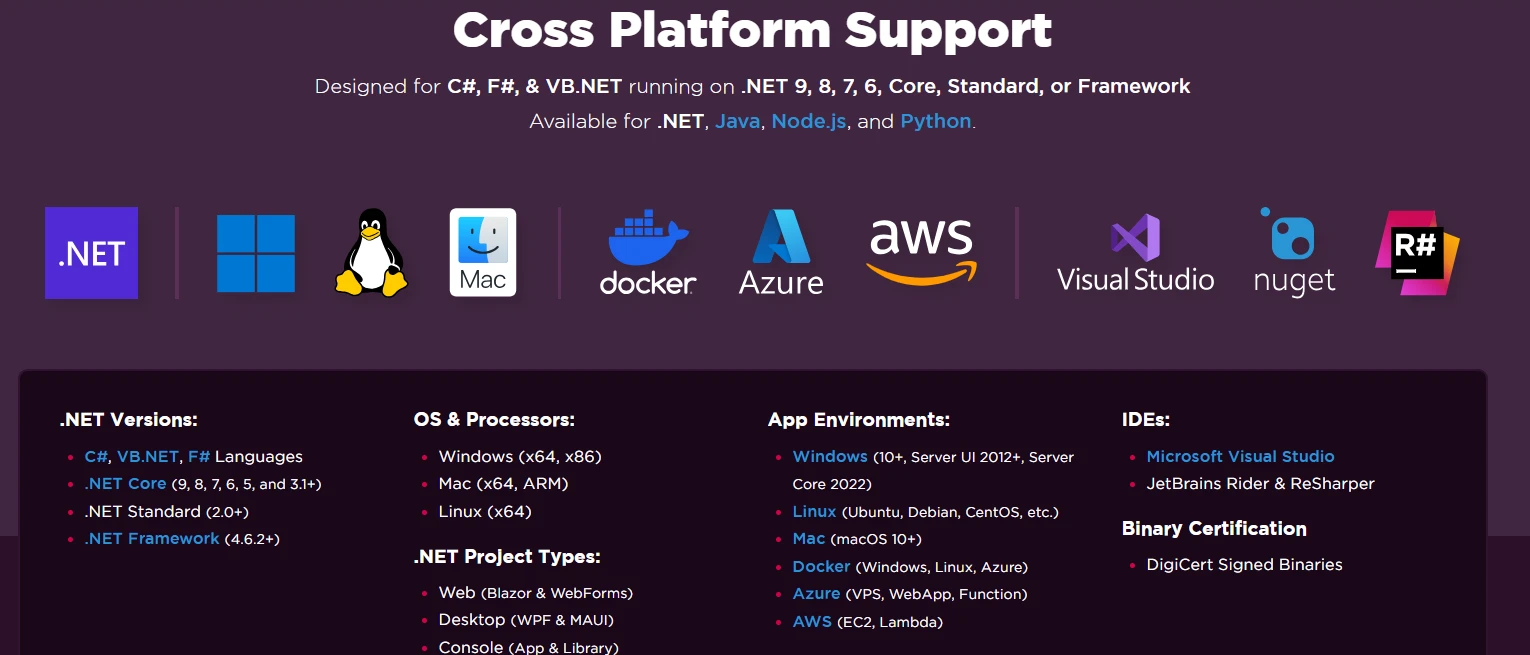
Imports System.IOIronPDF針對.NET 10,並能在Windows、Linux和macOS跨平台運行,因此相同的測試程式碼在每個環境中都能運行——包括Docker容器和雲端CI代理。

如何直接從URL讀取PDF?
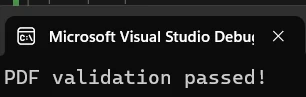
從URL讀取PDF內容完全跳過了下載步驟。 Selenium定位連結,IronPDF載入文件,然後您僅用幾行程式碼就能獲得全文,以便進行斷言。
// Initialize Chrome driver
var driver = new ChromeDriver();

// Navigate to a webpage containing a PDF link
driver.Navigate().GoToUrl("https://ironpdf.com/");

// Find and capture the PDF URL
IWebElement pdfLink = driver.FindElement(By.CssSelector("a[href$='.pdf']"));
string pdfUrl = pdfLink.GetAttribute("href");

// Load the PDF directly from the URL -- no download needed
var pdf = PdfDocument.FromUrl(new Uri(pdfUrl));
string extractedText = pdf.ExtractAllText();

// Assert expected content
if (extractedText.Contains("IronPDF"))
{
    Console.WriteLine("PDF validation passed!");
}

driver.Quit();
// Initialize Chrome driver
var driver = new ChromeDriver();
// Navigate to a webpage containing a PDF link
driver.Navigate().GoToUrl("https://ironpdf.com/");
// Find and capture the PDF URL
IWebElement pdfLink = driver.FindElement(By.CssSelector("a[href$='.pdf']"));
string pdfUrl = pdfLink.GetAttribute("href");
// Load the PDF directly from the URL -- no download needed
var pdf = PdfDocument.FromUrl(new Uri(pdfUrl));
string extractedText = pdf.ExtractAllText();
// Assert expected content
if (extractedText.Contains("IronPDF"))
{
Console.WriteLine("PDF validation passed!");
}
driver.Quit();Imports OpenQA.Selenium
Imports OpenQA.Selenium.Chrome
Imports IronPdf
' Initialize Chrome driver
Dim driver As IWebDriver = New ChromeDriver()
' Navigate to a webpage containing a PDF link
driver.Navigate().GoToUrl("https://ironpdf.com/")
' Find and capture the PDF URL
Dim pdfLink As IWebElement = driver.FindElement(By.CssSelector("a[href$='.pdf']"))
Dim pdfUrl As String = pdfLink.GetAttribute("href")
' Load the PDF directly from the URL -- no download needed
Dim pdf As PdfDocument = PdfDocument.FromUrl(New Uri(pdfUrl))
Dim extractedText As String = pdf.ExtractAllText()
' Assert expected content
If extractedText.Contains("IronPDF") Then
Console.WriteLine("PDF validation passed!")
End If
driver.Quit()PdfDocument.FromUrl()在記憶體中抓取並解析文件。 ExtractAllText()調用返回每頁的所有文字作為單字串,準備好進行斷言。 對於受密碼保護的文件,請將憑證作為附加參數,以便在測試過程中存取受保護的文件。 要了解更多關於文字提取的選項,請參見IronPDF文字提取指南。
輸出
如何自動下載和處理PDF?
當PDF在身份驗證後生成或通過動態工作流程生成時,首先下載它可能是唯一的選擇。 將Chrome配置為自動下載PDF到已知目錄,然後將文件路徑交給IronPDF:
// Configure Chrome to auto-download PDFs
var chromeOptions = new ChromeOptions();
chromeOptions.AddUserProfilePreference("download.default_directory", @"C:\PDFTests");
chromeOptions.AddUserProfilePreference("plugins.always_open_pdf_externally", true);

var driver = new ChromeDriver(chromeOptions);
string appUrl = "https://example.com/reports";

// Trigger the download
driver.Navigate().GoToUrl(appUrl);
driver.FindElement(By.Id("downloadReport")).Click();

// Wait for the download -- replace Thread.Sleep with a file-system watcher in production tests
System.Threading.Thread.Sleep(3000);

// Read the downloaded PDF
string pdfPath = @"C:\PDFTests\report.pdf";
var pdf = PdfDocument.FromFile(pdfPath);
string content = pdf.ExtractAllText();

// Validate specific data
bool hasExpectedData = content.Contains("Quarterly Revenue: $1.2M");
Console.WriteLine($"Revenue data found: {hasExpectedData}");

// Extract text from a specific page (zero-indexed)
string page2Content = pdf.ExtractTextFromPage(1);

// Clean up
File.Delete(pdfPath);
driver.Quit();
// Configure Chrome to auto-download PDFs
var chromeOptions = new ChromeOptions();
chromeOptions.AddUserProfilePreference("download.default_directory", @"C:\PDFTests");
chromeOptions.AddUserProfilePreference("plugins.always_open_pdf_externally", true);
var driver = new ChromeDriver(chromeOptions);
string appUrl = "https://example.com/reports";
// Trigger the download
driver.Navigate().GoToUrl(appUrl);
driver.FindElement(By.Id("downloadReport")).Click();
// Wait for the download -- replace Thread.Sleep with a file-system watcher in production tests
System.Threading.Thread.Sleep(3000);
// Read the downloaded PDF
string pdfPath = @"C:\PDFTests\report.pdf";
var pdf = PdfDocument.FromFile(pdfPath);
string content = pdf.ExtractAllText();
// Validate specific data
bool hasExpectedData = content.Contains("Quarterly Revenue: $1.2M");
Console.WriteLine($"Revenue data found: {hasExpectedData}");
// Extract text from a specific page (zero-indexed)
string page2Content = pdf.ExtractTextFromPage(1);
// Clean up
File.Delete(pdfPath);
driver.Quit();Imports OpenQA.Selenium
Imports OpenQA.Selenium.Chrome
Imports System.IO
Imports System.Threading
' Configure Chrome to auto-download PDFs
Dim chromeOptions As New ChromeOptions()
chromeOptions.AddUserProfilePreference("download.default_directory", "C:\PDFTests")
chromeOptions.AddUserProfilePreference("plugins.always_open_pdf_externally", True)
Dim driver As New ChromeDriver(chromeOptions)
Dim appUrl As String = "https://example.com/reports"
' Trigger the download
driver.Navigate().GoToUrl(appUrl)
driver.FindElement(By.Id("downloadReport")).Click()
' Wait for the download -- replace Thread.Sleep with a file-system watcher in production tests
Thread.Sleep(3000)
' Read the downloaded PDF
Dim pdfPath As String = "C:\PDFTests\report.pdf"
Dim pdf = PdfDocument.FromFile(pdfPath)
Dim content As String = pdf.ExtractAllText()
' Validate specific data
Dim hasExpectedData As Boolean = content.Contains("Quarterly Revenue: $1.2M")
Console.WriteLine($"Revenue data found: {hasExpectedData}")
' Extract text from a specific page (zero-indexed)
Dim page2Content As String = pdf.ExtractTextFromPage(1)
' Clean up
File.Delete(pdfPath)
driver.Quit()plugins.always_open_pdf_externally偏好設置繞過Chrome的內建PDF查看器,因此文件將落地而非在瀏覽器中打開。 ExtractTextFromPage()為您提供頁面級精度,當報告的不同頁面中出現不同的驗證資料時尤為有用。 要有效處理大文件,請查看IronPDF性能提示。
如何在自動化測試中驗證PDF內容?
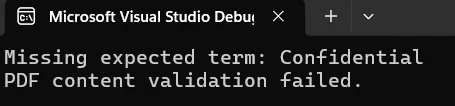
檢查文件包含正確的術語是最常見的測試場景。 以下輔助方法接受文件路徑和所需術語的陣列,然後一旦缺少預期的術語就返回false:
bool ValidatePdfContent(string pdfPath, string[] expectedTerms)
{
    var pdf = PdfDocument.FromFile(pdfPath);
    string fullText = pdf.ExtractAllText();

    // Verify each required term
    foreach (string term in expectedTerms)
    {
        if (!fullText.Contains(term, StringComparison.OrdinalIgnoreCase))
        {
            Console.WriteLine($"Missing expected term: {term}");
            return false;
        }
    }

    // Validate first-page structure
    if (pdf.PageCount > 0)
    {
        string firstPageText = pdf.ExtractTextFromPage(0);
        if (!firstPageText.Contains("Invoice #") && !firstPageText.Contains("Date:"))
        {
            Console.WriteLine("Header validation failed");
            return false;
        }
    }

    return true;
}
bool ValidatePdfContent(string pdfPath, string[] expectedTerms)
{
var pdf = PdfDocument.FromFile(pdfPath);
string fullText = pdf.ExtractAllText();
// Verify each required term
foreach (string term in expectedTerms)
{
if (!fullText.Contains(term, StringComparison.OrdinalIgnoreCase))
{
Console.WriteLine($"Missing expected term: {term}");
return false;
}
}
// Validate first-page structure
if (pdf.PageCount > 0)
{
string firstPageText = pdf.ExtractTextFromPage(0);
if (!firstPageText.Contains("Invoice #") && !firstPageText.Contains("Date:"))
{
Console.WriteLine("Header validation failed");
return false;
}
}
return true;
}Imports System
Function ValidatePdfContent(pdfPath As String, expectedTerms As String()) As Boolean
Dim pdf = PdfDocument.FromFile(pdfPath)
Dim fullText As String = pdf.ExtractAllText()
' Verify each required term
For Each term As String In expectedTerms
If Not fullText.Contains(term, StringComparison.OrdinalIgnoreCase) Then
Console.WriteLine($"Missing expected term: {term}")
Return False
End If
Next
' Validate first-page structure
If pdf.PageCount > 0 Then
Dim firstPageText As String = pdf.ExtractTextFromPage(0)
If Not firstPageText.Contains("Invoice #") AndAlso Not firstPageText.Contains("Date:") Then
Console.WriteLine("Header validation failed")
Return False
End If
End If
Return True
End FunctionStringComparison.OrdinalIgnoreCase使得生成文件中因大小寫差異而導致的測試崩潰不復存在。 IronPDF在提取過程中保持文字布局和格式,因此定位驗證——例如確認頁眉字段出現在第一頁——在不同的PDF生成器中可靠運行。
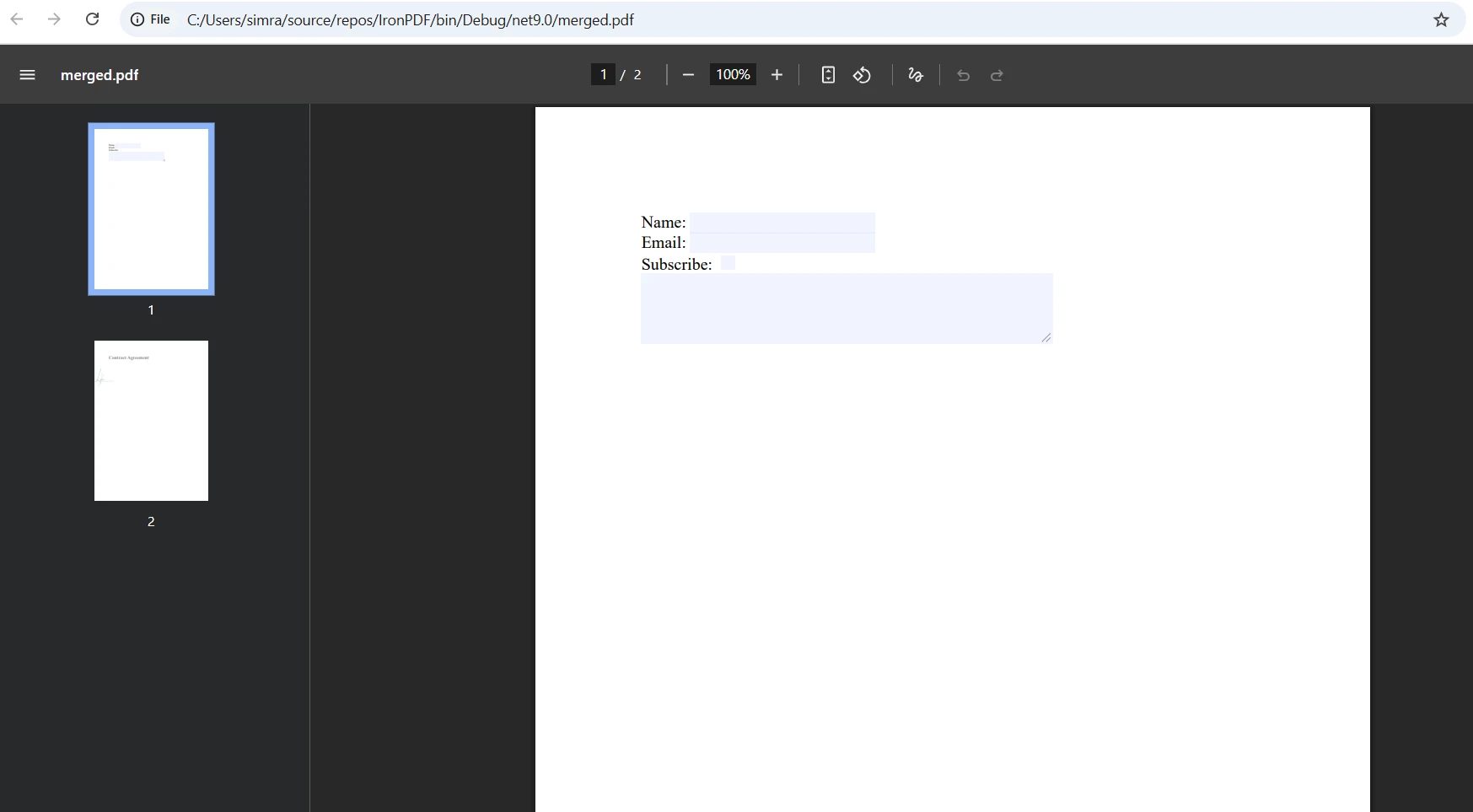
對於從PDF文件中提取表格等更高級的場景,提取嵌入圖像或讀取互動表單字段,IronPDF為每個任務提供專門的API。 您還可以在測試套件需要在驗證之前組裝或分解文件時將文字提取與PDF合併或拆分工作流連結起來。
輸入
輸出
使用Selenium進行PDF測試的最佳實踐是什麼?
從一開始應用一些模式會使您的PDF測試套件在專案增長時保持可維護性。
使用顯式等待而非固定延遲。 用檔案系統監視器或輪詢迴圈代替Thread.Sleep(),以檢查文件是否存在。 Selenium的顯式等待文件介紹了瀏覽器端的等待策略,這一原則同樣適用於下載。 固定延遲在慢速CI機器上易碎。
將PDF操作集中於基類。 建立一個共享的輔助或基測試類,公開ValidateTerms等方法。 然後個別測試專注於斷言而不是PDF管道。 這反映了IronPDF本身用於HTML轉PDF轉換和其他核心操作的模式。
每次測試後清理下載的文件。 在finally塊或拆卸方法中調用File.Delete(),以防臨時PDF在磁盤上積累。 這在多文件可能同時落入同一目錄的並行測試運行中特別重要。
在不作更改的情況下跨平台運行測試。 IronPDF可用於Windows、Linux和macOS,無需條件編譯。 在本地運行的同一測試程式集將在基於Linux的CI代理上正確執行。 請參見適用於Docker的跨平台部署指南。
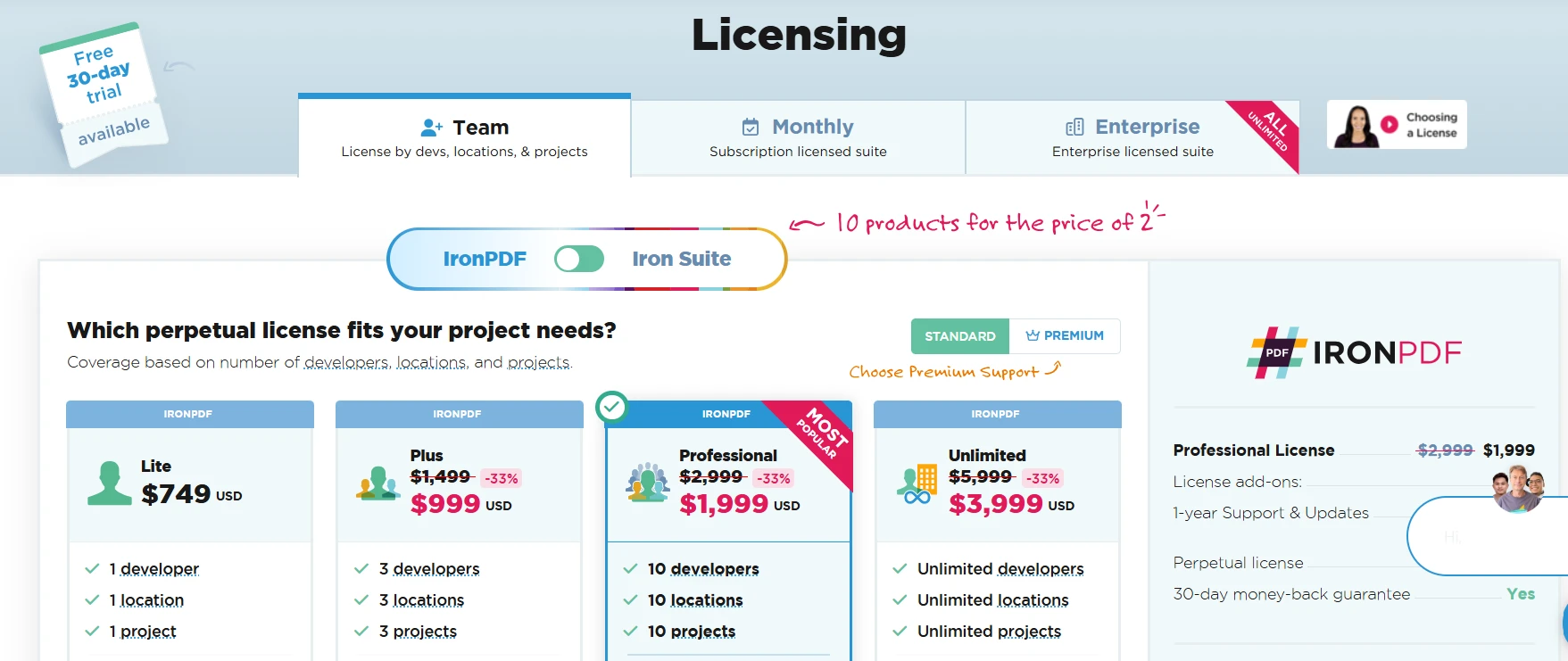
保持密碼不在源程式碼控制中。 當處理受保護的PDF時,從環境變數或保密管理器中讀取憑證而不是將其硬編碼。 IronPDF的PdfDocument.FromFile(path, password)重載接受載入時的密碼,因此調用站點保持乾淨。 IronPDF許可頁面涵蓋了生產部署的團隊和企業許可。
將文字提取範圍限定為您需要的頁面。 ExtractTextFromPage()。 這減少了記憶體使用並加快了測試執行。 請參考文字提取API參考以獲取完整的方法簽名。
IronPDF與其他.NET PDF程式庫如何比較?
| 功能 | IronPDF | iText | PdfPig |
|---|---|---|---|
| 從URL載入PDF | 是——單方法調用 | 需要手動HTTP下載 | 需要手動HTTP下載 |
| 提取所有文字 | 是——`ExtractAllText()` | 是——多步驟 | 是——多步驟 |
| 頁面級提取 | 是——`ExtractTextFromPage(n)` | 是 | 是 |
| 受密碼保護的PDF | 是——參數重載 | 是 | 有限 |
| .NET 10支持 | 是 | 部分 | 是 |
| HTML轉PDF生成 | 是 | 有限 | 否 |
| 跨平台(Linux,macOS) | 是 | 是 | 是 |
| 許可型別 | 商業與免費試用 | AGPL / 商業 | MIT |
IronPDF的直接URL載入和單方法文字提取,讓它在開發速度重要的測試自動化環境中具有明顯優勢。 對於也需要在相同工作流中從HTML生成PDF或操作現有文件的團隊而言,一個程式庫處理兩個任務可大大簡化依賴樹。 像PdfPig這樣的開源替代方案適合簡單的提取需求,但它們需要更多的設置來處理URL載入,並且不提供內建的PDF生成。
如何開始免費試用?
IronPDF提供一個全功能的免費試用版,以便您在承諾購買許可證之前在測試環境中驗證該程式庫。 在試用期間,無水印限制會影響文字提取或驗證的工作流程。
要開始:
- 安裝NuGet包:
dotnet add package IronPdf - 將
using IronPdf;新增到您的測試文件。 - 調用
PdfDocument.FromFile(),開始提取文字。
存取IronPDF免費試用頁面下載您的試用金鑰。 對於團隊或企業部署,請查看IronPDF許可選項以找到適合您的計畫。
加速設置的額外資源:
常見問題
為什麼Selenium WebDriver不能直接讀取PDF文件?
Selenium WebDriver是設計用來與網頁元素互動的,而這些元素是DOM的一部分。然而,PDF文件是作為二進位流渲染的,而不是DOM元素,這使得Selenium無法直接與其內容進行互動。
IronPDF如何協助在Selenium WebDriver中讀取PDF文件?
IronPDF和Selenium WebDriver無縫整合,允許您在不需要複雜設置或多個程式庫的情況下提取和驗證PDF資料。這顯著簡化了過程並提升了測試效率。
將IronPDF與Selenium結合使用進行PDF測試有何好處?
將IronPDF與Selenium結合使用,能夠精簡PDF處理流程,使開發者能夠以最少的程式碼從PDF中提取和驗證文字。這減少了對其他配置或外部程式庫的需求,讓過程更加快速和高效。
C#中的PDF測試需要使用額外的程式庫嗎?
不,IronPDF提供了一個全面的解決方案來處理PDF提取和驗證,消除您在C#專案中對多個程式庫或複雜配置的需求。
IronPDF能處理現代Web應用生成的PDF文件嗎?
是的,IronPDF對現代Web應用程式生成的新PDF文件特別有效,允許高效的文字提取和資料驗證。
IronPDF為Selenium中的PDF自動化提供了哪些強大功能?
IronPDF的強大功能允許其與Selenium WebDriver整合,提供了一種有效的方法來管理PDF文件。它簡化了自動化測試中直接讀取和驗證PDF內容的過程。
IronPDF與像Apache PDFBox這樣的Java解決方案相比如何?
與可能需要多個匯入語句和程式庫的Java解決方案不同,IronPDF提供了一種直接整合到C#專案的簡化方法,簡化了Selenium中的PDF測試過程。
IronPDF是否與C#中的Selenium WebDriver相容?
是的,IronPDF設計為能夠與C#中的Selenium WebDriver無縫合作,提供了一個強健的解決方案來讀取和驗證自動化測試中的PDF文件。
IronPDF在自動化PDF測試中可以解決哪些挑戰?
IronPDF解決了在自動化測試中存取和驗證PDF內容的挑戰,消除對多個程式庫和複雜設置的需求,並提供了一個可以與Selenium WebDriver相容的簡單解決方案。
IronPDF如何提高自動化測試工作流程的效率?
通過與Selenium WebDriver整合,IronPDF簡化了文字提取和PDF資料驗證的過程,減少了自動化測試工作流程的複雜性和所需時間。







 免費開始使用
 免費開始使用
 預約免費現場演示





 不需信用卡或帳戶建立










