using IronPdf;

// Disable local disk access or cross-origin requests
Installation.EnableWebSecurity = true;

// Instantiate Renderer
var renderer = new ChromePdfRenderer();

// Create a PDF from a HTML string using C#
var pdf = renderer.RenderHtmlAsPdf("<h1>Hello World</h1>");

// Export to a file or Stream
pdf.SaveAs("output.pdf");

// Advanced Example with HTML Assets
// Load external html assets: Images, CSS and JavaScript.
// An optional BasePath 'C:\site\assets\' is set as the file location to load assets from
var myAdvancedPdf = renderer.RenderHtmlAsPdf("<img src='icons/iron.png'>", @"C:\site\assets\");
myAdvancedPdf.SaveAs("html-with-assets.pdf");
using IronPdf;// Disable local disk access or cross-origin requestsInstallation.EnableWebSecurity = true;// Instantiate Renderervar renderer = new ChromePdfRenderer();// Create a PDF from a HTML string using C#var pdf = renderer.RenderHtmlAsPdf("<h1>Hello World</h1>");// Export to a file or Streampdf.SaveAs("output.pdf");// Advanced Example with HTML Assets// Load external html assets: Images, CSS and JavaScript.// An optional BasePath 'C:\site\assets\' is set as the file location to load assets fromvar myAdvancedPdf = renderer.RenderHtmlAsPdf("<img src='icons/iron.png'>", @"C:\site\assets\");myAdvancedPdf.SaveAs("html-with-assets.pdf");
IronPDF는 HTML-to-PDF 변환에 대해 Chrome 렌더링을 사용하여 평소 Aspose.PDF의 문서 객체 모델 접근 방식에 비해 일반 작업에 필요한 코드를 줄입니다. 이는 특히 빠른 개발과 정확한 출력을 원하는 .NET 개발자에게 적합합니다.
## 빠른 비교 요약은 무엇입니까?
PDF 라이브러리를 .NET 애플리케이션에서 평가할 때, 기본적인 아키텍처 차이를 이해하는 것이 정보에 입각한 결정을 내리는 데 도움이 됩니다. 이 자세한 비교는 생산 시스템에 관련된 필수 기준에 따라 두 라이브러리를 검토합니다.
| 기준 |IronPDF| Aspose.PDF |
|----------|---------|------------|
|**아키텍처**|Chrome 엔진을 사용한 HTML/CSS 렌더링|문서 객체 모델 (DOM) 접근 방식|
|**학습 곡선**|최소 - 웹 기술 사용|급격함 - PDF 내부 지식 필요|
|**코드 복잡성**| HTML 기반 작업에 대한 적은 코드량 |장황하고 명시적인 위치지정 필요|
| **성능** |웹 콘텐츠에 맞춤화됨| 프로그래밍 문서 구성에 적합 |
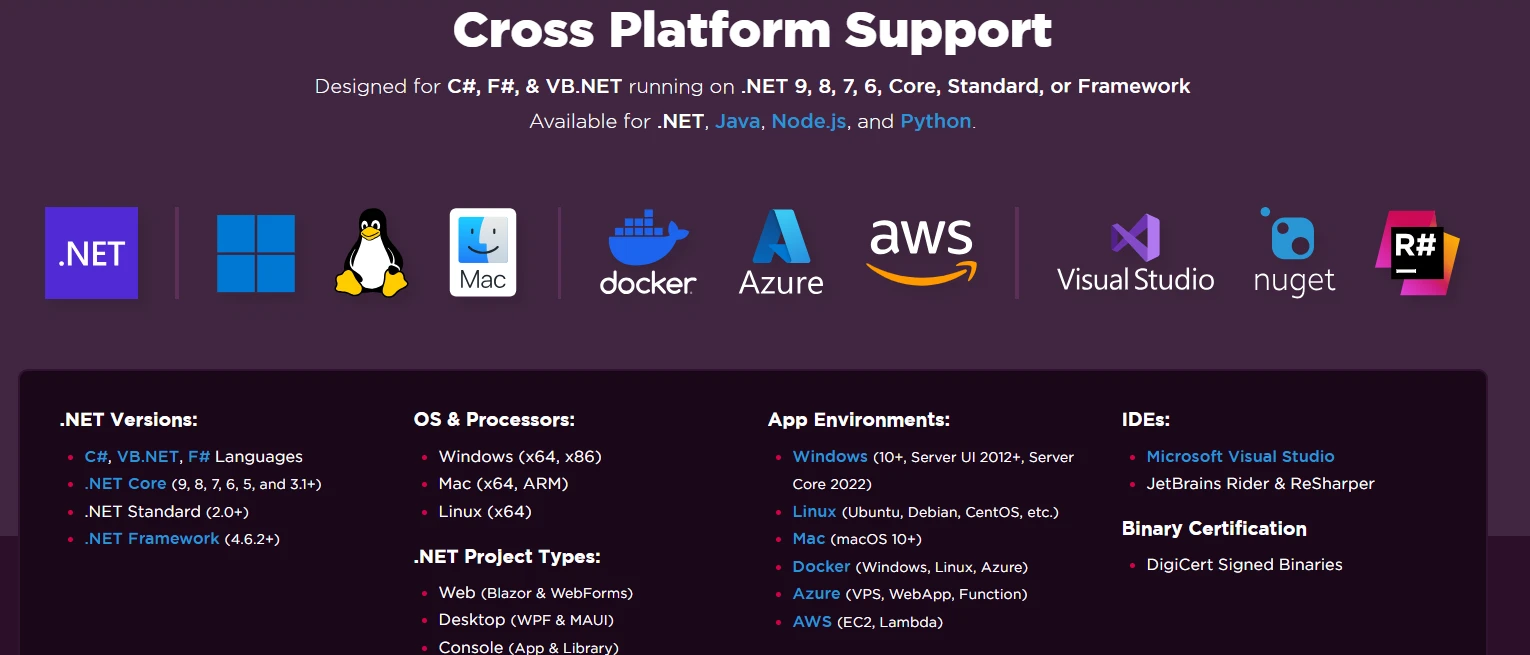
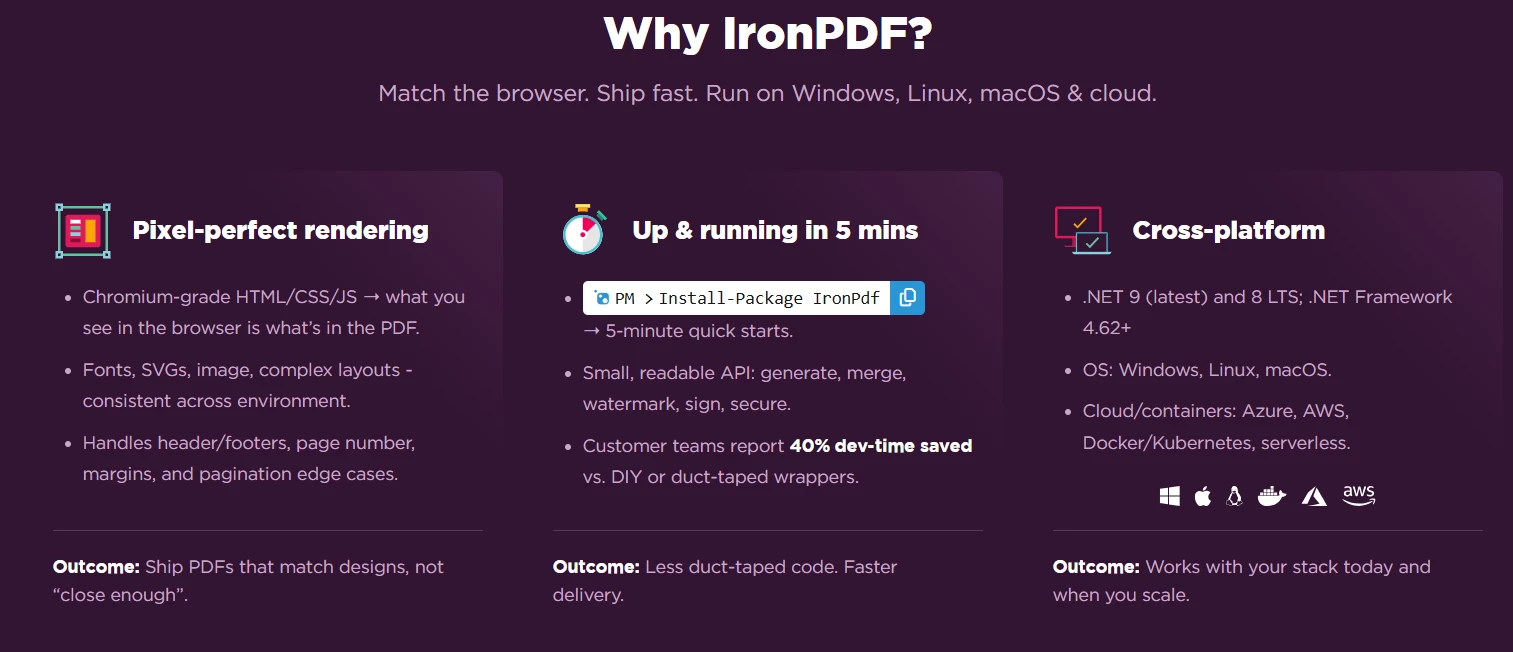
|**크로스 플랫폼**|Windows, Linux, macOS, Docker, Cloud| 윈도우, 리눅스, macOS|
|**라이선스 비용**| `$liteLicense`부터 시작하여 지원 포함 | `$aspose_pdf.small_business`부터 시작하여 추가 지원 포함 |
|**최적의 용도**|웹-대-PDF, 보고서, 청구서|저수준 PDF 조작|
## 필요한 사전 조건은 무엇인가요?
생산 시스템에서 PDF 생성을 구현하기 전에 환경이 이러한 요구 사항을 충족하는지 확인하십시오:
### 기술 요구 사항이 중요한 이유는 무엇입니까?
현대의 .NET 애플리케이션은 다양한 배포 시나리오에서 신뢰할 수 있는 PDF 생성을 요구합니다. 두 라이브러리는 다음을 지원합니다:
* .NET Framework 4.6.2+ 또는 .NET Core 3.1+
* Visual Studio 2019 또는 호환 IDE
[C# 프로그래밍](https://ironpdf.com/get-started/quickstart/)의 기본 지식
IronPDF용 [HTML to PDF 변환](https://ironpdf.com/tutorials/html-to-pdf/) 개념 이해
* 문서 객체 모델에 대한 친숙함 (Aspose.PDF용)
### 어떤 배포 환경이 지원됩니까?
두 라이브러리는 [Azure](https://ironpdf.com/get-started/azure/), [AWS Lambda](https://ironpdf.com/get-started/aws/), 및 [Docker 컨테이너](https://ironpdf.com/get-started/ironpdf-docker/)에 대한 배포를 지원하여 클라우드 네이티브 아키텍처에 적합합니다. IronPDF의 [네이티브 엔진](https://ironpdf.com/get-started/ironpdfengine/)은 다양한 플랫폼에서 일관성 있는 렌더링을 보장하며, 고성능 시나리오를 위한 [비동기 작업](https://ironpdf.com/how-to/async/)을 지원합니다.
### 어떤 운영 체제를 타겟으로 할 수 있습니까?
IronPDF는 광범위한 플랫폼 지원을 제공합니다:
- 전체 .NET Framework 지원을 갖춘 [Windows 환경](https://ironpdf.com/get-started/windows/)
- Ubuntu, Debian, CentOS를 포함한 [Linux 배포판](https://ironpdf.com/get-started/linux/)
- Intel 및 Apple Silicon 모두를 위한 [macOS 시스템](https://ironpdf.com/get-started/macos/)
- .NET MAUI를 통한 [Android 애플리케이션](https://ironpdf.com/get-started/android/)
- Kubernetes를 통한 컨테이너 오케스트레이션
## 이 라이브러리를 어떻게 설치합니까?
### 패키지 관리자 콘솔을 통해 Aspose.PDF를 어떻게 설치하나요?
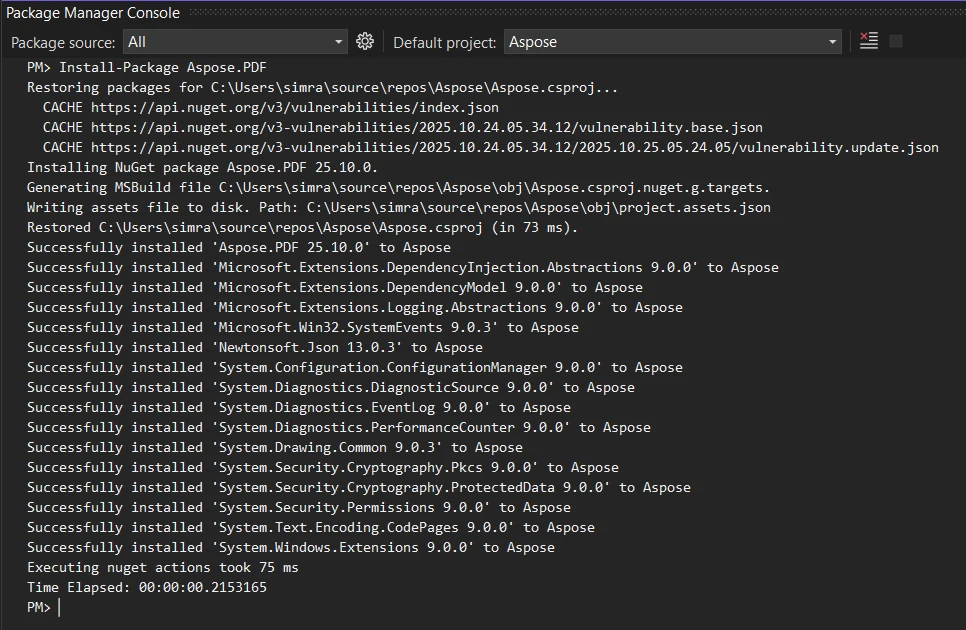
NuGet 패키지 관리자를 통한 설치는 .NET 솔루션에 PDF 라이브러리를 통합하기 위한 가장 간단한 접근 방식을 제공합니다. Visual Studio에서 패키지 관리자 콘솔을 열고 다음을 실행하십시오:
```shell
:InstallCmd Install-Package Aspose.PDF
```
### IronPDF를 설치하는 과정은 무엇입니까?
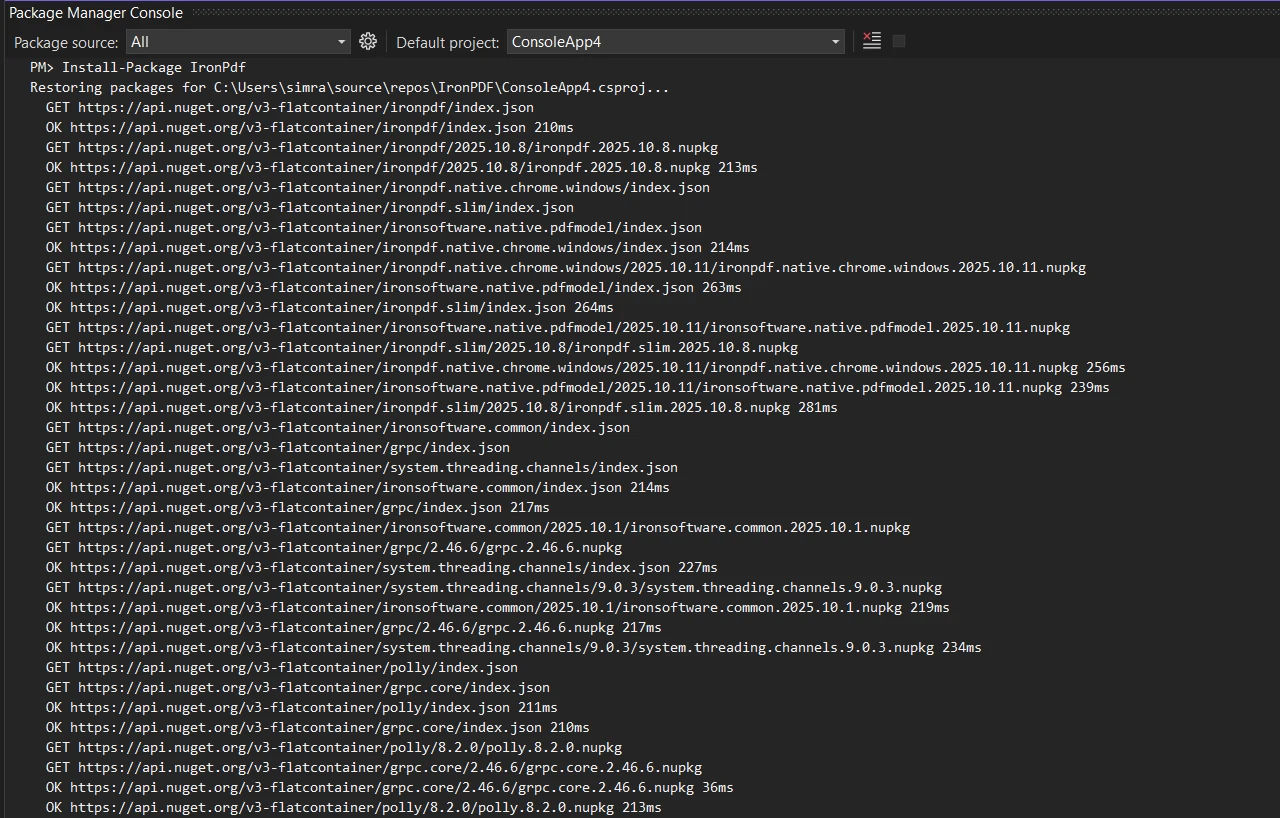
.NET 솔루션에 PDF 라이브러리를 통합하기 위한 패키지 관리자를 통한 설치는 동일하게 간단한 과정입니다:
```shell
:ProductInstall
```
고급 설치 시나리오의 경우 [NuGet 패키지 가이드](https://ironpdf.com/get-started/advanced-installation-nuget/)나 [Windows 설치 옵션](https://ironpdf.com/get-started/ironpdf-installer/)을 참조하십시오. IronPDF는 [F# 개발](https://ironpdf.com/get-started/fsharp-pdf-library-html-to-pdf/) 및 [VB.NET 애플리케이션](https://ironpdf.com/get-started/vb-net-pdf/)도 지원합니다.
### 추가로 필요한 종속성은 무엇입니까?
IronPDF는 HTML 렌더링을 위한 임베디드 Chrome 엔진을 포함하며, [Windows](https://ironpdf.com/get-started/windows/), [Linux](https://ironpdf.com/get-started/linux/), [macOS](https://ironpdf.com/get-started/macos/), Docker 컨테이너 및 클라우드 플랫폼을 지원합니다. Chrome [렌더링 엔진](https://ironpdf.com/how-to/ironpdf-2021-chrome-rendering-engine-eap/)은 국제 언어를 위한 [UTF-8 지원](https://ironpdf.com/how-to/utf-8/)으로 정확한 출력을 보장합니다.
Chrome 렌더링 엔진은 자동으로 다음을 처리합니다:
- **CSS3 및 최신 웹 표준**: 플렉스박스, 그리드 및 반응형 디자인에 대한 전체 지원
- **JavaScript 실행**: 동적 콘텐츠는 PDF 생성 전에 렌더링됩니다
- **웹 글꼴 및 아이콘**: Google Fonts, `FontAwesome`, 맞춤형 글꼴
- **SVG 및 벡터 그래픽**: 확장 가능한 이미지는 어떤 해상도에서도 품질을 유지합니다
## 첫 번째 PDF 문서를 어떻게 만들까요?
각 라이브러리의 기본 접근 방식을 이해하면 아키텍트가 정보에 입각한 기술 결정을 내릴 수 있습니다. 이 예제들은 핵심 API 패턴과 아키텍처 개념을 보여줍니다.
### Aspose.PDF는 문서를 어떻게 생성하나요?
```cs
using Aspose.Pdf;
using Aspose.Pdf.Text;

// Create new instance of Document class
var document = new Aspose.Pdf.Document();

// Add pages to the document object
var page = document.Pages.Add();

// Create new TextFragment with Hello World text
var textFragment = new TextFragment("Hello World!");
textFragment.TextState.FontSize = 24;
textFragment.TextState.Font = FontRepository.FindFont("Arial");

// Add text to paragraphs collection
page.Paragraphs.Add(textFragment);

// Save the generated PDF document
document.Save("output.pdf");
```
이 코드는 문서 객체 모델을 구축하여 PDF 문서를 생성합니다. 개발자는 새 문서를 만들고 컬렉션에 페이지를 추가한 다음 해당 페이지에 콘텐츠를 추가합니다. Aspose.Pdf.Document 클래스는 기초를 제공하며, 문단은 콘텐츠를 담습니다. 이 Hello World 예제는 기본 프로세스를 보여줍니다. API는 명시적인 [글꼴 관리](https://ironpdf.com/how-to/manage-fonts/)와 위치 계산이 필요합니다.
### 이것은 어떤 출력을 생성하나요?
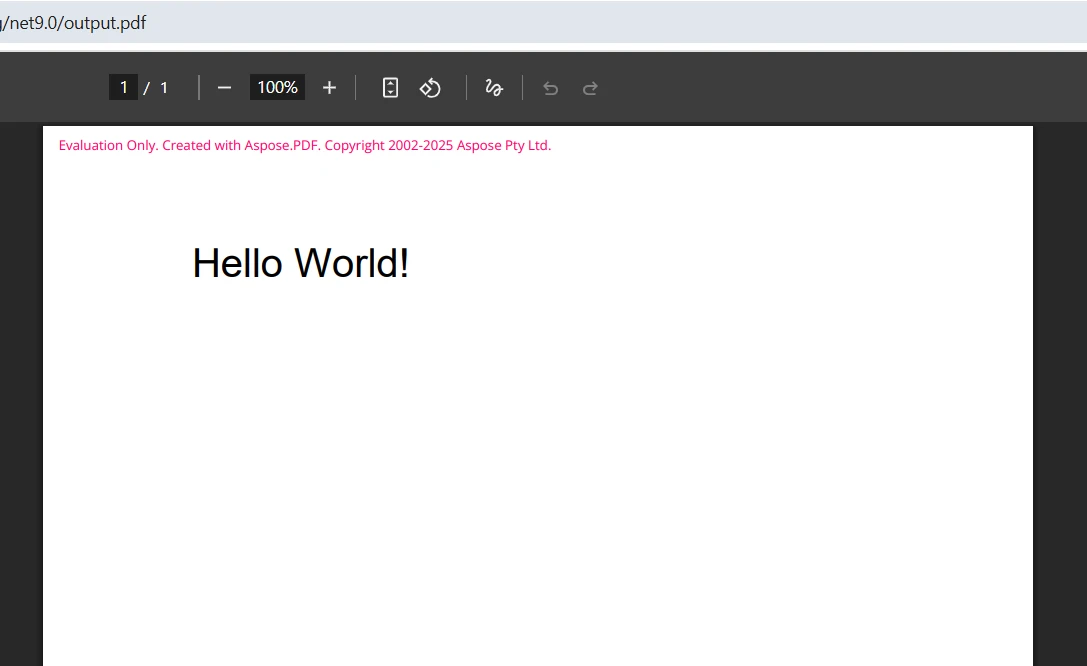
*Aspose.PDF는 라이센스가 있을 때까지 평가 워터마크와 함께 문서를 생성합니다*
### IronPDF의 접근 방식은 어떻게 다른가요?
IronPDF로 PDF를 생성하는 것은 빠른 개발을 위해 익숙한 웹 기술을 사용합니다:
```csharp
:title=Quickstart - Create PDF from HTML
using IronPdf;
// Create new instance of ChromePdfRenderer
var renderer = new ChromePdfRenderer();
// Configure rendering options for production
renderer.RenderingOptions.CssMediaType = IronPdf.Rendering.PdfCssMediaType.Print;
renderer.RenderingOptions.PrintHtmlBackgrounds = true;
// Convert HTML string to PDF file
var html = @"
<h1 style='color: #333; font-family: Arial;'>Hello World!</h1>
<p>This PDF was generated using IronPDF's Chrome rendering engine.</p>";
var pdf = renderer.RenderHtmlAsPdf(html);
// Save PDF files using SaveAs method
pdf.SaveAs("output.pdf");
```
IronPDF는 PDF를 생성하는 데 다른 방법을 사용합니다 - Chrome을 사용하여 [HTML을 직접 PDF로 렌더링](https://ironpdf.com/how-to/html-string-to-pdf/)합니다. 이 API는 개발자가 [웹 콘텐츠를 변환](https://ironpdf.com/how-to/url-to-pdf/)하고 복잡한 레이아웃을 쉽게 구현할 수 있게 합니다. 라이브러리는 CSS 미디어 유형, [JavaScript 실행](https://ironpdf.com/how-to/html-to-pdf-responsive-css/), [웹 글꼴](https://ironpdf.com/how-to/webfonts-webicons/)을 포함한 모든 렌더링 복잡성을 처리하여 전문가 수준의 결과를 얻기 쉽게 만듭니다.
###IronPDF출력은 어떻게 생겼나요?
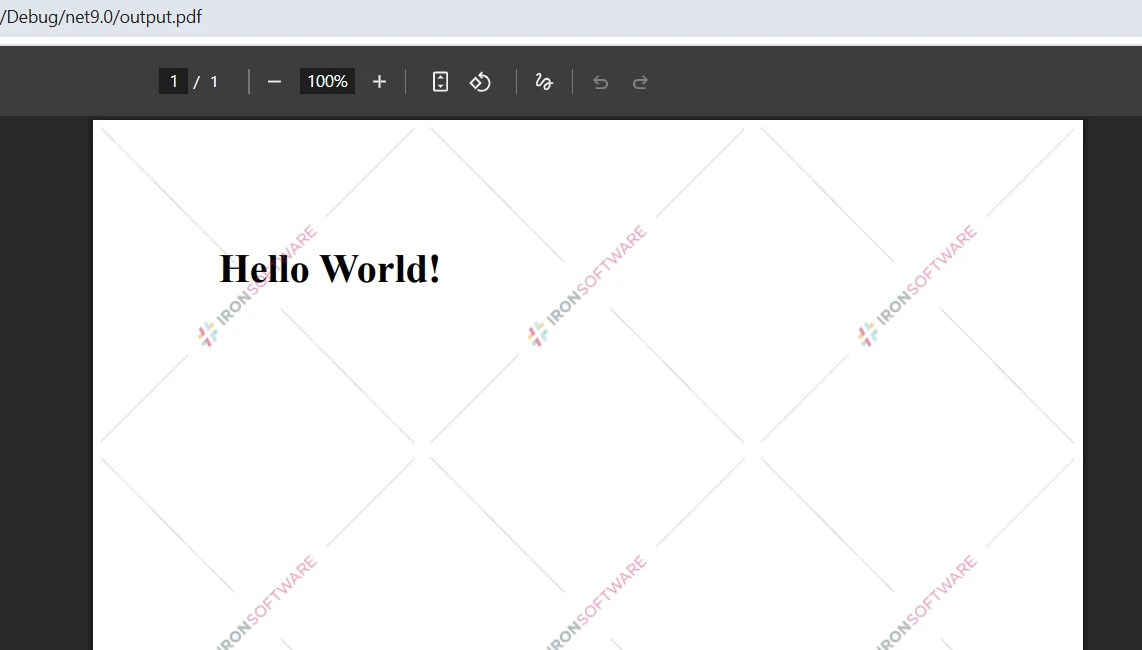
*IronPDF는 Chrome으로 HTML을 렌더링하여 정확한 정확성을 제공합니다*
### 왜 HTML 기반 PDF 생성을 선택해야 하나요?
HTML 접근 방식은 여러 아키텍처적 장점을 제공합니다:
- **관심사의 분리**: 디자이너는 HTML/CSS에서 작업하고 개발자는 PDF 생성을 처리합니다
- **재사용 가능한 템플릿**: 웹 보기와 PDF 출력 간의 레이아웃을 공유합니다
- **반응형 디자인**: 자동으로 다른 페이지 크기에 적응합니다
- **현대 CSS 지원**: 플렉스박스, 그리드 및 CSS3 기능이 매끄럽게 작동합니다
## 실제 인보이스 PDF를 어떻게 만드나요?
생산 응용 프로그램은 표, 스타일링 및 동적 콘텐츠를 포함한 정교한 레이아웃이 필요합니다. 이 예제들은 각 라이브러리가 복잡한 문서 요구 사항을 어떻게 처리하는지 보여줍니다.
### Aspose.PDF로 청구서를 어떻게 작성하나요?
```cs
using Aspose.Pdf;
using Aspose.Pdf.Text;
// Create new Document instance
var document = new Document();
var page = document.Pages.Add();
// Set page margins
page.PageInfo.Margin = new MarginInfo(72, 72, 72, 72);
// Add title text
var title = new TextFragment("INVOICE");
title.TextState.FontSize = 28;
title.TextState.Font = FontRepository.FindFont("Arial Bold");
title.HorizontalAlignment = HorizontalAlignment.Center;
// Add to paragraphs
page.Paragraphs.Add(title);
// Add space
page.Paragraphs.Add(new TextFragment("\n"));
// Create table object for invoice items
var table = new Table();
table.ColumnWidths = "200 100 100";
table.Border = new BorderInfo(BorderSide.All, 0.5f, Color.Black);
table.DefaultCellBorder = new BorderInfo(BorderSide.All, 0.5f, Color.Black);
table.DefaultCellPadding = new MarginInfo(5, 5, 5, 5);
// Add header row to table
var headerRow = table.Rows.Add();
headerRow.Cells.Add("Description");
headerRow.Cells.Add("Quantity");
headerRow.Cells.Add("Price");
// Style header cells
foreach (Cell headerCell in headerRow.Cells)
{
headerCell.BackgroundColor = Color.Gray;
var headerText = (TextFragment)headerCell.Paragraphs[0];
headerText.TextState.ForegroundColor = Color.White;
headerText.TextState.Font = FontRepository.FindFont("Arial Bold");
}
// Add data rows
var dataRow = table.Rows.Add();
dataRow.Cells.Add("Product A");
dataRow.Cells.Add("2");
dataRow.Cells.Add("$50.00");
// Add table to page paragraphs
page.Paragraphs.Add(table);
// Save the PDF document
document.Save("invoice.pdf");
```
Aspose.PDF .NET API는 각 요소를 프로그램적으로 구축해야 합니다. 개발자는 문서 객체를 생성하고 페이지를 추가한 다음 단락 컬렉션에 콘텐츠를 추가합니다. 이는 정확한 제어를 제공하지만 복잡한 레이아웃을 구현하는 데 더 많은 코드가 필요합니다. 테이블 형식 [관리](https://ironpdf.com/how-to/table-of-contents/), 테두리 및 스타일링은 명시적인 구성이 필요합니다. 더 복잡한 시나리오의 경우, 개발자가 [페이지 나누기](https://ironpdf.com/how-to/html-to-pdf-page-breaks/)를 수동으로 처리해야 할 수도 있습니다.
### IronPDF는 인보이스 생성을 어떻게 간소화하나요?
```cs
using IronPdf;
var renderer = new ChromePdfRenderer();
// Configure PDF output settings
renderer.RenderingOptions.MarginTop = 25;
renderer.RenderingOptions.MarginBottom = 25;
renderer.RenderingOptions.MarginLeft = 25;
renderer.RenderingOptions.MarginRight = 25;
renderer.RenderingOptions.PaperOrientation = IronPdf.Rendering.PdfPaperOrientation.Portrait;
// Enable JavaScript for dynamic calculations
renderer.RenderingOptions.EnableJavaScript = true;
renderer.RenderingOptions.RenderDelay = 500; // Wait for JS execution
// HTML string with invoice content
var html = @"
<html>
<head>
<style>
body { font-family: Arial, sans-serif; }
h1 { color: #333; text-align: center; }
table { width: 100%; border-collapse: collapse; }
th, td { padding: 12px; text-align: left; border-bottom: 1px solid #ddd; }
th { background-color: #4CAF50; color: white; }
tr:hover { background-color: #f5f5f5; }
.total { font-weight: bold; font-size: 18px; }
</style>
</head>
<body>
<h1>INVOICE</h1>
<p>Invoice Date: <span id='date'></span></p>
<table>
<tr>
<th>Description</th>
<th>Quantity</th>
<th>Unit Price</th>
<th>Total</th>
</tr>
<tr>
<td>Product A</td>
<td>2</td>
<td>$25.00</td>
<td>$50.00</td>
</tr>
<tr>
<td>Product B</td>
<td>3</td>
<td>$15.00</td>
<td>$45.00</td>
</tr>
<tr>
<td colspan='3' class='total'>Total:</td>
<td class='total'>$95.00</td>
</tr>
</table>
<script>
document.getElementById('date').innerText = new Date().toLocaleDateString();
</script>
</body>
</html>";
// Generate PDF from HTML
var pdf = renderer.RenderHtmlAsPdf(html);
// Add metadata
pdf.MetaData.Author = "Your Company";
pdf.MetaData.Title = "Invoice";
pdf.SaveAs("invoice.pdf");
```
IronPDF로 개발자는 표준 HTML을 작성하고 시스템이 렌더링을 처리합니다. 이 방법은 전문가 수준의 레이아웃으로 PDF 파일을 쉽게 만들 수 있게 합니다. 개발자는 [외부 스타일시트를 참조](https://ironpdf.com/how-to/base-urls/)하고, [이미지를 추가](https://ironpdf.com/how-to/add-images-to-pdfs/)하며, [동적 콘텐츠를 위한 JavaScript 포함](https://ironpdf.com/examples/execute-custom-javascript/)할 수 있습니다. 렌더링 옵션은 [사용자 정의 여백](https://ironpdf.com/how-to/custom-margins/)과 [용지 크기](https://ironpdf.com/how-to/custom-paper-size/)를 포함하여 출력 품질에 대한 세부 제어를 제공합니다.
### 최종 인보이스 출력은 어떻게 생겼나요?
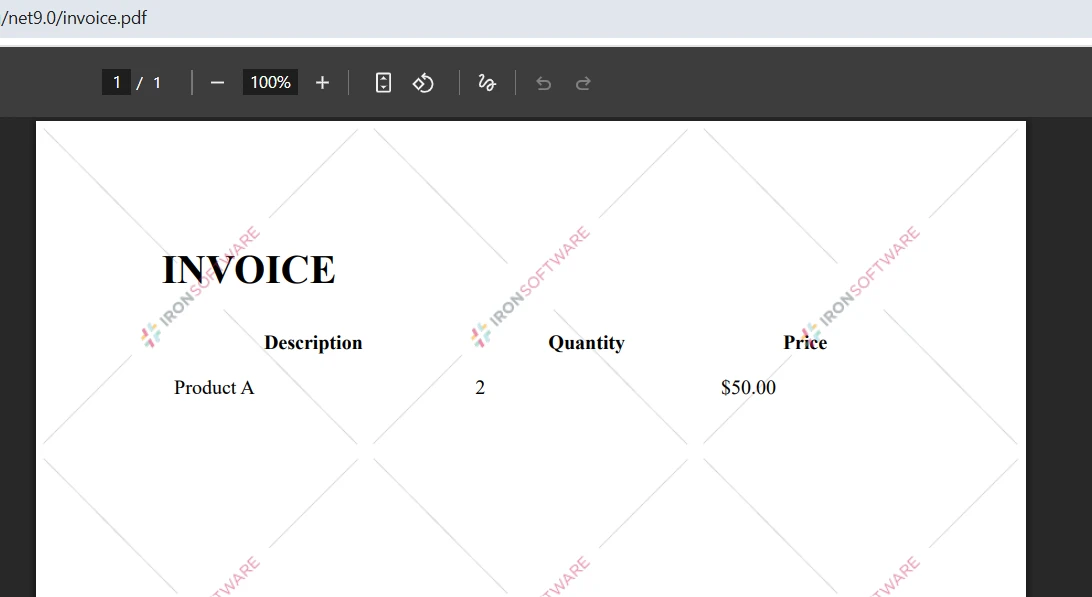
*자동 테이블 형식화로 HTML에서 렌더링된 전문적인 인보이스*
### 코드 복잡도 차이는 무엇입니까?
두 가지 접근 방식을 비교하면 개발 노력에 상당한 차이가 있음을 알 수 있습니다:
**Aspose.PDF 요구사항**:
- 명시적 셀 생성을 통한 수동 테이블 구성
- 각 요소에 대한 프로그램 스타일링
- 글꼴 관리 및 위치 계산
- 기본 청구서에 대한 ~50+ 줄
**IronPDF의 장점**:
- 표준 HTML/CSS를 사용한 레이아웃
- 자동 테이블 렌더링
- CSS 호버 효과 및 최신 스타일링
- 향상된 청구서를 위한 ~30줄## 어떤 고급 기능이 제공됩니까?
두 라이브러리는 기본 PDF 생성 이상의 광범위한 기능을 제공합니다. 이러한 기능을 이해하면 설계자가 완전한 문서 솔루션을 설계하는 데 도움이 됩니다.
### 웹 페이지를 PDF로 변환하려면 어떻게 해야 하나요?
```cs
//IronPDF- Convert any URL to PDF
var renderer = new ChromePdfRenderer();
// Configure for improved web page capture
renderer.RenderingOptions.ViewPortWidth = 1920;
renderer.RenderingOptions.ViewPortHeight = 1080;
renderer.RenderingOptions.PrintHtmlBackgrounds = true;
renderer.RenderingOptions.WaitFor.RenderDelay(2000); // Wait for dynamic content
// Load and convert URL to PDF
var pdf = renderer.RenderUrlAsPdf("___PROTECTED_URL_124___");
// Apply post-processing
pdf.CompressImages(90); // Optimize file size
pdf.SaveAs("website.pdf");
```
IronPDF는 자신의 Chrome 엔진을使用하여 [URL을 PDF로 변환](https://ironpdf.com/how-to/url-to-pdf/)하는 데 탁월하며, [JavaScript 차트](https://ironpdf.com/examples/js-charts-to-pdf/), [앵귤러 애플리케이션](https://ironpdf.com/examples/angular-to-pdf/), [반응형 CSS](https://ironpdf.com/how-to/html-to-pdf-responsive-css/)를 지원합니다. [WaitFor 옵션](https://ironpdf.com/how-to/waitfor/)은 동적 콘텐츠가 완전히 로드되도록 보장합니다. 개발자는 또한 [WebGL 콘텐츠를 렌더링](https://ironpdf.com/how-to/render-webgl/)하고 [TLS 인증](https://ironpdf.com/how-to/logins/)을 처리할 수 있습니다.
### 어떤 보안 옵션을 구현할 수 있습니까?
```cs
// Create PDF document
var pdf = renderer.RenderHtmlAsPdf(html);
// Implement complete security settings
pdf.SecuritySettings.UserPassword = "user123";
pdf.SecuritySettings.OwnerPassword = "owner456";
// Configure permissions
pdf.SecuritySettings.AllowUserPrinting = IronPdf.Security.PdfPrintSecurity.FullPrintRights;
pdf.SecuritySettings.AllowUserEditing = IronPdf.Security.PdfEditSecurity.NoEdit;
pdf.SecuritySettings.AllowUserCopyPasteContent = false;
pdf.SecuritySettings.AllowUserFormData = true;
// Add digital signature
pdf.SignWithFile("/path/to/certificate.pfx", "password");
// Save secured file
pdf.SaveAs("secured.pdf");
```
IronPDF는 PDF 문서에 [보안을 추가](https://ironpdf.com/how-to/pdf-permissions-passwords/), [디지털 서명](https://ironpdf.com/how-to/signing/), [머리글 및 바닥글](https://ironpdf.com/how-to/headers-and-footers/)을 추가할 수 있는 직관적인 방법을 제공합니다. 개발자는 또한 [PDF를 병합](https://ironpdf.com/how-to/merge-or-split-pdfs/), [콘텐츠를 추출](https://ironpdf.com/how-to/extract-text-and-images/)하거나 [워터마크를 추가](https://ironpdf.com/how-to/custom-watermark/)할 수 있습니다. Enterprise 시나리오의 경우, IronPDF는 보안을 위해 [HSM과 서명](https://ironpdf.com/how-to/signing-pdf-with-hsm/) 및 [PDF를 소독](https://ironpdf.com/how-to/sanitize-pdf/)하는 것을 지원합니다.
### 보안이 설정된 PDF는 어떻게 보이나요?
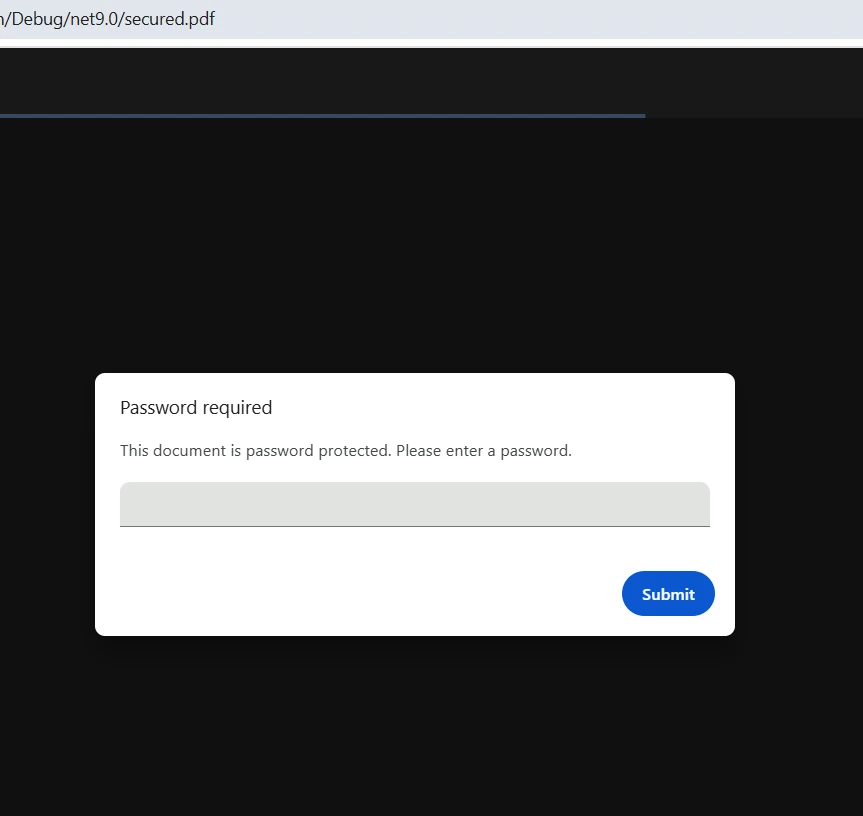
*암호 보호 및 디지털 서명을 통한 Enterprise급 보안*
### 복잡한 작업을 위한 API 비교는 어떻게 되나요?
여기서 양 라이브러리를 사용하여 양식을 사용하여 PDF를 생성하는 방법을 비교합니다:
```cs
// Aspose PDF - Creating forms requires manual positioning
var document = new Document();
var page = document.Pages.Add();
// Create text field
var textField = new TextBoxField(page, new Rectangle(100, 700, 200, 720));
textField.PartialName = "name";
textField.Value = "Enter your name";
document.Form.Add(textField);
//IronPDF- Use HTML forms naturally
var html = @"
<form>
<label>Name: <input type='text' name='name' required></label>
<label>Email: <input type='email' name='email' required></label>
<input type='submit' value='Submit'>
</form>";
var pdf = renderer.RenderHtmlAsPdf(html);
// Forms are automatically interactive in the PDF
```
IronPDF의 [PDF 양식 생성](https://ironpdf.com/how-to/create-forms/) 접근 방식은 HTML 양식 요소를 사용하여 구성되며, Aspose는 프로그램 구성이 필요합니다. 이 패턴은 [주석](https://ironpdf.com/how-to/annotations/), [책갈피](https://ironpdf.com/how-to/bookmarks/), [백그라운드](https://ironpdf.com/how-to/background-foreground/)와 같은 다른 기능으로 확장됩니다. IronPDF는 또한 [프로그래매틱하게 양식을 채우고](https://ironpdf.com/how-to/edit-forms/) [PDF/A 준수](https://ironpdf.com/how-to/pdfa/)와 함께 작업할 수 있습니다.
### 양 라이브러리는 PDF 조작을 어떻게 처리합니까?
IronPDF는 직관적인 API를 통해 완전한 PDF 조작 기능을 제공합니다:
```cs
// Load existing PDF
var pdf = PdfDocument.FromFile("existing.pdf");
// Add pages from another PDF
var anotherPdf = PdfDocument.FromFile("append.pdf");
pdf.AppendPdf(anotherPdf);
// Add watermark
pdf.ApplyWatermark(@"
<div style='opacity: 0.5; font-size: 48px; color: red; transform: rotate(-45deg);'>
CONFIDENTIAL
</div>", 30, VerticalAlignment.Middle, HorizontalAlignment.Center);
// Compress for web
pdf.CompressImages(70);
pdf.SaveAs("optimized.pdf");
```
이러한 작업은 [PDF 압축](https://ironpdf.com/how-to/pdf-compression/), [페이지 조작](https://ironpdf.com/how-to/add-copy-delete-pages-pdf/), [이미지 최적화](https://ironpdf.com/how-to/image-to-pdf/)에서 IronPDF의 강점을 보여줍니다. 이 라이브러리는 또한 [텍스트 및 이미지 추출](https://ironpdf.com/how-to/extract-text-and-images/), [콘텐츠 수정](https://ironpdf.com/how-to/redact-text/), [페이지 변환](https://ironpdf.com/how-to/transform-pdf-pages/)을 지원합니다.
## 각 라이브러리로 뛰어난 업계별 응용 프로그램은 무엇입니까?
### IronPDF는 제작에서 어디에서 탁월합니까?
IronPDF는 이러한 프로덕션 시나리오에서 뛰어납니다:
**금융 서비스**:
- **청구서 생성**: HTML 템플릿과 동적 데이터 바인딩
- **성명서 렌더링**: CSS 스타일링을 사용한 복잡한 테이블
- **규제 보고서**: 아카이브용 [PDF/A 준수](https://ironpdf.com/how-to/pdfa/)
**의료 시스템**:
- **환자 보고서**: 스크린 리더 지원이 있는 [접근 가능한 PDF](https://ironpdf.com/how-to/pdfua/)
- **랩 결과**: [JavaScript 렌더링](https://ironpdf.com/examples/js-charts-to-pdf/)을 통한 차트 및 그래프
- **HIPAA 준수**: 메타데이터를 제거하는 [소독된 PDF](https://ironpdf.com/how-to/sanitize-pdf/)
**전자 상거래 플랫폼**:
- **주문 확인**: [Razor 뷰 변환](https://ironpdf.com/how-to/cshtml-to-pdf-razor/)
- **배송 라벨**: [맞춤형 용지 크기](https://ironpdf.com/how-to/custom-paper-size/)
- **제품 카탈로그**: [이미지다량의 PDF](https://ironpdf.com/how-to/add-images-to-pdfs/)를 압축하여 제공
### 개발자가 Aspose.PDF를 선택해야 할 때는 언제인가요?
Aspose.PDF는 특정 기술 요구사항에 적합합니다:
**문서 처리**:
- 저수준 PDF 조작
- 복잡한 폼 필드 배치
- 맞춤형 PDF 형식 준수
**레거시 시스템 통합**:
- 프로그래밍 방식의 PDF 생성
- 정밀한 좌표 기반 레이아웃
- PDF 구조에 직접 접근
## 어떤 라이브러리를 선택해야 할까요?
### IronPDF를 언제 사용해야 할까요?
IronPDF는 개발자에게 다음과 같은 점에서 뛰어납니다:
**개발 속도 요구 사항**:
- [HTML을 PDF로 변환](https://ironpdf.com/how-to/html-file-to-pdf/)해야 하는 경우
- 더 간단한 코드와 빠른 개발을 원하는 경우
- [JavaScript 실행](https://ironpdf.com/how-to/javascript-to-pdf/) 및 [SVG 지원](https://ironpdf.com/how-to/SVGs)이 필요한 경우
**플랫폼 및 배포 필요**:
- [크로스플랫폼 지원](https://ironpdf.com/how-to/windows/)이 필요한 경우 [Android](https://ironpdf.com/get-started/android/) 포함
- [Docker](https://ironpdf.com/get-started/ironpdf-docker/)나 클라우드 환경에 배포해야 하는 경우
- [Razor 뷰에서 보고서 생성](https://ironpdf.com/how-to/cshtml-to-pdf-razor/) 또는 [Blazor](https://ironpdf.com/how-to/blazor-tutorial/) 사용
**준수 및 접근성**:
- [PDF/A 준수 문서 생성](https://ironpdf.com/how-to/pdfa/)
- [PDF/UA 접근 가능한 파일](https://ironpdf.com/how-to/pdfua/) 생성
- [비동기 PDF 생성](https://ironpdf.com/how-to/async/) 또는 [병렬 처리](https://ironpdf.com/examples/parallel/)가 필요한 경우
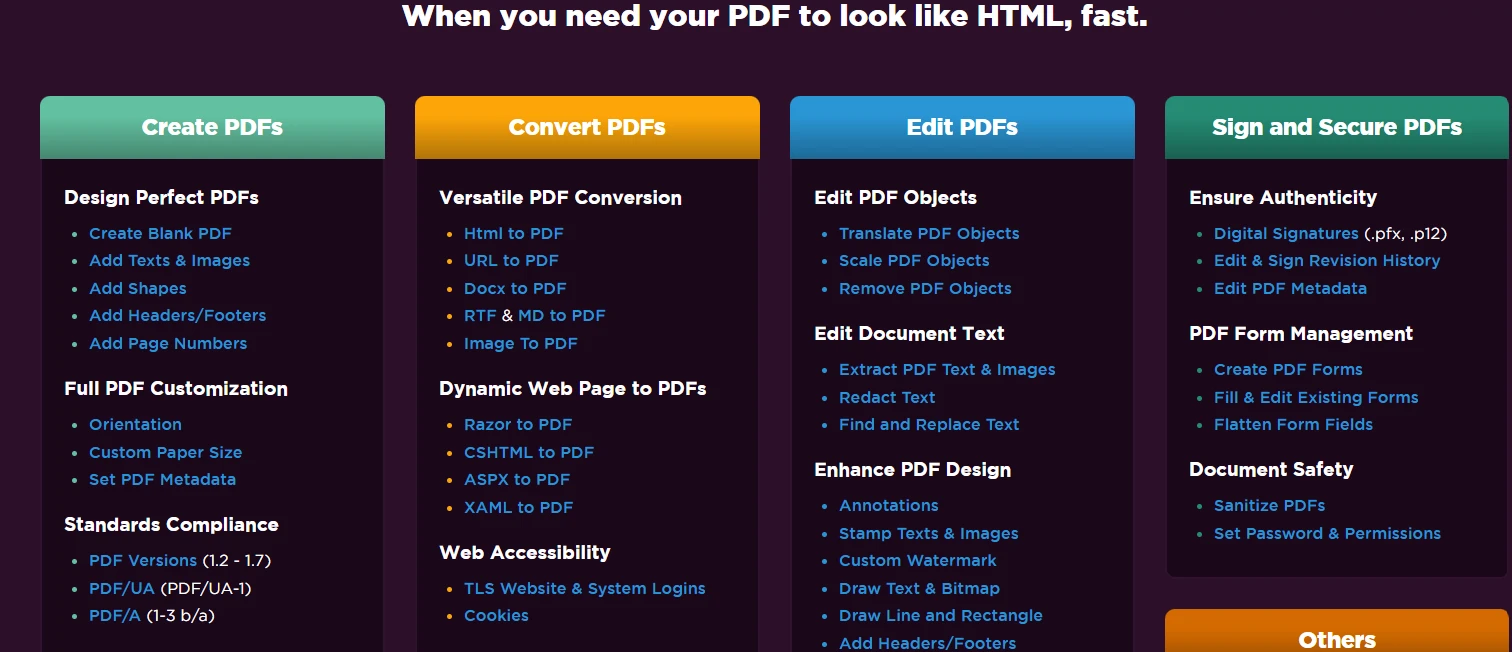
*IronPDF는 직관적인 API를 통해 완벽한 PDF 기능을 제공합니다*
### Aspose.PDF가 더 나은 선택인 때는 언제인가요?
.NET 애플리케이션용 Aspose.PDF는 개발자들에게 잘 작동합니다:
**기술 요구 사항**:
- 프로그램 방식으로 처음부터 PDF를 생성하는 경우
- 문서 객체 모델에 대한 세부 제어가 필요한 경우
- 복잡한 [PDF 조작](https://ironpdf.com/how-to/merge-or-split-pdfs/)을 다루는 경우
**아키텍처 제약사항**:
- 기존 PDF 파일을 처리하기 위해 가져오는 경우
- 특정 PDF 형식 준수가 필요한 경우
- 문서 자동화 워크플로우를 구축하는 경우
### 성능과 API의 복잡성은 어떻습니까?
성능 특성은 사용 사례에 따라 다르며 특정 환경에서 검증되어야 합니다:
| 미터법 |IronPDF| Aspose.PDF |
|--------|---------|------------|
|**HTML to PDF**| Chrome 기반 렌더링; 웹 콘텐츠에 적합 | DOM 기반 접근; 프로그래밍 구성에 적합 |
| **단순 텍스트 PDF** | 모든 문서 유형에 적합 | 프로그램상 텍스트 기반 문서에 효율적 |
|**메모리 사용량**| 문서 복잡성에 따라 다름 | 문서 복잡성에 따라 다름 |
|**동시 작업**| 비동기 API 사용 가능 | 동기 API, 다중 스레딩에는 주의 필요 |
| **개발 접근법** | HTML/CSS 기반; 웹 개발자에게 친숙 | API 구동; PDF 내부를 배워야 함 |
IronPDF의 HTML 기반 접근법은 다음을 제공합니다:
- 수동 DOM 구성에 비해 HTML 기반 작업에 대한 적은 코드량
- 웹 개발 기술이 PDF 생성으로 직접 전환
- HTML/CSS 분리를 통한 **더 나은 유지 관리성**
- [Chrome DevTools 통합](https://ironpdf.com/how-to/pixel-perfect-html-to-pdf/)를 통한 **더 쉬운 디버깅**
- [사용자 정의 로깅](https://ironpdf.com/how-to/custom-logging/) 지원
Aspose의 문서 모델은 다음을 제공합니다:
- PDF 내부에 대한 정밀한 제어
- 단순 텍스트 문서에 대한 더 나은 성능
- 저수준 PDF 조작을 위한 더 많은 옵션
- 복잡한 레이아웃에 대한 더 가파른 학습 곡선
## 라이선스 비교 방법
라이선싱 모델을 이해하면 장기 프로젝트 비용과 확장성 요구 사항을 예산에 맞출 수 있습니다.
###IronPDF라이선싱에 포함된 내용
IronPDF는 `$liteLicense`에서 시작하는 간단한 [라이센싱](https://ironpdf.com/licensing/)을 제공합니다. 지원 및 업데이트 포함. [무료 체험판](https://ironpdf.com/get-started/license-keys/)에는 워터마크 없이 모든 기능이 포함됩니다.
*숨겨진 비용이나 연회비가 없는 투명한 가격*
### 라이선싱 모델 비교 방법
|라이선스 기능|IronPDF| Aspose.PDF |
|----------------|---------|------------|
| **시작 가격** | `$liteLicense` | `$aspose_pdf.small_business` |
|**지원 포함**|24/5 전문 지원|지원은 추가 비용이 발생|
|**업데이트**|1년 포함|연간 갱신 필요|
|**배포**|계층별 무제한|개발자별 좌석|
|**로열티 프리**|상위 계층에서 가능함| 추가 라이센스 |
|**시험 기간**|30일 전체 기능 사용 가능|제한된 평가|
주요 라이선싱 차이점:
- IronPDF: 투명한 가격, [24/5 지원 포함](https://ironpdf.com/demos/), 영구 라이선스
- Aspose: 더 높은 초기 비용, 지원 구독 필요, 복잡한 갱신 구조
- IronPDF: [Professional+ 계층에서 로열티 없는 재배포](https://ironpdf.com/licensing/)
- 두 제품 모두: [SaaS 애플리케이션용 OEM 라이선싱](https://ironpdf.com/licensing/) 제공
여러 제품이 필요한 팀을 위해 [IronPDF의 라이선스 확장](https://ironpdf.com/licensing/extensions/) 및 [업그레이드 옵션](https://ironpdf.com/licensing/upgrades/)이 유연성을 제공합니다. 완전한 [API 문서](https://ironpdf.com/object-reference/api/)는 원활한 구현을 보장합니다.
### 총 비용 함의는 무엇인가요?
총 소유 비용을 평가할 때 다음 요소를 고려하십시오:
**IronPDF 비용 이점**:
- 빠른 개발로 인력 비용 절감
- 포함된 지원으로 추가 요금 없음
- 더 간단한 API로 교육 필요성 감소
- 추가 라이선스 없이 플랫폼 간 배포
**Aspose 숨겨진 비용**:
- 지원 구독은 연간 20-30%를 추가
- 더 긴 개발 주기로 비용 증가
- 복잡한 API는 전문 지식이 필요합니다
- 플랫폼별 라이선스 요구 사항
## 실제 피드백은 무엇입니까?
### 시니어 개발자는 이 라이브러리를 어떻게 평가합니까?
다양한 산업 분야에서의 프로덕션 배포를 바탕으로, 개발자들은 다음과 같은 경험을 보고합니다:
**개발자들이 언급한 IronPDF의 일반적인 장점**:
- HTML 템플릿을 사용하여 웹 스타일의 레이아웃 개발 시간을 줄여 빠른 프로토타이핑 가능
- 내장된 Chrome 엔진 덕분에 플랫폼 간 일관된 렌더링
- 웹 개발자에게 친숙한 HTML/CSS 워크플로우로 입문 장벽 낮추기
- 포괄적인 문서화와 코드 예제
- 라이선스 포함의 응답성 있는 기술 지원
**Aspose.PDF 사용 사례**:
Aspose.PDF는 저수준의 PDF 구조 접근이 필요하거나, 세밀한 위치 제어가 필요하거나, 기존 Aspose 제품군과의 긴밀한 통합이 필요한 시나리오에서 자주 선택됩니다.
## 프로젝트에 최적의 선택은 무엇입니까?
두 라이브러리 모두 C#에서 PDF 문서를 효과적으로 생성합니다. Aspose.PDF는 문서 객체 모델과 `TextFragment` 클래스를 통해 세부적인 제어를 제공하며, IronPDF는 친숙한 웹 기술을 사용하여 HTML-to-PDF 변환에 탁월합니다.
### 현대 응용 프로그램을 위해 IronPDF를 선택해야 하는 이유?
대부분의 현대 .NET 애플리케이션에서 IronPDF는 다음을 통해 강력한 가치를 제공합니다:
**개발 효율성**:
- HTML 기반 PDF 작업의 상용구 코드를 줄이는 직관적인 API
- HTML/CSS 스킬이 직접 PDF 생성에 적용됨
- 익숙한 기술로 더 빠른 시장 출시
**기술적 능력**:
- 픽셀 완벽한 출력을 위한 [Chrome 렌더링 엔진](https://ironpdf.com/how-to/ironpdf-2021-chrome-rendering-engine-eap/)
- 완전한 JavaScript와 최신 CSS 지원
- 완전한 [비동기 및 병렬 처리](https://ironpdf.com/how-to/async/)
**비즈니스 가치**:
- 포함된 전문가 지원으로 비용 절감
- 숨겨진 비용 없이 투명한 라이선스
- 크로스 플랫폼 배포 유연성
개발자가 [웹 페이지를 로드](https://ironpdf.com/how-to/url-to-pdf/), [이미지를 삽입](https://ironpdf.com/how-to/add-images-to-pdfs/)하거나 [복잡한 레이아웃을 구현](https://ironpdf.com/how-to/html-to-pdf-page-breaks/)할 때, IronPDF의 Chrome 기반 렌더링은 과정을 단순화합니다.
### IronPDF가 최대 가치를 제공하는 곳
IronPDF는 특히 다음 시나리오에서 뛰어납니다:
**현대 웹 응용 프로그램**:
- [Razor 뷰 PDF 변환](https://ironpdf.com/how-to/cshtml-to-pdf-mvc-core/)
- [데이터베이스에서 보고서 생성](https://ironpdf.com/how-to/csharp-pdf-reports/)
- [접근 가능한 PDF 생성](https://ironpdf.com/how-to/pdfua/)
**기업 배포**:
- [배치 PDF 처리](https://ironpdf.com/how-to/async/)
- [클라우드 배포](https://ironpdf.com/how-to/azure/)
- [MAUI 통합](https://ironpdf.com/how-to/pdf-viewing/)
- [멀티스레드 생성](https://ironpdf.com/examples/threading/)
**고급 요구 사항**:
- [드로잉 기능](https://ironpdf.com/how-to/draw-text-and-bitmap/)
- 웹에서 빠른 보기용 [선형화된 PDF](https://ironpdf.com/how-to/linearize-pdf/)
- [PDF 평면화](https://ironpdf.com/how-to/pdf-image-flatten-csharp/)
- [수정 내역](https://ironpdf.com/how-to/revision-history/) 추적
### 어떻게 결정을 내릴 수 있나요?
PDF 라이브러리를 평가할 때는 다음의 결정 요소들을 고려하세요:
**IronPDF를 선택하세요**:
- 개발 속도가 중요할 때
- 팀이 웹 개발 기술을 보유한 경우
- 크로스 플랫폼 배포가 필요한 경우
- 예산에 지원 비용이 포함된 경우
- 현대적인 HTML/CSS 레이아웃이 필요한 경우
**Aspose.PDF를 고려하세요**:
- 저수준의 PDF 제어가 필수적일 때
- 복잡한 문서 워크플로우가 존재하는 경우
- 레거시 시스템 통합이 필요한 경우
- 팀에 PDF 전문 지식이 있는 경우
- 프로그래밍적 생성이 선호되는 경우
구현에 대한 문의사항은 IronPDF의 엔지니어링 팀에 연락하거나 [완전한 문서](https://ironpdf.com/docs/), [튜토리얼](https://ironpdf.com/tutorials/html-to-pdf/), 및 [코드 예제](https://ironpdf.com/how-to/headers-and-footers/)를 검토하여 모든 문제를 해결하세요.
### 내 선택으로 어떻게 시작하나요?
IronPDF의 [무료 체험판](https://ironpdf.com/get-started/license-keys/)으로 시작하여 PDF 생성 요구에 어떻게 부합할 수 있는지 평가하세요. 체험판은 모든 기능을 제한 없이 포함하여 특정 환경에서 철저한 테스트를 가능하게 합니다. 성공적인 구현을 보장하기 위해 [빠른 시작 가이드](https://ironpdf.com/get-started/quickstart/), [배포 문서](https://ironpdf.com/get-started/installation-overview/), 및 [성능 최적화 팁](https://ironpdf.com/troubleshooting/ironpdf-performance-assistance/)을 포함한 모든 리소스에 접근하세요.
## 건축 주도 PDF 라이브러리 선택을 위한 요약은 무엇인가요?
IronPDF와 Aspose.PDF를 선택하는 것은 궁극적으로 아키텍처 요구사항과 팀의 역량에 달려 있습니다. IronPDF의 HTML 기반 접근 방식은 Chrome 렌더링을 통해 현대 애플리케이션에서 더 빠른 개발, 더 나은 유지 보수성 및 폭넓은 플랫폼 지원을 제공합니다. Aspose.PDF의 문서 객체 모델은 전문화된 요구사항에 대해 정밀한 제어를 제공하지만 현저히 더 많은 개발 노력을 필요로 합니다.
성능, 안정성 및 아키텍처 패턴에 집중하는 .NET 개발자에게 IronPDF는 강력한 균형을 제공합니다. 전체 기능 세트, 투명한 라이선스, 포함된 전문 지원이 현대 .NET 아키텍처에서 생산적인 PDF 생성에 매력적인 선택이 됩니다.
*[Aspose는 해당 소유자의 등록 상표입니다. 본 사이트는 Aspose와 제휴, 보증 또는 후원 관계가 없습니다. 모든 제품명, 로고 및 브랜드는 해당 소유자의 자산입니다. 비교는 정보 제공 목적만을 위해 작성 시점에 공개된 정보를 반영합니다.]*
IronPDF는 HTML 렌더링을 위한 임베디드 Chrome 엔진을 포함하며, Windows, Linux, macOS, Docker 컨테이너 및 클라우드 플랫폼을 지원합니다. Chrome 렌더링 엔진은 국제 언어를 위한 UTF-8 지원으로 정확한 출력을 보장합니다.
Chrome 렌더링 엔진은 자동으로 다음을 처리합니다:
CSS3 및 최신 웹 표준: 플렉스박스, 그리드 및 반응형 디자인에 대한 전체 지원
JavaScript 실행: 동적 콘텐츠는 PDF 생성 전에 렌더링됩니다
웹 글꼴 및 아이콘: Google Fonts, FontAwesome, 맞춤형 글꼴
SVG 및 벡터 그래픽: 확장 가능한 이미지는 어떤 해상도에서도 품질을 유지합니다
첫 번째 PDF 문서를 어떻게 만들까요?
각 라이브러리의 기본 접근 방식을 이해하면 아키텍트가 정보에 입각한 기술 결정을 내릴 수 있습니다. 이 예제들은 핵심 API 패턴과 아키텍처 개념을 보여줍니다.
Aspose.PDF는 문서를 어떻게 생성하나요?
using Aspose.Pdf;using Aspose.Pdf.Text;// Create new instance of Document classvar document = new Aspose.Pdf.Document();// Add pages to the document objectvar page = document.Pages.Add();// Create new TextFragment with Hello World textvar textFragment = new TextFragment("Hello World!");textFragment.TextState.FontSize = 24;textFragment.TextState.Font = FontRepository.FindFont("Arial");// Add text to paragraphs collectionpage.Paragraphs.Add(textFragment);// Save the generated PDF documentdocument.Save("output.pdf");
using Aspose.Pdf;
using Aspose.Pdf.Text;

// Create new instance of Document class
var document = new Aspose.Pdf.Document();

// Add pages to the document object
var page = document.Pages.Add();

// Create new TextFragment with Hello World text
var textFragment = new TextFragment("Hello World!");
textFragment.TextState.FontSize = 24;
textFragment.TextState.Font = FontRepository.FindFont("Arial");

// Add text to paragraphs collection
page.Paragraphs.Add(textFragment);

// Save the generated PDF document
document.Save("output.pdf");
ImportsAspose.PdfImportsAspose.Pdf.Text' Create new instance of Document classDim document As New Aspose.Pdf.Document()' Add pages to the document objectDim page = document.Pages.Add()' Create new TextFragment with Hello World textDim textFragment As New TextFragment("Hello World!")textFragment.TextState.FontSize = 24textFragment.TextState.Font = FontRepository.FindFont("Arial")' Add text to paragraphs collectionpage.Paragraphs.Add(textFragment)' Save the generated PDF documentdocument.Save("output.pdf")
Imports Aspose.Pdf
Imports Aspose.Pdf.Text

' Create new instance of Document class
Dim document As New Aspose.Pdf.Document()

' Add pages to the document object
Dim page = document.Pages.Add()

' Create new TextFragment with Hello World text
Dim textFragment As New TextFragment("Hello World!")
textFragment.TextState.FontSize = 24
textFragment.TextState.Font = FontRepository.FindFont("Arial")

' Add text to paragraphs collection
page.Paragraphs.Add(textFragment)

' Save the generated PDF document
document.Save("output.pdf")
이 코드는 문서 객체 모델을 구축하여 PDF 문서를 생성합니다. 개발자는 새 문서를 만들고 컬렉션에 페이지를 추가한 다음 해당 페이지에 콘텐츠를 추가합니다. Aspose.Pdf.Document 클래스는 기초를 제공하며, 문단은 콘텐츠를 담습니다. 이 Hello World 예제는 기본 프로세스를 보여줍니다. API는 명시적인 글꼴 관리와 위치 계산이 필요합니다.
이것은 어떤 출력을 생성하나요?
Aspose.PDF는 라이센스가 있을 때까지 평가 워터마크와 함께 문서를 생성합니다
IronPDF의 접근 방식은 어떻게 다른가요?
IronPDF로 PDF를 생성하는 것은 빠른 개발을 위해 익숙한 웹 기술을 사용합니다:
1Install IronPDF with NuGet Package Manager
PM > Install-Package IronPdf
Install-Package IronPdf
2다음 코드 조각을 복사하여 실행하세요.
using IronPdf;// Create new instance of ChromePdfRenderervar renderer = new ChromePdfRenderer();// Configure rendering options for productionrenderer.RenderingOptions.CssMediaType = IronPdf.Rendering.PdfCssMediaType.Print;renderer.RenderingOptions.PrintHtmlBackgrounds = true;// Convert HTML string to PDF filevar html = @" <h1 style='color: #333; font-family: Arial;'>Hello World!</h1> <p>This PDF was generated using IronPDF's Chrome rendering engine.</p>";var pdf = renderer.RenderHtmlAsPdf(html);// Save PDF files using SaveAs methodpdf.SaveAs("output.pdf");
using IronPdf;

// Create new instance of ChromePdfRenderer
var renderer = new ChromePdfRenderer();

// Configure rendering options for production
renderer.RenderingOptions.CssMediaType = IronPdf.Rendering.PdfCssMediaType.Print;
renderer.RenderingOptions.PrintHtmlBackgrounds = true;

// Convert HTML string to PDF file
var html = @"
    <h1 style='color: #333; font-family: Arial;'>Hello World!</h1>
    <p>This PDF was generated using IronPDF's Chrome rendering engine.</p>";

var pdf = renderer.RenderHtmlAsPdf(html);

// Save PDF files using SaveAs method
pdf.SaveAs("output.pdf");
ImportsIronPdf' Create new instance of ChromePdfRendererDim renderer = New ChromePdfRenderer()' Configure rendering options for productionrenderer.RenderingOptions.CssMediaType = IronPdf.Rendering.PdfCssMediaType.Printrenderer.RenderingOptions.PrintHtmlBackgrounds = True' Convert HTML string to PDF fileDim html = " <h1 style='color: #333; font-family: Arial;'>Hello World!</h1> <p>This PDF was generated using IronPDF's Chrome rendering engine.</p>"Dim pdf = renderer.RenderHtmlAsPdf(html)' Save PDF files using SaveAs methodpdf.SaveAs("output.pdf")
Imports IronPdf

' Create new instance of ChromePdfRenderer
Dim renderer = New ChromePdfRenderer()

' Configure rendering options for production
renderer.RenderingOptions.CssMediaType = IronPdf.Rendering.PdfCssMediaType.Print
renderer.RenderingOptions.PrintHtmlBackgrounds = True

' Convert HTML string to PDF file
Dim html = "
    <h1 style='color: #333; font-family: Arial;'>Hello World!</h1>
    <p>This PDF was generated using IronPDF's Chrome rendering engine.</p>"

Dim pdf = renderer.RenderHtmlAsPdf(html)

' Save PDF files using SaveAs method
pdf.SaveAs("output.pdf")
IronPDF는 PDF를 생성하는 데 다른 방법을 사용합니다 - Chrome을 사용하여 HTML을 직접 PDF로 렌더링합니다. 이 API는 개발자가 웹 콘텐츠를 변환하고 복잡한 레이아웃을 쉽게 구현할 수 있게 합니다. 라이브러리는 CSS 미디어 유형, JavaScript 실행, 웹 글꼴을 포함한 모든 렌더링 복잡성을 처리하여 전문가 수준의 결과를 얻기 쉽게 만듭니다.
###IronPDF출력은 어떻게 생겼나요?
IronPDF는 Chrome으로 HTML을 렌더링하여 정확한 정확성을 제공합니다
왜 HTML 기반 PDF 생성을 선택해야 하나요?
HTML 접근 방식은 여러 아키텍처적 장점을 제공합니다:
관심사의 분리: 디자이너는 HTML/CSS에서 작업하고 개발자는 PDF 생성을 처리합니다
재사용 가능한 템플릿: 웹 보기와 PDF 출력 간의 레이아웃을 공유합니다
반응형 디자인: 자동으로 다른 페이지 크기에 적응합니다
현대 CSS 지원: 플렉스박스, 그리드 및 CSS3 기능이 매끄럽게 작동합니다
실제 인보이스 PDF를 어떻게 만드나요?
생산 응용 프로그램은 표, 스타일링 및 동적 콘텐츠를 포함한 정교한 레이아웃이 필요합니다. 이 예제들은 각 라이브러리가 복잡한 문서 요구 사항을 어떻게 처리하는지 보여줍니다.
Aspose.PDF로 청구서를 어떻게 작성하나요?
using Aspose.Pdf;using Aspose.Pdf.Text;// Create new Document instancevar document = new Document();var page = document.Pages.Add();// Set page marginspage.PageInfo.Margin = new MarginInfo(72, 72, 72, 72);// Add title textvar title = new TextFragment("INVOICE");title.TextState.FontSize = 28;title.TextState.Font = FontRepository.FindFont("Arial Bold");title.HorizontalAlignment = HorizontalAlignment.Center;// Add to paragraphspage.Paragraphs.Add(title);// Add spacepage.Paragraphs.Add(new TextFragment("\n"));// Create table object for invoice itemsvar table = new Table();table.ColumnWidths = "200 100 100";table.Border = new BorderInfo(BorderSide.All, 0.5f, Color.Black);table.DefaultCellBorder = new BorderInfo(BorderSide.All, 0.5f, Color.Black);table.DefaultCellPadding = new MarginInfo(5, 5, 5, 5);// Add header row to tablevar headerRow = table.Rows.Add();headerRow.Cells.Add("Description");headerRow.Cells.Add("Quantity"); headerRow.Cells.Add("Price");// Style header cellsforeach (Cell headerCell in headerRow.Cells){ headerCell.BackgroundColor = Color.Gray; var headerText = (TextFragment)headerCell.Paragraphs[0]; headerText.TextState.ForegroundColor = Color.White; headerText.TextState.Font = FontRepository.FindFont("Arial Bold");}// Add data rowsvar dataRow = table.Rows.Add();dataRow.Cells.Add("Product A");dataRow.Cells.Add("2");dataRow.Cells.Add("$50.00");// Add table to page paragraphspage.Paragraphs.Add(table);// Save the PDF documentdocument.Save("invoice.pdf");
using Aspose.Pdf;
using Aspose.Pdf.Text;

// Create new Document instance
var document = new Document();
var page = document.Pages.Add();

// Set page margins
page.PageInfo.Margin = new MarginInfo(72, 72, 72, 72);

// Add title text
var title = new TextFragment("INVOICE");
title.TextState.FontSize = 28;
title.TextState.Font = FontRepository.FindFont("Arial Bold");
title.HorizontalAlignment = HorizontalAlignment.Center;

// Add to paragraphs
page.Paragraphs.Add(title);

// Add space
page.Paragraphs.Add(new TextFragment("\n"));

// Create table object for invoice items
var table = new Table();
table.ColumnWidths = "200 100 100";
table.Border = new BorderInfo(BorderSide.All, 0.5f, Color.Black);
table.DefaultCellBorder = new BorderInfo(BorderSide.All, 0.5f, Color.Black);
table.DefaultCellPadding = new MarginInfo(5, 5, 5, 5);

// Add header row to table
var headerRow = table.Rows.Add();
headerRow.Cells.Add("Description");
headerRow.Cells.Add("Quantity");
headerRow.Cells.Add("Price");

// Style header cells
foreach (Cell headerCell in headerRow.Cells)
{
    headerCell.BackgroundColor = Color.Gray;
    var headerText = (TextFragment)headerCell.Paragraphs[0];
    headerText.TextState.ForegroundColor = Color.White;
    headerText.TextState.Font = FontRepository.FindFont("Arial Bold");
}

// Add data rows
var dataRow = table.Rows.Add();
dataRow.Cells.Add("Product A");
dataRow.Cells.Add("2");
dataRow.Cells.Add("$50.00");

// Add table to page paragraphs
page.Paragraphs.Add(table);

// Save the PDF document
document.Save("invoice.pdf");
ImportsAspose.PdfImportsAspose.Pdf.Text' Create new Document instanceDim document As New Document()Dim page AsPage = document.Pages.Add()' Set page marginspage.PageInfo.Margin = New MarginInfo(72, 72, 72, 72)' Add title textDim title As New TextFragment("INVOICE")title.TextState.FontSize = 28title.TextState.Font = FontRepository.FindFont("Arial Bold")title.HorizontalAlignment = HorizontalAlignment.Center' Add to paragraphspage.Paragraphs.Add(title)' Add spacepage.Paragraphs.Add(New TextFragment(vbCrLf))' Create table object for invoice itemsDim table As New Table()table.ColumnWidths = "200 100 100"table.Border = New BorderInfo(BorderSide.All, 0.5F, Color.Black)table.DefaultCellBorder = New BorderInfo(BorderSide.All, 0.5F, Color.Black)table.DefaultCellPadding = New MarginInfo(5, 5, 5, 5)' Add header row to tableDim headerRow AsRow = table.Rows.Add()headerRow.Cells.Add("Description")headerRow.Cells.Add("Quantity")headerRow.Cells.Add("Price")' Style header cellsFor Each headerCell AsCellIn headerRow.Cells headerCell.BackgroundColor = Color.Gray Dim headerText AsTextFragment = CType(headerCell.Paragraphs(0), TextFragment) headerText.TextState.ForegroundColor = Color.White headerText.TextState.Font = FontRepository.FindFont("Arial Bold")Next' Add data rowsDim dataRow AsRow = table.Rows.Add()dataRow.Cells.Add("Product A")dataRow.Cells.Add("2")dataRow.Cells.Add("$50.00")' Add table to page paragraphspage.Paragraphs.Add(table)' Save the PDF documentdocument.Save("invoice.pdf")
Imports Aspose.Pdf
Imports Aspose.Pdf.Text

' Create new Document instance
Dim document As New Document()
Dim page As Page = document.Pages.Add()

' Set page margins
page.PageInfo.Margin = New MarginInfo(72, 72, 72, 72)

' Add title text
Dim title As New TextFragment("INVOICE")
title.TextState.FontSize = 28
title.TextState.Font = FontRepository.FindFont("Arial Bold")
title.HorizontalAlignment = HorizontalAlignment.Center

' Add to paragraphs
page.Paragraphs.Add(title)

' Add space
page.Paragraphs.Add(New TextFragment(vbCrLf))

' Create table object for invoice items
Dim table As New Table()
table.ColumnWidths = "200 100 100"
table.Border = New BorderInfo(BorderSide.All, 0.5F, Color.Black)
table.DefaultCellBorder = New BorderInfo(BorderSide.All, 0.5F, Color.Black)
table.DefaultCellPadding = New MarginInfo(5, 5, 5, 5)

' Add header row to table
Dim headerRow As Row = table.Rows.Add()
headerRow.Cells.Add("Description")
headerRow.Cells.Add("Quantity")
headerRow.Cells.Add("Price")

' Style header cells
For Each headerCell As Cell In headerRow.Cells
    headerCell.BackgroundColor = Color.Gray
    Dim headerText As TextFragment = CType(headerCell.Paragraphs(0), TextFragment)
    headerText.TextState.ForegroundColor = Color.White
    headerText.TextState.Font = FontRepository.FindFont("Arial Bold")
Next

' Add data rows
Dim dataRow As Row = table.Rows.Add()
dataRow.Cells.Add("Product A")
dataRow.Cells.Add("2")
dataRow.Cells.Add("$50.00")

' Add table to page paragraphs
page.Paragraphs.Add(table)

' Save the PDF document
document.Save("invoice.pdf")
Aspose.PDF .NET API는 각 요소를 프로그램적으로 구축해야 합니다. 개발자는 문서 객체를 생성하고 페이지를 추가한 다음 단락 컬렉션에 콘텐츠를 추가합니다. 이는 정확한 제어를 제공하지만 복잡한 레이아웃을 구현하는 데 더 많은 코드가 필요합니다. 테이블 형식 관리, 테두리 및 스타일링은 명시적인 구성이 필요합니다. 더 복잡한 시나리오의 경우, 개발자가 페이지 나누기를 수동으로 처리해야 할 수도 있습니다.
두 라이브러리는 기본 PDF 생성 이상의 광범위한 기능을 제공합니다. 이러한 기능을 이해하면 설계자가 완전한 문서 솔루션을 설계하는 데 도움이 됩니다.
웹 페이지를 PDF로 변환하려면 어떻게 해야 하나요?
//IronPDF- Convert any URL to PDFvar renderer = new ChromePdfRenderer();// Configure for improved web page capturerenderer.RenderingOptions.ViewPortWidth = 1920;renderer.RenderingOptions.ViewPortHeight = 1080;renderer.RenderingOptions.PrintHtmlBackgrounds = true;renderer.RenderingOptions.WaitFor.RenderDelay(2000); // Wait for dynamic content// Load and convert URL to PDFvar pdf = renderer.RenderUrlAsPdf("___PROTECTED_URL_124___");// Apply post-processingpdf.CompressImages(90); // Optimize file sizepdf.SaveAs("website.pdf");
//IronPDF- Convert any URL to PDF
var renderer = new ChromePdfRenderer();

// Configure for improved web page capture
renderer.RenderingOptions.ViewPortWidth = 1920;
renderer.RenderingOptions.ViewPortHeight = 1080;
renderer.RenderingOptions.PrintHtmlBackgrounds = true;
renderer.RenderingOptions.WaitFor.RenderDelay(2000); // Wait for dynamic content

// Load and convert URL to PDF
var pdf = renderer.RenderUrlAsPdf("___PROTECTED_URL_124___");

// Apply post-processing
pdf.CompressImages(90); // Optimize file size
pdf.SaveAs("website.pdf");
ImportsIronPdf' IronPDF - Convert any URL to PDFDim renderer As New ChromePdfRenderer()' Configure for improved web page capturerenderer.RenderingOptions.ViewPortWidth = 1920renderer.RenderingOptions.ViewPortHeight = 1080renderer.RenderingOptions.PrintHtmlBackgrounds = Truerenderer.RenderingOptions.WaitFor.RenderDelay(2000) ' Wait for dynamic content' Load and convert URL to PDFDim pdf = renderer.RenderUrlAsPdf("___PROTECTED_URL_124___")' Apply post-processingpdf.CompressImages(90) ' Optimize file sizepdf.SaveAs("website.pdf")
Imports IronPdf

' IronPDF - Convert any URL to PDF
Dim renderer As New ChromePdfRenderer()

' Configure for improved web page capture
renderer.RenderingOptions.ViewPortWidth = 1920
renderer.RenderingOptions.ViewPortHeight = 1080
renderer.RenderingOptions.PrintHtmlBackgrounds = True
renderer.RenderingOptions.WaitFor.RenderDelay(2000) ' Wait for dynamic content

' Load and convert URL to PDF
Dim pdf = renderer.RenderUrlAsPdf("___PROTECTED_URL_124___")

' Apply post-processing
pdf.CompressImages(90) ' Optimize file size
pdf.SaveAs("website.pdf")
// Aspose PDF - Creating forms requires manual positioningvar document = new Document();var page = document.Pages.Add();// Create text fieldvar textField = new TextBoxField(page, new Rectangle(100, 700, 200, 720));textField.PartialName = "name";textField.Value = "Enter your name";document.Form.Add(textField);//IronPDF- Use HTML forms naturallyvar html = @"<form> <label>Name: <input type='text' name='name' required></label> <label>Email: <input type='email' name='email' required></label> <input type='submit' value='Submit'></form>";var pdf = renderer.RenderHtmlAsPdf(html);// Forms are automatically interactive in the PDF
// Aspose PDF - Creating forms requires manual positioning
var document = new Document();
var page = document.Pages.Add();

// Create text field
var textField = new TextBoxField(page, new Rectangle(100, 700, 200, 720));
textField.PartialName = "name";
textField.Value = "Enter your name";
document.Form.Add(textField);

//IronPDF- Use HTML forms naturally
var html = @"
<form>
    <label>Name: <input type='text' name='name' required></label>
    <label>Email: <input type='email' name='email' required></label>
    <input type='submit' value='Submit'>
</form>";

var pdf = renderer.RenderHtmlAsPdf(html);
// Forms are automatically interactive in the PDF
' Aspose PDF - Creating forms requires manual positioningDim document As New Document()Dim page AsPage = document.Pages.Add()' Create text fieldDim textField As New TextBoxField(page, New Rectangle(100, 700, 200, 720))textField.PartialName = "name"textField.Value = "Enter your name"document.Form.Add(textField)'IronPDF- Use HTML forms naturallyDim html AsString = "<form> <label>Name: <input type='text' name='name' required></label> <label>Email: <input type='email' name='email' required></label> <input type='submit' value='Submit'></form>"Dim pdf AsPdfDocument = renderer.RenderHtmlAsPdf(html)' Forms are automatically interactive in the PDF
' Aspose PDF - Creating forms requires manual positioning
Dim document As New Document()
Dim page As Page = document.Pages.Add()

' Create text field
Dim textField As New TextBoxField(page, New Rectangle(100, 700, 200, 720))
textField.PartialName = "name"
textField.Value = "Enter your name"
document.Form.Add(textField)

'IronPDF- Use HTML forms naturally
Dim html As String = "
<form>
    <label>Name: <input type='text' name='name' required></label>
    <label>Email: <input type='email' name='email' required></label>
    <input type='submit' value='Submit'>
</form>"

Dim pdf As PdfDocument = renderer.RenderHtmlAsPdf(html)
' Forms are automatically interactive in the PDF
// Load existing PDFvar pdf = PdfDocument.FromFile("existing.pdf");// Add pages from another PDFvar anotherPdf = PdfDocument.FromFile("append.pdf");pdf.AppendPdf(anotherPdf);// Add watermarkpdf.ApplyWatermark(@" <div style='opacity: 0.5; font-size: 48px; color: red; transform: rotate(-45deg);'> CONFIDENTIAL </div>", 30, VerticalAlignment.Middle, HorizontalAlignment.Center);// Compress for webpdf.CompressImages(70);pdf.SaveAs("optimized.pdf");
// Load existing PDF
var pdf = PdfDocument.FromFile("existing.pdf");

// Add pages from another PDF
var anotherPdf = PdfDocument.FromFile("append.pdf");
pdf.AppendPdf(anotherPdf);

// Add watermark
pdf.ApplyWatermark(@"
    <div style='opacity: 0.5; font-size: 48px; color: red; transform: rotate(-45deg);'>
        CONFIDENTIAL
    </div>", 30, VerticalAlignment.Middle, HorizontalAlignment.Center);

// Compress for web
pdf.CompressImages(70);
pdf.SaveAs("optimized.pdf");
' Load existing PDFDim pdf = PdfDocument.FromFile("existing.pdf")' Add pages from another PDFDim anotherPdf = PdfDocument.FromFile("append.pdf")pdf.AppendPdf(anotherPdf)' Add watermarkpdf.ApplyWatermark(" <div style='opacity: 0.5; font-size: 48px; color: red; transform: rotate(-45deg);'> CONFIDENTIAL </div>", 30, VerticalAlignment.Middle, HorizontalAlignment.Center)' Compress for webpdf.CompressImages(70)pdf.SaveAs("optimized.pdf")
' Load existing PDF
Dim pdf = PdfDocument.FromFile("existing.pdf")

' Add pages from another PDF
Dim anotherPdf = PdfDocument.FromFile("append.pdf")
pdf.AppendPdf(anotherPdf)

' Add watermark
pdf.ApplyWatermark("
    <div style='opacity: 0.5; font-size: 48px; color: red; transform: rotate(-45deg);'>
        CONFIDENTIAL
    </div>", 30, VerticalAlignment.Middle, HorizontalAlignment.Center)

' Compress for web
pdf.CompressImages(70)
pdf.SaveAs("optimized.pdf")
구현에 대한 문의사항은 IronPDF의 엔지니어링 팀에 연락하거나 완전한 문서, 튜토리얼, 및 코드 예제를 검토하여 모든 문제를 해결하세요.
내 선택으로 어떻게 시작하나요?
IronPDF의 무료 체험판으로 시작하여 PDF 생성 요구에 어떻게 부합할 수 있는지 평가하세요. 체험판은 모든 기능을 제한 없이 포함하여 특정 환경에서 철저한 테스트를 가능하게 합니다. 성공적인 구현을 보장하기 위해 빠른 시작 가이드, 배포 문서, 및 성능 최적화 팁을 포함한 모든 리소스에 접근하세요.
건축 주도 PDF 라이브러리 선택을 위한 요약은 무엇인가요?
IronPDF와 Aspose.PDF를 선택하는 것은 궁극적으로 아키텍처 요구사항과 팀의 역량에 달려 있습니다. IronPDF의 HTML 기반 접근 방식은 Chrome 렌더링을 통해 현대 애플리케이션에서 더 빠른 개발, 더 나은 유지 보수성 및 폭넓은 플랫폼 지원을 제공합니다. Aspose.PDF의 문서 객체 모델은 전문화된 요구사항에 대해 정밀한 제어를 제공하지만 현저히 더 많은 개발 노력을 필요로 합니다.
성능, 안정성 및 아키텍처 패턴에 집중하는 .NET 개발자에게 IronPDF는 강력한 균형을 제공합니다. 전체 기능 세트, 투명한 라이선스, 포함된 전문 지원이 현대 .NET 아키텍처에서 생산적인 PDF 생성에 매력적인 선택이 됩니다.
[Aspose는 해당 소유자의 등록 상표입니다. 본 사이트는 Aspose와 제휴, 보증 또는 후원 관계가 없습니다. 모든 제품명, 로고 및 브랜드는 해당 소유자의 자산입니다. 비교는 정보 제공 목적만을 위해 작성 시점에 공개된 정보를 반영합니다.]
커티스 차우는 칼턴 대학교에서 컴퓨터 과학 학사 학위를 취득했으며, Node.js, TypeScript, JavaScript, React를 전문으로 하는 프론트엔드 개발자입니다. 직관적이고 미적으로 뛰어난 사용자 인터페이스를 만드는 데 열정을 가진 그는 최신 프레임워크를 활용하고, 잘 구성되고 시각적으로 매력적인 매뉴얼을 제작하는 것을 즐깁니다.









 Aspose.PDF는 라이센스가 있을 때까지 평가 워터마크와 함께 문서를 생성합니다
 IronPDF는 Chrome으로 HTML을 렌더링하여 정확한 정확성을 제공합니다
 자동 테이블 형식화로 HTML에서 렌더링된 전문적인 인보이스
 암호 보호 및 디지털 서명을 통한 Enterprise급 보안
 IronPDF는 직관적인 API를 통해 완벽한 PDF 기능을 제공합니다







