using IronPdf;

// Disable local disk access or cross-origin requests
Installation.EnableWebSecurity = true;

// Instantiate Renderer
var renderer = new ChromePdfRenderer();

// Create a PDF from a HTML string using C#
var pdf = renderer.RenderHtmlAsPdf("<h1>Hello World</h1>");

// Export to a file or Stream
pdf.SaveAs("output.pdf");

// Advanced Example with HTML Assets
// Load external html assets: Images, CSS and JavaScript.
// An optional BasePath 'C:\site\assets\' is set as the file location to load assets from
var myAdvancedPdf = renderer.RenderHtmlAsPdf("<img src='icons/iron.png'>", @"C:\site\assets\");
myAdvancedPdf.SaveAs("html-with-assets.pdf");
using IronPdf;// Disable local disk access or cross-origin requestsInstallation.EnableWebSecurity = true;// Instantiate Renderervar renderer = new ChromePdfRenderer();// Create a PDF from a HTML string using C#var pdf = renderer.RenderHtmlAsPdf("<h1>Hello World</h1>");// Export to a file or Streampdf.SaveAs("output.pdf");// Advanced Example with HTML Assets// Load external html assets: Images, CSS and JavaScript.// An optional BasePath 'C:\site\assets\' is set as the file location to load assets fromvar myAdvancedPdf = renderer.RenderHtmlAsPdf("<img src='icons/iron.png'>", @"C:\site\assets\");myAdvancedPdf.SaveAs("html-with-assets.pdf");
理解每個程式庫的基本方法有助於架構師做出明智的技術決策。 這些範例展示核心 API 模式和架構理念。
Aspose.PDF 如何建立文件?
using Aspose.Pdf;using Aspose.Pdf.Text;// Create new instance of Document classvar document = new Aspose.Pdf.Document();// Add pages to the document objectvar page = document.Pages.Add();// Create new TextFragment with Hello World textvar textFragment = new TextFragment("Hello World!");textFragment.TextState.FontSize = 24;textFragment.TextState.Font = FontRepository.FindFont("Arial");// Add text to paragraphs collectionpage.Paragraphs.Add(textFragment);// Save the generated PDF documentdocument.Save("output.pdf");
using Aspose.Pdf;
using Aspose.Pdf.Text;

// Create new instance of Document class
var document = new Aspose.Pdf.Document();

// Add pages to the document object
var page = document.Pages.Add();

// Create new TextFragment with Hello World text
var textFragment = new TextFragment("Hello World!");
textFragment.TextState.FontSize = 24;
textFragment.TextState.Font = FontRepository.FindFont("Arial");

// Add text to paragraphs collection
page.Paragraphs.Add(textFragment);

// Save the generated PDF document
document.Save("output.pdf");
ImportsAspose.PdfImportsAspose.Pdf.Text' Create new instance of Document classDim document As New Aspose.Pdf.Document()' Add pages to the document objectDim page = document.Pages.Add()' Create new TextFragment with Hello World textDim textFragment As New TextFragment("Hello World!")textFragment.TextState.FontSize = 24textFragment.TextState.Font = FontRepository.FindFont("Arial")' Add text to paragraphs collectionpage.Paragraphs.Add(textFragment)' Save the generated PDF documentdocument.Save("output.pdf")
Imports Aspose.Pdf
Imports Aspose.Pdf.Text

' Create new instance of Document class
Dim document As New Aspose.Pdf.Document()

' Add pages to the document object
Dim page = document.Pages.Add()

' Create new TextFragment with Hello World text
Dim textFragment As New TextFragment("Hello World!")
textFragment.TextState.FontSize = 24
textFragment.TextState.Font = FontRepository.FindFont("Arial")

' Add text to paragraphs collection
page.Paragraphs.Add(textFragment)

' Save the generated PDF document
document.Save("output.pdf")
此程式碼通過構建文件物件模型建立 PDF 文件。 開發者建立新文件,將頁面新增到集合中,然後將內容新增到這些頁面中。 Aspose.Pdf.Document 類提供基礎,而段落則承載內容。 這個 Hello World 例子展示了基本過程。 API 需要明確的 字體管理 和位置計算。
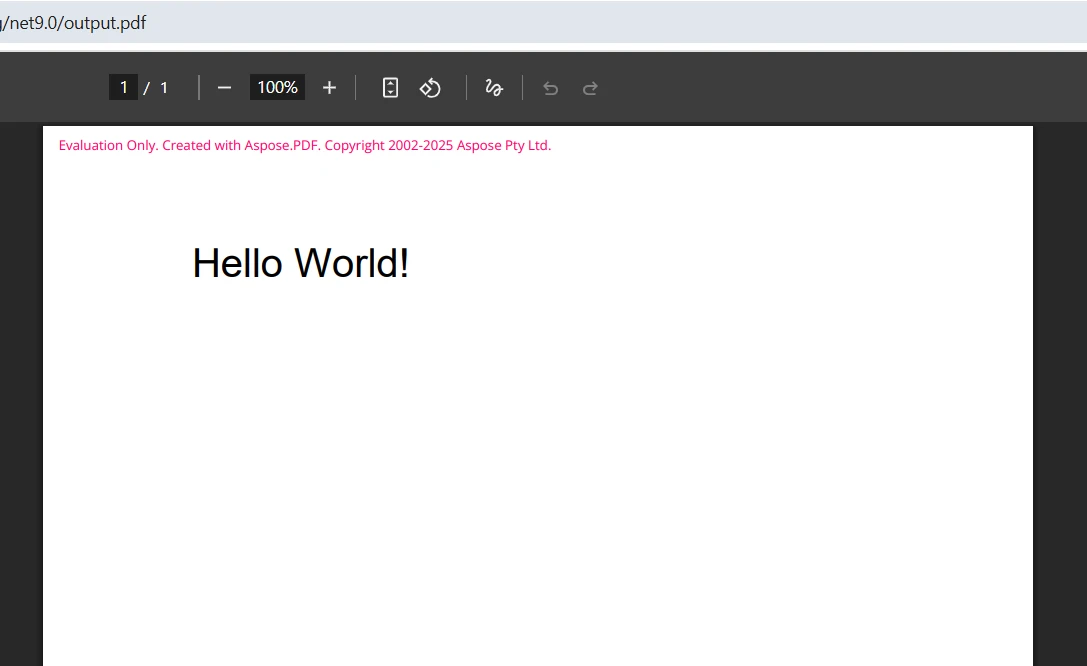
這會生成什麼輸出?
在獲取授權之前,Aspose.PDF 生成的文件包含評估水印
IronPDF 的方法有何不同?
using IronPDF 建立 PDF 文件利用熟悉的網頁技術進行快速開發:
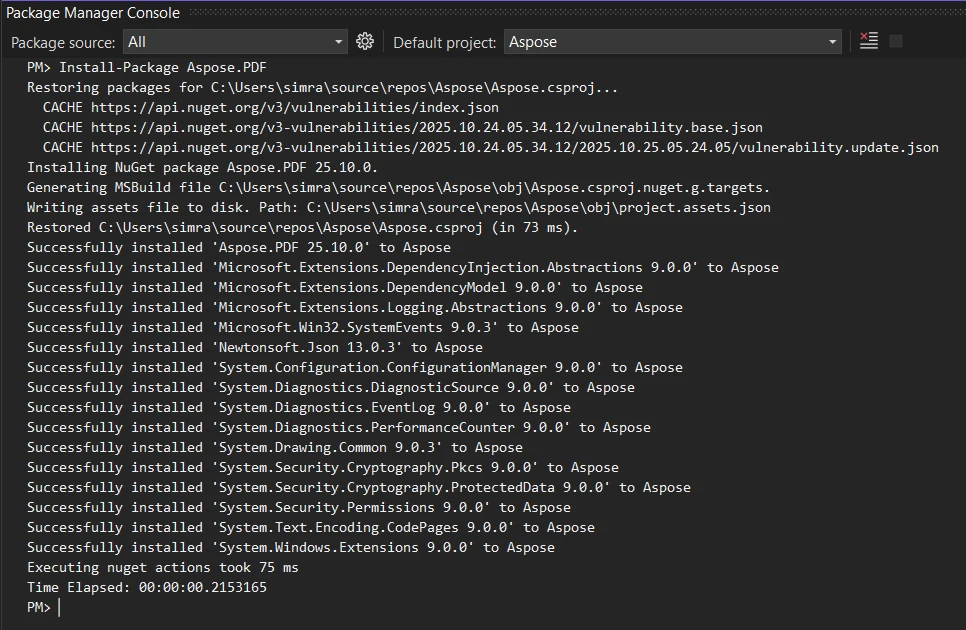
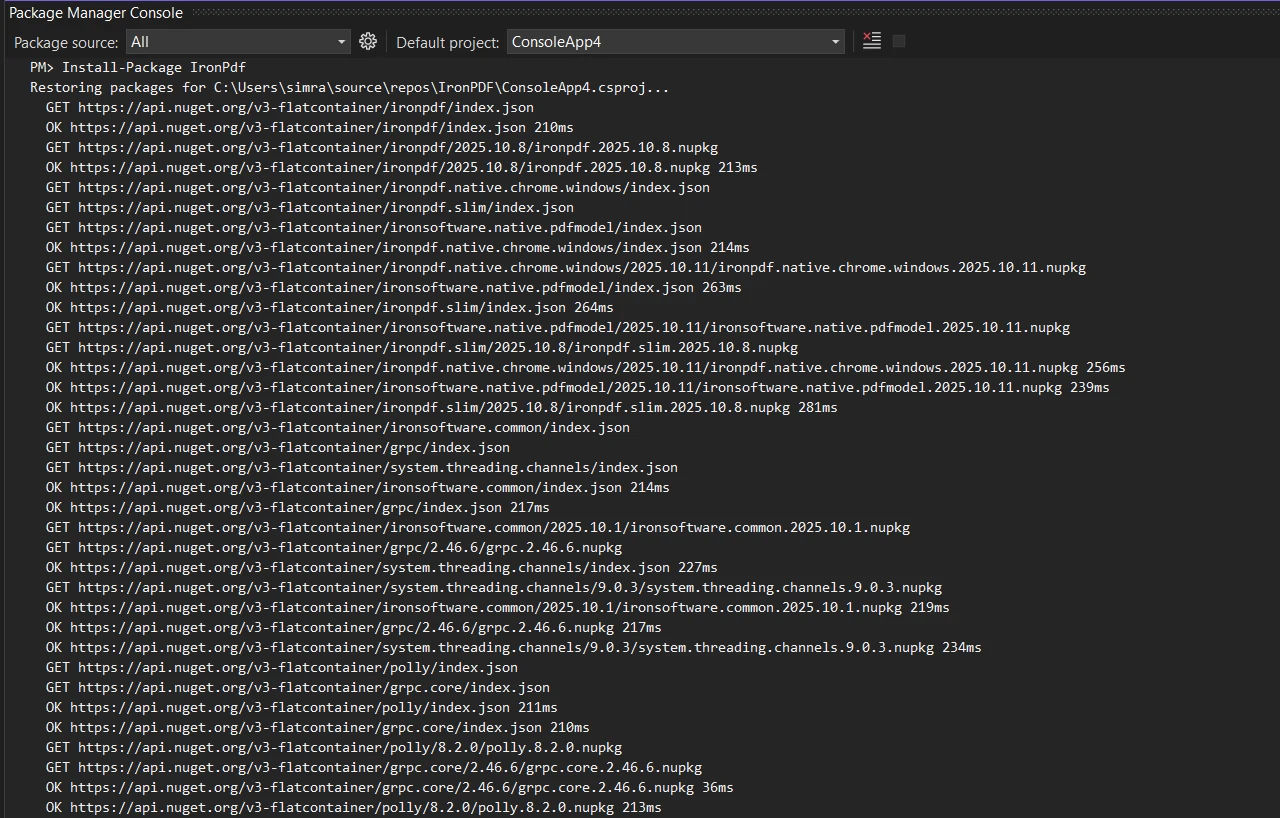
1Install IronPDF with NuGet Package Manager
PM > Install-Package IronPdf
Install-Package IronPdf
2複製並運行這段程式碼片段。
using IronPdf;// Create new instance of ChromePdfRenderervar renderer = new ChromePdfRenderer();// Configure rendering options for productionrenderer.RenderingOptions.CssMediaType = IronPdf.Rendering.PdfCssMediaType.Print;renderer.RenderingOptions.PrintHtmlBackgrounds = true;// Convert HTML string to PDF filevar html = @" <h1 style='color: #333; font-family: Arial;'>Hello World!</h1> <p>This PDF was generated using IronPDF's Chrome rendering engine.</p>";var pdf = renderer.RenderHtmlAsPdf(html);// Save PDF files using SaveAs methodpdf.SaveAs("output.pdf");
using IronPdf;

// Create new instance of ChromePdfRenderer
var renderer = new ChromePdfRenderer();

// Configure rendering options for production
renderer.RenderingOptions.CssMediaType = IronPdf.Rendering.PdfCssMediaType.Print;
renderer.RenderingOptions.PrintHtmlBackgrounds = true;

// Convert HTML string to PDF file
var html = @"
    <h1 style='color: #333; font-family: Arial;'>Hello World!</h1>
    <p>This PDF was generated using IronPDF's Chrome rendering engine.</p>";

var pdf = renderer.RenderHtmlAsPdf(html);

// Save PDF files using SaveAs method
pdf.SaveAs("output.pdf");
ImportsIronPdf' Create new instance of ChromePdfRendererDim renderer = New ChromePdfRenderer()' Configure rendering options for productionrenderer.RenderingOptions.CssMediaType = IronPdf.Rendering.PdfCssMediaType.Printrenderer.RenderingOptions.PrintHtmlBackgrounds = True' Convert HTML string to PDF fileDim html = " <h1 style='color: #333; font-family: Arial;'>Hello World!</h1> <p>This PDF was generated using IronPDF's Chrome rendering engine.</p>"Dim pdf = renderer.RenderHtmlAsPdf(html)' Save PDF files using SaveAs methodpdf.SaveAs("output.pdf")
Imports IronPdf

' Create new instance of ChromePdfRenderer
Dim renderer = New ChromePdfRenderer()

' Configure rendering options for production
renderer.RenderingOptions.CssMediaType = IronPdf.Rendering.PdfCssMediaType.Print
renderer.RenderingOptions.PrintHtmlBackgrounds = True

' Convert HTML string to PDF file
Dim html = "
    <h1 style='color: #333; font-family: Arial;'>Hello World!</h1>
    <p>This PDF was generated using IronPDF's Chrome rendering engine.</p>"

Dim pdf = renderer.RenderHtmlAsPdf(html)

' Save PDF files using SaveAs method
pdf.SaveAs("output.pdf")
using Aspose.Pdf;using Aspose.Pdf.Text;// Create new Document instancevar document = new Document();var page = document.Pages.Add();// Set page marginspage.PageInfo.Margin = new MarginInfo(72, 72, 72, 72);// Add title textvar title = new TextFragment("INVOICE");title.TextState.FontSize = 28;title.TextState.Font = FontRepository.FindFont("Arial Bold");title.HorizontalAlignment = HorizontalAlignment.Center;// Add to paragraphspage.Paragraphs.Add(title);// Add spacepage.Paragraphs.Add(new TextFragment("\n"));// Create table object for invoice itemsvar table = new Table();table.ColumnWidths = "200 100 100";table.Border = new BorderInfo(BorderSide.All, 0.5f, Color.Black);table.DefaultCellBorder = new BorderInfo(BorderSide.All, 0.5f, Color.Black);table.DefaultCellPadding = new MarginInfo(5, 5, 5, 5);// Add header row to tablevar headerRow = table.Rows.Add();headerRow.Cells.Add("Description");headerRow.Cells.Add("Quantity"); headerRow.Cells.Add("Price");// Style header cellsforeach (Cell headerCell in headerRow.Cells){ headerCell.BackgroundColor = Color.Gray; var headerText = (TextFragment)headerCell.Paragraphs[0]; headerText.TextState.ForegroundColor = Color.White; headerText.TextState.Font = FontRepository.FindFont("Arial Bold");}// Add data rowsvar dataRow = table.Rows.Add();dataRow.Cells.Add("Product A");dataRow.Cells.Add("2");dataRow.Cells.Add("$50.00");// Add table to page paragraphspage.Paragraphs.Add(table);// Save the PDF documentdocument.Save("invoice.pdf");
using Aspose.Pdf;
using Aspose.Pdf.Text;

// Create new Document instance
var document = new Document();
var page = document.Pages.Add();

// Set page margins
page.PageInfo.Margin = new MarginInfo(72, 72, 72, 72);

// Add title text
var title = new TextFragment("INVOICE");
title.TextState.FontSize = 28;
title.TextState.Font = FontRepository.FindFont("Arial Bold");
title.HorizontalAlignment = HorizontalAlignment.Center;

// Add to paragraphs
page.Paragraphs.Add(title);

// Add space
page.Paragraphs.Add(new TextFragment("\n"));

// Create table object for invoice items
var table = new Table();
table.ColumnWidths = "200 100 100";
table.Border = new BorderInfo(BorderSide.All, 0.5f, Color.Black);
table.DefaultCellBorder = new BorderInfo(BorderSide.All, 0.5f, Color.Black);
table.DefaultCellPadding = new MarginInfo(5, 5, 5, 5);

// Add header row to table
var headerRow = table.Rows.Add();
headerRow.Cells.Add("Description");
headerRow.Cells.Add("Quantity");
headerRow.Cells.Add("Price");

// Style header cells
foreach (Cell headerCell in headerRow.Cells)
{
    headerCell.BackgroundColor = Color.Gray;
    var headerText = (TextFragment)headerCell.Paragraphs[0];
    headerText.TextState.ForegroundColor = Color.White;
    headerText.TextState.Font = FontRepository.FindFont("Arial Bold");
}

// Add data rows
var dataRow = table.Rows.Add();
dataRow.Cells.Add("Product A");
dataRow.Cells.Add("2");
dataRow.Cells.Add("$50.00");

// Add table to page paragraphs
page.Paragraphs.Add(table);

// Save the PDF document
document.Save("invoice.pdf");
ImportsAspose.PdfImportsAspose.Pdf.Text' Create new Document instanceDim document As New Document()Dim page AsPage = document.Pages.Add()' Set page marginspage.PageInfo.Margin = New MarginInfo(72, 72, 72, 72)' Add title textDim title As New TextFragment("INVOICE")title.TextState.FontSize = 28title.TextState.Font = FontRepository.FindFont("Arial Bold")title.HorizontalAlignment = HorizontalAlignment.Center' Add to paragraphspage.Paragraphs.Add(title)' Add spacepage.Paragraphs.Add(New TextFragment(vbCrLf))' Create table object for invoice itemsDim table As New Table()table.ColumnWidths = "200 100 100"table.Border = New BorderInfo(BorderSide.All, 0.5F, Color.Black)table.DefaultCellBorder = New BorderInfo(BorderSide.All, 0.5F, Color.Black)table.DefaultCellPadding = New MarginInfo(5, 5, 5, 5)' Add header row to tableDim headerRow AsRow = table.Rows.Add()headerRow.Cells.Add("Description")headerRow.Cells.Add("Quantity")headerRow.Cells.Add("Price")' Style header cellsFor Each headerCell AsCellIn headerRow.Cells headerCell.BackgroundColor = Color.Gray Dim headerText AsTextFragment = CType(headerCell.Paragraphs(0), TextFragment) headerText.TextState.ForegroundColor = Color.White headerText.TextState.Font = FontRepository.FindFont("Arial Bold")Next' Add data rowsDim dataRow AsRow = table.Rows.Add()dataRow.Cells.Add("Product A")dataRow.Cells.Add("2")dataRow.Cells.Add("$50.00")' Add table to page paragraphspage.Paragraphs.Add(table)' Save the PDF documentdocument.Save("invoice.pdf")
Imports Aspose.Pdf
Imports Aspose.Pdf.Text

' Create new Document instance
Dim document As New Document()
Dim page As Page = document.Pages.Add()

' Set page margins
page.PageInfo.Margin = New MarginInfo(72, 72, 72, 72)

' Add title text
Dim title As New TextFragment("INVOICE")
title.TextState.FontSize = 28
title.TextState.Font = FontRepository.FindFont("Arial Bold")
title.HorizontalAlignment = HorizontalAlignment.Center

' Add to paragraphs
page.Paragraphs.Add(title)

' Add space
page.Paragraphs.Add(New TextFragment(vbCrLf))

' Create table object for invoice items
Dim table As New Table()
table.ColumnWidths = "200 100 100"
table.Border = New BorderInfo(BorderSide.All, 0.5F, Color.Black)
table.DefaultCellBorder = New BorderInfo(BorderSide.All, 0.5F, Color.Black)
table.DefaultCellPadding = New MarginInfo(5, 5, 5, 5)

' Add header row to table
Dim headerRow As Row = table.Rows.Add()
headerRow.Cells.Add("Description")
headerRow.Cells.Add("Quantity")
headerRow.Cells.Add("Price")

' Style header cells
For Each headerCell As Cell In headerRow.Cells
    headerCell.BackgroundColor = Color.Gray
    Dim headerText As TextFragment = CType(headerCell.Paragraphs(0), TextFragment)
    headerText.TextState.ForegroundColor = Color.White
    headerText.TextState.Font = FontRepository.FindFont("Arial Bold")
Next

' Add data rows
Dim dataRow As Row = table.Rows.Add()
dataRow.Cells.Add("Product A")
dataRow.Cells.Add("2")
dataRow.Cells.Add("$50.00")

' Add table to page paragraphs
page.Paragraphs.Add(table)

' Save the PDF document
document.Save("invoice.pdf")
Aspose.PDF 的 .NET API 需要程式化構建每個元素。 開發者建立文件物件,新增頁面,然後將內容新增到段落集合中。 這提供了精確的控制,但需要更多程式碼來實現復雜的布局。 管理表格格式、邊框和樣式需要明確配置。 對於更複雜的情況,開發者可能需要手動處理分頁。
兩個程式庫都提供了基本 PDF 建立之外的廣泛功能。 理解這些功能有助於架構師設計完整的文件解決方案。
如何將網頁轉換為 PDF?
// IronPDF - Convert any URL to PDFvar renderer = new ChromePdfRenderer();// Configure for improved web page capturerenderer.RenderingOptions.ViewPortWidth = 1920;renderer.RenderingOptions.ViewPortHeight = 1080;renderer.RenderingOptions.PrintHtmlBackgrounds = true;renderer.RenderingOptions.WaitFor.RenderDelay(2000); // Wait for dynamic content// Load and convert URL to PDFvar pdf = renderer.RenderUrlAsPdf("___PROTECTED_URL_124___");// Apply post-processingpdf.CompressImages(90); // Optimize file sizepdf.SaveAs("website.pdf");
// IronPDF - Convert any URL to PDF
var renderer = new ChromePdfRenderer();

// Configure for improved web page capture
renderer.RenderingOptions.ViewPortWidth = 1920;
renderer.RenderingOptions.ViewPortHeight = 1080;
renderer.RenderingOptions.PrintHtmlBackgrounds = true;
renderer.RenderingOptions.WaitFor.RenderDelay(2000); // Wait for dynamic content

// Load and convert URL to PDF
var pdf = renderer.RenderUrlAsPdf("___PROTECTED_URL_124___");

// Apply post-processing
pdf.CompressImages(90); // Optimize file size
pdf.SaveAs("website.pdf");
' IronPDF - Convert any URL to PDFDim renderer As New ChromePdfRenderer()' Configure for improved web page capturerenderer.RenderingOptions.ViewPortWidth = 1920renderer.RenderingOptions.ViewPortHeight = 1080renderer.RenderingOptions.PrintHtmlBackgrounds = Truerenderer.RenderingOptions.WaitFor.RenderDelay(2000) ' Wait for dynamic content' Load and convert URL to PDFDim pdf = renderer.RenderUrlAsPdf("___PROTECTED_URL_124___")' Apply post-processingpdf.CompressImages(90) ' Optimize file sizepdf.SaveAs("website.pdf")
' IronPDF - Convert any URL to PDF
Dim renderer As New ChromePdfRenderer()

' Configure for improved web page capture
renderer.RenderingOptions.ViewPortWidth = 1920
renderer.RenderingOptions.ViewPortHeight = 1080
renderer.RenderingOptions.PrintHtmlBackgrounds = True
renderer.RenderingOptions.WaitFor.RenderDelay(2000) ' Wait for dynamic content

' Load and convert URL to PDF
Dim pdf = renderer.RenderUrlAsPdf("___PROTECTED_URL_124___")

' Apply post-processing
pdf.CompressImages(90) ' Optimize file size
pdf.SaveAs("website.pdf")
// Aspose PDF - Creating forms requires manual positioningvar document = new Document();var page = document.Pages.Add();// Create text fieldvar textField = new TextBoxField(page, new Rectangle(100, 700, 200, 720));textField.PartialName = "name";textField.Value = "Enter your name";document.Form.Add(textField);// IronPDF - Use HTML forms naturallyvar html = @"<form> <label>Name: <input type='text' name='name' required></label> <label>Email: <input type='email' name='email' required></label> <input type='submit' value='Submit'></form>";var pdf = renderer.RenderHtmlAsPdf(html);// Forms are automatically interactive in the PDF
// Aspose PDF - Creating forms requires manual positioning
var document = new Document();
var page = document.Pages.Add();

// Create text field
var textField = new TextBoxField(page, new Rectangle(100, 700, 200, 720));
textField.PartialName = "name";
textField.Value = "Enter your name";
document.Form.Add(textField);

// IronPDF - Use HTML forms naturally
var html = @"
<form>
    <label>Name: <input type='text' name='name' required></label>
    <label>Email: <input type='email' name='email' required></label>
    <input type='submit' value='Submit'>
</form>";

var pdf = renderer.RenderHtmlAsPdf(html);
// Forms are automatically interactive in the PDF
' Aspose PDF - Creating forms requires manual positioningDim document As New Document()Dim page AsPage = document.Pages.Add()' Create text fieldDim textField As New TextBoxField(page, New Rectangle(100, 700, 200, 720))textField.PartialName = "name"textField.Value = "Enter your name"document.Form.Add(textField)' IronPDF - Use HTML forms naturallyDim html AsString = "<form> <label>Name: <input type='text' name='name' required></label> <label>Email: <input type='email' name='email' required></label> <input type='submit' value='Submit'></form>"Dim pdf AsPdfDocument = renderer.RenderHtmlAsPdf(html)' Forms are automatically interactive in the PDF
' Aspose PDF - Creating forms requires manual positioning
Dim document As New Document()
Dim page As Page = document.Pages.Add()

' Create text field
Dim textField As New TextBoxField(page, New Rectangle(100, 700, 200, 720))
textField.PartialName = "name"
textField.Value = "Enter your name"
document.Form.Add(textField)

' IronPDF - Use HTML forms naturally
Dim html As String = "
<form>
    <label>Name: <input type='text' name='name' required></label>
    <label>Email: <input type='email' name='email' required></label>
    <input type='submit' value='Submit'>
</form>"

Dim pdf As PdfDocument = renderer.RenderHtmlAsPdf(html)
' Forms are automatically interactive in the PDF
// Load existing PDFvar pdf = PdfDocument.FromFile("existing.pdf");// Add pages from another PDFvar anotherPdf = PdfDocument.FromFile("append.pdf");pdf.AppendPdf(anotherPdf);// Add watermarkpdf.ApplyWatermark(@" <div style='opacity: 0.5; font-size: 48px; color: red; transform: rotate(-45deg);'> CONFIDENTIAL </div>", 30, VerticalAlignment.Middle, HorizontalAlignment.Center);// Compress for webpdf.CompressImages(70);pdf.SaveAs("optimized.pdf");
// Load existing PDF
var pdf = PdfDocument.FromFile("existing.pdf");

// Add pages from another PDF
var anotherPdf = PdfDocument.FromFile("append.pdf");
pdf.AppendPdf(anotherPdf);

// Add watermark
pdf.ApplyWatermark(@"
    <div style='opacity: 0.5; font-size: 48px; color: red; transform: rotate(-45deg);'>
        CONFIDENTIAL
    </div>", 30, VerticalAlignment.Middle, HorizontalAlignment.Center);

// Compress for web
pdf.CompressImages(70);
pdf.SaveAs("optimized.pdf");
' Load existing PDFDim pdf = PdfDocument.FromFile("existing.pdf")' Add pages from another PDFDim anotherPdf = PdfDocument.FromFile("append.pdf")pdf.AppendPdf(anotherPdf)' Add watermarkpdf.ApplyWatermark(" <div style='opacity: 0.5; font-size: 48px; color: red; transform: rotate(-45deg);'> CONFIDENTIAL </div>", 30, VerticalAlignment.Middle, HorizontalAlignment.Center)' Compress for webpdf.CompressImages(70)pdf.SaveAs("optimized.pdf")
' Load existing PDF
Dim pdf = PdfDocument.FromFile("existing.pdf")

' Add pages from another PDF
Dim anotherPdf = PdfDocument.FromFile("append.pdf")
pdf.AppendPdf(anotherPdf)

' Add watermark
pdf.ApplyWatermark("
    <div style='opacity: 0.5; font-size: 48px; color: red; transform: rotate(-45deg);'>
        CONFIDENTIAL
    </div>", 30, VerticalAlignment.Middle, HorizontalAlignment.Center)

' Compress for web
pdf.CompressImages(70)
pdf.SaveAs("optimized.pdf")






 在獲取授權之前,Aspose.PDF 生成的文件包含評估水印
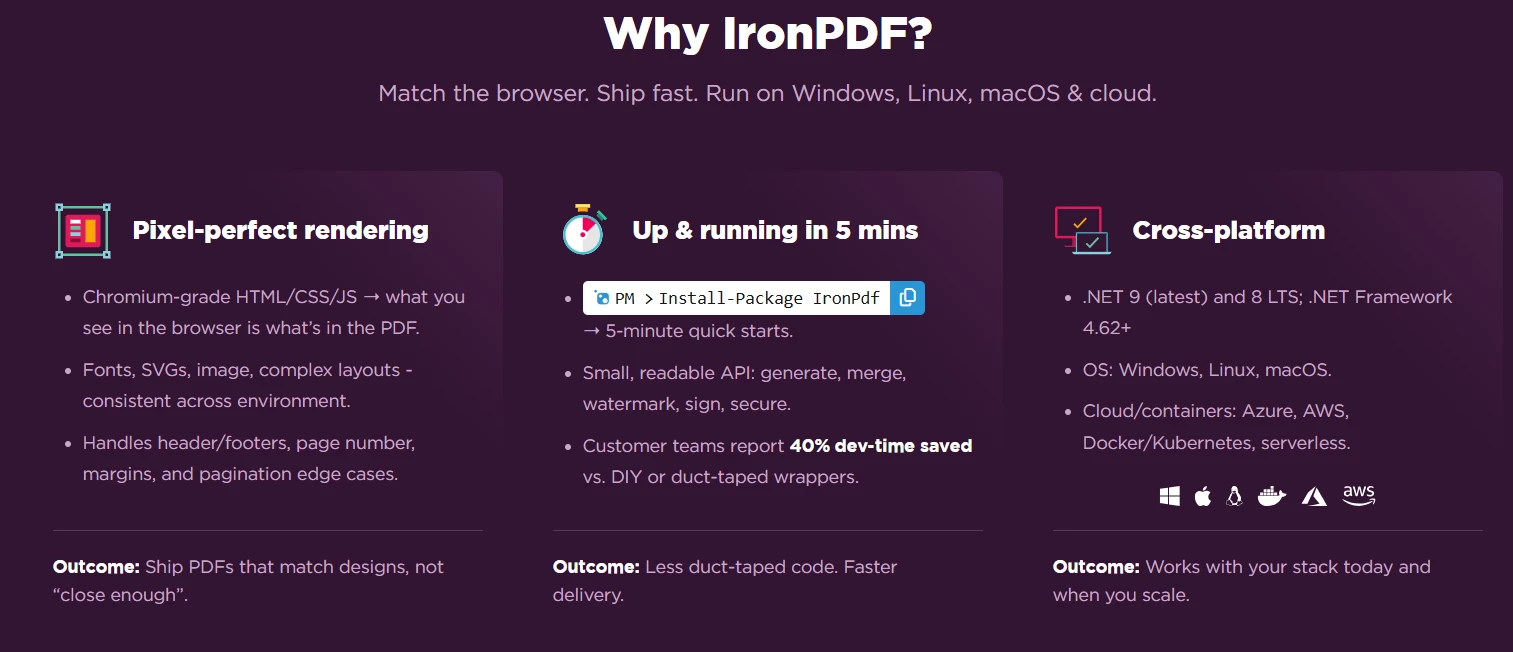
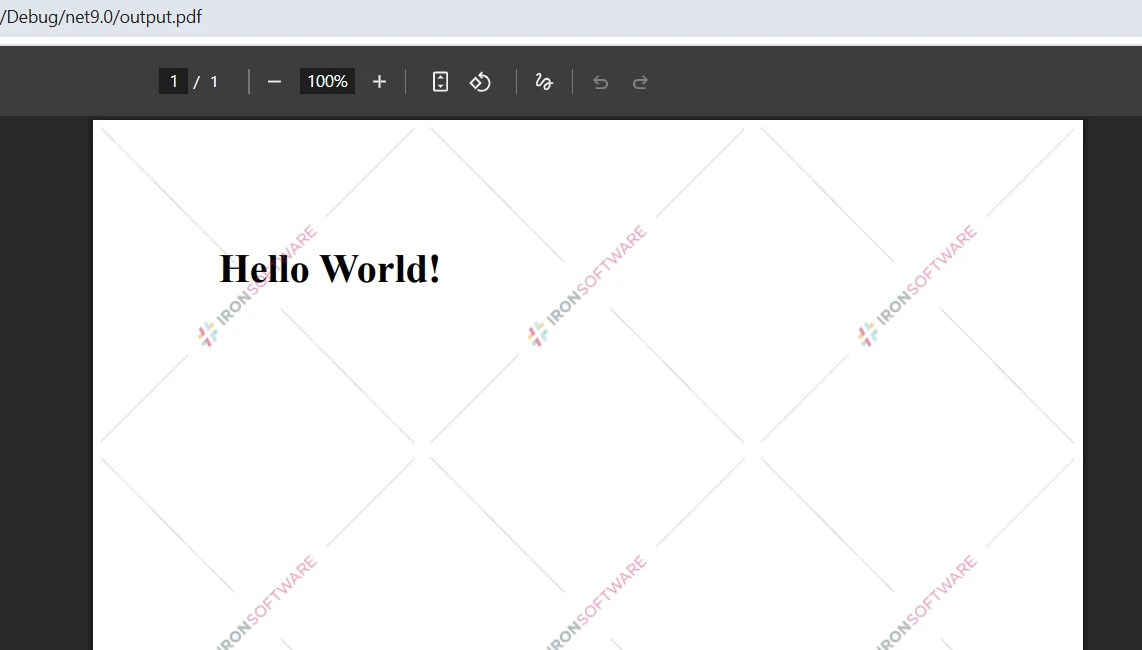 IronPDF 使用 Chrome 渲染 HTML 以達到精確的準確性
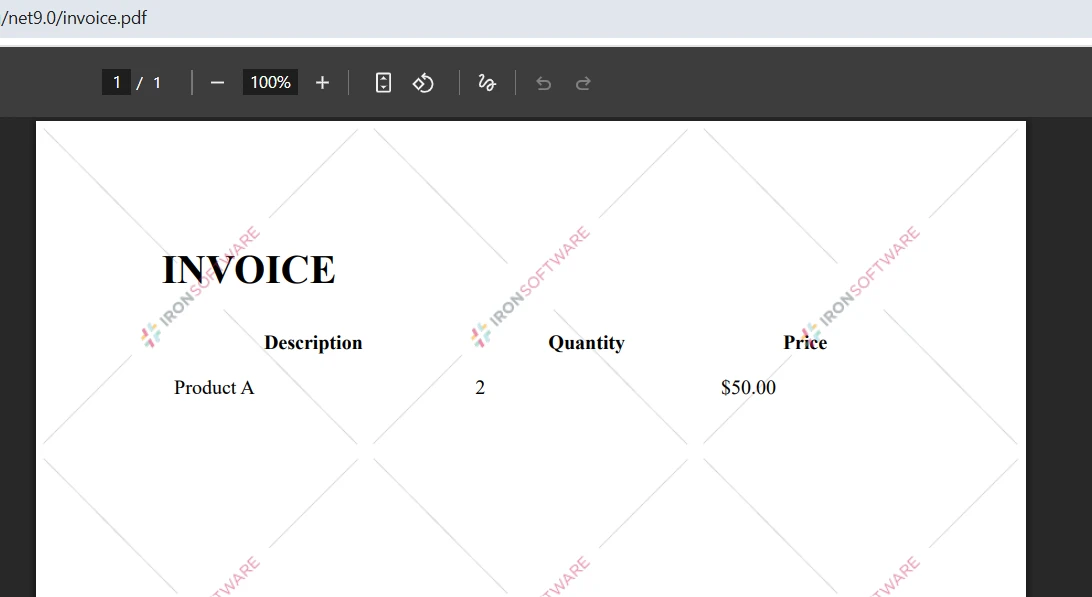 從 HTML 渲染的專業發票,自動表格格式化
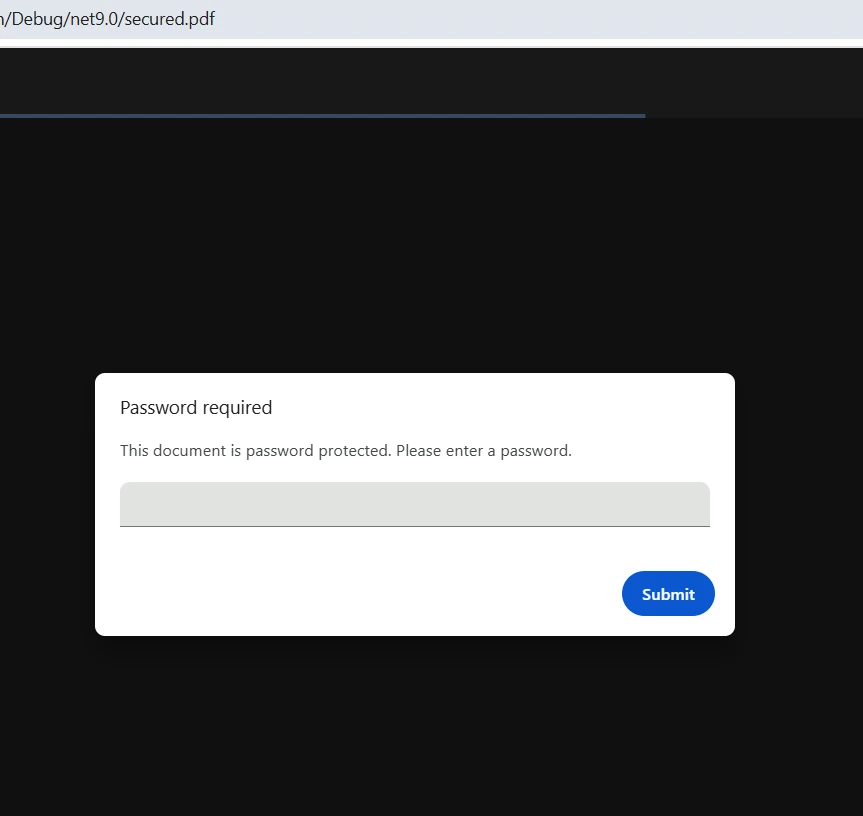 具有企業級安全性的密碼保護和數位簽名
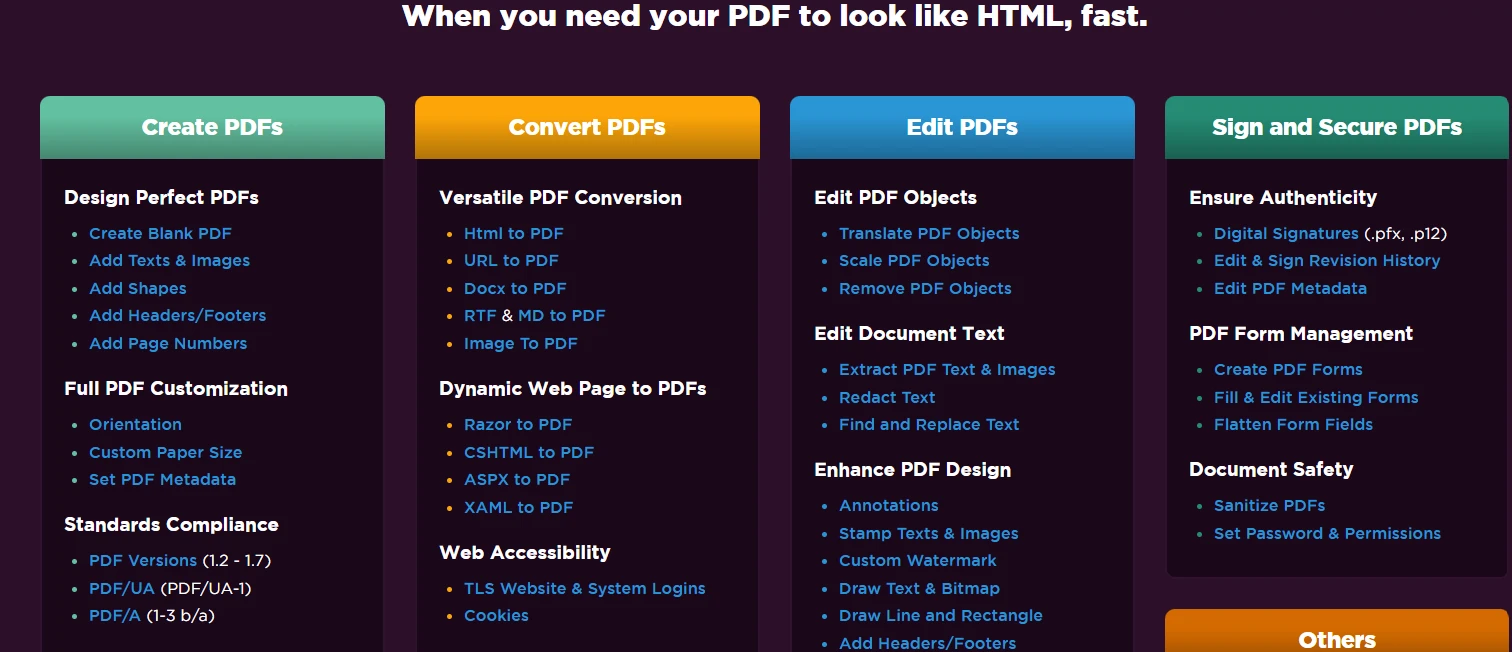 IronPDF 通過直觀的 API 提供完整的 PDF 功能







