Aspose.PDF에서 IronPDF로 이전하면 직관적인 API, 유연한 배포 옵션 및 비용 효율적인 라이선싱으로 PDF 워크플로우가 간단해집니다. 구현은 Chrome 기반 엔진을 통한 탁월한 HTML 렌더링을 제공하며, 현대적인 웹 콘텐츠의 픽셀 단위 변환을 보장하면서 서버당 비용을 제거합니다.
Aspose.PDF에서 IronPDF로 이전을 고려해야 하는 이유는?
IronPDF로 Aspose.PDF를 전환하면 문서 처리 워크플로우의 간소화를 통해 직관적인 API, 유연한 배포 옵션 및 다양한 비즈니스 요구에 맞는 라이선스 모델을 제공합니다.
PDF 라이브러리 대안을 모색할 때, 종종 간단한 구문, 예측 가능한 가격, HTML 렌더링 및 대량 처리와 같은 최신 기능에 대한 지원을 찾고 있습니다. IronPDF는 직관적인 개발 경험을 통해 이러한 요구를 다루며 .NET 환경에서 작업하는 팀에게 실용적입니다.
이 가이드는 두 라이브러리를 완전히 비교하며, 기능 해체, 코드 예제, 그리고 성능, 보안, 지원 옵션에 대한 통찰력을 제공합니다.
-
성능 최적화: IronPDF는 현대 .NET 애플리케이션을 위해 설계되었으며, 빠른 처리 속도와 최적화된 메모리 사용량을 제공하여 원활한 PDF 작업을 지원합니다.
-
개발자 친화적 API: .NET의 일반적인 패턴을 반영한 문법으로, IronPDF는 C# 개발자가 PDF 생성 및 조작을 보다 직관적으로 할 수 있도록 합니다.
-
비용 효율적 라이선스: IronPDF는 프로젝트 범위와 개발 팀의 규모에 맞춤형 다양한 유연한 옵션을 제공하며, 필요한 경우 가장 비용 효율적인 플랜을 선택하고 확장할 수 있습니다. 기업 환경에 적합한 보다 확장 가능한 솔루션과 오프라인 에어 갭 환경이 필요한 경우, 불필요한 오버헤드를 제거하는 데 도움이 되는 Enterprise 티어도 제공합니다.
-
성능 최적화: 최신 .NET 애플리케이션에 맞춘 메모리 사용량 향상을 활용하여 빠른 처리.
-
개발자 친화적 API: 직관적인 PDF 생성 및 조작 for .NET의 일반적인 패턴을 반영한 문법.
-
비용 효율적 라이선스: 모든 규모의 팀을 위한 유연한 옵션과 Enterprise 계층.
작은 규모의 애플리케이션이나 대규모 Enterprise 솔루션에서 작업하든지 간에, IronPDF는 높은 품질의 출력과 신뢰성을 유지하면서 PDF를 생성, 조작, 보안할 수 있는 도구를 제공합니다. 라이브러리는 배포 시나리오를 지원하는데, Windows, Linux, macOS, 클라우드 플랫폼을 포함합니다.
Aspose.PDF와 IronPDF의 핵심 기능은 어떻게 비교됩니까?
각 라이브러리에서 PDF 생성은 어떻게 작동하나요?
Aspose.PDF와 IronPDF의 구문 차이점은 무엇인가요?
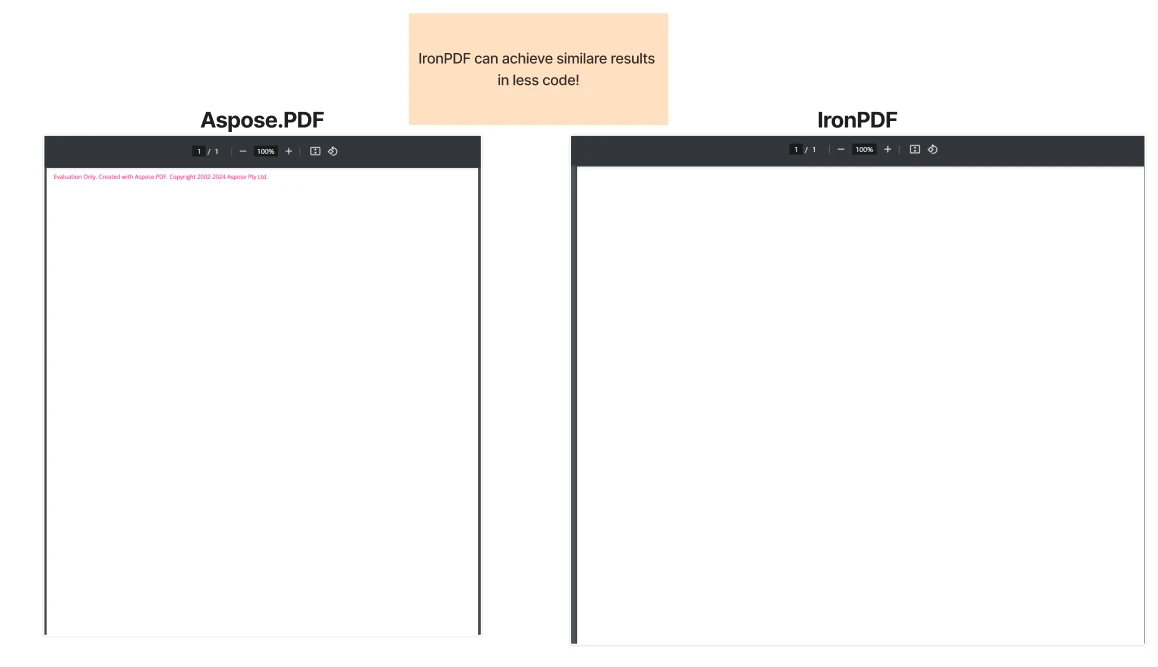
두 라이브러리는 PDF 생성을 지원하지만, 문서 생성 접근 방식이 상당히 다릅니다. Aspose.PDF는 명확한 페이지 관리가 필요한 구조화된, 객체 지향 접근 방식을 따릅니다. IronPDF는 직관적인 API로 최소한의 코드만으로 이 과정을 단순화합니다.
다음은 각 라이브러리에서의 PDF 생성에 대한 비교입니다.
Aspose.PDF:
using Aspose.Pdf;
Document doc = new Document();
doc.Pages.Add();
doc.Save("output.pdf");
using Aspose.Pdf;
Document doc = new Document();
doc.Pages.Add();
doc.Save("output.pdf");
Imports Aspose.Pdf
Private doc As New Document()
doc.Pages.Add()
doc.Save("output.pdf")
Imports Aspose.Pdf
Private doc As New Document()
doc.Pages.Add()
doc.Save("output.pdf")
IronPDF:
using IronPdf;
PdfDocument pdf = new PdfDocument(270, 270);
pdf.SaveAs("output.pdf");
using IronPdf;
PdfDocument pdf = new PdfDocument(270, 270);
pdf.SaveAs("output.pdf");
Imports IronPdf
Private pdf As New PdfDocument(270, 270)
pdf.SaveAs("output.pdf")
Imports IronPdf
Private pdf As New PdfDocument(270, 270)
pdf.SaveAs("output.pdf")
왜 IronPDF는 PDF 생성에 더 적은 코드가 필요한가요?
IronPDF는 더 높은 수준의 추상화를 제공하여 PDF 생성을 단순화하며, 레이아웃과 문서 구조를 자동으로 처리합니다. 이 라이브러리는 HTML 노드 트리를 해석하고 이에 따라 콘텐츠를 배치하여 복잡한 문서 구조나 수동 페이지 설정이 필요 없도록 합니다.
Aspose.PDF는 세밀한 제어를 제공하여 문서 페이지 및 콘텐츠 블록을 명확하게 정의해야 합니다. 두 접근 방식 모두 유연성을 제공하며, 하나는 간결함을, 다른 하나는 더 깊은 커스터마이징을 제공합니다. IronPDF의 방법은 특히 HTML 기반 콘텐츠, 반응형 레이아웃, CSS 스타일링에서 빛을 발합니다.
각 라이브러리에서 텍스트, 이미지 및 테이블을 어떻게 처리하나요?
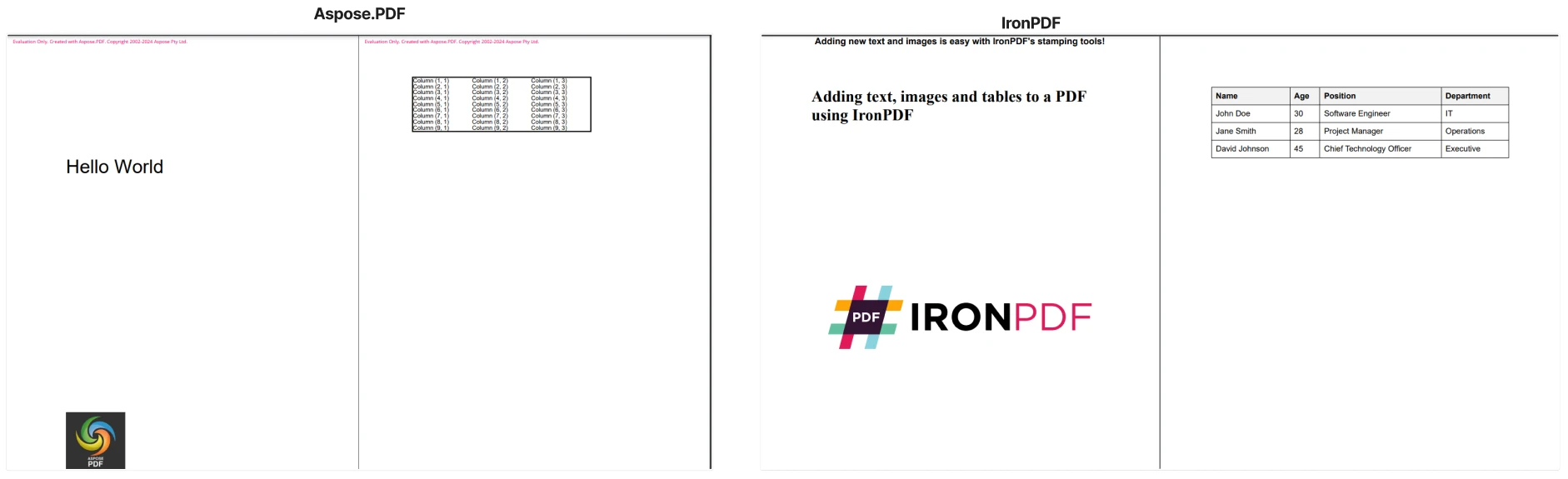
PDF에 텍스트, 이미지, 또는 테이블을 추가할 때, IronPDF는 고수준의 사용하기 쉬운 클래스를 통해 개발 경험을 단순화합니다. Aspose.PDF는 명확한 위치 지정, 변환 행렬을 통한 이미지 배치 관리, 저수준 PDF 콘텐츠 연산자를 직접 작업하는 TextFragment객체를 생성하는 것을 요구합니다. 테이블은 셀별로 수동으로 구성해야 합니다.
IronPDF는 텍스트와 이미지를 위한 간단한 스탬프를 사용하여 이러한 복잡성을 추상화하고, HTML에서 직접 테이블을 렌더링합니다. 이 접근 방식은 복잡한 레이아웃 계산을 제거하고, PDF 콘텐츠 생성을 더 빠르고 직관적으로 만듭니다. 또한 라이브러리는 텍스트 및 비트맵을 PDF 페이지에 직접 그리기, 다양한 소스에서 이미지를 임베드하고, 일관된 렌더링을 위해 폰트를 관리하는 것을 지원합니다.
다음 코드는 각 라이브러리가 텍스트, 이미지 및 테이블 추가를 어떻게 처리하는지 비교합니다:
Aspose.PDF:
using Aspose.Pdf;
using Aspose.Pdf.Text;

// Adding Text
Document doc = new Document();
Page page = doc.Pages.Add();
TextFragment textFragment = new TextFragment("Hello World");
textFragment.Position = new Position(100, 600);
textFragment.TextState.FontSize = 32;
TextBuilder textBuilder = new TextBuilder(page);
textBuilder.AppendText(textFragment);

// Adding an Image
int lowerLeftX = 100;
int lowerLeftY = 100;
int upperRightX = 200;
int upperRightY = 200;

Page page1 = doc.Pages[1];
// Load image into stream
FileStream imageStream = new FileStream("image.jpeg", FileMode.Open);
// Add image to Images collection of Page Resources
page.Resources.Images.Add(imageStream);
// Using GSave operator
page.Contents.Add(new Aspose.Pdf.Operators.GSave());

// Create Rectangle and Matrix objects
Aspose.Pdf.Rectangle rectangle = new Aspose.Pdf.Rectangle(lowerLeftX, lowerLeftY, upperRightX, upperRightY);
Matrix matrix = new Matrix(new double[] { rectangle.URX - rectangle.LLX, 0, 0, rectangle.URY - rectangle.LLY, rectangle.LLX, rectangle.LLY });

page.Contents.Add(new Aspose.Pdf.Operators.ConcatenateMatrix(matrix));
XImage ximage = page.Resources.Images[page.Resources.Images.Count];

page.Contents.Add(new Aspose.Pdf.Operators.Do(ximage.Name));

page.Contents.Add(new Aspose.Pdf.Operators.GRestore());

// Adding a Table
Table table = new Table();
doc.Pages.Add();
table.Border = new BorderInfo(BorderSide.All, 2f, Color.Black);
for (int row_count = 1; row_count < 10; row_count++)
{
// Add row to table
Aspose.Pdf.Row row = table.Rows.Add();
// Add table cells
row.Cells.Add("Column (" + row_count + ", 1)");
row.Cells.Add("Column (" + row_count + ", 2)");
row.Cells.Add("Column (" + row_count + ", 3)");
}
doc.Pages[2].Paragraphs.Add(table);

doc.Save("AsposeOutput.pdf");
using Aspose.Pdf;
using Aspose.Pdf.Text;

// Adding Text
Document doc = new Document();
Page page = doc.Pages.Add();
TextFragment textFragment = new TextFragment("Hello World");
textFragment.Position = new Position(100, 600);
textFragment.TextState.FontSize = 32;
TextBuilder textBuilder = new TextBuilder(page);
textBuilder.AppendText(textFragment);

// Adding an Image
int lowerLeftX = 100;
int lowerLeftY = 100;
int upperRightX = 200;
int upperRightY = 200;

Page page1 = doc.Pages[1];
// Load image into stream
FileStream imageStream = new FileStream("image.jpeg", FileMode.Open);
// Add image to Images collection of Page Resources
page.Resources.Images.Add(imageStream);
// Using GSave operator
page.Contents.Add(new Aspose.Pdf.Operators.GSave());

// Create Rectangle and Matrix objects
Aspose.Pdf.Rectangle rectangle = new Aspose.Pdf.Rectangle(lowerLeftX, lowerLeftY, upperRightX, upperRightY);
Matrix matrix = new Matrix(new double[] { rectangle.URX - rectangle.LLX, 0, 0, rectangle.URY - rectangle.LLY, rectangle.LLX, rectangle.LLY });

page.Contents.Add(new Aspose.Pdf.Operators.ConcatenateMatrix(matrix));
XImage ximage = page.Resources.Images[page.Resources.Images.Count];

page.Contents.Add(new Aspose.Pdf.Operators.Do(ximage.Name));

page.Contents.Add(new Aspose.Pdf.Operators.GRestore());

// Adding a Table
Table table = new Table();
doc.Pages.Add();
table.Border = new BorderInfo(BorderSide.All, 2f, Color.Black);
for (int row_count = 1; row_count < 10; row_count++)
{
// Add row to table
Aspose.Pdf.Row row = table.Rows.Add();
// Add table cells
row.Cells.Add("Column (" + row_count + ", 1)");
row.Cells.Add("Column (" + row_count + ", 2)");
row.Cells.Add("Column (" + row_count + ", 3)");
}
doc.Pages[2].Paragraphs.Add(table);

doc.Save("AsposeOutput.pdf");
Imports Aspose.Pdf
Imports Aspose.Pdf.Text
' Adding Text
Private doc As New Document()
Private page As Page = doc.Pages.Add()
Private textFragment As New TextFragment("Hello World")
textFragment.Position = New Position(100, 600)
textFragment.TextState.FontSize = 32
Dim textBuilder As New TextBuilder(page)
textBuilder.AppendText(textFragment)
' Adding an Image
Dim lowerLeftX As Integer = 100
Dim lowerLeftY As Integer = 100
Dim upperRightX As Integer = 200
Dim upperRightY As Integer = 200
Dim page1 As Page = doc.Pages(1)
' Load image into stream
Dim imageStream As New FileStream("image.jpeg", FileMode.Open)
' Add image to Images collection of Page Resources
page.Resources.Images.Add(imageStream)
' Using GSave operator
page.Contents.Add(New Aspose.Pdf.Operators.GSave())
' Create Rectangle and Matrix objects
Dim rectangle As New Aspose.Pdf.Rectangle(lowerLeftX, lowerLeftY, upperRightX, upperRightY)
Dim matrix As New Matrix(New Double() { rectangle.URX - rectangle.LLX, 0, 0, rectangle.URY - rectangle.LLY, rectangle.LLX, rectangle.LLY })
page.Contents.Add(New Aspose.Pdf.Operators.ConcatenateMatrix(matrix))
Dim ximage As XImage = page.Resources.Images(page.Resources.Images.Count)
page.Contents.Add(New Aspose.Pdf.Operators.Do(ximage.Name))
page.Contents.Add(New Aspose.Pdf.Operators.GRestore())
' Adding a Table
Dim table As New Table()
doc.Pages.Add()
table.Border = New BorderInfo(BorderSide.All, 2F, Color.Black)
For row_count As Integer = 1 To 9
' Add row to table
Dim row As Aspose.Pdf.Row = table.Rows.Add()
' Add table cells
row.Cells.Add("Column (" & row_count & ", 1)")
row.Cells.Add("Column (" & row_count & ", 2)")
row.Cells.Add("Column (" & row_count & ", 3)")
Next row_count
doc.Pages(2).Paragraphs.Add(table)
doc.Save("AsposeOutput.pdf")
Imports Aspose.Pdf
Imports Aspose.Pdf.Text

' Adding Text
Private doc As New Document()
Private page As Page = doc.Pages.Add()
Private textFragment As New TextFragment("Hello World")
textFragment.Position = New Position(100, 600)
textFragment.TextState.FontSize = 32
Dim textBuilder As New TextBuilder(page)
textBuilder.AppendText(textFragment)

' Adding an Image
Dim lowerLeftX As Integer = 100
Dim lowerLeftY As Integer = 100
Dim upperRightX As Integer = 200
Dim upperRightY As Integer = 200

Dim page1 As Page = doc.Pages(1)
' Load image into stream
Dim imageStream As New FileStream("image.jpeg", FileMode.Open)
' Add image to Images collection of Page Resources
page.Resources.Images.Add(imageStream)
' Using GSave operator
page.Contents.Add(New Aspose.Pdf.Operators.GSave())

' Create Rectangle and Matrix objects
Dim rectangle As New Aspose.Pdf.Rectangle(lowerLeftX, lowerLeftY, upperRightX, upperRightY)
Dim matrix As New Matrix(New Double() { rectangle.URX - rectangle.LLX, 0, 0, rectangle.URY - rectangle.LLY, rectangle.LLX, rectangle.LLY })

page.Contents.Add(New Aspose.Pdf.Operators.ConcatenateMatrix(matrix))
Dim ximage As XImage = page.Resources.Images(page.Resources.Images.Count)

page.Contents.Add(New Aspose.Pdf.Operators.Do(ximage.Name))

page.Contents.Add(New Aspose.Pdf.Operators.GRestore())

' Adding a Table
Dim table As New Table()
doc.Pages.Add()
table.Border = New BorderInfo(BorderSide.All, 2F, Color.Black)
For row_count As Integer = 1 To 9
' Add row to table
Dim row As Aspose.Pdf.Row = table.Rows.Add()
' Add table cells
row.Cells.Add("Column (" & row_count & ", 1)")
row.Cells.Add("Column (" & row_count & ", 2)")
row.Cells.Add("Column (" & row_count & ", 3)")
Next row_count
doc.Pages(2).Paragraphs.Add(table)

doc.Save("AsposeOutput.pdf")
IronPDF:
using IronPdf;
using IronPdf.Editing;

    ChromePdfRenderer renderer = new ChromePdfRenderer();
    PdfDocument pdf = renderer.RenderHtmlAsPdf("<h1>Adding text, images and tables to a PDF using IronPDF</h1>");

    // Adding text
    TextStamper textStamper = new TextStamper()
    {
        Text = "Adding new text and images " +
        "is easy with IronPDF's stamping tools!",
        FontSize = 18,
        IsBold = true,
        VerticalAlignment = VerticalAlignment.Top,
        HorizontalAlignment = HorizontalAlignment.Center,
    };
    pdf.ApplyStamp(textStamper);

    // Adding an image
    ImageStamper imageStamper = new ImageStamper(new Uri("___PROTECTED_URL_41___"))
    {
        VerticalAlignment = VerticalAlignment.Middle,
    };

    pdf.ApplyStamp(imageStamper);

    // Adding a table using HTML
    string htmlTable = @"
<style>
    table { width: 100%; border-collapse: collapse; font-family: Arial, sans-serif; }
    th, td { border: 1px solid black; padding: 8px; text-align: left; }
    th { background-color: #f2f2f2; }
</style>
<table>
    <tr>
        <th>Name</th>
        <th>Age</th>
        <th>Position</th>
        <th>Department</th>
    </tr>
    <tr>
        <td>John Doe</td>
        <td>30</td>
        <td>Software Engineer</td>
        <td>IT</td>
    </tr>
    <tr>
        <td>Jane Smith</td>
        <td>28</td>
        <td>Project Manager</td>
        <td>Operations</td>
    </tr>
    <tr>
        <td>David Johnson</td>
        <td>45</td>
        <td>Chief Technology Officer</td>
        <td>Executive</td>
    </tr>
</table>";
    pdf.AppendPdf(renderer.RenderHtmlAsPdf(htmlTable));

    pdf.SaveAs("IronPdfOutput.pdf");
using IronPdf;
using IronPdf.Editing;

    ChromePdfRenderer renderer = new ChromePdfRenderer();
    PdfDocument pdf = renderer.RenderHtmlAsPdf("<h1>Adding text, images and tables to a PDF using IronPDF</h1>");

    // Adding text
    TextStamper textStamper = new TextStamper()
    {
        Text = "Adding new text and images " +
        "is easy with IronPDF's stamping tools!",
        FontSize = 18,
        IsBold = true,
        VerticalAlignment = VerticalAlignment.Top,
        HorizontalAlignment = HorizontalAlignment.Center,
    };
    pdf.ApplyStamp(textStamper);

    // Adding an image
    ImageStamper imageStamper = new ImageStamper(new Uri("___PROTECTED_URL_41___"))
    {
        VerticalAlignment = VerticalAlignment.Middle,
    };

    pdf.ApplyStamp(imageStamper);

    // Adding a table using HTML
    string htmlTable = @"
<style>
    table { width: 100%; border-collapse: collapse; font-family: Arial, sans-serif; }
    th, td { border: 1px solid black; padding: 8px; text-align: left; }
    th { background-color: #f2f2f2; }
</style>
<table>
    <tr>
        <th>Name</th>
        <th>Age</th>
        <th>Position</th>
        <th>Department</th>
    </tr>
    <tr>
        <td>John Doe</td>
        <td>30</td>
        <td>Software Engineer</td>
        <td>IT</td>
    </tr>
    <tr>
        <td>Jane Smith</td>
        <td>28</td>
        <td>Project Manager</td>
        <td>Operations</td>
    </tr>
    <tr>
        <td>David Johnson</td>
        <td>45</td>
        <td>Chief Technology Officer</td>
        <td>Executive</td>
    </tr>
</table>";
    pdf.AppendPdf(renderer.RenderHtmlAsPdf(htmlTable));

    pdf.SaveAs("IronPdfOutput.pdf");
Imports IronPdf
Imports IronPdf.Editing
Dim renderer As New ChromePdfRenderer()
Dim pdf As PdfDocument = renderer.RenderHtmlAsPdf("<h1>Adding text, images and tables to a PDF using IronPDF</h1>")
' Adding text
Dim textStamper As New TextStamper() With {
.Text = "Adding new text and images " &
"is easy with IronPDF's stamping tools!",
.FontSize = 18,
.IsBold = True,
.VerticalAlignment = VerticalAlignment.Top,
.HorizontalAlignment = HorizontalAlignment.Center
}
pdf.ApplyStamp(textStamper)
' Adding an image
Dim imageStamper As New ImageStamper(New Uri("___PROTECTED_URL_41___")) With {
.VerticalAlignment = VerticalAlignment.Middle
}
pdf.ApplyStamp(imageStamper)
' Adding a table using HTML
Dim htmlTable As String = "
<style>
table { width: 100%; border-collapse: collapse; font-family: Arial, sans-serif; }
th, td { border: 1px solid black; padding: 8px; text-align: left; }
th { background-color: #f2f2f2; }
</style>
<table>
<tr>
<th>Name</th>
<th>Age</th>
<th>Position</th>
<th>Department</th>
</tr>
<tr>
<td>John Doe</td>
<td>30</td>
<td>Software Engineer</td>
<td>IT</td>
</tr>
<tr>
<td>Jane Smith</td>
<td>28</td>
<td>Project Manager</td>
<td>Operations</td>
</tr>
<tr>
<td>David Johnson</td>
<td>45</td>
<td>Chief Technology Officer</td>
<td>Executive</td>
</tr>
</table>"
pdf.AppendPdf(renderer.RenderHtmlAsPdf(htmlTable))
pdf.SaveAs("IronPdfOutput.pdf")
Imports IronPdf
Imports IronPdf.Editing

Dim renderer As New ChromePdfRenderer()
Dim pdf As PdfDocument = renderer.RenderHtmlAsPdf("<h1>Adding text, images and tables to a PDF using IronPDF</h1>")

' Adding text
Dim textStamper As New TextStamper() With {
    .Text = "Adding new text and images " &
            "is easy with IronPDF's stamping tools!",
    .FontSize = 18,
    .IsBold = True,
    .VerticalAlignment = VerticalAlignment.Top,
    .HorizontalAlignment = HorizontalAlignment.Center
}
pdf.ApplyStamp(textStamper)

' Adding an image
Dim imageStamper As New ImageStamper(New Uri("___PROTECTED_URL_41___")) With {
    .VerticalAlignment = VerticalAlignment.Middle
}

pdf.ApplyStamp(imageStamper)

' Adding a table using HTML
Dim htmlTable As String = "
<style>
    table { width: 100%; border-collapse: collapse; font-family: Arial, sans-serif; }
    th, td { border: 1px solid black; padding: 8px; text-align: left; }
    th { background-color: #f2f2f2; }
</style>
<table>
    <tr>
        <th>Name</th>
        <th>Age</th>
        <th>Position</th>
        <th>Department</th>
    </tr>
    <tr>
        <td>John Doe</td>
        <td>30</td>
        <td>Software Engineer</td>
        <td>IT</td>
    </tr>
    <tr>
        <td>Jane Smith</td>
        <td>28</td>
        <td>Project Manager</td>
        <td>Operations</td>
    </tr>
    <tr>
        <td>David Johnson</td>
        <td>45</td>
        <td>Chief Technology Officer</td>
        <td>Executive</td>
    </tr>
</table>"
pdf.AppendPdf(renderer.RenderHtmlAsPdf(htmlTable))

pdf.SaveAs("IronPdfOutput.pdf")
어느 라이브러리가 콘텐츠 조작을 더 쉽게 만들까요?
IronPDF는 수동 레이아웃 계산 없이 콘텐츠 배치를 단순화하는 내장 텍스트 및 이미지 스탬퍼를 포함합니다. TextStamper는 텍스트 추가를 간소화하는 동시에 ImageStamper는 최소 노력으로 이미지를 처리합니다. 테이블의 경우, IronPDF는 표준 HTML 기반 테이블을 지원하여 익숙한 문법으로 작업할 수 있게 합니다.
Aspose.PDF는 콘텐츠 좌표, 변환 행렬, 레이아웃 구조에 대한 명시적 제어를 제공합니다. 이 접근 방식은 정밀한 위치 설정이 필요한 시나리오에 유리합니다. 이 라이브러리는 수동 위치 지정 및 형식을 위한 TextFragment 객체를 사용하여 텍스트를 처리하는 데 사용됩니다. Aspose는 동적 또는 데이터 기반 문서 조립에 적합한 구조화된 API를 제공하며, 세밀한 제어가 필요한 경우 적합합니다.
IronPDF는 또한 여러 요소 스탬핑, 맞춤형 워터마크, 배경/전경 레이어에서도 탁월합니다. 라이브러리는 페이지 나누기를 지능적으로 처리하고, 특수한 레이아웃을 위한 맞춤형 용지 크기를 지원합니다.
HTML을 PDF로 변환하는 방법을 비교해보세요?
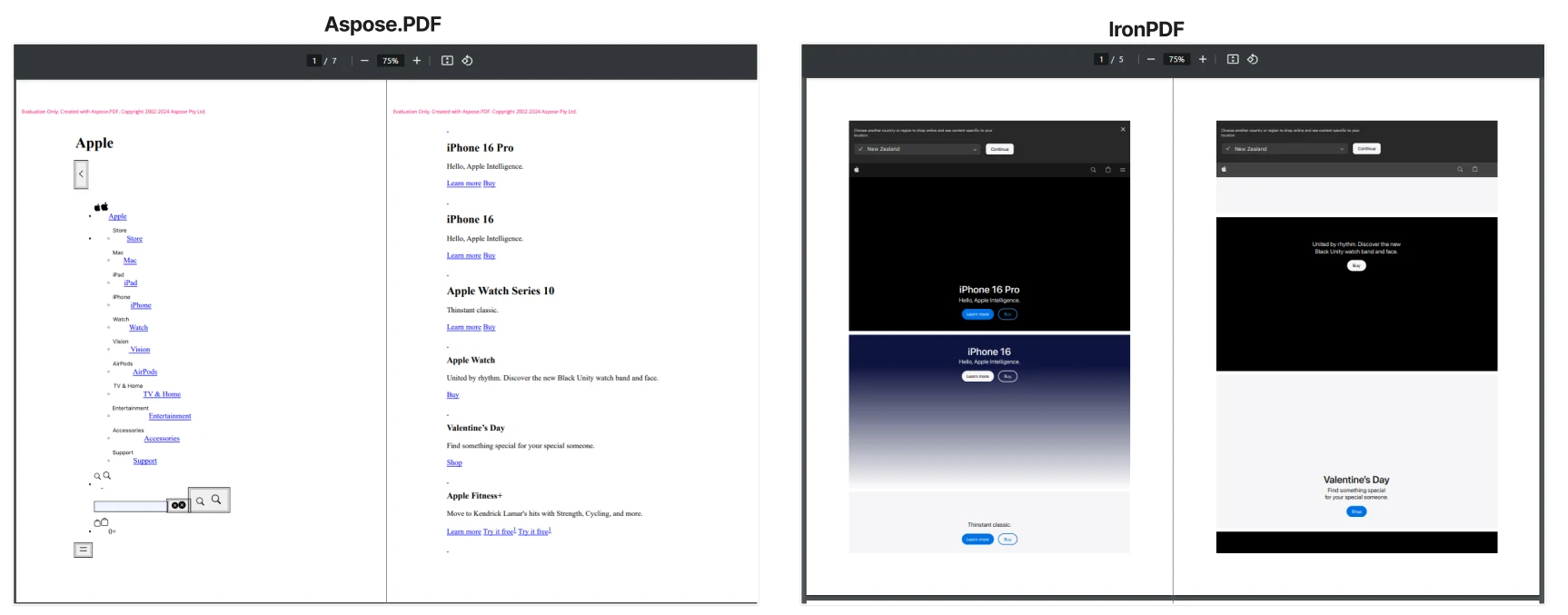
IronPDF는 완벽하게 준수하는 Chrome 렌더링 엔진을 사용하여 HTML을 PDF로 전환하는 데 탁월합니다. Aspose.PDF는 HTML 변환을 지원하지만, 종종 현대적인 CSS 및 JavaScript 렌더링에서 어려움을 겪을 때가 있습니다. 다음 예제는 이 웹 페이지의 CSS 스타일링을 사용하여 각 라이브러리가 HTML을 PDF로 변환하는 방법을 보여줍니다.
Aspose.PDF 예제:
using Aspose.Pdf;

class Program
{
    static async Task Main()
    {
        string url = "___PROTECTED_URL_42___";
        string htmlContent = await FetchHtmlFromUrl(url);

        if (!string.IsNullOrEmpty(htmlContent))
        {
            ConvertHtmlToPdf(htmlContent, "AsposeOutput.pdf");
            Console.WriteLine("PDF successfully created from URL!");
        }
        else
        {
            Console.WriteLine("Failed to fetch HTML content.");
        }
    }

    static async Task<string> FetchHtmlFromUrl(string url)
    {
        using (HttpClient client = new HttpClient())
        {
            try
            {
                return await client.GetStringAsync(url);
            }
            catch (Exception ex)
            {
                Console.WriteLine("Error fetching URL content: " + ex.Message);
                return null;
            }
        }
    }

    static void ConvertHtmlToPdf(string htmlContent, string outputPath)
    {
        HtmlLoadOptions options = new HtmlLoadOptions();
        Document pdfDocument = new Document(new System.IO.MemoryStream(System.Text.Encoding.UTF8.GetBytes(htmlContent)), options);
        pdfDocument.Save(outputPath);
    }
}
using Aspose.Pdf;

class Program
{
    static async Task Main()
    {
        string url = "___PROTECTED_URL_42___";
        string htmlContent = await FetchHtmlFromUrl(url);

        if (!string.IsNullOrEmpty(htmlContent))
        {
            ConvertHtmlToPdf(htmlContent, "AsposeOutput.pdf");
            Console.WriteLine("PDF successfully created from URL!");
        }
        else
        {
            Console.WriteLine("Failed to fetch HTML content.");
        }
    }

    static async Task<string> FetchHtmlFromUrl(string url)
    {
        using (HttpClient client = new HttpClient())
        {
            try
            {
                return await client.GetStringAsync(url);
            }
            catch (Exception ex)
            {
                Console.WriteLine("Error fetching URL content: " + ex.Message);
                return null;
            }
        }
    }

    static void ConvertHtmlToPdf(string htmlContent, string outputPath)
    {
        HtmlLoadOptions options = new HtmlLoadOptions();
        Document pdfDocument = new Document(new System.IO.MemoryStream(System.Text.Encoding.UTF8.GetBytes(htmlContent)), options);
        pdfDocument.Save(outputPath);
    }
}
Imports Aspose.Pdf
Imports System.Net.Http
Imports System.Threading.Tasks
Module Program
Async Function Main() As Task
Dim url As String = "___PROTECTED_URL_42___"
Dim htmlContent As String = Await FetchHtmlFromUrl(url)
If Not String.IsNullOrEmpty(htmlContent) Then
ConvertHtmlToPdf(htmlContent, "AsposeOutput.pdf")
Console.WriteLine("PDF successfully created from URL!")
Else
Console.WriteLine("Failed to fetch HTML content.")
End If
End Function
Async Function FetchHtmlFromUrl(url As String) As Task(Of String)
Using client As New HttpClient()
Try
Return Await client.GetStringAsync(url)
Catch ex As Exception
Console.WriteLine("Error fetching URL content: " & ex.Message)
Return Nothing
End Try
End Using
End Function
Sub ConvertHtmlToPdf(htmlContent As String, outputPath As String)
Dim options As New HtmlLoadOptions()
Dim pdfDocument As New Document(New System.IO.MemoryStream(System.Text.Encoding.UTF8.GetBytes(htmlContent)), options)
pdfDocument.Save(outputPath)
End Sub
End Module
Imports Aspose.Pdf
Imports System.Net.Http
Imports System.Threading.Tasks

Module Program
    Async Function Main() As Task
        Dim url As String = "___PROTECTED_URL_42___"
        Dim htmlContent As String = Await FetchHtmlFromUrl(url)

        If Not String.IsNullOrEmpty(htmlContent) Then
            ConvertHtmlToPdf(htmlContent, "AsposeOutput.pdf")
            Console.WriteLine("PDF successfully created from URL!")
        Else
            Console.WriteLine("Failed to fetch HTML content.")
        End If
    End Function

    Async Function FetchHtmlFromUrl(url As String) As Task(Of String)
        Using client As New HttpClient()
            Try
                Return Await client.GetStringAsync(url)
            Catch ex As Exception
                Console.WriteLine("Error fetching URL content: " & ex.Message)
                Return Nothing
            End Try
        End Using
    End Function

    Sub ConvertHtmlToPdf(htmlContent As String, outputPath As String)
        Dim options As New HtmlLoadOptions()
        Dim pdfDocument As New Document(New System.IO.MemoryStream(System.Text.Encoding.UTF8.GetBytes(htmlContent)), options)
        pdfDocument.Save(outputPath)
    End Sub
End Module
IronPDF 예제:
using IronPdf;

ChromePdfRenderer renderer = new ChromePdfRenderer();
PdfDocument pdf = renderer.RenderUrlAsPdf("___PROTECTED_URL_43___");
pdf.SaveAs("IronPdf.pdf");
using IronPdf;

ChromePdfRenderer renderer = new ChromePdfRenderer();
PdfDocument pdf = renderer.RenderUrlAsPdf("___PROTECTED_URL_43___");
pdf.SaveAs("IronPdf.pdf");
Imports IronPdf
Dim renderer As New ChromePdfRenderer()
Dim pdf As PdfDocument = renderer.RenderUrlAsPdf("___PROTECTED_URL_43___")
pdf.SaveAs("IronPdf.pdf")
Imports IronPdf

Dim renderer As New ChromePdfRenderer()
Dim pdf As PdfDocument = renderer.RenderUrlAsPdf("___PROTECTED_URL_43___")
pdf.SaveAs("IronPdf.pdf")
왜 IronPDF가 더 나은 HTML 렌더링 결과를 내나요?
IronPDF는 현대 HTML, CSS 및 JavaScript에 대한 완전한 지원을 제공하는 Chromium 기반 렌더링 엔진을 사용합니다. 이것은 WYSIWYG 렌더링을 가능하게 하여, PDF 출력이 복잡한 스타일, 글꼴, 헤더 및 인터랙티브 요소를 포함한 원래 웹 페이지 레이아웃을 반영하게 합니다. 이 접근 방식은 웹 앱 또는 스타일이 적용된 HTML 페이지를 최소한의 조정으로 PDF로 변환할 때 유용합니다.
엔진은 웹 글꼴, SVG 그래픽, 반응형 CSS, 그리고 WebGL 콘텐츠를 지원합니다. IronPDF는 사용자 정의 가능한 렌더링 지연과 함께 JavaScript 실행을 처리하여 동적 콘텐츠가 제대로 로드되도록 합니다. 구현은 또한 상대 자산 경로를 위한 기본 URL과 포함된 콘텐츠를 위한 Data URI를 지원합니다.
Aspose.PDF는 기본 HTML 요소 및 인라인 CSS에 대한 구조화된 지원을 통해 HTML를 PDF로 변환합니다. 정적인 콘텐츠나 간단한 마크업에 적합하지만, 외부 스타일 시트, 현대적 레이아웃 시스템 또는 고급 HTML 기능에 의존하는 페이지의 경우 출력이 원래 웹 디자인과 다를 수 있습니다. 텍스트 콘텐츠 추출이나 단순화된 레이아웃 작업에 중점을 둔 프로젝트에서는 이 방법이 여전히 요구 사항을 충족할 수 있습니다.
라이브러리 간 보안 기능 비교는 어떻게 되나요?
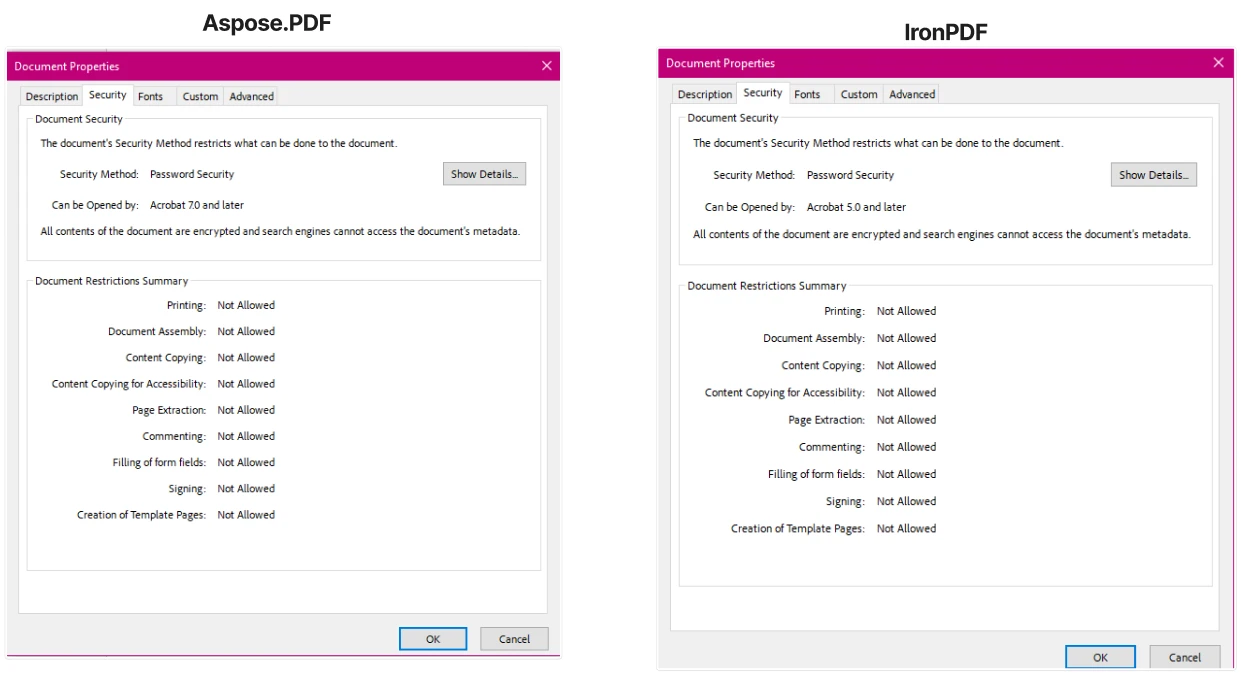
두 라이브러리 모두 암호화 및 디지털 서명을 지원하며, 접근 방식과 유연성에서 차이가 있습니다. Aspose.PDF는 간단한 암호 보호와 권한을 단일 단계에서 처리하는 간단한 명령문을 통해 암호화를 적용합니다. IronPDF는 세밀한 제어를 위해 여러 속성을 설정해야 하며, 암호화 프로세스와 사용자 권한에 대해 더 높은 수준의 사용자 정의를 제공합니다.
Aspose.PDF 암호화:
using Aspose.Pdf;
Document doc = new Document("input.pdf");
doc.Encrypt("ownerpassword", "userpassword", Permissions.Printing, CryptoAlgorithm.RC4x128);
doc.Save("secure.pdf");
using Aspose.Pdf;
Document doc = new Document("input.pdf");
doc.Encrypt("ownerpassword", "userpassword", Permissions.Printing, CryptoAlgorithm.RC4x128);
doc.Save("secure.pdf");
Imports Aspose.Pdf
Private doc As New Document("input.pdf")
doc.Encrypt("ownerpassword", "userpassword", Permissions.Printing, CryptoAlgorithm.RC4x128)
doc.Save("secure.pdf")
Imports Aspose.Pdf
Private doc As New Document("input.pdf")
doc.Encrypt("ownerpassword", "userpassword", Permissions.Printing, CryptoAlgorithm.RC4x128)
doc.Save("secure.pdf")
IronPDF 암호화:
PdfDocument pdf = new PdfDocument(270, 270);
pdf.SecuritySettings.MakePdfDocumentReadOnly("secret-key");
pdf.SecuritySettings.AllowUserAnnotations = false;
pdf.SecuritySettings.AllowUserCopyPasteContent = false;
pdf.SecuritySettings.AllowUserFormData = false;
pdf.SecuritySettings.AllowUserEdits = IronPdf.Security.PdfEditSecurity.NoEdit;
pdf.SecuritySettings.AllowUserPrinting = IronPdf.Security.PdfPrintSecurity.NoPrint;

pdf.SaveAs("IronPdfOutput.pdf");
PdfDocument pdf = new PdfDocument(270, 270);
pdf.SecuritySettings.MakePdfDocumentReadOnly("secret-key");
pdf.SecuritySettings.AllowUserAnnotations = false;
pdf.SecuritySettings.AllowUserCopyPasteContent = false;
pdf.SecuritySettings.AllowUserFormData = false;
pdf.SecuritySettings.AllowUserEdits = IronPdf.Security.PdfEditSecurity.NoEdit;
pdf.SecuritySettings.AllowUserPrinting = IronPdf.Security.PdfPrintSecurity.NoPrint;

pdf.SaveAs("IronPdfOutput.pdf");
Dim pdf As New PdfDocument(270, 270)
pdf.SecuritySettings.MakePdfDocumentReadOnly("secret-key")
pdf.SecuritySettings.AllowUserAnnotations = False
pdf.SecuritySettings.AllowUserCopyPasteContent = False
pdf.SecuritySettings.AllowUserFormData = False
pdf.SecuritySettings.AllowUserEdits = IronPdf.Security.PdfEditSecurity.NoEdit
pdf.SecuritySettings.AllowUserPrinting = IronPdf.Security.PdfPrintSecurity.NoPrint
pdf.SaveAs("IronPdfOutput.pdf")
Dim pdf As New PdfDocument(270, 270)
pdf.SecuritySettings.MakePdfDocumentReadOnly("secret-key")
pdf.SecuritySettings.AllowUserAnnotations = False
pdf.SecuritySettings.AllowUserCopyPasteContent = False
pdf.SecuritySettings.AllowUserFormData = False
pdf.SecuritySettings.AllowUserEdits = IronPdf.Security.PdfEditSecurity.NoEdit
pdf.SecuritySettings.AllowUserPrinting = IronPdf.Security.PdfPrintSecurity.NoPrint

pdf.SaveAs("IronPdfOutput.pdf")
어떤 라이브러리가 더 세부적인 보안 제어를 제공하나요?
IronPDF는 세부 권한 설정을 제공하여 콘텐츠 인쇄, 편집, 복사와 같은 사용자 작업을 제어할 수 있게 합니다. 이 접근 방식은 세부적인 보안 정책이 필요한 시나리오에 유용합니다. 라이브러리는 인증서로 PDF 서명, HSM 통합 및 수정 이력 추적을 지원합니다.
Aspose.PDF는 하나의 메서드 호출로 암호화 설정을 간소화하여 표준 보호가 적절한 구성을 필요로 하는 팀에게 효율적입니다. 두 라이브러리는 문서 무결성을 위한 PDF/A 준수 및 메타데이터 관리를 처리합니다.
두 라이브러리는 주요 보안 기능을 지원하며, IronPDF는 제어 유연성을 제공하고 Aspose는 신속한 구현에 중점을 둡니다. IronPDF는 잠재적으로 악성 콘텐츠를 제거하기 위한 PDF 정화를 제공하고 접근성 준수를 위한 PDF/UA를 지원합니다.
어떤 고급 기능을 사용할 수 있나요?
워터마크, 북마크, 주석은 어떻게 작동하나요?
IronPDF는 워터마크, 북마크, 및 주석 추가를 간단하게 처리합니다. 이런 기능들은 최소한의 코드로 작동하며 작업 흐름에 쉽게 통합됩니다. 워터마크 추가는 몇 줄의 코드로 가능하며, 북마크와 주석 관리도 마찬가지로 간단합니다. 라이브러리는 HTML 워터마크, 텍스트 주석, 및 계층적 북마크를 지원합니다.
Aspose.PDF도 이러한 기능을 지원하며, 저수준 접근을 통한 더욱 사용자 정의 가능한 동작을 종종 제공합니다. IronPDF의 접근은 ApplyWatermark와 AddTextAnnotation 같이 위치와 스타일을 자동으로 처리하는 메소드를 통해 간단함을 선호합니다.
어떤 라이브러리가 배치 처리에 더 나은가요?
IronPDF는 내장된 배치 처리 및 멀티 스레딩 지원으로 두드러지며, 동시 PDF 작업을 허용합니다. 이 병렬 처리 기능은 대량의 PDF 작업 시 문서 변환이나 조작 등의 작업 속도를 크게 향상시킵니다. 라이브러리는 모든 주요 작업에 대해 비동기 메소드를 포함합니다.
Aspose.PDF는 배치 처리를 지원하며, 병렬 연산을 위해 구성할 수 있지만, 일부 설치에서는 문서 인스턴스 및 스레딩 동작 관리를 추가로 필요로 할 수 있습니다. IronPDF의 성능 최적화에는 메모리 스트림 핸들링, 선형화, 및 압축이 포함됩니다.
모든 기능이 한눈에 비교되나요?
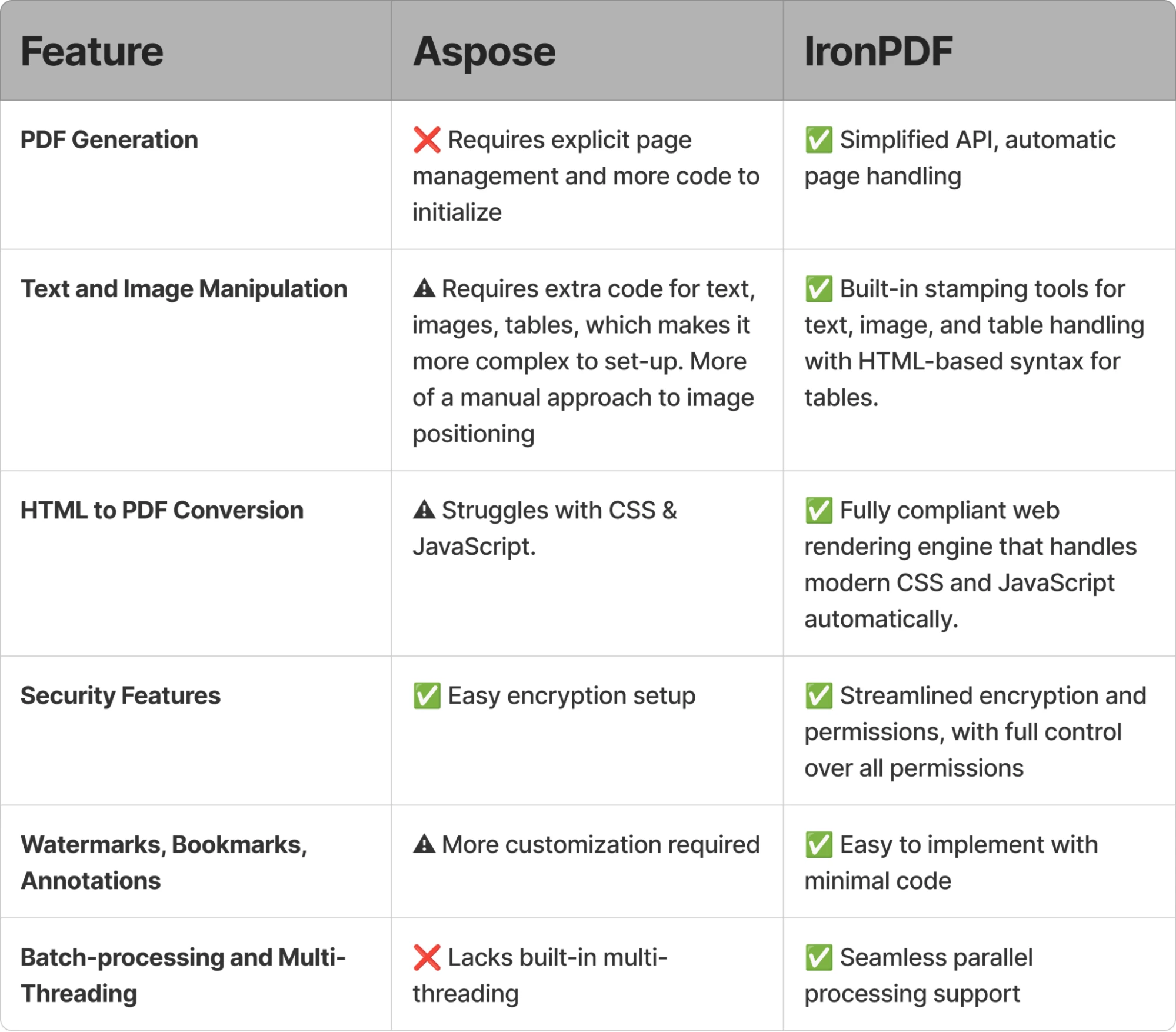
IronPDF의 API는 Aspose보다 적은 코드가 필요하여 개발 요구 사항을 보다 효율적으로 처리합니다. PDF 생성, 양식 관리, 배치 처리 및 주석와 같은 고급 기능 작업이든 관계없이 IronPDF는 작업 흐름을 단순화하고 우수한 성능을 제공합니다.
라이브러리는 HTML에서 PDF로 변환, 양식 생성, 텍스트 추출, 및 페이지 조작에 탁월합니다. 응용 프로그램은 DOCX, 이미지, Markdown, 및 XML과 같은 다양한 파일 형식을 즉시 사용할 수 있습니다.
오늘 IronPDF의 효과적인 기능을 경험해 보세요!
IronPDF와 Aspose.PDF의 라이센스 비교는 어떻게 되나요?
비용 및 유연성 차이는 무엇인가요?
- IronPDF는 단일 개발자에서 Enterprise 배포까지의 옵션을 제공하는 유연한 프로젝트 기반 라이선스 모델을 제공합니다. 구현은 무제한 서버 배포가 가능한 월별 구독 및 영구 라이선스를 제공합니다. 가격 구조는 다양한 팀 크기에 맞추어 Lite, Plus 및 Professional tiers를 포함합니다.
- Aspose.PDF는 개발자 및 사이트 라이선스 등을 포함하여 구독 및 영구 라이선스를 제공합니다. 클라우드 및 SaaS 환경에서는 API 호출 및 데이터 볼륨을 기반으로 측정된 청구를 사용합니다.
클라우드와 서버 배포 비용은 어떻게 다른가요?
- IronPDF는 클라우드 환경, 가상 머신 또는 서버 인프라에 애플리케이션을 배포하는 데 추가 비용을 부과하지 않습니다. 소규모 배포와 대규모 클라우드 기반 서비스는 추가 비용 없이 지원됩니다. AWS, Azure 및 Docker 배포가 포함됩니다.
- Aspose.PDF의 클라우드 API는 API 호출 또는 처리된 데이터에 영향을 미치는 사용 기반 요금제로 운영됩니다. 온프레미스 라이선스는 서버 또는 프로세서와 관련하여 비용을 묶으며, 배포 비용에 영향을 미칩니다.
어떤 라이브러리가 비용 효율적으로 확장되나요?
- IronPDF는 성장하는 비즈니스를 위한 유연한 라이선스를 제공하며, 사용량 기반 또는 월별 옵션을 제공합니다. 클라우드 또는 VM 배포에 대한 추가 비용이 없습니다. 개발자 및 기업 라이선스는 추가 비용 없이 쉽게 확장할 수 있습니다. 업그레이드 과정은 명확한 가격 계층으로 간단합니다.
- Aspose.PDF의 영구 라이선스는 서버나 프로세서당 지정되며, 인프라 용량 증가를 위해 추가 라이선스가 필요합니다. 구독 옵션이 더 유연할 수 있지만, 여전히 추가 라이선스가 필요할 수 있습니다.
어떤 추가 비용 요소를 고려해야 하나요?
- IronPDF는 추가 클라우드 배포 비용이 포함되어 있지 않습니다. 선택적 유료 애드온에는 로열티 없는 재배포가 포함됩니다. 영구 라이선스는 제품 업데이트와 지원을 1년 동안 포함하며, 연장 옵션은 5년까지 가능합니다. IronPDF는 숨겨진 비용 없이 유료 추가 사항에 대해 투명성을 유지합니다. 이 라이브러리는 컨테이너 환경 및 서버리스 플랫폼에서 원활하게 작동합니다.
- Aspose.PDF는 각 서버, 프로세서 또는 가상 머신에 대해 별도의 라이선스가 필요할 수 있습니다. 이는 기업이 성장하거나 여러 서버 인스턴스가 필요할 때 추가 비용으로 이어질 수 있습니다. 비용은 배포 규모를 기준으로 계산되며, 각 추가 서버나 프로세서에 대한 요금이 부과됩니다.
IronPDF 라이선스가 최선의 선택일 때는 언제인가요?
IronPDF는 모든 규모의 비즈니스, 특히 급속도로 확장하는 기업을 위해 유연한 라이선스를 제공합니다. 사용량 기반 및 월별 옵션은 필요에 맞게만 지불할 수 있도록 보장합니다. IronPDF는 다음에 적합합니다:
- 중소기업: 새로운 프로젝트를 시작하거나 적당한 속도로 확장하는 경우, IronPDF의 개발자 및 기업 라이선스는 팀 규모, 프로젝트 규모, 배포 요구 사항에 따라 일정 금액을 지불하도록 하며, 비즈니스가 성장함에 따라 쉽게 확장할 수 있는 옵션을 제공합니다.
- 클라우드 또는 가상 머신에 배포하는 회사: IronPDF는 클라우드 또는 VM 배포에 대해 추가 비용을 부과하지 않으므로, AWS, Azure 또는 Google Cloud와 같은 클라우드 인프라를 사용하는 조직에 적합합니다. 이 모델은 예측 가능한 비용을 보장하며, 이를 통해 현대적이고 유연한 클라우드 기술을 활용하려는 비즈니스에 이상적입니다.
- 스타트업과 성장 중인 팀: 비즈니스가 발전함에 따라 라이선스를 추가 또는 제거할 수 있는 옵션이 있는 IronPDF는, 무거운 초기 비용 없이 확장성을 필요로 하는 스타트업과 성장하는 팀에 적합합니다. 그 간단한 구조는 단일 개발자부터 대규모 기업 배포까지 필요에 따라 라이선스를 조정할 수 있게 해줍니다.
- 대기업: IronPDF의 기업 라이선싱은 강력한 올인원 PDF 솔루션을 찾는 대규모 팀을 지원하며, 다른 도구들도 지원합니다. 이는 Iron Suite의 모든 9개 제품을 포함하는 Iron Suite의 Enterprise 라이선싱 옵션 덕분입니다.
IronPDF는 팀이나 개인 개발자의 요구를 수용하여, 라이선싱 비용이 제한적인 라이브러리와 비교했을 때 다양성을 제공합니다. 라이선스 키 적용 과정은 다중 구성 옵션을 제공하며 간단합니다.
Aspose.PDF 라이선싱은 언제 타당한가요?
Aspose.PDF는 서버나 프로세서당 선불 결제와 함께 영구 라이선싱을 사용합니다. 배포 요구가 커질수록 비용이 많이 듭니다. 구독 모델을 제공하지만, 확장을 위해서는 추가 라이선스가 필요합니다. 그들의 클라우드 API는 별도의 제품으로 사용량 기반 가격을 제공합니다.
Aspose의 모델은 다음에 적합합니다:
- 온프레미스 인프라를 갖춘 대기업: Aspose의 영구 라이선싱은 안정적이고 장기적인 서버 설정을 가지고 있는 조직에 적합합니다. 비용은 예측 가능하지만, 각 새로운 서버나 프로세서가 있을 때마다 증가합니다.
- 고정된 장기 배포: 시간이 지남에 따라 많이 변하지 않을 프로젝트에 이상적입니다. 인프라가 동일하게 유지된다면 영구 라이선스는 비용 효과적일 수 있습니다.
- 개별 제품을 통한 클라우드 사용 (Aspose.PDF Cloud): 클라우드 프로젝트를 위해 사용량 기반 모델을 제공하지만, 이는 별도의 가격 및 통합을 가진 독립된 제품으로, IronPDF의 라이선싱보다 통일성이 떨어집니다.
지원 및 유지보수는 어떻게 비교되나요?
어떤 지원 옵션이 있나요?
- IronPDF: 커뮤니티와 Enterprise 지원을 모두 제공합니다. 커뮤니티는 무료 지원을 위한 포럼을 제공하며, Enterprise 지원은 빠른 응답 시간과 개발 팀에 대한 더 직접적인 접근을 제공합니다. 이를 통해 소규모 팀과 대규모 팀 모두가 예산에 따라 필요한 도움을 받을 수 있습니다. 또한 IronPDF는 광범위한 문서와 코드 예제를 자랑하며, 모든 기능과 그 작동 방식을 다룹니다.
- Aspose.PDF: 모든 라이선스 계층에 대해 무료 기술 지원을 제공하지만 빠른 지원을 원하는 경우, 우선 지원은 유료 지원 옵션에 해당합니다. 이 외에도 Aspose.PDF는 다양한 기능이 어떻게 작동하는지 확인하고자 하는 사람들을 위해 일부 코드 예제와 문서를 제공합니다.
업데이트는 얼마나 자주 릴리스됩니까?
- IronPDF: 새로운 기능, 성능 개선 및 버그 수정을 포함하여 일관된 릴리스 일정으로 정기적인 업데이트가 제공됩니다. 이러한 업데이트는 일반적으로 라이선스가 적용되는 활성 지원 기간 동안 추가 비용 없이 포함됩니다. 그러나 사용자의 지원 기간이 만료되거나 버전이 오래된 경우 최신 수정 사항 및 기능에 액세스하려면 업그레이드를 구매해야 합니다.
- Aspose.PDF: 업데이트는 주기적으로 릴리스되지만 주요 버전 업그레이드는 새 라이선스를 구매하거나 업그레이드 비용을 지불해야 할 수 있습니다. 이러한 업데이트는 일반적으로 상당한 변경 사항과 개선 사항을 도입하지만 추가 비용이 발생할 수 있어 장기적인 예산 계획이 예측 불가능할 수 있습니다.
장기 비용 영향을 어떻게 이해할 수 있습니까?
- IronPDF: 정기 업데이트 또는 클라우드 배포에 대한 추가 비용이 없는 유연한 라이선스 모델이 장기 비용을 절감합니다. 업데이트 및 유지 보수가 일반적으로 라이선스 기간에 포함되어 있어 기능 또는 지원에 계속해서 액세스하는 데 예기치 않은 비용이 발생하지 않습니다.
- Aspose.PDF: 라이선스 갱신 모델은 시간이 지남에 따라 비용이 많이 들 수 있습니다. 각 주요 업데이트마다 새 라이선스를 구매해야 하며 업데이트에 대한 추가 비용이 필요하기 때문에 장기적인 소유 비용이 높을 수 있습니다. 이것은 성장하거나 변동하는 필요를 가진 비즈니스에 이상적이지 않을 수 있으며, 갱신 또는 업그레이드 비용이 기대를 초과할 수 있습니다.
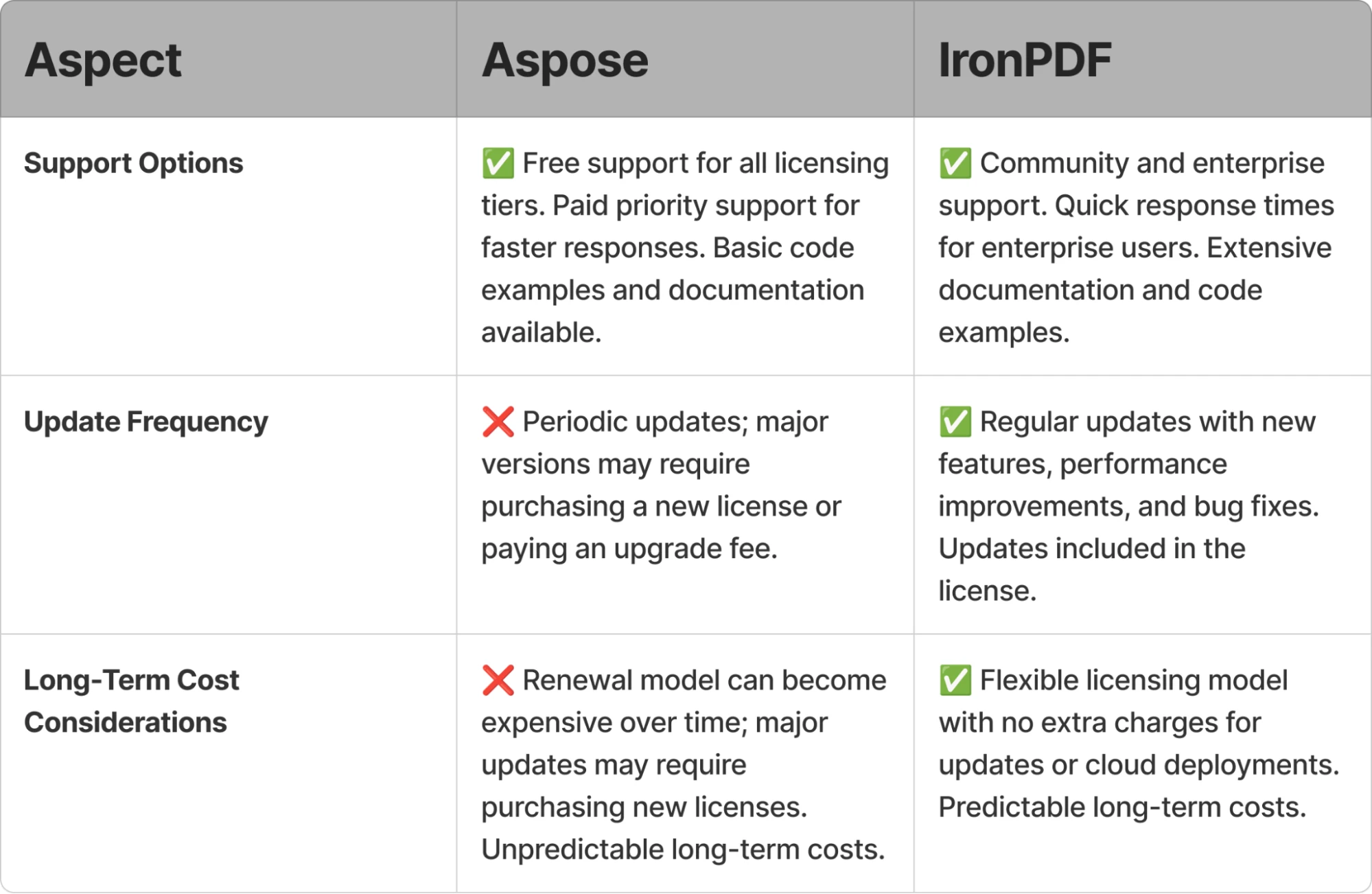
지원 및 유지 관리 비교에 대한 표 개요
IronPDF는 문서, 튜토리얼, API 참조, 문제 해결 가이드를 통해 완전한 지원을 제공합니다. 이 라이브러리는 빠른 구현을 위한 데모 및 광범위한 코드 예제를 포함하고 있습니다.
IronPDF로 마이그레이션하기 위해 다음에 무엇을 해야 합니까?
Aspose.PDF와 IronPDF 중 선택은 프로젝트 목표, 개발 스타일 및 인프라 요구 사항에 따라 달라집니다. IronPDF는 개발자가 빠른 반복 및 명확한 확장 경로를 찾는 경우에 매력적인 API, 유연한 배포 옵션 및 간소화된 라이선스를 제공합니다.
마이그레이션의 주요 이점은 무엇입니까?
- 간소화된 API: 최소한의 코드로 PDF 작업을 수행합니다.
- 비용 효율성: 유연한 라이선스로 초기 및 지속 비용을 줄입니다.
- 최적화된 성능: 속도 및 효율성을 위해 최적화되었습니다.
- 향상된 기능: HTML 렌더링, 암호화 및 일괄 처리에 대한 개선된 지원.
마이그레이션 프로세스를 어떻게 시작합니까?
- IronPDF 다운로드 및 설치: 무료 체험판으로 시작하세요.
- 코드 마이그레이션: 기존 Aspose.PDF 코드를 IronPDF의 직관적인 API로 업데이트합니다.
- 테스트 및 최적화: 문서 작업 흐름을 테스트하여 원활한 전환을 보장합니다.
마이그레이션 지원을 어디에서 받을 수 있습니까?
Iron Software의 지원 팀이 테스트 및 교체를 지원하여 워크플로에 방해 없이 원활한 전환을 보장합니다. 완전한 문서, 튜토리얼, 코드 예제에 대한 접근을 받아 가이드를 받을 수 있습니다.
마이그레이션 프로세스는 VB.NET 지원, F# 호환성, Blazor, MAUI, Razor Pages와 같은 인기 있는 프레임워크와의 통합을 통해 간소화됩니다.
오늘부터 Iron Software로 전환하여 낮은 비용, 더 나은 성능 및 간소화된 유지 보수를 경험하십시오!
Aspose는 해당 소유자의 등록 상표입니다. 본 사이트는 Aspose와 제휴, 보증 또는 후원 관계가 없습니다. 모든 제품명, 로고 및 브랜드는 해당 소유자의 자산입니다. 비교는 정보 제공 목적으로만 사용되며, 작성 시점에 공개적으로 이용 가능한 정보를 반영합니다.













