


Aspose PDF에서 IronPDF로 마이그레이션

엔지니어링 관리자가 C# PDF 라이브러리를 평가할 때, IronPDF는 개발 시간을 줄이고 완벽한 기능을 제공함으로써 최고의 투자 수익을 제공합니다. 반대로, PDFSharp 같은 오픈 소스 옵션은 초기 비용이 낮은 기본적인 프로그램적 필요에 적합합니다.
현대 .NET 응용 프로그램에서 PDF 문서를 다루는 것은 점점 더 중요해지고 있습니다. 청구서를 생성하거나 보고서를 변환하고, 웹 응용 프로그램에 양식을 통합하든 상관없이, 신뢰할 수 있는 C# PDF 라이브러리가 필요합니다. 많은 옵션이 있는 상황에서, 어떤 PDF 라이브러리가 프로젝트에 가장 적합할까요?
이 문서는 IronPDF를 포함하여 iText, PDFSharp, Aspose, Syncfusion, QuestPDF 등 인기 있는 선택지와 함께 조사합니다. 각 .NET PDF 라이브러리가 PDF 생성, HTML to PDF 변환, 편집 및 기타 주요 기능을 어떻게 처리하는지 배우게 됩니다. 비교에는 라이선스, 성능 및 사용 용이성이 포함되어 올바른 결정을 내릴 수 있도록 도와줍니다.
C# PDF 라이브러리가 필요한 이유는 무엇인가요?
특정 제품을 살펴보기 전에, PDF 파일을 위해 C# 라이브러리가 필요한 이유를 고려해 보십시오:
-
CSS 및 JavaScript 지원과 함께 HTML을 PDF로 변환합니다.
- Windows, Linux, Docker 간의 일관된 레이아웃 보장합니다.
귀하의 PDF 라이브러리는 사용하기 쉬워야 하고, 최소한의 코드가 필요하며, 고품질의 렌더링을 제공해야 합니다. 클라우드 배포를 위해 Azure 배포 및 AWS Lambda 통합에 대한 가이드를 탐색하세요.
귀하의 팀에게 가장 중요한 PDF 라이브러리 기능은 무엇입니까?
| 라이브러리 | HTML to PDF | JS 지원 | PDF 편집 | 라이선스 | 최고의 사용 사례 |
|---|---|---|---|---|---|
| IronPDF | 예 | 전체 | Yes | 상용 | 동적 콘텐츠를 가진 웹 앱 |
| iText | 예 | 제한적 | Yes | 상용 | Enterprise 준수 및 정적 HTML |
PDFSharp / MigraDoc |
아니요 | 사용할 수 없음 | Partial | 오픈 소스 | 프로그램적 PDF 생성 및 사용자 정의 레이아웃 |
| Aspose.PDF | 예 | 부분적 | Yes | 상용 | Enterprise 자동화 및 다중 형식 변환 |
| Syncfusion PDF | 예 | 부분적 | Yes | 상용 | 보고서 및 대시보드 |
| QuestPDF | 아니요 | 사용할 수 없음 | Yes | 오픈 소스 | 구조화된 프로그램적 PDF |
wkhtmltopdf (DinkToPdf) |
예 | 제한적 | 아니요 | 오픈 소스 | 정적 HTML을 PDF로 변환 |
이 표는 각 라이브러리의 핵심 강점을 빠르게 파악할 수 있게 하여, HTML/JS 지원, 편집 기능 및 라이선스를 기반으로 적합한 도구를 찾는 데 도움을 줍니다. 다음 섹션에서는 HTML을 PDF로 변환하거나 일반 PDF 생성 같은 기본 작업을 각 라이브러리가 어떻게 처리하는지 살펴봅니다.
IronPDF란 무엇이며 언제 사용해야 하나요?
IronPDF는 간단하지만 효과적인 PDF 작업을 위해 설계된 현대적인 상업 for .NET PDF 라이브러리입니다. 수동 드로잉 또는 저수준 API가 필요한 라이브러리와 달리 IronPDF는 실제 사례에 중점을 둡니다: HTML to PDF 변환, PDF 편집, 그리고 리포트 생성을 최소한의 코드로 수행합니다. 특히 HTML로 존재하는 웹 애플리케이션의 콘텐츠에서 복잡성을 처리해 줍니다. IronPDF는 Windows, .NET Framework, .NET Core, Docker와 같은 컨테이너화된 플랫폼에서 실행되어 사내 배포와 클라우드 배포 모두에 적합합니다.
왜 팀은 IronPDF를 선택해야 할까요?
-
HTML을 PDF로 변환하고 전체 CSS 및 JavaScript 지원을 제공합니다.
-
PDF를 병합, 분할, 페이지 재정렬, 그리고 텍스트/이미지 삽입을 통해 편집합니다.
-
비동기 지원을 통해 성능을 개선합니다.
- Deploy cross-platform: .NET Framework, .NET Core, Docker, Azure, Linux.
IronPDF는 복잡한 웹 콘텐츠를 어떻게 처리하나요?
IronPDF가 복잡한 CSS 또는 JavaScript와 함께 HTML 콘텐츠를 처리하는 방식을 보여주기 위해 다음 URL 변환 예제를 고려하세요:
using IronPdf;

class Program
{
    static void Main()
    {
        // Initialize the Chrome PDF renderer
        var renderer = new ChromePdfRenderer();

        // Configure rendering options for optimal output
        renderer.RenderingOptions.CssMediaType = IronPdf.Rendering.PdfCssMediaType.Print;
        renderer.RenderingOptions.EnableJavaScript = true;
        renderer.RenderingOptions.WaitFor.JavaScript(3000); // Wait 3 seconds for JS execution

        // Set page size and margins
        renderer.RenderingOptions.PaperSize = IronPdf.Rendering.PdfPaperSize.A4;
        renderer.RenderingOptions.MarginTop = 10; // millimeters
        renderer.RenderingOptions.MarginBottom = 10;
        renderer.RenderingOptions.MarginLeft = 10;
        renderer.RenderingOptions.MarginRight = 10;

        // Convert URL to PDF
        var pdf = renderer.RenderUrlAsPdf("___PROTECTED_URL_170___");

        // Save the PDF document
        pdf.SaveAs("output.pdf");

        // Optional: Add metadata
        pdf.MetaData.Title = "Wikipedia Main Page";
        pdf.MetaData.Author = "IronPDF Example";
        pdf.MetaData.Subject = "URL to PDF Conversion";
    }
}
using IronPdf;
class Program
{
static void Main()
{
// Initialize the Chrome PDF renderer
var renderer = new ChromePdfRenderer();
// Configure rendering options for optimal output
renderer.RenderingOptions.CssMediaType = IronPdf.Rendering.PdfCssMediaType.Print;
renderer.RenderingOptions.EnableJavaScript = true;
renderer.RenderingOptions.WaitFor.JavaScript(3000); // Wait 3 seconds for JS execution
// Set page size and margins
renderer.RenderingOptions.PaperSize = IronPdf.Rendering.PdfPaperSize.A4;
renderer.RenderingOptions.MarginTop = 10; // millimeters
renderer.RenderingOptions.MarginBottom = 10;
renderer.RenderingOptions.MarginLeft = 10;
renderer.RenderingOptions.MarginRight = 10;
// Convert URL to PDF
var pdf = renderer.RenderUrlAsPdf("___PROTECTED_URL_170___");
// Save the PDF document
pdf.SaveAs("output.pdf");
// Optional: Add metadata
pdf.MetaData.Title = "Wikipedia Main Page";
pdf.MetaData.Author = "IronPDF Example";
pdf.MetaData.Subject = "URL to PDF Conversion";
}
}Imports IronPdf
Class Program
Shared Sub Main()
' Initialize the Chrome PDF renderer
Dim renderer = New ChromePdfRenderer()
' Configure rendering options for optimal output
renderer.RenderingOptions.CssMediaType = IronPdf.Rendering.PdfCssMediaType.Print
renderer.RenderingOptions.EnableJavaScript = True
renderer.RenderingOptions.WaitFor.JavaScript(3000) ' Wait 3 seconds for JS execution
' Set page size and margins
renderer.RenderingOptions.PaperSize = IronPdf.Rendering.PdfPaperSize.A4
renderer.RenderingOptions.MarginTop = 10 ' millimeters
renderer.RenderingOptions.MarginBottom = 10
renderer.RenderingOptions.MarginLeft = 10
renderer.RenderingOptions.MarginRight = 10
' Convert URL to PDF
Dim pdf = renderer.RenderUrlAsPdf("___PROTECTED_URL_170___")
' Save the PDF document
pdf.SaveAs("output.pdf")
' Optional: Add metadata
pdf.MetaData.Title = "Wikipedia Main Page"
pdf.MetaData.Author = "IronPDF Example"
pdf.MetaData.Subject = "URL to PDF Conversion"
End Sub
End Class어떤 결과를 기대할 수 있나요?
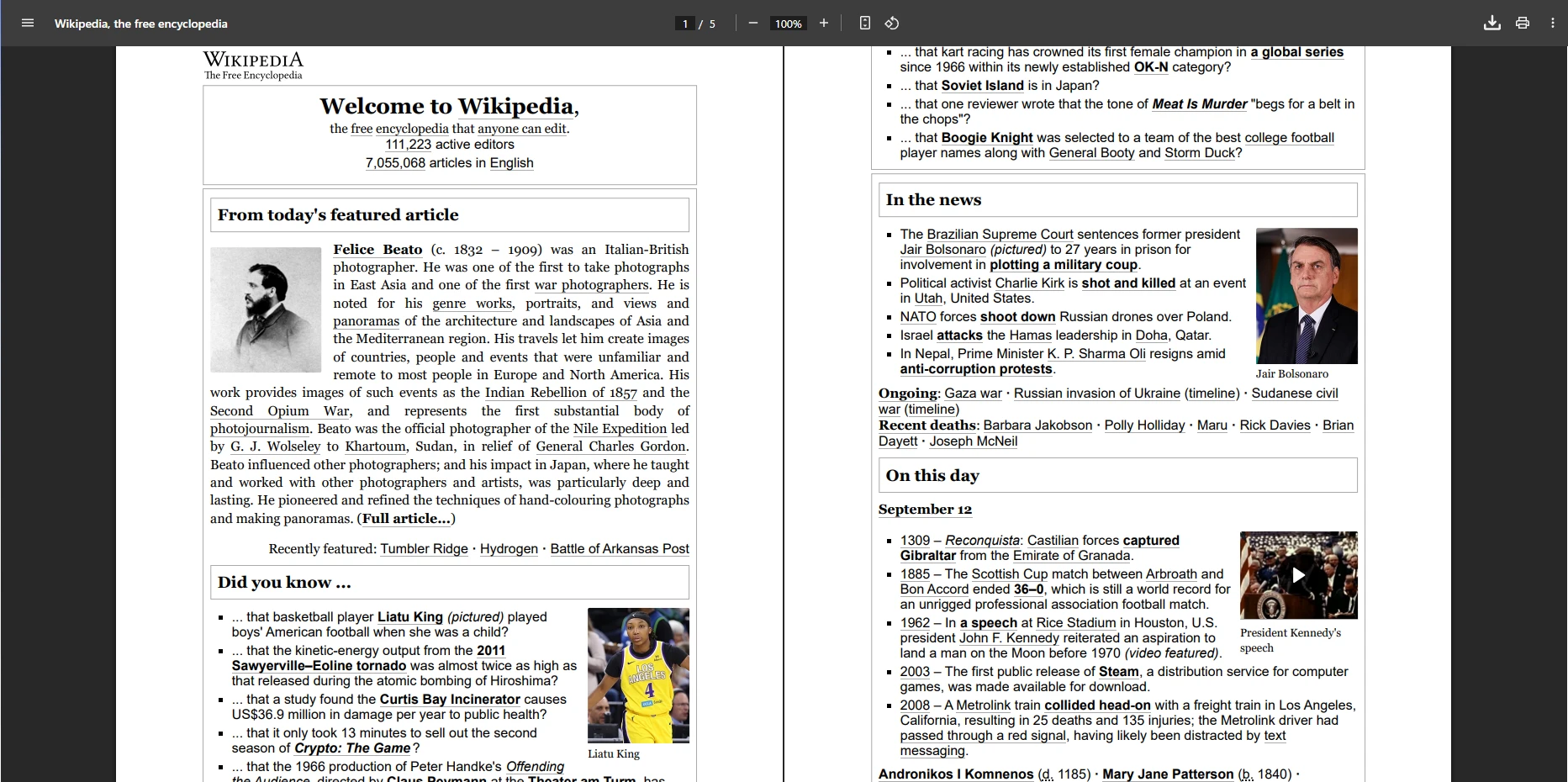
IronPDF는 최소한의 코드로 복잡한 CSS 레이아웃과 동적 JavaScript 콘텐츠를 렌더링하는 고품질 PDF를 생성합니다. 라이브러리의 Chrome 렌더링 엔진은 현대 브라우저와 일치하는 픽셀 완벽한 출력을 보장합니다. 귀하의 애플리케이션은 이 기능을 쿠키, HTTP 헤더 또는 인증 처리에 즉시 사용할 수 있습니다.
평결: IronPDF는 사용하기 쉬우면서도 고성능의 PDF 생성, 우수한 HTML/CSS/JS 렌더링, 전문 지원을 제공하는 최고의 선택입니다. 작동하는 모습을 보려면 데모를 탐색하세요.
PDF 라이브러리는 Bootstrap과 현대 CSS 프레임워크를 어떻게 처리하나요?
Bootstrap과 현대 CSS 프레임워크를 사용하는 응용 프로그램에 적합한 C# PDF 라이브러리를 선택할 때, 프레임워크 호환성은 디자인을 정확하게 변환할 수 있는지 또는 수정이 필요한지를 결정합니다. 이 접근 방식은 반응형 디자인 패턴을 사용하는 팀에 명확한 이점을 제공합니다.
Bootstrap에 Chromium 기반의 렌더링이 중요한 이유는 무엇인가요?
IronPDF의 Chromium 엔진은 다음을 완벽하게 지원합니다:
- Bootstrap 5: 완전한 플렉스박스 레이아웃, CSS Grid, 유틸리티 클래스, 모든 구성 요소
- Bootstrap 4: 완전한 카드 시스템, 내비게이션, 플렉스 유틸리티, 반응형 디자인
- Tailwind CSS: 모든 유틸리티 클래스를 브라우저 정확도와 함께 렌더링
- Foundation: 완전한 그리드 시스템 및 구성 요소 지원
- 현대 CSS3: 플렉스박스, CSS Grid, 사용자 정의 속성, 애니메이션, 전환
실제 검증: IronPDF는 Bootstrap 홈페이지와 공식 예제를 픽셀 완벽하게 렌더합니다. 라이브러리는 복잡성을 관리하여, Google Fonts, SVG 그래픽, 사용자 지정 글꼴을 포함합니다.
어떤 Bootstrap의 제약을 예상할 수 있을까요?
iText: 제한된 플렉스박스 지원(v7.1.15에 추가됨), CSS Grid 없음, Bootstrap 3 제한, 현대적인 구성 요소에는 우회 해결책 필요.
PDFSharp & MigraDoc: 네이티브 HTML 렌더링 없음 - 수동 PDF 구조만 가능, Bootstrap 지원 없음.
Aspose.PDF: 커스텀 엔진으로 CSS3의 약 90% 지원, 일부 플렉스박스, Bootstrap 구성 요소에 대한 광범위한 테스트 필요.
Syncfusion PDF: WebKit 기반 엔진으로 플렉스박스/CSS Grid 없음, Bootstrap 3 최대, 보안 문제 (마지막 업데이트 2016).
QuestPDF: 수동 레이아웃을 위한 유연한 API - HTML/CSS 렌더링 없음, Bootstrap 지원 없음.
개발 영향: 비-Chromium 라이브러리는 병렬 'PDF 안전' 레이아웃을 요구하며, 개발 시간을 크게 늘리고 디자인 일관성을 감소시킵니다.
iText란 무엇이며 언제 사용해야 할까요?
iText는 PDF 생성, 편집 및 보안을 위한 신뢰할 수 있는 Enterprise 대응 C# PDF 라이브러리입니다. 구현은 PDF/A, 디지털 서명, 텍스트 삭제 및 금융, 법률 및 Enterprise 애플리케이션을 위한 준수 중심 워크플로우를 처리합니다. iText는 HTML을 PDF로 변환할 수 있지만 JavaScript를 네이티브로 실행하지는 않으며, 동적 콘텐츠를 위해 사전 처리가 필요합니다. 버전 7.1.15는 제한된 플렉스박스 지원을 추가했지만, 많은 CSS3 기능은 여전히 지원되지 않습니다. iText vs IronPDF 비교를 보세요.
iText가 Enterprise 애플리케이션에 적합한 이유는 무엇인가요?
iText는 URL을 어떻게 PDF로 변환하나요?
using iText.Html2pdf;
using System.Net.Http;
using System.IO;
using System.Threading.Tasks;

class Program
{
    static async Task Main()
    {
        var url = "___PROTECTED_URL_171___";

        // Create HTTP client with browser-like settings
        using var client = new HttpClient();

        // Add user agent to avoid 403 Forbidden responses
        client.DefaultRequestHeaders.Add("User-Agent",
            "Mozilla/5.0 (Windows NT 10.0; Win64; x64) AppleWebKit/537.36 " +
            "(KHTML, like Gecko) Chrome/137.0.0.0 Safari/537.36");

        // Add timeout for reliability
        client.Timeout = TimeSpan.FromSeconds(30);

        // Fetch HTML content
        string htmlContent = await client.GetStringAsync(url);

        // Configure conversion properties
        var converterProperties = new ConverterProperties();
        converterProperties.SetBaseUri(url); // Important for resolving relative URLs

        // Create PDF from HTML
        using var fileStream = new FileStream("itext7-output.pdf", FileMode.Create);
        HtmlConverter.ConvertToPdf(htmlContent, fileStream, converterProperties);

        Console.WriteLine("PDF created successfully!");
    }
}
using iText.Html2pdf;
using System.Net.Http;
using System.IO;
using System.Threading.Tasks;
class Program
{
static async Task Main()
{
var url = "___PROTECTED_URL_171___";
// Create HTTP client with browser-like settings
using var client = new HttpClient();
// Add user agent to avoid 403 Forbidden responses
client.DefaultRequestHeaders.Add("User-Agent",
"Mozilla/5.0 (Windows NT 10.0; Win64; x64) AppleWebKit/537.36 " +
"(KHTML, like Gecko) Chrome/137.0.0.0 Safari/537.36");
// Add timeout for reliability
client.Timeout = TimeSpan.FromSeconds(30);
// Fetch HTML content
string htmlContent = await client.GetStringAsync(url);
// Configure conversion properties
var converterProperties = new ConverterProperties();
converterProperties.SetBaseUri(url); // Important for resolving relative URLs
// Create PDF from HTML
using var fileStream = new FileStream("itext7-output.pdf", FileMode.Create);
HtmlConverter.ConvertToPdf(htmlContent, fileStream, converterProperties);
Console.WriteLine("PDF created successfully!");
}
}Imports iText.Html2pdf
Imports System.Net.Http
Imports System.IO
Imports System.Threading.Tasks
Module Program
Async Function Main() As Task
Dim url As String = "___PROTECTED_URL_171___"
' Create HTTP client with browser-like settings
Using client As New HttpClient()
' Add user agent to avoid 403 Forbidden responses
client.DefaultRequestHeaders.Add("User-Agent",
"Mozilla/5.0 (Windows NT 10.0; Win64; x64) AppleWebKit/537.36 " &
"(KHTML, like Gecko) Chrome/137.0.0.0 Safari/537.36")
' Add timeout for reliability
client.Timeout = TimeSpan.FromSeconds(30)
' Fetch HTML content
Dim htmlContent As String = Await client.GetStringAsync(url)
' Configure conversion properties
Dim converterProperties As New ConverterProperties()
converterProperties.SetBaseUri(url) ' Important for resolving relative URLs
' Create PDF from HTML
Using fileStream As New FileStream("itext7-output.pdf", FileMode.Create)
HtmlConverter.ConvertToPdf(htmlContent, fileStream, converterProperties)
End Using
Console.WriteLine("PDF created successfully!")
End Using
End Function
End ModuleiText의 HTML 렌더링 제약은 무엇인가요?
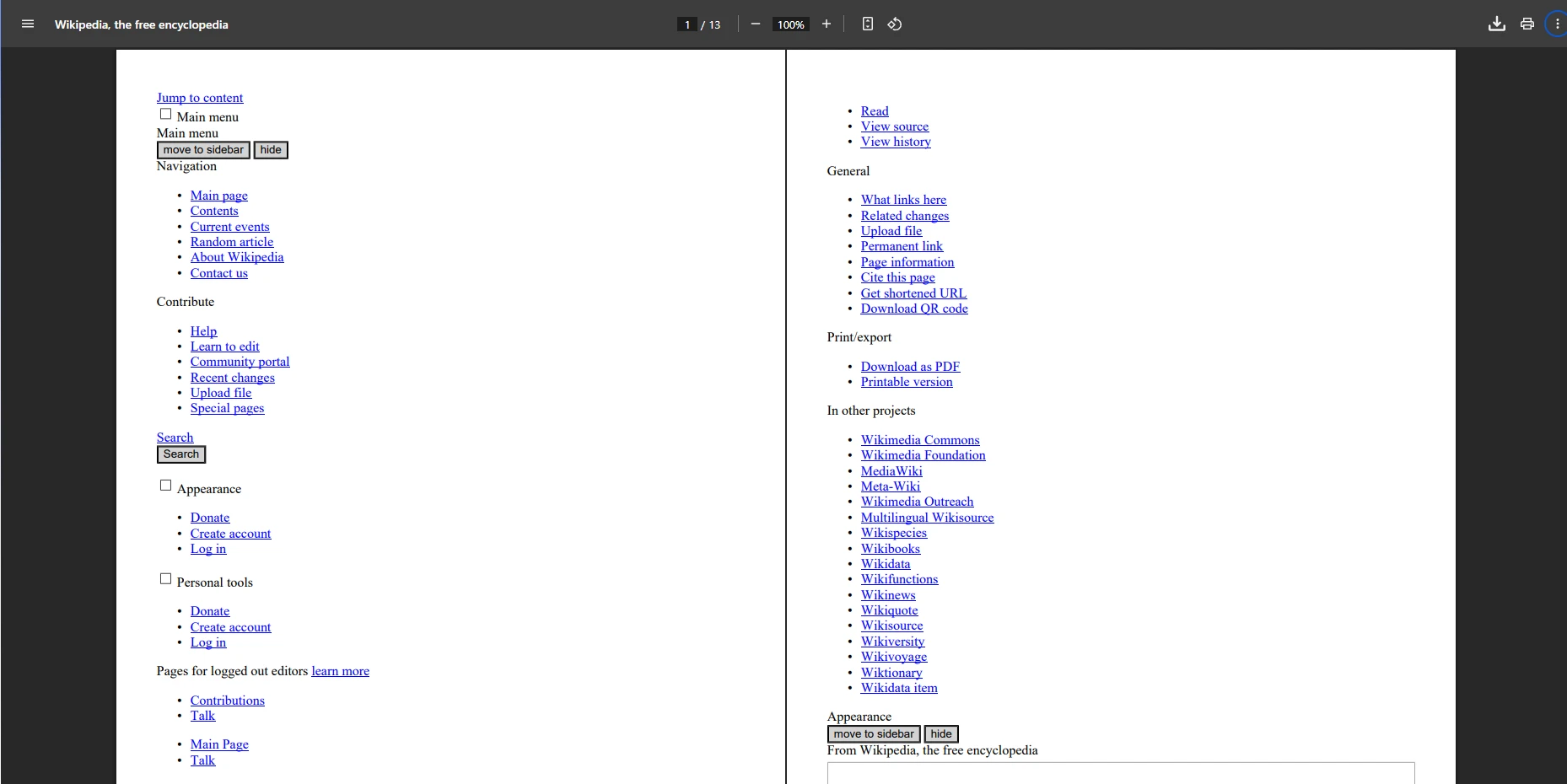
이 코드는 HTML 콘텐츠를 가져와 PDF로 변환합니다. 결과는 페이지 레이아웃, 텍스트, 이미지 및 CSS 스타일을 보존하지만 동적인 JavaScript 콘텐츠는 렌더링되지 않습니다. JavaScript가 많은 페이지의 경우, IronPDF의 JavaScript 렌더링을 고려하거나 커스텀 렌더 지연을 구현하세요.
판결: iText는 강력한 준수 지원과 정적 HTML에서 PDF로의 변환으로 Enterprise PDF 생성 및 편집에 탁월합니다. JavaScript 또는 고급 CSS의 경우 IronPDF 또는 wkhtmltopdf를 고려하십시오.
PDFSharp & MigraDoc란 무엇이며 언제 사용해야 할까요?
PDFSharp 및 MigraDoc는 프로그램적으로 PDF를 생성하기 위한 무료 오픈 소스 C# PDF 라이브러리입니다. PDFSharp는 저수준 PDF 생성을 처리하고 MigraDoc는 테이블, 단락 및 다중 페이지 문서를 위한 고수준 레이아웃 API를 제공합니다. 이 라이브러리들은 HTML에서 PDF로의 변환을 제공하지 않으며, 코드에서 문서 구조를 완전히 제어해야 하는 경우에 이상적입니다. 프로그램적으로 그리기에 대해서는 라인 및 직사각형 그리기와 텍스트 및 비트맵 그리기에 대한 가이드를 참조하세요.
단순 PDF 생성을 위해 PDFSharp를 선택하는 이유는 무엇인가요?
-
무료 및 오픈 소스 (MIT 라이센스).
-
텍스트, 이미지 및 테이블을 프로그래밍 방식으로 PDF로 생성합니다.
-
MigraDoc와 함께 다중 페이지 레이아웃 지원. -
가볍고 쉽게 통합할 수 있습니다.
-
그리기 및 위치 지정에 대한 완전한 제어가 가능합니다.
- Works on .NET Framework and .NET Core.
PDFSharp로 프로그래밍 방식으로 PDF를 어떻게 생성하나요?
using PdfSharp.Drawing;
using PdfSharp.Fonts;
using PdfSharp.Pdf;
using static System.Net.Mime.MediaTypeNames;

class Program
{
    static void Main()
    {
        // Configure font resolver for cross-platform compatibility
        GlobalFontSettings.UseWindowsFontsUnderWindows = true;

        // Create a new PDF document
        var document = new PdfDocument();
        document.Info.Title = "PDFSharp Example";
        document.Info.Author = "Your Team";
        document.Info.Subject = "Demonstrating PDFSharp capabilities";

        // Add a page to the document
        var page = document.AddPage();
        page.Size = PdfSharp.PageSize.A4;
        page.Orientation = PdfSharp.PageOrientation.Portrait;

        // Create graphics object for drawing
        var gfx = XGraphics.FromPdfPage(page);

        // Draw text at specific coordinates
        var font = new XFont("Verdana", 20, XFontStyleEx.Regular);
        gfx.DrawString("Hello from PDFSharp!", font, XBrushes.Black,
            new XPoint(50, 100));

        // Add more content - a rectangle
        var pen = new XPen(XColors.Navy, 2);
        gfx.DrawRectangle(pen, XBrushes.LightBlue, 50, 150, 200, 100);

        // Add text inside rectangle
        var smallFont = new XFont("Arial", 12, XFontStyleEx.Regular);
        gfx.DrawString("Custom drawing example", smallFont, XBrushes.DarkBlue,
            new XPoint(60, 200));

        // Save the document
        document.Save("pdfsharp-example.pdf");

        Console.WriteLine("PDF created with PDFSharp!");
    }
}
using PdfSharp.Drawing;
using PdfSharp.Fonts;
using PdfSharp.Pdf;
using static System.Net.Mime.MediaTypeNames;
class Program
{
static void Main()
{
// Configure font resolver for cross-platform compatibility
GlobalFontSettings.UseWindowsFontsUnderWindows = true;
// Create a new PDF document
var document = new PdfDocument();
document.Info.Title = "PDFSharp Example";
document.Info.Author = "Your Team";
document.Info.Subject = "Demonstrating PDFSharp capabilities";
// Add a page to the document
var page = document.AddPage();
page.Size = PdfSharp.PageSize.A4;
page.Orientation = PdfSharp.PageOrientation.Portrait;
// Create graphics object for drawing
var gfx = XGraphics.FromPdfPage(page);
// Draw text at specific coordinates
var font = new XFont("Verdana", 20, XFontStyleEx.Regular);
gfx.DrawString("Hello from PDFSharp!", font, XBrushes.Black,
new XPoint(50, 100));
// Add more content - a rectangle
var pen = new XPen(XColors.Navy, 2);
gfx.DrawRectangle(pen, XBrushes.LightBlue, 50, 150, 200, 100);
// Add text inside rectangle
var smallFont = new XFont("Arial", 12, XFontStyleEx.Regular);
gfx.DrawString("Custom drawing example", smallFont, XBrushes.DarkBlue,
new XPoint(60, 200));
// Save the document
document.Save("pdfsharp-example.pdf");
Console.WriteLine("PDF created with PDFSharp!");
}
}Imports PdfSharp.Drawing
Imports PdfSharp.Fonts
Imports PdfSharp.Pdf
Imports System.Net.Mime.MediaTypeNames
Module Program
Sub Main()
' Configure font resolver for cross-platform compatibility
GlobalFontSettings.UseWindowsFontsUnderWindows = True
' Create a new PDF document
Dim document As New PdfDocument()
document.Info.Title = "PDFSharp Example"
document.Info.Author = "Your Team"
document.Info.Subject = "Demonstrating PDFSharp capabilities"
' Add a page to the document
Dim page = document.AddPage()
page.Size = PdfSharp.PageSize.A4
page.Orientation = PdfSharp.PageOrientation.Portrait
' Create graphics object for drawing
Dim gfx = XGraphics.FromPdfPage(page)
' Draw text at specific coordinates
Dim font As New XFont("Verdana", 20, XFontStyleEx.Regular)
gfx.DrawString("Hello from PDFSharp!", font, XBrushes.Black, New XPoint(50, 100))
' Add more content - a rectangle
Dim pen As New XPen(XColors.Navy, 2)
gfx.DrawRectangle(pen, XBrushes.LightBlue, 50, 150, 200, 100)
' Add text inside rectangle
Dim smallFont As New XFont("Arial", 12, XFontStyleEx.Regular)
gfx.DrawString("Custom drawing example", smallFont, XBrushes.DarkBlue, New XPoint(60, 200))
' Save the document
document.Save("pdfsharp-example.pdf")
Console.WriteLine("PDF created with PDFSharp!")
End Sub
End ModulePDFSharp가 적합한 선택일 때는 언제인가요?
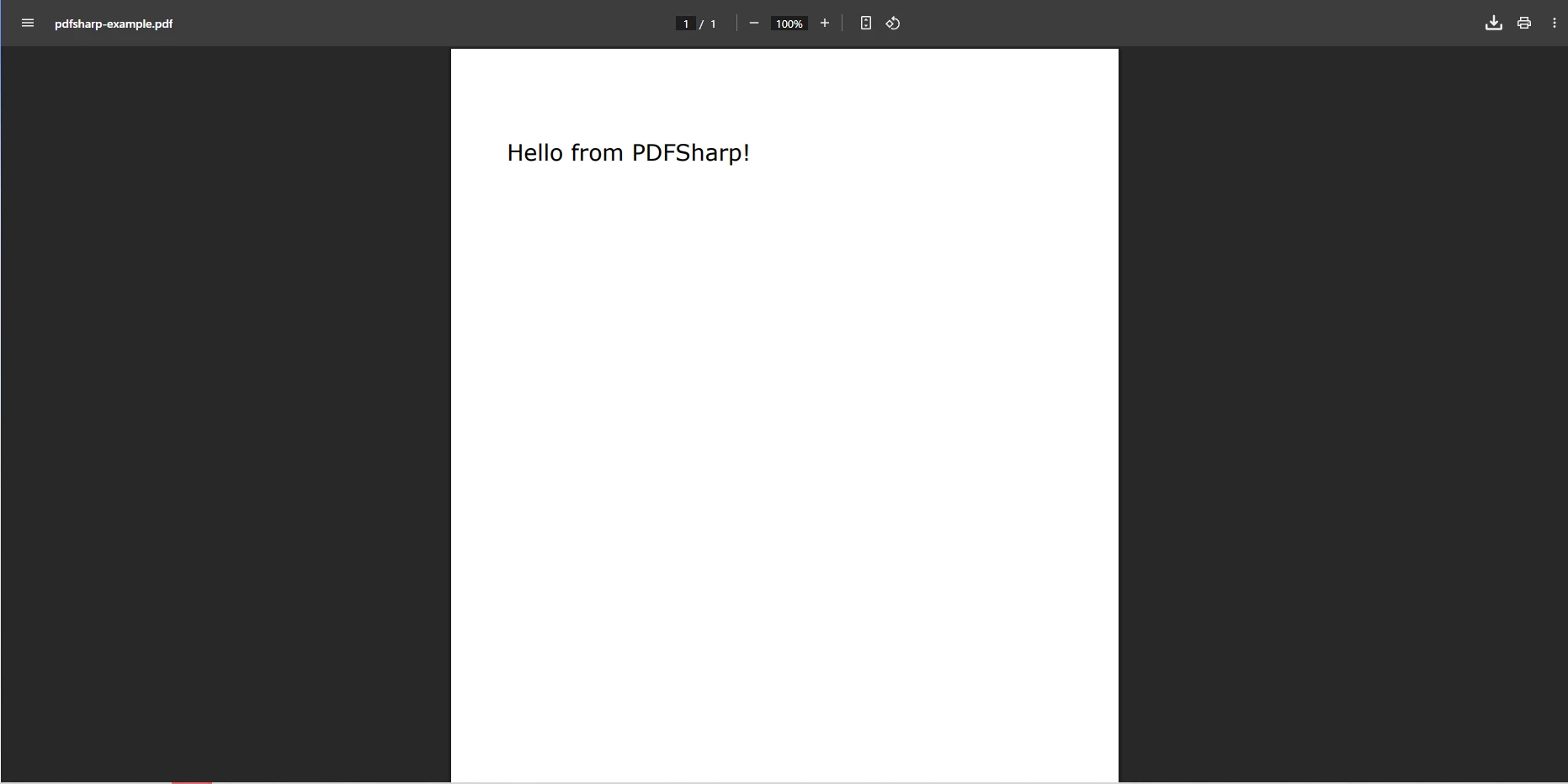
이 코드는 텍스트를 추가하고 레이아웃을 수동으로 처리하여 프로그래밍 방식으로 PDF를 생성합니다. 구현은 청구서, 양식 또는 인증서와 같은 HTML 입력 없이 맞춤형 문서에 명확한 이점을 제공합니다. 더 많은 기능을 갖춘 유사한 프로그램적 제어를 위해 새로운 PDF 생성을 참조하세요.
판결: PDFSharp & MigraDoc는 기본 PDF 생성에 이상적이며, 무료이고 통합이 용이하나 HTML 변환 및 고급 편집이 부족합니다. HTML 워크플로의 경우 IronPDF의 HTML을 PDF로 변환 기능을 고려하십시오.## Aspose.PDF는 무엇이며 언제 사용해야 하나요?
Aspose.PDF는 PDF 생성, 편집, 변환 및 보안을 위한 완전한 도구를 제공하는 상업 for .NET PDF 라이브러리입니다. 경량 라이브러리와 달리 Aspose.PDF는 Enterprise 응용 프로그램에 중점을 두고 있으며, Word, Excel, HTML, XML을 포함한 파일 변환을 지원합니다. 귀하의 애플리케이션은 즉시 이 기능을 문서 자동화, 보고서 생성 및 대규모 애플리케이션에서 고급 PDF 조작에 사용할 수 있습니다. Aspose vs IronPDF 비교를 참조하세요.
Aspose.PDF는 어떤 기업 기능을 제공하나요?
Aspose.PDF는 URL을 PDF로 어떻게 변환하나요?
using Aspose.Pdf;
using System;
using System.IO;
using System.Net;

class Program
{
    static void Main()
    {
        string url = "___PROTECTED_URL_172___";

        // Optional: provide credentials for protected resources
        NetworkCredential credentials = null;
        // Example for authenticated resources:
        // credentials = new NetworkCredential("username", "password");

        // Configure HTML load options
        var options = new HtmlLoadOptions(url)
        {
            // Enable external resources loading
            ExternalResourcesCredentials = credentials,

            // Set page info
            PageInfo = new PageInfo
            {
                Width = PageSize.A4.Width,
                Height = PageSize.A4.Height,
                Margin = new MarginInfo(20, 20, 20, 20) // left, bottom, right, top
            },

            // Enable JavaScript execution (limited support)
            IsEmbedFonts = true,
            IsRenderToSinglePage = false
        };

        try
        {
            // Fetch HTML content as stream and load into Document
            using (var document = new Document(GetContentFromUrlAsStream(url, credentials), options))
            {
                // Add metadata
                document.Info.Title = "Wikipedia Main Page";
                document.Info.Author = "Aspose.PDF Example";
                document.Info.Subject = "URL to PDF Conversion";
                document.Info.Keywords = "PDF, Aspose, Wikipedia";

                // Improve the PDF
                document.OptimizeResources();

                // Save PDF with specific save options
                var saveOptions = new PdfSaveOptions
                {
                    DefaultFontName = "Arial", // Fallback font
                    EmbedStandardFonts = true
                };

                document.Save("aspose-output.pdf", saveOptions);
            }

            Console.WriteLine("PDF successfully created!");
        }
        catch (Exception ex)
        {
            Console.WriteLine($"Error: {ex.Message}");
        }
    }

    private static Stream GetContentFromUrlAsStream(string url, ICredentials credentials = null)
    {
        using var handler = new System.Net.Http.HttpClientHandler { Credentials = credentials };
        using var httpClient = new System.Net.Http.HttpClient(handler);

        // Set a browser-like User-Agent to avoid 403 errors
        httpClient.DefaultRequestHeaders.Add("User-Agent",
            "Mozilla/5.0 (Windows NT 10.0; Win64; x64) AppleWebKit/537.36 " +
            "(KHTML, like Gecko) Chrome/137.0.0.0 Safari/537.36");

        // Set timeout
        httpClient.Timeout = TimeSpan.FromSeconds(30);

        return httpClient.GetStreamAsync(url).GetAwaiter().GetResult();
    }
}
using Aspose.Pdf;
using System;
using System.IO;
using System.Net;
class Program
{
static void Main()
{
string url = "___PROTECTED_URL_172___";
// Optional: provide credentials for protected resources
NetworkCredential credentials = null;
// Example for authenticated resources:
// credentials = new NetworkCredential("username", "password");
// Configure HTML load options
var options = new HtmlLoadOptions(url)
{
// Enable external resources loading
ExternalResourcesCredentials = credentials,
// Set page info
PageInfo = new PageInfo
{
Width = PageSize.A4.Width,
Height = PageSize.A4.Height,
Margin = new MarginInfo(20, 20, 20, 20) // left, bottom, right, top
},
// Enable JavaScript execution (limited support)
IsEmbedFonts = true,
IsRenderToSinglePage = false
};
try
{
// Fetch HTML content as stream and load into Document
using (var document = new Document(GetContentFromUrlAsStream(url, credentials), options))
{
// Add metadata
document.Info.Title = "Wikipedia Main Page";
document.Info.Author = "Aspose.PDF Example";
document.Info.Subject = "URL to PDF Conversion";
document.Info.Keywords = "PDF, Aspose, Wikipedia";
// Improve the PDF
document.OptimizeResources();
// Save PDF with specific save options
var saveOptions = new PdfSaveOptions
{
DefaultFontName = "Arial", // Fallback font
EmbedStandardFonts = true
};
document.Save("aspose-output.pdf", saveOptions);
}
Console.WriteLine("PDF successfully created!");
}
catch (Exception ex)
{
Console.WriteLine($"Error: {ex.Message}");
}
}
private static Stream GetContentFromUrlAsStream(string url, ICredentials credentials = null)
{
using var handler = new System.Net.Http.HttpClientHandler { Credentials = credentials };
using var httpClient = new System.Net.Http.HttpClient(handler);
// Set a browser-like User-Agent to avoid 403 errors
httpClient.DefaultRequestHeaders.Add("User-Agent",
"Mozilla/5.0 (Windows NT 10.0; Win64; x64) AppleWebKit/537.36 " +
"(KHTML, like Gecko) Chrome/137.0.0.0 Safari/537.36");
// Set timeout
httpClient.Timeout = TimeSpan.FromSeconds(30);
return httpClient.GetStreamAsync(url).GetAwaiter().GetResult();
}
}Imports Aspose.Pdf
Imports System
Imports System.IO
Imports System.Net
Imports System.Net.Http
Class Program
Shared Sub Main()
Dim url As String = "___PROTECTED_URL_172___"
' Optional: provide credentials for protected resources
Dim credentials As NetworkCredential = Nothing
' Example for authenticated resources:
' credentials = New NetworkCredential("username", "password")
' Configure HTML load options
Dim options As New HtmlLoadOptions(url) With {
.ExternalResourcesCredentials = credentials,
.PageInfo = New PageInfo With {
.Width = PageSize.A4.Width,
.Height = PageSize.A4.Height,
.Margin = New MarginInfo(20, 20, 20, 20) ' left, bottom, right, top
},
.IsEmbedFonts = True,
.IsRenderToSinglePage = False
}
Try
' Fetch HTML content as stream and load into Document
Using document As New Document(GetContentFromUrlAsStream(url, credentials), options)
' Add metadata
document.Info.Title = "Wikipedia Main Page"
document.Info.Author = "Aspose.PDF Example"
document.Info.Subject = "URL to PDF Conversion"
document.Info.Keywords = "PDF, Aspose, Wikipedia"
' Improve the PDF
document.OptimizeResources()
' Save PDF with specific save options
Dim saveOptions As New PdfSaveOptions With {
.DefaultFontName = "Arial", ' Fallback font
.EmbedStandardFonts = True
}
document.Save("aspose-output.pdf", saveOptions)
End Using
Console.WriteLine("PDF successfully created!")
Catch ex As Exception
Console.WriteLine($"Error: {ex.Message}")
End Try
End Sub
Private Shared Function GetContentFromUrlAsStream(url As String, Optional credentials As ICredentials = Nothing) As Stream
Using handler As New HttpClientHandler With {.Credentials = credentials}
Using httpClient As New HttpClient(handler)
' Set a browser-like User-Agent to avoid 403 errors
httpClient.DefaultRequestHeaders.Add("User-Agent", "Mozilla/5.0 (Windows NT 10.0; Win64; x64) AppleWebKit/537.36 " &
"(KHTML, like Gecko) Chrome/137.0.0.0 Safari/537.36")
' Set timeout
httpClient.Timeout = TimeSpan.FromSeconds(30)
Return httpClient.GetStreamAsync(url).GetAwaiter().GetResult()
End Using
End Using
End Function
End Class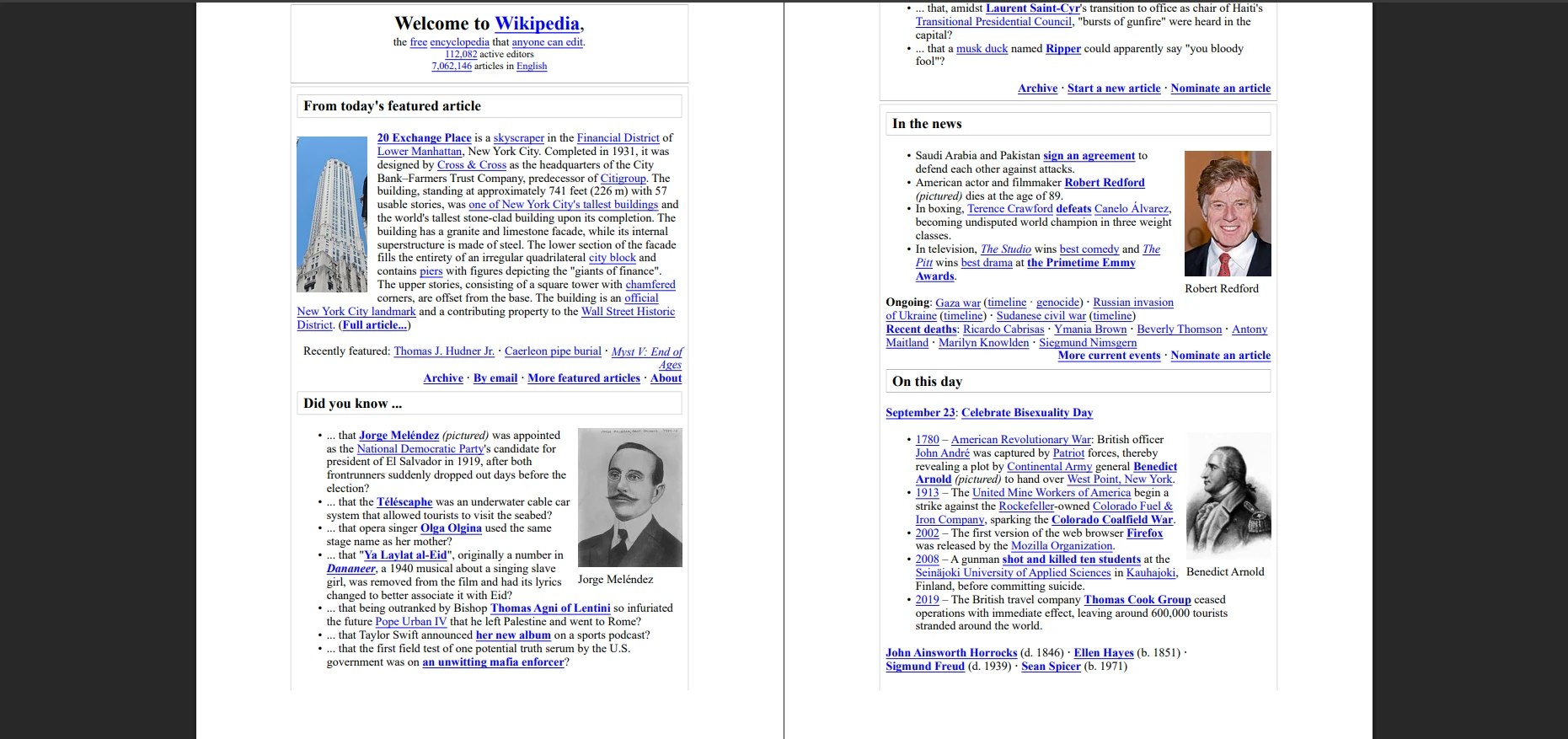
이 코드는 403 오류를 방지하기 위해 브라우저와 유사한 User-Agent를 사용하여 HTML 콘텐츠를 가져오고, HtmlLoadOptions을 사용해 HTML을 Aspose.PDF 문서로 직접 스트리밍한 후 PDF로 저장합니다. 결과는 페이지 레이아웃, 텍스트, 이미지 및 CSS 스타일을 보존하며 기본 HTTP 인증을 지원합니다. 동적인 JavaScript 콘텐츠는 실행되지 않습니다. 더 나은 JavaScript 지원을 위해 IronPDF의 JavaScript 렌더링을 탐색하세요.
판결: Aspose.PDF는 고급 기능, 다중 형식 변환 및 강력한 보안을 필요로 하는 Enterprise 응용 프로그램에 탁월합니다. 상업용이며 소규모 프로젝트에는 다소 복잡할 수 있지만, 대규모 문서 워크플로에는 타의 추종을 불허합니다.
Syncfusion PDF는 무엇이며 언제 사용해야 하나요?
Syncfusion PDF는 웹 및 데스크톱 애플리케이션을 위한 기능이 풍부한 .NET PDF 라이브러리를 제공하는 Syncfusion Suite의 일부입니다. 라이브러리는 PDF 생성, 편집, 변환, HTML을 PDF로 변환하는 복잡성을 관리하며, 보고서 및 대시보드를 위한 다른 Syncfusion 구성 요소와 원활하게 통합됩니다. Syncfusion 구성 요소를 사용하는 팀은 강력한 통합의 이점을 누릴 수 있습니다. Syncfusion vs IronPDF 비교를 보세요.
통합 솔루션에 Syncfusion을 고려해야 하는 이유는 무엇입니까?
-
CSS 및 이미지 지원과 함께 HTML을 PDF로 변환합니다.
-
웹 및 데스크톱 애플리케이션을 위한 동적 보고서를 생성합니다.
- Improve for .NET Core, .NET Framework, and ASP.NET Core.
Syncfusion은 URL을 어떻게 PDF로 변환합니까?
using Syncfusion.HtmlConverter;
using Syncfusion.Pdf;

class Program
{
    static void Main()
    {
        // Initialize the HTML to PDF converter
        HtmlToPdfConverter converter = new HtmlToPdfConverter();

        // Configure WebKit settings for better rendering
        WebKitConverterSettings settings = new WebKitConverterSettings();

        // Set WebKit path (required for deployment)
        settings.WebKitPath = @"C:\QtBinariesPath";

        // Configure page settings
        settings.PdfPageSize = PdfPageSize.A4;
        settings.Orientation = PdfPageOrientation.Portrait;
        settings.Margin = new PdfMargins() { All = 20 };

        // Enable JavaScript execution
        settings.EnableJavaScript = true;
        settings.JavaScriptDelay = 3000; // Wait 3 seconds for JS

        // Set viewport size for responsive design
        settings.ViewPortSize = new System.Drawing.Size(1024, 0);

        // Add custom headers if needed
        settings.HttpRequestHeaders.Add("User-Agent",
            "Mozilla/5.0 (Windows NT 10.0; Win64; x64) AppleWebKit/537.36");

        converter.ConverterSettings = settings;

        // Convert URL to PDF
        PdfDocument document = converter.Convert("___PROTECTED_URL_173___");

        // Add document info
        document.DocumentInformation.Title = "Wikipedia Main Page";
        document.DocumentInformation.Author = "Syncfusion Example";
        document.DocumentInformation.Subject = "URL to PDF Conversion";

        // Save the PDF
        document.Save("syncfusion-output.pdf");
        document.Close(true); // true = dispose resources

        Console.WriteLine("PDF created successfully!");
    }
}
using Syncfusion.HtmlConverter;
using Syncfusion.Pdf;
class Program
{
static void Main()
{
// Initialize the HTML to PDF converter
HtmlToPdfConverter converter = new HtmlToPdfConverter();
// Configure WebKit settings for better rendering
WebKitConverterSettings settings = new WebKitConverterSettings();
// Set WebKit path (required for deployment)
settings.WebKitPath = @"C:\QtBinariesPath";
// Configure page settings
settings.PdfPageSize = PdfPageSize.A4;
settings.Orientation = PdfPageOrientation.Portrait;
settings.Margin = new PdfMargins() { All = 20 };
// Enable JavaScript execution
settings.EnableJavaScript = true;
settings.JavaScriptDelay = 3000; // Wait 3 seconds for JS
// Set viewport size for responsive design
settings.ViewPortSize = new System.Drawing.Size(1024, 0);
// Add custom headers if needed
settings.HttpRequestHeaders.Add("User-Agent",
"Mozilla/5.0 (Windows NT 10.0; Win64; x64) AppleWebKit/537.36");
converter.ConverterSettings = settings;
// Convert URL to PDF
PdfDocument document = converter.Convert("___PROTECTED_URL_173___");
// Add document info
document.DocumentInformation.Title = "Wikipedia Main Page";
document.DocumentInformation.Author = "Syncfusion Example";
document.DocumentInformation.Subject = "URL to PDF Conversion";
// Save the PDF
document.Save("syncfusion-output.pdf");
document.Close(true); // true = dispose resources
Console.WriteLine("PDF created successfully!");
}
}Imports Syncfusion.HtmlConverter
Imports Syncfusion.Pdf
Imports System.Drawing
Class Program
Shared Sub Main()
' Initialize the HTML to PDF converter
Dim converter As New HtmlToPdfConverter()
' Configure WebKit settings for better rendering
Dim settings As New WebKitConverterSettings()
' Set WebKit path (required for deployment)
settings.WebKitPath = "C:\QtBinariesPath"
' Configure page settings
settings.PdfPageSize = PdfPageSize.A4
settings.Orientation = PdfPageOrientation.Portrait
settings.Margin = New PdfMargins() With {.All = 20}
' Enable JavaScript execution
settings.EnableJavaScript = True
settings.JavaScriptDelay = 3000 ' Wait 3 seconds for JS
' Set viewport size for responsive design
settings.ViewPortSize = New Size(1024, 0)
' Add custom headers if needed
settings.HttpRequestHeaders.Add("User-Agent",
"Mozilla/5.0 (Windows NT 10.0; Win64; x64) AppleWebKit/537.36")
converter.ConverterSettings = settings
' Convert URL to PDF
Dim document As PdfDocument = converter.Convert("___PROTECTED_URL_173___")
' Add document info
document.DocumentInformation.Title = "Wikipedia Main Page"
document.DocumentInformation.Author = "Syncfusion Example"
document.DocumentInformation.Subject = "URL to PDF Conversion"
' Save the PDF
document.Save("syncfusion-output.pdf")
document.Close(True) ' true = dispose resources
Console.WriteLine("PDF created successfully!")
End Sub
End ClassSyncfusion의 보고서 강점은 무엇입니까?
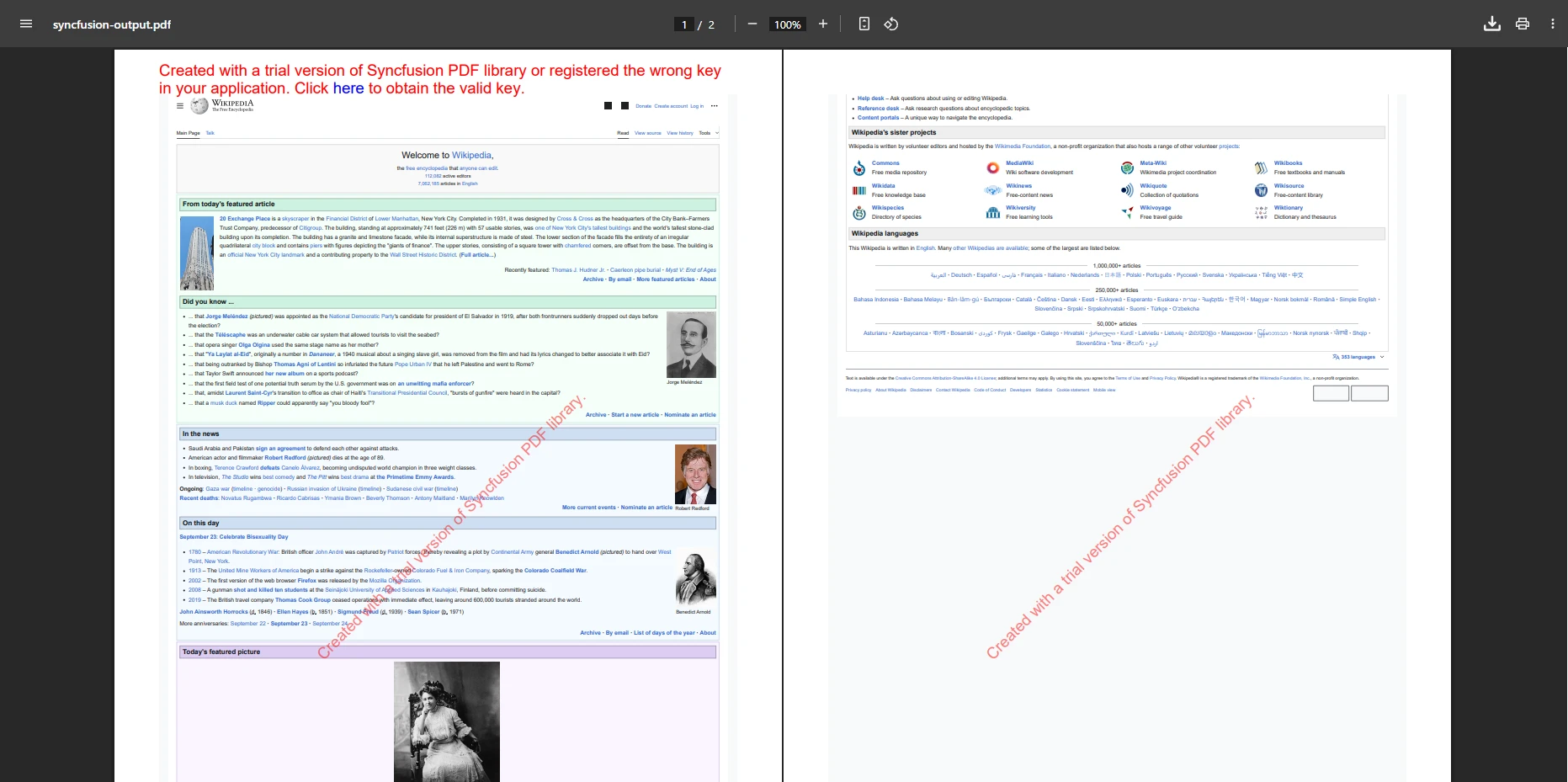
이 예제는 레이아웃, 이미지 및 서식을 유지하며 URL을 PDF로 변환합니다. Syncfusion PDF는 HTML에서 PDF로의 신뢰할 수 있는 렌더링이 필요한 보고 시나리오에서 우수합니다. 라이브러리는 전문 문서용 헤더 및 푸터, 페이지 번호, 북마크를 지원합니다.
결론: Syncfusion PDF는 Syncfusion 구성 요소를 사용하는 팀, 전문적인 HTML에서 PDF로의 렌더링이 필요한 경우 혹은 광범위한 기능을 갖춘 Enterprise PDF 생성을 원하는 경우에 탁월합니다. 대안을 원하시면 자세히 비교를 탐색하세요.
QuestPDF란 무엇이며 언제 사용해야 하나요?
QuestPDF는 선언적 API를 사용하여 프로그램 방식의 PDF 생성을 중심으로 하는 오픈 소스 C# 라이브러리입니다. HTML을 PDF로 변환하는 라이브러리와 달리, QuestPDF는 코드에서 PDF를 완전히 빌드하여 레이아웃, 텍스트, 이미지 및 테이블에 대한 정확한 제어를 제공합니다. 애플리케이션은 자동 보고서, 송장 및 동적으로 생성된 구조화된 문서에 이 기능을 즉시 사용할 수 있습니다. QuestPDF vs IronPDF 비교를 보세요.
프로그램 방식의 제어를 위해 QuestPDF를 선택해야 하는 이유는 무엇입니까?
-
프로그램 방식으로 PDF를 생성할 수 있는 선언적 API.
-
레이아웃, 테이블, 이미지 및 서식에 대한 완전한 제어.
-
Improve for .NET Core and .NET Framework.
- 동적인 보고서 생성 및 자동화된 워크플로우에 이상적입니다.
QuestPDF의 Fluent API로 PDF를 어떻게 빌드합니까?
using QuestPDF.Fluent;
using QuestPDF.Helpers;
using QuestPDF.Infrastructure;
using QuestPDF.Previewer;

class Program
{
    static void Main()
    {
        // Configure license (Community, Professional, or Enterprise)
        QuestPDF.Settings.License = LicenseType.Community;

        // Create document with fluent API
        Document.Create(container =>
        {
            container.Page(page =>
            {
                // Page settings
                page.Size(PageSizes.A4);
                page.Margin(2, Unit.Centimetre);
                page.PageColor(Colors.White);
                page.DefaultTextStyle(x => x.FontSize(12).FontFamily(Fonts.Arial));

                // Header section
                page.Header()
                    .Height(100)
                    .Background(Colors.Grey.Lighten3)
                    .AlignCenter()
                    .AlignMiddle()
                    .Text("QuestPDF Example Document")
                    .FontSize(20)
                    .Bold()
                    .FontColor(Colors.Blue.Darken2);

                // Content section
                page.Content()
                    .PaddingVertical(1, Unit.Centimetre)
                    .Column(column =>
                    {
                        column.Spacing(20);

                        // Add title
                        column.Item().Text("Hello from QuestPDF!")
                            .FontSize(16)
                            .SemiBold()
                            .FontColor(Colors.Blue.Medium);

                        // Add paragraph
                        column.Item().Text(text =>
                        {
                            text.Span("This is an example of programmatic PDF generation using ");
                            text.Span("QuestPDF").Bold();
                            text.Span(". You have complete control over layout and styling.");
                        });

                        // Add table
                        column.Item().Table(table =>
                        {
                            table.ColumnsDefinition(columns =>
                            {
                                columns.RelativeColumn();
                                columns.RelativeColumn();
                            });

                            // Table header
                            table.Header(header =>
                            {
                                header.Cell().Background(Colors.Grey.Medium)
                                    .Padding(5).Text("Feature").Bold();
                                header.Cell().Background(Colors.Grey.Medium)
                                    .Padding(5).Text("Description").Bold();
                            });

                            // Table rows
                            table.Cell().Border(1).Padding(5).Text("Fluent API");
                            table.Cell().Border(1).Padding(5)
                                .Text("Build documents using method chaining");

                            table.Cell().Border(1).Padding(5).Text("Layout Control");
                            table.Cell().Border(1).Padding(5)
                                .Text("Precise control over element positioning");
                        });
                    });

                // Footer section
                page.Footer()
                    .Height(50)
                    .AlignCenter()
                    .Text(text =>
                    {
                        text.Span("Page ");
                        text.CurrentPageNumber();
                        text.Span(" of ");
                        text.TotalPages();
                    });
            });
        })
        .GeneratePdf("questpdf-output.pdf");

        Console.WriteLine("PDF created with QuestPDF!");
    }
}
using QuestPDF.Fluent;
using QuestPDF.Helpers;
using QuestPDF.Infrastructure;
using QuestPDF.Previewer;
class Program
{
static void Main()
{
// Configure license (Community, Professional, or Enterprise)
QuestPDF.Settings.License = LicenseType.Community;
// Create document with fluent API
Document.Create(container =>
{
container.Page(page =>
{
// Page settings
page.Size(PageSizes.A4);
page.Margin(2, Unit.Centimetre);
page.PageColor(Colors.White);
page.DefaultTextStyle(x => x.FontSize(12).FontFamily(Fonts.Arial));
// Header section
page.Header()
.Height(100)
.Background(Colors.Grey.Lighten3)
.AlignCenter()
.AlignMiddle()
.Text("QuestPDF Example Document")
.FontSize(20)
.Bold()
.FontColor(Colors.Blue.Darken2);
// Content section
page.Content()
.PaddingVertical(1, Unit.Centimetre)
.Column(column =>
{
column.Spacing(20);
// Add title
column.Item().Text("Hello from QuestPDF!")
.FontSize(16)
.SemiBold()
.FontColor(Colors.Blue.Medium);
// Add paragraph
column.Item().Text(text =>
{
text.Span("This is an example of programmatic PDF generation using ");
text.Span("QuestPDF").Bold();
text.Span(". You have complete control over layout and styling.");
});
// Add table
column.Item().Table(table =>
{
table.ColumnsDefinition(columns =>
{
columns.RelativeColumn();
columns.RelativeColumn();
});
// Table header
table.Header(header =>
{
header.Cell().Background(Colors.Grey.Medium)
.Padding(5).Text("Feature").Bold();
header.Cell().Background(Colors.Grey.Medium)
.Padding(5).Text("Description").Bold();
});
// Table rows
table.Cell().Border(1).Padding(5).Text("Fluent API");
table.Cell().Border(1).Padding(5)
.Text("Build documents using method chaining");
table.Cell().Border(1).Padding(5).Text("Layout Control");
table.Cell().Border(1).Padding(5)
.Text("Precise control over element positioning");
});
});
// Footer section
page.Footer()
.Height(50)
.AlignCenter()
.Text(text =>
{
text.Span("Page ");
text.CurrentPageNumber();
text.Span(" of ");
text.TotalPages();
});
});
})
.GeneratePdf("questpdf-output.pdf");
Console.WriteLine("PDF created with QuestPDF!");
}
}Imports QuestPDF.Fluent
Imports QuestPDF.Helpers
Imports QuestPDF.Infrastructure
Imports QuestPDF.Previewer
Module Program
Sub Main()
' Configure license (Community, Professional, or Enterprise)
QuestPDF.Settings.License = LicenseType.Community
' Create document with fluent API
Document.Create(Sub(container)
container.Page(Sub(page)
' Page settings
page.Size(PageSizes.A4)
page.Margin(2, Unit.Centimetre)
page.PageColor(Colors.White)
page.DefaultTextStyle(Function(x) x.FontSize(12).FontFamily(Fonts.Arial))
' Header section
page.Header() _
.Height(100) _
.Background(Colors.Grey.Lighten3) _
.AlignCenter() _
.AlignMiddle() _
.Text("QuestPDF Example Document") _
.FontSize(20) _
.Bold() _
.FontColor(Colors.Blue.Darken2)
' Content section
page.Content() _
.PaddingVertical(1, Unit.Centimetre) _
.Column(Sub(column)
column.Spacing(20)
' Add title
column.Item().Text("Hello from QuestPDF!") _
.FontSize(16) _
.SemiBold() _
.FontColor(Colors.Blue.Medium)
' Add paragraph
column.Item().Text(Sub(text)
text.Span("This is an example of programmatic PDF generation using ")
text.Span("QuestPDF").Bold()
text.Span(". You have complete control over layout and styling.")
End Sub)
' Add table
column.Item().Table(Sub(table)
table.ColumnsDefinition(Sub(columns)
columns.RelativeColumn()
columns.RelativeColumn()
End Sub)
' Table header
table.Header(Sub(header)
header.Cell().Background(Colors.Grey.Medium) _
.Padding(5).Text("Feature").Bold()
header.Cell().Background(Colors.Grey.Medium) _
.Padding(5).Text("Description").Bold()
End Sub)
' Table rows
table.Cell().Border(1).Padding(5).Text("Fluent API")
table.Cell().Border(1).Padding(5) _
.Text("Build documents using method chaining")
table.Cell().Border(1).Padding(5).Text("Layout Control")
table.Cell().Border(1).Padding(5) _
.Text("Precise control over element positioning")
End Sub)
End Sub)
' Footer section
page.Footer() _
.Height(50) _
.AlignCenter() _
.Text(Sub(text)
text.Span("Page ")
text.CurrentPageNumber()
text.Span(" of ")
text.TotalPages()
End Sub)
End Sub)
End Sub) _
.GeneratePdf("questpdf-output.pdf")
Console.WriteLine("PDF created with QuestPDF!")
End Sub
End ModuleQuestPDF가 뛰어난 경우는?
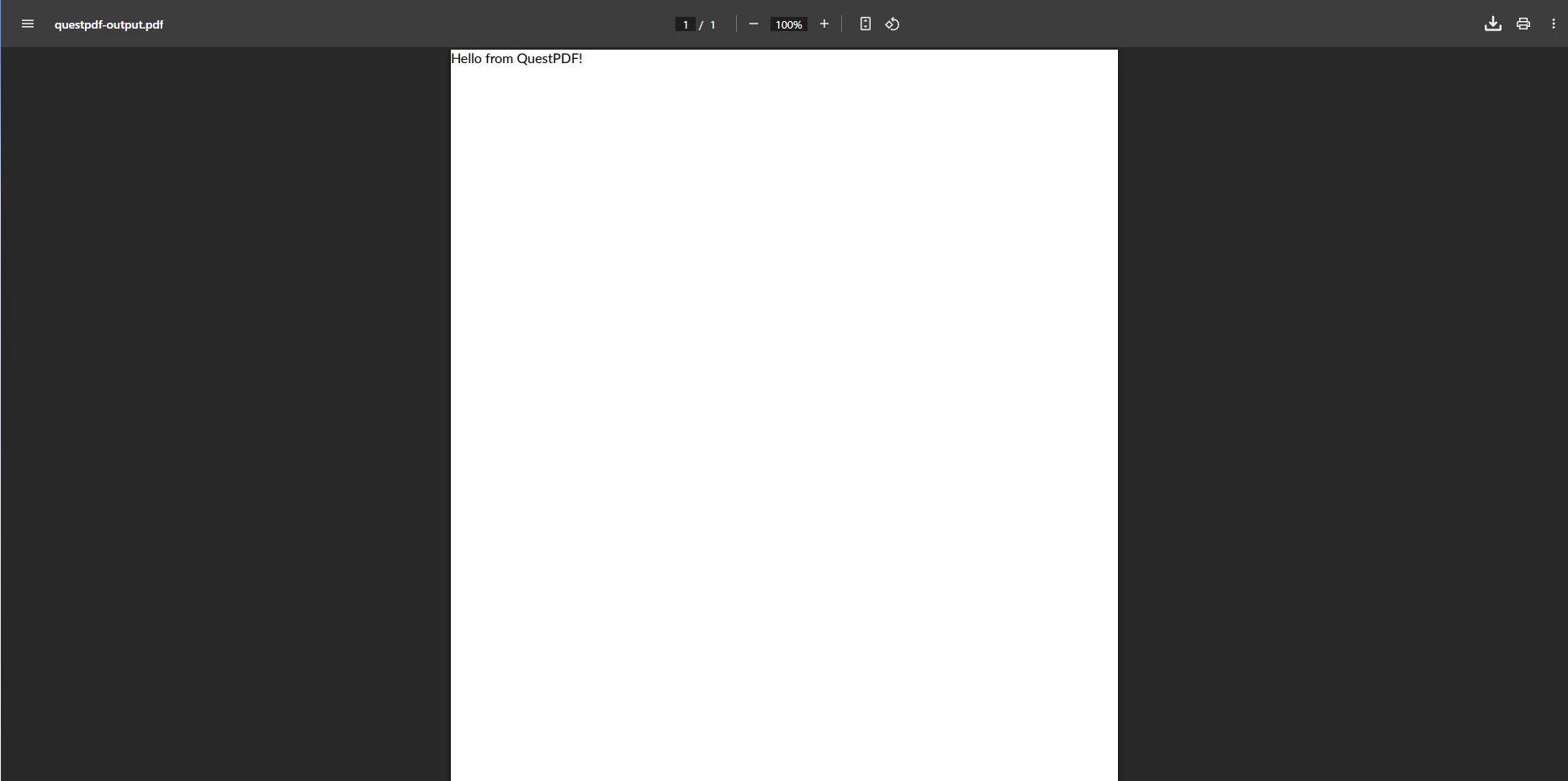
HTML 입력 없이 콘텐츠 및 레이아웃에 대한 완전한 제어로 프로그램 방식의 PDF 생성을 시연합니다. QuestPDF는 청구서, 양식, 정밀한 위치 지정을 요구하는 구조화된 보고서를 생성하는 데 탁월합니다. HTML 지원과 유사한 제어가 필요한 팀은 IronPDF의 프로그램 기능을 탐색하세요.
결론: QuestPDF는 PDF 콘텐츠에 대한 완전한 프로그램 방식의 제어가 필요한 개발자에게 완벽합니다. HTML 변환이 부족하지만 보고 및 자동화를 위한 구조화된, 동적으로 생성된 PDF에서 뛰어납니다.
어떤 C# PDF 라이브러리를 선택해야 하나요?
적절한 C# PDF 라이브러리를 선택하는 것은 프로젝트 요구사항과 콘텐츠 유형에 따라 달라집니다. 복잡한 CSS 또는 JavaScript가 있는 동적 웹 콘텐츠의 경우, IronPDF는 고품질 렌더링과 간단한 API로 가장 신뢰할 수 있는 솔루션을 제공합니다. PDF/A 준수, 디지털 서명, 다중 형식 변환을 요구하는 Enterprise 환경에서는 iText와 Aspose.PDF가 광범위한 기능, 보안, 지원을 제공합니다.
PDFSharp/MigraDoc와 같은 오픈 소스 라이브러리는 문서 레이아웃 및 콘텐츠에 프로그램적 제어를 선호하는 개발자에게 탁월하며, HTML 없이 구조화된 보고서, 청구서 또는 티켓을 생성하는 데 적합합니다. Syncfusion PDF는 보고 및 대시보드에 풍부한 기능을 제공하며, wkhtmltopdf는 정적 웹 페이지를 높은 CSS 충실도로 PDF로 변환하는 데 뛰어납니다.
Enterprise 준비 상태를 어떻게 평가합니까?
Enterprise 준비 상태를 평가할 때 다음 요인을 고려하세요:
지원 및 SLA: IronPDF는 24/5 기술 지원과 보장된 응답 시간을 제공합니다. iText와 Aspose와 같은 상용 라이브러리는 Enterprise 지원 패키지를 제공합니다. 오픈 소스 옵션은 커뮤니티 지원에 의존합니다. 도움이 필요하면 엔지니어링 지원 지침 및 지원 모범 사례를 참조하세요.
보안 및 준수: IronPDF는 PDF/A, PDF/UA, 암호화, 디지털 서명을 지원합니다. 라이브러리는 정기적인 보안 감사를 거치며 SOC 2 준수를 제공합니다. 기업 서명에 대해서는 HSM 통합을 참조하세요.
성능 및 확장성: IronPDF의 Chrome 엔진은 비동기 작업 및 멀티쓰레드를 효율적으로 처리합니다. 대량 시나리오의 경우, 성능 최적화 전략 및 병렬 처리를 고려하세요.
총 소유 비용: 오픈 소스 옵션은 라이선스 비용이 없지만 개발자 시간, 유지보수 및 지원 비용을 고려하십시오. IronPDF의 라이선스는 업데이트와 지원을 포함하여 장기 비용을 절감합니다. 지속적인 프로젝트를 위한 확장을 탐색하십시오. ## 오늘 IronPDF를 시도해야 하는 이유는 무엇입니까?
당신의 .NET 응용 프로그램에서 PDF 생성, 편집 및 HTML을 PDF로 변환을 간소화할 준비가 되셨습니까? 사용하기 쉬운 API, 높은 품질의 렌더링 및 전문 지원을 통해 빠르게 시작하고 즉각적인 결과를 볼 수 있습니다. 개발 속도를 높이기 위해 우리의 전체 문서, 코드 예제, 및 API 참조를 탐색하세요. 최신 업데이트 및 주요 개선 사항에 대한 변경 로그와 마일스톤을 확인하십시오.
오늘 무료 체험판을 시작하고 현대적 .NET PDF 응용 프로그램을 만드는 개발자에게서 IronPDF가 선호되는 선택인 이유를 발견해 보세요. 배포 준비가 된 팀의 경우, 투명한 가격의 라이선싱 옵션과 유연한 배포를 Windows, Linux, Docker, macOS 및 Azure, AWS 와 같은 클라우드 플랫폼에 대해 탐색하세요. IronWord 문서 및 IronSecureDoc 문서에 대해 더 알아보고 추가적인 PDF 보안 기능을 확인하세요.
자주 묻는 질문
송장을 생성하기에 가장 좋은 C# PDF 라이브러리는 무엇인가요?
IronPDF는 뛰어난 기능과 .NET 애플리케이션에 쉽게 통합할 수 있는 점 때문에 송장을 생성하기 위한 인기 있는 선택입니다.
IronPDF는 PDF 생성에 있어 iText와 어떻게 비교되나요?
IronPDF는 iText보다 API가 간단하고 종합적인 문서를 제공하여 개발자가 통합하고 사용하기 쉽게 만듭니다.
IronPDF를 사용하여 보고서를 PDF로 변환할 수 있나요?
네, IronPDF는 다양한 유형의 보고서를 효율적으로 PDF 형식으로 변환하는데 적합합니다.
IronPDF는 최신 .NET 애플리케이션과 호환되나요?
IronPDF는 최신 .NET 애플리케이션과 완전 호환되며, 개발자에게 원활한 통합을 제공합니다.
IronPDF를 사용하는 것의 PDFSharp에 대한 장점은 무엇인가요?
IronPDF는 PDFSharp에 비해 더 발전된 기능과 현대적인 .NET 환경을 위한 더 나은 지원을 제공합니다.
IronPDF는 웹 애플리케이션에 양식을 통합하는 것을 지원하나요?
네, IronPDF는 웹 애플리케이션에서 양식 통합을 지원하며, 양식 데이터 및 PDF 상호작용을 처리하기 위한 도구를 제공합니다.
C# 초보자에게 가장 좋은 PDF 라이브러리는 무엇인가요?
IronPDF는 사용자 친화적이며 광범위한 문서를 제공하여 C# 초보자에게 뛰어난 선택입니다.
IronPDF의 가격이 다른 PDF 라이브러리와 어떻게 비교되나요?
IronPDF는 경쟁력 있는 가격과 다양한 라이선스 옵션을 제공하며, 종종 다른 프리미엄 PDF 라이브러리에 비해 더 나은 가치를 제공합니다.
IronPDF는 대규모의 PDF 처리 작업을 처리할 수 있나요?
네, IronPDF는 대규모의 PDF 처리 작업을 효율적으로 처리하도록 설계되어 Enterprise 수준의 프로젝트에 적합합니다.
IronPDF 사용자를 위한 지원 옵션은 무엇인가요?
IronPDF는 문서 및 튜토리얼, 응답성 높은 고객 서비스를 포함한 종합적인 지원을 제공하여 사용자를 지원합니다.









 무료로 시작하세요
 무료로 시작하세요
 무료 라이브 데모 예약하기





 신용카드나 계정 생성은 필요하지 않습니다.










