



Updated September 2, 2026
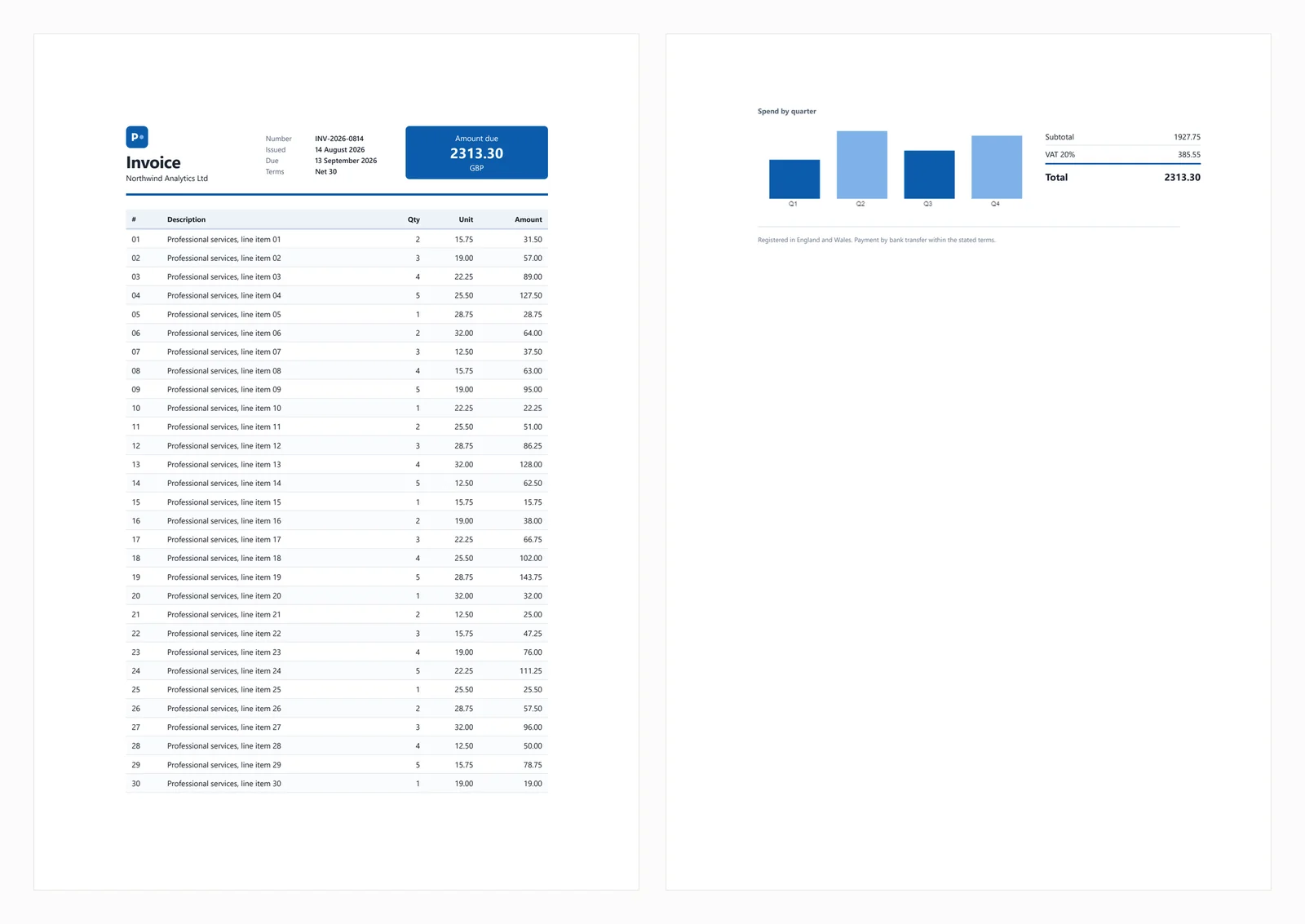
HTML to PDF in C#: Benchmarking 7 .NET Libraries (2026)
Compare 7 C# HTML to PDF libraries on .NET 10 for cold start, throughput, memory and rendering accuracy. Only 3 rendered the test invoice correctly.
Read More

For engineering managers evaluating C# PDF libraries, IronPDF offers the best return on investment by reducing development time and providing complete features. In contrast, open-source options like PDFSharp are suitable for basic programmatic needs with lower initial costs.
Working with PDF documents in modern .NET applications is increasingly important. Whether you're generating invoices, converting reports, or integrating forms into web applications, you need reliable C# PDF libraries. With numerous options available, which is the best PDF library for your project?
This article examines IronPDF alongside popular choices like iText, PDFSharp, Aspose, Syncfusion, QuestPDF, and more. You'll learn how each .NET PDF library handles PDF generation, HTML to PDF conversion, editing, and other key features. The comparison covers licensing, performance, and ease of use to help you make the right decision.
Before examining specific products, consider why you need C# libraries for PDF files:
Your PDF library should be easy to use, require minimal code, and provide high-quality rendering. For cloud deployment, explore guides on Azure deployment and AWS Lambda integration.
| Library | HTML to PDF | JS Support | Edit PDF | License | Best Use Case |
|---|---|---|---|---|---|
| IronPDF | Yes | Full | Yes | Commercial | Web apps with dynamic content |
| iText | Yes | Limited | Yes | Commercial | Enterprise compliance and static HTML |
PDFSharp / MigraDoc | No | N/A | Partial | Open-source | Programmatic PDF creation and custom layouts |
| Aspose.PDF | Yes | Partial | Yes | Commercial | Enterprise automation and multi-format conversion |
| Syncfusion PDF | Yes | Partial | Yes | Commercial | Reporting and dashboards |
| QuestPDF | No | N/A | Yes | Open-source | Structured programmatic PDFs |
wkhtmltopdf (DinkToPdf) | Yes | Limited | No | Open-source | Static HTML to PDF conversion |
This table provides a quick snapshot of each library's core strengths, helping you identify the right tool based on HTML/JS support, editing capabilities, and licensing. The following sections examine how each library handles basic tasks like HTML to PDF conversion or general PDF creation.
IronPDF is a modern commercial .NET PDF library designed to make PDF work simple yet effective. Unlike libraries requiring manual drawing or low-level APIs, IronPDF focuses on real-world use cases: HTML to PDF conversion, editing PDFs, and generating reports with minimal code. The implementation handles the complexity for you, particularly in web applications where content exists in HTML. IronPDF runs on Windows, .NET Framework, .NET Core, and containerized platforms like Docker, making it versatile for on-premise and cloud deployments.
To demonstrate IronPDF's handling of HTML content with complex CSS or JavaScript, consider the following URL conversion example:
using IronPdf;

class Program
{
    static void Main()
    {
        // Initialize the Chrome PDF renderer
        var renderer = new ChromePdfRenderer();

        // Configure rendering options for optimal output
        renderer.RenderingOptions.CssMediaType = IronPdf.Rendering.PdfCssMediaType.Print;
        renderer.RenderingOptions.EnableJavaScript = true;
        renderer.RenderingOptions.WaitFor.JavaScript(3000); // Wait 3 seconds for JS execution

        // Set page size and margins
        renderer.RenderingOptions.PaperSize = IronPdf.Rendering.PdfPaperSize.A4;
        renderer.RenderingOptions.MarginTop = 10; // millimeters
        renderer.RenderingOptions.MarginBottom = 10;
        renderer.RenderingOptions.MarginLeft = 10;
        renderer.RenderingOptions.MarginRight = 10;

        // Convert URL to PDF
        var pdf = renderer.RenderUrlAsPdf("https://en.wikipedia.org/wiki/Main_Page");

        // Save the PDF document
        pdf.SaveAs("output.pdf");

        // Optional: Add metadata
        pdf.MetaData.Title = "Wikipedia Main Page";
        pdf.MetaData.Author = "IronPDF Example";
        pdf.MetaData.Subject = "URL to PDF Conversion";
    }
}Imports IronPdf
Class Program
Shared Sub Main()
' Initialize the Chrome PDF renderer
Dim renderer = New ChromePdfRenderer()
' Configure rendering options for optimal output
renderer.RenderingOptions.CssMediaType = IronPdf.Rendering.PdfCssMediaType.Print
renderer.RenderingOptions.EnableJavaScript = True
renderer.RenderingOptions.WaitFor.JavaScript(3000) ' Wait 3 seconds for JS execution
' Set page size and margins
renderer.RenderingOptions.PaperSize = IronPdf.Rendering.PdfPaperSize.A4
renderer.RenderingOptions.MarginTop = 10 ' millimeters
renderer.RenderingOptions.MarginBottom = 10
renderer.RenderingOptions.MarginLeft = 10
renderer.RenderingOptions.MarginRight = 10
' Convert URL to PDF
Dim pdf = renderer.RenderUrlAsPdf("https://en.wikipedia.org/wiki/Main_Page")
' Save the PDF document
pdf.SaveAs("output.pdf")
' Optional: Add metadata
pdf.MetaData.Title = "Wikipedia Main Page"
pdf.MetaData.Author = "IronPDF Example"
pdf.MetaData.Subject = "URL to PDF Conversion"
End Sub
End Class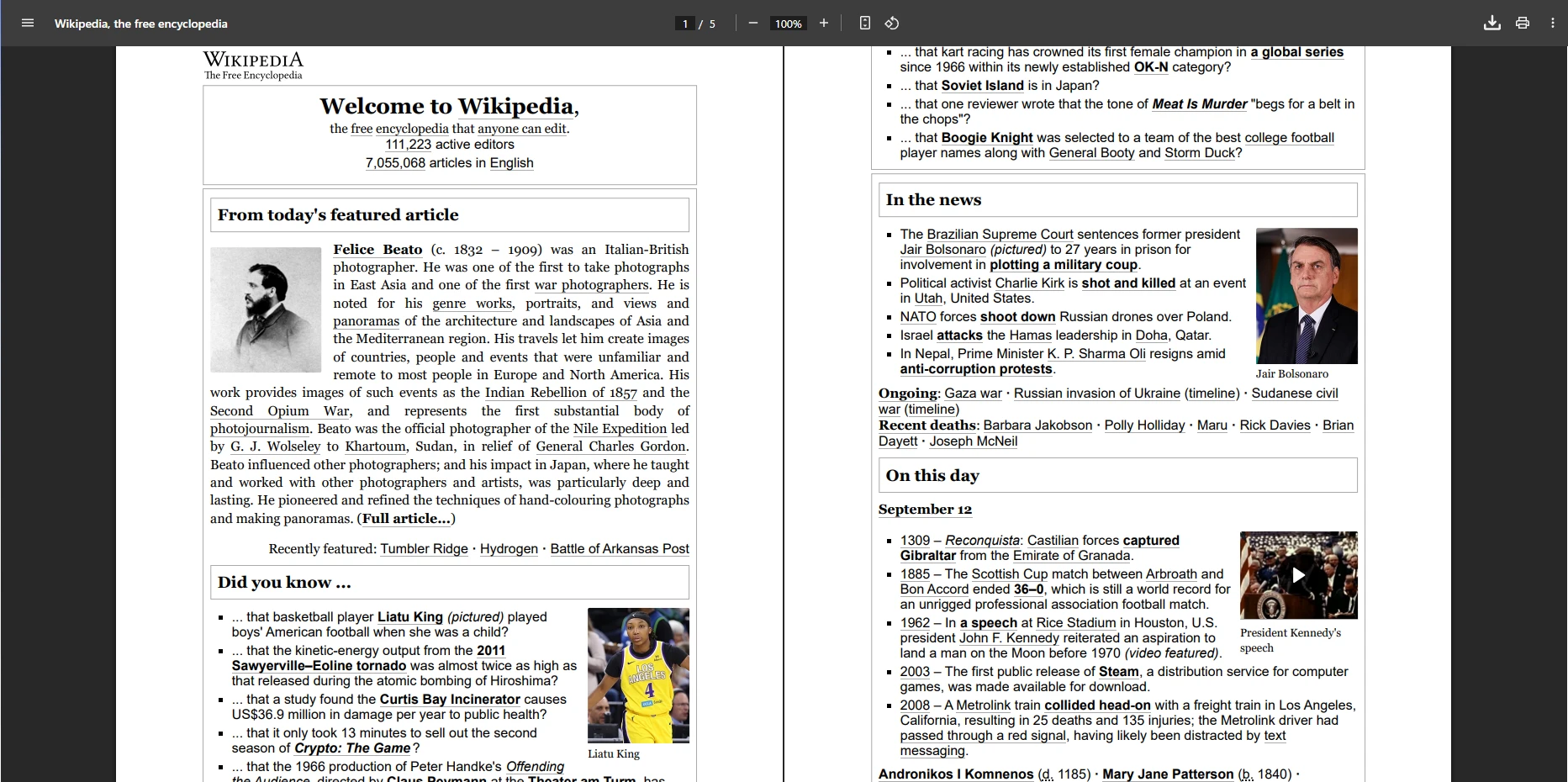
With minimal code, IronPDF produces high-fidelity PDFs rendering complex CSS layouts and dynamic JavaScript content. The library's Chrome rendering engine ensures pixel-perfect output matching modern browsers. Your application can immediately use this feature for handling cookies, HTTP headers, or authentication.
Verdict: IronPDF is the top choice for easy-to-use, high-performance PDF generation with excellent HTML/CSS/JS rendering and professional support. Explore demos to see it in action.
When selecting a C# PDF library for applications using Bootstrap and modern CSS frameworks, framework compatibility determines whether your designs convert accurately or require modification. This approach provides clear benefits for teams using responsive design patterns.
IronPDF's Chromium engine provides full support for:
Real-world validation: IronPDF renders the Bootstrap homepage and official examples with pixel-perfect accuracy. The library manages the complexity for you, including Google Fonts, SVG graphics, and custom fonts.
iText: Limited flexbox support (added v7.1.15), no CSS Grid, Bootstrap 3 limitations, requires workarounds for modern components.
PDFSharp & MigraDoc: No native HTML rendering - manual PDF construction only, no Bootstrap support.
Aspose.PDF: Custom engine with ~90% CSS3 support, partial flexbox, requires extensive testing for Bootstrap components.
Syncfusion PDF: WebKit-based engine with no flexbox/CSS Grid, Bootstrap 3 maximum, security issues (last updated 2016).
QuestPDF: Fluent API for manual layout - no HTML/CSS rendering, no Bootstrap support.
Development impact: Non-Chromium libraries require parallel "PDF-safe" layouts, significantly increasing development time and reducing design consistency.
iText is a reliable enterprise-ready C# PDF library for generating, editing, and securing PDFs. The implementation handles PDF/A, digital signatures, redaction, and compliance-heavy workflows for financial, legal, and enterprise applications. While iText handles HTML to PDF conversion, it doesn't execute JavaScript natively, requiring preprocessing for dynamic content. Version 7.1.15 added limited flexbox support, though many CSS3 features remain unsupported. See our iText vs IronPDF comparison.
using iText.Html2pdf;
using System.Net.Http;
using System.IO;
using System.Threading.Tasks;

class Program
{
    static async Task Main()
    {
        var url = "https://en.wikipedia.org/wiki/Main_Page";

        // Create HTTP client with browser-like settings
        using var client = new HttpClient();

        // Add user agent to avoid 403 Forbidden responses
        client.DefaultRequestHeaders.Add("User-Agent",
            "Mozilla/5.0 (Windows NT 10.0; Win64; x64) AppleWebKit/537.36 " +
            "(KHTML, like Gecko) Chrome/137.0.0.0 Safari/537.36");

        // Add timeout for reliability
        client.Timeout = TimeSpan.FromSeconds(30);

        // Fetch HTML content
        string htmlContent = await client.GetStringAsync(url);

        // Configure conversion properties
        var converterProperties = new ConverterProperties();
        converterProperties.SetBaseUri(url); // Important for resolving relative URLs

        // Create PDF from HTML
        using var fileStream = new FileStream("itext7-output.pdf", FileMode.Create);
        HtmlConverter.ConvertToPdf(htmlContent, fileStream, converterProperties);

        Console.WriteLine("PDF created successfully!");
    }
}Imports iText.Html2pdf
Imports System.Net.Http
Imports System.IO
Imports System.Threading.Tasks
Class Program
Shared Async Function Main() As Task
Dim url = "https://en.wikipedia.org/wiki/Main_Page"
' Create HTTP client with browser-like settings
Using client As New HttpClient()
' Add user agent to avoid 403 Forbidden responses
client.DefaultRequestHeaders.Add("User-Agent",
"Mozilla/5.0 (Windows NT 10.0; Win64; x64) AppleWebKit/537.36 " &
"(KHTML, like Gecko) Chrome/137.0.0.0 Safari/537.36")
' Add timeout for reliability
client.Timeout = TimeSpan.FromSeconds(30)
' Fetch HTML content
Dim htmlContent As String = Await client.GetStringAsync(url)
' Configure conversion properties
Dim converterProperties = New ConverterProperties()
converterProperties.SetBaseUri(url) ' Important for resolving relative URLs
' Create PDF from HTML
Using fileStream As New FileStream("itext7-output.pdf", FileMode.Create)
HtmlConverter.ConvertToPdf(htmlContent, fileStream, converterProperties)
End Using
Console.WriteLine("PDF created successfully!")
End Using
End Function
End Class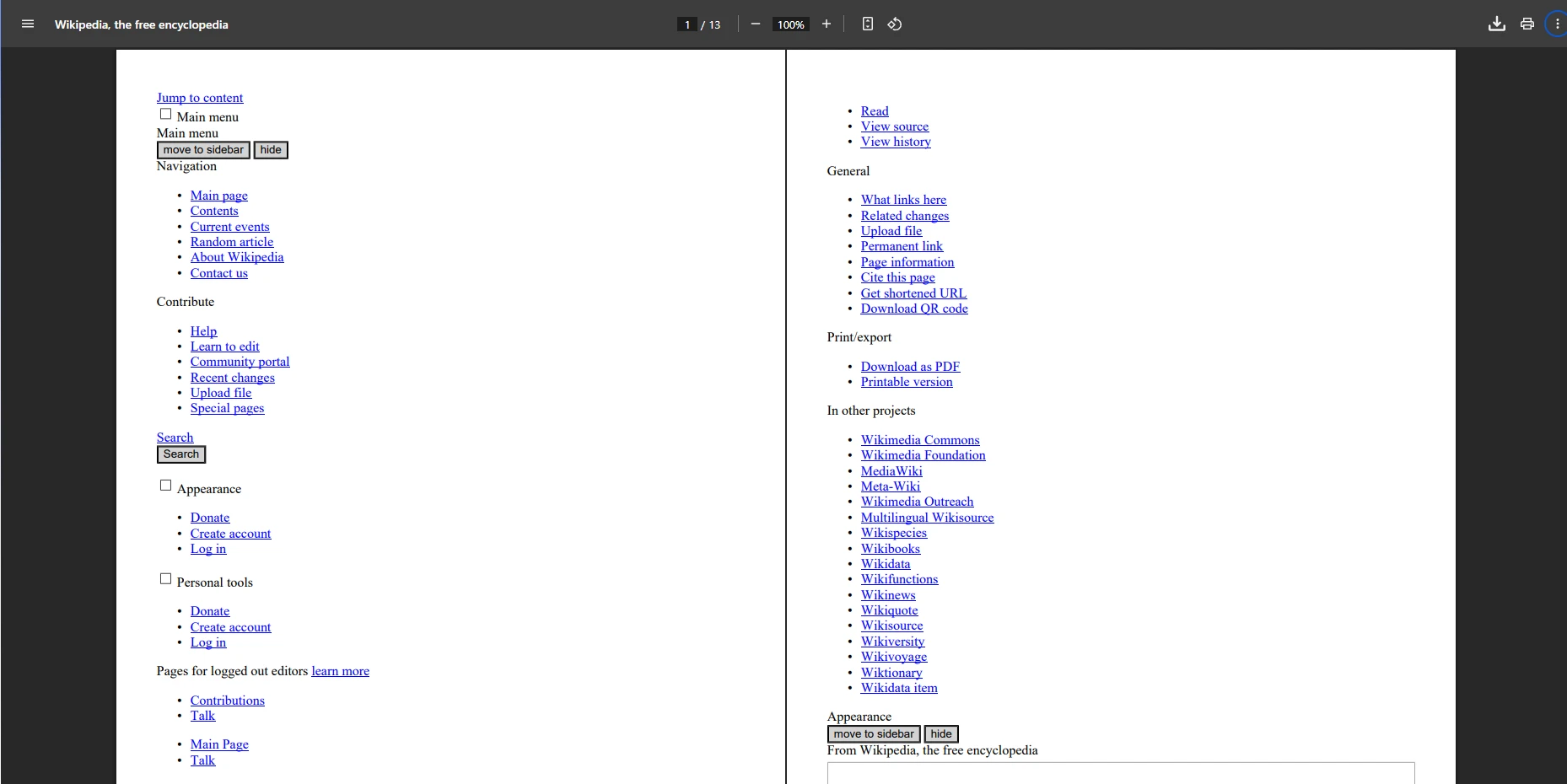
This code fetches HTML content and converts it to PDF. The result preserves page layout, text, images, and CSS styles, though dynamic JavaScript content won't render. For JavaScript-heavy pages, consider IronPDF's JavaScript rendering or implement custom render delays.
Verdict: iText excels at enterprise PDF generation and editing with strong compliance support and static HTML to PDF conversion. For JavaScript or advanced CSS, consider IronPDF or wkhtmltopdf.
MigraDoc and When Should You Use Them?PDFSharp and MigraDoc are free, open-source C# PDF libraries for programmatic PDF creation. PDFSharp handles low-level PDF generation, while MigraDoc provides high-level layout APIs for tables, paragraphs, and multi-page documents. These libraries don't provide HTML to PDF conversion, making them ideal when you need full control over document structure in code. For programmatic drawing, see guides on drawing lines and rectangles and drawing text and bitmaps.
MigraDoc.using PdfSharp.Drawing;
using PdfSharp.Fonts;
using PdfSharp.Pdf;
using static System.Net.Mime.MediaTypeNames;
class Program
{
static void Main()
{
// Configure font resolver for cross-platform compatibility
GlobalFontSettings.UseWindowsFontsUnderWindows = true;
// Create a new PDF document
var document = new PdfDocument();
document.Info.Title = "PDFSharp Example";
document.Info.Author = "Your Team";
document.Info.Subject = "Demonstrating PDFSharp capabilities";
// Add a page to the document
var page = document.AddPage();
page.Size = PdfSharp.PageSize.A4;
page.Orientation = PdfSharp.PageOrientation.Portrait;
// Create graphics object for drawing
var gfx = XGraphics.FromPdfPage(page);
// Draw text at specific coordinates
var font = new XFont("Verdana", 20, XFontStyleEx.Regular);
gfx.DrawString("Hello from PDFSharp!", font, XBrushes.Black,
new XPoint(50, 100));
// Add more content - a rectangle
var pen = new XPen(XColors.Navy, 2);
gfx.DrawRectangle(pen, XBrushes.LightBlue, 50, 150, 200, 100);
// Add text inside rectangle
var smallFont = new XFont("Arial", 12, XFontStyleEx.Regular);
gfx.DrawString("Custom drawing example", smallFont, XBrushes.DarkBlue,
new XPoint(60, 200));
// Save the document
document.Save("pdfsharp-example.pdf");
Console.WriteLine("PDF created with PDFSharp!");
}
}Imports PdfSharp.Drawing
Imports PdfSharp.Fonts
Imports PdfSharp.Pdf
Imports System.Net.Mime.MediaTypeNames
Module Program
Sub Main()
' Configure font resolver for cross-platform compatibility
GlobalFontSettings.UseWindowsFontsUnderWindows = True
' Create a new PDF document
Dim document As New PdfDocument()
document.Info.Title = "PDFSharp Example"
document.Info.Author = "Your Team"
document.Info.Subject = "Demonstrating PDFSharp capabilities"
' Add a page to the document
Dim page = document.AddPage()
page.Size = PdfSharp.PageSize.A4
page.Orientation = PdfSharp.PageOrientation.Portrait
' Create graphics object for drawing
Dim gfx = XGraphics.FromPdfPage(page)
' Draw text at specific coordinates
Dim font = New XFont("Verdana", 20, XFontStyleEx.Regular)
gfx.DrawString("Hello from PDFSharp!", font, XBrushes.Black, New XPoint(50, 100))
' Add more content - a rectangle
Dim pen = New XPen(XColors.Navy, 2)
gfx.DrawRectangle(pen, XBrushes.LightBlue, 50, 150, 200, 100)
' Add text inside rectangle
Dim smallFont = New XFont("Arial", 12, XFontStyleEx.Regular)
gfx.DrawString("Custom drawing example", smallFont, XBrushes.DarkBlue, New XPoint(60, 200))
' Save the document
document.Save("pdfsharp-example.pdf")
Console.WriteLine("PDF created with PDFSharp!")
End Sub
End Module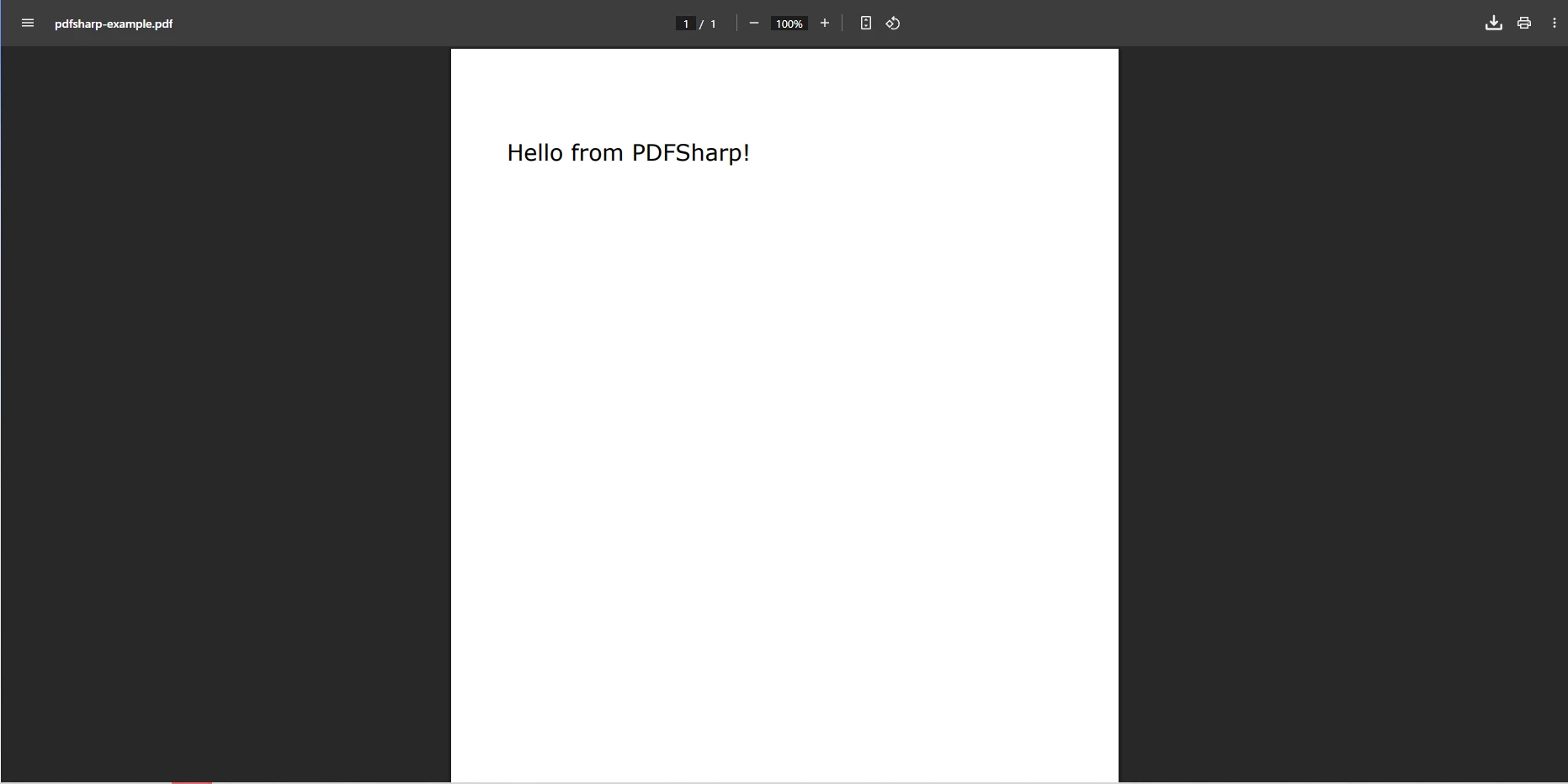
This code generates PDFs programmatically, adding text and handling layout manually. The implementation provides clear benefits for customized documents without HTML input like invoices, forms, or certificates. For similar programmatic control with more features, see creating new PDFs.
Verdict: PDFSharp & MigraDoc are ideal for basic PDF creation - free and easy to integrate but lack HTML conversion and advanced editing. For HTML workflows, consider IronPDF's HTML to PDF capabilities.## What Is Aspose.PDF and When Should You Use It?
Aspose.PDF is a commercial .NET PDF library offering complete tools for creating, editing, converting, and securing PDFs. Unlike lightweight libraries, Aspose.PDF focuses on enterprise applications, supporting file conversions including Word, Excel, HTML, and XML. Your application can immediately use this feature for document automation, report generation, and advanced PDF manipulation in large-scale applications. See our Aspose vs IronPDF comparison.
using Aspose.Pdf;
using System;
using System.IO;
using System.Net;

class Program
{
    static void Main()
    {
        string url = "https://en.wikipedia.org/wiki/Main_Page";

        // Optional: provide credentials for protected resources
        NetworkCredential credentials = null;
        // Example for authenticated resources:
        // credentials = new NetworkCredential("username", "password");

        // Configure HTML load options
        var options = new HtmlLoadOptions(url)
        {
            // Enable external resources loading
            ExternalResourcesCredentials = credentials,

            // Set page info
            PageInfo = new PageInfo
            {
                Width = PageSize.A4.Width,
                Height = PageSize.A4.Height,
                Margin = new MarginInfo(20, 20, 20, 20) // left, bottom, right, top
            },

            // Enable JavaScript execution (limited support)
            IsEmbedFonts = true,
            IsRenderToSinglePage = false
        };

        try
        {
            // Fetch HTML content as stream and load into Document
            using (var document = new Document(GetContentFromUrlAsStream(url, credentials), options))
            {
                // Add metadata
                document.Info.Title = "Wikipedia Main Page";
                document.Info.Author = "Aspose.PDF Example";
                document.Info.Subject = "URL to PDF Conversion";
                document.Info.Keywords = "PDF, Aspose, Wikipedia";

                // Improve the PDF
                document.OptimizeResources();

                // Save PDF with specific save options
                var saveOptions = new PdfSaveOptions
                {
                    DefaultFontName = "Arial", // Fallback font
                    EmbedStandardFonts = true
                };

                document.Save("aspose-output.pdf", saveOptions);
            }

            Console.WriteLine("PDF successfully created!");
        }
        catch (Exception ex)
        {
            Console.WriteLine($"Error: {ex.Message}");
        }
    }

    private static Stream GetContentFromUrlAsStream(string url, ICredentials credentials = null)
    {
        using var handler = new System.Net.Http.HttpClientHandler { Credentials = credentials };
        using var httpClient = new System.Net.Http.HttpClient(handler);

        // Set a browser-like User-Agent to avoid 403 errors
        httpClient.DefaultRequestHeaders.Add("User-Agent",
            "Mozilla/5.0 (Windows NT 10.0; Win64; x64) AppleWebKit/537.36 " +
            "(KHTML, like Gecko) Chrome/137.0.0.0 Safari/537.36");

        // Set timeout
        httpClient.Timeout = TimeSpan.FromSeconds(30);

        return httpClient.GetStreamAsync(url).GetAwaiter().GetResult();
    }
}Imports Aspose.Pdf
Imports System
Imports System.IO
Imports System.Net
Module Program
Sub Main()
Dim url As String = "https://en.wikipedia.org/wiki/Main_Page"
' Optional: provide credentials for protected resources
Dim credentials As NetworkCredential = Nothing
' Example for authenticated resources:
' credentials = New NetworkCredential("username", "password")
' Configure HTML load options
Dim options = New HtmlLoadOptions(url) With {
.ExternalResourcesCredentials = credentials,
.PageInfo = New PageInfo With {
.Width = PageSize.A4.Width,
.Height = PageSize.A4.Height,
.Margin = New MarginInfo(20, 20, 20, 20)
},
.IsEmbedFonts = True,
.IsRenderToSinglePage = False
}
Try
' Fetch HTML content as stream and load into Document
Using document = New Document(GetContentFromUrlAsStream(url, credentials), options)
' Add metadata
document.Info.Title = "Wikipedia Main Page"
document.Info.Author = "Aspose.PDF Example"
document.Info.Subject = "URL to PDF Conversion"
document.Info.Keywords = "PDF, Aspose, Wikipedia"
' Improve the PDF
document.OptimizeResources()
' Save PDF with specific save options
Dim saveOptions = New PdfSaveOptions With {
.DefaultFontName = "Arial",
.EmbedStandardFonts = True
}
document.Save("aspose-output.pdf", saveOptions)
End Using
Console.WriteLine("PDF successfully created!")
Catch ex As Exception
Console.WriteLine($"Error: {ex.Message}")
End Try
End Sub
Private Function GetContentFromUrlAsStream(url As String, Optional credentials As ICredentials = Nothing) As Stream
Using handler = New System.Net.Http.HttpClientHandler With {.Credentials = credentials}
Using httpClient = New System.Net.Http.HttpClient(handler)
' Set a browser-like User-Agent to avoid 403 errors
httpClient.DefaultRequestHeaders.Add("User-Agent", "Mozilla/5.0 (Windows NT 10.0; Win64; x64) AppleWebKit/537.36 " &
"(KHTML, like Gecko) Chrome/137.0.0.0 Safari/537.36")
' Set timeout
httpClient.Timeout = TimeSpan.FromSeconds(30)
Return httpClient.GetStreamAsync(url).GetAwaiter().GetResult()
End Using
End Using
End Function
End Module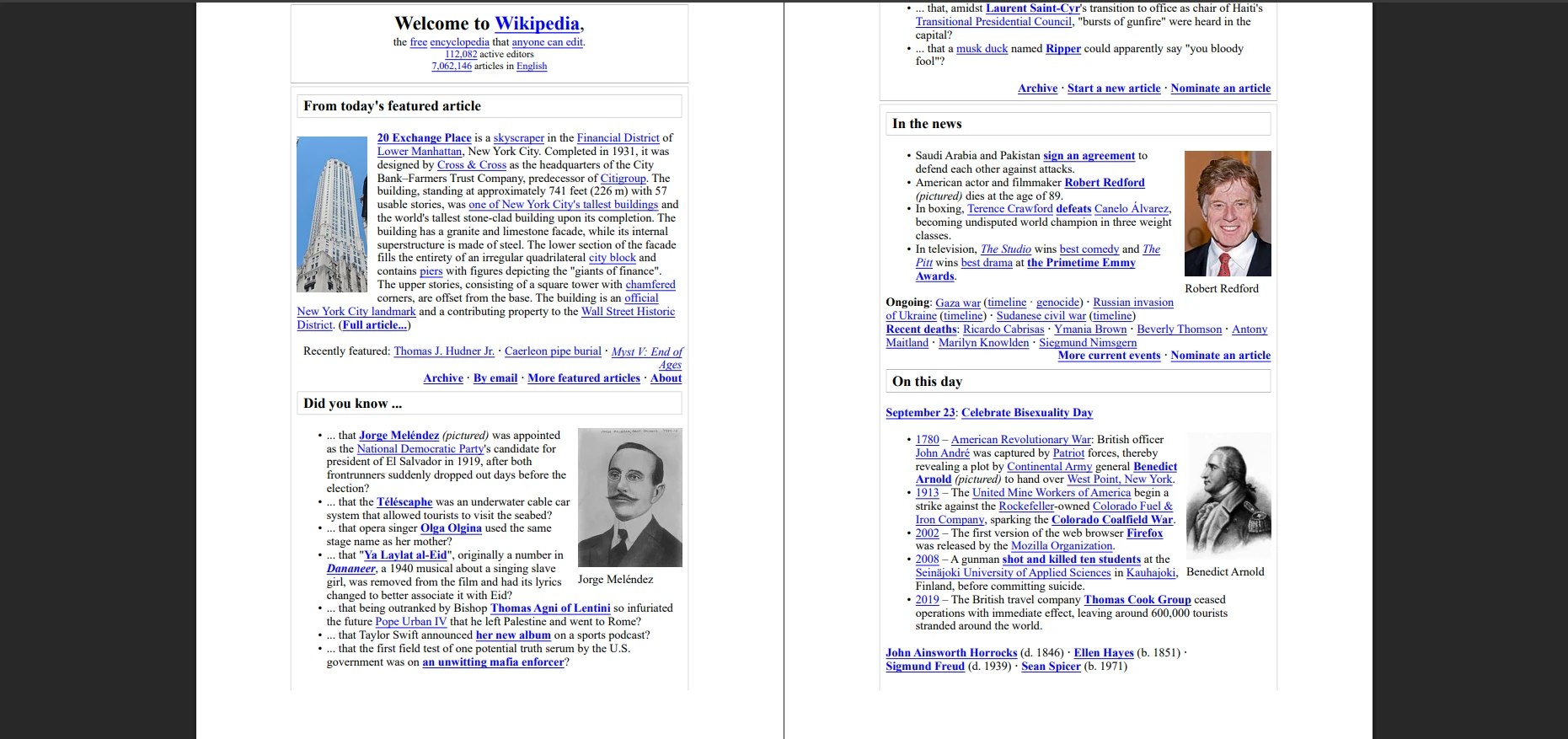
This code fetches HTML content using a browser-like User-Agent to prevent 403 errors, streams HTML directly into Aspose.PDF Document with HtmlLoadOptions, then saves as PDF. The result preserves page layout, text, images, and CSS styles with basic HTTP authentication support. Dynamic JavaScript content won't execute. For better JavaScript support, explore IronPDF's JavaScript rendering.
Verdict: Aspose.PDF excels for enterprise applications requiring advanced features, multi-format conversion, and strong security. While commercial and potentially complex for small projects, it's unmatched for large document workflows.
Syncfusion PDF is part of the Syncfusion suite, providing a feature-rich .NET PDF library for web and desktop applications. The library manages the complexity for you when generating, editing, and converting PDFs, including HTML to PDF conversion, while integrating seamlessly with other Syncfusion components for reporting and dashboards. Teams using Syncfusion components benefit from tight integration. See our Syncfusion vs IronPDF comparison.
using Syncfusion.HtmlConverter;
using Syncfusion.Pdf;

class Program
{
    static void Main()
    {
        // Initialize the HTML to PDF converter
        HtmlToPdfConverter converter = new HtmlToPdfConverter();

        // Configure WebKit settings for better rendering
        WebKitConverterSettings settings = new WebKitConverterSettings();

        // Set WebKit path (required for deployment)
        settings.WebKitPath = @"C:\QtBinariesPath";

        // Configure page settings
        settings.PdfPageSize = PdfPageSize.A4;
        settings.Orientation = PdfPageOrientation.Portrait;
        settings.Margin = new PdfMargins() { All = 20 };

        // Enable JavaScript execution
        settings.EnableJavaScript = true;
        settings.JavaScriptDelay = 3000; // Wait 3 seconds for JS

        // Set viewport size for responsive design
        settings.ViewPortSize = new System.Drawing.Size(1024, 0);

        // Add custom headers if needed
        settings.HttpRequestHeaders.Add("User-Agent",
            "Mozilla/5.0 (Windows NT 10.0; Win64; x64) AppleWebKit/537.36");

        converter.ConverterSettings = settings;

        // Convert URL to PDF
        PdfDocument document = converter.Convert("https://en.wikipedia.org/wiki/Main_Page");

        // Add document info
        document.DocumentInformation.Title = "Wikipedia Main Page";
        document.DocumentInformation.Author = "Syncfusion Example";
        document.DocumentInformation.Subject = "URL to PDF Conversion";

        // Save the PDF
        document.Save("syncfusion-output.pdf");
        document.Close(true); // true = dispose resources

        Console.WriteLine("PDF created successfully!");
    }
}Imports Syncfusion.HtmlConverter
Imports Syncfusion.Pdf
Module Program
Sub Main()
' Initialize the HTML to PDF converter
Dim converter As New HtmlToPdfConverter()
' Configure WebKit settings for better rendering
Dim settings As New WebKitConverterSettings()
' Set WebKit path (required for deployment)
settings.WebKitPath = "C:\QtBinariesPath"
' Configure page settings
settings.PdfPageSize = PdfPageSize.A4
settings.Orientation = PdfPageOrientation.Portrait
settings.Margin = New PdfMargins() With {.All = 20}
' Enable JavaScript execution
settings.EnableJavaScript = True
settings.JavaScriptDelay = 3000 ' Wait 3 seconds for JS
' Set viewport size for responsive design
settings.ViewPortSize = New System.Drawing.Size(1024, 0)
' Add custom headers if needed
settings.HttpRequestHeaders.Add("User-Agent",
"Mozilla/5.0 (Windows NT 10.0; Win64; x64) AppleWebKit/537.36")
converter.ConverterSettings = settings
' Convert URL to PDF
Dim document As PdfDocument = converter.Convert("https://en.wikipedia.org/wiki/Main_Page")
' Add document info
document.DocumentInformation.Title = "Wikipedia Main Page"
document.DocumentInformation.Author = "Syncfusion Example"
document.DocumentInformation.Subject = "URL to PDF Conversion"
' Save the PDF
document.Save("syncfusion-output.pdf")
document.Close(True) ' true = dispose resources
Console.WriteLine("PDF created successfully!")
End Sub
End Module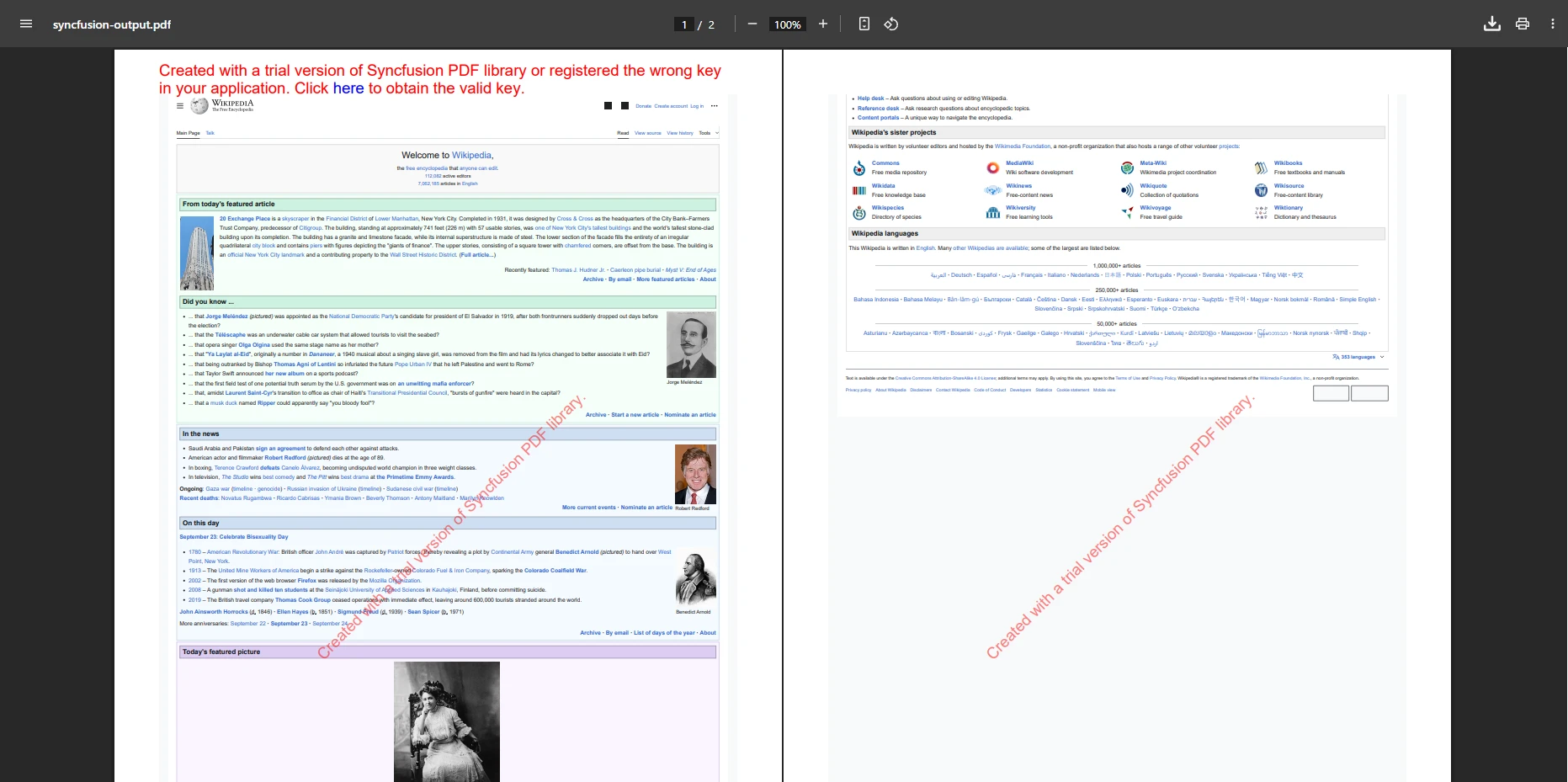
This example converts URLs to PDFs, preserving layout, images, and formatting. Syncfusion PDF excels in reporting scenarios requiring reliable HTML to PDF rendering. The library supports headers and footers, page numbers, and bookmarks for professional documents.
Verdict: Syncfusion PDF is excellent for teams using Syncfusion components, needing professional HTML to PDF rendering, or wanting enterprise PDF generation with broad features. For alternatives, explore our detailed comparison.
QuestPDF is an open-source C# library focused on programmatic PDF generation using a declarative API. Unlike HTML to PDF converters, QuestPDF builds PDFs entirely in code, providing precise control over layout, text, images, and tables. Your application can immediately use this feature for automated reports, invoices, and structured documents generated dynamically. See our QuestPDF vs IronPDF comparison.
using QuestPDF.Fluent;
using QuestPDF.Helpers;
using QuestPDF.Infrastructure;
using QuestPDF.Previewer;

class Program
{
    static void Main()
    {
        // Configure license (Community, Professional, or Enterprise)
        QuestPDF.Settings.License = LicenseType.Community;

        // Create document with fluent API
        Document.Create(container =>
        {
            container.Page(page =>
            {
                // Page settings
                page.Size(PageSizes.A4);
                page.Margin(2, Unit.Centimetre);
                page.PageColor(Colors.White);
                page.DefaultTextStyle(x => x.FontSize(12).FontFamily(Fonts.Arial));

                // Header section
                page.Header()
                    .Height(100)
                    .Background(Colors.Grey.Lighten3)
                    .AlignCenter()
                    .AlignMiddle()
                    .Text("QuestPDF Example Document")
                    .FontSize(20)
                    .Bold()
                    .FontColor(Colors.Blue.Darken2);

                // Content section
                page.Content()
                    .PaddingVertical(1, Unit.Centimetre)
                    .Column(column =>
                    {
                        column.Spacing(20);

                        // Add title
                        column.Item().Text("Hello from QuestPDF!")
                            .FontSize(16)
                            .SemiBold()
                            .FontColor(Colors.Blue.Medium);

                        // Add paragraph
                        column.Item().Text(text =>
                        {
                            text.Span("This is an example of programmatic PDF generation using ");
                            text.Span("QuestPDF").Bold();
                            text.Span(". You have complete control over layout and styling.");
                        });

                        // Add table
                        column.Item().Table(table =>
                        {
                            table.ColumnsDefinition(columns =>
                            {
                                columns.RelativeColumn();
                                columns.RelativeColumn();
                            });

                            // Table header
                            table.Header(header =>
                            {
                                header.Cell().Background(Colors.Grey.Medium)
                                    .Padding(5).Text("Feature").Bold();
                                header.Cell().Background(Colors.Grey.Medium)
                                    .Padding(5).Text("Description").Bold();
                            });

                            // Table rows
                            table.Cell().Border(1).Padding(5).Text("Fluent API");
                            table.Cell().Border(1).Padding(5)
                                .Text("Build documents using method chaining");

                            table.Cell().Border(1).Padding(5).Text("Layout Control");
                            table.Cell().Border(1).Padding(5)
                                .Text("Precise control over element positioning");
                        });
                    });

                // Footer section
                page.Footer()
                    .Height(50)
                    .AlignCenter()
                    .Text(text =>
                    {
                        text.Span("Page ");
                        text.CurrentPageNumber();
                        text.Span(" of ");
                        text.TotalPages();
                    });
            });
        })
        .GeneratePdf("questpdf-output.pdf");

        Console.WriteLine("PDF created with QuestPDF!");
    }
}Imports QuestPDF.Fluent
Imports QuestPDF.Helpers
Imports QuestPDF.Infrastructure
Imports QuestPDF.Previewer
Module Program
Sub Main()
' Configure license (Community, Professional, or Enterprise)
QuestPDF.Settings.License = LicenseType.Community
' Create document with fluent API
Document.Create(Sub(container)
container.Page(Sub(page)
' Page settings
page.Size(PageSizes.A4)
page.Margin(2, Unit.Centimetre)
page.PageColor(Colors.White)
page.DefaultTextStyle(Function(x) x.FontSize(12).FontFamily(Fonts.Arial))
' Header section
page.Header() _
.Height(100) _
.Background(Colors.Grey.Lighten3) _
.AlignCenter() _
.AlignMiddle() _
.Text("QuestPDF Example Document") _
.FontSize(20) _
.Bold() _
.FontColor(Colors.Blue.Darken2)
' Content section
page.Content() _
.PaddingVertical(1, Unit.Centimetre) _
.Column(Sub(column)
column.Spacing(20)
' Add title
column.Item().Text("Hello from QuestPDF!") _
.FontSize(16) _
.SemiBold() _
.FontColor(Colors.Blue.Medium)
' Add paragraph
column.Item().Text(Sub(text)
text.Span("This is an example of programmatic PDF generation using ")
text.Span("QuestPDF").Bold()
text.Span(". You have complete control over layout and styling.")
End Sub)
' Add table
column.Item().Table(Sub(table)
table.ColumnsDefinition(Sub(columns)
columns.RelativeColumn()
columns.RelativeColumn()
End Sub)
' Table header
table.Header(Sub(header)
header.Cell().Background(Colors.Grey.Medium) _
.Padding(5).Text("Feature").Bold()
header.Cell().Background(Colors.Grey.Medium) _
.Padding(5).Text("Description").Bold()
End Sub)
' Table rows
table.Cell().Border(1).Padding(5).Text("Fluent API")
table.Cell().Border(1).Padding(5) _
.Text("Build documents using method chaining")
table.Cell().Border(1).Padding(5).Text("Layout Control")
table.Cell().Border(1).Padding(5) _
.Text("Precise control over element positioning")
End Sub)
End Sub)
' Footer section
page.Footer() _
.Height(50) _
.AlignCenter() _
.Text(Sub(text)
text.Span("Page ")
text.CurrentPageNumber()
text.Span(" of ")
text.TotalPages()
End Sub)
End Sub)
End Sub) _
.GeneratePdf("questpdf-output.pdf")
Console.WriteLine("PDF created with QuestPDF!")
End Sub
End Module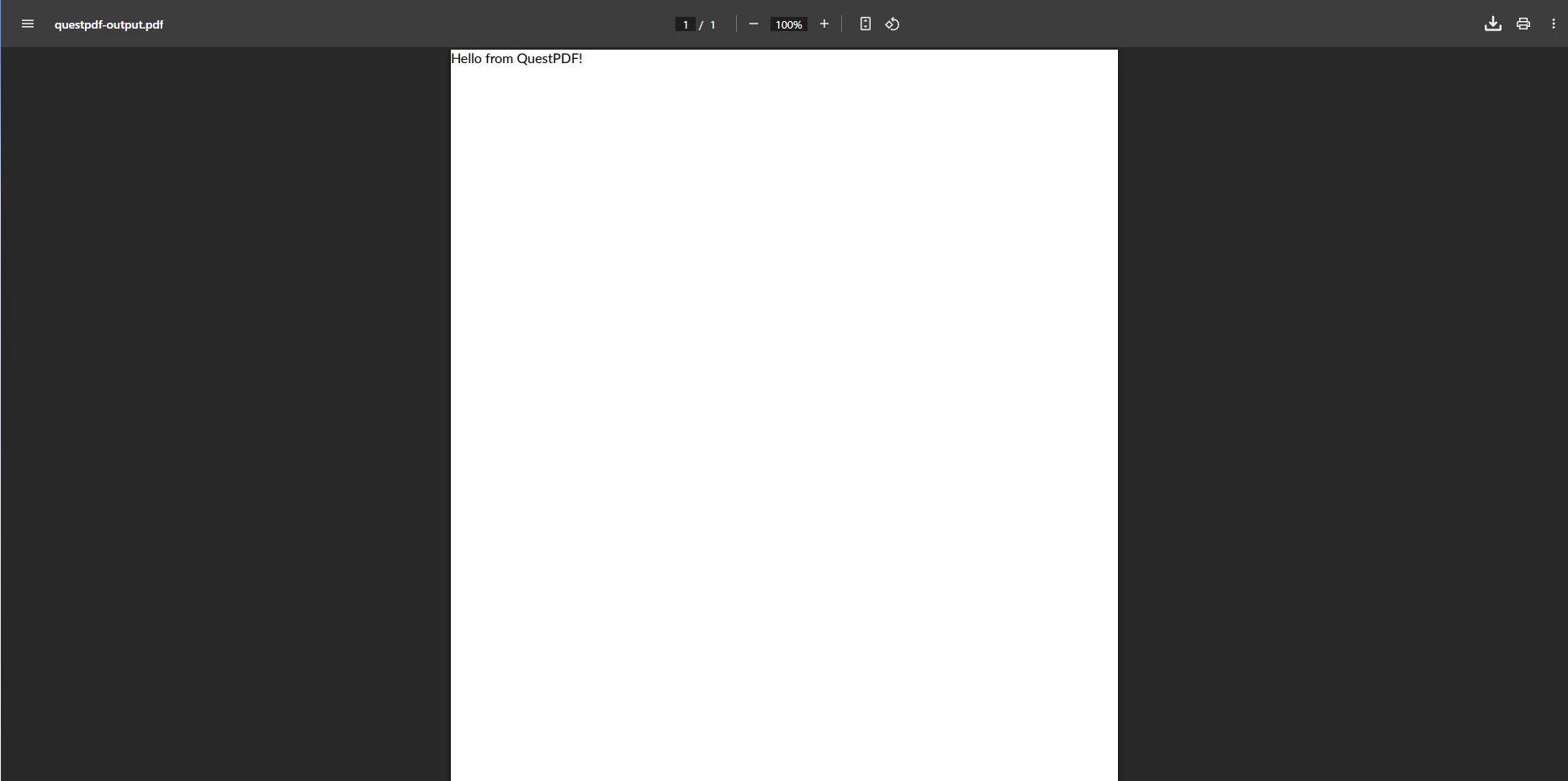
This demonstrates programmatic PDF creation with full control over content and layout without HTML input. QuestPDF excels at creating invoices, forms, and structured reports requiring precise positioning. For teams needing similar control with HTML support, explore IronPDF's programmatic features.
Verdict: QuestPDF is perfect for developers needing full programmatic control over PDF content. While lacking HTML conversion, it excels at structured, dynamically generated PDFs for reporting and automation.
Selecting the right C# PDF library depends on your project requirements and content type. For dynamic web content with complex CSS or JavaScript, IronPDF provides the most reliable solution with high-fidelity rendering and simple APIs. For enterprise environments requiring PDF/A compliance, digital signatures, or multi-format conversion, iText and Aspose.PDF offer extensive features, security, and support.
Open-source libraries like PDFSharp/MigraDoc and QuestPDF excel for developers preferring programmatic control over document layout and content, perfect for generating structured reports, invoices, or tickets without HTML. Syncfusion PDF offers a feature-rich environment for reporting and dashboards, while wkhtmltopdf excels at converting static web pages to PDFs with high CSS fidelity.
Consider the following factors when evaluating enterprise readiness:
Support & SLAs: IronPDF offers 24/5 technical support with guaranteed response times. Commercial libraries like iText and Aspose provide enterprise support packages. Open-source options rely on community support. For assistance, see engineering support guidelines and support best practices.
Security & Compliance: IronPDF supports PDF/A, PDF/UA, encryption, and digital signatures. The library undergoes regular security audits and provides SOC 2 compliance. For enterprise signing, see HSM integration.
Performance & Scalability: IronPDF's Chrome engine handles async operations and multithreading efficiently. For high-volume scenarios, consider performance optimization strategies and parallel processing.
Total Cost of Ownership: While open-source options have no licensing fees, consider developer time, maintenance, and support costs. IronPDF's licensing includes updates and support, reducing long-term costs. Explore extensions for ongoing projects.## Why Should You Try IronPDF Today?
Are you ready to simplify PDF generation, editing, and HTML to PDF conversion in your .NET applications? With its user-friendly API, high-quality rendering, and professional support, you can get started quickly and see immediate results. Explore our complete documentation, code examples, and API reference to speed up development. Check our changelog for the latest updates and milestones for major improvements.
Start your free trial today and discover why IronPDF is the preferred choice for developers building modern .NET PDF applications. For teams ready to deploy, explore our licensing options with transparent pricing and flexible deployment across Windows, Linux, Docker, macOS, and cloud platforms like Azure and AWS. Learn more about IronWord Documentation and Ironsecuredoc Documentation for additional PDF security features.

Curtis Chau holds a Bachelor’s degree in Computer Science (Carleton University) and specializes in front-end development with expertise in Node.js, TypeScript, JavaScript, and React. Passionate about crafting intuitive and aesthetically pleasing user interfaces, Curtis enjoys working with modern frameworks and creating well-structured, visually appealing manuals.



IronPDF is a part of IRONSUITE
10 .NET API products for your office documents

When you need your PDF to look like HTML, fast.


