对于正在评估 C# PDF 库的工程经理而言,IronPDF 通过缩短开发时间并提供全面的功能,能带来最佳的投资回报。 相比之下,PDFSharp 等开源选项更适合满足基础的编程需求,且初始成本较低。
在现代 .NET 应用程序中处理 PDF 文档的重要性日益凸显。 无论是生成发票、转换报告,还是将表单集成到 Web 应用程序中,您都需要可靠的 C# PDF 库。 面对众多选择,哪款 PDF 库最适合您的项目?
本文对比了IronPDF以及像iText、PDFSharp、Aspose、Syncfusion、QuestPDF等热门选择。 您将了解每个.NET PDF库如何处理PDF生成、HTML到PDF转换、编辑和其他关键功能。 本对比涵盖许可、性能和易用性等方面,以助您做出正确决策。
为何您需要C# PDF库?
在探讨具体产品之前,请先思考为何需要用于处理 PDF 文件的 C# 库:
您的 PDF 库应易于使用、代码量少且能提供高质量的渲染效果。 对于云部署,探索Azure部署和AWS Lambda集成指南。
对于您的团队而言,哪些 PDF 库功能最为重要?
下表简要概述了各库的核心优势,可帮助您根据 HTML/JS 支持、编辑功能及许可协议选择合适的工具。 以下各节将探讨每个库如何处理 HTML 转 PDF 或常规 PDF 创建等基本任务。
什么是 IronPDF,何时应该使用它?
IronPDF是一个现代的商业.NET PDF库,旨在使PDF工作简单而有效。与需要手动绘图或低级API的库不同,IronPDF专注于现实世界的使用案例:HTML到PDF转换、编辑PDF和生成报告,使用极少的代码。 该实现为您处理了复杂性,特别是在内容以 HTML 形式存在的 Web 应用程序中。 IronPDF 可在 Windows、.NET Framework、.NET Core 以及 Docker 等容器化平台上运行,使其在本地和云端部署中均具有广泛的适用性。
您的团队为何应选择 IronPDF?
IronPDF如何处理复杂的网页内容?
要演示IronPDF如何处理具有复杂CSS或JavaScript的HTML内容,请参阅以下URL转换示例:
using IronPdf;

class Program
{
    static void Main()
    {
        // Initialize the Chrome PDF renderer
        var renderer = new ChromePdfRenderer();

        // Configure rendering options for optimal output
        renderer.RenderingOptions.CssMediaType = IronPdf.Rendering.PdfCssMediaType.Print;
        renderer.RenderingOptions.EnableJavaScript = true;
        renderer.RenderingOptions.WaitFor.JavaScript(3000); // Wait 3 seconds for JS execution

        // Set page size and margins
        renderer.RenderingOptions.PaperSize = IronPdf.Rendering.PdfPaperSize.A4;
        renderer.RenderingOptions.MarginTop = 10; // millimeters
        renderer.RenderingOptions.MarginBottom = 10;
        renderer.RenderingOptions.MarginLeft = 10;
        renderer.RenderingOptions.MarginRight = 10;

        // Convert URL to PDF
        var pdf = renderer.RenderUrlAsPdf("___PROTECTED_URL_170___");

        // Save the PDF document
        pdf.SaveAs("output.pdf");

        // Optional: Add metadata
        pdf.MetaData.Title = "Wikipedia Main Page";
        pdf.MetaData.Author = "IronPDF Example";
        pdf.MetaData.Subject = "URL to PDF Conversion";
    }
}
using IronPdf;

class Program
{
    static void Main()
    {
        // Initialize the Chrome PDF renderer
        var renderer = new ChromePdfRenderer();

        // Configure rendering options for optimal output
        renderer.RenderingOptions.CssMediaType = IronPdf.Rendering.PdfCssMediaType.Print;
        renderer.RenderingOptions.EnableJavaScript = true;
        renderer.RenderingOptions.WaitFor.JavaScript(3000); // Wait 3 seconds for JS execution

        // Set page size and margins
        renderer.RenderingOptions.PaperSize = IronPdf.Rendering.PdfPaperSize.A4;
        renderer.RenderingOptions.MarginTop = 10; // millimeters
        renderer.RenderingOptions.MarginBottom = 10;
        renderer.RenderingOptions.MarginLeft = 10;
        renderer.RenderingOptions.MarginRight = 10;

        // Convert URL to PDF
        var pdf = renderer.RenderUrlAsPdf("___PROTECTED_URL_170___");

        // Save the PDF document
        pdf.SaveAs("output.pdf");

        // Optional: Add metadata
        pdf.MetaData.Title = "Wikipedia Main Page";
        pdf.MetaData.Author = "IronPDF Example";
        pdf.MetaData.Subject = "URL to PDF Conversion";
    }
}
Imports IronPdf
Module Program
Sub Main()
' Initialize the Chrome PDF renderer
Dim renderer As New ChromePdfRenderer()
' Configure rendering options for optimal output
renderer.RenderingOptions.CssMediaType = IronPdf.Rendering.PdfCssMediaType.Print
renderer.RenderingOptions.EnableJavaScript = True
renderer.RenderingOptions.WaitFor.JavaScript(3000) ' Wait 3 seconds for JS execution
' Set page size and margins
renderer.RenderingOptions.PaperSize = IronPdf.Rendering.PdfPaperSize.A4
renderer.RenderingOptions.MarginTop = 10 ' millimeters
renderer.RenderingOptions.MarginBottom = 10
renderer.RenderingOptions.MarginLeft = 10
renderer.RenderingOptions.MarginRight = 10
' Convert URL to PDF
Dim pdf = renderer.RenderUrlAsPdf("___PROTECTED_URL_170___")
' Save the PDF document
pdf.SaveAs("output.pdf")
' Optional: Add metadata
pdf.MetaData.Title = "Wikipedia Main Page"
pdf.MetaData.Author = "IronPDF Example"
pdf.MetaData.Subject = "URL to PDF Conversion"
End Sub
End Module
Imports IronPdf

Module Program
    Sub Main()
        ' Initialize the Chrome PDF renderer
        Dim renderer As New ChromePdfRenderer()

        ' Configure rendering options for optimal output
        renderer.RenderingOptions.CssMediaType = IronPdf.Rendering.PdfCssMediaType.Print
        renderer.RenderingOptions.EnableJavaScript = True
        renderer.RenderingOptions.WaitFor.JavaScript(3000) ' Wait 3 seconds for JS execution

        ' Set page size and margins
        renderer.RenderingOptions.PaperSize = IronPdf.Rendering.PdfPaperSize.A4
        renderer.RenderingOptions.MarginTop = 10 ' millimeters
        renderer.RenderingOptions.MarginBottom = 10
        renderer.RenderingOptions.MarginLeft = 10
        renderer.RenderingOptions.MarginRight = 10

        ' Convert URL to PDF
        Dim pdf = renderer.RenderUrlAsPdf("___PROTECTED_URL_170___")

        ' Save the PDF document
        pdf.SaveAs("output.pdf")

        ' Optional: Add metadata
        pdf.MetaData.Title = "Wikipedia Main Page"
        pdf.MetaData.Author = "IronPDF Example"
        pdf.MetaData.Subject = "URL to PDF Conversion"
    End Sub
End Module
您可以期待获得哪些结果?
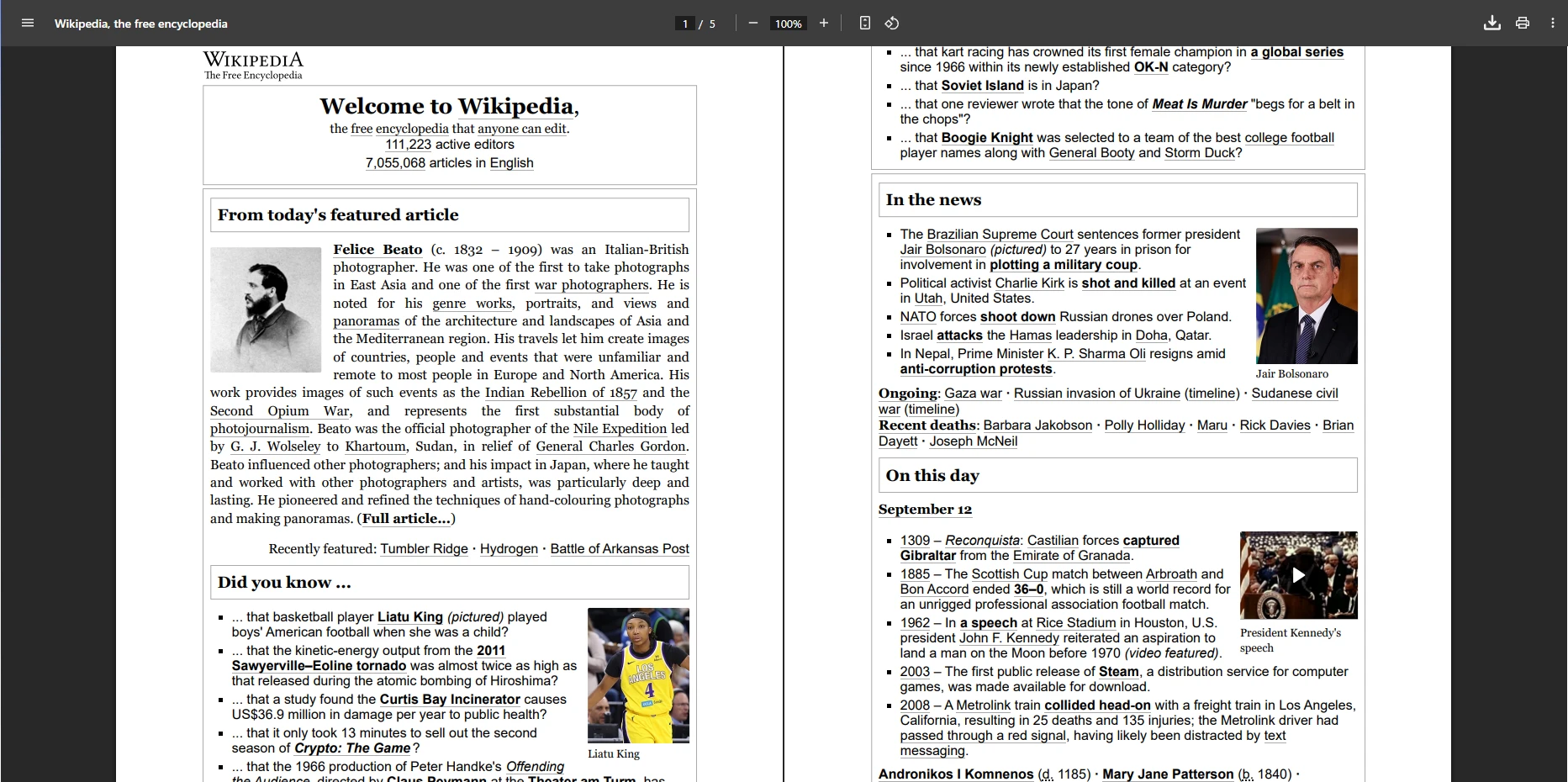
IronPDF 只需编写极少的代码,即可生成高保真 PDF,渲染复杂的 CSS 布局和动态 JavaScript 内容。 库的Chrome渲染引擎确保输出与现代浏览器的像素完美匹配。 您的应用程序可以立即使用此功能来处理cookies,HTTP首部或身份验证。
结论: IronPDF 是易于使用、高性能 PDF 生成工具的首选,它具有出色的 HTML/CSS/JS 渲染功能和专业的支持。 观看演示视频,了解其实际应用效果。
PDF库如何处理Bootstrap和现代CSS框架?
选择用于使用Bootstrap和现代CSS框架的应用程序的C# PDF库时,框架兼容性决定了您的设计是否能够准确转换或需进行修改。 此方法为使用响应式设计模式的团队提供明显的优势。
为什么基于 Chromium 的渲染对 Bootstrap 很重要?
IronPDF 的 Chromium 引擎充分支持:
Bootstrap 5:完整的 Flexbox 布局、CSS Grid、实用类、所有组件
Bootstrap 4:完整的卡片系统、导航、弹性实用程序、响应式设计
- Tailwind CSS:所有实用类都支持浏览器精确渲染。
-基础:完整的网格系统和组件支持
-现代CSS3: Flexbox、CSS Grid、自定义属性、动画、过渡效果
实际验证:IronPDF 能够以像素级的精度渲染Bootstrap 主页和官方示例。 库为您管理复杂性,包括Google字体、SVG图形和自定义字体。
Bootstrap有哪些局限性?
iText:有限的flexbox支持(加入v7.1.15),无CSS Grid,Bootstrap 3限制,对现代组件需使用替代方案。
PDFSharp 和 MigraDoc:不支持原生 HTML 渲染——仅支持手动创建 PDF,不支持 Bootstrap。
Aspose.PDF:自定义引擎,约 90% 支持 CSS3,部分支持 flexbox,需要对 Bootstrap 组件进行大量测试。
Syncfusion PDF:基于 WebKit 的引擎,没有 flexbox/CSS Grid,最高支持 Bootstrap 3,存在安全问题(上次更新于 2016 年)。
QuestPDF:提供流畅的 API 以进行手动布局——不支持 HTML/CSS 渲染和 Bootstrap。
开发影响:非 Chromium 库需要并行"PDF 安全"布局,这会显著增加开发时间并降低设计一致性。
iText是什么及何时应该使用?
iText是一个可靠的企业级C# PDF库,用于生成、编辑和保护PDF。 实现处理PDF/A,数字签名,修订和对财务、法律和企业应用程序的合规性工作流。 虽然iText可处理HTML到PDF转换,但它不能本地执行JavaScript,需要对动态内容进行预处理。 7.1.15 版本增加了有限的 flexbox 支持,但许多 CSS3 功能仍然不受支持。 查看我们的iText与IronPDF比较。
使iText适合企业应用的因素?
iText如何将URL转换为PDF?
using iText.Html2pdf;
using System.Net.Http;
using System.IO;
using System.Threading.Tasks;

class Program
{
    static async Task Main()
    {
        var url = "___PROTECTED_URL_171___";

        // Create HTTP client with browser-like settings
        using var client = new HttpClient();

        // Add user agent to avoid 403 Forbidden responses
        client.DefaultRequestHeaders.Add("User-Agent",
            "Mozilla/5.0 (Windows NT 10.0; Win64; x64) AppleWebKit/537.36 " +
            "(KHTML, like Gecko) Chrome/137.0.0.0 Safari/537.36");

        // Add timeout for reliability
        client.Timeout = TimeSpan.FromSeconds(30);

        // Fetch HTML content
        string htmlContent = await client.GetStringAsync(url);

        // Configure conversion properties
        var converterProperties = new ConverterProperties();
        converterProperties.SetBaseUri(url); // Important for resolving relative URLs

        // Create PDF from HTML
        using var fileStream = new FileStream("itext7-output.pdf", FileMode.Create);
        HtmlConverter.ConvertToPdf(htmlContent, fileStream, converterProperties);

        Console.WriteLine("PDF created successfully!");
    }
}
using iText.Html2pdf;
using System.Net.Http;
using System.IO;
using System.Threading.Tasks;

class Program
{
    static async Task Main()
    {
        var url = "___PROTECTED_URL_171___";

        // Create HTTP client with browser-like settings
        using var client = new HttpClient();

        // Add user agent to avoid 403 Forbidden responses
        client.DefaultRequestHeaders.Add("User-Agent",
            "Mozilla/5.0 (Windows NT 10.0; Win64; x64) AppleWebKit/537.36 " +
            "(KHTML, like Gecko) Chrome/137.0.0.0 Safari/537.36");

        // Add timeout for reliability
        client.Timeout = TimeSpan.FromSeconds(30);

        // Fetch HTML content
        string htmlContent = await client.GetStringAsync(url);

        // Configure conversion properties
        var converterProperties = new ConverterProperties();
        converterProperties.SetBaseUri(url); // Important for resolving relative URLs

        // Create PDF from HTML
        using var fileStream = new FileStream("itext7-output.pdf", FileMode.Create);
        HtmlConverter.ConvertToPdf(htmlContent, fileStream, converterProperties);

        Console.WriteLine("PDF created successfully!");
    }
}
Imports iText.Html2pdf
Imports System.Net.Http
Imports System.IO
Imports System.Threading.Tasks
Module Program
Async Function Main() As Task
Dim url = "___PROTECTED_URL_171___"
' Create HTTP client with browser-like settings
Using client As New HttpClient()
' Add user agent to avoid 403 Forbidden responses
client.DefaultRequestHeaders.Add("User-Agent",
"Mozilla/5.0 (Windows NT 10.0; Win64; x64) AppleWebKit/537.36 " &
"(KHTML, like Gecko) Chrome/137.0.0.0 Safari/537.36")
' Add timeout for reliability
client.Timeout = TimeSpan.FromSeconds(30)
' Fetch HTML content
Dim htmlContent As String = Await client.GetStringAsync(url)
' Configure conversion properties
Dim converterProperties As New ConverterProperties()
converterProperties.SetBaseUri(url) ' Important for resolving relative URLs
' Create PDF from HTML
Using fileStream As New FileStream("itext7-output.pdf", FileMode.Create)
HtmlConverter.ConvertToPdf(htmlContent, fileStream, converterProperties)
End Using
Console.WriteLine("PDF created successfully!")
End Using
End Function
End Module
Imports iText.Html2pdf
Imports System.Net.Http
Imports System.IO
Imports System.Threading.Tasks

Module Program
    Async Function Main() As Task
        Dim url = "___PROTECTED_URL_171___"

        ' Create HTTP client with browser-like settings
        Using client As New HttpClient()

            ' Add user agent to avoid 403 Forbidden responses
            client.DefaultRequestHeaders.Add("User-Agent",
                "Mozilla/5.0 (Windows NT 10.0; Win64; x64) AppleWebKit/537.36 " &
                "(KHTML, like Gecko) Chrome/137.0.0.0 Safari/537.36")

            ' Add timeout for reliability
            client.Timeout = TimeSpan.FromSeconds(30)

            ' Fetch HTML content
            Dim htmlContent As String = Await client.GetStringAsync(url)

            ' Configure conversion properties
            Dim converterProperties As New ConverterProperties()
            converterProperties.SetBaseUri(url) ' Important for resolving relative URLs

            ' Create PDF from HTML
            Using fileStream As New FileStream("itext7-output.pdf", FileMode.Create)
                HtmlConverter.ConvertToPdf(htmlContent, fileStream, converterProperties)
            End Using

            Console.WriteLine("PDF created successfully!")
        End Using
    End Function
End Module
iText的HTML渲染有哪些限制?
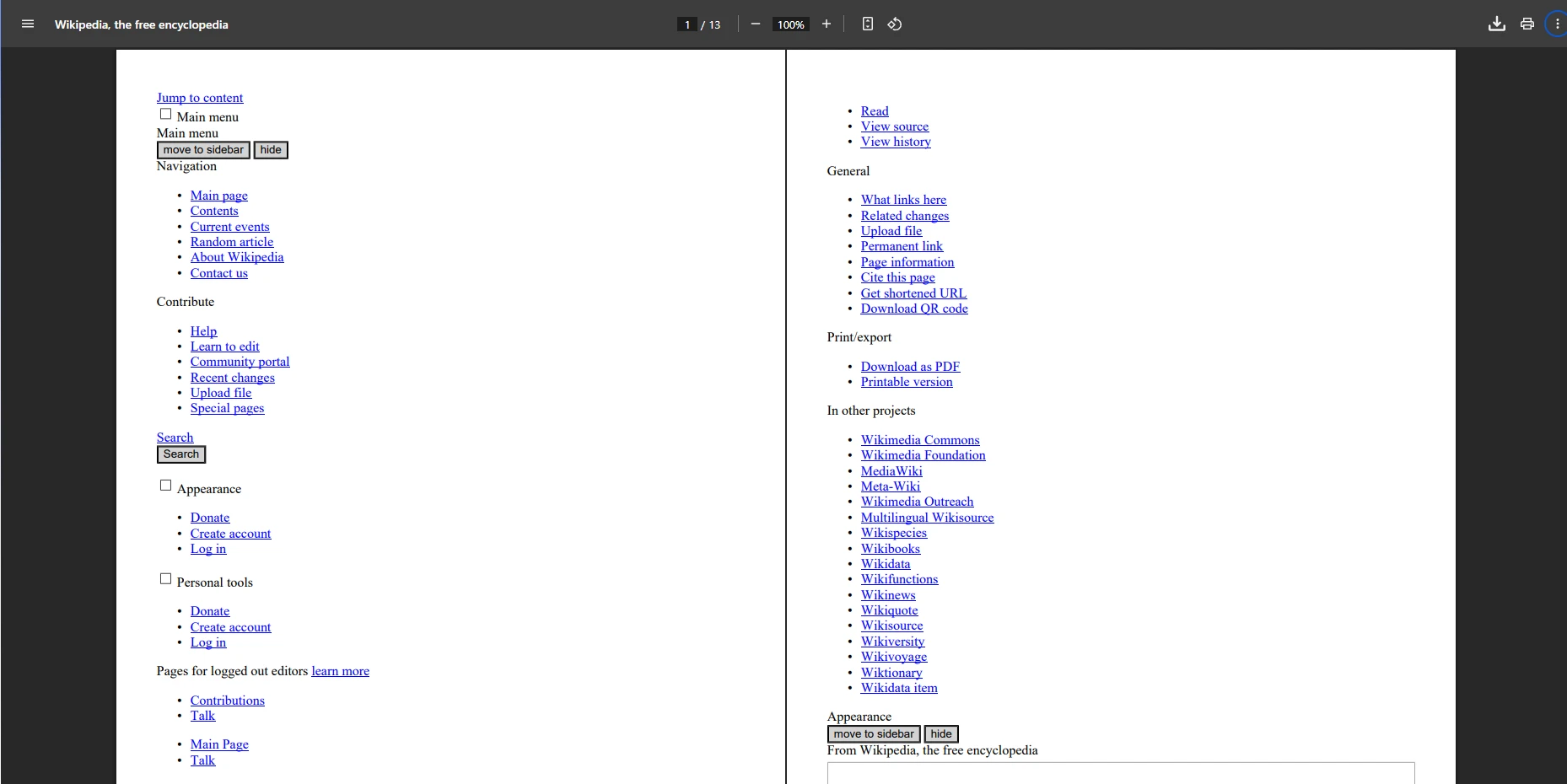
这段代码获取 HTML 内容并将其转换为 PDF。 结果保留了页面布局、文本、图像和 CSS 样式,但动态 JavaScript 内容将无法渲染。 对于JavaScript密集页面,考虑使用IronPDF的JavaScript渲染或实施自定义渲染延迟。
裁决:iText在企业级PDF生成和编辑方面表现出色,具备强大的合规支持和静态HTML到PDF转换。 对于 JavaScript 或高级 CSS,请考虑使用 IronPDF 或 wkhtmltopdf。
什么是PDFSharp & MigraDoc 及何时应该使用它们?
PDFSharp和MigraDoc是免费开源的C# PDF库,用于编程创建PDF。 PDFSharp处理低级PDF生成,而MigraDoc提供了用于表格、段落和多页文档的高级布局API。 这些库不提供 HTML 到 PDF 的转换,因此当您需要在代码中完全控制文档结构时,它们是理想的选择。 对于编程绘图,请参阅绘制线条和矩形和绘制文字和位图指南。
为什么选择 PDFSharp 生成简单的 PDF 文件?
如何使用 PDFSharp 以编程方式创建 PDF?
using PdfSharp.Drawing;
using PdfSharp.Fonts;
using PdfSharp.Pdf;
using static System.Net.Mime.MediaTypeNames;

class Program
{
    static void Main()
    {
        // Configure font resolver for cross-platform compatibility
        GlobalFontSettings.UseWindowsFontsUnderWindows = true;

        // Create a new PDF document
        var document = new PdfDocument();
        document.Info.Title = "PDFSharp Example";
        document.Info.Author = "Your Team";
        document.Info.Subject = "Demonstrating PDFSharp capabilities";

        // Add a page to the document
        var page = document.AddPage();
        page.Size = PdfSharp.PageSize.A4;
        page.Orientation = PdfSharp.PageOrientation.Portrait;

        // Create graphics object for drawing
        var gfx = XGraphics.FromPdfPage(page);

        // Draw text at specific coordinates
        var font = new XFont("Verdana", 20, XFontStyleEx.Regular);
        gfx.DrawString("Hello from PDFSharp!", font, XBrushes.Black,
            new XPoint(50, 100));

        // Add more content - a rectangle
        var pen = new XPen(XColors.Navy, 2);
        gfx.DrawRectangle(pen, XBrushes.LightBlue, 50, 150, 200, 100);

        // Add text inside rectangle
        var smallFont = new XFont("Arial", 12, XFontStyleEx.Regular);
        gfx.DrawString("Custom drawing example", smallFont, XBrushes.DarkBlue,
            new XPoint(60, 200));

        // Save the document
        document.Save("pdfsharp-example.pdf");

        Console.WriteLine("PDF created with PDFSharp!");
    }
}
using PdfSharp.Drawing;
using PdfSharp.Fonts;
using PdfSharp.Pdf;
using static System.Net.Mime.MediaTypeNames;

class Program
{
    static void Main()
    {
        // Configure font resolver for cross-platform compatibility
        GlobalFontSettings.UseWindowsFontsUnderWindows = true;

        // Create a new PDF document
        var document = new PdfDocument();
        document.Info.Title = "PDFSharp Example";
        document.Info.Author = "Your Team";
        document.Info.Subject = "Demonstrating PDFSharp capabilities";

        // Add a page to the document
        var page = document.AddPage();
        page.Size = PdfSharp.PageSize.A4;
        page.Orientation = PdfSharp.PageOrientation.Portrait;

        // Create graphics object for drawing
        var gfx = XGraphics.FromPdfPage(page);

        // Draw text at specific coordinates
        var font = new XFont("Verdana", 20, XFontStyleEx.Regular);
        gfx.DrawString("Hello from PDFSharp!", font, XBrushes.Black,
            new XPoint(50, 100));

        // Add more content - a rectangle
        var pen = new XPen(XColors.Navy, 2);
        gfx.DrawRectangle(pen, XBrushes.LightBlue, 50, 150, 200, 100);

        // Add text inside rectangle
        var smallFont = new XFont("Arial", 12, XFontStyleEx.Regular);
        gfx.DrawString("Custom drawing example", smallFont, XBrushes.DarkBlue,
            new XPoint(60, 200));

        // Save the document
        document.Save("pdfsharp-example.pdf");

        Console.WriteLine("PDF created with PDFSharp!");
    }
}
Imports PdfSharp.Drawing
Imports PdfSharp.Fonts
Imports PdfSharp.Pdf
Imports System.Net.Mime.MediaTypeNames
Module Program
Sub Main()
' Configure font resolver for cross-platform compatibility
GlobalFontSettings.UseWindowsFontsUnderWindows = True
' Create a new PDF document
Dim document As New PdfDocument()
document.Info.Title = "PDFSharp Example"
document.Info.Author = "Your Team"
document.Info.Subject = "Demonstrating PDFSharp capabilities"
' Add a page to the document
Dim page = document.AddPage()
page.Size = PdfSharp.PageSize.A4
page.Orientation = PdfSharp.PageOrientation.Portrait
' Create graphics object for drawing
Dim gfx = XGraphics.FromPdfPage(page)
' Draw text at specific coordinates
Dim font = New XFont("Verdana", 20, XFontStyleEx.Regular)
gfx.DrawString("Hello from PDFSharp!", font, XBrushes.Black, New XPoint(50, 100))
' Add more content - a rectangle
Dim pen = New XPen(XColors.Navy, 2)
gfx.DrawRectangle(pen, XBrushes.LightBlue, 50, 150, 200, 100)
' Add text inside rectangle
Dim smallFont = New XFont("Arial", 12, XFontStyleEx.Regular)
gfx.DrawString("Custom drawing example", smallFont, XBrushes.DarkBlue, New XPoint(60, 200))
' Save the document
document.Save("pdfsharp-example.pdf")
Console.WriteLine("PDF created with PDFSharp!")
End Sub
End Module
Imports PdfSharp.Drawing
Imports PdfSharp.Fonts
Imports PdfSharp.Pdf
Imports System.Net.Mime.MediaTypeNames

Module Program
    Sub Main()
        ' Configure font resolver for cross-platform compatibility
        GlobalFontSettings.UseWindowsFontsUnderWindows = True

        ' Create a new PDF document
        Dim document As New PdfDocument()
        document.Info.Title = "PDFSharp Example"
        document.Info.Author = "Your Team"
        document.Info.Subject = "Demonstrating PDFSharp capabilities"

        ' Add a page to the document
        Dim page = document.AddPage()
        page.Size = PdfSharp.PageSize.A4
        page.Orientation = PdfSharp.PageOrientation.Portrait

        ' Create graphics object for drawing
        Dim gfx = XGraphics.FromPdfPage(page)

        ' Draw text at specific coordinates
        Dim font = New XFont("Verdana", 20, XFontStyleEx.Regular)
        gfx.DrawString("Hello from PDFSharp!", font, XBrushes.Black, New XPoint(50, 100))

        ' Add more content - a rectangle
        Dim pen = New XPen(XColors.Navy, 2)
        gfx.DrawRectangle(pen, XBrushes.LightBlue, 50, 150, 200, 100)

        ' Add text inside rectangle
        Dim smallFont = New XFont("Arial", 12, XFontStyleEx.Regular)
        gfx.DrawString("Custom drawing example", smallFont, XBrushes.DarkBlue, New XPoint(60, 200))

        ' Save the document
        document.Save("pdfsharp-example.pdf")

        Console.WriteLine("PDF created with PDFSharp!")
    End Sub
End Module
PDFSharp何时才是最佳选择?
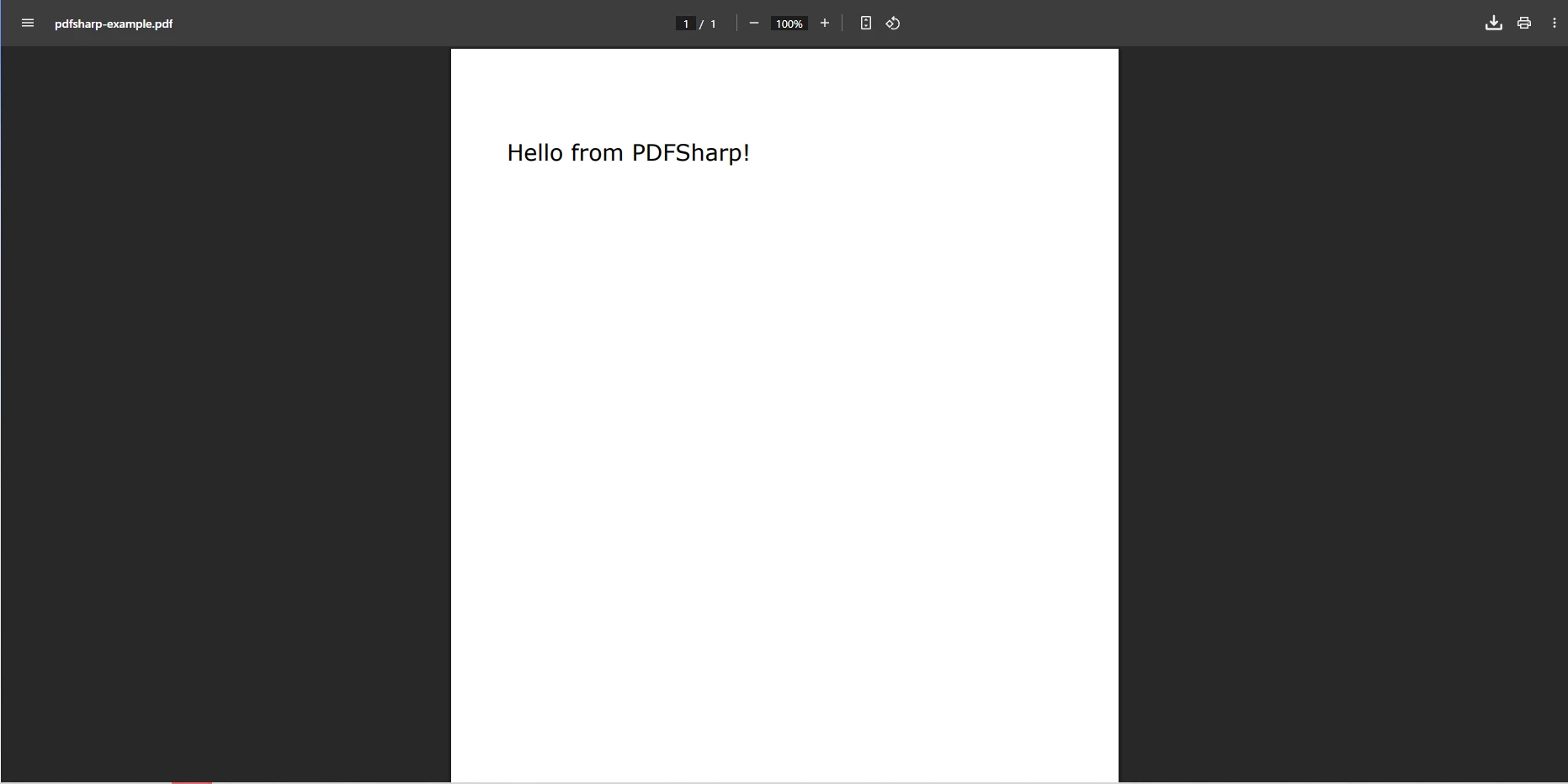
这段代码通过编程方式生成 PDF 文件,手动添加文本并处理布局。 实现为无需HTML输入的定制化文档如发票、表单或证书提供了明显的优势。 对于具有更多功能的相似编程控制,参见创建新PDF。
裁决:PDFSharp & MigraDoc非常适合基本PDF创建——免费且易于集成,但缺乏HTML转换和高级编辑。 对于 HTML 工作流程,请考虑使用 IronPDF 的 HTML 转 PDF 功能。## 什么是 Aspose.PDF 以及何时应该使用它?
Aspose.PDF是一个商业性的 .NET PDF 库,提供用于创建、编辑、转换和保护 PDF 的完整工具。 与轻量级库不同,Aspose.PDF专注于企业级应用程序,支持包括Word、Excel、HTML和XML在内的文件转换。 您的应用程序可以立即使用此功能进行文档自动化、报告生成和大规模应用中的高级PDF操作。 查看我们的Aspose与IronPDF比较。
Aspose.PDF 提供哪些企业级功能?
Aspose.PDF 如何处理 URL 到 PDF 的转换?
using Aspose.Pdf;
using System;
using System.IO;
using System.Net;

class Program
{
    static void Main()
    {
        string url = "___PROTECTED_URL_172___";

        // Optional: provide credentials for protected resources
        NetworkCredential credentials = null;
        // Example for authenticated resources:
        // credentials = new NetworkCredential("username", "password");

        // Configure HTML load options
        var options = new HtmlLoadOptions(url)
        {
            // Enable external resources loading
            ExternalResourcesCredentials = credentials,

            // Set page info
            PageInfo = new PageInfo
            {
                Width = PageSize.A4.Width,
                Height = PageSize.A4.Height,
                Margin = new MarginInfo(20, 20, 20, 20) // left, bottom, right, top
            },

            // Enable JavaScript execution (limited support)
            IsEmbedFonts = true,
            IsRenderToSinglePage = false
        };

        try
        {
            // Fetch HTML content as stream and load into Document
            using (var document = new Document(GetContentFromUrlAsStream(url, credentials), options))
            {
                // Add metadata
                document.Info.Title = "Wikipedia Main Page";
                document.Info.Author = "Aspose.PDF Example";
                document.Info.Subject = "URL to PDF Conversion";
                document.Info.Keywords = "PDF, Aspose, Wikipedia";

                // Improve the PDF
                document.OptimizeResources();

                // Save PDF with specific save options
                var saveOptions = new PdfSaveOptions
                {
                    DefaultFontName = "Arial", // Fallback font
                    EmbedStandardFonts = true
                };

                document.Save("aspose-output.pdf", saveOptions);
            }

            Console.WriteLine("PDF successfully created!");
        }
        catch (Exception ex)
        {
            Console.WriteLine($"Error: {ex.Message}");
        }
    }

    private static Stream GetContentFromUrlAsStream(string url, ICredentials credentials = null)
    {
        using var handler = new System.Net.Http.HttpClientHandler { Credentials = credentials };
        using var httpClient = new System.Net.Http.HttpClient(handler);

        // Set a browser-like User-Agent to avoid 403 errors
        httpClient.DefaultRequestHeaders.Add("User-Agent",
            "Mozilla/5.0 (Windows NT 10.0; Win64; x64) AppleWebKit/537.36 " +
            "(KHTML, like Gecko) Chrome/137.0.0.0 Safari/537.36");

        // Set timeout
        httpClient.Timeout = TimeSpan.FromSeconds(30);

        return httpClient.GetStreamAsync(url).GetAwaiter().GetResult();
    }
}
using Aspose.Pdf;
using System;
using System.IO;
using System.Net;

class Program
{
    static void Main()
    {
        string url = "___PROTECTED_URL_172___";

        // Optional: provide credentials for protected resources
        NetworkCredential credentials = null;
        // Example for authenticated resources:
        // credentials = new NetworkCredential("username", "password");

        // Configure HTML load options
        var options = new HtmlLoadOptions(url)
        {
            // Enable external resources loading
            ExternalResourcesCredentials = credentials,

            // Set page info
            PageInfo = new PageInfo
            {
                Width = PageSize.A4.Width,
                Height = PageSize.A4.Height,
                Margin = new MarginInfo(20, 20, 20, 20) // left, bottom, right, top
            },

            // Enable JavaScript execution (limited support)
            IsEmbedFonts = true,
            IsRenderToSinglePage = false
        };

        try
        {
            // Fetch HTML content as stream and load into Document
            using (var document = new Document(GetContentFromUrlAsStream(url, credentials), options))
            {
                // Add metadata
                document.Info.Title = "Wikipedia Main Page";
                document.Info.Author = "Aspose.PDF Example";
                document.Info.Subject = "URL to PDF Conversion";
                document.Info.Keywords = "PDF, Aspose, Wikipedia";

                // Improve the PDF
                document.OptimizeResources();

                // Save PDF with specific save options
                var saveOptions = new PdfSaveOptions
                {
                    DefaultFontName = "Arial", // Fallback font
                    EmbedStandardFonts = true
                };

                document.Save("aspose-output.pdf", saveOptions);
            }

            Console.WriteLine("PDF successfully created!");
        }
        catch (Exception ex)
        {
            Console.WriteLine($"Error: {ex.Message}");
        }
    }

    private static Stream GetContentFromUrlAsStream(string url, ICredentials credentials = null)
    {
        using var handler = new System.Net.Http.HttpClientHandler { Credentials = credentials };
        using var httpClient = new System.Net.Http.HttpClient(handler);

        // Set a browser-like User-Agent to avoid 403 errors
        httpClient.DefaultRequestHeaders.Add("User-Agent",
            "Mozilla/5.0 (Windows NT 10.0; Win64; x64) AppleWebKit/537.36 " +
            "(KHTML, like Gecko) Chrome/137.0.0.0 Safari/537.36");

        // Set timeout
        httpClient.Timeout = TimeSpan.FromSeconds(30);

        return httpClient.GetStreamAsync(url).GetAwaiter().GetResult();
    }
}
Imports Aspose.Pdf
Imports System
Imports System.IO
Imports System.Net
Module Program
Sub Main()
Dim url As String = "___PROTECTED_URL_172___"
' Optional: provide credentials for protected resources
Dim credentials As NetworkCredential = Nothing
' Example for authenticated resources:
' credentials = New NetworkCredential("username", "password")
' Configure HTML load options
Dim options = New HtmlLoadOptions(url) With {
.ExternalResourcesCredentials = credentials,
.PageInfo = New PageInfo With {
.Width = PageSize.A4.Width,
.Height = PageSize.A4.Height,
.Margin = New MarginInfo(20, 20, 20, 20) ' left, bottom, right, top
},
.IsEmbedFonts = True,
.IsRenderToSinglePage = False
}
Try
' Fetch HTML content as stream and load into Document
Using document = New Document(GetContentFromUrlAsStream(url, credentials), options)
' Add metadata
document.Info.Title = "Wikipedia Main Page"
document.Info.Author = "Aspose.PDF Example"
document.Info.Subject = "URL to PDF Conversion"
document.Info.Keywords = "PDF, Aspose, Wikipedia"
' Improve the PDF
document.OptimizeResources()
' Save PDF with specific save options
Dim saveOptions = New PdfSaveOptions With {
.DefaultFontName = "Arial", ' Fallback font
.EmbedStandardFonts = True
}
document.Save("aspose-output.pdf", saveOptions)
End Using
Console.WriteLine("PDF successfully created!")
Catch ex As Exception
Console.WriteLine($"Error: {ex.Message}")
End Try
End Sub
Private Function GetContentFromUrlAsStream(url As String, Optional credentials As ICredentials = Nothing) As Stream
Using handler = New System.Net.Http.HttpClientHandler With {.Credentials = credentials}
Using httpClient = New System.Net.Http.HttpClient(handler)
' Set a browser-like User-Agent to avoid 403 errors
httpClient.DefaultRequestHeaders.Add("User-Agent",
"Mozilla/5.0 (Windows NT 10.0; Win64; x64) AppleWebKit/537.36 " &
"(KHTML, like Gecko) Chrome/137.0.0.0 Safari/537.36")
' Set timeout
httpClient.Timeout = TimeSpan.FromSeconds(30)
Return httpClient.GetStreamAsync(url).GetAwaiter().GetResult()
End Using
End Using
End Function
End Module
Imports Aspose.Pdf
Imports System
Imports System.IO
Imports System.Net

Module Program
    Sub Main()
        Dim url As String = "___PROTECTED_URL_172___"

        ' Optional: provide credentials for protected resources
        Dim credentials As NetworkCredential = Nothing
        ' Example for authenticated resources:
        ' credentials = New NetworkCredential("username", "password")

        ' Configure HTML load options
        Dim options = New HtmlLoadOptions(url) With {
            .ExternalResourcesCredentials = credentials,
            .PageInfo = New PageInfo With {
                .Width = PageSize.A4.Width,
                .Height = PageSize.A4.Height,
                .Margin = New MarginInfo(20, 20, 20, 20) ' left, bottom, right, top
            },
            .IsEmbedFonts = True,
            .IsRenderToSinglePage = False
        }

        Try
            ' Fetch HTML content as stream and load into Document
            Using document = New Document(GetContentFromUrlAsStream(url, credentials), options)
                ' Add metadata
                document.Info.Title = "Wikipedia Main Page"
                document.Info.Author = "Aspose.PDF Example"
                document.Info.Subject = "URL to PDF Conversion"
                document.Info.Keywords = "PDF, Aspose, Wikipedia"

                ' Improve the PDF
                document.OptimizeResources()

                ' Save PDF with specific save options
                Dim saveOptions = New PdfSaveOptions With {
                    .DefaultFontName = "Arial", ' Fallback font
                    .EmbedStandardFonts = True
                }

                document.Save("aspose-output.pdf", saveOptions)
            End Using

            Console.WriteLine("PDF successfully created!")
        Catch ex As Exception
            Console.WriteLine($"Error: {ex.Message}")
        End Try
    End Sub

    Private Function GetContentFromUrlAsStream(url As String, Optional credentials As ICredentials = Nothing) As Stream
        Using handler = New System.Net.Http.HttpClientHandler With {.Credentials = credentials}
            Using httpClient = New System.Net.Http.HttpClient(handler)
                ' Set a browser-like User-Agent to avoid 403 errors
                httpClient.DefaultRequestHeaders.Add("User-Agent",
                    "Mozilla/5.0 (Windows NT 10.0; Win64; x64) AppleWebKit/537.36 " &
                    "(KHTML, like Gecko) Chrome/137.0.0.0 Safari/537.36")

                ' Set timeout
                httpClient.Timeout = TimeSpan.FromSeconds(30)

                Return httpClient.GetStreamAsync(url).GetAwaiter().GetResult()
            End Using
        End Using
    End Function
End Module
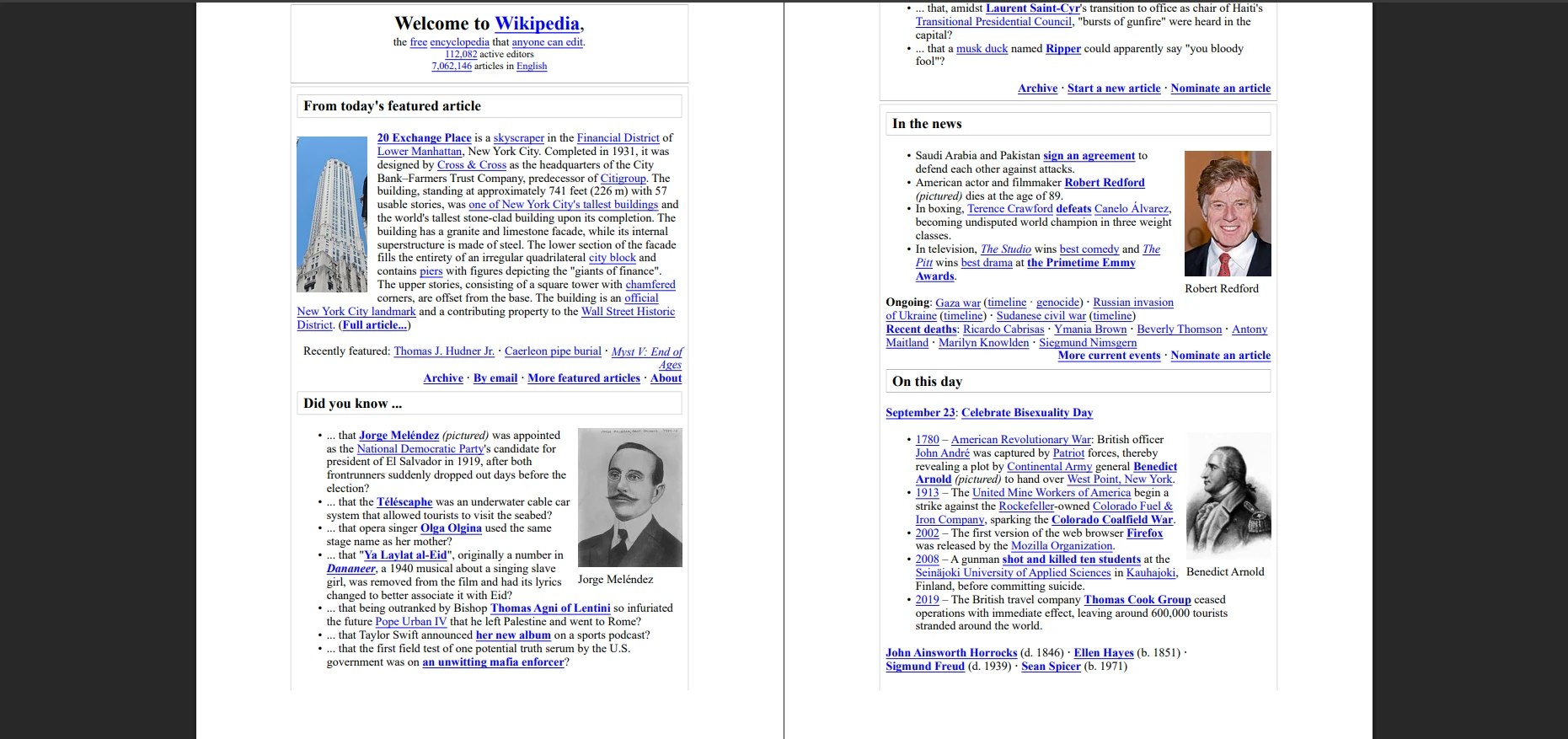
此代码使用类似浏览器的User-Agent提取HTML内容以防止403错误,将HTML直接流入通过HtmlLoadOptions生成的Aspose.PDF文档,然后保存为PDF。 结果保留了页面布局、文本、图像和 CSS 样式,并支持基本的 HTTP 身份验证。 动态 JavaScript 内容将无法执行。 要获得更好的JavaScript支持,请探索IronPDF的JavaScript渲染。
裁决:Aspose.PDF在需要先进功能、多格式转换和强大安全性的企业应用中表现出色。 虽然对于小型项目来说,它具有商业性和潜在复杂性,但对于大型文档工作流程而言,它是无与伦比的。
什么是 Syncfusion PDF?何时应该使用它?
Syncfusion PDF是 Syncfusion 套件的一部分,为 Web 和桌面应用程序提供功能丰富的 .NET PDF 库。 在生成、编辑和转换PDF时为您管理复杂性,包括HTML到PDF转换,同时与其他Syncfusion组件无缝集成,适用于报表和仪表盘。 使用 Syncfusion 组件的团队可以受益于紧密集成。 查看我们的Syncfusion与IronPDF比较。
为什么选择 Syncfusion 作为集成解决方案?
Syncfusion 如何将 URL 转换为 PDF?
using Syncfusion.HtmlConverter;
using Syncfusion.Pdf;

class Program
{
    static void Main()
    {
        // Initialize the HTML to PDF converter
        HtmlToPdfConverter converter = new HtmlToPdfConverter();

        // Configure WebKit settings for better rendering
        WebKitConverterSettings settings = new WebKitConverterSettings();

        // Set WebKit path (required for deployment)
        settings.WebKitPath = @"C:\QtBinariesPath";

        // Configure page settings
        settings.PdfPageSize = PdfPageSize.A4;
        settings.Orientation = PdfPageOrientation.Portrait;
        settings.Margin = new PdfMargins() { All = 20 };

        // Enable JavaScript execution
        settings.EnableJavaScript = true;
        settings.JavaScriptDelay = 3000; // Wait 3 seconds for JS

        // Set viewport size for responsive design
        settings.ViewPortSize = new System.Drawing.Size(1024, 0);

        // Add custom headers if needed
        settings.HttpRequestHeaders.Add("User-Agent",
            "Mozilla/5.0 (Windows NT 10.0; Win64; x64) AppleWebKit/537.36");

        converter.ConverterSettings = settings;

        // Convert URL to PDF
        PdfDocument document = converter.Convert("___PROTECTED_URL_173___");

        // Add document info
        document.DocumentInformation.Title = "Wikipedia Main Page";
        document.DocumentInformation.Author = "Syncfusion Example";
        document.DocumentInformation.Subject = "URL to PDF Conversion";

        // Save the PDF
        document.Save("syncfusion-output.pdf");
        document.Close(true); // true = dispose resources

        Console.WriteLine("PDF created successfully!");
    }
}
using Syncfusion.HtmlConverter;
using Syncfusion.Pdf;

class Program
{
    static void Main()
    {
        // Initialize the HTML to PDF converter
        HtmlToPdfConverter converter = new HtmlToPdfConverter();

        // Configure WebKit settings for better rendering
        WebKitConverterSettings settings = new WebKitConverterSettings();

        // Set WebKit path (required for deployment)
        settings.WebKitPath = @"C:\QtBinariesPath";

        // Configure page settings
        settings.PdfPageSize = PdfPageSize.A4;
        settings.Orientation = PdfPageOrientation.Portrait;
        settings.Margin = new PdfMargins() { All = 20 };

        // Enable JavaScript execution
        settings.EnableJavaScript = true;
        settings.JavaScriptDelay = 3000; // Wait 3 seconds for JS

        // Set viewport size for responsive design
        settings.ViewPortSize = new System.Drawing.Size(1024, 0);

        // Add custom headers if needed
        settings.HttpRequestHeaders.Add("User-Agent",
            "Mozilla/5.0 (Windows NT 10.0; Win64; x64) AppleWebKit/537.36");

        converter.ConverterSettings = settings;

        // Convert URL to PDF
        PdfDocument document = converter.Convert("___PROTECTED_URL_173___");

        // Add document info
        document.DocumentInformation.Title = "Wikipedia Main Page";
        document.DocumentInformation.Author = "Syncfusion Example";
        document.DocumentInformation.Subject = "URL to PDF Conversion";

        // Save the PDF
        document.Save("syncfusion-output.pdf");
        document.Close(true); // true = dispose resources

        Console.WriteLine("PDF created successfully!");
    }
}
Imports Syncfusion.HtmlConverter
Imports Syncfusion.Pdf
Module Program
Sub Main()
' Initialize the HTML to PDF converter
Dim converter As New HtmlToPdfConverter()
' Configure WebKit settings for better rendering
Dim settings As New WebKitConverterSettings()
' Set WebKit path (required for deployment)
settings.WebKitPath = "C:\QtBinariesPath"
' Configure page settings
settings.PdfPageSize = PdfPageSize.A4
settings.Orientation = PdfPageOrientation.Portrait
settings.Margin = New PdfMargins() With {.All = 20}
' Enable JavaScript execution
settings.EnableJavaScript = True
settings.JavaScriptDelay = 3000 ' Wait 3 seconds for JS
' Set viewport size for responsive design
settings.ViewPortSize = New System.Drawing.Size(1024, 0)
' Add custom headers if needed
settings.HttpRequestHeaders.Add("User-Agent",
"Mozilla/5.0 (Windows NT 10.0; Win64; x64) AppleWebKit/537.36")
converter.ConverterSettings = settings
' Convert URL to PDF
Dim document As PdfDocument = converter.Convert("___PROTECTED_URL_173___")
' Add document info
document.DocumentInformation.Title = "Wikipedia Main Page"
document.DocumentInformation.Author = "Syncfusion Example"
document.DocumentInformation.Subject = "URL to PDF Conversion"
' Save the PDF
document.Save("syncfusion-output.pdf")
document.Close(True) ' true = dispose resources
Console.WriteLine("PDF created successfully!")
End Sub
End Module
Imports Syncfusion.HtmlConverter
Imports Syncfusion.Pdf

Module Program
    Sub Main()
        ' Initialize the HTML to PDF converter
        Dim converter As New HtmlToPdfConverter()

        ' Configure WebKit settings for better rendering
        Dim settings As New WebKitConverterSettings()

        ' Set WebKit path (required for deployment)
        settings.WebKitPath = "C:\QtBinariesPath"

        ' Configure page settings
        settings.PdfPageSize = PdfPageSize.A4
        settings.Orientation = PdfPageOrientation.Portrait
        settings.Margin = New PdfMargins() With {.All = 20}

        ' Enable JavaScript execution
        settings.EnableJavaScript = True
        settings.JavaScriptDelay = 3000 ' Wait 3 seconds for JS

        ' Set viewport size for responsive design
        settings.ViewPortSize = New System.Drawing.Size(1024, 0)

        ' Add custom headers if needed
        settings.HttpRequestHeaders.Add("User-Agent",
            "Mozilla/5.0 (Windows NT 10.0; Win64; x64) AppleWebKit/537.36")

        converter.ConverterSettings = settings

        ' Convert URL to PDF
        Dim document As PdfDocument = converter.Convert("___PROTECTED_URL_173___")

        ' Add document info
        document.DocumentInformation.Title = "Wikipedia Main Page"
        document.DocumentInformation.Author = "Syncfusion Example"
        document.DocumentInformation.Subject = "URL to PDF Conversion"

        ' Save the PDF
        document.Save("syncfusion-output.pdf")
        document.Close(True) ' true = dispose resources

        Console.WriteLine("PDF created successfully!")
    End Sub
End Module
Syncfusion的报告功能有哪些优势?
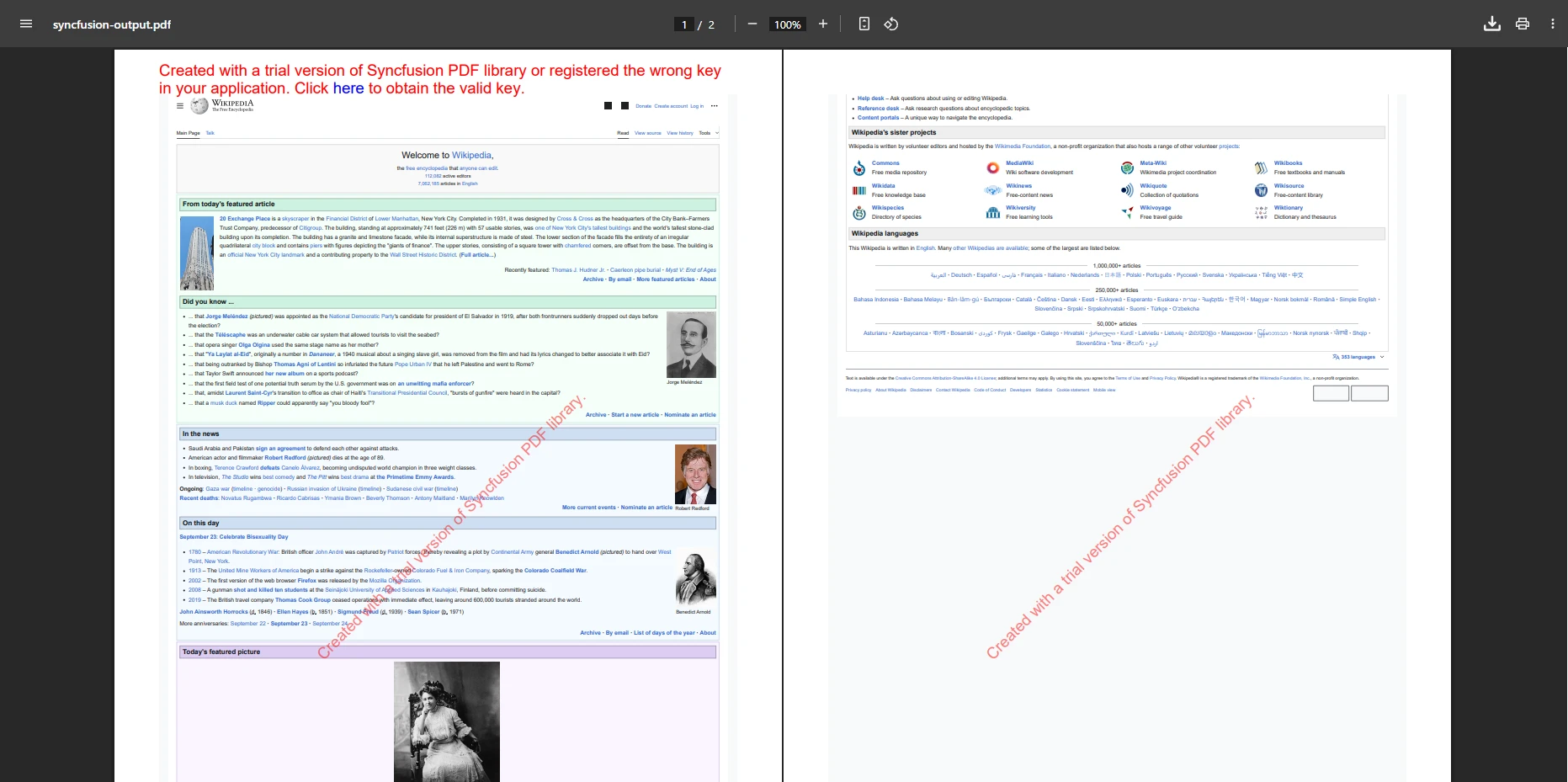
此示例将 URL 转换为 PDF,保留布局、图像和格式。 Syncfusion PDF 在需要可靠地将 HTML 渲染成 PDF 的报告场景中表现出色。 库支持页眉和页脚、页码和书签,适用于专业文档。
结论: Syncfusion PDF 非常适合使用 Syncfusion 组件、需要专业 HTML 转 PDF 渲染或希望生成具有广泛功能的企业级 PDF 的团队。 对于替代方案,请探索我们的详细比较。
什么是 QuestPDF?何时应该使用它?
QuestPDF是一个开源的 C# 库,专注于使用声明式 API 以编程方式生成 PDF。 与 HTML 转 PDF 转换器不同,QuestPDF 完全使用代码构建 PDF,从而可以精确控制布局、文本、图像和表格。 您的应用程序可以立即使用此功能自动生成报告、发票和动态生成的结构化文档。 查看我们的QuestPDF与IronPDF比较。
为什么选择 QuestPDF 进行程序化控制?
适用于动态报告生成和自动化工作流程。
如何使用 QuestPDF 的 Fluent API 构建 PDF?
using QuestPDF.Fluent;
using QuestPDF.Helpers;
using QuestPDF.Infrastructure;
using QuestPDF.Previewer;

class Program
{
    static void Main()
    {
        // Configure license (Community, Professional, or Enterprise)
        QuestPDF.Settings.License = LicenseType.Community;

        // Create document with fluent API
        Document.Create(container =>
        {
            container.Page(page =>
            {
                // Page settings
                page.Size(PageSizes.A4);
                page.Margin(2, Unit.Centimetre);
                page.PageColor(Colors.White);
                page.DefaultTextStyle(x => x.FontSize(12).FontFamily(Fonts.Arial));

                // Header section
                page.Header()
                    .Height(100)
                    .Background(Colors.Grey.Lighten3)
                    .AlignCenter()
                    .AlignMiddle()
                    .Text("QuestPDF Example Document")
                    .FontSize(20)
                    .Bold()
                    .FontColor(Colors.Blue.Darken2);

                // Content section
                page.Content()
                    .PaddingVertical(1, Unit.Centimetre)
                    .Column(column =>
                    {
                        column.Spacing(20);

                        // Add title
                        column.Item().Text("Hello from QuestPDF!")
                            .FontSize(16)
                            .SemiBold()
                            .FontColor(Colors.Blue.Medium);

                        // Add paragraph
                        column.Item().Text(text =>
                        {
                            text.Span("This is an example of programmatic PDF generation using ");
                            text.Span("QuestPDF").Bold();
                            text.Span(". You have complete control over layout and styling.");
                        });

                        // Add table
                        column.Item().Table(table =>
                        {
                            table.ColumnsDefinition(columns =>
                            {
                                columns.RelativeColumn();
                                columns.RelativeColumn();
                            });

                            // Table header
                            table.Header(header =>
                            {
                                header.Cell().Background(Colors.Grey.Medium)
                                    .Padding(5).Text("Feature").Bold();
                                header.Cell().Background(Colors.Grey.Medium)
                                    .Padding(5).Text("Description").Bold();
                            });

                            // Table rows
                            table.Cell().Border(1).Padding(5).Text("Fluent API");
                            table.Cell().Border(1).Padding(5)
                                .Text("Build documents using method chaining");

                            table.Cell().Border(1).Padding(5).Text("Layout Control");
                            table.Cell().Border(1).Padding(5)
                                .Text("Precise control over element positioning");
                        });
                    });

                // Footer section
                page.Footer()
                    .Height(50)
                    .AlignCenter()
                    .Text(text =>
                    {
                        text.Span("Page ");
                        text.CurrentPageNumber();
                        text.Span(" of ");
                        text.TotalPages();
                    });
            });
        })
        .GeneratePdf("questpdf-output.pdf");

        Console.WriteLine("PDF created with QuestPDF!");
    }
}
using QuestPDF.Fluent;
using QuestPDF.Helpers;
using QuestPDF.Infrastructure;
using QuestPDF.Previewer;

class Program
{
    static void Main()
    {
        // Configure license (Community, Professional, or Enterprise)
        QuestPDF.Settings.License = LicenseType.Community;

        // Create document with fluent API
        Document.Create(container =>
        {
            container.Page(page =>
            {
                // Page settings
                page.Size(PageSizes.A4);
                page.Margin(2, Unit.Centimetre);
                page.PageColor(Colors.White);
                page.DefaultTextStyle(x => x.FontSize(12).FontFamily(Fonts.Arial));

                // Header section
                page.Header()
                    .Height(100)
                    .Background(Colors.Grey.Lighten3)
                    .AlignCenter()
                    .AlignMiddle()
                    .Text("QuestPDF Example Document")
                    .FontSize(20)
                    .Bold()
                    .FontColor(Colors.Blue.Darken2);

                // Content section
                page.Content()
                    .PaddingVertical(1, Unit.Centimetre)
                    .Column(column =>
                    {
                        column.Spacing(20);

                        // Add title
                        column.Item().Text("Hello from QuestPDF!")
                            .FontSize(16)
                            .SemiBold()
                            .FontColor(Colors.Blue.Medium);

                        // Add paragraph
                        column.Item().Text(text =>
                        {
                            text.Span("This is an example of programmatic PDF generation using ");
                            text.Span("QuestPDF").Bold();
                            text.Span(". You have complete control over layout and styling.");
                        });

                        // Add table
                        column.Item().Table(table =>
                        {
                            table.ColumnsDefinition(columns =>
                            {
                                columns.RelativeColumn();
                                columns.RelativeColumn();
                            });

                            // Table header
                            table.Header(header =>
                            {
                                header.Cell().Background(Colors.Grey.Medium)
                                    .Padding(5).Text("Feature").Bold();
                                header.Cell().Background(Colors.Grey.Medium)
                                    .Padding(5).Text("Description").Bold();
                            });

                            // Table rows
                            table.Cell().Border(1).Padding(5).Text("Fluent API");
                            table.Cell().Border(1).Padding(5)
                                .Text("Build documents using method chaining");

                            table.Cell().Border(1).Padding(5).Text("Layout Control");
                            table.Cell().Border(1).Padding(5)
                                .Text("Precise control over element positioning");
                        });
                    });

                // Footer section
                page.Footer()
                    .Height(50)
                    .AlignCenter()
                    .Text(text =>
                    {
                        text.Span("Page ");
                        text.CurrentPageNumber();
                        text.Span(" of ");
                        text.TotalPages();
                    });
            });
        })
        .GeneratePdf("questpdf-output.pdf");

        Console.WriteLine("PDF created with QuestPDF!");
    }
}
Imports QuestPDF.Fluent
Imports QuestPDF.Helpers
Imports QuestPDF.Infrastructure
Imports QuestPDF.Previewer
Module Program
Sub Main()
' Configure license (Community, Professional, or Enterprise)
QuestPDF.Settings.License = LicenseType.Community
' Create document with fluent API
Document.Create(Sub(container)
container.Page(Sub(page)
' Page settings
page.Size(PageSizes.A4)
page.Margin(2, Unit.Centimetre)
page.PageColor(Colors.White)
page.DefaultTextStyle(Function(x) x.FontSize(12).FontFamily(Fonts.Arial))
' Header section
page.Header() _
.Height(100) _
.Background(Colors.Grey.Lighten3) _
.AlignCenter() _
.AlignMiddle() _
.Text("QuestPDF Example Document") _
.FontSize(20) _
.Bold() _
.FontColor(Colors.Blue.Darken2)
' Content section
page.Content() _
.PaddingVertical(1, Unit.Centimetre) _
.Column(Sub(column)
column.Spacing(20)
' Add title
column.Item().Text("Hello from QuestPDF!") _
.FontSize(16) _
.SemiBold() _
.FontColor(Colors.Blue.Medium)
' Add paragraph
column.Item().Text(Sub(text)
text.Span("This is an example of programmatic PDF generation using ")
text.Span("QuestPDF").Bold()
text.Span(". You have complete control over layout and styling.")
End Sub)
' Add table
column.Item().Table(Sub(table)
table.ColumnsDefinition(Sub(columns)
columns.RelativeColumn()
columns.RelativeColumn()
End Sub)
' Table header
table.Header(Sub(header)
header.Cell().Background(Colors.Grey.Medium) _
.Padding(5).Text("Feature").Bold()
header.Cell().Background(Colors.Grey.Medium) _
.Padding(5).Text("Description").Bold()
End Sub)
' Table rows
table.Cell().Border(1).Padding(5).Text("Fluent API")
table.Cell().Border(1).Padding(5) _
.Text("Build documents using method chaining")
table.Cell().Border(1).Padding(5).Text("Layout Control")
table.Cell().Border(1).Padding(5) _
.Text("Precise control over element positioning")
End Sub)
End Sub)
' Footer section
page.Footer() _
.Height(50) _
.AlignCenter() _
.Text(Sub(text)
text.Span("Page ")
text.CurrentPageNumber()
text.Span(" of ")
text.TotalPages()
End Sub)
End Sub)
End Sub) _
.GeneratePdf("questpdf-output.pdf")
Console.WriteLine("PDF created with QuestPDF!")
End Sub
End Module
Imports QuestPDF.Fluent
Imports QuestPDF.Helpers
Imports QuestPDF.Infrastructure
Imports QuestPDF.Previewer

Module Program
    Sub Main()
        ' Configure license (Community, Professional, or Enterprise)
        QuestPDF.Settings.License = LicenseType.Community

        ' Create document with fluent API
        Document.Create(Sub(container)
            container.Page(Sub(page)
                ' Page settings
                page.Size(PageSizes.A4)
                page.Margin(2, Unit.Centimetre)
                page.PageColor(Colors.White)
                page.DefaultTextStyle(Function(x) x.FontSize(12).FontFamily(Fonts.Arial))

                ' Header section
                page.Header() _
                    .Height(100) _
                    .Background(Colors.Grey.Lighten3) _
                    .AlignCenter() _
                    .AlignMiddle() _
                    .Text("QuestPDF Example Document") _
                    .FontSize(20) _
                    .Bold() _
                    .FontColor(Colors.Blue.Darken2)

                ' Content section
                page.Content() _
                    .PaddingVertical(1, Unit.Centimetre) _
                    .Column(Sub(column)
                        column.Spacing(20)

                        ' Add title
                        column.Item().Text("Hello from QuestPDF!") _
                            .FontSize(16) _
                            .SemiBold() _
                            .FontColor(Colors.Blue.Medium)

                        ' Add paragraph
                        column.Item().Text(Sub(text)
                            text.Span("This is an example of programmatic PDF generation using ")
                            text.Span("QuestPDF").Bold()
                            text.Span(". You have complete control over layout and styling.")
                        End Sub)

                        ' Add table
                        column.Item().Table(Sub(table)
                            table.ColumnsDefinition(Sub(columns)
                                columns.RelativeColumn()
                                columns.RelativeColumn()
                            End Sub)

                            ' Table header
                            table.Header(Sub(header)
                                header.Cell().Background(Colors.Grey.Medium) _
                                    .Padding(5).Text("Feature").Bold()
                                header.Cell().Background(Colors.Grey.Medium) _
                                    .Padding(5).Text("Description").Bold()
                            End Sub)

                            ' Table rows
                            table.Cell().Border(1).Padding(5).Text("Fluent API")
                            table.Cell().Border(1).Padding(5) _
                                .Text("Build documents using method chaining")

                            table.Cell().Border(1).Padding(5).Text("Layout Control")
                            table.Cell().Border(1).Padding(5) _
                                .Text("Precise control over element positioning")
                        End Sub)
                    End Sub)

                ' Footer section
                page.Footer() _
                    .Height(50) _
                    .AlignCenter() _
                    .Text(Sub(text)
                        text.Span("Page ")
                        text.CurrentPageNumber()
                        text.Span(" of ")
                        text.TotalPages()
                    End Sub)
            End Sub)
        End Sub) _
        .GeneratePdf("questpdf-output.pdf")

        Console.WriteLine("PDF created with QuestPDF!")
    End Sub
End Module
QuestPDF 何时能发挥最佳效果?
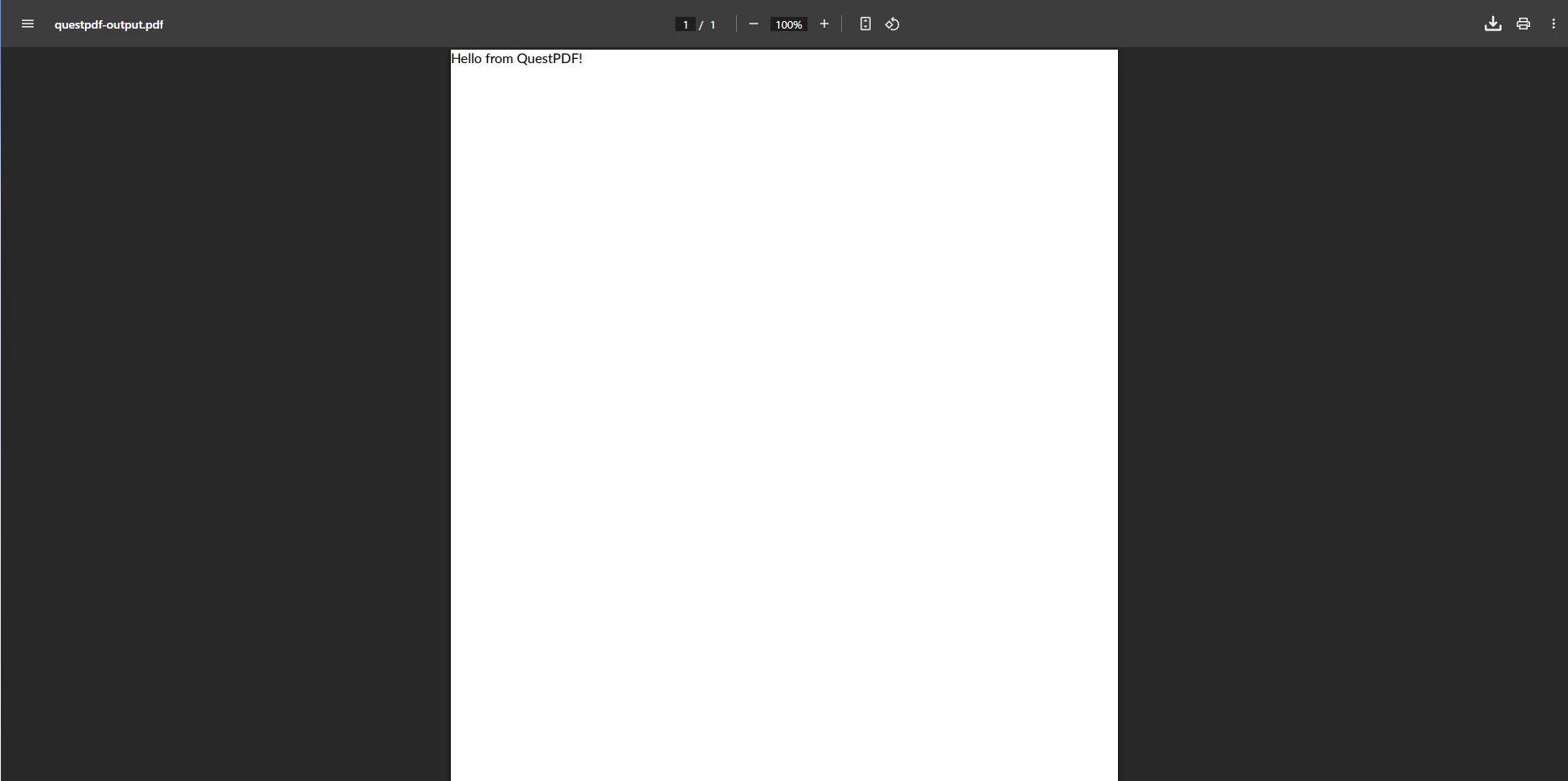
这演示了如何通过程序创建 PDF,无需输入 HTML 即可完全控制内容和布局。 QuestPDF擅长创建发票、表单和需要精确定位的结构化报告。 对于需要类似控制功能并支持 HTML 的团队,请探索IronPDF 的程序化功能。
结论: QuestPDF 非常适合需要对 PDF 内容进行完全程序化控制的开发人员。 虽然缺乏 HTML 转换功能,但它在生成结构化、动态生成的 PDF 文件方面表现出色,可用于报告和自动化。
您应该选择哪个C# PDF库?
选择合适的 C# PDF 库取决于您的项目需求和内容类型。 对于复杂的CSS或JavaScript的动态网页内容,IronPDF提供了高保真渲染和简单API的最可靠解决方案。对于需要PDF/A合规、数字签名或多格式转换的企业环境,iText和Aspose.PDF提供了广泛的功能、安全和支持。
像PDFSharp/MigraDoc和QuestPDF这样的开源库,适合喜欢通过程序控件内容布局的开发者,非常适合生成没有HTML的结构化报告、发票或票据。 Syncfusion PDF 为报表和仪表板提供了功能丰富的环境,而 wkhtmltopdf 则擅长将静态网页转换为具有高 CSS 保真度的 PDF。
如何评估企业准备情况?
评估企业准备情况时,请考虑以下因素:
支持与服务级别协议:IronPDF 提供24/5 全天候技术支持,并保证响应时间。 像iText和Aspose这样的商业库提供了企业支持包。 开源方案依赖于社区支持。 如需帮助,请参阅工程支持指南和支持最佳实践。
安全与合规性:IronPDF支持PDF/A、PDF/UA、加密和数字签名。 该库接受定期的安全审计并提供SOC 2合规性。 对于企业签名,请参阅HSM 集成。
性能与扩展性:IronPDF的Chrome引擎能够高效处理异步操作和多线程。 对于高容量场景,请考虑性能优化策略和并行处理。
总拥有成本:虽然开源选项没有许可费,但要考虑开发人员的时间、维护和支持成本。 IronPDF 的许可包含更新和支持,从而降低了长期成本。 探索适用于进行中项目的扩展功能。## 为什么今天就应该试用 IronPDF?
您准备好简化 .NET 应用程序中的 PDF 生成、编辑和 HTML 到 PDF 的转换了吗? 凭借其用户友好的 API、高质量的渲染效果和专业的支持,您可以快速上手并立即看到效果。 浏览我们的完整文档、代码示例和API 参考,以加快开发速度。 查看我们的更新日志,了解最新更新和重大改进的里程碑。
立即开始免费试用,了解为什么 IronPDF 是构建现代 .NET PDF 应用程序的开发人员的首选。 对于准备部署的团队,请探索我们的许可选项,具有透明的定价和灵活的部署,适用于Windows、Linux、Docker、macOS以及云平台如Azure和AWS。 了解更多关于IronWord文档和Ironsecuredoc文档中的额外PDF安全功能。
iText, PDFSharp, Aspose, Syncfusion, and QuestPDF are registered trademarks of their respective owners. 本网站与 iText, PDFSharp, Aspose, Syncfusion, 或 QuestPDF 无关,也未得到它们的支持或资助。 所有产品名称、徽标和品牌均为各自所有者的财产。 比较仅供参考,反映撰写时公开可用的信息。













