




업데이트됨 2026년 9월 4일
월별 계정 명세서를 PDF 문서로 생성하기
개발자는 IronPDF C# PDF 라이브러리를 사용하여 외부 서비스에 의존하지 않고도 .NET 프로젝트 내에서 HTML을 신뢰할 수 있는 PDF 파일로 변환할 수 있습니다.
더 읽어보기

Aspose.PDF와 ChromePdfRenderer는 모두 C#에서 프로그램적으로 PDF 문서를 생성할 수 있으며, ChromePdfRenderer는 Chrome 렌더링을 사용하여 더 쉬운 HTML-to-PDF 변환을 제공하고 Aspose.PDF는 문서 개체 모델을 통한 세밀한 제어를 제공합니다.
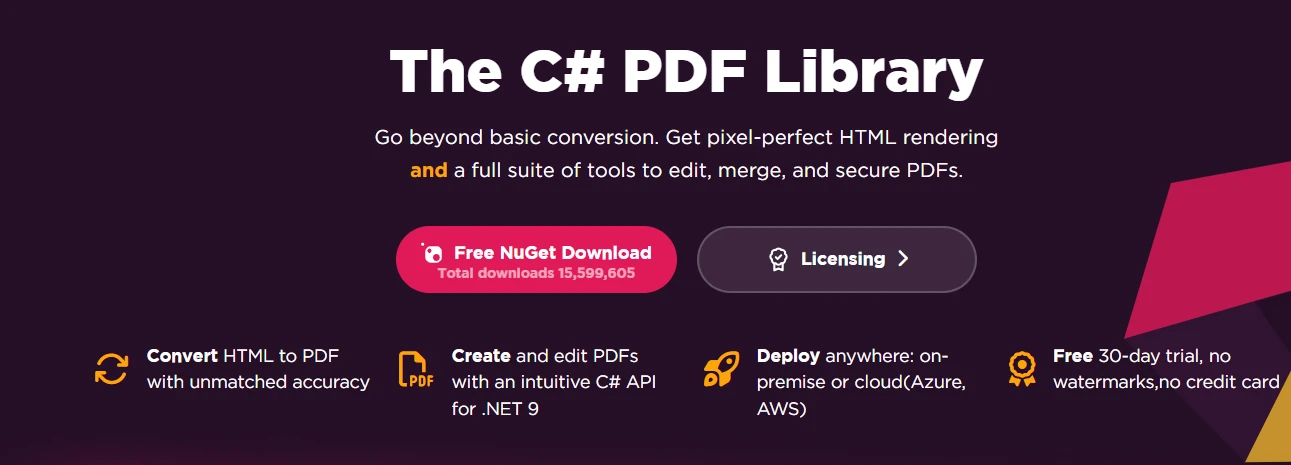
C#에서 PDF 파일을 생성하기 전에 다음을 준비하십시오:
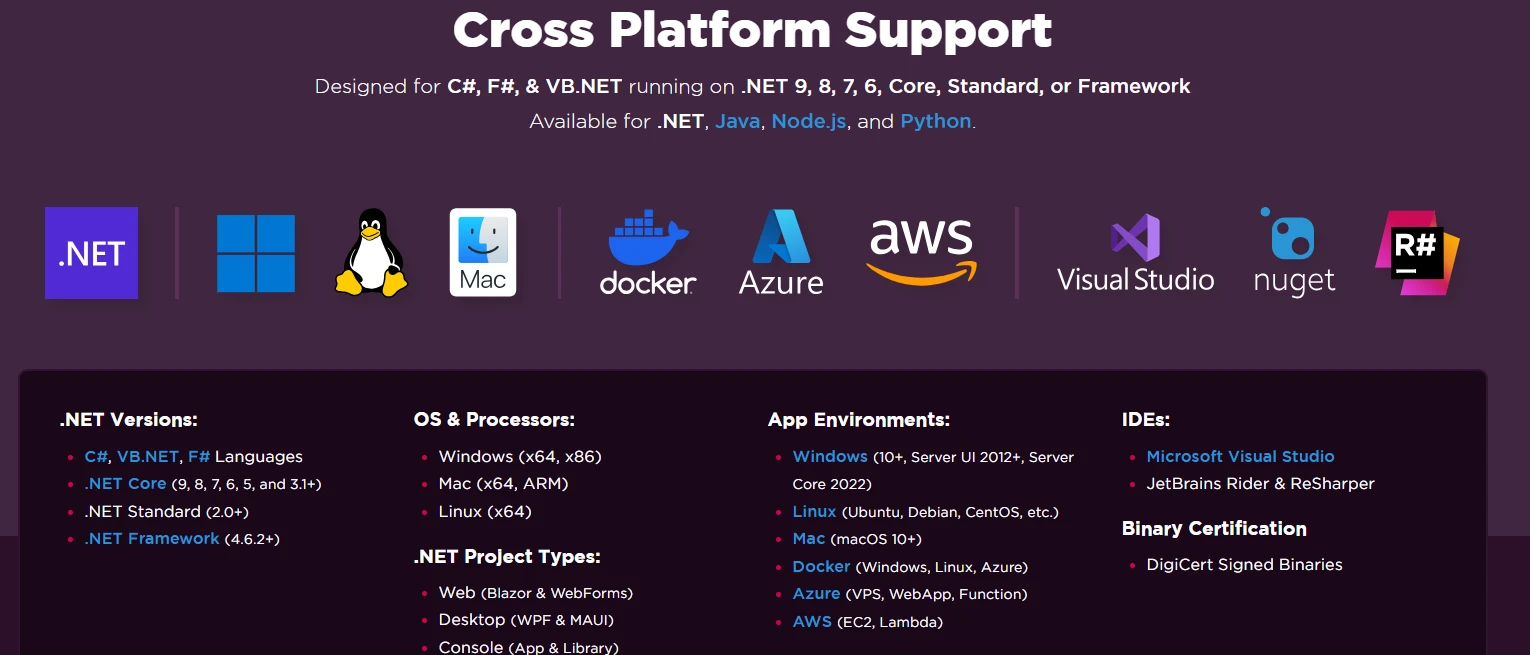
두 라이브러리는 윈도우, 리눅스, macOS 환경을 지원하며, 각 플랫폼에 대한 특정 설치 고려 사항이 있습니다. ChromePdfRenderer는 추가적으로 Docker 컨테이너 및 주요 클라우드 플랫폼을 지원합니다.
Visual Studio에서 패키지 관리자 콘솔을 열고 다음을 실행하세요:
Install-Package Aspose.PDF설치 시 Aspose.PDF 및 종속 항목이 다운로드됩니다. 라이브러리는 약 150 MB의 디스크 공간을 차지하며 완전한 문서를 포함합니다. 사용자 정의 패키지 소스를 사용하는 고급 설치 시나리오의 경우 추가적인 종속 항목을 수동으로 구성해야 할 수 있습니다.

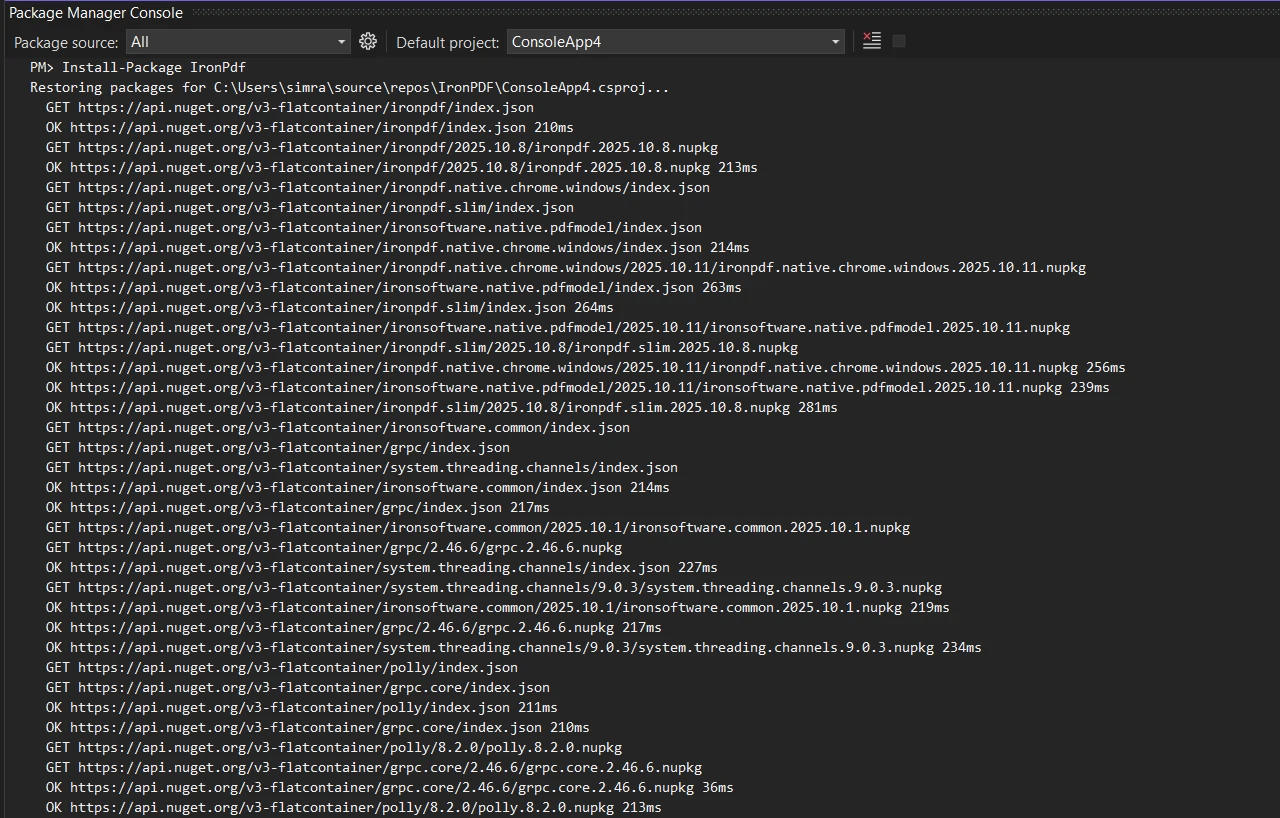
패키지 관리자 콘솔 또는 .NET CLI를 사용하십시오:
ChromePdfRenderer 설치는 Chrome 렌더링 엔진과 모든 필요한 종속 항목을 자동으로 포함합니다. Docker 배포의 경우, 올바른 렌더링 기능을 보장하기 위해 추가적인 Linux 관련 설정이 필요할 수 있습니다.
ChromePdfRenderer는 윈도우, 리눅스, macOS, Docker 전반에 걸쳐 뛰어난 HTML 렌더링을 위한 Chrome 엔진을 포함하고 있습니다. 이는 브라우저 출력에 맞춰 픽셀 단위로 완벽한 렌더링을 보장하며, 최신 CSS, JavaScript 및 웹 폰트를 지원합니다.

두 라이브러리로 PDF 파일을 생성하면, 그들의 근본적으로 다른 철학이 드러납니다. Aspose는 명시적인 객체 모델을 통해 문서를 작성하는 반면, ChromePdfRenderer는 Chrome을 사용하여 HTML을 직접 PDF로 변환합니다. 아래 예제는 이 두 가지 접근 방식을 나란히 보여주어 어떤 것이 프로젝트에 적합한지 평가할 수 있게 합니다.
using Aspose.Pdf;
using Aspose.Pdf.Text;

// Create new instance of Document class
var document = new Document();
// Add pages to the document object
var page = document.Pages.Add();
// Create new TextFragment with Hello World text
var textFragment = new TextFragment("Hello World!");
textFragment.TextState.FontSize = 24;
// Add text to paragraphs collection
page.Paragraphs.Add(textFragment);
// Save the generated PDF document
document.Save("output.pdf");Imports Aspose.Pdf
Imports Aspose.Pdf.Text
' Create new instance of Document class
Dim document As New Document()
' Add pages to the document object
Dim page As Page = document.Pages.Add()
' Create new TextFragment with Hello World text
Dim textFragment As New TextFragment("Hello World!")
textFragment.TextState.FontSize = 24
' Add text to paragraphs collection
page.Paragraphs.Add(textFragment)
' Save the generated PDF document
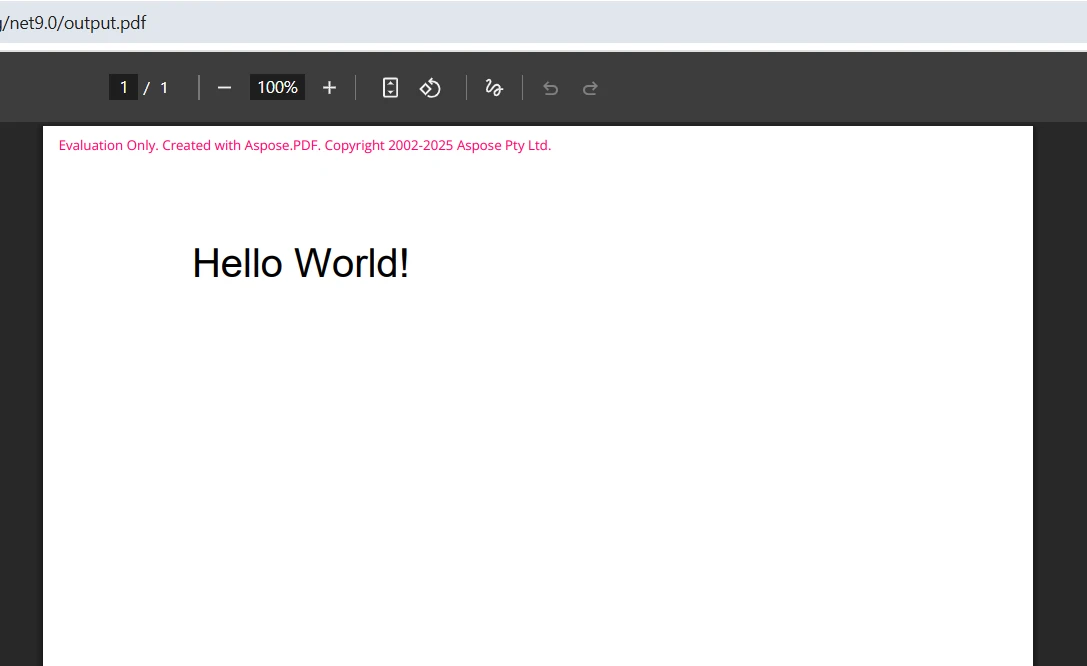
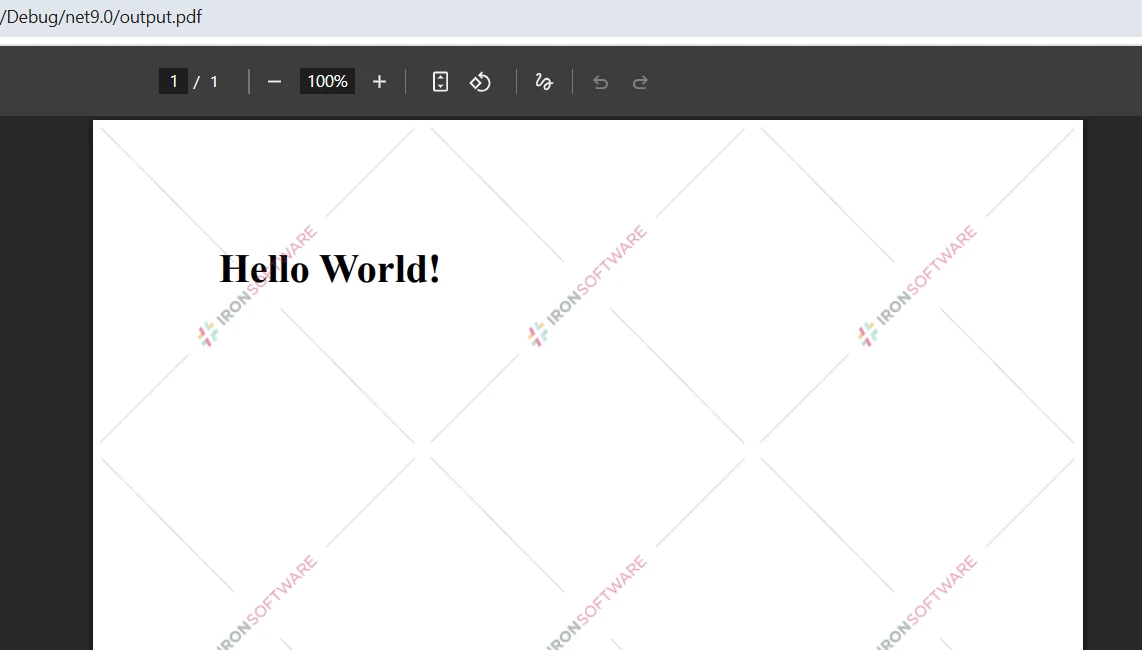
document.Save("output.pdf")이 코드는 문서 객체 모델을 구축하여 PDF 문서를 생성합니다. 새 문서를 생성하고 컬렉션에 페이지를 추가한 다음 해당 페이지에 내용을 추가합니다. Document 클래스는 기반을 제공하고, 단락은 콘텐츠를 담고 있습니다. 이 접근 방식은 Aspose의 객체 계층 구조를 이해하고 글꼴을 명시적으로 관리하는 것을 요구합니다. Aspose의 공식 문서는 aspose.com에서 DOM 기반 API 전체를 다룹니다.
using IronPdf;

// Create new instance of ChromePdfRenderer
var renderer = new ChromePdfRenderer();
// Convert HTML string to PDF file
var html = "<h1>Hello World!</h1>";
var pdf = renderer.RenderHtmlAsPdf(html);
// Save PDF files using SaveAs method
pdf.SaveAs("output.pdf");Imports IronPdf
' Create new instance of ChromePdfRenderer
Dim renderer As New ChromePdfRenderer()
' Convert HTML string to PDF file
Dim html As String = "<h1>Hello World!</h1>"
Dim pdf = renderer.RenderHtmlAsPdf(html)
' Save PDF files using SaveAs method
pdf.SaveAs("output.pdf")ChromePdfRenderer는 다른 접근 방식을 취하여 -- Chrome을 사용하여 HTML을 직접 PDF 형식으로 렌더링합니다. 이를 통해 표준 HTML 마크업을 작성하고 최종 문서에서 정확하게 렌더링할 수 있습니다. 또한 로컬 HTML 파일이나 라이브 웹 페이지를 가리키는 URL에서 렌더링할 수 있습니다.
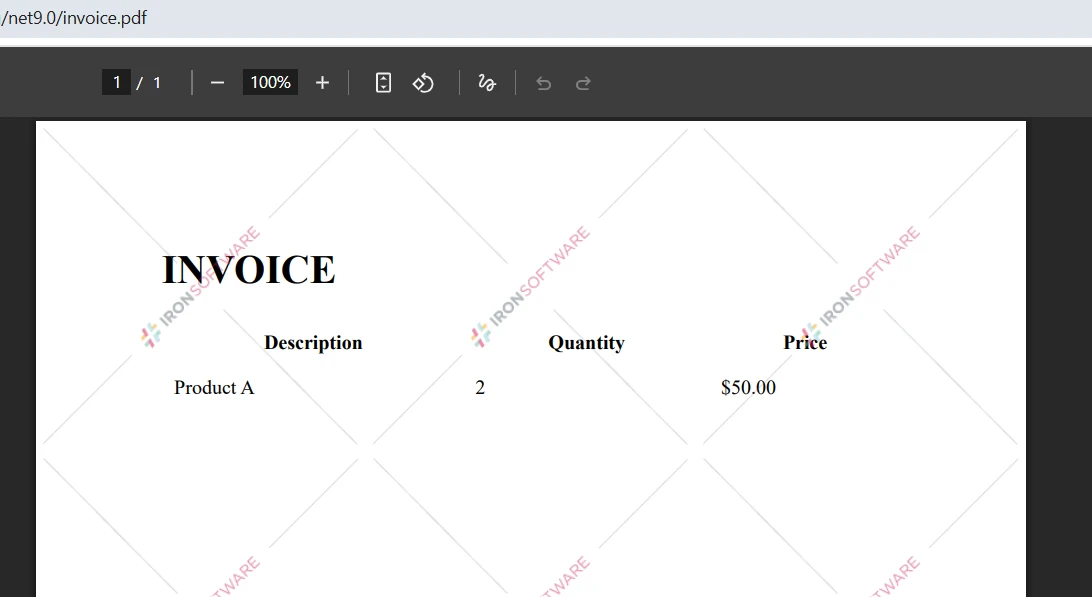
송장 생성은 비즈니스 응용 프로그램에서 가장 일반적인 PDF 사용 사례 중 하나입니다. 아래 예제는 항목별 테이블이 포함된 간단한 송장을 보여줍니다. 두 가지 접근 방식을 비교하면 객체 모델 제어와 HTML 기반의 단순성 간의 트레이드오프가 분명해집니다.
using Aspose.Pdf;
using Aspose.Pdf.Text;

// Create new Document instance
var document = new Document();
var page = document.Pages.Add();
// Add title text
var title = new TextFragment("INVOICE");
title.TextState.FontSize = 28;
title.HorizontalAlignment = HorizontalAlignment.Center;
page.Paragraphs.Add(title);
// Create table object for invoice items
var table = new Table();
table.ColumnWidths = "200 100 100";
// Add header row to table
var headerRow = table.Rows.Add();
headerRow.Cells.Add("Description");
headerRow.Cells.Add("Quantity");
headerRow.Cells.Add("Price");
// Add data rows
var dataRow = table.Rows.Add();
dataRow.Cells.Add("Product A");
dataRow.Cells.Add("2");
dataRow.Cells.Add("$50.00");
// Add table to page paragraphs
page.Paragraphs.Add(table);
document.Save("invoice.pdf");Imports Aspose.Pdf
Imports Aspose.Pdf.Text
' Create new Document instance
Dim document As New Document()
Dim page As Page = document.Pages.Add()
' Add title text
Dim title As New TextFragment("INVOICE")
title.TextState.FontSize = 28
title.HorizontalAlignment = HorizontalAlignment.Center
page.Paragraphs.Add(title)
' Create table object for invoice items
Dim table As New Table()
table.ColumnWidths = "200 100 100"
' Add header row to table
Dim headerRow As Row = table.Rows.Add()
headerRow.Cells.Add("Description")
headerRow.Cells.Add("Quantity")
headerRow.Cells.Add("Price")
' Add data rows
Dim dataRow As Row = table.Rows.Add()
dataRow.Cells.Add("Product A")
dataRow.Cells.Add("2")
dataRow.Cells.Add("$50.00")
' Add table to page paragraphs
page.Paragraphs.Add(table)
document.Save("invoice.pdf")Aspose.PDF .NET API는 각 요소를 프로그램적으로 구축해야 합니다. 문서 객체를 생성하고, 페이지를 추가한 다음 문단 컬렉션에 내용을 추가합니다. 이 접근 방식은 정밀한 제어가 필요할 때 명확한 이점을 제공하지만, 복잡한 레이아웃을 달성하기 위해 더 많은 코드가 필요합니다. 머리글과 바닥글을 추가하거나 맞춤 마진을 설정하려면, 저장 전에 추가 구성 객체를 초기화해야 합니다.
using IronPdf;

var renderer = new ChromePdfRenderer();
renderer.RenderingOptions.MarginTop = 25;
renderer.RenderingOptions.MarginBottom = 25;
// HTML string with invoice content
var html = @"
<html>
<head>
    <style>
        table { width: 100%; }
        th, td { padding: 8px; }
    </style>
</head>
<body>
    <h1>INVOICE</h1>
    <table>
        <tr><th>Description</th><th>Quantity</th><th>Price</th></tr>
        <tr><td>Product A</td><td>2</td><td>$50.00</td></tr>
    </table>
</body>
</html>";
// Generate PDF from HTML
var pdf = renderer.RenderHtmlAsPdf(html);
pdf.SaveAs("invoice.pdf");Imports IronPdf
Dim renderer As New ChromePdfRenderer()
renderer.RenderingOptions.MarginTop = 25
renderer.RenderingOptions.MarginBottom = 25
' HTML string with invoice content
Dim html As String = "
<html>
<head>
<style>
table { width: 100%; }
th, td { padding: 8px; }
</style>
</head>
<body>
<h1>INVOICE</h1>
<table>
<tr><th>Description</th><th>Quantity</th><th>Price</th></tr>
<tr><td>Product A</td><td>2</td><td>$50.00</td></tr>
</table>
</body>
</html>"
' Generate PDF from HTML
Dim pdf = renderer.RenderHtmlAsPdf(html)
pdf.SaveAs("invoice.pdf")ChromePdfRenderer를 사용하면 표준 HTML을 작성하고 렌더링 엔진이 나머지를 처리합니다. 애플리케이션은 외부 스타일시트를 즉시 참조하고, 이미지를 추가하고, 링크를 포함할 수 있습니다. 렌더링 옵션은 맞춤 종이 크기와 페이지 방향을 포함하여 출력에 대한 세밀한 제어를 제공합니다.
두 라이브러리 모두 기본 PDF 생성 이상으로 광범위한 기능을 제공합니다. 이 고급 기능들을 이해하면 요구 사항에 맞는 라이브러리가 무엇인지 결정하는 데 도움이 됩니다.
using IronPdf;

var renderer = new ChromePdfRenderer();
var pdf = renderer.RenderUrlAsPdf("https://example.com");
pdf.SaveAs("website.pdf");Imports IronPdf
Dim renderer As New ChromePdfRenderer()
Dim pdf = renderer.RenderUrlAsPdf("https://example.com")
pdf.SaveAs("website.pdf")ChromePdfRenderer는 URL을 PDF로 변환하는 데 뛰어나며, JavaScript, 쿠키 및 인증이 포함된 복잡한 웹사이트를 처리합니다. Chrome 엔진은 Angular 또는 React로 작성된 단일 페이지 앱을 포함하여 최신 웹 애플리케이션을 정확하게 렌더링합니다.
using IronPdf;

var renderer = new ChromePdfRenderer();
var html = "<h1>Confidential Report</h1>";
var pdf = renderer.RenderHtmlAsPdf(html);
// Apply password protection and print rights
pdf.SecuritySettings.UserPassword = "user123";
pdf.SecuritySettings.AllowUserPrinting = IronPdf.Security.PdfPrintSecurity.FullPrintRights;
pdf.SaveAs("secured.pdf");Imports IronPdf
Dim renderer As New ChromePdfRenderer()
Dim html As String = "<h1>Confidential Report</h1>"
Dim pdf = renderer.RenderHtmlAsPdf(html)
' Apply password protection and print rights
pdf.SecuritySettings.UserPassword = "user123"
pdf.SecuritySettings.AllowUserPrinting = IronPdf.Security.PdfPrintSecurity.FullPrintRights
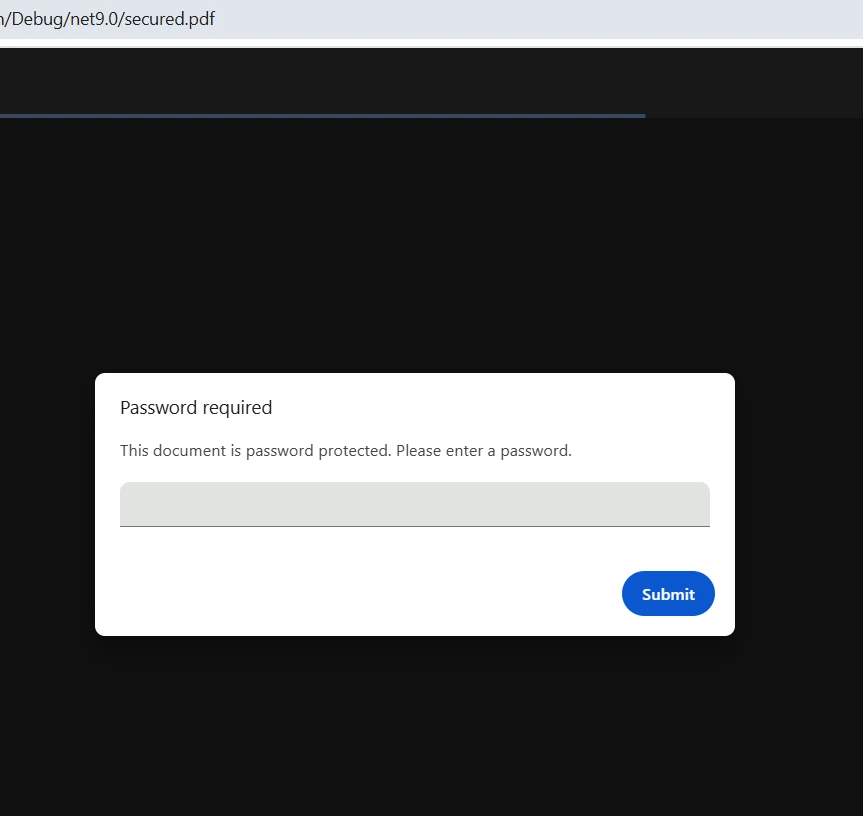
pdf.SaveAs("secured.pdf")ChromePdfRenderer는 PDF 문서에 보안을 추가하고 디지털 서명을 추가하기 위한 직관적인 방법을 제공합니다. 파일을 병합 또는 분할하고 텍스트 및 이미지를 추출하여 후속 처리를 할 수 있습니다.
ChromePdfRenderer는 다음을 포함한 수많은 추가 시나리오를 지원합니다:
아래 표는 빠른 결정을 도울 수 있도록 ChromePdfRenderer와 Aspose.PDF의 주요 차이점을 요약합니다:
| 특징 | ChromePdfRenderer | Aspose.PDF |
|---|---|---|
| HTML-을 PDF로 렌더링 | 예 -- Chrome 기반, 픽셀 완벽 | 제한된 |
| URL을 PDF로 변환 | 예 -- JavaScript와 쿠키를 처리 | 아니요 |
| 문서 객체 모델 API | 부분적 | 예 -- 각 요소에 대한 완전한 제어 |
| 크로스 플랫폼 지원 | 윈도우, 리눅스, macOS, Docker | 윈도우, 리눅스, macOS |
| 디지털 서명 | 예 | 예 |
| PDF/A 규정 준수 | 예 | 예 |
| 라이선스 시작 가격 | $999 (지원 포함) | $1,199 (추가 지원 비용) |
| 무료 체험 | 예 -- 모든 기능, 워터마크 포함 | 예 -- 평가판 버전 |
비교 결과, ChromePdfRenderer는 워크플로우의 중심이 HTML 콘텐츠, 웹 페이지 또는 최신 프론트엔드 기술일 때 더 강력한 선택입니다. Aspose.PDF는 세밀한 요소 제어가 우선인 순전히 프로그램적인 문서 구성에 대해 경쟁력을 유지하고 있습니다.
ChromePdfRenderer는 다음이 필요할 때 적합합니다:

Aspose.PDF for .NET은 다음 상황에서 잘 작동합니다:
Aspose.PDF의 기능에 대한 자세한 분석은 Microsoft의 NuGet 레지스트리 항목에서 제공됩니다.
ChromePdfRenderer의 Chrome 엔진은 HTML 렌더링에 우수한 성능을 제공하며, Aspose.PDF는 HTML 소스 없이 순전히 프로그램적 생성에 대해 더 나을 수 있습니다. 비동기 작업의 경우, 두 라이브러리 모두 작업 기반 API를 제공합니다. 대규모 배치 배포를 계획할 때 메모리 사용량과 렌더링 시간 초과를 고려해야 하며, ChromePdfRenderer의 성능 문제 해결 안내서를 참조하여 확장 계획을 수립하세요.
ChromePdfRenderer는 간단한 라이선스를 $999부터 제공하며, 지원 및 업데이트가 포함됩니다. 무료 체험판에는 모든 기능이 포함되어 있으며 개발 및 테스트 시 워터마크가 표시됩니다. 라이선스 배포는 여러 구성 옵션을 통해 간단하게 사용할 수 있습니다.
Aspose.PDF는 $1,199부터 시작하며, 지원 및 업데이트는 별도로 청구됩니다. 두 라이브러리 모두 구매 전에 테스트할 수 있는 평가 버전을 제공합니다. ChromePdfRenderer는 프로젝트 기반 및 SaaS 라이선스 모델을 포함하는 더 유연한 옵션을 제공하므로, 성장하는 팀의 예산 계획이 더 수월합니다.
두 라이브러리 모두 C#에서 효과적으로 PDF 문서를 생성합니다. Aspose.PDF는 문서 개체 모델을 통한 세밀한 제어를 제공하며, ChromePdfRenderer는 친숙한 웹 기술을 사용하여 HTML-to-PDF 변환에 우수합니다.
대부분의 최신 .NET 10 애플리케이션에 대해 ChromePdfRenderer는 직관적인 API, 우수한 HTML 렌더링, 포함된 지원으로 더 나은 가치를 제공합니다. 웹 페이지를 로드하거나 이미지를 추가하고 복잡한 레이아웃을 구성할 필요가 있다면, ChromePdfRenderer의 Chrome 기반 접근 방식이 과정을 상당히 단순하게 합니다. 라이브러리의 기능 세트는 기본 PDF 생성부터 고급 서명 및 보안까지 모든 것을 포괄합니다.
ChromePdfRenderer는 Azure Functions, AWS Lambda 및 Blazor 애플리케이션 등 다양한 배포 시나리오를 지원합니다. 질문이 있는 경우, 엔지니어링 지원 팀과 API 참조 문서를 리소스로 사용할 수 있습니다.
ChromePdfRenderer의 무료 체험판을 시작하여 PDF 생성 요구 사항을 어떻게 충족할 수 있는지 평가하세요. 앞으로 약정 없이 .NET 솔루션에서 PDF 파일을 생성, 변환 및 조작할 수 있는 모든 기능에 접근할 수 있습니다.
다른 인기 있는 대안과 ChromePdfRenderer를 비교하려면 ChromePdfRenderer vs. iText 및 ChromePdfRenderer vs. PDFSharp에 대한 가이드를 참조하십시오.

커티스 차우는 칼턴 대학교에서 컴퓨터 과학 학사 학위를 취득했으며, Node.js, TypeScript, JavaScript, React를 전문으로 하는 프론트엔드 개발자입니다. 직관적이고 미적으로 뛰어난 사용자 인터페이스를 만드는 데 열정을 가진 그는 최신 프레임워크를 활용하고, 잘 구성되고 시각적으로 매력적인 매뉴얼을 제작하는 것을 즐깁니다.



IronPDF는 IRON SUITE 의 일부입니다.
10개의 .NET API 제품, 당신의 사무 문서를 위해

PDF 파일을 HTML처럼 빠르게 변환해야 할 때.


