using IronPdf;

// Disable local disk access or cross-origin requests
Installation.EnableWebSecurity = true;

// Instantiate Renderer
var renderer = new ChromePdfRenderer();

// Create a PDF from a HTML string using C#
var pdf = renderer.RenderHtmlAsPdf("<h1>Hello World</h1>");

// Export to a file or Stream
pdf.SaveAs("output.pdf");

// Advanced Example with HTML Assets
// Load external html assets: Images, CSS and JavaScript.
// An optional BasePath 'C:\site\assets\' is set as the file location to load assets from
var myAdvancedPdf = renderer.RenderHtmlAsPdf("<img src='icons/iron.png'>", @"C:\site\assets\");
myAdvancedPdf.SaveAs("html-with-assets.pdf");
using IronPdf;// Disable local disk access or cross-origin requestsInstallation.EnableWebSecurity = true;// Instantiate Renderervar renderer = new ChromePdfRenderer();// Create a PDF from a HTML string using C#var pdf = renderer.RenderHtmlAsPdf("<h1>Hello World</h1>");// Export to a file or Streampdf.SaveAs("output.pdf");// Advanced Example with HTML Assets// Load external html assets: Images, CSS and JavaScript.// An optional BasePath 'C:\site\assets\' is set as the file location to load assets fromvar myAdvancedPdf = renderer.RenderHtmlAsPdf("<img src='icons/iron.png'>", @"C:\site\assets\");myAdvancedPdf.SaveAs("html-with-assets.pdf");
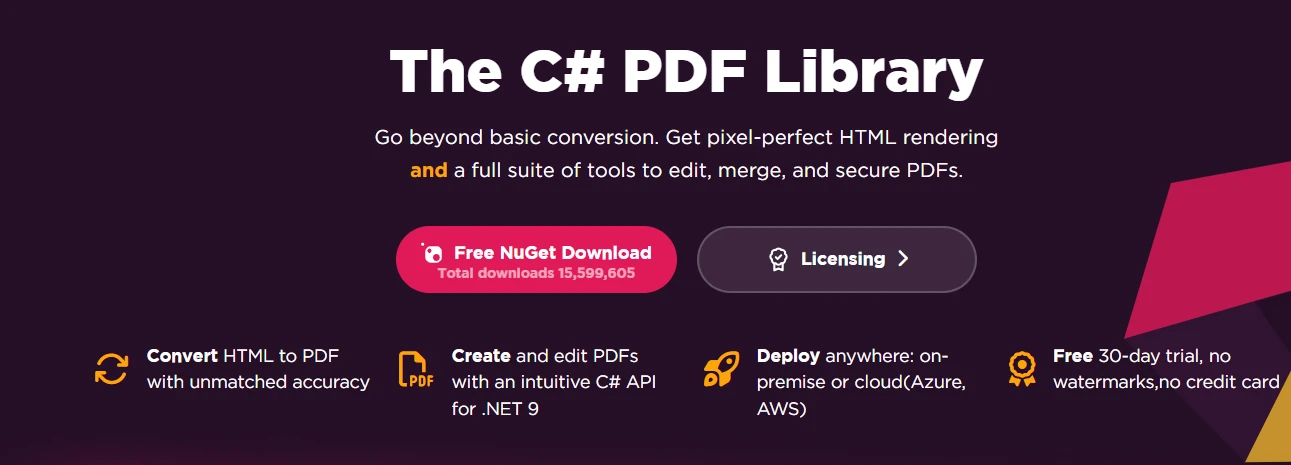
Both Aspose.PDF and IronPDF enable you to create PDF documents programmatically in C#, with IronPDF offering simpler [HTML-to-PDF conversion](https://ironpdf.com/tutorials/html-to-pdf/) using Chrome rendering while Aspose.PDF provides granular control through its document object model.
## What Prerequisites Do You Need?
Before starting to [create a PDF file in C#](https://ironpdf.com/how-to/create-new-pdfs/), ensure you have:
* [.NET 10](https://dotnet.microsoft.com/en-us/download/dotnet/10.0) or a compatible .NET 6+ runtime
* Visual Studio 2022 or a compatible IDE
* Basic knowledge of C# programming
* NuGet Package Manager configured
Both libraries support Windows, Linux, and macOS environments with specific installation considerations for each platform. IronPDF additionally supports [Docker containers](https://ironpdf.com/get-started/ironpdf-docker/) and all major cloud platforms.
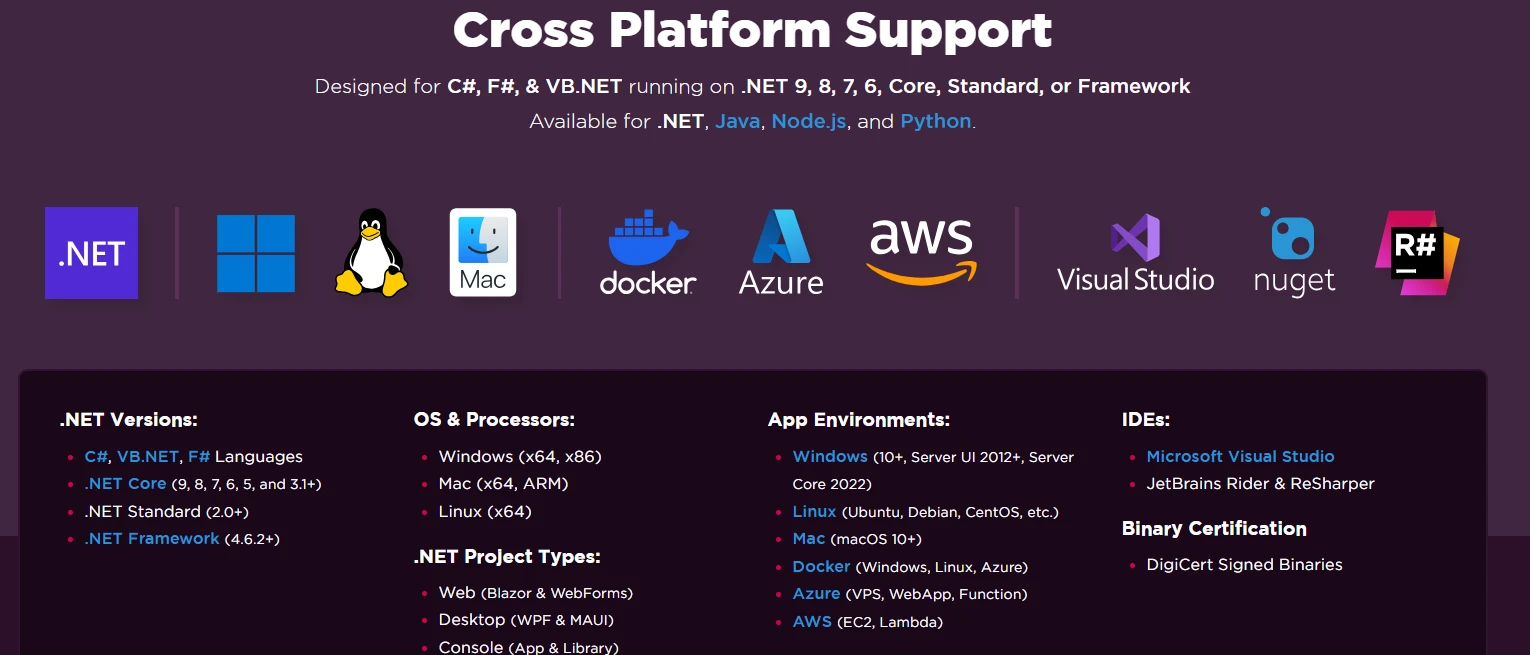
## How Do You Install Aspose.PDF and IronPDF?
### How Do You Install Aspose.PDF via Package Manager Console?
Open the Package Manager Console in Visual Studio and run:
```bash
Install-Package Aspose.PDF
```
The installation downloads Aspose.PDF along with its dependencies. The library requires approximately 150 MB of disk space and includes complete documentation. For advanced installation scenarios with custom package sources, you may need to configure additional dependencies manually.

### How Do You Install IronPDF via NuGet?
Use either the Package Manager Console or the .NET CLI:
```bash
:ProductInstall
```
```bash
:InstallCmd dotnet add package IronPdf
```
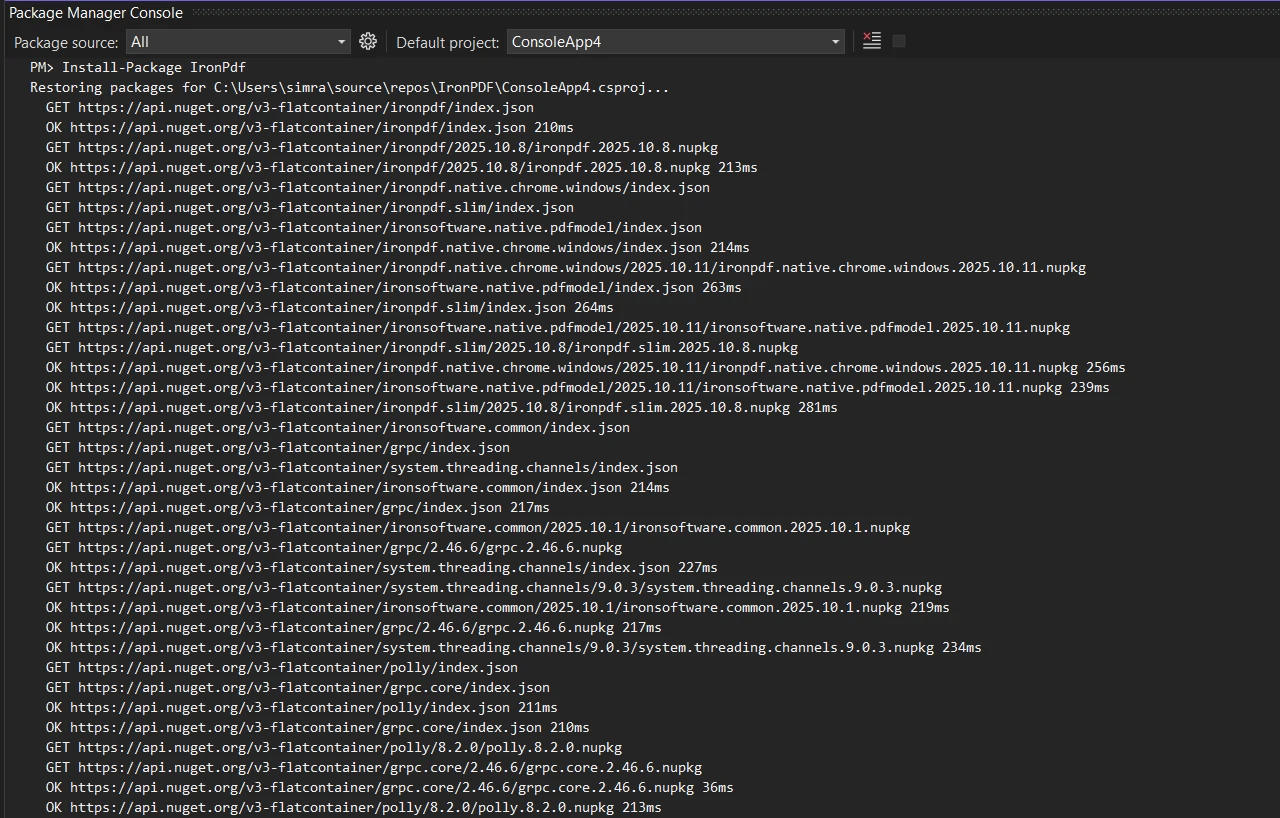
The [IronPDF installation](https://ironpdf.com/get-started/installation-overview/) automatically includes the Chrome rendering engine and all necessary dependencies. For Docker deployments, additional Linux-specific configuration may be required to ensure proper rendering capabilities.
### Why Does IronPDF Include an Embedded Chrome Engine?
IronPDF includes an embedded Chrome engine for superior HTML rendering across Windows, Linux, macOS, and Docker. This ensures [pixel-perfect rendering](https://ironpdf.com/how-to/pixel-perfect-html-to-pdf/) matching browser output, including support for modern CSS, JavaScript, and web fonts.

## How Do You Create Your First PDF Document?
Creating PDF files with both libraries reveals their fundamentally different philosophies. Aspose builds documents through an explicit object model, while IronPDF converts HTML directly to PDF using Chrome. The examples below show these approaches side by side so you can evaluate which fits your project.
### How Does Aspose.PDF Create Documents?
```csharp
using Aspose.Pdf;
using Aspose.Pdf.Text;

// Create new instance of Document class
var document = new Document();
// Add pages to the document object
var page = document.Pages.Add();
// Create new TextFragment with Hello World text
var textFragment = new TextFragment("Hello World!");
textFragment.TextState.FontSize = 24;
// Add text to paragraphs collection
page.Paragraphs.Add(textFragment);
// Save the generated PDF document
document.Save("output.pdf");
```
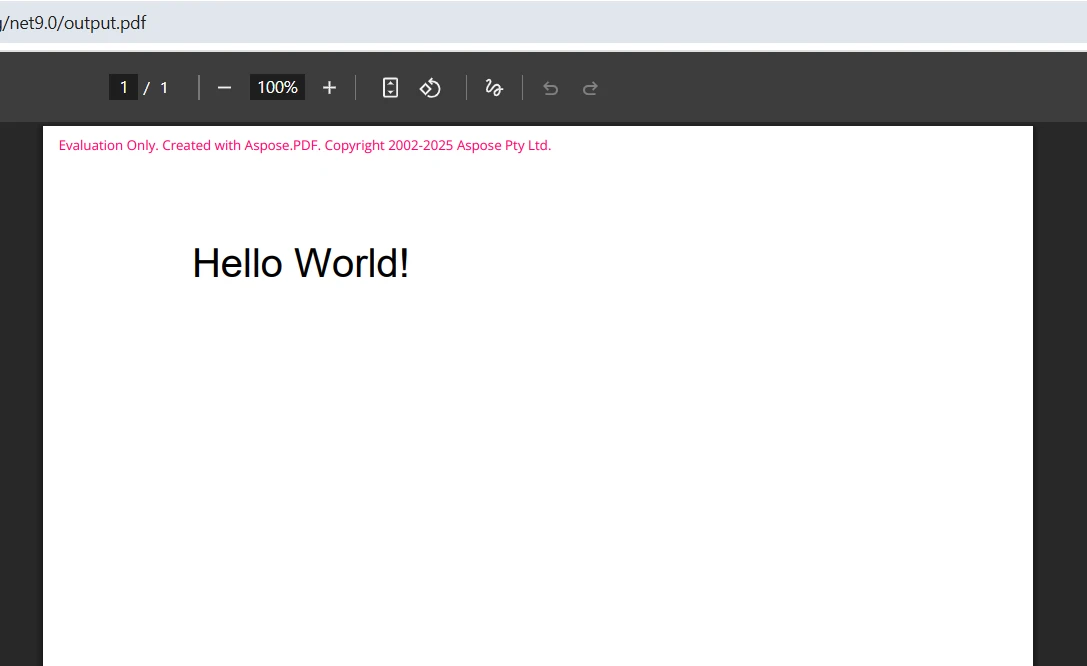
This code creates PDF documents by building a document object model. You create a new document, add pages to the collection, and then add content to those pages. The `Document` class provides the foundation, while paragraphs hold your content. The approach requires understanding Aspose's object hierarchy and managing fonts explicitly. Aspose's official documentation covers its full [DOM-based API on aspose.com](https://docs.aspose.com/pdf/net/).
### What Does the Aspose.PDF Output Look Like?
### How Does IronPDF Create Documents?
```csharp
using IronPdf;
// Create new instance of ChromePdfRenderer
var renderer = new ChromePdfRenderer();
// Convert HTML string to PDF file
var html = "<h1>Hello World!</h1>";
var pdf = renderer.RenderHtmlAsPdf(html);
// Save PDF files using SaveAs method
pdf.SaveAs("output.pdf");
```
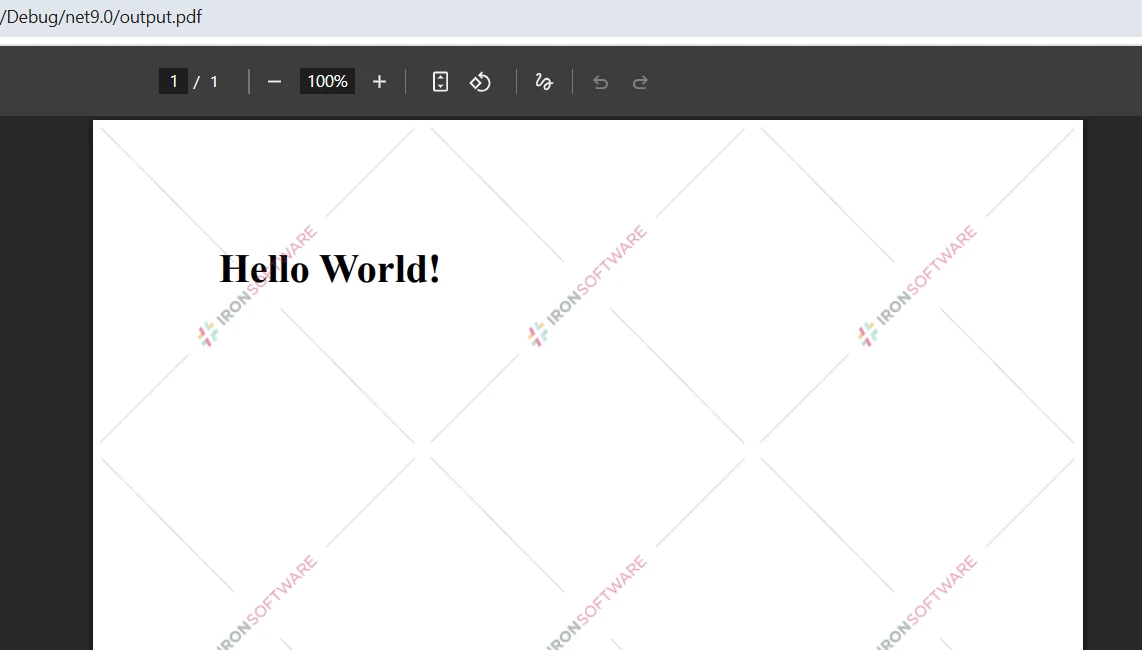
IronPDF takes a different approach -- it [renders HTML directly to PDF format](https://ironpdf.com/how-to/html-string-to-pdf/) using Chrome. This lets you write standard HTML markup and have it rendered accurately in the final document. You can also render from local HTML files or URLs pointing to live web pages.
### What Does the IronPDF Output Look Like?
## How Do You Create a Real-World Invoice PDF?
Invoice generation is one of the most common PDF use cases in business applications. The examples below demonstrate a simple invoice with a line-item table. Comparing the two approaches makes the trade-offs between object-model control and HTML-driven simplicity clear.
### How Do You Build an Invoice with Aspose.PDF?
```csharp
using Aspose.Pdf;
using Aspose.Pdf.Text;
// Create new Document instance
var document = new Document();
var page = document.Pages.Add();
// Add title text
var title = new TextFragment("INVOICE");
title.TextState.FontSize = 28;
title.HorizontalAlignment = HorizontalAlignment.Center;
page.Paragraphs.Add(title);
// Create table object for invoice items
var table = new Table();
table.ColumnWidths = "200 100 100";
// Add header row to table
var headerRow = table.Rows.Add();
headerRow.Cells.Add("Description");
headerRow.Cells.Add("Quantity");
headerRow.Cells.Add("Price");
// Add data rows
var dataRow = table.Rows.Add();
dataRow.Cells.Add("Product A");
dataRow.Cells.Add("2");
dataRow.Cells.Add("$50.00");
// Add table to page paragraphs
page.Paragraphs.Add(table);
document.Save("invoice.pdf");
```
The Aspose.PDF .NET API requires building each element programmatically. You create the document object, add pages, and then add content to the paragraphs collection. This approach provides clear benefits when you need precise control but requires more code to achieve complex layouts. To add headers and footers or set custom margins, additional configuration objects must be initialized before saving.
### How Do You Build an Invoice with IronPDF?
```csharp
using IronPdf;
var renderer = new ChromePdfRenderer();
renderer.RenderingOptions.MarginTop = 25;
renderer.RenderingOptions.MarginBottom = 25;
// HTML string with invoice content
var html = @"
<html>
<head>
<style>
table { width: 100%; }
th, td { padding: 8px; }
</style>
</head>
<body>
<h1>INVOICE</h1>
<table>
<tr><th>Description</th><th>Quantity</th><th>Price</th></tr>
<tr><td>Product A</td><td>2</td><td>$50.00</td></tr>
</table>
</body>
</html>";
// Generate PDF from HTML
var pdf = renderer.RenderHtmlAsPdf(html);
pdf.SaveAs("invoice.pdf");
```
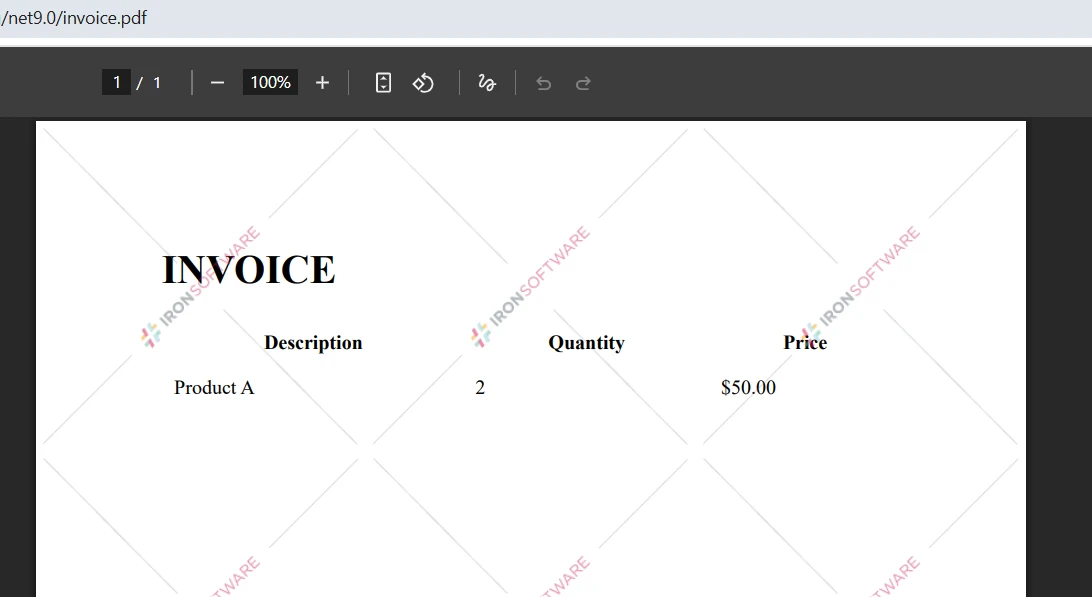
With IronPDF, you write standard HTML and the rendering engine handles the rest. Your application can immediately reference external stylesheets, add images, and include links. The [rendering options](https://ironpdf.com/how-to/rendering-options/) provide fine control over output including [custom paper sizes](https://ironpdf.com/how-to/custom-paper-size/) and page orientation.
### What Does the Invoice Output Look Like?
## What Advanced Features Are Available?
Both libraries offer capabilities well beyond basic PDF creation. Understanding these advanced features helps you determine which library best fits your requirements.
### How Do You Convert Web Pages to PDF?
```csharp
using IronPdf;
var renderer = new ChromePdfRenderer();
var pdf = renderer.RenderUrlAsPdf("https://example.com");
pdf.SaveAs("website.pdf");
```
IronPDF excels at URL-to-PDF conversion, handling complex websites with JavaScript, cookies, and authentication. The Chrome engine ensures accurate rendering of modern web applications, including single-page apps built with Angular or React.
### How Do You Add Security to PDFs?
```csharp
using IronPdf;
var renderer = new ChromePdfRenderer();
var html = "<h1>Confidential Report</h1>";
var pdf = renderer.RenderHtmlAsPdf(html);
// Apply password protection and print rights
pdf.SecuritySettings.UserPassword = "user123";
pdf.SecuritySettings.AllowUserPrinting = IronPdf.Security.PdfPrintSecurity.FullPrintRights;
pdf.SaveAs("secured.pdf");
```
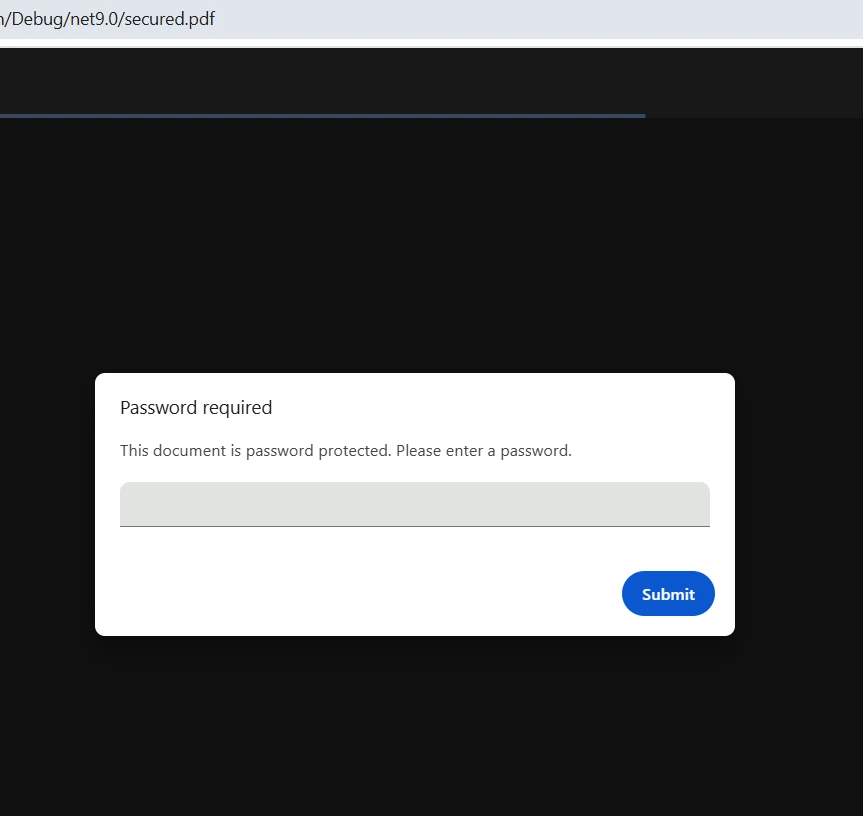
IronPDF provides intuitive methods to [add security](https://ironpdf.com/how-to/pdf-permissions-passwords/) and digital signatures to your PDF documents. You can also [merge or split files](https://ironpdf.com/how-to/merge-or-split-pdfs/) and [extract text and images](https://ironpdf.com/how-to/extract-text-and-images/) for downstream processing.
### What Does a Secured PDF Look Like?
### What Other Advanced Features Does IronPDF Support?
IronPDF supports numerous additional scenarios including:
* [PDF/A compliance](https://ironpdf.com/how-to/pdfa/) for long-term archival
* [PDF compression](https://ironpdf.com/how-to/pdf-compression/) to reduce file size
* [Watermarking and stamping](https://ironpdf.com/how-to/stamp-text-image/)
* [Form creation](https://ironpdf.com/how-to/create-forms/) and filling
* [Page numbering](https://ironpdf.com/how-to/page-numbers/) and table of contents generation
## How Do IronPDF and Aspose.PDF Compare Side by Side?
The table below summarizes the key differences between IronPDF and Aspose.PDF to help you make a quick decision:
<table class="content__data-table" data-content-table>
<caption>IronPDF vs. Aspose.PDF -- Key Feature Comparison</caption>
<thead>
<tr>
<th>Feature</th>
<th>IronPDF</th>
<th>Aspose.PDF</th>
</tr>
</thead>
<tbody>
<tr>
<td>HTML-to-PDF rendering</td>
<td>Yes -- Chrome-based, pixel-perfect</td>
<td>Limited</td>
</tr>
<tr>
<td>URL-to-PDF conversion</td>
<td>Yes -- handles JavaScript and cookies</td>
<td>No</td>
</tr>
<tr>
<td>Document object model API</td>
<td>Partial</td>
<td>Yes -- full per-element control</td>
</tr>
<tr>
<td>Cross-platform support</td>
<td>Windows, Linux, macOS, Docker</td>
<td>Windows, Linux, macOS</td>
</tr>
<tr>
<td>Digital signatures</td>
<td>Yes</td>
<td>Yes</td>
</tr>
<tr>
<td>PDF/A compliance</td>
<td>Yes</td>
<td>Yes</td>
</tr>
<tr>
<td>License starting price</td>
<td>$liteLicense (support included)</td>
<td>$1,199 (support extra)</td>
</tr>
<tr>
<td>Free trial</td>
<td>Yes -- all features, watermarked</td>
<td>Yes -- evaluation version</td>
</tr>
</tbody>
</table>
The comparison shows that IronPDF is the stronger choice when your workflow centers on HTML content, web pages, or modern front-end technologies. Aspose.PDF remains competitive for purely programmatic document construction where granular per-element control is the priority.
## Which Library Should You Choose?
### When Should You Use IronPDF?
IronPDF is the right fit when you need to:
* Convert HTML to PDF using familiar web technologies
* Render full web pages including JavaScript-driven content
* Deploy to Docker or cloud environments such as Azure or AWS
* Deliver faster development cycles with a simpler API
* Produce output that matches browser rendering exactly

### When Should You Use Aspose.PDF?
Aspose.PDF for .NET works well when you:
* Create PDFs entirely from scratch through a programmatic document object model
* Need granular per-element control over layout
* Build document-centric applications that do not start from HTML source
* Require specific PDF format compliance independent of any rendering engine
A detailed breakdown of Aspose.PDF's capabilities is available in [Microsoft's NuGet registry entry for Aspose.PDF](https://www.nuget.org/packages/Aspose.PDF).
### What Are the Performance Considerations?
IronPDF's Chrome engine provides excellent performance for HTML rendering, while Aspose.PDF may perform better for purely programmatic generation without any HTML source. For async operations, both libraries offer task-based APIs. Consider memory usage and rendering timeouts when planning large-scale batch deployments, and review IronPDF's [performance troubleshooting guidance](https://ironpdf.com/troubleshooting/ironpdf-performance-assistance/) when scaling up.
## How Do the Licenses Compare?
IronPDF offers straightforward [licensing](https://ironpdf.com/licensing/) starting at `$liteLicense`, with support and updates included. The [free trial](https://ironpdf.com/docs/) includes all features with a watermark for development and testing. [License deployment](https://ironpdf.com/how-to/license-keys/) is simple with multiple configuration options.
Aspose.PDF starts at $1,199 with support and updates billed separately. Both libraries offer evaluation versions for testing before committing to a purchase. IronPDF provides more flexible options including project-based and SaaS licensing models, making it easier to budget for growing teams.
## What Should You Do Next?
Both libraries create PDF documents in C# effectively. Aspose.PDF provides granular control through its document object model, while IronPDF excels at HTML-to-PDF conversion using familiar web technologies.
For most modern .NET 10 applications, IronPDF offers better value with its intuitive API, superior HTML rendering, and included support. Whether you need to load web pages, add images, or build complex layouts, IronPDF's Chrome-based approach simplifies the process considerably. The library's [feature set](https://ironpdf.com/features/create/) covers everything from basic [PDF creation](https://ironpdf.com/how-to/create-new-pdfs/) to advanced [signing and security](https://ironpdf.com/tutorials/csharp-pdf-security-complete-tutorial/).
IronPDF supports various deployment scenarios including Azure Functions, AWS Lambda, and Blazor applications. For questions, the [engineering support team](https://ironpdf.com/troubleshooting/engineering-support-for-ironpdf/) and [API reference](https://ironpdf.com/object-reference/api/) are available as resources.
Start with IronPDF's [free trial](https://ironpdf.com/docs/) to evaluate how it can meet your PDF generation needs. You can access all features to create, convert, and manipulate PDF files in your .NET solution without any upfront commitment.
To compare IronPDF against other popular alternatives, see the guides on [IronPDF vs. iText](https://ironpdf.com/blog/compare-to-other-components/itextsharp/) and [IronPDF vs. PDFSharp](https://ironsoftware.com/suite/blog/comparison/compare-pdfsharp-vs-ironpdf/).
Both Aspose.PDF and IronPDF enable you to create PDF documents programmatically in C#, with IronPDF offering simpler HTML-to-PDF conversion using Chrome rendering while Aspose.PDF provides granular control through its document object model.
Both libraries support Windows, Linux, and macOS environments with specific installation considerations for each platform. IronPDF additionally supports Docker containers and all major cloud platforms.
How Do You Install Aspose.PDF and IronPDF?
How Do You Install Aspose.PDF via Package Manager Console?
Open the Package Manager Console in Visual Studio and run:
Install-Package Aspose.PDF
Install-Package Aspose.PDF
SHELL
The installation downloads Aspose.PDF along with its dependencies. The library requires approximately 150 MB of disk space and includes complete documentation. For advanced installation scenarios with custom package sources, you may need to configure additional dependencies manually.
How Do You Install IronPDF via NuGet?
Use either the Package Manager Console or the .NET CLI:
PM > Install-Package IronPdf
Install-Package IronPdf
> dotnet add package IronPdf
dotnet add package IronPdf
The IronPDF installation automatically includes the Chrome rendering engine and all necessary dependencies. For Docker deployments, additional Linux-specific configuration may be required to ensure proper rendering capabilities.
Why Does IronPDF Include an Embedded Chrome Engine?
IronPDF includes an embedded Chrome engine for superior HTML rendering across Windows, Linux, macOS, and Docker. This ensures pixel-perfect rendering matching browser output, including support for modern CSS, JavaScript, and web fonts.
How Do You Create Your First PDF Document?
Creating PDF files with both libraries reveals their fundamentally different philosophies. Aspose builds documents through an explicit object model, while IronPDF converts HTML directly to PDF using Chrome. The examples below show these approaches side by side so you can evaluate which fits your project.
How Does Aspose.PDF Create Documents?
using Aspose.Pdf;using Aspose.Pdf.Text;// Create new instance of Document classvar document = new Document();// Add pages to the document objectvar page = document.Pages.Add();// Create new TextFragment with Hello World textvar textFragment = new TextFragment("Hello World!");textFragment.TextState.FontSize = 24;// Add text to paragraphs collectionpage.Paragraphs.Add(textFragment);// Save the generated PDF documentdocument.Save("output.pdf");
using Aspose.Pdf;
using Aspose.Pdf.Text;

// Create new instance of Document class
var document = new Document();
// Add pages to the document object
var page = document.Pages.Add();
// Create new TextFragment with Hello World text
var textFragment = new TextFragment("Hello World!");
textFragment.TextState.FontSize = 24;
// Add text to paragraphs collection
page.Paragraphs.Add(textFragment);
// Save the generated PDF document
document.Save("output.pdf");
ImportsAspose.PdfImportsAspose.Pdf.Text' Create new instance of Document classDim document As New Document()' Add pages to the document objectDim page AsPage = document.Pages.Add()' Create new TextFragment with Hello World textDim textFragment As New TextFragment("Hello World!")textFragment.TextState.FontSize = 24' Add text to paragraphs collectionpage.Paragraphs.Add(textFragment)' Save the generated PDF documentdocument.Save("output.pdf")
Imports Aspose.Pdf
Imports Aspose.Pdf.Text

' Create new instance of Document class
Dim document As New Document()
' Add pages to the document object
Dim page As Page = document.Pages.Add()
' Create new TextFragment with Hello World text
Dim textFragment As New TextFragment("Hello World!")
textFragment.TextState.FontSize = 24
' Add text to paragraphs collection
page.Paragraphs.Add(textFragment)
' Save the generated PDF document
document.Save("output.pdf")
This code creates PDF documents by building a document object model. You create a new document, add pages to the collection, and then add content to those pages. The Document class provides the foundation, while paragraphs hold your content. The approach requires understanding Aspose's object hierarchy and managing fonts explicitly. Aspose's official documentation covers its full DOM-based API on aspose.com.
What Does the Aspose.PDF Output Look Like?
How Does IronPDF Create Documents?
using IronPdf;// Create new instance of ChromePdfRenderervar renderer = new ChromePdfRenderer();// Convert HTML string to PDF filevar html = "<h1>Hello World!</h1>";var pdf = renderer.RenderHtmlAsPdf(html);// Save PDF files using SaveAs methodpdf.SaveAs("output.pdf");
using IronPdf;

// Create new instance of ChromePdfRenderer
var renderer = new ChromePdfRenderer();
// Convert HTML string to PDF file
var html = "<h1>Hello World!</h1>";
var pdf = renderer.RenderHtmlAsPdf(html);
// Save PDF files using SaveAs method
pdf.SaveAs("output.pdf");
ImportsIronPdf' Create new instance of ChromePdfRendererDim renderer As New ChromePdfRenderer()' Convert HTML string to PDF fileDim html AsString = "<h1>Hello World!</h1>"Dim pdf = renderer.RenderHtmlAsPdf(html)' Save PDF files using SaveAs methodpdf.SaveAs("output.pdf")
Imports IronPdf

' Create new instance of ChromePdfRenderer
Dim renderer As New ChromePdfRenderer()
' Convert HTML string to PDF file
Dim html As String = "<h1>Hello World!</h1>"
Dim pdf = renderer.RenderHtmlAsPdf(html)
' Save PDF files using SaveAs method
pdf.SaveAs("output.pdf")
IronPDF takes a different approach -- it renders HTML directly to PDF format using Chrome. This lets you write standard HTML markup and have it rendered accurately in the final document. You can also render from local HTML files or URLs pointing to live web pages.
What Does the IronPDF Output Look Like?
How Do You Create a Real-World Invoice PDF?
Invoice generation is one of the most common PDF use cases in business applications. The examples below demonstrate a simple invoice with a line-item table. Comparing the two approaches makes the trade-offs between object-model control and HTML-driven simplicity clear.
How Do You Build an Invoice with Aspose.PDF?
using Aspose.Pdf;using Aspose.Pdf.Text;// Create new Document instancevar document = new Document();var page = document.Pages.Add();// Add title textvar title = new TextFragment("INVOICE");title.TextState.FontSize = 28;title.HorizontalAlignment = HorizontalAlignment.Center;page.Paragraphs.Add(title);// Create table object for invoice itemsvar table = new Table();table.ColumnWidths = "200 100 100";// Add header row to tablevar headerRow = table.Rows.Add();headerRow.Cells.Add("Description");headerRow.Cells.Add("Quantity");headerRow.Cells.Add("Price");// Add data rowsvar dataRow = table.Rows.Add();dataRow.Cells.Add("Product A");dataRow.Cells.Add("2");dataRow.Cells.Add("$50.00");// Add table to page paragraphspage.Paragraphs.Add(table);document.Save("invoice.pdf");
using Aspose.Pdf;
using Aspose.Pdf.Text;

// Create new Document instance
var document = new Document();
var page = document.Pages.Add();
// Add title text
var title = new TextFragment("INVOICE");
title.TextState.FontSize = 28;
title.HorizontalAlignment = HorizontalAlignment.Center;
page.Paragraphs.Add(title);
// Create table object for invoice items
var table = new Table();
table.ColumnWidths = "200 100 100";
// Add header row to table
var headerRow = table.Rows.Add();
headerRow.Cells.Add("Description");
headerRow.Cells.Add("Quantity");
headerRow.Cells.Add("Price");
// Add data rows
var dataRow = table.Rows.Add();
dataRow.Cells.Add("Product A");
dataRow.Cells.Add("2");
dataRow.Cells.Add("$50.00");
// Add table to page paragraphs
page.Paragraphs.Add(table);
document.Save("invoice.pdf");
ImportsAspose.PdfImportsAspose.Pdf.Text' Create new Document instanceDim document As New Document()Dim page AsPage = document.Pages.Add()' Add title textDim title As New TextFragment("INVOICE")title.TextState.FontSize = 28title.HorizontalAlignment = HorizontalAlignment.Centerpage.Paragraphs.Add(title)' Create table object for invoice itemsDim table As New Table()table.ColumnWidths = "200 100 100"' Add header row to tableDim headerRow AsRow = table.Rows.Add()headerRow.Cells.Add("Description")headerRow.Cells.Add("Quantity")headerRow.Cells.Add("Price")' Add data rowsDim dataRow AsRow = table.Rows.Add()dataRow.Cells.Add("Product A")dataRow.Cells.Add("2")dataRow.Cells.Add("$50.00")' Add table to page paragraphspage.Paragraphs.Add(table)document.Save("invoice.pdf")
Imports Aspose.Pdf
Imports Aspose.Pdf.Text

' Create new Document instance
Dim document As New Document()
Dim page As Page = document.Pages.Add()
' Add title text
Dim title As New TextFragment("INVOICE")
title.TextState.FontSize = 28
title.HorizontalAlignment = HorizontalAlignment.Center
page.Paragraphs.Add(title)
' Create table object for invoice items
Dim table As New Table()
table.ColumnWidths = "200 100 100"
' Add header row to table
Dim headerRow As Row = table.Rows.Add()
headerRow.Cells.Add("Description")
headerRow.Cells.Add("Quantity")
headerRow.Cells.Add("Price")
' Add data rows
Dim dataRow As Row = table.Rows.Add()
dataRow.Cells.Add("Product A")
dataRow.Cells.Add("2")
dataRow.Cells.Add("$50.00")
' Add table to page paragraphs
page.Paragraphs.Add(table)
document.Save("invoice.pdf")
The Aspose.PDF .NET API requires building each element programmatically. You create the document object, add pages, and then add content to the paragraphs collection. This approach provides clear benefits when you need precise control but requires more code to achieve complex layouts. To add headers and footers or set custom margins, additional configuration objects must be initialized before saving.
How Do You Build an Invoice with IronPDF?
using IronPdf;var renderer = new ChromePdfRenderer();renderer.RenderingOptions.MarginTop = 25;renderer.RenderingOptions.MarginBottom = 25;// HTML string with invoice contentvar html = @"<html><head> <style> table { width: 100%; } th, td { padding: 8px; } </style></head><body> <h1>INVOICE</h1> <table> <tr><th>Description</th><th>Quantity</th><th>Price</th></tr> <tr><td>Product A</td><td>2</td><td>$50.00</td></tr> </table></body></html>";// Generate PDF from HTMLvar pdf = renderer.RenderHtmlAsPdf(html);pdf.SaveAs("invoice.pdf");
using IronPdf;

var renderer = new ChromePdfRenderer();
renderer.RenderingOptions.MarginTop = 25;
renderer.RenderingOptions.MarginBottom = 25;
// HTML string with invoice content
var html = @"
<html>
<head>
    <style>
        table { width: 100%; }
        th, td { padding: 8px; }
    </style>
</head>
<body>
    <h1>INVOICE</h1>
    <table>
        <tr><th>Description</th><th>Quantity</th><th>Price</th></tr>
        <tr><td>Product A</td><td>2</td><td>$50.00</td></tr>
    </table>
</body>
</html>";
// Generate PDF from HTML
var pdf = renderer.RenderHtmlAsPdf(html);
pdf.SaveAs("invoice.pdf");
ImportsIronPdfDim renderer As New ChromePdfRenderer()renderer.RenderingOptions.MarginTop = 25renderer.RenderingOptions.MarginBottom = 25' HTML string with invoice contentDim html AsString = "<html><head> <style> table { width: 100%; } th, td { padding: 8px; } </style></head><body> <h1>INVOICE</h1> <table> <tr><th>Description</th><th>Quantity</th><th>Price</th></tr> <tr><td>Product A</td><td>2</td><td>$50.00</td></tr> </table></body></html>"' Generate PDF from HTMLDim pdf = renderer.RenderHtmlAsPdf(html)pdf.SaveAs("invoice.pdf")
Imports IronPdf

Dim renderer As New ChromePdfRenderer()
renderer.RenderingOptions.MarginTop = 25
renderer.RenderingOptions.MarginBottom = 25
' HTML string with invoice content
Dim html As String = "
<html>
<head>
    <style>
        table { width: 100%; }
        th, td { padding: 8px; }
    </style>
</head>
<body>
    <h1>INVOICE</h1>
    <table>
        <tr><th>Description</th><th>Quantity</th><th>Price</th></tr>
        <tr><td>Product A</td><td>2</td><td>$50.00</td></tr>
    </table>
</body>
</html>"
' Generate PDF from HTML
Dim pdf = renderer.RenderHtmlAsPdf(html)
pdf.SaveAs("invoice.pdf")
With IronPDF, you write standard HTML and the rendering engine handles the rest. Your application can immediately reference external stylesheets, add images, and include links. The rendering options provide fine control over output including custom paper sizes and page orientation.
What Does the Invoice Output Look Like?
What Advanced Features Are Available?
Both libraries offer capabilities well beyond basic PDF creation. Understanding these advanced features helps you determine which library best fits your requirements.
How Do You Convert Web Pages to PDF?
using IronPdf;var renderer = new ChromePdfRenderer();var pdf = renderer.RenderUrlAsPdf("https://example.com");pdf.SaveAs("website.pdf");
using IronPdf;

var renderer = new ChromePdfRenderer();
var pdf = renderer.RenderUrlAsPdf("https://example.com");
pdf.SaveAs("website.pdf");
ImportsIronPdfDim renderer As New ChromePdfRenderer()Dim pdf = renderer.RenderUrlAsPdf("https://example.com")pdf.SaveAs("website.pdf")
Imports IronPdf

Dim renderer As New ChromePdfRenderer()
Dim pdf = renderer.RenderUrlAsPdf("https://example.com")
pdf.SaveAs("website.pdf")
IronPDF excels at URL-to-PDF conversion, handling complex websites with JavaScript, cookies, and authentication. The Chrome engine ensures accurate rendering of modern web applications, including single-page apps built with Angular or React.
How Do You Add Security to PDFs?
using IronPdf;var renderer = new ChromePdfRenderer();var html = "<h1>Confidential Report</h1>";var pdf = renderer.RenderHtmlAsPdf(html);// Apply password protection and print rightspdf.SecuritySettings.UserPassword = "user123";pdf.SecuritySettings.AllowUserPrinting = IronPdf.Security.PdfPrintSecurity.FullPrintRights;pdf.SaveAs("secured.pdf");
using IronPdf;

var renderer = new ChromePdfRenderer();
var html = "<h1>Confidential Report</h1>";
var pdf = renderer.RenderHtmlAsPdf(html);
// Apply password protection and print rights
pdf.SecuritySettings.UserPassword = "user123";
pdf.SecuritySettings.AllowUserPrinting = IronPdf.Security.PdfPrintSecurity.FullPrintRights;
pdf.SaveAs("secured.pdf");
ImportsIronPdfDim renderer As New ChromePdfRenderer()Dim html AsString = "<h1>Confidential Report</h1>"Dim pdf = renderer.RenderHtmlAsPdf(html)' Apply password protection and print rightspdf.SecuritySettings.UserPassword = "user123"pdf.SecuritySettings.AllowUserPrinting = IronPdf.Security.PdfPrintSecurity.FullPrintRightspdf.SaveAs("secured.pdf")
Imports IronPdf

Dim renderer As New ChromePdfRenderer()
Dim html As String = "<h1>Confidential Report</h1>"
Dim pdf = renderer.RenderHtmlAsPdf(html)
' Apply password protection and print rights
pdf.SecuritySettings.UserPassword = "user123"
pdf.SecuritySettings.AllowUserPrinting = IronPdf.Security.PdfPrintSecurity.FullPrintRights
pdf.SaveAs("secured.pdf")
How Do IronPDF and Aspose.PDF Compare Side by Side?
The table below summarizes the key differences between IronPDF and Aspose.PDF to help you make a quick decision:
IronPDF vs. Aspose.PDF -- Key Feature Comparison
Feature
IronPDF
Aspose.PDF
HTML-to-PDF rendering
Yes -- Chrome-based, pixel-perfect
Limited
URL-to-PDF conversion
Yes -- handles JavaScript and cookies
No
Document object model API
Partial
Yes -- full per-element control
Cross-platform support
Windows, Linux, macOS, Docker
Windows, Linux, macOS
Digital signatures
Yes
Yes
PDF/A compliance
Yes
Yes
License starting price
$999 (support included)
$1,199 (support extra)
Free trial
Yes -- all features, watermarked
Yes -- evaluation version
The comparison shows that IronPDF is the stronger choice when your workflow centers on HTML content, web pages, or modern front-end technologies. Aspose.PDF remains competitive for purely programmatic document construction where granular per-element control is the priority.
Which Library Should You Choose?
When Should You Use IronPDF?
IronPDF is the right fit when you need to:
Convert HTML to PDF using familiar web technologies
Render full web pages including JavaScript-driven content
Deploy to Docker or cloud environments such as Azure or AWS
Deliver faster development cycles with a simpler API
Produce output that matches browser rendering exactly
When Should You Use Aspose.PDF?
Aspose.PDF for .NET works well when you:
Create PDFs entirely from scratch through a programmatic document object model
Need granular per-element control over layout
Build document-centric applications that do not start from HTML source
Require specific PDF format compliance independent of any rendering engine
IronPDF's Chrome engine provides excellent performance for HTML rendering, while Aspose.PDF may perform better for purely programmatic generation without any HTML source. For async operations, both libraries offer task-based APIs. Consider memory usage and rendering timeouts when planning large-scale batch deployments, and review IronPDF's performance troubleshooting guidance when scaling up.
How Do the Licenses Compare?
IronPDF offers straightforward licensing starting at $999, with support and updates included. The free trial includes all features with a watermark for development and testing. License deployment is simple with multiple configuration options.
Aspose.PDF starts at $1,199 with support and updates billed separately. Both libraries offer evaluation versions for testing before committing to a purchase. IronPDF provides more flexible options including project-based and SaaS licensing models, making it easier to budget for growing teams.
What Should You Do Next?
Both libraries create PDF documents in C# effectively. Aspose.PDF provides granular control through its document object model, while IronPDF excels at HTML-to-PDF conversion using familiar web technologies.
For most modern .NET 10 applications, IronPDF offers better value with its intuitive API, superior HTML rendering, and included support. Whether you need to load web pages, add images, or build complex layouts, IronPDF's Chrome-based approach simplifies the process considerably. The library's feature set covers everything from basic PDF creation to advanced signing and security.
IronPDF supports various deployment scenarios including Azure Functions, AWS Lambda, and Blazor applications. For questions, the engineering support team and API reference are available as resources.
Start with IronPDF's free trial to evaluate how it can meet your PDF generation needs. You can access all features to create, convert, and manipulate PDF files in your .NET solution without any upfront commitment.
Curtis Chau holds a Bachelor’s degree in Computer Science (Carleton University) and specializes in front-end development with expertise in Node.js, TypeScript, JavaScript, and React. Passionate about crafting intuitive and aesthetically pleasing user interfaces, Curtis enjoys working with modern frameworks and creating well-structured, visually appealing manuals.























