using IronPdf;

// Disable local disk access or cross-origin requests
Installation.EnableWebSecurity = true;

// Instantiate Renderer
var renderer = new ChromePdfRenderer();

// Create a PDF from a HTML string using C#
var pdf = renderer.RenderHtmlAsPdf("<h1>Hello World</h1>");

// Export to a file or Stream
pdf.SaveAs("output.pdf");

// Advanced Example with HTML Assets
// Load external html assets: Images, CSS and JavaScript.
// An optional BasePath 'C:\site\assets\' is set as the file location to load assets from
var myAdvancedPdf = renderer.RenderHtmlAsPdf("<img src='icons/iron.png'>", @"C:\site\assets\");
myAdvancedPdf.SaveAs("html-with-assets.pdf");
using IronPdf;// Disable local disk access or cross-origin requestsInstallation.EnableWebSecurity = true;// Instantiate Renderervar renderer = new ChromePdfRenderer();// Create a PDF from a HTML string using C#var pdf = renderer.RenderHtmlAsPdf("<h1>Hello World</h1>");// Export to a file or Streampdf.SaveAs("output.pdf");// Advanced Example with HTML Assets// Load external html assets: Images, CSS and JavaScript.// An optional BasePath 'C:\site\assets\' is set as the file location to load assets fromvar myAdvancedPdf = renderer.RenderHtmlAsPdf("<img src='icons/iron.png'>", @"C:\site\assets\");myAdvancedPdf.SaveAs("html-with-assets.pdf");
PM >Install-Package IronPdf
Install-Package IronPdf
USING IRONPDF
How to Generate PDF Dynamically in C# using IronPDF
IronPDF allows for dynamic PDF creation in C# by converting HTML content to PDFs at runtime using Chrome-based rendering. This enables the creation of personalized documents with variable data from databases, APIs, or user inputs for invoices, reports, and forms in .NET applications.
Modern web applications require more than static document creation. Whether generating personalized invoices, creating [data-driven PDF reports](https://ironpdf.com/how-to/csharp-pdf-reports/), or producing customized form fields, reliable tools are necessary for generating PDF documents at runtime. [IronPDF](/) is a leading solution, offering effective [Chrome-based rendering](https://ironpdf.com/how-to/ironpdf-2021-chrome-rendering-engine-eap/) to create PDF documents with smooth C# integration for dynamic PDF generation in .NET environments.
## What is Dynamic PDF Generation in C#?
Dynamic PDF generation in C# involves creating PDF documents at runtime using variable data from databases, APIs, or user inputs. Unlike static PDF files, runtime generation allows for personalized content, conditional sections, and data-driven layouts. These capabilities are essential for invoices, [PDF reports](https://ironpdf.com/how-to/csharp-pdf-reports/), certificates, and forms that adapt to changing requirements. This approach has become crucial for modern .NET and .NET Core applications. The [IronPDF documentation](https://ironpdf.com/docs/) provides complete guides for implementing these features in your C# applications.
### When Should You Use Dynamic PDF Generation?
Dynamic PDF generation is essential when your application requires personalized documents that change based on user data or business logic. Common scenarios include generating monthly reports with automatic data updates, creating invoices with customer-specific information, producing certificates with unique recipient names, and building forms that pre-populate based on user profiles. If your content varies with each request or requires real-time data integration, dynamic generation is more effective than static templates. Consider [async processing](https://ironpdf.com/how-to/async/) for high-volume scenarios and explore [performance optimization techniques](https://ironpdf.com/troubleshooting/ironpdf-performance-assistance/) for enterprise applications.
### What Makes Dynamic PDFs Different from Static PDFs?
Static PDFs remain unchanged after creation, similar to traditional paper documents saved digitally. Dynamic PDFs generate fresh content each time they're requested, pulling from live data sources. For example, a static product catalog requires manual updates and redistribution, while a dynamic catalog automatically includes the latest pricing, inventory levels, and product descriptions. Dynamic PDFs can also include interactive elements, conditional content, and personalized layouts based on user preferences or access permissions. Learn more about [PDF security features](https://ironpdf.com/features/secure/) to improve your dynamic documents.
### Which Industries Benefit Most from Dynamic PDF Generation?
Financial services use dynamic PDFs for account statements, loan documents, and regulatory reports requiring real-time accuracy. Healthcare providers generate patient records, lab results, and insurance forms with HIPAA-compliant security. E-commerce platforms create order confirmations, shipping labels, and return authorizations. Educational institutions produce transcripts, certificates, and personalized learning materials. Government agencies simplify permit applications, tax forms, and compliance documents through automated generation. The [IronPDF demos](https://ironpdf.com/demos/) demonstrate real-world implementations across these industries.
## How Do You Get Started with a C# PDF Library?
Begin by installing the [IronPDF NuGet package](https://ironpdf.com/get-started/installation-overview/) through Package Manager Console in Visual Studio:
```bash
:ProductInstall
```
```bash
:InstallCmd dotnet add package IronPdf
```
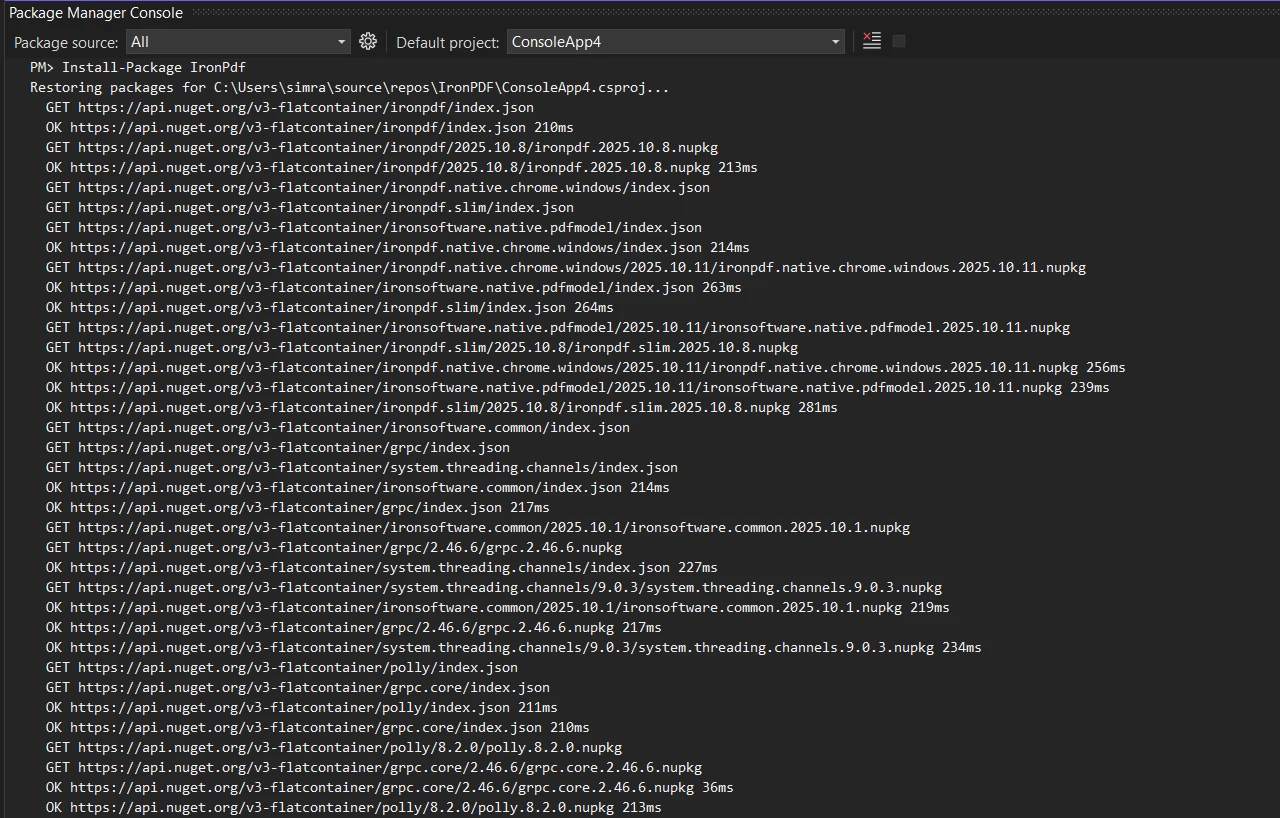
Or use the NuGet Package Manager interface to download and install. Initialize the [ChromePdfRenderer](/object-reference/api/IronPdf.ChromePdfRenderer.html) for pixel-perfect PDF generation:
```csharp
using IronPdf;

// Create Chrome renderer instance
var renderer = new ChromePdfRenderer();

// Configure rendering options for PDF format
renderer.RenderingOptions.MarginTop = 50;
renderer.RenderingOptions.MarginBottom = 50;
renderer.RenderingOptions.PrintHtmlBackgrounds = true;
```
The `ChromePdfRenderer` class provides the foundation to generate PDFs at runtime. Setting [margins](https://ironpdf.com/how-to/custom-margins/) ensures space for [headers and footers](https://ironpdf.com/how-to/headers-and-footers/), while `PrintHtmlBackgrounds` preserves design elements. This configuration helps create PDF documents based on HTML content exactly. Learn more about [rendering options](https://ironpdf.com/how-to/rendering-options/) to customize your PDF documents.
### What Are the System Requirements for IronPDF?
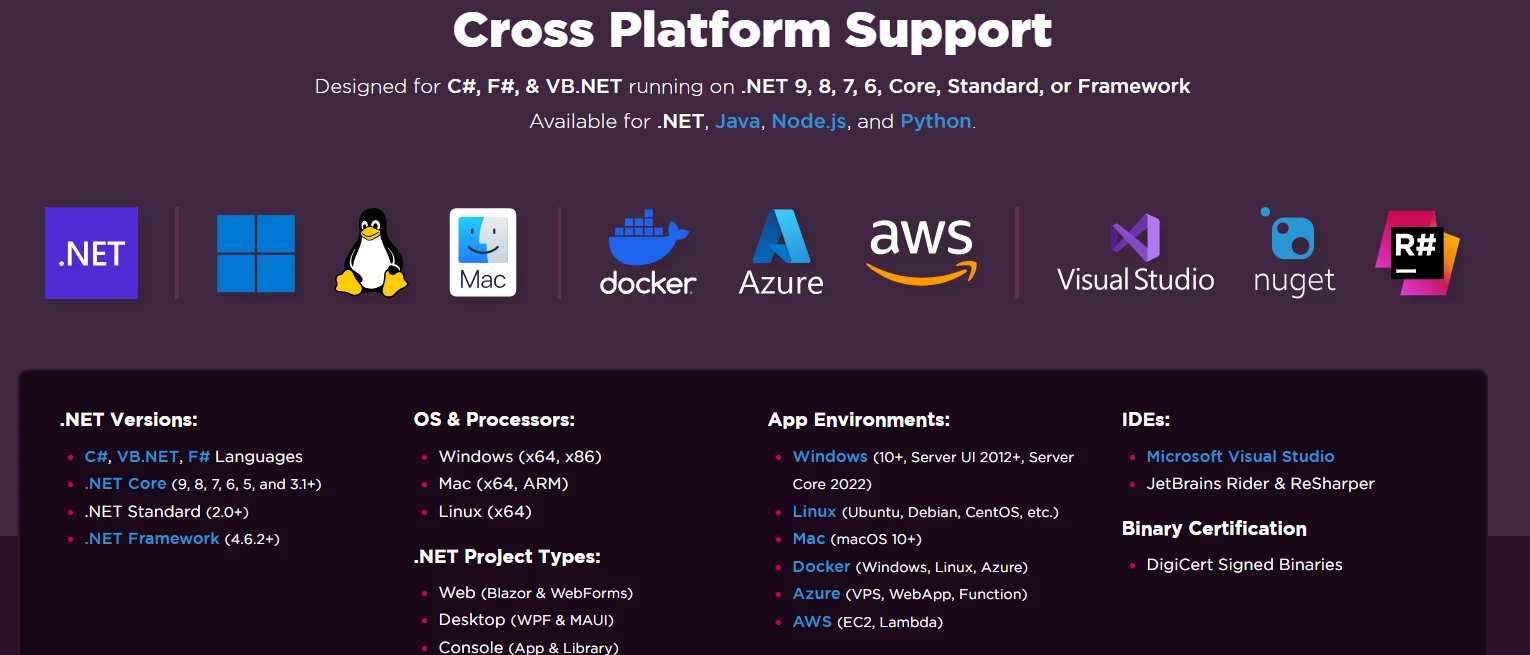
IronPDF supports Windows, Linux, and macOS environments with .NET Framework 4.6.2+ or .NET Core 3.1+. For Windows deployment, ensure Visual C++ Runtime is installed. Linux systems require libgdiplus and additional dependencies. Docker containers need specific base images with graphics libraries. Cloud platforms like [Azure](https://ironpdf.com/get-started/azure/) require B1 tier or higher, while AWS Lambda functions need custom runtimes. Review the [installation guide](https://ironpdf.com/get-started/installation-overview/) for platform-specific requirements and troubleshooting tips.
### How Do You Configure ChromePdfRenderer for Best Results?
Improve your renderer with these essential settings:
```csharp
using IronPdf;
var renderer = new ChromePdfRenderer();
// Set paper size and orientation
renderer.RenderingOptions.PaperSize = PdfPaperSize.Letter;
renderer.RenderingOptions.PaperOrientation = PdfPaperOrientation.Portrait;
// Configure margins (in millimeters)
renderer.RenderingOptions.MarginTop = 25;
renderer.RenderingOptions.MarginBottom = 25;
renderer.RenderingOptions.MarginLeft = 20;
renderer.RenderingOptions.MarginRight = 20;
// Enable JavaScript execution
renderer.RenderingOptions.EnableJavaScript = true;
renderer.RenderingOptions.RenderDelay = 500; // milliseconds
// Set custom CSS media type
renderer.RenderingOptions.CssMediaType = PdfCssMediaType.Print;
// Configure image quality
renderer.RenderingOptions.ImageQuality = 90;
```
The `RenderDelay` allows JavaScript to complete execution before rendering. CSS media type selection ensures print-optimized styles apply. Image quality settings balance file size with visual fidelity. Explore [advanced rendering options](https://ironpdf.com/how-to/rendering-options/) for specialized requirements like custom paper sizes or viewport settings. Learn about [JavaScript rendering](https://ironpdf.com/how-to/javascript-to-pdf/) for dynamic content generation.
### What Common Installation Issues Should You Watch For?
Missing dependencies cause most installation problems. On Windows, install Visual C++ Redistributables. Linux users must install libgdiplus and font packages. Docker deployments require specific base images with graphics support. Azure Functions need consumption plans disabled. Check firewall settings for license validation. Review [common troubleshooting scenarios](https://ironpdf.com/troubleshooting/quick-ironpdf-troubleshooting/) and enable [logging](https://ironpdf.com/how-to/custom-logging/) for detailed diagnostics.
## How Do You Dynamically Create PDF Documents Using Templates?
Create reusable HTML templates with placeholders for dynamic data injection:
```csharp
using IronPdf;
using System.Text;
var renderer = new ChromePdfRenderer();
// Define HTML string template with placeholders
string invoiceTemplate = @"
<html>
<head>
<style>
body { font-family: Arial, sans-serif; margin: 40px; }
.header { background-color: #f0f0f0; padding: 20px; }
table { width: 100%; border-collapse: collapse; }
th, td { padding: 10px; text-align: left; border-bottom: 1px solid #ddd; }
</style>
</head>
<body>
<div class='header'>
<h1>Invoice #[[INVOICE_NUMBER]]</h1>
<p>Date: [[DATE]]</p>
<p>Customer: [[CUSTOMER_NAME]]</p>
</div>
<table>
<tr><th>Item</th><th>Quantity</th><th>Price</th></tr>
[[ITEMS]]
</table>
<p><strong>Total: $[[TOTAL]]</strong></p>
</body>
</html>";
// Replace placeholders with dynamic data
var invoiceData = new {
InvoiceNumber = "INV-2025-001",
Date = DateTime.Now.ToString("yyyy-MM-dd"),
CustomerName = "John Doe",
Total = 1250.00m
};
// Build items dynamically
var itemsHtml = new StringBuilder();
itemsHtml.Append("<tr><td>Web Development</td><td>40 hours</td><td>$1000.00</td></tr>");
itemsHtml.Append("<tr><td>Design Services</td><td>10 hours</td><td>$250.00</td></tr>");
string finalHtml = invoiceTemplate
.Replace("[[INVOICE_NUMBER]]", invoiceData.InvoiceNumber)
.Replace("[[DATE]]", invoiceData.Date)
.Replace("[[CUSTOMER_NAME]]", invoiceData.CustomerName)
.Replace("[[ITEMS]]", itemsHtml.ToString())
.Replace("[[TOTAL]]", invoiceData.Total.ToString());
// Generate PDF from populated HTML content
var pdf = renderer.RenderHtmlAsPdf(finalHtml);
pdf.SaveAs("invoice.pdf");
```
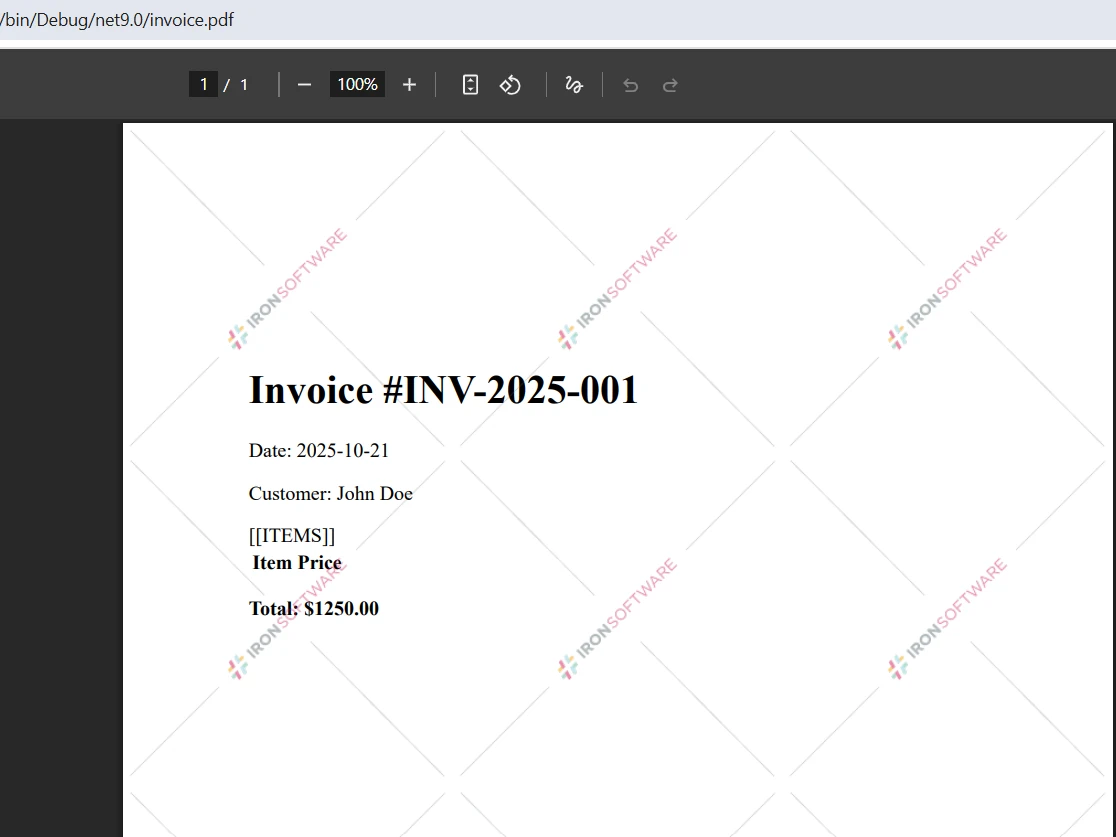
This template approach separates presentation from data, enabling designers to modify complex layouts while developers focus on data integration. The `Replace` method substitutes placeholders with runtime values, creating personalized PDF documents. For converting HTML content with repeating sections, build the HTML dynamically using loops before PDF conversion. Explore more [HTML to PDF examples](/examples/using-html-to-create-a-pdf/) for advanced templating techniques including [CSS styling](https://ironpdf.com/how-to/html-to-pdf-responsive-css/) and JavaScript integration.
### Output
### Why Use Template-Based PDF Generation?
Template-based generation separates business logic from presentation, enabling parallel development workflows. Designers can perfect HTML layouts using familiar tools while developers implement data binding. Templates support version control, A/B testing, and localization without code changes. Reusable components reduce duplication and maintenance overhead. CSS media queries ensure responsive designs translate perfectly to PDF output. This approach scales from simple letters to complex multi-page reports with consistent branding. Explore [watermarking techniques](https://ironpdf.com/how-to/custom-watermark/) for branding requirements.
### How Can You Handle Complex Data Structures in Templates?
Process hierarchical data by building HTML sections programmatically before template injection. Use LINQ queries to transform collections into HTML tables or lists. Implement conditional rendering with if-statements that include or exclude template sections. For nested data, create sub-templates that recursively build content. Consider using [Razor syntax](https://ironpdf.com/how-to/cshtml-to-pdf-mvc-core/) for complex logic within templates. JSON serialization enables passing structured data to JavaScript-enhanced templates. Build helper methods that convert domain objects to HTML fragments for cleaner code organization.
### What Are Best Practices for Template Placeholder Design?
Choose distinctive placeholder syntax that won't conflict with HTML or CSS, like `[[FIELD_NAME]]` or `{{field}}`. Use descriptive names that indicate data types and formatting expectations. Group related placeholders with prefixes (`CUSTOMER_NAME`, `CUSTOMER_EMAIL`). Document available placeholders and their data sources for team reference. Implement fallback values for optional fields to prevent rendering errors. Consider HTML encoding for user-generated content to prevent injection attacks. Create template validation methods that verify all placeholders have corresponding data values.
## How Can You Scale PDF Generation with Async Processing?
Scale your PDF generation using async methods for high-volume processing:
```csharp
using IronPdf;
// Async batch generation for multiple PDF documents
async Task GenerateMonthlyReportsAsync(List<Customer> customers)
{
var renderer = new ChromePdfRenderer();
// Configure for batch processing
renderer.RenderingOptions.EnableJavaScript = false; // Faster without JS
renderer.RenderingOptions.RenderDelay = 0;
var semaphore = new SemaphoreSlim(5); // Limit concurrent operations
var tasks = new List<Task>();
foreach (var customer in customers)
{
tasks.Add(Task.Run(async () =>
{
await semaphore.WaitAsync();
try
{
string html = $@"
<html>
<head>
<style>
body {{ font-family: Arial; margin: 40px; }}
.header {{ color: #333; border-bottom: 2px solid #4CAF50; }}
.metric-box {{
display: inline-block;
padding: 20px;
margin: 10px;
background: #f5f5f5;
border-radius: 5px;
}}
</style>
</head>
<body>
<div class='header'>
<h2>Monthly Report - {customer.Name}</h2>
<p>Report Period: {DateTime.Now:MMMM yyyy}</p>
</div>
<div class='metrics'>
<div class='metric-box'>
<h3>Account Balance</h3>
<p style='font-size: 24px; color: #4CAF50;'>${customer.Balance:F2}</p>
</div>
<div class='metric-box'>
<h3>Total Transactions</h3>
<p style='font-size: 24px; color: #2196F3;'>{customer.TransactionCount}</p>
</div>
</div>
<div style='page-break-after: always;'></div>
</body>
</html>";
var document = await renderer.RenderHtmlAsPdfAsync(html);
// Add metadata
document.MetaData.Author = "Reporting System";
document.MetaData.Title = $"Monthly Report - {customer.Name}";
document.MetaData.CreationDate = DateTime.Now;
await document.SaveAs($"reports/{customer.Id}_report_{DateTime.Now:yyyyMM}.pdf");
}
finally
{
semaphore.Release();
}
}));
}
await Task.WhenAll(tasks);
}
```
The [async pattern](https://ironpdf.com/how-to/async/) enables concurrent PDF generation, significantly improving throughput when generating PDF documents in batches. `Task.WhenAll` ensures all PDF files are complete before proceeding. The code uses [CSS page-break properties](https://ironpdf.com/how-to/html-to-pdf-page-breaks/) to control pagination, ensuring each customer's report starts on a new page. The `SemaphoreSlim` prevents memory exhaustion by limiting concurrent operations. Review the [async PDF generation documentation](https://ironpdf.com/examples/async/) for enterprise web applications.
### When Should You Use Async PDF Generation?
Async processing is ideal in web applications where blocking operations impact user experience. Use async methods when generating multiple documents simultaneously, processing large HTML files, or integrating with slow external APIs. Background services benefit from async patterns for scheduled report generation. Webhook handlers can process requests without timing out. Batch operations like monthly invoicing complete faster with parallel processing. However, simple single-document generation may not benefit from the added complexity.
### How Do You Handle Memory Usage During Batch Processing?
Implement disposal patterns to release resources promptly. Use memory streams instead of file operations for temporary storage. Configure garbage collection for server workloads. Limit concurrent operations with `SemaphoreSlim` or similar throttling mechanisms. Monitor memory usage with performance counters. Consider chunking large datasets into smaller batches. [Compress output PDFs](https://ironpdf.com/how-to/pdf-compression/) to reduce storage requirements. Review [performance optimization guides](https://ironpdf.com/troubleshooting/ironpdf-performance-assistance/) for additional strategies.
### What Performance Metrics Should You Monitor?
Track PDF generation time per document to identify bottlenecks. Monitor memory consumption during peak loads. Measure CPU utilization across rendering operations. Log failed generations with error details for troubleshooting. Calculate throughput as documents per minute. Watch storage throughput for capacity constraints. Monitor network latency when rendering external URLs. Set up alerts for rendering timeouts or memory pressure. Use [custom logging](https://ironpdf.com/how-to/custom-logging/) to capture detailed metrics.
## How Do You Create Interactive PDF Forms Dynamically?
Transform web pages with HTML forms into fillable PDFs programmatically:
```csharp
using IronPdf;
// Enable form fields creation in rendering options
var renderer = new ChromePdfRenderer();
renderer.RenderingOptions.CreatePdfFormsFromHtml = true;
// Define HTML string with form elements
string formHtml = @"
<html>
<head>
<style>
body { font-family: Arial, sans-serif; margin: 40px; }
form { background: #f9f9f9; padding: 30px; border-radius: 8px; }
h2 { color: #333; margin-bottom: 20px; }
label { display: block; margin: 15px 0 5px; font-weight: bold; }
input[type='text'], input[type='email'], textarea, select {
width: 100%;
padding: 10px;
border: 1px solid #ddd;
border-radius: 4px;
box-sizing: border-box;
}
textarea { height: 100px; resize: vertical; }
input[type='checkbox'] { margin-right: 8px; }
.checkbox-group { margin: 15px 0; }
button {
background: #4CAF50;
color: white;
padding: 12px 24px;
border: none;
border-radius: 4px;
cursor: pointer;
margin-top: 20px;
}
</style>
</head>
<body>
<form>
<h2>Customer Survey Form</h2>
<label for='name'>Full Name:</label>
<input type='text' id='name' name='name' required>
<label for='email'>Email Address:</label>
<input type='email' id='email' name='email' required>
<label for='satisfaction'>Overall Satisfaction:</label>
<select id='satisfaction' name='satisfaction'>
<option value=''>Please select...</option>
<option value='excellent'>Excellent</option>
<option value='good'>Good</option>
<option value='fair'>Fair</option>
<option value='poor'>Poor</option>
</select>
<div class='checkbox-group'>
<label>Services Used:</label>
<label><input type='checkbox' name='services' value='support'> Technical Support</label>
<label><input type='checkbox' name='services' value='training'> Training</label>
<label><input type='checkbox' name='services' value='consulting'> Consulting</label>
</div>
<label for='comments'>Additional Comments:</label>
<textarea id='comments' name='comments' placeholder='Share your feedback...'></textarea>
<button type='submit'>Submit Survey</button>
</form>
</body>
</html>";
// Create a PDF with interactive form fields
var pdfDocument = renderer.RenderHtmlAsPdf(formHtml);
// Set form field properties programmatically
var formManager = pdfDocument.Form;
formManager.FindField("name").Value = "";
formManager.FindField("email").Required = true;
// Save the interactive PDF
pdfDocument.SaveAs("customer_survey_form.pdf");
```
Setting `CreatePdfFormsFromHtml` converts HTML form elements into [interactive PDF form fields](https://ironpdf.com/how-to/create-forms/). Users can fill, save, and submit these PDF documents electronically. This feature simplifies workflows by eliminating paper forms while maintaining familiar HTML development patterns. The `PdfDocument` object provides access to manipulate form fields programmatically. Learn about [PDF forms manipulation](https://ironpdf.com/how-to/edit-forms/) for advanced implementations.
### Output

### Which HTML Form Elements Are Supported?
IronPDF supports all standard HTML form elements including text inputs, textareas, checkboxes, radio buttons, select dropdowns, and buttons. Password fields convert to secure text inputs. File upload inputs become attachment placeholders. Hidden fields preserve form data without display. HTML5 input types like email, tel, and number maintain validation rules. Custom styling applies to form appearance. Review the [forms documentation](https://ironpdf.com/how-to/create-forms/) for element-specific behaviors and limitations.
### How Do You Validate PDF Form Data?
Implement client-side validation using JavaScript before PDF generation. Set required attributes on form fields for built-in validation. Use regular expressions for pattern matching on text inputs. Configure numeric ranges for number fields. Add custom validation scripts to PDF forms using Acrobat JavaScript. Implement server-side validation when processing submitted forms. Consider [digital signatures](https://ironpdf.com/how-to/signing/) for tamper-proof submissions.
### Can You Pre-populate Form Fields Dynamically?
Access form fields through the Form property after rendering. Set field values using `FindField("fieldName").Value`. Populate from databases or API responses. Create templates with default values. Support bulk form generation with unique data per PDF. Enable form field calculations for computed values. Consider the security implications of pre-filled sensitive data. Learn about [form field management](https://ironpdf.com/how-to/edit-forms/) for complex scenarios.
## How Do .NET PDF Libraries Compare for Dynamic Generation?
When choosing a PDF library for .NET, the key factors are rendering accuracy, API design, platform support, and licensing. The table below compares IronPDF against two widely-used alternatives.
<table class="content__data-table" data-content-table>
<caption>IronPDF vs. Other .NET PDF Libraries</caption>
<thead>
<tr>
<th>Feature</th>
<th>IronPDF</th>
<th>iText</th>
<th>wkhtmltopdf</th>
</tr>
</thead>
<tbody>
<tr>
<td>Rendering engine</td>
<td>Chromium (latest)</td>
<td>Custom layout engine</td>
<td>WebKit (unmaintained)</td>
</tr>
<tr>
<td>HTML/CSS support</td>
<td>Full modern CSS3/JS</td>
<td>Partial CSS</td>
<td>Limited CSS3</td>
</tr>
<tr>
<td>Async API</td>
<td>Yes</td>
<td>No</td>
<td>No</td>
</tr>
<tr>
<td>Interactive forms</td>
<td>Yes (from HTML)</td>
<td>Manual API only</td>
<td>No</td>
</tr>
<tr>
<td>Digital signatures</td>
<td>Yes</td>
<td>Yes</td>
<td>No</td>
</tr>
<tr>
<td>PDF/A compliance</td>
<td>Yes</td>
<td>Yes</td>
<td>No</td>
</tr>
<tr>
<td>Cross-platform</td>
<td>Windows, Linux, macOS</td>
<td>Windows, Linux, macOS</td>
<td>Windows, Linux, macOS</td>
</tr>
<tr>
<td>Commercial support</td>
<td>24/5 dedicated support</td>
<td>Community forums</td>
<td>None</td>
</tr>
<tr>
<td>License type</td>
<td>Commercial</td>
<td>AGPL / Commercial</td>
<td>LGPL (free)</td>
</tr>
</tbody>
</table>
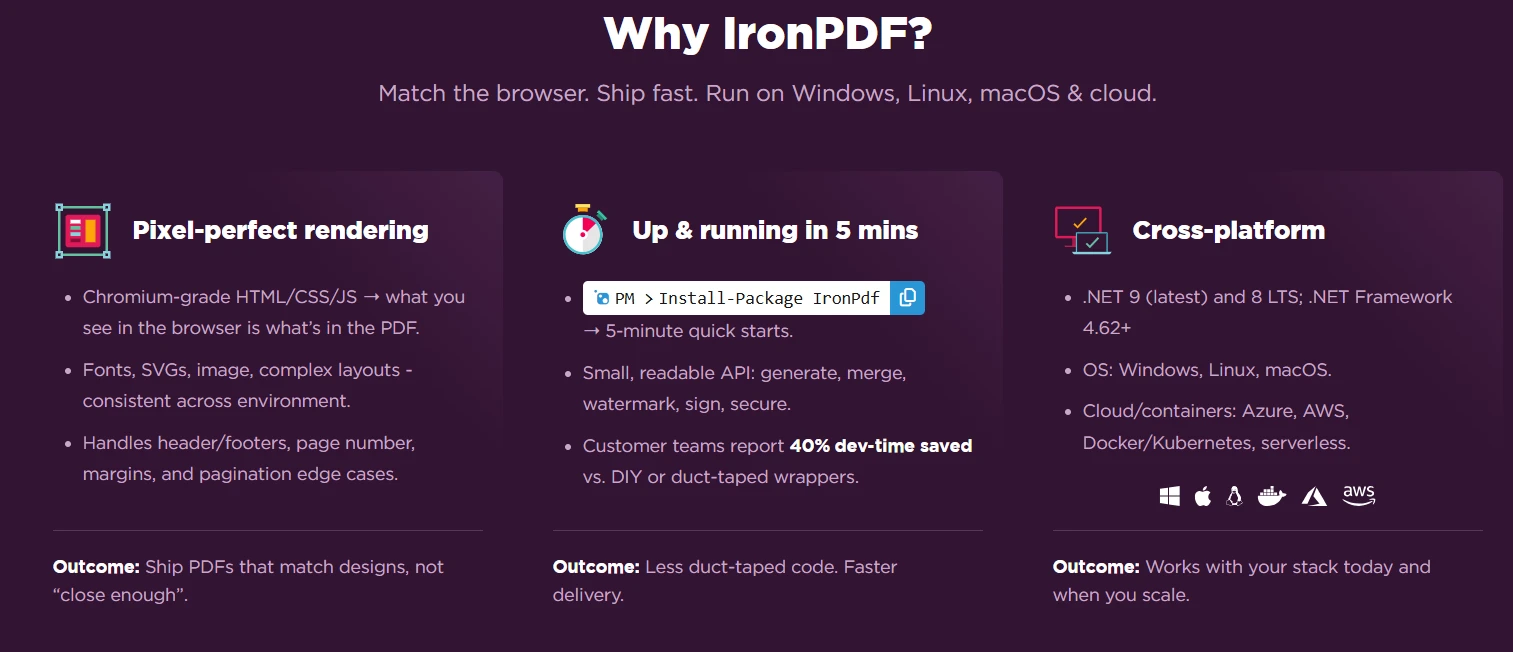
IronPDF's [Chrome rendering engine](https://ironpdf.com/how-to/ironpdf-2021-chrome-rendering-engine-eap/) ensures pixel-perfect accuracy when creating PDFs, eliminating the compromises of older WebKit rendering solutions. Unlike open-source alternatives requiring external executables or headless browser setups, IronPDF integrates directly into your .NET project with zero additional dependencies. Compare [IronPDF vs iText](https://ironpdf.com/competitors/itext-vs-ironpdf/) to understand the differences in depth.
### What Are the Key Advantages of IronPDF for Dynamic PDF Generation?
- Full [JavaScript execution](https://ironpdf.com/how-to/javascript-to-pdf/), unlike many alternatives
- Thread-safe operations for web applications
- Complete [async support](https://ironpdf.com/how-to/async/) with documented patterns
- Page numbers and font size control through a simple API configuration
- [HTML to PDF conversion](https://ironpdf.com/how-to/html-string-to-pdf/) that matches Chrome output exactly
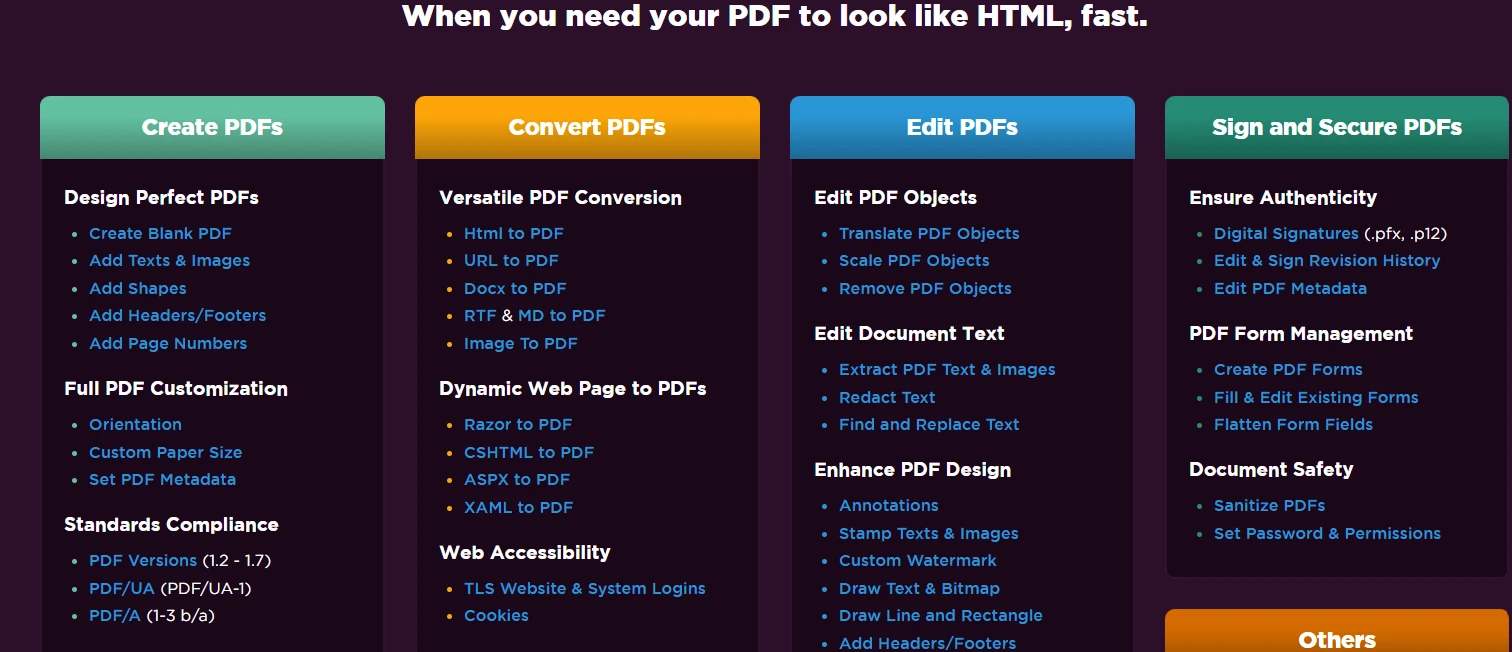
Advanced features include watermarking, digital signatures, form creation, PDF/A compliance, and encryption. The .NET integration supports all project types from console applications to Azure Functions. Cross-platform compatibility ensures consistent results across Windows, Linux, and macOS.
### How Does IronPDF Licensing Work?
**Licensing starts at `$liteLicense`** for single-developer licenses, with team and enterprise options available. Each package offers unique advantages, and the investment pays for itself through development time savings. Access your API key instantly upon purchase. [View licensing options](https://ironpdf.com/licensing/) to find the right package for your project.
Free libraries often lack commercial support, critical for production applications. Open-source alternatives may carry AGPL licensing restrictions incompatible with commercial use. IronPDF provides flexible licensing for all deployment scenarios, from startup projects to enterprise rollouts.
## What Are the Next Steps for Dynamic PDF Generation in C#?
Dynamic PDF generation in C# changes how applications deliver personalized documents at runtime. IronPDF provides essential tools to create PDF files from [HTML content](https://ironpdf.com/how-to/html-string-to-pdf/), [web pages](https://ironpdf.com/how-to/url-to-pdf/), and data sources. Its Chrome-based rendering ensures your PDFs match design specifications exactly, while async support enables large-scale processing. Explore [tutorials](https://ironpdf.com/tutorials/html-to-pdf/) for step-by-step guidance on implementing these features.
With IronPDF, you can convert HTML strings, create complex PDFs with images and tables, add page numbers, control font size, and generate [PDF reports](https://ironpdf.com/how-to/csharp-pdf-reports/) from any data source. Each new document benefits from pixel-perfect rendering, whether creating a simple page or complex layouts with multiple document instances.
Start with IronPDF's [free 30-day trial](https://ironpdf.com/#trial-license) to experience these capabilities. Explore the complete [documentation](/docs/), review namespace references in the [API documentation](/object-reference/api/), and study [code examples](https://ironpdf.com/examples/using-html-to-create-a-pdf/) to accelerate your PDF file generation projects. For additional document processing needs, including [Excel manipulation](https://ironsoftware.com/csharp/excel/) and [OCR](https://ironsoftware.com/csharp/ocr/), consider the [Iron Suite](https://ironsoftware.com/suite/) bundle.
IronPDF allows for dynamic PDF creation in C# by converting HTML content to PDFs at runtime using Chrome-based rendering. This enables the creation of personalized documents with variable data from databases, APIs, or user inputs for invoices, reports, and forms in .NET applications.
Modern web applications require more than static document creation. Whether generating personalized invoices, creating data-driven PDF reports, or producing customized form fields, reliable tools are necessary for generating PDF documents at runtime. IronPDF is a leading solution, offering effective Chrome-based rendering to create PDF documents with smooth C# integration for dynamic PDF generation in .NET environments.
What is Dynamic PDF Generation in C#?
Dynamic PDF generation in C# involves creating PDF documents at runtime using variable data from databases, APIs, or user inputs. Unlike static PDF files, runtime generation allows for personalized content, conditional sections, and data-driven layouts. These capabilities are essential for invoices, PDF reports, certificates, and forms that adapt to changing requirements. This approach has become crucial for modern .NET and .NET Core applications. The IronPDF documentation provides complete guides for implementing these features in your C# applications.
When Should You Use Dynamic PDF Generation?
Dynamic PDF generation is essential when your application requires personalized documents that change based on user data or business logic. Common scenarios include generating monthly reports with automatic data updates, creating invoices with customer-specific information, producing certificates with unique recipient names, and building forms that pre-populate based on user profiles. If your content varies with each request or requires real-time data integration, dynamic generation is more effective than static templates. Consider async processing for high-volume scenarios and explore performance optimization techniques for enterprise applications.
What Makes Dynamic PDFs Different from Static PDFs?
Static PDFs remain unchanged after creation, similar to traditional paper documents saved digitally. Dynamic PDFs generate fresh content each time they're requested, pulling from live data sources. For example, a static product catalog requires manual updates and redistribution, while a dynamic catalog automatically includes the latest pricing, inventory levels, and product descriptions. Dynamic PDFs can also include interactive elements, conditional content, and personalized layouts based on user preferences or access permissions. Learn more about PDF security features to improve your dynamic documents.
Which Industries Benefit Most from Dynamic PDF Generation?
Financial services use dynamic PDFs for account statements, loan documents, and regulatory reports requiring real-time accuracy. Healthcare providers generate patient records, lab results, and insurance forms with HIPAA-compliant security. E-commerce platforms create order confirmations, shipping labels, and return authorizations. Educational institutions produce transcripts, certificates, and personalized learning materials. Government agencies simplify permit applications, tax forms, and compliance documents through automated generation. The IronPDF demos demonstrate real-world implementations across these industries.
How Do You Get Started with a C# PDF Library?
Begin by installing the IronPDF NuGet package through Package Manager Console in Visual Studio:
PM > Install-Package IronPdf
Install-Package IronPdf
> dotnet add package IronPdf
dotnet add package IronPdf
Or use the NuGet Package Manager interface to download and install. Initialize the ChromePdfRenderer for pixel-perfect PDF generation:
using IronPdf;// Create Chrome renderer instancevar renderer = new ChromePdfRenderer();// Configure rendering options for PDF formatrenderer.RenderingOptions.MarginTop = 50;renderer.RenderingOptions.MarginBottom = 50;renderer.RenderingOptions.PrintHtmlBackgrounds = true;
using IronPdf;

// Create Chrome renderer instance
var renderer = new ChromePdfRenderer();

// Configure rendering options for PDF format
renderer.RenderingOptions.MarginTop = 50;
renderer.RenderingOptions.MarginBottom = 50;
renderer.RenderingOptions.PrintHtmlBackgrounds = true;
ImportsIronPdf' Create Chrome renderer instanceDim renderer As New ChromePdfRenderer()' Configure rendering options for PDF formatrenderer.RenderingOptions.MarginTop = 50renderer.RenderingOptions.MarginBottom = 50renderer.RenderingOptions.PrintHtmlBackgrounds = True
Imports IronPdf

' Create Chrome renderer instance
Dim renderer As New ChromePdfRenderer()

' Configure rendering options for PDF format
renderer.RenderingOptions.MarginTop = 50
renderer.RenderingOptions.MarginBottom = 50
renderer.RenderingOptions.PrintHtmlBackgrounds = True
The ChromePdfRenderer class provides the foundation to generate PDFs at runtime. Setting margins ensures space for headers and footers, while PrintHtmlBackgrounds preserves design elements. This configuration helps create PDF documents based on HTML content exactly. Learn more about rendering options to customize your PDF documents.
What Are the System Requirements for IronPDF?
IronPDF supports Windows, Linux, and macOS environments with .NET Framework 4.6.2+ or .NET Core 3.1+. For Windows deployment, ensure Visual C++ Runtime is installed. Linux systems require libgdiplus and additional dependencies. Docker containers need specific base images with graphics libraries. Cloud platforms like Azure require B1 tier or higher, while AWS Lambda functions need custom runtimes. Review the installation guide for platform-specific requirements and troubleshooting tips.
How Do You Configure ChromePdfRenderer for Best Results?
Improve your renderer with these essential settings:
using IronPdf;var renderer = new ChromePdfRenderer();// Set paper size and orientationrenderer.RenderingOptions.PaperSize = PdfPaperSize.Letter;renderer.RenderingOptions.PaperOrientation = PdfPaperOrientation.Portrait;// Configure margins (in millimeters)renderer.RenderingOptions.MarginTop = 25;renderer.RenderingOptions.MarginBottom = 25;renderer.RenderingOptions.MarginLeft = 20;renderer.RenderingOptions.MarginRight = 20;// Enable JavaScript executionrenderer.RenderingOptions.EnableJavaScript = true;renderer.RenderingOptions.RenderDelay = 500; // milliseconds// Set custom CSS media typerenderer.RenderingOptions.CssMediaType = PdfCssMediaType.Print;// Configure image qualityrenderer.RenderingOptions.ImageQuality = 90;
using IronPdf;

var renderer = new ChromePdfRenderer();

// Set paper size and orientation
renderer.RenderingOptions.PaperSize = PdfPaperSize.Letter;
renderer.RenderingOptions.PaperOrientation = PdfPaperOrientation.Portrait;

// Configure margins (in millimeters)
renderer.RenderingOptions.MarginTop = 25;
renderer.RenderingOptions.MarginBottom = 25;
renderer.RenderingOptions.MarginLeft = 20;
renderer.RenderingOptions.MarginRight = 20;

// Enable JavaScript execution
renderer.RenderingOptions.EnableJavaScript = true;
renderer.RenderingOptions.RenderDelay = 500; // milliseconds

// Set custom CSS media type
renderer.RenderingOptions.CssMediaType = PdfCssMediaType.Print;

// Configure image quality
renderer.RenderingOptions.ImageQuality = 90;
ImportsIronPdfDim renderer As New ChromePdfRenderer()' Set paper size and orientationrenderer.RenderingOptions.PaperSize = PdfPaperSize.Letterrenderer.RenderingOptions.PaperOrientation = PdfPaperOrientation.Portrait' Configure margins (in millimeters)renderer.RenderingOptions.MarginTop = 25renderer.RenderingOptions.MarginBottom = 25renderer.RenderingOptions.MarginLeft = 20renderer.RenderingOptions.MarginRight = 20' Enable JavaScript executionrenderer.RenderingOptions.EnableJavaScript = Truerenderer.RenderingOptions.RenderDelay = 500 ' milliseconds' Set custom CSS media typerenderer.RenderingOptions.CssMediaType = PdfCssMediaType.Print' Configure image qualityrenderer.RenderingOptions.ImageQuality = 90
Imports IronPdf

Dim renderer As New ChromePdfRenderer()

' Set paper size and orientation
renderer.RenderingOptions.PaperSize = PdfPaperSize.Letter
renderer.RenderingOptions.PaperOrientation = PdfPaperOrientation.Portrait

' Configure margins (in millimeters)
renderer.RenderingOptions.MarginTop = 25
renderer.RenderingOptions.MarginBottom = 25
renderer.RenderingOptions.MarginLeft = 20
renderer.RenderingOptions.MarginRight = 20

' Enable JavaScript execution
renderer.RenderingOptions.EnableJavaScript = True
renderer.RenderingOptions.RenderDelay = 500 ' milliseconds

' Set custom CSS media type
renderer.RenderingOptions.CssMediaType = PdfCssMediaType.Print

' Configure image quality
renderer.RenderingOptions.ImageQuality = 90
The RenderDelay allows JavaScript to complete execution before rendering. CSS media type selection ensures print-optimized styles apply. Image quality settings balance file size with visual fidelity. Explore advanced rendering options for specialized requirements like custom paper sizes or viewport settings. Learn about JavaScript rendering for dynamic content generation.
What Common Installation Issues Should You Watch For?
Missing dependencies cause most installation problems. On Windows, install Visual C++ Redistributables. Linux users must install libgdiplus and font packages. Docker deployments require specific base images with graphics support. Azure Functions need consumption plans disabled. Check firewall settings for license validation. Review common troubleshooting scenarios and enable logging for detailed diagnostics.
How Do You Dynamically Create PDF Documents Using Templates?
Create reusable HTML templates with placeholders for dynamic data injection:
using IronPdf;using System.Text;var renderer = new ChromePdfRenderer();// Define HTML string template with placeholdersstring invoiceTemplate = @"<html><head> <style> body { font-family: Arial, sans-serif; margin: 40px; } .header { background-color: #f0f0f0; padding: 20px; } table { width: 100%; border-collapse: collapse; } th, td { padding: 10px; text-align: left; border-bottom: 1px solid #ddd; } </style></head><body> <div class='header'> <h1>Invoice #[[INVOICE_NUMBER]]</h1> <p>Date: [[DATE]]</p> <p>Customer: [[CUSTOMER_NAME]]</p> </div> <table> <tr><th>Item</th><th>Quantity</th><th>Price</th></tr> [[ITEMS]] </table> <p><strong>Total: $[[TOTAL]]</strong></p></body></html>";// Replace placeholders with dynamic datavar invoiceData = new {InvoiceNumber = "INV-2025-001",Date = DateTime.Now.ToString("yyyy-MM-dd"),CustomerName = "John Doe",Total = 1250.00m};// Build items dynamicallyvar itemsHtml = new StringBuilder();itemsHtml.Append("<tr><td>Web Development</td><td>40 hours</td><td>$1000.00</td></tr>");itemsHtml.Append("<tr><td>Design Services</td><td>10 hours</td><td>$250.00</td></tr>");string finalHtml = invoiceTemplate .Replace("[[INVOICE_NUMBER]]", invoiceData.InvoiceNumber) .Replace("[[DATE]]", invoiceData.Date) .Replace("[[CUSTOMER_NAME]]", invoiceData.CustomerName) .Replace("[[ITEMS]]", itemsHtml.ToString()) .Replace("[[TOTAL]]", invoiceData.Total.ToString());// Generate PDF from populated HTML contentvar pdf = renderer.RenderHtmlAsPdf(finalHtml);pdf.SaveAs("invoice.pdf");
using IronPdf;
using System.Text;

var renderer = new ChromePdfRenderer();

// Define HTML string template with placeholders
string invoiceTemplate = @"
<html>
<head>
    <style>
        body { font-family: Arial, sans-serif; margin: 40px; }
        .header { background-color: #f0f0f0; padding: 20px; }
        table { width: 100%; border-collapse: collapse; }
        th, td { padding: 10px; text-align: left; border-bottom: 1px solid #ddd; }
    </style>
</head>
<body>
    <div class='header'>
        <h1>Invoice #[[INVOICE_NUMBER]]</h1>
        <p>Date: [[DATE]]</p>
        <p>Customer: [[CUSTOMER_NAME]]</p>
    </div>
    <table>
        <tr><th>Item</th><th>Quantity</th><th>Price</th></tr>
        [[ITEMS]]
    </table>
    <p><strong>Total: $[[TOTAL]]</strong></p>
</body>
</html>";

// Replace placeholders with dynamic data
var invoiceData = new {
    InvoiceNumber = "INV-2025-001",
    Date = DateTime.Now.ToString("yyyy-MM-dd"),
    CustomerName = "John Doe",
    Total = 1250.00m
};

// Build items dynamically
var itemsHtml = new StringBuilder();
itemsHtml.Append("<tr><td>Web Development</td><td>40 hours</td><td>$1000.00</td></tr>");
itemsHtml.Append("<tr><td>Design Services</td><td>10 hours</td><td>$250.00</td></tr>");

string finalHtml = invoiceTemplate
    .Replace("[[INVOICE_NUMBER]]", invoiceData.InvoiceNumber)
    .Replace("[[DATE]]", invoiceData.Date)
    .Replace("[[CUSTOMER_NAME]]", invoiceData.CustomerName)
    .Replace("[[ITEMS]]", itemsHtml.ToString())
    .Replace("[[TOTAL]]", invoiceData.Total.ToString());

// Generate PDF from populated HTML content
var pdf = renderer.RenderHtmlAsPdf(finalHtml);
pdf.SaveAs("invoice.pdf");
ImportsIronPdfImportsSystem.TextDim renderer As New ChromePdfRenderer()' Define HTML string template with placeholdersDim invoiceTemplate AsString = "<html><head> <style> body { font-family: Arial, sans-serif; margin: 40px; } .header { background-color: #f0f0f0; padding: 20px; } table { width: 100%; border-collapse: collapse; } th, td { padding: 10px; text-align: left; border-bottom: 1px solid #ddd; } </style></head><body> <div class='header'> <h1>Invoice #[[INVOICE_NUMBER]]</h1> <p>Date: [[DATE]]</p> <p>Customer: [[CUSTOMER_NAME]]</p> </div> <table> <tr><th>Item</th><th>Quantity</th><th>Price</th></tr> [[ITEMS]] </table> <p><strong>Total: $[[TOTAL]]</strong></p></body></html>"' Replace placeholders with dynamic dataDim invoiceData = New With { .InvoiceNumber = "INV-2025-001", .Date = DateTime.Now.ToString("yyyy-MM-dd"), .CustomerName = "John Doe", .Total = 1250.0D}' Build items dynamicallyDim itemsHtml As New StringBuilder()itemsHtml.Append("<tr><td>Web Development</td><td>40 hours</td><td>$1000.00</td></tr>")itemsHtml.Append("<tr><td>Design Services</td><td>10 hours</td><td>$250.00</td></tr>")Dim finalHtml AsString = invoiceTemplate _ .Replace("[[INVOICE_NUMBER]]", invoiceData.InvoiceNumber) _ .Replace("[[DATE]]", invoiceData.Date) _ .Replace("[[CUSTOMER_NAME]]", invoiceData.CustomerName) _ .Replace("[[ITEMS]]", itemsHtml.ToString()) _ .Replace("[[TOTAL]]", invoiceData.Total.ToString())' Generate PDF from populated HTML contentDim pdf = renderer.RenderHtmlAsPdf(finalHtml)pdf.SaveAs("invoice.pdf")
Imports IronPdf
Imports System.Text

Dim renderer As New ChromePdfRenderer()

' Define HTML string template with placeholders
Dim invoiceTemplate As String = "
<html>
<head>
    <style>
        body { font-family: Arial, sans-serif; margin: 40px; }
        .header { background-color: #f0f0f0; padding: 20px; }
        table { width: 100%; border-collapse: collapse; }
        th, td { padding: 10px; text-align: left; border-bottom: 1px solid #ddd; }
    </style>
</head>
<body>
    <div class='header'>
        <h1>Invoice #[[INVOICE_NUMBER]]</h1>
        <p>Date: [[DATE]]</p>
        <p>Customer: [[CUSTOMER_NAME]]</p>
    </div>
    <table>
        <tr><th>Item</th><th>Quantity</th><th>Price</th></tr>
        [[ITEMS]]
    </table>
    <p><strong>Total: $[[TOTAL]]</strong></p>
</body>
</html>"

' Replace placeholders with dynamic data
Dim invoiceData = New With {
    .InvoiceNumber = "INV-2025-001",
    .Date = DateTime.Now.ToString("yyyy-MM-dd"),
    .CustomerName = "John Doe",
    .Total = 1250.0D
}

' Build items dynamically
Dim itemsHtml As New StringBuilder()
itemsHtml.Append("<tr><td>Web Development</td><td>40 hours</td><td>$1000.00</td></tr>")
itemsHtml.Append("<tr><td>Design Services</td><td>10 hours</td><td>$250.00</td></tr>")

Dim finalHtml As String = invoiceTemplate _
    .Replace("[[INVOICE_NUMBER]]", invoiceData.InvoiceNumber) _
    .Replace("[[DATE]]", invoiceData.Date) _
    .Replace("[[CUSTOMER_NAME]]", invoiceData.CustomerName) _
    .Replace("[[ITEMS]]", itemsHtml.ToString()) _
    .Replace("[[TOTAL]]", invoiceData.Total.ToString())

' Generate PDF from populated HTML content
Dim pdf = renderer.RenderHtmlAsPdf(finalHtml)
pdf.SaveAs("invoice.pdf")
This template approach separates presentation from data, enabling designers to modify complex layouts while developers focus on data integration. The Replace method substitutes placeholders with runtime values, creating personalized PDF documents. For converting HTML content with repeating sections, build the HTML dynamically using loops before PDF conversion. Explore more HTML to PDF examples for advanced templating techniques including CSS styling and JavaScript integration.
Output
Why Use Template-Based PDF Generation?
Template-based generation separates business logic from presentation, enabling parallel development workflows. Designers can perfect HTML layouts using familiar tools while developers implement data binding. Templates support version control, A/B testing, and localization without code changes. Reusable components reduce duplication and maintenance overhead. CSS media queries ensure responsive designs translate perfectly to PDF output. This approach scales from simple letters to complex multi-page reports with consistent branding. Explore watermarking techniques for branding requirements.
How Can You Handle Complex Data Structures in Templates?
Process hierarchical data by building HTML sections programmatically before template injection. Use LINQ queries to transform collections into HTML tables or lists. Implement conditional rendering with if-statements that include or exclude template sections. For nested data, create sub-templates that recursively build content. Consider using Razor syntax for complex logic within templates. JSON serialization enables passing structured data to JavaScript-enhanced templates. Build helper methods that convert domain objects to HTML fragments for cleaner code organization.
What Are Best Practices for Template Placeholder Design?
Choose distinctive placeholder syntax that won't conflict with HTML or CSS, like [[FIELD_NAME]] or {{field}}. Use descriptive names that indicate data types and formatting expectations. Group related placeholders with prefixes (CUSTOMER_NAME, CUSTOMER_EMAIL). Document available placeholders and their data sources for team reference. Implement fallback values for optional fields to prevent rendering errors. Consider HTML encoding for user-generated content to prevent injection attacks. Create template validation methods that verify all placeholders have corresponding data values.
How Can You Scale PDF Generation with Async Processing?
Scale your PDF generation using async methods for high-volume processing:
ImportsIronPdfImportsSystem.Threading' Async batch generation for multiple PDF documentsPublicAsync Function GenerateMonthlyReportsAsync(customers AsList(OfCustomer)) AsTask Dim renderer As New ChromePdfRenderer() ' Configure for batch processing renderer.RenderingOptions.EnableJavaScript = False ' Faster without JS renderer.RenderingOptions.RenderDelay = 0 Dim semaphore As New SemaphoreSlim(5) ' Limit concurrent operations Dim tasks As New List(OfTask)() For Each customer In customers tasks.Add(Task.Run(Async Function()Await semaphore.WaitAsync()Try Dim html AsString = $" <html> <head> <style> body {{ font-family: Arial; margin: 40px; }} .header {{ color: #333; border-bottom: 2px solid #4CAF50; }} .metric-box {{ display: inline-block; padding: 20px; margin: 10px; background: #f5f5f5; border-radius: 5px; }} </style> </head> <body> <div class='header'> <h2>Monthly Report - {customer.Name}</h2> <p>Report Period: {DateTime.Now:MMMM yyyy}</p> </div> <div class='metrics'> <div class='metric-box'> <h3>Account Balance</h3> <p style='font-size: 24px; color: #4CAF50;'>${customer.Balance:F2}</p> </div> <div class='metric-box'> <h3>Total Transactions</h3> <p style='font-size: 24px; color: #2196F3;'>{customer.TransactionCount}</p> </div> </div> <div style='page-break-after: always;'></div> </body> </html>" Dim document = Await renderer.RenderHtmlAsPdfAsync(html) ' Add metadata document.MetaData.Author = "Reporting System" document.MetaData.Title = $"Monthly Report - {customer.Name}" document.MetaData.CreationDate = DateTime.NowAwait document.SaveAs($"reports/{customer.Id}_report_{DateTime.Now:yyyyMM}.pdf")Finally semaphore.Release()EndTry End Function)) NextAwaitTask.WhenAll(tasks)End Function
Imports IronPdf
Imports System.Threading

' Async batch generation for multiple PDF documents
Public Async Function GenerateMonthlyReportsAsync(customers As List(Of Customer)) As Task
    Dim renderer As New ChromePdfRenderer()

    ' Configure for batch processing
    renderer.RenderingOptions.EnableJavaScript = False ' Faster without JS
    renderer.RenderingOptions.RenderDelay = 0

    Dim semaphore As New SemaphoreSlim(5) ' Limit concurrent operations
    Dim tasks As New List(Of Task)()

    For Each customer In customers
        tasks.Add(Task.Run(Async Function()
                               Await semaphore.WaitAsync()
                               Try
                                   Dim html As String = $"
                    <html>
                    <head>
                        <style>
                            body {{ font-family: Arial; margin: 40px; }}
                            .header {{ color: #333; border-bottom: 2px solid #4CAF50; }}
                            .metric-box {{
                                display: inline-block;
                                padding: 20px;
                                margin: 10px;
                                background: #f5f5f5;
                                border-radius: 5px;
                            }}
                        </style>
                    </head>
                    <body>
                        <div class='header'>
                            <h2>Monthly Report - {customer.Name}</h2>
                            <p>Report Period: {DateTime.Now:MMMM yyyy}</p>
                        </div>
                        <div class='metrics'>
                            <div class='metric-box'>
                                <h3>Account Balance</h3>
                                <p style='font-size: 24px; color: #4CAF50;'>${customer.Balance:F2}</p>
                            </div>
                            <div class='metric-box'>
                                <h3>Total Transactions</h3>
                                <p style='font-size: 24px; color: #2196F3;'>{customer.TransactionCount}</p>
                            </div>
                        </div>
                        <div style='page-break-after: always;'></div>
                    </body>
                    </html>"

                                   Dim document = Await renderer.RenderHtmlAsPdfAsync(html)

                                   ' Add metadata
                                   document.MetaData.Author = "Reporting System"
                                   document.MetaData.Title = $"Monthly Report - {customer.Name}"
                                   document.MetaData.CreationDate = DateTime.Now

                                   Await document.SaveAs($"reports/{customer.Id}_report_{DateTime.Now:yyyyMM}.pdf")
                               Finally
                                   semaphore.Release()
                               End Try
                           End Function))
    Next

    Await Task.WhenAll(tasks)
End Function
The async pattern enables concurrent PDF generation, significantly improving throughput when generating PDF documents in batches. Task.WhenAll ensures all PDF files are complete before proceeding. The code uses CSS page-break properties to control pagination, ensuring each customer's report starts on a new page. The SemaphoreSlim prevents memory exhaustion by limiting concurrent operations. Review the async PDF generation documentation for enterprise web applications.
When Should You Use Async PDF Generation?
Async processing is ideal in web applications where blocking operations impact user experience. Use async methods when generating multiple documents simultaneously, processing large HTML files, or integrating with slow external APIs. Background services benefit from async patterns for scheduled report generation. Webhook handlers can process requests without timing out. Batch operations like monthly invoicing complete faster with parallel processing. However, simple single-document generation may not benefit from the added complexity.
How Do You Handle Memory Usage During Batch Processing?
Implement disposal patterns to release resources promptly. Use memory streams instead of file operations for temporary storage. Configure garbage collection for server workloads. Limit concurrent operations with SemaphoreSlim or similar throttling mechanisms. Monitor memory usage with performance counters. Consider chunking large datasets into smaller batches. Compress output PDFs to reduce storage requirements. Review performance optimization guides for additional strategies.
What Performance Metrics Should You Monitor?
Track PDF generation time per document to identify bottlenecks. Monitor memory consumption during peak loads. Measure CPU utilization across rendering operations. Log failed generations with error details for troubleshooting. Calculate throughput as documents per minute. Watch storage throughput for capacity constraints. Monitor network latency when rendering external URLs. Set up alerts for rendering timeouts or memory pressure. Use custom logging to capture detailed metrics.
How Do You Create Interactive PDF Forms Dynamically?
Transform web pages with HTML forms into fillable PDFs programmatically:
Imports IronPdf

' Enable form fields creation in rendering options
Dim renderer As New ChromePdfRenderer()
renderer.RenderingOptions.CreatePdfFormsFromHtml = True

' Define HTML string with form elements
Dim formHtml As String = "
<html>
<head>
    <style>
        body { font-family: Arial, sans-serif; margin: 40px; }
        form { background: #f9f9f9; padding: 30px; border-radius: 8px; }
        h2 { color: #333; margin-bottom: 20px; }
        label { display: block; margin: 15px 0 5px; font-weight: bold; }
        input[type='text'], input[type='email'], textarea, select {
            width: 100%;
            padding: 10px;
            border: 1px solid #ddd;
            border-radius: 4px;
            box-sizing: border-box;
        }
        textarea { height: 100px; resize: vertical; }
        input[type='checkbox'] { margin-right: 8px; }
        .checkbox-group { margin: 15px 0; }
        button {
            background: #4CAF50;
            color: white;
            padding: 12px 24px;
            border: none;
            border-radius: 4px;
            cursor: pointer;
            margin-top: 20px;
        }
    </style>
</head>
<body>
    <form>
        <h2>Customer Survey Form</h2>

        <label for='name'>Full Name:</label>
        <input type='text' id='name' name='name' required>

        <label for='email'>Email Address:</label>
        <input type='email' id='email' name='email' required>

        <label for='satisfaction'>Overall Satisfaction:</label>
        <select id='satisfaction' name='satisfaction'>
            <option value=''>Please select...</option>
            <option value='excellent'>Excellent</option>
            <option value='good'>Good</option>
            <option value='fair'>Fair</option>
            <option value='poor'>Poor</option>
        </select>

        <div class='checkbox-group'>
            <label>Services Used:</label>
            <label><input type='checkbox' name='services' value='support'> Technical Support</label>
            <label><input type='checkbox' name='services' value='training'> Training</label>
            <label><input type='checkbox' name='services' value='consulting'> Consulting</label>
        </div>

        <label for='comments'>Additional Comments:</label>
        <textarea id='comments' name='comments' placeholder='Share your feedback...'></textarea>

        <button type='submit'>Submit Survey</button>
    </form>
</body>
</html>"

' Create a PDF with interactive form fields
Dim pdfDocument = renderer.RenderHtmlAsPdf(formHtml)

' Set form field properties programmatically
Dim formManager = pdfDocument.Form
formManager.FindField("name").Value = ""
formManager.FindField("email").Required = True

' Save the interactive PDF
pdfDocument.SaveAs("customer_survey_form.pdf")
Setting CreatePdfFormsFromHtml converts HTML form elements into interactive PDF form fields. Users can fill, save, and submit these PDF documents electronically. This feature simplifies workflows by eliminating paper forms while maintaining familiar HTML development patterns. The PdfDocument object provides access to manipulate form fields programmatically. Learn about PDF forms manipulation for advanced implementations.
Output
Which HTML Form Elements Are Supported?
IronPDF supports all standard HTML form elements including text inputs, textareas, checkboxes, radio buttons, select dropdowns, and buttons. Password fields convert to secure text inputs. File upload inputs become attachment placeholders. Hidden fields preserve form data without display. HTML5 input types like email, tel, and number maintain validation rules. Custom styling applies to form appearance. Review the forms documentation for element-specific behaviors and limitations.
How Do You Validate PDF Form Data?
Implement client-side validation using JavaScript before PDF generation. Set required attributes on form fields for built-in validation. Use regular expressions for pattern matching on text inputs. Configure numeric ranges for number fields. Add custom validation scripts to PDF forms using Acrobat JavaScript. Implement server-side validation when processing submitted forms. Consider digital signatures for tamper-proof submissions.
Can You Pre-populate Form Fields Dynamically?
Access form fields through the Form property after rendering. Set field values using FindField("fieldName").Value. Populate from databases or API responses. Create templates with default values. Support bulk form generation with unique data per PDF. Enable form field calculations for computed values. Consider the security implications of pre-filled sensitive data. Learn about form field management for complex scenarios.
How Do .NET PDF Libraries Compare for Dynamic Generation?
When choosing a PDF library for .NET, the key factors are rendering accuracy, API design, platform support, and licensing. The table below compares IronPDF against two widely-used alternatives.
IronPDF vs. Other .NET PDF Libraries
Feature
IronPDF
iText
wkhtmltopdf
Rendering engine
Chromium (latest)
Custom layout engine
WebKit (unmaintained)
HTML/CSS support
Full modern CSS3/JS
Partial CSS
Limited CSS3
Async API
Yes
No
No
Interactive forms
Yes (from HTML)
Manual API only
No
Digital signatures
Yes
Yes
No
PDF/A compliance
Yes
Yes
No
Cross-platform
Windows, Linux, macOS
Windows, Linux, macOS
Windows, Linux, macOS
Commercial support
24/5 dedicated support
Community forums
None
License type
Commercial
AGPL / Commercial
LGPL (free)
IronPDF's Chrome rendering engine ensures pixel-perfect accuracy when creating PDFs, eliminating the compromises of older WebKit rendering solutions. Unlike open-source alternatives requiring external executables or headless browser setups, IronPDF integrates directly into your .NET project with zero additional dependencies. Compare IronPDF vs iText to understand the differences in depth.
What Are the Key Advantages of IronPDF for Dynamic PDF Generation?
Advanced features include watermarking, digital signatures, form creation, PDF/A compliance, and encryption. The .NET integration supports all project types from console applications to Azure Functions. Cross-platform compatibility ensures consistent results across Windows, Linux, and macOS.
How Does IronPDF Licensing Work?
Licensing starts at $999 for single-developer licenses, with team and enterprise options available. Each package offers unique advantages, and the investment pays for itself through development time savings. Access your API key instantly upon purchase. View licensing options to find the right package for your project.
Free libraries often lack commercial support, critical for production applications. Open-source alternatives may carry AGPL licensing restrictions incompatible with commercial use. IronPDF provides flexible licensing for all deployment scenarios, from startup projects to enterprise rollouts.
What Are the Next Steps for Dynamic PDF Generation in C#?
Dynamic PDF generation in C# changes how applications deliver personalized documents at runtime. IronPDF provides essential tools to create PDF files from HTML content, web pages, and data sources. Its Chrome-based rendering ensures your PDFs match design specifications exactly, while async support enables large-scale processing. Explore tutorials for step-by-step guidance on implementing these features.
With IronPDF, you can convert HTML strings, create complex PDFs with images and tables, add page numbers, control font size, and generate PDF reports from any data source. Each new document benefits from pixel-perfect rendering, whether creating a simple page or complex layouts with multiple document instances.
Curtis Chau holds a Bachelor’s degree in Computer Science (Carleton University) and specializes in front-end development with expertise in Node.js, TypeScript, JavaScript, and React. Passionate about crafting intuitive and aesthetically pleasing user interfaces, Curtis enjoys working with modern frameworks and creating well-structured, visually appealing manuals.




















