


C#에서 PDF를 이미지로 변환하는 방법

IronPDF는 HTML/CSS를 사용하여 복잡한 좌표 기반 API 대신 .NET에서 PDF 생성을 현대화합니다. 이 방식은 디지털 서명 및 워터마크 같은 고급 기능을 지원하는 한편, 개발 시간을 줄여 전통적인 PDFFileWriter 라이브러리 업그레이드에 이상적입니다.
.NET 애플리케이션에서 직접 PDF 파일을 생성하는 것은 수년간 크게 발전해왔습니다. Uzi Granot의 PDF File Writer II C# 클래스 라이브러리와 같은 전통적인 접근법은 프로그램적으로 PDF를 생성하는 발판을 마련했지만, 현대 솔루션은 이제 더 간단한 API와 효과적인 기능을 제공합니다.
이 기사는 전통적인 PDFFileWriter C# 접근법을 탐구하고 IronPDF가 PDF 문서를 전문적으로 생성하는 과정을 얼마나 단순화하는지 보여줍니다.
PDF File Writer 라이브러리는 무엇이며 현대 솔루션과 어떻게 비교됩니까?
PDF File Writer C# 클래스 라이브러리는 처음에는 Uzi Granot에 의해 개발되었으며, CodeProject 웹사이트를 통해 유명해졌으며, .NET 애플리케이션에서 직접 PDF 파일을 생성하는 초기 접근법 중 하나를 나타냅니다. 이 라이브러리는 PDF 파일 구조의 복잡성을 개발자로부터 숨겨 깊은 PDF 사양 지식 없이 PDF 문서를 생성할 수 있도록 합니다.
PDF File Writer II C# 클래스 라이브러리 버전과 같은 전통적인 라이브러리는 저급 PDF 구조를 사용하여 작업해야 합니다. 효과적이긴 하지만, 이 접근법은 더 많은 소스 코드와 문서 구조에 대한 깊은 이해가 필요합니다. IronPDF와 같은 현대적인 대안은 .NET 개발자에게 이미 친숙한 HTML 및 CSS 지식을 사용하여 다른 접근 방식을 취하며, 더 간결한 API를 통해 고급 기능을 지원하면서 PDF 생성에 대한 접근성을 높입니다. 이러한 진화는 생산성을 증가시키면서도 기능을 희생하지 않는 더 높은 수준의 추상화로의 전환을 반영합니다.
구현 접근 방식을 비교할 때 복잡성 차이가 명확히 나타납니다. 전통적인 PDF 라이브러리는 각 요소에 대해 명시적인 좌표 계산, 바이트 수준의 폰트 관리, 페이지 구분의 수동 처리를 요구합니다. 현대적인 솔루션은 웹 브라우저가 콘텐츠를 표시하는 방식과 유사하게 HTML 렌더링 엔진을 통해 이러한 세부 사항을 추상화합니다.
전통적인 PDF 라이브러리가 더 복잡한 코드를 요구하는 이유는 무엇인가요?
전통적인 PDF 라이브러리는 객체 스트림, 교차 참조 테이블, 콘텐츠 스트림과 같은 PDF 내부에 대한 이해를 요구하는 낮은 추상화 수준에서 작동합니다. 각 텍스트 요소는 좌표를 사용하여 정밀한 위치 지정이 필요하고, 폰트는 수동으로 포함해야 하며, 복잡한 레이아웃은 광범위한 계산을 필요로 합니다. 이러한 접근 방식은 세밀한 제어를 제공하지만 개발 시간과 유지 보수 복잡성을 상당히 증가시킵니다. 현대적인 라이브러리는 브라우저 기반 렌더링 엔진을 통해 이러한 복잡성을 자동으로 처리합니다.
좌표 기반 PDF 생성의 주요 제약 사항은 무엇인가요?
좌표 기반 PDF 생성은 몇 가지 도전을 제시합니다: 수동 위치 지정은 반응형 레이아웃을 어렵게 만들고, 텍스트 흐름 및 줄 바꾸기는 복잡한 계산이 필요하며, 다른 페이지 크기 간의 일관된 간격을 유지하는 것이 오류가 발생하기 쉽습니다. 게다가, 헤더 및 푸터 또는 워터마크와 같은 기능을 구현하기 위해 상당한 코드가 필요합니다. 레이아웃 변경은 종종 모든 포지션을 다시 계산해야 하기 때문에 유지 관리 비용이 상승합니다. 이러한 제약 사항은 HTML 기반 PDF 생성 접근법의 개발로 이어졌습니다.
언제 여전히 전통적인 PDF 파일 작성 라이브러리를 고려해야 하나요?
전통적인 PDF 라이브러리는 바이트 수준의 PDF 구조 제어가 필요한 특정 사용 사례에 가치가 있으며, 상위 수준 API에서 지원하지 않는 맞춤형 PDF 기능을 구현하거나 특정 PDF 서식을 기대하는 레거시 시스템과 작업할 때 유용합니다. 그러나 대부분의 비즈니스 애플리케이션에서는 보고서, 인보이스, 문서를 생성하는 현대적인 HTML 기반 솔루션이 더 나은 생산성과 유지 보수성을 제공합니다.
.NET 프로젝트에 IronPDF를 어떻게 설치합니까?
IronPDF 시작은 한 명령어로만 이루어집니다. NuGet 패키지 관리자 콘솔 또는 .NET CLI를 통해 설치하세요:
Install-Package IronPdf
단계별 안내는 NuGet Install-Package 문서를 참조하십시오. 전체 IronPDF 문서는 온라인에서 제공됩니다. 무료 체험판 라이선스를 통해 구매 전 모든 기능을 평가할 수 있습니다.
전통적인 PDF 파일 작성 프로그램을 사용하여 직접 PDF 파일을 어떻게 생성할 수 있나요?
C# 전통적인 PDF 파일 작성기 클래스 라이브러리를 사용할 때는 PdfDocument 객체를 생성하고 PDF 파일 구조를 수동으로 작성해야 합니다. 다음은 Hello PDF 문서를 만드는 기본 예제입니다:
// Traditional PDFFileWriter approach
using PdfFileWriter;

// Create main document class
PdfDocument document = new PdfDocument(PaperType.Letter, false, UnitOfMeasure.Inch, "HelloWorld.pdf");

// Add a page
PdfPage page = new PdfPage(document);

// Create content area
PdfContents contents = new PdfContents(page);

// Define font
PdfFont arial = PdfFont.CreatePdfFont(document, "Arial", FontStyle.Regular);
contents.SelectFont(arial, 12.0);

// Add text at specific coordinates
contents.DrawText(arial, 12.0, "Hello PDF Document", 1.0, 10.0);

// Save and create the file
document.CreateFile();
// Traditional PDFFileWriter approach
using PdfFileWriter;
// Create main document class
PdfDocument document = new PdfDocument(PaperType.Letter, false, UnitOfMeasure.Inch, "HelloWorld.pdf");
// Add a page
PdfPage page = new PdfPage(document);
// Create content area
PdfContents contents = new PdfContents(page);
// Define font
PdfFont arial = PdfFont.CreatePdfFont(document, "Arial", FontStyle.Regular);
contents.SelectFont(arial, 12.0);
// Add text at specific coordinates
contents.DrawText(arial, 12.0, "Hello PDF Document", 1.0, 10.0);
// Save and create the file
document.CreateFile();Imports PdfFileWriter
' Create main document class
Dim document As New PdfDocument(PaperType.Letter, False, UnitOfMeasure.Inch, "HelloWorld.pdf")
' Add a page
Dim page As New PdfPage(document)
' Create content area
Dim contents As New PdfContents(page)
' Define font
Dim arial As PdfFont = PdfFont.CreatePdfFont(document, "Arial", FontStyle.Regular)
contents.SelectFont(arial, 12.0)
' Add text at specific coordinates
contents.DrawText(arial, 12.0, "Hello PDF Document", 1.0, 10.0)
' Save and create the file
document.CreateFile()이 접근 방식은 좌표 시스템, 폰트 관리 및 PDF 문서 구조에 대한 이해를 요구합니다. 각 요소는 명시적인 위치 지정을 필요로 하며 복잡한 레이아웃은 상당한 코드를 필요로 합니다. PDF 파일 작성기 II C# 클래스 라이브러리 버전은 세밀한 제어를 제공하지만 공통 작업에 대한 추가 개발 노력이 요구됩니다. 이 예제에서는 UnitOfMeasure.Inch 상수와 Regular 글꼴 스타일의 사용에 주목하세요.
다중 페이지 및 요소가 있는 보다 복잡한 문서를 위해서는 코드가 상당히 커집니다:
// Adding images and shapes with traditional approach
PdfImage logo = new PdfImage(document);
logo.LoadImageFromFile("company-logo.jpg");

// Calculate image position and size
double imageWidth = 2.0;
double imageHeight = 1.0;
double imageX = (8.5 - imageWidth) / 2; // Center on page
double imageY = 10.0;

// Draw image at calculated position
contents.DrawImage(logo, imageX, imageY, imageWidth, imageHeight);

// Add rectangle border
contents.DrawRectangle(0.5, 0.5, 7.5, 10.5, PaintOp.CloseStroke);

// Complex text with multiple fonts
PdfFont boldArial = PdfFont.CreatePdfFont(document, "Arial", FontStyle.Bold);
contents.SelectFont(boldArial, 16.0);
contents.DrawText(boldArial, 16.0, "Company Report", 1.0, 9.0);

// Switch back to regular font
contents.SelectFont(arial, 12.0);
contents.DrawText(arial, 12.0, "Annual Summary", 1.0, 8.5);
// Adding images and shapes with traditional approach
PdfImage logo = new PdfImage(document);
logo.LoadImageFromFile("company-logo.jpg");
// Calculate image position and size
double imageWidth = 2.0;
double imageHeight = 1.0;
double imageX = (8.5 - imageWidth) / 2; // Center on page
double imageY = 10.0;
// Draw image at calculated position
contents.DrawImage(logo, imageX, imageY, imageWidth, imageHeight);
// Add rectangle border
contents.DrawRectangle(0.5, 0.5, 7.5, 10.5, PaintOp.CloseStroke);
// Complex text with multiple fonts
PdfFont boldArial = PdfFont.CreatePdfFont(document, "Arial", FontStyle.Bold);
contents.SelectFont(boldArial, 16.0);
contents.DrawText(boldArial, 16.0, "Company Report", 1.0, 9.0);
// Switch back to regular font
contents.SelectFont(arial, 12.0);
contents.DrawText(arial, 12.0, "Annual Summary", 1.0, 8.5);Imports System
' Adding images and shapes with traditional approach
Dim logo As New PdfImage(document)
logo.LoadImageFromFile("company-logo.jpg")
' Calculate image position and size
Dim imageWidth As Double = 2.0
Dim imageHeight As Double = 1.0
Dim imageX As Double = (8.5 - imageWidth) / 2 ' Center on page
Dim imageY As Double = 10.0
' Draw image at calculated position
contents.DrawImage(logo, imageX, imageY, imageWidth, imageHeight)
' Add rectangle border
contents.DrawRectangle(0.5, 0.5, 7.5, 10.5, PaintOp.CloseStroke)
' Complex text with multiple fonts
Dim boldArial As PdfFont = PdfFont.CreatePdfFont(document, "Arial", FontStyle.Bold)
contents.SelectFont(boldArial, 16.0)
contents.DrawText(boldArial, 16.0, "Company Report", 1.0, 9.0)
' Switch back to regular font
contents.SelectFont(arial, 12.0)
contents.DrawText(arial, 12.0, "Annual Summary", 1.0, 8.5)좌표 기반 PDF API를 사용할 때 가장 일반적인 도전 과제는 무엇인가요?
좌표 기반 API는 정렬을 위한 텍스트 폭 계산, 페이지 넘침 수동 관리 및 페이지 간 일관된 여백 구현 등 여러 도전 과제를 제공합니다. 다른 페이지 크기에 적응할 수 있는 반응형 레이아웃을 생성하려면 복잡한 수학 계산이 필요합니다. 이러한 도전 과제는 종종 유지 보수와 확장이 어려운 취약한 코드로 이어집니다.
전통적인 PDF 파일 작성기에서 폰트 관리는 어떻게 하나요?
전통적인 PDF 라이브러리에서 폰트 관리는 명시적인 폰트 파일 로드, 플랫폼 간 호환성을 위한 폰트 포함 및 파일 크기를 줄이기 위한 폰트 하위 집합 관리를 요구합니다. 대상 시스템에서 폰트가 누락되면 렌더링 오류가 발생할 수 있어 방어적 프로그래밍 및 대체 전략이 필요합니다.
IronPDF는 PDF 문서 생성을 어떻게 간소화하나요?
IronPDF는 개발자가 HTML 콘텐츠로부터 직접 PDF 파일을 생성할 수 있게 함으로써 PDF 생성을 혁신합니다. 이 현대적인 접근 방식은 소스 코드의 복잡성을 크게 줄이면서도 전문가 수준의 출력 품질을 유지합니다. 라이브러리는 최신 Visual Studio 프로젝트와 완벽히 호환되며 Windows, Linux, macOS를 포함한 다양한 플랫폼에 배포를 지원합니다.
위의 좌표 기반 예제와 유사한 결과를 단 몇 줄의 코드로 달성하는 방법은 다음과 같습니다:
using IronPdf;

// Create a renderer instance
var renderer = new ChromePdfRenderer();

// Generate PDF from HTML - supports CSS, images, and JavaScript
var pdf = renderer.RenderHtmlAsPdf(@"
    <html>
        <body style='font-family: Arial; margin: 50px;'>
            <h1>Hello PDF Document</h1>
            <p>Creating professional PDFs with modern HTML/CSS.</p>
        </body>
    </html>");

// Save the PDF
pdf.SaveAs("HelloWorld.pdf");
using IronPdf;
// Create a renderer instance
var renderer = new ChromePdfRenderer();
// Generate PDF from HTML - supports CSS, images, and JavaScript
var pdf = renderer.RenderHtmlAsPdf(@"
<html>
<body style='font-family: Arial; margin: 50px;'>
<h1>Hello PDF Document</h1>
<p>Creating professional PDFs with modern HTML/CSS.</p>
</body>
</html>");
// Save the PDF
pdf.SaveAs("HelloWorld.pdf");Imports IronPdf
' Create a renderer instance
Dim renderer As New ChromePdfRenderer()
' Generate PDF from HTML - supports CSS, images, and JavaScript
Dim pdf = renderer.RenderHtmlAsPdf("
<html>
<body style='font-family: Arial; margin: 50px;'>
<h1>Hello PDF Document</h1>
<p>Creating professional PDFs with modern HTML/CSS.</p>
</body>
</html>")
' Save the PDF
pdf.SaveAs("HelloWorld.pdf")생성된 PDF 파일은 어떤 모습인가요?
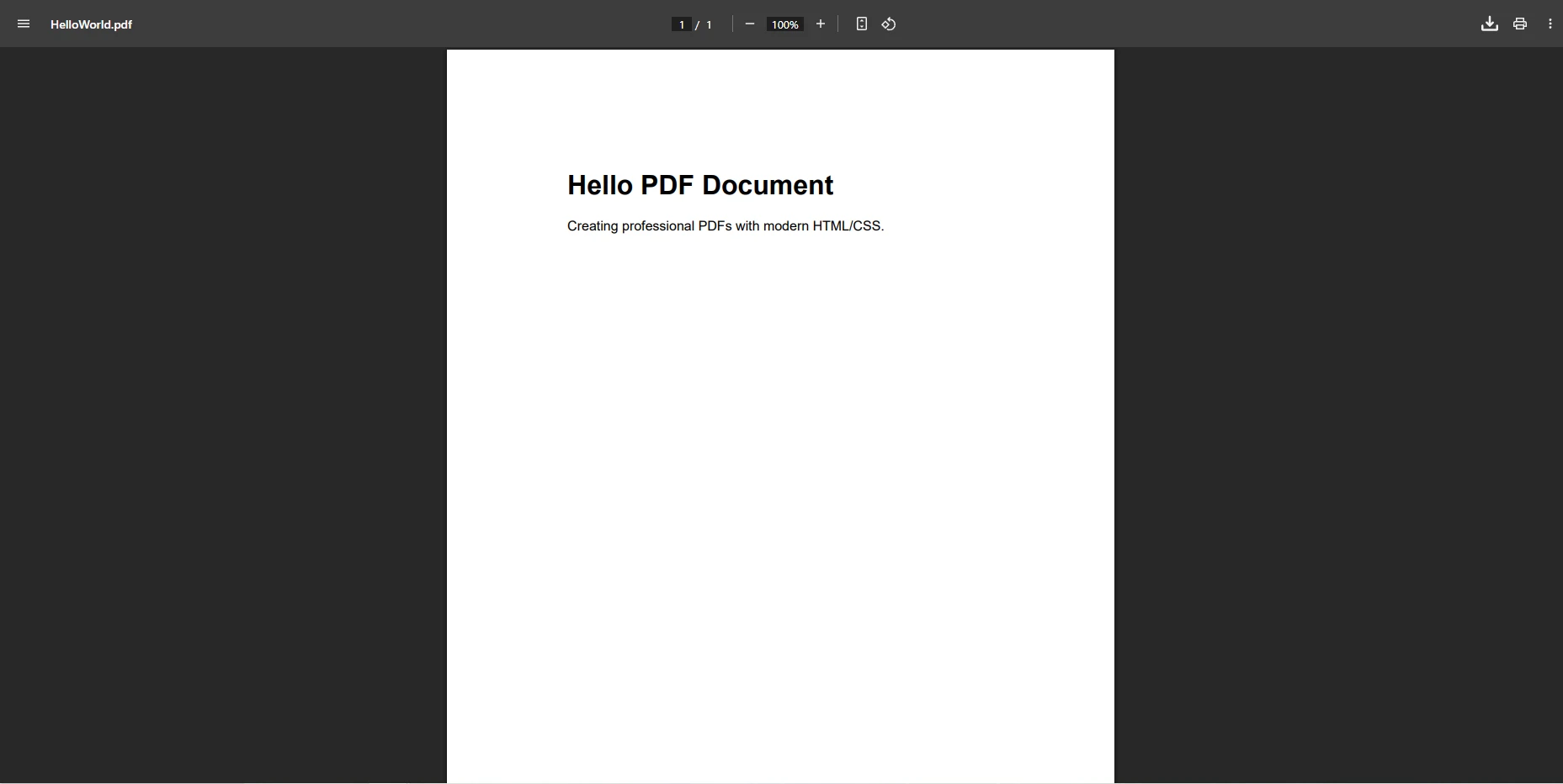
이 간소화된 접근 방식을 통해 개발자는 기존 웹 개발 기술을 사용하여 PDF 문서를 생성할 수 있습니다. 라이브러리는 전체 CSS3 스타일링을 지원하여 수동 좌표 계산 없이도 시각적으로 매력적인 문서를 쉽게 생성할 수 있습니다. HTML 문자열을 PDF로 변환하거나, URL에서 PDF를 로드하거나, 전체 웹 페이지를 렌더링하는 모든 것이 동일한 간단한 API로 가능합니다.
IronPDF의 HTML 접근 방식은 또한 복잡한 문서 기능을 간소화합니다. 이미지 및 브랜드와 함께 다중 칼럼 뉴스레터 레이아웃을 만드는 방법은 다음과 같습니다:
using IronPdf;

var renderer = new ChromePdfRenderer();

// Configure rendering options for optimal output
renderer.RenderingOptions.PaperOrientation = PdfPaperOrientation.Portrait;
renderer.RenderingOptions.MarginTop = 40;
renderer.RenderingOptions.MarginBottom = 40;
renderer.RenderingOptions.MarginLeft = 20;
renderer.RenderingOptions.MarginRight = 20;
renderer.RenderingOptions.EnableJavaScript = true;
renderer.RenderingOptions.RenderDelay = 500;

// Create a newsletter-style PDF with columns
var pdf = renderer.RenderHtmlAsPdf(@"
    <html>
    <head>
        <style>
            body { font-family: Georgia, serif; }
            .header { text-align: center; margin-bottom: 30px; }
            .columns { display: flex; gap: 20px; }
            .column { flex: 1; text-align: justify; }
        </style>
    </head>
    <body>
        <div class='header'>
            <h1>Company Newsletter</h1>
            <p>Monthly Updates and Insights</p>
        </div>
        <div class='columns'>
            <div class='column'>
                <h2>특징 Article</h2>
                <p>Lorem ipsum dolor sit amet, consectetur adipiscing elit...</p>
            </div>
            <div class='column'>
                <h2>Industry News</h2>
                <p>Sed do eiusmod tempor incididunt ut labore et dolore magna...</p>
                <h3>Upcoming Events</h3>
                <ul>
                    <li>Annual Conference - March 15</li>
                    <li>Webinar Series - April 2</li>
                </ul>
            </div>
        </div>
    </body>
    </html>");

// Add page numbers in footer
pdf.AddTextFooters("Page {page} of {total-pages}", IronPdf.Font.FontFamily.Arial, 10);
pdf.SaveAs("Newsletter.pdf");
using IronPdf;
var renderer = new ChromePdfRenderer();
// Configure rendering options for optimal output
renderer.RenderingOptions.PaperOrientation = PdfPaperOrientation.Portrait;
renderer.RenderingOptions.MarginTop = 40;
renderer.RenderingOptions.MarginBottom = 40;
renderer.RenderingOptions.MarginLeft = 20;
renderer.RenderingOptions.MarginRight = 20;
renderer.RenderingOptions.EnableJavaScript = true;
renderer.RenderingOptions.RenderDelay = 500;
// Create a newsletter-style PDF with columns
var pdf = renderer.RenderHtmlAsPdf(@"
<html>
<head>
<style>
body { font-family: Georgia, serif; }
.header { text-align: center; margin-bottom: 30px; }
.columns { display: flex; gap: 20px; }
.column { flex: 1; text-align: justify; }
</style>
</head>
<body>
<div class='header'>
<h1>Company Newsletter</h1>
<p>Monthly Updates and Insights</p>
</div>
<div class='columns'>
<div class='column'>
<h2>특징 Article</h2>
<p>Lorem ipsum dolor sit amet, consectetur adipiscing elit...</p>
</div>
<div class='column'>
<h2>Industry News</h2>
<p>Sed do eiusmod tempor incididunt ut labore et dolore magna...</p>
<h3>Upcoming Events</h3>
<ul>
<li>Annual Conference - March 15</li>
<li>Webinar Series - April 2</li>
</ul>
</div>
</div>
</body>
</html>");
// Add page numbers in footer
pdf.AddTextFooters("Page {page} of {total-pages}", IronPdf.Font.FontFamily.Arial, 10);
pdf.SaveAs("Newsletter.pdf");Imports IronPdf
Dim renderer As New ChromePdfRenderer()
' Configure rendering options for optimal output
renderer.RenderingOptions.PaperOrientation = PdfPaperOrientation.Portrait
renderer.RenderingOptions.MarginTop = 40
renderer.RenderingOptions.MarginBottom = 40
renderer.RenderingOptions.MarginLeft = 20
renderer.RenderingOptions.MarginRight = 20
renderer.RenderingOptions.EnableJavaScript = True
renderer.RenderingOptions.RenderDelay = 500
' Create a newsletter-style PDF with columns
Dim pdf = renderer.RenderHtmlAsPdf("
<html>
<head>
<style>
body { font-family: Georgia, serif; }
.header { text-align: center; margin-bottom: 30px; }
.columns { display: flex; gap: 20px; }
.column { flex: 1; text-align: justify; }
</style>
</head>
<body>
<div class='header'>
<h1>Company Newsletter</h1>
<p>Monthly Updates and Insights</p>
</div>
<div class='columns'>
<div class='column'>
<h2>특징 Article</h2>
<p>Lorem ipsum dolor sit amet, consectetur adipiscing elit...</p>
</div>
<div class='column'>
<h2>Industry News</h2>
<p>Sed do eiusmod tempor incididunt ut labore et dolore magna...</p>
<h3>Upcoming Events</h3>
<ul>
<li>Annual Conference - March 15</li>
<li>Webinar Series - April 2</li>
</ul>
</div>
</div>
</body>
</html>")
' Add page numbers in footer
pdf.AddTextFooters("Page {page} of {total-pages}", IronPdf.Font.FontFamily.Arial, 10)
pdf.SaveAs("Newsletter.pdf")HTML/CSS가 좌표 기반 위치 지정보다 나은 이유는 무엇인가요?
HTML/CSS는 자동 레이아웃 흐름을 제공하여 수동 위치 계산을 제거합니다. 개발자는 복잡한 레이아웃에 대해 Flexbox와 Grid와 같은 익숙한 웹 기술을 사용할 수 있습니다. 반응형 디자인 원칙은 자연스럽게 적용되며, 페이지 사이에서 내용이 자동으로 줄바꿈되고 흐릅니다. 내용 변경은 위치 재계산을 요구하지 않으며, CSS 미디어 쿼리는 인쇄 레이아웃을 개선할 수 있습니다. 이 접근 방식은 전형적인 문서 생성 작업에 대한 개발 시간을 크게 줄이는 동시에 유지 관리를 향상시킵니다.
IronPDF는 복잡한 레이아웃과 반응형 디자인을 어떻게 처리하나요?
IronPDF는 Chrome의 렌더링 엔진을 사용하여 현대 브라우저에 나타나는 정확히 같은 방식으로 복잡한 레이아웃을 처리합니다. 라이브러리는 CSS Grid와 Flexbox, 인쇄 최적화를 위한 미디어 쿼리, 반응형 이미지를 지원합니다. JavaScript는 렌더링 전에 내용을 동적으로 수정하여 차트 및 데이터 시각화를 가능하게 합니다. 엔진은 폰트 임베딩을 자동으로 처리하여 플랫폼 간 일관된 렌더링을 보장합니다.
Enterprise PDF 생성을 위한 IronPDF의 어떤 고급 기능이 눈에 띄나요?
IronPDF는 정교한 문서 조작이 필요한 시나리오에서 뛰어납니다. 다음 예시는 헤더와 푸터, 디지털 서명, 보안 설정을 사용하여 하나의 워크플로우에서 전문적인 송장을 생성하는 방법을 보여줍니다:
using IronPdf;
using IronPdf.Signing;

// Create a professional invoice PDF
var renderer = new ChromePdfRenderer();
renderer.RenderingOptions.PaperOrientation = PdfPaperOrientation.Portrait;
renderer.RenderingOptions.MarginTop = 25;
renderer.RenderingOptions.MarginBottom = 25;

// Generate invoice from HTML
var invoicePdf = renderer.RenderHtmlAsPdf(@"
    <div style='padding: 20px; font-family: Arial;'>
        <h2>INVOICE #2024-001</h2>
        <table style='width: 100%; border-collapse: collapse;'>
            <tr>
                <th style='border: 1px solid #ddd; padding: 8px;'>Item</th>
                <th style='border: 1px solid #ddd; padding: 8px;'>Amount</th>
            </tr>
            <tr>
                <td style='border: 1px solid #ddd; padding: 8px;'>Professional Services</td>
                <td style='border: 1px solid #ddd; padding: 8px;'>$1,500.00</td>
            </tr>
        </table>
    </div>");

// Add footer with page numbers
invoicePdf.AddTextFooters("Page {page} of {total-pages}", IronPdf.Font.FontFamily.Arial, 9);

// Add security settings
invoicePdf.SecuritySettings.SetPassword("user123", "owner456");
invoicePdf.SecuritySettings.AllowUserPrinting = true;
invoicePdf.SecuritySettings.AllowUserCopyPasteContent = false;

// Apply a digital signature
invoicePdf.SignWithSignature(new Signature("cert.pfx", "password")
{
    SigningContact = "legal@company.com",
    SigningLocation = "New York, NY",
    SigningReason = "Document Approval"
});

invoicePdf.SaveAs("Invoice.pdf");
using IronPdf;
using IronPdf.Signing;
// Create a professional invoice PDF
var renderer = new ChromePdfRenderer();
renderer.RenderingOptions.PaperOrientation = PdfPaperOrientation.Portrait;
renderer.RenderingOptions.MarginTop = 25;
renderer.RenderingOptions.MarginBottom = 25;
// Generate invoice from HTML
var invoicePdf = renderer.RenderHtmlAsPdf(@"
<div style='padding: 20px; font-family: Arial;'>
<h2>INVOICE #2024-001</h2>
<table style='width: 100%; border-collapse: collapse;'>
<tr>
<th style='border: 1px solid #ddd; padding: 8px;'>Item</th>
<th style='border: 1px solid #ddd; padding: 8px;'>Amount</th>
</tr>
<tr>
<td style='border: 1px solid #ddd; padding: 8px;'>Professional Services</td>
<td style='border: 1px solid #ddd; padding: 8px;'>$1,500.00</td>
</tr>
</table>
</div>");
// Add footer with page numbers
invoicePdf.AddTextFooters("Page {page} of {total-pages}", IronPdf.Font.FontFamily.Arial, 9);
// Add security settings
invoicePdf.SecuritySettings.SetPassword("user123", "owner456");
invoicePdf.SecuritySettings.AllowUserPrinting = true;
invoicePdf.SecuritySettings.AllowUserCopyPasteContent = false;
// Apply a digital signature
invoicePdf.SignWithSignature(new Signature("cert.pfx", "password")
{
SigningContact = "legal@company.com",
SigningLocation = "New York, NY",
SigningReason = "Document Approval"
});
invoicePdf.SaveAs("Invoice.pdf");Imports IronPdf
Imports IronPdf.Signing
' Create a professional invoice PDF
Dim renderer As New ChromePdfRenderer()
renderer.RenderingOptions.PaperOrientation = PdfPaperOrientation.Portrait
renderer.RenderingOptions.MarginTop = 25
renderer.RenderingOptions.MarginBottom = 25
' Generate invoice from HTML
Dim invoicePdf = renderer.RenderHtmlAsPdf("
<div style='padding: 20px; font-family: Arial;'>
<h2>INVOICE #2024-001</h2>
<table style='width: 100%; border-collapse: collapse;'>
<tr>
<th style='border: 1px solid #ddd; padding: 8px;'>Item</th>
<th style='border: 1px solid #ddd; padding: 8px;'>Amount</th>
</tr>
<tr>
<td style='border: 1px solid #ddd; padding: 8px;'>Professional Services</td>
<td style='border: 1px solid #ddd; padding: 8px;'>$1,500.00</td>
</tr>
</table>
</div>")
' Add footer with page numbers
invoicePdf.AddTextFooters("Page {page} of {total-pages}", IronPdf.Font.FontFamily.Arial, 9)
' Add security settings
invoicePdf.SecuritySettings.SetPassword("user123", "owner456")
invoicePdf.SecuritySettings.AllowUserPrinting = True
invoicePdf.SecuritySettings.AllowUserCopyPasteContent = False
' Apply a digital signature
invoicePdf.SignWithSignature(New Signature("cert.pfx", "password") With {
.SigningContact = "legal@company.com",
.SigningLocation = "New York, NY",
.SigningReason = "Document Approval"
})
invoicePdf.SaveAs("Invoice.pdf")최종 송장 PDF는 어떻게 나타나나요?
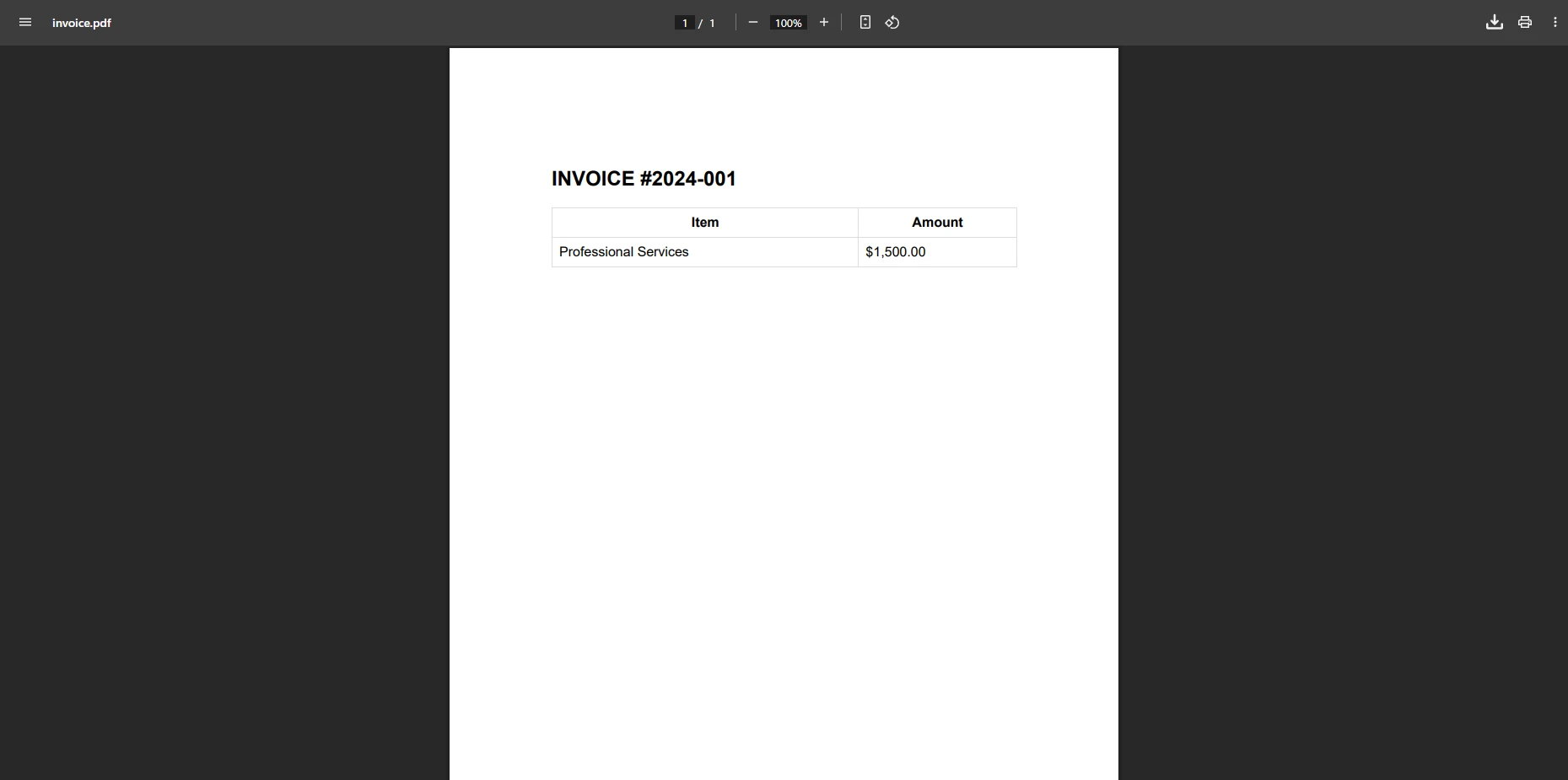
IronPDF는 수동 위치 지정 없이 복잡한 레이아웃을 처리하며 표, 이미지, 사용자 정의 폰트를 표준 HTML/CSS를 통해 지원합니다. 송장을 넘어, 라이브러리는 다양한 PDF 작업을 포괄합니다.
| 특징 | 설명 | 더 알아보기 |
|---|---|---|
| 병합 및 분할 | PDF 파일을 프로그램 방식으로 결합하거나 분할합니다. | PDF 병합 또는 분할 |
| 텍스트 추출 | 어떤 PDF 문서에서든 텍스트 내용을 추출합니다. | PDF에서 텍스트 추출 |
| PDF를 이미지로 변환 | PDF 페이지를 PNG, JPEG, 또는 TIFF로 래스터화합니다. | PDF를 이미지로 |
| 워터마크 | 어떤 페이지든 텍스트 또는 이미지 워터마크를 추가합니다. | 워터마크 |
| PDF 양식 | 인터랙티브한 양식 필드를 생성, 작성, 읽기 합니다. | PDF 양식 |
| 사용자 지정 워터마크 | 스타일링된, 위치 지정된 워터마크 오버레이를 적용합니다. | 사용자 정의 워터마크 |
IronPDF가 지원하는 다른 고급 기능은 무엇입니까?
IronPDF는 병합, 페이지 추출 및 이미지로 변환을 포함한 완전한 PDF 조작을 제공합니다. 라이브러리는 양식 생성, PDF/A 준수 및 편집을 지원합니다. 구조화된 데이터를 추출해야 하는 팀에게는 텍스트 추출 API가 PDF 컨텐츠 파싱을 단순화시킵니다. PDF 양식 기능은 새 양식 필드 생성 및 기존 필드의 프로그래밍 방식으로 읽기를 모두 포함합니다.
IronPDF에서 디지털 서명은 어떻게 작동하나요?
IronPDF의 디지털 서명은 문서의 진위성을 보장하기 위해 X.509 인증서를 사용합니다. 라이브러리는 보이는 서명, 타임스탬프 기관, 여러 서명 필드를 지원합니다. 이 프로세스는 PDF/A 준수를 유지하고 문서 기록을 보존하기 위해 점진적 업데이트를 지원합니다. 이는 감사 가능성이 중요한 법적 문서에 중요한 고려 사항입니다.
생산에서 자동 리소스 관리가 왜 중요한가요?
자동 리소스 관리는 메모리 누출을 방지하고 생산에서 신뢰할 수 있는 성능을 보장합니다. IronPDF는 폰트 임베딩을 처리하고, 이미지 최적화를 관리하며, 임시 파일을 자동으로 정리합니다. 라이브러리는 별도의 구성 없이 Azure 및 AWS로의 클라우드 배포를 지원합니다. 메모리 효율적인 스트리밍은 전체 파일을 메모리에 로드하지 않고도 대용량 문서를 처리할 수 있게 하여 높은 처리량의 문서 생성 작업에 중요합니다.
IronPDF가 현대 PDF 생성을 위한 최고의 선택인 이유는 무엇인가요?
PDF 파일 작성기 C# 클래스 라이브러리가 .NET에서 프로그램적 PDF 생성의 선구자였던 반면, IronPDF 같은 현대 솔루션은 오늘날의 개발 요구에 유리한 장점을 제공합니다. IronPDF는 복잡하고 좌표 기반의 프로세스인 PDF 생성을 친숙한 HTML/CSS 워크플로우로 변환하여 개발 시간을 크게 줄이면서 기능을 확장합니다.
기존의 PDF 라이브러리에서 현대 HTML 기반 솔루션으로의 전환은 단순한 편리함 그 이상을 의미합니다 -- 이는 기존 기술을 사용하는 것, 유지 보수 부담을 줄이는 것, 개발 주기를 가속화하는 것과 관련이 있습니다. PDF Association의 기술 리소스에 따르면, PDF 포맷은 계속 발전하고 있으며 최신 도구를 사용하는 게 사양 업데이트에 발맞추어야 합니다. IronPDF의 완전한 기능 세트는 간단한 문서 생성부터 복잡한 기업 요구 사항을 처리하며 보안, 디지털 서명 및 준수 기준을 포함합니다.
빠르게 시작하려는 팀을 위해 IronPDF 기능 개요는 기능의 전체 목록을 제공하며, 문서에는 일반적인 시나리오에 대한 실행 가능한 코드 샘플이 포함되어 있습니다. NuGet.org에 IronPDF 목록은 현재 버전 정보 및 다운로드 통계를 보여줍니다.
PDF 생성 워크플로우를 현대화할 준비가 되었습니까? 지금 IronPDF 무료 체험판을 시작하고 현대적 도구가 만드는 차이를 경험해 보세요. 프로덕션 배포를 위한 유연한 라이선스 옵션을 탐색하여 애플리케이션 요구 사항에 맞춰 확장할 수 있습니다.
자주 묻는 질문
PDFFileWriter를 대체할 수 있는 C#용 현대적인 대안은 무엇입니까?
C#에서 PDF 생성을 위한 PDFFileWriter의 현대적인 대안은 IronPDF입니다. 이는 전문 PDF 문서를 생성하기 위한 고급 기능을 갖춘 간소화된 API를 제공합니다.
HTML을 사용하여 C#에서 PDF를 생성하려면 어떻게 해야 합니까?
IronPDF를 활용하여 HTML을 사용하여 C#에서 PDF를 생성할 수 있으며, 간단한 HTML-to-PDF 변환을 통해 HTML 콘텐츠에서 고품질 PDF를 쉽게 생성할 수 있습니다.
전통적인 PDF 생성 방법보다 IronPDF를 사용하는 이점은 무엇입니까?
IronPDF는 PDF File Writer II와 같은 전통적인 방법과 비교하여 더욱 간소화된 API, 향상된 성능, 추가 기능을 제공합니다. PDF를 생성, 편집 및 변환하는 과정을 단순화합니다.
IronPDF는 .NET 응용 프로그램을 지원합니까?
네, IronPDF는 .NET 응용 프로그램과 원활하게 통합되도록 설계되어 개발자에게 PDF를 프로그래밍 방식으로 생성, 편집 및 관리할 수 있는 도구를 제공합니다.
IronPDF를 사용하여 기존 HTML 콘텐츠를 PDF로 변환할 수 있습니까?
물론입니다. IronPDF는 기존 HTML 콘텐츠를 쉽게 PDF로 변환할 수 있게 하여 웹 기반 응용 프로그램과 동적 콘텐츠 생성을 위한 이상적인 도구입니다.
IronPDF가 전문 PDF 작성을 위한 적합한 이유는 무엇입니까?
IronPDF는 복잡한 레이아웃, 스타일 지원 및 기존 PDF 작업 능력 등의 강력한 기능 세트를 갖춰 전문 PDF 작성을 위한 적합한 도구입니다.
IronPDF는 .NET Framework의 다양한 버전과 호환됩니까?
네, IronPDF는 다양한 .NET Framework 버전과 호환되어 다양한 개발 환경에서의 유연성과 호환성을 보장합니다.
IronPDF는 C#에서 PDF 생성 프로세스를 어떻게 개선합니까?
IronPDF는 사용자 친화적인 API, HTML-to-PDF 변환과 같은 고급 기능, .NET과의 매끄러운 통합을 제공하여 C#에서의 PDF 생성 프로세스를 효율적이고 간단하게 만듭니다.
IronPDF는 복잡한 PDF 문서를 처리할 수 있습니까?
네, IronPDF는 다양한 레이아웃, 스타일 및 문서 조작 옵션을 지원하는 기능을 제공하여 복잡한 PDF 문서를 처리할 수 있습니다.
IronPDF는 개발자를 위한 어떤 지원을 제공하나요?
IronPDF는 개발자가 PDF 생성 기능을 효과적으로 활용할 수 있도록 풍부한 문서, 코드 예제, 지원 커뮤니티를 제공합니다.







 무료로 시작하세요
 무료로 시작하세요
 무료 라이브 데모 예약하기





 신용카드나 계정 생성은 필요하지 않습니다.










