




已更新 2026年9月4日
產生每月帳戶報表(PDF 文件)
using IronPDF C# PDF 庫,開發人員可以在 .NET 專案中將 HTML 轉換為可靠的 PDF 文件,而無需依賴外部服務。
閱讀更多

IronPDF通過使用HTML/CSS而非複雜的坐標基準API來現代化.NET中的PDF生成。這種方法減少了開發時間,同時支持數位簽名和浮水印等先進功能,使其成為從傳統PDFFileWriter程式庫升級的理想選擇。
直接從.NET應用程式建立PDF檔案在過去幾年中有了顯著的發展。 雖然像Uzi Granot的PDF File Writer II C# class library這樣的傳統方法為程式化的PDF生成奠定了基礎,但現代解決方案現在提供了更簡單的API及有效的功能。
本文探討了傳統的PDFFileWriter C#方法,並演示了IronPDF如何在保留專業結果的同時簡化建立PDF文件的過程。
原由Uzi Granot開發並通過CodeProject網站普及的PDF File Writer C# class library,代表了直接從.NET應用程式建立PDF文件的早期方法之一。 這個程式庫屏蔽了開發者對PDF文件結構的複雜性,使得在不需要深入了解PDF規範的情況下生成PDF文件成為可能。
像PDF File Writer II C# class library版本這樣的傳統程式庫需要處理低層次的PDF結構。 雖然有效,但這種方法需要更多的源程式碼和對文件結構的更深理解。 像IronPDF這樣的現代替代方案採用不同的方法,使用.NET開發人員已經熟悉的HTML和CSS知識,使PDF生成更容易存取,同時通過更清潔的API支持先進功能。 這種演變反映了一種朝向更高層次抽象的轉變,在不犧牲能力的情況下提高了生產力。
實施方法的不同在於比較實現方法時變得明顯。 傳統的PDF程式庫需要為每個元素進行顯式的坐標計算,在字節級別上管理字體,並手動處理頁面換行。 現代解決方案通過HTML渲染引擎抽象了這些細節,就像網頁瀏覽器顯示內容一樣。
傳統的PDF程式庫在較低的抽象層級運行,要求理解PDF內部結構如物件流、交叉引用表和內容流。 每個文字元素都需要使用坐標進行精確定位,字體必須手動嵌入,且複雜的佈局需要廣泛計算。 這種方法雖然提供了細粒度控制,但大大增加了開發時間和維護複雜性。 現代程式庫通過基於瀏覽器的渲染引擎自動處理這些複雜性。
基於坐標的PDF生成存在幾個挑戰:手動定位使得響應式佈局困難,文字流動和包裝需要複雜的計算,並且在不同頁面大小之間保持一致的間距變得容易出錯。 此外,實施類似於頁眉和頁尾或浮水印的功能需要大量程式碼。 佈局的更改通常需要重新計算所有位置,使得維護成本高昂。 這些限制導致了基於HTML的PDF生成方法的開發。
傳統的PDF程式庫在需要對PDF結構進行字節級別控制的特定用例中仍具有價值,實施高層級API不支持的自定義PDF功能,或與期望特定PDF格式的遺留系統一起工作。 然而,對於大多數生成報告、發票或文件的業務應用程式,現代基於HTML的解決方案在生產力和維護性方面提供了更好的幫助。
開始使用IronPDF只需一個命令。 通過NuGet Package Manager控制台或.NET CLI安裝它:
有關分步指南,請參見NuGet包安裝文件。 完整的IronPDF文件可在線獲得。免費試用授權讓您在購買之前評估所有功能。
使用傳統PDF File Writer C# class library涉及建立一個PdfDocument物件並手動構建PDF文件結構。 下面是一個建立Hello PDF文件的基本範例:
// Traditional PDFFileWriter approach
using PdfFileWriter;

// Create main document class
PdfDocument document = new PdfDocument(PaperType.Letter, false, UnitOfMeasure.Inch, "HelloWorld.pdf");

// Add a page
PdfPage page = new PdfPage(document);

// Create content area
PdfContents contents = new PdfContents(page);

// Define font
PdfFont arial = PdfFont.CreatePdfFont(document, "Arial", FontStyle.Regular);
contents.SelectFont(arial, 12.0);

// Add text at specific coordinates
contents.DrawText(arial, 12.0, "Hello PDF Document", 1.0, 10.0);

// Save and create the file
document.CreateFile();Imports PdfFileWriter
' Create main document class
Dim document As New PdfDocument(PaperType.Letter, False, UnitOfMeasure.Inch, "HelloWorld.pdf")
' Add a page
Dim page As New PdfPage(document)
' Create content area
Dim contents As New PdfContents(page)
' Define font
Dim arial As PdfFont = PdfFont.CreatePdfFont(document, "Arial", FontStyle.Regular)
contents.SelectFont(arial, 12.0)
' Add text at specific coordinates
contents.DrawText(arial, 12.0, "Hello PDF Document", 1.0, 10.0)
' Save and create the file
document.CreateFile()這種方法需要理解坐標系統、字體管理和PDF文件結構。 每個元素都需要顯式定位,且複雜的佈局需要大量程式碼。 PDF File Writer II C# class library版本提供細粒度控制,但對於常見任務需要更多的開發努力。 請注意此範例中使用的Regular字體風格。
對於具有多頁和多個元素的更複雜的文件,程式碼會顯著增長:
// Adding images and shapes with traditional approach
PdfImage logo = new PdfImage(document);
logo.LoadImageFromFile("company-logo.jpg");

// Calculate image position and size
double imageWidth = 2.0;
double imageHeight = 1.0;
double imageX = (8.5 - imageWidth) / 2; // Center on page
double imageY = 10.0;

// Draw image at calculated position
contents.DrawImage(logo, imageX, imageY, imageWidth, imageHeight);

// Add rectangle border
contents.DrawRectangle(0.5, 0.5, 7.5, 10.5, PaintOp.CloseStroke);

// Complex text with multiple fonts
PdfFont boldArial = PdfFont.CreatePdfFont(document, "Arial", FontStyle.Bold);
contents.SelectFont(boldArial, 16.0);
contents.DrawText(boldArial, 16.0, "Company Report", 1.0, 9.0);

// Switch back to regular font
contents.SelectFont(arial, 12.0);
contents.DrawText(arial, 12.0, "Annual Summary", 1.0, 8.5);Imports System
' Adding images and shapes with traditional approach
Dim logo As New PdfImage(document)
logo.LoadImageFromFile("company-logo.jpg")
' Calculate image position and size
Dim imageWidth As Double = 2.0
Dim imageHeight As Double = 1.0
Dim imageX As Double = (8.5 - imageWidth) / 2 ' Center on page
Dim imageY As Double = 10.0
' Draw image at calculated position
contents.DrawImage(logo, imageX, imageY, imageWidth, imageHeight)
' Add rectangle border
contents.DrawRectangle(0.5, 0.5, 7.5, 10.5, PaintOp.CloseStroke)
' Complex text with multiple fonts
Dim boldArial As PdfFont = PdfFont.CreatePdfFont(document, "Arial", FontStyle.Bold)
contents.SelectFont(boldArial, 16.0)
contents.DrawText(boldArial, 16.0, "Company Report", 1.0, 9.0)
' Switch back to regular font
contents.SelectFont(arial, 12.0)
contents.DrawText(arial, 12.0, "Annual Summary", 1.0, 8.5)基於坐標的API存在許多挑戰,包括計算對齊的文字寬度、手動管理頁面溢出,以及實現跨頁面的一致邊距。 建立適應不同頁面大小的響應式佈局需要複雜的數學計算。 這些挑戰通常導致程式碼脆弱,難以維護和擴展。
傳統PDF程式庫中的字體管理需要顯式載入字體文件,嵌入字體以便跨平臺相容,並管理字體子集以減少文件大小。目標系統上缺少字體可能導致渲染失敗,要求防護式程式設計和回退策略。
IronPDF通過允許開發人員直接從HTML內容建立PDF文件來轉變PDF生成。 這種現代方法顯著減少了源程式碼複雜性,同時保留了專業的輸出質量。 該程式庫與現代Visual Studio專案完全相容,並支持部署到包括Windows、Linux和macOS等多個平臺。
以下是如何用更少的程式碼行實現與上述基於坐標的範例類似的結果:
using IronPdf;

// Create a renderer instance
var renderer = new ChromePdfRenderer();

// Generate PDF from HTML - supports CSS, images, and JavaScript
var pdf = renderer.RenderHtmlAsPdf(@"
    <html>
        <body style='font-family: Arial; margin: 50px;'>
            <h1>Hello PDF Document</h1>
            <p>Creating professional PDFs with modern HTML/CSS.</p>
        </body>
    </html>");

// Save the PDF
pdf.SaveAs("HelloWorld.pdf");Imports IronPdf
' Create a renderer instance
Dim renderer As New ChromePdfRenderer()
' Generate PDF from HTML - supports CSS, images, and JavaScript
Dim pdf = renderer.RenderHtmlAsPdf("
<html>
<body style='font-family: Arial; margin: 50px;'>
<h1>Hello PDF Document</h1>
<p>Creating professional PDFs with modern HTML/CSS.</p>
</body>
</html>")
' Save the PDF
pdf.SaveAs("HelloWorld.pdf")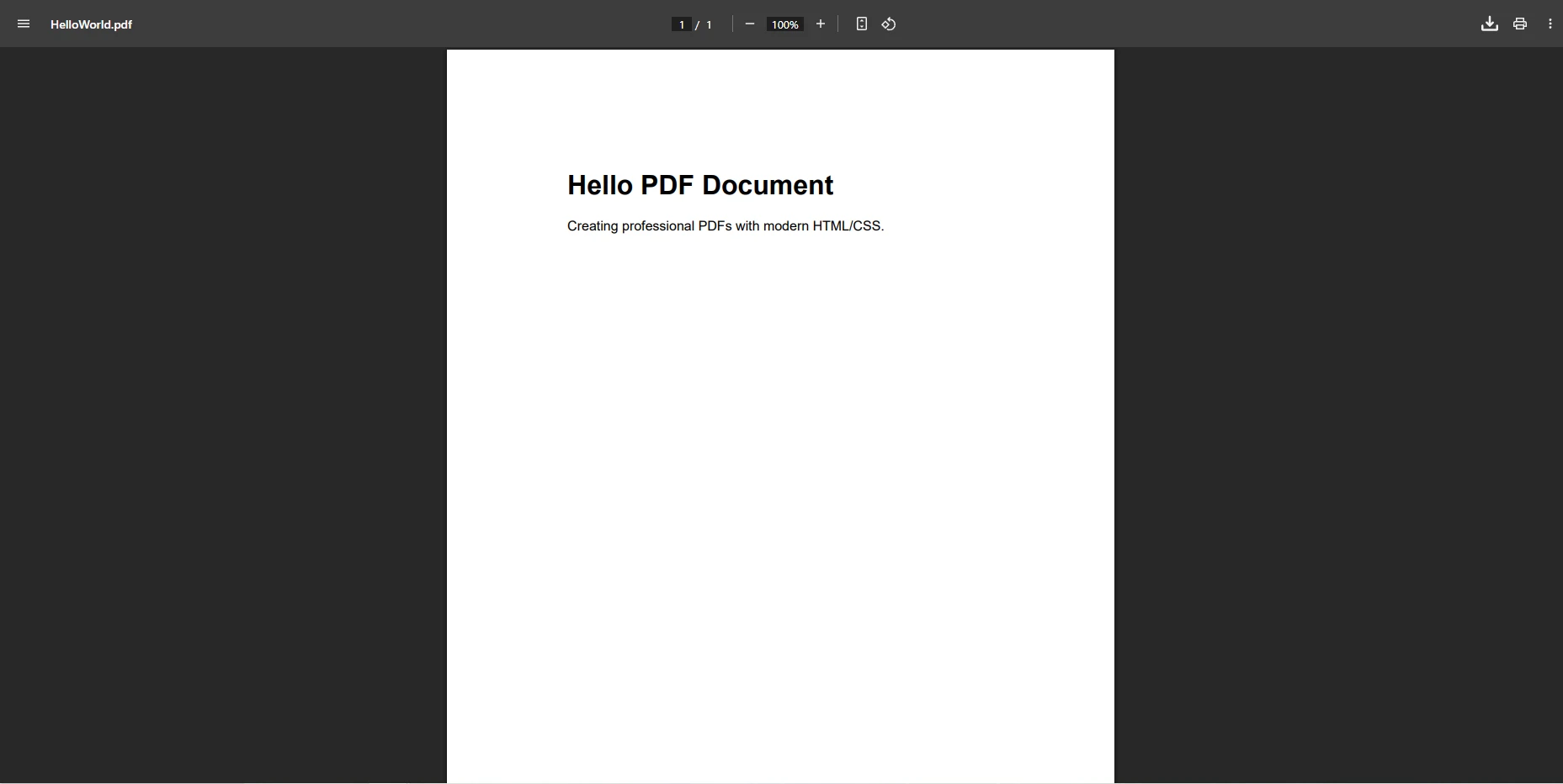
這種簡化的方法讓開發人員可以利用現有的網頁開發技能來建立PDF文件。 該程式庫支持完整的CSS3樣式,使建立視覺上吸引人的文件變得簡單,無需手動坐標計算。 您可以將HTML字串轉換為PDF,從URL載入PDF文件,或渲染整個網頁—所有這些都可使用相同的簡單API。
IronPDF的HTML方法也簡化了複雜的文件功能。 以下是如何建立帶有圖片和品牌的多欄新聞信佈局:
using IronPdf;

var renderer = new ChromePdfRenderer();

// Configure rendering options for optimal output
renderer.RenderingOptions.PaperOrientation = PdfPaperOrientation.Portrait;
renderer.RenderingOptions.MarginTop = 40;
renderer.RenderingOptions.MarginBottom = 40;
renderer.RenderingOptions.MarginLeft = 20;
renderer.RenderingOptions.MarginRight = 20;
renderer.RenderingOptions.EnableJavaScript = true;
renderer.RenderingOptions.RenderDelay = 500;

// Create a newsletter-style PDF with columns
var pdf = renderer.RenderHtmlAsPdf(@"
    <html>
    <head>
        <style>
            body { font-family: Georgia, serif; }
            .header { text-align: center; margin-bottom: 30px; }
            .columns { display: flex; gap: 20px; }
            .column { flex: 1; text-align: justify; }
        </style>
    </head>
    <body>
        <div class='header'>
            <h1>Company Newsletter</h1>
            <p>Monthly Updates and Insights</p>
        </div>
        <div class='columns'>
            <div class='column'>
                <h2>功能 Article</h2>
                <p>Lorem ipsum dolor sit amet, consectetur adipiscing elit...</p>
            </div>
            <div class='column'>
                <h2>Industry News</h2>
                <p>Sed do eiusmod tempor incididunt ut labore et dolore magna...</p>
                <h3>Upcoming Events</h3>
                <ul>
                    <li>Annual Conference - March 15</li>
                    <li>Webinar Series - April 2</li>
                </ul>
            </div>
        </div>
    </body>
    </html>");

// Add page numbers in footer
pdf.AddTextFooters("Page {page} of {total-pages}", IronPdf.Font.FontFamily.Arial, 10);
pdf.SaveAs("Newsletter.pdf");HTML/CSS提供自動的佈局流,消除了手動位置計算。 開發人員可以使用熟悉的網頁技術,如Flexbox和Grid進行複雜的佈局。 響應式設計原則自然適用,內容會自動在不同頁面間包裝和流動。 對內容的更改不需要重新計算位置,而CSS媒體查詢可以改善列印佈局。 這種方法顯著減少了典型文件生成任務的開發時間,同時提高了可維護性。
IronPDF使用Chrome的渲染引擎來精確處理複雜佈局,與它們在現代瀏覽器中的顯示方式一樣。 該程式庫支持CSS Grid和Flexbox,媒體查詢以優化列印和響應式圖片。 JavaScript可以在渲染之前動態修改內容,啟用圖表和資料可視化。 引擎會自動處理字體嵌入,保證跨平臺的一致渲染。
IronPDF在需要複雜的文件操作的情景中表現突出。 以下範例顯示如何在單個工作流中生成帶有頁眉和頁尾、數位簽章和安全設置的專業發票:
using IronPdf;
using IronPdf.Signing;

// Create a professional invoice PDF
var renderer = new ChromePdfRenderer();
renderer.RenderingOptions.PaperOrientation = PdfPaperOrientation.Portrait;
renderer.RenderingOptions.MarginTop = 25;
renderer.RenderingOptions.MarginBottom = 25;

// Generate invoice from HTML
var invoicePdf = renderer.RenderHtmlAsPdf(@"
    <div style='padding: 20px; font-family: Arial;'>
        <h2>INVOICE #2024-001</h2>
        <table style='width: 100%; border-collapse: collapse;'>
            <tr>
                <th style='border: 1px solid #ddd; padding: 8px;'>Item</th>
                <th style='border: 1px solid #ddd; padding: 8px;'>Amount</th>
            </tr>
            <tr>
                <td style='border: 1px solid #ddd; padding: 8px;'>Professional Services</td>
                <td style='border: 1px solid #ddd; padding: 8px;'>$1,500.00</td>
            </tr>
        </table>
    </div>");

// Add footer with page numbers
invoicePdf.AddTextFooters("Page {page} of {total-pages}", IronPdf.Font.FontFamily.Arial, 9);

// Add security settings
invoicePdf.SecuritySettings.SetPassword("user123", "owner456");
invoicePdf.SecuritySettings.AllowUserPrinting = true;
invoicePdf.SecuritySettings.AllowUserCopyPasteContent = false;

// Apply a digital signature
invoicePdf.SignWithSignature(new Signature("cert.pfx", "password")
{
    SigningContact = "legal@company.com",
    SigningLocation = "New York, NY",
    SigningReason = "Document Approval"
});

invoicePdf.SaveAs("Invoice.pdf");Imports IronPdf
Imports IronPdf.Signing
' Create a professional invoice PDF
Dim renderer As New ChromePdfRenderer()
renderer.RenderingOptions.PaperOrientation = PdfPaperOrientation.Portrait
renderer.RenderingOptions.MarginTop = 25
renderer.RenderingOptions.MarginBottom = 25
' Generate invoice from HTML
Dim invoicePdf = renderer.RenderHtmlAsPdf("
<div style='padding: 20px; font-family: Arial;'>
<h2>INVOICE #2024-001</h2>
<table style='width: 100%; border-collapse: collapse;'>
<tr>
<th style='border: 1px solid #ddd; padding: 8px;'>Item</th>
<th style='border: 1px solid #ddd; padding: 8px;'>Amount</th>
</tr>
<tr>
<td style='border: 1px solid #ddd; padding: 8px;'>Professional Services</td>
<td style='border: 1px solid #ddd; padding: 8px;'>$1,500.00</td>
</tr>
</table>
</div>")
' Add footer with page numbers
invoicePdf.AddTextFooters("Page {page} of {total-pages}", IronPdf.Font.FontFamily.Arial, 9)
' Add security settings
invoicePdf.SecuritySettings.SetPassword("user123", "owner456")
invoicePdf.SecuritySettings.AllowUserPrinting = True
invoicePdf.SecuritySettings.AllowUserCopyPasteContent = False
' Apply a digital signature
invoicePdf.SignWithSignature(New Signature("cert.pfx", "password") With {
.SigningContact = "legal@company.com",
.SigningLocation = "New York, NY",
.SigningReason = "Document Approval"
})
invoicePdf.SaveAs("Invoice.pdf")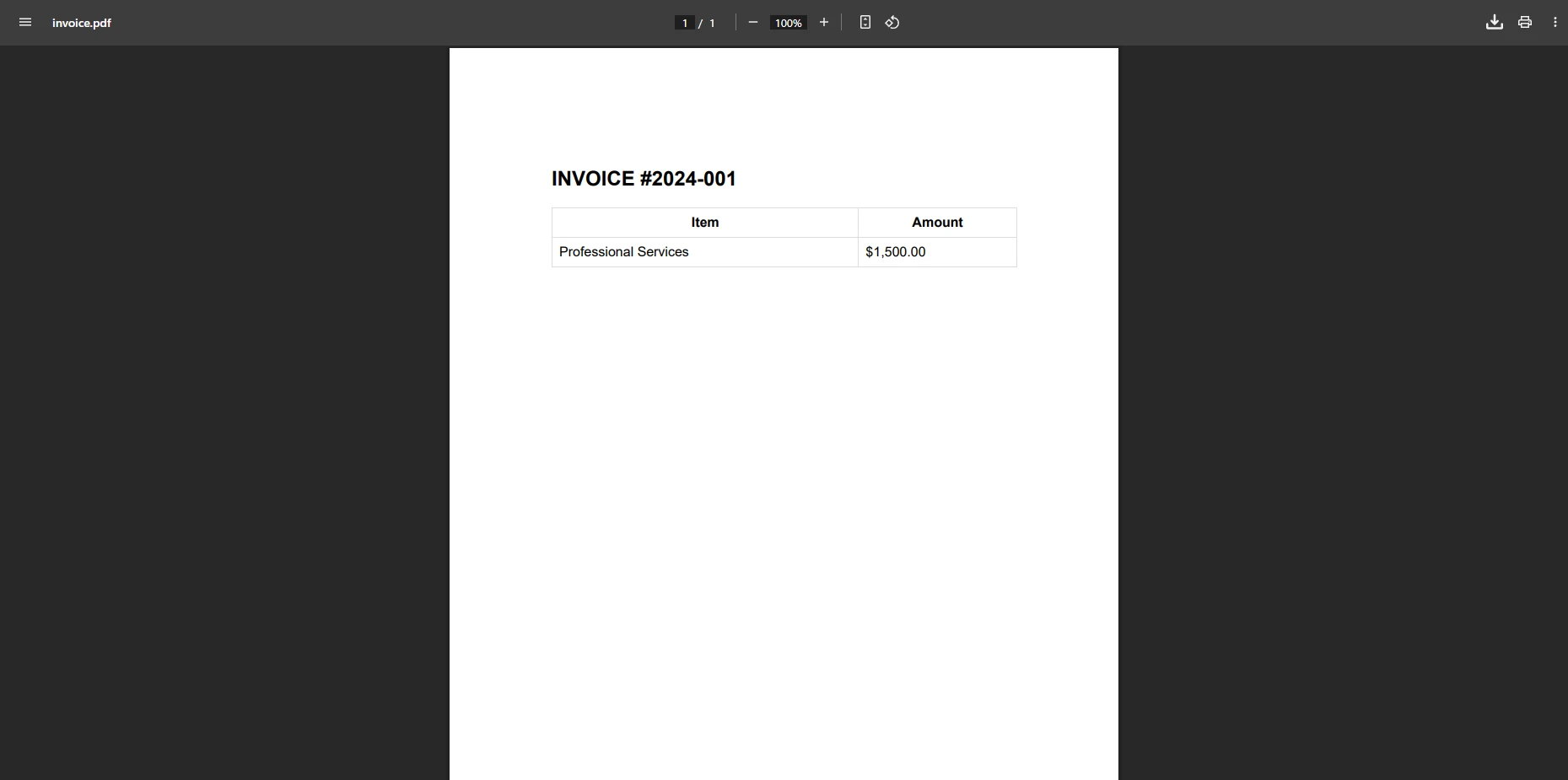
IronPDF不需要手動定位就能處理複雜佈局,通過標準HTML/CSS支持表格、圖片和自定義字體。 除了發票,該程式庫涵蓋了廣泛的PDF操作:
| 功能 | 描述 | 了解更多 |
|---|---|---|
| 合併和拆分 | 以程式化的方式組合或拆分PDF文件 | 合併或拆分PDF文件 |
| 文字提取 | 從任何PDF文件中提取文字內容 | 從PDF提取文字 |
| PDF轉圖像 | 將PDF頁面光柵化為PNG、JPEG或TIFF | PDF轉圖像 |
| 浮水印 | 將文字或圖片浮水印新增到任何頁面 | 浮水印 |
| PDF表單 | 建立、填寫和閱讀互動式表單欄位 | PDF表單 |
| 自定義浮水印 | 應用樣式化的、定位的浮水印疊加 | 自定義浮水印 |
IronPDF提供完整的PDF操作,包括合併、提取頁面和轉換為圖像。 該程式庫支持表單建立、PDF/A的相容性和涂黑功能。 對於需要提取結構化資料的團隊,文字提取API使得解析PDF內容變得簡單。 PDF表單功能覆蓋建立新表單字段和程式化地閱讀現有字段。
IronPDF中的數位簽名使用X.509證書來驗證文件的真實性。 該程式庫支持可見簽名、時間戳授權和多個簽名欄位。 過程維持PDF/A相容性,並支持增量更新以保護文件歷史。 這對於需要問責的法律文件來說是重要的考量。
自動資源管理防止記憶體洩漏,確保生產中的可靠性能。 IronPDF將自動處理字體嵌入、管理圖像優化並清除臨時文件。 該程式庫支持無需額外配置的Azure和AWS雲部署。 記憶體高效流式處理使得不需將整個文件載入到記憶體也能處理大文件,這對於高吞吐量的文件生成工作負載至關重要。
雖然PDF File Writer C# class library在.NET中開創了程式化的PDF生成,但像IronPDF這樣的現代解決方案為當今的開發需求提供了引人注目的優勢。 IronPDF將PDF建立從一個複雜的、基於坐標的過程轉變為一個熟悉的HTML/CSS工作流,大大減少了開發時間,同時擴展了功能。
從傳統的PDF程式庫轉向現代基於HTML的解決方案,不僅僅是為了方便——這關於使用現有的技能、減少維護負擔並加快開發週期。 根據PDF協會的技術資源,PDF格式繼續發展,現代工具對應規範更新是至關重要的。 IronPDF的完整功能集能應對從簡單文件生成到包括安全、數位簽名和相容標準的複雜企業需求。
對於希望快速開始的團隊,IronPDF功能概覽提供了整個功能列表,並且文件中包含常見情況的可運行程式碼範例。 NuGet.org上的IronPDF列表顯示當前版本詳情和下載統計資料。
準備好將您的PDF生成工作流程現代化了嗎? 立即開始IronPDF的免費試用,體驗現代工具的不同。 對於生產部署,請探索根據您的應用程式需求進行擴展的靈活授權選項。

Curtis Chau擁有Carleton大學的電腦科學學士學位,專精於前端開發,擁有Node.js、TypeScript、JavaScript和React的專業知識。Curtis熱衷於建立直觀且美觀的使用者介面,喜愛使用現代框架並建立結構良好、視覺吸引力的手冊。

IronPDF 是 IRONSUITE 的一部分
10 款適用於辦公室文件的 .NET API 產品

當您需要您的PDF看起來像HTML一樣快速。














