# Merge PDF Files into a Single PDF Using Python
IronPDF for Python provides a direct solution to merge multiple PDF documents into a single file using the `PdfDocument.Merge()` method, supporting both two-file merging and batch operations for combining numerous PDFs efficiently.
PDF (Portable Document Format) is the standard for sharing documents that must look identical across platforms and applications. Whether you are consolidating reports, combining scanned documents, or assembling multi-part forms, merging PDF content from various sources is a recurring requirement in business and data-processing workflows.
IronPDF handles this operation in Python with a single method call. This guide covers installation, basic two-file merging, and batch operations for combining multiple documents at once.
*as-heading:2(Quickstart: Merge PDF Files in Python)*
```python
#:path=/static-assets/pdf/content-code-examples/how-to/python-merge-pdf/quickstart.py
from ironpdf import *

renderer = ChromePdfRenderer()
pdf_a = renderer.RenderHtmlAsPdf("<p>Document A</p>")
pdf_b = renderer.RenderHtmlAsPdf("<p>Document B</p>")

merged = PdfDocument.Merge([pdf_a, pdf_b])
merged.SaveAs("merged.pdf")
```
<div class="hsg-featured-snippet">
<h3>Minimal Workflow (5 steps)</h3>
<ol>
<li><a class="js-modal-open" data-modal-id="download-modal" href="#download-modal">Install the Python library for merging PDF files</a></li>
<li>Use <code>RenderHtmlAsPdf</code> to generate individual PDF files, or load existing ones with <code>PdfDocument.FromFile</code></li>
<li>Apply the <code>Merge</code> method to combine PDF files into a single <code>PdfDocument</code></li>
<li>Save the merged document with <code>SaveAs</code></li>
<li>For multiple PDFs, pass a list of <code>PdfDocument</code> objects to <code>Merge</code></li>
</ol>
</div>
## How Do I Install IronPDF for Python?
IronPDF is available as a Python package via pip. It requires Python 3.x and works on Windows and Linux without any additional system dependencies for standard merge operations. The package ships with a Chrome-based rendering engine that handles HTML-to-PDF conversion internally.
Install the `IronPdf` library using pip with the following command:
```shell
:ProductInstall
```
For detailed installation instructions and help with common issues such as ["Module Not Defined" errors](https://ironpdf.com/python/troubleshooting/module-not-defined/) or [permission problems](https://ironpdf.com/python/troubleshooting/could-not-install-package/), refer to the official documentation.
### What Import Statements Are Required?
In your Python script, include the following import statements to access IronPDF's PDF generation and merging features:
```python
#:path=/static-assets/pdf/content-code-examples/how-to/python-merge-pdf/imports.py
from ironpdf import *

# Set your license key for production use
License.LicenseKey = "YOUR-LICENSE-KEY-HERE"
```
For production applications, [configure your license key](https://ironpdf.com/python/get-started/license-keys/) to unlock the full IronPDF feature set. A free trial is available - [start your free trial](trial-license) to begin without a purchase.
## How Do I Merge Two PDF Files in Python?
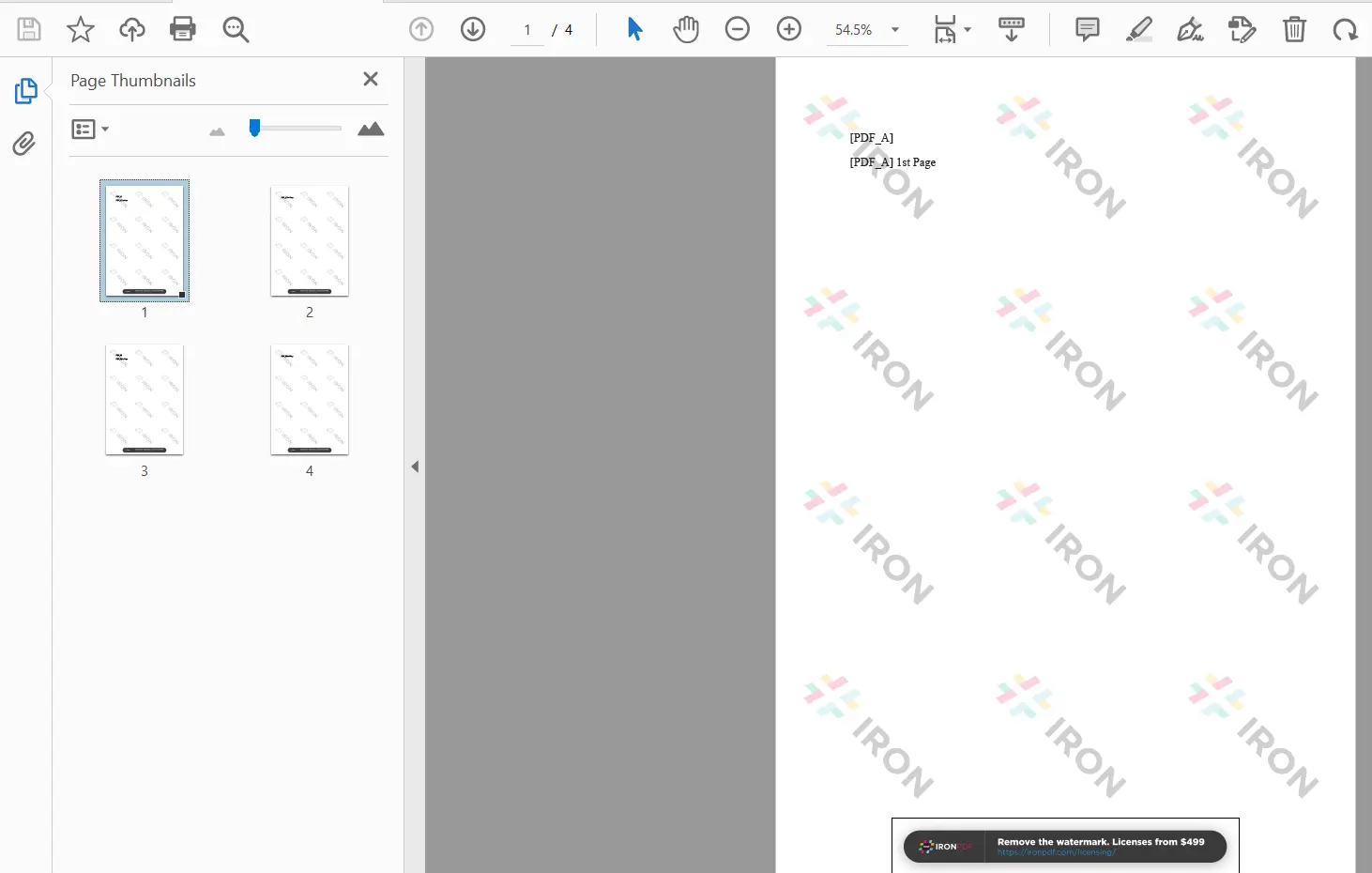
[Merging PDF files in Python](/python/examples/merge-pdfs/) involves two steps: creating the source PDF documents, then combining them with `PdfDocument.Merge()`. The method accepts a list of `PdfDocument` objects and produces a new combined document in the order the items appear in the list.
Below is a complete working example:
```python
#:path=/static-assets/pdf/content-code-examples/how-to/python-merge-pdf/merge-two-pdfs.py
from ironpdf import *
# HTML content for the first PDF
html_a = """<p> [PDF_A] </p>
<p> [PDF_A] 1st Page </p>
<div style='page-break-after: always;'></div>
<p> [PDF_A] 2nd Page</p>"""
# HTML content for the second PDF
html_b = """<p> [PDF_B] </p>
<p> [PDF_B] 1st Page </p>
<div style='page-break-after: always;'></div>
<p> [PDF_B] 2nd Page</p>"""
# Initialize renderer
renderer = ChromePdfRenderer()
# Convert each HTML string to a PDF document
pdfdoc_a = renderer.RenderHtmlAsPdf(html_a)
pdfdoc_b = renderer.RenderHtmlAsPdf(html_b)
# Merge the two documents into one
merged = PdfDocument.Merge([pdfdoc_a, pdfdoc_b])
# Save the merged result to disk
merged.SaveAs("Merged.pdf")
```
### Why Use RenderHtmlAsPdf for PDF Generation?
The example above uses two HTML strings, each representing a two-page document. `RenderHtmlAsPdf` converts each string into a `PdfDocument` object using IronPDF's Chrome-based rendering engine, which produces accurate results from HTML, CSS, and JavaScript content. This approach is well-suited for generating reports or data-driven documents from web templates. For more complex rendering scenarios, see the [HTML to PDF tutorial](https://ironpdf.com/python/tutorials/html-to-pdf/).
[[t:(You can also load existing PDF files from disk using `PdfDocument.FromFile("path/to/file.pdf")` and pass them directly to the `Merge` method. This is useful when combining pre-existing reports or externally generated documents.)]]
### How Does the Merge Method Work?
`PdfDocument.Merge` takes a Python list of `PdfDocument` objects as its single argument. It combines the documents in list order, placing all pages from the first document before all pages from the second, and so on. The result is a new `PdfDocument` that can be further modified or saved. Page count, bookmarks, and embedded content from each source document are all preserved in the output.
The method accepts any mix of rendered and file-loaded documents in the same list. This means you can combine freshly rendered HTML output with existing PDFs from disk in a single call, which is useful when one part of a report is generated dynamically and another part is a static template.
### How Do I Save the Merged PDF?
Pass the desired output path to `SaveAs` to write the merged document to disk:
```python
# Save the merged document
merged.SaveAs("Merged.pdf")
# Optionally compress images before saving to reduce file size
merged.CompressImages(90)
merged.SaveAs("Merged_Compressed.pdf")
```
After saving, you can apply additional post-processing such as [PDF compression](https://ironpdf.com/python/examples/pdf-compression/) to reduce the file size of large merged documents.
<div class="content-img-align-center">
<div class="center-image-wrapper">
<a rel="nofollow" href="/static-assets/ironpdf-java/howto/java-merge-pdf/java-merge-pdf-2.webp" target="_blank"><img src="/static-assets/ironpdf-java/howto/java-merge-pdf/java-merge-pdf-2.webp" alt="IronPDF output showing a 4-page merged PDF with thumbnail panel confirming successful two-document merge" class="img-responsive add-shadow" /></a>
<p class="content__image-caption">Merged PDF output showing pages from both source documents</p>
</div>
</div>
## How Do I Merge More Than Two PDF Files in Python?
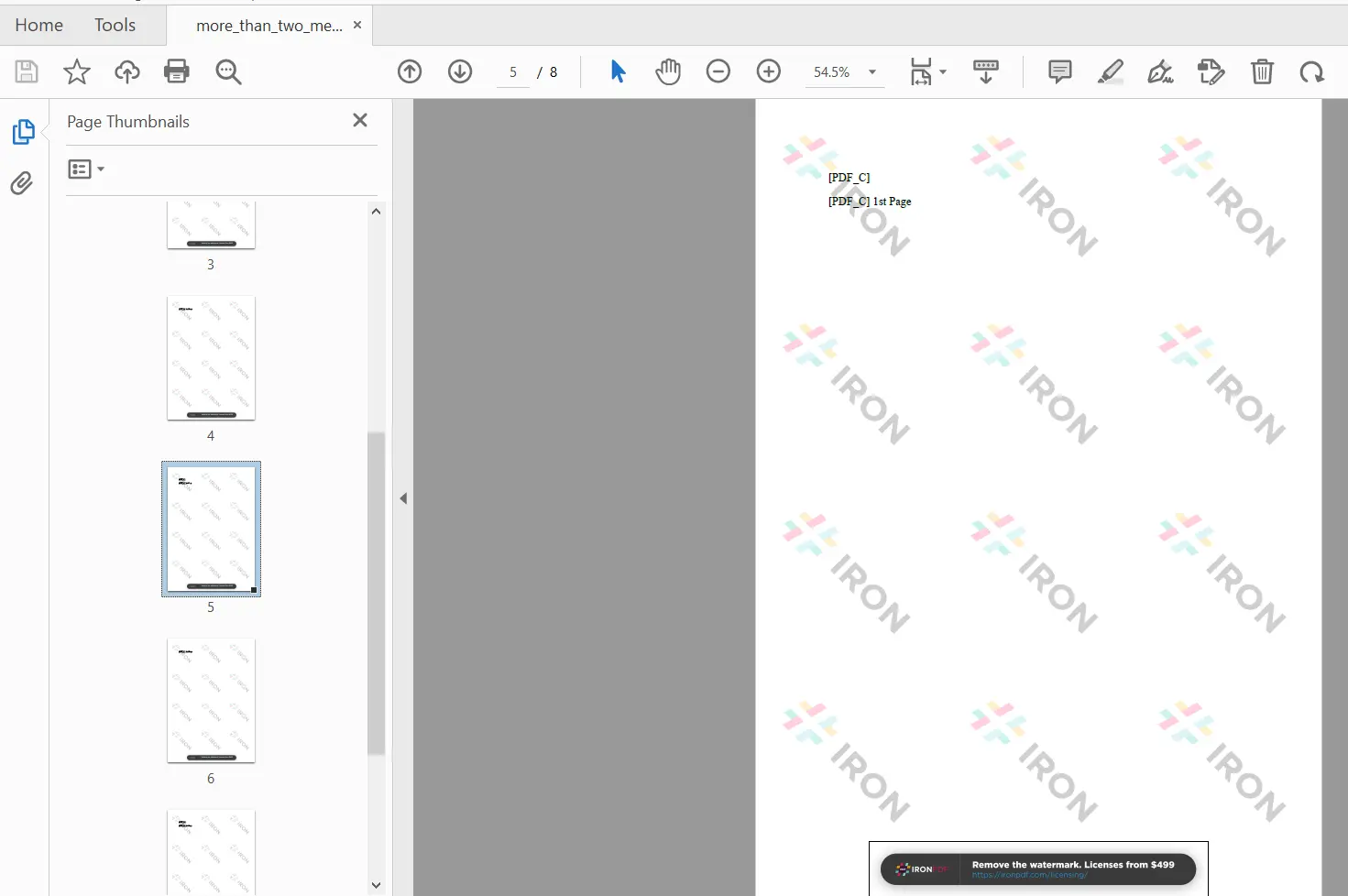
Batch merging in IronPDF follows the same pattern as merging two documents. The only difference is that more `PdfDocument` objects are added to the list before the call to `PdfDocument.Merge`. The method scales to handle dozens or hundreds of documents in a single operation.
This is the same API regardless of whether you are merging 2 or 200 documents. For high-volume scenarios such as nightly report aggregation or document assembly pipelines, IronPDF also supports [parallel PDF generation](https://ironpdf.com/python/examples/parallel/) to speed up the rendering phase before merging.
The process involves two steps:
- Create a Python list containing the `PdfDocument` objects to merge
- Pass the list as the argument to `PdfDocument.Merge`
### How Do I Combine Multiple PDFs with a List?
The code below merges four HTML-rendered documents in a single call:
```python
#:path=/static-assets/pdf/content-code-examples/how-to/python-merge-pdf/merge-multiple-pdfs.py
from ironpdf import *
# HTML content for each document
html_a = """<p> [PDF_A] 1st Page </p>
<div style='page-break-after: always;'></div>
<p> [PDF_A] 2nd Page</p>"""
html_b = """<p> [PDF_B] 1st Page </p>
<div style='page-break-after: always;'></div>
<p> [PDF_B] 2nd Page</p>"""
html_c = """<p> [PDF_C] 1st Page </p>
<div style='page-break-after: always;'></div>
<p> [PDF_C] 2nd Page</p>"""
html_d = """<p> [PDF_D] Content Page </p>
<div style='page-break-after: always;'></div>
<p> [PDF_D] Summary Page</p>"""
renderer = ChromePdfRenderer()
# Render all four documents
pdfdoc_a = renderer.RenderHtmlAsPdf(html_a)
pdfdoc_b = renderer.RenderHtmlAsPdf(html_b)
pdfdoc_c = renderer.RenderHtmlAsPdf(html_c)
pdfdoc_d = renderer.RenderHtmlAsPdf(html_d)
# Collect into a list and merge
pdfs = [pdfdoc_a, pdfdoc_b, pdfdoc_c, pdfdoc_d]
pdf = PdfDocument.Merge(pdfs)
# Save the combined document
pdf.SaveAs("merged_multiple.pdf")
```
The list passed to `Merge` determines the page order in the final document. Rearranging elements in the list changes the output order with no additional code. If you need to sort documents before merging - for example, by date or report number - sort the Python list first, then pass it to `Merge`.
### How Do I Merge Existing PDF Files from Disk?
When combining pre-existing PDF files rather than freshly rendered ones, load each file with `PdfDocument.FromFile` before merging. This is the typical pattern when working with files produced by other systems - scanned documents, third-party report exports, or PDFs generated by different tools. IronPDF reads the file into memory as a `PdfDocument` object, which can then be merged, modified, or inspected before the final save.
```python
#:path=/static-assets/pdf/content-code-examples/how-to/python-merge-pdf/merge-existing-pdfs.py
from ironpdf import *
# Load existing PDF files from disk
existing_pdf1 = PdfDocument.FromFile("report1.pdf")
existing_pdf2 = PdfDocument.FromFile("report2.pdf")
existing_pdf3 = PdfDocument.FromFile("report3.pdf")
# Merge all loaded documents
merged_existing = PdfDocument.Merge([existing_pdf1, existing_pdf2, existing_pdf3])
# Save the combined result
merged_existing.SaveAs("merged_reports.pdf")
```
[[i:(IronPDF preserves fonts, images, annotations, and page layouts from the source files during merging. Documents with embedded form fields or [digital signatures](https://ironpdf.com/python/examples/digitally-sign-a-pdf/) can also be merged, though interactive form fields in the output may require re-flattening depending on your use case.)]]
<div class="content-img-align-center">
<div class="center-image-wrapper">
<a rel="nofollow" href="/static-assets/ironpdf-java/howto/java-merge-pdf/java-merge-pdf-3.webp" target="_blank"><img src="/static-assets/ironpdf-java/howto/java-merge-pdf/java-merge-pdf-3.webp" alt="IronPDF output showing a multi-page merged PDF with thumbnail navigation panel displaying pages from four source documents" class="img-responsive add-shadow" /></a>
<p class="content__image-caption">Multi-document merge result showing pages from all four source PDFs</p>
</div>
</div>
## What Are the Next Steps for Merging PDFs in Python?
This guide covered the two main patterns for PDF merging with IronPDF: rendering HTML content to PDF documents and combining them with `PdfDocument.Merge`, and loading existing files from disk for batch combination. Both approaches share the same API and scale from simple two-file merges to large document batches.
IronPDF supports additional post-merge operations such as [adding headers and footers](https://ironpdf.com/python/examples/headers-and-footers/), [applying watermarks](https://ironpdf.com/python/examples/pdf-watermarking/) for branding, [extracting text](https://ironpdf.com/python/examples/extract-pdf-text/) from the combined document, and [filling PDF forms](https://ironpdf.com/python/how-to/python-fill-pdf-form/) programmatically.
The library supports Python 3.x on Windows and Linux. For more Python PDF operations, explore [splitting PDFs](https://ironpdf.com/how-to/merge-or-split-pdfs/), [converting PDFs to images](https://ironpdf.com/python/how-to/python-pdf-to-image/), and [printing PDFs](https://ironpdf.com/python/how-to/python-print-pdf/). For the full list of Python code examples, visit the [IronPDF for Python examples page](https://ironpdf.com/python/examples/using-html-to-create-a-pdf/).
[Start your free trial](trial-license) to test PDF merging in your environment, or [view licensing options](licensing) for production deployments.
Ready to see what else you can do? Check out the IronPDF Python tutorial page here: [IronPDF for Python tutorials](https://ironpdf.com/python/tutorials/html-to-pdf/)
*[Download](https://ironpdf.com/downloads/python-merge-pdf.zip) the software product.*
IronPDF for Python provides a direct solution to merge multiple PDF documents into a single file using the PdfDocument.Merge() method, supporting both two-file merging and batch operations for combining numerous PDFs efficiently.
PDF (Portable Document Format) is the standard for sharing documents that must look identical across platforms and applications. Whether you are consolidating reports, combining scanned documents, or assembling multi-part forms, merging PDF content from various sources is a recurring requirement in business and data-processing workflows.
IronPDF handles this operation in Python with a single method call. This guide covers installation, basic two-file merging, and batch operations for combining multiple documents at once.
Use RenderHtmlAsPdf to generate individual PDF files, or load existing ones with PdfDocument.FromFile
Apply the Merge method to combine PDF files into a single PdfDocument
Save the merged document with SaveAs
For multiple PDFs, pass a list of PdfDocument objects to Merge
How Do I Install IronPDF for Python?
IronPDF is available as a Python package via pip. It requires Python 3.x and works on Windows and Linux without any additional system dependencies for standard merge operations. The package ships with a Chrome-based rendering engine that handles HTML-to-PDF conversion internally.
Install the IronPdf library using pip with the following command:
In your Python script, include the following import statements to access IronPDF's PDF generation and merging features:
#:path=/static-assets/pdf/content-code-examples/how-to/python-merge-pdf/imports.pyfrom ironpdf import *# Set your license key for production useLicense.LicenseKey = "YOUR-LICENSE-KEY-HERE"
#:path=/static-assets/pdf/content-code-examples/how-to/python-merge-pdf/imports.py
from ironpdf import *

# Set your license key for production use
License.LicenseKey = "YOUR-LICENSE-KEY-HERE"
Merging PDF files in Python involves two steps: creating the source PDF documents, then combining them with PdfDocument.Merge(). The method accepts a list of PdfDocument objects and produces a new combined document in the order the items appear in the list.
Below is a complete working example:
#:path=/static-assets/pdf/content-code-examples/how-to/python-merge-pdf/merge-two-pdfs.pyfrom ironpdf import *# HTML content for the first PDFhtml_a = """<p> [PDF_A] </p> <p> [PDF_A] 1st Page </p> <div style='page-break-after: always;'></div> <p> [PDF_A] 2nd Page</p>"""# HTML content for the second PDFhtml_b = """<p> [PDF_B] </p> <p> [PDF_B] 1st Page </p> <div style='page-break-after: always;'></div> <p> [PDF_B] 2nd Page</p>"""# Initialize rendererrenderer = ChromePdfRenderer()# Convert each HTML string to a PDF documentpdfdoc_a = renderer.RenderHtmlAsPdf(html_a)pdfdoc_b = renderer.RenderHtmlAsPdf(html_b)# Merge the two documents into onemerged = PdfDocument.Merge([pdfdoc_a, pdfdoc_b])# Save the merged result to diskmerged.SaveAs("Merged.pdf")
#:path=/static-assets/pdf/content-code-examples/how-to/python-merge-pdf/merge-two-pdfs.py
from ironpdf import *

# HTML content for the first PDF
html_a = """<p> [PDF_A] </p>
            <p> [PDF_A] 1st Page </p>
            <div style='page-break-after: always;'></div>
            <p> [PDF_A] 2nd Page</p>"""

# HTML content for the second PDF
html_b = """<p> [PDF_B] </p>
            <p> [PDF_B] 1st Page </p>
            <div style='page-break-after: always;'></div>
            <p> [PDF_B] 2nd Page</p>"""

# Initialize renderer
renderer = ChromePdfRenderer()

# Convert each HTML string to a PDF document
pdfdoc_a = renderer.RenderHtmlAsPdf(html_a)
pdfdoc_b = renderer.RenderHtmlAsPdf(html_b)

# Merge the two documents into one
merged = PdfDocument.Merge([pdfdoc_a, pdfdoc_b])

# Save the merged result to disk
merged.SaveAs("Merged.pdf")
Python
Why Use RenderHtmlAsPdf for PDF Generation?
The example above uses two HTML strings, each representing a two-page document. RenderHtmlAsPdf converts each string into a PdfDocument object using IronPDF's Chrome-based rendering engine, which produces accurate results from HTML, CSS, and JavaScript content. This approach is well-suited for generating reports or data-driven documents from web templates. For more complex rendering scenarios, see the HTML to PDF tutorial.
Tips: You can also load existing PDF files from disk using PdfDocument.FromFile("path/to/file.pdf") and pass them directly to the Merge method. This is useful when combining pre-existing reports or externally generated documents.
How Does the Merge Method Work?
PdfDocument.Merge takes a Python list of PdfDocument objects as its single argument. It combines the documents in list order, placing all pages from the first document before all pages from the second, and so on. The result is a new PdfDocument that can be further modified or saved. Page count, bookmarks, and embedded content from each source document are all preserved in the output.
The method accepts any mix of rendered and file-loaded documents in the same list. This means you can combine freshly rendered HTML output with existing PDFs from disk in a single call, which is useful when one part of a report is generated dynamically and another part is a static template.
How Do I Save the Merged PDF?
Pass the desired output path to SaveAs to write the merged document to disk:
# Save the merged documentmerged.SaveAs("Merged.pdf")# Optionally compress images before saving to reduce file sizemerged.CompressImages(90)merged.SaveAs("Merged_Compressed.pdf")
# Save the merged document
merged.SaveAs("Merged.pdf")

# Optionally compress images before saving to reduce file size
merged.CompressImages(90)
merged.SaveAs("Merged_Compressed.pdf")
Python
After saving, you can apply additional post-processing such as PDF compression to reduce the file size of large merged documents.
Merged PDF output showing pages from both source documents
How Do I Merge More Than Two PDF Files in Python?
Batch merging in IronPDF follows the same pattern as merging two documents. The only difference is that more PdfDocument objects are added to the list before the call to PdfDocument.Merge. The method scales to handle dozens or hundreds of documents in a single operation.
This is the same API regardless of whether you are merging 2 or 200 documents. For high-volume scenarios such as nightly report aggregation or document assembly pipelines, IronPDF also supports parallel PDF generation to speed up the rendering phase before merging.
The process involves two steps:
Create a Python list containing the PdfDocument objects to merge
Pass the list as the argument to PdfDocument.Merge
How Do I Combine Multiple PDFs with a List?
The code below merges four HTML-rendered documents in a single call:
#:path=/static-assets/pdf/content-code-examples/how-to/python-merge-pdf/merge-multiple-pdfs.pyfrom ironpdf import *# HTML content for each documenthtml_a = """<p> [PDF_A] 1st Page </p> <div style='page-break-after: always;'></div> <p> [PDF_A] 2nd Page</p>"""html_b = """<p> [PDF_B] 1st Page </p> <div style='page-break-after: always;'></div> <p> [PDF_B] 2nd Page</p>"""html_c = """<p> [PDF_C] 1st Page </p> <div style='page-break-after: always;'></div> <p> [PDF_C] 2nd Page</p>"""html_d = """<p> [PDF_D] Content Page </p> <div style='page-break-after: always;'></div> <p> [PDF_D] Summary Page</p>"""renderer = ChromePdfRenderer()# Render all four documentspdfdoc_a = renderer.RenderHtmlAsPdf(html_a)pdfdoc_b = renderer.RenderHtmlAsPdf(html_b)pdfdoc_c = renderer.RenderHtmlAsPdf(html_c)pdfdoc_d = renderer.RenderHtmlAsPdf(html_d)# Collect into a list and mergepdfs = [pdfdoc_a, pdfdoc_b, pdfdoc_c, pdfdoc_d]pdf = PdfDocument.Merge(pdfs)# Save the combined documentpdf.SaveAs("merged_multiple.pdf")
#:path=/static-assets/pdf/content-code-examples/how-to/python-merge-pdf/merge-multiple-pdfs.py
from ironpdf import *

# HTML content for each document
html_a = """<p> [PDF_A] 1st Page </p>
            <div style='page-break-after: always;'></div>
            <p> [PDF_A] 2nd Page</p>"""

html_b = """<p> [PDF_B] 1st Page </p>
            <div style='page-break-after: always;'></div>
            <p> [PDF_B] 2nd Page</p>"""

html_c = """<p> [PDF_C] 1st Page </p>
            <div style='page-break-after: always;'></div>
            <p> [PDF_C] 2nd Page</p>"""

html_d = """<p> [PDF_D] Content Page </p>
            <div style='page-break-after: always;'></div>
            <p> [PDF_D] Summary Page</p>"""

renderer = ChromePdfRenderer()

# Render all four documents
pdfdoc_a = renderer.RenderHtmlAsPdf(html_a)
pdfdoc_b = renderer.RenderHtmlAsPdf(html_b)
pdfdoc_c = renderer.RenderHtmlAsPdf(html_c)
pdfdoc_d = renderer.RenderHtmlAsPdf(html_d)

# Collect into a list and merge
pdfs = [pdfdoc_a, pdfdoc_b, pdfdoc_c, pdfdoc_d]
pdf = PdfDocument.Merge(pdfs)

# Save the combined document
pdf.SaveAs("merged_multiple.pdf")
Python
The list passed to Merge determines the page order in the final document. Rearranging elements in the list changes the output order with no additional code. If you need to sort documents before merging - for example, by date or report number - sort the Python list first, then pass it to Merge.
How Do I Merge Existing PDF Files from Disk?
When combining pre-existing PDF files rather than freshly rendered ones, load each file with PdfDocument.FromFile before merging. This is the typical pattern when working with files produced by other systems - scanned documents, third-party report exports, or PDFs generated by different tools. IronPDF reads the file into memory as a PdfDocument object, which can then be merged, modified, or inspected before the final save.
#:path=/static-assets/pdf/content-code-examples/how-to/python-merge-pdf/merge-existing-pdfs.pyfrom ironpdf import *# Load existing PDF files from diskexisting_pdf1 = PdfDocument.FromFile("report1.pdf")existing_pdf2 = PdfDocument.FromFile("report2.pdf")existing_pdf3 = PdfDocument.FromFile("report3.pdf")# Merge all loaded documentsmerged_existing = PdfDocument.Merge([existing_pdf1, existing_pdf2, existing_pdf3])# Save the combined resultmerged_existing.SaveAs("merged_reports.pdf")
#:path=/static-assets/pdf/content-code-examples/how-to/python-merge-pdf/merge-existing-pdfs.py
from ironpdf import *

# Load existing PDF files from disk
existing_pdf1 = PdfDocument.FromFile("report1.pdf")
existing_pdf2 = PdfDocument.FromFile("report2.pdf")
existing_pdf3 = PdfDocument.FromFile("report3.pdf")

# Merge all loaded documents
merged_existing = PdfDocument.Merge([existing_pdf1, existing_pdf2, existing_pdf3])

# Save the combined result
merged_existing.SaveAs("merged_reports.pdf")
Python
Please note: IronPDF preserves fonts, images, annotations, and page layouts from the source files during merging. Documents with embedded form fields or digital signatures can also be merged, though interactive form fields in the output may require re-flattening depending on your use case.
Multi-document merge result showing pages from all four source PDFs
What Are the Next Steps for Merging PDFs in Python?
This guide covered the two main patterns for PDF merging with IronPDF: rendering HTML content to PDF documents and combining them with PdfDocument.Merge, and loading existing files from disk for batch combination. Both approaches share the same API and scale from simple two-file merges to large document batches.
You can merge PDF files in Python using IronPDF by utilizing the PdfDocument.Merge() method. First, generate or load PDF documents using PdfDocument methods, then call PdfDocument.Merge() with a list of these PDF documents, and finally, save the merged document using SaveAs().
Can I merge more than two PDF files with IronPDF?
Yes, IronPDF supports merging of more than two PDF files. You simply add additional PdfDocument objects to a Python list and pass this list to the PdfDocument.Merge() method.
How can I merge existing PDF files from disk?
To merge existing PDF files from disk, use the PdfDocument.FromFile() method to load each PDF into a PdfDocument object. Then, pass a list of these objects to PdfDocument.Merge() and save the result using SaveAs().
Does IronPDF preserve the layout and content during merging?
Yes, IronPDF preserves fonts, images, annotations, and page layouts from source files during merging. It handles documents with embedded form fields or digital signatures, though interactive fields may need re-flattening.
What import statements are necessary for using IronPDF in Python?
To use IronPDF in your Python script, include the following import statement: from ironpdf import *. Additionally, set your license key using License.LicenseKey for production use.
How can I optimize the file size of a merged PDF?
You can optimize the file size of a merged PDF by using the CompressImages() method before saving the document with SaveAs(). This reduces the image quality slightly to decrease the overall file size.
Is IronPDF compatible with different operating systems?
IronPDF for Python is compatible with Windows and Linux operating systems and requires Python 3.x for operation.
How does IronPDF handle HTML content for PDF generation?
IronPDF uses a Chrome-based rendering engine to convert HTML content into PdfDocument objects. This allows it to accurately render PDF documents from HTML, CSS, and JavaScript.
What are the next steps after merging PDFs with IronPDF?
After merging PDFs with IronPDF, you can perform additional operations such as adding headers and footers, applying watermarks, extracting text, or even filling out PDF forms programmatically.
Where can I find more examples of using IronPDF in Python?
For more examples of using IronPDF in Python, visit the IronPDF for Python examples page. It includes various tutorials and code snippets to help you perform different PDF operations.
Curtis Chau holds a Bachelor’s degree in Computer Science (Carleton University) and specializes in front-end development with expertise in Node.js, TypeScript, JavaScript, and React. Passionate about crafting intuitive and aesthetically pleasing user interfaces, Curtis enjoys working with modern frameworks and creating well-structured, visually appealing manuals.