



Updated September 2, 2026
HTML to PDF in C#: Benchmarking 7 .NET Libraries (2026)
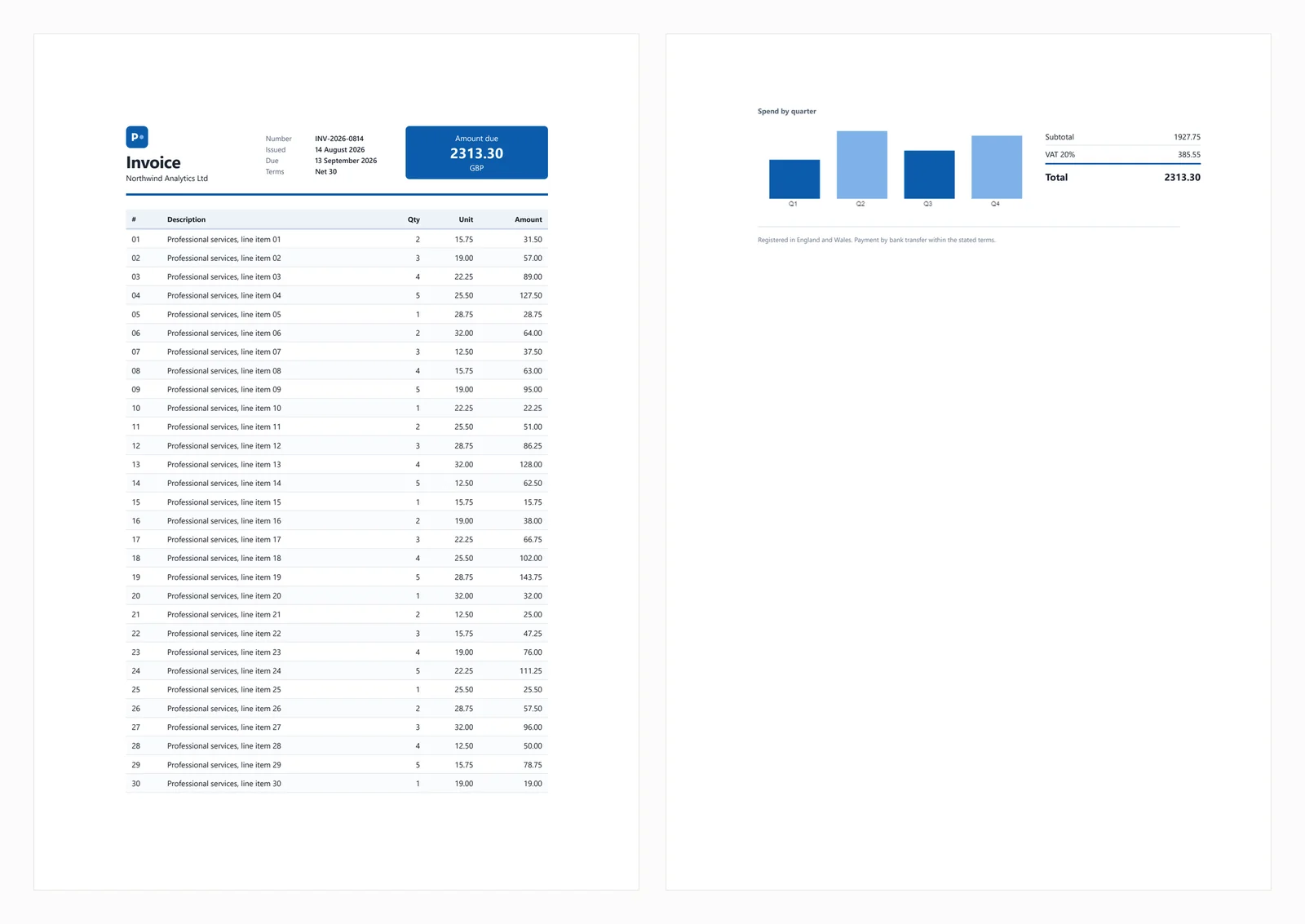
Compare 7 C# HTML to PDF libraries on .NET 10 for cold start, throughput, memory and rendering accuracy. Only 3 rendered the test invoice correctly.
Read More

Question: Can you create PDFs in ASP.NET with iText, and is there a better alternative? Yes -- iText is a long-established .NET PDF library, but IronPDF offers a modern HTML-to-PDF approach that eliminates the need to learn low-level PDF document structures. This guide compares both libraries with working code examples so you can choose the right tool for your project.
iText is a .NET port of the Java iText library, offering programmatic PDF creation through its document class and low-level PDF content manipulation. While powerful, using iText requires understanding PDF document structure, working with document objects, and manually positioning elements using coordinates and page size specifications. The API is verbose by necessity -- the library exposes the full complexity of the PDF specification, which means there is a lot to learn before producing polished output.
IronPDF takes a different approach, focusing on HTML-to-PDF conversion using a Chrome rendering engine. Developers can generate PDF files using familiar HTML and CSS, making PDF creation as straightforward as designing a web page. IronPDF handles the PDF generation logic behind the scenes, allowing you to produce documents with modern styling and JavaScript support. Because the rendering pipeline is powered by Chromium, any layout that works in a modern browser will translate faithfully to the PDF output -- including flexbox, grid, web fonts, and JavaScript-generated content.
The practical consequence of this architectural difference is that iText rewards developers who want fine-grained, coordinate-level control over every byte in a PDF file, while IronPDF rewards developers who want to produce visually polished documents quickly using skills they already have. For most web application scenarios -- invoices, reports, order confirmations, and data exports -- the HTML approach is faster to build and easier to maintain.
| Feature | iText | IronPDF |
|---|---|---|
| HTML to PDF | Limited (via XMLWorker add-on) | Full Chrome-engine rendering |
| CSS Support | Partial | Full CSS3 support |
| JavaScript Support | None | Yes (via Chrome engine) |
| Licensing | AGPL (commercial license required) | Commercial, royalty-free |
| Learning Curve | Steep (PDF API knowledge needed) | Low (HTML/CSS sufficient) |
| NuGet Install | Install-Package iTextSharp | Install-Package IronPdf |
| .NET Compatibility | .NET Framework, .NET Core | .NET 8, .NET 9, .NET 10, Framework |
Installing either library starts with the NuGet Package Manager. For iText, note that newer iText versions operate under the AGPL license, which requires either open-sourcing your application or purchasing a commercial license:
# Install iTextSharp via Package Manager Console
Install-Package iTextSharpFor IronPDF, you can install it through the NuGet Package Manager Console, the .NET CLI, or by searching directly in Visual Studio's NuGet UI:
After installation, IronPDF is ready to use with a single using statement. No additional configuration is required for basic PDF generation. For advanced scenarios -- such as setting a license key, configuring rendering options, or generating PDFs in a cloud environment -- see the IronPDF documentation. IronPDF supports Linux, macOS, and Windows deployments, including containerized environments running in Docker or Kubernetes, which makes it well-suited for modern cloud-native ASP.NET applications.
The clearest way to understand the API difference is to create a simple "Hello World" PDF with both libraries side by side.
With iText, you work directly with the Document class and PdfWriter:
using iTextSharp.text;
using iTextSharp.text.pdf;

var memoryStream = new MemoryStream();
Document pdfDoc = new Document(PageSize.A4, 25, 25, 25, 15);
PdfWriter writer = PdfWriter.GetInstance(pdfDoc, memoryStream);
pdfDoc.Open();

var paragraph = new Paragraph("Hello World - PDF Document");
paragraph.Font = FontFactory.GetFont(FontFactory.HELVETICA, 16);
pdfDoc.Add(paragraph);
pdfDoc.Add(new Paragraph("Creating PDF documents with iTextSharp"));

pdfDoc.Close();

// Return as a downloadable file
var pdfBytes = memoryStream.ToArray();Imports iTextSharp.text
Imports iTextSharp.text.pdf
Dim memoryStream As New MemoryStream()
Dim pdfDoc As New Document(PageSize.A4, 25, 25, 25, 15)
Dim writer As PdfWriter = PdfWriter.GetInstance(pdfDoc, memoryStream)
pdfDoc.Open()
Dim paragraph As New Paragraph("Hello World - PDF Document")
paragraph.Font = FontFactory.GetFont(FontFactory.HELVETICA, 16)
pdfDoc.Add(paragraph)
pdfDoc.Add(New Paragraph("Creating PDF documents with iTextSharp"))
pdfDoc.Close()
' Return as a downloadable file
Dim pdfBytes As Byte() = memoryStream.ToArray()This requires knowing how Document, PdfWriter, Paragraph, and FontFactory interact -- a non-trivial learning investment for developers new to PDF generation.
With IronPDF, the equivalent task uses familiar HTML:
using IronPdf;

var renderer = new ChromePdfRenderer();
var pdf = renderer.RenderHtmlAsPdf(@"
    <h1>Hello World - PDF Document</h1>
    <p>Creating PDFs with IronPDF is straightforward!</p>
");

var pdfBytes = pdf.BinaryData;Imports IronPdf
Dim renderer As New ChromePdfRenderer()
Dim pdf = renderer.RenderHtmlAsPdf("
<h1>Hello World - PDF Document</h1>
<p>Creating PDFs with IronPDF is straightforward!</p>
")
Dim pdfBytes = pdf.BinaryDataIronPDF's approach lets you write HTML directly, eliminating the need to work with low-level PDF elements. The ChromePdfRenderer class handles all rendering internally using a Chromium-based engine, ensuring pixel-accurate output.
Styled documents reveal the most significant gap between the two libraries. When generating invoices, reports, or branded documents, CSS-based styling in IronPDF dramatically reduces the amount of code required.
using IronPdf;

var html = @"
    <style>
        body { font-family: Arial, sans-serif; margin: 0; }
        .invoice-header { background: #4CAF50; color: white; padding: 20px; }
        .invoice-table { width: 100%; border-collapse: collapse; margin-top: 20px; }
        .invoice-table th, .invoice-table td {
            border: 1px solid #ddd; padding: 8px; text-align: left;
        }
        .invoice-table th { background-color: #f2f2f2; }
        .total { font-size: 18px; font-weight: bold; margin-top: 16px; }
    </style>
    <div class='invoice-header'>
        <h1>Invoice #2024-001</h1>
        <p>Due: March 15, 2024</p>
    </div>
    <table class='invoice-table'>
        <tr><th>Item</th><th>Quantity</th><th>Unit Price</th><th>Total</th></tr>
        <tr><td>PDF License</td><td>1</td><td>$599</td><td>$599</td></tr>
        <tr><td>Support Package</td><td>1</td><td>$199</td><td>$199</td></tr>
    </table>
    <p class='total'>Grand Total: $798</p>
";

var renderer = new ChromePdfRenderer();
var pdfDocument = renderer.RenderHtmlAsPdf(html);
var pdfBytes = pdfDocument.BinaryData;Imports IronPdf
Dim html As String = "
<style>
body { font-family: Arial, sans-serif; margin: 0; }
.invoice-header { background: #4CAF50; color: white; padding: 20px; }
.invoice-table { width: 100%; border-collapse: collapse; margin-top: 20px; }
.invoice-table th, .invoice-table td {
border: 1px solid #ddd; padding: 8px; text-align: left;
}
.invoice-table th { background-color: #f2f2f2; }
.total { font-size: 18px; font-weight: bold; margin-top: 16px; }
</style>
<div class='invoice-header'>
<h1>Invoice #2024-001</h1>
<p>Due: March 15, 2024</p>
</div>
<table class='invoice-table'>
<tr><th>Item</th><th>Quantity</th><th>Unit Price</th><th>Total</th></tr>
<tr><td>PDF License</td><td>1</td><td>$599</td><td>$599</td></tr>
<tr><td>Support Package</td><td>1</td><td>$199</td><td>$199</td></tr>
</table>
<p class='total'>Grand Total: $798</p>
"
Dim renderer As New ChromePdfRenderer()
Dim pdfDocument = renderer.RenderHtmlAsPdf(html)
Dim pdfBytes = pdfDocument.BinaryDataAchieving similar output with iText requires constructing every visual element programmatically:
using iTextSharp.text;
using iTextSharp.text.pdf;

var output = new MemoryStream();
var document = new Document(PageSize.A4);
PdfWriter.GetInstance(document, output);
document.Open();

// Header -- manual font and color setup
var titleFont = FontFactory.GetFont(FontFactory.HELVETICA_BOLD, 20,
    new BaseColor(255, 255, 255));
var headerParagraph = new Paragraph("Invoice #2024-001", titleFont);
document.Add(headerParagraph);

// Table -- each cell must be created individually
PdfPTable table = new PdfPTable(4);
table.WidthPercentage = 100;

string[] headers = { "Item", "Quantity", "Unit Price", "Total" };
foreach (var h in headers)
{
    var cell = new PdfPCell(new Phrase(h,
        FontFactory.GetFont(FontFactory.HELVETICA_BOLD, 10)));
    cell.BackgroundColor = new BaseColor(242, 242, 242);
    table.AddCell(cell);
}

table.AddCell("PDF License");
table.AddCell("1");
table.AddCell("$599");
table.AddCell("$599");
document.Add(table);

var totalFont = FontFactory.GetFont(FontFactory.HELVETICA_BOLD, 14);
document.Add(new Paragraph("Grand Total: $798", totalFont));
document.Close();Imports iTextSharp.text
Imports iTextSharp.text.pdf
Dim output As New MemoryStream()
Dim document As New Document(PageSize.A4)
PdfWriter.GetInstance(document, output)
document.Open()
' Header -- manual font and color setup
Dim titleFont As Font = FontFactory.GetFont(FontFactory.HELVETICA_BOLD, 20, New BaseColor(255, 255, 255))
Dim headerParagraph As New Paragraph("Invoice #2024-001", titleFont)
document.Add(headerParagraph)
' Table -- each cell must be created individually
Dim table As New PdfPTable(4)
table.WidthPercentage = 100
Dim headers As String() = {"Item", "Quantity", "Unit Price", "Total"}
For Each h As String In headers
Dim cell As New PdfPCell(New Phrase(h, FontFactory.GetFont(FontFactory.HELVETICA_BOLD, 10)))
cell.BackgroundColor = New BaseColor(242, 242, 242)
table.AddCell(cell)
Next
table.AddCell("PDF License")
table.AddCell("1")
table.AddCell("$599")
table.AddCell("$599")
document.Add(table)
Dim totalFont As Font = FontFactory.GetFont(FontFactory.HELVETICA_BOLD, 14)
document.Add(New Paragraph("Grand Total: $798", totalFont))
document.Close()The difference is clear: IronPDF handles CSS, modern HTML, and JavaScript, while iText requires manual creation of each element, font specification, and cell-by-cell table construction. For document-heavy applications generating dozens of distinct templates, this difference in code volume compounds significantly over time.
Both libraries support server-side PDF generation for ASP.NET applications. The pattern for returning a PDF as a downloadable file response is similar regardless of which library generates the bytes. The key considerations for production use are memory management, thread safety, and response configuration. Both libraries use in-memory streams, so you should ensure you are not holding large PDFs in memory longer than necessary. IronPDF's ChromePdfRenderer is designed to be instantiated per request, so there is no shared state to worry about between concurrent requests.
using IronPdf;
using Microsoft.AspNetCore.Mvc;

[ApiController]
[Route("api/[controller]")]
public class PdfController : ControllerBase
{
    [HttpGet("invoice/{id}")]
    public IActionResult GenerateInvoice(int id)
    {
        var html = BuildInvoiceHtml(id); // your HTML template

        var renderer = new ChromePdfRenderer();
        renderer.RenderingOptions.PaperSize = IronPdf.Rendering.PdfPaperSize.A4;
        renderer.RenderingOptions.MarginTop = 20;
        renderer.RenderingOptions.MarginBottom = 20;

        var pdf = renderer.RenderHtmlAsPdf(html);

        return File(pdf.BinaryData, "application/pdf", $"invoice-{id}.pdf");
    }

    private static string BuildInvoiceHtml(int id)
    {
        return $"<h1>Invoice #{id}</h1><p>Generated on {DateTime.UtcNow:yyyy-MM-dd}</p>";
    }
}Imports IronPdf
Imports Microsoft.AspNetCore.Mvc
<ApiController>
<Route("api/[controller]")>
Public Class PdfController
Inherits ControllerBase
<HttpGet("invoice/{id}")>
Public Function GenerateInvoice(id As Integer) As IActionResult
Dim html As String = BuildInvoiceHtml(id) ' your HTML template
Dim renderer As New ChromePdfRenderer()
renderer.RenderingOptions.PaperSize = IronPdf.Rendering.PdfPaperSize.A4
renderer.RenderingOptions.MarginTop = 20
renderer.RenderingOptions.MarginBottom = 20
Dim pdf = renderer.RenderHtmlAsPdf(html)
Return File(pdf.BinaryData, "application/pdf", $"invoice-{id}.pdf")
End Function
Private Shared Function BuildInvoiceHtml(id As Integer) As String
Return $"<h1>Invoice #{id}</h1><p>Generated on {DateTime.UtcNow:yyyy-MM-dd}</p>"
End Function
End ClassFor ASP.NET MVC (non-Core) projects, return a FileResult in the same way. IronPDF also supports generating PDFs from URLs, which is helpful when converting existing web pages rather than constructing HTML strings.
You can also add headers and footers, apply digital signatures, set password protection, or merge multiple PDFs using IronPDF's document editing APIs -- all from the same package.
Migrating an existing iText project to IronPDF follows a straightforward pattern:
Paragraph, PdfPTable, and PdfPCell objects, build an HTML string or load an HTML file. Your existing CSS stylesheets and Razor partial views can be reused directly.PdfWriter.GetInstance(doc, stream) with new ChromePdfRenderer().RenderHtmlAsPdf(html).memoryStream.ToArray() with pdf.BinaryData.RenderingOptions and PdfDocument APIs.For teams with existing HTML templates (from email generators, Razor views, or report builders), migration can often be completed in hours rather than days. IronPDF can render Razor views directly to PDF within ASP.NET Core, which further accelerates migration. Teams that have invested in CSS-based document design -- for example, using print stylesheets to control page breaks and margins -- will find those skills transfer directly to IronPDF.
Review the IronPDF migration guide for detailed patterns covering encryption, stamping, and other advanced iText features.
For developers starting new projects or migrating from iText, the following factors apply:
Licensing: iText uses AGPL licensing for its newer versions, which requires either open-sourcing your application or purchasing a commercial license from iText Group. IronPDF offers straightforward commercial licensing with no open-source obligations. If your project is closed-source or commercial, this distinction alone may determine your choice.
Learning Curve: IronPDF's HTML-based approach means less time learning PDF-specific APIs. If your team knows HTML and CSS, PDF generation with IronPDF starts immediately. There is no need to study PDF coordinate systems, glyph encoding, or font embedding -- IronPDF handles all of that transparently.
Feature Coverage: IronPDF supports PDF/A compliance, form filling, watermarking, and more -- all from a single NuGet package. Advanced features like digital signatures and PDF merging are also included without additional dependencies.
Migration Path: Moving from iText to IronPDF involves replacing document-manipulation code with HTML templates and updating the rendering call. The output quality is typically higher because IronPDF uses a full browser engine, and the resulting code is significantly shorter and easier to maintain.
For background on how PDF rendering engines work and what differentiates them, Mozilla's documentation on PDFs and Adobe's PDF specification resources provide useful context. The iText Group official site describes the AGPL terms in detail.
To get started with IronPDF in your ASP.NET project:
Install-Package IronPdfusing IronPdf; to your fileChromePdfRenderer and call RenderHtmlAsPdf() with your HTMLpdf.BinaryData as a FileResult from your controllerExplore these resources to go further:

Curtis Chau holds a Bachelor’s degree in Computer Science (Carleton University) and specializes in front-end development with expertise in Node.js, TypeScript, JavaScript, and React. Passionate about crafting intuitive and aesthetically pleasing user interfaces, Curtis enjoys working with modern frameworks and creating well-structured, visually appealing manuals.

IronPDF is a part of IRONSUITE
10 .NET API products for your office documents

When you need your PDF to look like HTML, fast.


