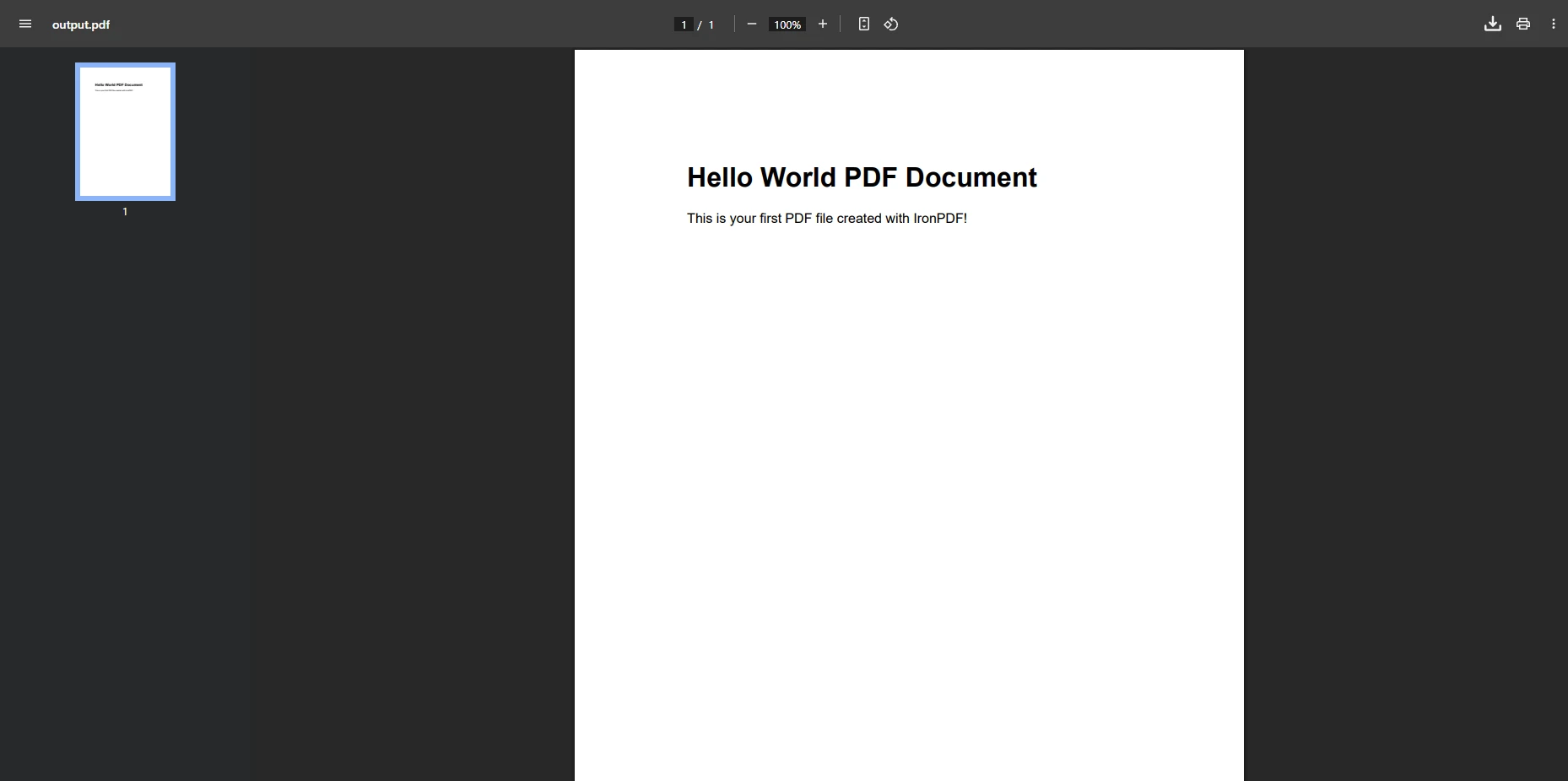
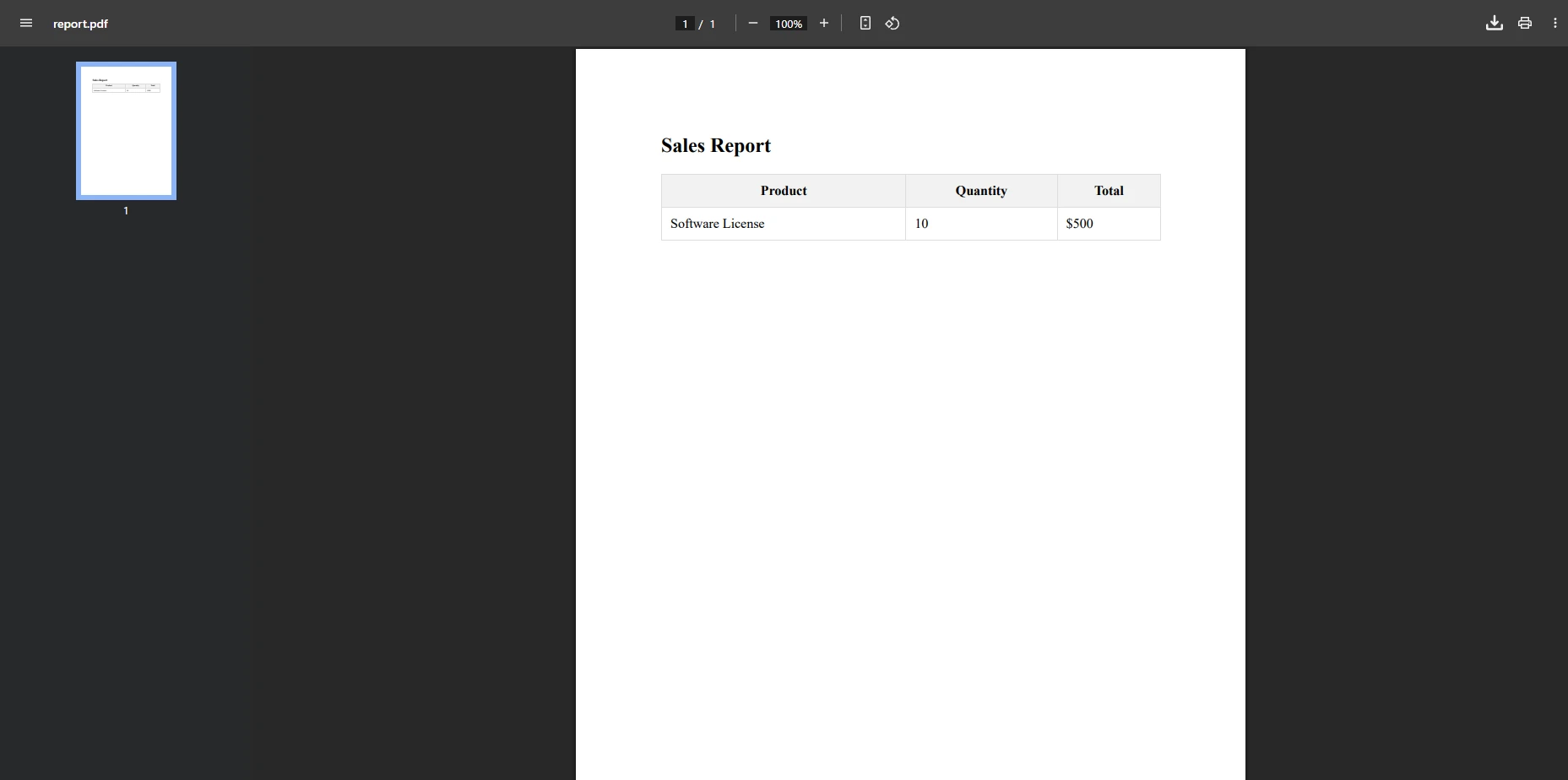
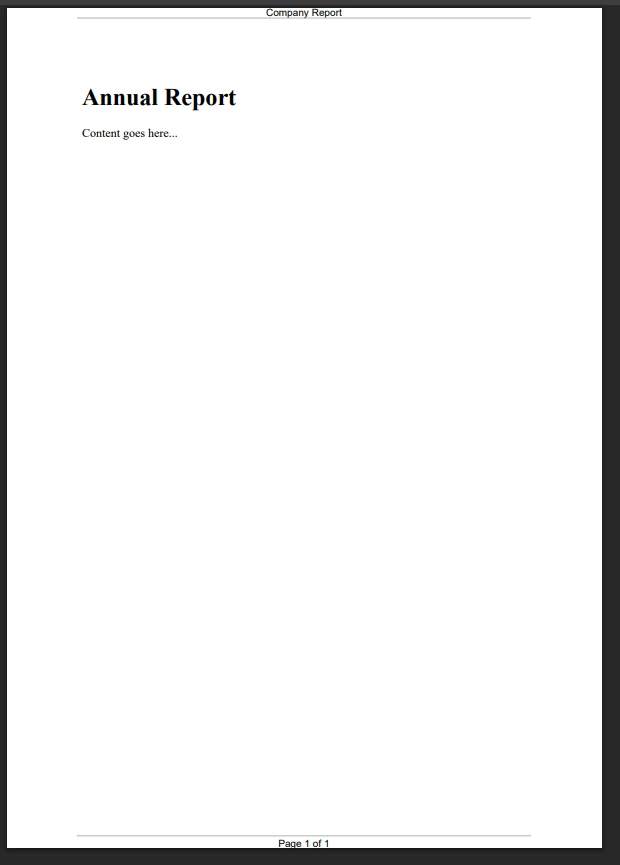
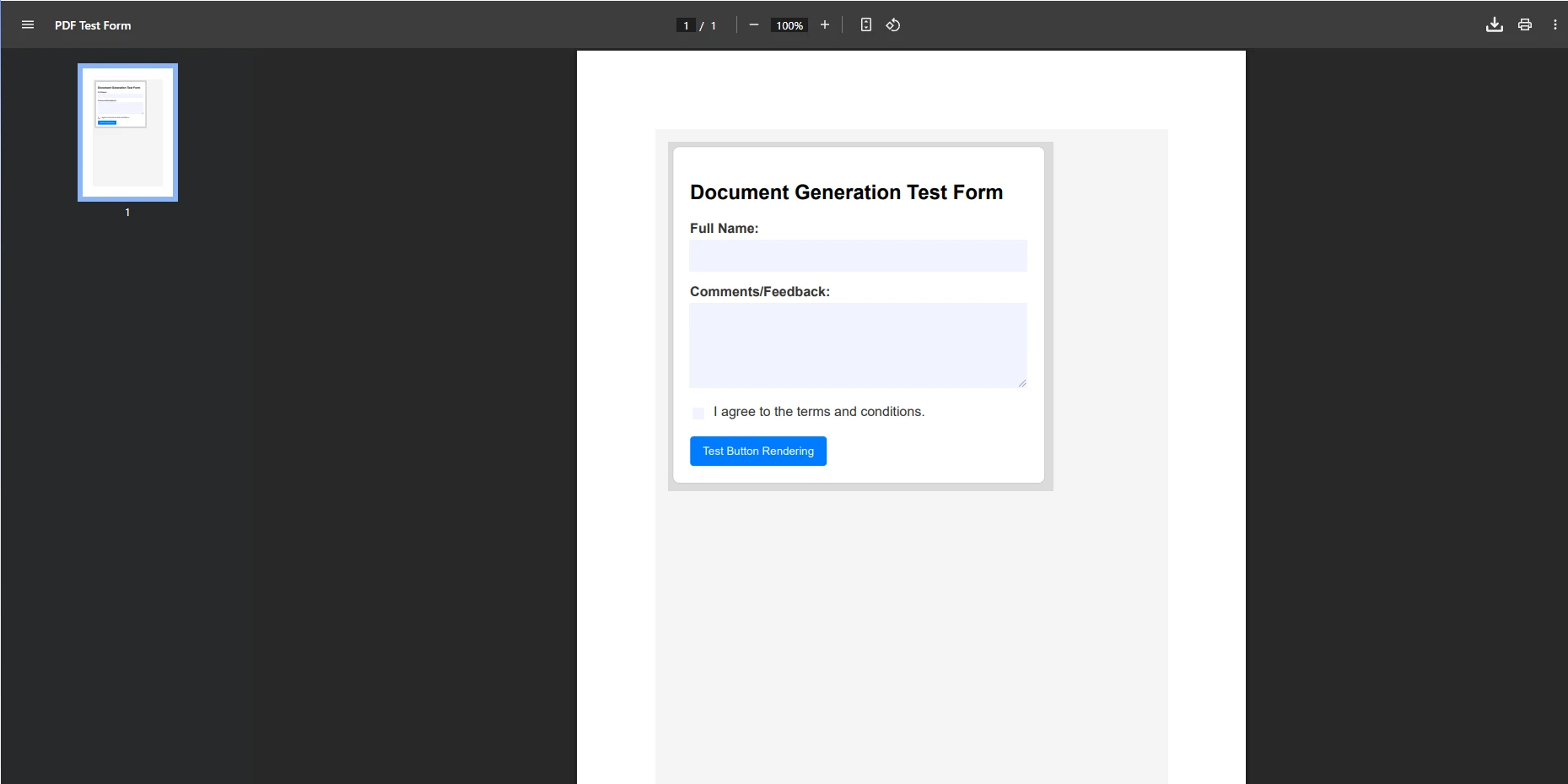
IRONPDF 사용 Creating PDF Files in .NET Core: A Developer's Guide 커티스 차우 업데이트됨:1월 21, 2026 다운로드 IronPDF NuGet 다운로드 DLL 다운로드 윈도우 설치 프로그램 무료 체험 시작하기 LLM용 사본 LLM용 사본 LLM용 마크다운 형식으로 페이지를 복사하세요 ChatGPT에서 열기 ChatGPT에 이 페이지에 대해 문의하세요 제미니에서 열기 제미니에게 이 페이지에 대해 문의하세요 Grok에서 열기 Grok에게 이 페이지에 대해 문의하세요 혼란 속에서 열기 Perplexity에게 이 페이지에 대해 문의하세요 공유하다 페이스북에 공유하기 트위터에 공유하기 LinkedIn에 공유하기 URL 복사 이메일로 기사 보내기 IronPDF creates PDF files in .NET Core applications through HTML-to-PDF conversion using its Chrome rendering engine, supporting CSS3, JavaScript, images, and complex layouts with simple C# code. Creating PDF documents programmatically is a common requirement in modern web applications. Whether you're building invoices, reports, or any document-based system, knowing how to create PDF files efficiently in ASP.NET Core is essential. In this tutorial, we'll explore the best methods for creating PDF files in .NET Core using IronPDF—a effective library that simplifies PDF generation. For complete technical details, refer to the official documentation. IronPDF enables .NET Core developers to create PDF files using simple HTML and CSS, eliminating complex manual PDF drawing operations through its intuitive API and rendering engine. The library supports various deployment environments including Windows, Linux, macOS, and cloud platforms like Azure and AWS Lambda. The library's Chrome rendering engine ensures accurate pixel-perfect HTML to PDF conversion with full support for CSS screen and print media types. How Do I Get Started with IronPDF? IronPDF is a complete .NET Core PDF library that transforms complex PDF creation into straightforward operations. Unlike traditional approaches that require drawing elements manually, IronPDF use HTML markup and CSS to generate PDF files that match your exact design requirements. The library uses a Chrome rendering engine under the hood, ensuring pixel-perfect HTML to PDF conversion. This approach makes it ideal for creating new PDFs as well as converting existing content. Why Choose IronPDF Over Other .NET PDF Libraries? When evaluating PDF generation solutions for .NET Core, developers often compare multiple options. IronPDF stands out from competitors like iText, Aspose, and Syncfusion for several reasons: Superior rendering quality: Chrome-based engine ensures perfect HTML/CSS fidelity Simpler API: Create PDFs with HTML knowledge instead of complex PDF primitives Better performance: Improve for high-volume enterprise scenarios Cross-platform support: Native binaries for Windows, Linux, macOS, and cloud platforms Complete features: From basic creation to advanced manipulation and security What Are the Installation Options for Different Scenarios? To begin creating PDFs in your .NET Core project, install the IronPDF NuGet package using Visual Studio's Package Manager Console by running the following command: Install-Package IronPDF Install-Package IronPDF $vbLabelText $csharpLabel This simple installation provides immediate access to reliable PDF generation capabilities for your web applications. For more advanced installation scenarios, check out the NuGet packages documentation or explore Docker deployment options. The library also offers specialized packages like IronPdf.Slim for environments with size constraints and supports F# development, VB.NET programming, and even Android deployment. For enterprise deployments, consider these installation approaches: Docker containers: Use IronPDF in Docker for consistent deployment Remote engine: Deploy IronPdfEngine as a service for scalability Platform-specific: Choose improve packages for Linux, macOS, or Windows How Do I Create My First PDF Document? Let's create a simple PDF document to understand the basics. The following example demonstrates generating PDFs with formatted content using IronPDF's HTML string to PDF conversion capabilities. This method is perfect for creating PDFs from dynamic content or when you need to export HTML as PDF documents: using IronPdf; // Create a new ChromePdfRenderer object var renderer = new ChromePdfRenderer(); // Define HTML content with styling var html = @" <html> <body style='font-family: Arial; margin: 40px;'> <h1>Hello World PDF Document</h1> <p>This is your first PDF file created with IronPDF!</p> </body> </html>"; // Generate PDF from HTML var pdf = renderer.RenderHtmlAsPdf(html); // Save the PDF document pdf.SaveAs("output.pdf"); using IronPdf; // Create a new ChromePdfRenderer object var renderer = new ChromePdfRenderer(); // Define HTML content with styling var html = @" <html> <body style='font-family: Arial; margin: 40px;'> <h1>Hello World PDF Document</h1> <p>This is your first PDF file created with IronPDF!</p> </body> </html>"; // Generate PDF from HTML var pdf = renderer.RenderHtmlAsPdf(html); // Save the PDF document pdf.SaveAs("output.pdf"); $vbLabelText $csharpLabel This code creates a new PDF document by rendering HTML content. The ChromePdfRenderer handles the conversion, ensuring your PDF documents maintain consistent formatting. For production applications, you might want to explore rendering options to fine-tune the output. You can also save PDFs to memory streams for web applications or implement custom logging to track generation processes. What Are the Key Components in PDF Creation? Understanding the core components helps you use IronPDF effectively: ChromePdfRenderer: The main rendering engine that converts HTML to PDF PdfDocument: Represents the PDF document for manipulation RenderingOptions: Controls layout, margins, headers, and other settings SecuritySettings: Manages passwords, permissions, and encryption Why Is HTML-Based PDF Generation Superior? Using HTML for PDF creation offers significant advantages over traditional PDF APIs: Faster development: Use existing HTML/CSS skills Consistent styling: CSS frameworks work seamlessly Dynamic content: JavaScript renders before conversion Responsive design: Media queries adapt to PDF dimensions Easy maintenance: Update HTML templates instead of PDF code The rendered PDF demonstrates IronPDF's ability to convert HTML with CSS styling into a professional PDF document How Can I Convert HTML to PDF with Advanced Features? IronPDF excels at converting complex web pages and HTML content into professional PDF files. The HTML to PDF conversion feature supports modern CSS3, JavaScript, and responsive designs. The library can handle web fonts and icons, Bootstrap and Flexbox layouts, and even JavaScript frameworks like Angular. The following code shows how to create a PDF document with more advanced features like tables, images, and styled elements: public void CreateAdvancedPdf() { var renderer = new ChromePdfRenderer(); // Configure rendering options renderer.RenderingOptions.MarginTop = 25; renderer.RenderingOptions.MarginBottom = 25; var html = @" <html> <head> <style> table { width: 100%; border-collapse: collapse; } th, td { padding: 10px; border: 1px solid #ddd; } th { background-color: #f2f2f2; } </style> </head> <body> <h2>Sales Report</h2> <table> <tr> <th>Product</th> <th>Quantity</th> <th>Total</th> </tr> <tr> <td>Software License</td> <td>10</td> <td>$500</td> </tr> </table> </body> </html>"; // Create PDF file var pdf = renderer.RenderHtmlAsPdf(html); pdf.SaveAs("report.pdf"); } public void CreateAdvancedPdf() { var renderer = new ChromePdfRenderer(); // Configure rendering options renderer.RenderingOptions.MarginTop = 25; renderer.RenderingOptions.MarginBottom = 25; var html = @" <html> <head> <style> table { width: 100%; border-collapse: collapse; } th, td { padding: 10px; border: 1px solid #ddd; } th { background-color: #f2f2f2; } </style> </head> <body> <h2>Sales Report</h2> <table> <tr> <th>Product</th> <th>Quantity</th> <th>Total</th> </tr> <tr> <td>Software License</td> <td>10</td> <td>$500</td> </tr> </table> </body> </html>"; // Create PDF file var pdf = renderer.RenderHtmlAsPdf(html); pdf.SaveAs("report.pdf"); } $vbLabelText $csharpLabel This example shows how to create PDF documents with formatted tables, demonstrating IronPDF's ability to handle complex layouts and CSS styling. You can also add custom margins, set custom paper sizes, or even manage fonts for international language support. The library supports UTF-8 encoding for international languages, making it ideal for global applications. Which CSS Features Are Fully Supported? IronPDF's Chrome engine supports extensive CSS capabilities: Layout systems: Flexbox, CSS Grid, floats, positioning Modern features: CSS3 transforms, transitions, animations Typography: Web fonts, variable fonts, text effects Media queries: Print-specific styles, responsive breakpoints Advanced selectors: Pseudo-elements, attribute selectors How Do I Handle Complex Layouts and Designs? For sophisticated PDF layouts, consider these techniques: public void CreateComplexLayout() { var renderer = new ChromePdfRenderer(); // Enable JavaScript for dynamic content renderer.RenderingOptions.EnableJavaScript = true; // Wait for content to fully load renderer.RenderingOptions.WaitFor.RenderDelay(1000); // Set viewport for responsive designs renderer.RenderingOptions.ViewPortWidth = 1024; // Use print media CSS renderer.RenderingOptions.CssMediaType = IronPdf.Rendering.PdfCssMediaType.Print; var html = LoadComplexHtmlTemplate(); var pdf = renderer.RenderHtmlAsPdf(html); pdf.SaveAs("complex-layout.pdf"); } public void CreateComplexLayout() { var renderer = new ChromePdfRenderer(); // Enable JavaScript for dynamic content renderer.RenderingOptions.EnableJavaScript = true; // Wait for content to fully load renderer.RenderingOptions.WaitFor.RenderDelay(1000); // Set viewport for responsive designs renderer.RenderingOptions.ViewPortWidth = 1024; // Use print media CSS renderer.RenderingOptions.CssMediaType = IronPdf.Rendering.PdfCssMediaType.Print; var html = LoadComplexHtmlTemplate(); var pdf = renderer.RenderHtmlAsPdf(html); pdf.SaveAs("complex-layout.pdf"); } $vbLabelText $csharpLabel What Performance Considerations Apply to Large Documents? When generating large PDFs, improve performance with these strategies: Chunk large content: Process in sections for memory efficiency Improve images: Compress before including in HTML Use external assets: Link CSS/JS instead of inline Enable caching: Reuse renderer instances Consider async operations: Use async methods for non-blocking execution Advanced table formatting demonstrates IronPDF's CSS rendering capabilities for professional business documents How Do I Work with PDF Generation in ASP.NET Core Applications? Integrating PDF generation in ASP.NET Core MVC is straightforward. IronPDF seamlessly integrates with ASP.NET Core MVC, Razor Pages, and even Blazor Server applications. The library also supports headless CSHTML rendering and MVC Framework compatibility. Here's an example implementation for generating PDFs from a controller: using Microsoft.AspNetCore.Mvc; using IronPdf; using System.IO; public class DocumentController : Controller { public IActionResult GeneratePdf() { var renderer = new ChromePdfRenderer(); // Create HTML content var html = "<h1>Invoice</h1><p>Thank you for your purchase!</p>"; // Generate PDF var pdf = renderer.RenderHtmlAsPdf(html); byte[] pdfBytes = pdf.BinaryData; // Return PDF file using the byte array, setting the content type to PDF return File(pdfBytes, "application/pdf", "document.pdf"); } } using Microsoft.AspNetCore.Mvc; using IronPdf; using System.IO; public class DocumentController : Controller { public IActionResult GeneratePdf() { var renderer = new ChromePdfRenderer(); // Create HTML content var html = "<h1>Invoice</h1><p>Thank you for your purchase!</p>"; // Generate PDF var pdf = renderer.RenderHtmlAsPdf(html); byte[] pdfBytes = pdf.BinaryData; // Return PDF file using the byte array, setting the content type to PDF return File(pdfBytes, "application/pdf", "document.pdf"); } } $vbLabelText $csharpLabel This controller method generates a PDF document and returns it as a downloadable file, perfect for server-side processing in web applications. You could also use a MemoryStream object to handle the PDF document creation as shown in the PDF to MemoryStream guide. For more complex scenarios, consider using ASPX to PDF conversion or URL to PDF conversion. The library also supports loading PDFs from memory and exporting PDFs to different formats. Why Is ASP.NET Core Integration Important for Enterprise Applications? Enterprise applications require reliable PDF generation that integrates seamlessly with existing infrastructure: Scalability: Handle thousands of concurrent PDF requests Security: Generate sensitive documents server-side Integration: Works with dependency injection and middleware Performance: Use ASP.NET Core's performance optimizations Cloud-ready: Deploy to Azure App Service or AWS How Do I Implement PDF Generation in Different ASP.NET Core Patterns? IronPDF adapts to various ASP.NET Core architectural patterns: MVC Pattern: public class InvoiceController : Controller { private readonly IInvoiceService _invoiceService; public InvoiceController(IInvoiceService invoiceService) { _invoiceService = invoiceService; } public async Task<IActionResult> GenerateInvoice(int orderId) { var invoiceHtml = await _invoiceService.GetInvoiceHtml(orderId); var renderer = new ChromePdfRenderer(); var pdf = renderer.RenderHtmlAsPdf(invoiceHtml); return File(pdf.BinaryData, "application/pdf", $"invoice-{orderId}.pdf"); } } public class InvoiceController : Controller { private readonly IInvoiceService _invoiceService; public InvoiceController(IInvoiceService invoiceService) { _invoiceService = invoiceService; } public async Task<IActionResult> GenerateInvoice(int orderId) { var invoiceHtml = await _invoiceService.GetInvoiceHtml(orderId); var renderer = new ChromePdfRenderer(); var pdf = renderer.RenderHtmlAsPdf(invoiceHtml); return File(pdf.BinaryData, "application/pdf", $"invoice-{orderId}.pdf"); } } $vbLabelText $csharpLabel Minimal API Pattern: app.MapGet("/api/pdf/{id}", async (int id, IPdfService pdfService) => { var pdfData = await pdfService.GeneratePdfAsync(id); return Results.File(pdfData, "application/pdf"); }); app.MapGet("/api/pdf/{id}", async (int id, IPdfService pdfService) => { var pdfData = await pdfService.GeneratePdfAsync(id); return Results.File(pdfData, "application/pdf"); }); $vbLabelText $csharpLabel What Are Best Practices for Web Application PDF Generation? Follow these guidelines for production-ready PDF generation: Use dependency injection: Register IronPDF services in Startup.cs Implement caching: Cache frequently generated PDFs Handle errors gracefully: Provide fallback options Monitor performance: Track generation times and memory usage Secure sensitive data: Use PDF passwords and permissions Controller-generated PDF demonstrates smooth integration with ASP.NET Core web applications What Advanced PDF Generation Techniques Can I Use? IronPDF supports numerous advanced features for creating PDFs. You can add headers and footers, insert page numbers, and even merge multiple PDF files. The library also supports backgrounds and foregrounds, watermarks, and digital signatures. Additional capabilities include adding bookmarks, stamping text and images, and creating table of contents: public void CreatePdfWithHeaderFooter() { var renderer = new ChromePdfRenderer(); // Add header renderer.RenderingOptions.TextHeader = new TextHeaderFooter { CenterText = "Company Report", DrawDividerLine = true }; // Add footer with page numbers renderer.RenderingOptions.TextFooter = new TextHeaderFooter { CenterText = "Page {page} of {total-pages}", DrawDividerLine = true }; var html = "<h1>Annual Report</h1><p>Content goes here...</p>"; var pdf = renderer.RenderHtmlAsPdf(html); // Save the new document pdf.SaveAs("report-with-header.pdf"); } // Merge multiple PDFs public void MergePdfFiles() { var renderer = new ChromePdfRenderer(); var pdf1 = renderer.RenderHtmlAsPdf("<p>First Document</p>"); var pdf2 = renderer.RenderHtmlAsPdf("<p>Second Document</p>"); // Merge PDF documents var merged = PdfDocument.Merge(pdf1, pdf2); merged.SaveAs("merged.pdf"); } // Example of iterating over something, illustrating 'int i' and 'index' public void ProcessMultipleFiles(string[] filePaths) { for (int i = 0; i < filePaths.Length; i++) { // Use 'i' as an index to process each source file var sourceFile = filePaths[i]; Console.WriteLine($"Processing file at index {i}: {sourceFile}"); // Imagine code here to load or process the file // var pdf = PdfDocument.FromFile(sourceFile); // load } } public void CreatePdfWithHeaderFooter() { var renderer = new ChromePdfRenderer(); // Add header renderer.RenderingOptions.TextHeader = new TextHeaderFooter { CenterText = "Company Report", DrawDividerLine = true }; // Add footer with page numbers renderer.RenderingOptions.TextFooter = new TextHeaderFooter { CenterText = "Page {page} of {total-pages}", DrawDividerLine = true }; var html = "<h1>Annual Report</h1><p>Content goes here...</p>"; var pdf = renderer.RenderHtmlAsPdf(html); // Save the new document pdf.SaveAs("report-with-header.pdf"); } // Merge multiple PDFs public void MergePdfFiles() { var renderer = new ChromePdfRenderer(); var pdf1 = renderer.RenderHtmlAsPdf("<p>First Document</p>"); var pdf2 = renderer.RenderHtmlAsPdf("<p>Second Document</p>"); // Merge PDF documents var merged = PdfDocument.Merge(pdf1, pdf2); merged.SaveAs("merged.pdf"); } // Example of iterating over something, illustrating 'int i' and 'index' public void ProcessMultipleFiles(string[] filePaths) { for (int i = 0; i < filePaths.Length; i++) { // Use 'i' as an index to process each source file var sourceFile = filePaths[i]; Console.WriteLine($"Processing file at index {i}: {sourceFile}"); // Imagine code here to load or process the file // var pdf = PdfDocument.FromFile(sourceFile); // load } } $vbLabelText $csharpLabel These examples demonstrate adding professional touches to your PDF documents and combining multiple files into a single document. You can also explore page orientation and rotation, PDF compression, or creating PDF/A compliant documents for long-term archival. The library supports splitting multipage PDFs, copying pages between documents, and extracting specific pages. Which Document Enhancement Features Should I Prioritize? Key enhancement features for professional PDFs: Headers/Footers: Brand consistency and navigation Page numbers: Essential for multi-page documents Watermarks: Security and draft identification Bookmarks: Navigation for long documents Table of contents: Automatic generation from headings How Do I Create Complex Multi-Section Documents? Build sophisticated PDFs by combining multiple techniques: public async Task<PdfDocument> CreateCompleteReport(ReportData data) { var renderer = new ChromePdfRenderer(); // Configure professional layout renderer.RenderingOptions.MarginTop = 50; renderer.RenderingOptions.MarginBottom = 50; renderer.RenderingOptions.PaperOrientation = IronPdf.Rendering.PdfPaperOrientation.Portrait; // Add branded header renderer.RenderingOptions.HtmlHeader = new HtmlHeaderFooter { HtmlFragment = "<div style='text-align: center'><img src='logo.png' /></div>", Height = 30 }; // Generate sections var coverPage = await GenerateCoverPage(data); var tocPage = await GenerateTableOfContents(data); var contentPages = await GenerateContent(data); // Render each section var coverPdf = renderer.RenderHtmlAsPdf(coverPage); var tocPdf = renderer.RenderHtmlAsPdf(tocPage); var contentPdf = renderer.RenderHtmlAsPdf(contentPages); // Merge all sections var finalReport = PdfDocument.Merge(coverPdf, tocPdf, contentPdf); // Add security finalReport.SecuritySettings.SetPassword("user-password"); finalReport.SecuritySettings.AllowUserPrinting = true; finalReport.SecuritySettings.AllowUserCopyPasteContent = false; return finalReport; } public async Task<PdfDocument> CreateCompleteReport(ReportData data) { var renderer = new ChromePdfRenderer(); // Configure professional layout renderer.RenderingOptions.MarginTop = 50; renderer.RenderingOptions.MarginBottom = 50; renderer.RenderingOptions.PaperOrientation = IronPdf.Rendering.PdfPaperOrientation.Portrait; // Add branded header renderer.RenderingOptions.HtmlHeader = new HtmlHeaderFooter { HtmlFragment = "<div style='text-align: center'><img src='logo.png' /></div>", Height = 30 }; // Generate sections var coverPage = await GenerateCoverPage(data); var tocPage = await GenerateTableOfContents(data); var contentPages = await GenerateContent(data); // Render each section var coverPdf = renderer.RenderHtmlAsPdf(coverPage); var tocPdf = renderer.RenderHtmlAsPdf(tocPage); var contentPdf = renderer.RenderHtmlAsPdf(contentPages); // Merge all sections var finalReport = PdfDocument.Merge(coverPdf, tocPdf, contentPdf); // Add security finalReport.SecuritySettings.SetPassword("user-password"); finalReport.SecuritySettings.AllowUserPrinting = true; finalReport.SecuritySettings.AllowUserCopyPasteContent = false; return finalReport; } $vbLabelText $csharpLabel What Are Common Document Assembly Patterns? Professional PDF generation often follows these patterns: Template-based: HTML templates with variable substitution Section-based: Assemble from multiple components Data-driven: Generate from database queries Hybrid approach: Combine static templates with dynamic data Professional headers and footers improve document presentation and navigation How Do I Work with Forms and Dynamic Content in PDFs? IronPDF can create interactive PDF forms with various input fields like text boxes, checkboxes, radio buttons, and dropdown lists. You can also fill and edit existing PDF forms programmatically. The library supports form data extraction and can flatten PDF forms to make them non-editable: public void CreatePdfWithForm() { var html = @" <!DOCTYPE html> <html> <head> <title>PDF Test Form</title> <style> body { font-family: Arial, sans-serif; margin: 20px; background-color: #f4f4f4; } .form-container { width: 400px; padding: 20px; border: 1px solid #ccc; border-radius: 8px; background-color: #fff; box-shadow: 2px 2px 5px rgba(0,0,0,0.1); } .form-group { margin-bottom: 15px; } label { display: block; /* Make label take up full width */ margin-bottom: 5px; font-weight: bold; color: #333; } input[type='text'], textarea { width: 100%; padding: 10px; border: 1px solid #ddd; border-radius: 4px; box-sizing: border-box; /* Include padding and border in the element's total width and height */ } textarea { height: 100px; resize: vertical; } .checkbox-group { display: flex; align-items: center; } .checkbox-group label { display: inline; font-weight: normal; margin-left: 8px; } </style> </head> <body> <div class='form-container'> <h2>Document Generation Test Form</h2> <form> <div class='form-group'> <label for='fullName'>Full Name:</label> <input type='text' id='fullName' name='fullName'> </div> <div class='form-group'> <label for='comments'>Comments/Feedback:</label> <textarea id='comments' name='comments' placeholder='Type your feedback here...'></textarea> </div> <div class='form-group checkbox-group'> <input type='checkbox' id='agree' name='agree'> <label for='agree'>I agree to the terms and conditions.</label> </div> <button style='padding: 10px 15px; background-color: #007bff; color: white; border: none; border-radius: 4px; cursor: pointer;'> Test Button Rendering </button> </form> </div> </body> </html>"; var renderer = new ChromePdfRenderer(); renderer.RenderingOptions.CreatePdfFormsFromHtml = true; var pdf = renderer.RenderHtmlAsPdf(html); pdf.SaveAs("form.pdf"); } public void CreatePdfWithForm() { var html = @" <!DOCTYPE html> <html> <head> <title>PDF Test Form</title> <style> body { font-family: Arial, sans-serif; margin: 20px; background-color: #f4f4f4; } .form-container { width: 400px; padding: 20px; border: 1px solid #ccc; border-radius: 8px; background-color: #fff; box-shadow: 2px 2px 5px rgba(0,0,0,0.1); } .form-group { margin-bottom: 15px; } label { display: block; /* Make label take up full width */ margin-bottom: 5px; font-weight: bold; color: #333; } input[type='text'], textarea { width: 100%; padding: 10px; border: 1px solid #ddd; border-radius: 4px; box-sizing: border-box; /* Include padding and border in the element's total width and height */ } textarea { height: 100px; resize: vertical; } .checkbox-group { display: flex; align-items: center; } .checkbox-group label { display: inline; font-weight: normal; margin-left: 8px; } </style> </head> <body> <div class='form-container'> <h2>Document Generation Test Form</h2> <form> <div class='form-group'> <label for='fullName'>Full Name:</label> <input type='text' id='fullName' name='fullName'> </div> <div class='form-group'> <label for='comments'>Comments/Feedback:</label> <textarea id='comments' name='comments' placeholder='Type your feedback here...'></textarea> </div> <div class='form-group checkbox-group'> <input type='checkbox' id='agree' name='agree'> <label for='agree'>I agree to the terms and conditions.</label> </div> <button style='padding: 10px 15px; background-color: #007bff; color: white; border: none; border-radius: 4px; cursor: pointer;'> Test Button Rendering </button> </form> </div> </body> </html>"; var renderer = new ChromePdfRenderer(); renderer.RenderingOptions.CreatePdfFormsFromHtml = true; var pdf = renderer.RenderHtmlAsPdf(html); pdf.SaveAs("form.pdf"); } $vbLabelText $csharpLabel This creates an interactive PDF with form fields that users can fill out, perfect for applications requiring user input. For dynamic content generation, you can explore JavaScript rendering, adding images, or working with SVG graphics. The library also supports embedding images from Base64, drawing text and bitmaps, and adding attachments. Why Are Interactive PDFs Important for Business Applications? Interactive PDFs serve critical business needs: Data collection: Gather information without web forms Offline capability: Users complete forms without internet Legal compliance: Signed forms meet regulatory requirements User experience: Familiar PDF interface reduces training Integration: Extract form data for processing How Do I Handle Form Data Processing? Process PDF form submissions efficiently: public class PdfFormProcessor { public async Task<FormData> ProcessSubmittedForm(Stream pdfStream) { var pdf = new PdfDocument(pdfStream); // Extract form field values var formData = new FormData { FullName = pdf.Form.FindFormField("fullName").Value, Comments = pdf.Form.FindFormField("comments").Value, Agreed = pdf.Form.FindFormField("agree").Value == "Yes" }; // Validate and process if (formData.Agreed) { await SaveToDatabase(formData); // Flatten form to prevent further editing pdf.Form.Flatten(); pdf.SaveAs($"processed-{DateTime.Now.Ticks}.pdf"); } return formData; } } public class PdfFormProcessor { public async Task<FormData> ProcessSubmittedForm(Stream pdfStream) { var pdf = new PdfDocument(pdfStream); // Extract form field values var formData = new FormData { FullName = pdf.Form.FindFormField("fullName").Value, Comments = pdf.Form.FindFormField("comments").Value, Agreed = pdf.Form.FindFormField("agree").Value == "Yes" }; // Validate and process if (formData.Agreed) { await SaveToDatabase(formData); // Flatten form to prevent further editing pdf.Form.Flatten(); pdf.SaveAs($"processed-{DateTime.Now.Ticks}.pdf"); } return formData; } } $vbLabelText $csharpLabel What Security Considerations Apply to PDF Forms? Secure form handling requires careful attention: Input validation: Sanitize all form data Access control: Restrict form field editing Audit trails: Log all form submissions Encryption: Protect sensitive form data Digital signatures: Verify form authenticity Interactive forms enable data collection directly within PDF documents What Are the Best Practices for PDF Generation and Error Handling? When generating PDF files in production, implement proper error handling and consider performance optimization. IronPDF provides async and multithreading support for high-volume scenarios. You should also implement custom logging for debugging and monitoring. The library offers performance assistance guides and supports parallel PDF generation for improved throughput: try { var renderer = new ChromePdfRenderer(); // Configure for production use renderer.RenderingOptions.EnableJavaScript = true; renderer.RenderingOptions.WaitFor.RenderDelay(500); // Wait for dynamic content var pdf = renderer.RenderHtmlAsPdf(html); // Apply security settings pdf.SecuritySettings.MakePdfDocumentReadOnly(); pdf.SecuritySettings.SetPassword("userPassword123"); pdf.SaveAs("output.pdf"); } catch (Exception ex) { // Log error and handle appropriately Console.WriteLine($"PDF generation failed: {ex.Message}"); } try { var renderer = new ChromePdfRenderer(); // Configure for production use renderer.RenderingOptions.EnableJavaScript = true; renderer.RenderingOptions.WaitFor.RenderDelay(500); // Wait for dynamic content var pdf = renderer.RenderHtmlAsPdf(html); // Apply security settings pdf.SecuritySettings.MakePdfDocumentReadOnly(); pdf.SecuritySettings.SetPassword("userPassword123"); pdf.SaveAs("output.pdf"); } catch (Exception ex) { // Log error and handle appropriately Console.WriteLine($"PDF generation failed: {ex.Message}"); } $vbLabelText $csharpLabel Always validate input data and handle exceptions gracefully to ensure reliable PDF generation in your applications. Consider implementing PDF permissions and passwords for sensitive documents, and explore PDF compression techniques to improve file sizes. For improve security, you can digitally sign PDFs or even sign with HSM. The library also supports PDF sanitization to remove potentially harmful content. Which Error Handling Strategies Work Best? Implement complete error handling for production reliability: Retry logic: Handle transient failures gracefully Circuit breakers: Prevent cascade failures Graceful degradation: Provide alternative outputs Detailed logging: Track issues for debugging User feedback: Inform users of generation status How Do I Implement Reliable Error Recovery? Build resilience into your PDF generation pipeline: public class ResilientPdfGenerator { private readonly ILogger<ResilientPdfGenerator> _logger; private readonly int _maxRetries = 3; public async Task<byte[]> GenerateWithRetry(string html) { for (int attempt = 1; attempt <= _maxRetries; attempt++) { try { var renderer = new ChromePdfRenderer(); // Set timeout for long-running conversions renderer.RenderingOptions.Timeout = 60; // seconds // Generate PDF var pdf = await Task.Run(() => renderer.RenderHtmlAsPdf(html) ); _logger.LogInformation("PDF generated successfully"); return pdf.BinaryData; } catch (Exception ex) when (attempt < _maxRetries) { _logger.LogWarning(ex, "PDF generation failed, attempt {Attempt} of {MaxRetries}", attempt, _maxRetries); // Exponential backoff await Task.Delay(TimeSpan.FromSeconds(Math.Pow(2, attempt))); } } throw new PdfGenerationException("Failed to generate PDF after retries"); } } public class ResilientPdfGenerator { private readonly ILogger<ResilientPdfGenerator> _logger; private readonly int _maxRetries = 3; public async Task<byte[]> GenerateWithRetry(string html) { for (int attempt = 1; attempt <= _maxRetries; attempt++) { try { var renderer = new ChromePdfRenderer(); // Set timeout for long-running conversions renderer.RenderingOptions.Timeout = 60; // seconds // Generate PDF var pdf = await Task.Run(() => renderer.RenderHtmlAsPdf(html) ); _logger.LogInformation("PDF generated successfully"); return pdf.BinaryData; } catch (Exception ex) when (attempt < _maxRetries) { _logger.LogWarning(ex, "PDF generation failed, attempt {Attempt} of {MaxRetries}", attempt, _maxRetries); // Exponential backoff await Task.Delay(TimeSpan.FromSeconds(Math.Pow(2, attempt))); } } throw new PdfGenerationException("Failed to generate PDF after retries"); } } $vbLabelText $csharpLabel What Monitoring Metrics Should I Track? Monitor these key metrics for production PDF generation: Metric Purpose Alert Threshold Generation Time Performance tracking > 10 seconds Memory Usage Resource optimization > 500MB per request Error Rate Reliability monitoring > 5% failure rate Queue Length Capacity planning > 100 pending File Size Storage optimization > 50MB average What Performance Optimizations Should I Consider? For optimal performance in production environments, consider these best practices: Why Does Renderer Reuse Matter for Performance? Creating renderer instances has overhead. Reuse them efficiently: public class PdfGenerationService { private readonly ChromePdfRenderer _renderer; public PdfGenerationService() { _renderer = new ChromePdfRenderer(); // Configure once, reuse many times _renderer.RenderingOptions.MarginTop = 25; _renderer.RenderingOptions.MarginBottom = 25; } public byte[] GeneratePdf(string html) { // Reuse the same renderer instance return _renderer.RenderHtmlAsPdf(html).BinaryData; } } public class PdfGenerationService { private readonly ChromePdfRenderer _renderer; public PdfGenerationService() { _renderer = new ChromePdfRenderer(); // Configure once, reuse many times _renderer.RenderingOptions.MarginTop = 25; _renderer.RenderingOptions.MarginBottom = 25; } public byte[] GeneratePdf(string html) { // Reuse the same renderer instance return _renderer.RenderHtmlAsPdf(html).BinaryData; } } $vbLabelText $csharpLabel How Can I Improve Asset Loading? Efficient asset management improves generation speed: Use base URLs: Configure base URLs for consistent asset resolution Embed critical assets: Use DataURIs for small images CDN for large files: Host CSS/JS on fast CDNs Preload fonts: Include web fonts in HTML Improve images: Compress before embedding Which Deployment Strategies Improve Performance? Different deployment approaches offer various benefits: Docker containers: Use IronPDF in Docker for consistency Kubernetes: Scale horizontally with pod autoscaling Serverless: Deploy to AWS Lambda for elastic scaling Remote engine: Use IronPdfEngine service for isolation Load balancing: Distribute requests across multiple instances The library provides native vs remote engine options for different performance requirements and supports linearized PDFs for faster web viewing. Where Can I Deploy My PDF Generation Solution? IronPDF supports various deployment scenarios across different platforms. You can deploy to Azure Functions, AWS Lambda, or traditional IIS servers. The library also supports Linux deployments and can run in Docker containers for microservice architectures. Additional deployment options include Red Hat Enterprise Linux, Windows Server environments, and macOS systems. What Are the Cloud Deployment Best Practices? Cloud deployments require specific configurations: Azure App Service: // Configure for Azure services.Configure<IronPdfSettings>(options => { options.TempFolderPath = "/home/site/wwwroot/temp"; options.LoggingMode = IronPdf.Logging.LoggingModes.Custom; }); // Configure for Azure services.Configure<IronPdfSettings>(options => { options.TempFolderPath = "/home/site/wwwroot/temp"; options.LoggingMode = IronPdf.Logging.LoggingModes.Custom; }); $vbLabelText $csharpLabel AWS Lambda: // Lambda-specific settings Environment.SetEnvironmentVariable("IRONPDF_TEMP_PATH", "/tmp"); Environment.SetEnvironmentVariable("IRONPDF_LOG_PATH", "/tmp/logs"); // Lambda-specific settings Environment.SetEnvironmentVariable("IRONPDF_TEMP_PATH", "/tmp"); Environment.SetEnvironmentVariable("IRONPDF_LOG_PATH", "/tmp/logs"); $vbLabelText $csharpLabel How Do I Handle Platform-Specific Requirements? Each platform has unique considerations: Platform Key Requirement Solution Linux Missing fonts Install font packages Docker File permissions Run as non-root user Azure Temp directory Configure writable path AWS Lambda Cold starts Use provisioned concurrency macOS Code signing Allow unsigned libraries For cloud deployments, consider reviewing the Azure deployment guide and AWS Lambda configuration. The library also provides specialized guidance for deploying to Azure App Service and handling Azure log files. What Common Issues Should I Troubleshoot? Understanding common issues helps you build more reliable PDF generation solutions. Here are frequent challenges and their solutions: Why Do Some PDFs Render Incorrectly? Rendering issues often stem from these causes: Missing assets: Ensure all CSS/JS/images load properly Timing issues: Use WaitFor delays for dynamic content Font problems: Install required fonts on the server JavaScript errors: Debug with Chrome DevTools CSS compatibility: Test responsive CSS How Do I Debug Generation Problems? Effective debugging techniques: public class PdfDebugger { public void DiagnosePdfIssues(string html) { var renderer = new ChromePdfRenderer(); // Enable detailed logging renderer.LoggingMode = IronPdf.Logging.LoggingModes.All; // Save intermediate HTML for inspection File.WriteAllText("debug-input.html", html); try { // Test with different settings renderer.RenderingOptions.EnableJavaScript = false; var pdfNoJs = renderer.RenderHtmlAsPdf(html); pdfNoJs.SaveAs("test-no-js.pdf"); renderer.RenderingOptions.EnableJavaScript = true; renderer.RenderingOptions.WaitFor.RenderDelay(3000); var pdfWithDelay = renderer.RenderHtmlAsPdf(html); pdfWithDelay.SaveAs("test-with-delay.pdf"); } catch (Exception ex) { Console.WriteLine($"Debug info: {ex.Message}"); // Check logs for detailed error information } } } public class PdfDebugger { public void DiagnosePdfIssues(string html) { var renderer = new ChromePdfRenderer(); // Enable detailed logging renderer.LoggingMode = IronPdf.Logging.LoggingModes.All; // Save intermediate HTML for inspection File.WriteAllText("debug-input.html", html); try { // Test with different settings renderer.RenderingOptions.EnableJavaScript = false; var pdfNoJs = renderer.RenderHtmlAsPdf(html); pdfNoJs.SaveAs("test-no-js.pdf"); renderer.RenderingOptions.EnableJavaScript = true; renderer.RenderingOptions.WaitFor.RenderDelay(3000); var pdfWithDelay = renderer.RenderHtmlAsPdf(html); pdfWithDelay.SaveAs("test-with-delay.pdf"); } catch (Exception ex) { Console.WriteLine($"Debug info: {ex.Message}"); // Check logs for detailed error information } } } $vbLabelText $csharpLabel What Memory Issues Should I Watch For? Memory management is crucial for server applications: Dispose properly: Always dispose PdfDocument objects Monitor usage: Track memory with performance counters Batch processing: Process large jobs in chunks Garbage collection: Force collection after large operations Resource limits: Set appropriate container memory limits What's Next for Your PDF Generation Process? IronPDF transforms the complex task of creating PDF files in .NET Core into a simple, manageable process. From basic document creation to advanced features like forms, images, and page management, this library provides complete tools for generating PDF documents programmatically. By converting HTML to PDF, you can quickly load data and download finished files. The library's support for various PDF standards, accessibility features, and complete documentation makes it suitable for enterprise applications. Why Should You Choose IronPDF for Your Next Project? IronPDF stands out as the premier choice for .NET PDF generation: Enterprise-ready: Battle-tested in production environments Cross-platform: True portability across operating systems Performance: Improve for high-volume generation Support: Responsive technical assistance when needed Innovation: Regular updates with new features How Can You Get Started Today? Take these steps to begin your PDF generation process: Install IronPDF: Add via NuGet to your project Try basic examples: Start with simple HTML to PDF Explore advanced features: Add forms, signatures, security Improve performance: Implement caching and async Deploy to production: Choose appropriate hosting Whether you're building simple reports or complex multi-page documents, IronPDF's intuitive API and effective rendering engine make it the ideal choice for .NET developers. The library's extensive features include metadata management, annotation support, bookmarks and outlines, and much more. You can extract text and images, parse PDF content, rasterize PDFs to images, and even access the PDF DOM. The library also excels at format conversions, supporting DOCX to PDF, RTF to PDF, XML to PDF, Markdown to PDF, and image to PDF conversions. For specialized needs, explore features like redacting sensitive content, managing revision history, or creating PDF reports. Start creating professional PDF files in your ASP.NET Core applications today with IronPDF's free trial. Ready to improve your application with PDF generation capabilities? Get started with IronPDF and experience how easy creating PDFs can be. For additional learning resources, explore our complete tutorials, code examples, and feature documentation. 자주 묻는 질문 ASP.NET 애플리케이션에서 IronPDF의 주요 기능은 무엇인가요? IronPDF를 사용하면 개발자가 ASP.NET 애플리케이션 내에서 손쉽게 PDF 문서를 생성하여 송장, 보고서 및 기타 문서 기반 시스템 생성과 같은 작업을 간소화할 수 있습니다. 최신 웹 애플리케이션에서 PDF 문서를 프로그래밍 방식으로 만드는 것이 중요한 이유는 무엇인가요? 프로그래밍 방식으로 PDF 문서를 생성하는 것은 청구 시스템 및 데이터 보고와 같이 문서 관리가 필요한 애플리케이션을 위한 자동화 및 동적 콘텐츠 생성을 가능하게 하므로 필수적입니다. IronPDF를 사용하여 .NET Core 환경에서 PDF를 생성할 수 있나요? 예, IronPDF는 PDF 생성을 간소화하도록 특별히 설계된 강력한 .NET Core 라이브러리로, .NET Core 애플리케이션에서 PDF 파일을 만드는 데 이상적인 선택입니다. .NET Core에서 IronPDF를 사용하여 어떤 유형의 문서를 만들 수 있나요? IronPDF를 사용하면 송장, 보고서 및 효율적인 PDF 생성이 필요한 모든 문서 기반 시스템을 포함한 다양한 문서를 만들 수 있습니다. IronPDF 사용에 대한 자세한 기술 정보는 어디에서 찾을 수 있나요? IronPDF 사용에 대한 포괄적인 기술적 세부 사항은 단계별 안내와 실용적인 팁을 제공하는 공식 문서에서 확인할 수 있습니다. IronPDF는 ASP.NET 애플리케이션에서 PDF 생성 기능을 어떻게 향상시키나요? IronPDF는 ASP.NET 애플리케이션 내에서 직접 PDF 문서를 간편하게 생성, 조작 및 관리할 수 있는 강력한 라이브러리를 제공하여 PDF 생성 기능을 향상시킵니다. IronPDF는 .NET Core에서 문서 기반 시스템을 구축하는 데 적합합니까? 예, IronPDF는 프로그래밍 방식으로 PDF를 원활하게 생성하고 관리할 수 있는 방법을 제공하므로 .NET Core에서 문서 기반 시스템을 구축하는 데 매우 적합합니다. IronPDF를 사용하여 .NET Core에서 PDF 생성을 처리하는 가장 좋은 방법은 무엇인가요? 이 튜토리얼에서는 .NET Core 환경에서 PDF 문서를 효율적으로 생성하고 관리하기 위해 IronPDF의 기능을 활용하는 데 중점을 두고 PDF 생성을 처리하는 다양한 방법을 살펴봅니다. 커티스 차우 지금 바로 엔지니어링 팀과 채팅하세요 기술 문서 작성자 커티스 차우는 칼턴 대학교에서 컴퓨터 과학 학사 학위를 취득했으며, Node.js, TypeScript, JavaScript, React를 전문으로 하는 프론트엔드 개발자입니다. 직관적이고 미적으로 뛰어난 사용자 인터페이스를 만드는 데 열정을 가진 그는 최신 프레임워크를 활용하고, 잘 구성되고 시각적으로 매력적인 매뉴얼을 제작하는 것을 즐깁니다. 커티스는 개발 분야 외에도 사물 인터넷(IoT)에 깊은 관심을 가지고 있으며, 하드웨어와 소프트웨어를 통합하는 혁신적인 방법을 연구합니다. 여가 시간에는 게임을 즐기거나 디스코드 봇을 만들면서 기술에 대한 애정과 창의성을 결합합니다. 관련 기사 업데이트됨 1월 22, 2026 How to Create PDF Documents in .NET with IronPDF: Complete Guide Discover effective methods to create PDF files in C# for developers. Enhance your coding skills and streamline your projects. Read the article now! 더 읽어보기 업데이트됨 1월 21, 2026 How to Merge PDF Files in VB.NET: Complete Tutorial Merge PDF VB NET with IronPDF. Learn to combine multiple PDF files into one document using simple VB.NET code. Step-by-step examples included. 더 읽어보기 업데이트됨 1월 21, 2026 C# PDFWriter Tutorial: Create PDF Documents in .NET Learn to create PDFs efficiently using C# PDFWriter with this step-by-step guide for developers. Read the article to enhance your skills today! 더 읽어보기 .NET Merge PDF: The Complete Developer's Guide to IronPDFASP .NET Print PDF File Tasks

업데이트됨 1월 22, 2026 How to Create PDF Documents in .NET with IronPDF: Complete Guide Discover effective methods to create PDF files in C# for developers. Enhance your coding skills and streamline your projects. Read the article now! 더 읽어보기
업데이트됨 1월 21, 2026 How to Merge PDF Files in VB.NET: Complete Tutorial Merge PDF VB NET with IronPDF. Learn to combine multiple PDF files into one document using simple VB.NET code. Step-by-step examples included. 더 읽어보기
업데이트됨 1월 21, 2026 C# PDFWriter Tutorial: Create PDF Documents in .NET Learn to create PDFs efficiently using C# PDFWriter with this step-by-step guide for developers. Read the article to enhance your skills today! 더 읽어보기