




업데이트됨 2026년 9월 4일
월별 계정 명세서를 PDF 문서로 생성하기
개발자는 IronPDF C# PDF 라이브러리를 사용하여 외부 서비스에 의존하지 않고도 .NET 프로젝트 내에서 HTML을 신뢰할 수 있는 PDF 파일로 변환할 수 있습니다.
더 읽어보기

IronPDF는 BinaryData 속성을 사용하여 직접 또는 Stream 속성을 사용하여 메모리 작업을 통해 데이터베이스 저장, API 전송, 메모리 내 문서 조작을 효율적으로 수행할 수 있는 PDF에서 바이트 배열로의 변환을 단순화합니다.
PDF 문서를 바이트 배열로 변환하는 것은 현대 .NET 애플리케이션에서 기본적인 요구사항입니다. PDF를 데이터베이스에 저장하거나 API를 통해 파일을 전송하거나 메모리 내에서 문서 내용을 처리할 필요가 있는 경우, 바이트 배열 변환에 대한 이해가 필수적입니다. IronPDF는 복잡한 인프라 코드를 작성하지 않고도 PDF 파일을 효율적으로 변환할 수 있도록 직관적인 API로 이 과정을 간소화합니다.
바이트 배열은 바이너리 데이터를 바이트의 시퀀스로 저장하는 데이터 구조입니다. PDF 문서 작업 시, 바이트 배열로 변환하는 것은 몇 가지 실용적인 이점을 제공합니다. 이 형식은 데이터베이스 BLOB 필드에 효율적으로 저장할 수 있도록 하며, 웹 서비스를 통한 안정적인 전송 및 메모리 내에서 파일 내용 조작을 단순화합니다.
문서 관리 시스템을 구축하거나 클라우드 저장 솔루션을 구현하거나 PDF 데이터를 처리하는 API를 작성할 때 PDF 파일을 바이트 배열로 변환해야 하는 경우가 많습니다. 바이너리 데이터 형식은 전송 및 저장 중에 문서의 내용이 완전하게 유지되도록 하여 모든 페이지, 서식, 내장 리소스를 보존합니다.
바이트 배열 변환을 사용할 시기와 사용하지 않을 시기를 이해하는 것은 효율적인 문서 워크플로를 구축하는 데 중요한 부분입니다. 단순히 PDF를 디스크에 저장할 필요가 있는 애플리케이션의 경우, 직접 파일 작업이 더 간단합니다. 하지만 데이터베이스, API 또는 메모리 내에서 처리와 관련된 시나리오의 경우, 바이트 배열은 적절한 추상화 레이어를 제공합니다.
바이트 배열 변환은 여러 시나리오에서 필수적이 됩니다. 데이터베이스 저장은 가장 흔한 사용 사례로, SQL Server, PostgreSQL 또는 다른 관계형 데이터베이스에서 PDF를 BLOB 필드로 저장합니다. 이 접근 방식은 버전 관리와 효율적인 검색이 필요한 문서 관리 기능을 구현할 때 가치가 있습니다.
API 개발도 바이트 배열에 크게 의존합니다. RESTful 서비스나 GraphQL 엔드포인트를 통해 PDF 데이터를 전송하기 위한 표준 형식을 제공합니다. 마이크로서비스 아키텍처를 구축할 때, 바이트 배열은 파일 시스템 의존성을 도입하지 않고도 서비스 간에 원활한 PDF 데이터 교환을 가능하게 합니다.
메모리 기반 처리 시나리오는 바이트 배열 변환으로부터 크게 이익을 얻습니다. PDF 워터마킹이나 서명 파이프라인을 구현할 때 바이트 배열을 사용하면 디스크 읽기/쓰기 오버헤드를 제거합니다. 파일 시스템 액세스가 제한되거나 비용이 많이 들 수 있는 Azure Functions나 AWS Lambda와 같은 클라우드 환경에서 특히 중요합니다.
바이트 배열을 통한 성능 최적화는 여러 방식으로 나타납니다. 메모리 내 작업은 디스크 읽기/쓰기 대기 시간을 없애 PDF 조작 작업의 처리 시간을 단축합니다. 캐싱 전략을 구현할 때, Redis나 Memcached에 저장된 바이트 배열은 파일 기반 대안보다 밀리세컨드 미만의 검색 시간을 제공합니다.
또한, 바이트 배열은 파일 잠금 문제 없이 여러 PDF를 동시에 처리할 수 있는 효율적인 병렬 처리 시나리오를 가능하게 합니다. 수십 개의 PDF 작업이 동시에 실행될 수 있는 고처리량 문서 파이프라인을 구축할 때 중요합니다.
대규모 배포의 경우, 바이트 배열은 임시 파일 접근 방식에 비해 공격 표면을 줄입니다. 바이트 배열을 사용하면 임시 파일에 대한 경쟁 조건이 없고 실패 후 정리가 필요하지 않으며 민감한 문서 내용이 디스크에 의도치 않게 지속되는 위험이 없습니다.
PDF를 바이트 배열로 변환하기 전에 .NET 프로젝트에 IronPDF를 설치해야 합니다. NuGet 패키지 관리자나 .NET CLI를 통해 수행할 수 있습니다:
설치 후, 프로덕션에서 IronPDF를 사용하기 위해서는 라이선스 키가 필요합니다. 평가 목적을 위한 무료 체험판 라이선스가 제공됩니다. 라이선스 키를 얻으면 IronPDF 호출 전에 설정합니다:
IronPdf.License.LicenseKey = "YOUR-LICENSE-KEY-HERE";IronPdf.License.LicenseKey = "YOUR-LICENSE-KEY-HERE"설치가 완료되면 PDF 문서를 바이트 배열로 변환할 준비가 됩니다.
IronPDF의 렌더링 엔진은 PDF 문서를 바이트 배열로 변환하는 두 가지 간단한 방법을 제공합니다. BinaryData 속성은 PDF의 바이트 표현에 직접 접근할 수 있도록 제공하며, Stream 속성은 추가적인 유연성을 위해 새로운 MemoryStream을 반환합니다.
using IronPdf;

// Set your license key
IronPdf.License.LicenseKey = "YOUR-LICENSE-KEY-HERE";

// Create a new PDF document from HTML
var renderer = new ChromePdfRenderer();
var pdf = renderer.RenderHtmlAsPdf("<h1>Sample Document</h1><p>This is test content.</p>");

// Method 1: Direct conversion to byte array
byte[] pdfBytes = pdf.BinaryData;

// Method 2: Using MemoryStream
using var memoryStream = pdf.Stream;
byte[] pdfBytesFromStream = memoryStream.ToArray();

// Verify the result
Console.WriteLine($"PDF size: {pdfBytes.Length} bytes");Imports IronPdf
' Set your license key
IronPdf.License.LicenseKey = "YOUR-LICENSE-KEY-HERE"
' Create a new PDF document from HTML
Dim renderer As New ChromePdfRenderer()
Dim pdf = renderer.RenderHtmlAsPdf("<h1>Sample Document</h1><p>This is test content.</p>")
' Method 1: Direct conversion to byte array
Dim pdfBytes As Byte() = pdf.BinaryData
' Method 2: Using MemoryStream
Using memoryStream = pdf.Stream
Dim pdfBytesFromStream As Byte() = memoryStream.ToArray()
End Using
' Verify the result
Console.WriteLine($"PDF size: {pdfBytes.Length} bytes")위 코드는 두 가지 변환 방법을 설명합니다. BinaryData 속성은 가장 직접적인 방법으로 바이트 배열 표현을 즉시 반환합니다. 스트림 조작이 필요한 시나리오에서는 Stream 속성이 MemoryStream 인스턴스를 제공하며, 해당 인스턴스를 ToArray() 메서드를 사용하여 바이트로 변환할 수 있습니다. 이 유연성은 스트림 입력을 기대하는 라이브러리와 통합할 때 유용합니다.
HTML에서 PDF로 변환하는 시나리오에서 이러한 방법은 렌더링된 출력을 동일하게 처리합니다. 기본적인 바이트는 문서를 생성한 방법에 관계없이 완전한 렌더링된 PDF를 나타냅니다.
BinaryData과 Stream 사이의 선택은 특정 사용 사례에 따라 다릅니다. 데이터베이스 저장 또는 API를 통한 전송 등에서 전체 바이트 배열에 즉시 접근해야 할 경우 BinaryData을 사용하십시오. 이 방법은 간단한 변환 시나리오에 최적화되어 있으며 단일 작업에 대해 최고의 성능을 제공합니다.
스트리밍 API 작업, 점진적 업로드 구현, 또는 큰 PDF에 메모리 효율성이 중요한 경우 Stream 접근 방식이 더 적합합니다. 스트림 기반 처리는 청킹된 작업과 ASP.NET Core의 스트리밍 응답 패턴과의 더 나은 통합을 제공합니다.
생산 환경에서는 완전한 오류 처리를 구현하는 것을 고려하세요:
using IronPdf;
using System;

IronPdf.License.LicenseKey = "YOUR-LICENSE-KEY-HERE";

var renderer = new ChromePdfRenderer
{
    RenderingOptions = new ChromePdfRenderOptions
    {
        CssMediaType = PdfCssMediaType.Print,
        EnableJavaScript = true,
        RenderDelay = 100
    }
};

byte[] ConvertHtmlToPdfBytes(string html)
{
    try
    {
        var pdf = renderer.RenderHtmlAsPdf(html);
        return pdf.BinaryData;
    }
    catch (IronPdf.Exceptions.IronPdfProductException ex)
    {
        throw new InvalidOperationException("PDF generation failed", ex);
    }
}

var result = ConvertHtmlToPdfBytes("<h1>Invoice</h1><p>Amount due: $250</p>");
Console.WriteLine($"Generated PDF: {result.Length} bytes");Imports IronPdf
Imports System
IronPdf.License.LicenseKey = "YOUR-LICENSE-KEY-HERE"
Dim renderer = New ChromePdfRenderer With {
.RenderingOptions = New ChromePdfRenderOptions With {
.CssMediaType = PdfCssMediaType.Print,
.EnableJavaScript = True,
.RenderDelay = 100
}
}
Function ConvertHtmlToPdfBytes(html As String) As Byte()
Try
Dim pdf = renderer.RenderHtmlAsPdf(html)
Return pdf.BinaryData
Catch ex As IronPdf.Exceptions.IronPdfProductException
Throw New InvalidOperationException("PDF generation failed", ex)
End Try
End Function
Dim result = ConvertHtmlToPdfBytes("<h1>Invoice</h1><p>Amount due: $250</p>")
Console.WriteLine($"Generated PDF: {result.Length} bytes")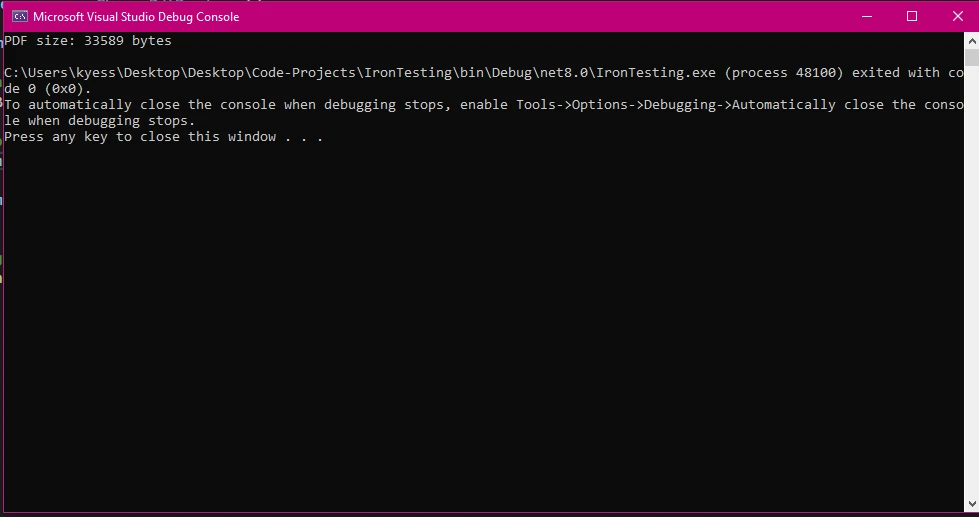
디스크에 있는 기존 PDF 문서 작업 시, IronPDF의 문서 로딩 기능을 통해 파일 내용을 읽고 이를 바이트 배열로 쉽게 변환할 수 있습니다. 이 기능은 배치 처리 시나리오나 기존 문서 라이브러리를 클라우드 스토리지로 마이그레이션할 때 필수적입니다.
using IronPdf;
using System.IO;

IronPdf.License.LicenseKey = "YOUR-LICENSE-KEY-HERE";

// Load an existing PDF document
var existingPdf = PdfDocument.FromFile("report.pdf");

// Convert to byte array using BinaryData
byte[] fileBytes = existingPdf.BinaryData;

// Alternative: Using System.IO for direct file reading
byte[] directBytes = File.ReadAllBytes("report.pdf");

// Create PdfDocument from byte array
var loadedPdf = new PdfDocument(directBytes);

// Verify pages were loaded correctly
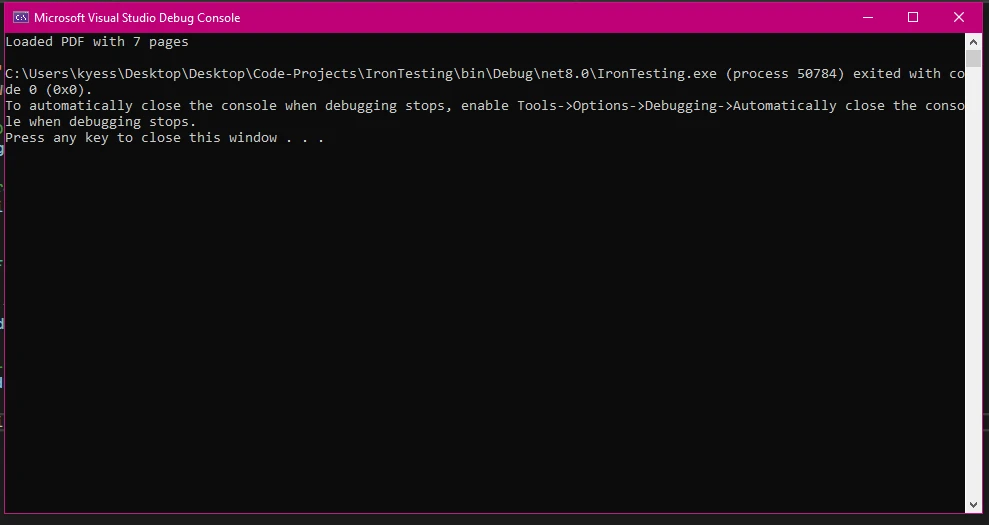
Console.WriteLine($"Loaded PDF with {loadedPdf.PageCount} pages");Imports IronPdf
Imports System.IO
IronPdf.License.LicenseKey = "YOUR-LICENSE-KEY-HERE"
' Load an existing PDF document
Dim existingPdf As PdfDocument = PdfDocument.FromFile("report.pdf")
' Convert to byte array using BinaryData
Dim fileBytes As Byte() = existingPdf.BinaryData
' Alternative: Using System.IO for direct file reading
Dim directBytes As Byte() = File.ReadAllBytes("report.pdf")
' Create PdfDocument from byte array
Dim loadedPdf As New PdfDocument(directBytes)
' Verify pages were loaded correctly
Console.WriteLine($"Loaded PDF with {loadedPdf.PageCount} pages")위 코드는 기존 파일 처리를 위한 두 가지 방법을 보여줍니다. IronPDF의 FromFile 메서드로 문서를 로드하고 BinaryData 속성에 접근할 수 있습니다. 또는 File.ReadAllBytes()을 사용하여 직접 바이트를 읽은 후 해당 바이트에서 PdfDocument 인스턴스를 생성할 수 있습니다. 이중 접근 방식은 다양한 아키텍처 패턴에 대한 유연성을 제공합니다.
IronPDF의 FromFile을 사용하여 텍스트 추출, 디지털 서명 추가 또는 페이지 수정을 수행해야 하는 경우를 대비하십시오. 이 방법은 PDF가 제대로 구문 분석되고 조작할 준비가 되어 있음을 보장합니다.
System.IO 접근 방식은 간단한 파일 전송에 적합하거나 PDF에 특화된 처리가 필요 없을 때 사용할 수 있습니다. PDF 처리를 시작하기 전에 파일 유효성 검사를 구현하거나 IronPDF에 특화되지 않은 일반 파일 처리 유틸리티를 구축 할 때 System.IO 메서드 사용을 고려하십시오.
실용적인 규칙: 로드 후 PDF의 내용을 읽거나 수정할 계획이 있으면 IronPDF의 FromFile을 사용하십시오. 바이트를 단순 이동 - 데이터베이스, API, 메시지 큐 등에만 필요하다면 File.ReadAllBytes()이 더 간단하고 의존성이 적습니다.
대용량 PDF 처리는 신중한 메모리 관리가 필요합니다. 파일이 100MB를 초과할 경우 PDF를 세그먼트로 처리하는 스트리밍 솔루션을 구현하는 것을 고려하세요. 가능한 경우 바이트 배열 변환 전에 IronPDF의 압축 기능을 사용하여 파일 크기를 줄이세요.
다중 페이지 문서 작업 시, 페이지를 개별적으로 로드하고 처리하는 페이지 나누기 전략을 구현하여 전체 문서를 한 번에 메모리에 로드하지 마세요. 성능 프로파일러를 사용하여 메모리 사용량을 모니터링하고 using 문을 사용하여 PdfDocument 인스턴스에 대한 적절한 폐기 패턴을 구현하십시오.
using IronPdf;
using System;
using System.Threading.Tasks;

IronPdf.License.LicenseKey = "YOUR-LICENSE-KEY-HERE";

async Task ProcessLargePdfAsync(string filePath, int chunkSize = 10)
{
    using var pdf = PdfDocument.FromFile(filePath);
    var totalPages = pdf.PageCount;

    for (int i = 0; i < totalPages; i += chunkSize)
    {
        var endPage = Math.Min(i + chunkSize - 1, totalPages - 1);

        // Extract chunk as new PDF
        using var chunkPdf = pdf.CopyPages(i, endPage);
        byte[] chunkBytes = chunkPdf.BinaryData;

        // Process chunk (e.g., save to database, compress, etc.)
        await ProcessChunkAsync(chunkBytes, i, endPage);
    }
}

async Task ProcessChunkAsync(byte[] bytes, int startPage, int endPage)
{
    Console.WriteLine($"Processing pages {startPage}-{endPage}: {bytes.Length} bytes");
    await Task.CompletedTask;
}

await ProcessLargePdfAsync("large-document.pdf");Imports IronPdf
Imports System
Imports System.Threading.Tasks
IronPdf.License.LicenseKey = "YOUR-LICENSE-KEY-HERE"
Public Module PdfProcessor
Public Async Function ProcessLargePdfAsync(filePath As String, Optional chunkSize As Integer = 10) As Task
Using pdf = PdfDocument.FromFile(filePath)
Dim totalPages = pdf.PageCount
For i As Integer = 0 To totalPages - 1 Step chunkSize
Dim endPage = Math.Min(i + chunkSize - 1, totalPages - 1)
' Extract chunk as new PDF
Using chunkPdf = pdf.CopyPages(i, endPage)
Dim chunkBytes As Byte() = chunkPdf.BinaryData
' Process chunk (e.g., save to database, compress, etc.)
Await ProcessChunkAsync(chunkBytes, i, endPage)
End Using
Next
End Using
End Function
Public Async Function ProcessChunkAsync(bytes As Byte(), startPage As Integer, endPage As Integer) As Task
Console.WriteLine($"Processing pages {startPage}-{endPage}: {bytes.Length} bytes")
Await Task.CompletedTask
End Function
Public Sub Main()
ProcessLargePdfAsync("large-document.pdf").GetAwaiter().GetResult()
End Sub
End Module바이트 배열을 PDF 문서로 다시 변환하는 것은 똑같이 간단합니다. 이 기능은 데이터베이스에서 PDF 데이터를 검색하거나 API를 통해 파일을 수신할 때 필수적입니다. 프로세스는 문서의 무결성을 유지하면서 최종 사용자에게 추가 조작이나 전달을 가능하게 합니다.
using IronPdf;
using System.IO;

IronPdf.License.LicenseKey = "YOUR-LICENSE-KEY-HERE";

// Simulate fetching PDF bytes from a database or API
byte[] GetPdfBytesFromDatabase()
{
    return File.ReadAllBytes("example.pdf");
}

// Retrieve bytes
byte[] pdfBytes = GetPdfBytesFromDatabase();

// Create PdfDocument from byte array
var pdfDocument = new PdfDocument(pdfBytes);

// Perform operations on the restored document
Console.WriteLine($"Restored document has {pdfDocument.PageCount} pages");

// Save the document (with any modifications)
pdfDocument.SaveAs("restored-document.pdf");

// Or get updated bytes for further storage
byte[] updatedBytes = pdfDocument.BinaryData;
Console.WriteLine($"Updated bytes: {updatedBytes.Length}");Imports IronPdf
Imports System.IO
IronPdf.License.LicenseKey = "YOUR-LICENSE-KEY-HERE"
' Simulate fetching PDF bytes from a database or API
Private Function GetPdfBytesFromDatabase() As Byte()
Return File.ReadAllBytes("example.pdf")
End Function
' Retrieve bytes
Dim pdfBytes As Byte() = GetPdfBytesFromDatabase()
' Create PdfDocument from byte array
Dim pdfDocument As New PdfDocument(pdfBytes)
' Perform operations on the restored document
Console.WriteLine($"Restored document has {pdfDocument.PageCount} pages")
' Save the document (with any modifications)
pdfDocument.SaveAs("restored-document.pdf")
' Or get updated bytes for further storage
Dim updatedBytes As Byte() = pdfDocument.BinaryData
Console.WriteLine($"Updated bytes: {updatedBytes.Length}")PdfDocument 생성자는 바이트 배열을 직접 수용하여 이진 데이터에서 작동 가능한 PDF로의 원활한 변환을 가능하게 합니다. 이 기능은 PDF가 중앙에 저장되고 필요 시 처리되는 문서 워크플로 구현에 필수적입니다.

일반적인 변환 오류에는 손상된 바이트 배열, 불완전한 데이터 전송, 인코딩 문제가 포함됩니다. 잠재적으로 손상된 데이터를 로딩할 때 InvalidPdfException를 처리하기 위한 try-catch 블록을 구현하십시오. 변환 전에 체크섬 또는 해시 검증을 사용하여 바이트 배열 무결성을 확인하세요.
암호로 보호된 PDF의 경우, 문서 생성 시 적절한 자격 증명이 제공되었는지 확인하세요. 큰 파일 처리 시 메모리 부족 예외를 모니터링하고 using 문을 사용하여 적절한 메모리 관리 전략을 구현하여 결정적인 정리를 보장하십시오.
프로덕션에서 잘 작동하는 방어 패턴은 PdfDocument을(를) 생성하려고 시도하기 전에 바이트 배열을 검증하는 것입니다. 배열이 null이 아니고, 합리적인 최소 크기를 가지고 있으며(유효한 PDF는 최소 몇백 바이트입니다), PDF 매직 바이트 %PDF로 시작하는지 확인하십시오.
검증은 변환 후 문서 신뢰성을 보장합니다. PageCount 속성을 확인하여 모든 페이지가 올바르게 로드되었는지 확인하십시오. 특정 페이지에서 내용을 샘플링하고 예상 값과 비교하기 위해 IronPDF의 텍스트 추출 기능을 사용하세요.
라운드 트립 무결성이 중요한 경우 변환 전후 SHA-256 해시를 비교하여 체크섬 검증을 구현하세요. 문서의 진위가 중요한 경우, 문서가 변조되지 않았는지 확인하기 위해 디지털 서명 검증을 구현하는 것을 고려하세요.
using IronPdf;
using System;
using System.Security.Cryptography;

IronPdf.License.LicenseKey = "YOUR-LICENSE-KEY-HERE";

bool ValidatePdfBytes(byte[] pdfBytes)
{
    if (pdfBytes == null || pdfBytes.Length < 100)
        return false;

    // Check PDF magic bytes
    if (pdfBytes[0] != 0x25 || pdfBytes[1] != 0x50 || pdfBytes[2] != 0x44 || pdfBytes[3] != 0x46)
        return false;

    try
    {
        using var pdf = new PdfDocument(pdfBytes);
        return pdf.PageCount > 0;
    }
    catch (Exception)
    {
        return false;
    }
}

string ComputeSha256(byte[] data)
{
    using var sha256 = SHA256.Create();
    return BitConverter.ToString(sha256.ComputeHash(data)).Replace("-", "");
}

// Usage
byte[] pdfData = File.ReadAllBytes("example.pdf");
Console.WriteLine($"Valid PDF: {ValidatePdfBytes(pdfData)}");
Console.WriteLine($"SHA-256: {ComputeSha256(pdfData)}");Imports IronPdf
Imports System
Imports System.Security.Cryptography
Imports System.IO
IronPdf.License.LicenseKey = "YOUR-LICENSE-KEY-HERE"
Function ValidatePdfBytes(pdfBytes As Byte()) As Boolean
If pdfBytes Is Nothing OrElse pdfBytes.Length < 100 Then
Return False
End If
' Check PDF magic bytes
If pdfBytes(0) <> &H25 OrElse pdfBytes(1) <> &H50 OrElse pdfBytes(2) <> &H44 OrElse pdfBytes(3) <> &H46 Then
Return False
End If
Try
Using pdf As New PdfDocument(pdfBytes)
Return pdf.PageCount > 0
End Using
Catch ex As Exception
Return False
End Try
End Function
Function ComputeSha256(data As Byte()) As String
Using sha256 As SHA256 = SHA256.Create()
Return BitConverter.ToString(sha256.ComputeHash(data)).Replace("-", "")
End Using
End Function
' Usage
Dim pdfData As Byte() = File.ReadAllBytes("example.pdf")
Console.WriteLine($"Valid PDF: {ValidatePdfBytes(pdfData)}")
Console.WriteLine($"SHA-256: {ComputeSha256(pdfData)}")메모리 스트림은 임시 파일을 생성하지 않고 PDF 내용을 효율적으로 처리할 수 있는 방법을 제공합니다. 이 접근 방식은 웹 애플리케이션에서 PDF를 동적으로 생성하고 제공해야 하는 경우 특히 유용합니다.
using IronPdf;
using System.IO;

IronPdf.License.LicenseKey = "YOUR-LICENSE-KEY-HERE";

var renderer = new ChromePdfRenderer();

// Generate PDF and work with it as a stream
var pdf = renderer.RenderHtmlAsPdf("<h1>Invoice</h1><p>Total: $100</p>");

using var pdfStream = pdf.Stream;
byte[] pdfData = pdfStream.ToArray();

// Use bytes for web response, email attachment, or storage
Console.WriteLine($"PDF data ready: {pdfData.Length} bytes");

// Load PDF from byte array into a new MemoryStream
byte[] storedBytes = pdfData; // Typically retrieved from a database
using var loadStream = new MemoryStream(storedBytes);
var restoredPdf = new PdfDocument(loadStream);
Console.WriteLine($"Restored: {restoredPdf.PageCount} page(s)");Imports IronPdf
Imports System.IO
IronPdf.License.LicenseKey = "YOUR-LICENSE-KEY-HERE"
Dim renderer As New ChromePdfRenderer()
' Generate PDF and work with it as a stream
Dim pdf = renderer.RenderHtmlAsPdf("<h1>Invoice</h1><p>Total: $100</p>")
Using pdfStream = pdf.Stream
Dim pdfData As Byte() = pdfStream.ToArray()
' Use bytes for web response, email attachment, or storage
Console.WriteLine($"PDF data ready: {pdfData.Length} bytes")
' Load PDF from byte array into a new MemoryStream
Dim storedBytes As Byte() = pdfData ' Typically retrieved from a database
Using loadStream As New MemoryStream(storedBytes)
Dim restoredPdf As New PdfDocument(loadStream)
Console.WriteLine($"Restored: {restoredPdf.PageCount} page(s)")
End Using
End Using이 예제는 메모리 스트림을 사용하여 PDF를 생성, 저장 및 로드하는 전체 워크플로를 보여줍니다. 패턴은 보고서 생성이나 청구서 온디맨드 작성과 같이 임시 파일 생성을 피하고자 하는 경우 특히 효과적입니다.
ASP.NET Core 엔드포인트에서 PDF를 제공할 때도 메모리 스트림이 적합한 접근 방법입니다. 바이트를 디스크에 쓰지 않고 직접 응답으로 파이핑할 수 있습니다. .NET 런타임은 수 메가바이트까지의 일반적인 문서 크기에 대해 효율적으로 버퍼링을 처리합니다.
메모리 스트림은 점진적인 처리나 스트림 기반 API와 통합할 때 우수하게 작동합니다. 파일 업로드 핸들러를 구현할 때 전송중인 PDF를 처리하거나 전체 파일을 버퍼링하지 않고 PDF를 제공하는 스트리밍 엔드포인트를 만들 때 사용하세요.
주요 차이점은 MemoryStream이(가) 커서 위치를 제공하고 데이터를 점진적으로 읽을 수 있도록 한다는 것이며, 바이트 배열은 단순한 버퍼입니다. 통합하려는 API가 Stream 매개변수를 허용한다면 Stream 속성을 PdfDocument에서 사용하십시오. 만약 byte[]을(를) 허용한다면 BinaryData을(를) 사용하십시오.
두 가지 접근법 모두 IronPDF의 PDF 기능과 호환됩니다. 이에는 헤더 및 푸터 추가, PDF 양식 작업, 및 PDF를 이미지로 변환이 포함됩니다. 메모리 표현은 동일합니다; 접근 패턴만 다릅니다.
메모리 최적화 전략에는 올바르게 폐기 패턴을 구현하고 자동 자원 정리를 위한 using 문을 사용하며, 가능할 때 PDF를 청크 단위로 처리합니다. 병렬 처리하기 위해 큰 PDF를 더 작은 세그먼트로 나누는 것을 고려하세요.
고처리량 시나리오에서 빈번히 할당되는 바이트 배열에 대한 메모리 풀링을 구현하세요. .NET의 ArrayPool<byte> 클래스는 재사용 가능한 바이트 배열의 공유 풀을 제공하여 초당 여러 PDF를 처리할 때 가비지 수집 압력을 줄입니다.
매우 큰 문서의 경우, 모든 PDF가 한 번에 메모리에 있어야 하는지는 실제로 필요한지 고려하세요. IronPDF의 페이지 수준 작업은 개별 페이지로 작업할 수 있게 해주며, 대규모 보고서를 생성할 때 피크 메모리 소비를 크게 줄일 수 있습니다.
웹 애플리케이션에서 PDF를 제공할 때 바이트 배열을 적절히 처리하면 최적의 성능과 올바른 브라우저 동작을 보장할 수 있습니다. 다음은 PDF를 생성하고 파일 다운로드로 반환하는 최소 컨트롤러 작업입니다:
using Microsoft.AspNetCore.Mvc;
using IronPdf;
using System;
using System.Threading.Tasks;

IronPdf.License.LicenseKey = "YOUR-LICENSE-KEY-HERE";

// Minimal API endpoint (top-level statements, .NET 10)
var builder = WebApplication.CreateBuilder(args);
var app = builder.Build();

app.MapGet("/api/report/{reportId}", async (int reportId) =>
{
    var renderer = new ChromePdfRenderer
    {
        RenderingOptions = new ChromePdfRenderOptions
        {
            MarginTop = 25,
            MarginBottom = 25,
            CssMediaType = PdfCssMediaType.Print,
            EnableJavaScript = true
        }
    };

    try
    {
        var html = $"<h1>Report #{reportId}</h1><p>Generated: {DateTime.UtcNow:yyyy-MM-dd}</p>";
        var pdf = renderer.RenderHtmlAsPdf(html);
        var pdfBytes = pdf.BinaryData;

        return Results.File(pdfBytes, "application/pdf", $"report-{reportId}.pdf");
    }
    catch (Exception ex)
    {
        return Results.Problem($"PDF generation failed: {ex.Message}");
    }
});

app.Run();Imports Microsoft.AspNetCore.Mvc
Imports IronPdf
Imports System
Imports System.Threading.Tasks
IronPdf.License.LicenseKey = "YOUR-LICENSE-KEY-HERE"
' Minimal API endpoint (top-level statements, .NET 10)
Dim builder = WebApplication.CreateBuilder(args)
Dim app = builder.Build()
app.MapGet("/api/report/{reportId}", Async Function(reportId As Integer)
Dim renderer = New ChromePdfRenderer With {
.RenderingOptions = New ChromePdfRenderOptions With {
.MarginTop = 25,
.MarginBottom = 25,
.CssMediaType = PdfCssMediaType.Print,
.EnableJavaScript = True
}
}
Try
Dim html = $"<h1>Report #{reportId}</h1><p>Generated: {DateTime.UtcNow:yyyy-MM-dd}</p>"
Dim pdf = renderer.RenderHtmlAsPdf(html)
Dim pdfBytes = pdf.BinaryData
Return Results.File(pdfBytes, "application/pdf", $"report-{reportId}.pdf")
Catch ex As Exception
Return Results.Problem($"PDF generation failed: {ex.Message}")
End Try
End Function)
app.Run()이 패턴은 모든 .NET 웹 프레임워크에 적용됩니다. 최소 API나 MVC 컨트롤러에서의 Results.File 메서드는 올바른 Content-Type: application/pdf 헤더를 설정하고 브라우저에서 파일 다운로드를 트리거합니다.
자주 접근하는 보고서의 경우 HTTP 캐싱 헤더를 추가하는 것을 고려하세요. PDF 바이트로부터 ETag를 계산하면 클라이언트가 문서를 로컬로 캐시하고 중복 다운로드를 피할 수 있어 서버 부하와 데이터 전송 비용을 줄입니다.
동시 PDF 작업은 주의 깊은 동기화가 필요합니다. 병렬 처리를 위해 스레드나 요청당 별도의 ChromePdfRenderer 인스턴스를 생성하십시오. 렌더러는 스레드 안전하지 않으며 동시 작업 간에 공유되어서는 안 됩니다.
동시 PDF 생성 작업의 수를 제한해야 할 경우 SemaphoreSlim을(를) 사용하여 속도 제한을 하십시오. 많은 사용자가 동시에 PDF 생성을 요청할 수 있는 높은 트래픽 시나리오에서 메모리 고갈을 방지합니다.
장기 실행되는 PDF 생성 작업의 경우, Hangfire와 같은 라이브러리나 내장된 .NET IHostedService을 사용하여 작업을 백그라운드 큐로 이동하는 것을 고려하십시오. 이렇게 하면 HTTP 응답 시간이 짧아지고 PDF를 비동기적으로 처리할 수 있으며, 결과를 나중에 검색할 수 있도록 바이트 배열로 데이터베이스에 저장할 수 있습니다.
웹 애플리케이션에서 PDF 바이트 배열을 처리할 때 보안은 매우 중요합니다. IronPDF의 보안 기능을 사용하여 민감한 PDF의 암호화를 구현하고, 클라이언트가 거대한 파일을 업로드해 서비스 거부 공격을 방지하기 위해 파일 크기를 유효성 검사하고, 경로 탐색 취약점을 방지하기 위해 파일 이름을 소독하세요.
외부 소스로부터 들어오는 PDF 바이트 배열을 신뢰할 수 없는 입력과 동일한 주의로 취급하세요. 손상되거나 악의적인 PDF는 PDF 파서의 취약점을 유발할 수 있습니다. 항상 처리하기 전에 바이트를 확인하고, 특히 민감한 애플리케이션의 경우 샌드박스 환경에서 PDF 처리를 수행하는 것을 고려하세요.
사용자가 PDF 파일을 업로드할 수 있는 애플리케이션의 경우 애플리케이션 레이어와 웹 서버 레이어 모두에서 최대 파일 크기 제한을 강제하세요. 유효성 검증 후에만 업로드된 바이트를 저장하고, 철저한 검토 없이 권한 있는 컨텍스트에서 실행하거나 렌더링하지 마세요.
다음 표는 일반 PDF 바이트 배열 시나리오에 대한 권장 접근 방식을 요약합니다:
| 시나리오 | 권장 접근 방식 | 주요 고려 사항 |
|---|---|---|
| 데이터베이스에 PDF 저장 | BinaryData 속성 사용 | BLOB/BYTEA 열 유형으로 저장 |
| API를 통해 PDF 제공 | 올바른 MIME 유형으로 바이트 배열 반환 | Content-Type: application/pdf 설정 |
| 대용량 PDF 스트리밍 | Stream 속성 사용 | 전체 파일을 메모리에 버퍼링하지 않음 |
| PDF 편집을 위해 로드 | PdfDocument.FromFile() 사용 | 후속 작업이 필요한 경우 선호 |
| 저장소에서 재구성 | 바이트 배열을 PdfDocument 생성자에 전달 | 구성 전에 바이트 유효성 검사 |
| 서버리스 / 컨테이너화 | 임시 파일 대신 바이트 배열 | 파일 시스템 종속성을 피함 |
모든 접근 방식에서 일관된 스레드는 바이트 배열이 PDF 데이터를 위한 깨끗하고 휴대 가능한 추상화를 제공한다는 것입니다. Windows, Linux, macOS 및 컨테이너화된 환경에서 동일하게 작동합니다. 관리할 파일 시스템 상태가 없고, 걱정할 임시 파일 정리가 없으며, 플랫폼에 특화된 경로 처리도 없습니다.
새로운 문서 워크플로를 구축할 때 바이트 배열을 주요 데이터 표현으로 시작하십시오. 파일 시스템 지속성을 이차적인 관심사로 추가할 수 있지만, 처음부터 바이트 배열을 기반으로 설계하면 시스템을 더 쉽게 테스트하고, 배포하고, 확장할 수 있습니다.
PDF 바이트 배열 작업을 테스트하는 것은 쉽습니다. 바이트는 결정론적이고 비교하기 쉬우므로. 알려진 HTML에서 PDF를 생성하고, 결과 바이트를 캡처하고, 바이트 수가 예상 범위 내에 있는지 및 매직 바이트가 올바른지와 같은 기본 속성을 확인하는 단위 테스트를 작성하십시오.
통합 테스트의 경우, 라운드 트립 패턴을 사용하십시오: PDF를 바이트로 생성하고, 그 바이트를 다시 PdfDocument에 로드한 다음 페이지 수와 추출된 텍스트가 예상값과 일치하는지 확인합니다. 이렇게 하면 직렬화 및 역직렬화 경로가 모두 테스트됩니다.
IronPDF 문서 및 기능 개요에는 테스트 시나리오에 대한 추가 지침이 포함되어 있습니다. Microsoft의 MemoryStream에 대한 문서 및 Adobe의 PDF 사양과 같은 외부 리소스는 기본 기술에 대한 더 깊은 배경을 제공합니다. 웹 엔드포인트 테스트의 경우, PDF 제공 엔드포인트에 적용되는 통합 테스트 패턴을 다루는 ASP.NET Core 테스트 문서가 있습니다.
IronPDF는 C#에서 PDF를 바이트 배열로 변환하는 작업을 간단하게 만들어 주며, PDF 문서를 바이너리 데이터로 처리하는 실용적인 방법을 제공합니다. API 구축, 문서 데이터베이스 관리 또는 웹 애플리케이션 개발 여부에 관계없이, IronPDF의 BinaryData 및 Stream 속성은 현대 PDF 처리를 위한 필요한 유연성을 제공합니다.
라이브러리의 일관된 API 디자인은 .NET 규칙에 따라 개발되었으며, 플랫폼에 이미 익숙한 개발자들이 접근하기 쉽게 만듭니다. PDF를 바이트 배열로 변환하고, 데이터베이스를 통해 왕복하고, HTTP 엔드포인트를 통해 파일을 제공하고, 문서 무결성을 검증하는 모든 작업은 깨끗하고 읽기 쉬운 코드로 가능해집니다.
전체 문서와 추가 예제를 확인하려면 IronPDF 문서를 살펴보고 NuGet Install-Package 가이드를 참조하십시오. 기능 개요에서는 맞춤형 워터마크, PDF 병합 및 분할, 양식 처리와 같은 고급 기능을 다룹니다. 라이선스 옵션은 모든 규모의 프로젝트에 대해 유연한 배포 선택을 제공합니다.

커티스 차우는 칼턴 대학교에서 컴퓨터 과학 학사 학위를 취득했으며, Node.js, TypeScript, JavaScript, React를 전문으로 하는 프론트엔드 개발자입니다. 직관적이고 미적으로 뛰어난 사용자 인터페이스를 만드는 데 열정을 가진 그는 최신 프레임워크를 활용하고, 잘 구성되고 시각적으로 매력적인 매뉴얼을 제작하는 것을 즐깁니다.



IronPDF는 IRON SUITE 의 일부입니다.
10개의 .NET API 제품, 당신의 사무 문서를 위해

PDF 파일을 HTML처럼 빠르게 변환해야 할 때.


