푸터 콘텐츠로 바로가기
IRONPDF 사용

How to Get a PDF Page Count in C#

Getting a PDF page count in C# is straightforward with IronPDF. Simply use PdfDocument.FromFile("file.pdf").PageCount to retrieve the total number of pages from any PDF file in a single line of code.

While obtaining the page count from a PDF might not be exciting, it's crucial for building reliable applications. Whether you're managing a document management system, calculating printing costs, or generating reports, knowing the total page count is essential. It can mean the difference between a smooth process and a validation issue.

The good news is that IronPDF makes this process incredibly simple, requiring just a few lines of code. In this article, you'll learn how to use IronPDF to get the page count from any PDF file, allowing you to focus on more important tasks.

How Do I Get PDF Page Count Quickly?

Here's how to get the page count from a PDF file using IronPDF:

using IronPdf;
using System;
class Program
{
    static void Main(string[] args)
    {
        // Load an existing PDF document
        PdfDocument pdf = PdfDocument.FromFile("MultiPageDocument.pdf");
        // Get the page count - it's this simple!
        int pageCount = pdf.PageCount;
        // Display the result in the console
        Console.WriteLine($"The PDF has {pageCount} pages");
    }
}
using IronPdf;
using System;
class Program
{
    static void Main(string[] args)
    {
        // Load an existing PDF document
        PdfDocument pdf = PdfDocument.FromFile("MultiPageDocument.pdf");
        // Get the page count - it's this simple!
        int pageCount = pdf.PageCount;
        // Display the result in the console
        Console.WriteLine($"The PDF has {pageCount} pages");
    }
}
$vbLabelText   $csharpLabel

This code demonstrates the core functionality: load a PDF and read its page count through the PageCount property. The method returns an integer representing the number of pages. You can easily add this snippet to any C# project, whether it's a Windows application, web service, or Azure Function.

For advanced scenarios, you might want to combine page counting with other PDF operations. For example, you could extract text from specific pages, add watermarks based on page count, or split PDFs at certain intervals.

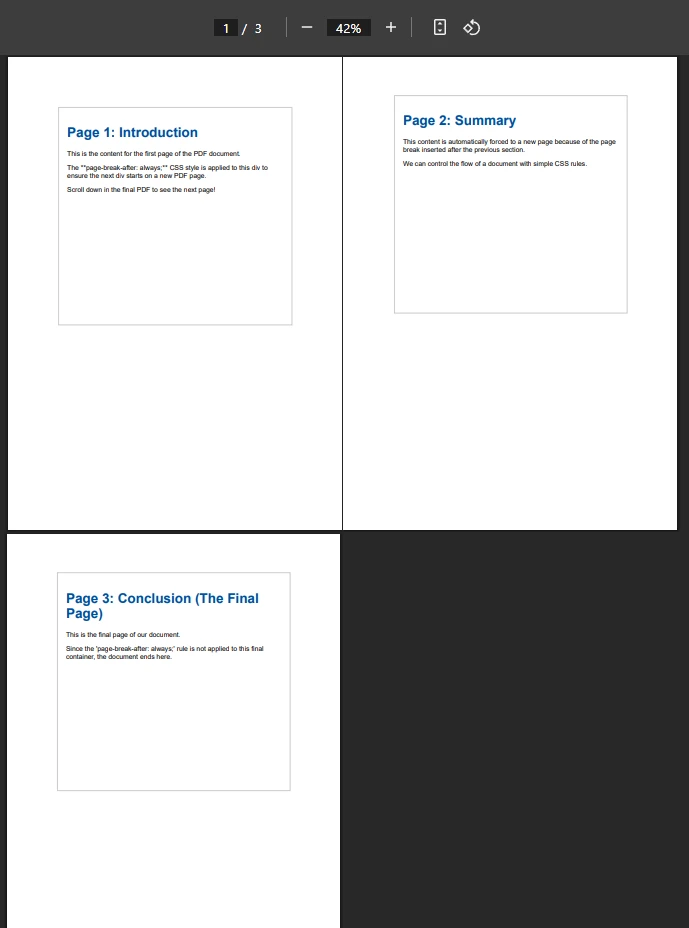
What Does the Input PDF Look Like?

PDF viewer showing a 3-page document with pages labeled 'Introduction', 'Summary', and 'Conclusion' displayed in a 2x2 grid layout at 42% zoom. Page numbers are visible in the navigation showing '1/3'

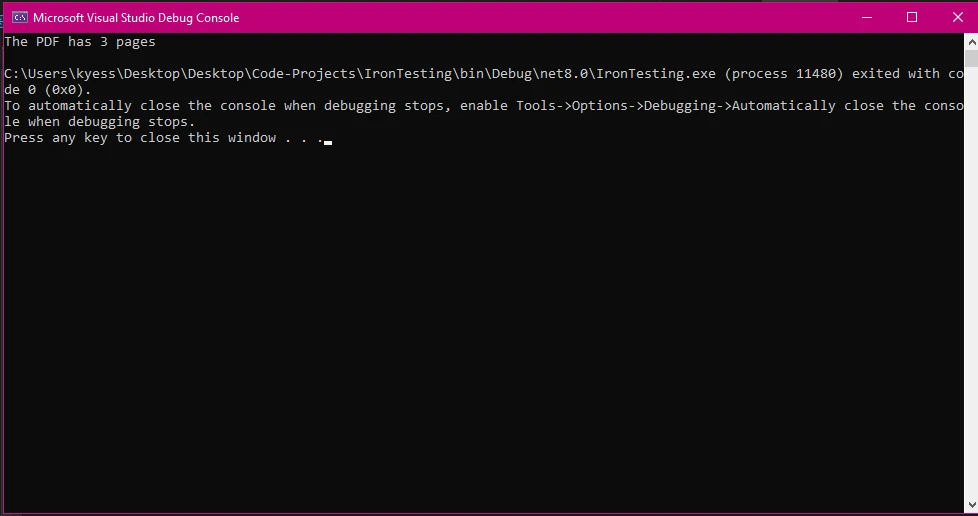
What Output Should I Expect?

Visual Studio Debug Console displaying 'The PDF has 3 pages' output from a C# program execution, with program exit code 0 shown at the bottom

How Do I Set Up IronPDF in Visual Studio?

Before you can start counting PDF pages, you'll need to install IronPDF via NuGet. Follow these steps:

  1. Open your project in Visual Studio
  2. Right-click on References in Solution Explorer
  3. Select "Manage NuGet Packages"
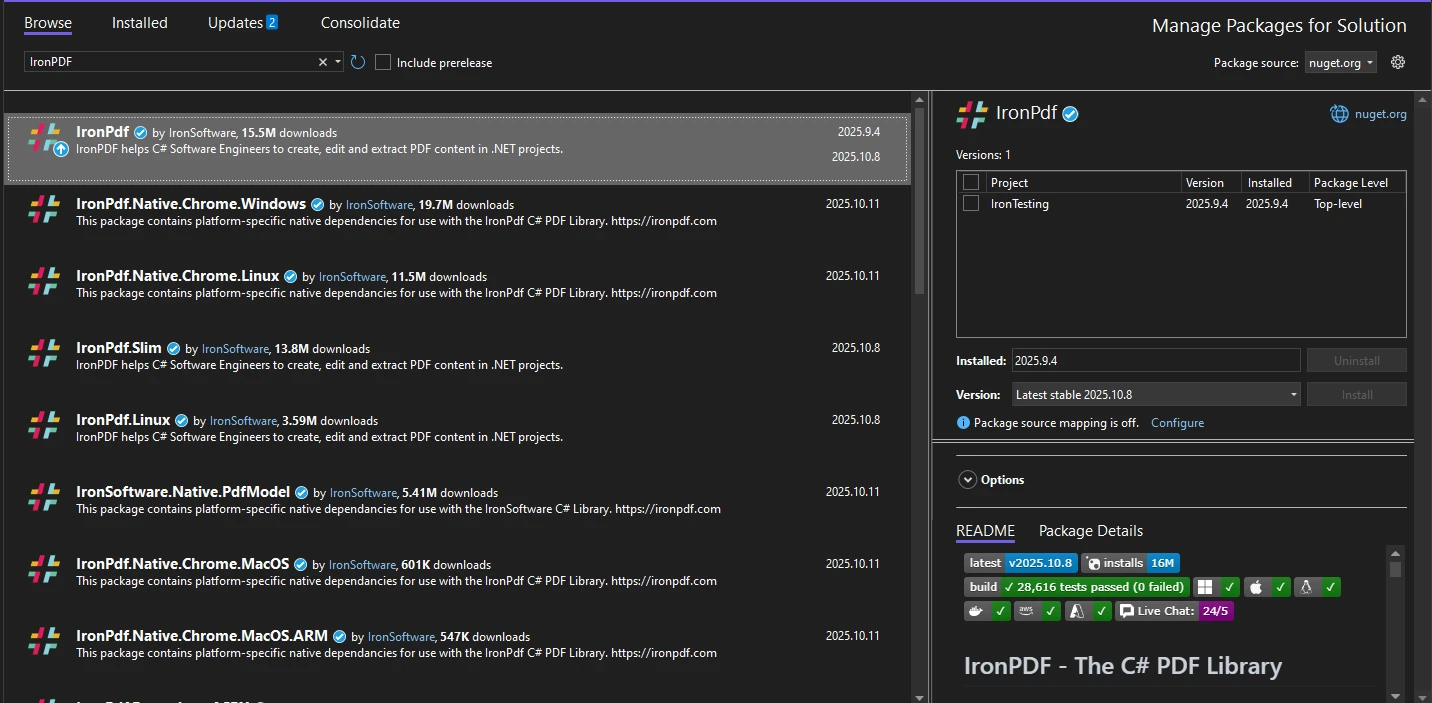
  4. Search for "IronPdf" and click Install

Visual Studio NuGet Package Manager interface showing IronPDF package with version 2025.10.8 selected for installation, displaying main library and platform-specific dependencies

var pageCount = PdfDocument.FromFile("document.pdf").PageCount;
$vbLabelText   $csharpLabel

Once installed, you're ready to work with PDF files. IronPDF supports .NET Framework 4.6.2+, .NET Core 3.1+, and .NET 5+, providing broad compatibility for your applications. The library works smoothly on Windows, Linux, and macOS platforms. For detailed setup instructions, check the IronPDF installation guide.

How Can I Work with Different PDF Sources?

How Do I Count Pages from Local Files?

The most common scenario involves counting pages from PDF files stored on your system. According to Stack Overflow discussions, IronPDF offers one of the cleanest APIs for this purpose:

using IronPdf;
using System;
using System.IO;
public class PdfPageCounter
{
    public static void CountPagesFromFile()
    {
        string filePath = @"C:\Documents\invoice.pdf";
        // Check if file exists before opening
        if (File.Exists(filePath))
        {
            // Create a new PdfReader instance (conceptually similar to var reader)
            PdfDocument document = PdfDocument.FromFile(filePath);
            // Access the page count property
            int numberOfPages = document.PageCount;
            // Output the information provided
            Console.WriteLine($"Document pages: {numberOfPages}");
            // Close the document when done
            document.Dispose();
        }
    }
}
using IronPdf;
using System;
using System.IO;
public class PdfPageCounter
{
    public static void CountPagesFromFile()
    {
        string filePath = @"C:\Documents\invoice.pdf";
        // Check if file exists before opening
        if (File.Exists(filePath))
        {
            // Create a new PdfReader instance (conceptually similar to var reader)
            PdfDocument document = PdfDocument.FromFile(filePath);
            // Access the page count property
            int numberOfPages = document.PageCount;
            // Output the information provided
            Console.WriteLine($"Document pages: {numberOfPages}");
            // Close the document when done
            document.Dispose();
        }
    }
}
$vbLabelText   $csharpLabel

This example shows proper file handling with an exists check and resource disposal. The PdfDocument instance provides immediate access to the page count without parsing the entire file. The library doesn't require complex xref or trailer parsing - it handles these PDF internals automatically. When a file isn't found, the code avoids null reference exceptions with proper checking.

You can extend this functionality to work with encrypted PDFs, PDF/A compliant documents, or even compressed PDFs. IronPDF handles all these formats transparently.

How Do I Count Pages from URLs?

IronPDF can also handle PDF files directly from web URLs. This feature is particularly useful when working with remote documents stored on cloud platforms or content delivery networks. Learn more about URL to PDF conversion:

using IronPdf;
public class WebPdfCounter
{
    public static void CountPagesFromUrl()
    {
        // Download and open PDF from URL
        var reader = PdfDocument.FromUrl(new Uri("___PROTECTED_URL_61___"));
        // The page count is immediately available
        int pages = reader.PageCount;
        Console.WriteLine($"Web PDF contains {pages} pages");
    }
}
using IronPdf;
public class WebPdfCounter
{
    public static void CountPagesFromUrl()
    {
        // Download and open PDF from URL
        var reader = PdfDocument.FromUrl(new Uri("___PROTECTED_URL_61___"));
        // The page count is immediately available
        int pages = reader.PageCount;
        Console.WriteLine($"Web PDF contains {pages} pages");
    }
}
$vbLabelText   $csharpLabel

This approach works well with documents hosted on Azure Blob Storage, SharePoint, or any accessible web server. IronPDF handles the download process internally, managing HTTP headers and authentication when needed.

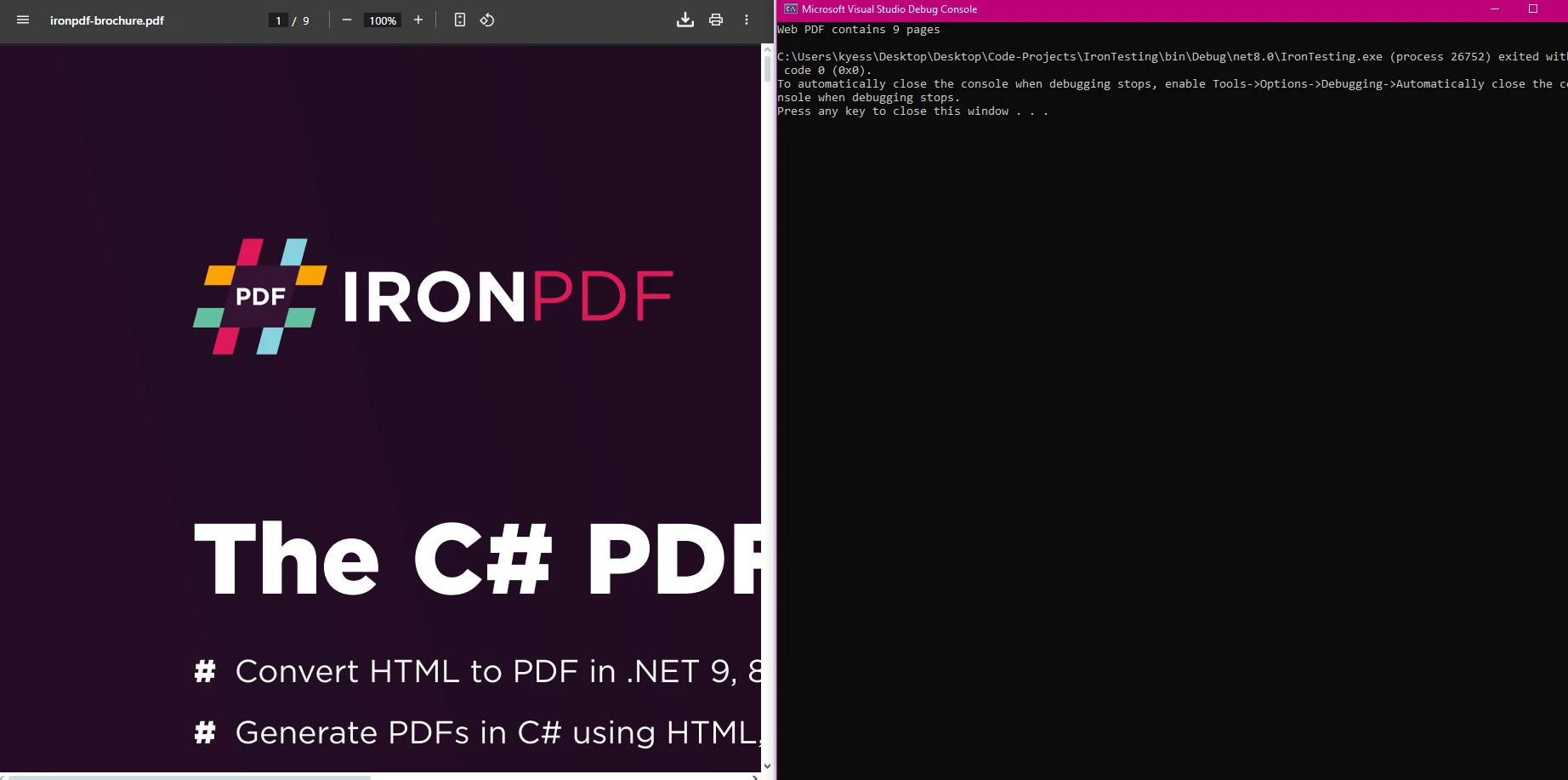
What Results Will URL Processing Show?

IronPDF brochure displayed in PDF viewer showing page 1 of 9, with Visual Studio debug console visible in background demonstrating successful PDF loading

How Do I Batch Process Multiple PDF Files?

When dealing with multiple PDF files, you can efficiently process them in a loop. This approach is familiar to developers who work with file systems:

using IronPdf;
using System;
using System.IO;
public class BatchProcessor
{
    public static void ProcessMultiplePdfs(object sender, EventArgs e)
    {
        string[] pdfFiles = Directory.GetFiles(@"C:\PDFs", "*.pdf");
        foreach (string file in pdfFiles)
        {
            try
            {
                // Open each PDF file
                using (var pdf = PdfDocument.FromFile(file))
                {
                    // Get the page count for this document
                    int count = pdf.PageCount;
                    // Extract just the filename for display
                    string fileName = Path.GetFileName(file);
                    // Output the result on a new line
                    Console.WriteLine($"{fileName}: {count} pages");
                    // Could save results or post to database here
                }
            }
            catch (Exception ex)
            {
                // Continue processing other files if one fails
                Console.WriteLine($"Error processing {file}: {ex.Message}");
                continue; // Use break only if you want to stop entirely
            }
        }
    }
}
using IronPdf;
using System;
using System.IO;
public class BatchProcessor
{
    public static void ProcessMultiplePdfs(object sender, EventArgs e)
    {
        string[] pdfFiles = Directory.GetFiles(@"C:\PDFs", "*.pdf");
        foreach (string file in pdfFiles)
        {
            try
            {
                // Open each PDF file
                using (var pdf = PdfDocument.FromFile(file))
                {
                    // Get the page count for this document
                    int count = pdf.PageCount;
                    // Extract just the filename for display
                    string fileName = Path.GetFileName(file);
                    // Output the result on a new line
                    Console.WriteLine($"{fileName}: {count} pages");
                    // Could save results or post to database here
                }
            }
            catch (Exception ex)
            {
                // Continue processing other files if one fails
                Console.WriteLine($"Error processing {file}: {ex.Message}");
                continue; // Use break only if you want to stop entirely
            }
        }
    }
}
$vbLabelText   $csharpLabel

This code iterates through all PDF files in a directory, providing the page count for each. The using statement ensures proper resource cleanup, preventing memory issues. You can extend this to import data into databases or generate reports. This approach provides visibility into your document collection. For more examples, visit the IronPDF code examples.

For high-performance scenarios, consider using async operations or parallel processing to handle multiple files simultaneously. This can significantly reduce processing time for large collections.

What Does Batch Processing Output Look Like?

Visual Studio Debug Console showing batch processing output with three PDFs - PdfOne.pdf (3 pages), PdfThree.pdf (7 pages), and PdfTwo.pdf (1 page) - demonstrating successful page count retrieval

What Are the Real-World Applications?

The ability to quickly obtain page counts enables numerous practical applications:

These use cases show the value of efficient page counting in production systems. The information helps you make informed decisions about document processing. Microsoft's documentation on PDF handling provides additional context for file operations in .NET.

Consider integrating page counting with other IronPDF features like OCR text extraction, form field detection, or digital signature verification to build complete workflows.

What Performance Factors Should I Consider?

IronPDF excels at page count retrieval because it reads PDF metadata rather than parsing entire documents. This ensures fast response times even with large files. The library uses efficient memory management, making it suitable for production environments where performance matters.

When processing numerous PDF files, follow these best practices:

  • Use using statements for automatic resource disposal
  • Process files in batches to manage memory
  • Implement error handling for corrupted files
  • Close documents after reading to free resources
  • Consider memory stream operations
  • Use Docker containers for scaling

The simplicity of IronPDF's API means less time spent on implementation. Its design efficiency makes it ideal for high-volume processing. Thanks to these optimizations, you can handle thousands of PDFs without performance issues. For detailed performance guidance, check the IronPDF performance assistance guide.

Purchase a license to reveal IronPDF's full potential for enterprise applications.

What Common Issues Should I Watch For?

How Do I Handle Corrupted PDF Files?

If a PDF file is corrupted, IronPDF will throw an exception. Always wrap your code in try-catch blocks when dealing with user-uploaded files. This is common when processing documents from various sources. You can resolve this by validating files before processing. Proper error handling prevents application crashes. The library's internal checks can identify corrupted content automatically.

For advanced error handling, implement custom logging to track problematic files. You might also want to sanitize PDFs to remove potentially harmful content before processing.

What About Access Permission Issues?

Ensure your application has read permissions for the PDF files you're accessing. This is particularly important for web applications and services. Write permissions may be needed if you plan to save modifications. Check the IronPDF troubleshooting guide for detailed solutions.

When deploying to Azure or AWS, ensure your application has necessary permissions to access storage services. Consider using environment variables for secure credential management.

How Can I Improve Memory Usage?

For applications processing many PDFs, dispose of PdfDocument objects promptly to prevent memory leaks. This optimization is crucial for long-running services. Include proper disposal in your XAML code-behind or controller actions. Remember that performance depends on proper resource management in your code.

Consider implementing garbage collection strategies for batch processing scenarios. For server applications, monitor memory usage and implement appropriate limits to prevent out-of-memory exceptions.

What Are the Key Takeaways?

IronPDF simplifies getting PDF page counts in C#. With its intuitive API, you can extract page information from local files, URLs, and encrypted documents with minimal code. The library's efficiency and reliability make it ideal for both simple scripts and complex enterprise systems.

IronPDF's complete features and excellent support help you implement PDF page counting functionality quickly and reliably. Whether you're building a document management system or validating PDF uploads, IronPDF provides the tools you need. The result is cleaner code, faster development, and more reliable applications.

The library integrates seamlessly with modern .NET applications, supporting Blazor, MAUI, and ASP.NET Core. Its cross-platform compatibility ensures your page counting functionality works consistently across environments.

Start with a free trial today and experience what makes IronPDF the preferred choice for .NET developers worldwide. Post your questions in the comments or contact support for assistance.

자주 묻는 질문

C#을 사용하여 PDF 문서의 페이지 수를 얻으려면 어떻게 해야 하나요?

C#에서 IronPDF를 사용하면 PDF 문서의 페이지 수를 쉽게 얻을 수 있습니다. IronPDF는 PDF 파일의 총 페이지 수에 액세스하는 간단한 방법을 제공하므로 문서 관리 시스템 및 보고에 필수적인 도구입니다.

PDF에서 페이지 수를 파악하는 것이 중요한 이유는 무엇인가요?

문서 관리 시스템, 인쇄 비용 계산, 정확한 보고서 생성 등 다양한 애플리케이션에서 PDF의 페이지 수를 파악하는 것은 매우 중요합니다. 원활한 작업을 보장하고 파일 유효성 검사 문제를 방지할 수 있습니다.

PDF 페이지 수를 알아야 하는 일반적인 애플리케이션에는 어떤 것이 있나요?

일반적인 애플리케이션으로는 문서 관리 시스템, 비용 계산을 위한 인쇄 서비스, 보고서 생성 및 확인 소프트웨어 등이 있습니다. 이러한 작업에는 정확한 페이지 수가 중요합니다.

IronPDF는 모든 PDF 문서의 페이지 수를 지원하나요?

예, IronPDF는 모든 PDF 문서의 페이지 수를 계산하여 개발자가 애플리케이션에서 PDF 파일을 안정적이고 효율적으로 관리할 수 있는 방법을 제공합니다.

IronPDF는 페이지 수를 계산할 때 대용량 PDF 파일을 처리할 수 있나요?

IronPDF는 대용량 PDF 파일을 효율적으로 처리하도록 설계되어 페이지 수가 많은 문서에서도 페이지 수 계산 작업을 빠르고 안정적으로 수행할 수 있습니다.

IronPDF를 사용하여 PDF 페이지 수를 계산하는 단계별 가이드가 있나요?

예, IronPDF는 개발자가 PDF 페이지 수 기능을 C# 애플리케이션에 원활하게 통합할 수 있도록 코드 예제와 함께 단계별 가이드를 제공합니다.

.NET 10 지원: IronPDF는 PDF 페이지 카운팅을 위해 .NET 10과 호환되나요?

예. IronPDF는 .NET 10과 완벽하게 호환되며 .NET 5, 6, 7, 8, 9에서와 마찬가지로 .NET 10 프로젝트에서 `PdfDocument.PageCount` 속성을 사용하여 페이지 수를 가져오는 것을 지원합니다(ironpdf.com)

.NET 10: 비동기 .NET 10 환경에서 IronPDF의 페이지 수 기능을 사용할 수 있나요?

예. .NET 10 환경에서 IronPDF는 동일한 PDF 페이지 수 방법을 동기 및 비동기식으로 지원하므로 개발자가 호환성 문제 없이 차단 및 비차단 워크플로 모두에서 페이지 수 로직을 통합할 수 있습니다.

커티스 차우
기술 문서 작성자

커티스 차우는 칼턴 대학교에서 컴퓨터 과학 학사 학위를 취득했으며, Node.js, TypeScript, JavaScript, React를 전문으로 하는 프론트엔드 개발자입니다. 직관적이고 미적으로 뛰어난 사용자 인터페이스를 만드는 데 열정을 가진 그는 최신 프레임워크를 활용하고, 잘 구성되고 시각적으로 매력적인 매뉴얼을 제작하는 것을 즐깁니다.


커티스는 개발 분야 외에도 사물 인터넷(IoT)에 깊은 관심을 가지고 있으며, 하드웨어와 소프트웨어를 통합하는 혁신적인 방법을 연구합니다. 여가 시간에는 게임을 즐기거나 디스코드 봇을 만들면서 기술에 대한 애정과 창의성을 결합합니다.