


Jak skanować wiele stron do jednego pliku PDF

How to Scan Multiple Pages into One PDF File
You can scan multiple pages into one PDF using mobile apps like Adobe Scan, desktop software like Adobe Acrobat Pro, or programmatically with C# libraries like IronPDF for automated document processing workflows.
PDF files work seamlessly across devices, and this article explores multiple methods for scanning multiple pages into one PDF file. Whether you're digitizing paper documents for archival, creating searchable documents from physical materials, or building automated scanning workflows, understanding these approaches helps you choose the right solution. The PDF format offers excellent compression capabilities and maintains document fidelity across platforms, making it ideal for document management systems.
How Do I Use the Adobe Scan Mobile App?
Let's start with a mobile solution for scanning multiple pages into one PDF. The Adobe Scan mobile app works great for this. You can download it from the Play Store for Android phones or the App Store for iPhones. You can also get it from the Adobe Acrobat website. The app leverages your smartphone's camera to capture documents, making it perfect for quick document digitization when you're away from traditional scanners.
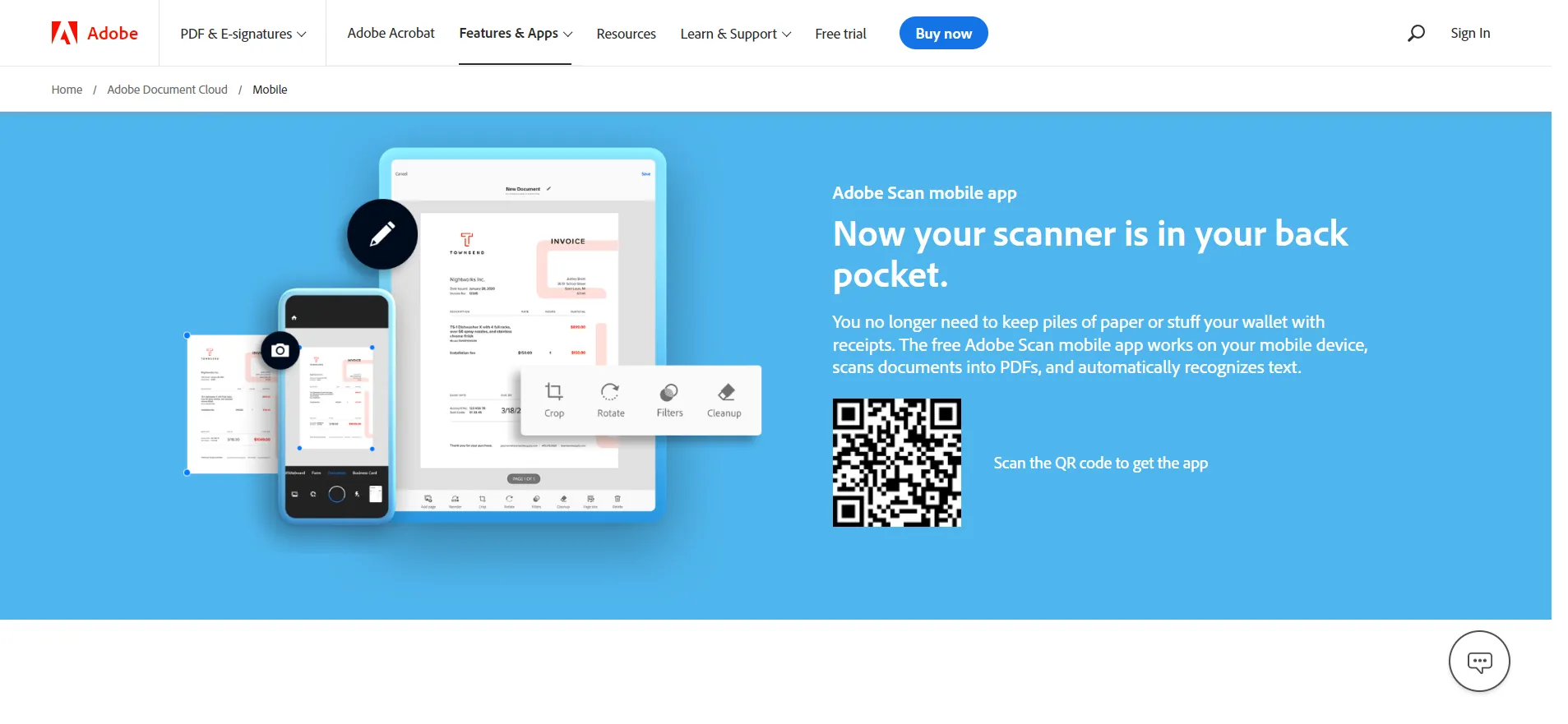 Download the Adobe Scan app from the official website
You can capture multiple pages of documents, PDFs, or scanned images and combine them into a single PDF file. Everything appears in the scan preview window. The app uses advanced image processing to automatically detect document edges, enhance text clarity, and remove shadows or distortions. You can upload documents to the cloud, making it easy to access your files from any device. It detects borders and content areas, then creates a shareable, editable PDF file. The scanning process is similar to how IronPDF handles image conversions, providing clean, professional results.
The Adobe Scan app includes OCR (Optical Character Recognition), which converts scanned text into searchable content. This feature helps when you need to extract text from PDF documents later or make your scanned documents accessible for search engines and screen readers. OCR technology is essential for creating accessible PDFs that comply with Section 508 standards. The app also supports UTF-8 encoding for international documents and can handle various languages.
How Do I Scan Pages Using Adobe Acrobat?
Adobe Acrobat is a desktop application for creating, editing, signing, and printing PDF files. It converts any electronic document into a PDF file. With this program, you can edit and annotate your PDFs. You can also access all features on mobile devices through Adobe's cloud sync. The desktop version offers more robust features compared to mobile apps, including batch processing, form creation, and advanced security options.
Adobe Acrobat offers extensive features. It can merge PDF documents, convert images to PDFs, create fillable forms, and more. The software can edit scanned copies and JPEG files. It also supports advanced features like digital signatures, PDF compression, and password protection. You can also add watermarks, manage fonts, and create bookmarks for better navigation.
Let's walk through creating a PDF by scanning multiple pages using Adobe Acrobat:
Where Do I Find the Create PDF Tools?
Open Adobe Acrobat Pro on your desktop. The interface may vary by version, but core functionality stays consistent across releases. The software supports various PDF versions and can export different formats. Adobe Acrobat follows the PDF specification standards established by the International Organization for Standardization (ISO).
Go to the tools section.
 Navigate to the tools in the Adobe Acrobat Pro
Click on the Create option. This opens a submenu with various PDF creation options, including scanning from physical documents, creating from HTML files, or converting from other formats. Adobe Acrobat also supports RTF to PDF conversion and can handle XML files through XSLT transformations.
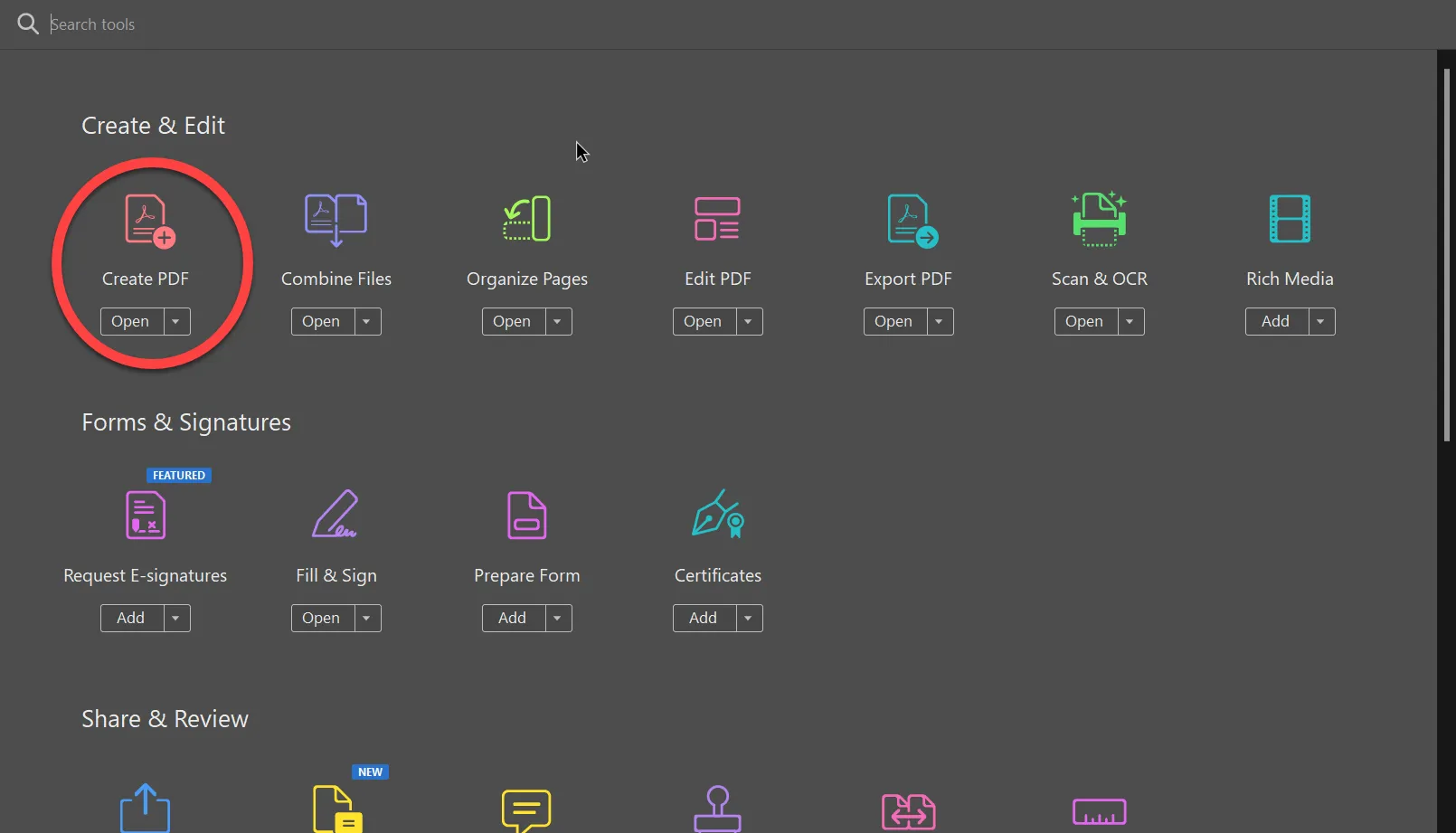 Create PDF function in the Adobe Acrobat Pro
Which Scanner Should I Select?
Click on the Scanner option to begin scanning. Adobe Acrobat automatically detects scanners connected to your computer, whether through USB, network, or wireless connection. The software works with various printer configurations, including network printers and supports different paper sizes.
Select any available scanner from the dropdown list. If no scanners appear, ensure your scanner is properly connected with updated drivers. Some scanners require specific software or drivers to work with Adobe Acrobat. The software can also handle multi-frame TIFF files and other image formats.
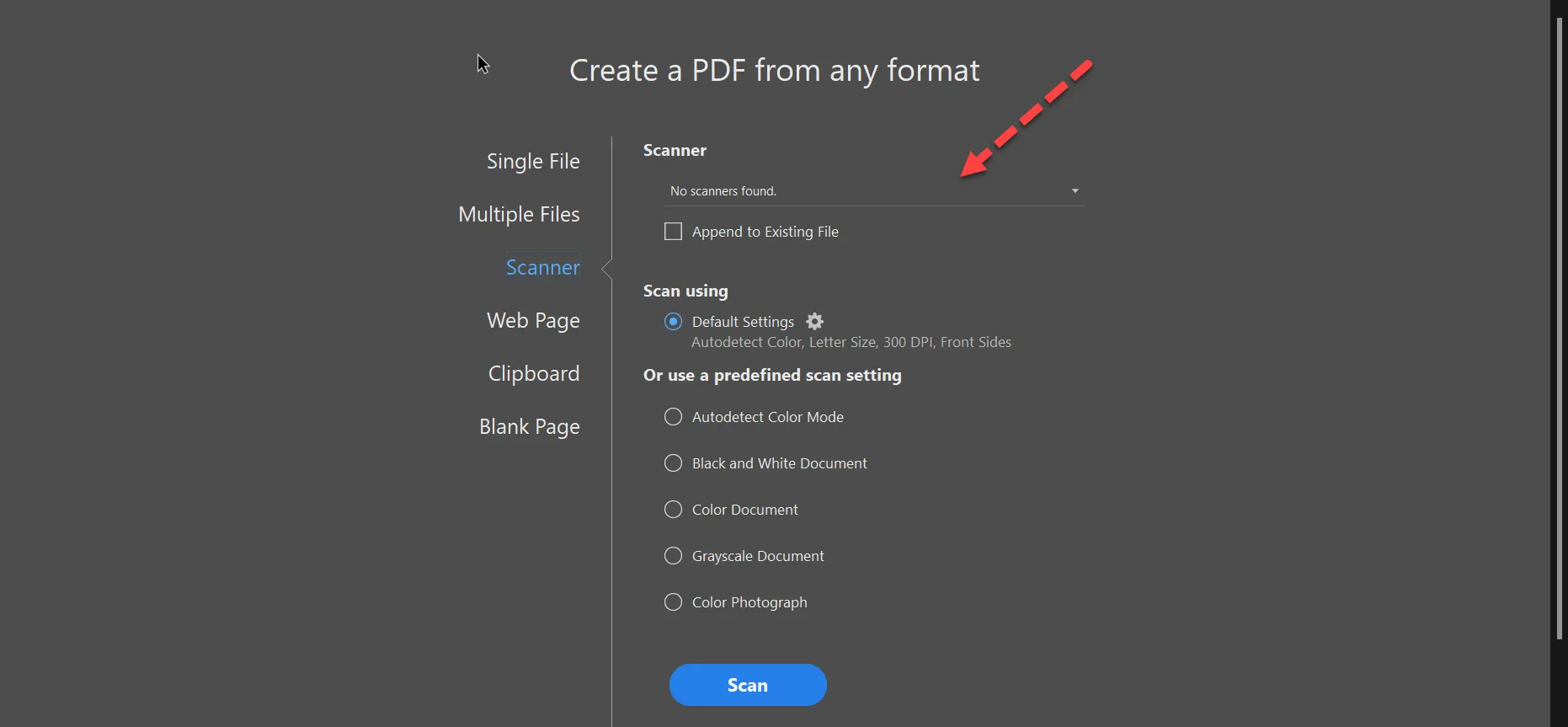 Select an available scanner in Adobe Acrobat Pro
If you're having scanner detection issues, check your system's scanner settings or consult your scanner's documentation. Modern all-in-one printers may require you to select the scanning function before Adobe Acrobat detects them. For troubleshooting, you might need to check driver compatibility or system requirements. Some environments require specific runtime dependencies.
What Settings Should I Configure Before Scanning?
Select predefined scan settings based on your needs. Adobe Acrobat offers several preset configurations that optimize for different document types and use cases. Understanding rendering options helps achieve better results:
- Color Document: Best for color images or graphics, maintains full color depth
- Black and White Document: Ideal for text-only documents, reduces file size with grayscale
- Grayscale Document: Preserves tonal information with smaller file sizes
- Photograph: Uses higher DPI (600+) for detailed image reproduction
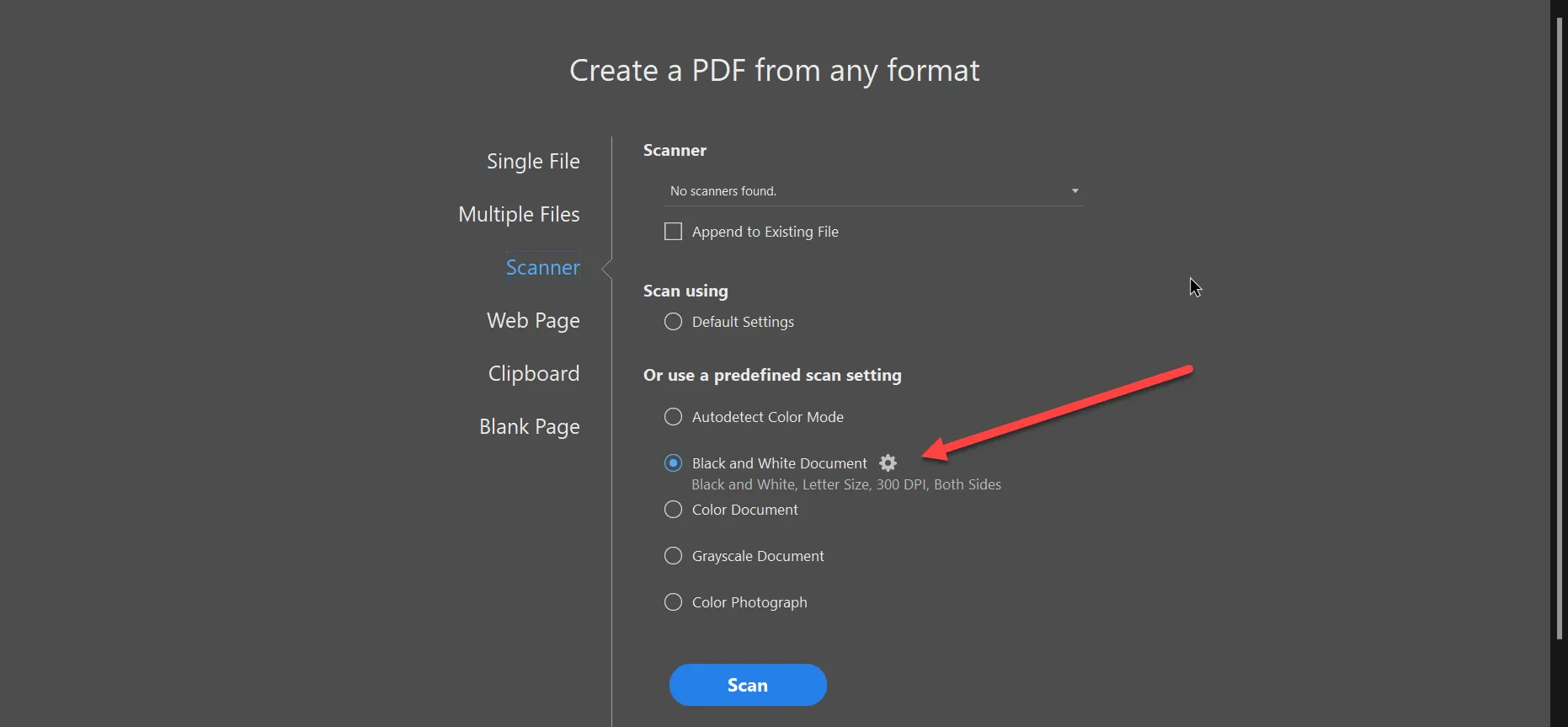 Configure your PDF file
Możesz dostosować ustawienia zaawansowane, klikając ikonę koła zębatego:
- Rozdzielczość (DPI): Wyższa wartość DPI oznacza lepszą jakość, ale większe pliki
- Rozmiar papieru: Wybierz standardowe rozmiary lub wymiary niestandardowe
- Strony skanowania: skanowanie jednostronne lub dwustronne
- Format pliku: PDF, JPEG lub inne obsługiwane formaty
- Kompresja: skuteczne wyważenie rozmiaru pliku i jakości
Kliknij przycisk "Skanuj", aby rozpocząć. W przypadku wielu stron program Adobe Acrobat po każdej stronie pyta, czy skanować kolejne strony, czy zakończyć proces. Ten proces przypomina programowe przetwarzanie plików PDF w trybie wsadowym.
Co się stanie po zakończeniu procesu skanowania?
Postępując zgodnie z tymi krokami, zeskanujesz wszystkie strony i przekonwertujesz je do jednego pliku PDF. Po zeskanowaniu program Adobe Acrobat oferuje kilka opcji przetwarzania końcowego, które poprawiają jakość dokumentów:
- Ulepszanie skanów: automatycznie poprawia czytelność tekstu i usuwa tło
- Rozpoznawanie tekstu (OCR): Umożliwia wyszukiwanie i zaznaczanie zeskanowanego tekstu
- Organizowanie stron: Dodawaj, usuwaj lub zmieniaj kolejność stron w razie potrzeby
- Obracanie stron: Korygowanie stron zeskanowanych w niewłaściwej orientacji
Skanowanie wielu stron pozwala tworzyć obszerne pliki PDF zawierające więcej danych. Połączony plik PDF można zoptymalizować do różnych celów, czy to do dystrybucji w sieci, archiwizacji, czy drukowania. Można również dodać metadane w celu lepszej organizacji dokumentów, zastosować ustawienia zabezpieczeń lub utworzyć pliki zgodne ze standardem PDF/A do długoterminowej archiwizacji.
Jak programowo przekonwertować wiele obrazów do formatu PDF za pomocą IronPDF?
IronPDF to biblioteka C# do tworzenia i edycji plików PDF w systemach Windows, Linux i macOS. Stworzone przez programistów .NET, którzy pragnęli uzyskać funkcjonalność programu Adobe Acrobat w uproszczonej formie, płynnie integrującej się z aplikacjami .NET. IronPDF to łatwa w użyciu, lekka biblioteka z funkcjami wspierającymi zarówno początkujących, jak i ekspertów w programowaniu. Biblioteka zawiera obszerną dokumentację oraz liczne przykłady typowych scenariuszy:
- Obsługuje konwersję obrazów, tekstu i grafiki do formatu PDF
- Edytuj strony zawierające tekst i kształty
- Konwersja między formatami PDF/A i PDF/UA
- Tworzenie dokumentów chronionych hasłem lub znakiem wodnym
- Generowanie plików PDF z HTML przy użyciu CSS i JavaScript
- Programowe łączenie i dzielenie dokumentów PDF
- Wyodrębnianie tekstu i obrazów z istniejących plików PDF
- Dodaj nagłówki i stopki z dynamiczną treścią
IronPDF zapewnia programistom proste narzędzia do tworzenia, edycji, szyfrowania i podpisywania dokumentów PDF z poziomu aplikacji .NET. The library supports .NET 6+, .NET Framework 4.6.2+, and .NET Standard 2.0+, making it compatible with many projects. It works seamlessly with ASP.NET Core, Blazor, MAUI, and other modern frameworks.
Written entirely in C#, IronPDF provides an easy way for .NET developers to write PDF documents. The library's goal is providing simple API calls for creating PDFs, applying digital signatures, and encrypting information. It uses a Chrome-based rendering engine for accurate web content reproduction in PDFs. The engine supports JavaScript execution, CSS3 styling, and WebGL rendering.
How Do I Set Up IronPDF in My Project?
IronPDF helps developers write efficiently with fewer lines of code. Let's see how to scan multiple pages or images into one PDF using IronPDF:
-
Install IronPDF with NuGet Package Manager
PM > Install-Package IronPdf -
Skopiuj i uruchom ten fragment kodu.
// Import the necessary IronPdf namespaces using IronPdf; using System.IO; using System.Linq; // Select all JPEG images in a specific 'assets' folder. var ImageFiles = Directory.EnumerateFiles("assets") .Where(f => f.EndsWith(".jpg") || f.EndsWith(".jpeg")); // Converts the images to a PDF and saves the document as "composite.pdf". ImageToPdfConverter.ImageToPdf(ImageFiles).SaveAs("composite.pdf"); -
Wdrożenie do testowania w środowisku produkcyjnym
Rozpocznij używanie IronPDF w swoim projekcie już dziś z darmową wersją próbną

In this code, IronPDF's ImageToPdf function converts a collection of images into a PDF file. The Directory.EnumerateFiles method loops through files in the "assets" folder to select JPEG images. This approach works well when you have scanned documents saved as individual image files needing combination into a single PDF. The library handles various image formats including PNG, BMP, and TIFF files.
What Advanced Options Can I Use for Image Conversion?
For advanced scenarios, IronPDF offers additional options that give you fine control over the PDF generation process:
// Convert images with custom settings
using IronPdf;
using IronPdf.Imaging;
using System.IO;
using System.Linq;

// Configure image to PDF conversion settings
var imageFiles = Directory.GetFiles("scanned-documents", "*.png");
var pdf = ImageToPdfConverter.ImageToPdf(imageFiles);

// Apply PDF/A compliance for archival
pdf.SaveAsPdfA("archived-scans.pdf", PdfAVersions.PdfA3);

// Or add metadata for better organization
pdf.MetaData.Title = "Scanned Documents - " + DateTime.Now.ToString("yyyy-MM-dd");
pdf.MetaData.Author = "Document Scanner Application";
pdf.SaveAs("organized-scans.pdf");
// Convert images with custom settings
using IronPdf;
using IronPdf.Imaging;
using System.IO;
using System.Linq;
// Configure image to PDF conversion settings
var imageFiles = Directory.GetFiles("scanned-documents", "*.png");
var pdf = ImageToPdfConverter.ImageToPdf(imageFiles);
// Apply PDF/A compliance for archival
pdf.SaveAsPdfA("archived-scans.pdf", PdfAVersions.PdfA3);
// Or add metadata for better organization
pdf.MetaData.Title = "Scanned Documents - " + DateTime.Now.ToString("yyyy-MM-dd");
pdf.MetaData.Author = "Document Scanner Application";
pdf.SaveAs("organized-scans.pdf");' Convert images with custom settings
Imports IronPdf
Imports IronPdf.Imaging
Imports System.IO
Imports System.Linq
' Configure image to PDF conversion settings
Dim imageFiles = Directory.GetFiles("scanned-documents", "*.png")
Dim pdf = ImageToPdfConverter.ImageToPdf(imageFiles)
' Apply PDF/A compliance for archival
pdf.SaveAsPdfA("archived-scans.pdf", PdfAVersions.PdfA3)
' Or add metadata for better organization
pdf.MetaData.Title = "Scanned Documents - " & DateTime.Now.ToString("yyyy-MM-dd")
pdf.MetaData.Author = "Document Scanner Application"
pdf.SaveAs("organized-scans.pdf")IronPDF supports batch processing for handling large volumes of scanned documents efficiently. You can integrate it with scanning hardware APIs or use it in automated document management workflows. The library offers memory-efficient operations for processing large files and supports parallel processing for improved performance. Visit the example page for more details on converting images to PDF.
For production environments, IronPDF provides deployment options for various platforms including Docker containers, Azure Functions, AWS Lambda, and Linux servers. The library includes logging capabilities for debugging and monitoring.
What Licensing Options Are Available for IronPDF?
This tutorial shows how to easily scan images and convert them into a single PDF using the IronPDF C# library. IronPDF provides valuable tools for .NET developers who need a PDF API to manipulate files in their software. The library offers comprehensive documentation, code examples, and 24/5 technical support to help developers start quickly. Dokumentacja API zawiera szczegółowe informacje na temat wszystkich dostępnych metod i właściwości.
IronPDF is free for development. You can use its free trial key for production tests. The trial includes all features without watermarks, letting you fully evaluate the library before purchasing. IronPDF offers pricing plans for different needs:
- Lite License: For individual developers on single projects
- Professional License: For small teams with multiple developers
- Unlimited License: For larger organizations with unlimited developers/projects
Whether you're an individual developer or represent a large company, you can purchase a matching package. All licenses include one year of product updates and support. The library follows security best practices and receives regular updates.
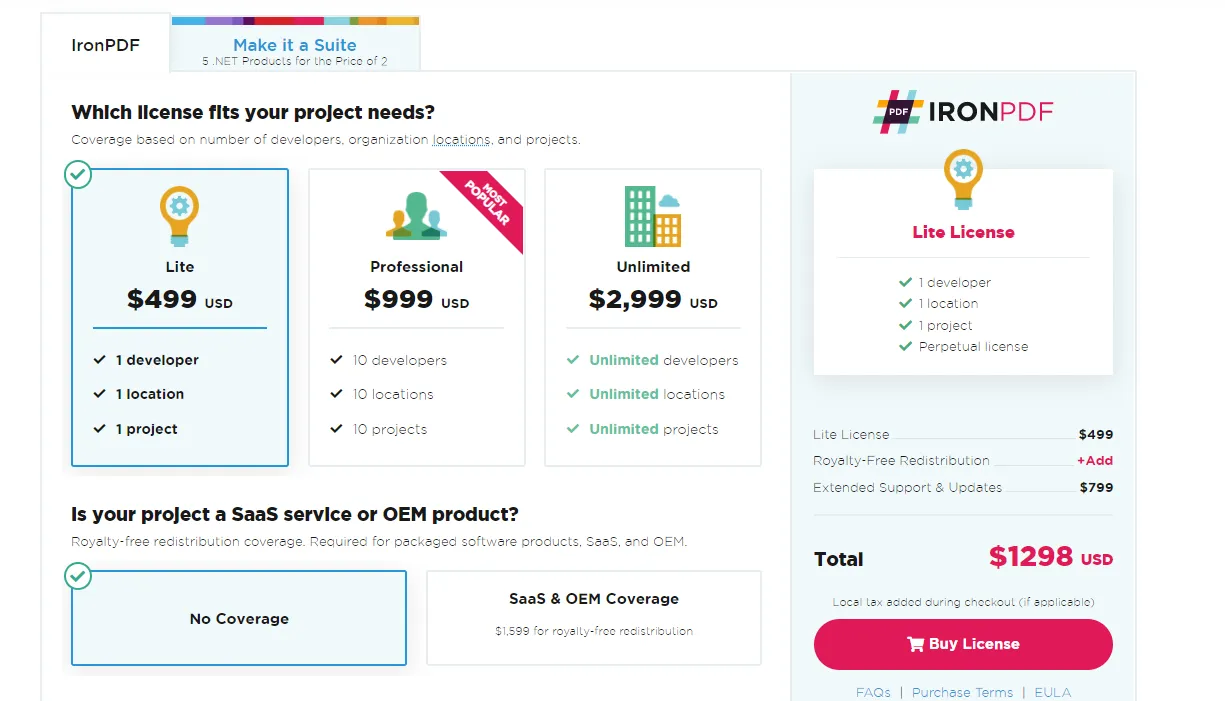 IronPDF pricing
Iron Software currently offers the opportunity to buy five amazing software products for the price of two. This includes IronPDF, IronOCR for text recognition, IronXL for Excel manipulation, IronBarcode for barcode generation, and IronWebscraper for data extraction. Visit the IronPDF licensing information for more about licensing options and volume discounts.
Często Zadawane Pytania
Jak mogę użyć biblioteki C# do skanowania wielu stron do jednego pliku PDF?
Możesz użyć IronPDF do konwersji serii obrazów do pojedynczego pliku PDF, korzystając z metody ImageToPdf. Takie podejście pozwala programistom zautomatyzować konwersję poprzez iterację przez pliki obrazów i kompilację ich w spójny dokument PDF.
Jakie są zalety korzystania z IronPDF do konwersji plików PDF w języku C#?
IronPDF oferuje rozbudowane funkcje konwersji plików PDF w języku C#, w tym płynną integrację z aplikacjami .NET, obsługę różnych operacji na plikach PDF, takich jak edycja, szyfrowanie i podpisywanie, a także możliwość łatwego przetwarzania obrazów do formatu PDF.
Czy mogę edytować plik PDF po połączeniu obrazów za pomocą IronPDF?
Tak, IronPDF umożliwia edycję plików PDF po połączeniu obrazów. Dzięki wszechstronnym funkcjom edycji IronPDF można dodawać tekst, modyfikować grafikę i stosować podpisy cyfrowe.
Jak wygląda proces konwersji obrazów do formatu PDF przy użyciu IronPDF w języku C#?
Aby przekonwertować obrazy do formatu PDF za pomocą IronPDF, najpierw załaduj obrazy do swojej aplikacji, a następnie użyj funkcji ImageToPdf do utworzenia pliku PDF. Funkcja ta łączy obrazy w jeden dokument, który można następnie zapisać lub poddać dalszej obróbce.
Czy dostępna jest wersja próbna IronPDF dla programistów?
Tak, IronPDF oferuje bezpłatną wersję próbną, z której programiści mogą korzystać do celów testowych i programistycznych. Pozwala to na zapoznanie się z jej funkcjami i możliwościami przed podjęciem decyzji o zakupie.
W jaki sposób IronPDF zapewnia bezpieczeństwo dokumentów PDF?
IronPDF oferuje kilka funkcji bezpieczeństwa, w tym możliwość szyfrowania dokumentów PDF i stosowania podpisów cyfrowych. Funkcje te pomagają chronić poufne informacje i zapewniają integralność dokumentów.
Co należy zrobić, jeśli napotkam problemy podczas konwersji obrazów do formatu PDF przy użyciu IronPDF?
Jeśli napotkasz problemy podczas korzystania z IronPDF, sprawdź dokumentację w poszukiwaniu wskazówek dotyczących rozwiązywania problemów, upewnij się, że konfiguracja kodu jest zgodna z podanymi przykładami, oraz sprawdź, czy wszystkie pliki graficzne są dostępne i poprawnie sformatowane przed konwersją.
Jakie są zalety skanowania wielu stron do jednego pliku PDF?
Skanowanie wielu stron do jednego pliku PDF upraszcza zarządzanie dokumentami poprzez utworzenie ujednoliconego pliku, który jest łatwy do przechowywania, udostępniania i edycji. Takie podejście zmniejsza bałagan i poprawia dostępność.
Czy IronPDF obsługuje .NET 10 w zakresie łączenia obrazów w jeden plik PDF?
Tak. IronPDF obsługuje .NET 10, zapewniając pełną kompatybilność bez konieczności stosowania obejść — w tym operacji konwersji obrazów do formatu PDF, takich jak scalanie wielu zeskanowanych stron w jeden plik PDF.










 Rozpocznij za DARMO
 Rozpocznij za DARMO
 Zarezerwuj darmowe Demo na żywo





 Nie wymaga karty kredytowej ani tworzenia konta










