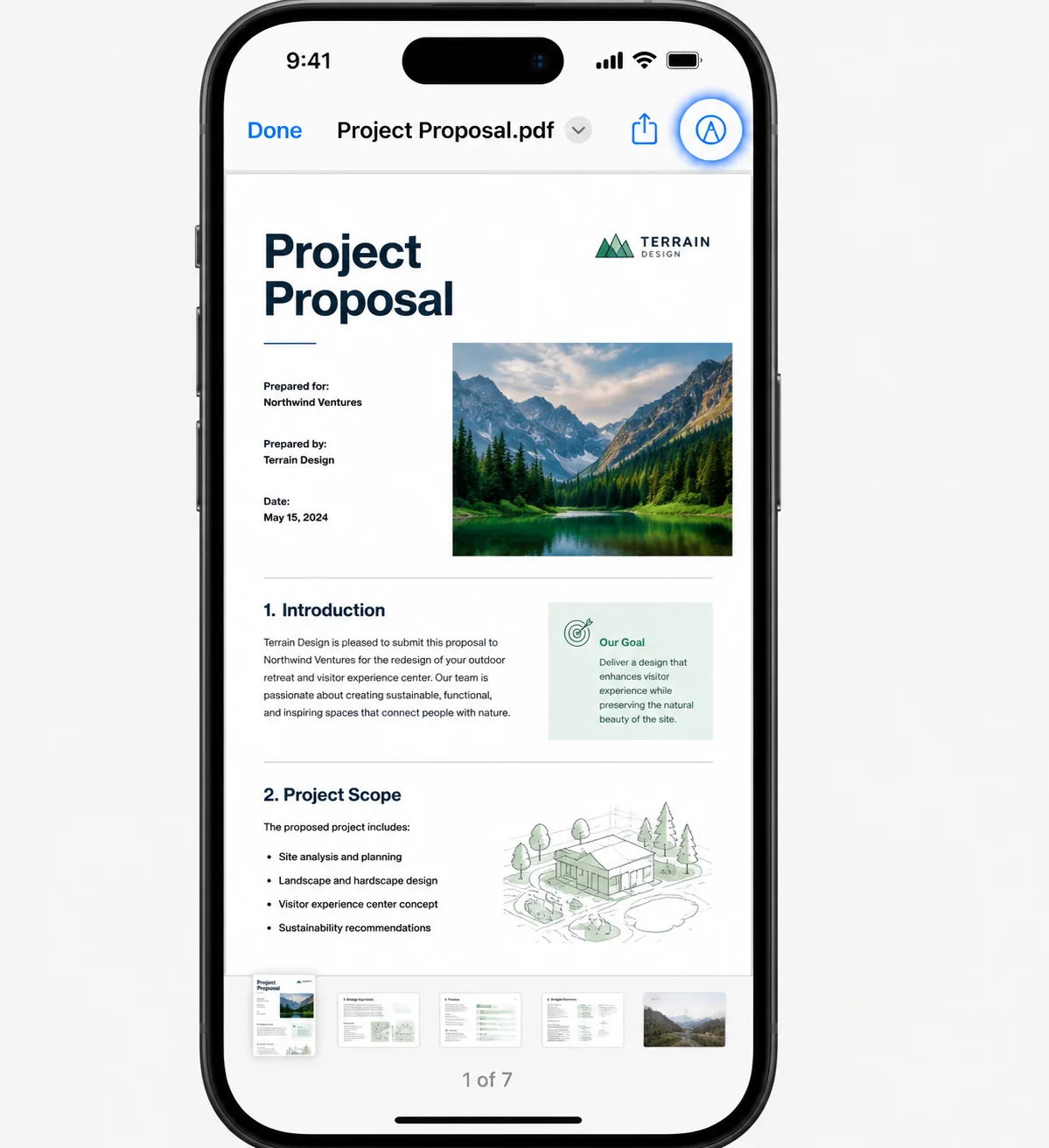
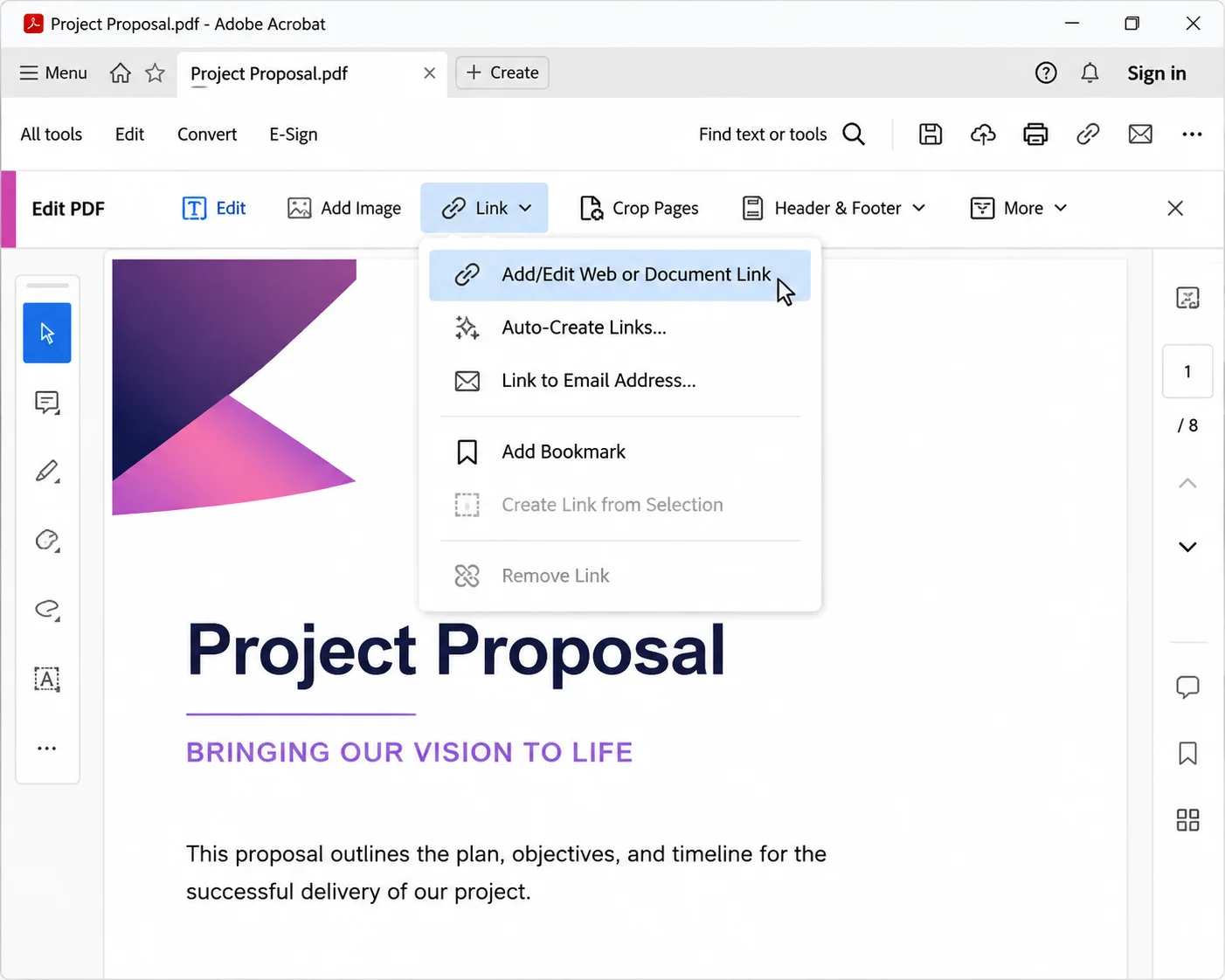
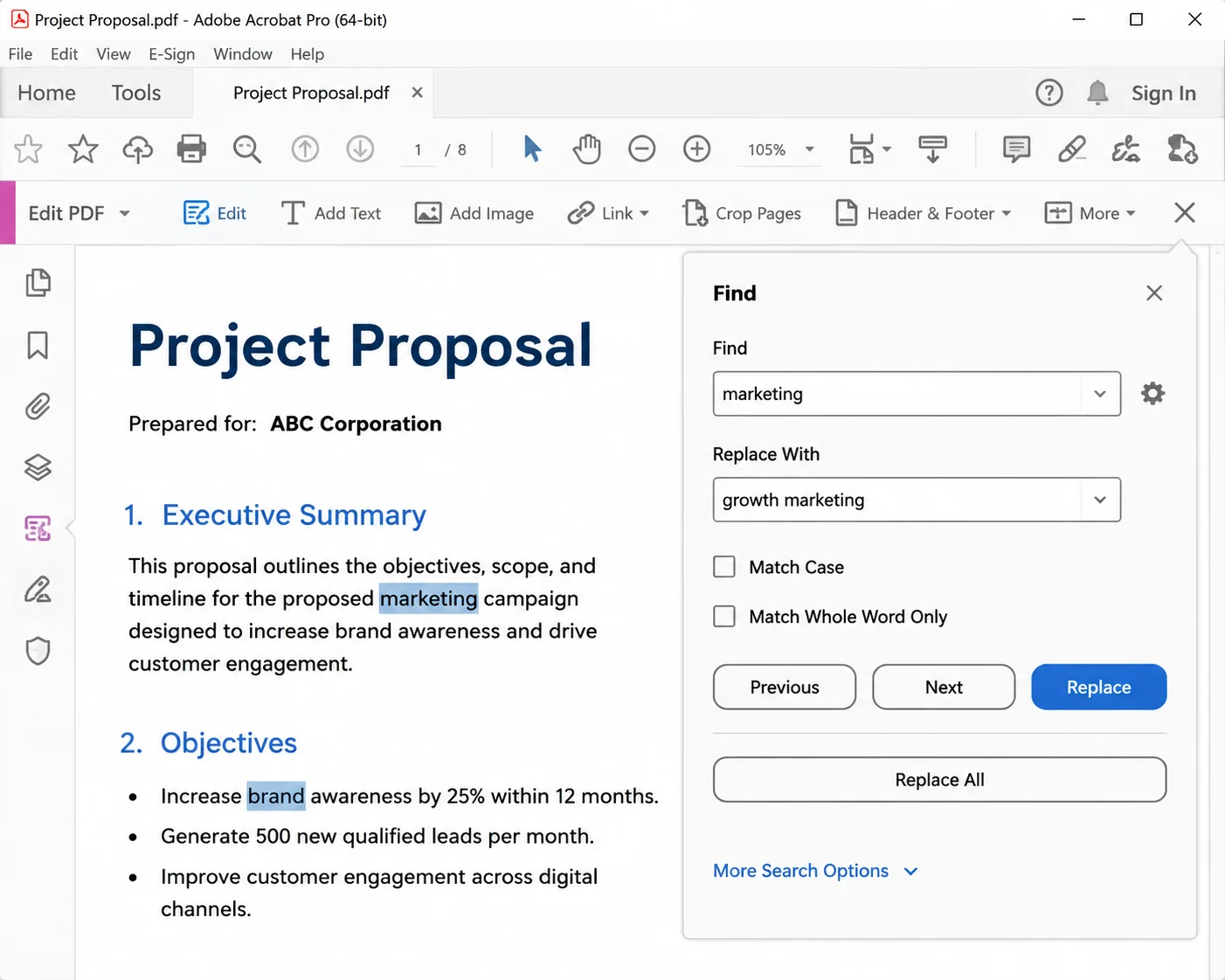
If you find yourself constantly working with digital documents, knowing how to add a page to a PDF is a fundamental skill. Whether you need to insert blank pages for quick meeting notes, add pages from another PDF file, or merge multiple files into one comprehensive report, managing PDF pages efficiently saves both time and effort.
Adding pages to a PDF document can sometimes feel cumbersome without the right pdf tools. Depending on whether you choose to add pages using an online PDF tool, native desktop software, or a dedicated software development suite, the process varies in complexity and features.
In this guide, we will explore the most efficient ways to insert pages, reorder pages, and handle page management both manually and programmatically.
Method 1: Inserting Pages Using Desktop Software
Desktop PDF software like Adobe Acrobat or PDF Expert provides advanced features for handling professional documents without sacrificing security or document quality.
Step-by-Step Instructions
-
Open your existing PDF file in your primary desktop editor (e.g., Adobe Acrobat or PDF Expert).
-
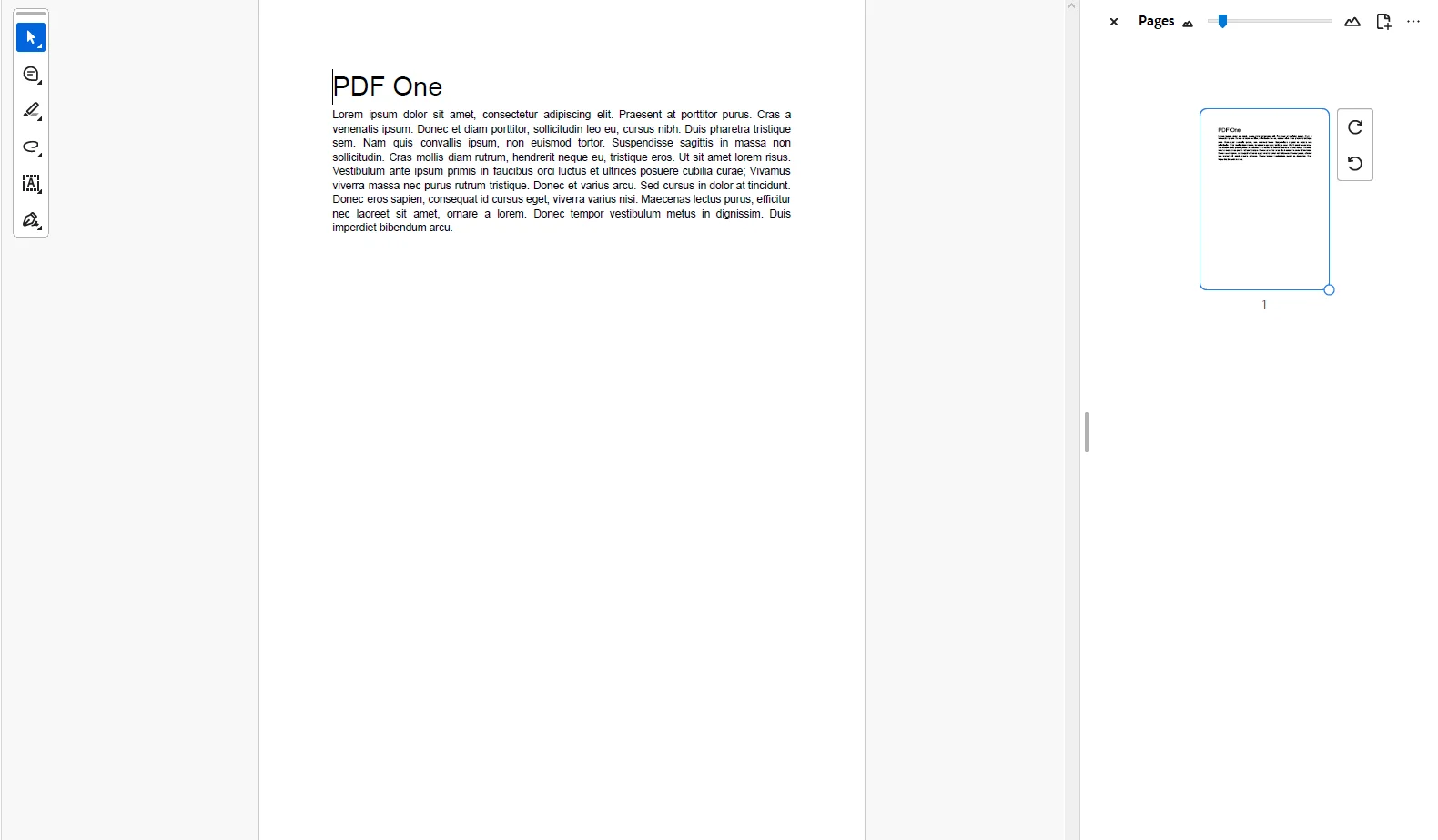
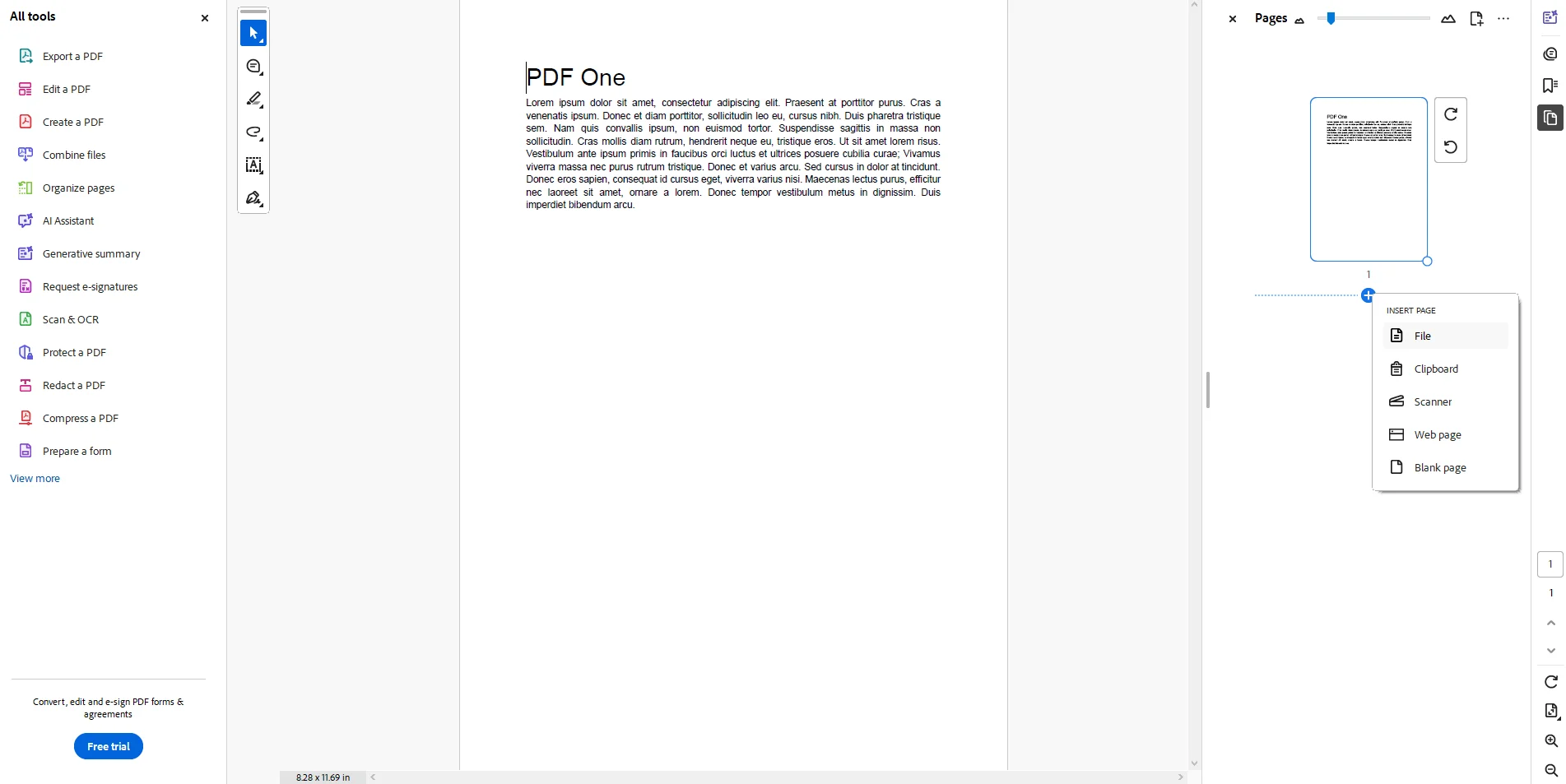
Open the page thumbnails view from the side panel or top toolbar to view all PDF pages visually.
-
Click on the Insert option within the page menu or right-click where you want the new content placed.
-
Select whether to insert blank pages, import pages from another file, or add scanned pages.
-
Choose your target location (e.g., before or after a specific page number).
-
Save your updated PDF to preserve the new structure.
Method 2: Adding Pages to a PDF Online for Free
If you need a fast solution without installing software, using a web tool or online PDF editor is ideal. Free online PDF services allow quick page insertion directly from your browser across desktop and mobile devices.
Step-by-Step Instructions
-
Navigate to a reliable PDF online editor (such as PDFgear online tools, iLovePDF, or pdfFiller).
-
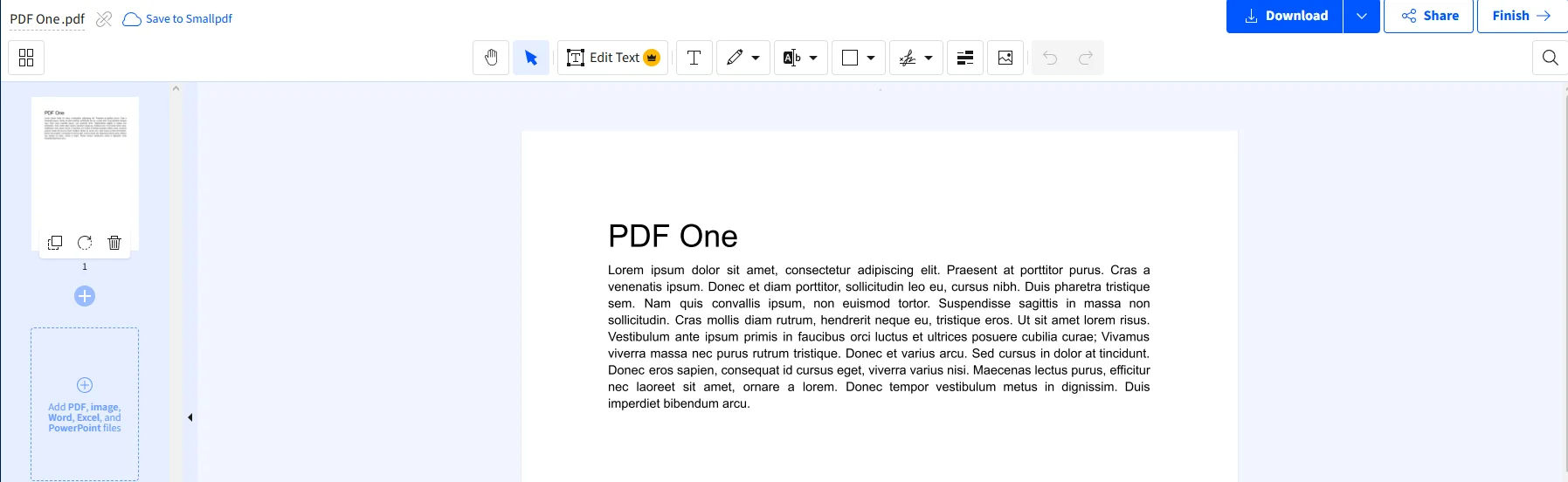
Click Select File or drag and drop your existing PDF file into the upload zone.
-
Once uploaded to the screen, open the page editor tool to view page thumbnails.
-
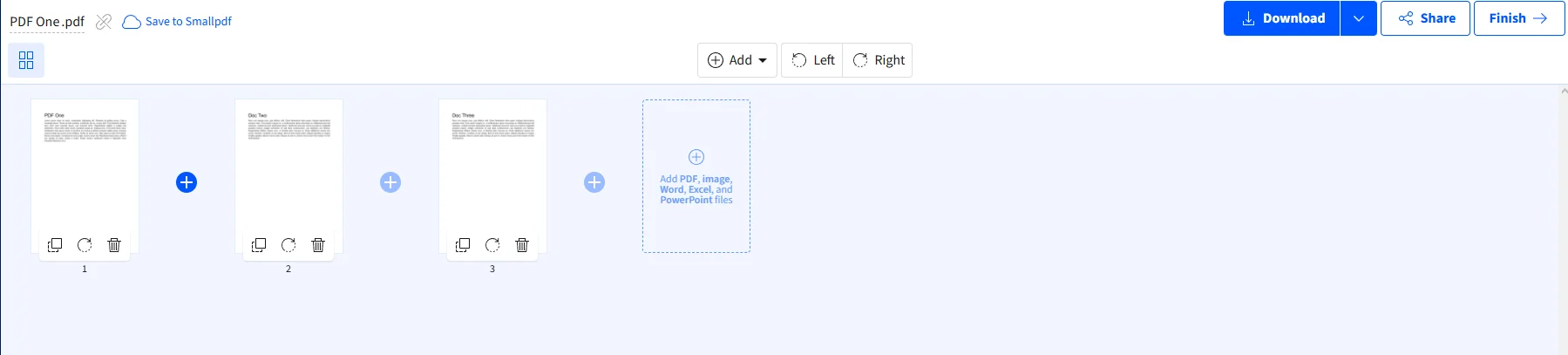
Choose Add Blank Pages or Insert PDF Pages to upload additional pages.
-
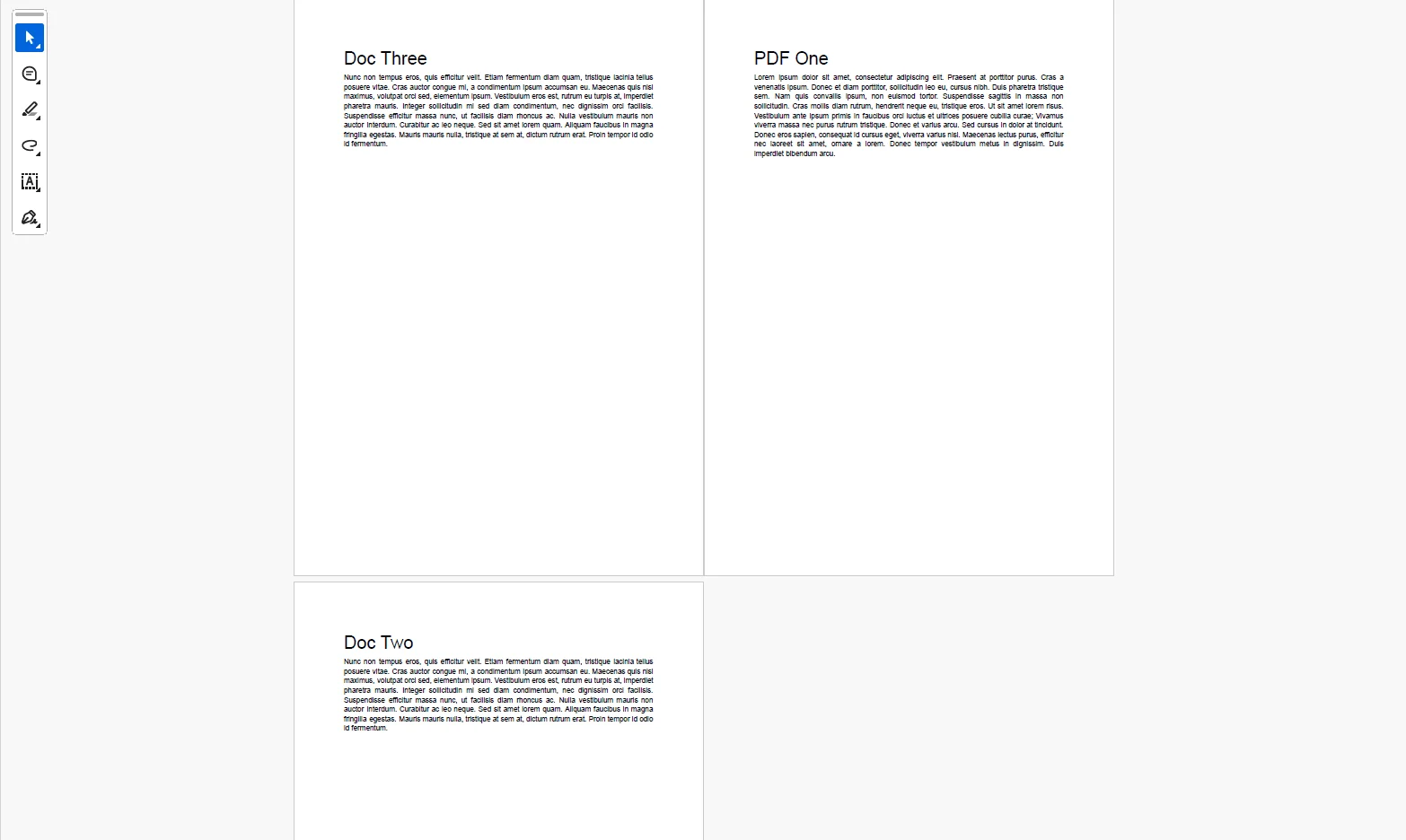
Use drag-and-drop to adjust the location or reorder pages as needed.
-
Click the Save or Convert button, then hit Download File to save the new PDF to your device.
When using free web tools, ensure you do not upload sensitive personal documents unless the service guarantees local client-side processing.
Native operating system tools, such as Preview on macOS or built-in file managers, offer quick ways to combine PDF pages or merge multiple pages for free.
Combining Pages in Mac Preview
- Open your main PDF document in Preview.
- Enable the Thumbnails view from the View menu.
- Open a second PDF file or image file (such as a PNG or JPEG photo).
- Drag the thumbnails from the second document into the page list of your existing PDF file.
- Drop them into your desired location, reorder pages if needed, and save the updated file.
Method 4: Managing PDF Pages Efficiently
Beyond just inserting pages, proper document management often requires cleaning up or rearranging pages to ensure your final PDF document is properly aligned.
- Reordering Pages: Select thumbnails and drag them to their correct order within the top toolbar layout.
- Deleting Unwanted Pages: You can delete single pages via the sidebar or perform batch deletions using the Manage modal to remove pages instantly.
- Inserting Images or Photos: Convert standalone photos or PNG files directly into PDF pages using standard PDF tools to expand your document.
For Developers: Programmatically Adding Pages with IronPDF
While manual tools work well for individual tasks, modern application workflows often require automated PDF generation and modification at scale. If you are a developer looking to add pages to a PDF programmatically, IronPDF provides a .NET library for C#, VB.NET, and F#.
IronPDF allows you to manipulate PDF pages, merge multiple PDFs, insert blank pages, and append pages from another document without requiring Adobe Acrobat or third-party dependencies.
Key Benefits for Developers
- High Performance: Process thousands of files server-side without manual intervention.
- Flexible Page Insertion: Insert blank pages, merge existing PDF files, or append HTML content directly as a new page.
- Cross-Platform Support: Fully compatible with .NET 10, cross-platform environments (Windows, Linux, macOS), and cloud storage platforms.
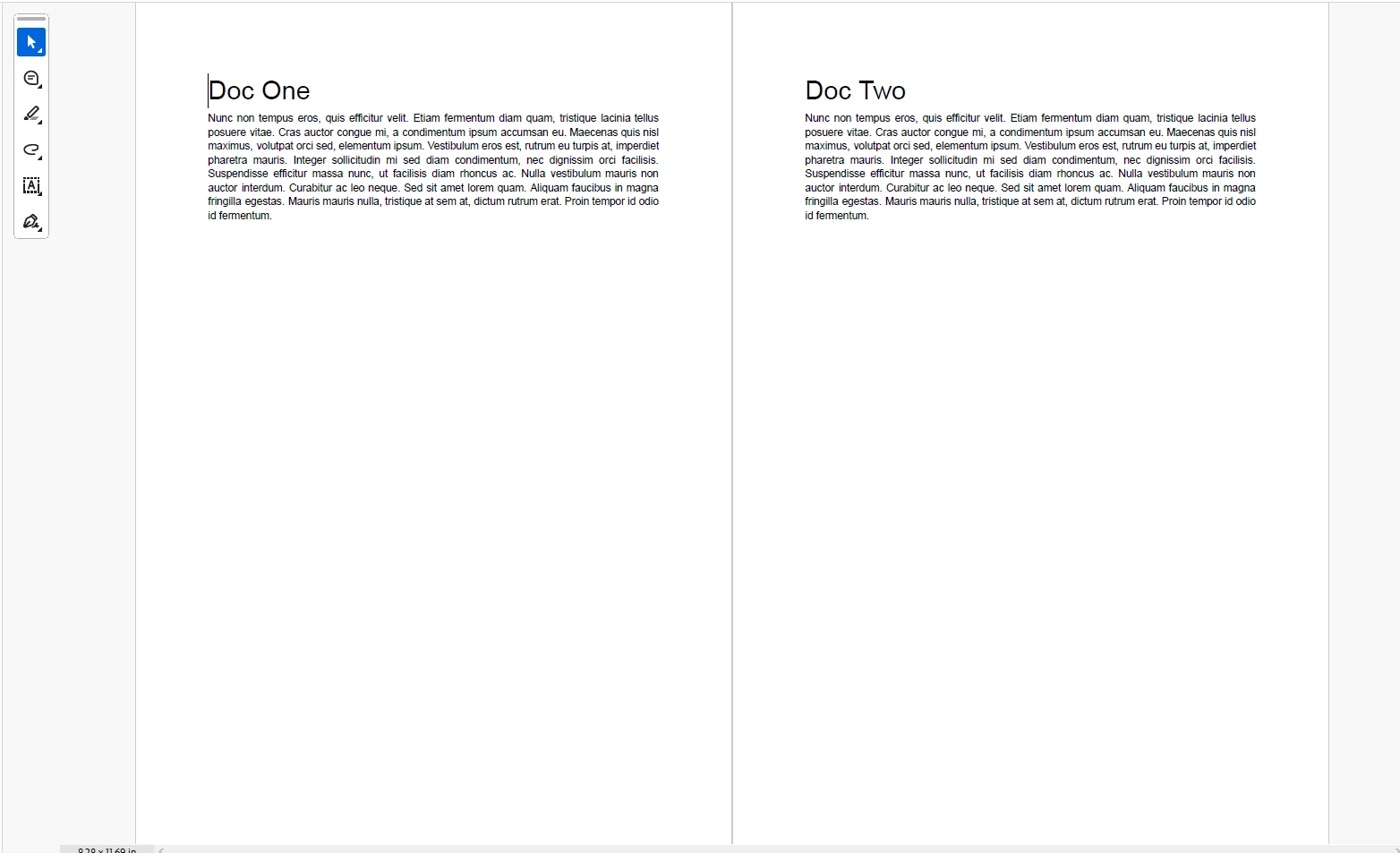
Appending Pages from Another PDF in C#
Combining pages from multiple documents is straightforward using IronPDF's PdfDocument.Merge method:
using IronPdf;

// Load the existing PDF file
var primaryPdf = PdfDocument.FromFile("sample.pdf");

// Load the second PDF containing pages to insert
var secondaryPdf = PdfDocument.FromFile("append_notes.pdf");

// Merge multiple PDFs together
var updatedPdf = PdfDocument.Merge(primaryPdf, secondaryPdf);

// Save the new document
updatedPdf.SaveAs("updated_document.pdf");
using IronPdf;

// Load the existing PDF file
var primaryPdf = PdfDocument.FromFile("sample.pdf");

// Load the second PDF containing pages to insert
var secondaryPdf = PdfDocument.FromFile("append_notes.pdf");

// Merge multiple PDFs together
var updatedPdf = PdfDocument.Merge(primaryPdf, secondaryPdf);

// Save the new document
updatedPdf.SaveAs("updated_document.pdf");
Text
Output
Inserting a Blank Page at a Specific Location
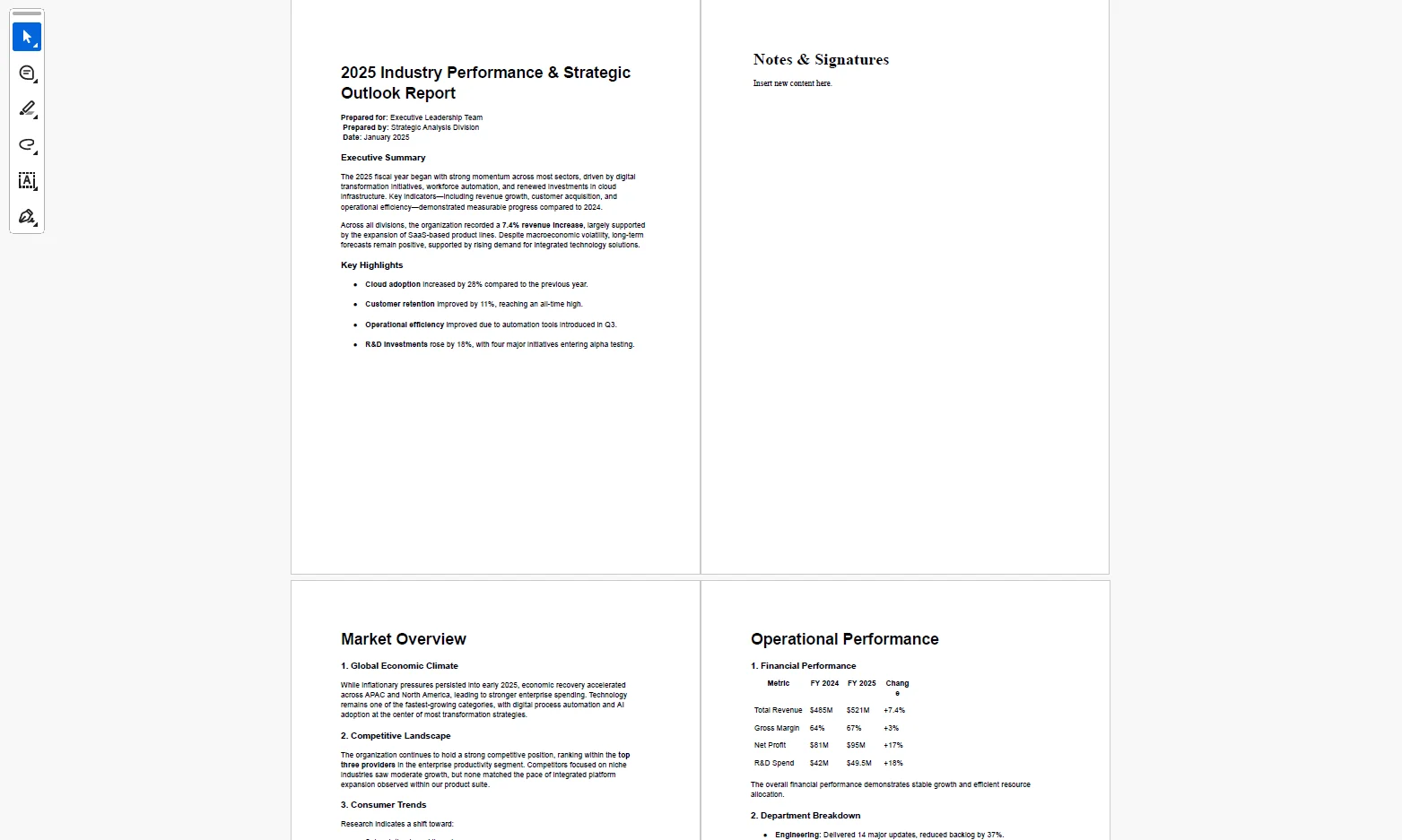
When you need to add blank pages for signatures, notes, or section dividers, IronPDF provides dedicated page manipulation methods:
using IronPdf;

ChromePdfRenderer chromePdfRenderer = new ChromePdfRenderer();

// Load an existing PDF document
var pdf = PdfDocument.FromFile("annual_report.pdf");

// Create a blank page or HTML-rendered content
var newPage = chromePdfRenderer.RenderHtmlAsPdf("<h1>Notes & Signatures</h1><p>Insert new content here.</p>");

// Insert the new page at index 1 (second page position)
pdf.InsertPdf(newPage, 1);

// Save the updated PDF
pdf.SaveAs("report_with_blank_page.pdf");
using IronPdf;

ChromePdfRenderer chromePdfRenderer = new ChromePdfRenderer();

// Load an existing PDF document
var pdf = PdfDocument.FromFile("annual_report.pdf");

// Create a blank page or HTML-rendered content
var newPage = chromePdfRenderer.RenderHtmlAsPdf("<h1>Notes & Signatures</h1><p>Insert new content here.</p>");

// Insert the new page at index 1 (second page position)
pdf.InsertPdf(newPage, 1);

// Save the updated PDF
pdf.SaveAs("report_with_blank_page.pdf");
Text
Output
Method Comparison
| Method | Best For | Speed | Advanced Features |
| --- | --- | --- | --- |
| Desktop Editor | Professional document editing | Fast | High |
| Online PDF Tools | Quick edits on mobile devices / web | Moderate | Medium |
| Native OS Tools | Free basic merging (macOS/Windows) | Fast | Low |
| IronPDF (.NET) | Developer automation & batch processing | Instant (Automated) | Maximum |
Frequently Asked Questions
How do I add a page to an already existing PDF?
You can open the existing PDF file in a desktop editor or online tool, navigate to the page thumbnails sidebar, and choose Insert Pages or Add Blank Pages.
How do I add pages into a PDF for free?
You can use free online PDF tools like PDFgear, or native operating system tools like Preview on macOS, to drag and drop new pages into an existing document without paying for subscription software.
How do I insert a blank page in a PDF?
In most PDF editors, open the page thumbnails view, right-click on the location where you want the new page, select Insert Blank Page, adjust the page size if prompted, and save the updated file.
Summary
Learning how to add a page to a PDF, whether through inserting blank pages, merging multiple documents, or reordering thumbnails, ensures your file remains clean and properly aligned. For everyday personal use, free web tools and native desktop applications offer simple solutions.
For developers building scalable applications, IronPDF simplifies complex PDF page management, allowing you to create, edit, and merge PDF files effortlessly using C# and .NET
.Ready to get started? Try an IronPDF free trial today and see what PDF automation looks like in your .NET environment.
Disclaimer: Microsoft, Google, Adobe, and other product names or trademarks mentioned herein are property of their respective owners. IronPDF and IronXL are independent software tools developed by IronSoftware and are not affiliated with or endorsed by these companies.