# HTML to PDF in C# .NET
As the developers of IronPDF, we know how important it is for HTML-to-PDF conversion to produce accurate, high-quality results that meet customer expectations. This C# tutorial will guide you through building an HTML-to-PDF converter for your applications, projects, and websites. We will develop a C# HTML-to-PDF converter, and the output PDF documents from IronPDF will be pixel perfect to the PDFs generated by the Google Chrome web browser.
```cs
:title=Get started making PDFs now!
IronPdf.ChromePdfRenderer
       .StaticRenderHtmlAsPdf("<p>Hello World</p>")
       .SaveAs("pixelperfect.pdf");
```
<hr class="separator" />
<p class="main-content__segment-title">Overview</p>
<div class="hsg-featured-snippet">
<h2>How to Convert HTML to PDF in C#</h2>
<img class="featured-snippet__image featured-snippet__image--float-right featured-snippet__image--html-pdf" src="/static-assets/pdf/images/html-to-pdf-converter-in-csharp.png" alt="How to Convert HTML to PDF in C#" />
<ol>
<li><a class="js-modal-open" data-modal-id="trial-license-after-download" href="https://nuget.org/packages/IronPdf/">Download and install the HTML to PDF C# library</a></li>
<li><a href="#create-a-pdf-with-an-html-string-in-c-net">Create a PDF with an HTML String</a></li>
<li><a href="#create-a-pdf-with-an-html-string-in-c-net">Use the RenderHtmlAsPdf method to convert an HTML String to a PDF</a></li>
<li><a href="#export-a-pdf-using-existing-url--url-to-pdf">Export a PDF using existing URL</a></li>
<li><a href="#generate-a-pdf-from-a-html-page">Generate a PDF from a HTML page</a></li>
<li><a href="#add-custom-headers-and-footers">Add Custom Headers and Footers</a></li>
<li>Call SaveAs to save the PDF file to the computer</li>
<li><a href="#c-html-to-pdf-conversion-settings">More</a></li>
</ol>
</div>
<br class="main-article__clear-both" />
## HTML to PDF Converter for C# & VB.NET
Creating PDF files programmatically in .NET can be a frustrating task. The PDF document file format was designed more for printers than for developers. And C# doesn't have many suitable libraries or features for PDF generation built-in, many libraries need extra setup, and cause further frustration when they require multiple lines of code to accomplish a simple task.
The C# HTML to PDF conversion tool we will be using in this tutorial is IronPDF by Iron Software, a highly popular C# PDF generation and editing library. This library has full PDF editing and generation functionality, works out-of-the-box, does exactly what you need it to do in the least amount of lines, and has [outstanding documentation of its 50+ features](/features/). IronPDF stands out in that it supports **.NET 10, .NET 9, .NET 8, .NET 7, .NET 6, and .NET 5**, .NET Core, .NET Standard, and .NET Framework on Windows, macOS, Linux, Docker, Azure, and AWS.
With C# and IronPDF, the logic to "<a href="/how-to/create-new-pdfs/">generate a PDF document</a>" or "<a href="/examples/using-html-to-create-a-pdf/">HTML to PDF conversion</a>" is straightforward. Because of IronPDF's advanced Chrome Renderer, most or all of the PDF document design and layout will use existing HTML assets.
This method of dynamic PDF generation in .NET with HTML5 works equally well in console applications, Windows Forms applications, WPF, as well as websites and MVC.
**IronPDF also supports debugging of your HTML with Chrome for Pixel Perfect PDFs. A tutorial for setting this up can be found <a href="/how-to/pixel-perfect-html-to-pdf/">here</a>.**
IronPDF is available in several languages, both inside and outside the .NET ecosystem.
- [F# guide](/get-started/fsharp-pdf-library-html-to-pdf/)
- [VB.NET guide](/get-started/vb-net-pdf/)
- [Python](/python/tutorials/html-to-pdf/)
- [Java](/java/tutorials/html-to-pdf/)
- [Node.js](/nodejs/tutorials/html-to-pdf/)
IronPDF is free for development; a license key is needed to deploy live and to remove the trial watermark. You can [buy a license here](/licensing/) or sign up for a <a class='js-modal-open' data-modal-id='trial-license'>free 30 day trial key here</a>.
<hr class="separator" />
<p class="main-content__segment-title">Step 1</p>
## Download and Install the HTML to PDF C# Library
### Visual Studio - NuGet Package Manager
In Visual Studio, right click on your project solution explorer and select "Manage NuGet Packages...". From there simply search for IronPDF and install the latest version to your solution... click OK to any dialog boxes that come up. This will also work just as well in VB.NET projects.
```shell
:ProductInstall
```
### IronPDF on NuGet Website
For a full rundown of IronPDF's features, compatibility, and downloads, please check out IronPDF on NuGet's official website: <a class="js-modal-open" href="https://www.nuget.org/packages/IronPdf" target="_blank" data-modal-id="trial-license-after-download">https://www.nuget.org/packages/IronPdf</a>
### Install via DLL
Another option is to install the IronPDF DLL directly. IronPDF can be downloaded and manually installed to the project or GAC from <a class="js-modal-open" href="/packages/IronPdf.zip" data-modal-id="trial-license-after-download">https://ironpdf.com/packages/IronPdf.zip</a>
<hr class="separator" />
<p class="main-content__segment-title">How to Tutorials</p>
## Create a PDF with an HTML String in C# .NET
**How to: Convert HTML String to PDF?** It is a very efficient and rewarding skill to *create a new PDF file in C#*.
We can simply use the [ChromePdfRenderer.RenderHtmlAsPdf](/object-reference/api/IronPdf.ChromePdfRenderer.html) method to turn any HTML (HTML5) string into a PDF. **C# HTML to PDF rendering** is undertaken by a fully functional version of the Google Chromium engine that ships with the IronPDF NuGet package.
```csharp
:path=/static-assets/pdf/content-code-examples/tutorials/html-to-pdf-1.cs
```
`RenderHtmlAsPdf` fully supports HTML5, CSS3, JavaScript, and images. If these assets are on a hard disk, we may want to set the second parameter of `RenderHtmlAsPdf` to the directory containing the assets. This method returns a **PdfDocument** object, which is a class used to hold PDF information.
### IronPDF will render your HTML exactly as it appears in Chrome
We have a full tutorial dedicated to allowing you to set up Chrome for full HTML debugging to make sure the changes you see there when editing your HTML, CSS, and JavaScript are pixel-perfect the same as the output PDF from IronPDF when you choose to render. Please find the tutorial here: [How to Debug HTML in Chrome to Create Pixel Perfect PDFs](/how-to/pixel-perfect-html-to-pdf/).
**Base URL path** (the `BaseUrlOrPath` argument):
```csharp
:path=/static-assets/pdf/content-code-examples/tutorials/html-to-pdf-2.cs
```
All referenced CSS stylesheets, images and JavaScript files will be relative to that base path and can be kept in a neat and logical structure. You may also, of course, opt to reference images, stylesheets, and assets online, including web-fonts such as Google Fonts and even jQuery.
<hr class="separator" />
## Export a PDF Using Existing URL | URL to PDF
Rendering existing URLs as PDFs with C# is very efficient and intuitive. This also allows teams to split PDF design and back-end PDF rendering work across multiple teams.
Let's render a page from Wikipedia.com in the following example:
```csharp
:path=/static-assets/pdf/content-code-examples/tutorials/html-to-pdf-3.cs
```
You will notice that hyperlinks and even HTML forms are preserved within the PDF generated by our C# code.
When rendering existing web pages we have some tricks we may wish to apply:
### Print and Screen CSS
CSS media types let a page carry separate styles for print and screen. We can instruct IronPDF to render "Print" CSS, which is often simpler. By default "Screen" CSS styles will be rendered, which matches what you see in the browser.
```csharp
:path=/static-assets/pdf/content-code-examples/tutorials/html-to-pdf-4.cs
```
Main Article: [Pixel Perfect HTML to PDF Comparison](/how-to/pixel-perfect-html-to-pdf/#decide-to-use-css-media-type-print-or-screen).
### JavaScript
IronPDF supports JavaScript, jQuery and even AJAX. We may need to instruct [IronPDF to wait for JavaScript or AJAX](/how-to/javascript-to-pdf/) to finish running before rendering a snapshot of our web page.
```csharp
:path=/static-assets/pdf/content-code-examples/tutorials/html-to-pdf-5.cs
```
We can demonstrate JavaScript support by rendering the [d3.js chord-diagram documentation page](https://d3js.org/d3-chord), whose charts are drawn by JavaScript when the page loads:
```csharp
:path=/static-assets/pdf/content-code-examples/tutorials/html-to-pdf-6.cs
```
### Responsive CSS
HTML to PDF using responsive CSS in .NET! [Responsive web pages](/how-to/html-to-pdf-responsive-css/) are designed to be viewed in a browser. IronPDF does not open a real browser window within your server's OS. Without a browser viewport, responsive layouts can fall back to their narrowest breakpoint.
We recommend using **Print** css media types to navigate this issue. Print CSS should not normally be responsive.
```csharp
:path=/static-assets/pdf/content-code-examples/tutorials/html-to-pdf-7.cs
```
<hr class="separator" />
## Generate a PDF from a HTML Page
We can also render any HTML page to PDF on our hard disk. All relative assets such as CSS, images and js will be rendered as if the file had been opened using the **file://** protocol.
```csharp
:path=/static-assets/pdf/content-code-examples/tutorials/html-to-pdf-8.cs
```
This method has the advantage of allowing the developer the opportunity to test the HTML content in a browser during development. We recommend Chrome as it is the web browser on which IronPDF's rendering engine is based.
To convert [XML to PDF you can use XSLT templating to print your XML content to PDF](/how-to/xml-to-pdf/).
<hr class="separator" />
## Add Custom Headers and Footers
Headers and footers can be added to PDFs when they are rendered, or to existing PDF files using IronPDF.
With IronPDF, Headers and footers can contain simple text based content using the *`TextHeaderFooter`* class - or with images and rich HTML content using the *`HtmlHeaderFooter`* class.
```csharp
:path=/static-assets/pdf/content-code-examples/tutorials/html-to-pdf-9.cs
```
Explore all rendering options in the following how-to article: [How to Use the Rendering Options](/how-to/rendering-options/).
### HTML Headers and Footers
The `HtmlHeaderFooter` class allows for rich headers and footers to be generated using HTML5 content which may even include images and stylesheets.
```csharp
:path=/static-assets/pdf/content-code-examples/tutorials/html-to-pdf-10.cs
```
### Dynamic Data in PDF Headers and Footers
We may "mail-merge" content into the text and even HTML of headers and footers using placeholders such as:
- `{page}` for the current page number
- `{total-pages}` for the total number of pages in the PDF
- `{url}` for the URL of the rendered PDF if rendered from a web page
- `{date}` for today's date
- `{time}` for the current time
- `{html-title}` for the `<title>` of the rendered HTML document
- `{pdf-title}` for the document title, which may be set via ChromePdfRenderOptions
<hr class="separator" />
## C# HTML to PDF Conversion Settings
There are many nuances to how our users and clients may expect PDF content to be rendered.
The `ChromePdfRenderer` class contains a **RenderingOptions** property which can be used to set these options.
For example we may wish to choose to only accept "`print`" style CSS3 directives:
```csharp
:path=/static-assets/pdf/content-code-examples/tutorials/html-to-pdf-11.cs
```
We may also wish to change the size of our print margins to create more whitespace on the page, to make room for large headers or footers, or even set zero margins for commercial printing of brochures or posters:
```csharp
:path=/static-assets/pdf/content-code-examples/tutorials/html-to-pdf-12.cs
```
We may wish to turn on or off background images from HTML elements:
```csharp
:path=/static-assets/pdf/content-code-examples/tutorials/html-to-pdf-13.cs
```
It is also possible to set our output PDFs to be rendered on any virtual paper size - including portrait and landscape sizes and even custom sizes which may be set in millimeters or inches.
```csharp
:path=/static-assets/pdf/content-code-examples/tutorials/html-to-pdf-14.cs
```
Explore all rendering options in the following how-to article: "[How to Use the Rendering Options](/how-to/rendering-options/)."
<hr class="separator" />
## Apply HTML Templating
To template or "batch create" PDFs is a common requirement for Internet and website developers.
Rather than templating a PDF document itself, with IronPDF we can template our HTML using existing, well tried technologies. When the HTML template is combined with data from a query-string or database we end up with a dynamically generated PDF document.
In the simplest instance, using the C# String.Format method is effective for basic sample.
```csharp
:path=/static-assets/pdf/content-code-examples/tutorials/html-to-pdf-15.cs
```
If the HTML file is longer, often we can use arbitrary placeholders such as `[[NAME]]` and replace them with real data later.
The following example will create 3 PDFs, each personalized to a user.
```csharp
:path=/static-assets/pdf/content-code-examples/tutorials/html-to-pdf-16.cs
```
### Advanced Templating With Handlebars.NET
A sophisticated method to merge C# data with HTML for PDF generation is using the Handlebars templating language.
Handlebars makes it possible to create dynamic HTML from C# objects and class instances including database records. Handlebars is particularly effective where a query may return an unknown number of rows such as in the generation of an invoice.
We must first add the [Handlebars.Net NuGet package](https://www.nuget.org/packages/Handlebars.NET/) to our project.
```csharp
:path=/static-assets/pdf/content-code-examples/tutorials/html-to-pdf-17.cs
```
To render this HTML we can simply use the `RenderHtmlAsPdf` method.
```csharp
:path=/static-assets/pdf/content-code-examples/tutorials/html-to-pdf-18.cs
```
You can learn more about the Handlebars templating language and its C# implementation from [GitHub](https://github.com/Handlebars-Net/Handlebars.Net).
### Add Page Breaks using HTML5
A common requirement in a PDF document is for pagination. Developers need to control where PDF pages start and end for a clean, readable layout.
The easiest way to do this is with a lesser-known CSS trick which will render a page break into any printed HTML document.
```html
<div style='page-break-after: always;'> </div>
```
The provided HTML works, but is hardly best practice. We advise to adjust the media attribute like the following example. Such a neat and tidy way to lay out multi-page HTML content. Because IronPDF renders with the `screen` media type by default, a `media="print"` stylesheet is only applied when `RenderingOptions.CssMediaType` is set to `PdfCssMediaType.Print` (see [Conversion Settings](#c-html-to-pdf-conversion-settings) above).
```html
<!DOCTYPE html>
<html>
<head>
<style type="text/css" media="print">
.page {
page-break-after: always;
page-break-inside: avoid;
}
</style>
</head>
<body>
<div class="page">
<h1>This is Page 1</h1>
</div>
<div class="page">
<h1>This is Page 2</h1>
</div>
<div class="page">
<h1>This is Page 3</h1>
</div>
</body>
</html>
```
The How-To outlines more [tips and tricks with Page Breaks](/how-to/html-to-pdf-page-breaks/).
<hr class="separator" />
## Attach a Cover Page to a PDF
IronPDF makes it easy to Merge PDF documents. The most common usage of this technique is to add a cover page or back page to an existing rendered PDF document.
To do so, we first render a cover page, and then use the `PdfDocument.Merge()` static method to combine the two documents.
```csharp
:path=/static-assets/pdf/content-code-examples/tutorials/html-to-pdf-19.cs
```
A full code example can be found here: [PDF Cover Page Code Example](/examples/pdf-cover-page/).
<hr class="separator" />
## Add a Watermark
A final [C# PDF](/use-case/csharp-pdf/) feature that IronPDF supports is to add a watermark to documents. This can be used to add a notice to each page that a document is "confidential" or a "sample".
```csharp
:path=/static-assets/pdf/content-code-examples/tutorials/html-to-pdf-20.cs
```
A full code example can be found here: [PDF Watermarking Code Example](/examples/pdf-watermarking/).
<hr class="separator" />
## Download C# Source Code
The full **free HTML to PDF converter C# Source Code** for this tutorial is available to download as a zipped Visual Studio 2022 project file. It will use its rendering engine to generate PDF document objects in C#.
[Download this tutorial as a Visual Studio project](/tutorials/html-to-pdf/downloads/CSharp-Html-To-Pdf-Tutorial.zip)
The free download contains everything you need to create a PDF from HTML - including working C# PDF code examples code for:
1. Convert an HTML String to PDF using C#
2. HTML File to PDF in C# (supporting CSS, JavaScript and images)
3. C# HTML to PDF using a URL ("URL to PDF")
4. C# PDF editing and settings examples
5. Rendering JavaScript canvas charts such as d3.js to a PDF
6. The PDF Library for C#
### Class Reference
Developers may also be interested in the `IronPdf.PdfDocument` Class reference:
[IronPdf.PdfDocument class reference](https://ironpdf.com/object-reference/api/IronPdf.PdfDocument.html)
This object model shows how PDF documents may be:
- Encrypted and password protected
- Edited or 'stamped' with new HTML content
- Enhanced with foreground and background images
- Merged, joined, truncated and spliced at a page or document level
- Parsed to extract plain text and images, or OCR-processed with the IronOCR package
<hr class="separator" />
## Blazor HTML to PDF
Adding HTML to PDF functionality to your Blazor server is easy, simply:
1. Create a new Blazor server project or use an existing one
2. Add the IronPDF library to your project using NuGet
3. Add a new Razor Component or use an existing one
4. Add a `InputTextArea` and link it to IronPDF
5. Let IronPDF take care of the rest and deploy
For further reading, continue to the [full step-by-step guide](/how-to/blazor-tutorial/) for [converting HTML to PDF in Blazor applications](/how-to/blazor-tutorial/).
<img src="/static-assets/pdf/tutorials/blazor-tutorial/blazor-tutorial-3.webp" alt="PDF generated from a Blazor Server page with IronPDF" />
<hr class="separator" />
## Compare with Other PDF Libraries
IronPDF is a powerful and full-featured PDF library tailored for modern .NET developers. With native HTML-to-PDF conversion powered by an advanced Chromium engine, an intuitive API, and regular updates, it simplifies development while ensuring high-quality results. Let's take a closer look at how it compares to other tools:
### PDFSharp
- **Core Features**: PDFsharp is an open-source (MIT) library for creating and editing PDF documents in managed code. It has no HTML rendering engine, so converting web content to PDF needs a separate third-party renderer.
- **Modern Standards**: IronPDF leverages modern web technologies, including HTML, CSS, and JavaScript, through its Chromium-based engine, ensuring that PDFs maintain a contemporary look and feel.
- **Support & Updates**: PDFsharp is open source and ships a release every few months, with commercial support sold separately by its maintainer. IronPDF ships monthly releases and security patches, and every license includes professional engineering support, which matters for enterprise applications.
### wkhtmltopdf
- **Ease of Integration**: wkhtmltopdf is a command-line tool with a C library; there is no official .NET package, so using it from .NET means launching the native binary (or calling it through a third-party wrapper such as DinkToPdf) and shipping that binary for every platform you deploy to.
- **Rendering Technology**: wkhtmltopdf renders with QtWebKit, a WebKit fork that Qt deprecated in 2015 and dropped in Qt 5.6, so modern JavaScript and CSS features go unsupported, especially on dynamic, content-rich websites. IronPDF's Chromium engine renders current web standards.
- **Ongoing Development**: wkhtmltopdf's last release was 0.12.6 in June 2020 and its GitHub repository was archived in January 2023, so there is no vendor support. IronPDF continues to evolve with monthly updates and dedicated customer service.
### iTextSharp
- **HTML-to-PDF Rendering**: iText converts HTML through its separate pdfHTML add-on, a CSS layout engine rather than a browser, and the legacy iTextSharp 5 line now receives only security fixes. IronPDF renders HTML with an embedded Chromium engine in the core package, with no add-on required.
- **Developer Experience**: iText's API works at the level of PDF objects and layout elements, which is powerful but means more code for everyday tasks. IronPDF offers a clean and intuitive C# API, simplifying coding and accelerating project delivery.
- **Maintenance & Support**: Free use of iText is under the AGPL, with vendor support reserved for commercial licenses, and iTextSharp 5.x is end-of-life apart from security fixes. IronPDF includes professional support and monthly updates with every license.
### Aspose.PDF
- **Conversion Quality**: Aspose.PDF converts HTML with its own layout engine rather than a browser. Its documentation converts a web page by first fetching the HTML with `HttpClient` into a stream and passing that to `Document` with `HtmlLoadOptions`, rather than rendering from a URL directly. In our r/nfl test below, the output was almost empty: the community logo, one headline and a few empty boxes. IronPDF's Chromium engine renders a URL directly, JavaScript included.
- **API Usability**: Aspose.PDF's API can be verbose, whereas IronPDF focuses on a developer-friendly experience that minimizes setup time and enhances productivity.
- **Output Fidelity**: Because IronPDF renders with Chromium, the PDF matches what Chrome shows for the same HTML, which makes design and debugging predictable for high-volume PDF generation.
### Syncfusion PDF
- **API Complexity**: Syncfusion PDF is a capable library with a larger API surface to learn. IronPDF, by contrast, provides a straightforward API for rapid integration.
- **Rendering Engine**: Syncfusion's HTML converter now uses the Chromium Blink engine; its older WebKit and Internet Explorer engines were marked obsolete in Essential Studio 2022 Volume 3. In our r/nfl test below, Syncfusion's output kept the main feed but dropped the navigation and community panels, while IronPDF's Chromium engine rendered the whole page.
- **Beyond Conversion**: IronPDF's package also covers digital signatures, annotations, form filling, and barcode stamping, so the same library handles the rest of the document workflow.
### Rendering Comparison
To compare the HTML-to-PDF conversion quality of these libraries, we used a Reddit community page, r/nfl, which contains dynamic content, live updates, modern CSS, and JavaScript-based elements:
`https://www.reddit.com/r/nfl/`

Here are the results from a single run with each library's default settings. Syncfusion and Aspose.PDF ran as evaluation builds, which is why their output carries evaluation watermarks (*click each image to view it enlarged*):
<div class="competitors-section__wrapper">
<div class="competitors__card half">
<p class="competitors__header">IronPDF</p>
<img
class="competitors__image img-popup"
src="/static-assets/pdf/tutorials/html-to-pdf/html-to-pdf-2.webp"
alt="Output of IronPDF conversion of the r/nfl Reddit page from HTML to PDF"
data-fullsize="/static-assets/pdf/tutorials/html-to-pdf/html-to-pdf-2.webp" />
<small><strong>Well-formatted and visually accurate PDF, preserving dynamic content and modern styling.</strong></small>
</div>
<div class="competitors__card half">
<p class="competitors__header">SyncFusion</p>
<img
class="competitors__image img-popup"
src="/static-assets/pdf/tutorials/html-to-pdf/html-to-pdf-3.webp"
alt="Output of Syncfusion conversion of the r/nfl Reddit page from HTML to PDF"
data-fullsize="/static-assets/pdf/tutorials/html-to-pdf/html-to-pdf-3.webp" />
<small><strong>Converted with a trial build. The main feed, post content and styling came through in a narrow single-column layout, but the left navigation and the right-hand community panel were dropped.</strong></small>
</div>
</div>
<div class="competitors-section__wrapper">
<div class="competitors__card half">
<p class="competitors__header">Aspose.PDF</p>
<img
class="competitors__image img-popup"
src="/static-assets/pdf/tutorials/html-to-pdf/html-to-pdf-4.webp"
alt="Output of Aspose.PDF conversion of the r/nfl Reddit page from HTML to PDF"
data-fullsize="/static-assets/pdf/tutorials/html-to-pdf/html-to-pdf-4.webp" />
<small><strong>Evaluation build; required downloading the HTML first (Aspose.PDF loads HTML from a stream rather than a URL). The output was almost empty: the community logo, one headline and a few empty boxes.</strong></small>
</div>
<div class="competitors__card half">
<p class="competitors__header">Wkhtmltopdf</p>
<img
class="competitors__image img-popup"
src="/static-assets/pdf/tutorials/html-to-pdf/html-to-pdf-5.webp"
alt="Output of wkhtmltopdf conversion of the r/nfl Reddit page from HTML to PDF"
data-fullsize="/static-assets/pdf/tutorials/html-to-pdf/html-to-pdf-5.webp" />
<small><strong>wkhtmltopdf completed the conversion, but the result is the page's text and images with none of its layout, styling, dynamic elements or interactivity. This makes wkhtmltopdf unsuitable for modern, dynamic web pages.</strong></small>
</div>
</div>
[{i:(PDFsharp has no HTML rendering engine, and iText converts HTML only through its separate pdfHTML add-on, so neither was included in this browser-rendering test.)}]
### Conclusion
For .NET developers seeking a modern and reliable PDF solution, IronPDF is a strong choice. Its Chromium-based HTML-to-PDF conversion, ease of use, regular updates, and broad feature set make it a top choice. Whether you're working on a small project or a large-scale enterprise application, IronPDF enhances productivity while avoiding the risks associated with outdated or unsupported libraries. Designed for commercial applications, IronPDF keeps your projects on a maintained and supported library.
In our test with a real-world dynamic web page, IronPDF produced the most complete and accurate rendering. Syncfusion dropped the navigation and community panels. Aspose.PDF required downloading the HTML first and still rendered almost none of the page. wkhtmltopdf produced the text and images without the page's styling, a poor fit for modern sites.
For modern HTML-to-PDF workflows, that combination of rendering accuracy and a small, readable API is what sets IronPDF apart.
**Experience IronPDF's full-feature suite that converts dynamic, heavy CSS HTML to PDF with ease. Test it out now with our [free trial](trial-license).**
<hr class="separator" />
## Watch HTML to PDF in C# Tutorial Video
<a name="video"></a>
With the PDF document, you can visit the following link to learn how to [set Chrome to open PDFs in the browser instead of downloading them](https://support.google.com/chrome/answer/114662).
!!!--LIBRARY_GET_STARTED_WITH_PRODUCT_TRIAL_EXTENDED_BLOCK--!!!
As the developers of IronPDF, we know how important it is for HTML-to-PDF conversion to produce accurate, high-quality results that meet customer expectations. This C# tutorial will guide you through building an HTML-to-PDF converter for your applications, projects, and websites. We will develop a C# HTML-to-PDF converter, and the output PDF documents from IronPDF will be pixel perfect to the PDFs generated by the Google Chrome web browser.
Creating PDF files programmatically in .NET can be a frustrating task. The PDF document file format was designed more for printers than for developers. And C# doesn't have many suitable libraries or features for PDF generation built-in, many libraries need extra setup, and cause further frustration when they require multiple lines of code to accomplish a simple task.
The C# HTML to PDF conversion tool we will be using in this tutorial is IronPDF by Iron Software, a highly popular C# PDF generation and editing library. This library has full PDF editing and generation functionality, works out-of-the-box, does exactly what you need it to do in the least amount of lines, and has outstanding documentation of its 50+ features. IronPDF stands out in that it supports .NET 10, .NET 9, .NET 8, .NET 7, .NET 6, and .NET 5, .NET Core, .NET Standard, and .NET Framework on Windows, macOS, Linux, Docker, Azure, and AWS.
With C# and IronPDF, the logic to "generate a PDF document" or "HTML to PDF conversion" is straightforward. Because of IronPDF's advanced Chrome Renderer, most or all of the PDF document design and layout will use existing HTML assets.
This method of dynamic PDF generation in .NET with HTML5 works equally well in console applications, Windows Forms applications, WPF, as well as websites and MVC.
IronPDF also supports debugging of your HTML with Chrome for Pixel Perfect PDFs. A tutorial for setting this up can be found here.
IronPDF is available in several languages, both inside and outside the .NET ecosystem.
IronPDF is free for development; a license key is needed to deploy live and to remove the trial watermark. You can buy a license here or sign up for a free 30 day trial key here.
Step 1
Download and Install the HTML to PDF C# Library
Visual Studio - NuGet Package Manager
In Visual Studio, right click on your project solution explorer and select "Manage NuGet Packages...". From there simply search for IronPDF and install the latest version to your solution... click OK to any dialog boxes that come up. This will also work just as well in VB.NET projects.
PM > Install-Package IronPdf
Install-Package IronPdf
IronPDF on NuGet Website
For a full rundown of IronPDF's features, compatibility, and downloads, please check out IronPDF on NuGet's official website: https://www.nuget.org/packages/IronPdf
Install via DLL
Another option is to install the IronPDF DLL directly. IronPDF can be downloaded and manually installed to the project or GAC from https://ironpdf.com/packages/IronPdf.zip
How to Tutorials
Create a PDF with an HTML String in C# .NET
How to: Convert HTML String to PDF? It is a very efficient and rewarding skill to create a new PDF file in C#.
We can simply use the ChromePdfRenderer.RenderHtmlAsPdf method to turn any HTML (HTML5) string into a PDF. C# HTML to PDF rendering is undertaken by a fully functional version of the Google Chromium engine that ships with the IronPDF NuGet package.
using IronPdf;// ChromePdfRenderer turns HTML into a PDF using IronPDF's embedded Chrome enginevar renderer = new ChromePdfRenderer();// Render an HTML string. The result is a PdfDocument held in memoryvar pdf = renderer.RenderHtmlAsPdf("<h1>Hello IronPdf</h1>");// Write the PDF to diskpdf.SaveAs("pixel-perfect.pdf");
using IronPdf;

// ChromePdfRenderer turns HTML into a PDF using IronPDF's embedded Chrome engine
var renderer = new ChromePdfRenderer();

// Render an HTML string. The result is a PdfDocument held in memory
var pdf = renderer.RenderHtmlAsPdf("<h1>Hello IronPdf</h1>");

// Write the PDF to disk
pdf.SaveAs("pixel-perfect.pdf");
ImportsIronPdf' ChromePdfRenderer turns HTML into a PDF using IronPDF's embedded Chrome engineDim renderer = New ChromePdfRenderer()' Render an HTML string. The result is a PdfDocument held in memoryDim pdf = renderer.RenderHtmlAsPdf("<h1>Hello IronPdf</h1>")' Write the PDF to diskpdf.SaveAs("pixel-perfect.pdf")
Imports IronPdf

' ChromePdfRenderer turns HTML into a PDF using IronPDF's embedded Chrome engine
Dim renderer = New ChromePdfRenderer()

' Render an HTML string. The result is a PdfDocument held in memory
Dim pdf = renderer.RenderHtmlAsPdf("<h1>Hello IronPdf</h1>")

' Write the PDF to disk
pdf.SaveAs("pixel-perfect.pdf")
RenderHtmlAsPdf fully supports HTML5, CSS3, JavaScript, and images. If these assets are on a hard disk, we may want to set the second parameter of RenderHtmlAsPdf to the directory containing the assets. This method returns a PdfDocument object, which is a class used to hold PDF information.
IronPDF will render your HTML exactly as it appears in Chrome
We have a full tutorial dedicated to allowing you to set up Chrome for full HTML debugging to make sure the changes you see there when editing your HTML, CSS, and JavaScript are pixel-perfect the same as the output PDF from IronPDF when you choose to render. Please find the tutorial here: How to Debug HTML in Chrome to Create Pixel Perfect PDFs.
Base URL path (the BaseUrlOrPath argument):
using IronPdf;var renderer = new ChromePdfRenderer();// The second argument is the base path. Relative URLs in the HTML (the image// below, but also stylesheets, scripts and fonts) are resolved against it.var pdf = renderer.RenderHtmlAsPdf("<img src='image1.png'/>", @"C:\MyProject\Assets\");pdf.SaveAs(@"C:\MyProject\Assets\output.pdf");
using IronPdf;

var renderer = new ChromePdfRenderer();

// The second argument is the base path. Relative URLs in the HTML (the image
// below, but also stylesheets, scripts and fonts) are resolved against it.
var pdf = renderer.RenderHtmlAsPdf("<img src='image1.png'/>", @"C:\MyProject\Assets\");

pdf.SaveAs(@"C:\MyProject\Assets\output.pdf");
Dim renderer = New ChromePdfRenderer()' The second argument is the base path. Relative URLs in the HTML (the image' below, but also stylesheets, scripts and fonts) are resolved against it.Dim pdf = renderer.RenderHtmlAsPdf("<img src='image1.png'/>", "C:\MyProject\Assets\")pdf.SaveAs("C:\MyProject\Assets\output.pdf")
Dim renderer = New ChromePdfRenderer()

' The second argument is the base path. Relative URLs in the HTML (the image
' below, but also stylesheets, scripts and fonts) are resolved against it.
Dim pdf = renderer.RenderHtmlAsPdf("<img src='image1.png'/>", "C:\MyProject\Assets\")

pdf.SaveAs("C:\MyProject\Assets\output.pdf")
All referenced CSS stylesheets, images and JavaScript files will be relative to that base path and can be kept in a neat and logical structure. You may also, of course, opt to reference images, stylesheets, and assets online, including web-fonts such as Google Fonts and even jQuery.
Export a PDF Using Existing URL | URL to PDF
Rendering existing URLs as PDFs with C# is very efficient and intuitive. This also allows teams to split PDF design and back-end PDF rendering work across multiple teams.
Let's render a page from Wikipedia.com in the following example:
using IronPdf;var renderer = new ChromePdfRenderer();// Render a live web page straight from its URLvar pdf = renderer.RenderUrlAsPdf("https://en.wikipedia.org/wiki/PDF");// The PDF is written next to the executablepdf.SaveAs("wikipedia.pdf");
using IronPdf;

var renderer = new ChromePdfRenderer();

// Render a live web page straight from its URL
var pdf = renderer.RenderUrlAsPdf("https://en.wikipedia.org/wiki/PDF");

// The PDF is written next to the executable
pdf.SaveAs("wikipedia.pdf");
ImportsIronPdfDim renderer = New ChromePdfRenderer()' Render a live web page straight from its URLDim pdf = renderer.RenderUrlAsPdf("https://en.wikipedia.org/wiki/PDF")' The PDF is written next to the executablepdf.SaveAs("wikipedia.pdf")
Imports IronPdf

Dim renderer = New ChromePdfRenderer()

' Render a live web page straight from its URL
Dim pdf = renderer.RenderUrlAsPdf("https://en.wikipedia.org/wiki/PDF")

' The PDF is written next to the executable
pdf.SaveAs("wikipedia.pdf")
You will notice that hyperlinks and even HTML forms are preserved within the PDF generated by our C# code.
When rendering existing web pages we have some tricks we may wish to apply:
Print and Screen CSS
CSS media types let a page carry separate styles for print and screen. We can instruct IronPDF to render "Print" CSS, which is often simpler. By default "Screen" CSS styles will be rendered, which matches what you see in the browser.
using IronPdf;using IronPdf.Rendering;var renderer = new ChromePdfRenderer();// Choose which CSS media type the page is rendered with.// Screen (the default) renders the page as a browser displays it;// Print applies the page's @media print rules instead.// renderer.RenderingOptions.CssMediaType = PdfCssMediaType.Screen;renderer.RenderingOptions.CssMediaType = PdfCssMediaType.Print;
using IronPdf;
using IronPdf.Rendering;

var renderer = new ChromePdfRenderer();

// Choose which CSS media type the page is rendered with.
// Screen (the default) renders the page as a browser displays it;
// Print applies the page's @media print rules instead.

// renderer.RenderingOptions.CssMediaType = PdfCssMediaType.Screen;
renderer.RenderingOptions.CssMediaType = PdfCssMediaType.Print;
ImportsIronPdfImportsIronPdf.RenderingDim renderer = New ChromePdfRenderer()' Choose which CSS media type the page is rendered with.' Screen (the default) renders the page as a browser displays it;' Print applies the page's @media print rules instead.' renderer.RenderingOptions.CssMediaType = PdfCssMediaType.Screenrenderer.RenderingOptions.CssMediaType = PdfCssMediaType.Print
Imports IronPdf
Imports IronPdf.Rendering

Dim renderer = New ChromePdfRenderer()

' Choose which CSS media type the page is rendered with.
' Screen (the default) renders the page as a browser displays it;
' Print applies the page's @media print rules instead.

' renderer.RenderingOptions.CssMediaType = PdfCssMediaType.Screen
renderer.RenderingOptions.CssMediaType = PdfCssMediaType.Print
IronPDF supports JavaScript, jQuery and even AJAX. We may need to instruct IronPDF to wait for JavaScript or AJAX to finish running before rendering a snapshot of our web page.
using IronPdf;var renderer = new ChromePdfRenderer();// Let the page's JavaScript run before the snapshot is takenrenderer.RenderingOptions.EnableJavaScript = true;// Give scripts and AJAX calls 500 milliseconds to finish before rendering.// For event-driven pages, WaitFor.NetworkIdle() or WaitFor.JavaScript() wait// for a signal instead of a fixed delay.renderer.RenderingOptions.WaitFor.RenderDelay(500);
using IronPdf;

var renderer = new ChromePdfRenderer();

// Let the page's JavaScript run before the snapshot is taken
renderer.RenderingOptions.EnableJavaScript = true;

// Give scripts and AJAX calls 500 milliseconds to finish before rendering.
// For event-driven pages, WaitFor.NetworkIdle() or WaitFor.JavaScript() wait
// for a signal instead of a fixed delay.
renderer.RenderingOptions.WaitFor.RenderDelay(500);
Dim renderer = New ChromePdfRenderer()' Let the page's JavaScript run before the snapshot is takenrenderer.RenderingOptions.EnableJavaScript = True' Give scripts and AJAX calls 500 milliseconds to finish before rendering.' For event-driven pages, WaitFor.NetworkIdle() or WaitFor.JavaScript() wait' for a signal instead of a fixed delay.renderer.RenderingOptions.WaitFor.RenderDelay(500)
Dim renderer = New ChromePdfRenderer()

' Let the page's JavaScript run before the snapshot is taken
renderer.RenderingOptions.EnableJavaScript = True

' Give scripts and AJAX calls 500 milliseconds to finish before rendering.
' For event-driven pages, WaitFor.NetworkIdle() or WaitFor.JavaScript() wait
' for a signal instead of a fixed delay.
renderer.RenderingOptions.WaitFor.RenderDelay(500)
We can demonstrate JavaScript support by rendering the d3.js chord-diagram documentation page, whose charts are drawn by JavaScript when the page loads:
using IronPdf;var renderer = new ChromePdfRenderer();// The chart is drawn by JavaScript, so let it run and give it a moment to finishrenderer.RenderingOptions.EnableJavaScript = true;renderer.RenderingOptions.WaitFor.RenderDelay(500);// Render the d3.js chord-diagram documentation page, whose charts are drawn by JavaScriptvar pdf = renderer.RenderUrlAsPdf("https://d3js.org/d3-chord");pdf.SaveAs("chart.pdf");
using IronPdf;

var renderer = new ChromePdfRenderer();

// The chart is drawn by JavaScript, so let it run and give it a moment to finish
renderer.RenderingOptions.EnableJavaScript = true;
renderer.RenderingOptions.WaitFor.RenderDelay(500);

// Render the d3.js chord-diagram documentation page, whose charts are drawn by JavaScript
var pdf = renderer.RenderUrlAsPdf("https://d3js.org/d3-chord");

pdf.SaveAs("chart.pdf");
ImportsIronPdfDim renderer = New ChromePdfRenderer()' The chart is drawn by JavaScript, so let it run and give it a moment to finishrenderer.RenderingOptions.EnableJavaScript = Truerenderer.RenderingOptions.WaitFor.RenderDelay(500)' Render the d3.js chord-diagram documentation page, whose charts are drawn by JavaScriptDim pdf = renderer.RenderUrlAsPdf("https://d3js.org/d3-chord")pdf.SaveAs("chart.pdf")
Imports IronPdf

Dim renderer = New ChromePdfRenderer()

' The chart is drawn by JavaScript, so let it run and give it a moment to finish
renderer.RenderingOptions.EnableJavaScript = True
renderer.RenderingOptions.WaitFor.RenderDelay(500)

' Render the d3.js chord-diagram documentation page, whose charts are drawn by JavaScript
Dim pdf = renderer.RenderUrlAsPdf("https://d3js.org/d3-chord")

pdf.SaveAs("chart.pdf")
Responsive CSS
HTML to PDF using responsive CSS in .NET! Responsive web pages are designed to be viewed in a browser. IronPDF does not open a real browser window within your server's OS. Without a browser viewport, responsive layouts can fall back to their narrowest breakpoint.
We recommend using Print css media types to navigate this issue. Print CSS should not normally be responsive.
using IronPdf;using IronPdf.Rendering;var renderer = new ChromePdfRenderer();// Responsive layouts are designed for a browser viewport, so render the page's// print stylesheet instead of its screen stylesheetrenderer.RenderingOptions.CssMediaType = PdfCssMediaType.Print;
using IronPdf;
using IronPdf.Rendering;

var renderer = new ChromePdfRenderer();

// Responsive layouts are designed for a browser viewport, so render the page's
// print stylesheet instead of its screen stylesheet
renderer.RenderingOptions.CssMediaType = PdfCssMediaType.Print;
ImportsIronPdfImportsIronPdf.RenderingDim renderer As New ChromePdfRenderer()' Responsive layouts are designed for a browser viewport, so render the page's' print stylesheet instead of its screen stylesheetrenderer.RenderingOptions.CssMediaType = PdfCssMediaType.Print
Imports IronPdf
Imports IronPdf.Rendering

Dim renderer As New ChromePdfRenderer()

' Responsive layouts are designed for a browser viewport, so render the page's
' print stylesheet instead of its screen stylesheet
renderer.RenderingOptions.CssMediaType = PdfCssMediaType.Print
Generate a PDF from a HTML Page
We can also render any HTML page to PDF on our hard disk. All relative assets such as CSS, images and js will be rendered as if the file had been opened using the file:// protocol.
using IronPdf;var renderer = new ChromePdfRenderer();// Render an HTML file from disk. Relative CSS, image and script paths// resolve against the file's own folder, as if opened with file://var pdf = renderer.RenderHtmlFileAsPdf("Assets/TestInvoice1.html");pdf.SaveAs("Invoice.pdf");
using IronPdf;

var renderer = new ChromePdfRenderer();

// Render an HTML file from disk. Relative CSS, image and script paths
// resolve against the file's own folder, as if opened with file://
var pdf = renderer.RenderHtmlFileAsPdf("Assets/TestInvoice1.html");

pdf.SaveAs("Invoice.pdf");
Dim renderer = New ChromePdfRenderer()' Render an HTML file from disk. Relative CSS, image and script paths' resolve against the file's own folder, as if opened with file://Dim pdf = renderer.RenderHtmlFileAsPdf("Assets/TestInvoice1.html")pdf.SaveAs("Invoice.pdf")
Dim renderer = New ChromePdfRenderer()

' Render an HTML file from disk. Relative CSS, image and script paths
' resolve against the file's own folder, as if opened with file://
Dim pdf = renderer.RenderHtmlFileAsPdf("Assets/TestInvoice1.html")

pdf.SaveAs("Invoice.pdf")
This method has the advantage of allowing the developer the opportunity to test the HTML content in a browser during development. We recommend Chrome as it is the web browser on which IronPDF's rendering engine is based.
Headers and footers can be added to PDFs when they are rendered, or to existing PDF files using IronPDF.
With IronPDF, Headers and footers can contain simple text based content using the TextHeaderFooter class - or with images and rich HTML content using the HtmlHeaderFooter class.
using IronPdf;using IronPdf.Rendering;// Create a PDF from an existing HTML file with rendering options set up frontvar renderer = new ChromePdfRenderer{RenderingOptions = new ChromePdfRenderOptions { // Margins are in millimetersMarginTop = 50,MarginBottom = 50, // Render the page's print stylesheetCssMediaType = PdfCssMediaType.Print, // Plain-text header: the document title, centered, above a divider lineTextHeader = new TextHeaderFooter {CenterText = "{pdf-title}",DrawDividerLine = true,FontSize = 16 }, // Plain-text footer: date and time on the left, page numbers on the rightTextFooter = new TextHeaderFooter {LeftText = "{date} {time}",RightText = "Page {page} of {total-pages}",DrawDividerLine = true,FontSize = 14 } }};var pdf = renderer.RenderHtmlFileAsPdf("Assets/TestInvoice1.html");pdf.SaveAs("Invoice.pdf");// Open the result in the default PDF viewerSystem.Diagnostics.Process.Start(new System.Diagnostics.ProcessStartInfo{FileName = "Invoice.pdf",UseShellExecute = true});
using IronPdf;
using IronPdf.Rendering;

// Create a PDF from an existing HTML file with rendering options set up front
var renderer = new ChromePdfRenderer
{
    RenderingOptions = new ChromePdfRenderOptions
    {
        // Margins are in millimeters
        MarginTop = 50,
        MarginBottom = 50,

        // Render the page's print stylesheet
        CssMediaType = PdfCssMediaType.Print,

        // Plain-text header: the document title, centered, above a divider line
        TextHeader = new TextHeaderFooter
        {
            CenterText = "{pdf-title}",
            DrawDividerLine = true,
            FontSize = 16
        },

        // Plain-text footer: date and time on the left, page numbers on the right
        TextFooter = new TextHeaderFooter
        {
            LeftText = "{date} {time}",
            RightText = "Page {page} of {total-pages}",
            DrawDividerLine = true,
            FontSize = 14
        }
    }
};

var pdf = renderer.RenderHtmlFileAsPdf("Assets/TestInvoice1.html");

pdf.SaveAs("Invoice.pdf");

// Open the result in the default PDF viewer
System.Diagnostics.Process.Start(new System.Diagnostics.ProcessStartInfo
{
    FileName = "Invoice.pdf",
    UseShellExecute = true
});
ImportsIronPdfImportsIronPdf.Rendering' Create a PDF from an existing HTML file with rendering options set up frontDim renderer = New ChromePdfRendererWith { .RenderingOptions = New ChromePdfRenderOptionsWith { ' Margins are in millimeters .MarginTop = 50, .MarginBottom = 50, ' Render the page's print stylesheet .CssMediaType = PdfCssMediaType.Print, ' Plain-text header: the document title, centered, above a divider line .TextHeader = New TextHeaderFooterWith { .CenterText = "{pdf-title}", .DrawDividerLine = True, .FontSize = 16 }, ' Plain-text footer: date and time on the left, page numbers on the right .TextFooter = New TextHeaderFooterWith { .LeftText = "{date} {time}", .RightText = "Page {page} of {total-pages}", .DrawDividerLine = True, .FontSize = 14 } }}Dim pdf = renderer.RenderHtmlFileAsPdf("Assets/TestInvoice1.html")pdf.SaveAs("Invoice.pdf")' Open the result in the default PDF viewerSystem.Diagnostics.Process.Start(New System.Diagnostics.ProcessStartInfoWith { .FileName = "Invoice.pdf", .UseShellExecute = True})
Imports IronPdf
Imports IronPdf.Rendering

' Create a PDF from an existing HTML file with rendering options set up front
Dim renderer = New ChromePdfRenderer With {
    .RenderingOptions = New ChromePdfRenderOptions With {
        ' Margins are in millimeters
        .MarginTop = 50,
        .MarginBottom = 50,

        ' Render the page's print stylesheet
        .CssMediaType = PdfCssMediaType.Print,

        ' Plain-text header: the document title, centered, above a divider line
        .TextHeader = New TextHeaderFooter With {
            .CenterText = "{pdf-title}",
            .DrawDividerLine = True,
            .FontSize = 16
        },

        ' Plain-text footer: date and time on the left, page numbers on the right
        .TextFooter = New TextHeaderFooter With {
            .LeftText = "{date} {time}",
            .RightText = "Page {page} of {total-pages}",
            .DrawDividerLine = True,
            .FontSize = 14
        }
    }
}

Dim pdf = renderer.RenderHtmlFileAsPdf("Assets/TestInvoice1.html")

pdf.SaveAs("Invoice.pdf")

' Open the result in the default PDF viewer
System.Diagnostics.Process.Start(New System.Diagnostics.ProcessStartInfo With {
    .FileName = "Invoice.pdf",
    .UseShellExecute = True
})
The HtmlHeaderFooter class allows for rich headers and footers to be generated using HTML5 content which may even include images and stylesheets.
using IronPdf;var renderer = new ChromePdfRenderer();// An HTML footer can carry markup, styles and images.// {page} and {total-pages} are filled in for every page.renderer.RenderingOptions.HtmlFooter = new HtmlHeaderFooter{HtmlFragment = "<div style='text-align:right'><em style='color:pink'>page {page} of {total-pages}</em></div>"};
using IronPdf;

var renderer = new ChromePdfRenderer();

// An HTML footer can carry markup, styles and images.
// {page} and {total-pages} are filled in for every page.
renderer.RenderingOptions.HtmlFooter = new HtmlHeaderFooter
{
    HtmlFragment = "<div style='text-align:right'><em style='color:pink'>page {page} of {total-pages}</em></div>"
};
Dim renderer = New ChromePdfRenderer()' An HTML footer can carry markup, styles and images.' {page} and {total-pages} are filled in for every page.renderer.RenderingOptions.HtmlFooter = New HtmlHeaderFooterWith { .HtmlFragment = "<div style='text-align:right'><em style='color:pink'>page {page} of {total-pages}</em></div>"}
Dim renderer = New ChromePdfRenderer()

' An HTML footer can carry markup, styles and images.
' {page} and {total-pages} are filled in for every page.
renderer.RenderingOptions.HtmlFooter = New HtmlHeaderFooter With {
    .HtmlFragment = "<div style='text-align:right'><em style='color:pink'>page {page} of {total-pages}</em></div>"
}
Dynamic Data in PDF Headers and Footers
We may "mail-merge" content into the text and even HTML of headers and footers using placeholders such as:
{page} for the current page number
{total-pages} for the total number of pages in the PDF
{url} for the URL of the rendered PDF if rendered from a web page
{date} for today's date
{time} for the current time
{html-title} for the <title> of the rendered HTML document
{pdf-title} for the document title, which may be set via ChromePdfRenderOptions
C# HTML to PDF Conversion Settings
There are many nuances to how our users and clients may expect PDF content to be rendered.
The ChromePdfRenderer class contains a RenderingOptions property which can be used to set these options.
For example we may wish to choose to only accept "print" style CSS3 directives:
using IronPdf;using IronPdf.Rendering;var renderer = new ChromePdfRenderer();// Render the page's @media print CSS rather than its screen stylesrenderer.RenderingOptions.CssMediaType = PdfCssMediaType.Print;renderer.RenderHtmlAsPdf("<html><body><h1>Hello, World!</h1></body></html>").SaveAs("Output.pdf");
using IronPdf;
using IronPdf.Rendering;

var renderer = new ChromePdfRenderer();

// Render the page's @media print CSS rather than its screen styles
renderer.RenderingOptions.CssMediaType = PdfCssMediaType.Print;

renderer.RenderHtmlAsPdf("<html><body><h1>Hello, World!</h1></body></html>").SaveAs("Output.pdf");
ImportsIronPdfImportsIronPdf.RenderingDim renderer = New ChromePdfRenderer()' Render the page's @media print CSS rather than its screen stylesrenderer.RenderingOptions.CssMediaType = PdfCssMediaType.Printrenderer.RenderHtmlAsPdf("<html><body><h1>Hello, World!</h1></body></html>").SaveAs("Output.pdf")
Imports IronPdf
Imports IronPdf.Rendering

Dim renderer = New ChromePdfRenderer()

' Render the page's @media print CSS rather than its screen styles
renderer.RenderingOptions.CssMediaType = PdfCssMediaType.Print

renderer.RenderHtmlAsPdf("<html><body><h1>Hello, World!</h1></body></html>").SaveAs("Output.pdf")
We may also wish to change the size of our print margins to create more whitespace on the page, to make room for large headers or footers, or even set zero margins for commercial printing of brochures or posters:
using IronPdf;var renderer = new ChromePdfRenderer();// Page margins in millimeters. Larger margins leave room for headers and// footers; set them to 0 for edge-to-edge brochures and posters.renderer.RenderingOptions.MarginTop = 50;renderer.RenderingOptions.MarginBottom = 50;renderer.RenderingOptions.MarginLeft = 20;renderer.RenderingOptions.MarginRight = 20;
using IronPdf;

var renderer = new ChromePdfRenderer();

// Page margins in millimeters. Larger margins leave room for headers and
// footers; set them to 0 for edge-to-edge brochures and posters.
renderer.RenderingOptions.MarginTop = 50;
renderer.RenderingOptions.MarginBottom = 50;
renderer.RenderingOptions.MarginLeft = 20;
renderer.RenderingOptions.MarginRight = 20;
ImportsIronPdfDim renderer = New ChromePdfRenderer()' Page margins in millimeters. Larger margins leave room for headers and' footers; set them to 0 for edge-to-edge brochures and posters.renderer.RenderingOptions.MarginTop = 50renderer.RenderingOptions.MarginBottom = 50renderer.RenderingOptions.MarginLeft = 20renderer.RenderingOptions.MarginRight = 20
Imports IronPdf

Dim renderer = New ChromePdfRenderer()

' Page margins in millimeters. Larger margins leave room for headers and
' footers; set them to 0 for edge-to-edge brochures and posters.
renderer.RenderingOptions.MarginTop = 50
renderer.RenderingOptions.MarginBottom = 50
renderer.RenderingOptions.MarginLeft = 20
renderer.RenderingOptions.MarginRight = 20
We may wish to turn on or off background images from HTML elements:
using IronPdf;var renderer = new ChromePdfRenderer();// Include CSS background colors and images in the PDF (set false to drop them)renderer.RenderingOptions.PrintHtmlBackgrounds = true;var pdf = renderer.RenderHtmlAsPdf("<h1 style='background:#eee'>Hello, PDF!</h1>");pdf.SaveAs("output.pdf");
using IronPdf;

var renderer = new ChromePdfRenderer();

// Include CSS background colors and images in the PDF (set false to drop them)
renderer.RenderingOptions.PrintHtmlBackgrounds = true;

var pdf = renderer.RenderHtmlAsPdf("<h1 style='background:#eee'>Hello, PDF!</h1>");

pdf.SaveAs("output.pdf");
ImportsIronPdfDim renderer = New ChromePdfRenderer()' Include CSS background colors and images in the PDF (set false to drop them)renderer.RenderingOptions.PrintHtmlBackgrounds = TrueDim pdf = renderer.RenderHtmlAsPdf("<h1 style='background:#eee'>Hello, PDF!</h1>")pdf.SaveAs("output.pdf")
Imports IronPdf

Dim renderer = New ChromePdfRenderer()

' Include CSS background colors and images in the PDF (set false to drop them)
renderer.RenderingOptions.PrintHtmlBackgrounds = True

Dim pdf = renderer.RenderHtmlAsPdf("<h1 style='background:#eee'>Hello, PDF!</h1>")

pdf.SaveAs("output.pdf")
It is also possible to set our output PDFs to be rendered on any virtual paper size - including portrait and landscape sizes and even custom sizes which may be set in millimeters or inches.
using IronPdf;using IronPdf.Rendering;var renderer = new ChromePdfRenderer();// Standard paper sizes and orientationrenderer.RenderingOptions.PaperSize = PdfPaperSize.A4;renderer.RenderingOptions.PaperOrientation = PdfPaperOrientation.Landscape;// Or a custom size, in millimeters or inches// renderer.RenderingOptions.SetCustomPaperSizeinMilimeters(210, 297);// renderer.RenderingOptions.SetCustomPaperSizeInInches(8.5, 11);
using IronPdf;
using IronPdf.Rendering;

var renderer = new ChromePdfRenderer();

// Standard paper sizes and orientation
renderer.RenderingOptions.PaperSize = PdfPaperSize.A4;
renderer.RenderingOptions.PaperOrientation = PdfPaperOrientation.Landscape;

// Or a custom size, in millimeters or inches
// renderer.RenderingOptions.SetCustomPaperSizeinMilimeters(210, 297);
// renderer.RenderingOptions.SetCustomPaperSizeInInches(8.5, 11);
ImportsIronPdfImportsIronPdf.RenderingDim renderer = New ChromePdfRenderer()' Standard paper sizes and orientationrenderer.RenderingOptions.PaperSize = PdfPaperSize.A4renderer.RenderingOptions.PaperOrientation = PdfPaperOrientation.Landscape' Or a custom size, in millimeters or inches' renderer.RenderingOptions.SetCustomPaperSizeinMilimeters(210, 297)' renderer.RenderingOptions.SetCustomPaperSizeInInches(8.5, 11)
Imports IronPdf
Imports IronPdf.Rendering

Dim renderer = New ChromePdfRenderer()

' Standard paper sizes and orientation
renderer.RenderingOptions.PaperSize = PdfPaperSize.A4
renderer.RenderingOptions.PaperOrientation = PdfPaperOrientation.Landscape

' Or a custom size, in millimeters or inches
' renderer.RenderingOptions.SetCustomPaperSizeinMilimeters(210, 297)
' renderer.RenderingOptions.SetCustomPaperSizeInInches(8.5, 11)
My favorite library of this kind is IronPDF. It allows for fast and efficient manipulation of PDF files. It also has many valuable features, like exporting to PDF/A format and digitally signing PDF documents.
IronOCR means we can save $40,000 annually from manual processing, while enhancing productivity and freeing up resources for high-impact tasks. I would highly recommend it.
The IronSuite play a crucial role in our operations. These are tools that increase efficiencies across the business including creating floor plans and improving inventory management.
To template or "batch create" PDFs is a common requirement for Internet and website developers.
Rather than templating a PDF document itself, with IronPDF we can template our HTML using existing, well tried technologies. When the HTML template is combined with data from a query-string or database we end up with a dynamically generated PDF document.
In the simplest instance, using the C# String.Format method is effective for basic sample.
using IronPdf;var renderer = new ChromePdfRenderer();// Insert a value into an HTML template with string.Formatstring html = string.Format("<h1>Hello {0}!</h1>", "World");var pdf = renderer.RenderHtmlAsPdf(html);pdf.SaveAs("Hello.pdf");
using IronPdf;

var renderer = new ChromePdfRenderer();

// Insert a value into an HTML template with string.Format
string html = string.Format("<h1>Hello {0}!</h1>", "World");

var pdf = renderer.RenderHtmlAsPdf(html);

pdf.SaveAs("Hello.pdf");
Dim renderer As New ChromePdfRenderer()' Insert a value into an HTML template with string.FormatDim html AsString = String.Format("<h1>Hello {0}!</h1>", "World")Dim pdf = renderer.RenderHtmlAsPdf(html)pdf.SaveAs("Hello.pdf")
Dim renderer As New ChromePdfRenderer()

' Insert a value into an HTML template with string.Format
Dim html As String = String.Format("<h1>Hello {0}!</h1>", "World")

Dim pdf = renderer.RenderHtmlAsPdf(html)

pdf.SaveAs("Hello.pdf")
If the HTML file is longer, often we can use arbitrary placeholders such as [[NAME]] and replace them with real data later.
The following example will create 3 PDFs, each personalized to a user.
using IronPdf;var renderer = new ChromePdfRenderer();// A template with a placeholder to replacevar htmlTemplate = "<p>[[NAME]]</p>";var names = new[] { "John", "James", "Jenny" };// One personalized PDF per nameforeach (var name in names){ var htmlInstance = htmlTemplate.Replace("[[NAME]]", name); var pdf = renderer.RenderHtmlAsPdf(htmlInstance); pdf.SaveAs(name + ".pdf");}
using IronPdf;

var renderer = new ChromePdfRenderer();

// A template with a placeholder to replace
var htmlTemplate = "<p>[[NAME]]</p>";

var names = new[] { "John", "James", "Jenny" };

// One personalized PDF per name
foreach (var name in names)
{
    var htmlInstance = htmlTemplate.Replace("[[NAME]]", name);

    var pdf = renderer.RenderHtmlAsPdf(htmlInstance);

    pdf.SaveAs(name + ".pdf");
}
ImportsIronPdfDim renderer = New ChromePdfRenderer()' A template with a placeholder to replaceDim htmlTemplate = "<p>[[NAME]]</p>"Dim names = New String() {"John", "James", "Jenny"}' One personalized PDF per nameFor Each name In names Dim htmlInstance = htmlTemplate.Replace("[[NAME]]", name) Dim pdf = renderer.RenderHtmlAsPdf(htmlInstance) pdf.SaveAs(name & ".pdf")Next
Imports IronPdf

Dim renderer = New ChromePdfRenderer()

' A template with a placeholder to replace
Dim htmlTemplate = "<p>[[NAME]]</p>"

Dim names = New String() {"John", "James", "Jenny"}

' One personalized PDF per name
For Each name In names
    Dim htmlInstance = htmlTemplate.Replace("[[NAME]]", name)

    Dim pdf = renderer.RenderHtmlAsPdf(htmlInstance)

    pdf.SaveAs(name & ".pdf")
Next
Advanced Templating With Handlebars.NET
A sophisticated method to merge C# data with HTML for PDF generation is using the Handlebars templating language.
Handlebars makes it possible to create dynamic HTML from C# objects and class instances including database records. Handlebars is particularly effective where a query may return an unknown number of rows such as in the generation of an invoice.
using HandlebarsDotNet;// A Handlebars template with two placeholdersvar source = @"<div class=""entry""> <h1>{{title}}</h1> <div class=""body""> {{body}} </div> </div>";// Compile it once, then fill it with any object that has matching propertiesvar template = Handlebars.Compile(source);var data = new { title = "My new post", body = "This is my first post!" };string html = template(data);// html now contains://// <div class="entry">// <h1>My new post</h1>// <div class="body">// This is my first post!// </div>// </div>
using HandlebarsDotNet;

// A Handlebars template with two placeholders
var source =
    @"<div class=""entry"">
        <h1>{{title}}</h1>
        <div class=""body"">
            {{body}}
        </div>
    </div>";

// Compile it once, then fill it with any object that has matching properties
var template = Handlebars.Compile(source);

var data = new { title = "My new post", body = "This is my first post!" };

string html = template(data);

// html now contains:
//
// <div class="entry">
//   <h1>My new post</h1>
//   <div class="body">
//     This is my first post!
//   </div>
// </div>
ImportsHandlebarsDotNet' A Handlebars template with two placeholdersDim source = "<div class=""entry""> <h1>{{title}}</h1> <div class=""body""> {{body}} </div> </div>"' Compile it once, then fill it with any object that has matching propertiesDim template = Handlebars.Compile(source)Dim data = New With {.title = "My new post", .body = "This is my first post!"}Dim html AsString = template(data)' html now contains:'' <div class="entry">' <h1>My new post</h1>' <div class="body">' This is my first post!' </div>' </div>
Imports HandlebarsDotNet

' A Handlebars template with two placeholders
Dim source = "<div class=""entry"">
                  <h1>{{title}}</h1>
                  <div class=""body"">
                      {{body}}
                  </div>
              </div>"

' Compile it once, then fill it with any object that has matching properties
Dim template = Handlebars.Compile(source)

Dim data = New With {.title = "My new post", .body = "This is my first post!"}

Dim html As String = template(data)

' html now contains:
'
' <div class="entry">
'   <h1>My new post</h1>
'   <div class="body">
'     This is my first post!
'   </div>
' </div>
To render this HTML we can simply use the RenderHtmlAsPdf method.
using HandlebarsDotNet;using IronPdf;// Fill the Handlebars template, then render the resulting HTMLvar template = Handlebars.Compile("<h1>{{title}}</h1><p>{{body}}</p>");string html = template(new { title = "My new post", body = "This is my first post!" });var renderer = new ChromePdfRenderer();var pdf = renderer.RenderHtmlAsPdf(html);pdf.SaveAs("Handlebars.pdf");
using HandlebarsDotNet;
using IronPdf;

// Fill the Handlebars template, then render the resulting HTML
var template = Handlebars.Compile("<h1>{{title}}</h1><p>{{body}}</p>");
string html = template(new { title = "My new post", body = "This is my first post!" });

var renderer = new ChromePdfRenderer();

var pdf = renderer.RenderHtmlAsPdf(html);

pdf.SaveAs("Handlebars.pdf");
ImportsHandlebarsDotNetImportsIronPdf' Fill the Handlebars template, then render the resulting HTMLDim template = Handlebars.Compile("<h1>{{title}}</h1><p>{{body}}</p>")Dim html AsString = template(New With {.title = "My new post", .body = "This is my first post!"})Dim renderer = New ChromePdfRenderer()Dim pdf = renderer.RenderHtmlAsPdf(html)pdf.SaveAs("Handlebars.pdf")
Imports HandlebarsDotNet
Imports IronPdf

' Fill the Handlebars template, then render the resulting HTML
Dim template = Handlebars.Compile("<h1>{{title}}</h1><p>{{body}}</p>")
Dim html As String = template(New With {.title = "My new post", .body = "This is my first post!"})

Dim renderer = New ChromePdfRenderer()

Dim pdf = renderer.RenderHtmlAsPdf(html)

pdf.SaveAs("Handlebars.pdf")
You can learn more about the Handlebars templating language and its C# implementation from GitHub.
Add Page Breaks using HTML5
A common requirement in a PDF document is for pagination. Developers need to control where PDF pages start and end for a clean, readable layout.
The easiest way to do this is with a lesser-known CSS trick which will render a page break into any printed HTML document.
The provided HTML works, but is hardly best practice. We advise to adjust the media attribute like the following example. Such a neat and tidy way to lay out multi-page HTML content. Because IronPDF renders with the screen media type by default, a media="print" stylesheet is only applied when RenderingOptions.CssMediaType is set to PdfCssMediaType.Print (see Conversion Settings above).
IronPDF makes it easy to Merge PDF documents. The most common usage of this technique is to add a cover page or back page to an existing rendered PDF document.
To do so, we first render a cover page, and then use the PdfDocument.Merge() static method to combine the two documents.
using IronPdf;var renderer = new ChromePdfRenderer();// The document body, rendered from a web pagevar pdf = renderer.RenderUrlAsPdf("https://www.nuget.org/packages/IronPdf/");// Prepend an existing PDF as the cover page. Merge returns a new document.var cover = PdfDocument.FromFile("CoverPage.pdf");var pdfMerged = PdfDocument.Merge(cover, pdf);pdfMerged.SaveAs("Combined.pdf");
using IronPdf;

var renderer = new ChromePdfRenderer();

// The document body, rendered from a web page
var pdf = renderer.RenderUrlAsPdf("https://www.nuget.org/packages/IronPdf/");

// Prepend an existing PDF as the cover page. Merge returns a new document.
var cover = PdfDocument.FromFile("CoverPage.pdf");
var pdfMerged = PdfDocument.Merge(cover, pdf);

pdfMerged.SaveAs("Combined.pdf");
ImportsIronPdfDim renderer = New ChromePdfRenderer()' The document body, rendered from a web pageDim pdf = renderer.RenderUrlAsPdf("https://www.nuget.org/packages/IronPdf/")' Prepend an existing PDF as the cover page. Merge returns a new document.Dim cover = PdfDocument.FromFile("CoverPage.pdf")Dim pdfMerged = PdfDocument.Merge(cover, pdf)pdfMerged.SaveAs("Combined.pdf")
Imports IronPdf

Dim renderer = New ChromePdfRenderer()

' The document body, rendered from a web page
Dim pdf = renderer.RenderUrlAsPdf("https://www.nuget.org/packages/IronPdf/")

' Prepend an existing PDF as the cover page. Merge returns a new document.
Dim cover = PdfDocument.FromFile("CoverPage.pdf")
Dim pdfMerged = PdfDocument.Merge(cover, pdf)

pdfMerged.SaveAs("Combined.pdf")
A final C# PDF feature that IronPDF supports is to add a watermark to documents. This can be used to add a notice to each page that a document is "confidential" or a "sample".
using IronPdf;using IronPdf.Editing;var renderer = new ChromePdfRenderer();var pdf = renderer.RenderUrlAsPdf("https://www.nuget.org/packages/IronPdf");// Stamp every page with a red "SAMPLE" in the middle, rotated 30 degrees at 50% opacity.// The watermark is HTML, so any markup, styling or image can be used.pdf.ApplyWatermark( "<h2 style='color:red; font-size:50px'>SAMPLE</h2>", rotation: 30, opacity: 50, verticalAlignment: VerticalAlignment.Middle, horizontalAlignment: HorizontalAlignment.Center);pdf.SaveAs(@"C:\Path\To\Watermarked.pdf");
using IronPdf;
using IronPdf.Editing;

var renderer = new ChromePdfRenderer();

var pdf = renderer.RenderUrlAsPdf("https://www.nuget.org/packages/IronPdf");

// Stamp every page with a red "SAMPLE" in the middle, rotated 30 degrees at 50% opacity.
// The watermark is HTML, so any markup, styling or image can be used.
pdf.ApplyWatermark(
    "<h2 style='color:red; font-size:50px'>SAMPLE</h2>",
    rotation: 30,
    opacity: 50,
    verticalAlignment: VerticalAlignment.Middle,
    horizontalAlignment: HorizontalAlignment.Center);

pdf.SaveAs(@"C:\Path\To\Watermarked.pdf");
ImportsIronPdfImportsIronPdf.EditingDim renderer = New ChromePdfRenderer()Dim pdf = renderer.RenderUrlAsPdf("https://www.nuget.org/packages/IronPdf")' Stamp every page with a red "SAMPLE" in the middle, rotated 30 degrees at 50% opacity.' The watermark is HTML, so any markup, styling or image can be used.pdf.ApplyWatermark("<h2 style='color:red; font-size:50px'>SAMPLE</h2>", rotation:=30, opacity:=50, verticalAlignment:=VerticalAlignment.Middle, horizontalAlignment:=HorizontalAlignment.Center)pdf.SaveAs("C:\Path\To\Watermarked.pdf")
Imports IronPdf
Imports IronPdf.Editing

Dim renderer = New ChromePdfRenderer()

Dim pdf = renderer.RenderUrlAsPdf("https://www.nuget.org/packages/IronPdf")

' Stamp every page with a red "SAMPLE" in the middle, rotated 30 degrees at 50% opacity.
' The watermark is HTML, so any markup, styling or image can be used.
pdf.ApplyWatermark("<h2 style='color:red; font-size:50px'>SAMPLE</h2>", rotation:=30, opacity:=50, verticalAlignment:=VerticalAlignment.Middle, horizontalAlignment:=HorizontalAlignment.Center)

pdf.SaveAs("C:\Path\To\Watermarked.pdf")
The full free HTML to PDF converter C# Source Code for this tutorial is available to download as a zipped Visual Studio 2022 project file. It will use its rendering engine to generate PDF document objects in C#.
IronPDF is a powerful and full-featured PDF library tailored for modern .NET developers. With native HTML-to-PDF conversion powered by an advanced Chromium engine, an intuitive API, and regular updates, it simplifies development while ensuring high-quality results. Let's take a closer look at how it compares to other tools:
PDFSharp
Core Features: PDFsharp is an open-source (MIT) library for creating and editing PDF documents in managed code. It has no HTML rendering engine, so converting web content to PDF needs a separate third-party renderer.
Modern Standards: IronPDF leverages modern web technologies, including HTML, CSS, and JavaScript, through its Chromium-based engine, ensuring that PDFs maintain a contemporary look and feel.
Support & Updates: PDFsharp is open source and ships a release every few months, with commercial support sold separately by its maintainer. IronPDF ships monthly releases and security patches, and every license includes professional engineering support, which matters for enterprise applications.
wkhtmltopdf
Ease of Integration: wkhtmltopdf is a command-line tool with a C library; there is no official .NET package, so using it from .NET means launching the native binary (or calling it through a third-party wrapper such as DinkToPdf) and shipping that binary for every platform you deploy to.
Rendering Technology: wkhtmltopdf renders with QtWebKit, a WebKit fork that Qt deprecated in 2015 and dropped in Qt 5.6, so modern JavaScript and CSS features go unsupported, especially on dynamic, content-rich websites. IronPDF's Chromium engine renders current web standards.
Ongoing Development: wkhtmltopdf's last release was 0.12.6 in June 2020 and its GitHub repository was archived in January 2023, so there is no vendor support. IronPDF continues to evolve with monthly updates and dedicated customer service.
iTextSharp
HTML-to-PDF Rendering: iText converts HTML through its separate pdfHTML add-on, a CSS layout engine rather than a browser, and the legacy iTextSharp 5 line now receives only security fixes. IronPDF renders HTML with an embedded Chromium engine in the core package, with no add-on required.
Developer Experience: iText's API works at the level of PDF objects and layout elements, which is powerful but means more code for everyday tasks. IronPDF offers a clean and intuitive C# API, simplifying coding and accelerating project delivery.
Maintenance & Support: Free use of iText is under the AGPL, with vendor support reserved for commercial licenses, and iTextSharp 5.x is end-of-life apart from security fixes. IronPDF includes professional support and monthly updates with every license.
Aspose.PDF
Conversion Quality: Aspose.PDF converts HTML with its own layout engine rather than a browser. Its documentation converts a web page by first fetching the HTML with HttpClient into a stream and passing that to Document with HtmlLoadOptions, rather than rendering from a URL directly. In our r/nfl test below, the output was almost empty: the community logo, one headline and a few empty boxes. IronPDF's Chromium engine renders a URL directly, JavaScript included.
API Usability: Aspose.PDF's API can be verbose, whereas IronPDF focuses on a developer-friendly experience that minimizes setup time and enhances productivity.
Output Fidelity: Because IronPDF renders with Chromium, the PDF matches what Chrome shows for the same HTML, which makes design and debugging predictable for high-volume PDF generation.
Syncfusion PDF
API Complexity: Syncfusion PDF is a capable library with a larger API surface to learn. IronPDF, by contrast, provides a straightforward API for rapid integration.
Rendering Engine: Syncfusion's HTML converter now uses the Chromium Blink engine; its older WebKit and Internet Explorer engines were marked obsolete in Essential Studio 2022 Volume 3. In our r/nfl test below, Syncfusion's output kept the main feed but dropped the navigation and community panels, while IronPDF's Chromium engine rendered the whole page.
Beyond Conversion: IronPDF's package also covers digital signatures, annotations, form filling, and barcode stamping, so the same library handles the rest of the document workflow.
Rendering Comparison
To compare the HTML-to-PDF conversion quality of these libraries, we used a Reddit community page, r/nfl, which contains dynamic content, live updates, modern CSS, and JavaScript-based elements:
https://www.reddit.com/r/nfl/
Here are the results from a single run with each library's default settings. Syncfusion and Aspose.PDF ran as evaluation builds, which is why their output carries evaluation watermarks (click each image to view it enlarged):
IronPDF
Well-formatted and visually accurate PDF, preserving dynamic content and modern styling.
SyncFusion
Converted with a trial build. The main feed, post content and styling came through in a narrow single-column layout, but the left navigation and the right-hand community panel were dropped.
Aspose.PDF
Evaluation build; required downloading the HTML first (Aspose.PDF loads HTML from a stream rather than a URL). The output was almost empty: the community logo, one headline and a few empty boxes.
Wkhtmltopdf
wkhtmltopdf completed the conversion, but the result is the page's text and images with none of its layout, styling, dynamic elements or interactivity. This makes wkhtmltopdf unsuitable for modern, dynamic web pages.
Please note: PDFsharp has no HTML rendering engine, and iText converts HTML only through its separate pdfHTML add-on, so neither was included in this browser-rendering test.
Conclusion
For .NET developers seeking a modern and reliable PDF solution, IronPDF is a strong choice. Its Chromium-based HTML-to-PDF conversion, ease of use, regular updates, and broad feature set make it a top choice. Whether you're working on a small project or a large-scale enterprise application, IronPDF enhances productivity while avoiding the risks associated with outdated or unsupported libraries. Designed for commercial applications, IronPDF keeps your projects on a maintained and supported library.
In our test with a real-world dynamic web page, IronPDF produced the most complete and accurate rendering. Syncfusion dropped the navigation and community panels. Aspose.PDF required downloading the HTML first and still rendered almost none of the page. wkhtmltopdf produced the text and images without the page's styling, a poor fit for modern sites.
For modern HTML-to-PDF workflows, that combination of rendering accuracy and a small, readable API is what sets IronPDF apart.
Experience IronPDF's full-feature suite that converts dynamic, heavy CSS HTML to PDF with ease. Test it out now with our free trial.
To convert HTML to PDF using IronPDF, you need to initialize the ChromePdfRenderer, render the HTML content as a PDF using RenderHtmlAsPdf method, and then save the PDF to a file.
What are the system requirements for IronPDF?
IronPDF supports .NET 10, .NET 9, .NET 8, .NET 7, .NET 6, .NET 5, .NET Core, .NET Standard, and .NET Framework on Windows, macOS, Linux, Docker, Azure, and AWS.
Can I use IronPDF with other programming languages?
Yes, IronPDF can be used with multiple languages both inside and outside the .NET ecosystem, including F#, VB.NET, Python, Java, and Node.js.
How can I add custom headers and footers to a PDF using IronPDF?
With IronPDF, you can add headers and footers using the TextHeaderFooter class for text-based content or the HtmlHeaderFooter class for rich HTML content.
Is it possible to render a PDF from an existing URL with IronPDF?
Yes, you can render a PDF from an existing URL by using the RenderUrlAsPdf method in IronPDF.
Does IronPDF support advanced CSS and JavaScript rendering?
Yes, IronPDF supports advanced CSS3 and JavaScript, including jQuery and AJAX, providing accurate rendering of modern web designs.
Can I apply HTML templating for batch PDF creation in IronPDF?
Yes, you can use C# templating techniques, including String.Format and Handlebars.NET, to dynamically generate PDFs with IronPDF.
How does IronPDF compare with other PDF libraries?
IronPDF renders HTML with an embedded Chromium engine, ships monthly updates, and has a compact C# API. The tutorial compares it with PdfSharp, wkhtmltopdf, iTextSharp, Aspose.PDF, and Syncfusion PDF, including a side-by-side rendering test of a dynamic web page.
Can I add watermarks to PDFs with IronPDF?
Yes, IronPDF allows you to add text or image watermarks to your PDF documents.
Is there a trial version available for IronPDF?
Yes, you can sign up for a free 30-day trial key to test IronPDF’s features before purchasing a license.
Jacob Mellor is Chief Technology Officer at Iron Software and a visionary engineer pioneering C# PDF technology. As the original developer behind Iron Software's core codebase, he has shaped the company's product architecture since its inception, transforming it alongside CEO Cameron Rimington into a 50+ person company serving NASA, Tesla, and global government agencies.




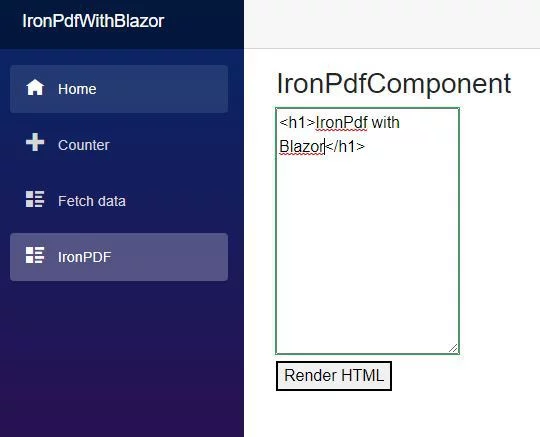

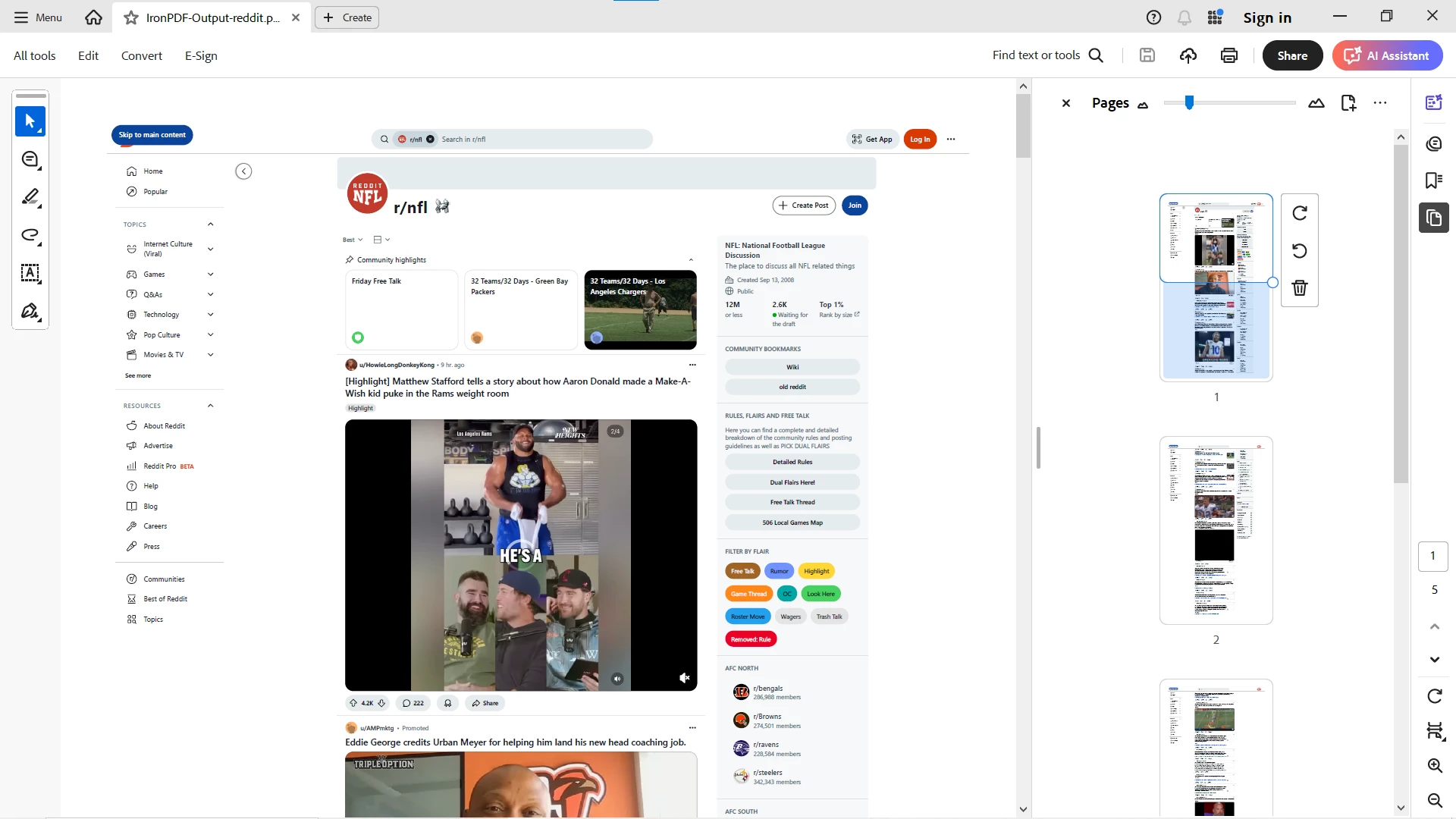 Well-formatted and visually accurate PDF, preserving dynamic content and modern styling.
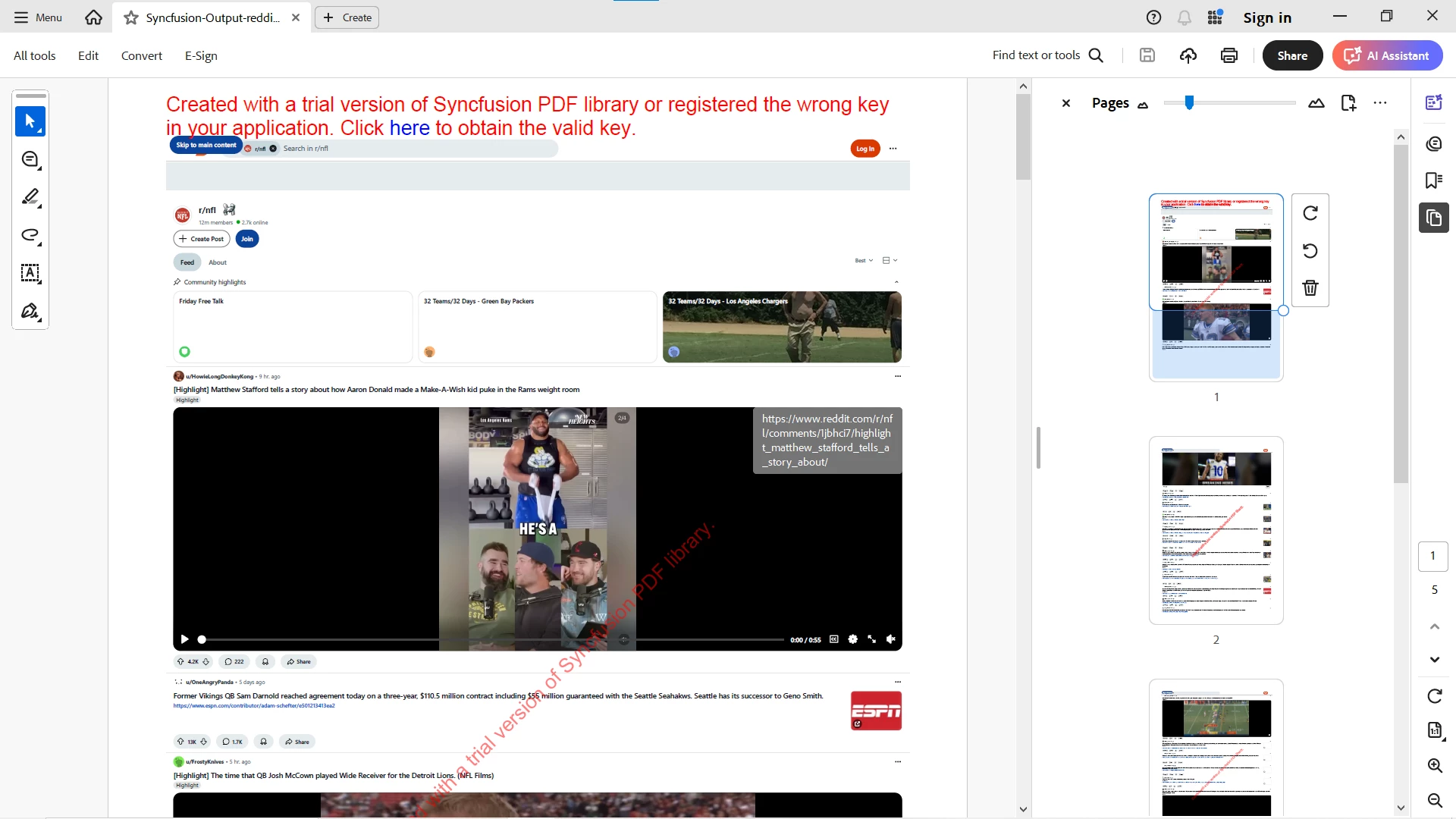 Converted with a trial build. The main feed, post content and styling came through in a narrow single-column layout, but the left navigation and the right-hand community panel were dropped.
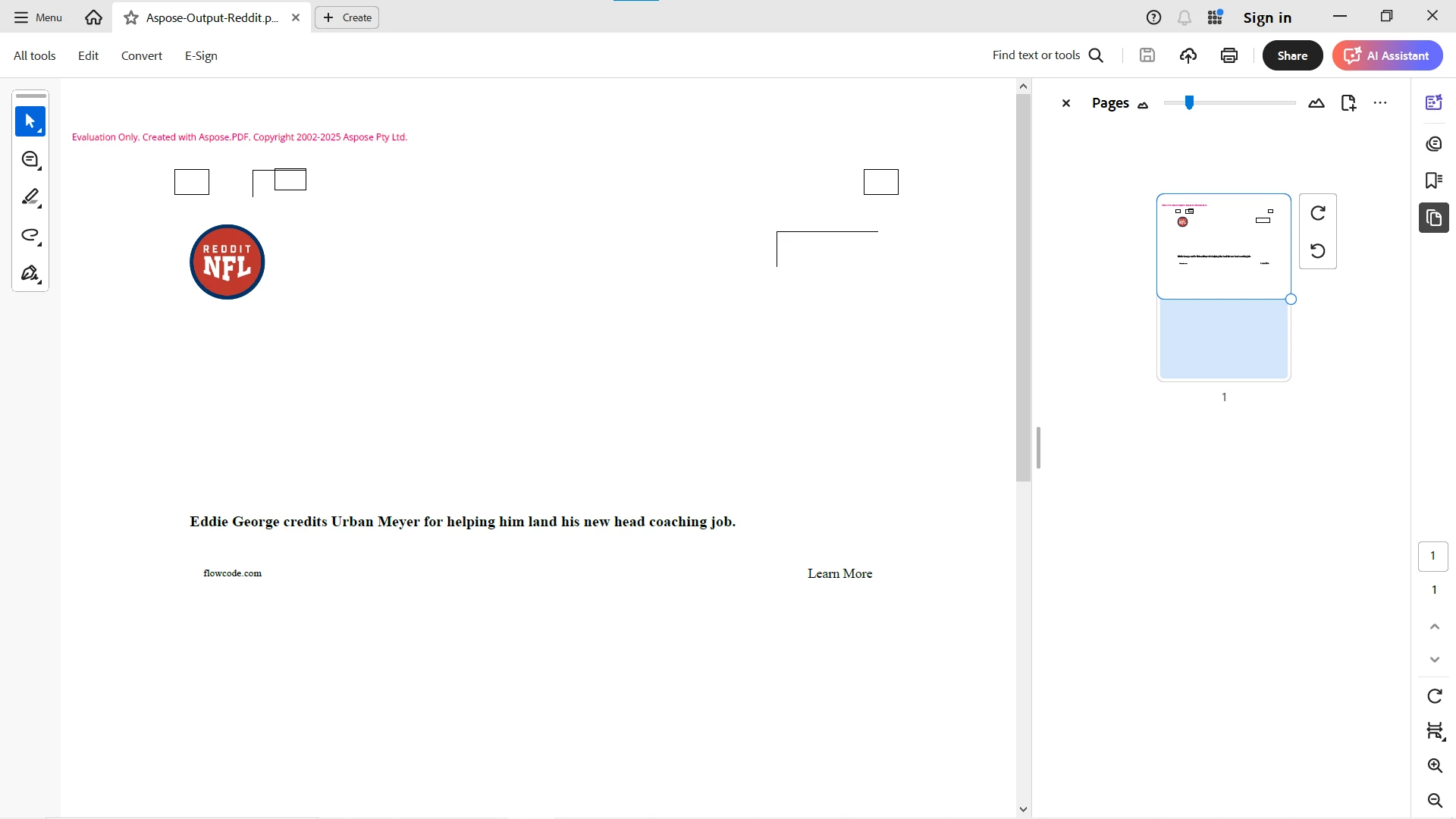 Evaluation build; required downloading the HTML first (Aspose.PDF loads HTML from a stream rather than a URL). The output was almost empty: the community logo, one headline and a few empty boxes.
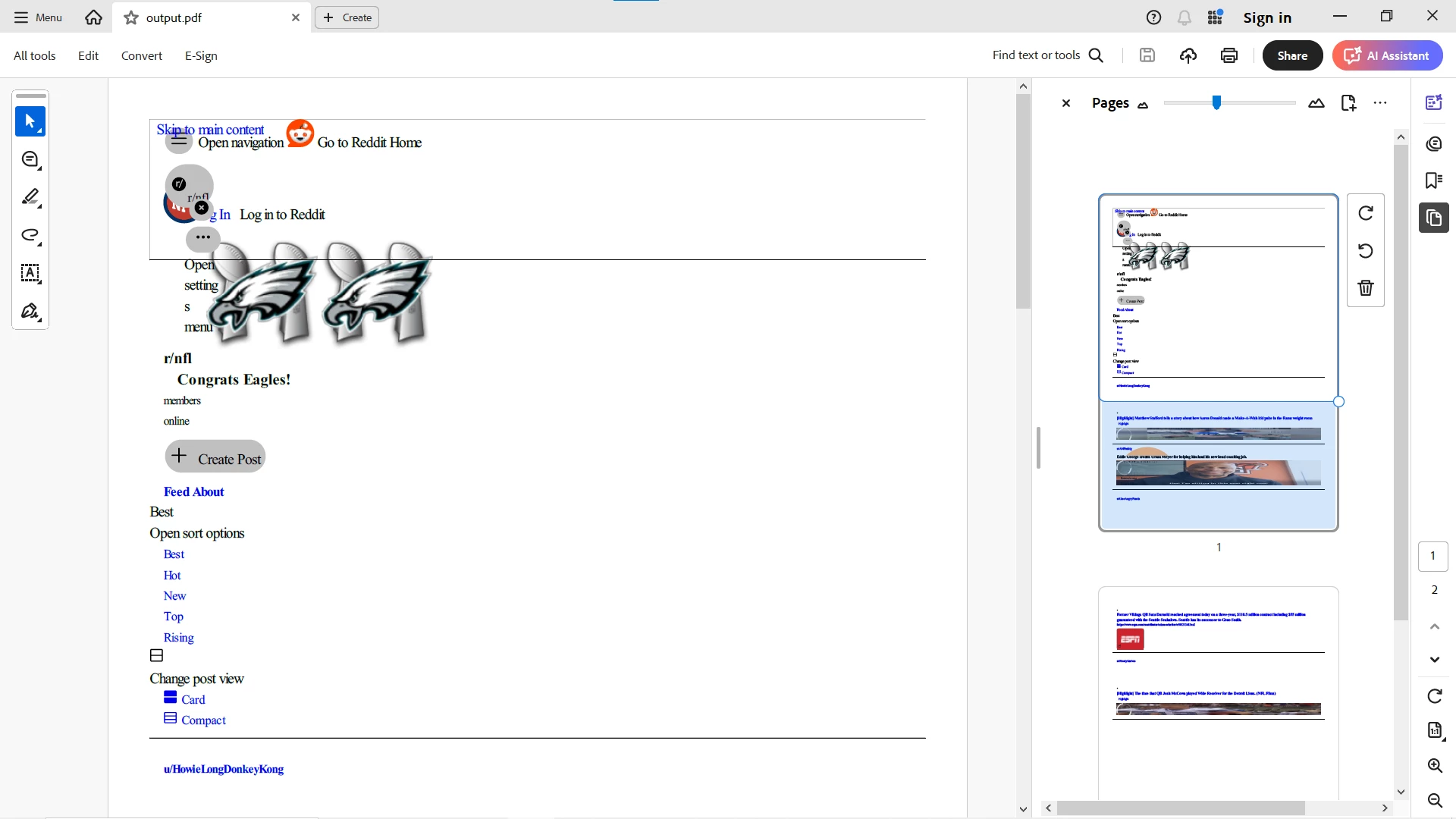 wkhtmltopdf completed the conversion, but the result is the page's text and images with none of its layout, styling, dynamic elements or interactivity. This makes wkhtmltopdf unsuitable for modern, dynamic web pages.













