using IronPdf;

// Disable local disk access or cross-origin requests
Installation.EnableWebSecurity = true;

// Instantiate Renderer
var renderer = new ChromePdfRenderer();

// Create a PDF from a HTML string using C#
var pdf = renderer.RenderHtmlAsPdf("<h1>Hello World</h1>");

// Export to a file or Stream
pdf.SaveAs("output.pdf");

// Advanced Example with HTML Assets
// Load external html assets: Images, CSS and JavaScript.
// An optional BasePath 'C:\site\assets\' is set as the file location to load assets from
var myAdvancedPdf = renderer.RenderHtmlAsPdf("<img src='icons/iron.png'>", @"C:\site\assets\");
myAdvancedPdf.SaveAs("html-with-assets.pdf");
using IronPdf;// Disable local disk access or cross-origin requestsInstallation.EnableWebSecurity = true;// Instantiate Renderervar renderer = new ChromePdfRenderer();// Create a PDF from a HTML string using C#var pdf = renderer.RenderHtmlAsPdf("<h1>Hello World</h1>");// Export to a file or Streampdf.SaveAs("output.pdf");// Advanced Example with HTML Assets// Load external html assets: Images, CSS and JavaScript.// An optional BasePath 'C:\site\assets\' is set as the file location to load assets fromvar myAdvancedPdf = renderer.RenderHtmlAsPdf("<img src='icons/iron.png'>", @"C:\site\assets\");myAdvancedPdf.SaveAs("html-with-assets.pdf");
Combining multiple PDF files into a single document is a common requirement in business applications. Whether you are generating consolidated financial reports, bundling legal contracts for archival, or assembling multi-part invoices, merging PDFs programmatically saves time and eliminates manual steps. IronPDF provides a straightforward API that handles this in just a few lines of C#, with no external tools or command-line utilities required.
This guide covers every practical scenario: two-file merges, multi-file list merges, in-memory processing with `MemoryStream`, and post-merge operations like password protection and compression.
[Get started with a free trial](https://ironpdf.com/get-started/quickstart/) to add PDF merge capabilities to your .NET application today.
## How Do You Get Started with IronPDF?
Before writing any merge code, install IronPDF from [NuGet](https://www.nuget.org/packages/IronPdf). The package targets .NET Framework 4.6.2+ and .NET 5/6/7/8/9/10, so it works in console apps, [ASP.NET Core](https://learn.microsoft.com/en-us/aspnet/core/) services, Azure Functions, and Windows Forms projects without any additional runtime dependencies.
Open the NuGet Package Manager Console and run:
```bash
:ProductInstall
```
Or use the .NET CLI:
```bash
:InstallCmd dotnet add package IronPdf
```
For a step-by-step setup walkthrough including license key application, see the [IronPDF installation overview](https://ironpdf.com/get-started/installation-overview/). Once the package is installed and a license key is applied, every example in this guide will run without modification.
## How Do You Merge PDF Documents Programmatically?
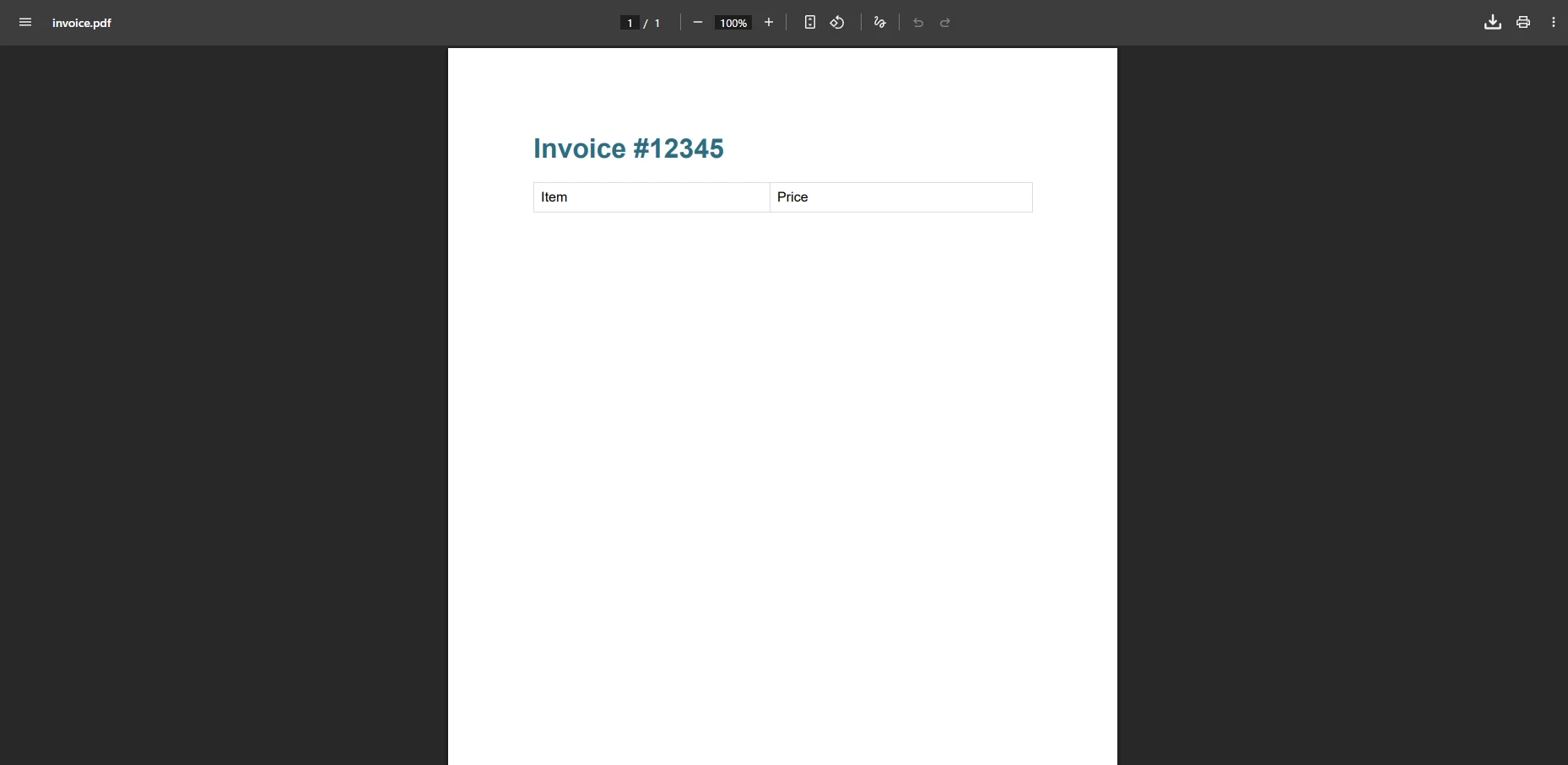
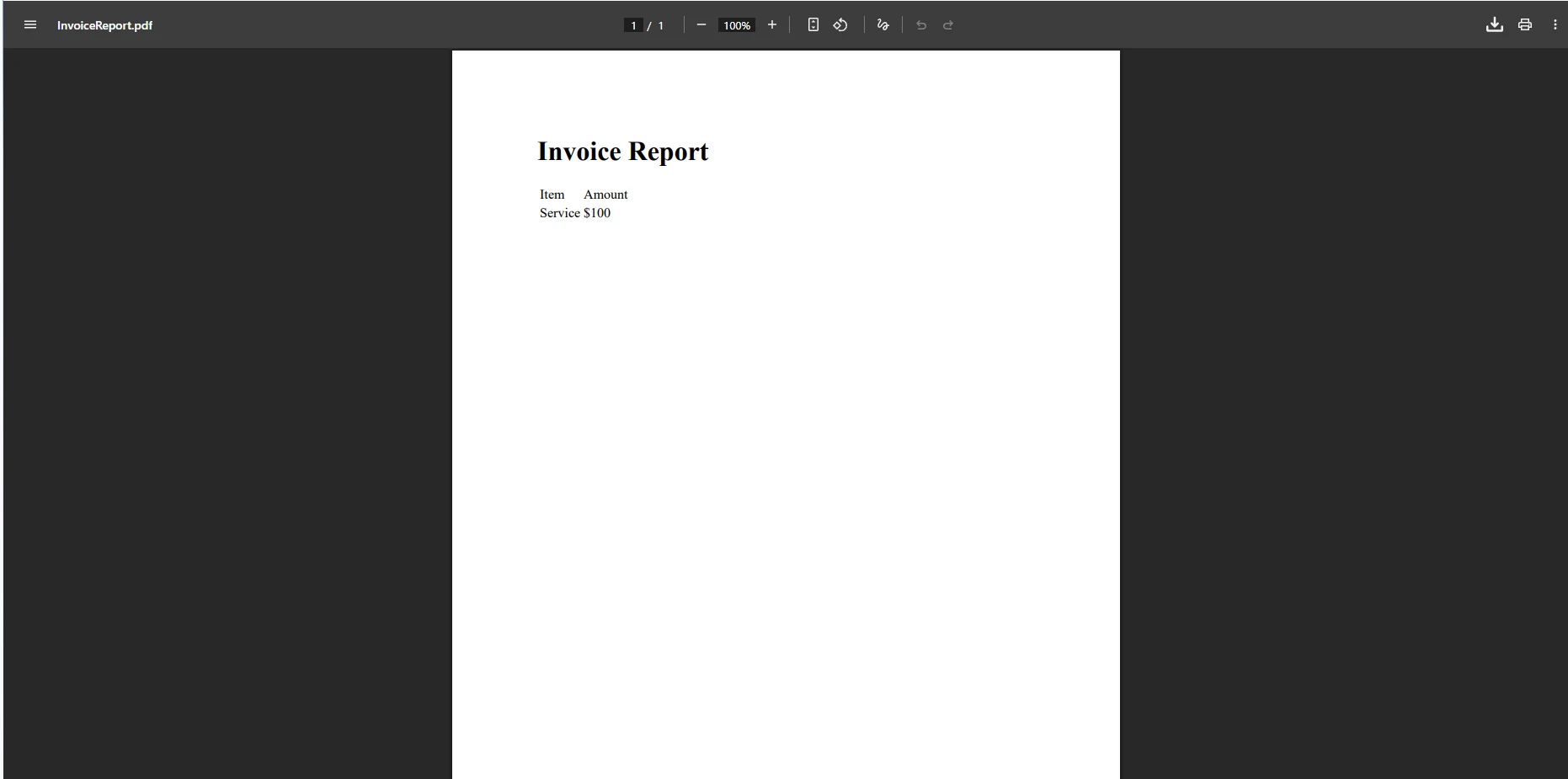
The `PdfDocument.Merge` method provides the most direct way to combine two PDF files into a single PDF. Load each source document with `PdfDocument.FromFile`, pass both objects to `Merge`, and save the result.
### Input Invoice One
### Input Invoice Two
```csharp
using IronPdf;

// Load two input PDF files from disk
PdfDocument pdfA = PdfDocument.FromFile("invoice_one.pdf");
PdfDocument pdfB = PdfDocument.FromFile("invoice_two.pdf");

// Merge PDF documents into a single PDF
PdfDocument merged = PdfDocument.Merge(pdfA, pdfB);

// Save the merged document
merged.SaveAs("combined_invoices.pdf");
```
### Output
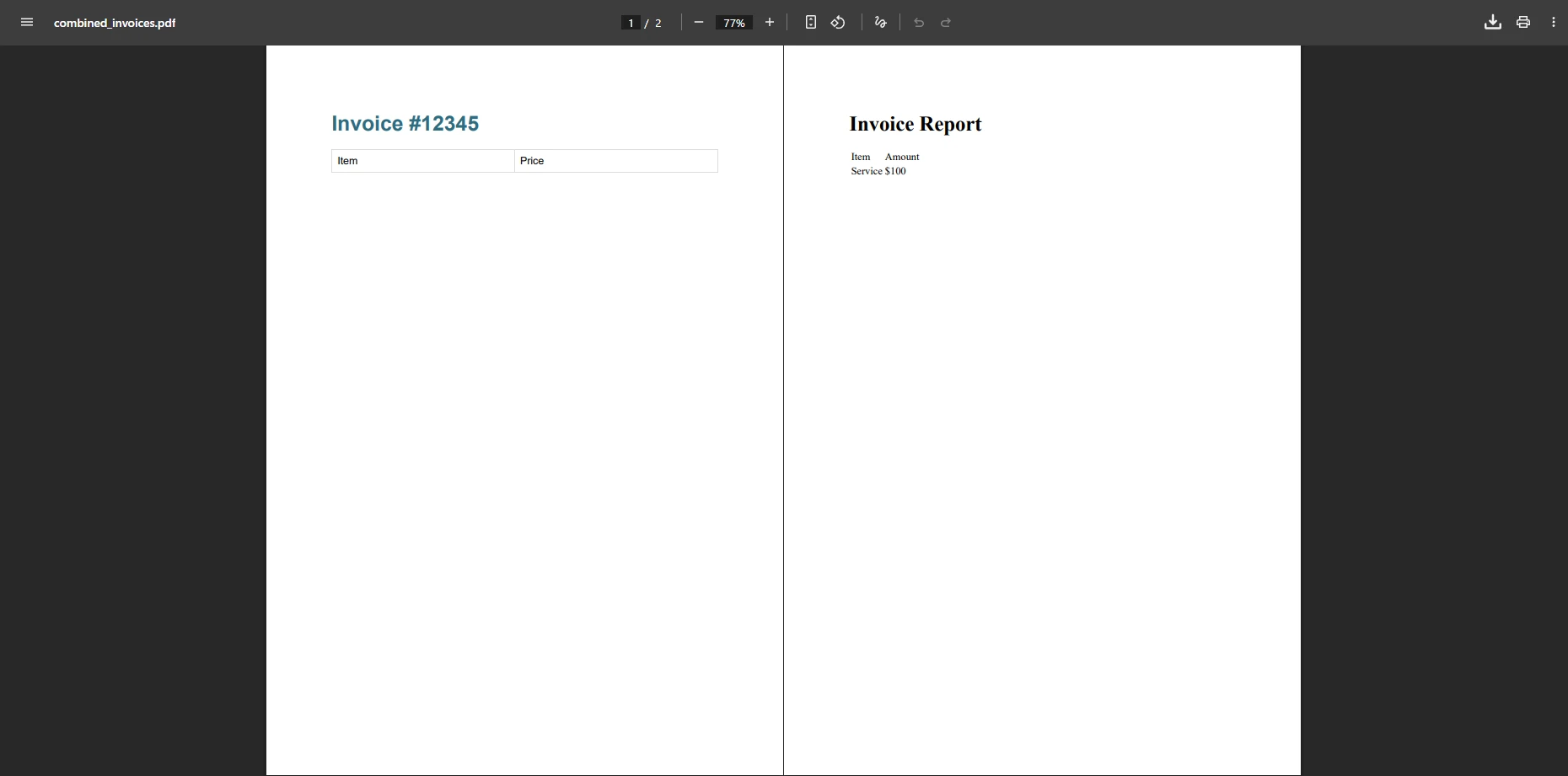
The `Merge` method accepts two `PdfDocument` instances and returns a new document containing all pages from both sources in order. The resulting file preserves the original formatting, images, fonts, and embedded content from each input. Once you have the merged document, you can save it to disk, return it from a web endpoint, or [add headers and footers](https://ironpdf.com/how-to/headers-and-footers/) before delivering it to users.
Note that `PdfDocument.FromFile` works with both file paths and URI strings, so documents stored in cloud blob storage can be loaded directly by URL. The merge operation is non-destructive: the two source objects remain unchanged after the call.
## How Do You Merge Multiple PDF Files at Once?
When you need to combine more than two documents, pass a `List<PdfDocument>` (or any `IEnumerable<PdfDocument>`) to the overloaded `Merge` method. This approach scales from three files to hundreds without changing your code structure.
```csharp
using IronPdf;
// Build a list of quarterly reports
List<PdfDocument> pdfsToMerge = new()
{
PdfDocument.FromFile("report_q1.pdf"),
PdfDocument.FromFile("report_q2.pdf"),
PdfDocument.FromFile("report_q3.pdf"),
PdfDocument.FromFile("report_q4.pdf")
};
// Combine into one annual report
PdfDocument merged = PdfDocument.Merge(pdfsToMerge);
// Save the final document
merged.SaveAs("annual_report.pdf");
```
### Merged PDF Document
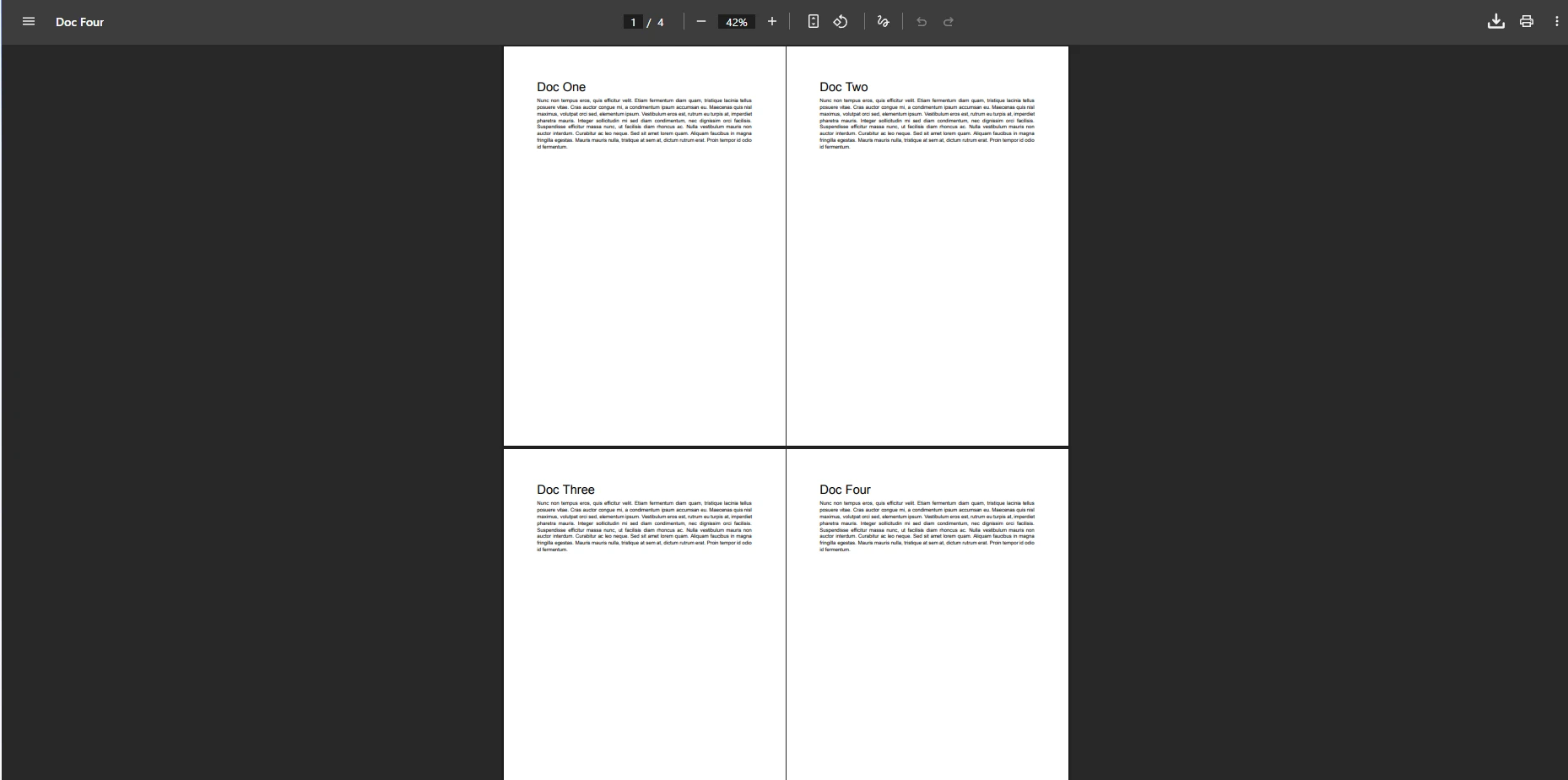
IronPDF processes pages in list order, so the sequence of documents in your `List<PdfDocument>` directly controls the page order in the output. If you need to reorder pages after merging, the [page management API](https://ironpdf.com/how-to/add-copy-delete-pages-pdf/) lets you copy, move, or delete individual pages from any `PdfDocument`.
This pattern also works with documents generated at runtime. For example, you can [convert HTML to PDF](https://ironpdf.com/tutorials/html-to-pdf/) for each section of a report and merge the resulting `PdfDocument` objects without ever writing intermediate files to disk. The same applies to [DOCX-to-PDF conversions](https://ironpdf.com/how-to/docx-to-pdf/) when your source content originates from Word documents.
## How Do You Merge PDF Files Using MemoryStream?
In-memory processing is required for web services and serverless functions where writing to disk is not possible or is too slow. IronPDF supports loading PDF documents from byte arrays and exposes the merged result as a `MemoryStream` via the `Stream` property.
```csharp
using IronPdf;
using System.IO;
// Load PDF content as byte arrays (e.g., from database or HTTP response)
byte[] firstFileBytes = File.ReadAllBytes("contract_part1.pdf");
byte[] secondFileBytes = File.ReadAllBytes("contract_part2.pdf");
// Create PdfDocument objects from byte arrays
PdfDocument doc1 = new PdfDocument(firstFileBytes);
PdfDocument doc2 = new PdfDocument(secondFileBytes);
// Merge and access the result as a stream
PdfDocument merged = PdfDocument.Merge(doc1, doc2);
MemoryStream outputStream = merged.Stream;
// Optionally save to disk as well
merged.SaveAs("merged_contract.pdf");
```
### Merged Contract File
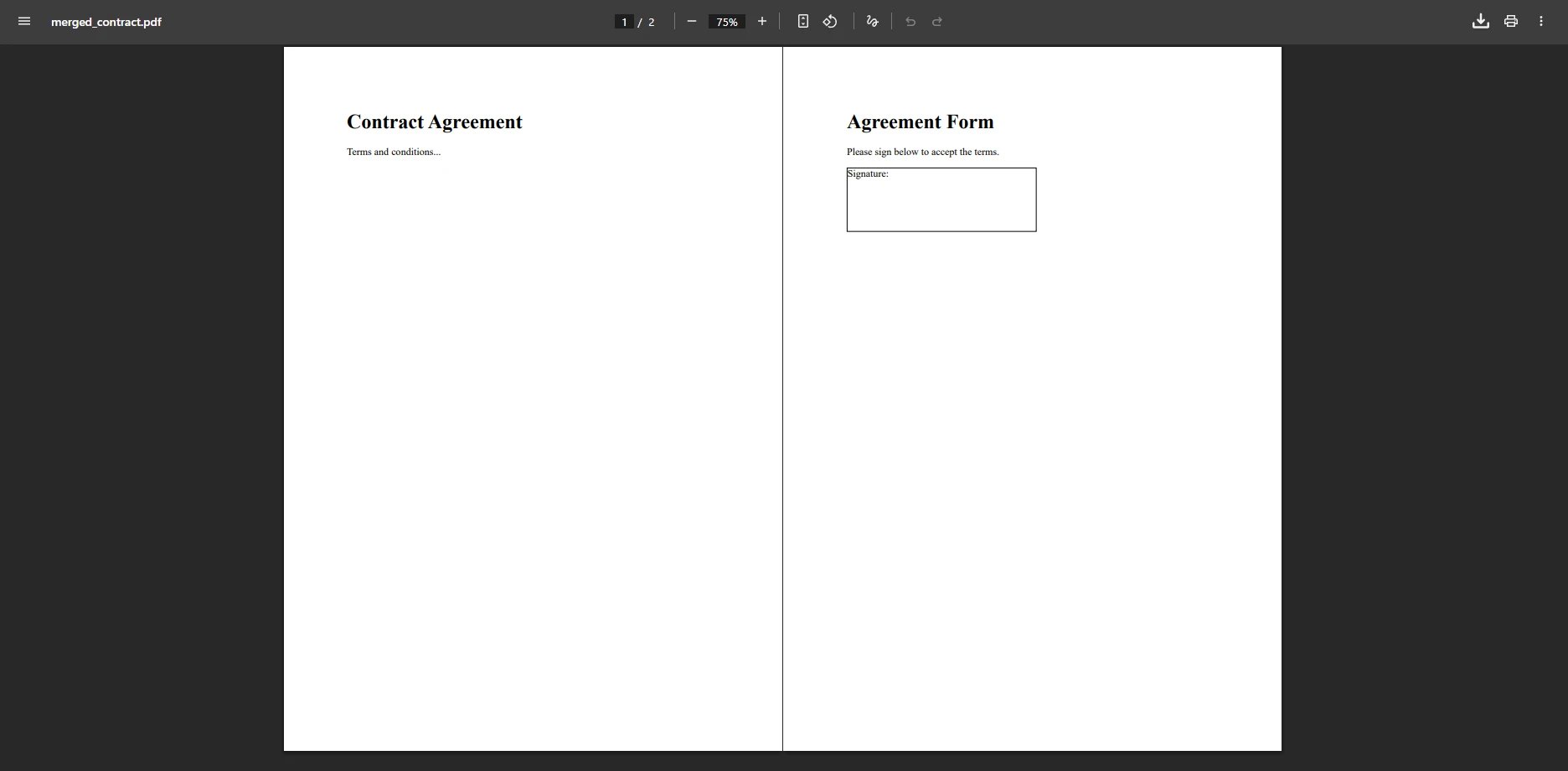
The `Stream` property returns a `MemoryStream` positioned at the start, ready for writing to an HTTP response or passing to another processing step. In an ASP.NET Core controller, you can return `File(outputStream, "application/pdf", "merged.pdf")` directly. No temporary files are created, which simplifies cleanup and reduces disk overhead in high-throughput scenarios.
IronPDF accepts string file paths, byte arrays, and streams interchangeably as input sources, so you can mix and match in the same merge call. A document loaded from a database BLOB can be merged with one fetched from a URL without any intermediate conversion step.
## How Are Bookmarks and Navigation Preserved in Merged Files?
When you merge PDF files, IronPDF carries forward the [bookmark structure](https://ironpdf.com/how-to/bookmarks/) from each source document. Readers see the full table of contents from all combined files in the merged output's navigation pane, making it straightforward for users to jump between sections that originated from different source documents. Bookmarks in the [PDF specification](https://pdfa.org/resource/pdf-specification-index/) are stored in the document outline dictionary, and IronPDF reconstructs this structure correctly for all merged sources.
Bookmark preservation happens automatically with no extra configuration. If the source files contain nested bookmarks (chapters and sub-sections), the hierarchy is maintained in the merged output. For merged documents that need a unified table of contents rather than separate per-document bookmark trees, the [table of contents API](https://ironpdf.com/how-to/table-of-contents/) lets you build a custom navigation structure after merging.
If a source document was created without bookmark metadata, the merged output will contain no outline entries for that section. Before delivering a merged file in a compliance or archival context, verify which bookmarks have been carried forward by inspecting the `OutlineManager` property on the resulting `PdfDocument`. You can programmatically rename bookmark labels, reorder entries, or inject new items that bridge content from different source documents into a logical hierarchy. For workflows that also require [PDF/A conversion](https://ironpdf.com/how-to/pdfa/) for long-term archiving, apply the compliance conversion step after merging rather than to each source individually. Converting the final merged document in one pass is more efficient and avoids re-converting outputs that may need further edits.
After merging, you can also add page numbers to the combined document using the [page numbering feature](https://ironpdf.com/how-to/page-numbers/), which is useful when the output spans dozens of pages from multiple sources.
## How Do You Apply Password Protection to a Merged PDF?
After merging, the resulting `PdfDocument` exposes `SecuritySettings` for applying user and owner passwords, restricting printing, copying, and editing rights.
```csharp
using IronPdf;
PdfDocument pdfA = PdfDocument.FromFile("part1.pdf");
PdfDocument pdfB = PdfDocument.FromFile("part2.pdf");
PdfDocument merged = PdfDocument.Merge(pdfA, pdfB);
// Require a password to open the document
merged.SecuritySettings.UserPassword = "reader123";
// Owner password controls permissions such as printing and editing
merged.SecuritySettings.OwnerPassword = "admin456";
merged.SaveAs("secured_merged.pdf");
```
The `UserPassword` prompts readers before they can view the document, while the `OwnerPassword` gates permission changes. You can combine password protection with printing restrictions, copy-prevention flags, and digital signatures. For a full walkthrough of permission options, the [PDF security tutorial](https://ironpdf.com/tutorials/csharp-pdf-security-complete-tutorial/) covers every available setting.
If the source documents are themselves password-protected, IronPDF can [decrypt encrypted PDFs](https://ironpdf.com/how-to/pdf-permissions-passwords/) before merging, provided you have the owner credentials. This means you can merge secured documents from different vendors or systems into a single, re-secured output without manual unlocking steps.
## How Do You Reduce the File Size of a Merged PDF?
Merging large documents with many images can produce outputs that are large to store or send. IronPDF's [PDF compression API](https://ironpdf.com/how-to/pdf-compression/) can significantly reduce file size by re-compressing embedded images at a lower quality setting while preserving text sharpness.
```csharp
using IronPdf;
PdfDocument pdfA = PdfDocument.FromFile("report_section1.pdf");
PdfDocument pdfB = PdfDocument.FromFile("report_section2.pdf");
PdfDocument merged = PdfDocument.Merge(pdfA, pdfB);
// Compress embedded images to reduce output file size
merged.CompressImages(60); // quality 0–100
merged.SaveAs("compressed_merged.pdf");
```
The integer argument to `CompressImages` is a quality percentage: values between 50 and 75 typically cut file size by 40-70% for image-heavy documents with no visible degradation to text content. For documents that contain vector graphics and minimal raster images, the savings are smaller but the call is safe to include regardless.
## What Are Common Use Cases for PDF Merging?
The `PdfDocument.Merge` API fits a wide range of document workflows in production .NET applications:
<table class="content__data-table" data-content-table>
<caption>Common PDF merge scenarios and the IronPDF approach for each</caption>
<thead>
<tr><th>Use Case</th><th>Input Sources</th><th>Recommended Approach</th></tr>
</thead>
<tbody>
<tr><td>Annual financial report</td><td>Four quarterly PDF files on disk</td><td>List merge with <code>Merge(List<PdfDocument>)</code></td></tr>
<tr><td>Multi-part legal contract</td><td>Base contract + amendments from database</td><td>Byte array load + in-memory merge</td></tr>
<tr><td>Invoice consolidation</td><td>HTML-rendered invoices per line item</td><td>HTML-to-PDF per item, then list merge</td></tr>
<tr><td>Automated report delivery</td><td>Mixed DOCX and PDF source files</td><td>DOCX-to-PDF conversion, then merge</td></tr>
<tr><td>Secure document archive</td><td>Multiple department reports</td><td>List merge + <code>SecuritySettings</code></td></tr>
</tbody>
</table>
For workflows where documents need to be selectively extracted before merging, the [split PDF API](https://ironpdf.com/how-to/merge-or-split-pdfs/) can extract specific page ranges from a source document. You can [copy pages between PDF files](https://ironpdf.com/examples/copy-pdf-page-to-another-pdf-file/) directly, which is useful when only certain sections of a large document need to appear in the merged output.
IronPDF also supports extracting text and images from merged documents for downstream processing, making it suitable as a central document assembly step in larger data pipelines.
## What Are Your Next Steps?
IronPDF's `PdfDocument.Merge` method covers the full range of .NET PDF merging scenarios with minimal code: two-file merges, multi-file list merges, in-memory processing, password-protected outputs, and post-merge compression. Every approach uses the same consistent API regardless of the input source type.
[Start a free trial](https://ironpdf.com/get-started/quickstart/) to run these examples in your own project. For production deployment, [view the licensing options](https://ironpdf.com/licensing/) that fit your team's size and usage.
After adding merge support, explore related document operations: [split a PDF into separate files](https://ironpdf.com/how-to/split-multipage-pdf/), [add page numbers to multi-page outputs](https://ironpdf.com/how-to/page-numbers/), or [apply watermarks](https://ironpdf.com/how-to/custom-watermark/) to all pages in the merged document.
!!!--LIBRARY_GET_STARTED_WITH_PRODUCT_TRIAL_BLOCK--!!!
Combining multiple PDF files into a single document is a common requirement in business applications. Whether you are generating consolidated financial reports, bundling legal contracts for archival, or assembling multi-part invoices, merging PDFs programmatically saves time and eliminates manual steps. IronPDF provides a straightforward API that handles this in just a few lines of C#, with no external tools or command-line utilities required.
This guide covers every practical scenario: two-file merges, multi-file list merges, in-memory processing with MemoryStream, and post-merge operations like password protection and compression.
Before writing any merge code, install IronPDF from NuGet. The package targets .NET Framework 4.6.2+ and .NET 5/6/7/8/9/10, so it works in console apps, ASP.NET Core services, Azure Functions, and Windows Forms projects without any additional runtime dependencies.
Open the NuGet Package Manager Console and run:
PM > Install-Package IronPdf
Install-Package IronPdf
Or use the .NET CLI:
> dotnet add package IronPdf
dotnet add package IronPdf
For a step-by-step setup walkthrough including license key application, see the IronPDF installation overview. Once the package is installed and a license key is applied, every example in this guide will run without modification.
How Do You Merge PDF Documents Programmatically?
The PdfDocument.Merge method provides the most direct way to combine two PDF files into a single PDF. Load each source document with PdfDocument.FromFile, pass both objects to Merge, and save the result.
Input Invoice One
Input Invoice Two
using IronPdf;// Load two input PDF files from diskPdfDocument pdfA = PdfDocument.FromFile("invoice_one.pdf");PdfDocument pdfB = PdfDocument.FromFile("invoice_two.pdf");// Merge PDF documents into a single PDFPdfDocument merged = PdfDocument.Merge(pdfA, pdfB);// Save the merged documentmerged.SaveAs("combined_invoices.pdf");
using IronPdf;

// Load two input PDF files from disk
PdfDocument pdfA = PdfDocument.FromFile("invoice_one.pdf");
PdfDocument pdfB = PdfDocument.FromFile("invoice_two.pdf");

// Merge PDF documents into a single PDF
PdfDocument merged = PdfDocument.Merge(pdfA, pdfB);

// Save the merged document
merged.SaveAs("combined_invoices.pdf");
ImportsIronPdf' Load two input PDF files from diskDim pdfA AsPdfDocument = PdfDocument.FromFile("invoice_one.pdf")Dim pdfB AsPdfDocument = PdfDocument.FromFile("invoice_two.pdf")' Merge PDF documents into a single PDFDim merged AsPdfDocument = PdfDocument.Merge(pdfA, pdfB)' Save the merged documentmerged.SaveAs("combined_invoices.pdf")
Imports IronPdf

' Load two input PDF files from disk
Dim pdfA As PdfDocument = PdfDocument.FromFile("invoice_one.pdf")
Dim pdfB As PdfDocument = PdfDocument.FromFile("invoice_two.pdf")

' Merge PDF documents into a single PDF
Dim merged As PdfDocument = PdfDocument.Merge(pdfA, pdfB)

' Save the merged document
merged.SaveAs("combined_invoices.pdf")
Output
The Merge method accepts two PdfDocument instances and returns a new document containing all pages from both sources in order. The resulting file preserves the original formatting, images, fonts, and embedded content from each input. Once you have the merged document, you can save it to disk, return it from a web endpoint, or add headers and footers before delivering it to users.
Note that PdfDocument.FromFile works with both file paths and URI strings, so documents stored in cloud blob storage can be loaded directly by URL. The merge operation is non-destructive: the two source objects remain unchanged after the call.
How Do You Merge Multiple PDF Files at Once?
When you need to combine more than two documents, pass a List<PdfDocument> (or any IEnumerable<PdfDocument>) to the overloaded Merge method. This approach scales from three files to hundreds without changing your code structure.
using IronPdf;// Build a list of quarterly reportsList<PdfDocument> pdfsToMerge = new(){PdfDocument.FromFile("report_q1.pdf"),PdfDocument.FromFile("report_q2.pdf"),PdfDocument.FromFile("report_q3.pdf"),PdfDocument.FromFile("report_q4.pdf")};// Combine into one annual reportPdfDocument merged = PdfDocument.Merge(pdfsToMerge);// Save the final documentmerged.SaveAs("annual_report.pdf");
using IronPdf;

// Build a list of quarterly reports
List<PdfDocument> pdfsToMerge = new()
{
    PdfDocument.FromFile("report_q1.pdf"),
    PdfDocument.FromFile("report_q2.pdf"),
    PdfDocument.FromFile("report_q3.pdf"),
    PdfDocument.FromFile("report_q4.pdf")
};

// Combine into one annual report
PdfDocument merged = PdfDocument.Merge(pdfsToMerge);

// Save the final document
merged.SaveAs("annual_report.pdf");
ImportsIronPdf' Build a list of quarterly reportsDim pdfsToMerge As New List(OfPdfDocument) From {PdfDocument.FromFile("report_q1.pdf"),PdfDocument.FromFile("report_q2.pdf"),PdfDocument.FromFile("report_q3.pdf"),PdfDocument.FromFile("report_q4.pdf")}' Combine into one annual reportDim merged AsPdfDocument = PdfDocument.Merge(pdfsToMerge)' Save the final documentmerged.SaveAs("annual_report.pdf")
Imports IronPdf

' Build a list of quarterly reports
Dim pdfsToMerge As New List(Of PdfDocument) From {
    PdfDocument.FromFile("report_q1.pdf"),
    PdfDocument.FromFile("report_q2.pdf"),
    PdfDocument.FromFile("report_q3.pdf"),
    PdfDocument.FromFile("report_q4.pdf")
}

' Combine into one annual report
Dim merged As PdfDocument = PdfDocument.Merge(pdfsToMerge)

' Save the final document
merged.SaveAs("annual_report.pdf")
Merged PDF Document
IronPDF processes pages in list order, so the sequence of documents in your List<PdfDocument> directly controls the page order in the output. If you need to reorder pages after merging, the page management API lets you copy, move, or delete individual pages from any PdfDocument.
This pattern also works with documents generated at runtime. For example, you can convert HTML to PDF for each section of a report and merge the resulting PdfDocument objects without ever writing intermediate files to disk. The same applies to DOCX-to-PDF conversions when your source content originates from Word documents.
How Do You Merge PDF Files Using MemoryStream?
In-memory processing is required for web services and serverless functions where writing to disk is not possible or is too slow. IronPDF supports loading PDF documents from byte arrays and exposes the merged result as a MemoryStream via the Stream property.
using IronPdf;using System.IO;// Load PDF content as byte arrays (e.g., from database or HTTP response)byte[] firstFileBytes = File.ReadAllBytes("contract_part1.pdf");byte[] secondFileBytes = File.ReadAllBytes("contract_part2.pdf");// Create PdfDocument objects from byte arraysPdfDocument doc1 = new PdfDocument(firstFileBytes);PdfDocument doc2 = new PdfDocument(secondFileBytes);// Merge and access the result as a streamPdfDocument merged = PdfDocument.Merge(doc1, doc2);MemoryStream outputStream = merged.Stream;// Optionally save to disk as wellmerged.SaveAs("merged_contract.pdf");
using IronPdf;
using System.IO;

// Load PDF content as byte arrays (e.g., from database or HTTP response)
byte[] firstFileBytes = File.ReadAllBytes("contract_part1.pdf");
byte[] secondFileBytes = File.ReadAllBytes("contract_part2.pdf");

// Create PdfDocument objects from byte arrays
PdfDocument doc1 = new PdfDocument(firstFileBytes);
PdfDocument doc2 = new PdfDocument(secondFileBytes);

// Merge and access the result as a stream
PdfDocument merged = PdfDocument.Merge(doc1, doc2);
MemoryStream outputStream = merged.Stream;

// Optionally save to disk as well
merged.SaveAs("merged_contract.pdf");
ImportsIronPdfImportsSystem.IO' Load PDF content as byte arrays (e.g., from database or HTTP response)Dim firstFileBytes AsByte() = File.ReadAllBytes("contract_part1.pdf")Dim secondFileBytes AsByte() = File.ReadAllBytes("contract_part2.pdf")' Create PdfDocument objects from byte arraysDim doc1 As New PdfDocument(firstFileBytes)Dim doc2 As New PdfDocument(secondFileBytes)' Merge and access the result as a streamDim merged AsPdfDocument = PdfDocument.Merge(doc1, doc2)Dim outputStream AsMemoryStream = merged.Stream' Optionally save to disk as wellmerged.SaveAs("merged_contract.pdf")
Imports IronPdf
Imports System.IO

' Load PDF content as byte arrays (e.g., from database or HTTP response)
Dim firstFileBytes As Byte() = File.ReadAllBytes("contract_part1.pdf")
Dim secondFileBytes As Byte() = File.ReadAllBytes("contract_part2.pdf")

' Create PdfDocument objects from byte arrays
Dim doc1 As New PdfDocument(firstFileBytes)
Dim doc2 As New PdfDocument(secondFileBytes)

' Merge and access the result as a stream
Dim merged As PdfDocument = PdfDocument.Merge(doc1, doc2)
Dim outputStream As MemoryStream = merged.Stream

' Optionally save to disk as well
merged.SaveAs("merged_contract.pdf")
Merged Contract File
The Stream property returns a MemoryStream positioned at the start, ready for writing to an HTTP response or passing to another processing step. In an ASP.NET Core controller, you can return File(outputStream, "application/pdf", "merged.pdf") directly. No temporary files are created, which simplifies cleanup and reduces disk overhead in high-throughput scenarios.
IronPDF accepts string file paths, byte arrays, and streams interchangeably as input sources, so you can mix and match in the same merge call. A document loaded from a database BLOB can be merged with one fetched from a URL without any intermediate conversion step.
How Are Bookmarks and Navigation Preserved in Merged Files?
When you merge PDF files, IronPDF carries forward the bookmark structure from each source document. Readers see the full table of contents from all combined files in the merged output's navigation pane, making it straightforward for users to jump between sections that originated from different source documents. Bookmarks in the PDF specification are stored in the document outline dictionary, and IronPDF reconstructs this structure correctly for all merged sources.
Bookmark preservation happens automatically with no extra configuration. If the source files contain nested bookmarks (chapters and sub-sections), the hierarchy is maintained in the merged output. For merged documents that need a unified table of contents rather than separate per-document bookmark trees, the table of contents API lets you build a custom navigation structure after merging.
If a source document was created without bookmark metadata, the merged output will contain no outline entries for that section. Before delivering a merged file in a compliance or archival context, verify which bookmarks have been carried forward by inspecting the OutlineManager property on the resulting PdfDocument. You can programmatically rename bookmark labels, reorder entries, or inject new items that bridge content from different source documents into a logical hierarchy. For workflows that also require PDF/A conversion for long-term archiving, apply the compliance conversion step after merging rather than to each source individually. Converting the final merged document in one pass is more efficient and avoids re-converting outputs that may need further edits.
After merging, you can also add page numbers to the combined document using the page numbering feature, which is useful when the output spans dozens of pages from multiple sources.
How Do You Apply Password Protection to a Merged PDF?
After merging, the resulting PdfDocument exposes SecuritySettings for applying user and owner passwords, restricting printing, copying, and editing rights.
using IronPdf;PdfDocument pdfA = PdfDocument.FromFile("part1.pdf");PdfDocument pdfB = PdfDocument.FromFile("part2.pdf");PdfDocument merged = PdfDocument.Merge(pdfA, pdfB);// Require a password to open the documentmerged.SecuritySettings.UserPassword = "reader123";// Owner password controls permissions such as printing and editingmerged.SecuritySettings.OwnerPassword = "admin456";merged.SaveAs("secured_merged.pdf");
using IronPdf;

PdfDocument pdfA = PdfDocument.FromFile("part1.pdf");
PdfDocument pdfB = PdfDocument.FromFile("part2.pdf");

PdfDocument merged = PdfDocument.Merge(pdfA, pdfB);

// Require a password to open the document
merged.SecuritySettings.UserPassword = "reader123";

// Owner password controls permissions such as printing and editing
merged.SecuritySettings.OwnerPassword = "admin456";

merged.SaveAs("secured_merged.pdf");
ImportsIronPdfDim pdfA AsPdfDocument = PdfDocument.FromFile("part1.pdf")Dim pdfB AsPdfDocument = PdfDocument.FromFile("part2.pdf")Dim merged AsPdfDocument = PdfDocument.Merge(pdfA, pdfB)' Require a password to open the documentmerged.SecuritySettings.UserPassword = "reader123"' Owner password controls permissions such as printing and editingmerged.SecuritySettings.OwnerPassword = "admin456"merged.SaveAs("secured_merged.pdf")
Imports IronPdf

Dim pdfA As PdfDocument = PdfDocument.FromFile("part1.pdf")
Dim pdfB As PdfDocument = PdfDocument.FromFile("part2.pdf")

Dim merged As PdfDocument = PdfDocument.Merge(pdfA, pdfB)

' Require a password to open the document
merged.SecuritySettings.UserPassword = "reader123"

' Owner password controls permissions such as printing and editing
merged.SecuritySettings.OwnerPassword = "admin456"

merged.SaveAs("secured_merged.pdf")
The UserPassword prompts readers before they can view the document, while the OwnerPassword gates permission changes. You can combine password protection with printing restrictions, copy-prevention flags, and digital signatures. For a full walkthrough of permission options, the PDF security tutorial covers every available setting.
If the source documents are themselves password-protected, IronPDF can decrypt encrypted PDFs before merging, provided you have the owner credentials. This means you can merge secured documents from different vendors or systems into a single, re-secured output without manual unlocking steps.
How Do You Reduce the File Size of a Merged PDF?
Merging large documents with many images can produce outputs that are large to store or send. IronPDF's PDF compression API can significantly reduce file size by re-compressing embedded images at a lower quality setting while preserving text sharpness.
IRON VB CONVERTER ERROR developers@ironsoftware.com
The integer argument to CompressImages is a quality percentage: values between 50 and 75 typically cut file size by 40-70% for image-heavy documents with no visible degradation to text content. For documents that contain vector graphics and minimal raster images, the savings are smaller but the call is safe to include regardless.
What Are Common Use Cases for PDF Merging?
The PdfDocument.Merge API fits a wide range of document workflows in production .NET applications:
Common PDF merge scenarios and the IronPDF approach for each
Use Case
Input Sources
Recommended Approach
Annual financial report
Four quarterly PDF files on disk
List merge with Merge(List<PdfDocument>)
Multi-part legal contract
Base contract + amendments from database
Byte array load + in-memory merge
Invoice consolidation
HTML-rendered invoices per line item
HTML-to-PDF per item, then list merge
Automated report delivery
Mixed DOCX and PDF source files
DOCX-to-PDF conversion, then merge
Secure document archive
Multiple department reports
List merge + SecuritySettings
For workflows where documents need to be selectively extracted before merging, the split PDF API can extract specific page ranges from a source document. You can copy pages between PDF files directly, which is useful when only certain sections of a large document need to appear in the merged output.
IronPDF also supports extracting text and images from merged documents for downstream processing, making it suitable as a central document assembly step in larger data pipelines.
What Are Your Next Steps?
IronPDF's PdfDocument.Merge method covers the full range of .NET PDF merging scenarios with minimal code: two-file merges, multi-file list merges, in-memory processing, password-protected outputs, and post-merge compression. Every approach uses the same consistent API regardless of the input source type.
Curtis Chau holds a Bachelor’s degree in Computer Science (Carleton University) and specializes in front-end development with expertise in Node.js, TypeScript, JavaScript, and React. Passionate about crafting intuitive and aesthetically pleasing user interfaces, Curtis enjoys working with modern frameworks and creating well-structured, visually appealing manuals.