using IronPdf;

// Disable local disk access or cross-origin requests
Installation.EnableWebSecurity = true;

// Instantiate Renderer
var renderer = new ChromePdfRenderer();

// Create a PDF from a HTML string using C#
var pdf = renderer.RenderHtmlAsPdf("<h1>Hello World</h1>");

// Export to a file or Stream
pdf.SaveAs("output.pdf");

// Advanced Example with HTML Assets
// Load external html assets: Images, CSS and JavaScript.
// An optional BasePath 'C:\site\assets\' is set as the file location to load assets from
var myAdvancedPdf = renderer.RenderHtmlAsPdf("<img src='icons/iron.png'>", @"C:\site\assets\");
myAdvancedPdf.SaveAs("html-with-assets.pdf");
using IronPdf;// Disable local disk access or cross-origin requestsInstallation.EnableWebSecurity = true;// Instantiate Renderervar renderer = new ChromePdfRenderer();// Create a PDF from a HTML string using C#var pdf = renderer.RenderHtmlAsPdf("<h1>Hello World</h1>");// Export to a file or Streampdf.SaveAs("output.pdf");// Advanced Example with HTML Assets// Load external html assets: Images, CSS and JavaScript.// An optional BasePath 'C:\site\assets\' is set as the file location to load assets fromvar myAdvancedPdf = renderer.RenderHtmlAsPdf("<img src='icons/iron.png'>", @"C:\site\assets\");myAdvancedPdf.SaveAs("html-with-assets.pdf");
iText에서 "문서에 페이지가 없습니다" 오류는 XMLWorker가 HTML 콘텐츠를 구문 분석하지 못할 때 발생합니다. 그러나 [ChromePdfRenderer의 Chrome 기반 렌더러](https://ironpdf.com/how-to/ironpdf-2021-chrome-rendering-engine-eap/)는 이 문제를 제거하여 브라우저처럼 HTML을 처리하므로 구문 예외 없이 신뢰할 수 있는 PDF 생성이 가능합니다.
.NET 애플리케이션에서 HTML을 PDF로 변환하는 것은 일반적인 요구 사항이지만 iText를 사용하는 개발자는 "문서에 페이지가 없습니다" 오류를 자주 경험합니다. 이 오류는 PDF 문서 생성 프로세스가 실패할 때 나타나며, 개발자들은 해결책을 찾기 위해 노력합니다. 이 분석에서는 이는 왜 발생하며, [ChromePdfRenderer의 HTML에서 PDF로 변환 기능](https://ironpdf.com/tutorials/html-to-pdf/)을 통해 이를 효과적으로 해결할 수 있는 방법을 설명합니다.
## "문서에 페이지가 없습니다" 오류는 왜 발생할까요?
"문서에 페이지가 없습니다" 예외는 iText의 구문 분석기가 HTML 콘텐츠를 유효한 PDF 문서로 처리하지 못할 때 발생합니다. 이 오류는 대개 문서 닫기 작업 중에 나타나며, 이는 [많은 Stack Overflow 스레드](https://stackoverflow.com/questions/24574154/itextsharp-the-document-has-no-pages-error-when-i-have-anchor-tag)에 상세히 설명되어 있습니다. 근본 원인을 이해하면 개발자가 자신의 필요에 맞는 [PDF 라이브러리](https://ironpdf.com/competitors/itext-vs-ironpdf/)를 선택할 수 있게 됩니다.
XMLWorker -- iText의 HTML 구문 분석 구성 요소는 처리할 수 없는 HTML 구조를 만나면 조용히 실패하기 때문에 오류가 발생합니다. 파싱 중 예외를 발생시키는 대신, 빈 문서를 생성합니다. 문서가 닫힐 때, iText는 컨텐츠가 작성되지 않았음을 감지하고 "문서에 페이지가 없습니다" 예외를 발생시킵니다. 이 조용한 실패 모드는 스택 트레이스가 실제 파싱 실패보다는 닫기 작업을 가리키기 때문에 디버깅을 특히 좌절스럽게 만듭니다.
```csharp
static void Main(string[] args)
{
    Document pdfDoc = new Document(PageSize.A4);
    FileStream stream = new FileStream("output.pdf", FileMode.Create);
    PdfWriter writer = PdfWriter.GetInstance(pdfDoc, stream);
    pdfDoc.Open();
    // HTML parsing fails silently -- no exception here
    var sr = new StringReader("<div>Complex HTML</div>");
    XMLWorkerHelper.GetInstance().ParseXHtml(writer, pdfDoc, sr);
    pdfDoc.Close(); // Exception: The document has no pages
    Console.WriteLine("Error: Document has no pages");
}
```
### 이 오류가 발생할 때 콘솔 출력은 무엇을 보여줍니까?

이 코드는 HTML에서 PDF 파일을 생성하려 시도하지만 XMLWorker가 HTML 콘텐츠를 성공적으로 파싱하지 못했기 때문에 예외가 발생합니다. 쓰기 작업은 완료되지만 문서에 내용이 추가되지 않아 빈 파일이 됩니다. 이 파싱 실패는 ASP.NET 애플리케이션에서 HTML을 PDF로 변환할 때 개발자가 직면하는 가장 흔한 문제 중 하나입니다. 사용자 정의 CSS 스타일이나 JavaScript로 렌더링된 콘텐츠를 다룰 때 문제가 더 복잡해집니다.
## 대체 라이브러리는 왜 동일한 문제를 겪습니까?
XMLWorker는 더 이상 사용되지 않는 HTMLWorker를 대체했지만 여전히 특정 HTML 구조에서 동일한 문제를 겪습니다. 문제가 계속되는 이유는 XMLWorker가 [iText의 공식 포럼](https://itext-questions.narkive.com/zrpboaB5/the-document-has-no-pages-error)에 기록된 바와 같이 엄격한 파싱 요구 사항을 가지고 있기 때문입니다. 이 제한은 픽셀 단위로 정확한 HTML에서 PDF로 변환을 구현하거나 현대 웹 애플리케이션에서 반응형 CSS 레이아웃을 사용하는 개발자에게 영향을 미칩니다.
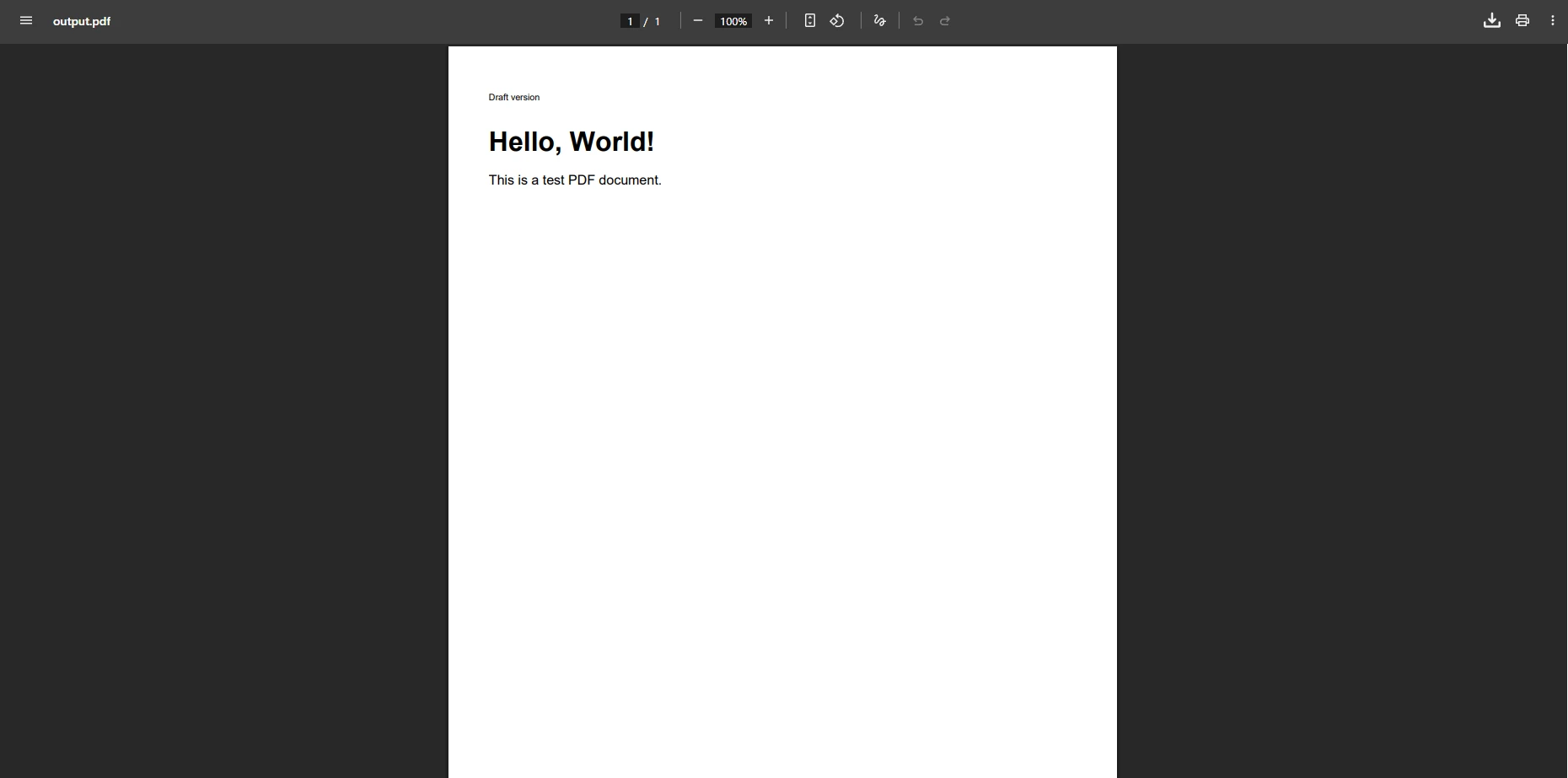
일반적인 해결책은 HTML을 파싱하기 전에 문서를 빈 단락으로 미리 채우는 것입니다. 이렇게 하면 문서가 닫힐 때 콘텐츠 요소가 하나라도 존재하도록 하여 '페이지 없음' 예외를 방지합니다:
```csharp
public static void CreatePDF(string html, string path)
{
using (var fs = new FileStream(path, FileMode.Create))
{
var document = new Document();
var writer = PdfWriter.GetInstance(document, fs);
document.Open();
document.Add(new Paragraph("")); // Workaround to avoid error
var phrase = new Phrase("Draft version", FontFactory.GetFont("Arial", 8));
document.Add(phrase);
using (var sr = new StringReader(html))
{
XMLWorkerHelper.GetInstance().ParseXHtml(writer, document, sr);
}
document.Close();
}
}
```
### 이 해결책으로 PDF 출력은 어떻게 보이나요?
### 복잡한 HTML 요소는 왜 여전히 렌더링에 실패합니까?
빈 단락을 추가하는 것은 즉각적인 오류를 방지하지만, 표 요소, 이미지, 사용자 정의 글꼴이 포함된 복잡한 HTML은 종종 올바르게 렌더링되지 않습니다. 결과 PDF 문서에서 내용이 누락되거나 잘못된 형식일 수 있습니다. 내장 스타일, 하이퍼링크 요소 또는 특정 폭 속성을 가진 HTML을 처리할 때 개발자도 동일한 문제를 겪습니다. 널 참조 및 누락된 요소 렌더링은 추가 문제를 발생시키며 추가적인 해결이 필요합니다.
XMLWorker는 HTML 4의 하위 집합 및 기본 CSS 2를 처리하도록 설계되었습니다. 현대 웹 페이지는 CSS Grid, Flexbox, CSS 변수, `calc()` 표현식, SVG 그래픽 및 JavaScript 기반 렌더링과 같은 범위를 넘어선 기능을 자주 사용합니다. 이들 중 어느 것이든 "페이지 없음" 오류를 유발하거나 설명적인 오류 메시지 없이 잘못된 출력을 조용히 생성할 수 있습니다.
```csharp
// Common XMLWorker limitations that require manual handling
public void ProcessComplexHTML(string htmlContent)
{
// CSS flexbox -- not supported by XMLWorker
if (htmlContent.Contains("display: flex"))
throw new NotSupportedException("Flexbox layout not supported");
// JavaScript content -- silently ignored
if (htmlContent.Contains("<script>"))
Console.WriteLine("Warning: JavaScript will be ignored");
// 사용자 지정 글꼴 -- require manual embedding
if (htmlContent.Contains("@font-face"))
Console.WriteLine("Warning: Web fonts need manual setup");
}
```
## 동일한 오류 없이 최신 HTML을 변환하는 방법은?
이 실제 시나리오는 스타일이 적용된 인보이스를 HTML에서 PDF로 변환하는 것을 보여줍니다. 샘플은 문제가 자주 발생하는 일반적인 요소를 포함합니다: 인라인 CSS, 미디어 쿼리, 테이블 레이아웃 및 하이퍼링크. XMLWorker에서 "페이지 없음" 오류를 발생시키는 구조는 다음과 같습니다:
```html
<!-- Invoice HTML with modern styling -->
<!DOCTYPE html>
<html>
<head>
<title>Invoice Sample</title>
<style>
.invoice-header {
background-color: #f0f0f0;
padding: 20px;
}
.invoice-table {
margin-top: 20px;
}
@media print {
.no-print { display: none; }
}
</style>
</head>
<body>
<div style="font-family: Arial; width: 100%;">
<div class="invoice-header">
<h1 style="color: #2e6c80;">Invoice #12345</h1>
<p>Date: <span id="date">2025-01-15</span></p>
</div>
<table class="invoice-table" style="width: 100%; border-collapse: collapse;">
<thead>
<tr>
<th style="border: 1px solid #ddd; padding: 8px;">Item</th>
<th style="border: 1px solid #ddd; padding: 8px;">Price</th>
</tr>
</thead>
<tbody>
<tr>
<td style="border: 1px solid #ddd; padding: 8px;">Service</td>
<td style="border: 1px solid #ddd; padding: 8px;">$100.00</td>
</tr>
</tbody>
</table>
<a href="https://example.com/terms" class="no-print">View Terms</a>
</div>
</body>
</html>
```
### iText가 이 인보이스를 처리할 때 무슨 일이 일어납니까?
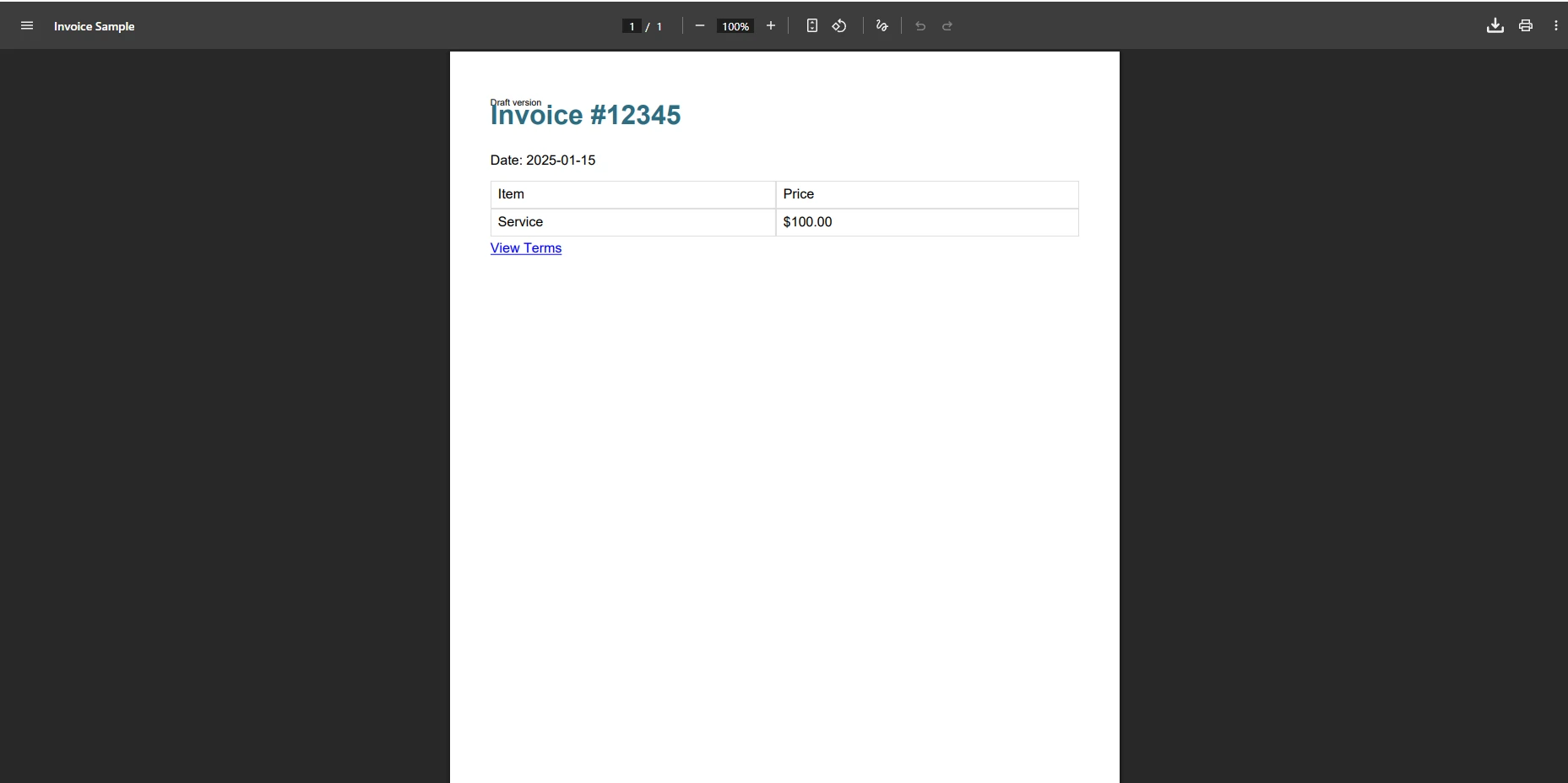
iText가 이 인보이스 템플릿을 처리할 때, 출력은 종종 CSS 스타일링이 제거되고, 배경 색상이 누락되며, 테이블 테두리를 잃게 됩니다. `@media print` 쿼리는 무시되고, 웹 폰트 참조는 조용히 구문 분석 실패를 유발합니다. HTML이 XMLWorker가 인식하지 못하는 CSS 속성을 포함하고 있으면, 전체 블록이 렌더링 실패할 수 있으며, 파싱 시점에 오류 없이 콘텐츠가 누락될 수 있습니다.
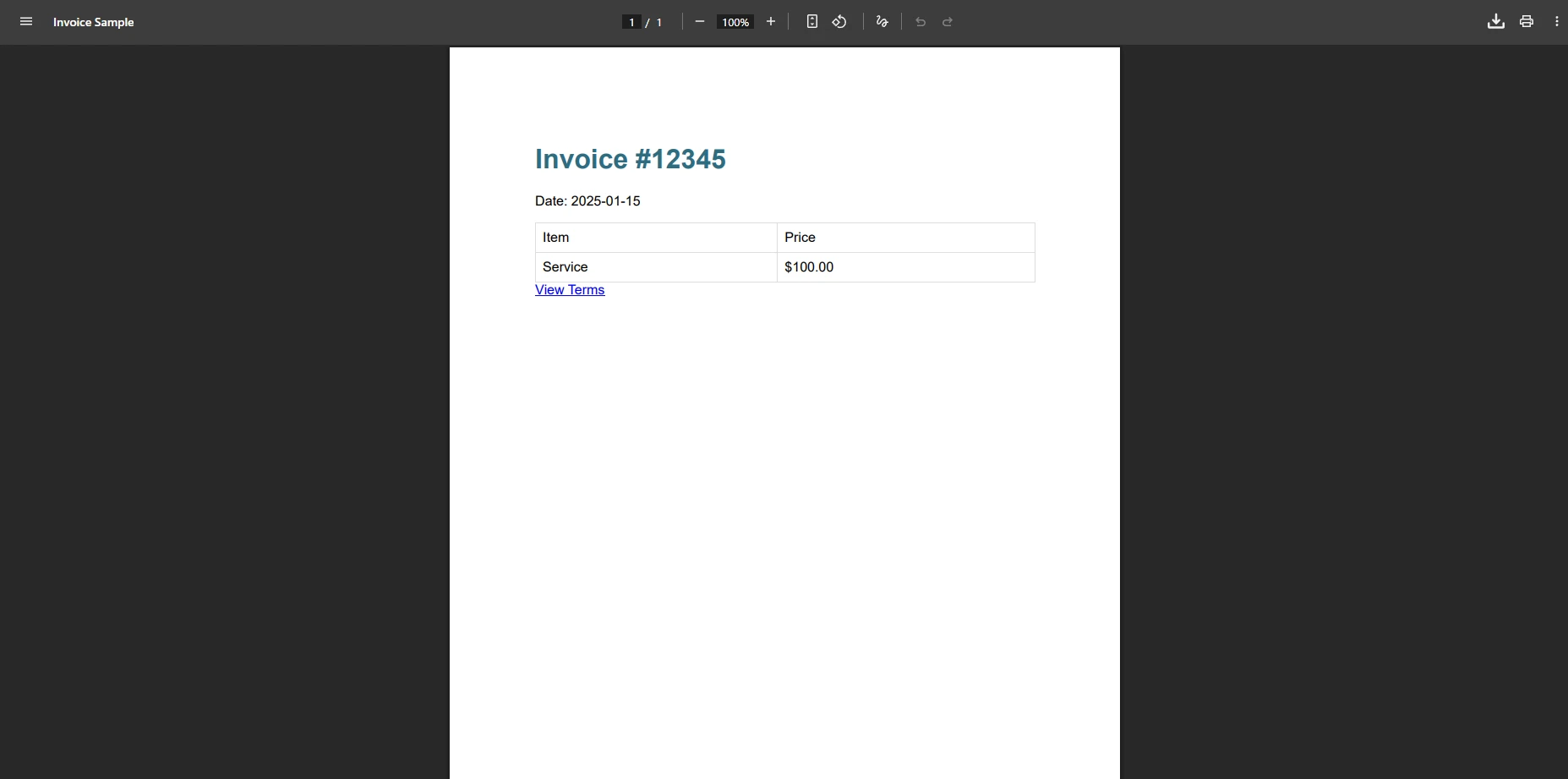
### ChromePdfRenderer는 동일한 인보이스를 어떻게 렌더링합니까?
### 왜 이러한 HTML 요소들이 iText에서 문제를 야기합니까?
iText의 XMLWorker로 인해 이 인보이스는 테이블 스타일링, 너비 속성 또는 폰트 사양 때문에 실패할 수 있습니다. 이러한 요소가 지원되지 않을 때 "문서에 페이지가 없습니다" 오류가 종종 나타납니다. 하이퍼링크와 미디어 쿼리 참조 또한 올바르게 렌더링되지 않을 수 있습니다. 이러한 제한은 비즈니스 애플리케이션에서 디지털 서명이나 페이지 번호와 같은 고급 PDF 기능을 구현할 때 중요해집니다.
[Mozilla 개발자 네트워크의 CSS 문서](https://developer.mozilla.org/en-US/docs/Web/CSS)에 따르면, 현대 CSS는 브라우저에서 기본적으로 지원하는 수백 개의 속성과 값을 포함합니다. XMLWorker는 이 중 일부분만을 다루며, 이 때문에 실제 웹 콘텐츠는 계속해서 구문 분석 실패를 유발합니다.
## 구문 오류 없이 HTML을 PDF로 변환하는 방법은?
[ChromePdfRenderer](https://ironpdf.com/features/)는 웹 브라우저에서 나타나는 것처럼 정확하게 HTML을 처리하는 Chrome 기반 렌더링 엔진을 사용합니다. 이 접근 방식은 구문 오류를 제거하고 모든 현대 HTML 및 CSS 기능을 지원합니다. [ChromePdfRenderer API 레퍼런스](https://ironpdf.com/object-reference/api/IronPdf.ChromePdfRenderer.html)를 탐색하여 전체 구성 옵션 목록을 확인할 수 있습니다. Chrome 엔진은 XMLWorker가 처리할 수 없는 JavaScript 실행, 웹 글꼴 및 반응형 레이아웃을 지원합니다.
### NuGet을 통해 ChromePdfRenderer를 어떻게 설치합니까?
코드를 작성하기 전에 ChromePdfRenderer NuGet 패키지를 설치하세요. .NET CLI에서 이 작업을 수행할 수 있습니다:
```bash
:InstallCmd dotnet add package IronPdf
```
또는 Visual Studio의 NuGet 패키지 관리자 콘솔에서:
```bash
:ProductInstall
```
한번 설치되면 `ChromePdfRenderer`에 접근할 수 있으며, 이는 전체 iText + XMLWorker 파이프라인을 한 번의 신뢰할 수 있는 호출로 대체합니다.
### ChromePdfRenderer로 HTML을 PDF로 어떻게 렌더링합니까?
다음 예제는 iText에서 실패를 유발한 동일한 인보이스 HTML을 렌더링합니다. 우회가 없고, 사전 추가된 빈 단락이 없으며, 관리해야 하는 조용한 실패가 없습니다:
```csharp
using IronPdf;
ChromePdfRenderer renderer = new ChromePdfRenderer();
// Configure rendering options for production use
renderer.RenderingOptions.MarginTop = 40;
renderer.RenderingOptions.MarginBottom = 40;
renderer.RenderingOptions.CssMediaType = PdfCssMediaType.Print;
renderer.RenderingOptions.PrintHtmlBackgrounds = true;
string html = @"<div style='font-family: Arial; width: 100%;'>
<h1 style='color: #2e6c80;'>Invoice #12345</h1>
<table style='width: 100%; border-collapse: collapse;'>
<tr>
<th style='border: 1px solid #ddd; padding: 8px;'>Item</th>
<th style='border: 1px solid #ddd; padding: 8px;'>Price</th>
</tr>
<tr>
<td style='border: 1px solid #ddd; padding: 8px;'>Service</td>
<td style='border: 1px solid #ddd; padding: 8px;'>$100.00</td>
</tr>
</table>
</div>";
PdfDocument pdf = renderer.RenderHtmlAsPdf(html);
pdf.SaveAs("invoice.pdf");
```
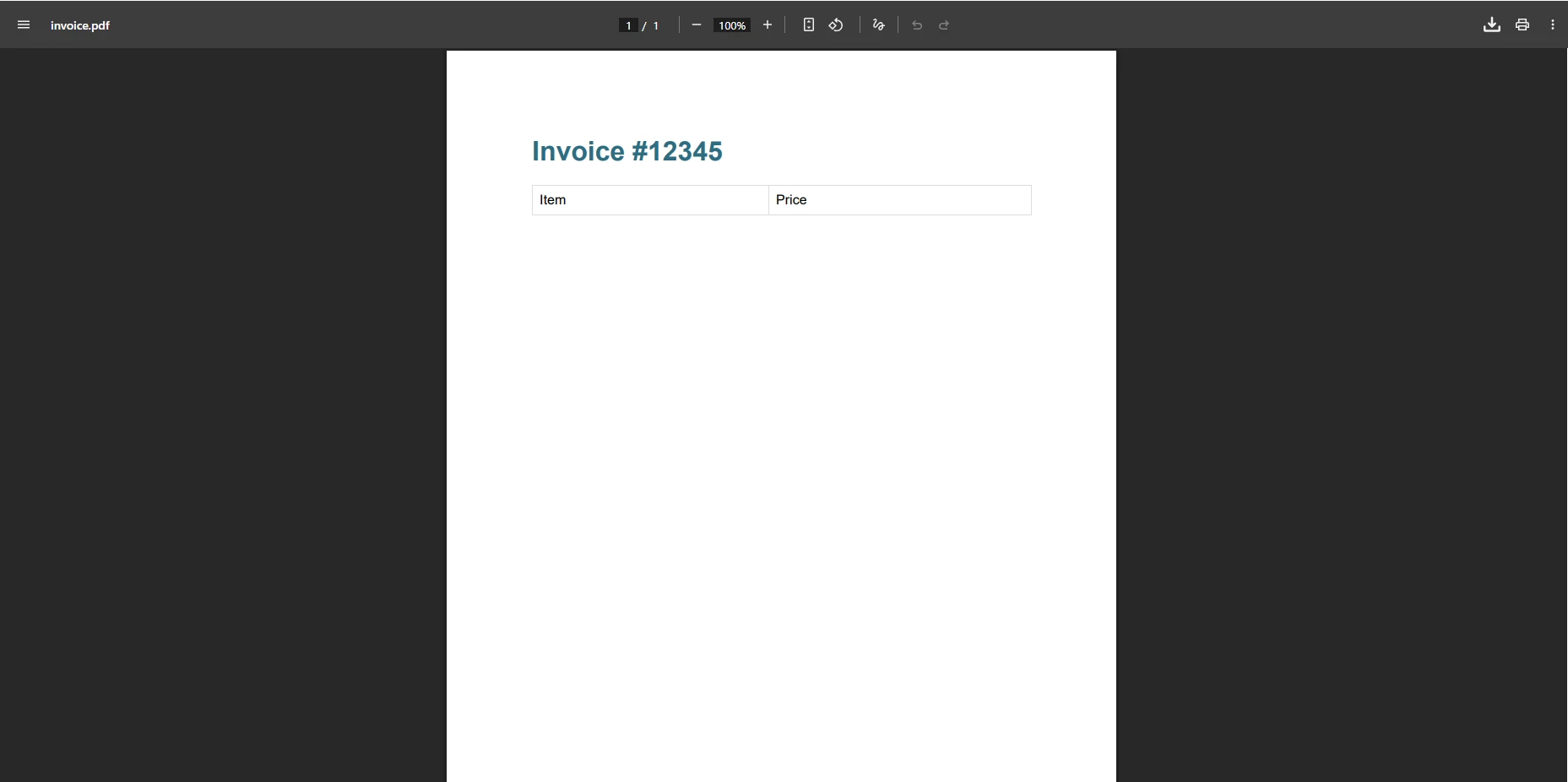
### ChromePdfRenderer 출력은 어떻게 생겼나요?
### 왜 이 접근 방식이 구문 오류를 제거합니까?
이 코드는 어떠한 예외도 없이 PDF 파일을 성공적으로 만듭니다. 이 방법은 복잡한 HTML 및 CSS를 자동으로 처리하여 우회가 필요하지 않습니다. 콘텐츠는 픽셀 단위로 정확하게 렌더링되며 브라우저 미리보기와 일치합니다. ChromePdfRenderer는 또한 [비동기 렌더링](https://ironpdf.com/how-to/async/), 사용자 정의 여백, 최적화된 파일 크기를 위한 PDF 압축을 지원합니다.
JavaScript 중심의 콘텐츠나 단일 페이지 애플리케이션이 관련된 시나리오에서는 ChromePdfRenderer의 `RenderDelay` 옵션이 JavaScript가 PDF가 캡처되기 전에 실행되도록 허용합니다 - 이는 XMLWorker가 전혀 할 수 없는 것입니다. 다음 예제는 프로덕션 준비된 비동기 패턴으로 헤더, 푸터 및 보안 설정을 추가합니다:
```csharp
using IronPdf;
using Microsoft.Extensions.Logging;
// Production-ready PDF generation with ChromePdfRenderer
public class PdfGenerator
{
private readonly ChromePdfRenderer _renderer;
private readonly ILogger<PdfGenerator> _logger;
public PdfGenerator(ILogger<PdfGenerator> logger)
{
_logger = logger;
_renderer = new ChromePdfRenderer();
_renderer.RenderingOptions.Timeout = 60;
_renderer.RenderingOptions.EnableJavaScript = true;
_renderer.RenderingOptions.RenderDelay = 2000;
_renderer.RenderingOptions.HtmlHeader = new HtmlHeaderFooter
{
Height = 25,
HtmlFragment = "<div style='text-align: center;'>{page} of {total-pages}</div>"
};
}
public async Task<PdfDocument> GenerateWithRetry(string html, int maxRetries = 3)
{
for (int i = 0; i < maxRetries; i++)
{
try
{
_logger.LogInformation("Generating PDF, attempt {Attempt}", i + 1);
return await _renderer.RenderHtmlAsPdfAsync(html);
}
catch (Exception ex)
{
_logger.LogWarning("PDF generation failed: {Message}", ex.Message);
if (i == maxRetries - 1) throw;
await Task.Delay(1000 * (i + 1));
}
}
throw new InvalidOperationException("PDF generation failed after retries");
}
}
```
## 신뢰할 수 있는 PDF 생성을 위한 최상의 솔루션은 무엇입니까?
HTML을 PDF로 변환할 때 두 라이브러리를 비교하면, 기능 차이가 PDF 품질과 배포 안정성에 직접적으로 영향을 미칩니다:
<table class="content__data-table" data-content-table>
<caption>기능 비교: iText와 XMLWorker 대 ChromePdfRenderer</caption>
<thead>
<tr>
<th>특징</th>
<th>iText + XMLWorker</th>
<th>ChromePdfRenderer</th>
</tr>
</thead>
<tbody>
<tr>
<td>현대 HTML/CSS 지원</td>
<td>제한적 (HTML 4, CSS 2)</td>
<td>전체 (Chrome 렌더링 엔진)</td>
</tr>
<tr>
<td>JavaScript 실행</td>
<td>아니요</td>
<td>예</td>
</tr>
<tr>
<td>오류 처리</td>
<td>구문 예외가 자주 발생</td>
<td>신뢰할 수 있는 렌더링</td>
</tr>
<tr>
<td>복잡한 테이블</td>
<td>종종 실패</td>
<td>전체 지원</td>
</tr>
<tr>
<td>사용자 지정 글꼴</td>
<td>수동 임베딩 필요</td>
<td>자동 처리</td>
</tr>
<tr>
<td>SVG 지원</td>
<td>아니요</td>
<td>예</td>
</tr>
<tr>
<td>비동기 렌더링</td>
<td>아니요</td>
<td>예</td>
</tr>
<tr>
<td>Docker/Linux 지원</td>
<td>제한된</td>
<td>완전한 네이티브 지원</td>
</tr>
<tr>
<td>CSS 미디어 유형</td>
<td>기본</td>
<td>화면 및 인쇄</td>
</tr>
<tr>
<td>디버깅 도구</td>
<td>제한된</td>
<td>Chrome DevTools 통합</td>
</tr>
</tbody>
</table>
### iText에서 ChromePdfRenderer로 어떻게 전환합니까?
문서에 페이지가 없음' 오류를 경험하는 개발자에게 ChromePdfRenderer로의 마이그레이션은 즉각적인 해결책을 제공합니다. 변환 과정은 간단하며 ChromePdfRenderer는 완전한 [문서](https://ironpdf.com/docs/)와 [코드 예제](https://ironpdf.com/examples/using-html-to-create-a-pdf/)를 제공합니다. 다음의 전후 비교는 복잡성의 감소를 보여줍니다:
```csharp
// Before (iTextSharp) -- error-prone approach requiring workarounds
public byte[] CreatePdfWithIText(string htmlContent)
{
using var ms = new MemoryStream();
var document = new Document();
var writer = PdfWriter.GetInstance(document, ms);
document.Open();
// Must add empty paragraph to avoid "no pages" error
document.Add(new Paragraph(""));
try
{
using var sr = new StringReader(htmlContent);
XMLWorkerHelper.GetInstance().ParseXHtml(writer, document, sr);
}
catch (Exception ex)
{
document.Add(new Paragraph("Error: " + ex.Message));
}
document.Close();
return ms.ToArray();
}
// After (ChromePdfRenderer) -- reliable, no workarounds needed
public byte[] CreatePdfWithIron(string htmlContent)
{
ChromePdfRenderer renderer = new ChromePdfRenderer();
renderer.RenderingOptions.EnableJavaScript = true;
renderer.RenderingOptions.RenderDelay = 500;
PdfDocument pdf = renderer.RenderHtmlAsPdf(htmlContent);
return pdf.BinaryData;
}
```
### ChromePdfRenderer의 API가 개발자 친화적인 이유는 무엇입니까?
간소화된 API는 유지해야 할 코드가 적고 디버깅할 구문 분석 오류가 없습니다. ChromePdfRenderer는 복잡한 우회 없이 [머리글 및 바닥글 추가](https://ironpdf.com/how-to/headers-and-footers/), [PDF 병합](https://ironpdf.com/how-to/merge-or-split-pdfs/), [전자 서명 적용](https://ironpdf.com/how-to/signing/) 기능도 제공합니다. [Docker 환경](https://ironpdf.com/get-started/ironpdf-docker/)에서 작업하거나 Linux 서버에 배포하는 팀을 위해 ChromePdfRenderer는 플랫폼 간 일관된 동작을 제공합니다.
!!!--LIBRARY_NUGET_INSTALL_BLOCK--!!!
[무료 체험을 시작하세요](trial-license) 오류 없는 [HTML에서 PDF로의 변환](https://ironpdf.com/tutorials/html-to-pdf/)을 경험하세요.
## 다음 단계는 무엇입니까?
"문서에 페이지가 없습니다" 오류는 iText의 XMLWorker에 내장된 근본적인 구문 분석 제한에서 발생합니다. 문서를 빈 단락으로 미리 채우는 등의 우회 방법이 존재하지만, 복잡한 HTML 처리의 근본적인 문제를 해결하지 못합니다. [ChromePdfRenderer의 Chrome 기반 렌더링](https://ironpdf.com/how-to/ironpdf-2021-chrome-rendering-engine-eap/)은 구문 분석 예외 없이 최신 웹 콘텐츠를 처리하는 신뢰할 수 있는 솔루션을 제공합니다.
HTML에서 일관된 PDF 생성을 요구하는 생산 환경에서는 ChromePdfRenderer가 구문 분석 오류에 대한 디버깅의 불편을 제거하고 전문적인 결과를 제공합니다. 엔진은 모든 HTML 요소, CSS 스타일 및 JavaScript를 처리하여 문서가 매번 올바르게 렌더링되도록 합니다. [송장](https://ironpdf.com/how-to/csharp-pdf-reports/), 보고서, 텍스트, 표 및 이미지를 포함한 어떠한 문서를 생성하든지 ChromePdfRenderer는 필요한 솔루션을 제공합니다.
다음 단계로 진행하기 위해 여기에 추천되는 다음 단계를 제시합니다:
- ChromePdfRenderer를 NuGet(`dotnet add package IronPdf`)을 통해 설치하고 [퀵스타트 가이드](https://ironpdf.com/get-started/quickstart/)를 실행하십시오.
- 전체 렌더링 옵션 연습를 위한 [HTML에서 PDF로 튜토리얼](https://ironpdf.com/tutorials/html-to-pdf/)을 검토하세요
- 설정 가능한 여백, 머리글, JavaScript 대기 시간 및 보안 설정을 위한 [ChromePdfRenderer API 참조](https://ironpdf.com/object-reference/api/IronPdf.ChromePdfRenderer.html)를 탐색하세요
- 철저한 라이브러리 차이 분석을 위해 [iText 대 ChromePdfRenderer 비교](https://ironpdf.com/competitors/itext-vs-ironpdf/)를 확인하십시오.
- 대량 작업을 위한 출력 최적화를 위해 [문제 해결 가이드](https://ironpdf.com/troubleshooting/)를 검토하세요
- 클라우드 배포의 경우 [Azure](https://ironpdf.com/how-to/azure/) 및 [Docker](https://ironpdf.com/get-started/ironpdf-docker/) 설정 가이드를 참조하세요
[[i:(iText와 XMLWorker는 해당 소유자의 등록 상표입니다. 본 사이트는 iText 또는 XMLWorker와 관련이 없으며, 승인 또는 후원을 받지 않았습니다. 모든 제품명, 로고 및 브랜드는 해당 소유자의 자산입니다. 비교는 정보 제공 목적으로만 사용되며, 작성 시점에 공개적으로 이용 가능한 정보를 반영합니다.
)]]
iText에서 "문서에 페이지가 없습니다" 오류는 XMLWorker가 HTML 콘텐츠를 구문 분석하지 못할 때 발생합니다. 그러나 ChromePdfRenderer의 Chrome 기반 렌더러는 이 문제를 제거하여 브라우저처럼 HTML을 처리하므로 구문 예외 없이 신뢰할 수 있는 PDF 생성이 가능합니다.
.NET 애플리케이션에서 HTML을 PDF로 변환하는 것은 일반적인 요구 사항이지만 iText를 사용하는 개발자는 "문서에 페이지가 없습니다" 오류를 자주 경험합니다. 이 오류는 PDF 문서 생성 프로세스가 실패할 때 나타나며, 개발자들은 해결책을 찾기 위해 노력합니다. 이 분석에서는 이는 왜 발생하며, ChromePdfRenderer의 HTML에서 PDF로 변환 기능을 통해 이를 효과적으로 해결할 수 있는 방법을 설명합니다.
"문서에 페이지가 없습니다" 오류는 왜 발생할까요?
"문서에 페이지가 없습니다" 예외는 iText의 구문 분석기가 HTML 콘텐츠를 유효한 PDF 문서로 처리하지 못할 때 발생합니다. 이 오류는 대개 문서 닫기 작업 중에 나타나며, 이는 많은 Stack Overflow 스레드에 상세히 설명되어 있습니다. 근본 원인을 이해하면 개발자가 자신의 필요에 맞는 PDF 라이브러리를 선택할 수 있게 됩니다.
XMLWorker -- iText의 HTML 구문 분석 구성 요소는 처리할 수 없는 HTML 구조를 만나면 조용히 실패하기 때문에 오류가 발생합니다. 파싱 중 예외를 발생시키는 대신, 빈 문서를 생성합니다. 문서가 닫힐 때, iText는 컨텐츠가 작성되지 않았음을 감지하고 "문서에 페이지가 없습니다" 예외를 발생시킵니다. 이 조용한 실패 모드는 스택 트레이스가 실제 파싱 실패보다는 닫기 작업을 가리키기 때문에 디버깅을 특히 좌절스럽게 만듭니다.
static voidMain(string[] args){ Document pdfDoc = new Document(PageSize.A4); FileStream stream = new FileStream("output.pdf", FileMode.Create); PdfWriter writer = PdfWriter.GetInstance(pdfDoc, stream); pdfDoc.Open(); // HTML parsing fails silently -- no exception here var sr = new StringReader("<div>Complex HTML</div>");XMLWorkerHelper.GetInstance().ParseXHtml(writer, pdfDoc, sr); pdfDoc.Close(); // Exception: The document has no pagesConsole.WriteLine("Error: Document has no pages");}
static void Main(string[] args)
{
    Document pdfDoc = new Document(PageSize.A4);
    FileStream stream = new FileStream("output.pdf", FileMode.Create);
    PdfWriter writer = PdfWriter.GetInstance(pdfDoc, stream);
    pdfDoc.Open();
    // HTML parsing fails silently -- no exception here
    var sr = new StringReader("<div>Complex HTML</div>");
    XMLWorkerHelper.GetInstance().ParseXHtml(writer, pdfDoc, sr);
    pdfDoc.Close(); // Exception: The document has no pages
    Console.WriteLine("Error: Document has no pages");
}
ImportsSystem.IOImports iTextSharp.textImports iTextSharp.text.pdfImports iTextSharp.tool.xmlModuleProgram Sub Main(args AsString()) Dim pdfDoc As New Document(PageSize.A4) Dim stream As New FileStream("output.pdf", FileMode.Create) Dim writer AsPdfWriter = PdfWriter.GetInstance(pdfDoc, stream) pdfDoc.Open() ' HTML parsing fails silently -- no exception here Dim sr As New StringReader("<div>Complex HTML</div>")XMLWorkerHelper.GetInstance().ParseXHtml(writer, pdfDoc, sr) pdfDoc.Close() ' Exception: The document has no pagesConsole.WriteLine("Error: Document has no pages") End SubEndModule
Imports System.IO
Imports iTextSharp.text
Imports iTextSharp.text.pdf
Imports iTextSharp.tool.xml

Module Program
    Sub Main(args As String())
        Dim pdfDoc As New Document(PageSize.A4)
        Dim stream As New FileStream("output.pdf", FileMode.Create)
        Dim writer As PdfWriter = PdfWriter.GetInstance(pdfDoc, stream)
        pdfDoc.Open()
        ' HTML parsing fails silently -- no exception here
        Dim sr As New StringReader("<div>Complex HTML</div>")
        XMLWorkerHelper.GetInstance().ParseXHtml(writer, pdfDoc, sr)
        pdfDoc.Close() ' Exception: The document has no pages
        Console.WriteLine("Error: Document has no pages")
    End Sub
End Module
이 오류가 발생할 때 콘솔 출력은 무엇을 보여줍니까?
이 코드는 HTML에서 PDF 파일을 생성하려 시도하지만 XMLWorker가 HTML 콘텐츠를 성공적으로 파싱하지 못했기 때문에 예외가 발생합니다. 쓰기 작업은 완료되지만 문서에 내용이 추가되지 않아 빈 파일이 됩니다. 이 파싱 실패는 ASP.NET 애플리케이션에서 HTML을 PDF로 변환할 때 개발자가 직면하는 가장 흔한 문제 중 하나입니다. 사용자 정의 CSS 스타일이나 JavaScript로 렌더링된 콘텐츠를 다룰 때 문제가 더 복잡해집니다.
대체 라이브러리는 왜 동일한 문제를 겪습니까?
XMLWorker는 더 이상 사용되지 않는 HTMLWorker를 대체했지만 여전히 특정 HTML 구조에서 동일한 문제를 겪습니다. 문제가 계속되는 이유는 XMLWorker가 iText의 공식 포럼에 기록된 바와 같이 엄격한 파싱 요구 사항을 가지고 있기 때문입니다. 이 제한은 픽셀 단위로 정확한 HTML에서 PDF로 변환을 구현하거나 현대 웹 애플리케이션에서 반응형 CSS 레이아웃을 사용하는 개발자에게 영향을 미칩니다.
일반적인 해결책은 HTML을 파싱하기 전에 문서를 빈 단락으로 미리 채우는 것입니다. 이렇게 하면 문서가 닫힐 때 콘텐츠 요소가 하나라도 존재하도록 하여 '페이지 없음' 예외를 방지합니다:
public static voidCreatePDF(string html, string path){ using (var fs = new FileStream(path, FileMode.Create)) { var document = new Document(); var writer = PdfWriter.GetInstance(document, fs); document.Open(); document.Add(new Paragraph("")); // Workaround to avoid error var phrase = new Phrase("Draft version", FontFactory.GetFont("Arial", 8)); document.Add(phrase); using (var sr = new StringReader(html)) {XMLWorkerHelper.GetInstance().ParseXHtml(writer, document, sr); } document.Close(); }}
public static void CreatePDF(string html, string path)
{
    using (var fs = new FileStream(path, FileMode.Create))
    {
        var document = new Document();
        var writer = PdfWriter.GetInstance(document, fs);
        document.Open();
        document.Add(new Paragraph("")); // Workaround to avoid error
        var phrase = new Phrase("Draft version", FontFactory.GetFont("Arial", 8));
        document.Add(phrase);
        using (var sr = new StringReader(html))
        {
            XMLWorkerHelper.GetInstance().ParseXHtml(writer, document, sr);
        }
        document.Close();
    }
}
ImportsSystem.IOImports iTextSharp.textImports iTextSharp.text.pdfImports iTextSharp.tool.xmlPublicShared Sub CreatePDF(html AsString, path AsString)Using fs As New FileStream(path, FileMode.Create) Dim document As New Document() Dim writer AsPdfWriter = PdfWriter.GetInstance(document, fs) document.Open() document.Add(New Paragraph("")) ' Workaround to avoid error Dim phrase As New Phrase("Draft version", FontFactory.GetFont("Arial", 8)) document.Add(phrase)Using sr As New StringReader(html)XMLWorkerHelper.GetInstance().ParseXHtml(writer, document, sr)EndUsing document.Close()EndUsingEnd Sub
Imports System.IO
Imports iTextSharp.text
Imports iTextSharp.text.pdf
Imports iTextSharp.tool.xml

Public Shared Sub CreatePDF(html As String, path As String)
    Using fs As New FileStream(path, FileMode.Create)
        Dim document As New Document()
        Dim writer As PdfWriter = PdfWriter.GetInstance(document, fs)
        document.Open()
        document.Add(New Paragraph("")) ' Workaround to avoid error
        Dim phrase As New Phrase("Draft version", FontFactory.GetFont("Arial", 8))
        document.Add(phrase)
        Using sr As New StringReader(html)
            XMLWorkerHelper.GetInstance().ParseXHtml(writer, document, sr)
        End Using
        document.Close()
    End Using
End Sub
이 해결책으로 PDF 출력은 어떻게 보이나요?
복잡한 HTML 요소는 왜 여전히 렌더링에 실패합니까?
빈 단락을 추가하는 것은 즉각적인 오류를 방지하지만, 표 요소, 이미지, 사용자 정의 글꼴이 포함된 복잡한 HTML은 종종 올바르게 렌더링되지 않습니다. 결과 PDF 문서에서 내용이 누락되거나 잘못된 형식일 수 있습니다. 내장 스타일, 하이퍼링크 요소 또는 특정 폭 속성을 가진 HTML을 처리할 때 개발자도 동일한 문제를 겪습니다. 널 참조 및 누락된 요소 렌더링은 추가 문제를 발생시키며 추가적인 해결이 필요합니다.
XMLWorker는 HTML 4의 하위 집합 및 기본 CSS 2를 처리하도록 설계되었습니다. 현대 웹 페이지는 CSS Grid, Flexbox, CSS 변수, calc() 표현식, SVG 그래픽 및 JavaScript 기반 렌더링과 같은 범위를 넘어선 기능을 자주 사용합니다. 이들 중 어느 것이든 "페이지 없음" 오류를 유발하거나 설명적인 오류 메시지 없이 잘못된 출력을 조용히 생성할 수 있습니다.
// Common XMLWorker limitations that require manual handlingpublic voidProcessComplexHTML(string htmlContent){ // CSS flexbox -- not supported by XMLWorker if (htmlContent.Contains("display: flex")) throw new NotSupportedException("Flexbox layout not supported"); // JavaScript content -- silently ignored if (htmlContent.Contains("<script>"))Console.WriteLine("Warning: JavaScript will be ignored"); // 사용자 지정 글꼴 -- require manual embedding if (htmlContent.Contains("@font-face"))Console.WriteLine("Warning: Web fonts need manual setup");}
// Common XMLWorker limitations that require manual handling
public void ProcessComplexHTML(string htmlContent)
{
    // CSS flexbox -- not supported by XMLWorker
    if (htmlContent.Contains("display: flex"))
        throw new NotSupportedException("Flexbox layout not supported");

    // JavaScript content -- silently ignored
    if (htmlContent.Contains("<script>"))
        Console.WriteLine("Warning: JavaScript will be ignored");

    // 사용자 지정 글꼴 -- require manual embedding
    if (htmlContent.Contains("@font-face"))
        Console.WriteLine("Warning: Web fonts need manual setup");
}
' Common XMLWorker limitations that require manual handlingPublic Sub ProcessComplexHTML(htmlContent AsString) ' CSS flexbox -- not supported by XMLWorker If htmlContent.Contains("display: flex") ThenThrow New NotSupportedException("Flexbox layout not supported") End If ' JavaScript content -- silently ignored If htmlContent.Contains("<script>") ThenConsole.WriteLine("Warning: JavaScript will be ignored") End If ' 사용자 지정 글꼴 -- require manual embedding If htmlContent.Contains("@font-face") ThenConsole.WriteLine("Warning: Web fonts need manual setup") End IfEnd Sub
' Common XMLWorker limitations that require manual handling
Public Sub ProcessComplexHTML(htmlContent As String)
    ' CSS flexbox -- not supported by XMLWorker
    If htmlContent.Contains("display: flex") Then
        Throw New NotSupportedException("Flexbox layout not supported")
    End If

    ' JavaScript content -- silently ignored
    If htmlContent.Contains("<script>") Then
        Console.WriteLine("Warning: JavaScript will be ignored")
    End If

    ' 사용자 지정 글꼴 -- require manual embedding
    If htmlContent.Contains("@font-face") Then
        Console.WriteLine("Warning: Web fonts need manual setup")
    End If
End Sub
동일한 오류 없이 최신 HTML을 변환하는 방법은?
이 실제 시나리오는 스타일이 적용된 인보이스를 HTML에서 PDF로 변환하는 것을 보여줍니다. 샘플은 문제가 자주 발생하는 일반적인 요소를 포함합니다: 인라인 CSS, 미디어 쿼리, 테이블 레이아웃 및 하이퍼링크. XMLWorker에서 "페이지 없음" 오류를 발생시키는 구조는 다음과 같습니다:
iText가 이 인보이스 템플릿을 처리할 때, 출력은 종종 CSS 스타일링이 제거되고, 배경 색상이 누락되며, 테이블 테두리를 잃게 됩니다. @media print 쿼리는 무시되고, 웹 폰트 참조는 조용히 구문 분석 실패를 유발합니다. HTML이 XMLWorker가 인식하지 못하는 CSS 속성을 포함하고 있으면, 전체 블록이 렌더링 실패할 수 있으며, 파싱 시점에 오류 없이 콘텐츠가 누락될 수 있습니다.
ChromePdfRenderer는 동일한 인보이스를 어떻게 렌더링합니까?
왜 이러한 HTML 요소들이 iText에서 문제를 야기합니까?
iText의 XMLWorker로 인해 이 인보이스는 테이블 스타일링, 너비 속성 또는 폰트 사양 때문에 실패할 수 있습니다. 이러한 요소가 지원되지 않을 때 "문서에 페이지가 없습니다" 오류가 종종 나타납니다. 하이퍼링크와 미디어 쿼리 참조 또한 올바르게 렌더링되지 않을 수 있습니다. 이러한 제한은 비즈니스 애플리케이션에서 디지털 서명이나 페이지 번호와 같은 고급 PDF 기능을 구현할 때 중요해집니다.
Mozilla 개발자 네트워크의 CSS 문서에 따르면, 현대 CSS는 브라우저에서 기본적으로 지원하는 수백 개의 속성과 값을 포함합니다. XMLWorker는 이 중 일부분만을 다루며, 이 때문에 실제 웹 콘텐츠는 계속해서 구문 분석 실패를 유발합니다.
구문 오류 없이 HTML을 PDF로 변환하는 방법은?
ChromePdfRenderer는 웹 브라우저에서 나타나는 것처럼 정확하게 HTML을 처리하는 Chrome 기반 렌더링 엔진을 사용합니다. 이 접근 방식은 구문 오류를 제거하고 모든 현대 HTML 및 CSS 기능을 지원합니다. ChromePdfRenderer API 레퍼런스를 탐색하여 전체 구성 옵션 목록을 확인할 수 있습니다. Chrome 엔진은 XMLWorker가 처리할 수 없는 JavaScript 실행, 웹 글꼴 및 반응형 레이아웃을 지원합니다.
NuGet을 통해 ChromePdfRenderer를 어떻게 설치합니까?
코드를 작성하기 전에 ChromePdfRenderer NuGet 패키지를 설치하세요. .NET CLI에서 이 작업을 수행할 수 있습니다:
> dotnet add package IronPdf
dotnet add package IronPdf
또는 Visual Studio의 NuGet 패키지 관리자 콘솔에서:
PM > Install-Package IronPdf
Install-Package IronPdf
한번 설치되면 ChromePdfRenderer에 접근할 수 있으며, 이는 전체 iText + XMLWorker 파이프라인을 한 번의 신뢰할 수 있는 호출로 대체합니다.
ChromePdfRenderer로 HTML을 PDF로 어떻게 렌더링합니까?
다음 예제는 iText에서 실패를 유발한 동일한 인보이스 HTML을 렌더링합니다. 우회가 없고, 사전 추가된 빈 단락이 없으며, 관리해야 하는 조용한 실패가 없습니다:
Imports IronPdf

Dim renderer As New ChromePdfRenderer()

' Configure rendering options for production use
renderer.RenderingOptions.MarginTop = 40
renderer.RenderingOptions.MarginBottom = 40
renderer.RenderingOptions.CssMediaType = PdfCssMediaType.Print
renderer.RenderingOptions.PrintHtmlBackgrounds = True

Dim html As String = "<div style='font-family: Arial; width: 100%;'>" & _
    "<h1 style='color: #2e6c80;'>Invoice #12345</h1>" & _
    "<table style='width: 100%; border-collapse: collapse;'>" & _
        "<tr>" & _
            "<th style='border: 1px solid #ddd; padding: 8px;'>Item</th>" & _
            "<th style='border: 1px solid #ddd; padding: 8px;'>Price</th>" & _
        "</tr>" & _
        "<tr>" & _
            "<td style='border: 1px solid #ddd; padding: 8px;'>Service</td>" & _
            "<td style='border: 1px solid #ddd; padding: 8px;'>$100.00</td>" & _
        "</tr>" & _
    "</table>" & _
"</div>"

Dim pdf As PdfDocument = renderer.RenderHtmlAsPdf(html)
pdf.SaveAs("invoice.pdf")
ChromePdfRenderer 출력은 어떻게 생겼나요?
왜 이 접근 방식이 구문 오류를 제거합니까?
이 코드는 어떠한 예외도 없이 PDF 파일을 성공적으로 만듭니다. 이 방법은 복잡한 HTML 및 CSS를 자동으로 처리하여 우회가 필요하지 않습니다. 콘텐츠는 픽셀 단위로 정확하게 렌더링되며 브라우저 미리보기와 일치합니다. ChromePdfRenderer는 또한 비동기 렌더링, 사용자 정의 여백, 최적화된 파일 크기를 위한 PDF 압축을 지원합니다.
JavaScript 중심의 콘텐츠나 단일 페이지 애플리케이션이 관련된 시나리오에서는 ChromePdfRenderer의 RenderDelay 옵션이 JavaScript가 PDF가 캡처되기 전에 실행되도록 허용합니다 - 이는 XMLWorker가 전혀 할 수 없는 것입니다. 다음 예제는 프로덕션 준비된 비동기 패턴으로 헤더, 푸터 및 보안 설정을 추가합니다:
using IronPdf;using Microsoft.Extensions.Logging;// Production-ready PDF generation with ChromePdfRendererpublic class PdfGenerator{ private readonly ChromePdfRenderer _renderer; private readonly ILogger<PdfGenerator> _logger; publicPdfGenerator(ILogger<PdfGenerator> logger) { _logger = logger; _renderer = new ChromePdfRenderer(); _renderer.RenderingOptions.Timeout = 60; _renderer.RenderingOptions.EnableJavaScript = true; _renderer.RenderingOptions.RenderDelay = 2000; _renderer.RenderingOptions.HtmlHeader = new HtmlHeaderFooter {Height = 25,HtmlFragment = "<div style='text-align: center;'>{page} of {total-pages}</div>" }; } public async Task<PdfDocument> GenerateWithRetry(string html, int maxRetries = 3) { for (int i = 0; i < maxRetries; i++) { try { _logger.LogInformation("Generating PDF, attempt {Attempt}", i + 1); return await _renderer.RenderHtmlAsPdfAsync(html); } catch (Exception ex) { _logger.LogWarning("PDF generation failed: {Message}", ex.Message); if (i == maxRetries - 1) throw; awaitTask.Delay(1000 * (i + 1)); } } throw new InvalidOperationException("PDF generation failed after retries"); }}
using IronPdf;
using Microsoft.Extensions.Logging;

// Production-ready PDF generation with ChromePdfRenderer
public class PdfGenerator
{
    private readonly ChromePdfRenderer _renderer;
    private readonly ILogger<PdfGenerator> _logger;

    public PdfGenerator(ILogger<PdfGenerator> logger)
    {
        _logger = logger;
        _renderer = new ChromePdfRenderer();
        _renderer.RenderingOptions.Timeout = 60;
        _renderer.RenderingOptions.EnableJavaScript = true;
        _renderer.RenderingOptions.RenderDelay = 2000;
        _renderer.RenderingOptions.HtmlHeader = new HtmlHeaderFooter
        {
            Height = 25,
            HtmlFragment = "<div style='text-align: center;'>{page} of {total-pages}</div>"
        };
    }

    public async Task<PdfDocument> GenerateWithRetry(string html, int maxRetries = 3)
    {
        for (int i = 0; i < maxRetries; i++)
        {
            try
            {
                _logger.LogInformation("Generating PDF, attempt {Attempt}", i + 1);
                return await _renderer.RenderHtmlAsPdfAsync(html);
            }
            catch (Exception ex)
            {
                _logger.LogWarning("PDF generation failed: {Message}", ex.Message);
                if (i == maxRetries - 1) throw;
                await Task.Delay(1000 * (i + 1));
            }
        }
        throw new InvalidOperationException("PDF generation failed after retries");
    }
}
ImportsIronPdfImportsMicrosoft.Extensions.Logging' Production-ready PDF generation with ChromePdfRendererPublic Class PdfGenerator PrivateReadOnly _renderer AsChromePdfRenderer PrivateReadOnly _logger AsILogger(OfPdfGenerator) Public Sub New(logger AsILogger(OfPdfGenerator)) _logger = logger _renderer = New ChromePdfRenderer() _renderer.RenderingOptions.Timeout = 60 _renderer.RenderingOptions.EnableJavaScript = True _renderer.RenderingOptions.RenderDelay = 2000 _renderer.RenderingOptions.HtmlHeader = New HtmlHeaderFooterWith { .Height = 25, .HtmlFragment = "<div style='text-align: center;'>{page} of {total-pages}</div>" } End Sub PublicAsync Function GenerateWithRetry(html AsString, Optional maxRetries AsInteger = 3) AsTask(OfPdfDocument) For i AsInteger = 0 To maxRetries - 1Try _logger.LogInformation("Generating PDF, attempt {Attempt}", i + 1) ReturnAwait _renderer.RenderHtmlAsPdfAsync(html)Catch ex AsException _logger.LogWarning("PDF generation failed: {Message}", ex.Message) If i = maxRetries - 1 ThenThrowAwaitTask.Delay(1000 * (i + 1))EndTry NextThrow New InvalidOperationException("PDF generation failed after retries") End FunctionEnd Class
Imports IronPdf
Imports Microsoft.Extensions.Logging

' Production-ready PDF generation with ChromePdfRenderer
Public Class PdfGenerator
    Private ReadOnly _renderer As ChromePdfRenderer
    Private ReadOnly _logger As ILogger(Of PdfGenerator)

    Public Sub New(logger As ILogger(Of PdfGenerator))
        _logger = logger
        _renderer = New ChromePdfRenderer()
        _renderer.RenderingOptions.Timeout = 60
        _renderer.RenderingOptions.EnableJavaScript = True
        _renderer.RenderingOptions.RenderDelay = 2000
        _renderer.RenderingOptions.HtmlHeader = New HtmlHeaderFooter With {
            .Height = 25,
            .HtmlFragment = "<div style='text-align: center;'>{page} of {total-pages}</div>"
        }
    End Sub

    Public Async Function GenerateWithRetry(html As String, Optional maxRetries As Integer = 3) As Task(Of PdfDocument)
        For i As Integer = 0 To maxRetries - 1
            Try
                _logger.LogInformation("Generating PDF, attempt {Attempt}", i + 1)
                Return Await _renderer.RenderHtmlAsPdfAsync(html)
            Catch ex As Exception
                _logger.LogWarning("PDF generation failed: {Message}", ex.Message)
                If i = maxRetries - 1 Then Throw
                Await Task.Delay(1000 * (i + 1))
            End Try
        Next
        Throw New InvalidOperationException("PDF generation failed after retries")
    End Function
End Class
신뢰할 수 있는 PDF 생성을 위한 최상의 솔루션은 무엇입니까?
HTML을 PDF로 변환할 때 두 라이브러리를 비교하면, 기능 차이가 PDF 품질과 배포 안정성에 직접적으로 영향을 미칩니다:
기능 비교: iText와 XMLWorker 대 ChromePdfRenderer
특징
iText + XMLWorker
ChromePdfRenderer
현대 HTML/CSS 지원
제한적 (HTML 4, CSS 2)
전체 (Chrome 렌더링 엔진)
JavaScript 실행
아니요
예
오류 처리
구문 예외가 자주 발생
신뢰할 수 있는 렌더링
복잡한 테이블
종종 실패
전체 지원
사용자 지정 글꼴
수동 임베딩 필요
자동 처리
SVG 지원
아니요
예
비동기 렌더링
아니요
예
Docker/Linux 지원
제한된
완전한 네이티브 지원
CSS 미디어 유형
기본
화면 및 인쇄
디버깅 도구
제한된
Chrome DevTools 통합
iText에서 ChromePdfRenderer로 어떻게 전환합니까?
문서에 페이지가 없음' 오류를 경험하는 개발자에게 ChromePdfRenderer로의 마이그레이션은 즉각적인 해결책을 제공합니다. 변환 과정은 간단하며 ChromePdfRenderer는 완전한 문서와 코드 예제를 제공합니다. 다음의 전후 비교는 복잡성의 감소를 보여줍니다:
// Before (iTextSharp) -- error-prone approach requiring workaroundspublic byte[] CreatePdfWithIText(string htmlContent){ using var ms = new MemoryStream(); var document = new Document(); var writer = PdfWriter.GetInstance(document, ms); document.Open(); // Must add empty paragraph to avoid "no pages" error document.Add(new Paragraph("")); try { using var sr = new StringReader(htmlContent);XMLWorkerHelper.GetInstance().ParseXHtml(writer, document, sr); } catch (Exception ex) { document.Add(new Paragraph("Error: " + ex.Message)); } document.Close(); return ms.ToArray();}// After (ChromePdfRenderer) -- reliable, no workarounds neededpublic byte[] CreatePdfWithIron(string htmlContent){ ChromePdfRenderer renderer = new ChromePdfRenderer(); renderer.RenderingOptions.EnableJavaScript = true; renderer.RenderingOptions.RenderDelay = 500; PdfDocument pdf = renderer.RenderHtmlAsPdf(htmlContent); return pdf.BinaryData;}
// Before (iTextSharp) -- error-prone approach requiring workarounds
public byte[] CreatePdfWithIText(string htmlContent)
{
    using var ms = new MemoryStream();
    var document = new Document();
    var writer = PdfWriter.GetInstance(document, ms);
    document.Open();

    // Must add empty paragraph to avoid "no pages" error
    document.Add(new Paragraph(""));

    try
    {
        using var sr = new StringReader(htmlContent);
        XMLWorkerHelper.GetInstance().ParseXHtml(writer, document, sr);
    }
    catch (Exception ex)
    {
        document.Add(new Paragraph("Error: " + ex.Message));
    }

    document.Close();
    return ms.ToArray();
}

// After (ChromePdfRenderer) -- reliable, no workarounds needed
public byte[] CreatePdfWithIron(string htmlContent)
{
    ChromePdfRenderer renderer = new ChromePdfRenderer();
    renderer.RenderingOptions.EnableJavaScript = true;
    renderer.RenderingOptions.RenderDelay = 500;

    PdfDocument pdf = renderer.RenderHtmlAsPdf(htmlContent);
    return pdf.BinaryData;
}
' Before (iTextSharp) -- error-prone approach requiring workaroundsPublic Function CreatePdfWithIText(ByVal htmlContent AsString) AsByte()Using ms As New MemoryStream() Dim document As New Document() Dim writer AsPdfWriter = PdfWriter.GetInstance(document, ms) document.Open() ' Must add empty paragraph to avoid "no pages" error document.Add(New Paragraph(""))TryUsing sr As New StringReader(htmlContent)XMLWorkerHelper.GetInstance().ParseXHtml(writer, document, sr)EndUsingCatch ex AsException document.Add(New Paragraph("Error: " & ex.Message))EndTry document.Close() Return ms.ToArray()EndUsingEnd Function' After (ChromePdfRenderer) -- reliable, no workarounds neededPublic Function CreatePdfWithIron(ByVal htmlContent AsString) AsByte() Dim renderer As New ChromePdfRenderer() renderer.RenderingOptions.EnableJavaScript = True renderer.RenderingOptions.RenderDelay = 500 Dim pdf AsPdfDocument = renderer.RenderHtmlAsPdf(htmlContent) Return pdf.BinaryDataEnd Function
' Before (iTextSharp) -- error-prone approach requiring workarounds
Public Function CreatePdfWithIText(ByVal htmlContent As String) As Byte()
    Using ms As New MemoryStream()
        Dim document As New Document()
        Dim writer As PdfWriter = PdfWriter.GetInstance(document, ms)
        document.Open()

        ' Must add empty paragraph to avoid "no pages" error
        document.Add(New Paragraph(""))

        Try
            Using sr As New StringReader(htmlContent)
                XMLWorkerHelper.GetInstance().ParseXHtml(writer, document, sr)
            End Using
        Catch ex As Exception
            document.Add(New Paragraph("Error: " & ex.Message))
        End Try

        document.Close()
        Return ms.ToArray()
    End Using
End Function

' After (ChromePdfRenderer) -- reliable, no workarounds needed
Public Function CreatePdfWithIron(ByVal htmlContent As String) As Byte()
    Dim renderer As New ChromePdfRenderer()
    renderer.RenderingOptions.EnableJavaScript = True
    renderer.RenderingOptions.RenderDelay = 500

    Dim pdf As PdfDocument = renderer.RenderHtmlAsPdf(htmlContent)
    Return pdf.BinaryData
End Function
ChromePdfRenderer의 API가 개발자 친화적인 이유는 무엇입니까?
간소화된 API는 유지해야 할 코드가 적고 디버깅할 구문 분석 오류가 없습니다. ChromePdfRenderer는 복잡한 우회 없이 머리글 및 바닥글 추가, PDF 병합, 전자 서명 적용 기능도 제공합니다. Docker 환경에서 작업하거나 Linux 서버에 배포하는 팀을 위해 ChromePdfRenderer는 플랫폼 간 일관된 동작을 제공합니다.
NuGet을 사용하여 설치하세요
PM > Install-Package IronPdf
Install-Package IronPdf
Install IronPDF by running the command above in the NuGet Package Manager Console, or search for the package in the NuGet Package Manager.
"문서에 페이지가 없습니다" 오류는 iText의 XMLWorker에 내장된 근본적인 구문 분석 제한에서 발생합니다. 문서를 빈 단락으로 미리 채우는 등의 우회 방법이 존재하지만, 복잡한 HTML 처리의 근본적인 문제를 해결하지 못합니다. ChromePdfRenderer의 Chrome 기반 렌더링은 구문 분석 예외 없이 최신 웹 콘텐츠를 처리하는 신뢰할 수 있는 솔루션을 제공합니다.
HTML에서 일관된 PDF 생성을 요구하는 생산 환경에서는 ChromePdfRenderer가 구문 분석 오류에 대한 디버깅의 불편을 제거하고 전문적인 결과를 제공합니다. 엔진은 모든 HTML 요소, CSS 스타일 및 JavaScript를 처리하여 문서가 매번 올바르게 렌더링되도록 합니다. 송장, 보고서, 텍스트, 표 및 이미지를 포함한 어떠한 문서를 생성하든지 ChromePdfRenderer는 필요한 솔루션을 제공합니다.
다음 단계로 진행하기 위해 여기에 추천되는 다음 단계를 제시합니다:
ChromePdfRenderer를 NuGet(dotnet add package IronPdf)을 통해 설치하고 퀵스타트 가이드를 실행하십시오.
참고해 주세요: iText와 XMLWorker는 해당 소유자의 등록 상표입니다. 본 사이트는 iText 또는 XMLWorker와 관련이 없으며, 승인 또는 후원을 받지 않았습니다. 모든 제품명, 로고 및 브랜드는 해당 소유자의 자산입니다. 비교는 정보 제공 목적으로만 사용되며, 작성 시점에 공개적으로 이용 가능한 정보를 반영합니다.
커티스 차우는 칼턴 대학교에서 컴퓨터 과학 학사 학위를 취득했으며, Node.js, TypeScript, JavaScript, React를 전문으로 하는 프론트엔드 개발자입니다. 직관적이고 미적으로 뛰어난 사용자 인터페이스를 만드는 데 열정을 가진 그는 최신 프레임워크를 활용하고, 잘 구성되고 시각적으로 매력적인 매뉴얼을 제작하는 것을 즐깁니다.










 NuGet을 사용하여 설치하세요







