푸터 콘텐츠로 바로가기
IRONPDF 사용

How to Convert Webpage to PDF in ASP .NET using C# and IronPDF

To convert web pages to PDF in ASP.NET, you can use IronPDF's ChromePdfRenderer class to transform HTML strings, URLs, or ASPX pages into PDF documents with professional security using simple code like renderer.RenderHtmlAsPdf(html) or AspxToPdf.RenderThisPageAsPdf(), ensuring SOC2 compliance and audit-ready documentation.

Converting web pages and HTML pages to PDF documents in ASP.NET applications is a common requirement for generating reports, invoices, and downloadable content. IronPDF provides a simple yet effective solution to convert webpage to PDF in ASP.NET using C#, converting input HTML, web pages, and HTML files into professional PDF files with just a few lines of code.

This is essential for modern .NET projects, particularly in enterprise environments where PDF/A compliance and digital signatures are mandatory for regulatory requirements. Explore different methods for converting your HTML and web content into high-quality PDF documents. Whether you're building reports or working with CSHTML views, IronPDF simplifies the entire process while maintaining enterprise-level security standards.

How Do You Get Started with IronPDF?

To begin converting web pages to PDF in your ASP.NET application, install IronPDF through the NuGet Package Manager Console:

Install-Package IronPdf

After installation, add the using statement to your C# files:

using IronPdf;
using IronPdf;
$vbLabelText   $csharpLabel

IronPDF works smoothly with both ASP.NET Web Forms and ASP.NET Core applications, providing consistent HTML to PDF conversion across all .NET frameworks. For enterprise deployment, consider using it with an Azure Function for serverless scaling or explore AWS Lambda deployment for multi-cloud strategies. You can also review the complete installation overview for detailed setup instructions including Docker containerization and Linux deployment options.

For organizations requiring on-premise deployment, IronPDF supports Windows Server environments and can be configured to work with IIS for high-availability scenarios. The library also offers native vs remote engine options for flexible architecture choices. Your enterprise can use IronSecureDoc for additional document security features and explore the quickstart guide for rapid implementation.

How Do You Convert HTML String to PDF?

The ChromePdfRenderer class is IronPDF's primary PDF converter for transforming HTML content into PDF documents. This method is perfect for generating PDFs from dynamically created HTML strings and supports custom CSS styling:

using IronPdf;
using System.IO;

class Program
{
    static void Main(string[] args)
    {
        // Create the PDF converter with enterprise configuration
        var renderer = new ChromePdfRenderer();

        // Configure for enterprise security requirements
        renderer.RenderingOptions.EnableJavaScript = false; // Disable for security
        renderer.RenderingOptions.AllowHttpsErrors = false; // Enforce certificate validation

        // Convert HTML string to PDF with audit logging
        string htmlContent = "<h1>Sales Report</h1><p>Quarterly sales data...</p>";
        var pdfDocument = renderer.RenderHtmlAsPdf(htmlContent);

        // Apply security settings for compliance
        pdfDocument.SecuritySettings.AllowUserPrinting = true;
        pdfDocument.SecuritySettings.AllowUserEditing = false;
        pdfDocument.SecuritySettings.AllowUserCopyPasteContent = false;

        // Save with encryption
        pdfDocument.Password = "CompliantPDF2025";
        pdfDocument.SaveAs("report.pdf");
    }
}
using IronPdf;
using System.IO;

class Program
{
    static void Main(string[] args)
    {
        // Create the PDF converter with enterprise configuration
        var renderer = new ChromePdfRenderer();

        // Configure for enterprise security requirements
        renderer.RenderingOptions.EnableJavaScript = false; // Disable for security
        renderer.RenderingOptions.AllowHttpsErrors = false; // Enforce certificate validation

        // Convert HTML string to PDF with audit logging
        string htmlContent = "<h1>Sales Report</h1><p>Quarterly sales data...</p>";
        var pdfDocument = renderer.RenderHtmlAsPdf(htmlContent);

        // Apply security settings for compliance
        pdfDocument.SecuritySettings.AllowUserPrinting = true;
        pdfDocument.SecuritySettings.AllowUserEditing = false;
        pdfDocument.SecuritySettings.AllowUserCopyPasteContent = false;

        // Save with encryption
        pdfDocument.Password = "CompliantPDF2025";
        pdfDocument.SaveAs("report.pdf");
    }
}
$vbLabelText   $csharpLabel

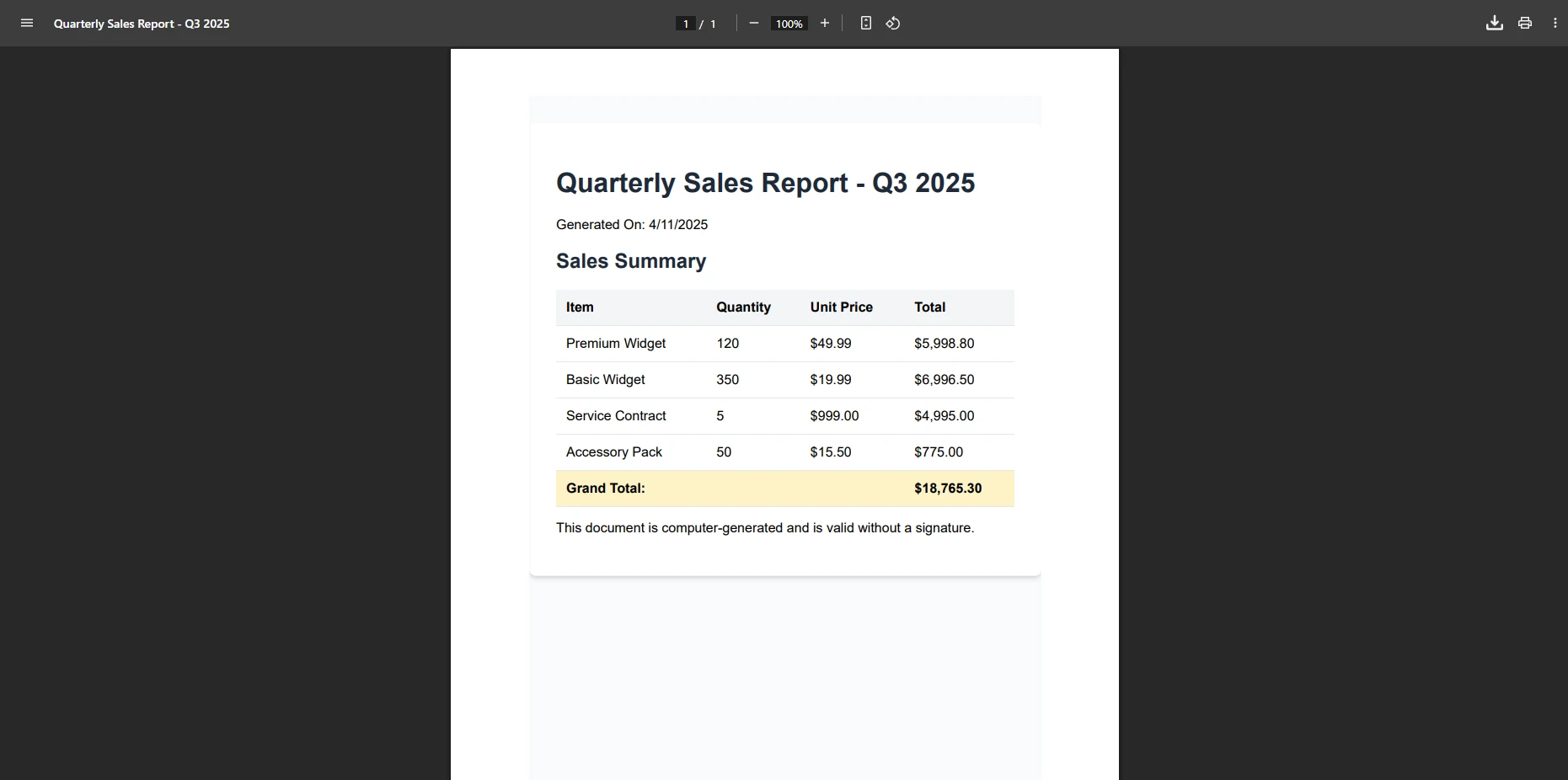
What Does Your HTML to PDF Output Look Like?

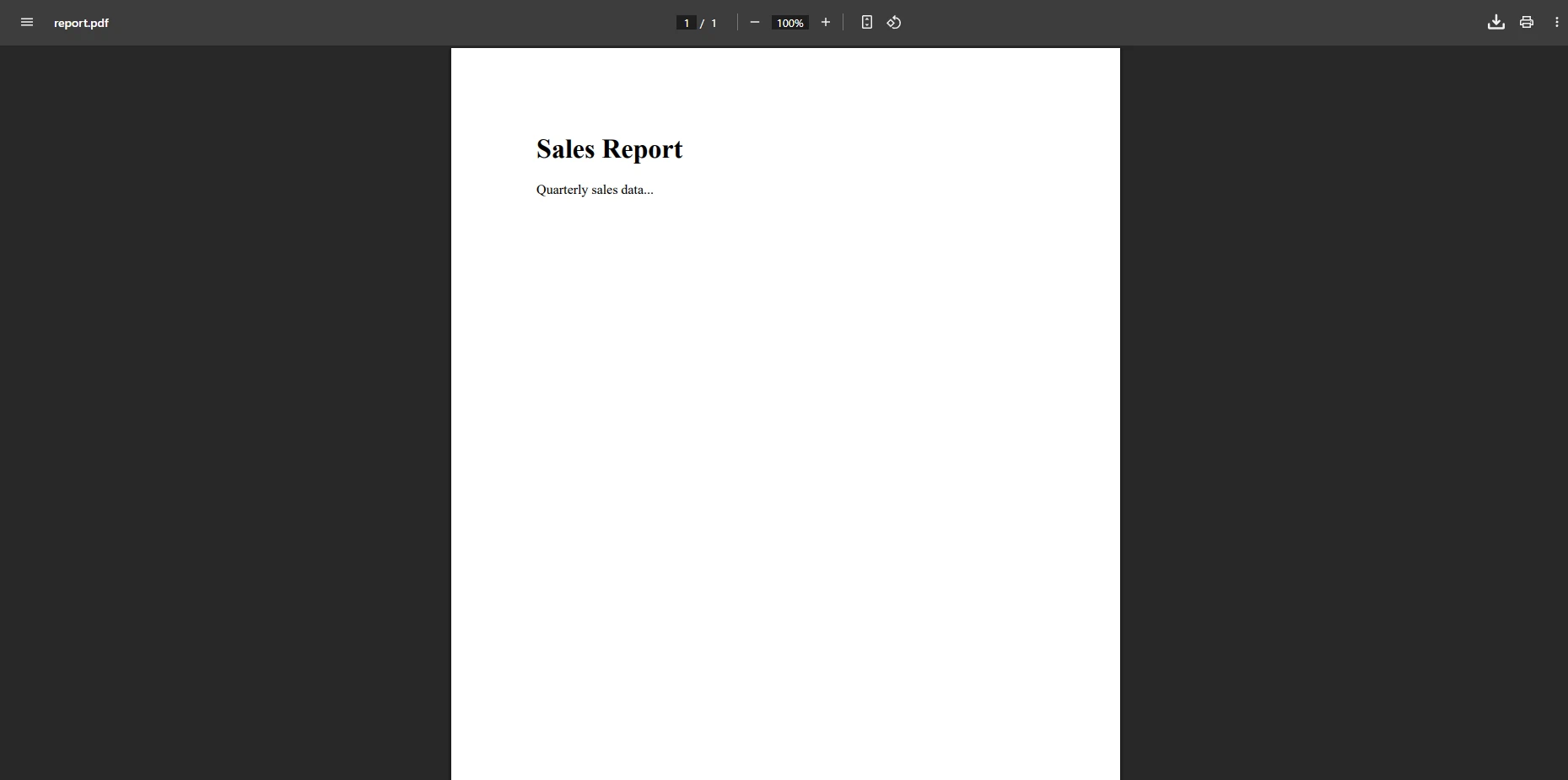
PDF viewer displaying a Q3 2025 quarterly sales report with a summary table showing product sales data including quantities and unit prices, with a grand total of $18,765.30 highlighted for review

The RenderHtmlAsPdf method preserves all CSS styles, images, and HTML elements in your PDF document while maintaining pixel-perfect rendering. When working with HTML code that references external resources (like CSS or images), you can specify a base path using base URL configuration:

var renderer = new ChromePdfRenderer();

// Configure for enterprise logging
renderer.LoggingMode = IronPdf.Logging.LoggingMode.Custom;
renderer.CustomLogger = new EnterpriseLogger(); // Your audit logger

string html = @"
    <link rel='stylesheet' href='styles.css'>
    <h1>Company Report</h1>
    <div style='text-align: center'>Annual Summary</div>";

// Set base path for external resources with validation
var pdf = renderer.RenderHtmlAsPdf(html, @"C:\SecureAssets\");

// Add metadata for compliance tracking
pdf.MetaData.Author = "Finance Department";
pdf.MetaData.CreationDate = DateTime.UtcNow;
pdf.MetaData.ModifiedDate = DateTime.UtcNow;
pdf.MetaData.Producer = "IronPDF Enterprise v2025";

pdf.SaveAs("annual-report.pdf");
var renderer = new ChromePdfRenderer();

// Configure for enterprise logging
renderer.LoggingMode = IronPdf.Logging.LoggingMode.Custom;
renderer.CustomLogger = new EnterpriseLogger(); // Your audit logger

string html = @"
    <link rel='stylesheet' href='styles.css'>
    <h1>Company Report</h1>
    <div style='text-align: center'>Annual Summary</div>";

// Set base path for external resources with validation
var pdf = renderer.RenderHtmlAsPdf(html, @"C:\SecureAssets\");

// Add metadata for compliance tracking
pdf.MetaData.Author = "Finance Department";
pdf.MetaData.CreationDate = DateTime.UtcNow;
pdf.MetaData.ModifiedDate = DateTime.UtcNow;
pdf.MetaData.Producer = "IronPDF Enterprise v2025";

pdf.SaveAs("annual-report.pdf");
$vbLabelText   $csharpLabel

For complex enterprise scenarios, explore base URLs and asset encoding to handle resources more effectively. IronPDF also supports embedding images directly into your PDFs, including Azure Blob Storage integration for cloud-native architectures. Consider implementing custom logging for complete audit trails and sanitization techniques to remove potentially malicious content. For advanced HTML rendering, review the HTML to PDF tutorial and rendering options documentation.

How Do You Convert Current Webpage to PDF in ASP.NET?

For ASP.NET Web Forms applications, IronPDF offers an incredibly simple one-line solution to convert webpages directly to PDF using the ASPX to PDF feature:

protected void Page_Load(object sender, EventArgs e)
{
    // Validate user permissions before PDF generation
    if (!User.Identity.IsAuthenticated || !User.IsInRole("PDFExport"))
    {
        Response.StatusCode = 403;
        return;
    }

    // Configure PDF security settings before rendering
    IronPdf.AspxToPdf.RenderingOptions.EnableJavaScript = false;
    IronPdf.AspxToPdf.RenderingOptions.UseMarginsOnHeaderAndFooter = true;

    // Convert current ASPX page to PDF with audit trail
    IronPdf.AspxToPdf.RenderThisPageAsPdf();
}
protected void Page_Load(object sender, EventArgs e)
{
    // Validate user permissions before PDF generation
    if (!User.Identity.IsAuthenticated || !User.IsInRole("PDFExport"))
    {
        Response.StatusCode = 403;
        return;
    }

    // Configure PDF security settings before rendering
    IronPdf.AspxToPdf.RenderingOptions.EnableJavaScript = false;
    IronPdf.AspxToPdf.RenderingOptions.UseMarginsOnHeaderAndFooter = true;

    // Convert current ASPX page to PDF with audit trail
    IronPdf.AspxToPdf.RenderThisPageAsPdf();
}
$vbLabelText   $csharpLabel

What Does ASPX to PDF Conversion Produce?

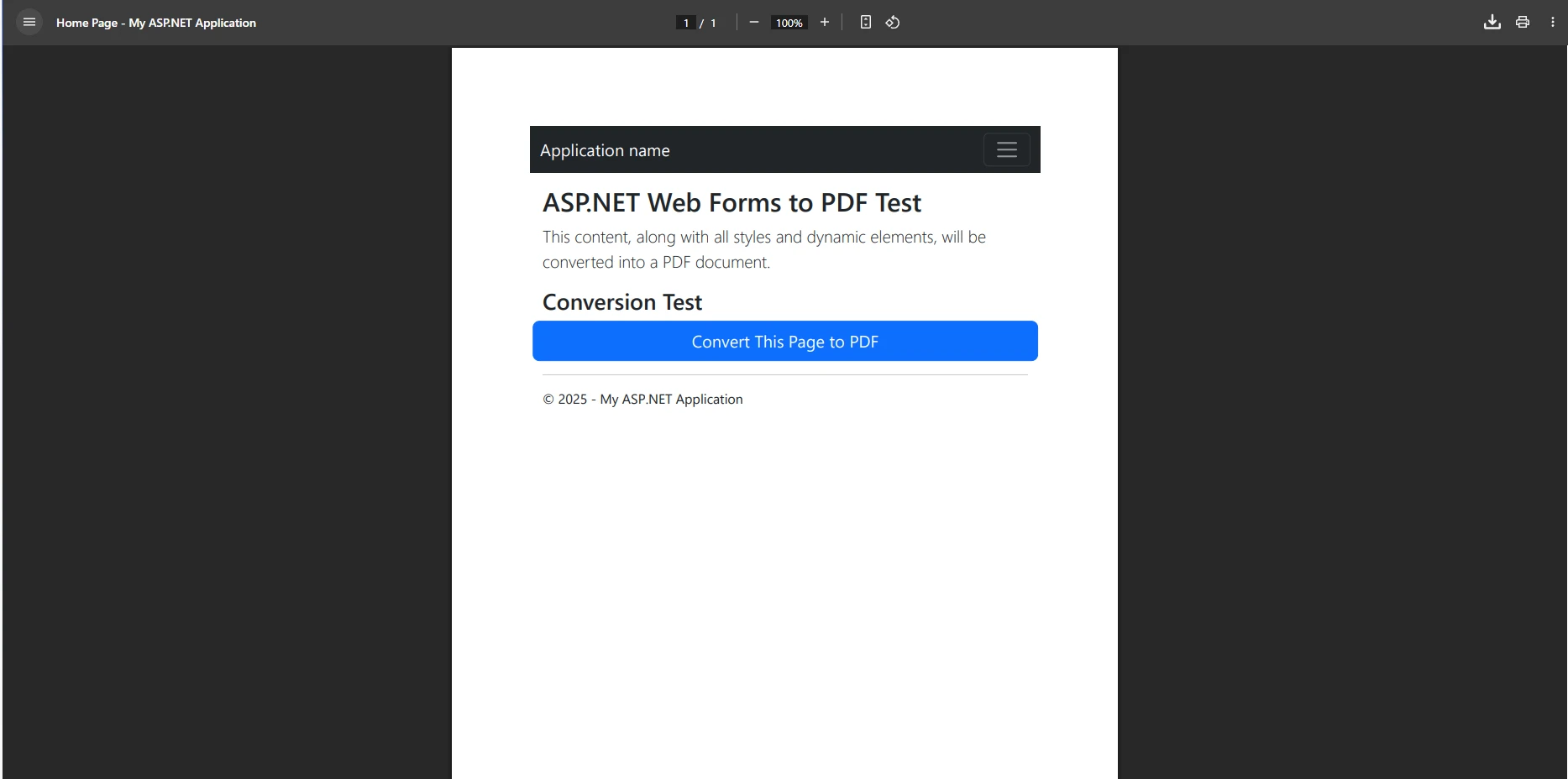
PDF viewer displaying a converted ASP.NET Web Forms page with a blue 'Convert This Page to PDF' button and preserved application styling and headers, demonstrating successful web-to-PDF conversion in a test environment

This single line of code converts the entire current webpage into a PDF file, capturing all HTML structure, styles, and dynamic content while maintaining Section 508 compliance. You can customize the output behavior for enterprise requirements using advanced ASPX settings:

// Configure professional PDF settings
IronPdf.AspxToPdf.RenderingOptions.PaperSize = IronPdf.Rendering.PdfPaperSize.Letter;
IronPdf.AspxToPdf.RenderingOptions.PrintHtmlBackgrounds = false; // Save toner
IronPdf.AspxToPdf.RenderingOptions.GrayScale = true; // For archival

// Add security headers for download
Response.Headers.Add("Content-Security-Policy", "default-src 'self'");
Response.Headers.Add("X-Content-Type-Options", "nosniff");

// Display PDF with security restrictions
IronPdf.AspxToPdf.RenderThisPageAsPdf(
    IronPdf.AspxToPdf.FileBehavior.InBrowser,
    "invoice-" + DateTime.UtcNow.ToString("yyyy-MM-dd") + ".pdf"
);
// Configure professional PDF settings
IronPdf.AspxToPdf.RenderingOptions.PaperSize = IronPdf.Rendering.PdfPaperSize.Letter;
IronPdf.AspxToPdf.RenderingOptions.PrintHtmlBackgrounds = false; // Save toner
IronPdf.AspxToPdf.RenderingOptions.GrayScale = true; // For archival

// Add security headers for download
Response.Headers.Add("Content-Security-Policy", "default-src 'self'");
Response.Headers.Add("X-Content-Type-Options", "nosniff");

// Display PDF with security restrictions
IronPdf.AspxToPdf.RenderThisPageAsPdf(
    IronPdf.AspxToPdf.FileBehavior.InBrowser,
    "invoice-" + DateTime.UtcNow.ToString("yyyy-MM-dd") + ".pdf"
);
$vbLabelText   $csharpLabel

For detailed ASPX conversion options including performance optimization, explore the ASPX to PDF tutorial. You should also review debugging techniques and troubleshooting guides for production deployments. Consider implementing grayscale conversion for document archival and page orientation settings for different layout requirements.

How Do You Handle PDF Generation in ASP.NET Core MVC?

For ASP.NET Core MVC applications in enterprise environments, use the ChromePdfRenderer with complete security controls and explore MVC Core integration:

[Authorize(Policy = "PDFExportPolicy")]
public IActionResult GeneratePdf()
{
    try
    {
        // 1. Initialize the PDF Renderer with enterprise configuration
        var renderer = new IronPdf.ChromePdfRenderer();

        // Configure for compliance requirements
        renderer.RenderingOptions.EnableJavaScript = false;
        renderer.RenderingOptions.Timeout = 30; // 30 second timeout
        renderer.RenderingOptions.RenderDelay = 0; // No delay for security

        // 2. Construct the secure internal URL
        string url = $"{Request.Scheme}://{Request.Host}/Home/SecureReport";

        // Add authentication headers if using internal APIs
        renderer.LoginCredentials = new ChromeHttpLoginCredentials()
        {
            EnableBasicAuthentication = true,
            Username = Configuration["ReportingAPI:Username"],
            Password = Configuration["ReportingAPI:Password"]
        };

        // Configure rendering options for compliance
        renderer.RenderingOptions.MarginTop = 15;
        renderer.RenderingOptions.MarginBottom = 15;
        renderer.RenderingOptions.PaperSize = IronPdf.Rendering.PdfPaperSize.Letter;

        // Add compliant footer with audit information
        renderer.RenderingOptions.TextFooter = new TextHeaderFooter()
        {
            CenterText = "CONFIDENTIAL - {page} of {total-pages}",
            LeftText = $"Generated: {DateTime.UtcNow:yyyy-MM-dd HH:mm:ss} UTC",
            RightText = $"User: {User.Identity.Name}",
            FontSize = 8
        };

        // 3. Render with error handling and logging
        var pdf = renderer.RenderUrlAsPdf(url);

        // Apply document security
        pdf.SecuritySettings.AllowUserPrinting = true;
        pdf.SecuritySettings.AllowUserEditing = false;
        pdf.SecuritySettings.AllowUserCopyPasteContent = false;
        pdf.SecuritySettings.AllowUserFormData = false;

        // Add metadata for audit trail
        pdf.MetaData.Author = User.Identity.Name;
        pdf.MetaData.Subject = "Quarterly Sales Report";
        pdf.MetaData.Keywords = "sales,q3,2025,confidential";
        pdf.MetaData.CreationDate = DateTime.UtcNow;

        // Log generation for audit
        _auditLogger.LogPdfGeneration(User.Identity.Name, "QuarterlySalesReport", pdf.PageCount);

        // 4. Send the PDF file with secure headers
        Response.Headers.Add("X-Content-Type-Options", "nosniff");
        Response.Headers.Add("Content-Security-Policy", "default-src 'none'");

        return File(pdf.BinaryData, "application/pdf", $"report-{Guid.NewGuid()}.pdf");
    }
    catch (Exception ex)
    {
        // Log security exception
        _securityLogger.LogError($"PDF generation failed for user {User.Identity.Name}", ex);
        return StatusCode(500, "PDF generation failed. Incident logged.");
    }
}
[Authorize(Policy = "PDFExportPolicy")]
public IActionResult GeneratePdf()
{
    try
    {
        // 1. Initialize the PDF Renderer with enterprise configuration
        var renderer = new IronPdf.ChromePdfRenderer();

        // Configure for compliance requirements
        renderer.RenderingOptions.EnableJavaScript = false;
        renderer.RenderingOptions.Timeout = 30; // 30 second timeout
        renderer.RenderingOptions.RenderDelay = 0; // No delay for security

        // 2. Construct the secure internal URL
        string url = $"{Request.Scheme}://{Request.Host}/Home/SecureReport";

        // Add authentication headers if using internal APIs
        renderer.LoginCredentials = new ChromeHttpLoginCredentials()
        {
            EnableBasicAuthentication = true,
            Username = Configuration["ReportingAPI:Username"],
            Password = Configuration["ReportingAPI:Password"]
        };

        // Configure rendering options for compliance
        renderer.RenderingOptions.MarginTop = 15;
        renderer.RenderingOptions.MarginBottom = 15;
        renderer.RenderingOptions.PaperSize = IronPdf.Rendering.PdfPaperSize.Letter;

        // Add compliant footer with audit information
        renderer.RenderingOptions.TextFooter = new TextHeaderFooter()
        {
            CenterText = "CONFIDENTIAL - {page} of {total-pages}",
            LeftText = $"Generated: {DateTime.UtcNow:yyyy-MM-dd HH:mm:ss} UTC",
            RightText = $"User: {User.Identity.Name}",
            FontSize = 8
        };

        // 3. Render with error handling and logging
        var pdf = renderer.RenderUrlAsPdf(url);

        // Apply document security
        pdf.SecuritySettings.AllowUserPrinting = true;
        pdf.SecuritySettings.AllowUserEditing = false;
        pdf.SecuritySettings.AllowUserCopyPasteContent = false;
        pdf.SecuritySettings.AllowUserFormData = false;

        // Add metadata for audit trail
        pdf.MetaData.Author = User.Identity.Name;
        pdf.MetaData.Subject = "Quarterly Sales Report";
        pdf.MetaData.Keywords = "sales,q3,2025,confidential";
        pdf.MetaData.CreationDate = DateTime.UtcNow;

        // Log generation for audit
        _auditLogger.LogPdfGeneration(User.Identity.Name, "QuarterlySalesReport", pdf.PageCount);

        // 4. Send the PDF file with secure headers
        Response.Headers.Add("X-Content-Type-Options", "nosniff");
        Response.Headers.Add("Content-Security-Policy", "default-src 'none'");

        return File(pdf.BinaryData, "application/pdf", $"report-{Guid.NewGuid()}.pdf");
    }
    catch (Exception ex)
    {
        // Log security exception
        _securityLogger.LogError($"PDF generation failed for user {User.Identity.Name}", ex);
        return StatusCode(500, "PDF generation failed. Incident logged.");
    }
}
$vbLabelText   $csharpLabel

PDF viewer displaying a quarterly sales report for Q3 2025 with a detailed data table showing four products with quantities and unit prices totaling $18,765.30, demonstrating professional report formatting with proper headers

For MVC-specific enterprise scenarios, explore CSHTML to PDF conversion for Razor view rendering and headless PDF generation. Consider implementing async PDF generation for better scalability and multi-threaded processing for batch operations. Advanced users can integrate with Blazor Server applications or implement memory stream operations for cloud environments.

How Can You Convert URL to PDF?

IronPDF can convert HTML from any URL into a PDF document with professional security controls. This effective feature works with both external websites and internal application pages using the complete URL to PDF functionality:

var renderer = new ChromePdfRenderer();

// Configure for enterprise security
renderer.RenderingOptions.EnableJavaScript = false; // Disable for security
renderer.RenderingOptions.AllowHttpsErrors = false; // Enforce SSL validation

// Set enterprise proxy if required
renderer.RenderingOptions.CustomProxyUrl = "___PROTECTED_URL_87___";

// Add request headers for API authentication
renderer.RenderingOptions.RequestContext = new RequestContext()
{
    RequestHeaders = new Dictionary<string, string>
    {
        { "Authorization", "Bearer " + GetSecureToken() },
        { "X-API-Key", Configuration["ExternalAPI:Key"] },
        { "User-Agent", "IronPDF-Enterprise/2025" }
    }
};

// Convert external webpage to PDF with timeout
renderer.RenderingOptions.Timeout = 60; // 60 second timeout
var pdf = renderer.RenderUrlAsPdf("___PROTECTED_URL_36___");

// Validate content before saving
if (pdf.PageCount > 0 && pdf.PageCount < 1000) // Prevent DoS
{
    pdf.SaveAs("website.pdf");
}
var renderer = new ChromePdfRenderer();

// Configure for enterprise security
renderer.RenderingOptions.EnableJavaScript = false; // Disable for security
renderer.RenderingOptions.AllowHttpsErrors = false; // Enforce SSL validation

// Set enterprise proxy if required
renderer.RenderingOptions.CustomProxyUrl = "___PROTECTED_URL_87___";

// Add request headers for API authentication
renderer.RenderingOptions.RequestContext = new RequestContext()
{
    RequestHeaders = new Dictionary<string, string>
    {
        { "Authorization", "Bearer " + GetSecureToken() },
        { "X-API-Key", Configuration["ExternalAPI:Key"] },
        { "User-Agent", "IronPDF-Enterprise/2025" }
    }
};

// Convert external webpage to PDF with timeout
renderer.RenderingOptions.Timeout = 60; // 60 second timeout
var pdf = renderer.RenderUrlAsPdf("___PROTECTED_URL_36___");

// Validate content before saving
if (pdf.PageCount > 0 && pdf.PageCount < 1000) // Prevent DoS
{
    pdf.SaveAs("website.pdf");
}
$vbLabelText   $csharpLabel

What Does URL to PDF Conversion Generate?

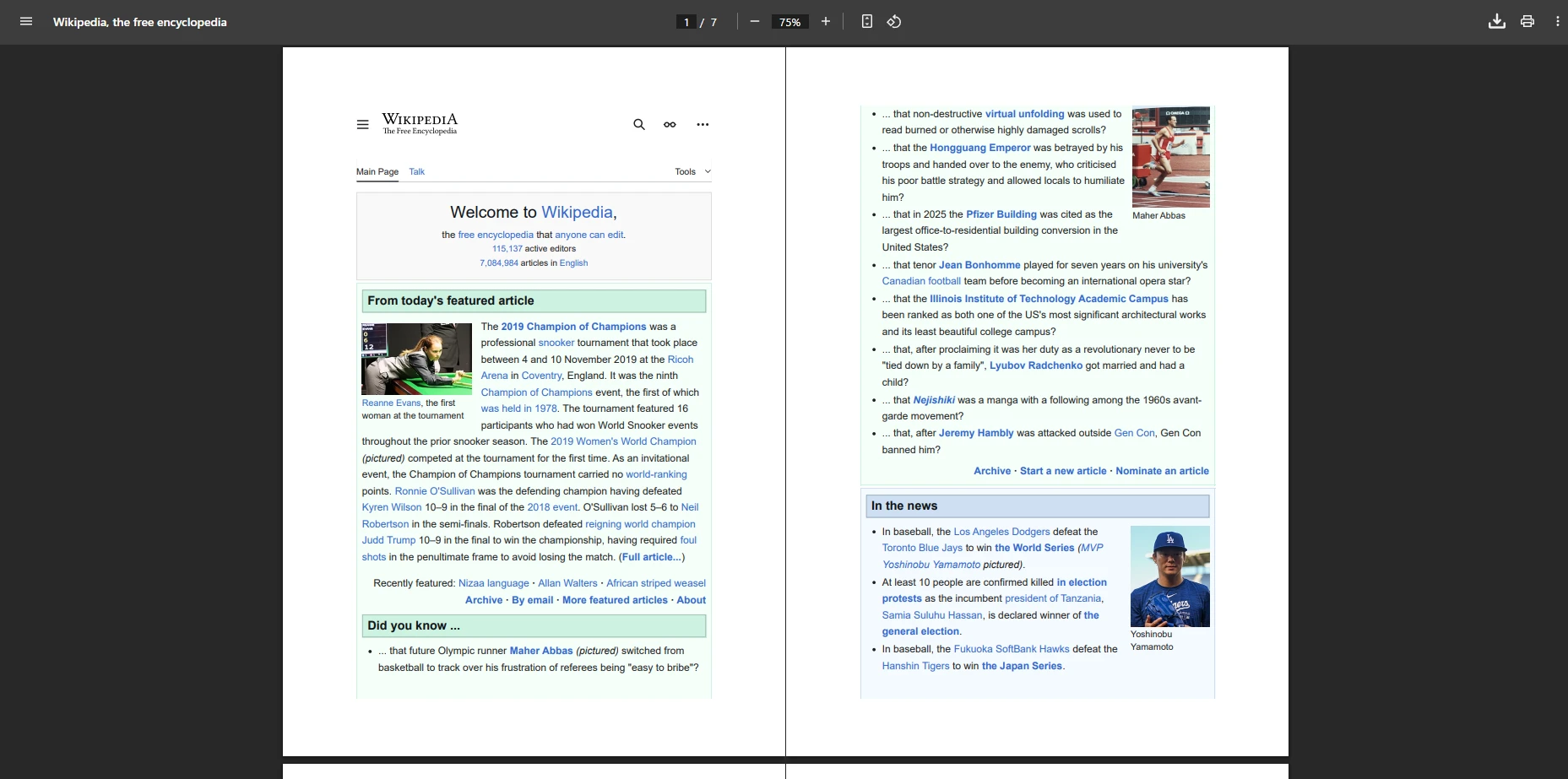
Wikipedia homepage showing multiple content sections including featured articles about the 2019 Champion of Champions snooker tournament, current news items, and educational facts, demonstrating how complex web layouts are preserved when converted to PDF

When Should You Use JavaScript Rendering for Dynamic Content?

For pages with JavaScript or dynamic content in secure environments, you can implement controlled execution using JavaScript rendering capabilities and wait strategies:

var renderer = new ChromePdfRenderer();

// Configure JavaScript execution with security controls
renderer.RenderingOptions.EnableJavaScript = true;
renderer.RenderingOptions.WaitFor.RenderDelay(1000); // Max 1 second wait
renderer.RenderingOptions.WaitFor.NetworkIdle(500); // Wait for network idle

// Handle authentication for internal systems
renderer.LoginCredentials = new ChromeHttpLoginCredentials()
{
    EnableKerberosAuthentication = true, // For Windows domains
    Username = Configuration["ServiceAccount:Username"],
    Password = Configuration["ServiceAccount:Password"]
};

// Add cookies for session management
renderer.RenderingOptions.RequestContext.ApplyCookies(
    "___PROTECTED_URL_37___",
    new CookieParam[]
    {
        new CookieParam() { Name = "SessionId", Value = GetSecureSessionId() },
        new CookieParam() { Name = "AuthToken", Value = GetAuthToken() }
    }
);

// Convert with complete error handling
try
{
    var pdf = renderer.RenderUrlAsPdf("___PROTECTED_URL_37___");

    // Scan for security issues
    if (ContainsMaliciousContent(pdf))
    {
        throw new SecurityException("Potentially malicious content detected");
    }

    pdf.SaveAs("dashboard.pdf");
}
catch (Exception ex)
{
    _securityLogger.LogError("URL to PDF conversion failed", ex);
    throw;
}
var renderer = new ChromePdfRenderer();

// Configure JavaScript execution with security controls
renderer.RenderingOptions.EnableJavaScript = true;
renderer.RenderingOptions.WaitFor.RenderDelay(1000); // Max 1 second wait
renderer.RenderingOptions.WaitFor.NetworkIdle(500); // Wait for network idle

// Handle authentication for internal systems
renderer.LoginCredentials = new ChromeHttpLoginCredentials()
{
    EnableKerberosAuthentication = true, // For Windows domains
    Username = Configuration["ServiceAccount:Username"],
    Password = Configuration["ServiceAccount:Password"]
};

// Add cookies for session management
renderer.RenderingOptions.RequestContext.ApplyCookies(
    "___PROTECTED_URL_37___",
    new CookieParam[]
    {
        new CookieParam() { Name = "SessionId", Value = GetSecureSessionId() },
        new CookieParam() { Name = "AuthToken", Value = GetAuthToken() }
    }
);

// Convert with complete error handling
try
{
    var pdf = renderer.RenderUrlAsPdf("___PROTECTED_URL_37___");

    // Scan for security issues
    if (ContainsMaliciousContent(pdf))
    {
        throw new SecurityException("Potentially malicious content detected");
    }

    pdf.SaveAs("dashboard.pdf");
}
catch (Exception ex)
{
    _securityLogger.LogError("URL to PDF conversion failed", ex);
    throw;
}
$vbLabelText   $csharpLabel

Learn more about URL to PDF conversion and handling JavaScript content for complex web applications. For secure sites, explore TLS and system logins and Kerberos authentication. You should also implement custom HTTP headers and cookie management for session handling. Advanced scenarios may require WebGL rendering support or custom JavaScript execution.## How Can You Configure PDF Generation Settings?

IronPDF offers extensive customization options for PDF conversion to meet enterprise compliance requirements through complete rendering options:

var renderer = new ChromePdfRenderer();

// Configure page layout for archival standards
renderer.RenderingOptions.PaperSize = IronPdf.Rendering.PdfPaperSize.Letter;
renderer.RenderingOptions.PaperOrientation = IronPdf.Rendering.PdfPaperOrientation.Portrait;

// Set margins for compliance (in millimeters)
renderer.RenderingOptions.MarginTop = 25.4; // 1 inch
renderer.RenderingOptions.MarginBottom = 25.4;
renderer.RenderingOptions.MarginLeft = 19.05; // 0.75 inch
renderer.RenderingOptions.MarginRight = 19.05;

// Configure for accessibility compliance
renderer.RenderingOptions.PrintHtmlBackgrounds = false; // Better contrast
renderer.RenderingOptions.GrayScale = false; // Maintain color for accessibility

// Set DPI for archival quality
renderer.RenderingOptions.DPI = 300; // High quality for OCR

// Enable forms for interactive documents
renderer.RenderingOptions.CreatePdfFormsFromHtml = true;

// Generate PDF with enterprise settings
var pdf = renderer.RenderHtmlAsPdf("<h1>Custom Layout</h1>");

// Apply compression for storage optimization
pdf.CompressImages(80); // 80% JPEG quality

// Convert to PDF/A for long-term archival
pdf.ConvertToPdfA(IronPdf.PdfA.PdfAVersions.PdfA3);

pdf.SaveAs("custom.pdf");
var renderer = new ChromePdfRenderer();

// Configure page layout for archival standards
renderer.RenderingOptions.PaperSize = IronPdf.Rendering.PdfPaperSize.Letter;
renderer.RenderingOptions.PaperOrientation = IronPdf.Rendering.PdfPaperOrientation.Portrait;

// Set margins for compliance (in millimeters)
renderer.RenderingOptions.MarginTop = 25.4; // 1 inch
renderer.RenderingOptions.MarginBottom = 25.4;
renderer.RenderingOptions.MarginLeft = 19.05; // 0.75 inch
renderer.RenderingOptions.MarginRight = 19.05;

// Configure for accessibility compliance
renderer.RenderingOptions.PrintHtmlBackgrounds = false; // Better contrast
renderer.RenderingOptions.GrayScale = false; // Maintain color for accessibility

// Set DPI for archival quality
renderer.RenderingOptions.DPI = 300; // High quality for OCR

// Enable forms for interactive documents
renderer.RenderingOptions.CreatePdfFormsFromHtml = true;

// Generate PDF with enterprise settings
var pdf = renderer.RenderHtmlAsPdf("<h1>Custom Layout</h1>");

// Apply compression for storage optimization
pdf.CompressImages(80); // 80% JPEG quality

// Convert to PDF/A for long-term archival
pdf.ConvertToPdfA(IronPdf.PdfA.PdfAVersions.PdfA3);

pdf.SaveAs("custom.pdf");
$vbLabelText   $csharpLabel

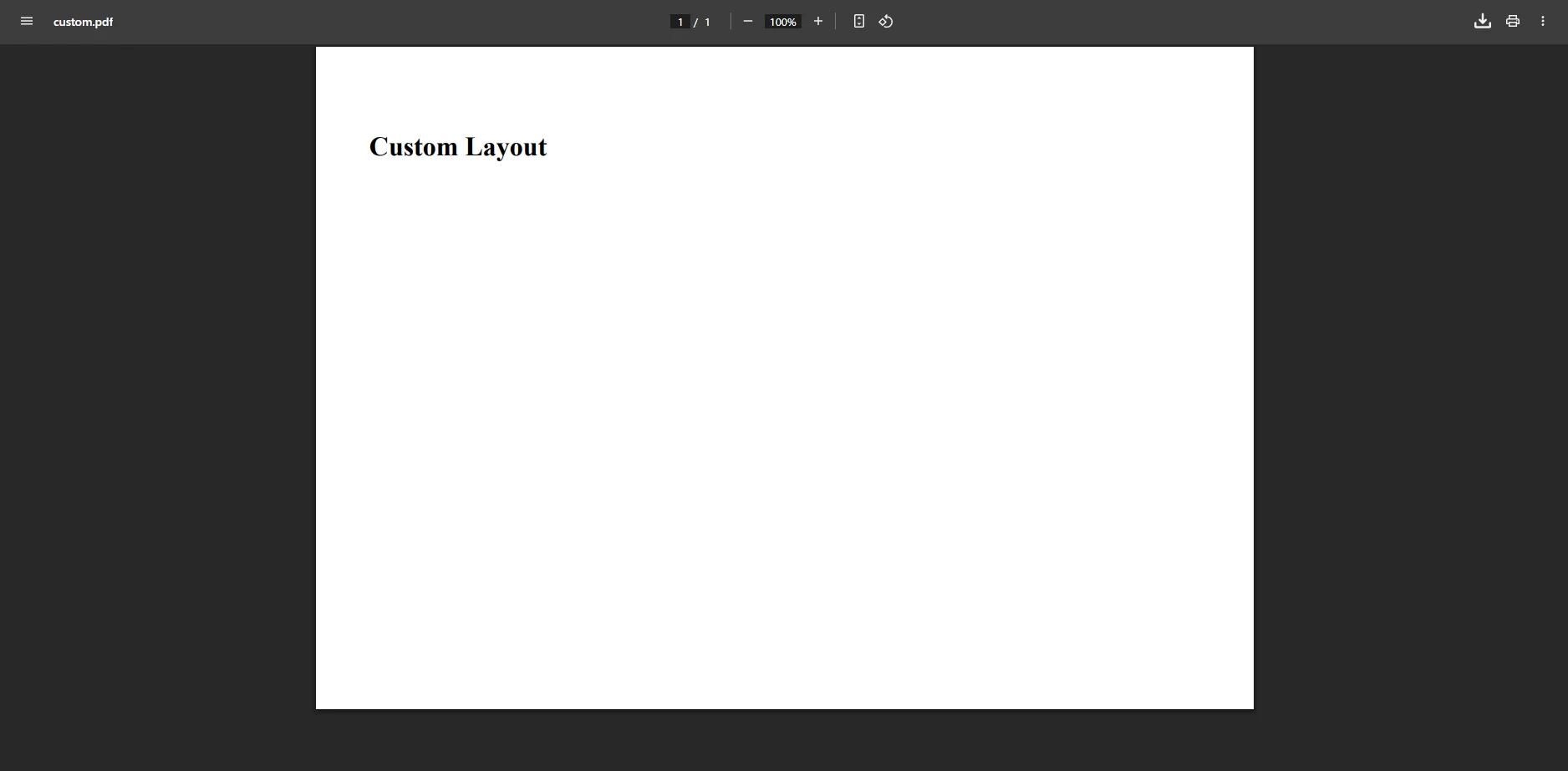
What Customization Options Are Available?

PDF viewer displaying a custom layout document with proper formatting, headers, and structured content sections demonstrating various PDF customization options and professional document appearance

How Do You Improve PDFs for Enterprise Requirements?

Additional enterprise configuration options include page break control and UTF-8 support:

// Configure for specific compliance requirements
renderer.RenderingOptions.CustomPaperSizeInInches = new IronPdf.PdfPaperSize(8.5, 11);

// Set viewport for responsive design testing
renderer.RenderingOptions.ViewportWidth = 1920;
renderer.RenderingOptions.ViewportHeight = 1080;

// Configure CSS media type for print optimization
renderer.RenderingOptions.CssMediaType = IronPdf.Rendering.PdfCssMediaType.Print;

// Enable features for accessibility
renderer.RenderingOptions.GenerateUniqueDocumentIdentifiers = true;
renderer.RenderingOptions.IncludeBackgroundColor = false; // Better contrast

// Configure font embedding for compliance
renderer.RenderingOptions.ForcePaperSize = true;
renderer.RenderingOptions.FitToPaperMode = IronPdf.Engines.Chrome.FitToPaperMode.FixedPixelWidth;

// Set render quality options
renderer.RenderingOptions.RenderQuality = IronPdf.Engines.Chrome.RenderQuality.High;

// Configure for batch processing
renderer.RenderingOptions.BatchSize = 50; // Process 50 pages at a time
renderer.RenderingOptions.MaxConcurrentThreads = 4; // Limit CPU usage
// Configure for specific compliance requirements
renderer.RenderingOptions.CustomPaperSizeInInches = new IronPdf.PdfPaperSize(8.5, 11);

// Set viewport for responsive design testing
renderer.RenderingOptions.ViewportWidth = 1920;
renderer.RenderingOptions.ViewportHeight = 1080;

// Configure CSS media type for print optimization
renderer.RenderingOptions.CssMediaType = IronPdf.Rendering.PdfCssMediaType.Print;

// Enable features for accessibility
renderer.RenderingOptions.GenerateUniqueDocumentIdentifiers = true;
renderer.RenderingOptions.IncludeBackgroundColor = false; // Better contrast

// Configure font embedding for compliance
renderer.RenderingOptions.ForcePaperSize = true;
renderer.RenderingOptions.FitToPaperMode = IronPdf.Engines.Chrome.FitToPaperMode.FixedPixelWidth;

// Set render quality options
renderer.RenderingOptions.RenderQuality = IronPdf.Engines.Chrome.RenderQuality.High;

// Configure for batch processing
renderer.RenderingOptions.BatchSize = 50; // Process 50 pages at a time
renderer.RenderingOptions.MaxConcurrentThreads = 4; // Limit CPU usage
$vbLabelText   $csharpLabel

Explore complete guides on custom paper sizes, custom margins, and rendering options for complete control. Review viewport settings and CSS media type configuration for responsive design handling. For performance optimization, consider linearization for web viewing and compression techniques. Advanced options include PDF versions control and font management for cross-platform compatibility.

How Can You Add Headers and Footers to PDF Files?

Professional PDF documents in enterprise environments require standardized headers and footers with compliance information using header and footer functionality:

var renderer = new ChromePdfRenderer();

// Configure enterprise header
renderer.RenderingOptions.TextHeader = new TextHeaderFooter()
{
    CenterText = "CONFIDENTIAL - Internal Use Only",
    LeftText = "Document ID: {document-id}",
    RightText = "{date:yyyy-MM-dd}",
    DrawDividerLine = true,
    FontSize = 10,
    FontFamily = "Arial"
};

// Configure compliance footer
renderer.RenderingOptions.TextFooter = new TextHeaderFooter()
{
    LeftText = "© 2025 Enterprise Corp - Proprietary",
    CenterText = "Page {page} of {total-pages}",
    RightText = "Classification: Restricted",
    FontSize = 8,
    FontFamily = "Arial"
};

// Add margins for headers/footers
renderer.RenderingOptions.MarginTop = 40;
renderer.RenderingOptions.MarginBottom = 40;

var pdf = renderer.RenderHtmlAsPdf("<h1>Report Content</h1>");
pdf.SaveAs("report-with-header.pdf");
var renderer = new ChromePdfRenderer();

// Configure enterprise header
renderer.RenderingOptions.TextHeader = new TextHeaderFooter()
{
    CenterText = "CONFIDENTIAL - Internal Use Only",
    LeftText = "Document ID: {document-id}",
    RightText = "{date:yyyy-MM-dd}",
    DrawDividerLine = true,
    FontSize = 10,
    FontFamily = "Arial"
};

// Configure compliance footer
renderer.RenderingOptions.TextFooter = new TextHeaderFooter()
{
    LeftText = "© 2025 Enterprise Corp - Proprietary",
    CenterText = "Page {page} of {total-pages}",
    RightText = "Classification: Restricted",
    FontSize = 8,
    FontFamily = "Arial"
};

// Add margins for headers/footers
renderer.RenderingOptions.MarginTop = 40;
renderer.RenderingOptions.MarginBottom = 40;

var pdf = renderer.RenderHtmlAsPdf("<h1>Report Content</h1>");
pdf.SaveAs("report-with-header.pdf");
$vbLabelText   $csharpLabel

Why Do Headers and Footers Matter for Compliance?

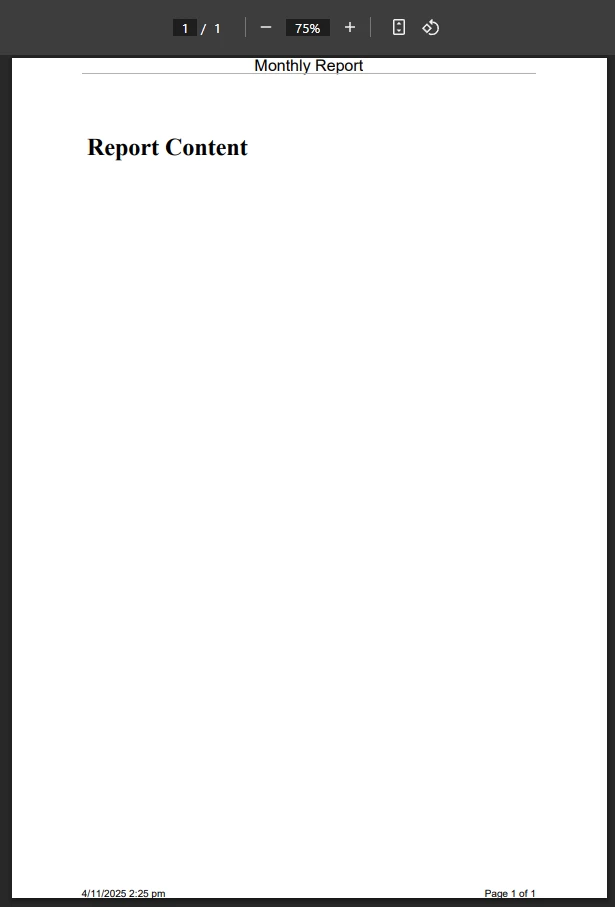
PDF viewer showing a monthly report with properly formatted headers including document title and compliance information, footers with page numbers and classification markings, demonstrating professional enterprise document standards

How Can You Create Custom HTML Headers with Branding?

For complex enterprise headers with branding and dynamic content using HTML headers and footers:

// Create HTML header with corporate branding
renderer.RenderingOptions.HtmlHeader = new HtmlHeaderFooter()
{
    HtmlFragment = @"
        <div style='display: flex; justify-content: space-between; align-items: center; 
                    border-bottom: 2px solid #003366; padding: 10px;'>
            <img src='corporate-logo.png' style='height: 40px;' />
            <div style='text-align: center;'>
                <h2>Enterprise Corporation</h2>
                <p style='margin: 0; font-size: 12px;'>Quarterly Financial Report</p>
            </div>
            <div style='text-align: right; font-size: 10px;'>
                <p>Report Date: {date}</p>
                <p>Doc ID: {document-id}</p>
            </div>
        </div>",
    MaxHeight = 100,
    DrawDividerLine = false
};

// Create compliance footer with security classification
renderer.RenderingOptions.HtmlFooter = new HtmlHeaderFooter()
{
    HtmlFragment = @"
        <div style='border-top: 1px solid #ccc; padding: 10px; font-size: 10px;'>
            <table style='width: 100%;'>
                <tr>
                    <td style='width: 33%; text-align: left;'>
                        Classification: <span style='color: red; font-weight: bold;'>RESTRICTED</span>
                    </td>
                    <td style='width: 34%; text-align: center;'>
                        Page {page} of {total-pages}
                    </td>
                    <td style='width: 33%; text-align: right;'>
                        © 2025 Enterprise Corp | ISO 27001 Certified
                    </td>
                </tr>
            </table>
            <div style='text-align: center; font-size: 8px; color: #666; margin-top: 5px;'>
                This document contains proprietary information and is subject to the terms of the 
                Enterprise Corporation Non-Disclosure Agreement. Unauthorized distribution is prohibited.
            </div>
        </div>",
    MaxHeight = 80
};
// Create HTML header with corporate branding
renderer.RenderingOptions.HtmlHeader = new HtmlHeaderFooter()
{
    HtmlFragment = @"
        <div style='display: flex; justify-content: space-between; align-items: center; 
                    border-bottom: 2px solid #003366; padding: 10px;'>
            <img src='corporate-logo.png' style='height: 40px;' />
            <div style='text-align: center;'>
                <h2>Enterprise Corporation</h2>
                <p style='margin: 0; font-size: 12px;'>Quarterly Financial Report</p>
            </div>
            <div style='text-align: right; font-size: 10px;'>
                <p>Report Date: {date}</p>
                <p>Doc ID: {document-id}</p>
            </div>
        </div>",
    MaxHeight = 100,
    DrawDividerLine = false
};

// Create compliance footer with security classification
renderer.RenderingOptions.HtmlFooter = new HtmlHeaderFooter()
{
    HtmlFragment = @"
        <div style='border-top: 1px solid #ccc; padding: 10px; font-size: 10px;'>
            <table style='width: 100%;'>
                <tr>
                    <td style='width: 33%; text-align: left;'>
                        Classification: <span style='color: red; font-weight: bold;'>RESTRICTED</span>
                    </td>
                    <td style='width: 34%; text-align: center;'>
                        Page {page} of {total-pages}
                    </td>
                    <td style='width: 33%; text-align: right;'>
                        © 2025 Enterprise Corp | ISO 27001 Certified
                    </td>
                </tr>
            </table>
            <div style='text-align: center; font-size: 8px; color: #666; margin-top: 5px;'>
                This document contains proprietary information and is subject to the terms of the 
                Enterprise Corporation Non-Disclosure Agreement. Unauthorized distribution is prohibited.
            </div>
        </div>",
    MaxHeight = 80
};
$vbLabelText   $csharpLabel

Learn more about adding headers and footers and explore advanced options for page numbers. For specific page requirements, review selective header/footer application. Consider watermarking for additional security marking and explore background and foreground overlays for branded templates.

How Can You Work with Different HTML Sources?

IronPDF provides multiple secure methods to generate PDFs from various HTML sources in enterprise environments, including HTML file conversion and HTML string rendering:

How Do You Convert HTML Files Directly?

var renderer = new ChromePdfRenderer();

// Validate file paths for security
string templatePath = Path.Combine(Configuration["SecureTemplatePath"], "invoice.html");
if (!File.Exists(templatePath) || !IsPathSecure(templatePath))
{
    throw new SecurityException("Invalid template path");
}

// Convert HTML file to PDF with sanitization
var pdf = renderer.RenderHtmlFileAsPdf(templatePath);

// Process multiple HTML files with parallel processing
string[] htmlFiles = Directory.GetFiles(Configuration["SecureTemplatePath"], "*.html");
var parallelOptions = new ParallelOptions
{
    MaxDegreeOfParallelism = Environment.ProcessorCount
};

Parallel.ForEach(htmlFiles, parallelOptions, file =>
{
    if (IsPathSecure(file))
    {
        var pdfDoc = renderer.RenderHtmlFileAsPdf(file);

        // Apply consistent security settings
        pdfDoc.SecuritySettings.AllowUserEditing = false;
        pdfDoc.SecuritySettings.AllowUserCopyPasteContent = false;

        string outputPath = Path.ChangeExtension(file, ".pdf");
        pdfDoc.SaveAs(outputPath);

        // Log for audit trail
        _auditLogger.LogFileConversion(file, outputPath, pdfDoc.PageCount);
    }
});
var renderer = new ChromePdfRenderer();

// Validate file paths for security
string templatePath = Path.Combine(Configuration["SecureTemplatePath"], "invoice.html");
if (!File.Exists(templatePath) || !IsPathSecure(templatePath))
{
    throw new SecurityException("Invalid template path");
}

// Convert HTML file to PDF with sanitization
var pdf = renderer.RenderHtmlFileAsPdf(templatePath);

// Process multiple HTML files with parallel processing
string[] htmlFiles = Directory.GetFiles(Configuration["SecureTemplatePath"], "*.html");
var parallelOptions = new ParallelOptions
{
    MaxDegreeOfParallelism = Environment.ProcessorCount
};

Parallel.ForEach(htmlFiles, parallelOptions, file =>
{
    if (IsPathSecure(file))
    {
        var pdfDoc = renderer.RenderHtmlFileAsPdf(file);

        // Apply consistent security settings
        pdfDoc.SecuritySettings.AllowUserEditing = false;
        pdfDoc.SecuritySettings.AllowUserCopyPasteContent = false;

        string outputPath = Path.ChangeExtension(file, ".pdf");
        pdfDoc.SaveAs(outputPath);

        // Log for audit trail
        _auditLogger.LogFileConversion(file, outputPath, pdfDoc.PageCount);
    }
});
$vbLabelText   $csharpLabel

When Should You Use Base64 Images in HTML?

For secure image embedding and data isolation, use Base64 encoded images and explore image management techniques:

// Secure image embedding for data isolation
string htmlWithImage = @"
    <h1>Product Catalog</h1>
    <img src='data:image/png;base64,iVBORw0KGgoAAAANS...' alt='Product Image' />";

// Validate base64 content for security
if (!IsBase64Valid(htmlWithImage))
{
    throw new SecurityException("Invalid base64 image data");
}

var pdf = renderer.RenderHtmlAsPdf(htmlWithImage);

// Function to create secure product HTML with image validation
string CreateSecureProductHTML(string productName, byte[] imageData)
{
    // Validate image data
    if (imageData.Length > 5 * 1024 * 1024) // 5MB limit
    {
        throw new ArgumentException("Image size exceeds security limit");
    }

    // Scan for malicious content
    if (!IsImageSafe(imageData))
    {
        throw new SecurityException("Potentially malicious image detected");
    }

    string base64Image = Convert.ToBase64String(imageData);
    return $@"
        <div class='product'>
            <h2>{System.Web.HttpUtility.HtmlEncode(productName)}</h2>
            <img src='data:image/jpeg;base64,{base64Image}' 
                 style='width:200px; max-height:300px;' 
                 alt='Product: {System.Web.HttpUtility.HtmlEncode(productName)}' />
        </div>";
}
// Secure image embedding for data isolation
string htmlWithImage = @"
    <h1>Product Catalog</h1>
    <img src='data:image/png;base64,iVBORw0KGgoAAAANS...' alt='Product Image' />";

// Validate base64 content for security
if (!IsBase64Valid(htmlWithImage))
{
    throw new SecurityException("Invalid base64 image data");
}

var pdf = renderer.RenderHtmlAsPdf(htmlWithImage);

// Function to create secure product HTML with image validation
string CreateSecureProductHTML(string productName, byte[] imageData)
{
    // Validate image data
    if (imageData.Length > 5 * 1024 * 1024) // 5MB limit
    {
        throw new ArgumentException("Image size exceeds security limit");
    }

    // Scan for malicious content
    if (!IsImageSafe(imageData))
    {
        throw new SecurityException("Potentially malicious image detected");
    }

    string base64Image = Convert.ToBase64String(imageData);
    return $@"
        <div class='product'>
            <h2>{System.Web.HttpUtility.HtmlEncode(productName)}</h2>
            <img src='data:image/jpeg;base64,{base64Image}' 
                 style='width:200px; max-height:300px;' 
                 alt='Product: {System.Web.HttpUtility.HtmlEncode(productName)}' />
        </div>";
}
$vbLabelText   $csharpLabel

For complete image handling, explore embedding images with DataURIs and image to PDF conversion. Review SVG handling for vector graphics and Azure Blob Storage integration for cloud storage. Consider TIFF conversion for legacy document systems. Additional resources include web fonts and icons integration and Bootstrap CSS support.

What Are Your Next Steps After Implementation?

IronPDF simplifies converting HTML to PDF in ASP.NET applications while maintaining enterprise security standards. Whether you need to generate PDF documents from HTML strings, convert HTML files, or transform entire web pages into PDFs, IronPDF provides a reliable HTML to PDF converter that preserves all HTML content, CSS styles, and JavaScript functionality while offering complete security features.

The library manages the complexity for you when handling everything from simple HTML documents to complex web content, making it the ideal choice for PDF conversion in regulated industries. With support for PDF/A compliance, digital signatures with HSM, PDF/UA accessibility, and metadata management, you can create PDF documents that meet the strictest compliance standards. Advanced features include PDF merging and splitting, form creation and editing, and OCR capabilities through IronOCR integration.

For production deployments, explore async and multithreading for performance optimization, implement PDF compression to reduce storage costs, and use parallel processing for batch operations. Advanced security features include redaction capabilities, password protection, and revision tracking. Consider implementing annotations for collaborative workflows and stamping functionality for document approval processes.

Review our Chrome rendering engine documentation for performance insights, deployment guides for Azure and AWS environments, and Docker containerization options. For high-availability scenarios, consider our IronPdfEngine remote deployment architecture. Explore F# support and VB.NET examples for alternative language implementations.

Get started with IronPDF today through a free trial that includes full enterprise features. For production use, explore our flexible licensing options with transparent pricing and dedicated support. Visit our complete documentation, review API reference, and explore code examples to accelerate your enterprise PDF implementation. For security reviews, access our security documentation and compliance certifications. Consider exploring our suite of tools including Markdown to PDF conversion, XML to PDF transformation, and RTF to PDF conversion for complete document processing capabilities.

자주 묻는 질문

ASP.NET에서 웹페이지를 PDF로 변환하려면 어떻게 해야 하나요?

.NET 라이브러리인 IronPDF를 사용하여 ASP.NET 애플리케이션에서 웹페이지를 PDF로 변환할 수 있습니다. 이 라이브러리를 사용하면 몇 줄의 C# 코드만으로 HTML 콘텐츠에서 전문적인 PDF 파일을 생성할 수 있습니다.

ASP.NET에서 HTML을 PDF로 변환하는 일반적인 사용 사례는 무엇인가요?

일반적인 사용 사례로는 보고서 생성, 송장 작성, ASP.NET 애플리케이션 내의 웹 페이지에서 다운로드 가능한 콘텐츠를 PDF 형식으로 제공하는 것 등이 있습니다.

IronPDF는 전문가급 PDF 생성에 적합한가요?

예, IronPDF는 HTML과 웹 페이지를 고품질의 전문 PDF 문서로 변환하도록 설계되어 비즈니스 및 엔터프라이즈 애플리케이션에 적합합니다.

ASP.NET 애플리케이션에서 IronPDF를 사용하는 것은 얼마나 쉬운가요?

IronPDF는 매우 사용자 친화적입니다. 개발자는 최소한의 코드만으로 HTML을 PDF로 변환할 수 있으므로 기존 ASP.NET 애플리케이션에 쉽게 통합할 수 있습니다.

IronPDF는 CSS와 JavaScript가 포함된 복잡한 웹 페이지를 처리할 수 있나요?

예, IronPDF는 CSS 및 JavaScript를 포함하는 복잡한 웹 페이지를 처리할 수 있으므로 결과 PDF가 원본 웹 페이지의 모양과 느낌을 유지하도록 보장합니다.

IronPDF를 사용하여 웹 페이지에서 PDF 생성을 자동화할 수 있나요?

물론입니다. IronPDF를 자동화된 워크플로우에 통합하여 ASP.NET 애플리케이션에서 프로그래밍 방식으로 웹 페이지에서 PDF를 생성할 수 있습니다.

IronPDF는 HTML 파일을 PDF로 직접 변환하는 기능을 지원하나요?

예, IronPDF를 사용하면 웹 페이지뿐만 아니라 로컬 HTML 파일도 PDF 문서로 직접 변환할 수 있습니다.

PDF 변환을 위해 IronPDF에는 어떤 프로그래밍 언어가 사용되나요?

IronPDF는 ASP.NET 애플리케이션에서 HTML 및 웹 페이지를 PDF로 변환하는 데 C#을 사용합니다.

IronPDF는 동적 웹 콘텐츠에서 PDF를 생성할 수 있나요?

예, IronPDF는 동적 웹 콘텐츠를 처리할 수 있으므로 생성된 PDF가 변환 시점에 웹 페이지의 최신 버전을 반영하도록 보장합니다.

HTML을 PDF로 변환할 때 IronPDF를 사용하면 어떤 이점이 있나요?

IronPDF는 사용 편의성, 고품질 출력, 복잡한 레이아웃 지원, 자동화 기능 등의 이점을 제공하는 강력하고 간단한 HTML을 PDF로 변환하는 방법을 제공합니다.

커티스 차우
기술 문서 작성자

커티스 차우는 칼턴 대학교에서 컴퓨터 과학 학사 학위를 취득했으며, Node.js, TypeScript, JavaScript, React를 전문으로 하는 프론트엔드 개발자입니다. 직관적이고 미적으로 뛰어난 사용자 인터페이스를 만드는 데 열정을 가진 그는 최신 프레임워크를 활용하고, 잘 구성되고 시각적으로 매력적인 매뉴얼을 제작하는 것을 즐깁니다.


커티스는 개발 분야 외에도 사물 인터넷(IoT)에 깊은 관심을 가지고 있으며, 하드웨어와 소프트웨어를 통합하는 혁신적인 방법을 연구합니다. 여가 시간에는 게임을 즐기거나 디스코드 봇을 만들면서 기술에 대한 애정과 창의성을 결합합니다.